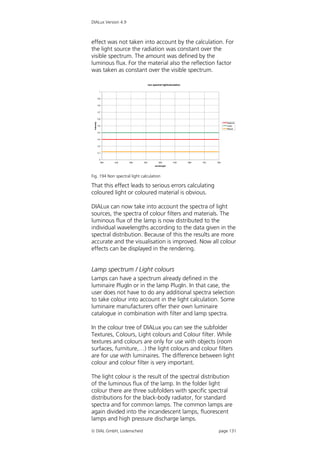
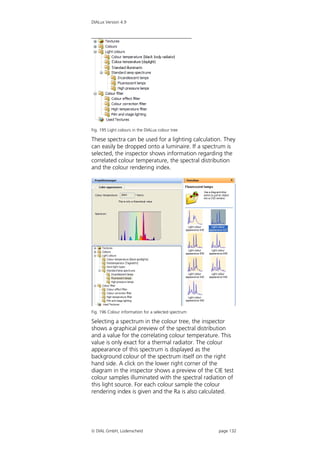
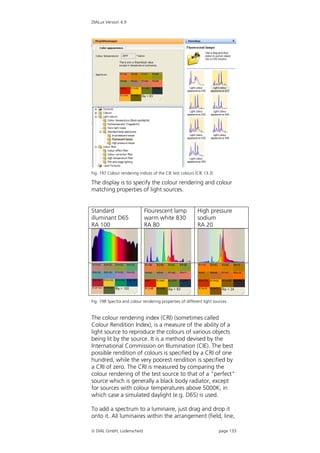
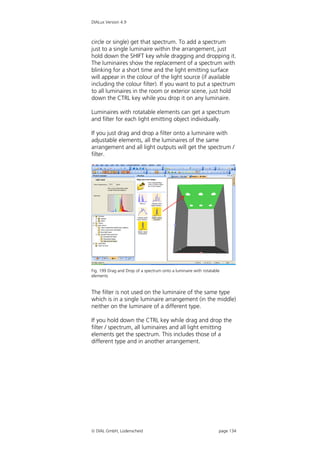
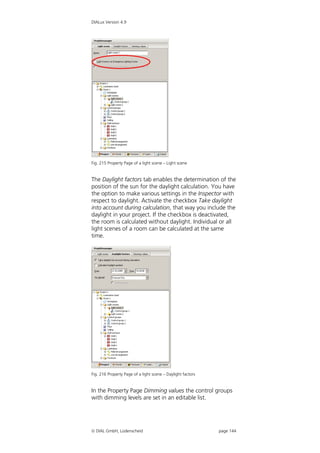
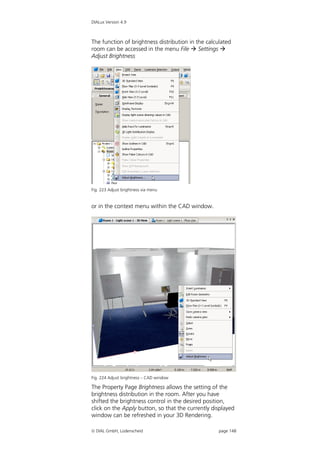
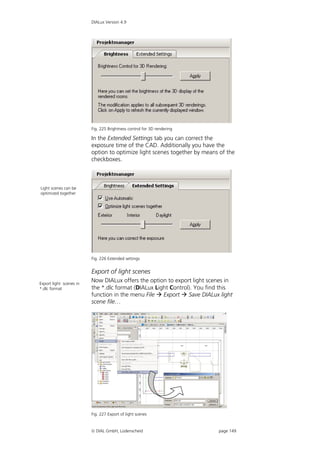
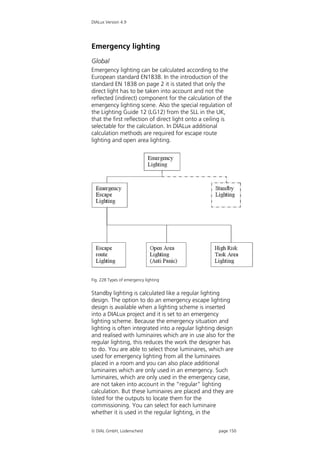
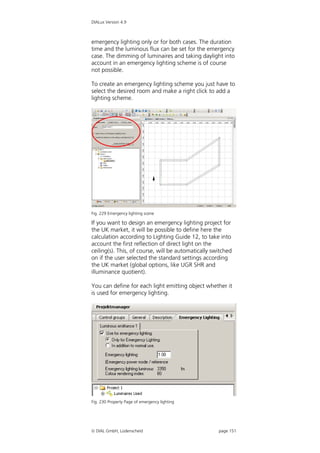
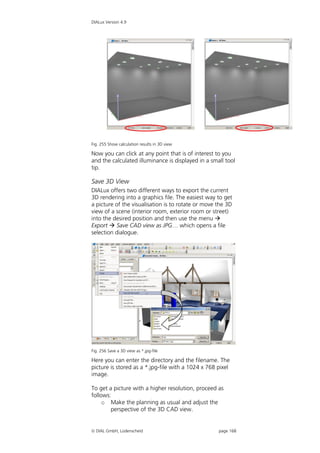
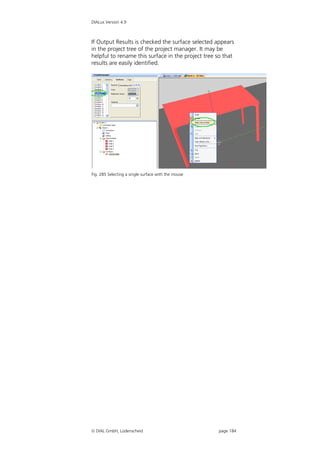
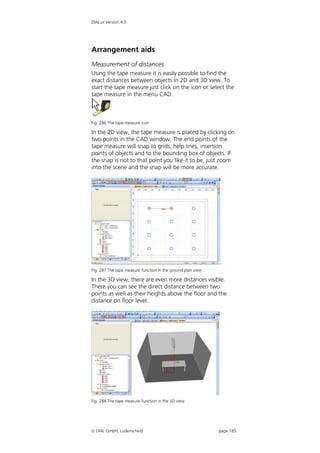
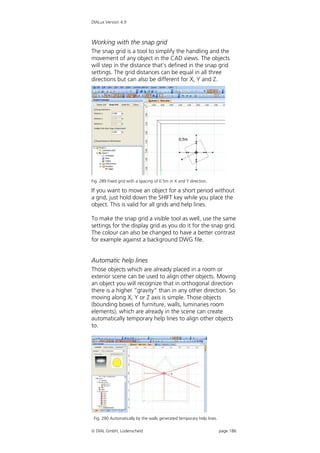
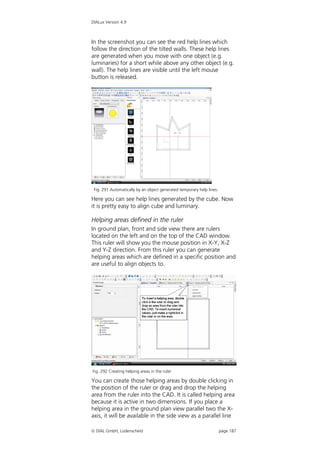
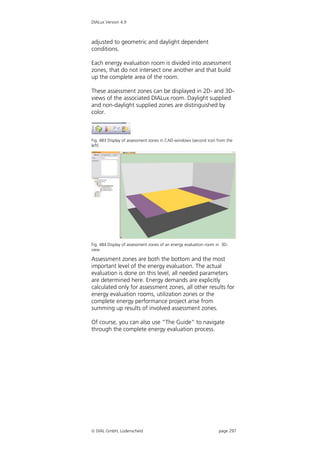
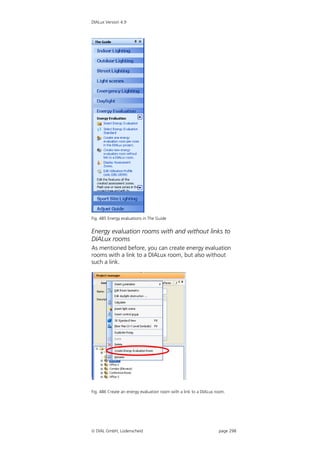
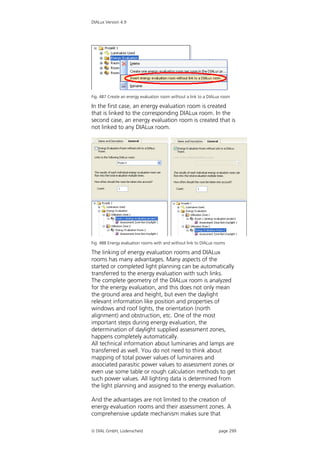
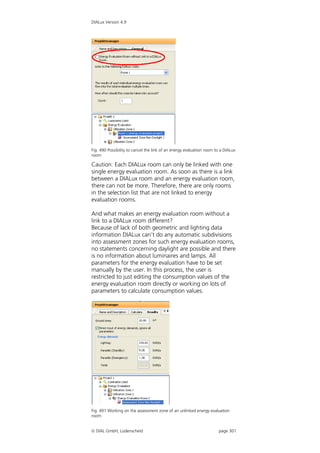
DIALux
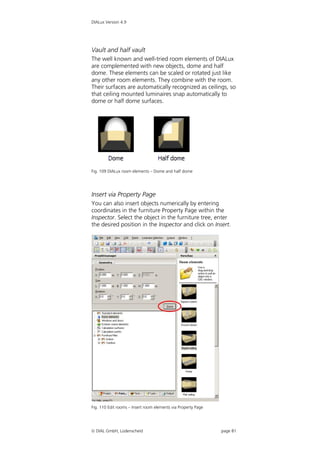
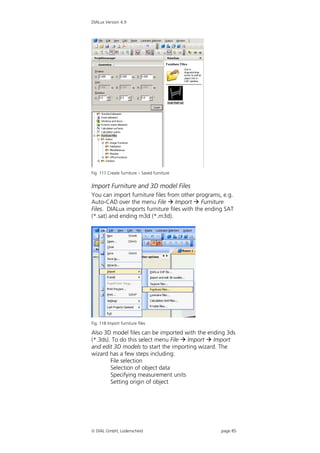
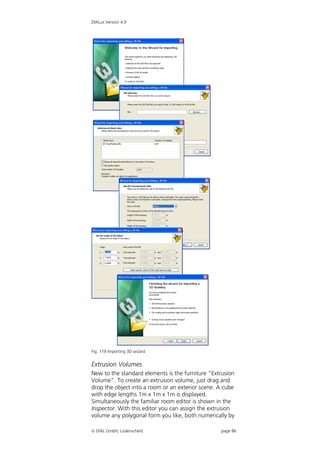
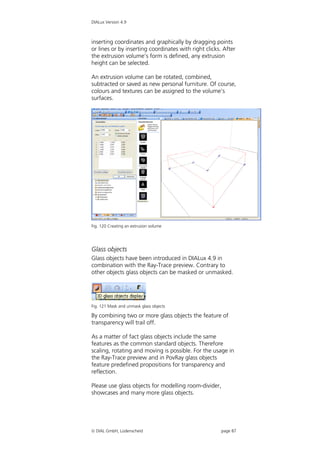
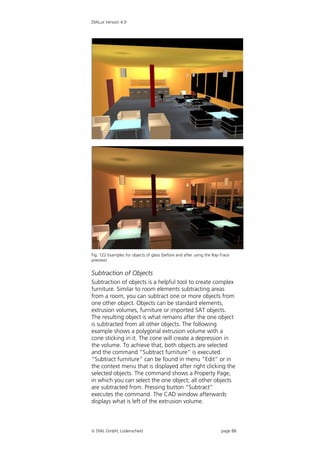
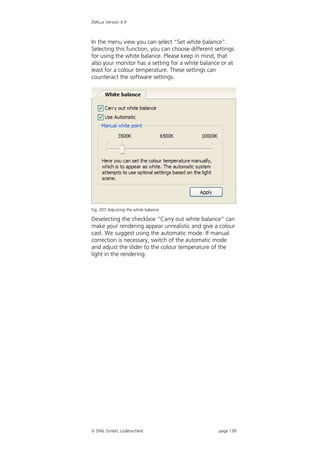
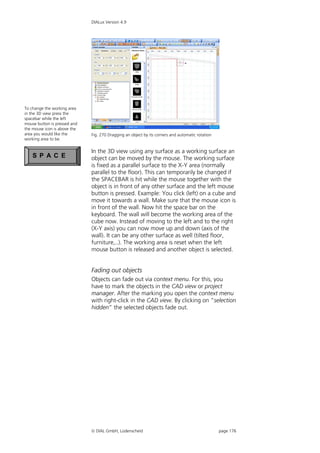
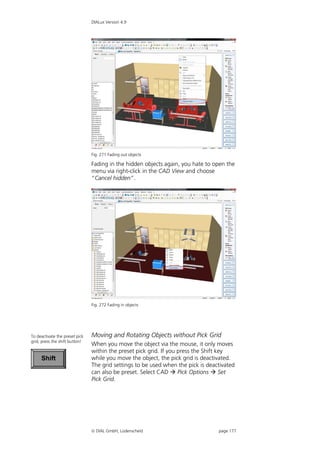
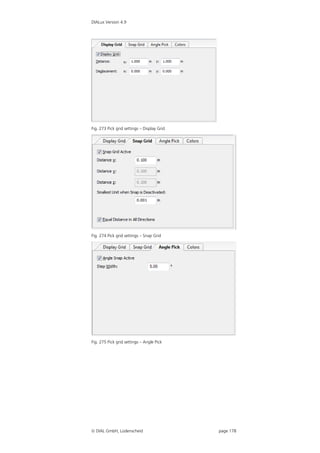
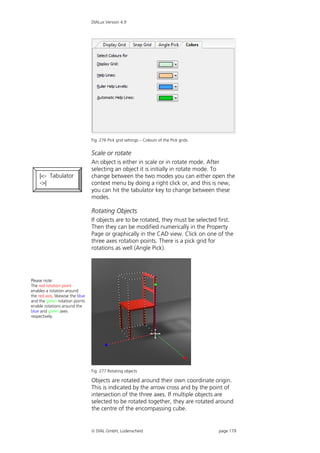
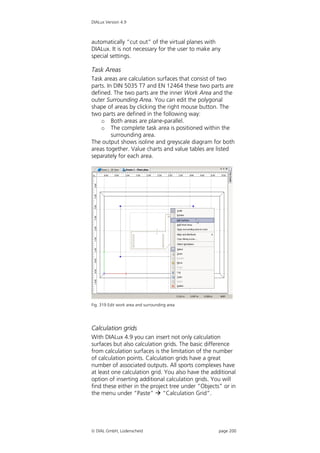
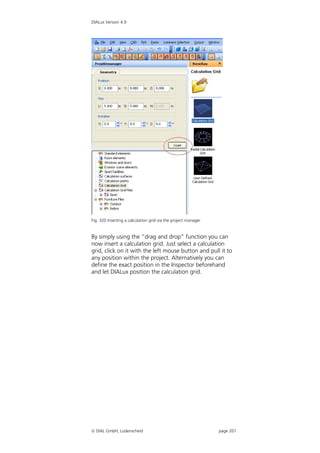
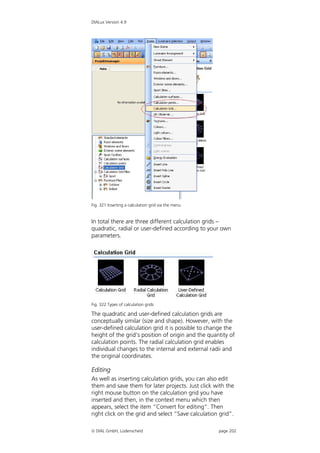
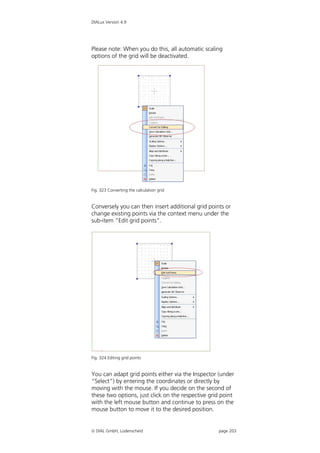
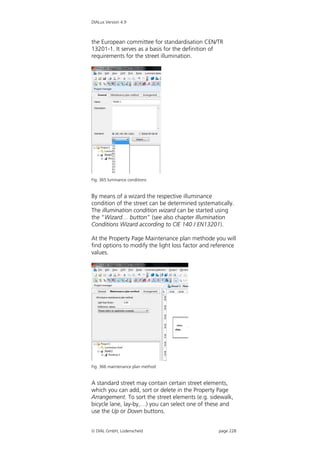
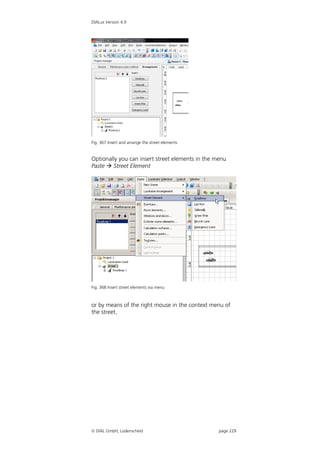
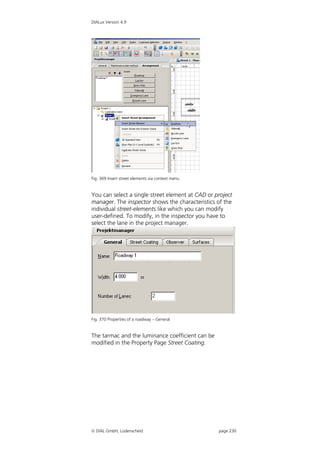
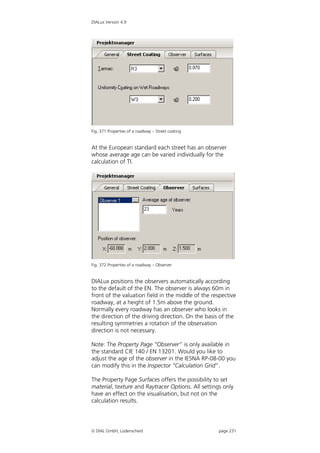
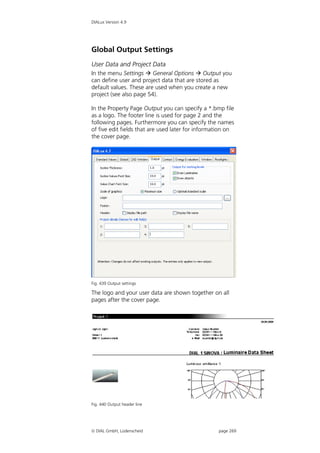
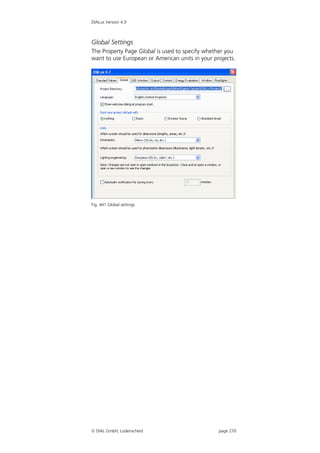
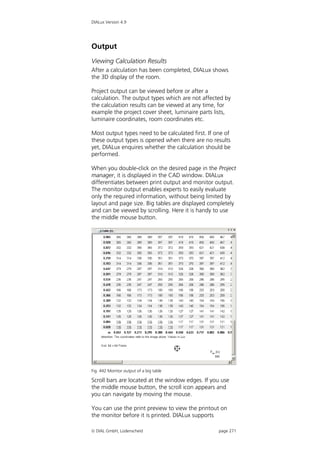
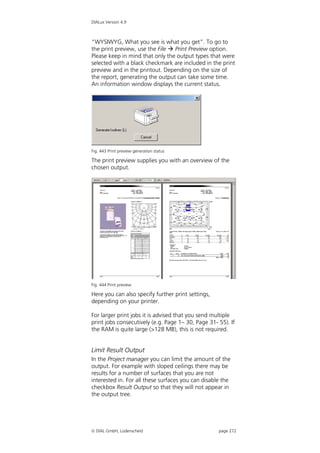
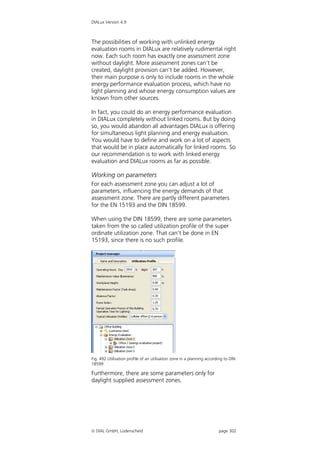
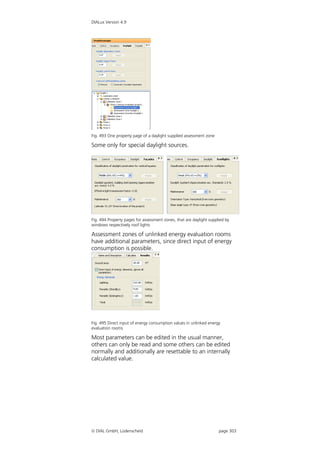
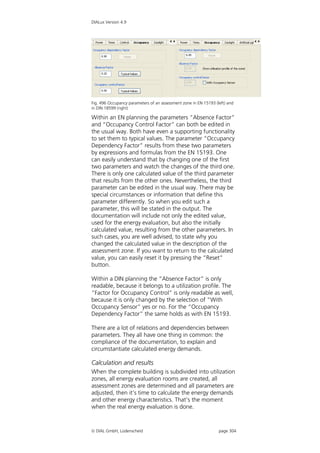
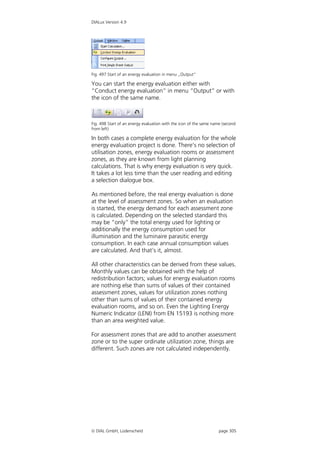
    Version 4.9
The Software Standard for
Calculating Lighting Layouts


   User Manual
DIALux Version 4.9


© 2011 DIAL GmbH
  Gustav-Adolf-Straße 4
  58507 Lüdenscheid
  dialog@dial.de
  www.dial.de


16th Edition 2011
The text and images were prepared with great care. DIAL, the authors and the
translators are, however, not subject to legal obligation or liability for any erroneous
information and its consequences.
This publication is protected by copyright law. All rights are reserved. Most of the
soft-ware and hardware designations used in this manual are registered trademarks
and therefore subject to the applicable laws.
The DIAL GmbH can not be held responsible for any damage to people or property
which might occur in connection with the use of the DIALux software. The program
and documentation was created with great care, however errors cannot be ruled
out.
POV-Ray™
POV-Ray™ is short for the Persistence of Vision™ Raytracer, a tool for producing
high-quality computer graphics. POV-Ray™ is copyrighted freeware, that is to say,
we, the authors, retain all rights and copyright over the program, but that we permit
you to use it for no charge, subject to the conditions stated in our license. You can
read the license by viewing the POV-Ray for Windows About box by using the Help
menu or Alt+B and selecting the appropriate button.

CONTACT INFORMATION for POV-Ray™
License inquiries can be made via email; please check the POV-Ray™ website and
the online copy of this document at http://www.povray.org/povlegal.html for the
current email address of the team leader. (Unfortunately we cannot include it here as
we have to change it from time to time due to spam email being sent to the
address).
The following postal address is only to be used for official license business when
emailing is impossible.
We do not provide technical support. We will not mail you disks with updated
versions. Please do not send money. If you want to know how to support us, please
see http://www.povray.org/supporting-povray.html.

POV-Team
C/O Hallam Oaks P/L
PO Box 407
Williamstown,
Victoria 3016
Australia


MESA      Copyright (C) 1999-2003 Brian Paul All Rights Reserved.
          THE SOFTWARE IS PROVIDED "AS IS", WITHOUT WARRANTY OF ANY
          KIND, EXPRESS OR IMPLIED, INCLUDING BUT NOT LIMITED TO THE
          WARRANTIES OF MERCHANTABILITY, FITNESS FOR A PARTICULAR
          PURPOSE AND NONINFRINGEMENT. IN NO EVENT SHALL BRIAN PAUL BE
          LIABLE FOR ANY CLAIM, DAMAGES OR OTHER LIABILITY, WHETHER IN
          AN ACTION OF CONTRACT, TORT OR OTHERWISE, ARISING FROM, OUT
          OF OR IN CONNECTION WITH THE SOFTWARE OR THE USE OR OTHER
          DEALINGS IN THE SOFTWARE.

Registered Trademarks:
Microsoft, MS, Windows, Windows NT, Win32 are registered trademarks of the
Microsoft Corporation in the USA and other countries.
Adobe, Acrobat Reader are registered trademarks of Adobe Systems, INC.

"POV-Ray™", "Persistence of Vision", "POV-Team™" and "POV-Help" are
trademarks of the POV-Team™. Any other trademarks referred to herein are the
property of their respective holders.


 DIAL GmbH, Lüdenscheid                                                  page 2
DIALux Version 4.9


DIALux Version 4.9

The Software Standard for

Calculating Lighting Layouts


Function Overview

Welcome to DIALux 4.9

This manual is intended to assist you to work fast and
effectively with DIALux. If you have experience with
Windows applications, getting started in DIALux will
present no problem. DIAL regularly offer courses where
the professional use of DIALux can be learned.
Information regarding the course dates and contents are
available under www.dialux.com and www.dial.de or
+49 (0) 2351 1064 360.
Latest information and updates are also available on our
homepage.

In the following you will find a short description of the
functions available in DIALux.

 DIALux offers a number of textures that you are free to use for your
 lighting layouts. The following companies provided those textures:
  Texturenliste SuperFinish – Immobiliendarstellungen, Jochen
    Schroeder/ www.immobiliendarstellung.de
  Arroway Texturen/ www.arroway.de
  Ulf Theis/ www.ulf-theis.de
  Texturenland (Konstantin Gross)/ www.texturenland.de
  Noctua Graphics (Herbert Fahrnholz)/ www.noctua-graphics.de
  Thermopal/ www.thermopal.de
  Rathscheck Schiefer und Dachsysteme KG/ www.rathscheck.de

 They offer many more textures. Check their websites for further
 textures.


 DIAL GmbH, Lüdenscheid                                                page 3
DIALux Version 4.9


Contents
Contents ....................................................................... 4
New functions in DIALux Version 4.9........................... 10
   New features and improvements ............................. 10
   Changes in existing functionality.............................. 11
Installation .................................................................. 12
   Installation after Internet Download......................... 12
   Installation from CD................................................. 13
Online Menu ............................................................... 14
   Online Update ......................................................... 14
   Manage Newsletter subscription .............................. 14
   Wishes and Feedback / Send problem report............ 14
Install Luminaire Data .................................................. 15
   About PlugIns .......................................................... 15
   Online update of luminaire catalogues..................... 15
   About Online Catalogues......................................... 16
   Lamp PlugIns ........................................................... 16
DIALux directories ....................................................... 17
   Background information .......................................... 17
   Furniture, textures, my database .............................. 17
Windows Vista ............................................................ 17
   Projects and raytracing files...................................... 17
Windows Vista ............................................................ 17
   Program files, support.............................................. 18
Windows 2000, XP, Vista ............................................ 18
   Common used program files (DIALux, PlugIns) ......... 18
Windows 2000, XP, Vista ............................................ 18
DIALux Light................................................................ 19
Working with Wizards................................................. 25
The DIALux User Interface ........................................... 34
   The Project manager................................................ 38
   The Luminaire Selection ........................................... 39
   The User Database................................................... 40
   Insert Luminaire Files into DIALux............................. 40
   Lamp PlugIns ........................................................... 41
   The Furniture Tree ................................................... 44
   The Colours Tree (since version 4.3, formerly Texture
   Tree)........................................................................ 44
   The Output Tree ...................................................... 46
   The Guide................................................................ 47
   The Inspector........................................................... 48
   Edit Mode................................................................ 50
Optimise Personal Settings .......................................... 54
   General Options ...................................................... 54
   Direct3D as an alternative to OpenGL ...................... 56
Create a New Project................................................... 61
   Open a new project ................................................. 62
   Project information in the file open dialog ............... 63
Edit Rooms.................................................................. 64
   Edit Room Geometry ............................................... 64
   Edit Room Data ....................................................... 65
   An easy method for determining maintenance factor
    ............................................................................... 66

 DIAL GmbH, Lüdenscheid                                                      page 4
DIALux Version 4.9


    Extended method for determining maintenance factor
     ............................................................................... 68
    Modify Properties of Individual Walls ....................... 76
Insert Room Elements.................................................. 78
    Modify a Room with Room Elements ....................... 78
    Vault and half vault ................................................. 81
    Insert via Property Page............................................ 81
Insert Furniture............................................................ 82
    Insert Furniture ........................................................ 82
    Insert via Property Page............................................ 82
    Create Furniture ...................................................... 82
    Import Furniture and 3D model Files ........................ 85
    Extrusion Volumes ................................................... 86
    Glass objects............................................................ 87
    Subtraction of Objects ............................................. 88
    Selecting Single Surfaces.......................................... 89
    Windows and Doors ................................................ 90
    Decoration Objects .................................................. 90
    Insert Decoration Objects......................................... 91
    Calculate with Decoration Objects ........................... 92
Insert Textures............................................................. 93
    Insert via Drag & Drop ............................................. 93
    Edit Placed Textures ................................................. 93
    Delete Textures........................................................ 94
    Import Textures into the Texture Tree ...................... 94
    Edit Room Geometry with DWG or DXF-File............. 95
Material dialogue for surfaces ..................................... 96
    Colour ..................................................................... 96
    Reflection (Rho) ....................................................... 96
    Transparency ........................................................... 96
    Calculation of transparency ..................................... 97
    Roughness............................................................... 97
    Mirror effect ............................................................ 97
    Material................................................................... 97
    Raytrace preview ..................................................... 97
Duplicate (Copy Rooms/Scenes/Streets) ..................... 100
    Duplicate an Existing Room.................................... 100
Insert and Edit Luminaires and Luminaire Arrangements
 ................................................................................. 101
    Online Catalogues ................................................. 102
    Individual Luminaires ............................................. 102
    Aligning Luminaires ............................................... 105
    Inserting Luminaire Fields....................................... 107
    Inserting Luminaire Lines........................................ 111
    Aligning Lights....................................................... 113
    Inserting Luminaire Circles ..................................... 113
    Separating Luminaire Arrangements ...................... 114
    Floodlighting ......................................................... 114
    Inserting floodlight illumination ............................. 114
    Arranging floodlighting ......................................... 116
    Focal points ........................................................... 116
    Modify the position of a Luminaire ........................ 118
    Luminaires with articulated joints........................... 119
    Luminaires with several articulated joints ............... 120

 DIAL GmbH, Lüdenscheid                                                       page 5
DIALux Version 4.9


    Unrestricted lighting arrangements ........................ 120
    Aligning luminaire arrangements ........................... 122
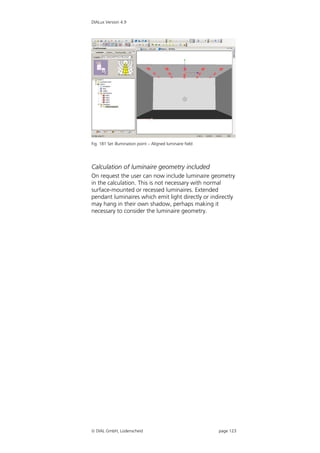
    Calculation of luminaire geometry included ........... 123
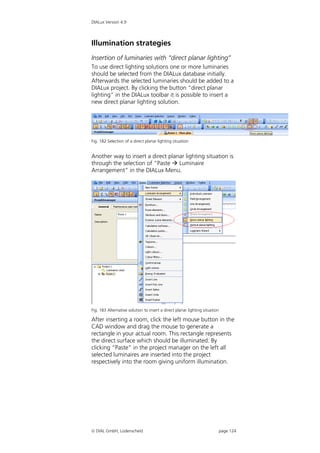
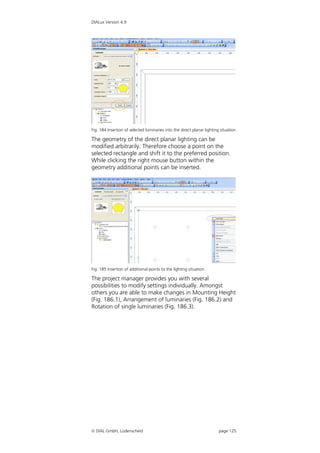
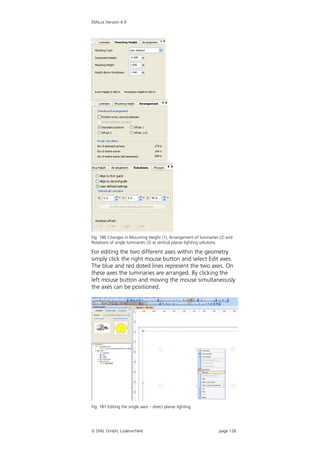
Illumination strategies ............................................... 124
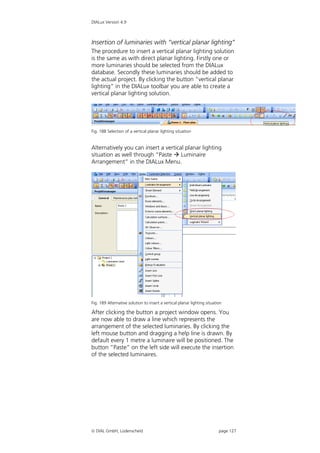
    Insertion of luminaries with “direct planar lighting”
     ............................................................................. 124
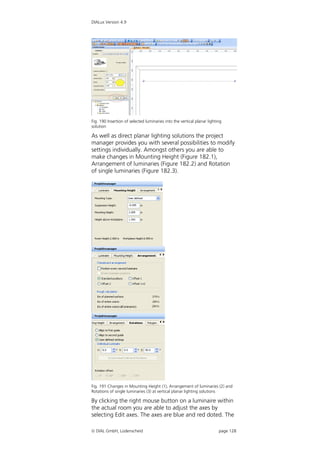
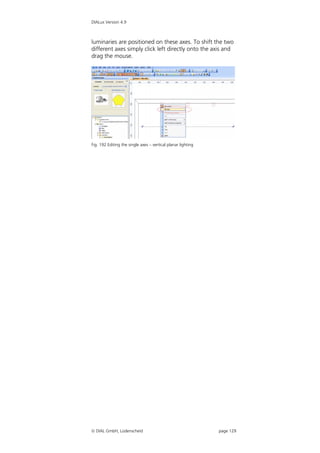
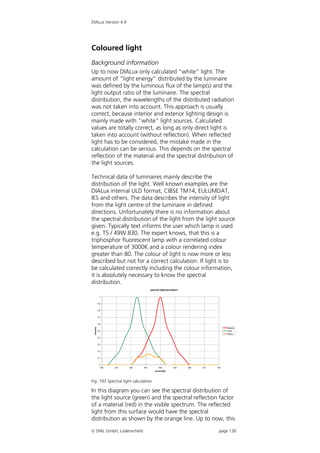
    Insertion of luminaries with “vertical planar lighting”
     ............................................................................. 127
Coloured light ........................................................... 130
    Background information ........................................ 130
    Lamp spectrum / Light colours ............................... 131
    Colour filters.......................................................... 136
    Coaction of spectral distribution of the light source
    and colour filter ..................................................... 137
    Light colours in the ray tracing............................... 138
    White balance ....................................................... 138
Light Scenes and Control Groups .............................. 140
    Definition .............................................................. 140
    Requirements ........................................................ 140
    Generate a project with light scenes and control
    groups................................................................... 140
    Modify light scenes and control groups.................. 147
    Export of light scenes............................................. 149
Emergency lighting.................................................... 150
    Global ................................................................... 150
    Escape route lighting ............................................. 152
    Open area lighting (anti panic)............................... 154
    High risk task area lighting..................................... 157
    Luminaires with emergency lights .......................... 157
    Emergency lighting data sheet ............................... 158
Daylight calculation in DIALux ................................... 159
    Basics .................................................................... 159
    Sky types in DIALux................................................ 159
    Light Scenes .......................................................... 160
    Daylight calculation ............................................... 161
    Obstruction ........................................................... 163
    Sun and shadow visualisation ................................ 164
    Settings in the calculation dialogue........................ 164
Working in the 3D View ............................................ 166
    Setup the 3D View................................................. 166
    Check Calculation Values in the 3D View............... 167
    Save 3D View ........................................................ 168
    Presentation of false colour rendering.................... 170
Working in Various Views.......................................... 171
    Save 3D CAD views ............................................... 172
Wireframe Model ...................................................... 174
Editing Inserted Objects............................................. 175
    Moving Objects ..................................................... 175
    Fading out objects ................................................. 176
    Moving and Rotating Objects without Pick Grid ..... 177
    Scale or rotate ....................................................... 179
    Rotating Objects .................................................... 179
    Scaling Objects ...................................................... 180
    Combining and Saving Objects .............................. 180

 DIAL GmbH, Lüdenscheid                                                      page 6
DIALux Version 4.9


   Moving the Coordinate Origin of an Object ........... 181
   Resetting the rotation of the origin ........................ 182
   Editing Object Surfaces .......................................... 182
Arrangement aids...................................................... 185
   Measurement of distances ..................................... 185
   Working with the snap grid ................................... 186
   Automatic help lines .............................................. 186
   Helping areas defined in the ruler .......................... 187
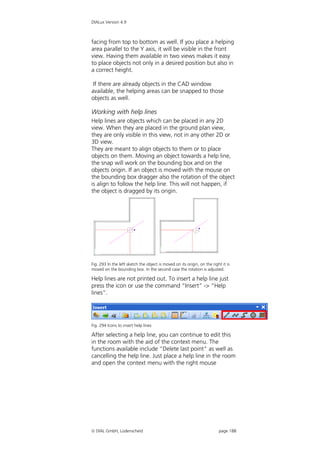
   Working with help lines ......................................... 188
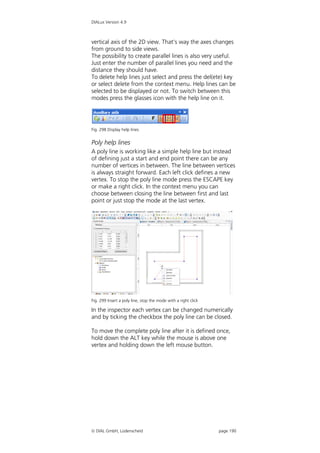
   Simple help lines.................................................... 189
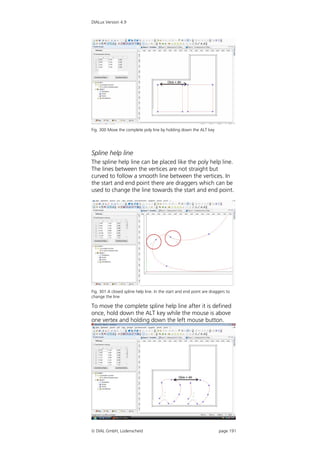
   Poly help lines........................................................ 190
   Spline help line ...................................................... 191
   Circular help line.................................................... 192
   Help grids .............................................................. 193
   Copy and paste with CTRL+C, CTRL+V and CTRL+H
    ............................................................................. 195
   Copy Along a Line ................................................. 195
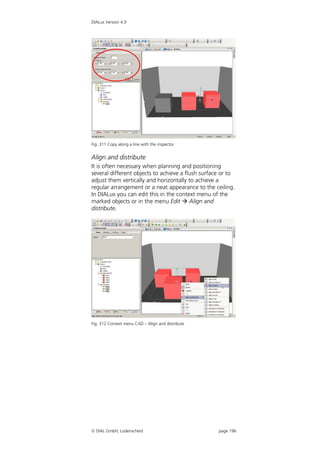
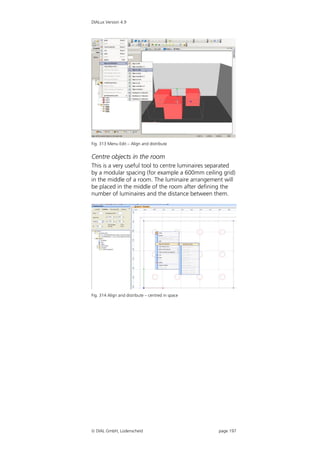
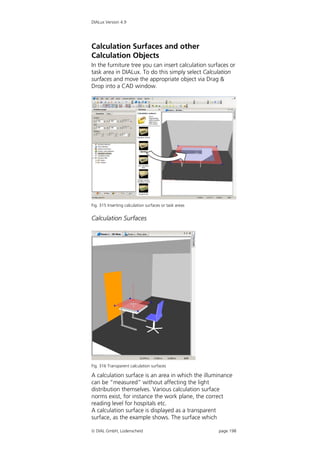
   Align and distribute ............................................... 196
   Centre objects in the room .................................... 197
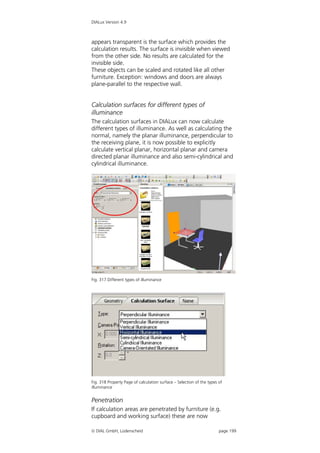
Calculation Surfaces and other Calculation Objects ... 198
   Calculation Surfaces .............................................. 198
   Calculation surfaces for different types of illuminance
    ............................................................................. 199
   Penetration............................................................ 199
   Task Areas ............................................................. 200
   Calculation grids.................................................... 200
   Editing................................................................... 202
   Scaling................................................................... 204
   Merging calculation grids....................................... 205
   Calculation points in calculation grids .................... 205
   Measuring grids..................................................... 207
   Calculation ............................................................ 208
   Gradients............................................................... 209
   Display settings...................................................... 210
   Real time calculation.............................................. 210
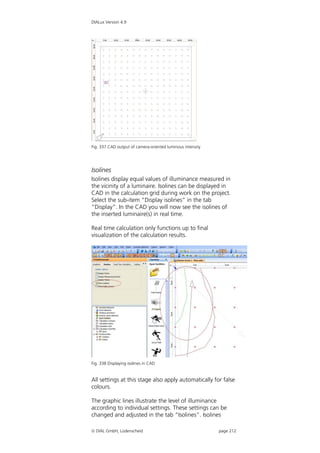
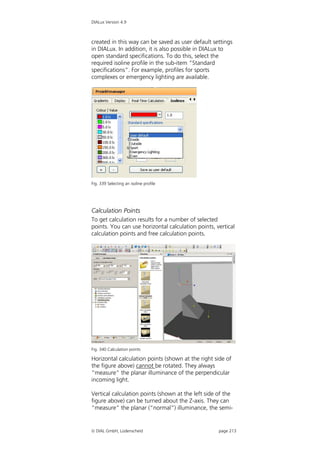
   Isolines .................................................................. 212
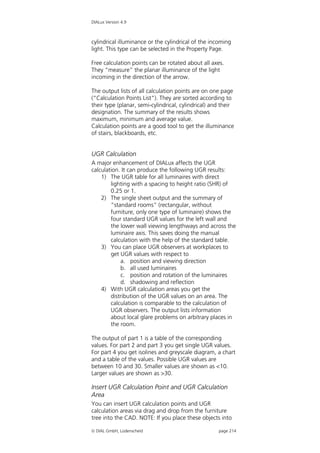
   Calculation Points .................................................. 213
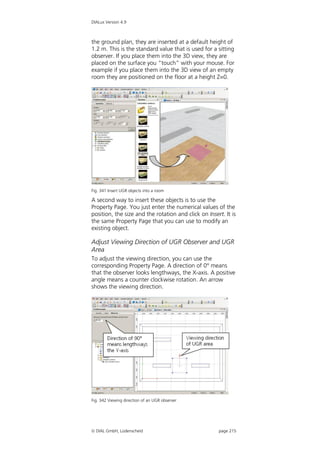
   UGR Calculation .................................................... 214
   Insert UGR Calculation Point and UGR Calculation
   Area ...................................................................... 214
   Adjust Viewing Direction of UGR Observer and UGR
   Area ...................................................................... 215
Exterior Lighting ........................................................ 216
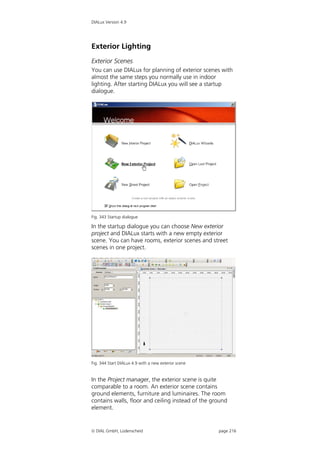
   Exterior Scenes ...................................................... 216
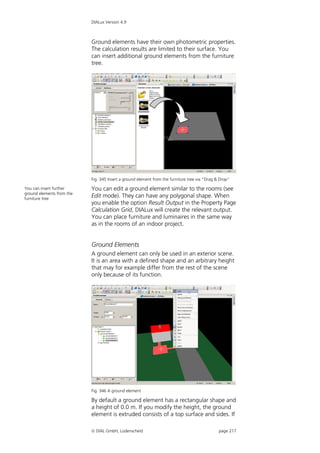
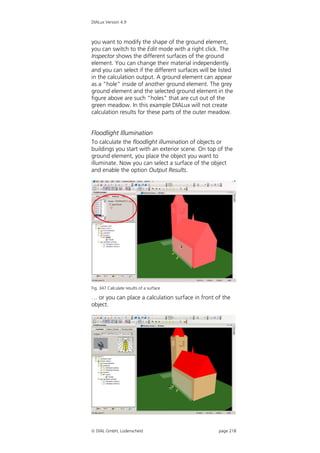
   Ground Elements................................................... 217
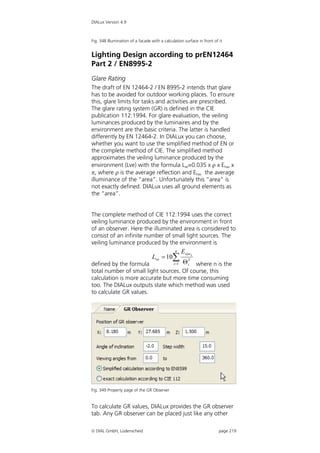
   Floodlight Illumination ........................................... 218
Lighting Design according to prEN12464 Part 2 /
EN8995-2.................................................................. 219
   Glare Rating .......................................................... 219
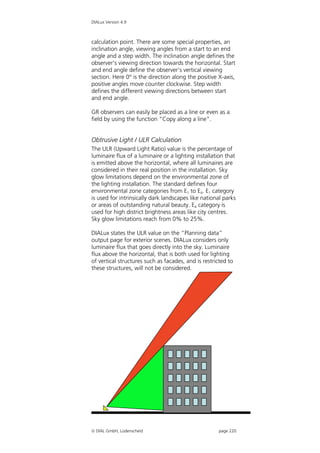
   Obtrusive Light / ULR Calculation ........................... 220
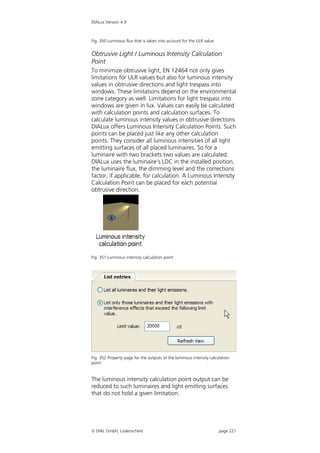
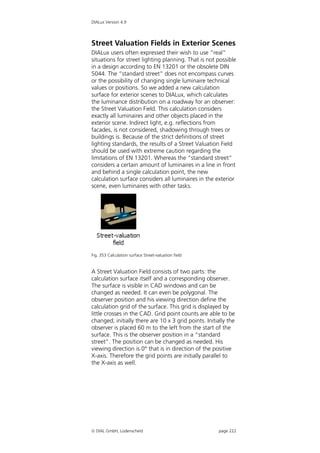
   Obtrusive Light / Luminous Intensity Calculation Point
    ............................................................................. 221
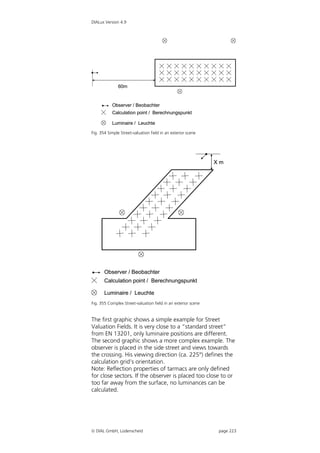
Street Valuation Fields in Exterior Scenes ................... 222
Road lighting............................................................. 224

 DIAL GmbH, Lüdenscheid                                                     page 7
DIALux Version 4.9


  Standard Streets .................................................... 224
  Planning with standards......................................... 225
  Street Planning without Wizard ............................. 227
  Quick Street Planning Wizard................................. 242
  Optimised Street Light Arrangement Wizard .......... 249
  Illumination Conditions Wizard according to CIE 140 /
  EN 13201 .............................................................. 252
  Illumination Class Wizard according to CIE 140 / EN
  13201 ................................................................... 254
  Importing R-tables ................................................. 260
Sports complexes ...................................................... 262
  Inserting a sports complex ..................................... 262
  Editing a sports complex ........................................ 263
  Flood light table for sport complex lighting ............ 264
  Initial calculation grids ........................................... 266
  Pole positions ........................................................ 266
  TV cameras............................................................ 266
  Outputs ................................................................. 267
Global Output Settings.............................................. 269
  User Data and Project Data .................................... 269
  Global Settings ...................................................... 270
Output ...................................................................... 271
  Viewing Calculation Results ................................... 271
  Limit Result Output................................................ 272
  Output Settings ..................................................... 273
  New Output in DIALux........................................... 274
  Luminaire Data Sheet............................................. 275
  Luminance Diagram............................................... 275
  Tabular Presentation of Photometric Data of
  Luminaires ............................................................. 276
  Tabular Presentation of Exterior Scenes.................. 276
  Creating User-Defined Standard Output ................ 277
  Save Output as PDF-File ......................................... 278
  Export Output Graphics, tables, text and graphic ... 279
DWG and DXF Import and Export.............................. 281
  DWG / DXF-Import ................................................ 281
  Basic DWG / DXF Settings and Layer Selection ....... 281
  Edit a Room based on the DWG / DXF-Ground Plan
   ............................................................................. 282
  Working with the DWG / DXF Background in the 3D
  View...................................................................... 283
  DWG / DXF-Export................................................. 284
gbXML file import ..................................................... 290
  Importing gbXML .................................................. 290
  Working with gbXML files ..................................... 290
STF Interface ............................................................. 291
Energy Performance of Buildings ............................... 292
  Background information ........................................ 292
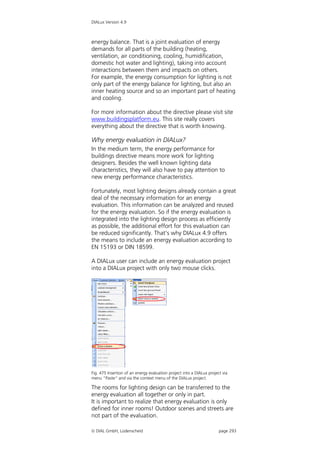
  Why energy evaluation in DIALux?......................... 293
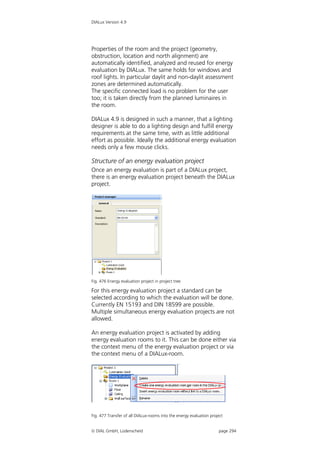
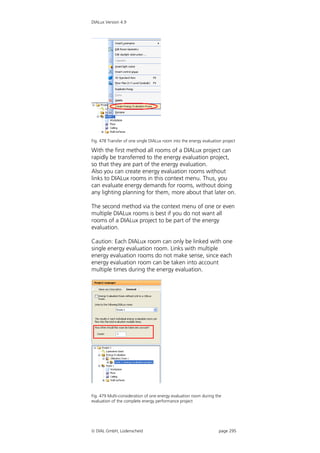
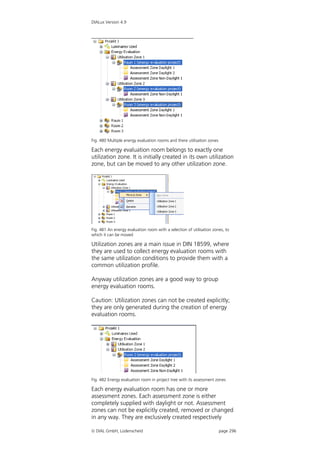
  Structure of an energy evaluation project............... 294
  Energy evaluation rooms with and without links to
  DIALux rooms ........................................................ 298
  Working on parameters ......................................... 302
  Calculation and results........................................... 304

 DIAL GmbH, Lüdenscheid                                                    page 8
DIALux Version 4.9


   Documentation of energy evaluation results .......... 307
Making videos in DIALux ........................................... 309
Raytracer................................................................... 313
   Background ........................................................... 313
   POV-Ray Settings within DIALux............................. 313
   Photo Realistic Images with Raytracing................... 313
   Basic Settings......................................................... 313
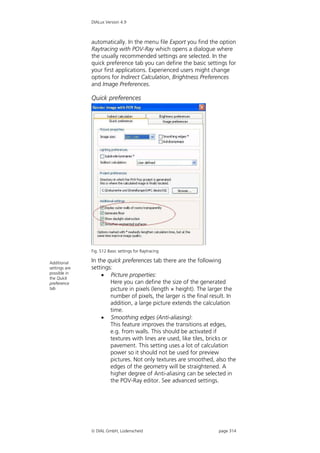
   Quick preferences.................................................. 314
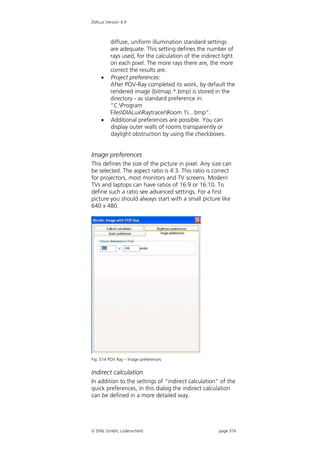
   Image preferences ................................................. 316
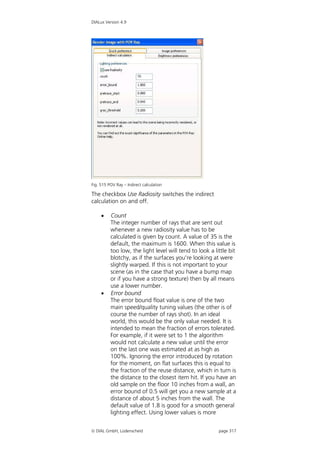
   Indirect calculation................................................. 316
   Brightness preferences........................................... 318
   Raytracing-Options for Surfaces ............................. 319
   3-D Standard View for Raytracing .......................... 320
   Starting POV-Ray ................................................... 320
   Manipulation of the POV file and editing in POV-Ray
    ............................................................................. 322
   Start of the adapted POV-Ray Version.................... 322
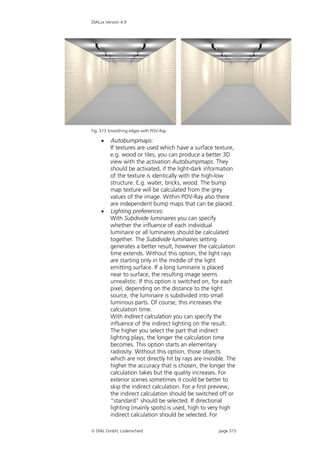
   Smoothing edges................................................... 322
   Picture ratio ........................................................... 323
   Camera ................................................................. 325
   Animation ............................................................. 327
Animation with Keyframes ........................................ 327
   Translation animation ............................................ 330
   Colour ................................................................... 332
   Further functions of POV-Ray................................. 332
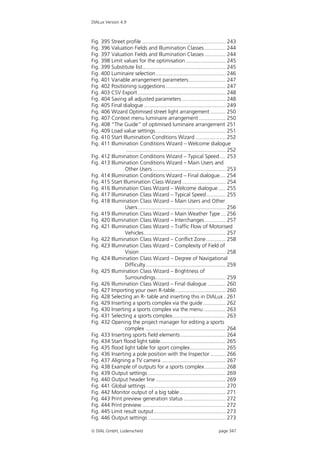
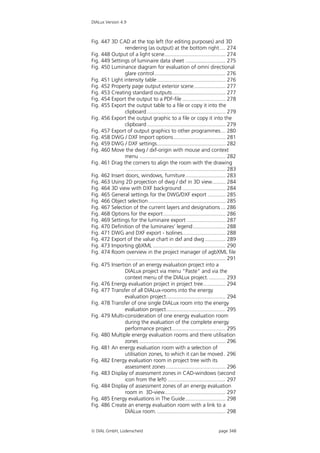
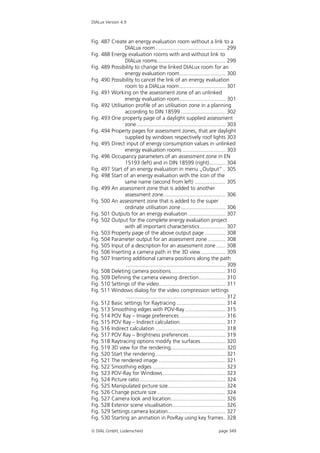
List of figures ............................................................ 339
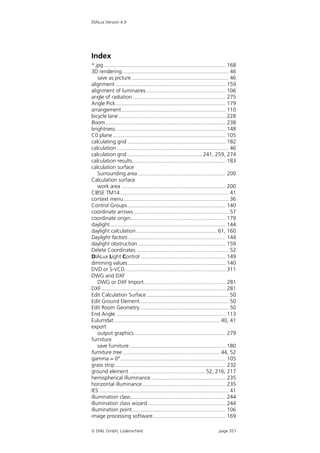
Index......................................................................... 351
Appendix A Keyboard Short Cuts .............................. 354


 DIAL GmbH, Lüdenscheid                                                     page 9
DIALux Version 4.9


New functions in DIALux Version 4.9

The DIALux version 4.9 has the following new features:

New features and improvements


   Streetlight Calculation according to US-Standard
    IESNA RP-08-00
    DIALux includes up to Version 4.9 the streetlight
    calculation according to the American standard
    IESNA RP-08-00. With the streetlight calculation it is
    now possible to switch between the European
    standard CIE 140 / EN 13201 and the US standard
    RP-08-00.

   Output of the Australian standard IEQ-7
    In the output you can find a specification to
    Australian standard IEQ-7. By setting the checkbox
    into the general options from DIALux it is displayed
    announce in the output.

   gbXML file import
    DAILux is capable to import gbXML files. This data
    type provides that building information like windows,
    doors etc. send directly to DIALux without putting
    the objects later in the building.

   CSV Export
    Additional to the already known features in DIALux
    Version 4.9 it is capable to export csv file. The
    streetlight wizard is able to export the file with the
    list of positioning suggestions and to save this as a
    csv file. This list can be open for example with Excel.

   Save settings at Quick Street Planning wizard
    and Optimised Street Light Arrangement wizard
    In these wizards you can save set values for further
    optimisations.

   Flood light table for sport complex lighting
    A new function for the lighting at the sports complex
    building is the possibility to work with tables. It
    simplifies the positioning of luminaire in sports
    complexes.


 DIAL GmbH, Lüdenscheid                              page 10
DIALux Version 4.9


   Fading out objects
    Via the context menu objects can fade out and in.

   LDC rotation
    To conform the American standard to the European
    standard it is possible in DIALux 4.9 to rotate the LDC
    90°.


Changes in existing functionality


   Luminaires selection at Quick Street Planning
    wizard and Optimised Street Light Arrangement
    wizard
    The luminaire selection in these wizards has been
    improved. At the luminaire selection you are able to
    select several luminaires.

   Inclination of luminaires at the wizards
    DIALux 4.9 permits to assign every luminaire an angle
    of inclination in the street light wizards.

   Various translations
    At various passages the translation of DIALux manual
    has been reworked.

   Various bug fixes
    Due to the strong participation of our users in the
    DIALux-Forum (www.dialux.com) different smaller
    bugs in DIALux could have been fixed. Thank you!


 DIAL GmbH, Lüdenscheid                            page 11
DIALux Version 4.9


Installation
The installation of DIALux is easy to do. Please close all
other application programmes before installing DIALux.

Installation after Internet Download
After you have downloaded the DIALux Setup (version
no.).exe from our homepage (www.DIAL.de or
www.dialux.com) on your hard-disk, you can start this
file by one double-click with the right mouse button.
Afterwards you can follow the simple instructions on the
screen. The installation program of DIALux may require
you to install a newer version of the Microsoft Internet
Explorer. Version 5.5 or higher is needed; this can be
downloaded from www.microsoft.com. The setup
checks automatically which components are needed for
your computer and automatically downloads them.


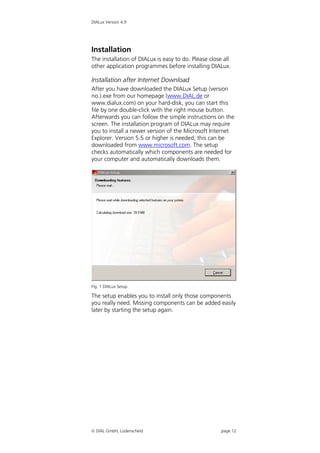
Fig. 1 DIALux Setup

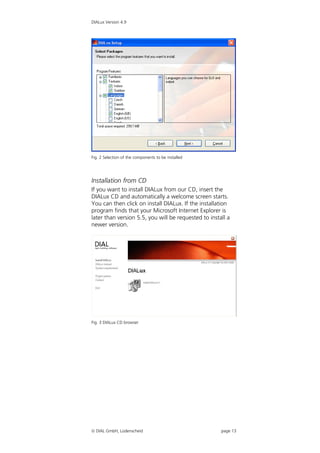
The setup enables you to install only those components
you really need. Missing components can be added easily
later by starting the setup again.


 DIAL GmbH, Lüdenscheid                              page 12
DIALux Version 4.9


Fig. 2 Selection of the components to be installed


Installation from CD
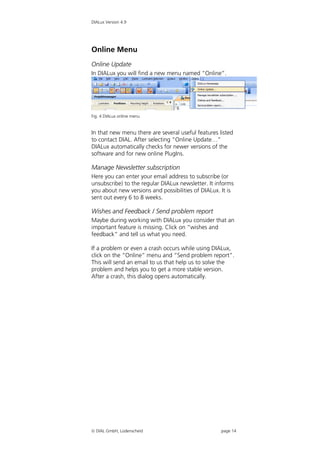
If you want to install DIALux from our CD, insert the
DIALux CD and automatically a welcome screen starts.
You can then click on install DIALux. If the installation
program finds that your Microsoft Internet Explorer is
later than version 5.5, you will be requested to install a
newer version.


Fig. 3 DIALux CD browser


 DIAL GmbH, Lüdenscheid                              page 13
DIALux Version 4.9


Online Menu
Online Update
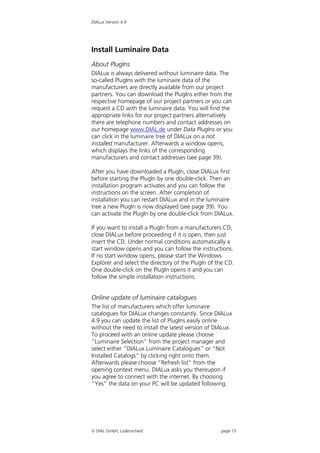
In DIALux you will find a new menu named “Online”.


Fig. 4 DIALux online menu


In that new menu there are several useful features listed
to contact DIAL. After selecting “Online Update…”
DIALux automatically checks for newer versions of the
software and for new online PlugIns.

Manage Newsletter subscription
Here you can enter your email address to subscribe (or
unsubscribe) to the regular DIALux newsletter. It informs
you about new versions and possibilities of DIALux. It is
sent out every 6 to 8 weeks.

Wishes and Feedback / Send problem report
Maybe during working with DIALux you consider that an
important feature is missing. Click on “wishes and
feedback” and tell us what you need.

If a problem or even a crash occurs while using DIALux,
click on the “Online” menu and “Send problem report”.
This will send an email to us that help us to solve the
problem and helps you to get a more stable version.
After a crash, this dialog opens automatically.


 DIAL GmbH, Lüdenscheid                            page 14
DIALux Version 4.9


Install Luminaire Data
About PlugIns
DIALux is always delivered without luminaire data. The
so-called PlugIns with the luminaire data of the
manufacturers are directly available from our project
partners. You can download the PlugIns either from the
respective homepage of our project partners or you can
request a CD with the luminaire data. You will find the
appropriate links for our project partners alternatively
there are telephone numbers and contact addresses on
our homepage www.DIAL.de under Data PlugIns or you
can click in the luminaire tree of DIALux on a not
installed manufacturer. Afterwards a window opens,
which displays the links of the corresponding
manufacturers and contact addresses (see page 39).

After you have downloaded a PlugIn, close DIALux first
before starting the PlugIn by one double-click. Then an
installation program activates and you can follow the
instructions on the screen. After completion of
installation you can restart DIALux and in the luminaire
tree a new PlugIn is now displayed (see page 39). You
can activate the PlugIn by one double-click from DIALux.

If you want to install a PlugIn from a manufacturers CD,
close DIALux before proceeding if it is open, then just
insert the CD. Under normal conditions automatically a
start window opens and you can follow the instructions.
If no start window opens, please start the Windows
Explorer and select the directory of the PlugIn of the CD.
One double-click on the PlugIn opens it and you can
follow the simple installation instructions.


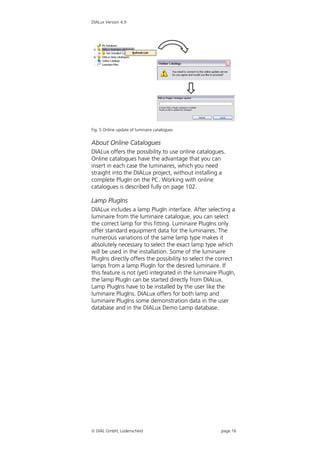
Online update of luminaire catalogues
The list of manufacturers which offer luminaire
catalogues for DIALux changes constantly. Since DIALux
4.9 you can update the list of PlugIns easily online
without the need to install the latest version of DIALux.
To proceed with an online update please choose
“Luminaire Selection” from the project manager and
select either “DIALux Luminaire Catalogues” or “Not
Installed Catalogs” by clicking right onto them.
Afterwards please choose “Refresh list” from the
opening context menu. DIALux asks you thereupon if
you agree to connect with the internet. By choosing
“Yes” the data on your PC will be updated following.


 DIAL GmbH, Lüdenscheid                            page 15
DIALux Version 4.9


Fig. 5 Online update of luminaire catalogues


About Online Catalogues
DIALux offers the possibility to use online catalogues.
Online catalogues have the advantage that you can
insert in each case the luminaires, which you need
straight into the DIALux project, without installing a
complete PlugIn on the PC. Working with online
catalogues is described fully on page 102.

Lamp PlugIns
DIALux includes a lamp PlugIn interface. After selecting a
luminaire from the luminaire catalogue, you can select
the correct lamp for this fitting. Luminaire PlugIns only
offer standard equipment data for the luminaires. The
numerous variations of the same lamp type makes it
absolutely necessary to select the exact lamp type which
will be used in the installation. Some of the luminaire
PlugIns directly offers the possibility to select the correct
lamps from a lamp PlugIn for the desired luminaire. If
this feature is not (yet) integrated in the luminaire PlugIn,
the lamp PlugIn can be started directly from DIALux.
Lamp PlugIns have to be installed by the user like the
luminaire PlugIns. DIALux offers for both lamp and
luminaire PlugIns some demonstration data in the user
database and in the DIALux Demo Lamp database.


 DIAL GmbH, Lüdenscheid                              page 16
DIALux Version 4.9


DIALux directories
Background information
Microsoft has more and more strictly separated the user
and the administrator privileges in Windows Vista and
XP. So misuse of the computer by unauthorized persons
or by malware was complicated. On the other hand
users, administrators and manufacturer of software are
more and more forced to follow the guidelines of the
operating system strictly. To make sure that also users
with restricted privileges can use DIALux with all its
features it was necessary to change some directories
used by DIALux.

Furniture, textures, my database
These directories are now placed in the “application data
common folder”. This standard directory can be changed
by the administrator. The following examples are
standard settings after a windows installation.

Windows XP, Windows 2000
C:documents and settingsAll
Usersapplication dataDIALux
 Drive is the system drive (standard: C:)
 subdirectory „documents and settings“ is localized,
    (Standard: „Documents and Settings“)
 subdirectory application data is localised and hidden
    (Standard: „Application Data“)

Windows Vista
C:ProgramDataDIALux
 Drive is the systemdrive (standard: C:)
 subdirectory „ProgrammData“ is hidden


Projects and raytracing files
Since DIALux 4.4 the DIALux project files and the
raytracing files are stored in the “my documents” folder.
This was necessary to make sure, that users with
restricted privileges can load and save files.

Windows XP, Windows 2000
C:documents and settings”user name” my
documentsDIALux
 Drive is the system drive (standard: C:)
 subdirectory „my documents “ is localized,
    (Standard: „my documents“)

Windows Vista
C:User”user name”documentsDIALux
 Drive is the systemdrive (standard: C:)
 subdirectory „user“ is localized

 DIAL GmbH, Lüdenscheid                           page 17
DIALux Version 4.9


   subdirectory „documents“ is localized

Program files, support
The DIALux directory is placed in the “Program files”
folder. This standard directory can be changed by the
administrator. The following examples are standard
settings after a windows installation.

Windows 2000, XP, Vista
C:Program filesDIALux
 Drive is the systemdrive (standard: C:)
 subdirectory „program files“ is localized

Common used program files (DIALux, PlugIns)
The DIALux directory is placed in the “Program files”
folder. This standard directory can be changed by the
administrator. The following examples are standard
settings after a windows installation.
Windows 2000, XP, Vista
C:program filescommon filesDIALux
 Drive is the systemdrive (standard: C:)
 subdirectory „program files“ is localized


 DIAL GmbH, Lüdenscheid                           page 18
DIALux Version 4.9


DIALux Light
DIALux Light Wizard has been available since DIALux
version 3.1. With the help of this wizard it is possible to
complete lighting designs quickly and simply. This means
that infrequent users of DIALux can readily use the
program without having to train themselves fully in using
the software.

After the installation you will find the DIALux Light
Wizard on your desktop near the "normal" DIALux icon.
You can start the wizard by one double-click. If you have
already started DIALux, you will find the DIALux Light
wizard in the menu File  Wizards.


Fig. 6 DIALux Light Wizard – DIALux Light icon

After starting DIALux Light you are welcomed by a
startup window. In this window the next steps that
follow are explained. To move to the next window click
on Next.


Fig. 7 DIALux Light Wizard – Start


 DIAL GmbH, Lüdenscheid                             page 19
DIALux Version 4.9


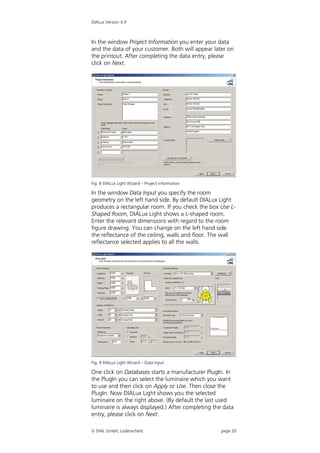
In the window Project Information you enter your data
and the data of your customer. Both will appear later on
the printout. After completing the data entry, please
click on Next.


Fig. 8 DIALux Light Wizard – Project information

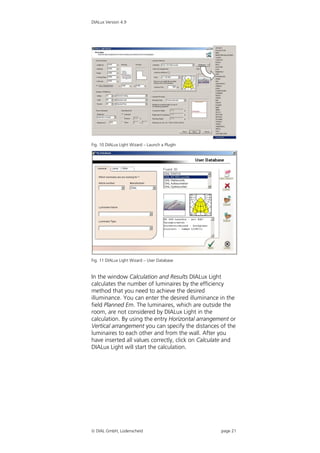
In the window Data Input you specify the room
geometry on the left hand side. By default DIALux Light
produces a rectangular room. If you check the box Use L-
Shaped Room, DIALux Light shows a L-shaped room.
Enter the relevant dimensions with regard to the room
figure drawing. You can change on the left hand side
the reflectance of the ceiling, walls and floor. The wall
reflectance selected applies to all the walls.


Fig. 9 DIALux Light Wizard – Data Input

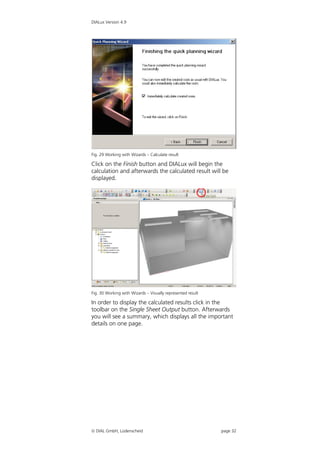
One click on Databases starts a manufacturer PlugIn. In
the PlugIn you can select the luminaire which you want
to use and then click on Apply or Use. Then close the
PlugIn. Now DIALux Light shows you the selected
luminaire on the right above. (By default the last used
luminaire is always displayed.) After completing the data
entry, please click on Next.

 DIAL GmbH, Lüdenscheid                           page 20
DIALux Version 4.9


Fig. 10 DIALux Light Wizard – Launch a PlugIn


Fig. 11 DIALux Light Wizard – User Database


In the window Calculation and Results DIALux Light
calculates the number of luminaires by the efficiency
method that you need to achieve the desired
illuminance. You can enter the desired illuminance in the
field Planned Em. The luminaires, which are outside the
room, are not considered by DIALux Light in the
calculation. By using the entry Horizontal arrangement or
Vertical arrangement you can specify the distances of the
luminaires to each other and from the wall. After you
have inserted all values correctly, click on Calculate and
DIALux Light will start the calculation.


 DIAL GmbH, Lüdenscheid                            page 21
DIALux Version 4.9


Fig. 12 DIALux Light Wizard – Calculation

Afterwards DIALux Light displays the results in a figure of
isolux lines and a table for the work plane.


Fig. 13 DIALux Light Wizard – Calculated Result


In the Result Output window you have several choices;
you can print the results or save them in electronic
format as a pdf file. So click the appropriate button. By
using the check boxes next to the printout symbols you
can affect which outputs are actually printed out. By
default all outputs are activated. If you would like to
provide for example only a short overview, activate only
the summary. If you would like to present the results to
your customer, you may wish to activate all outputs.


 DIAL GmbH, Lüdenscheid                             page 22
DIALux Version 4.9


Fig. 14 DIALux Light Wizard – Result Output


Fig. 15 DIALux Light Wizard – Output

At the end of the DIALux Light Wizard a dialogue is
displayed. After you have completed DIALux Light, the
calculated result is displayed as 3D rendering in DIALux.
Here you have the option to save your calculation results
under the menu File  Save.


 DIAL GmbH, Lüdenscheid                           page 23
DIALux Version 4.9


Fig. 16 DIALux Light Wizard – End


 DIAL GmbH, Lüdenscheid            page 24
DIALux Version 4.9


Working with Wizards
If you are using DIALux for the first time and you do not
have much experience with CAD programs, we
recommend that you create your first projects with the
help of our wizards.

Experienced users can skip this chapter.


Fig. 17 DIALux Startup Dialogue

After the installation DIALux always starts with a
Welcome window. In this window you can click with the
left mouse button on DIALux Wizards. If you do not see
this Welcome dialogue any more, you will find the
wizards in the menu File  Wizards.


Fig. 18 Launch DIALux Wizard


 DIAL GmbH, Lüdenscheid                            page 25
DIALux Version 4.9


A worked example using the wizard follows for a L-
shaped room with a luminaire arrangement to provide
500 lx on the work plane.


Fig. 19 Working with Wizards – Start

Click on the Quick Planning Wizard and then the
following steps will be executed. Confirm each of your
steps by clicking on Next.


 DIAL GmbH, Lüdenscheid                          page 26
DIALux Version 4.9


Fig. 20 Working with Wizards – Room Name, Room Form, Room Alignment

Enter the name of the room, select L-shaped room and
afterwards define the orientation.


Fig. 21 Working with Wizards – Room Dimensions

Specify the Room’s Dimension and the Room Height.
Which wall symbolizes each letter a to d is displayed on
the drawing.


 DIAL GmbH, Lüdenscheid                                      page 27
DIALux Version 4.9


Fig. 22 Working with Wizards – Reflection, Work plane, Maintenance Factor

Specify the Reflectance, Work plane and the
Maintenance factor. You can accept also the standard
values of DIALux by clicking directly on Next.


 DIAL GmbH, Lüdenscheid                                           page 28
DIALux Version 4.9


Fig. 23 Working with Wizards – Luminaire Manufacturer Selection

If you click in the dialogue of Luminaire Selection on
Databases, you can launch the installed PlugIns or start
the User Database. Always a few luminaires are arranged
in the user database. In the user database you can save
your favoured luminaires, in order to have fast access to
your frequently used luminaires.


Fig. 24 Working with Wizards – PlugIn / User Database

Select the desired luminaire with the help of the filter
functions of a PlugIn or the user database and then click
on the button Apply. Then please click on the Close
button.


 DIAL GmbH, Lüdenscheid                                          page 29
DIALux Version 4.9


Fig. 25 Working with Wizards – Luminaire Selection

DIALux displays the selected luminaire in the dialogue of
Luminaire Selection.


Fig. 26 Working with Wizards – Mounting height

Select the luminaire’s mounting type.


 DIAL GmbH, Lüdenscheid                             page 30
DIALux Version 4.9


Fig. 27 Working with Wizards – Calculate the number of luminaires

On the basis of the efficiency method DIALux calculates
the necessary number of luminaires for a specified
illumination. The luminaires, which are outside the room,
are not considered in the calculation.


Fig. 28 Working with Wizards – Alignment of the luminaires

In the Alignment dialogue you can specify the
orientation of the luminaires as lengthways or across.


 DIAL GmbH, Lüdenscheid                                            page 31
DIALux Version 4.9


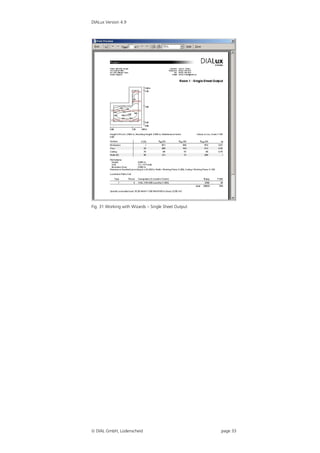
Fig. 29 Working with Wizards – Calculate result

Click on the Finish button and DIALux will begin the
calculation and afterwards the calculated result will be
displayed.


Fig. 30 Working with Wizards – Visually represented result

In order to display the calculated results click in the
toolbar on the Single Sheet Output button. Afterwards
you will see a summary, which displays all the important
details on one page.


 DIAL GmbH, Lüdenscheid                                     page 32
DIALux Version 4.9


Fig. 31 Working with Wizards – Single Sheet Output


 DIAL GmbH, Lüdenscheid                             page 33
DIALux Version 4.9


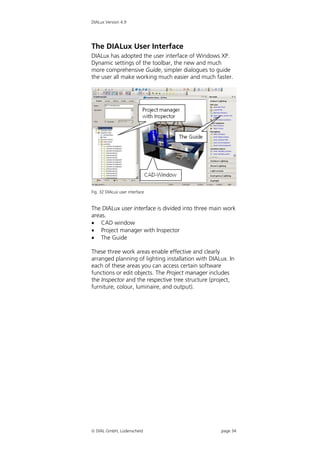
The DIALux User Interface
DIALux has adopted the user interface of Windows XP.
Dynamic settings of the toolbar, the new and much
more comprehensive Guide, simpler dialogues to guide
the user all make working much easier and much faster.


Fig. 32 DIALux user interface


The DIALux user interface is divided into three main work
areas.
 CAD window
 Project manager with Inspector
 The Guide

These three work areas enable effective and clearly
arranged planning of lighting installation with DIALux. In
each of these areas you can access certain software
functions or edit objects. The Project manager includes
the Inspector and the respective tree structure (project,
furniture, colour, luminaire, and output).


 DIAL GmbH, Lüdenscheid                            page 34
DIALux Version 4.9


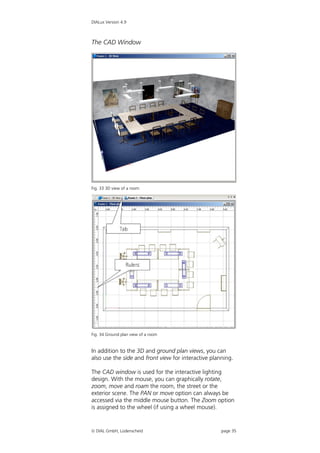
The CAD Window


Fig. 33 3D view of a room


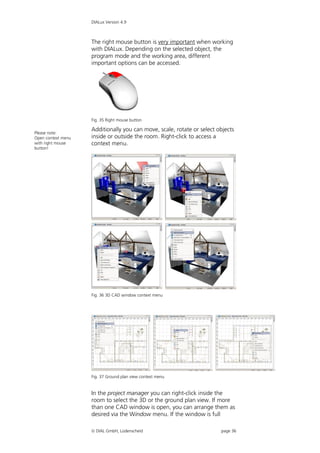
Fig. 34 Ground plan view of a room


In addition to the 3D and ground plan views, you can
also use the side and front view for interactive planning.

The CAD window is used for the interactive lighting
design. With the mouse, you can graphically rotate,
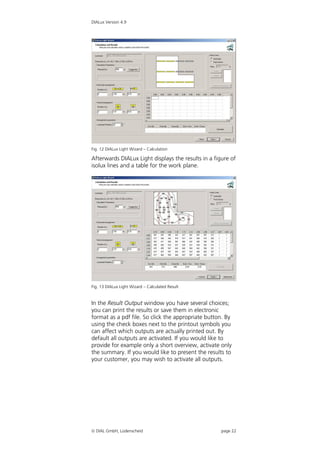
zoom, move and roam the room, the street or the
exterior scene. The PAN or move option can always be
accessed via the middle mouse button. The Zoom option
is assigned to the wheel (if using a wheel mouse).


 DIAL GmbH, Lüdenscheid                             page 35
DIALux Version 4.9


                    The right mouse button is very important when working
                    with DIALux. Depending on the selected object, the
                    program mode and the working area, different
                    important options can be accessed.


                    Fig. 35 Right mouse button

                    Additionally you can move, scale, rotate or select objects
Please note:
Open context menu   inside or outside the room. Right-click to access a
with right mouse    context menu.
button!


                    Fig. 36 3D CAD window context menu


                    Fig. 37 Ground plan view context menu


                    In the project manager you can right-click inside the
                    room to select the 3D or the ground plan view. If more
                    than one CAD window is open, you can arrange them as
                    desired via the Window menu. If the window is full

                     DIAL GmbH, Lüdenscheid                            page 36
DIALux Version 4.9


                                    screen, you can change to another view via the tabs at
                                    the top of the screen. Simultaneously working in multiple
                                    windows is only recommended when working with a
                                    high screen resolution and a good display adapter.

                                    If an object has been inserted into a room, its context
                                    menu can also be accessed with a right-click.
  Please note:
  The red rotation point
  enables a rotation around
  the red axis, likewise the blue
  and the green rotation points
  enable rotations around the
  blue and green axis
  respectively.


                                    Fig. 38 Context menu of a selected object

                                    If the Rotate option is activated, the object can be
                                    rotated by clicking and rotating the point on the boom.
                                    The red rotation point enables a rotation around the red
Please note:                        axis, likewise the blue and the green rotation points
Context menus are accessed
via the right mouse button          enable rotations around the blue and green axis
and "Properties" in the             respectively. Please keep in mind that the object has its
Inspector via the left mouse
button!
                                    own coordinate system. The object can be moved by
                                    clicking and pulling on the arrow cross.


                                    New features since DIALux 4.4:
                                     now you can switch via the tab key between the
  |
                                       rotation mode and the scaling mode
  |
                                     the object can also be moved at the corners, then
                                       even the rotation in 2D will be positioned on
                                       adjacent surfaces


                                     DIAL GmbH, Lüdenscheid                            page 37
DIALux Version 4.9


The Project manager


Fig. 39 Project manager

The Project manager enables a fast workflow with the
elements used in your lighting design. Each individual
element can be selected and its properties can be viewed
and modified in the Inspector. The Project manager
includes the Inspector and the respective tree structure
(project, furniture, colour, luminaire selection, and
output).

The project, in this example called “BEW Wermels-
kirchen”, organises the global project information such
as the name and address of the operator and the
customer, as well as all rooms, exterior scenes, streets
and luminaires. In the luminaire list, all luminaires used in
this project are listed, which were selected from a PlugIn
via Use. Here the “alternative” luminaires, which have
not (yet) been used in this layout, are also organised.

         The room consists of the following sub-objects:
          room defining surfaces (floor, ceiling, walls),
          work plane, furniture and luminaire
          arrangements.
         An exterior scene consists of the sub-objects:
          ground element, furniture and luminaire
          arrangements.
         A street consists the sub-objects:
          street elements (roadways and lanes, parking
          lanes, sidewalk, grass strip, bicycle lane and
          emergency lane) and the luminaire arrangement.


 DIAL GmbH, Lüdenscheid                              page 38
DIALux Version 4.9


If you select one of these elements (left-click), its
properties are displayed in the Inspector. A right-click
opens the context menu for that object, just as it does in
the CAD view.

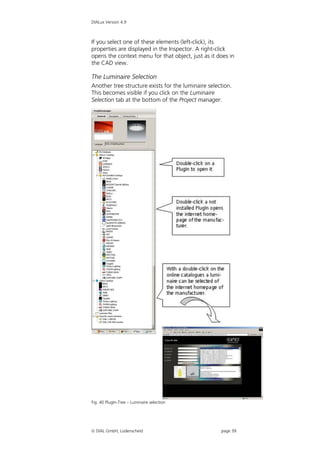
The Luminaire Selection
Another tree structure exists for the luminaire selection.
This becomes visible if you click on the Luminaire
Selection tab at the bottom of the Project manager.


Fig. 40 PlugIn-Tree – Luminaire selection


 DIAL GmbH, Lüdenscheid                             page 39
DIALux Version 4.9


                                 Installed PlugIns are automatically recognized by DIALux
                                 4.9. It is not required to reinstall the PlugIns after
                                 updating from older DIALux versions. Double-click on a
                                 PlugIn to open it. You can also access this option via the
                                 Luminaire Selection menu.
                                 PlugIns provided by our partners that have not yet been
                                 installed are located a bit lower in the tree structure. A
                                 double-click on a PlugIn which has not been installed
                                 opens the Internet Explorer window and the homepage
                                 of the luminaire manufacturer is displayed, if available.
                                 Some manufacturers provide individual luminaires or
                                 entire PlugIns for downloading here.

Create your own luminaire        The User Database
database.
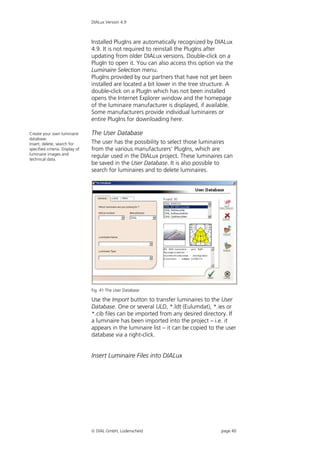
Insert, delete, search for       The user has the possibility to select those luminaires
specified criteria. Display of   from the various manufacturers’ PlugIns, which are
luminaire images and
technical data.
                                 regular used in the DIALux project. These luminaires can
                                 be saved in the User Database. It is also possible to
                                 search for luminaires and to delete luminaires.


                                 Fig. 41 The User Database

                                 Use the Import button to transfer luminaires to the User
                                 Database. One or several ULD, *.ldt (Eulumdat), *.ies or
                                 *.cib files can be imported from any desired directory. If
                                 a luminaire has been imported into the project – i.e. it
                                 appears in the luminaire list – it can be copied to the user
                                 database via a right-click.


                                 Insert Luminaire Files into DIALux


                                  DIAL GmbH, Lüdenscheid                             page 40
DIALux Version 4.9


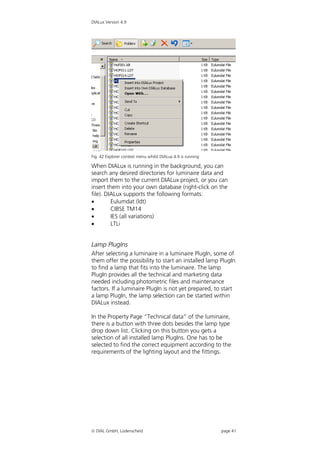
Fig. 42 Explorer context menu whilst DIALux 4.9 is running

When DIALux is running in the background, you can
search any desired directories for luminaire data and
import them to the current DIALux project, or you can
insert them into your own database (right-click on the
file). DIALux supports the following formats:
        Eulumdat (ldt)
        CIBSE TM14
        IES (all variations)
        LTLi


Lamp PlugIns
After selecting a luminaire in a luminaire PlugIn, some of
them offer the possibility to start an installed lamp PlugIn
to find a lamp that fits into the luminaire. The lamp
PlugIn provides all the technical and marketing data
needed including photometric files and maintenance
factors. If a luminaire PlugIn is not yet prepared, to start
a lamp PlugIn, the lamp selection can be started within
DIALux instead.

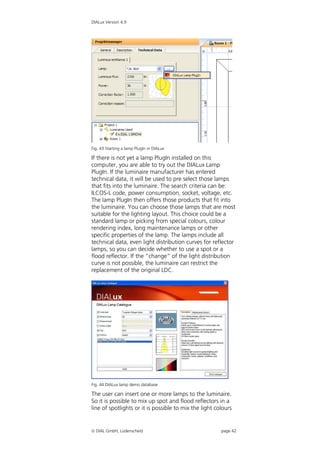
In the Property Page “Technical data” of the luminaire,
there is a button with three dots besides the lamp type
drop down list. Clicking on this button you gets a
selection of all installed lamp PlugIns. One has to be
selected to find the correct equipment according to the
requirements of the lighting layout and the fittings.


 DIAL GmbH, Lüdenscheid                                     page 41
DIALux Version 4.9


Fig. 43 Starting a lamp PlugIn in DIALux

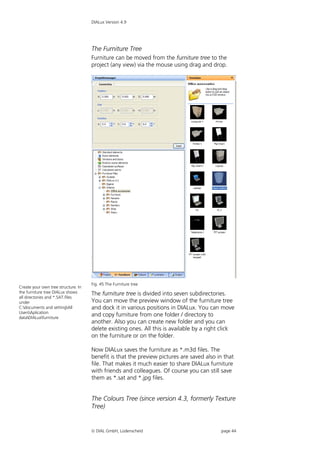
If there is not yet a lamp PlugIn installed on this
computer, you are able to try out the DIALux Lamp
PlugIn. If the luminaire manufacturer has entered
technical data, it will be used to pre select those lamps
that fits into the luminaire. The search criteria can be:
ILCOS-L code, power consumption, socket, voltage, etc.
The lamp PlugIn then offers those products that fit into
the luminaire. You can choose those lamps that are most
suitable for the lighting layout. This choice could be a
standard lamp or picking from special colours, colour
rendering index, long maintenance lamps or other
specific properties of the lamp. The lamps include all
technical data, even light distribution curves for reflector
lamps, so you can decide whether to use a spot or a
flood reflector. If the “change” of the light distribution
curve is not possible, the luminaire can restrict the
replacement of the original LDC.


Fig. 44 DIALux lamp demo database

The user can insert one or more lamps to the luminaire.
So it is possible to mix up spot and flood reflectors in a
line of spotlights or it is possible to mix the light colours


 DIAL GmbH, Lüdenscheid                                page 42
DIALux Version 4.9


within the some arrangement. The selected lamp can be
added to the original equipment or it can replace it.


 DIAL GmbH, Lüdenscheid                        page 43
DIALux Version 4.9


                                     The Furniture Tree
                                     Furniture can be moved from the furniture tree to the
                                     project (any view) via the mouse using drag and drop.


                                     Fig. 45 The Furniture tree
Create your own tree structure. In
the furniture tree DIALux shows      The furniture tree is divided into seven subdirectories.
all directories and *.SAT.files
under                                You can move the preview window of the furniture tree
C:documents and settingAll         and dock it in various positions in DIALux. You can move
UsersAplication
dataDIALuxfurniture
                                     and copy furniture from one folder / directory to
                                     another. Also you can create new folder and you can
                                     delete existing ones. All this is available by a right click
                                     on the furniture or on the folder.

                                     Now DIALux saves the furniture as *.m3d files. The
                                     benefit is that the preview pictures are saved also in that
                                     file. That makes it much easier to share DIALux furniture
                                     with friends and colleagues. Of course you can still save
                                     them as *.sat and *.jpg files.


                                     The Colours Tree (since version 4.3, formerly Texture
                                     Tree)


                                      DIAL GmbH, Lüdenscheid                              page 44
DIALux Version 4.9


You can use the Colours tree to modify the properties of
surfaces via drag and drop - similar to inserting furniture
into a room. In the textures tree you find predefined
textures (surface pictures), RAL colours and you have the
option to organise your own textures. You can move and
copy textures from one folder / directory to another. Also
you can create new folder and you can delete existing
ones. All this is available by a right click on the texture or
the folder.

The subfolder Light colours and Colour filter will be
explained in the chapter Light Colours.


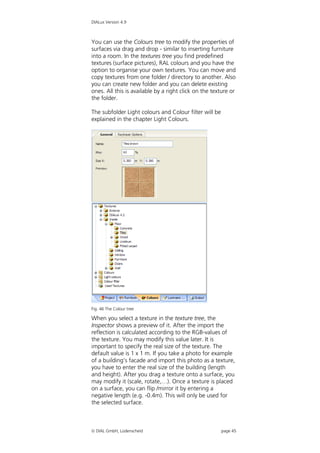
Fig. 46 The Colour tree

When you select a texture in the texture tree, the
Inspector shows a preview of it. After the import the
reflection is calculated according to the RGB-values of
the texture. You may modify this value later. It is
important to specify the real size of the texture. The
default value is 1 x 1 m. If you take a photo for example
of a building’s facade and import this photo as a texture,
you have to enter the real size of the building (length
and height). After you drag a texture onto a surface, you
may modify it (scale, rotate,…). Once a texture is placed
on a surface, you can flip /mirror it by entering a
negative length (e.g. -0.4m). This will only be used for
the selected surface.


 DIAL GmbH, Lüdenscheid                                page 45
DIALux Version 4.9


                         The Output Tree
                         Yet another tree structure exists for the output selection.
                         You can open it by clicking on the Output tab in the
                         Project manager


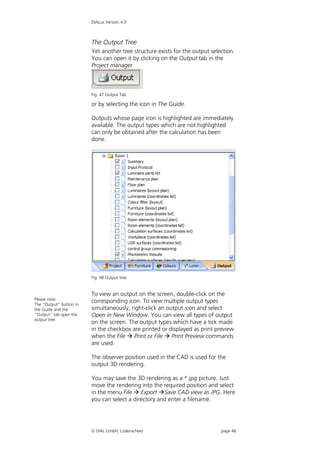
                         Fig. 47 Output Tab

                         or by selecting the icon in The Guide.

                         Outputs whose page icon is highlighted are immediately
                         available. The output types which are not highlighted
                         can only be obtained after the calculation has been
                         done.


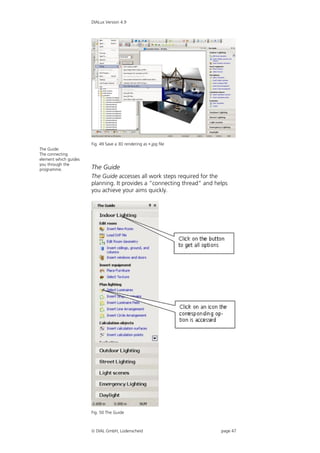
                         Fig. 48 Output tree


                         To view an output on the screen, double-click on the
Please note:
The “Output” button in
                         corresponding icon. To view multiple output types
the Guide and the        simultaneously, right-click an output icon and select
“Output” tab open the    Open in New Window. You can view all types of output
output tree
                         on the screen. The output types which have a tick made
                         in the checkbox are printed or displayed as print preview
                         when the File  Print or File  Print Preview commands
                         are used.

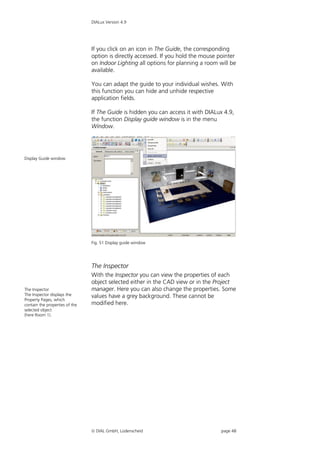
                         The observer position used in the CAD is used for the
                         output 3D rendering.

                         You may save the 3D rendering as a *.jpg picture. Just
                         move the rendering into the required position and select
                         in the menu File  Export Save CAD view as JPG. Here
                         you can select a directory and enter a filename.


                          DIAL GmbH, Lüdenscheid                             page 46
DIALux Version 4.9


                       Fig. 49 Save a 3D rendering as .jpg file
The Guide:
The connecting
element which guides
you through the
programme.             The Guide
                       The Guide accesses all work steps required for the
                       planning. It provides a “connecting thread” and helps
                       you achieve your aims quickly.


                       Fig. 50 The Guide


                        DIAL GmbH, Lüdenscheid                          page 47
DIALux Version 4.9


                                If you click on an icon in The Guide, the corresponding
                                option is directly accessed. If you hold the mouse pointer
                                on Indoor Lighting all options for planning a room will be
                                available.

                                You can adapt the guide to your individual wishes. With
                                this function you can hide and unhide respective
                                application fields.

                                If The Guide is hidden you can access it with DIALux 4.9,
                                the function Display guide window is in the menu
                                Window.


Display Guide window


                                Fig. 51 Display guide window


                                The Inspector
                                With the Inspector you can view the properties of each
                                object selected either in the CAD view or in the Project
The Inspector                   manager. Here you can also change the properties. Some
The Inspector displays the      values have a grey background. These cannot be
Property Pages, which
contain the properties of the   modified here.
selected object
(here Room 1).


                                 DIAL GmbH, Lüdenscheid                            page 48
DIALux Version 4.9


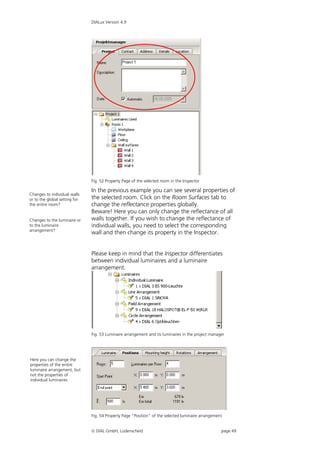
                               Fig. 52 Property Page of the selected room in the Inspector

                               In the previous example you can see several properties of
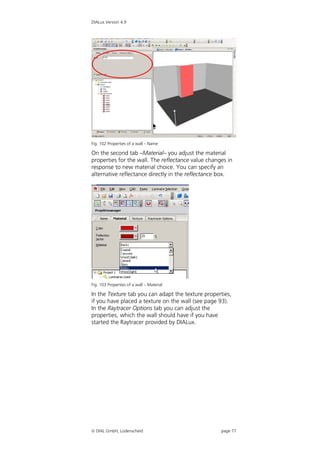
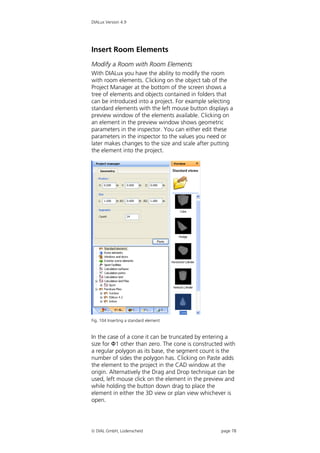
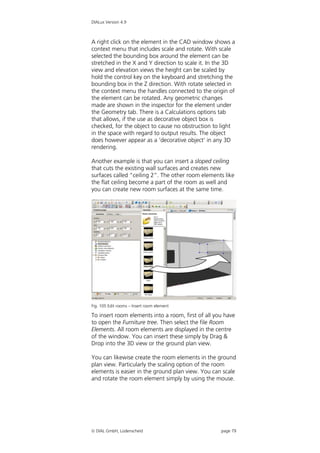
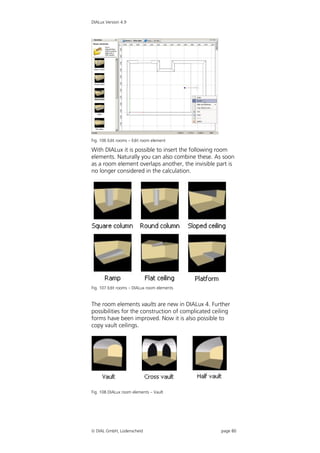
Changes to individual walls
or to the global setting for   the selected room. Click on the Room Surfaces tab to
the entire room?               change the reflectance properties globally.
                               Beware! Here you can only change the reflectance of all
Changes to the luminaire or    walls together. If you wish to change the reflectance of
to the luminaire               individual walls, you need to select the corresponding
arrangement?
                               wall and then change its property in the Inspector.


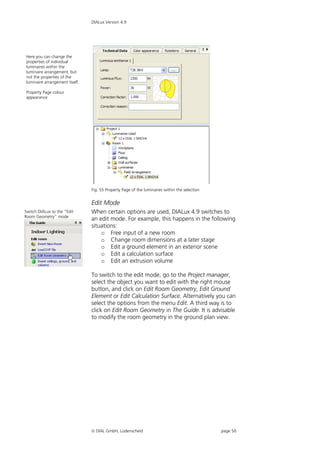
                               Please keep in mind that the Inspector differentiates
                               between individual luminaires and a luminaire
                               arrangement.


                               Fig. 53 Luminaire arrangement and its luminaires in the project manager


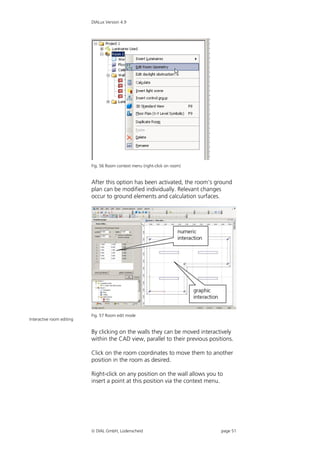
Here you can change the
properties of the entire
luminaire arrangement, but
not the properties of
individual luminaires


                               Fig. 54 Property Page “Position” of the selected luminaire arrangement


                                DIAL GmbH, Lüdenscheid                                             page 49
DIALux Version 4.9


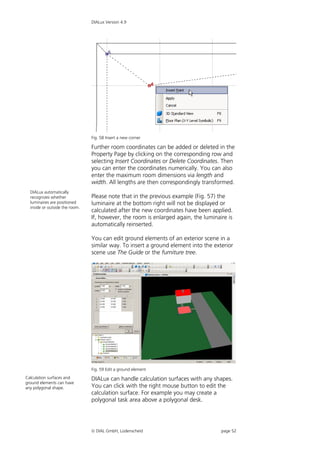
Here you can change the
properties of individual
luminaires within the
luminaire arrangement, but
not the properties of the
luminaire arrangement itself.

Property Page colour
appearance


                                Fig. 55 Property Page of the luminaires within the selection


                                Edit Mode
Switch DIALux to the “Edit      When certain options are used, DIALux 4.9 switches to
Room Geometry” mode
                                an edit mode. For example, this happens in the following
                                situations:
                                    o Free input of a new room
                                    o Change room dimensions at a later stage
                                    o Edit a ground element in an exterior scene
                                    o Edit a calculation surface
                                    o Edit an extrusion volume

                                To switch to the edit mode, go to the Project manager,
                                select the object you want to edit with the right mouse
                                button, and click on Edit Room Geometry, Edit Ground
                                Element or Edit Calculation Surface. Alternatively you can
                                select the options from the menu Edit. A third way is to
                                click on Edit Room Geometry in The Guide. It is advisable
                                to modify the room geometry in the ground plan view.


                                 DIAL GmbH, Lüdenscheid                                       page 50
DIALux Version 4.9


                           Fig. 56 Room context menu (right-click on room)


                           After this option has been activated, the room's ground
                           plan can be modified individually. Relevant changes
                           occur to ground elements and calculation surfaces.


                           Fig. 57 Room edit mode
Interactive room editing


                           By clicking on the walls they can be moved interactively
                           within the CAD view, parallel to their previous positions.

                           Click on the room coordinates to move them to another
                           position in the room as desired.

                           Right-click on any position on the wall allows you to
                           insert a point at this position via the context menu.


                            DIAL GmbH, Lüdenscheid                             page 51
DIALux Version 4.9


                                Fig. 58 Insert a new corner

                                Further room coordinates can be added or deleted in the
                                Property Page by clicking on the corresponding row and
                                selecting Insert Coordinates or Delete Coordinates. Then
                                you can enter the coordinates numerically. You can also
                                enter the maximum room dimensions via length and
                                width. All lengths are then correspondingly transformed.
  DIALux automatically
  recognizes whether            Please note that in the previous example (Fig. 57) the
  luminaires are positioned     luminaire at the bottom right will not be displayed or
  inside or outside the room.
                                calculated after the new coordinates have been applied.
                                If, however, the room is enlarged again, the luminaire is
                                automatically reinserted.

                                You can edit ground elements of an exterior scene in a
                                similar way. To insert a ground element into the exterior
                                scene use The Guide or the furniture tree.


                                Fig. 59 Edit a ground element
Calculation surfaces and        DIALux can handle calculation surfaces with any shapes.
ground elements can have
any polygonal shape.            You can click with the right mouse button to edit the
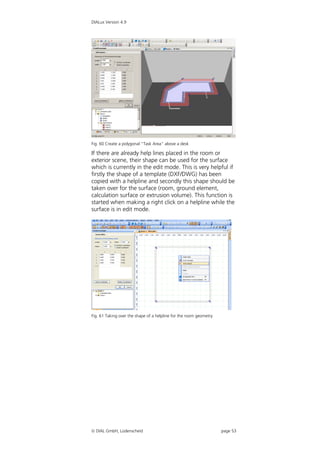
                                calculation surface. For example you may create a
                                polygonal task area above a polygonal desk.


                                 DIAL GmbH, Lüdenscheid                            page 52
DIALux Version 4.9


Fig. 60 Create a polygonal "Task Area" above a desk

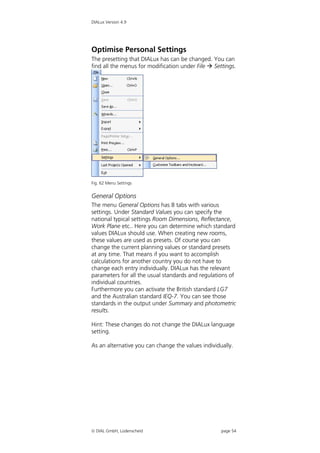
If there are already help lines placed in the room or
exterior scene, their shape can be used for the surface
which is currently in the edit mode. This is very helpful if
firstly the shape of a template (DXF/DWG) has been
copied with a helpline and secondly this shape should be
taken over for the surface (room, ground element,
calculation surface or extrusion volume). This function is
started when making a right click on a helpline while the
surface is in edit mode.


Fig. 61 Taking over the shape of a helpline for the room geometry


 DIAL GmbH, Lüdenscheid                                            page 53
DIALux Version 4.9


Optimise Personal Settings
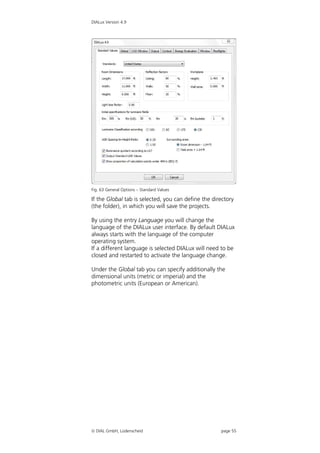
The presetting that DIALux has can be changed. You can
find all the menus for modification under File  Settings.


Fig. 62 Menu Settings


General Options
The menu General Options has 8 tabs with various
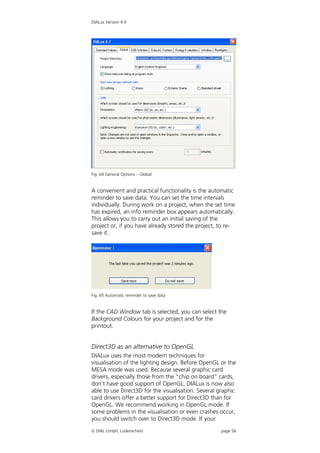
settings. Under Standard Values you can specify the
national typical settings Room Dimensions, Reflectance,
Work Plane etc.. Here you can determine which standard
values DIALux should use. When creating new rooms,
these values are used as presets. Of course you can
change the current planning values or standard presets
at any time. That means if you want to accomplish
calculations for another country you do not have to
change each entry individually. DIALux has the relevant
parameters for all the usual standards and regulations of
individual countries.
Furthermore you can activate the British standard LG7
and the Australian standard IEQ-7. You can see those
standards in the output under Summary and photometric
results.

Hint: These changes do not change the DIALux language
setting.

As an alternative you can change the values individually.


 DIAL GmbH, Lüdenscheid                            page 54
DIALux Version 4.9


Fig. 63 General Options – Standard Values

If the Global tab is selected, you can define the directory
(the folder), in which you will save the projects.

By using the entry Language you will change the
language of the DIALux user interface. By default DIALux
always starts with the language of the computer
operating system.
If a different language is selected DIALux will need to be
closed and restarted to activate the language change.

Under the Global tab you can specify additionally the
dimensional units (metric or imperial) and the
photometric units (European or American).


 DIAL GmbH, Lüdenscheid                             page 55
DIALux Version 4.9


Fig. 64 General Options – Global


A convenient and practical functionality is the automatic
reminder to save data. You can set the time intervals
individually. During work on a project, when the set time
has expired, an info reminder box appears automatically.
This allows you to carry out an initial saving of the
project or, if you have already stored the project, to re-
save it.


Fig. 65 Automatic reminder to save data


If the CAD Window tab is selected, you can select the
Background Colours for your project and for the
printout.


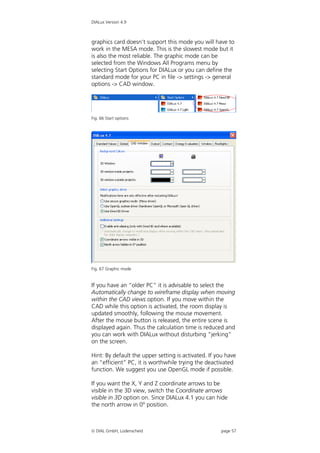
Direct3D as an alternative to OpenGL
DIALux uses the most modern techniques for
visualisation of the lighting design. Before OpenGL or the
MESA mode was used. Because several graphic card
drivers, especially those from the “chip on board” cards,
don’t have good support of OpenGL, DIALux is now also
able to use Direct3D for the visualisation. Several graphic
card drivers offer a better support for Direct3D than for
OpenGL. We recommend working in OpenGL mode. If
some problems in the visualisation or even crashes occur,
you should switch over to Direct3D mode. If your
 DIAL GmbH, Lüdenscheid                            page 56
DIALux Version 4.9


graphics card doesn’t support this mode you will have to
work in the MESA mode. This is the slowest mode but it
is also the most reliable. The graphic mode can be
selected from the Windows All Programs menu by
selecting Start Options for DIALux or you can define the
standard mode for your PC in file -> settings -> general
options -> CAD window.


Fig. 66 Start options


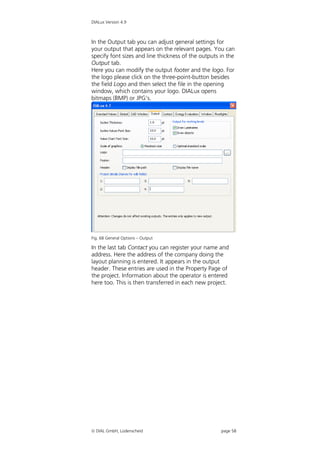
Fig. 67 Graphic mode


If you have an “older PC” it is advisable to select the
Automatically change to wireframe display when moving
within the CAD views option. If you move within the
CAD while this option is activated, the room display is
updated smoothly, following the mouse movement.
After the mouse button is released, the entire scene is
displayed again. Thus the calculation time is reduced and
you can work with DIALux without disturbing “jerking”
on the screen.

Hint: By default the upper setting is activated. If you have
an “efficient” PC, it is worthwhile trying the deactivated
function. We suggest you use OpenGL mode if possible.

If you want the X, Y and Z coordinate arrows to be
visible in the 3D view, switch the Coordinate arrows
visible in 3D option on. Since DIALux 4.1 you can hide
the north arrow in 0° position.


 DIAL GmbH, Lüdenscheid                             page 57
DIALux Version 4.9


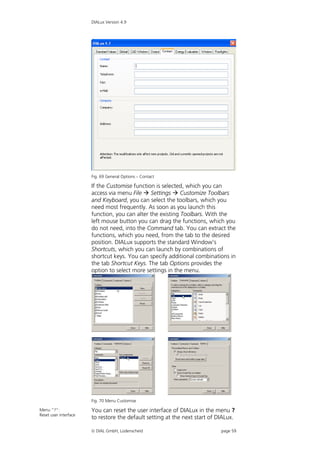
In the Output tab you can adjust general settings for
your output that appears on the relevant pages. You can
specify font sizes and line thickness of the outputs in the
Output tab.
Here you can modify the output footer and the logo. For
the logo please click on the three-point-button besides
the field Logo and then select the file in the opening
window, which contains your logo. DIALux opens
bitmaps (BMP) or JPG’s.


Fig. 68 General Options – Output

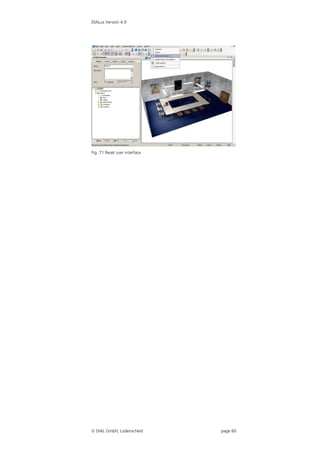
In the last tab Contact you can register your name and
address. Here the address of the company doing the
layout planning is entered. It appears in the output
header. These entries are used in the Property Page of
the project. Information about the operator is entered
here too. This is then transferred in each new project.


 DIAL GmbH, Lüdenscheid                             page 58
DIALux Version 4.9


                       Fig. 69 General Options – Contact

                       If the Customise function is selected, which you can
                       access via menu File  Settings  Customize Toolbars
                       and Keyboard, you can select the toolbars, which you
                       need most frequently. As soon as you launch this
                       function, you can alter the existing Toolbars. With the
                       left mouse button you can drag the functions, which you
                       do not need, into the Command tab. You can extract the
                       functions, which you need, from the tab to the desired
                       position. DIALux supports the standard Window’s
                       Shortcuts, which you can launch by combinations of
                       shortcut keys. You can specify additional combinations in
                       the tab Shortcut Keys. The tab Options provides the
                       option to select more settings in the menu.


                       Fig. 70 Menu Customise

Menu “?”:              You can reset the user interface of DIALux in the menu ?
Reset user interface
                       to restore the default setting at the next start of DIALux.

                        DIAL GmbH, Lüdenscheid                             page 59
DIALux Version 4.9


Fig. 71 Reset user interface


 DIAL GmbH, Lüdenscheid       page 60
DIALux Version 4.9


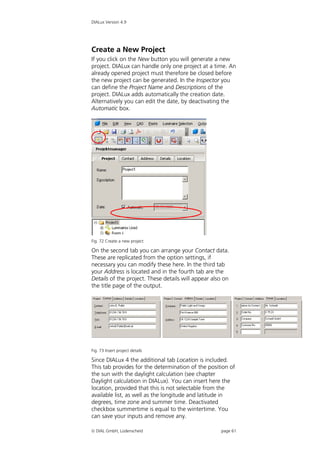
Create a New Project
If you click on the New button you will generate a new
project. DIALux can handle only one project at a time. An
already opened project must therefore be closed before
the new project can be generated. In the Inspector you
can define the Project Name and Descriptions of the
project. DIALux adds automatically the creation date.
Alternatively you can edit the date, by deactivating the
Automatic box.


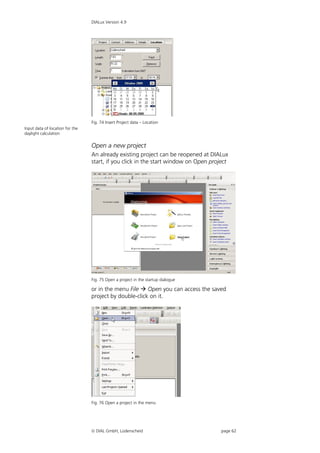
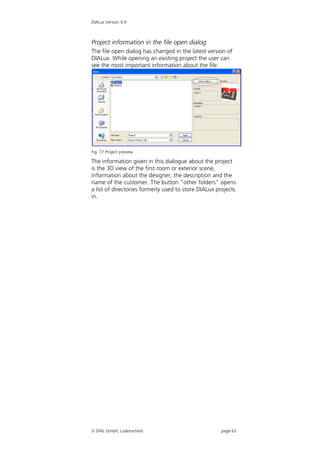
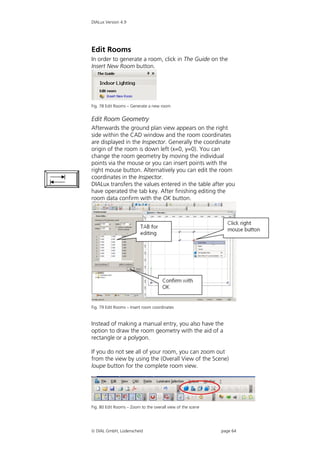
Fig. 72 Create a new project

On the second tab you can arrange your Contact data.
These are replicated from the option settings, if
necessary you can modify these here. In the third tab
your Address is located and in the fourth tab are the
Details of the project. These details will appear also on
the title page of the output.


Fig. 73 Insert project details

Since DIALux 4 the additional tab Location is included.
This tab provides for the determination of the position of
the sun with the daylight calculation (see chapter
Daylight calculation in DIALux). You can insert here the
location, provided that this is not selectable from the
available list, as well as the longitude and latitude in
degrees, time zone and summer time. Deactivated
checkbox summertime is equal to the wintertime. You
can save your inputs and remove any.

 DIAL GmbH, Lüdenscheid                             page 61
DIALux Version 4.9


                                 Fig. 74 Insert Project data – Location
Input data of location for the
daylight calculation

                                 Open a new project
                                 An already existing project can be reopened at DIALux
                                 start, if you click in the start window on Open project


                                 Fig. 75 Open a project in the startup dialogue

                                 or in the menu File  Open you can access the saved
                                 project by double-click on it.


                                 Fig. 76 Open a project in the menu


                                  DIAL GmbH, Lüdenscheid                            page 62
DIALux Version 4.9


Project information in the file open dialog
The file open dialog has changed in the latest version of
DIALux. While opening an existing project the user can
see the most important information about the file.


Fig. 77 Project preview

The information given in this dialogue about the project
is the 3D view of the first room or exterior scene,
information about the designer, the description and the
name of the customer. The button “other folders” opens
a list of directories formerly used to store DIALux projects
in.


 DIAL GmbH, Lüdenscheid                             page 63
DIALux Version 4.9


Edit Rooms
In order to generate a room, click in The Guide on the
Insert New Room button.


Fig. 78 Edit Rooms – Generate a new room


Edit Room Geometry
Afterwards the ground plan view appears on the right
side within the CAD window and the room coordinates
are displayed in the Inspector. Generally the coordinate
origin of the room is down left (x=0, y=0). You can
change the room geometry by moving the individual
points via the mouse or you can insert points with the
right mouse button. Alternatively you can edit the room
coordinates in the Inspector.
DIALux transfers the values entered in the table after you
have operated the tab key. After finishing editing the
room data confirm with the OK button.


Fig. 79 Edit Rooms – Insert room coordinates


Instead of making a manual entry, you also have the
option to draw the room geometry with the aid of a
rectangle or a polygon.

If you do not see all of your room, you can zoom out
from the view by using the (Overall View of the Scene)
loupe button for the complete room view.


Fig. 80 Edit Rooms – Zoom to the overall view of the scene


 DIAL GmbH, Lüdenscheid                                     page 64
DIALux Version 4.9


In order to see the 3D view you can use the right mouse
button or click on the cube symbol (3D standard view).
You can use the double arrow for the rotation of the 3D
view. The button operations are: the loupe zooms, the
hand moves and with the two feet you can roam the
scene. If you use a wheel mouse (see page 35), these
functions are also available.


Fig. 81 Edit Rooms – 3D view


Edit Room Data
If you select a room in the Project manager, you can
specify different properties via the Inspector. In the
General tab you can define the room’s Name and a
Description text.


Fig. 82 Edit room data – General

New in DIALux 4 is the maintenance plan method tab.
Here you can determine maintenance factors and set
parameters for a maintenance plan, based on EN 12464-
1 and CIE 97. The maintenance parameters of the
inserted luminaire arrangements can be optimized to a
target maintenance factor. It is possible for the user to
use the maintenance factor as a consistent value for all
luminaires in the room. The lighting designer is required,
since the introduction of EN12464, to provide a
maintenance plan for the lighting design. Now with
DIALux 4 this is integrated into the lighting design
workflow and is automatically provided.


 DIAL GmbH, Lüdenscheid                             page 65
DIALux Version 4.9


                           Fig. 83 Edit room data – Maintenance plan method
Maintenance plan method
for determination of the
maintenance factor

                           An easy method for determining maintenance
                           factor
                           In DIALux the user is able to select whether he wants to
                           have a global, all inclusive, maintenance factor for the
                           whole room, or whether he wants to determine the
                           respective maintenance factor for every luminaire /
                           luminaire arrangement. The easiest way, which is the
                           method used in early DIALux versions, is to use the
                           classical method.

                           After a room or exterior scene was added to a project,
                           the user can make the maintenance choice in the
                           Property Page.


                           Fig. 84 Edit room data – Selection of a reference value for the maintenance
                           factor

                           For the classical method the reference application
                           examples are listed which appear in Mr. Stockmar article
                           "Maintenance factor - theory and practise" in Licht 6-
                           2003 from table 1. Of course the user can also enter any
                           other value of maintenance factor in the maintenance
                           factor field.

                           After choosing a luminaire, the user can place it in any
                           arrangement. Also there is access to technical details of
                           the luminaire.


                            DIAL GmbH, Lüdenscheid                                              page 66
DIALux Version 4.9


Fig. 85 Technical data of the placed luminaire

Because the luminous flux and the correction factor have
an influence on the number of luminaires required these
values can be edited here.


Fig. 86 Determination of the luminaire number of pieces


In DIALux the utilisation factor method is defined by the
CIE to determine roughly the right number of luminaires
for all luminaire arrangements. By using this method the
expected initial illuminance as well as the maintained
illuminance is indicated. Additionally, the initial and
maintained value for the whole room is likewise
indicated. The user can see immediately the contribution
from this luminaire arrangement compared with the

 DIAL GmbH, Lüdenscheid                                  page 67
DIALux Version 4.9


whole layout of luminaires. In this case the values are
different because other luminaires are in the room.

In the outputs the maintenance factor is shown as before
on different output pages. For example, like here on the
page "Maintenance plan".

The "classical" method is the default method when a
new room is added.


Fig. 87 Output – Maintenance plan


Extended method for determining maintenance
factor
The user can determine if required also the maintenance
factor for a singly used luminaire (arrangement). The
extended maintenance method must be selected from
the room Property Page.


 DIAL GmbH, Lüdenscheid                             page 68
DIALux Version 4.9


Fig. 88 Selection of the determination of the enlarged maintenance factor


For the room or the exterior scene the ambient condition
is chosen. Here the user can select beside three given
situations clean, normal and polluted, very clean which
appears in the Trilux book "Planning help 12464". Next
you pick the room maintenance interval.

After the selection of a luminaire, the user can place this
in any arrangement. You also have access to technical
details of the luminaire. This Property Page is identical
with the one associated with the easy method.


Fig. 89 Technical settings of luminaires with different luminous emittances


 DIAL GmbH, Lüdenscheid                                               page 69
DIALux Version 4.9


If you use a luminaire with several (different) luminaire
emittances, (LEO, Light Emitting Object), you can set
each LEO lamp choice and correction factor.

Both the initial illuminance and the maintained
illuminance will be indicated as in the easy method. Also
the initial and maintained illuminance of the whole room
is shown. The user can see the contribution of this
luminaire arrangement compared with the layout in the
whole room. In this case the values are different because
other luminaires are in the room.


Fig. 90 Determination of the number of required luminaires


To access the Property Page Maintenance factor right
click on an item below Luminaires in the Inspector, for
example Field Arrangement or Individual Luminaire, then
from the context menu select Edit maintenance Factor.
All parameters can be edited associated with
maintenance factor for this luminaire. If a luminaire has
several LEOs, their parameters can likewise be
individually edited.


 DIAL GmbH, Lüdenscheid                                     page 70
DIALux Version 4.9


Fig. 91 Property Page Maintenance factor


On this Property Page the user can optimize the
maintenance factor for the luminaire arrangement. If the
luminaire manufacturer has defined maintenance
parameters for this luminaire in his PlugIn or his ULD-file,
this will be marked in the field Luminaire type and, also if
it is available, under Lamp type. The maintenance factor
depends on the ambient conditions (already defined in
the Property Page of the room), the mounting height
(because of room index k is defined using mounting
height), the hours of operation (insert at this point) and
the lamp and luminaires maintenance interval (define
also at this point). If the luminaire manufacturer has
defined no parameters, the user can choose under
luminaire type and lamp type in the drop down lists from
the CIE example data. If you want to use other factors
for some reasons, you can mark the checkbox in the
lower area above the individual factors.


 DIAL GmbH, Lüdenscheid                             page 71
DIALux Version 4.9


Fig. 92 User-defined maintenance factors


For those maintenance factors which you have selected
(LMF or/and LLMF) the lamp type or luminaire type is
selected on User-defined. Now you can insert directly the
factors and a relevant remark.

On this Property Page you also have the overview for
maintained and initial illuminance of the whole lighting
system as well as this special arrangement. Therefore you
are able to optimize the maintenance plan with regard to
the number of luminaires and maintenance work.

With another arrangement in the same room the values
of the whole illuminance and those of the respective
arrangement of course vary.


 DIAL GmbH, Lüdenscheid                           page 72
DIALux Version 4.9


Fig. 93 Insert another arrangement in the same room

Now an optimum number of luminaires can be
determined here for the project as a whole.

The maintenance factor also can be seen in the CAD
view. Because luminaires in certain room zones can be
subjected to different conditions, for example higher
pollution or different operating hours, the maintenance
factors of the individual luminaires can be shown in the
CAD view. Local differences in maintenance factor
consequently can be easily understood. You can display
the maintenance plan factors either in the menu  view
or in the menu bar in the CAD window.


Fig. 94 Show maintenance factors in the CAD via menu


 DIAL GmbH, Lüdenscheid                               page 73
DIALux Version 4.9


Fig. 95 Icon “Show maintenance factors in the CAD”

The user has the ability to edit the maintenance factors
from the menu Edit


Fig. 96 Menu Edit – Edit Maintenance Factors

or in the context menu of the luminaire arrangement.


Fig. 97 Context menu of the luminaire arrangement - Edit Maintenance
Factors


 DIAL GmbH, Lüdenscheid                                           page 74
DIALux Version 4.9


Also in the floor plan the ascertained maintenance
factors can be shown. Perhaps more importantly the
output Maintenance Plan is added as a new output in
DIALux.


Fig. 98 View of the maintenance factors of individual luminaires in the CAD


With DIALux it is possible to save the maintenance plan
as a *.RTF file.


Fig. 99 Export of the maintenance plan


In the Room Surfaces tab you can specify the reflection
properties for ceiling, walls and floor. If you change the
reflection properties for the walls, you have to consider
that always all walls of the room will be changed
together.


 DIAL GmbH, Lüdenscheid                                              page 75
DIALux Version 4.9


                          Fig. 100 Edit room data – Room surfaces

                          The Alignment tab allows the setting of the north
                          direction in relation to the Y-axis. For the room or the
Deviation of north from   exterior scene the north direction can be set. To show
the Y-axis
                          this clearly, the north arrow is drawn near the coordinate
                          origin.


                          Fig. 101 Edit room data - Alignment


                          Modify Properties of Individual Walls
                          Select a wall in the 3D view, so that it is indicated in red.
                          Alternatively in the Project manager you can select the
                          corresponding wall and then similarly it is indicated in
                          red. As soon as you marked an object, the properties of
                          the wall selected will appear in the Inspector.
                          Here you can change the name of the wall and you can
                          display the output results. If a shadow is displayed after
                          the calculation, e.g. in the 3D rendering, you must define
                          the calculation grid in the outputs. A better display will
                          result from a smaller calculation grid (by increasing the
                          number of points). Naturally the consequence of a
                          smaller calculation grid is an increase in the calculation
                          time for your computer.


                           DIAL GmbH, Lüdenscheid                              page 76
DIALux Version 4.9


Fig. 102 Properties of a wall – Name

On the second tab –Material– you adjust the material
properties for the wall. The reflectance value changes in
response to new material choice. You can specify an
alternative reflectance directly in the reflectance box.


Fig. 103 Properties of a wall – Material

In the Texture tab you can adapt the texture properties,
if you have placed a texture on the wall (see page 93).
In the Raytracer Options tab you can adjust the
properties, which the wall should have if you have
started the Raytracer provided by DIALux.


 DIAL GmbH, Lüdenscheid                            page 77
DIALux Version 4.9


Insert Room Elements
Modify a Room with Room Elements
With DIALux you have the ability to modify the room
with room elements. Clicking on the object tab of the
Project Manager at the bottom of the screen shows a
tree of elements and objects contained in folders that
can be introduced into a project. For example selecting
standard elements with the left mouse button displays a
preview window of the elements available. Clicking on
an element in the preview window shows geometric
parameters in the inspector. You can either edit these
parameters in the inspector to the values you need or
later makes changes to the size and scale after putting
the element into the project.


Fig. 104 Inserting a standard element


In the case of a cone it can be truncated by entering a
size for Ф1 other than zero. The cone is constructed with
a regular polygon as its base, the segment count is the
number of sides the polygon has. Clicking on Paste adds
the element to the project in the CAD window at the
origin. Alternatively the Drag and Drop technique can be
used, left mouse click on the element in the preview and
while holding the button down drag to place the
element in either the 3D view or plan view whichever is
open.


 DIAL GmbH, Lüdenscheid                           page 78
DIALux Version 4.9


A right click on the element in the CAD window shows a
context menu that includes scale and rotate. With scale
selected the bounding box around the element can be
stretched in the X and Y direction to scale it. In the 3D
view and elevation views the height can be scaled by
hold the control key on the keyboard and stretching the
bounding box in the Z direction. With rotate selected in
the context menu the handles connected to the origin of
the element can be rotated. Any geometric changes
made are shown in the inspector for the element under
the Geometry tab. There is a Calculations options tab
that allows, if the use as decorative object box is
checked, for the object to cause no obstruction to light
in the space with regard to output results. The object
does however appear as a ‘decorative object’ in any 3D
rendering.

Another example is that you can insert a sloped ceiling
that cuts the existing wall surfaces and creates new
surfaces called “ceiling 2”. The other room elements like
the flat ceiling become a part of the room as well and
you can create new room surfaces at the same time.


Fig. 105 Edit rooms – Insert room element

To insert room elements into a room, first of all you have
to open the Furniture tree. Then select the file Room
Elements. All room elements are displayed in the centre
of the window. You can insert these simply by Drag &
Drop into the 3D view or the ground plan view.

You can likewise create the room elements in the ground
plan view. Particularly the scaling option of the room
elements is easier in the ground plan view. You can scale
and rotate the room element simply by using the mouse.


 DIAL GmbH, Lüdenscheid                            page 79
DIALux Version 4.9


Fig. 106 Edit rooms – Edit room element

With DIALux it is possible to insert the following room
elements. Naturally you can also combine these. As soon
as a room element overlaps another, the invisible part is
no longer considered in the calculation.


Fig. 107 Edit rooms – DIALux room elements


The room elements vaults are new in DIALux 4. Further
possibilities for the construction of complicated ceiling
forms have been improved. Now it is also possible to
copy vault ceilings.


Fig. 108 DIALux room elements – Vault


 DIAL GmbH, Lüdenscheid                             page 80
DIALux Version 4.9


Vault and half vault
The well known and well-tried room elements of DIALux
are complemented with new objects, dome and half
dome. These elements can be scaled or rotated just like
any other room elements. They combine with the room.
Their surfaces are automatically recognized as ceilings, so
that ceiling mounted luminaires snap automatically to
dome or half dome surfaces.


Fig. 109 DIALux room elements – Dome and half dome


Insert via Property Page
You can also insert objects numerically by entering
coordinates in the furniture Property Page within the
Inspector. Select the object in the furniture tree, enter
the desired position in the Inspector and click on Insert.


Fig. 110 Edit rooms – Insert room elements via Property Page


 DIAL GmbH, Lüdenscheid                                       page 81
DIALux Version 4.9


Insert Furniture
Insert Furniture
You can insert furniture into the project in the same way
as room elements by using Drag & Drop or the Property
Page.


Fig. 111 Drag and Drop of furniture


Insert via Property Page
You can also insert objects numerically by entering
coordinates in the furniture Property Page within the
Inspector. Select the object in the furniture tree, enter
the desired position in the Inspector and click on Insert.

Create Furniture
You can create your own furniture by combining
standard bodies. The following example of a small shelf
describes the procedure.


Fig. 112 Create furniture – Standard bodies


 DIAL GmbH, Lüdenscheid                              page 82
DIALux Version 4.9


Modify the geometry of the cube in such a way that it
corresponds to a bottom shelf by using the Property
Page.


Fig. 113 Create furniture – Modify the dimensions

Subsequently you can copy the bottom shelf and move it
to the desired position. Possibly the height (Z-axis) will
need modifying.


Fig. 114 Create furniture – Copy


Afterwards you can generate the side panels and
position them correctly. Subsequently select all side
panels and shelves and combine them via the right
mouse button. Combining is very important particularly
for the calculation. Otherwise DIALux will include each
surface into the calculation, even those surfaces which
are actually covered and no longer visible.


 DIAL GmbH, Lüdenscheid                            page 83
DIALux Version 4.9


Fig. 115 Create furniture – Combine


You can save furniture by using the context menu File 
Export function  Save Furniture. That way it is possible
to use furniture in another project again.


Fig. 116 Create furniture – Export furniture


Now you can see your saved furniture in the furniture
tree (if necessary this must be updated once by changing
into the Project manager and then back again into the
furniture tree). From there you can move them at any
time, like all other furniture, into a room or exterior
scene via Drag & Drop into your CAD windows (see also
page 180).


 DIAL GmbH, Lüdenscheid                           page 84
DIALux Version 4.9


Fig. 117 Create furniture – Saved furniture


Import Furniture and 3D model Files
You can import furniture files from other programs, e.g.
Auto-CAD over the menu File  Import  Furniture
Files. DIALux imports furniture files with the ending SAT
(*.sat) and ending m3d (*.m3d).


Fig. 118 Import furniture files

Also 3D model files can be imported with the ending 3ds
(*.3ds). To do this select menu File  Import  Import
and edit 3D models to start the importing wizard. The
wizard has a few steps including:
        File selection
        Selection of object data
        Specifying measurement units
        Setting origin of object


 DIAL GmbH, Lüdenscheid                            page 85
DIALux Version 4.9


Fig. 119 Importing 3D wizard


Extrusion Volumes
New to the standard elements is the furniture “Extrusion
Volume”. To create an extrusion volume, just drag and
drop the object into a room or an exterior scene. A cube
with edge lengths 1m x 1m x 1m is displayed.
Simultaneously the familiar room editor is shown in the
Inspector. With this editor you can assign the extrusion
volume any polygonal form you like, both numerically by

 DIAL GmbH, Lüdenscheid                          page 86
DIALux Version 4.9


inserting coordinates and graphically by dragging points
or lines or by inserting coordinates with right clicks. After
the extrusion volume’s form is defined, any extrusion
height can be selected.

An extrusion volume can be rotated, combined,
subtracted or saved as new personal furniture. Of course,
colours and textures can be assigned to the volume’s
surfaces.


Fig. 120 Creating an extrusion volume


Glass objects
Glass objects have been introduced in DIALux 4.9 in
combination with the Ray-Trace preview. Contrary to
other objects glass objects can be masked or unmasked.


Fig. 121 Mask and unmask glass objects

By combining two or more glass objects the feature of
transparency will trail off.

As a matter of fact glass objects include the same
features as the common standard objects. Therefore
scaling, rotating and moving is possible. For the usage in
the Ray-Trace preview and in PovRay glass objects
feature predefined propositions for transparency and
reflection.

Please use glass objects for modelling room-divider,
showcases and many more glass objects.


 DIAL GmbH, Lüdenscheid                               page 87
DIALux Version 4.9


Fig. 122 Examples for objects of glass (before and after using the Ray-Trace
preview)


Subtraction of Objects
Subtraction of objects is a helpful tool to create complex
furniture. Similar to room elements subtracting areas
from a room, you can subtract one or more objects from
one other object. Objects can be standard elements,
extrusion volumes, furniture or imported SAT objects.
The resulting object is what remains after the one object
is subtracted from all other objects. The following
example shows a polygonal extrusion volume with a
cone sticking in it. The cone will create a depression in
the volume. To achieve that, both objects are selected
and the command “Subtract furniture” is executed.
“Subtract furniture” can be found in menu “Edit” or in
the context menu that is displayed after right clicking the
selected objects. The command shows a Property Page,
in which you can select the one object; all other objects
are subtracted from. Pressing button “Subtract”
executes the command. The CAD window afterwards
displays what is left of the extrusion volume.


 DIAL GmbH, Lüdenscheid                                               page 88
DIALux Version 4.9


Fig. 123 Subtractions from a volume


If the cone goes completely through the extrusion
volume, a hole is created. If the newly created furniture
is split, all objects, even those which have been
subtracted, are restored.


Fig. 124 Resulting volume


Selecting Single Surfaces
Time and again it is necessary to work on single surfaces
of an object. With complex objects with very many
surfaces, it may take a lot of time to find the desired
surface in the surface list of the object’s Property Page.
To simplify this essentially, you can select a single surface
now graphically. Just right click the object in the desired
surface in the CAD and choose “Select this surface”
from the context menu. The desired surface is selected in
the Property Page and can be assigned a colour, a
texture, material and so on.

 DIAL GmbH, Lüdenscheid                               page 89
DIALux Version 4.9


Fig. 125 Selecting specific surfaces from a volume


Windows and Doors
Windows and doors can also be inserted into the layout
via “Drag & Drop”. They can only be positioned in walls.


Fig. 126 Drag & drop for windows and doors


Since windows and doors can only be placed in walls,
the door in this illustration is automatically placed
vertically in the nearest wall. These objects automatically
face the right way.


Decoration Objects
With furniture and models you can create attractive
projects to improve the visual impression. However,
especially nicely designed furniture often exist of
numerous surfaces whereby the calculation time of the
project is increased. If these models concern of purely

 DIAL GmbH, Lüdenscheid                             page 90
DIALux Version 4.9


decorative used objects which have no influence on the
photometrical results, this additional calculation time is
unnecessary. Decoration objects are treated under
unequally as the usual models in DIALux. Indeed they are
completely taken into account into the calculation of the
direct light. However the indirect part is determined
strongly simplified. Decoration objects also reflect no
light. Good examples of decoration objects can be
among other things like desk utensils, shelve contents or
plants. The simplified calculation is often sufficient to
receive a good visual impression, while the calculation
time is clearly reduced.


Insert Decoration Objects
Decoration objects are inserted just as other furniture in
DIALux. After you have placed the furniture you can
select the tab “calculation options” in the inspector and
activate the checkbox “Use as decoration object”.

Alternatively you can mark in the project tree one or
several models and open the context menu via right
click. Choose the menu “Use as decoration object”.


Fig. 127 Context menu – decoration object

Decoration objects are marked with another symbol than
furniture in the project tree.


 DIAL GmbH, Lüdenscheid                             page 91
DIALux Version 4.9


Fig. 128 Decoration object in the project tree


Calculate with Decoration Objects
In the calculation dialogue you can define whether the
decoration objects are treated as those or as normal
models.


Fig. 129 Calculation dialogue


 DIAL GmbH, Lüdenscheid                          page 92
DIALux Version 4.9


                                Insert Textures
                                Insert via Drag & Drop
                                You can insert textures into your project with Drag &
                                Drop.


                                Fig. 130 Insert textures via Drag & Drop

                                If you want to assign a texture to a surface, you simply
                                go to the colours tree, select the desired texture or
                                colour, hold the left mouse button and drag it to the
                                CAD and drop it onto correct surface. You can place
                                textures and colours on every “real” surface (furniture,
                                walls, windows, doors, …) but not on a “virtual”
                                calculation surface. The light colours and colour filters
                                can only be used on luminaires. Inside of an object (room
                                or furniture) the texture is assigned to all surfaces with
                                the same colour or texture. For example if the walls in a
In order to occupy only one
surface of an object with the
                                room have the same colour and you drag a masonry
texture, hold the SHIFT key!    texture to one wall, the texture is assigned to all other
                                walls at the same time.
     Shift                      When you want to assign the texture only to one
                                surface, you can hold the Shift-key while you drop the
                                texture to the surface.

In order to occupy all          When you hold the Ctrl-key while you drop the texture
surfaces of an object with      onto a surface, all surfaces (e.g. the walls, the ceiling and
the texture, hold the CTRL
key!
                                the floor of a room) get the same texture.


      Ctrl                      Edit Placed Textures
                                When a texture is not placed properly on a surface, you
                                can correct this afterwards.


                                 DIAL GmbH, Lüdenscheid                              page 93
DIALux Version 4.9


Fig. 131 Edit textures on an object

Select the object in the CAD view. The Inspector shows
the Property Page Surfaces of the object with the
additional information about the texture. If for example
the texture has the wrong rotation, you can correct it on
the Property Page Texture; similarly you can scale or
move the texture.
If you want to mirror a texture, you can easily do it by
entering a minus (-) symbol in front of the length or the
width (or both) of a texture. You can use it only for the
texture placed on a surface not for the texture itself.

Delete Textures
You can remove a texture from an object by using the
Eraser from the texture tree on the corresponding object.
Thereby the object gets assigned again the origin colour.


Fig. 132 Delete textures


Import Textures into the Texture Tree
You can insert your own textures or images into the
texture tree. DIALux supports files in *.bmp, *.dib, *.jpg
and *.gif-format.

 DIAL GmbH, Lüdenscheid                             page 94
DIALux Version 4.9


Textures can be inserted via Drag & Drop into the texture
tree. To import a new texture into the texture tree, open
the texture tree and start the Windows Explorer.
Now you can drag the image file from the Windows
Explorer into the wanted directory of the texture tree.
DIALux automatically converts the image file into the
needed format. The reflection factor is calculated using
the RGB-values. The size defaults to 1m x 1m. You
should check these values and correct them if necessary.

With the menu File  Import  Texture Files you can
use a dialogue to copy the textures into a directory of
the texture tree.


Fig. 133 Import textures into DIALux


Within the colour tree textures can be moved, copied or
deleted. Also subfolders can be created or deleted. Just
make a right click on the desired object.

Edit Room Geometry with DWG or DXF-File
Please read chapter DWG and DXF import and export
starting from page 281.


 DIAL GmbH, Lüdenscheid                            page 95
DIALux Version 4.9


Material dialogue for surfaces
The material dialogue for a particular surface has been
overworked completely in DIALux 4.9. To reach the
material dialogue please directly select a surface (from an
object, a wall etc.) or select the particular object, wall
etc. and then click “Surfaces” in the project manager.


 Fig. 134 Opening the material dialogue of a surface


Colour
In “Colour” you can define the colour of a surface. In
the first list you will find the primary colour of your
selected surface. Dependent on the reflection and the
selected transparency you are able to choose a resulting
colour in the second list.


Reflection (Rho)
The value for reflection (Rho) indicates how much of the
arriving light is being reflected. Please mind that values
over 80% are barely present in practical life. Therefore
DIALux is limited to a value of 90%.


Transparency
The value for transparency shows, contrary to reflection,
how much of the arriving light diffuses through a
surface. In Raytracer preview and in PovRay Raytracer as
well those surfaces will be visualised transparent. Please
mind that the sum of transparency and grad of reflection
cannot exceed 100%.


 DIAL GmbH, Lüdenscheid                               page 96
DIALux Version 4.9


Calculation of transparency
DIALux 4.9 takes transparent surfaces into account for
calculation. Please choose for the surface of an object or
a material (e.g. the texture of a wall) a transparency
between 0 and 100%. The selected value is taken into
account by the DIALux calculation. Please be informed
that solely the direct orientated part of transparency is
calculated correctly! As a matter of fact it’s unfortunately
not possible to simulate dispersion like for example for
using frosted glass.

This transparency cannot be visualised directly in the
DIALux CAD. For a realistic visualisation please use the
raytracer preview or the PovRay Raytracer.


Roughness
Roughness points up if and if yes, how much texture a
surface features. Info: Roughness is only considered for
mirroring surfaces and highlights.


Mirror effect
The orientated grad of reflection can be changed by
using the integrated slider. A highly mirroring surface
should be obtained with a high mirroring effect. Please
mind that the mirroring effect is only viewable in the
Raytrace preview and in PovRay Raytracer.

Info: The mirroring effect does not affect the calculation
results.


Material
By selecting a standard material from the material list
you can define your surfaces’ properties for calculation in
DIALux as well as for the Raytrace preview and PovRay
Raytracer.

Metal / Plastics: Both feature different characteristics
regarding reflection. Therefore please choose the
appropriate settings for your surface(s).


Raytrace preview
Since DIALux 4.9 you are able to generate a preview of
your actual rendering in different quality grades by the
usage of the Raytrace preview. At first please calculate
your actual project with DIALux and click next on the
“Raytrace preview” symbol in the DIALux toolbar.


 DIAL GmbH, Lüdenscheid                               page 97
DIALux Version 4.9


Fig. 135 Selection of the Raytrace preview

The DIALux inspector provides the user with two
different settings’ options for the Raytrace preview:

Quality:
The integrated slider allows you to set up the grad of
smoothing edges from low to high. The higher you move
the slider the more beautiful the rendering will get. As a
matter of fact the calculation time will also increase
fundamentally.

Highlights:
On reflecting surfaces high luminance, e.g. due to direct
light from luminaries, could cause intense gloss effects. If
these gloss effects should be paid attention to in your
picture please select “Calculate highlights”. As a matter
of fact the calculation time will also increase
fundamentally in this case. Additionally in some scenes
there might not be any changes viewable. Therefore
please choose this option carefully.


Fig. 136 Raytrace preview parameters


Our tip: Please generate a picture (rendering) in lower
quality and without highlights first. Thus you will
recognise very quickly if your chosen perspective meets
your demands and furthermore if the whole scene is well
accentuated. You can render a second picture with
higher quality if you are satisfied with the results.


 DIAL GmbH, Lüdenscheid                                page 98
DIALux Version 4.9


Fig. 137 Output of the Raytrace preview


 DIAL GmbH, Lüdenscheid                  page 99
DIALux Version 4.9


Duplicate (Copy Rooms/Scenes/Streets)
Duplicate an Existing Room
An identical room can be created by clicking Duplicate.
First select the original room in the tree, and then select
the Duplicate Room command from the context menu.

Please note that the room information is duplicated
(dimensions, materials etc.) together with the objects
inside the room (luminaires and furniture).


Fig. 138 Duplicate rooms


 DIAL GmbH, Lüdenscheid                             page 100
DIALux Version 4.9


Insert and Edit Luminaires and Luminaire
Arrangements
You can open the luminaire tree by clicking in The Guide
Select Luminaires. In the luminaire tree you will see
installed PlugIns under DIALux catalogues. With one
double-click on a name of a manufacturer you can open
a PlugIn. Under not installed PlugIns you can find the
DIALux project partners, whose PlugIns are not yet
installed. A double-click on the corresponding names of
the manufacturers opens its internet page. There you can
download the DIALux PlugIn. Additionally telephone
numbers and e-mail addresses are displayed.
At the bottom of the list the last used luminaires are
always indicated. This can be up to 20 luminaires of
different manufacturers.


Fig. 139 Launch luminaire tree


 DIAL GmbH, Lüdenscheid                         page 101
DIALux Version 4.9


Online Catalogues
In DIALux it is possible to insert luminaire files over so-
called Online Catalogues, functioning similarly as
installed PlugIns.

You can open an online catalogue by double-clicking on
the corresponding symbol in the luminaire tree.
Afterwards the online catalogue opens and you can
insert a luminaire from the internet page of your
manufacturer directly into your DIALux project. In this
way you can constantly access current files of your
manufacturer.


Fig. 140 Launch online catalogues

Hint: Inserting luminaires over the online catalogue
works only if this service is offered by the corresponding
manufacturer.

Individual Luminaires
Individual luminaires can be inserted into the room from
the project or luminaire tree via Drag and Drop. Simply
pull the luminaire from the tree to the room. The
luminaire is inserted into the room at that position (X
and Y coordinates) where you release the mouse button.
The way it is inserted influences the arrangement type.
Via Drag and Drop you can position luminaires only
inside rooms.


 DIAL GmbH, Lüdenscheid                               page 102
DIALux Version 4.9


In the future, some luminaire manufacturers will supply
PlugIns from which luminaires can also be positioned via
Drag and Drop.


Fig. 141 Insert individual luminaires

If you click on Insert Single Luminaire in The Guide, a
corresponding Property Page opens in the Inspector. In
the CAD, the arrangement is highlighted by a rubber
band lines, in the Property Page initial values are
displayed and at the bottom of the Property Page the
Insert and Cancel buttons are located.
Depending on the currently activated tab, you can adjust
the Position, the Rotation, as well as the Mounting
height of the arrangement. In the Luminaire Property
Page you can select the luminaire to be positioned.


Fig. 142 Luminaire selection dropdown list

In the list displayed in the illustration, you can find the
luminaires that you have inserted into the project, as well

 DIAL GmbH, Lüdenscheid                            page 103
DIALux Version 4.9


as the last luminaires you have used. According to the
Mounting tab you can make various settings for the
mounting.


Fig. 143 Mounting tab

Additionally information is shown giving the maintained
and initial illuminance due to these luminaires and due to
the whole room.


Fig. 144 Modifying the technical data of luminaires

To modify the Technical Data of the luminaires, these
must have been inserted into the room. In the Project
manager, the luminaires contained in the arrangement
are listed beneath the respective arrangement type (An

 DIAL GmbH, Lüdenscheid                              page 104
DIALux Version 4.9


                             individual luminaire arrangement in this case). If you
                             select one of these luminaires, you can modify its
                             technical data. If you select multiple luminaires in the
                             CAD, you can modify the values of all selected
                             luminaires.

                             Aligning Luminaires
                             In DIALux you can switch on Help rays for the luminaires.
                             In the menu View you can find the function Help rays for
                             Luminaires.


                             Fig. 145 Help rays for luminaires

                             When you click on this icon, a C0 arrow (red line) –
The C0 level of              which indicates the direction of the C0 plane – and a
luminaires with a
rotation of 0° is directed   yellow line –degree of light radiation gamma = 0° –
lengthways in the            appears at the inserted luminaires. The C0 planes of the
positive X-axis.             luminaires always show towards the X axis, if it wasn't
Gamma0 points
vertically from the top      rotated.
to the bottom.
                             With DIALux you can switch on the 3D Light distribution
                             curve, (LDC). This function is useful to check the correct
                             placement of luminaires with asymmetrical distribution.


                             Fig. 146 Luminaries with 3D LDC


                              DIAL GmbH, Lüdenscheid                             page 105
DIALux Version 4.9


                           To show the LDC, click on the icon 3D Light Distribution
                           Display or select the menu View  3D Light Distribution
                           Display.

                           In DIALux the alignment of luminaries is improved with
                           the function Set illumination point, which allows you to
                           align the yellow help ray (gamma = 0) with any point on
                           a selected surface.

                           The alignment of luminaries has further been simplified
                           in DIALux. Beside the function of the alignment of the
                           luminaries to C0, Gamma0 and C90, Gamma 0 the
                           illumination point can be also aligned optionally to the
Set illumination point 
align to Imax.
                           maximum luminous intensity (Imax.).


                           Fig. 147 Mouse mode to define illumination point


                           To set the illumination point, you have to select a single
                           luminaire first. Maybe you even have to activate the
                           single luminaire selection to select a luminaire inside of a
                           luminaire arrangement.


                           Fig. 148 Selection of individual luminaires


                            DIAL GmbH, Lüdenscheid                             page 106
DIALux Version 4.9


When you have selected the single luminaire, you can
use the mouse mode Set illumination point and click on
the position (surface or furniture) you want to illuminate.


Fig. 149 Align a spotlight to a picture


Inserting Luminaire Fields
Luminaire fields can be positioned either by selecting the
Insert Luminaire Field option in The Guide or the
Luminaire Arrangement Wizard  Field Arrangement
option. If you select a room and then perform a right-
click, the context menu for that room opens. Here you
can also select the Insert  Field Arrangement option.
The Wizard sequentially queries all important parameters
that must be entered.

If you use one of the options with which the luminaire
field is entered manually, the Inspector displays, in
addition to the luminaire field, a Paste and a Cancel
button.


Fig. 150 Insert luminaire fields without wizard

Until you click Paste, only the rubber band indicating the
field arrangement is visible. You can modify all

 DIAL GmbH, Lüdenscheid                            page 107
DIALux Version 4.9


parameters in the Property Pages before or after
inserting the field.
To edit a luminaire field, select it in the tree or in the
CAD view. If you click on a luminaire in the field, all
luminaires in the field are selected by default. If you wish
to edit individual luminaires, you first have to change the
selection filter (see Fig. 148).

The following filters can be selected (from left):
    Allow or restrict the selection of luminaire
        arrangements
    Allow or restrict the selection of individual
        luminaires within an arrangement
    Allow or restrict the selection of rotatable
        luminaire parts
    Allow or restrict the selection of furniture
    Allow or restrict the selection of surfaces
    Allow or restrict the selection of windows, doors,
        calculation surfaces
    Allow or restrict the selection of calculation
        points


Fig. 151 Manipulating a luminaire within an arrangement

The figure above illustrates how individual luminaires
within a field arrangement can be modified. The
selection filter allows the selection of individual
luminaires. The luminaire position is unchanged. This
option, for example, can be useful when directing
individual spotlights in a luminaire arrangement towards
furniture pieces.

In the Inspector the luminaire properties can be changed.
Here it is possible to select the arrangement type and the
dimensioning type of luminaire fields.


 DIAL GmbH, Lüdenscheid                                  page 108
DIALux Version 4.9


Fig. 152 Selecting the arrangement type of a luminaire field

The selected arrangement type, as well as the
dimensioning, influences the field properties.

                               Luminaire centre                    Luminaire edge


   Symmetrical
   within


  Luminaire
  centre to
  Luminaire
  centre


  Luminaire
  edge to
  Luminaire
  edge


Fig. 153 Effect of arrangement type and dimensioning type on the luminaire
field dimensions

The arrangement type is also taken into account when
the luminaire fields are edited via CAD.


 DIAL GmbH, Lüdenscheid                                           page 109
DIALux Version 4.9


Fig. 154 Luminaire field insert frames depending on the arrangement type


In the CAD ground plan view, three possible edit or
insert frames for the luminaire field are shown. When
the Symmetrical Within arrangement type is selected, the
outer blue broken line appears. The frame in the middle
appears when Outer Edge to Outer Edge and the
innermost red frame correspondingly appears with the
Luminaire Centre to Luminaire Centre selection.
The dimensioning of the luminaires and of the start and
end point of the field correspondingly changes. You can
change the extent of the luminaire field via the mouse.
To do this, right-click on the field (in the tree or in the
CAD). By pulling on a line or on a corner coordinate, you
can change the extent, just like you can do with the
furniture. Please note that the amount and, of course,
the size of the luminaires remain the same.


Fig. 155 Luminaires used in the arrangement

The luminaires in an arrangement can also be
manipulated subsequently. As you can see in the

 DIAL GmbH, Lüdenscheid                                           page 110
DIALux Version 4.9


illustration above, the luminaires and the lamps used in
the field can be modified without having to delete the
field.


Fig. 156 Rotating the arrangement and the luminaires


Both the rotation of the entire field as well as the
rotation of the luminaires within the field can be
modified numerically or graphically. To rotate a single
luminaire within a field, it must be selected individually.
Additionally there is the possibility to synchronize
individual rotations.


Fig. 157 Luminaire field position


The position of a luminaire field can also be modified
numerically or graphically.


Inserting Luminaire Lines
Luminaire lines can also be positioned via the Wizard or
manually. After a line has been inserted, the length, the
position or the angle can be graphically modified.


 DIAL GmbH, Lüdenscheid                               page 111
DIALux Version 4.9


Fig. 158 Scale a luminaire line

If you pull the cross in the middle of the line with the
mouse, you change the position. The angle and the
length of the line remain constant. With the blue end
points you can modify the length and the angle at the
same time. It is not necessary to switch between scale
mode and rotate mode.


Fig. 159 Edit a luminaire line

If the luminaires within the arrangement have not been
rotated, the C0 of the luminaires is directed towards the
row axis (from the start point in the direction of the end
point).


 DIAL GmbH, Lüdenscheid                            page 112
DIALux Version 4.9


                               Aligning Lights
                               If you select individual luminaires in an arrangement via
                               CAD, you can also modify their rotation within the
                               arrangement. The position of the luminaires remains
                               constant. You may also use the function set illumination
                               point.


Alignment of lights on a
track.
Alignment of luminaires
within an arrangement.


Use this option to switch on
the luminaire help rays and
the C0 arrows. The help rays
indicates Gamma=0°.

                               Fig. 160 Aligning individual luminaires within an arrangement

                               To be able to select individual luminaires within an
                               arrangement, the selection filter must be set accordingly.


                               Fig. 161 Selection filter for CAD selection

                               The fourth icon from the right enables the selection of
                               individual luminaires within an arrangement.
                               NOTE: A single luminaire is an individual luminaire
                               arrangement.


                               Inserting Luminaire Circles
                               At the moment, no wizard for positioning luminaire
                               circle arrangements is available. The options are very
                               similar to those already described. Additionally we would
                               like to point out the Start Angle and End Angle options.


                                DIAL GmbH, Lüdenscheid                                        page 113
DIALux Version 4.9


Fig. 162 Luminaire circle start and end angle

When the start angle is 0°, the first luminaire is
positioned to the right of the mid-point at distance r on
a straight line which is parallel to the X axis. Positive
angles (> 0°) are created counter clockwise. If the
individual luminaires are not rotated, the C0 level of each
luminaire radiates outward.


Separating Luminaire Arrangements
An inserted luminaire arrangement can be separated into
individual luminaires by right-clicking on the
arrangement and selecting split. Subsequently the
position of the individual luminaires can be modified.
You can also separate a selected arrangement into
individual luminaires via the Edit  Split Luminaire
Arrangement menu option.


Floodlighting
The new features in DIALux 4.9 for floodlighting are very
suitable for uniform illumination of large areas, e.g.
sports complexes. Floodlight illumination consists of an
arrangement of one or more luminaires which are
mounted separately on a pole or traverse. In DIALux you
have the additional option of mirroring such a pole etc,
either vertically, horizontally or a combination of the two
and thus achieving uniform illumination of the whole
area.


Inserting floodlight illumination
In order to insert a floodlight arrangement in DIALux,
select via the menu “Paste”  “Luminaire
Arrangement” “Floodlight Arrangement”. At the
position of the origin of the scene, a luminaire is now
placed in the bottom left hand corner. The default
setting is that the floodlighting illumination is aligned to
the origin of the ground element. You can make a pre-

 DIAL GmbH, Lüdenscheid                              page 114
DIALux Version 4.9


selection of the luminaires to be used as well as their
arrangement (quantity, mounting method and mirroring
properties).

Please note:
A luminaire which is added to a floodlighting
illumination must already be available in the project. If
several luminaires are available in the project, you can
simply select from these in the project manager for
floodlight illumination.

After confirming with “Paste”, the floodlight illumination
is inserted into your sports complex.


Fig. 163 Inserting floodlight illumination in a sports complex


You will find settings options in the Inspector of your
floodlight illumination.


Fig. 164 Settings options in the project manager


 DIAL GmbH, Lüdenscheid                                         page 115
DIALux Version 4.9


Arranging floodlighting
As mentioned before, it is possible to make a selection
for mirroring floodlighting (in the tab “Arrangement” in
the project manager).
This can be done vertically, horizontally or by a
combination of the two. In the latter case it improves
illumination uniformity of the scene.


Fig. 165 Mirroring options for floodlight illumination


Under the tab “Arrangement” you can also determine
the number of luminaires. This quantity is the same as
the number of illumination points in “Illumination
Points” tab of the floodlight arrangement.


Focal points
With the tab “Illumination Points” it is possible at this
stage to add additional illumination points which results
in a corresponding increase in the number of luminaires.
According to the DIALux standard the illumination points
of the luminaires are aligned to the position of origin of
the sports complex; with the aid of the coordinates (x, y
and z) they can be changed manually into absolute
numbers or as an angle for each individual luminaire.


 DIAL GmbH, Lüdenscheid                                 page 116
DIALux Version 4.9


Fig. 166 Options for changing the illumination points


A further option for changing the illumination points is
simply to slide the illumination point to another position.
Just use the left mouse button to click on the
illumination point and slide it to the desired position.


Fig. 167 Moving an illumination point manually


The alignment of each luminaire to its illumination point
is displayed in the CAD window as a blue arrow. The red
arrow(s) belong to the original luminaire(s) which is (are)
mirrored in the project.

Symmetrical mirroring helps to save time when
positioning the luminaires. If, in specific positions, you
need different or more luminaires or even different
illumination points you have the option to insert a
further floodlighting illumination in addition to the
existing one. Alternatively you can cancel the existing
floodlight illumination. With the right mouse button
simply select the item “Cancel Symmetry” in the context
menu.


Fig. 168 Cancelling the symmetry of floodlight illumination


 DIAL GmbH, Lüdenscheid                                      page 117
DIALux Version 4.9


An arrangement of individually adjustable luminaire
positions now results from the mirrored arrangement.


Fig. 169 Individually adjustable luminaire positions after cancelling the
symmetry


If you do not wish to change one particular luminaire
position only, then it is best to remove this luminaire
from the luminaire arrangement. You can do this by
clicking with the right mouse button on the respective
luminaire and then selecting “change illumination point
into an individual arrangement” in the context menu.
When you do this, the symmetry of the luminaire
arrangement remains.


Fig. 170 Transforming a single luminaire into an individual arrangement.


Modify the position of a Luminaire
To modify the position of a luminaire you can select the
luminaire in the Project manager. Now you can use the
Property Page with the coordinate fields.


 DIAL GmbH, Lüdenscheid                                                page 118
DIALux Version 4.9


Fig. 171 Modify luminaire data – Corrections


Fig. 172 Modify luminaire data – Mounting height


Luminaires with articulated joints
With DIALux it is possible in computer-aided lighting
design to make use of all the mechanical properties of
luminaires. In DIALux with 3D luminaire models it is
possible, as in real life, to grasp the articulated joints and
adjust them (spots, fully suspended systems, floodlights,
street lighting). The manufacturer defines the articulated
joints, the maximum rotation and even the increments of
articulation. You simply click on the luminaire and turn it
to where the light should be directed. Of course you can
do this numerically or graphically.


Fig. 173 Selection of rotatable luminaire parts


The third icon from left allows the selection of rotatable
luminaire parts. If you have activated this icon, you can
turn the luminaire with articulated joint to the desired
position or you can specify the rotations in the
appropriate Property Page.


 DIAL GmbH, Lüdenscheid                              page 119
DIALux Version 4.9


Fig. 174 Turn the rotatable luminaire part by mouse pointer

You can also align the luminaire with articulated joint to
C0-G0, C90-G0 or Imax. (see similar chapter Aligning
Luminaires).


Fig. 175 Align the rotatable luminaire part


Luminaires with several articulated joints
In DIALux 4.9 luminaires can have several rotatable
elements. Luminaires with one or more articulated joints,
and therefore with one or more luminaire elements, can
be shown separately in the project tree with their own
symbol.


Fig. 176 Symbol for luminaires with several articulated joints


Unrestricted lighting arrangements
With DIALux you can position the luminaires individually,
in a circle, in a line or in a field. You can then form them
into groups to deal with them geometrically and/or as an
electrical unit. Just add your desired luminaire

 DIAL GmbH, Lüdenscheid                                         page 120
DIALux Version 4.9


arrangement to a new luminaire arrangement via the
context menu of the selected luminaire arrangement.


Fig. 177 Context menu of the unrestricted luminaire arrangement

You can modify these further by changing the name,
position / rotate or modify the origin.


Fig. 178 Modify the new luminaire arrangement

You have the ability to copy and paste the whole
luminaire arrangement in the context menu. If you want
to take out individual luminaires of the new luminaire
group, first of all you have to split the unrestricted
luminaire arrangement. Then you can select the
luminaire which should be removed from luminaire
group and open the context menu. Now you can access
the function Remove from luminaire group.


 DIAL GmbH, Lüdenscheid                                          page 121
DIALux Version 4.9


Fig. 179 Remove from luminaire group


Aligning luminaire arrangements
You can align to C0-G0, C90-G0 or Imax among
individual luminaires as well as complete luminaire
arrangements. To do this select the inserted luminaire
arrangement (luminaire field, line or circle arrangement,
unrestricted luminaire arrangement) and select Rotate
with the context menu.


Fig. 180 Aligning luminaire arrangements – Context menu

Then the function Set illumination point (to C0-G0 or
C90 –G0 or Imax) is activated and you can align the
luminaire arrangements (see also chapter Aligning
Luminaires).


 DIAL GmbH, Lüdenscheid                                  page 122
DIALux Version 4.9


Fig. 181 Set illumination point – Aligned luminaire field


Calculation of luminaire geometry included
On request the user can now include luminaire geometry
in the calculation. This is not necessary with normal
surface-mounted or recessed luminaires. Extended
pendant luminaires which emit light directly or indirectly
may hang in their own shadow, perhaps making it
necessary to consider the luminaire geometry.


 DIAL GmbH, Lüdenscheid                                    page 123
DIALux Version 4.9


Illumination strategies
Insertion of luminaries with “direct planar lighting”
To use direct lighting solutions one or more luminaries
should be selected from the DIALux database initially.
Afterwards the selected luminaries should be added to a
DIALux project. By clicking the button “direct planar
lighting” in the DIALux toolbar it is possible to insert a
new direct planar lighting solution.


Fig. 182 Selection of a direct planar lighting situation


Another way to insert a direct planar lighting situation is
through the selection of “Paste  Luminaire
Arrangement” in the DIALux Menu.


Fig. 183 Alternative solution to insert a direct planar lighting situation

After inserting a room, click the left mouse button in the
CAD window and drag the mouse to generate a
rectangle in your actual room. This rectangle represents
the direct surface which should be illuminated. By
clicking “Paste” in the project manager on the left all
selected luminaires are inserted into the project
respectively into the room giving uniform illumination.


 DIAL GmbH, Lüdenscheid                                                     page 124
DIALux Version 4.9


Fig. 184 Insertion of selected luminaries into the direct planar lighting situation

The geometry of the direct planar lighting can be
modified arbitrarily. Therefore choose a point on the
selected rectangle and shift it to the preferred position.
While clicking the right mouse button within the
geometry additional points can be inserted.


Fig. 185 Insertion of additional points to the lighting situation

The project manager provides you with several
possibilities to modify settings individually. Amongst
others you are able to make changes in Mounting Height
(Fig. 186.1), Arrangement of luminaries (Fig. 186.2) and
Rotation of single luminaries (Fig. 186.3).


 DIAL GmbH, Lüdenscheid                                                 page 125
DIALux Version 4.9


Fig. 186 Changes in Mounting Height (1), Arrangement of luminaries (2) and
Rotations of single luminaries (3) at vertical planar lighting solutions

For editing the two different axes within the geometry
simply click the right mouse button and select Edit axes.
The blue and red doted lines represent the two axes. On
these axes the luminaries are arranged. By clicking the
left mouse button and moving the mouse simultaneously
the axes can be positioned.


Fig. 187 Editing the single axes – direct planar lighting


 DIAL GmbH, Lüdenscheid                                          page 126
DIALux Version 4.9


Insertion of luminaries with “vertical planar lighting”
The procedure to insert a vertical planar lighting solution
is the same as with direct planar lighting. Firstly one or
more luminaries should be selected from the DIALux
database. Secondly these luminaries should be added to
the actual project. By clicking the button “vertical planar
lighting” in the DIALux toolbar you are able to create a
vertical planar lighting solution.


Fig. 188 Selection of a vertical planar lighting situation


Alternatively you can insert a vertical planar lighting
situation as well through “Paste  Luminaire
Arrangement” in the DIALux Menu.


Fig. 189 Alternative solution to insert a vertical planar lighting situation

After clicking the button a project window opens. You
are now able to draw a line which represents the
arrangement of the selected luminaries. By clicking the
left mouse button and dragging a help line is drawn. By
default every 1 metre a luminaire will be positioned. The
button “Paste” on the left side will execute the insertion
of the selected luminaires.


 DIAL GmbH, Lüdenscheid                                                  page 127
DIALux Version 4.9


Fig. 190 Insertion of selected luminaries into the vertical planar lighting
solution

As well as direct planar lighting solutions the project
manager provides you with several possibilities to modify
settings individually. Amongst others you are able to
make changes in Mounting Height (Figure 182.1),
Arrangement of luminaries (Figure 182.2) and Rotation
of single luminaries (Figure 182.3).


Fig. 191 Changes in Mounting Height (1), Arrangement of luminaries (2) and
Rotations of single luminaries (3) at vertical planar lighting solutions

By clicking the right mouse button on a luminaire within
the actual room you are able to adjust the axes by
selecting Edit axes. The axes are blue and red doted. The

 DIAL GmbH, Lüdenscheid                                                 page 128
DIALux Version 4.9


luminaries are positioned on these axes. To shift the two
different axes simply click left directly onto the axis and
drag the mouse.


Fig. 192 Editing the single axes – vertical planar lighting


 DIAL GmbH, Lüdenscheid                                      page 129
DIALux Version 4.9


Coloured light
Background information
Up to now DIALux only calculated “white” light. The
amount of “light energy” distributed by the luminaire
was defined by the luminous flux of the lamp(s) and the
light output ratio of the luminaire. The spectral
distribution, the wavelengths of the distributed radiation
was not taken into account. This approach is usually
correct, because interior and exterior lighting design is
mainly made with “white” light sources. Calculated
values are totally correct, as long as only direct light is
taken into account (without reflection). When reflected
light has to be considered, the mistake made in the
calculation can be serious. This depends on the spectral
reflection of the material and the spectral distribution of
the light sources.

Technical data of luminaires mainly describe the
distribution of the light. Well known examples are the
DIALux internal ULD format, CIBSE TM14, EULUMDAT,
IES and others. The data describes the intensity of light
from the light centre of the luminaire in defined
directions. Unfortunately there is no information about
the spectral distribution of the light from the light source
given. Typically text informs the user which lamp is used
e.g. T5 / 49W 830. The expert knows, that this is a
triphosphor fluorescent lamp with a correlated colour
temperature of 3000K and a colour rendering index
greater than 80. The colour of light is now more or less
described but not for a correct calculation. If light is to
be calculated correctly including the colour information,
it is absolutely necessary to know the spectral
distribution.
                                       spectral lightcalculation

              1


             0,9


             0,8


             0,7


             0,6
 intensity


                                                                                     Material
             0,5                                                                     Lamp
                                                                                     Result
             0,4


             0,3


             0,2


             0,1


              0
               380   430   480   530          580           630    680   730   780
                                           wavelength


Fig. 193 Spectral light calculation

In this diagram you can see the spectral distribution of
the light source (green) and the spectral reflection factor
of a material (red) in the visible spectrum. The reflected
light from this surface would have the spectral
distribution as shown by the orange line. Up to now, this

 DIAL GmbH, Lüdenscheid                                                        page 130
DIALux Version 4.9


effect was not taken into account by the calculation. For
the light source the radiation was constant over the
visible spectrum. The amount was defined by the
luminous flux. For the material also the reflection factor
was taken as constant over the visible spectrum.

                                       non spectral lightcalculation

              1


             0,9


             0,8


             0,7


             0,6
 intensity


                                                                                         Material
             0,5                                                                         Lamp
                                                                                         Result
             0,4


             0,3


             0,2


             0,1


              0
               380   430   480   530            580          630       680   730   780
                                             wavelength


Fig. 194 Non spectral light calculation

That this effect leads to serious errors calculating
coloured light or coloured material is obvious.

DIALux can now take into account the spectra of light
sources, the spectra of colour filters and materials. The
luminous flux of the lamp is now distributed to the
individual wavelengths according to the data given in the
spectral distribution. Because of this the results are more
accurate and the visualisation is improved. Now all colour
effects can be displayed in the rendering.


Lamp spectrum / Light colours
Lamps can have a spectrum already defined in the
luminaire PlugIn or in the lamp PlugIn. In that case, the
user does not have to do any additional spectra selection
to take colour into account in the light calculation. Some
luminaire manufacturers offer their own luminaire
catalogue in combination with filter and lamp spectra.

In the colour tree of DIALux you can see the subfolder
Textures, Colours, Light colours and Colour filter. While
textures and colours are only for use with objects (room
surfaces, furniture,…) the light colours and colour filters
are for use with luminaires. The difference between light
colour and colour filter is very important.

The light colour is the result of the spectral distribution
of the luminous flux of the lamp. In the folder light
colour there are three subfolders with specific spectral
distributions for the black-body radiator, for standard
spectra and for common lamps. The common lamps are
again divided into the incandescent lamps, fluorescent
lamps and high pressure discharge lamps.

 DIAL GmbH, Lüdenscheid                                                            page 131
DIALux Version 4.9


Fig. 195 Light colours in the DIALux colour tree

These spectra can be used for a lighting calculation. They
can easily be dropped onto a luminaire. If a spectrum is
selected, the inspector shows information regarding the
correlated colour temperature, the spectral distribution
and the colour rendering index.


Fig. 196 Colour information for a selected spectrum

Selecting a spectrum in the colour tree, the inspector
shows a graphical preview of the spectral distribution
and a value for the correlating colour temperature. This
value is only exact for a thermal radiator. The colour
appearance of this spectrum is displayed as the
background colour of the spectrum itself on the right
hand side. A click on the lower right corner of the
diagram in the inspector shows a preview of the CIE test
colour samples illuminated with the spectral radiation of
this light source. For each colour sample the colour
rendering index is given and the Ra is also calculated.


 DIAL GmbH, Lüdenscheid                              page 132
DIALux Version 4.9


Fig. 197 Colour rendering indices of the CIE test colours (CIE 13.3)

The display is to specify the colour rendering and colour
matching properties of light sources.


Standard                     Flourescent lamp              High pressure
illuminant D65               warm white 830                sodium
RA 100                       RA 80                         RA 20


Fig. 198 Spectra and colour rendering properties of different light sources


The colour rendering index (CRI) (sometimes called
Colour Rendition Index), is a measure of the ability of a
light source to reproduce the colours of various objects
being lit by the source. It is a method devised by the
International Commission on Illumination (CIE). The best
possible rendition of colours is specified by a CRI of one
hundred, while the very poorest rendition is specified by
a CRI of zero. The CRI is measured by comparing the
colour rendering of the test source to that of a "perfect"
source which is generally a black body radiator, except
for sources with colour temperatures above 5000K, in
which case a simulated daylight (e.g. D65) is used.

To add a spectrum to a luminaire, just drag and drop it
onto it. All luminaires within the arrangement (field, line,

 DIAL GmbH, Lüdenscheid                                               page 133
DIALux Version 4.9


circle or single) get that spectrum. To add a spectrum
just to a single luminaire within the arrangement, just
hold down the SHIFT key while dragging and dropping it.
The luminaires show the replacement of a spectrum with
blinking for a short time and the light emitting surface
will appear in the colour of the light source (if available
including the colour filter). If you want to put a spectrum
to all luminaires in the room or exterior scene, just hold
down the CTRL key while you drop it on any luminaire.

Luminaires with rotatable elements can get a spectrum
and filter for each light emitting object individually.

If you just drag and drop a filter onto a luminaire with
adjustable elements, all the luminaires of the same
arrangement and all light outputs will get the spectrum /
filter.


Fig. 199 Drag and Drop of a spectrum onto a luminaire with rotatable
elements


The filter is not used on the luminaire of the same type
which is in a single luminaire arrangement (in the middle)
neither on the luminaire of a different type.

If you hold down the CTRL key while drag and drop the
filter / spectrum, all luminaires and all light emitting
elements get the spectrum. This includes those of a
different type and in another arrangement.


 DIAL GmbH, Lüdenscheid                                           page 134
DIALux Version 4.9


Fig. 200 Drag and drop of a filter / spectrum, while holding down the control
key

IMPORTANT: Holding down the SHIFT key, makes only
that light emitting element getting the filter that is
picked by the mouse.


Fig. 201 Drag and drop of a spectrum / filter on a rotatable element of a
luminaire while holding down the shift key

After a spectrum is added to a luminaire the Property
Page “Colour appearance” tab displays the lamp
spectrum, the filter spectrum and the resulting colour
data. In the line “lamp colour” the name of the lamp
spectrum is shown.


 DIAL GmbH, Lüdenscheid                                              page 135
DIALux Version 4.9


                                Fig. 202 Spectrum of the lamp, the filter and the resulting radiation. Click on
                                the triangle on the bottom right to get the Ra values.


                                Colour filters
                                An optical filter is a device which selectively transmits
                                light (often a particular range of wavelengths,
                                representing a range of colours of light), while blocking
                                the remainder. A filter can only block the specific
                                unwanted range of wavelengths. The colour that the
                                user wants to use has to be part of the spectral radiation
                                of the light source. For example there is only a small
                                amount of blue light in the spectral distribution of
                                incandescent lamps. To get a high saturation of blue
                                light another light source would be better.

                                In DIALux there are several hundred colour filters
                                available. These are clear filters which had their spectral
                                radiation measured in the photometric laboratory of
To add a light colour to just   DIAL. According to the usage of these filters they are
one luminaire in a scene,       stored in subfolders in the DIALux colour tree. The
hold down the Shift key
while drag and drop             numbering is according to the numbering of the
                                available product. In the preview you can see the colour
                                appearance and the transmission factor when used with
                                standard illuminant D65.
            SHIFT


To add a light colour to all
luminaires in a scene, hold
down the CTRL key while
drag and drop


            CTRL


                                 DIAL GmbH, Lüdenscheid                                               page 136
DIALux Version 4.9


                                                      Transmission factor
                                                      using D65


                                                      Colour appearance
                                                      Using D65


Fig. 203 Technical information of colour filter

To add a filter to a luminaire, just drag and drop it onto
it. All luminaires within the arrangement (field, line, circle
or single) get that filter. To add a filter just to a single
luminaire within the arrangement, just hold down the
SHIFT key while dragging and dropping it. The luminaires
show the replacement of a filter with blinking for a short
time and the light emitting surface will appear in the
colour of the filter (if available including the colour of the
light source). If you want to use a filter with all
luminaires in the room or exterior scene, just hold down
the CTRL key while you drop it on any luminaire.

Luminaires with rotatable elements can have a filter with
each light emitting object individually.

Coaction of spectral distribution of the light source
and colour filter
Most lighting calculation software has for each light
source only one spectrum or even just a RGB value. But
this is not enough for a professional lighting designer.
The resulting colour is defined by the spectrum of the
light source and the transmission spectrum of the filter.


Fig. 204 Resulting spectrum of a luminaire with two times the same filter but
different light sources

The two pictures above are from the Property Pages of
two luminaires. In both cases the same colour filter was
used. However the light sources are different, one is a
high pressure sodium lamp and the other is a metal
halide lamp. Of course the resulting spectrum is totally
different. Also the transmission factor is different. The


 DIAL GmbH, Lüdenscheid                                             page 137
DIALux Version 4.9


transmission factor given for the filter at D65 is even
higher at 41.6%.


Fig. 205 All the spots are using the same colour filter, but have different light
sources. From the left: Incandescent, Flourescent 830, D65, high pressure
sodium, metal halide ceramic and metal halide quartz


To get rid of a filter you can either click on the
“Remove” button in the colour appearance Property
Page or you drag and drop a “no filter” filter onto the
luminaire. No filter is always in the top of the filter
subfolders.

Light colours in the ray tracing
The used light colours and colour filters are automatically
handed over to PovRay. There is no further setting
necessary to use colours in the ray tracing visualisation.


White balance
The white balance is used to adjust the rendering on the
monitor to the colour temperature of the lights in the
scene. Digital and analogue recording of videos and
pictures offer the option to use white balance to
“correct” pictures. This imitates the ability of the human
eye for chromatic adaptation.


Fig. 206 Four identical photos using different values for the white balance
(Source: wikipedia, foto Thomas Steiner)


 DIAL GmbH, Lüdenscheid                                                page 138
DIALux Version 4.9


In the menu view you can select “Set white balance”.
Selecting this function, you can choose different settings
for using the white balance. Please keep in mind, that
also your monitor has a setting for a white balance or at
least for a colour temperature. These settings can
counteract the software settings.


Fig. 207 Adjusting the white balance

Deselecting the checkbox “Carry out white balance” can
make your rendering appear unrealistic and give a colour
cast. We suggest using the automatic mode. If manual
correction is necessary, switch of the automatic mode
and adjust the slider to the colour temperature of the
light in the rendering.


 DIAL GmbH, Lüdenscheid                           page 139
DIALux Version 4.9


                         Light Scenes and Control Groups
                         Definition
                         DIALux supports the planning of dynamic light controls,
                         e.g., on the base of DALI. There is the possibility to
                         define luminaire groups, switch and dimming levels, to
                         calculate light scenes, to visualize and to process the
                         planning results for easy implementation. Light scenes
                         define the changeable qualities of the contained control
                         groups, as for example dimming levels, light colour,
                         inclining and panning the luminaire and LDC. In light
                         scenes groups of luminaire arrangements are called
                         "control groups".

                         Requirements
                         Any luminaries can be added to control groups and also
                         an individual luminaire can be included within an
                         arrangement. Luminaires can exist in more than one
                         control group. Light scenes can contain one or several
                         control groups. Control groups cannot exist at the same
                         time in the light scenes which contain the same
                         luminaire. The complete light scene can be calculated as
                         a whole or all necessary control groups of a light scene
                         are calculated and the result can be changed afterwards
                         interactively by changes in the light scene.

                         Generate a project with light scenes and control
                         groups
                         Insert a new room and adapt all settings in the
Adding luminaire
                         accompanying Property Pages (see chapter Edit Room
arrangement to control   Data). Subsequent you can insert the luminaires which
group                    you would like to use in your project. Select those which
                         you want to assign to a control group. If you have
                         inserted a luminaire field, you should activate the
                         function "Allow single luminaires selection", because the
                         possibility exists to select single luminaires. DIALux offers
                         the option to add your luminaire arrangement(s) to one
                         or several control groups. In the menu  Paste 
                         Control group, as well as in the context menu in the
                         CAD window or in the Project manager you can add
                         your selected luminaire(s) to a new or existing control
                         group.


                          DIAL GmbH, Lüdenscheid                             page 140
DIALux Version 4.9


Fig. 208 Paste a control group via menu


Fig. 209 Paste a control group – Context menu of the room


Fig. 210 Paste a control group – Context menu in the CAD view


Then in the Project manager the control group appears
with a link to the luminaires. The control group has the
Property Page Name.


 DIAL GmbH, Lüdenscheid                                        page 141
DIALux Version 4.9


Fig. 211 Property Page of a control group

If luminaires are deleted, these are also removed at the
same time from the appropriate control group, provided
that these belong to a control group.

In the menu Paste you can insert a light scene in your
project.


Fig. 212 Insert a light scene via menu


Alternatively you have the option to insert a light scene
from the context menu of the room.


 DIAL GmbH, Lüdenscheid                            page 142
DIALux Version 4.9


Fig. 213 Context menu of the room – Insert a light scene


If a control group was inserted already, you can access it
by a right-click on the respective control group for the
context menu and then add a new light scene. In Fig.
163 the suitable control group already exists.


Fig. 214 Context menu control group – Add to light scene


If you select the light scene in the Project manager, the
accompanying Property Pages open. The same happens
to the control group available in the light scene. The
Property Page light scene contains the name of the light
scene which you can customise. DIALux has the option
to define light scenes as an emergency light scene and to
include the first reflection on the ceiling in the
calculation (LG 12). You can make these adjustments in
the checkboxes of the light scene Property Page.


 DIAL GmbH, Lüdenscheid                                   page 143
DIALux Version 4.9


Fig. 215 Property Page of a light scene – Light scene


The Daylight factors tab enables the determination of the
position of the sun for the daylight calculation. You have
the option to make various settings in the Inspector with
respect to daylight. Activate the checkbox Take daylight
into account during calculation, that way you include the
daylight in your project. If the checkbox is deactivated,
the room is calculated without daylight. Individual or all
light scenes of a room can be calculated at the same
time.


Fig. 216 Property Page of a light scene – Daylight factors


In the Property Page Dimming values the control groups
with dimming levels are set in an editable list.


 DIAL GmbH, Lüdenscheid                                     page 144
DIALux Version 4.9


Fig. 217 Property Page of a light scene – Dimming values


Fig. 218 Property Page of a control group – Dimming values


The user has the option to make set dimming levels of
the used luminaires visible in the CAD view and to edit in
the appropriate Property Pages. By means of the icons in
the menu bar the dimming levels can be switched on
and off. Also there is the option to change between
individual light scenes with the arrows, provided that
several light scenes exist.


Fig. 219 Icons for showing dimming values and light scenes in CAD


 DIAL GmbH, Lüdenscheid                                            page 145
DIALux Version 4.9


Fig. 220 Viewable dimming values in CAD


If luminaires with more than one light output are used,
the dimming values for each light emitting object (LEO)
can be adjusted separately. In the Property Page of the
control group in the lighting scene, you can define the
dimming values for each LEO. This dimming value will be
multiplied with the dimming value of the control group.
Example:
The control group will be dimmed to 100%. In this
control group there is a luminaire with independent
direct and indirect light output. The direct light should be
switched off; the indirect light should be completely on.
Settings:
Dimming value of the control group: 100%

Light output direct: 0%
Total: 100% x 0% = 0%

Light output indirect: 100%
Total: 100% x 100%= 100%

If the indirect light should be dimmed to 50%, you can
either dim the control group or the LEO.

Either:
Total: 50% x 100% = 50%
Or
Total: 100% x 50% = 50%


 DIAL GmbH, Lüdenscheid                            page 146
DIALux Version 4.9


Fig. 221 Dimming individual light outputs separately


If no light scene is inserted in the room, only the room is
calculated as before.


Modify light scenes and control groups
You have the potential to duplicate light scenes as well
as control groups. In this manner the task is made easier
for you if the same lights with different dimming levels
are to be used. You can find this function in the context
menu of the light scene or control group.


Fig. 222 Duplicate light scene or control group


 DIAL GmbH, Lüdenscheid                               page 147
DIALux Version 4.9


The function of brightness distribution in the calculated
room can be accessed in the menu File  Settings 
Adjust Brightness


Fig. 223 Adjust brightness via menu


or in the context menu within the CAD window.


Fig. 224 Adjust brightness – CAD window

The Property Page Brightness allows the setting of the
brightness distribution in the room. After you have
shifted the brightness control in the desired position,
click on the Apply button, so that the currently displayed
window can be refreshed in your 3D Rendering.

 DIAL GmbH, Lüdenscheid                            page 148
DIALux Version 4.9


                         Fig. 225 Brightness control for 3D rendering

                         In the Extended Settings tab you can correct the
                         exposure time of the CAD. Additionally you have the
                         option to optimize light scenes together by means of the
                         checkboxes.


Light scenes can be
optimized together


                         Fig. 226 Extended settings


                         Export of light scenes
Export light scenes in
                         Now DIALux offers the option to export light scenes in
*.dlc format             the *.dlc format (DIALux Light Control). You find this
                         function in the menu File  Export  Save DIALux light
                         scene file…


                         Fig. 227 Export of light scenes


                          DIAL GmbH, Lüdenscheid                         page 149
DIALux Version 4.9


Emergency lighting
Global
Emergency lighting can be calculated according to the
European standard EN1838. In the introduction of the
standard EN 1838 on page 2 it is stated that only the
direct light has to be taken into account and not the
reflected (indirect) component for the calculation of the
emergency lighting scene. Also the special regulation of
the Lighting Guide 12 (LG12) from the SLL in the UK,
that the first reflection of direct light onto a ceiling is
selectable for the calculation. In DIALux additional
calculation methods are required for escape route
lighting and open area lighting.


Fig. 228 Types of emergency lighting


Standby lighting is calculated like a regular lighting
design. The option to do an emergency escape lighting
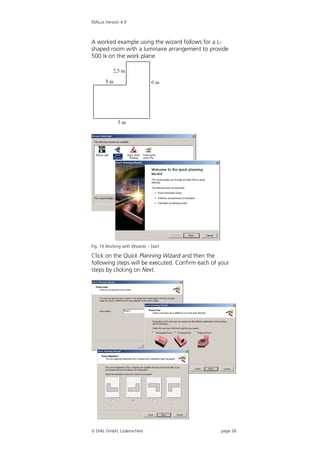
design is available when a lighting scheme is inserted
into a DIALux project and it is set to an emergency
lighting scheme. Because the emergency situation and
lighting is often integrated into a regular lighting design
and realised with luminaires which are in use also for the
regular lighting, this reduces the work the designer has
to do. You are able to select those luminaires, which are
used for emergency lighting from all the luminaires
placed in a room and you can also place additional
luminaires which are only used in an emergency. Such
luminaires, which are only used in the emergency case,
are not taken into account in the “regular” lighting
calculation. But these luminaires are placed and they are
listed for the outputs to locate them for the
commissioning. You can select for each luminaire
whether it is used in the regular lighting, in the


 DIAL GmbH, Lüdenscheid                             page 150
DIALux Version 4.9


emergency lighting only or for both cases. The duration
time and the luminous flux can be set for the emergency
case. The dimming of luminaires and taking daylight into
account in an emergency lighting scheme is of course
not possible.

To create an emergency lighting scheme you just have to
select the desired room and make a right click to add a
lighting scheme.


Fig. 229 Emergency lighting scene

If you want to design an emergency lighting project for
the UK market, it will be possible to define here the
calculation according to Lighting Guide 12, to take into
account the first reflection of direct light on the
ceiling(s). This, of course, will be automatically switched
on if the user selected the standard settings according
the UK market (global options, like UGR SHR and
illuminance quotient).

You can define for each light emitting object whether it
is used for emergency lighting.


Fig. 230 Property Page of emergency lighting


 DIAL GmbH, Lüdenscheid                             page 151
DIALux Version 4.9


For each luminaire and each LEO (Light emitting object, a
luminaire may have more than one light output) of a
luminaire, there will be a luminaire data sheet for
emergency lighting available. This datasheet offers
important information about the LEO. The first one will
be a graphic for the “Disability Glare Zone”. In this
graphic the maximum intensity values of EN1838, Table
1 will be listed and in two sketches the maximum
intensity values of the LEO for the “flat floor” and for
the “uneven floor” will be given. The second graphic /
table will show the maximum distances for the mounting
of the luminaire to achieve a desired illuminance (for
example 1 lx). It will list several mounting heights (2m up
to 5m) and the mounting options: wall to transverse,
transverse to transverse, transverse to axial, axial to axial
and axial to wall.


Fig. 231 Output – Emergency lighting data sheet


Escape route lighting
To do an escape route design, you have to insert one or
more escape route calculation object(s). The escape
route can be edited by entering the coordinates or by
moving with the mouse. With a right click additional
points can be inserted to add a kink to the escape route.
The width can be set to a maximum of 2m.


 DIAL GmbH, Lüdenscheid                             page 152
DIALux Version 4.9


Fig. 232 Emergency lighting – Modify escape route


The surface is placed on the floor but you can move it
around freely. After placing these escape route object(s)
a luminaire has to be selected. With a right click on the
escape route, a luminaire arrangement of single
luminaires can be placed above the escape route.


Fig. 233 Emergency lighting – Insert escape route lighting


You can select the luminaries you want to use, you can
define the luminous flux, which LEO to be used (if there
is more than one) and you can define a desired
illuminance level to be reached on the escape route. The
maximum distances for the first luminaries and between
the luminaries are calculated and used for the
positioning of the luminaries. Also you can select if there
should be luminaries in the positions of the kinks of the


 DIAL GmbH, Lüdenscheid                                     page 153
DIALux Version 4.9


escape route. If necessary, there can be more than one
escape route and luminaries arrangement in a room.


Fig. 234 Escape route lighting

Before the escape route with the escape route luminaries
is planned, normally the positions of luminaires are also
defined by the positions of “MANDATORY POINTS OF
EMPHASIS”. Initial design is conducted by situating
luminaires to reveal specific hazards and highlight safety
equipment and signs, in addition to providing
illumination to assist safe travel along the escape route.
This should be performed regardless of whether it is an
emergency escape route or an open (anti-panic) area.
As seen in this visualisation, the manufacturer can use
real 3D models for the visualisation of its luminaires.


Fig. 235 Escape route lighting – Visualisation


Open area lighting (anti panic)
Open area lighting can be automatically prepared by
inserting an emergency lighting scene. In the Property
Page for the lighting scheme there is a button to insert
“anti panic calculation surfaces” on each piece of floor
in the room, even if the floor is tilted or consist of areas


 DIAL GmbH, Lüdenscheid                              page 154
DIALux Version 4.9


in different heights. The geometry is copied from the
floor minus 0.5m from the walls. It is also possible to edit
the surfaces manually.


Fig. 236 Open area lighting


The way to insert an open area luminaire arrangement is
similar to that in the escape route lighting. A right click
on the open area calculation surface opens the Property
Page for the luminaire arrangement.


Fig. 237 Insert open area lighting


 DIAL GmbH, Lüdenscheid                             page 155
DIALux Version 4.9


Fig. 238 Properties of the open area luminaire arrangement


This tool calculates the maximum distance for the
selected fittings taking into account the desired
minimum illuminance level and uniformity. You can see
here the maximum distance lengthwise and crosswise
between the luminaires and between luminaires and the
border of the open area calculation surface. The
arrangement will be placed symmetrically above the
open area surface.

To calculate the “open area” which means the
unobstructed floor, you have to select in the calculation
setting not to take the furniture into account.


Fig. 239 Calculation dialogue – Without furniture

Those luminaires, which are in use for emergency
lighting, are marked with the expression “emergency
luminaire”.


 DIAL GmbH, Lüdenscheid                                     page 156
DIALux Version 4.9


Fig. 240 Emergency luminaires in the CAD view


High risk task area lighting
For the high risk task area lighting, you can use the
regular task area calculation surface of DIALux. It
contains of the task area(s) and the surrounding area.
The calculation surface will be calculated in the
emergency lighting scheme as well as the other
calculation surfaces.

Luminaires with emergency lights
A luminaire can transfer the information of several light
emitting objects. These LEO can also be defined as
“emergency LEO”. These emergency LEOs are only used
for the emergency lighting calculation. Since DIALux
version 4.1 these emergency LEOs will be used by DIALux
for the emergency lighting calculation. A “regular” LEO
can also be used for the emergency calculation. Often
“normal luminaires are equipped with battery packs or
they are connected to a central battery. So in the
emergency case the “regular” light distribution curve is
used for the calculation. Maybe the luminous flux is
different. In DIALux a single luminaire can be picked and
the settings to use it in the emergency lighting
calculation can be defined.


Fig. 241 Emergency lighting – Inspector

You can define here if the luminaire has to be used for
the emergency calculation. Also you can define if it is
used only in the emergency case or for the normal


 DIAL GmbH, Lüdenscheid                          page 157
DIALux Version 4.9


lighting. The luminous flux for the duration time can be
edited here.

The emergency LEO is designed to handle a light
distribution curve which is different from the regular
LDC. There are for example fluorescent lamp luminaires
on the market which have an incandescent lamp or a
LED included for emergency lighting. In these cases it
would be possible to use the fluorescent lamps LDC for
the normal lighting situation and the incandescent lamp
or LED LDC for the emergency lighting.


Emergency lighting data sheet
One element of good lighting design is of course
complete lighting documentation. In accordance with
prEN 13032-3 DIALux also provides evaluation of
emergency luminaires with regard to glare and optimal
positioning in the form of a data sheet.


Fig. 242 Emergency lighting data sheet


 DIAL GmbH, Lüdenscheid                          page 158
DIALux Version 4.9


Daylight calculation in DIALux
DIALux is complemented by the extensive support of
daylight calculations. Now daylight scenes can be
inserted in your project allowing the influence of daylight
in the interior and exterior scenes to be simply
calculated. The different sky models (clear, overcast,
partially overcast), as well as the direct sunlight
influences the calculation. Of course location, time and
alignment, as well as the daylight obstruction are taken
into consideration with the calculation.


Basics
Since the introduction of version 4 DIALux can calculate
daylight. No special mode is necessary for this. In exterior
scenes daylight can be calculated basically, and in
interiors whenever windows or skylights exist in the
room. As a base for the calculation the DIN 5034 and the
CIE publication 110 were used. The sky dome is divided
into parameterised luminous surfaces, which get a
luminance depending on the sky model, location, date
and time. By the option "use direct sunlight" it is also
calculated with the sun as a light source. The calculation
occurs in the following steps:
    1. Calculation of the skylight on all surfaces (inside
         and outside)
    2. Calculation of the direct sunlight on all surfaces
    3. Calculation of the direct light of luminaires (if
         available)
    4. Calculation of the indirect component

DIALux does not differentiate between inside and
outside calculations; all surfaces are simply used for the
radiative interchange. If you want to do a daylight
calculation in DIALux, a suitable light scene must be
inserted.


Sky types in DIALux
The sky types in DIALux correspond to the CIE 110-1994
"Spatial Distribution of Daylight - Luminance
Distributions of Various Reference Skies". Thereby a
luminance is assigned to every point of the sky. The
luminance depends on the solar height, the solar
azimuth, the sky point height and the sky point azimuth.


Tab. 1 Sky types according to CIE 110-1994

 DIAL GmbH, Lüdenscheid                             page 159
DIALux Version 4.9


                  Overcast Sky        Averaged Sky       Clear Sky
CIE-Name          Overcast Sky        Averaged           Clear Sky
                                      Intermediate Sky

                                      Developed by
                                      Nakamura, Oki et
                                      al.
Description       Complete            Developed from a   Cloudless Sky
                  Overcast Sky,       long period of
                  rotationally        measurements,
                  symmetrical         described
                  luminance           average weather
                  distribution        conditions
Direct sun
                         No                   No              Yes
possible
Number of
possible
                          3                    1               8
zenith
luminance
In DIALux
used zenith          Krochmann                            Krochmann
luminance


Light Scenes
DIALux offers the possibility to define light scenes in a
project. For this a light scene is inserted within the room
or the exterior scene by right-click or insert-menu. In
light scenes luminaires can be provided individually or as
control groups with dimming levels. Likewise a daylight
situation can be defined.


Fig. 243 Specify dimming values of the control group

To accomplish a daylight calculation, a light scene must
exist in the room.


 DIAL GmbH, Lüdenscheid                                      page 160
DIALux Version 4.9


Daylight calculation
If a project is started, the global position must be defined
first.


Fig. 244 Select the location


Here the user can select any location. DIALux offers a
very long list of places on all continents, so that the
inputs are already filled for longitude and latitude as well
as time zone. Other places can be added arbitrarily.


Fig. 245 North alignment


The north direction can be defined in each case for the
room or the exterior scene. To recognize this easily, the
north arrow is drawn near the coordinate origin.

In the room windows or skylights must be included in
the plan as before. These can be easily placed as a line or
field if one uses "Copy along a line" function.


 DIAL GmbH, Lüdenscheid                             page 161
DIALux Version 4.9


Fig. 246 Edit daylight factors


Of course all the important parameters can be defined
for windows and skylights. As usual DIALux already
includes a selection of the most current choices.


Fig. 247 Daylight factors


To calculate a light scene with daylight, the necessary
calculation options must be put in the light scene. If the
checkbox "Calculate Daylight quotient" is activated, the
settings are made accordingly:
    - Sky model of overcast sky
    - No sun
    - No consideration possibly of available luminaires

As a result you get as usual a calculation including
visualization, and in this case, the output of the daylight
quotient as a component of the work plane. If you want
to know the daylight quotient at other positions, you can
insert suitable calculation surfaces or calculation points.

In the following figure the value chart of the work plane
is displayed. Currently (beta version) it doesn’t show the
daylight quotients, but just the illumination in the


 DIAL GmbH, Lüdenscheid                            page 162
DIALux Version 4.9


suitable positions. Also the outputs for Dmin, Dmax and Dm
need to be shown as percentage values.


Fig. 248 Output – Value chart of the workplane


Obstruction
Of course the obstruction can be also taken into
consideration in DIALux. For this it is also necessary to
define this in the CAD. By the selection "Edit daylight
obstruction" in the menu Edit or by right-click on the
room the obstruction can be inserted. In the obstruction
scene the room is shown in its exterior view. Now objects
can be planned arbitrarily round the room. Also the
room can be raised if it necessary, e.g., a room in a
higher floor. The obstruction shades the direct light as
well as the reflected light which hits the obstruction
objects.


 DIAL GmbH, Lüdenscheid                            page 163
DIALux Version 4.9


Fig. 249 Obstruction in CAD view


Sun and shadow visualisation
The direct incidence of sunlight in the room can be
simulated on a real-time basis. For this an OpenGL
compatible graphic card is necessary. The incidence of
light by windows and/or skylights is calculated as a
function of place, orientation, geometry and date and
time.


Fig. 250 Sun and shadow visualisation


At the top left of the Inspector there are two sliders.
With these the date and time can be changed on a real-
time basis and the path of the incidence light in the
room can be simulated.


Settings in the calculation dialogue
Before starting the calculation you have the possibility to
select the scenes to be calculated in the calculation
window. Other settings are available. Thus you can select
additional calculation options and operations.

 DIAL GmbH, Lüdenscheid                            page 164
DIALux Version 4.9


Fig. 251 Calculation dialogue


 DIAL GmbH, Lüdenscheid        page 165
DIALux Version 4.9


                               Working in the 3D View
                               Setup the 3D View
                               It is possible to roam through a planned scene to closely
                               evaluate the results. The observer's position can also be
                               inside a room. This is especially valuable when planning
                               large rooms with a lot of furniture.


If you have a “three-button
mouse”, the “Move” option
is assigned to the mouse
button in the middle. If you
have a wheel mouse, you
can “Zoom” by turning the
wheel and “Move” by
pressing it.
                               Fig. 252 Evaluating a staircase from the upper storey

                               The following tools (from left) can be used to change the
                               position in the 3D view:


                               Fig. 253 Toolbar for switching between modes

                                        Select Objects; when this mode is selected,
                                         objects (depending on the selection filter) can be
                                         selected by clicking on them.

         Various options are            Increase/Decrease View Size; to increase or
         available when
         roaming through a
                                         decrease the zoom factor, left-click in the CAD
         scene!                          window and move the mouse up or down. With
                                         DIALux 4.9 you can increase or decrease the CAD
                                         view about 10% by using CTRL key + + or CTRL
               Ctrl                      key + -.

                                        Rotate 3D View; left-click and move the mouse
                                         while holding the mouse button pressed.
               Shift
                                        Move; use this mode to move the area that is
                                         displayed in the window. If you have a “three-


                                DIAL GmbH, Lüdenscheid                                page 166
DIALux Version 4.9


          button mouse”, this option is always assigned to
          the mouse button in the middle.

         Roam Scene
             o Left-click and move the mouse to move
                forward, backward or to rotate on the
                spot.
             o Left-click holding the CTRL key  you can
                roam up, down, left or right, the viewing
                direction remains constant.
             o Left-click holding the Shift key  you
                remain on the spot and can look around
                you.

You can change the focal distance of the camera in the
3D view by selecting the mouse mode “zoom” (loupe
symbol). While zooming (left-click and move the mouse)
hold the CTRL key at the same time.


Fig. 254 Change perspective and focal distance of the camera


Check Calculation Values in the 3D View
With the help of the Luxmeter function you can see the
calculated illuminance value of any selected point. To do
this you should switch to the 3D view, enable the Tool
tips for calculation results and select the Rotate view
mouse mode. Move the mouse pointer to any position in
the CAD window. The calculation results are displayed at
the bottom of the figure. In order to indicate different
points of calculation in your CAD window set your
mouse function to Rotate View. This way you can quickly
reach each point in the room.


 DIAL GmbH, Lüdenscheid                                       page 167
DIALux Version 4.9


Fig. 255 Show calculation results in 3D view

Now you can click at any point that is of interest to you
and the calculated illuminance is displayed in a small tool
tip.

Save 3D View
DIALux offers two different ways to export the current
3D rendering into a graphics file. The easiest way to get
a picture of the visualisation is to rotate or move the 3D
view of a scene (interior room, exterior room or street)
into the desired position and then use the menu 
Export  Save CAD view as JPG… which opens a file
selection dialogue.


Fig. 256 Save a 3D view as *.jpg-file

Here you can enter the directory and the filename. The
picture is stored as a *.jpg-file with a 1024 x 768 pixel
image.

To get a picture with a higher resolution, proceed as
follows:
     o Make the planning as usual and adjust the
        perspective of the 3D CAD view.


 DIAL GmbH, Lüdenscheid                            page 168
DIALux Version 4.9


     o    Change to the output and open the 3D
          rendering.


Fig. 257 Open the 3D rendering
     o    Start the software that should import the image.
          This might be Word, Excel or any image
          processing software.
     o    Click and hold the left mouse button on the 3D
          output and drag the image to the other program.


Fig. 258 Copy the 3D rendering into another software

     o    The image is copied into the other software with
          a resolution of 2000 x 2000 pixels.


 DIAL GmbH, Lüdenscheid                               page 169
DIALux Version 4.9


Presentation of false colour rendering
With DIALux the user has the option to display the 3D
rendering in a false colour rendering presentation. The
presentation of illuminance and luminance with freely
scalable value ranges and definable colour gradients is
now available.


Fig. 259 False colour – Illuminances


Fig. 260 False colour – Luminance


 DIAL GmbH, Lüdenscheid                           page 170
DIALux Version 4.9


                             Working in Various Views
                             DIALux provides various views to assist you with your
                             layout.


                             Fig. 261 Views toolbar

                             You can open the various views via the toolbar
                             illustrated. The button functions are, from left to right:
                                   Open 3D view
                                   Open ground plan view
                                   Open side view
                                   Open front view
                                   Zoom to the overall view of the scene, for that
                                      DIALux zooms to the borderline of the room or
                                      exterior scene
                                   Show previous / next light scene
                                   Show dimming levels in CAD
                                   Show maintenance factors in the CAD
                                   Activate Project manager, DIALux shows the
                                      Project manager in addition to The Guide
                                   Tile windows horizontally
                                   Tile windows vertically
                             In the menu file Settings  Customise Toolbars you can
                             activate more functions in the view’s or window’s
                             toolbar (see page 54).


                             Fig. 262 Working in various views
If your monitor is big
enough, it is advisable to
                             The display illustrated above can be achieved by first
keep several views open      opening the four views and then arranging the windows,
simultaneously.              e.g. Tile Horizontally.


                             Fig. 263 Multiple view arrangement


                              DIAL GmbH, Lüdenscheid                            page 171
DIALux Version 4.9


                               Click on the X icon in the upper right corner to close the
                               window.


Close views via the “X” icon


                               Fig. 264 Closing CAD windows


                               Save 3D CAD views
                               In the 3D view it is possible since DIALux version 4.0 to
                               save camera perspectives of 3D CAD displays with
    Saving of various CAD
    views (camera mode).       certain key combinations. Turn and zoom the CAD into
                               the required position and then press CTRL + number.
                               This view will be saved in the project. The view can be
                               set again automatically by pressing Alt + number. The
                               numbers 1 to 10 can be allocated as wished. You can
                               also do this with a right click in the CAD or under the
                               menu “CAD”.


                               Fig. 265 Save camera view via context menu


                                DIAL GmbH, Lüdenscheid                            page 172
DIALux Version 4.9


Fig. 266 Save camera view via menu

The function redo camera view accesses the saved views.
You can proceed via the context menu within the CAD
view or in the menu  CAD.


Fig. 267 Redo camera view – Redo positions


 DIAL GmbH, Lüdenscheid                        page 173
DIALux Version 4.9


Wireframe Model
With DIALux there is the option to change into the
wireframe mode. This is so that you can work on an
“older” computer without judder when moving in the
3D view. You can find the function in the menu View 
Wireframe Display. It is quicker to use the keyboard
shortcut Ctrl +W.


Fig. 268 Changing into the wireframe mode


 DIAL GmbH, Lüdenscheid                       page 174
DIALux Version 4.9


                             Editing Inserted Objects
                             Moving Objects
                             After luminaires and furniture have been placed inside
                             the room, they can be edited as desired. The Inspector
                             displays all information relevant to the object which was
                             selected in the Project manager or CAD view. This object
                             can be modified by entering new values. If an object is
                             modified in the CAD view (rotated, moved or scaled) the
                             values in the Inspector are updated.


                             Fig. 269 Graphically modifying the object height

To change the height of an   To modify the position of a body along the Z-axis, press
object via the mouse, keep   the control (Ctrl) key. Keep the button pressed while you
the Ctrl button pressed!
                             click on the arrow cross within the body. As long as the
                             left mouse button and the Ctrl key are pressed, only the
     Ctrl                    height of the object can be modified. When you release
                             the Ctrl key, you can modify the X and Y positions.

                             In the 3D view, the point of intersection of the three
                             positioning lines shows the position of the cross,
                             projected onto the floor surface.

                             In DIALux 4.9 it is also possible to move an object not
                             only by its insertion point but also by dragging the
                             corners of the bounding box. The benefit is that it is now
                             easy to place one object directly next to another one and
                             the object automatically rotates itself to get the same
                             rotation as the adjoining object.


                              DIAL GmbH, Lüdenscheid                            page 175
DIALux Version 4.9


To change the working area
in the 3D view press the
spacebar while the left
mouse button is pressed and
the mouse icon is above the
area you would like the       Fig. 270 Dragging an object by its corners and automatic rotation
working area to be.

                              In the 3D view using any surface as a working surface an
    S P A C E                 object can be moved by the mouse. The working surface
                              is fixed as a parallel surface to the X-Y area (normally
                              parallel to the floor). This can temporarily be changed if
                              the SPACEBAR is hit while the mouse together with the
                              object is in front of any other surface and the left mouse
                              button is pressed. Example: You click (left) on a cube and
                              move it towards a wall. Make sure that the mouse icon is
                              in front of the wall. Now hit the space bar on the
                              keyboard. The wall will become the working area of the
                              cube now. Instead of moving to the left and to the right
                              (X-Y axis) you can now move up and down (axis of the
                              wall). It can be any other surface as well (tilted floor,
                              furniture,..). The working area is reset when the left
                              mouse button is released and another object is selected.


                              Fading out objects
                              Objects can fade out via context menu. For this, you
                              have to mark the objects in the CAD view or project
                              manager. After the marking you open the context menu
                              with right-click in the CAD view. By clicking on “selection
                              hidden” the selected objects fade out.


                               DIAL GmbH, Lüdenscheid                                            page 176
DIALux Version 4.9


                                Fig. 271 Fading out objects

                                Fading in the hidden objects again, you hate to open the
                                menu via right-click in the CAD View and choose
                                “Cancel hidden”.


                                Fig. 272 Fading in objects


To deactivate the preset pick   Moving and Rotating Objects without Pick Grid
grid, press the shift button!
                                When you move the object via the mouse, it only moves
                                within the preset pick grid. If you press the Shift key
     Shift                      while you move the object, the pick grid is deactivated.
                                The grid settings to be used when the pick is deactivated
                                can also be preset. Select CAD  Pick Options  Set
                                Pick Grid.


                                 DIAL GmbH, Lüdenscheid                          page 177
DIALux Version 4.9


Fig. 273 Pick grid settings – Display Grid


Fig. 274 Pick grid settings – Snap Grid


Fig. 275 Pick grid settings – Angle Pick


 DIAL GmbH, Lüdenscheid                     page 178
DIALux Version 4.9


                                  Fig. 276 Pick grid settings – Colours of the Pick grids


                                  Scale or rotate
                                  An object is either in scale or in rotate mode. After
                                  selecting an object it is initially in rotate mode. To
    |<- Tabulator                 change between the two modes you can either open the
    ->|                           context menu by doing a right click or, and this is new,
                                  you can hit the tabulator key to change between these
                                  modes.

                                  Rotating Objects
                                  If objects are to be rotated, they must be selected first.
                                  Then they can be modified numerically in the Property
                                  Page or graphically in the CAD view. Click on one of the
                                  three axes rotation points. There is a pick grid for
                                  rotations as well (Angle Pick).


Please note:
The red rotation point
enables a rotation around
the red axis, likewise the blue
and the green rotation points
enable rotations around the
blue and green axes
respectively.


                                  Fig. 277 Rotating objects

                                  Objects are rotated around their own coordinate origin.
                                  This is indicated by the arrow cross and by the point of
                                  intersection of the three axes. If multiple objects are
                                  selected to be rotated together, they are rotated around
                                  the centre of the encompassing cube.


                                   DIAL GmbH, Lüdenscheid                                  page 179
DIALux Version 4.9


                           Scaling Objects
                           Objects can be scaled along one, two or three axes. This
                           can be done either in the Property Pages or in the CAD.
                           To go to the scale mode in the CAD, open the object's
                           context menu (right-click) and select the Scale option.


                           Fig. 278 Object context menu

                           In the 3D view you can scale the object in the X, Y or Z
In the 3D View:
Pull rubber band lines =   direction by clicking and pulling one of the rubber band
Scale in one dimension     lines of the selected object. However, if you click on one
Pull rubber band corners
                           of the selected corner points, you simultaneously scale in
= Scale in three           all directions.
dimensions
                           In 2D views you can only scale in one dimension.


                           Combining and Saving Objects
                           If you have inserted multiple objects in the CAD which
                           together you wish to treat as an arrangement or to save
                           as a new custom piece of furniture, it is recommended to
                           combine these objects in advance. Objects need not
                           touch to be combined. They can also be positioned
                           independently in the room.


                           Fig. 279 Combining Objects

                           To combine objects, select them and select Combine
                           from the context menu.
                            DIAL GmbH, Lüdenscheid                           page 180
DIALux Version 4.9


                             To save objects, select them and select Save as… from
                             the context menu.

                             Important! DIALux only loads furniture saved in the
                             …DIALuxFurniture…. directory into the furniture tree.
                             The user can create subdirectories beneath the Furniture
                             directory. If you have received furniture files in the SAT
                             file format (*.SAT) from the manufacturers, you can save
                             these in the Furniture directory and use them in DIALux.

                             (See also page 82)

                             Moving the Coordinate Origin of an Object
                             If you combine multiple objects, the centre of the en-
                             compassing cube automatically becomes the coordinate
                             origin. This is not always the preferred position, because
                             when you insert an object into your project via Drag &
                             Drop, the origin is placed at the height Z = 0. Before you
                             save a new object, you should check and position the
                             origin. You can do this in the Inspector when you go to
                             the Property Page Origin.


To move the coordinates
system of an object, press
the Alt button!


       Alt


                             Fig. 280 Specify the coordinate origin


                             To define the origin visually, press the Alt button. When
                             you now move the object's coordinate cross, the
                             coordinate origin is moved instead of the object itself. To
                             change the height or to deactivate the pick grid when
                             movements are made, use the Shift and Ctrl buttons. If
                             you now save the object, the new coordinate origin is
                             also saved.


                              DIAL GmbH, Lüdenscheid                            page 181
DIALux Version 4.9


Fig. 281 Coordinate origin which was moved outside the cube


Resetting the rotation of the origin
To create complex models from several simple ones,
sometimes it is necessary and useful to reset the rotation
of an object. To achieve that, you have to click the
“Reset rotation of origin” button in the Origin Property
Page of the Object. The length, width and height of the
object are taken from the rotated bounding box.


Fig. 282 Resetting the rotation of the origin of an object or furniture


Editing Object Surfaces
In DIALux you can assign any colour, reflectance,
material and calculating grid and textures to any surface.
To edit object surfaces, select the object and click the
Surfaces tab.


 DIAL GmbH, Lüdenscheid                                                  page 182
DIALux Version 4.9


                                Fig. 283 Editing surfaces

                                In the Inspector, the Property Page with a list of existing
                                surfaces appears. If you select a surface (surface 1 in this
                                case), this is highlighted with a rubber band line in the
                                CAD. In the right-hand side of the Property Page you can
                                select a material, a reflectance or a colour. By clicking on
                                the empty field “…“ behind the name of the surface in
                                the listbox on the left-hand side, the name can also be
                                modified.


To receive output on
furniture surfaces, check the
Result Output checkbox.


                                Fig. 284 Calculating grid and furniture surface output

                                To include the calculation results of a certain surface in
                                the output, please check the Output Result checkbox in
                                the Calculating Grid tab.

                                Time and again it is necessary to work on single surfaces
                                of an object. With complex objects with very many
                                surfaces, it may take a lot of time to find the required
                                surface in the surface list of the object’s Property Page.
                                To make this simple you can now select a single surface
                                graphically. Just right click the object on the required
                                surface in the CAD and choose “Select this surface”
                                from the context menu. The required surface is selected
                                in the Property Page and it can be assigned a colour, a
                                texture, material and so on.


                                 DIAL GmbH, Lüdenscheid                                 page 183
DIALux Version 4.9


If Output Results is checked the surface selected appears
in the project tree of the project manager. It may be
helpful to rename this surface in the project tree so that
results are easily identified.


Fig. 285 Selecting a single surface with the mouse


 DIAL GmbH, Lüdenscheid                             page 184
DIALux Version 4.9


Arrangement aids
Measurement of distances
Using the tape measure it is easily possible to find the
exact distances between objects in 2D and 3D view. To
start the tape measure just click on the icon or select the
tape measure in the menu CAD.


Fig. 286 The tape measure icon

In the 2D view, the tape measure is placed by clicking on
two points in the CAD window. The end points of the
tape measure will snap to grids, help lines, insertion
points of objects and to the bounding box of objects. If
the snap is not to that point you like it to be, just zoom
into the scene and the snap will be more accurate.


Fig. 287 The tape measure function in the ground plan view

In the 3D view, there are even more distances visible.
There you can see the direct distance between two
points as well as their heights above the floor and the
distance on floor level.


Fig. 288 The tape measure function in the 3D view


 DIAL GmbH, Lüdenscheid                                     page 185
DIALux Version 4.9


Working with the snap grid
The snap grid is a tool to simplify the handling and the
movement of any object in the CAD views. The objects
will step in the distance that’s defined in the snap grid
settings. The grid distances can be equal in all three
directions but can also be different for X, Y and Z.


Fig. 289 Fixed grid with a spacing of 0.5m in X and Y direction.

If you want to move an object for a short period without
a grid, just hold down the SHIFT key while you place the
object. This is valid for all grids and help lines.

To make the snap grid a visible tool as well, use the same
settings for the display grid as you do it for the snap grid.
The colour can also be changed to have a better contrast
for example against a background DWG file.


Automatic help lines
Those objects which are already placed in a room or
exterior scene can be used to align other objects. Moving
an object you will recognize that in orthogonal direction
there is a higher “gravity” than in any other direction. So
moving along X, Y or Z axis is simple. Those objects
(bounding boxes of furniture, walls, luminaries room
elements), which are already in the scene can create
automatically temporary help lines to align other objects
to.


 Fig. 290 Automatically by the walls generated temporary help lines.

 DIAL GmbH, Lüdenscheid                                               page 186
DIALux Version 4.9


In the screenshot you can see the red help lines which
follow the direction of the tilted walls. These help lines
are generated when you move with one object (e.g.
luminaries) for a short while above any other object (e.g.
wall). The help lines are visible until the left mouse
button is released.


 Fig. 291 Automatically by an object generated temporary help lines.

Here you can see help lines generated by the cube. Now
it is pretty easy to align cube and luminary.

Helping areas defined in the ruler
In ground plan, front and side view there are rulers
located on the left and on the top of the CAD window.
This ruler will show you the mouse position in X-Y, X-Z
and Y-Z direction. From this ruler you can generate
helping areas which are defined in a specific position and
are useful to align objects to.


Fig. 292 Creating helping areas in the ruler

You can create those helping areas by double clicking in
the position of the ruler or drag and drop the helping
area from the ruler into the CAD. It is called helping area
because it is active in two dimensions. If you place a
helping area in the ground plan view parallel two the X-
axis, it will be available in the side view as a parallel line

 DIAL GmbH, Lüdenscheid                                               page 187
DIALux Version 4.9


facing from top to bottom as well. If you place a helping
area parallel to the Y axis, it will be visible in the front
view. Having them available in two views makes it easy
to place objects not only in a desired position but also in
a correct height.

 If there are already objects in the CAD window
available, the helping areas can be snapped to those
objects as well.

Working with help lines
Help lines are objects which can be placed in any 2D
view. When they are placed in the ground plan view,
they are only visible in this view, not in any other 2D or
3D view.
They are meant to align objects to them or to place
objects on them. Moving an object towards a help line,
the snap will work on the bounding box and on the
objects origin. If an object is moved with the mouse on
the bounding box dragger also the rotation of the object
is align to follow the help line. This will not happen, if
the object is dragged by its origin.


Fig. 293 In the left sketch the object is moved on its origin, on the right it is
moved on the bounding box. In the second case the rotation is adjusted.

Help lines are not printed out. To insert a help line just
press the icon or use the command “Insert” -> “Help
lines”.


Fig. 294 Icons to insert help lines

After selecting a help line, you can continue to edit this
in the room with the aid of the context menu. The
functions available include “Delete last point” as well as
cancelling the help line. Just place a help line in the room
and open the context menu with the right mouse


 DIAL GmbH, Lüdenscheid                                                  page 188
DIALux Version 4.9


button.


Fig. 295 Further editing of a help line


Simple help lines
The simple help line is useful to align objects. Moving an
object towards the help line it will be automatically
snapped on the help line when a specific distance is
reached. To avoid the snap temporarily just hold down
the SHIFT key. To avoid the snap continuously, switch of
the icon for the help line snap.


Fig. 296 Icons to switch on and off the snap to help lines

A help line is defined by clicking for the starting position
and again clicking for the end position.


Fig. 297 Inserting a help line

In the inspector you can see the numeric values of start
and end point. Further on you can see the angle the help
line is rotated compared to the horizontal and the


 DIAL GmbH, Lüdenscheid                                     page 189
DIALux Version 4.9


vertical axis of the 2D view. That’s way the axes changes
from ground to side views.
The possibility to create parallel lines is also very useful.
Just enter the number of parallel lines you need and the
distance they should have.
To delete help lines just select and press the del(ete) key
or select delete from the context menu. Help lines can be
selected to be displayed or not. To switch between this
modes press the glasses icon with the help line on it.


Fig. 298 Display help lines


Poly help lines
A poly line is working like a simple help line but instead
of defining just a start and end point there can be any
number of vertices in between. The line between vertices
is always straight forward. Each left click defines a new
vertex. To stop the poly line mode press the ESCAPE key
or make a right click. In the context menu you can
choose between closing the line between first and last
point or just stop the mode at the last vertex.


Fig. 299 Insert a poly line, stop the mode with a right click

In the inspector each vertex can be changed numerically
and by ticking the checkbox the poly line can be closed.

To move the complete poly line after it is defined once,
hold down the ALT key while the mouse is above one
vertex and holding down the left mouse button.


 DIAL GmbH, Lüdenscheid                                        page 190
DIALux Version 4.9


Fig. 300 Move the complete poly line by holding down the ALT key


Spline help line
The spline help line can be placed like the poly help line.
The lines between the vertices are not straight but
curved to follow a smooth line between the vertices. In
the start and end point there are draggers which can be
used to change the line towards the start and end point.


Fig. 301 A closed spline help line. In the start and end point are draggers to
change the line

To move the complete spline help line after it is defined
once, hold down the ALT key while the mouse is above
one vertex and holding down the left mouse button.


 DIAL GmbH, Lüdenscheid                                               page 191
DIALux Version 4.9


Fig. 302 Move the complete poly line by holding down the ALT key


Circular help line
The circular help line can be placed by first defining the
mid point and then the radius.

Copy along a help line
Any help line can be used to be the copy and paste path
of any object. Any object and any object combination
can be copied along a help line, e.g. furniture,
luminaries, Calc surface + furniture… To start that
function, the help line has to be available in the scene.
The object that has to be copied along a help line has to
be in the scene as well. If you want to copy combined
objects, you have to place them correctly next to each
other first. The position in the room/exterior scene does
not matter at all.


Fig. 303 Copy along a help line with the mouse

Start with selecting the object to be copied. Than make a
right click and select “Copy along a help line” from the
context menu. Now there is a symbol at the mouse to
select the desired help line that should be used as a path
where the object should be copied along. When the
mouse is above a help line a small hook appears that tells
you that this help line can be selected. The line is
selected with a left click.


Fig. 304 Mouse symbol to select a help line for copying

Once the desired help line is selected, the inspector
offers the possibility to define the desired number of
copies and the distance between them.


 DIAL GmbH, Lüdenscheid                                           page 192
DIALux Version 4.9


Fig. 305 Copying in the standard setting with placing objects in the vertex

If the standard setting is selected, DIALux places the first
object in the start point, the last one in the end point
and in every vertex also a copy. The distance between
objects placed within two vertices will be averaged to
keep the number of objects and the resulting distance
close to the desired values in the inspector.

If the second setting is selected, the distance between
the objects is fixed. The first object is placed in the start
point and every following one has the exact distance as
defined. If the length of the help line is not integer literal
of the distance, the complete length is not used and a
rest of the line remains.


Fig. 306 Copying along a help line with fixed distance

In this way it is also possible to copy objects along spline
help lines and circular help lines.

Help grids
In addition to the help lines it is also possible to insert
help grids into the scene. To start this action, click on the
insert help grid icon.


 DIAL GmbH, Lüdenscheid                                              page 193
DIALux Version 4.9


Fig. 307 Insert a help grid

In the inspector start and end point as well as the grid
angle and the grid distance can be adjusted. In the
graphical way, first the start point has to be defined with
the first click. The second click defines the position of the
end of the first axis of the grid. The third click has to be
made in a distance perpendicular to the second point to
define the width of the grid area. Initially the grid
distance is set to 0.625m. This value can be changed in
the inspector or graphically by moving the dragger next
to the start point.


Fig. 308 Defining a help grid

The grid has snap points on each edge, on the lines at
half the grid length and in the middle of each grid
element.


Fig. 309 Snap points on the help

Of course it is possible to place grids in other grids. This
is useful if a luminaire arrangement should be placed
within one ceiling element.

 DIAL GmbH, Lüdenscheid                              page 194
DIALux Version 4.9


Copy and paste with CTRL+C, CTRL+V and CTRL+H
With CTRL+C objects can be copied into the clipboard.
This can be single objects or combined objects even
those ones of different types. With CTRL+V the copied
objects will be placed next to the original objects in a
distance of 1m in X and 1m in Y direction. With the
keyboard shortcut CTRL+H the object in the clipboard
will be pasted next to the position of the mouse, taking
into snap of any snap grid nearby. To copy luminaires
into a ceiling grid just place the first fixture. Than move
the mouse to the ceiling panels you need a luminaire in
and press the CTRL+H keys. The luminaire is pasted and
(if the mouse was close enough) the grid snap takes the
luminaire in the correct position.

Copy Along a Line
DIALux offers the possibility to copy an object repeatedly
one behind the other. This function Copy Along a Line is
selected in the CAD window using the right mouse
button or the menu Edit.


Fig. 310 Copy along a line with the mouse

In the Inspector, as an alternative or supplement to using
the mouse you can edit the number of copies; align the
line, the distance and the position of the last copy.


 DIAL GmbH, Lüdenscheid                             page 195
DIALux Version 4.9


Fig. 311 Copy along a line with the inspector


Align and distribute
It is often necessary when planning and positioning
several different objects to achieve a flush surface or to
adjust them vertically and horizontally to achieve a
regular arrangement or a neat appearance to the ceiling.
In DIALux you can edit this in the context menu of the
marked objects or in the menu Edit  Align and
distribute.


Fig. 312 Context menu CAD – Align and distribute


 DIAL GmbH, Lüdenscheid                           page 196
DIALux Version 4.9


Fig. 313 Menu Edit – Align and distribute


Centre objects in the room
This is a very useful tool to centre luminaires separated
by a modular spacing (for example a 600mm ceiling grid)
in the middle of a room. The luminaire arrangement will
be placed in the middle of the room after defining the
number of luminaires and the distance between them.


Fig. 314 Align and distribute – centred in space


 DIAL GmbH, Lüdenscheid                           page 197
DIALux Version 4.9


Calculation Surfaces and other
Calculation Objects
In the furniture tree you can insert calculation surfaces or
task area in DIALux. To do this simply select Calculation
surfaces and move the appropriate object via Drag &
Drop into a CAD window.


Fig. 315 Inserting calculation surfaces or task areas


Calculation Surfaces


Fig. 316 Transparent calculation surfaces

A calculation surface is an area in which the illuminance
can be “measured” without affecting the light
distribution themselves. Various calculation surface
norms exist, for instance the work plane, the correct
reading level for hospitals etc.
A calculation surface is displayed as a transparent
surface, as the example shows. The surface which

 DIAL GmbH, Lüdenscheid                                page 198
DIALux Version 4.9


appears transparent is the surface which provides the
calculation results. The surface is invisible when viewed
from the other side. No results are calculated for the
invisible side.
These objects can be scaled and rotated like all other
furniture. Exception: windows and doors are always
plane-parallel to the respective wall.


Calculation surfaces for different types of
illuminance
The calculation surfaces in DIALux can now calculate
different types of illuminance. As well as calculating the
normal, namely the planar illuminance, perpendicular to
the receiving plane, it is now possible to explicitly
calculate vertical planar, horizontal planar and camera
directed planar illuminance and also semi-cylindrical and
cylindrical illuminance.


Fig. 317 Different types of illuminance


Fig. 318 Property Page of calculation surface – Selection of the types of
illuminance


Penetration
If calculation areas are penetrated by furniture (e.g.
cupboard and working surface) these are now

 DIAL GmbH, Lüdenscheid                                               page 199
DIALux Version 4.9


automatically “cut out” of the virtual planes with
DIALux. It is not necessary for the user to make any
special settings.

Task Areas
Task areas are calculation surfaces that consist of two
parts. In DIN 5035 T7 and EN 12464 these two parts are
defined. The two parts are the inner Work Area and the
outer Surrounding Area. You can edit the polygonal
shape of areas by clicking the right mouse button. The
two parts are defined in the following way:
    o Both areas are plane-parallel.
    o The complete task area is positioned within the
         surrounding area.
The output shows isoline and greyscale diagram for both
areas together. Value charts and value tables are listed
separately for each area.


Fig. 319 Edit work area and surrounding area


Calculation grids
With DIALux 4.9 you can insert not only calculation
surfaces but also calculation grids. The basic difference
from calculation surfaces is the limitation of the number
of calculation points. Calculation grids have a great
number of associated outputs. All sports complexes have
at least one calculation grid. You also have the additional
option of inserting additional calculation grids. You will
find these either in the project tree under “Objects” or in
the menu under “Paste”  “Calculation Grid”.


 DIAL GmbH, Lüdenscheid                            page 200
DIALux Version 4.9


Fig. 320 Inserting a calculation grid via the project manager


By simply using the “drag and drop” function you can
now insert a calculation grid. Just select a calculation
grid, click on it with the left mouse button and pull it to
any position within the project. Alternatively you can
define the exact position in the Inspector beforehand
and let DIALux position the calculation grid.


 DIAL GmbH, Lüdenscheid                                        page 201
DIALux Version 4.9


Fig. 321 Inserting a calculation grid via the menu


In total there are three different calculation grids –
quadratic, radial or user-defined according to your own
parameters.


Fig. 322 Types of calculation grids

The quadratic and user-defined calculation grids are
conceptually similar (size and shape). However, with the
user-defined calculation grid it is possible to change the
height of the grid’s position of origin and the quantity of
calculation points. The radial calculation grid enables
individual changes to the internal and external radii and
the original coordinates.

Editing
As well as inserting calculation grids, you can also edit
them and save them for later projects. Just click with the
right mouse button on the calculation grid you have
inserted and then, in the context menu which then
appears, select the item “Convert for editing”. Then
right click on the grid and select “Save calculation grid”.

 DIAL GmbH, Lüdenscheid                             page 202
DIALux Version 4.9


Please note: When you do this, all automatic scaling
options of the grid will be deactivated.


Fig. 323 Converting the calculation grid


Conversely you can then insert additional grid points or
change existing points via the context menu under the
sub-item “Edit grid points”.


Fig. 324 Editing grid points


You can adapt grid points either via the Inspector (under
“Select”) by entering the coordinates or directly by
moving with the mouse. If you decide on the second of
these two options, just click on the respective grid point
with the left mouse button and continue to press on the
mouse button to move it to the desired position.


 DIAL GmbH, Lüdenscheid                           page 203
DIALux Version 4.9


It is also possible to change the ‘z’-values which means
that you can create very complex, three-dimensional
calculation grids.


Fig. 325 Changing individual grid points by using coordinates


Under “Selection” in the Inspector the grid points differ
according to world and grid coordinates. Grid
coordinates depend on the position of the origin of the
calculation grid, whereas world coordinates depend on
the position of origin of the actual outdoor scene.


Scaling
It is possible in DIALux to scale calculation grids in
different ways. To do this, just select the calculation grid
and then open the context menu with a right mouse
click. Here you can now select the scaling under “scaling
options” e.g. with or without anchoring etc.


Fig. 326 Selecting scaling options


 DIAL GmbH, Lüdenscheid                                        page 204
DIALux Version 4.9


Merging calculation grids
In DIALux the default setting is that all existing and
additionally inserted calculation grids are calculated
separately and displayed separately. However you have
the option to merge two or more calculation grids and
have only one output. For this just select one calculation
grid first with the left mouse button, then press the shift
key and select one or more calculation grids. Via the
context menu (by clicking with the right mouse button
on one of the selected calculation grids) you can then
finally select the sub-item “Combine”.


Fig. 327 Step-by-step procedure for merging calculation grids


One possible application for merging or combining
calculation grids could be a staircase. So that it is not
necessary to have an output of the calculation grid of
each individual step, all the calculation grids of the whole
staircase can be merged by following the above
described procedure.

Calculation points in calculation grids
As mentioned before there is a basic difference between
calculation grids and calculation surfaces in the limited
number of calculation points. The question therefore


 DIAL GmbH, Lüdenscheid                                        page 205
DIALux Version 4.9


arises as to the options there are to define the quantity
and also the distribution of the calculation points in the
grid. With DIALux there are three possible ways to make
adjustments to the calculation points.

You will find all the methods in the Inspector under the
tab “Calculation grid”, in the sub-item “Number of
Calculation Points”.


Fig. 328 Methods for defining calculation points


“Automatic”: This is the recommended setting if there
are no specific requirements. With this method DIALux
distributes the grid points uniformly over the whole
calculation grid.

“Manual”: DIALux distributes the calculation points
uniformly with this method too, but in accordance with
your specific default settings with regard to the x and y
coordinates.

“Distance”: With this method you are free to define the
distances between the individual grid points yourself.
Afterwards DIALux calculates the optimal number of grid
points.

In addition to these options you can also decide whether
the grid points are positioned at the edges of the
horizontal and/or vertical axes. You can decide on the
settings in the tab “Calculation grid” under “Align Points
to the Edge”. Either vertical or horizontal alignment or a
combination of both can be chosen.


 DIAL GmbH, Lüdenscheid                            page 206
DIALux Version 4.9


Fig. 329 Aligning the grid points to the edges of the axes


All the above functions refer to quadratic calculation
grids. The radial calculation grid has slightly different
functions.


Fig. 330 Inspector “Calculation grid” for radial calculation grids


By contrast, in user-defined calculation grids all grid
settings are made individually. Therefore there is no tab
“Calculation grid”.


Measuring grids
Sports facilities can be dragged into the CAD window. In
the project tree one or more calculation grids are listed
for a sports facility. Another tab in the Inspector for each
calculation grid is available called the measuring grid. A
measuring grid is different to a calculation grid and can
be inserted as well. There must always be a calculation
grid before inserting a measuring grid.


 DIAL GmbH, Lüdenscheid                                             page 207
DIALux Version 4.9


Fig. 331 Creating a measuring grid


In the tab “Measuring grid” different settings can be
made. These include defining which grid points and
which measuring points should be used. Similarly it is
possible to make a setting which visually highlights the
measuring points in the calculation grid more clearly by
hiding the grid points in the calculation grid.


Calculation
In the tab “Calculation” you can define which values of
the calculation grid are to be calculated. You have
various options for selecting illuminance and also for
changing the values for rotation (in º) and/or the height
(in m) individually in the respective selection boxes. You
can make changes as follows:
     vertical
     horizontal
     vertical (including angle of rotation)
     semi-cylindrical (including angle of rotation)
     cylindrical
     camera-oriented
     in relation to the outside line
     hemispherical

In this context illuminance is calculated at specific points
e.g. at a measuring or calculation point.

To obtain results output carry out a calculation in DIALux
with at least one luminaire.


 DIAL GmbH, Lüdenscheid                             page 208
DIALux Version 4.9


Fig. 332 Pre-setting the calculation of the calculation grid


Gradients
By gradient is meant a rate of change of value between a
specific measuring point and measuring points directly
surrounding it. The gradient supplies information about
the difference in illuminance between this and the
measuring points in the immediate vicinity.

Only calculation grids with a uniform and, as a rule,
quadratic grid require gradients of illuminance.

In the Inspector, under the tab “Gradients” you can
activate gradients and their output, define the
corresponding limit value and also define the distance for
the gradient grid.

By default in DIALux a gradient lies on a measuring or
calculation point - depending on whether you use a
measuring grid in addition to a calculation grid.


Fig. 333 Setting limit values for gradients


The limit value set prevents loss of image quality in
camera or image recordings. This value should not
exceed 20% for camera recorded events or 55 % for
non-camera-recorded events.


 DIAL GmbH, Lüdenscheid                                       page 209
DIALux Version 4.9


By default, as mentioned above, the gradient grid lies on
the calculation- and if applicable also on the measuring
grid. Under “Distance for gradient grid” you can change
the distance value in the gradient grid individually.


Display settings
In DIALux, calculation grids enable the direct display of
results in CAD. This is especially useful in the planning
phase of a project. In the tab “Display” of the Inspector
for calculation grids the following information can be
displayed:
     grid points
     measuring direction
     calculated values
     isolines
     false colours


Fig. 334 Changing an output option - Display values


Real time calculation
Often after making changes you want to see the results
immediately in CAD but do not wish to run a calculation
of the project beforehand. DIALux allows the option in
the tab “Real time calculation” of selecting which
illuminance you wish to have displayed in CAD. You can
select between:
     perpendicular
     horizontal
     vertical


 DIAL GmbH, Lüdenscheid                              page 210
DIALux Version 4.9


         camera-oriented (at least one camera must be
          inserted beforehand. These can be found in the
          project manager under “Sports complexes”.)

The display of the values must be activated beforehand
under “Display”. Now you can read the values according
to the illuminance option selected directly in CAD.


Fig. 335 Procedure and values in real time calculation


After changing the calculation option (e.g. from
perpendicular to vertical) not only are the values change
in the calculation grid but also the orientation of the
calculation points (see previous screenshot).

If several cameras are available, the camera-oriented
illuminance option allows you to select each camera in
turn to set the measuring height and the rotation of the
camera.


Fig. 336 Camera-oriented luminous intensity – selection and settings


 DIAL GmbH, Lüdenscheid                                               page 211
DIALux Version 4.9


Fig. 337 CAD output of camera-oriented luminous intensity


Isolines
Isolines display equal values of illuminance measured in
the vicinity of a luminaire. Isolines can be displayed in
CAD in the calculation grid during work on the project.
Select the sub-item “Display isolines” in the tab
“Display”. In the CAD you will now see the isolines of
the inserted luminaire(s) in real time.

Real time calculation only functions up to final
visualization of the calculation results.


Fig. 338 Displaying isolines in CAD


All settings at this stage also apply automatically for false
colours.

The graphic lines illustrate the level of illuminance
according to individual settings. These settings can be
changed and adjusted in the tab “Isolines”. Isolines

 DIAL GmbH, Lüdenscheid                                    page 212
DIALux Version 4.9


created in this way can be saved as user default settings
in DIALux. In addition, it is also possible in DIALux to
open standard specifications. To do this, select the
required isoline profile in the sub-item “Standard
specifications“. For example, profiles for sports
complexes or emergency lighting are available.


Fig. 339 Selecting an isoline profile


Calculation Points
To get calculation results for a number of selected
points. You can use horizontal calculation points, vertical
calculation points and free calculation points.


Fig. 340 Calculation points

Horizontal calculation points (shown at the right side of
the figure above) cannot be rotated. They always
“measure” the planar illuminance of the perpendicular
incoming light.

Vertical calculation points (shown at the left side of the
figure above) can be turned about the Z-axis. They can
“measure” the planar (“normal”) illuminance, the semi-


 DIAL GmbH, Lüdenscheid                            page 213
DIALux Version 4.9


cylindrical illuminance or the cylindrical of the incoming
light. This type can be selected in the Property Page.

Free calculation points can be rotated about all axes.
They “measure” the planar illuminance of the light
incoming in the direction of the arrow.

The output lists of all calculation points are on one page
(“Calculation Points List”). They are sorted according to
their type (planar, semi-cylindrical, cylindrical) and their
designation. The summary of the results shows
maximum, minimum and average value.
Calculation points are a good tool to get the illuminance
of stairs, blackboards, etc.


UGR Calculation
A major enhancement of DIALux affects the UGR
calculation. It can produce the following UGR results:
    1) The UGR table for all luminaires with direct
        lighting with a spacing to height ratio (SHR) of
        0.25 or 1.
    2) The single sheet output and the summary of
        “standard rooms” (rectangular, without
        furniture, only one type of luminaire) shows the
        four standard UGR values for the left wall and
        the lower wall viewing lengthways and across the
        luminaire axis. This saves doing the manual
        calculation with the help of the standard table.
    3) You can place UGR observers at workplaces to
        get UGR values with respect to
            a. position and viewing direction
            b. all used luminaires
            c. position and rotation of the luminaires
            d. shadowing and reflection
    4) With UGR calculation areas you get the
        distribution of the UGR values on an area. The
        calculation is comparable to the calculation of
        UGR observers. The output lists information
        about local glare problems on arbitrary places in
        the room.

The output of part 1 is a table of the corresponding
values. For part 2 and part 3 you get single UGR values.
For part 4 you get isolines and greyscale diagram, a chart
and a table of the values. Possible UGR values are
between 10 and 30. Smaller values are shown as <10.
Larger values are shown as >30.

Insert UGR Calculation Point and UGR Calculation
Area
You can insert UGR calculation points and UGR
calculation areas via drag and drop from the furniture
tree into the CAD. NOTE: If you place these objects into

 DIAL GmbH, Lüdenscheid                             page 214
DIALux Version 4.9


the ground plan, they are inserted at a default height of
1.2 m. This is the standard value that is used for a sitting
observer. If you place them into the 3D view, they are
placed on the surface you “touch” with your mouse. For
example if you place them into the 3D view of an empty
room they are positioned on the floor at a height Z=0.


Fig. 341 Insert UGR objects into a room

A second way to insert these objects is to use the
Property Page. You just enter the numerical values of the
position, the size and the rotation and click on Insert. It is
the same Property Page that you can use to modify an
existing object.

Adjust Viewing Direction of UGR Observer and UGR
Area
To adjust the viewing direction, you can use the
corresponding Property Page. A direction of 0° means
that the observer looks lengthways, the X-axis. A positive
angle means a counter clockwise rotation. An arrow
shows the viewing direction.


Fig. 342 Viewing direction of an UGR observer


 DIAL GmbH, Lüdenscheid                              page 215
DIALux Version 4.9


Exterior Lighting
Exterior Scenes
You can use DIALux for planning of exterior scenes with
almost the same steps you normally use in indoor
lighting. After starting DIALux you will see a startup
dialogue.


Fig. 343 Startup dialogue

In the startup dialogue you can choose New exterior
project and DIALux starts with a new empty exterior
scene. You can have rooms, exterior scenes and street
scenes in one project.


Fig. 344 Start DIALux 4.9 with a new exterior scene


In the Project manager, the exterior scene is quite
comparable to a room. An exterior scene contains
ground elements, furniture and luminaires. The room
contains walls, floor and ceiling instead of the ground
element.


 DIAL GmbH, Lüdenscheid                              page 216
DIALux Version 4.9


                           Ground elements have their own photometric properties.
                           The calculation results are limited to their surface. You
                           can insert additional ground elements from the furniture
                           tree.


                           Fig. 345 Insert a ground element from the furniture tree via "Drag & Drop"

You can insert further     You can edit a ground element similar to the rooms (see
ground elements from the
furniture tree
                           Edit mode). They can have any polygonal shape. When
                           you enable the option Result Output in the Property Page
                           Calculation Grid, DIALux will create the relevant output.
                           You can place furniture and luminaires in the same way
                           as in the rooms of an indoor project.


                           Ground Elements
                           A ground element can only be used in an exterior scene.
                           It is an area with a defined shape and an arbitrary height
                           that may for example differ from the rest of the scene
                           only because of its function.


                           Fig. 346 A ground element

                           By default a ground element has a rectangular shape and
                           a height of 0.0 m. If you modify the height, the ground
                           element is extruded consists of a top surface and sides. If

                            DIAL GmbH, Lüdenscheid                                            page 217
DIALux Version 4.9


you want to modify the shape of the ground element,
you can switch to the Edit mode with a right click. The
Inspector shows the different surfaces of the ground
element. You can change their material independently
and you can select if the different surfaces will be listed
in the calculation output. A ground element can appear
as a “hole” inside of another ground element. The grey
ground element and the selected ground element in the
figure above are such “holes” that are cut out of the
green meadow. In this example DIALux will not create
calculation results for these parts of the outer meadow.


Floodlight Illumination
To calculate the floodlight illumination of objects or
buildings you start with an exterior scene. On top of the
ground element, you place the object you want to
illuminate. Now you can select a surface of the object
and enable the option Output Results.


Fig. 347 Calculate results of a surface

… or you can place a calculation surface in front of the
object.


 DIAL GmbH, Lüdenscheid                             page 218
DIALux Version 4.9


Fig. 348 Illumination of a facade with a calculation surface in front of it


Lighting Design according to prEN12464
Part 2 / EN8995-2
Glare Rating
The draft of EN 12464-2 / EN 8995-2 intends that glare
has to be avoided for outdoor working places. To ensure
this, glare limits for tasks and activities are prescribed.
The glare rating system (GR) is defined in the CIE
publication 112:1994. For glare evaluation, the veiling
luminances produced by the luminaires and by the
environment are the basic criteria. The latter is handled
differently by EN 12464-2. In DIALux you can choose,
whether you want to use the simplified method of EN or
the complete method of CIE. The simplified method
approximates the veiling luminance produced by the
environment (Lve) with the formula Lve=0.035 x  x Ehav x
, where  is the average reflection and Ehav the average
illuminance of the “area”. Unfortunately this “area” is
not exactly defined. DIALux uses all ground elements as
the “area”.


The complete method of CIE 112:1994 uses the correct
veiling luminance produced by the environment in front
of an observer. Here the illuminated area is considered to
consist of an infinite number of small light sources. The
veiling luminance produced by the environment is
                                                n   E eye i
                                  Lve  10
                                 i 1  i
                                                        2
defined by the formula                    where n is the
total number of small light sources. Of course, this
calculation is more accurate but more time consuming
too. The DIALux outputs state which method was used
to calculate GR values.


Fig. 349 Property page of the GR Observer


To calculate GR values, DIALux provides the GR observer
tab. Any GR observer can be placed just like any other

 DIAL GmbH, Lüdenscheid                                                 page 219
DIALux Version 4.9


calculation point. There are some special properties, an
inclination angle, viewing angles from a start to an end
angle and a step width. The inclination angle defines the
observer’s viewing direction towards the horizontal. Start
and end angle define the observer’s vertical viewing
section. Here 0° is the direction along the positive X-axis,
positive angles move counter clockwise. Step width
defines the different viewing directions between start
and end angle.

GR observers can easily be placed as a line or even as a
field by using the function “Copy along a line”.


Obtrusive Light / ULR Calculation
The ULR (Upward Light Ratio) value is the percentage of
luminaire flux of a luminaire or a lighting installation that
is emitted above the horizontal, where all luminaires are
considered in their real position in the installation. Sky
glow limitations depend on the environmental zone of
the lighting installation. The standard defines four
environmental zone categories from E1 to E4. E1 category
is used for intrinsically dark landscapes like national parks
or areas of outstanding natural beauty. E4 category is
used for high district brightness areas like city centres.
Sky glow limitations reach from 0% to 25%.

DIALux states the ULR value on the “Planning data”
output page for exterior scenes. DIALux considers only
luminaire flux that goes directly into the sky. Luminaire
flux above the horizontal, that is both used for lighting
of vertical structures such as facades, and is restricted to
these structures, will not be considered.


 DIAL GmbH, Lüdenscheid                             page 220
DIALux Version 4.9


Fig. 350 Luminous flux that is taken into account for the ULR value


Obtrusive Light / Luminous Intensity Calculation
Point
To minimize obtrusive light, EN 12464 not only gives
limitations for ULR values but also for luminous intensity
values in obtrusive directions and light trespass into
windows. These limitations depend on the environmental
zone category as well. Limitations for light trespass into
windows are given in lux. Values can easily be calculated
with calculation points and calculation surfaces. To
calculate luminous intensity values in obtrusive directions
DIALux offers Luminous Intensity Calculation Points. Such
points can be placed just like any other calculation
points. They consider all luminous intensities of all light
emitting surfaces of all placed luminaires. So for a
luminaire with two brackets two values are calculated.
DIALux uses the luminaire’s LDC in the installed position,
the luminaire flux, the dimming level and the corrections
factor, if applicable, for calculation. A Luminous Intensity
Calculation Point can be placed for each potential
obtrusive direction.


Fig. 351 Luminous intensity calculation point


Fig. 352 Property page for the outputs of the luminous intensity calculation
point


The luminous intensity calculation point output can be
reduced to such luminaires and light emitting surfaces
that do not hold a given limitation.


 DIAL GmbH, Lüdenscheid                                              page 221
DIALux Version 4.9


Street Valuation Fields in Exterior Scenes
DIALux users often expressed their wish to use “real”
situations for street lighting planning. That is not possible
in a design according to EN 13201 or the obsolete DIN
5044. The “standard street” does not encompass curves
or the possibility of changing single luminaire technical
values or positions. So we added a new calculation
surface for exterior scenes to DIALux, which calculates
the luminance distribution on a roadway for an observer:
the Street Valuation Field. This calculation considers
exactly all luminaires and other objects placed in the
exterior scene. Indirect light, e.g. reflections from
facades, is not considered, shadowing through trees or
buildings is. Because of the strict definitions of street
lighting standards, the results of a Street Valuation Field
should be used with extreme caution regarding the
limitations of EN 13201. Whereas the “standard street”
considers a certain amount of luminaires in a line in front
and behind a single calculation point, the new
calculation surface considers all luminaires in the exterior
scene, even luminaires with other tasks.


Fig. 353 Calculation surface Street-valuation field


A Street Valuation Field consists of two parts: the
calculation surface itself and a corresponding observer.
The surface is visible in CAD windows and can be
changed as needed. It can even be polygonal. The
observer position and his viewing direction define the
calculation grid of the surface. This grid is displayed by
little crosses in the CAD. Grid point counts are able to be
changed; initially there are 10 x 3 grid points. Initially the
observer is placed 60 m to the left from the start of the
surface. This is the observer position in a “standard
street”. The position can be changed as needed. His
viewing direction is 0° that is in direction of the positive
X-axis. Therefore the grid points are initially parallel to
the X-axis as well.


 DIAL GmbH, Lüdenscheid                               page 222
DIALux Version 4.9


               60m


           Observer / Beobachter
           Calculation point / Berechnungspunkt

           Luminaire / Leuchte

Fig. 354 Simple Street-valuation field in an exterior scene


                                                               Xm


       Observer / Beobachter
       Calculation point / Berechnungspunkt

       Luminaire / Leuchte
Fig. 355 Complex Street-valuation field in an exterior scene


The first graphic shows a simple example for Street
Valuation Fields. It is very close to a “standard street”
from EN 13201, only luminaire positions are different.
The second graphic shows a more complex example. The
observer is placed in the side street and views towards
the crossing. His viewing direction (ca. 225°) defines the
calculation grid’s orientation.
Note: Reflection properties of tarmacs are only defined
for close sectors. If the observer is placed too close to or
too far away from the surface, no luminances can be
calculated.


 DIAL GmbH, Lüdenscheid                                        page 223
DIALux Version 4.9


Road lighting
Standard Streets
You can use DIALux 4.9 for planning standard streets.
You may also use a calculation of streets together with
rooms or exterior scenes in one project. To insert a street
in your project you can select it from the DIALux
welcome screen,


Fig. 356 Startup dialogue DIALux – New street project


from the menu Insert  New Scene  Standard Street


Fig. 357 Insert Standard Street via menu


or from “The Guide”.


 DIAL GmbH, Lüdenscheid                                page 224
DIALux Version 4.9


Fig. 358 Insert Standard Street via “The Guide”

You can calculate your projects also by means of our
quick street planning wizard (see also chapter Working
with Wizards).


Planning with standards
In 2005 EN 13201 was established for street lighting
planning. DIALux users can do street lighting planning
according to that standard since the version 3.1.5. But
sometimes it is still necessary to plan with obsolete DIN
5044, for example for checking old street luminaire
arrangements. For such circumstances, DIALux allows
street light planning according to DIN 5044 since the
Version 4.2. There is another option with DIALux Version
4.9 to plan road lighting. As of now you can plan road
lighting with the American standard IESNA RP-08-00 in
addition to the CIE 140 / EN 13201 and the DIN 5044. To
do this planning you have to set the corresponding
Radio-Button at the inspector in the Property Page
“General”. If you want to plan with the DIN 5044 you
have to select the option in the drop-down list.


Fig. 359 Planning with standards for road lighting

Of course you also can select the standards in the
wizards (see Quick Street Planning Wizard
and Optimised Street Light Arrangement Wizard).


 DIAL GmbH, Lüdenscheid                             page 225
DIALux Version 4.9


There is a difference between North American (IESNA)
standard and European (EN) standard at the
arrangement of the luminaire during the photometric
measurement. To conform the IESNA to the EN DIALux it
is possible to rotate the LDC 90°. Basic: you can rotate
the LDC without turning the geometric of the luminaire
out of position.

The American standard works in road lighting with IES-
files. In the IES-file the “horizontal0” (it’s the equivalent
to the C0-plane) is aligned perpendicular to the kerb.

                                                                  American
                                                                  standard of
                                                                  C0-plane


Fig. 360 American standard of C0-plane


Instead of that the European standard works with an
alignment of the C0-plane parallel to the kerb.

                                                                  European
                                                                  standard of
                                                                  C0-plane


Fig. 361 European standard of C0-plane

In DIALux a window is displayed at the import from IES-
files. To rotate the LDC you have to set the
corresponding check box. In case of need it is possible to
modify the geometry of the luminaire. That is necessary
because the IES-file defines only the light emitting
surface.


Fig. 362 IES-file import

You can rotate the LDC later too. For that purpose you
have to select the luminaire in the project manager

 DIAL GmbH, Lüdenscheid                               page 226
DIALux Version 4.9


under used luminaires and then you have to set the
check box in the property page “technical data”.


Fig. 363 LDC rotation


Street Planning without Wizard
By default a street only consists of one roadway with a
valuation field (at the beginning of a street planning).


Fig. 364 Insert a new standard street


When you mark the street in the Project manager, you
can adjust some general settings. In the property page
“general” you find options for the name, for a detailed
description and for fix the illuminance conditions. The
initial setting in DIALux is the standard CIE 140 / EN
13201.

In the European standard CIE 140 / EN 13201 you can
select the illuminance condition manually at the drop-
down list. By default your street (project) always gets an
illuminance condition with the designation A1. The
luminance condition is based on the Technical Report of

 DIAL GmbH, Lüdenscheid                            page 227
DIALux Version 4.9


the European committee for standardisation CEN/TR
13201-1. It serves as a basis for the definition of
requirements for the street illumination.


Fig. 365 luminance conditions


By means of a wizard the respective illuminance
condition of the street can be determined systematically.
The illumination condition wizard can be started using
the “Wizard… button” (see also chapter Illumination
Conditions Wizard according to CIE 140 / EN13201).

At the Property Page Maintenance plan methode you will
find options to modify the light loss factor and reference
values.


Fig. 366 maintenance plan method


A standard street may contain certain street elements,
which you can add, sort or delete in the Property Page
Arrangement. To sort the street elements (e.g. sidewalk,
bicycle lane, lay-by,…) you can select one of these and
use the Up or Down buttons.


 DIAL GmbH, Lüdenscheid                           page 228
DIALux Version 4.9


Fig. 367 Insert and arrange the street elements


Optionally you can insert street elements in the menu
Paste  Street Element


Fig. 368 Insert street elements via menu


or by means of the right mouse in the context menu of
the street.


 DIAL GmbH, Lüdenscheid                          page 229
DIALux Version 4.9


Fig. 369 Insert street elements via context menu


You can select a single street element at CAD or project
manager. The inspector shows the characteristics of the
individual street-elements like which you can modify
user-defined. To modify, in the inspector you have to
select the lane in the project manager.


Fig. 370 Properties of a roadway – General


The tarmac and the luminance coefficient can be
modified in the Property Page Street Coating.


 DIAL GmbH, Lüdenscheid                           page 230
DIALux Version 4.9


Fig. 371 Properties of a roadway – Street coating


At the European standard each street has an observer
whose average age can be varied individually for the
calculation of TI.


Fig. 372 Properties of a roadway – Observer


DIALux positions the observers automatically according
to the default of the EN. The observer is always 60m in
front of the valuation field in the middle of the respective
roadway, at a height of 1.5m above the ground.
Normally every roadway has an observer who looks in
the direction of the driving direction. On the basis of the
resulting symmetries a rotation of the observation
direction is not necessary.

Note: The Property Page “Observer” is only available in
the standard CIE 140 / EN 13201. Would you like to
adjust the age of the observer in the IESNA RP-08-00 you
can modify this in the Inspector “Calculation Grid”.

The Property Page Surfaces offers the possibility to set
material, texture and Raytracer Options. All settings only
have an effect on the visualisation, but not on the
calculation results.


 DIAL GmbH, Lüdenscheid                            page 231
DIALux Version 4.9


Fig. 373 Properties of a roadway – Surfaces

In the default setting median, parking lane and grass
strip have no valuation field. Nevertheless, this can be
inserted, while the respective street element is marked in
the Project manager and with the right mouse button
the option Insert Valuation Field is chosen.


Fig. 374 Insert valuation field via context menu


Similarly a valuation field can be deleted or renamed by
means of right mouse button.

DIALux allows the use of common valuation fields for
different roadway elements. In the wizard this is possible
by choosing the suitable checkbox. If additional
validation fields are selected several more steps are
necessary. DIALux defines for every surface (except
median, parking lane and grass strip) a valuation field.
Now if you want to have, for example, a bicycle lane and
a sidewalk with a common valuation field, you must first
cancel the existing valuation fields. Then select both
roadway elements for which you would like to have a

 DIAL GmbH, Lüdenscheid                           page 232
DIALux Version 4.9


common valuation field by pressing the shift key and
clicking those roadway elements. Then do a right-click
on the marked objects and choose Insert Valuation Field.
Now you will get a common valuation field for both
roadway elements.


Fig. 375 Common valuation field

If you mark a valuation field in the Project manager, the
Property Page calculation grid opens in the Inspector.


Fig. 376 Calculation Grid


The grid is generated automatically according to the
selected standard. If the checkbox "Automatic" is
chosen, the right number of calculation points is always
chosen. If you want a different grid you can give the
number of the calculation points in the X direction
(longitudinal direction of a roadway) and the Y direction
(width of a lane), after you have activated the checkbox
"Points".

Caution: Then the results are no longer according to the
corresponding standard.


 DIAL GmbH, Lüdenscheid                           page 233
DIALux Version 4.9


Fig. 377 Calculation Grid – Illuminance Class


In the Calculation Grid you have additionally the option
to specify the illuminance class. Here you have essential
differences in the adjustments from the European
standard to the American standard. In the European
standard either the given illuminance class is selected
manually from the available list, or by using the wizard to
determine the illuminance class in according to the
European Standard CEN/TR 13201-1.

NOTE: If you need support by selecting the illuminance
class, you can use the illuminance class wizard (see also
chapter Illuminance Class Wizard according to CIE 140 /
EN13201).

The illuminance class contains a summary of the
photometric requirements for your project which
depends on the visual needs of specific street users using
different kinds of traffic surfaces and their environment.
Additionally illuminance classes can be chosen according
to street situation for vertical and semicylindrical
illuminances (see EN13201 – 1, chapter 6.4).


Fig. 378 Additional lightning classes


 DIAL GmbH, Lüdenscheid                            page 234
DIALux Version 4.9


For valuation fields requiring illuminances rather than
luminances it can be necessary within the scope of the
norm to calculate each of four illuminances dimensions
dependent on the interpretation criteria according to
EN13201-2. These are:

        horizontal illuminance;
        hemispherical illuminance;
        semicylindrical illuminance;
        vertical illuminance.

Horizontal illuminance is always calculated. However, in
some countries hemispherical illuminance is needed
instead of horizontal illuminance.
Similarly this is always calculated and can be selected in
the output for the printout. In table 4 of the CEN/TR
13201-1 the alternative A-classes are specified for the S-
classes. Accordingly DIALux changes the necessary
illuminance dimensions in the outputs.

Horizontal illuminance:
Calculation points shall be located in a plane at ground
level in the relevant area.

Hemispherical illuminance:
Calculation points shall be located in a plane at ground
level in the relevant area.

Semicylindrical illuminance:
Calculation points shall be located in a plane 1.5m above
the surface in the relevant area. Semicylindrical
illuminance varies with the direction of interest. The
vertical plane at right angles to the rear flat surface, shall
be oriented parallel to the main directions of pedestrian
movement, which for a road is usually longitudinal.

Vertical illuminance:
Calculation points shall be located in a plane 1.5m above
the surface in the relevant area. Vertical illuminance
varies with the direction of interest. The vertical
illumination plane shall be oriented at right-angles to the
main directions of pedestrian movement, which for a
road are usually up and down the road.
You can activate the wizard for the determination of an
illumination class via the wizard... button (see figure
above). After starting it you are welcomed by a welcome
screen.

If the user needs a road lighting planning with the
American standard RP-08-00, there are several selection
criteria for the illuminance classes available. Additionally
to the separate illuminance class, you have to select a
method.


 DIAL GmbH, Lüdenscheid                              page 235
DIALux Version 4.9


                                                     method selection of
                                                     IESNA RP-08-00


Fig. 379 Method selection


NOTE: There are no methods available for pure Sidewalks
and bikeways classes.

A standard street can contain several street
arrangements of luminaires but no other luminaire
arrangements or furniture. The valuation field is defined
with the first inserted street arrangement.

To insert the street arrangement you can use “The
Guide”


Fig. 380 Insert street arrangement via “The Guide”


 DIAL GmbH, Lüdenscheid                                 page 236
DIALux Version 4.9


or the menu Insert  Luminaire Arrangement  Street
Arrangement when you have selected the street in the
Project manager


Fig. 381 Insert street arrangement via menu


or by means of right mouse button, after you have
picked the street in the Project manager.


Fig. 382 Insert street arrangement via right mouse button


DIALux 4.9 offers all the key parameters for positioning
street luminaires.
First you choose the type of luminaire in the PlugIn of a
manufacturer. After using the option “insert street
arrangement” you can choose a luminaire from the list.


 DIAL GmbH, Lüdenscheid                                    page 237
DIALux Version 4.9


Fig. 383 Insert Street Arrangement – Luminaire


The Property Page “Luminaire” allows you to choose the
luminaires, as well as the entry of technical data of the
luminous emittance.


Fig. 384 Insert Street Arrangement – Boom properties and pole arrangement


In the Property Page “Pole / Boom” you can define
specific properties of the boom as well as the pole
arrangement.

The next figure in the Property “Page Pole/Boom”
illustrates the Boom Length and Boom Inclination. The
Overhang defines how far the middle of the luminaire
plane (centre of gravity of the luminaire) overlaps the
roadway. The Pole Distance to Roadway is measured
between the root point of the pole and the border of the


 DIAL GmbH, Lüdenscheid                                          page 238
DIALux Version 4.9


roadway. Additionally you can specify the Pole
Arrangement here.

Under property page Arrangement you can define the
place along the street where you want to install the
luminaires. A list of arrangement types is available to
you.


Fig. 385 Insert Street Arrangement – Arrangement


To insert the luminaire arrangement in your street
project, please, click on the Paste button.

In the context menu of the street arrangement you can
optimise individually the arrangement of your luminaires.
To do this select with the right mouse button the street
arrangement in the Project manager.


Fig. 386 Street arrangement – Optimise arrangement


The luminaire arrangement always defines the valuation
field. If you insert several luminaire arrangements, the

 DIAL GmbH, Lüdenscheid                             page 239
DIALux Version 4.9


resulting valuation field depends on each case of the
maximum (pole) distance between two luminaires,
shown in the following example. The luminaires of the
lower arrangement therefore specify the calculation field.


Fig. 387 Calculation field in the ground plan view


The starting point of the arrangement, relatively to the
calculation field can be changed under Pole
Arrangement  Longitudinal.

The Inspector provides technical data on the inserted
luminaire arrangement (see chapter Luminaire
Arrangement).

DIALux displays the street in 2D and in 3D view just like
rooms and exterior scenes.


Fig. 388 3D visualisation of the street


 DIAL GmbH, Lüdenscheid                             page 240
DIALux Version 4.9


You can rotate, zoom and roam the 3D view and export
it as *.jpg like all other scenes.
NOTE: The rendering shows the distribution of the
illuminance but not the luminance.


Fig. 389 2D visualisation of the street


In the floor plan view DIALux also shows the valuation
field / calculation grid together with the street elements
and luminaires.

DIALux offers the option to insert streets into exterior
scenes.


Fig. 390 Insert street into exterior scene


You can work on the individual street elements and
luminaire arrangements in the same way as you did in
your street project. All street elements are shown in the
exterior scene as ground elements.


 DIAL GmbH, Lüdenscheid                             page 241
DIALux Version 4.9


Fig. 391 Street in an exterior scene


Quick Street Planning Wizard
Click with the left mouse button on DIALux Wizards in
the WELCOME window in order to use this wizard.


Fig. 392 DIALux wizards – Quick street-planning wizard

If you do not see the WELCOME dialogue any more, you
will find the wizards in the menu File  Wizards.


Fig. 393 Wizards via Menu


This wizard guides you through the quick planning for
streets.


 DIAL GmbH, Lüdenscheid                                 page 242
DIALux Version 4.9


Fig. 394 Startup dialogue for street light wizard

Here you can specify the single elements for the street
and their properties. Confirm each of your steps by
clicking on Next.


Fig. 395 Street profile


After the start dialog you can select those roadway
elements which belong to the street profile of the
project. Additionally, it is possible to select the standard.
In the wizard the base adjustment is the CIE 140 / EN
13201 standard. The road surface can be chosen for dry
and wet surrounding conditions. This is necessary only
for the calculation of the same uniformity "U0 wet".
Street name and maintenance factor are inserted on this
page too.

In the following window you can fix the individual or
combined valuation fields for the street. In order to
define photometric requirements for the street, select an

 DIAL GmbH, Lüdenscheid                              page 243
DIALux Version 4.9


illumination class for every valuation field and a method
for planning with the IESNA RP-08-00.


Fig. 396 Valuation Fields and Illumination Classes


By using the button “Selection”, the illumination class
wizard can be started. To understand this see also the
section Illumination class Wizard according to CIE 140 /
EN 13201.

You can also select single valuation fields and
illumination classes for each element.


Fig. 397 Valuation Fields and Illumination Classes


In the window Valuation field you can select a valuation
field for the optimisation, i.e. you define the
photometrical data as basis for the optimisation. You can
change the respective limit values via left-click on the
numbers.


 DIAL GmbH, Lüdenscheid                             page 244
DIALux Version 4.9


Fig. 398 Limit values for the optimisation


DIALux provides you with the street arrangement
adapted to the parameters selected. However, under
circumstances according to selected parameters or used
luminaires no arrangement which fulfils all limit values
can be found. On the window Substitute list you can
specify the lower limit values. Thus it is possible to sort all
arrangement variants into three classes (suitable, largely
suitable and inadequate). Without a substitute list only
suitable and inadequate arrangements are possible.


Fig. 399 Substitute list


The next window you have to choose a luminaire via the
button “catalogues”. You can ad several luminaires from
DAILux catalogues, from online catalogues, from several
luminaire files and your own database. The several
luminaires are stored in a folder of your computer.

After importing the luminaires, they will be taken
automatically into the list of the “Selected luminaires”.
All luminaires in the list will be included in the calculation

 DIAL GmbH, Lüdenscheid                               page 245
DIALux Version 4.9


process. Via double-click or via the buttons “Select” and
“Delete” you can switch the luminaires between the
windows Selected luminaires and recently used
luminaires. The luminaires in the list of the recently used
luminaires are not used in the calculation process.

DIALux Version 4.9 gives the user the possibility to
modify the luminous of each luminaire in the list Selected
luminaires.


Fig. 400 Luminaire selection


At last you can specify the parameters for the
arrangement to be optimised, like pole distance, height
above working plane or light overhang. Furthermore, the
restriction for inclination of the luminaires is reserved.
With immediate effect you can assign each luminaire an
inclination. If there are parameters, that are not variable,
you can edit the values of fixed parameters alike the
arrangement type. If you leave this window by clicking
on “Next” the calculation of the optimal arrangement
will be started automatically.


 DIAL GmbH, Lüdenscheid                             page 246
DIALux Version 4.9


Fig. 401 Variable arrangement parameters


After the calculation DIALux offers you possible
positioning suggestions. The suggestions are divided into
suitable, largely suitable (incase you have activated the
substitute list) and not suitable arrangements. You can
open or close these three groups individually via click on
+/-sign in the list. The results are sorted depending on
the single parameters up and down, as clicking on the
suitable column header in the result list. DIALux shows
you the values of the required parameter in the footer. In
order to implement a suggestion, simply select it by
clicking on it.


Fig. 402 Positioning suggestions


A new function in DIALux 4.9 is the CSV export and the
save settings for Quick Street Planning wizard and
Optimised Street Light Arrangement wizard.

To start a CSV export click onto the button “CSV Export”
in the window Positioning suggestion.

 DIAL GmbH, Lüdenscheid                           page 247
DIALux Version 4.9


Fig. 403 CSV Export


It will be generated a table by exporting a csv file. You
can save this table as *.csv at your computer. You can
open this file in all programmes including a table
function. This table includes all arrangement variants
with all adjusted parameters which have already been
calculated by DIALux.

You can save the adjusted parameters via setting the
check box “Save set values for further optimisations” in
the window “Positioning suggestions”.


Fig. 404 Saving all adjusted parameters

All settings from your luminaire configuration will be
saved. You can use this saved configuration in the
Optimised Street Light Arrangement Wizard (see chapter
Optimised Street Light Arrangement Wizard).
Accordingly you can calculate a new project with the


 DIAL GmbH, Lüdenscheid                            page 248
DIALux Version 4.9


same luminaire configuration. It is no longer necessary to
edit the same set values in a new project again.
The specifications will only be deleted if you click onto
the button “Delete”. If you save set values again you
overwrite the last saved set values. Even if you start
DIALux again the set values are still available.

Afterwards a final dialogue will appear automatically. If
you activate the checkbox, the generated street will be
calculated immediately.


Fig. 405 Final dialogue

Click on the Finish button and your street project will be
displayed. You can do further work on this later.


Optimised Street Light Arrangement Wizard

You can insert an optimised arrangement also in streets
which are already created. For this you can select after
planning the street the menu File  Wizards 
“Optimised street light arrangement”.


 DIAL GmbH, Lüdenscheid                            page 249
DIALux Version 4.9


Fig. 406 Wizard Optimised street light arrangement

Alternatively you can open the context menu via right-
click on the street in the project tree and select there the
menu „Insert optimised luminaire arrangement“.


Fig. 407 Context menu luminaire arrangement

Additionally you can start an optimised arrangement via
the “The Guide”.


 DIAL GmbH, Lüdenscheid                             page 250
DIALux Version 4.9


Fig. 408 “The Guide” of optimised luminaire arrangement


In the first window you have the option to load your
saved set values, or to configure a new luminaire
arrangement. To load the saved set values adjust the
check box “Load value set last”.


Fig. 409 Load value settings

The setting values will be received until you click onto
the button “Delete” or save new set values. The new
saving will be done according to the Quick Street
Planning Wizard.


 DIAL GmbH, Lüdenscheid                                  page 251
DIALux Version 4.9


NOTE: DIALux always retains the last saved set value. A
new saving overwrites the recent set values.

The optimisation will be done according to the wizard
for the quick street planning. The wizard starts in the
window “valuation field”.


Illumination Conditions Wizard according to CIE 140
/ EN 13201

To start the Illumination Conditions Wizard click the
button “Wizard” in the Property Page “General” from
the inspector of the street.


Fig. 410 Start Illumination Conditions Wizard


Fig. 411 Illumination Conditions Wizard – Welcome dialogue


You can set the typical speed of the main user by
selecting from four options. Please confirm each of your
steps by clicking on Next.


 DIAL GmbH, Lüdenscheid                                     page 252
DIALux Version 4.9


Fig. 412 Illumination Conditions Wizard – Typical Speed


Specify the permitted traffic participants in the window
Main Users and Other Users.


Fig. 413 Illumination Conditions Wizard – Main Users and Other Users


Afterwards a final dialogue appears with the information
of the determined illuminance condition.


 DIAL GmbH, Lüdenscheid                                           page 253
DIALux Version 4.9


Fig. 414 Illumination Conditions Wizard – Final dialogue


After finishing the wizard DIALux incorporates directly
the illuminance condition in your street project.

The wizard has already considered which kind of
roadway element you have selected. For example, typical
requirements of the roadway do not appear with a
sidewalk.


Illumination Class Wizard according to CIE 140 / EN
13201
Click with the left mouse button on the Wizard button
from the inspector for the valuation field Roadway to
start the Illumination Class Wizard.


Fig. 415 Start Illumination Class Wizard


 DIAL GmbH, Lüdenscheid                                   page 254
DIALux Version 4.9


Fig. 416 Illumination Class Wizard – Welcome dialogue

After activating the Next button you are called on to
specify the typical speed of the main user.


Fig. 417 Illumination Class Wizard – Typical Speed


You can define the admitted main user in the street in
the window Main Users and Other Users. Confirm each
of your steps by clicking on Next.


 DIAL GmbH, Lüdenscheid                                page 255
DIALux Version 4.9


Fig. 418 Illumination Class Wizard – Main Users and Other Users


Afterwards you enter the typical weather.


Fig. 419 Illumination Class Wizard – Main Weather Type


In the window Interchanges you choose the kind and
frequency of the interchanges.


 DIAL GmbH, Lüdenscheid                                          page 256
DIALux Version 4.9


Fig. 420 Illumination Class Wizard – Interchanges


Specify the traffic flow of motorised vehicles, if it
concerns vehicles for motorised traffic.


Fig. 421 Illumination Class Wizard – Traffic Flow of Motorised Vehicles


In the window Conflict Zone select whether a conflict
zone exists or not.


 DIAL GmbH, Lüdenscheid                                              page 257
DIALux Version 4.9


Fig. 422 Illumination Class Wizard – Conflict Zone


Specify the Complexity of Field of Vision.


Fig. 423 Illumination Class Wizard – Complexity of Field of Vision


You define the Degree of Navigational Difficulty of the
traffic participant in the associated window.


 DIAL GmbH, Lüdenscheid                                             page 258
DIALux Version 4.9


Fig. 424 Illumination Class Wizard – Degree of Navigational Difficulty


Afterwards you can select the estimated Brightness of
Surroundings.


Fig. 425 Illumination Class Wizard – Brightness of Surroundings


The wizard indicates to you the determined illumination
class in the final dialogue. Upon completion of the
wizard the illumination class is automatically taken over
in your calculation grid in DIALux.


 DIAL GmbH, Lüdenscheid                                                 page 259
DIALux Version 4.9


Fig. 426 Illumination Class Wizard – Final dialogue


Importing R-tables
The road surface is an important element of an outdoor
scene. Up to version 4.7 it was possible to select a road
surface from a collection of standard surfaces.

With DIALux 4.9 it is now possible to add or to import
your own R-tables (collection of road surfaces) to DIALux
and then use them for planning an outdoor scene.

To do this select “File”  “Import”  “R-table files”


Fig. 427 Importing your own R-table


Now you can select the R-table of choice and insert it
into DIALux.


 DIAL GmbH, Lüdenscheid                              page 260
DIALux Version 4.9


Fig. 428 Selecting an R- table and inserting this in DIALux


R- tables which are already available in DIALux are not
imported. DIALux compares the existing R-tables with
the new ones and provides an information report about
the (negative) result.
The newly inserted R-table can now be selected in the
following objects in the road surfaces:

1. Street evaluation field (Inspector of a street scene
“Calculation areas”  street calculation field  Street
evaluation field  tab “Road surface”)

2. New/ existing street project (tab “Road surface”)

3. Assistant for quick street planning [Menu “File” 
“Assistant”  ”Quick street planning”  page 2:
Appropriate road(s)]

If you wish to remove an inserted R-table from DIALux
then you must delete the corresponding field from the
DIALux folder. In Windows XP this is found as a default
setting under “Documents and settingsAll
usersApplication dataDIALuxRTables”. If you are using
Windows Vista you will normally find the R-tables under
“ProgrammesDIALuxRTables”.


 DIAL GmbH, Lüdenscheid                                      page 261
DIALux Version 4.9


Sports complexes
In DIALux 4.9 you can insert sports complexes of
different kinds as well as standard roads into an outdoor
scene. There are sports complexes for seven different
types of sport as well as a general sports complex.

Many different individual functions e.g. inserting a
floodlighting arrangement or a TV camera are possible.


Inserting a sports complex
There are many options for inserting a sports complex.
First of all you must create an outdoor scene (you will
find out how to do this in the chapter “Exterior lighting/
exterior scenes”)

Inserting a sports complex or a sports field can be done
via the Guide, via the Paste menu or via the tab
“Objects” in the DIALux project manager.


Fig. 429 Inserting a sports complex via the guide


 DIAL GmbH, Lüdenscheid                            page 262
DIALux Version 4.9


Fig. 430 Inserting a sports complex via the menu


According to your individual requirements, you can now
select from a total of eight different sports complexes.
Each sports complex has its own symbol and has its own
spatial geometry according to the type of sport.


Fig. 431 Selecting a sports complex


Editing a sports complex
In DIALux, as with rooms or street scenes, you can
change the spatial geometry of a sports complex. You
can do this either manually in the plan or 3D view or via
the project manager. After selecting the sports complex
(with a left mouse click on the outer edge) you can make
changes e.g. general description, position and size of the
sports complex and other settings for marking the sports
field. Alternatively changes can be made via the project
tree by selecting the sports complex required.


 DIAL GmbH, Lüdenscheid                           page 263
DIALux Version 4.9


Fig. 432 Opening the project manager for editing a sports complex


After basic editing of the sports complex, you can also
insert the sports field elements depending on the type of
sport (e.g. two goalposts for a football field). You can do
this by clicking with the right mouse button in the
project tree on the sports complex (e.g. football field)
and then selecting in the context menu which now
appears “Insert sports complex elements”.


Fig. 433 Inserting sports field elements


Flood light table for sport complex lighting
A new function at the sports complex buildings is the
possibility to work with tables. It simplifies the
positioning of luminaire in sports complex.

To open a flood light table click in the menu  paste 
luminaire arrangement  Guide for sports complex
lighting or choose the corresponding icon on the toolbar.

 DIAL GmbH, Lüdenscheid                                            page 264
DIALux Version 4.9


Fig. 434 Start flood light table

With the flood light table it is capable to position and
adjust the luminaire arrangements in the project.


Fig. 435 flood light table for sport complex

You also can insert luminaires to the table. Those can be
selected by a drop down list. You can also modify the
rotation and luminous flux of the entry. The delete
function works exclusively via the Del key.
At the table you also can select all luminaires
arrangements to arrange together on one aiming point.


 DIAL GmbH, Lüdenscheid                            page 265
DIALux Version 4.9


Initial calculation grids
In a sports complex, depending on the type of sport,
there is at least one calculation grid. You can change and
adjust these. At this stage it is also possible to insert
additional calculation grids. You can find out how to do
this and about the settings in the chapter “Calculation
grids”. All these functionalities can be adapted to sports
complexes.


Pole positions
In sports complexes poles can be inserted on which
either luminaires or cameras can be mounted. To insert a
pole in the project, either click with the left mouse
button in the Inspector under sports complexes on the
symbol for a pole position and pull this to any position in
the project via “drag and drop”. The so-called snap-
function or catch grid in DIALux makes it even simpler to
insert objects. The pole catches automatically onto
significant points in the project (e.g. in the corners of
sports complexes). Alternatively you can enter the
required coordinates in the tab “Geometry” of the pole
position.


Fig. 436 Inserting a pole position with the Inspector


After inserting a pole you can add further settings to
this. The name, the symbol and the geometry can be
changed later.


TV cameras
TV cameras are also to be found under sports complexes
and can be inserted in exactly the same way as pole
positions - either with “Drag and drop” or by entering
the geometrical data in the Inspector.


 DIAL GmbH, Lüdenscheid                                page 266
DIALux Version 4.9


TV cameras can be mounted, for example, on a
previously inserted pole position. Just pull the camera to
the pole position.

After placing, as with pole positions, it is possible to
change the camera name, symbol and geometry.

TV cameras can be rotated and aligned. Do this either by
aligning the camera on your own with the mouse or
entering the desired angles in the tab “Geometry” in the
sub-item “Rotation”.


Fig. 437 Aligning a TV camera


Outputs
By default the calculation results for sports complexes are
merged and displayed in the outputs. The outputs of a
sports complex calculation are in the tab “Outputs” in
the project tree. If you have inserted only one outdoor
scene and, in this, only one sports complex, then you will
find the outputs under (“Project”  “Exterior scene” 
“Exterior surfaces”  Your sports complex or its
individual calculation grids). Standard outputs include:
     Merging
     Isolines (quantity depends on the number of
        illuminance values selected)
     Greyscale (quantity depends on the number of
        illuminance values selected)
     Value chart (quantity depends on the number of
        illuminance values selected)
     Table (quantity depends on the number of
        illuminance values selected)


 DIAL GmbH, Lüdenscheid                              page 267
DIALux Version 4.9


Fig. 438 Example of outputs for a sports complex


You can open the corresponding pages of the output
with a double-click on the symbol next to the single
output.

For further information please look at the chapter
“Output”.


 DIAL GmbH, Lüdenscheid                             page 268
DIALux Version 4.9


Global Output Settings
User Data and Project Data
In the menu Settings  General Options  Output you
can define user and project data that are stored as
default values. These are used when you create a new
project (see also page 54).

In the Property Page Output you can specify a *.bmp file
as a logo. The footer line is used for page 2 and the
following pages. Furthermore you can specify the names
of five edit fields that are used later for information on
the cover page.


Fig. 439 Output settings

The logo and your user data are shown together on all
pages after the cover page.


Fig. 440 Output header line


 DIAL GmbH, Lüdenscheid                           page 269
DIALux Version 4.9


Global Settings
The Property Page Global is used to specify whether you
want to use European or American units in your projects.


Fig. 441 Global settings


 DIAL GmbH, Lüdenscheid                         page 270
DIALux Version 4.9


Output
Viewing Calculation Results
After a calculation has been completed, DIALux shows
the 3D display of the room.

Project output can be viewed before or after a
calculation. The output types which are not affected by
the calculation results can be viewed at any time, for
example the project cover sheet, luminaire parts lists,
luminaire coordinates, room coordinates etc.

Most output types need to be calculated first. If one of
these output types is opened when there are no results
yet, DIALux enquires whether the calculation should be
performed.

When you double-click on the desired page in the Project
manager, it is displayed in the CAD window. DIALux
differentiates between print output and monitor output.
The monitor output enables experts to easily evaluate
only the required information, without being limited by
layout and page size. Big tables are displayed completely
and can be viewed by scrolling. Here it is handy to use
the middle mouse button.


Fig. 442 Monitor output of a big table

Scroll bars are located at the window edges. If you use
the middle mouse button, the scroll icon appears and
you can navigate by moving the mouse.

You can use the print preview to view the printout on
the monitor before it is printed. DIALux supports

 DIAL GmbH, Lüdenscheid                           page 271
DIALux Version 4.9


“WYSIWYG, What you see is what you get”. To go to
the print preview, use the File  Print Preview option.
Please keep in mind that only the output types that were
selected with a black checkmark are included in the print
preview and in the printout. Depending on the size of
the report, generating the output can take some time.
An information window displays the current status.


Fig. 443 Print preview generation status

The print preview supplies you with an overview of the
chosen output.


Fig. 444 Print preview

Here you can also specify further print settings,
depending on your printer.

For larger print jobs it is advised that you send multiple
print jobs consecutively (e.g. Page 1– 30, Page 31- 55). If
the RAM is quite large (>128 MB), this is not required.


Limit Result Output
In the Project manager you can limit the amount of the
output. For example with sloped ceilings there may be
results for a number of surfaces that you are not
interested in. For all these surfaces you can disable the
checkbox Result Output so that they will not appear in
the output tree.


 DIAL GmbH, Lüdenscheid                            page 272
DIALux Version 4.9


Fig. 445 Limit result output


Output Settings
For many output types further settings can be specified.
Select the respective output in the output tree and
change the settings in the corresponding Property Page
in the Inspector.


Fig. 446 Output settings

If you change the settings, the Refresh View button is
activated. If you use this button, the changes entered are
applied in the output window.

The 3D rendering is generated using the observer
position set in the CAD.


 DIAL GmbH, Lüdenscheid                           page 273
DIALux Version 4.9


                         Fig. 447 3D CAD at the top left (for editing purposes) and 3D rendering (as
                         output) at the bottom right


                         New Output in DIALux
                         DIALux offers several new or enhanced output types
                         since DIALux 4. Most of them refer to the new light
                         controls. Thus there are suitable outputs for control
                         groups and light scenes. These outputs are similar to the
                         present outputs of other rooms.

                         The calculation grid is fixed in DIALux in the outputs.
Fixing the calculation   Open in the output tree the summary of a light scene
grid in the output
                         and select the settings of your output grid. If you click on
                         the "Refresh View" button DIALux determines the
                         current calculation grid and displays the results in the
                         output window.


                         Fig. 448 Output of a light scene


                          DIAL GmbH, Lüdenscheid                                             page 274
DIALux Version 4.9


The documentation of the used luminaires is modified in
DIALux too.

Luminaire Data Sheet
The design is completely changed. Besides the picture
and the text two customisable diagrams are created.
When you use luminaires with several light outlets you
can select which diagram is used for which outlet.
The luminaire can be classified according to numerous
regulations (DIN, BZ, UTE, CIE, NBN).


Fig. 449 Settings of luminaire data sheet


Luminance Diagram
The luminance diagram is a new development that
allows the evaluation of the luminance with regard to
different angles of radiation (omni directional glare
control).


 DIAL GmbH, Lüdenscheid                          page 275
DIALux Version 4.9


Fig. 450 Luminance diagram for evaluation of omni directional glare control


Tabular Presentation of Photometric Data of
Luminaires
The light intensity and the luminance are also presented
in tabular form. The steps C-levels and Gamma angles
can be adjusted in the Property Page.


Fig. 451 Light intensity table


Tabular Presentation of Exterior Scenes
DIALux can create a summary which contains a ground
plan with luminaires and furniture and their coordinates.
With the Property Page you can adjust the scale, details
and coordinates.


 DIAL GmbH, Lüdenscheid                                            page 276
DIALux Version 4.9


Fig. 452 Property page output exterior scene


Creating User-Defined Standard Output
The user can generate and save frequently-used
combinations of output types in DIALux. To do this, a
folder that contains output must be selected in the
output tree.


Fig. 453 Creating standard outputs

Start on the highest hierarchy level, i.e. the project.
Select the project in the output tree, in this case project
1. If you wish to use a preset standard, select it from the
Name listbox. To generate a standard, check the output
types which should be included in your standard. Please
keep in mind that the list contains all output types,
including those of lower hierarchy levels. For example, if
you check the Isolines (E) output type in this hierarchy
level, it is also checked in all lower hierarchical levels.


 DIAL GmbH, Lüdenscheid                            page 277
DIALux Version 4.9


You can now select lower hierarchical levels and use a
different output standard here. For example you can
select Room 1 and select the Complete Documentation
standard, which in this example describes a very
extensive documentation. The other rooms are not
affected by this change, as these still use the Short
Documentation output standard which has previously
been assigned to the project.

Thus you can influence the individual output
subdirectories – thereby deviating from the global
standard. Of course you additionally have the option of
selecting the output types individually for every object in
the output tree.

To use a user-defined output standard as default setting,
select it from the Name listbox and click on the As
Standard button. In the listbox the phrase Standard
appears in brackets behind the corresponding name. To
delete a user-defined standard, select it and click on
Delete. After another standard has been selected from
the listbox the one deleted previously is not available
anymore.

Save Output as PDF-File
Similar to the printing you also can export the output to
a PDF-file. After you selected all desired information with
the small printer symbol you select the menu File 
Export  Save Output as PDF.


Fig. 454 Export the output to a PDF-file

This menu is only available if one output window is
active. Then you are asked to specify the directory and
the name of the PDF-file. Exporting to PDF can take
some time if you have a large project but usually it is
twice as fast as printing the output. Once you have the
PDF-file you can send it to your customer. The PDF-file
cannot be modified.


 DIAL GmbH, Lüdenscheid                            page 278
DIALux Version 4.9


Export Output Graphics, tables, text and graphic
When the output in DIALux is opened (double-click on
the desired output sheet) any type of output can be
selected for copy and paste by a right click on it. Further
on tables, graphics and text can be saved in a file.


Fig. 455 Export the output table to a file or copy it into the clipboard


Fig. 456 Export the output graphic to a file or copy it into the clipboard

You can export the graphical output DIALux created to
almost all other Windows software like Word or image
processing software. To do this open the according
output in the output tree and adjust the settings (e.g.
steps, colours, font size…). Now click and hold the left
mouse button in the output window and drag the
output image to the other program. The image is copied
to this program as a *.wmf-image.


 DIAL GmbH, Lüdenscheid                                                   page 279
DIALux Version 4.9


Fig. 457 Export of output graphics to other programmes


Of course you can also copy text and tables to other
programs with Copy and Paste.


 DIAL GmbH, Lüdenscheid                                 page 280
DIALux Version 4.9


DWG and DXF Import and Export
With DIALux you may import DWG and DXF drawings
and use them for your work. After you finished your
planning you can export the room geometry, the room
elements, the luminaires and the furniture into your
CAD-drawing.

DWG / DXF-Import
    o    Create an empty rectangular room (If you work
         on an exterior scene create that)
    o    Go to the ground plan view
    o    From the menu File Import use the option DWG
         or DXF File. The wizard asks you to select the
         dwg or dxf-file.


Fig. 458 DWG / DXF Import options


    o    Let the wizard read the file.
    o    The units used in the dwg / dxf-file are not yet
         defined. When you select the probable unit, the
         size of the drawing is listed in two fields.
    o    You can place the origin of the planning at the
         origin of the global coordinates system
         (0.00/0.00/0.00) or you can choose a point
         defined in the file or you can place the origin at
         the gravity centre of the used area (the middle of
         the drawing).


Basic DWG / DXF Settings and Layer Selection
With the menu CAD you can change the properties of
the dwg / dxf-file and of the layers similar to the CAD
program. You can decide to show or hide single layers
and to set the layer colour. If a layer of the dxf-file uses a
certain colour you may overwrite this colour.


 DIAL GmbH, Lüdenscheid                               page 281
DIALux Version 4.9


Fig. 459 DWG / DXF settings


Edit a Room based on the DWG / DXF-Ground Plan
To move the room to a certain position of the dwg / dxf-
ground plan, just click on this point with the right mouse
button, and use the option Set DWG or DXF-origin here.


Fig. 460 Move the dwg / dxf-origin with mouse and context menu

After you moved one corner of the room to the origin of
the dwg / dxf-drawing, you can adjust the room
geometry. The easiest way is to drag the corners of your
room after selecting Edit room geometry from The
Guide.


 DIAL GmbH, Lüdenscheid                                         page 282
DIALux Version 4.9


Fig. 461 Drag the corners to align the room with the drawing


Now you can insert further elements like doors and
windows based on the drawing.


Fig. 462 Insert doors, windows, furniture


Working with the DWG / DXF Background in the 3D
View
You can use the CAD-drawing as a background image in
the 3D view. Usually it is recommended to use the option
Represent 2D projection of dwg / dxf in 3D view from
the Property Page.


 DIAL GmbH, Lüdenscheid                                       page 283
DIALux Version 4.9


Fig. 463 Using 2D projection of dwg / dxf in 3D view


Fig. 464 3D view with DXF background

You can display or hide the dwg / dxf background from
the Window toolbar.


DWG / DXF-Export
You can export the result of your planning in dwg or dxf-
format and specify the file type dwg or dxf in the “Save
under“ dialogue which you can open via “Search…”.


 DIAL GmbH, Lüdenscheid                               page 284
DIALux Version 4.9


Fig. 465 General settings for the DWG/DXF export


Fig. 466 Object selection


 DIAL GmbH, Lüdenscheid                           page 285
DIALux Version 4.9


Fig. 467 Selection of the current layers and designations


Fig. 468 Options for the export


 DIAL GmbH, Lüdenscheid                                    page 286
DIALux Version 4.9


Fig. 469 Settings for the luminaire export


 DIAL GmbH, Lüdenscheid                     page 287
DIALux Version 4.9


Fig. 470 Definition of the luminaires’ legend


Fig. 471 DWG and DXF export - Isolines


 DIAL GmbH, Lüdenscheid                        page 288
DIALux Version 4.9


Fig. 472 Export of the value chart in dxf and dwg

You can specify the scope of the contents to be
exported. The use of the settings of the original DWG or
DXF file makes sense if you would like to integrate the
DIALux planning there again.


 DIAL GmbH, Lüdenscheid                            page 289
DIALux Version 4.9


gbXML file import
Up to Version 4.9 DIALux includes the gbXML import.
This is the possibility to work with complex building
projects. In the project you can modify and arrange
lighting design for each room individually.

Importing gbXML
To import a gbXML file click “open project” at the
welcome dialog, or menu  file  open, or  import
gbXML file at the menu.


Fig. 473 Importing gbXML


Working with gbXML files
After importing the file from the project you can modify
each room individually. The individual rooms are listed in
the project manager.


 DIAL GmbH, Lüdenscheid                           page 290
DIALux Version 4.9


Fig. 474 Room overview in the project manager of agbXML file


To look at the individually listed rooms as a complete
project, add the rooms, via right click onto “edit daylight
obstruction” in the project manager.


STF Interface
The STF interface is supported by DIALux since version
1.0. The interface is continuously extended and
improved. Via STF CAD programs can exchange their
planning data with DIALux. The workflow is normally as
follows:

Design in the CAD application by the architect /
engineer.

Design of the building, the storey or the room(s). If
necessary the luminaire positions can be defined in the
CAD application as well, for example in the case of a
redevelopment or if the luminaires have to be placed in
certain positions.

Export of the information via STF file to DIALux.

Import of the STF file into DIALux. All the rooms defined
in the CAD will appear in the DIALux project, including
additional information like the position of doors,
windows, degree of reflection, room information…. The
user can now do the lighting design in DIALux. The
correct fittings can be placed; additional calculation
objects can be defined. The calculation will be done and
the documentation of the design can be made in DIALux.

Export of the revised STF file from DIALux to the CAD
application.

 DIAL GmbH, Lüdenscheid                                       page 291
DIALux Version 4.9


Depending on the CAD software used, a different level
of information from the DIALux STF file is read in. The
information exported by DIALux is for example the
luminaire name, article number, description, electrical
and light technical parameter, pictures, 3D model, isoline
diagram and so on.

Further information about the STF interface can be
obtained from dialog@dial.de or hotline@dialux.com


Energy Performance of Buildings
Background information
Under the Kyoto protocol, Europe is committed seriously
to reduce CO2 emissions. One instrument to achieve this
is the directive 2002/91/EC “Energy Performance of
Buildings Directive“of the European Parliament and
Council. The directive’s requirements hold for both new
and to be renovated buildings and for both residential
and non-residential buildings.

Member states of the EU were committed to implement
this directive into national right. As a guideline the EU
created a general framework for the calculation of
energy performances of buildings, which stated which
aspects the calculation methodology must at least
include. These aspects are heating, ventilation, air-
conditioning, hot water supply and lighting.

To support the implementation of the directive in the EU
member states, the European committee for
standardization CEN created a set of CEN standards. This
set consists of more than 30 parts, includes more than
40 standards and drafts and covers 5 CEN technical
committees. A good overview can be found in
http://www.buildingsplatform.eu/epbd_publication/doc/P
02_EPBD_CEN_Standards_p2370.pdf.
The part concerning lighting is EN 15193: “Energy
performance of buildings – Energy requirements for
lighting“.

Besides the European implementation there are national
implementations, for example in Germany the DIN
18599: “Energy efficiency of buildings”. This standard
uses an integral approach for the calculation of the

 DIAL GmbH, Lüdenscheid                           page 292
DIALux Version 4.9


energy balance. That is a joint evaluation of energy
demands for all parts of the building (heating,
ventilation, air conditioning, cooling, humidification,
domestic hot water and lighting), taking into account
interactions between them and impacts on others.
For example, the energy consumption for lighting is not
only part of the energy balance for lighting, but also an
inner heating source and so an important part of heating
and cooling.

For more information about the directive please visit site
www.buildingsplatform.eu. This site really covers
everything about the directive that is worth knowing.

Why energy evaluation in DIALux?
In the medium term, the energy performance for
buildings directive means more work for lighting
designers. Besides the well known lighting data
characteristics, they will also have to pay attention to
new energy performance characteristics.

Fortunately, most lighting designs already contain a great
deal of the necessary information for an energy
evaluation. This information can be analyzed and reused
for the energy evaluation. So if the energy evaluation is
integrated into the lighting design process as efficiently
as possible, the additional effort for this evaluation can
be reduced significantly. That’s why DIALux 4.9 offers
the means to include an energy evaluation according to
EN 15193 or DIN 18599.

A DIALux user can include an energy evaluation project
into a DIALux project with only two mouse clicks.


Fig. 475 Insertion of an energy evaluation project into a DIALux project via
menu “Paste“ and via the context menu of the DIALux project.

The rooms for lighting design can be transferred to the
energy evaluation all together or only in part.
It is important to realize that energy evaluation is only
defined for inner rooms! Outdoor scenes and streets are
not part of the evaluation.

 DIAL GmbH, Lüdenscheid                                               page 293
DIALux Version 4.9


Properties of the room and the project (geometry,
obstruction, location and north alignment) are
automatically identified, analyzed and reused for energy
evaluation by DIALux. The same holds for windows and
roof lights. In particular daylit and non-daylit assessment
zones are determined automatically.
The specific connected load is no problem for the user
too; it is taken directly from the planned luminaires in
the room.

DIALux 4.9 is designed in such a manner, that a lighting
designer is able to do a lighting design and fulfill energy
requirements at the same time, with as little additional
effort as possible. Ideally the additional energy evaluation
needs only a few mouse clicks.

Structure of an energy evaluation project
Once an energy evaluation is part of a DIALux project,
there is an energy evaluation project beneath the DIALux
project.


Fig. 476 Energy evaluation project in project tree

For this energy evaluation project a standard can be
selected according to which the evaluation will be done.
Currently EN 15193 and DIN 18599 are possible.
Multiple simultaneous energy evaluation projects are not
allowed.

An energy evaluation project is activated by adding
energy evaluation rooms to it. This can be done either via
the context menu of the energy evaluation project or via
the context menu of a DIALux-room.


Fig. 477 Transfer of all DIALux-rooms into the energy evaluation project


 DIAL GmbH, Lüdenscheid                                             page 294
DIALux Version 4.9


Fig. 478 Transfer of one single DIALux room into the energy evaluation project

With the first method all rooms of a DIALux project can
rapidly be transferred to the energy evaluation project,
so that they are part of the energy evaluation.
Also you can create energy evaluation rooms without
links to DIALux rooms in this context menu. Thus, you
can evaluate energy demands for rooms, without doing
any lighting planning for them, more about that later on.

The second method via the context menu of one or even
multiple DIALux rooms is best if you do not want all
rooms of a DIALux project to be part of the energy
evaluation.

Caution: Each DIALux room can only be linked with one
single energy evaluation room. Links with multiple
energy evaluation rooms do not make sense, since each
energy evaluation room can be taken into account
multiple times during the energy evaluation.


Fig. 479 Multi-consideration of one energy evaluation room during the
evaluation of the complete energy performance project


 DIAL GmbH, Lüdenscheid                                             page 295
DIALux Version 4.9


Fig. 480 Multiple energy evaluation rooms and there utilisation zones

Each energy evaluation room belongs to exactly one
utilization zone. It is initially created in its own utilization
zone, but can be moved to any other utilization zone.


Fig. 481 An energy evaluation room with a selection of utilisation zones, to
which it can be moved

Utilization zones are a main issue in DIN 18599, where
they are used to collect energy evaluation rooms with
the same utilization conditions to provide them with a
common utilization profile.

Anyway utilization zones are a good way to group
energy evaluation rooms.

Caution: Utilization zones can not be created explicitly;
they are only generated during the creation of energy
evaluation rooms.


Fig. 482 Energy evaluation room in project tree with its assessment zones

Each energy evaluation room has one or more
assessment zones. Each assessment zone is either
completely supplied with daylight or not. Assessment
zones can not be explicitly created, removed or changed
in any way. They are exclusively created respectively

 DIAL GmbH, Lüdenscheid                                                page 296
DIALux Version 4.9


adjusted to geometric and daylight dependent
conditions.

Each energy evaluation room is divided into assessment
zones, that do not intersect one another and that build
up the complete area of the room.

These assessment zones can be displayed in 2D- and 3D-
views of the associated DIALux room. Daylight supplied
and non-daylight supplied zones are distinguished by
color.


Fig. 483 Display of assessment zones in CAD-windows (second icon from the
left)


Fig. 484 Display of assessment zones of an energy evaluation room in 3D-
view

Assessment zones are both the bottom and the most
important level of the energy evaluation. The actual
evaluation is done on this level, all needed parameters
are determined here. Energy demands are explicitly
calculated only for assessment zones, all other results for
energy evaluation rooms, utilization zones or the
complete energy performance project arise from
summing up results of involved assessment zones.

Of course, you can also use “The Guide“ to navigate
through the complete energy evaluation process.


 DIAL GmbH, Lüdenscheid                                           page 297
DIALux Version 4.9


Fig. 485 Energy evaluations in The Guide


Energy evaluation rooms with and without links to
DIALux rooms
As mentioned before, you can create energy evaluation
rooms with a link to a DIALux room, but also without
such a link.


Fig. 486 Create an energy evaluation room with a link to a DIALux room.


 DIAL GmbH, Lüdenscheid                                           page 298
DIALux Version 4.9


Fig. 487 Create an energy evaluation room without a link to a DIALux room

In the first case, an energy evaluation room is created
that is linked to the corresponding DIALux room. In the
second case, an energy evaluation room is created that is
not linked to any DIALux room.


Fig. 488 Energy evaluation rooms with and without link to DIALux rooms

The linking of energy evaluation rooms and DIALux
rooms has many advantages. Many aspects of the
started or completed light planning can be automatically
transferred to the energy evaluation with such links.
The complete geometry of the DIALux room is analyzed
for the energy evaluation, and this does not only mean
the ground area and height, but even the daylight
relevant information like position and properties of
windows and roof lights, the orientation (north
alignment) and obstruction, etc. One of the most
important steps during energy evaluation, the
determination of daylight supplied assessment zones,
happens completely automatically.
All technical information about luminaries and lamps are
transferred as well. You do not need to think about
mapping of total power values of luminaires and
associated parasitic power values to assessment zones or
even use some table or rough calculation methods to get
such power values. All lighting data is determined from
the light planning and assigned to the energy evaluation.

And the advantages are not limited to the creation of
energy evaluation rooms and their assessment zones. A
comprehensive update mechanism makes sure that

 DIAL GmbH, Lüdenscheid                                           page 299
DIALux Version 4.9


changes to all relevant data of the light planning will be
passed on to the energy evaluation as well. So the
energy evaluation is always up to date and simultaneous
planning is possible.

Nevertheless, for a lot of details it makes sense, to have
them well designed before a link is created. That’s
because DIALux tries to initialise all of the parameters of
the energy evaluation room and its assessment zones as
well as possible, so that the user has to do as little
adjustments as possible. And the better the starting
position the better the initialisations.

There is another important reason to do as much
preliminary work as possible. As said before there is an
update mechanism between light planning and energy
evaluation, that reacts on subsequent changes. This
update mechanism not only changes properties of
assessment zones, it also may create new assessment
zones and delete old ones. The new zones are once
again initialised as well as possible by DIALux, but must
again be checked and adjusted where applicable by the
user. The old zones are deleted making the time spent
checking and adjusting their properties is wasted.


Fig. 489 Possibility to change the linked DIALux room for an energy evaluation
room

Links between energy evaluation rooms and DIALux
rooms can also be changed in the properties page.


 DIAL GmbH, Lüdenscheid                                             page 300
DIALux Version 4.9


Fig. 490 Possibility to cancel the link of an energy evaluation room to a DIALux
room

Caution: Each DIALux room can only be linked with one
single energy evaluation room. As soon as there is a link
between a DIALux room and an energy evaluation room,
there can not be more. Therefore, there are only rooms
in the selection list that are not linked to energy
evaluation rooms.

And what makes an energy evaluation room without a
link to a DIALux room different?
Because of lack of both geometric and lighting data
information DIALux can’t do any automatic subdivisions
into assessment zones for such energy evaluation rooms,
no statements concerning daylight are possible and there
is no information about luminaires and lamps. All
parameters for the energy evaluation have to be set
manually by the user. In this process, the user is
restricted to just editing the consumption values of the
energy evaluation room directly or working on lots of
parameters to calculate consumption values.


Fig. 491 Working on the assessment zone of an unlinked energy evaluation
room


 DIAL GmbH, Lüdenscheid                                              page 301
DIALux Version 4.9


The possibilities of working with unlinked energy
evaluation rooms in DIALux are relatively rudimental right
now. Each such room has exactly one assessment zone
without daylight. More assessment zones can’t be
created, daylight provision can’t be added. However,
their main purpose is only to include rooms in the whole
energy performance evaluation process, which have no
light planning and whose energy consumption values are
known from other sources.

In fact, you could do an energy performance evaluation
in DIALux completely without linked rooms. But by doing
so, you would abandon all advantages DIALux is offering
for simultaneous light planning and energy evaluation.
You would have to define and work on a lot of aspects
that would be in place automatically for linked rooms. So
our recommendation is to work with linked energy
evaluation and DIALux rooms as far as possible.

Working on parameters
For each assessment zone you can adjust a lot of
parameters, influencing the energy demands of that
assessment zone. There are partly different parameters
for the EN 15193 and the DIN 18599.

When using the DIN 18599, there are some parameters
taken from the so called utilization profile of the super
ordinate utilization zone. That can’t be done in EN
15193, since there is no such profile.


Fig. 492 Utilisation profile of an utilisation zone in a planning according to DIN
18599

Furthermore, there are some parameters only for
daylight supplied assessment zones.


 DIAL GmbH, Lüdenscheid                                                page 302
DIALux Version 4.9


Fig. 493 One property page of a daylight supplied assessment zone

Some only for special daylight sources.


Fig. 494 Property pages for assessment zones, that are daylight supplied by
windows respectively roof lights

Assessment zones of unlinked energy evaluation rooms
have additional parameters, since direct input of energy
consumption is possible.


Fig. 495 Direct input of energy consumption values in unlinked energy
evaluation rooms

Most parameters can be edited in the usual manner,
others can only be read and some others can be edited
normally and additionally are resettable to an internally
calculated value.


 DIAL GmbH, Lüdenscheid                                             page 303
DIALux Version 4.9


Fig. 496 Occupancy parameters of an assessment zone in EN 15193 (left) and
in DIN 18599 (right)

Within an EN planning the parameters “Absence Factor”
and “Occupancy Control Factor” can both be edited in
the usual way. Both have even a supporting functionality
to set them to typical values. The parameter “Occupancy
Dependency Factor” results from these two parameters
by expressions and formulas from the EN 15193. One
can easily understand that by changing one of the first
two parameters and watch the changes of the third one.
There is only one calculated value of the third parameter
that results from the other ones. Nevertheless, the third
parameter can be edited in the usual way. There may be
special circumstances or information that define this
parameter differently. So when you edit such a
parameter, this will be stated in the output. The
documentation will include not only the edited value,
used for the energy evaluation, but also the initially
calculated value, resulting from the other parameters. In
such cases, you are well advised, to state why you
changed the calculated value in the description of the
assessment zone. If you want to return to the calculated
value, you can easily reset it by pressing the “Reset”
button.

Within a DIN planning the “Absence Factor” is only
readable, because it belongs to a utilization profile. The
“Factor for Occupancy Control” is only readable as well,
because it is only changed by the selection of “With
Occupancy Sensor” yes or no. For the “Occupancy
Dependency Factor” the same holds as with EN 15193.

There are a lot of relations and dependencies between
parameters. They all have one thing in common: the
compliance of the documentation, to explain and
circumstantiate calculated energy demands.

Calculation and results
When the complete building is subdivided into utilization
zones, all energy evaluation rooms are created, all
assessment zones are determined and all parameters are
adjusted, then it’s time to calculate the energy demands
and other energy characteristics. That’s the moment
when the real energy evaluation is done.


 DIAL GmbH, Lüdenscheid                                          page 304
DIALux Version 4.9


Fig. 497 Start of an energy evaluation in menu „Output“

You can start the energy evaluation either with
“Conduct energy evaluation” in menu “Output” or with
the icon of the same name.


Fig. 498 Start of an energy evaluation with the icon of the same name (second
from left)

In both cases a complete energy evaluation for the whole
energy evaluation project is done. There’s no selection of
utilisation zones, energy evaluation rooms or assessment
zones, as they are known from light planning
calculations. That is why energy evaluation is very quick.
It takes a lot less time than the user reading and editing
a selection dialogue box.

As mentioned before, the real energy evaluation is done
at the level of assessment zones. So when an evaluation
is started, the energy demand for each assessment zone
is calculated. Depending on the selected standard this
may be “only” the total energy used for lighting or
additionally the energy consumption used for
illumination and the luminaire parasitic energy
consumption. In each case annual consumption values
are calculated. And that’s it, almost.

All other characteristics can be derived from these values.
Monthly values can be obtained with the help of
redistribution factors; values for energy evaluation rooms
are nothing else than sums of values of their contained
assessment zones, values for utilization zones nothing
other than sums of values of their contained energy
evaluation rooms, and so on. Even the Lighting Energy
Numeric Indicator (LENI) from EN 15193 is nothing more
than an area weighted value.

For assessment zones that are add to another assessment
zone or to the super ordinate utilization zone, things are
different. Such zones are not calculated independently.


 DIAL GmbH, Lüdenscheid                                            page 305
DIALux Version 4.9


Fig. 499 An assessment zone that is added to another assessment zone


Fig. 500 An assessment zone that is added to the super ordinate utilisation
zone

When an assessment zone is added to another zone or
to the super ordinate utilization zone, then this zone is
no longer calculated independently, that is on the basis
of its parameters. Instead, the results of the other
assessment zone respectively the results of the super
ordinate utilization zone are allocated to the dependent
assessment zone.

Such dependent assessment zones get their results as
soon as the independent assessment zones are
calculated. Results are simply allocated area weighted.

There are two main constraints concerning adding of
assessment zones to others: First, you can only add to
such assessment zones that are independently
calculated. Second, each utilization zone needs at least
one assessment zone that is independently calculated.


 DIAL GmbH, Lüdenscheid                                             page 306
DIALux Version 4.9


Documentation of energy evaluation results


Fig. 501 Outputs for an energy evaluation

There are several outputs for an energy evaluation, to
show the calculated energy demands for different
objects.

The calculated total energy demands for lighting and
other energetic characteristics can be shown for the
complete energy evaluation project, for each contained
utilization zone, each energy evaluation room and for
each assessment zone. A subdivision in monthly values is
also possible for each object.


Fig. 502 Output for the complete energy evaluation project with all important
characteristics

Of course, the user has the possibility to select which
details are shown on each output page.


 DIAL GmbH, Lüdenscheid                                            page 307
DIALux Version 4.9


Fig. 503 Property page of the above output page

The output of all involved parameters is most important,
because all energy performance standards demand such
documentations.


Fig. 504 Parameter output for an assessment zone

Attention should be paid to using descriptions for
assessment zones and other energy evaluation objects.
These descriptions should not be too long, but should
frequently be used. With precise comments you can
explain the selection of one or more parameters.
Particularly with regard to manually adjustments to
automatically calculated values such explanations are in
fact mandatory.


Fig. 505 Input of a description for an assessment zone


 DIAL GmbH, Lüdenscheid                                 page 308
DIALux Version 4.9


Making videos in DIALux
To create a video with DIALux you have to define the
camera path. First open the lighting design in the 3D
window then use the command “File -> Export -> Save
3D video…”. Now a camera path appears in the CAD
window.


Fig. 506 Inserting a camera path in the 3D view


At the beginning, the end and at all inserted points of
the path, the camera position in X and Y direction can be
defined by left click and moving the mouse. The Z
position can be changed by left click and holding down
the control (CTRL) key.


Fig. 507 Inserting additional camera positions along the path


 DIAL GmbH, Lüdenscheid                                        page 309
DIALux Version 4.9


Near to the end points and in the middle between two
points there are green “+” symbols. By clicking on these
symbols, a new point is inserted into the camera path. If
the red “-” symbol is clicked, the associated point is
deleted.


Fig. 508 Deleting camera positions


At all the points there are thin green lines drawn. These
lines are defining the “viewing direction” of the camera.
The small ball at the end of these lines can be moved
with the mouse. To move into the Z direction hold down
the control key.


Fig. 509 Defining the camera viewing direction


 DIAL GmbH, Lüdenscheid                           page 310
DIALux Version 4.9


The camera is moving along the path from point one to
point two. It is turned during the movement according to
the viewing directions in point one and two. If you want
to have more rotations on the way from point one to
point two, you have to insert more points directly on the
path only changing the viewing direction and not the
position of the path.

The camera is not following strictly the path. The path is
converged to the edges. That makes the video smoother
and there is no judder effect.


Fig. 510 Settings of the video


Besides the camera path and the camera viewing
direction, also the video size the number of frames per
second and the duration can be defined. The size defines
the number of pixels in the X and Y direction on the
screen. The higher the resolution, the more space is
required to save the video. If you want to prepare a
presentation for a TV (DVD or S-VCD) you should select a
standard resolution. In Europe the PAL format is
common; in the US the NTSC format is used normally.
Also the frame rate is defined in the standard format.
The camera speed is defined by the film length, the
frame rate and the length of the camera path. The speed
along the camera path is constant. If anti-aliasing is
selected, the quality of the video will be better but this
function needs also some calculation time. In the field
“camera motion” you can see a summary of the camera
path and speed.

Moving the slider “Preview” brings the 3D CAD view
into the position of the camera along the path. So you
can check the resulting video before you have created it.
If the DIALux project becomes bigger a good graphic
card is absolutely necessary. We recommend a Nvidia
graphic card with a memory of at least 128MB. If you are
working in MESA mode and the DIALux project is


 DIAL GmbH, Lüdenscheid                           page 311
DIALux Version 4.9


complex (a lot of objects, a large area …) the 3D CAD
will soon start to judder.

Clicking on “Create video” will open a Save As dialog.
The location and the filename have to be selected here.
After that a standard windows dialog appears where the
user can select the video codec to compress the movie.


Fig. 511 Windows dialog for the video compression settings


In the drop down list all the codecs installed on the
computer will be listed. These codecs are not installed by
DIALux. The quality of the codec is responsible for the
quality of the video. The better a codec is, the smaller
the size of the file will be and the higher the quality of
the video will be. Some of the codecs are free of charge.
The codec has to be installed on the computer that
creates the movie and on the computer that plays the
movie. Microsoft XP already includes several codecs.
These are available on all the XP machines if they were
not deselected during the installation of the operating
system. Some codecs are available from the internet. For
example from here: www.divx.com or here:
http://www.divx-digest.com/software/xvid.html . The last
link leads to an open source project. The official site is
here: http://www.xvid.org . Some of the codecs are
offering a wide range of settings. Please click on settings
to define the settings for the creation of the video. DIAL
can not offer any support for the usage of a codec.
NOTE a wrong codec or the selection of
“uncompressed” full pictures will create a very large file
size for the video. Start to test your codecs with small
videos to find out which one and which settings are the
best.


 DIAL GmbH, Lüdenscheid                                     page 312
DIALux Version 4.9


                            Raytracer
Important:                  For raytracing DIALux uses the external programme POV-
You can open the separate   Ray. If you want to have more detailed information
POV-Ray help with “F1”
while POV-Ray is running.
                            about POV-Ray and the possible settings you can use the
                            “F1”-key to open the POV-Ray help.

                            Background
                            DIALux automatically copies POV-Ray onto the PC. The
                            software will be installed when the user for the first time
                            starts to calculate a photorealistic image. The setup
                            installs the standard version of POV-Ray 3.6. This
                            software is freeware and available at www.povray.org.
                            Additionally DIALux installs an adapted version of the
                            povengine.exe into the DIALux directory. The major
                            difference between the DIALux version and the original
                            version of POV-Ray is that the DIALux version can handle
                            real photometry of luminaires. The measured light
                            distribution of a luminaire is used to define the
                            distribution of light. The original version can only handle
                            ideal light sources like spot and ambient light. Whenever
                            the DIALux user wants to edit the POV-Ray files, it is
                            important to use the pvengine.exe in the DIALux
                            directory e.g.
                            “C:Program FilesDIALuxpvengine.exe”. Otherwise the
                            *.pov file can not be interpreted. You can continue to
                            work with POV-Ray to edit the scene generated with
                            DIALux. All functions of POV-Ray are available. For
                            further editing you must use the program
                            “pvengine.exe” that is stored in the directory
                            “C:Programs FilesDIALux”. You cannot use the original
                            POV-Ray software.

                            POV-Ray Settings within DIALux
                            The most important settings for the raytracing with POV-
                            Ray can be made in DIALux. For the standard use of the
                            photorealistic visualisation these settings are adequate.
                            Expert users can use all the features of POV-Ray by
                            loading the *.pov file made with DIALux into the editor
                            of POV-Ray.

                            Photo Realistic Images with Raytracing
                            Raytracing means that the light beams from your own
                            point of view with respect to mirroring, transparency and
                            roughness of surfaces are followed.

                            Basic Settings
                            The newest version of the Raytracer POV-Ray (3.6) is
                            integrated in DIALux. This is substantially quicker and can
                            choose the right brightness settings independently. For
                            the visualizations with POV-Ray the spectral distributions
                            of the lamps and the colour filter as well as the dimming
                            level for the control groups are handed over

                             DIAL GmbH, Lüdenscheid                            page 313
DIALux Version 4.9


               automatically. In the menu file Export you find the option
               Raytracing with POV-Ray which opens a dialogue where
               the usually recommended settings are selected. In the
               quick preference tab you can define the basic settings for
               your first applications. Experienced users might change
               options for Indirect Calculation, Brightness Preferences
               and Image Preferences.

               Quick preferences


               Fig. 512 Basic settings for Raytracing

Additional     In the quick preferences tab there are the following
settings are   settings:
possible in
the Quick
                    Picture properties:
preference             Here you can define the size of the generated
tab                    picture in pixels (length × height). The larger the
                       number of pixels, the larger is the final result. In
                       addition, a large picture extends the calculation
                       time.
                    Smoothing edges (Anti-aliasing):
                       This feature improves the transitions at edges,
                       e.g. from walls. This should be activated if
                       textures with lines are used, like tiles, bricks or
                       pavement. This setting uses a lot of calculation
                       power so it should not be used for preview
                       pictures. Not only textures are smoothed, also the
                       edges of the geometry will be straightened. A
                       higher degree of Anti-aliasing can be selected in
                       the POV-Ray editor. See advanced settings.


                DIAL GmbH, Lüdenscheid                            page 314
DIALux Version 4.9


Fig. 513 Smoothing edges with POV-Ray

        Autobumpmaps:
         If textures are used which have a surface texture,
         e.g. wood or tiles, you can produce a better 3D
         view with the activation Autobumpmaps. They
         should be activated, if the light-dark information
         of the texture is identically with the high-low
         structure. E.g. water, bricks, wood. The bump
         map texture will be calculated from the grey
         values of the image. Within POV-Ray also there
         are independent bump maps that can be placed.
        Lighting preferences:
         With Subdivide luminaires you can specify
         whether the influence of each individual
         luminaire or all luminaires should be calculated
         together. The Subdivide luminaires setting
         generates a better result, however the calculation
         time extends. Without this option, the light rays
         are starting only in the middle of the light
         emitting surface. If a long luminaire is placed
         near to surface, the resulting image seems
         unrealistic. If this option is switched on, for each
         pixel, depending on the distance to the light
         source, the luminaire is subdivided into small
         luminous parts. Of course, this increases the
         calculation time.
         With Indirect calculation you can specify the
         influence of the indirect lighting on the result.
         The higher you select the part that indirect
         lighting plays, the longer the calculation time
         becomes. This option starts an elementary
         radiosity. Without this option, those objects
         which are not directly hit by rays are invisible. The
         higher the accuracy that is chosen, the longer the
         calculation takes but the quality increases. For
         exterior scenes sometimes it could be better to
         skip the indirect calculation. For a first preview,
         the indirect calculation should be switched off or
         “standard” should be selected. If directional
         lighting (mainly spots) is used, high to very high
         indirect calculation should be selected. For

 DIAL GmbH, Lüdenscheid                              page 315
DIALux Version 4.9


         diffuse, uniform illumination standard settings
         are adequate. This setting defines the number of
         rays used, for the calculation of the indirect light
         on each pixel. The more rays there are, the more
         correct the results are.
        Project preferences:
         After POV-Ray completed its work, by default the
         rendered image (bitmap *.bmp) is stored in the
         directory - as standard preference in:
         “C:Program
         FilesDIALuxRaytracerRoom 1…bmp”.
        Additional preferences are possible. You can
         display outer walls of rooms transparently or
         daylight obstruction by using the checkboxes.


Image preferences
This defines the size of the picture in pixel. Any size can
be selected. The aspect ratio is 4:3. This ratio is correct
for projectors, most monitors and TV screens. Modern
TVs and laptops can have ratios of 16:9 or 16:10. To
define such a ratio see advanced settings. For a first
picture you should always start with a small picture like
640 x 480.


Fig. 514 POV Ray – Image preferences


Indirect calculation
In addition to the settings of “indirect calculation” of the
quick preferences, in this dialog the indirect calculation
can be defined in a more detailed way.


 DIAL GmbH, Lüdenscheid                              page 316
DIALux Version 4.9


Fig. 515 POV Ray – Indirect calculation

The checkbox Use Radiosity switches the indirect
calculation on and off.

         Count
          The integer number of rays that are sent out
          whenever a new radiosity value has to be
          calculated is given by count. A value of 35 is the
          default, the maximum is 1600. When this value is
          too low, the light level will tend to look a little bit
          blotchy, as if the surfaces you're looking at were
          slightly warped. If this is not important to your
          scene (as in the case that you have a bump map
          or if you have a strong texture) then by all means
          use a lower number.
         Error bound
          The error bound float value is one of the two
          main speed/quality tuning values (the other is of
          course the number of rays shot). In an ideal
          world, this would be the only value needed. It is
          intended to mean the fraction of errors tolerated.
          For example, if it were set to 1 the algorithm
          would not calculate a new value until the error
          on the last one was estimated at as high as
          100%. Ignoring the error introduced by rotation
          for the moment, on flat surfaces this is equal to
          the fraction of the reuse distance, which in turn is
          the distance to the closest item hit. If you have an
          old sample on the floor 10 inches from a wall, an
          error bound of 0.5 will get you a new sample at a
          distance of about 5 inches from the wall. The
          default value of 1.8 is good for a smooth general
          lighting effect. Using lower values is more


 DIAL GmbH, Lüdenscheid                                 page 317
DIALux Version 4.9


         accurate, but requires a higher count. You can
         use values even lower than 0.1 but both render
         time and memory use can become extremely
         high then.

        Pretrace
         To control the radiosity pre-trace gathering step,
         use the keywords pretrace_start and
         pretrace_end. Each of these is followed by a
         decimal value between 0.0 and 1.0 which
         specifies the size of the blocks in the mosaic
         preview as a percentage of the image size. The
         defaults are 0.08 for pretrace_start and 0.04 for
         pretrace_end.
        Gray threshold
         Diffusely interreflected light is a function of the
         objects around the point in question. Since this is
         recursively defined to millions of levels of
         recursion, in any real life scene, every point is
         illuminated at least in part by every other part of
         the scene. Since we can't afford to compute this,
         if we only do one bounce, the calculated ambient
         light is very strongly affected by the colours of
         the objects near it. This is known as colour bleed
         and it really happens but not as much as this
         calculation method would have you believe. The
         gray_threshold float value grays it down a little,
         to make your scene more believable. A value of 6
         means: calculate the ambient value as 60% of
         the equivalent gray value calculated, plus 40% of
         the actual value calculated. At 0%, this feature
         does nothing. At 100%, you always get white/
         gray ambient light, with no hue. The following
         pictures show a spot light (white) directed to a
         green wall. The first picture has a gray threshold
         value of 0, the second of 0.5 and the last a value
         of 1.


         Fig. 516 Indirect calculation


Brightness preferences
In the Brightness preferences tab you can define,
whether the scene tends to be rather dark or bright. Rule
of thumb: the more luminaires that exist in the project,

 DIAL GmbH, Lüdenscheid                             page 318
DIALux Version 4.9


                     the brighter they becomes as does the scene. It would
                     help to test it. In addition to the quick settings, the
                     brightness of the picture can be manipulated freely. If
                     there are too dark areas in an image, decrease the
                     low_value slightly downwards. This will make more
                     details visible were it has been too dark. If parts of the
                     image seems to be overexposed (the ceiling in a room
                     with only indirect light), modify this value upwards, to
                     make more details visible.


                     Fig. 517 POV Ray – Brightness preferences

                     Now the new version of the Raytracers (POV-Ray 3.6)
                     allows the conversion of the light colours from the
                     control groups, so that the rendered image is shown in
                     colour.

                     Raytracing-Options for Surfaces
                     You can assign certain options to all surfaces of the
                     room, the room elements or the furniture. Just select the
                     surfaces and use the Property Page to adjust the values.
Glass surfaces       You may select several surfaces using the Shift-key or the
should have 15%      Ctrl-key. The option Autobumbmaps assigns an
reflection and 30%
transparency
                     additional structure like for example some ripple to the
                     texture.


                      DIAL GmbH, Lüdenscheid                              page 319
DIALux Version 4.9


Fig. 518 Raytracing options modify the surfaces


The amount of reflection should be 5 – 10 % for floors
and 10 – 15 % for glass. The transparency of glass
should be around 30 %.

3-D Standard View for Raytracing
The Raytracing is based on the 3D view of your room or
scene, where you can define the point of view, the
perspective and the display window of the image.


Fig. 519 3D view for the rendering


Starting POV-Ray
After you have adjusted the 3D view you can start POV-
Ray from the menu File  Export  Calculate CAD view
with POV-Ray or via Raytracer icon.


 DIAL GmbH, Lüdenscheid                          page 320
DIALux Version 4.9


Fig. 520 Start the rendering


If the POV-Ray software is not yet installed, the
installation is initiated now. The necessary files have been
copied during the installation of DIALux.

If you have further questions you can use the POV-Ray
help program, you can find it in the folder at
“C:Program FilesPOV-Ray for Windows v3.6” or you
can find the information at “http://www.povray.org”.


Fig. 521 The rendered image

The output of the rendering is a bmp-file that you can
print, import into other software or use with an image
processing program.


 DIAL GmbH, Lüdenscheid                            page 321
DIALux Version 4.9


Manipulation of the POV file and editing in POV-Ray

Start of the adapted POV-Ray Version
POV-Ray is freeware, available at www.povray.org. DIAL
changed POV-Ray to adapt it to the needs of calculation
with “real” luminaires. The POV files created by DIALux
can only be modified by the POV-Ray version installed by
DIALux. If the user tries to open these files with the
regular POV-Ray, an error message will occur. To start
the DIAL POV-Ray version, open the PVENGINE.EXE file in
your DIALux directory e.g. C:Program FilesDIALux and
by a double click.


Smoothing edges
The Anti-aliasing function can be set in DIALux and with
more parameters in POV-Ray. To edit a POV file you have
to start the POV-Ray program first and then load the
*.pov file created by DIALux. The following pictures are
showing the same scene without smoothing edges, with
the setting switched on in DIALux and with a higher level
defined in POV-Ray. This is normally only necessary for
small, detailed textures in big distances. Calculation time
increases with the level of Anti-aliasing.


 DIAL GmbH, Lüdenscheid                            page 322
DIALux Version 4.9


Fig. 522 Smoothing edges

After loading the POV file into the editor, the user can
enter additional values for different parameters directly
into the edit field in the top middle of the screen. The
command for Anti-aliasing is +a followed by a number
without a blank e.g. “+a0.001”. The lower this value is,
the higher the smoothing is.


Fig. 523 POV-Ray for Windows

When the POV-Ray editor is started the user can always
open the help by pressing F1 to get information for any
command.


Picture ratio
Images created by DIALux are always in a ratio of 4:3.
This is for the most presentation techniques a good value
(TV, projector, monitor,…). Modern laptops or TVs have
another ratio e.g. 16:9 and 16:10. After loading the POV
file the user can search for the camera command in the
text. The search command is one of the drop down
menus at the top of the window. In the menu “search”
you can select “find” and enter “camera”. Below
“camera” there is a command for the “right vector” of
the used camera. There is written: <1.3333,0,0>. 1.333
is the ratio 4:3. To achieve a ratio of 16:9 enter there
<1.7777> or 16/9 (E.g. right <16/9,0,0>). It is important
to define a correct picture size with the same ratio. The

 DIAL GmbH, Lüdenscheid                           page 323
DIALux Version 4.9


following pictures of the same scene are made in 4:3
and 16:9 ratio. The 4:3 picture has a resolution of 800 by
600 pixel. If you want to keep the height of 600 pixel,
you have to multiply the width with the desired ratio. In
our example 600 x 16/9 = 600 x 1,7777 = 1066.


Fig. 524 Picture ratio


Fig. 525 Manipulated picture size


Fig. 526 Change picture size


 DIAL GmbH, Lüdenscheid                           page 324
DIALux Version 4.9


You can manipulate the picture size by entering the
desired size into the edit field with +w and +h directly
followed by the numbers. w means width, h means
height.

Camera
The camera definition describes the position, projection
type and properties of the camera viewing the scene.
Interesting types are spherical, cylinder and panoramic. In
the POV-Ray help a number of camera types are
explained. If none is specified, the perspective camera is
the default. The perspective keyword specifies the
default perspective camera which simulates the classic
pinhole camera. The (horizontal) viewing angle is either
determined by the ratio between the length of the
direction vector and the length of the right vector or by
the optional keyword angle, which is the preferred way.
The viewing angle has to be larger than 0 degrees and
smaller than 180 degrees. In the “camera” area of the
POV file the settings for the camera can be changed.
camera
{
 location CAMLOCATION            // parameter for the
                                 position, is defined in the
                                 beginning of the file
  right <16/9,0,0>               // right vector of the
camera
  up <0,1,0>                     // up vector of the camera
  sky <0,1,0>                    // Vector for the sky
  angle 77                       // viewing angle
  look_at CAMLOOKAT              // viewing direction of the
                                 camera
}
The primary purpose of the up and right vectors is to tell
POV-Ray the relative height and width of the view
screen. In the default perspective camera, these two
vectors also define the initial plane of the view screen
before moving it with the look_at or rotate vectors. The
length of the right vector (together with the direction
vector) may also be used to control the (horizontal) field
of view with some types of projection. The look_at
modifier changes both the up and right vectors. The
angle calculation depends on the right vector.


 DIAL GmbH, Lüdenscheid                            page 325
DIALux Version 4.9


           up (upwards vector)

                                                   camera look at


                      Y         Z

                          X                        right (right vector)

                          angle


   camera location                              image plane


Fig. 527 Camera look and location


This picture shows the definition of the field of view. The
blue plane is the image plane. DIALux exports those
values as they are defined in the 3D view of the CAD.
Depending on the camera type used, those values can
differ. See POV-Ray help for more details.
To create a “round view” the camera type “cylinder” is
useful. Especially in exterior scenes interesting views can
be created. To define such a view the user has to enter
the command “cylinder 1” in the area of camera. Use
180° for the angle. It is important to select a correct
image size. If you want to have a picture of 500 to 120
the picture ratio has to be 4.2666. The following image
is calculated with a 180 degree viewing angle and a
cylindrical camera.


Fig. 528 Exterior scene visualisation


 DIAL GmbH, Lüdenscheid                            page 326
DIALux Version 4.9


Fig. 529 Settings camera location


Animation
Animation with Keyframes
You can create videos in DIALux with selecting Menu ->
File -> Export -> Save 3D Video”. You have to define a
camera path and several other parameter (see Making
videos in DIALux). If you create a PovRay visualisation
after defining the camera path, most of the work for
making a PovRay video is done. Load the created *.pov
file into the PovRay editor. Make sure, that you use the
pvengine.exe in the DIALux subfolder. Look for the green
lines in the pov file:
// Right click on next line and select "Copy xxx to
Command-Line" to render animation
// +KFI0 +KFF249
As written in the first line, please make a right click on
the line // +KFI0 +KFF249. Depending on the setting of
your animation the values for KFI and KFF can differ.


 DIAL GmbH, Lüdenscheid                           page 327
DIALux Version 4.9


Fig. 530 Starting an anmation in PovRay using key frames


Making a right click a context menu appears. Select the
“Copy xxx to Command Line” command. This is now
written into the command line in the top of the PovRay
editor. Clicking on run starts the PovRay raytracing.
PLEASE KEEP IN MIND: a 10 second movie with 25 FPS
(frames per second) has 250 pictures to be calculated. If
one picture takes a minute, you will wait 250 minutes or
4 hours and ten minutes

Animation with the clock parameter
With POV-Ray also animation of scenes can be created.
Up to now only static images with fixed camera position
and viewing direction have been made. The following
settings are defining camera position and viewing
direction:
#declare CAMLOCATION=<1.5,1.7,2.6>;
#declare CAMLOOKAT=<6.4,1.7,-7.6>;

It is important to know, that X, Y and Z are not the same
directions as they are in DIALux. Y and Z are changed,
compared with DIALux. With the following command
lines you can prepare POV-Ray for creating animations.


 DIAL GmbH, Lüdenscheid                                   page 328
DIALux Version 4.9


Fig. 531 Animation settings


The camera will be rotated around the upwards axis.
Because of that, we will have a look around the room.
Rotate <0,clock*360,0> defines the rotation around the
up axis. Remember, Y and Z are exchanged, compared
with DIALux. Clock is a counter which is going upwards
from 0 to 1. The definition of the clock has to be done in
the Ini file of POV-Ray. To do this open the Ini file by
clicking on the icon. In this Ini file a section with the
correct resolution, anti-aliasing and step width of the
clock has to be added. Example:

[320x240, Animation]           Name
Width=320                      resolution width
Height=240                     resolution height
Antialias=Off                  anti-alias switched off
Initial_Frame=1                Image to start with
Final_Frame=25                 Image to stop with,
                               defines the number of
                               images
Initial_Clock=0.0              start value of clock
Final_Clock=1.0                stop value of clock

After changing the Ini file, POV-Ray has to be closed and
restarted. After the restart of POV-Ray this section can be
selected in the top left area of the editor.

Initial_Frame and Final_Frame define the number of
pictures to be rendered. In our example there are 25
pictures. Initial_Clock and Final_Clock should be taken
without changing. In Europe there are 25 frames per
second in PAL format commonly. A 10 seconds lasting
film needs 250 pictures (frames). In our example we
create 25 pictures, coded as a PAL movie, it will last 1
second. In the POV file we have added the line rotate


 DIAL GmbH, Lüdenscheid                            page 329
DIALux Version 4.9


<0,clock*360,0>. From “Initial_clock=0” up to
“Initial_clock=1” the camera is turned around 360°.
POV-Ray creates every 360/25= 14.4 degree a picture.
The camera should be turned around its own centre.
Therefore it is necessary to translate it into the origin
before rotating, otherwise the camera will be rotated
around the origin on a circular path. To achieve this you
have to enter <translate –camlocation> then <rotate
<0,clock*360,0>> then again <translate camlocation> .

                                                             desired
                                                             gewünschte
                                                              Drehung
                                                              rotation


                                                               camera
                                                               Kamera


                     0/0


                                                       translation path
                                                       Translationsweg


                                             turn without
                                             Drehung ohne
                                               translation
                                               Translation

Fig. 532 Camera – Rotation and translation


Each picture will be calculated one after another after
clicking on the “Run” icon. Each picture will be saved
into the work directory with consecutive numbering.
With any animation tool, pictures can be combined to a
movie (*.avi, *.mpeg,…) The freeware tool VirtualDub
can create such movies in a short time in high quality.
http://www.virtualdub.org/index

Translation animation
You can define a camera path using clock. To do so, the
Ini file and the POV file have to be changed. Instead of
the camera rotation you can change the camera location
using the clock parameter. In the following example we
change the POV file of the first example. The Ini is
already changed. The POV file will be changed by adding
the clock variable to the X position of the camera
location.

#declare GAMMA=1.4;
#declare AMBIENTLIGHT=0.0;
#declare LIGHTCORRECTIONVALUE=1.0;
#declare CAMLOCATION=<1.23+clock*11,1.15,3.11>;
#declare CAMLOOKAT=<12.4,1.5,-1.0>;

In DIALux the 3D view was turned in that way to enable
the camera path to go through the whole room. In the
beginning clock=0, that means the position X is 1.23m.

 DIAL GmbH, Lüdenscheid                                            page 330
DIALux Version 4.9


Clock will be counted up in 25 steps from 0 to 1(value
from the Ini file). The X position of the camera changes
from 1.23m in the first step to 1.23m + 1/25 x 11m =
1.67m in the second step. The last X position is 1.23m +
25/25 x 11m = 12.23m.

The clock variable can be used a number of times in one
file. It can be used for translation and rotation in the
same animation. So the camera moves along a path
turning the viewing direction around its up axis.
For example:

#declare GAMMA=1.4;
#declare AMBIENTLIGHT=0.0;
#declare LIGHTCORRECTIONVALUE=1.0;
#declare CAMLOCATION=<1.18+clock*11,1.15,3.13>;
#declare CAMLOOKAT=<12.4,1.56,-1.02>;

global_settings
{
  ambient_light AMBIENTLIGHT
  assumed_gamma GAMMA

    tonemapper
    {
      low_value 1e-005
      high_value 0.8
    }
}

camera
{
  location CAMLOCATION
  right <1.33333,0,0>
  up <0,1,0>
  sky <0,1,0>
  angle 77
  look_at CAMLOOKAT
  translate -CAMLOCATION
  rotate<0,180*clock,0>
  translate CAMLOCATION
}

In this example the rotation is reduced to 180 degree
and it is added to the POV file which already includes the
movement of the camera.


 DIAL GmbH, Lüdenscheid                           page 331
DIALux Version 4.9


Fig. 533 Movement of the camera


Colour
POV-Ray can calculate coloured light. DIALux will export
light colour information of a lightsource in version 3.2.
Up to that time, you can create coloured light either by
using a transparent, coloured filter glass in front of a
luminaire or you can edit the RGB value of a luminaire in
the POV file.

To add a “filter glass” in DIALux you have to place a
small cube in front of the lightoutput of a luminaire. In
the “Raytrace settings” of the geometry you have to
define the transparency and the colour of the “filter”. It
is necessary to remove these filters before calculating
with DIALux. DIALux does not yet calculate transparency.

To change the RGB value in the POV file you have to
open the file and to find (menu search -> find) ldt_data.
The underscore is important!

light_source
{
    <0,0,0>
  color <1,1,1>
  ldt_data
  {
    72, 72, 1 * LIGHTCORRECTIONVALUE,

color<1,1,1> means the RGB values for the light source
are all 100%, means white light. If you change any of
these parameters, (e.g. <1,0,1>) the resulting color will
be according to the RGB values. This has to be done for
each luminaire. It could be helpful to use the replace
function (menu search -> replace…)


Further functions of POV-Ray
The following information is an excerpt from the POV-
Ray online help you get when you press “F1” after POV-

 DIAL GmbH, Lüdenscheid                           page 332
DIALux Version 4.9


Ray is started. Furthermore you will find additional
information under www.povray.org. Here follows an
abstract of the POV-Ray help.

4.2.3 Radiosity without conventional lighting

You can also leave out all light sources and have pure
radiosity lighting. The situation then is similar to a
cloudy day outside, when the light comes from no
specific direction but from the whole sky.

The following 2 pictures show what changes with the
scene used in part 1, when the light source is removed.
(default radiosity, but recursion_limit 1 and
error_bound 0.2)


        with light source                without light source

You can see that when the light source is removed the
whole picture becomes very blue, because the scene is
illuminated by a blue sky, while on a cloudy day, the
colour of the sky should be somewhere between gray
and white.

The following pictures show the sample scene used in
this part with different settings for recursion_limit
(everything else default settings).


  recursion_limit 1        recursion_limit 2    recursion_limit 3


 DIAL GmbH, Lüdenscheid                                   page 333
DIALux Version 4.9


This looks much worse than in the first part, because
the default settings are mainly selected for use with
conventional light sources.

The next three pictures show the effect of
error_bound. (recursion_limit is 1 here) Without
light sources, this is even more important than with
good values, much depends on the scenery and the
other settings, lower values do not necessarily lead to
better results.


  error_bound 1.8          error_bound 0.4   error_bound 0.02

If there are artefacts it often helps to increase count, it
does affect quality in general and often helps in
removing them (the following three pictures use
error_bound 0.02).


       count 2                count 50          count 200

The next sequence shows the effect of nearest_count,
the difference is not very strong, but larger values
always lead to better results (maximum is 20). From
now on all the pictures use error_bound 0.2


 DIAL GmbH, Lüdenscheid                               page 334
DIALux Version 4.9


  nearest_count 2          nearest_count 5    nearest_count 10
                              (default)

The minimum reuse is a geometric value related to the
size of the render in pixel and affects whether previous
radiosity calculations are reused at a new point. Lower
values lead to more often and therefore more accurate
calculations.


  minimum_reuse            minimum_reuse     minimum_reuse 0.1
      0.001                0.015 (default)

In most cases it is not necessary to change the
low_error_factor. This factor reduces the
error_bound value during the final pretrace step.
pretrace_end was lowered to 0.01 in these pictures,
the second line shows the difference to default.
Changing this value can sometimes help to remove
persistent artefacts.


 DIAL GmbH, Lüdenscheid                                page 335
DIALux Version 4.9


  low_error_factor    low_error_factor 0.5 low_error_factor 1.0
       0.01                (default)


  low_error_factor                          low_error_factor 1.0
       0.01

gray_threshold reduces the colour in the radiosity
calculations. As mentioned above the blue sky affects
the colour of the whole scene when radiosity is
calculated. To reduce this colouring effect without
affecting radiosity in general you can increase
gray_threshold. 1.0 means no colour in radiosity at
all.


 gray_threshold 0.0    gray_threshold 0.5   gray_threshold 1.0
      (default)

Another important parameter is pretrace_end.
Together with pretrace_start it specifies the pretrace
steps that are done. Lower values lead to more pretrace

 DIAL GmbH, Lüdenscheid                                page 336
DIALux Version 4.9


steps and more accurate results but also to significantly
slower rendering.


  pretrace_end 0.2     pretrace_end 0.02 pretrace_end 0.004

It's worth experimenting with the things affecting
radiosity to get some feeling for how things work. The
next 3 images show some more experiments.


ambient 3 instead of ambient 0.5 instead error_bound 0.04
 ambient 0 for one of ambient 0 for all recursion_limit 2
      object         objects sky: ambient
                               0

Finally you can strongly change the appearance of the
whole scene with the sky's texture. The following
pictures give some example.


yellow-blue gradient light-dark gradient   light-dark gradient


 DIAL GmbH, Lüdenscheid                               page 337
DIALux Version 4.9


  from left to right       from left to right   from bottom to top

Really good results depend a lot on the unique situation
and how the scene is meant to look. Here is a “higher
quality” rendering of this particular scene, but the
requirements can be considerably different in other
situations.

   global_settings {
     radiosity {
       pretrace_start 0.08
       pretrace_end   0.01
       count 500

           nearest_count 10
           error_bound 0.02
           recursion_limit 1

           low_error_factor 0.2
           gray_threshold 0.0
           minimum_reuse 0.015
           brightness 1

           adc_bailout 0.01/2
       }
   }


                            higher quality


 DIAL GmbH, Lüdenscheid                                   page 338
DIALux Version 4.9


List of figures
Fig. 1 DIALux Setup.............................................................. 12
Fig. 2 Selection of the components to be installed ............... 13
Fig. 3 DIALux CD browser .................................................... 13
Fig. 4 DIALux online menu ................................................... 14
Fig. 5 Online update of luminaire catalogues ....................... 16
Fig. 6 DIALux Light Wizard – DIALux Light icon .................... 19
Fig. 7 DIALux Light Wizard – Start ........................................ 19
Fig. 8 DIALux Light Wizard – Project information.................. 20
Fig. 9 DIALux Light Wizard – Data Input............................... 20
Fig. 10 DIALux Light Wizard – Launch a PlugIn..................... 21
Fig. 11 DIALux Light Wizard – User Database ....................... 21
Fig. 12 DIALux Light Wizard – Calculation............................ 22
Fig. 13 DIALux Light Wizard – Calculated Result................... 22
Fig. 14 DIALux Light Wizard – Result Output........................ 23
Fig. 15 DIALux Light Wizard – Output .................................. 23
Fig. 16 DIALux Light Wizard – End ....................................... 24
Fig. 17 DIALux Startup Dialogue........................................... 25
Fig. 18 Launch DIALux Wizard.............................................. 25
Fig. 19 Working with Wizards – Start ................................... 26
Fig. 20 Working with Wizards – Room Name, Room Form,
                Room Alignment ........................................... 27
Fig. 21 Working with Wizards – Room Dimensions .............. 27
Fig. 22 Working with Wizards – Reflection, Work plane,
                Maintenance Factor....................................... 28
Fig. 23 Working with Wizards – Luminaire Manufacturer
                Selection ....................................................... 29
Fig. 24 Working with Wizards – PlugIn / User Database........ 29
Fig. 25 Working with Wizards – Luminaire Selection ............ 30
Fig. 26 Working with Wizards – Mounting height ................ 30
Fig. 27 Working with Wizards – Calculate the number of
                luminaires...................................................... 31
Fig. 28 Working with Wizards – Alignment of the luminaires 31
Fig. 29 Working with Wizards – Calculate result .................. 32
Fig. 30 Working with Wizards – Visually represented result .. 32
Fig. 31 Working with Wizards – Single Sheet Output ........... 33
Fig. 32 DIALux user interface................................................ 34
Fig. 33 3D view of a room.................................................... 35
Fig. 34 Ground plan view of a room..................................... 35
Fig. 35 Right mouse button.................................................. 36
Fig. 36 3D CAD window context menu................................ 36
Fig. 37 Ground plan view context menu .............................. 36
Fig. 38 Context menu of a selected object ........................... 37
Fig. 39 Project manager ....................................................... 38
Fig. 40 PlugIn-Tree – Luminaire selection.............................. 39
Fig. 41 The User Database.................................................... 40
Fig. 42 Explorer context menu whilst DIALux 4.9 is running . 41
Fig. 43 Starting a lamp PlugIn in DIALux............................... 42
Fig. 44 DIALux lamp demo database .................................... 42
Fig. 45 The Furniture tree..................................................... 44
Fig. 46 The Colour tree ........................................................ 45
Fig. 47 Output Tab............................................................... 46
Fig. 48 Output tree .............................................................. 46
Fig. 49 Save a 3D rendering as .jpg file............................... 47
Fig. 50 The Guide ................................................................ 47
Fig. 51 Display guide window .............................................. 48
Fig. 52 Property Page of the selected room in the Inspector . 49


 DIAL GmbH, Lüdenscheid                                                  page 339
DIALux Version 4.9


Fig. 53 Luminaire arrangement and its luminaires in the project
                manager........................................................ 49
Fig. 54 Property Page “Position” of the selected luminaire
                arrangement ................................................. 49
Fig. 55 Property Page of the luminaires within the selection . 50
Fig. 56 Room context menu (right-click on room)................. 51
Fig. 57 Room edit mode....................................................... 51
Fig. 58 Insert a new corner................................................... 52
Fig. 59 Edit a ground element .............................................. 52
Fig. 60 Create a polygonal "Task Area" above a desk .......... 53
Fig. 61 Taking over the shape of a helpline for the room
                geometry....................................................... 53
Fig. 62 Menu Settings .......................................................... 54
Fig. 63 General Options – Standard Values .......................... 55
Fig. 64 General Options – Global ......................................... 56
Fig. 65 Automatic reminder to save data.............................. 56
Fig. 66 Start options............................................................. 57
Fig. 67 Graphic mode .......................................................... 57
Fig. 68 General Options – Output ........................................ 58
Fig. 69 General Options – Contact ....................................... 59
Fig. 70 Menu Customise ...................................................... 59
Fig. 71 Reset user interface .................................................. 60
Fig. 72 Create a new project ................................................ 61
Fig. 73 Insert project details ................................................. 61
Fig. 74 Insert Project data – Location.................................... 62
Fig. 75 Open a project in the startup dialogue ..................... 62
Fig. 76 Open a project in the menu...................................... 62
Fig. 77 Project preview......................................................... 63
Fig. 78 Edit Rooms – Generate a new room ......................... 64
Fig. 79 Edit Rooms – Insert room coordinates....................... 64
Fig. 80 Edit Rooms – Zoom to the overall view of the scene . 64
Fig. 81 Edit Rooms – 3D view............................................... 65
Fig. 82 Edit room data – General.......................................... 65
Fig. 83 Edit room data – Maintenance plan method............. 66
Fig. 84 Edit room data – Selection of a reference value for the
                maintenance factor ....................................... 66
Fig. 85 Technical data of the placed luminaire...................... 67
Fig. 86 Determination of the luminaire number of pieces ..... 67
Fig. 87 Output – Maintenance plan...................................... 68
Fig. 88 Selection of the determination of the enlarged
                maintenance factor ....................................... 69
Fig. 89 Technical settings of luminaires with different luminous
                emittances..................................................... 69
Fig. 90 Determination of the number of required luminaires 70
Fig. 91 Property Page Maintenance factor............................ 71
Fig. 92 User-defined maintenance factors ............................ 72
Fig. 93 Insert another arrangement in the same room.......... 73
Fig. 94 Show maintenance factors in the CAD via menu ...... 73
Fig. 95 Icon “Show maintenance factors in the CAD”.......... 74
Fig. 96 Menu Edit – Edit Maintenance Factors...................... 74
Fig. 97 Context menu of the luminaire arrangement - Edit
                Maintenance Factors ..................................... 74
Fig. 98 View of the maintenance factors of individual
                luminaires in the CAD ................................... 75
Fig. 99 Export of the maintenance plan................................ 75
Fig. 100 Edit room data – Room surfaces ............................. 76
Fig. 101 Edit room data - Alignment .................................... 76
Fig. 102 Properties of a wall – Name .................................... 77
Fig. 103 Properties of a wall – Material ................................ 77
Fig. 104 Inserting a standard element .................................. 78

 DIAL GmbH, Lüdenscheid                                                  page 340
DIALux Version 4.9


Fig. 105 Edit rooms – Insert room element........................... 79
Fig. 106 Edit rooms – Edit room element ............................. 80
Fig. 107 Edit rooms – DIALux room elements ....................... 80
Fig. 108 DIALux room elements – Vault ............................... 80
Fig. 109 DIALux room elements – Dome and half dome....... 81
Fig. 110 Edit rooms – Insert room elements via Property Page
                 ..................................................................... 81
Fig. 111 Drag and Drop of furniture..................................... 82
Fig. 112 Create furniture – Standard bodies......................... 82
Fig. 113 Create furniture – Modify the dimensions............... 83
Fig. 114 Create furniture – Copy.......................................... 83
Fig. 115 Create furniture – Combine.................................... 84
Fig. 116 Create furniture – Export furniture ......................... 84
Fig. 117 Create furniture – Saved furniture .......................... 85
Fig. 118 Import furniture files............................................... 85
Fig. 119 Importing 3D wizard............................................... 86
Fig. 120 Creating an extrusion volume ................................. 87
Fig. 121 Mask and unmask glass objects.............................. 87
Fig. 122 Examples for objects of glass (before and after using
                the Ray-Trace preview) .................................. 88
Fig. 123 Subtractions from a volume.................................... 89
Fig. 124 Resulting volume .................................................... 89
Fig. 125 Selecting specific surfaces from a volume ............... 90
Fig. 126 Drag & drop for windows and doors ...................... 90
Fig. 127 Context menu – decoration object ......................... 91
Fig. 128 Decoration object in the project tree ...................... 92
Fig. 129 Calculation dialogue............................................... 92
Fig. 130 Insert textures via Drag & Drop ............................... 93
Fig. 131 Edit textures on an object ....................................... 94
Fig. 132 Delete textures ....................................................... 94
Fig. 133 Import textures into DIALux .................................... 95
Fig. 134 Opening the material dialogue of a surface ............ 96
Fig. 135 Selection of the Raytrace preview ........................... 98
Fig. 136 Raytrace preview parameters .................................. 98
Fig. 137 Output of the Raytrace preview.............................. 99
Fig. 138 Duplicate rooms ................................................... 100
Fig. 139 Launch luminaire tree ........................................... 101
Fig. 140 Launch online catalogues ..................................... 102
Fig. 141 Insert individual luminaires.................................... 103
Fig. 142 Luminaire selection dropdown list ........................ 103
Fig. 143 Mounting tab ....................................................... 104
Fig. 144 Modifying the technical data of luminaires ........... 104
Fig. 145 Help rays for luminaires ........................................ 105
Fig. 146 Luminaries with 3D LDC ....................................... 105
Fig. 147 Mouse mode to define illumination point ............. 106
Fig. 148 Selection of individual luminaires.......................... 106
Fig. 149 Align a spotlight to a picture ................................ 107
Fig. 150 Insert luminaire fields without wizard ................... 107
Fig. 151 Manipulating a luminaire within an arrangement . 108
Fig. 152 Selecting the arrangement type of a luminaire field
                 ................................................................... 109
Fig. 153 Effect of arrangement type and dimensioning type on
                the luminaire field dimensions ..................... 109
Fig. 154 Luminaire field insert frames depending on the
                arrangement type........................................ 110
Fig. 155 Luminaires used in the arrangement..................... 110
Fig. 156 Rotating the arrangement and the luminaires....... 111
Fig. 157 Luminaire field position ........................................ 111
Fig. 158 Scale a luminaire line ............................................ 112
Fig. 159 Edit a luminaire line .............................................. 112

 DIAL GmbH, Lüdenscheid                                                      page 341
DIALux Version 4.9


Fig. 160 Aligning individual luminaires within an arrangement
                 ................................................................... 113
Fig. 161 Selection filter for CAD selection .......................... 113
Fig. 162 Luminaire circle start and end angle ..................... 114
Fig. 163 Inserting floodlight illumination in a sports complex
                 ................................................................... 115
Fig. 164 Settings options in the project manager ............... 115
Fig. 165 Mirroring options for floodlight illumination ......... 116
Fig. 166 Options for changing the illumination points ........ 117
Fig. 167 Moving an illumination point manually................. 117
Fig. 168 Cancelling the symmetry of floodlight illumination 117
Fig. 169 Individually adjustable luminaire positions after
                cancelling the symmetry .............................. 118
Fig. 170 Transforming a single luminaire into an individual
                arrangement. .............................................. 118
Fig. 171 Modify luminaire data – Corrections..................... 119
Fig. 172 Modify luminaire data – Mounting height ............ 119
Fig. 173 Selection of rotatable luminaire parts ................... 119
Fig. 174 Turn the rotatable luminaire part by mouse pointer
                 ................................................................... 120
Fig. 175 Align the rotatable luminaire part......................... 120
Fig. 176 Symbol for luminaires with several articulated joints
                 ................................................................... 120
Fig. 177 Context menu of the unrestricted luminaire
                arrangement ............................................... 121
Fig. 178 Modify the new luminaire arrangement................ 121
Fig. 179 Remove from luminaire group .............................. 122
Fig. 180 Aligning luminaire arrangements – Context menu 122
Fig. 181 Set illumination point – Aligned luminaire field..... 123
Fig. 182 Selection of a direct planar lighting situation ........ 124
Fig. 183 Alternative solution to insert a direct planar lighting
                situation ...................................................... 124
Fig. 184 Insertion of selected luminaries into the direct planar
                lighting situation ......................................... 125
Fig. 185 Insertion of additional points to the lighting situation
                 ................................................................... 125
Fig. 186 Changes in Mounting Height (1), Arrangement of
                luminaries (2) and Rotations of single luminaries
                (3) at vertical planar lighting solutions ......... 126
Fig. 187 Editing the single axes – direct planar lighting ...... 126
Fig. 188 Selection of a vertical planar lighting situation ...... 127
Fig. 189 Alternative solution to insert a vertical planar lighting
                situation ...................................................... 127
Fig. 190 Insertion of selected luminaries into the vertical planar
                lighting solution .......................................... 128
Fig. 191 Changes in Mounting Height (1), Arrangement of
                luminaries (2) and Rotations of single luminaries
                (3) at vertical planar lighting solutions ......... 128
Fig. 192 Editing the single axes – vertical planar lighting .... 129
Fig. 193 Spectral light calculation....................................... 130
Fig. 194 Non spectral light calculation................................ 131
Fig. 195 Light colours in the DIALux colour tree ................. 132
Fig. 196 Colour information for a selected spectrum.......... 132
Fig. 197 Colour rendering indices of the CIE test colours (CIE
                13.3) ........................................................... 133
Fig. 198 Spectra and colour rendering properties of different
                light sources ................................................ 133
Fig. 199 Drag and Drop of a spectrum onto a luminaire with
                rotatable elements....................................... 134


 DIAL GmbH, Lüdenscheid                                                     page 342
DIALux Version 4.9


Fig. 200 Drag and drop of a filter / spectrum, while holding
                down the control key .................................. 135
Fig. 201 Drag and drop of a spectrum / filter on a rotatable
                element of a luminaire while holding down the
                shift key ...................................................... 135
Fig. 202 Spectrum of the lamp, the filter and the resulting
                radiation. Click on the triangle on the bottom
                right to get the Ra values. ........................... 136
Fig. 203 Technical information of colour filter .................... 137
Fig. 204 Resulting spectrum of a luminaire with two times the
                same filter but different light sources .......... 137
Fig. 205 All the spots are using the same colour filter, but have
                different light sources. From the left:
                Incandescent, Flourescent 830, D65, high
                pressure sodium, metal halide ceramic and
                metal halide quartz...................................... 138
Fig. 206 Four identical photos using different values for the
                white balance (Source: wikipedia, foto Thomas
                Steiner)........................................................ 138
Fig. 207 Adjusting the white balance ................................. 139
Fig. 208 Paste a control group via menu ............................ 141
Fig. 209 Paste a control group – Context menu of the room
                 ................................................................... 141
Fig. 210 Paste a control group – Context menu in the CAD
                view ............................................................ 141
Fig. 211 Property Page of a control group.......................... 142
Fig. 212 Insert a light scene via menu................................. 142
Fig. 213 Context menu of the room – Insert a light scene .. 143
Fig. 214 Context menu control group – Add to light scene 143
Fig. 215 Property Page of a light scene – Light scene ......... 144
Fig. 216 Property Page of a light scene – Daylight factors... 144
Fig. 217 Property Page of a light scene – Dimming values .. 145
Fig. 218 Property Page of a control group – Dimming values
                 ................................................................... 145
Fig. 219 Icons for showing dimming values and light scenes in
                CAD ............................................................ 145
Fig. 220 Viewable dimming values in CAD ......................... 146
Fig. 221 Dimming individual light outputs separately ......... 147
Fig. 222 Duplicate light scene or control group .................. 147
Fig. 223 Adjust brightness via menu................................... 148
Fig. 224 Adjust brightness – CAD window ......................... 148
Fig. 225 Brightness control for 3D rendering...................... 149
Fig. 226 Extended settings ................................................. 149
Fig. 227 Export of light scenes ........................................... 149
Fig. 228 Types of emergency lighting ................................. 150
Fig. 229 Emergency lighting scene ..................................... 151
Fig. 230 Property Page of emergency lighting .................... 151
Fig. 231 Output – Emergency lighting data sheet............... 152
Fig. 232 Emergency lighting – Modify escape route ........... 153
Fig. 233 Emergency lighting – Insert escape route lighting . 153
Fig. 234 Escape route lighting ............................................ 154
Fig. 235 Escape route lighting – Visualisation ..................... 154
Fig. 236 Open area lighting................................................ 155
Fig. 237 Insert open area lighting....................................... 155
Fig. 238 Properties of the open area luminaire arrangement
                 ................................................................... 156
Fig. 239 Calculation dialogue – Without furniture.............. 156
Fig. 240 Emergency luminaires in the CAD view................. 157
Fig. 241 Emergency lighting – Inspector............................. 157
Fig. 242 Emergency lighting data sheet.............................. 158

 DIAL GmbH, Lüdenscheid                                                     page 343
DIALux Version 4.9


Fig. 243 Specify dimming values of the control group ........ 160
Fig. 244 Select the location ................................................ 161
Fig. 245 North alignment ................................................... 161
Fig. 246 Edit daylight factors.............................................. 162
Fig. 247 Daylight factors .................................................... 162
Fig. 248 Output – Value chart of the workplane ................ 163
Fig. 249 Obstruction in CAD view ...................................... 164
Fig. 250 Sun and shadow visualisation ............................... 164
Fig. 251 Calculation dialogue............................................. 165
Fig. 252 Evaluating a staircase from the upper storey......... 166
Fig. 253 Toolbar for switching between modes.................. 166
Fig. 254 Change perspective and focal distance of the camera
                ................................................................... 167
Fig. 255 Show calculation results in 3D view ...................... 168
Fig. 256 Save a 3D view as *.jpg-file .................................. 168
Fig. 257 Open the 3D rendering......................................... 169
Fig. 258 Copy the 3D rendering into another software ..... 169
Fig. 259 False colour – Illuminances.................................... 170
Fig. 260 False colour – Luminance...................................... 170
Fig. 261 Views toolbar ....................................................... 171
Fig. 262 Working in various views ...................................... 171
Fig. 263 Multiple view arrangement................................... 171
Fig. 264 Closing CAD windows.......................................... 172
Fig. 265 Save camera view via context menu ..................... 172
Fig. 266 Save camera view via menu .................................. 173
Fig. 267 Redo camera view – Redo positions...................... 173
Fig. 268 Changing into the wireframe mode...................... 174
Fig. 269 Graphically modifying the object height ............... 175
Fig. 270 Dragging an object by its corners and automatic
               rotation ....................................................... 176
Fig. 271 Fading out objects ................................................ 177
Fig. 272 Fading in objects .................................................. 177
Fig. 273 Pick grid settings – Display Grid ............................ 178
Fig. 274 Pick grid settings – Snap Grid ............................... 178
Fig. 275 Pick grid settings – Angle Pick .............................. 178
Fig. 276 Pick grid settings – Colours of the Pick grids ......... 179
Fig. 277 Rotating objects ................................................... 179
Fig. 278 Object context menu ............................................ 180
Fig. 279 Combining Objects............................................... 180
Fig. 280 Specify the coordinate origin ................................ 181
Fig. 281 Coordinate origin which was moved outside the cube
                ................................................................... 182
Fig. 282 Resetting the rotation of the origin of an object or
               furniture...................................................... 182
Fig. 283 Editing surfaces .................................................... 183
Fig. 284 Calculating grid and furniture surface output ....... 183
Fig. 285 Selecting a single surface with the mouse............. 184
Fig. 286 The tape measure icon ......................................... 185
Fig. 287 The tape measure function in the ground plan view
                ................................................................... 185
Fig. 288 The tape measure function in the 3D view............ 185
Fig. 289 Fixed grid with a spacing of 0.5m in X and Y
               direction...................................................... 186
Fig. 290 Automatically by the walls generated temporary help
               lines. ........................................................... 186
Fig. 291 Automatically by an object generated temporary help
               lines. ........................................................... 187
Fig. 292 Creating helping areas in the ruler........................ 187


 DIAL GmbH, Lüdenscheid                                                    page 344
DIALux Version 4.9


Fig. 293 In the left sketch the object is moved on its origin, on
                the right it is moved on the bounding box. In
                the second case the rotation is adjusted. ..... 188
Fig. 294 Icons to insert help lines ....................................... 188
Fig. 295 Further editing of a help line................................. 189
Fig. 296 Icons to switch on and off the snap to help lines .. 189
Fig. 297 Inserting a help line .............................................. 189
Fig. 298 Display help lines .................................................. 190
Fig. 299 Insert a poly line, stop the mode with a right click 190
Fig. 300 Move the complete poly line by holding down the ALT
                key .............................................................. 191
Fig. 301 A closed spline help line. In the start and end point
                are draggers to change the line ................... 191
Fig. 302 Move the complete poly line by holding down the ALT
                key .............................................................. 192
Fig. 303 Copy along a help line with the mouse................. 192
Fig. 304 Mouse symbol to select a help line for copying..... 192
Fig. 305 Copying in the standard setting with placing objects
                in the vertex ................................................ 193
Fig. 306 Copying along a help line with fixed distance ....... 193
Fig. 307 Insert a help grid .................................................. 194
Fig. 308 Defining a help grid.............................................. 194
Fig. 309 Snap points on the help........................................ 194
Fig. 310 Copy along a line with the mouse ........................ 195
Fig. 311 Copy along a line with the inspector .................... 196
Fig. 312 Context menu CAD – Align and distribute............ 196
Fig. 313 Menu Edit – Align and distribute .......................... 197
Fig. 314 Align and distribute – centred in space ................. 197
Fig. 315 Inserting calculation surfaces or task areas............ 198
Fig. 316 Transparent calculation surfaces ........................... 198
Fig. 317 Different types of illuminance ............................... 199
Fig. 318 Property Page of calculation surface – Selection of the
                types of illuminance .................................... 199
Fig. 319 Edit work area and surrounding area.................... 200
Fig. 320 Inserting a calculation grid via the project manager
                 ................................................................... 201
Fig. 321 Inserting a calculation grid via the menu............... 202
Fig. 322 Types of calculation grids...................................... 202
Fig. 323 Converting the calculation grid............................. 203
Fig. 324 Editing grid points ................................................ 203
Fig. 325 Changing individual grid points by using coordinates
                 ................................................................... 204
Fig. 326 Selecting scaling options....................................... 204
Fig. 327 Step-by-step procedure for merging calculation grids
                 ................................................................... 205
Fig. 328 Methods for defining calculation points................ 206
Fig. 329 Aligning the grid points to the edges of the axes.. 207
Fig. 330 Inspector “Calculation grid” for radial calculation
                grids............................................................ 207
Fig. 331 Creating a measuring grid .................................... 208
Fig. 332 Pre-setting the calculation of the calculation grid.. 209
Fig. 333 Setting limit values for gradients........................... 209
Fig. 334 Changing an output option - Display values ......... 210
Fig. 335 Procedure and values in real time calculation........ 211
Fig. 336 Camera-oriented luminous intensity – selection and
                settings ....................................................... 211
Fig. 337 CAD output of camera-oriented luminous intensity
                 ................................................................... 212
Fig. 338 Displaying isolines in CAD..................................... 212
Fig. 339 Selecting an isoline profile .................................... 213

 DIAL GmbH, Lüdenscheid                                                     page 345
DIALux Version 4.9


Fig. 340 Calculation points................................................. 213
Fig. 341 Insert UGR objects into a room ............................. 215
Fig. 342 Viewing direction of an UGR observer .................. 215
Fig. 343 Startup dialogue................................................... 216
Fig. 344 Start DIALux 4.9 with a new exterior scene........... 216
Fig. 345 Insert a ground element from the furniture tree via
                "Drag & Drop"............................................ 217
Fig. 346 A ground element ................................................ 217
Fig. 347 Calculate results of a surface ................................ 218
Fig. 348 Illumination of a facade with a calculation surface in
                front of it .................................................... 219
Fig. 349 Property page of the GR Observer ........................ 219
Fig. 350 Luminous flux that is taken into account for the ULR
                value ........................................................... 221
Fig. 351 Luminous intensity calculation point ..................... 221
Fig. 352 Property page for the outputs of the luminous
                intensity calculation point............................ 221
Fig. 353 Calculation surface Street-valuation field .............. 222
Fig. 354 Simple Street-valuation field in an exterior scene .. 223
Fig. 355 Complex Street-valuation field in an exterior scene223
Fig. 356 Startup dialogue DIALux – New street project....... 224
Fig. 357 Insert Standard Street via menu ............................ 224
Fig. 358 Insert Standard Street via “The Guide”................. 225
Fig. 359 Planning with standards for road lighting ............. 225
Fig. 360 American standard of C0-plane............................ 226
Fig. 361 European standard of C0-plane............................ 226
Fig. 362 IES-file import....................................................... 226
Fig. 363 LDC rotation......................................................... 227
Fig. 364 Insert a new standard street ................................. 227
Fig. 365 luminance conditions............................................ 228
Fig. 366 maintenance plan method.................................... 228
Fig. 367 Insert and arrange the street elements.................. 229
Fig. 368 Insert street elements via menu ............................ 229
Fig. 369 Insert street elements via context menu................ 230
Fig. 370 Properties of a roadway – General........................ 230
Fig. 371 Properties of a roadway – Street coating .............. 231
Fig. 372 Properties of a roadway – Observer ...................... 231
Fig. 373 Properties of a roadway – Surfaces ....................... 232
Fig. 374 Insert valuation field via context menu.................. 232
Fig. 375 Common valuation field ....................................... 233
Fig. 376 Calculation Grid ................................................... 233
Fig. 377 Calculation Grid – Illuminance Class ..................... 234
Fig. 378 Additional lightning classes................................... 234
Fig. 379 Method selection.................................................. 236
Fig. 380 Insert street arrangement via “The Guide” ........... 236
Fig. 381 Insert street arrangement via menu ...................... 237
Fig. 382 Insert street arrangement via right mouse button . 237
Fig. 383 Insert Street Arrangement – Luminaire ................. 238
Fig. 384 Insert Street Arrangement – Boom properties and pole
                arrangement ............................................... 238
Fig. 385 Insert Street Arrangement – Arrangement ............ 239
Fig. 386 Street arrangement – Optimise arrangement ........ 239
Fig. 387 Calculation field in the ground plan view.............. 240
Fig. 388 3D visualisation of the street ................................ 240
Fig. 389 2D visualisation of the street ................................ 241
Fig. 390 Insert street into exterior scene ............................. 241
Fig. 391 Street in an exterior scene .................................... 242
Fig. 392 DIALux wizards – Quick street-planning wizard..... 242
Fig. 393 Wizards via Menu................................................. 242
Fig. 394 Startup dialogue for street light wizard................. 243

 DIAL GmbH, Lüdenscheid                                                  page 346
DIALux Version 4.9


Fig. 395 Street profile ........................................................ 243
Fig. 396 Valuation Fields and Illumination Classes .............. 244
Fig. 397 Valuation Fields and Illumination Classes .............. 244
Fig. 398 Limit values for the optimisation........................... 245
Fig. 399 Substitute list........................................................ 245
Fig. 400 Luminaire selection............................................... 246
Fig. 401 Variable arrangement parameters......................... 247
Fig. 402 Positioning suggestions ........................................ 247
Fig. 403 CSV Export ........................................................... 248
Fig. 404 Saving all adjusted parameters ............................. 248
Fig. 405 Final dialogue ....................................................... 249
Fig. 406 Wizard Optimised street light arrangement .......... 250
Fig. 407 Context menu luminaire arrangement .................. 250
Fig. 408 “The Guide” of optimised luminaire arrangement 251
Fig. 409 Load value settings ............................................... 251
Fig. 410 Start Illumination Conditions Wizard .................... 252
Fig. 411 Illumination Conditions Wizard – Welcome dialogue
                 ................................................................... 252
Fig. 412 Illumination Conditions Wizard – Typical Speed .... 253
Fig. 413 Illumination Conditions Wizard – Main Users and
                Other Users ................................................. 253
Fig. 414 Illumination Conditions Wizard – Final dialogue.... 254
Fig. 415 Start Illumination Class Wizard ............................. 254
Fig. 416 Illumination Class Wizard – Welcome dialogue ..... 255
Fig. 417 Illumination Class Wizard – Typical Speed............. 255
Fig. 418 Illumination Class Wizard – Main Users and Other
                Users ........................................................... 256
Fig. 419 Illumination Class Wizard – Main Weather Type ... 256
Fig. 420 Illumination Class Wizard – Interchanges .............. 257
Fig. 421 Illumination Class Wizard – Traffic Flow of Motorised
                Vehicles....................................................... 257
Fig. 422 Illumination Class Wizard – Conflict Zone ............. 258
Fig. 423 Illumination Class Wizard – Complexity of Field of
                Vision .......................................................... 258
Fig. 424 Illumination Class Wizard – Degree of Navigational
                Difficulty...................................................... 259
Fig. 425 Illumination Class Wizard – Brightness of
                Surroundings............................................... 259
Fig. 426 Illumination Class Wizard – Final dialogue ............ 260
Fig. 427 Importing your own R-table.................................. 260
Fig. 428 Selecting an R- table and inserting this in DIALux . 261
Fig. 429 Inserting a sports complex via the guide ............... 262
Fig. 430 Inserting a sports complex via the menu ............... 263
Fig. 431 Selecting a sports complex.................................... 263
Fig. 432 Opening the project manager for editing a sports
                complex ...................................................... 264
Fig. 433 Inserting sports field elements .............................. 264
Fig. 434 Start flood light table............................................ 265
Fig. 435 flood light table for sport complex........................ 265
Fig. 436 Inserting a pole position with the Inspector .......... 266
Fig. 437 Aligning a TV camera ........................................... 267
Fig. 438 Example of outputs for a sports complex .............. 268
Fig. 439 Output settings .................................................... 269
Fig. 440 Output header line ............................................... 269
Fig. 441 Global settings ..................................................... 270
Fig. 442 Monitor output of a big table ............................... 271
Fig. 443 Print preview generation status ............................ 272
Fig. 444 Print preview ........................................................ 272
Fig. 445 Limit result output ................................................ 273
Fig. 446 Output settings .................................................... 273

 DIAL GmbH, Lüdenscheid                                                     page 347
DIALux Version 4.9


Fig. 447 3D CAD at the top left (for editing purposes) and 3D
                rendering (as output) at the bottom right.... 274
Fig. 448 Output of a light scene......................................... 274
Fig. 449 Settings of luminaire data sheet ........................... 275
Fig. 450 Luminance diagram for evaluation of omni directional
                glare control................................................ 276
Fig. 451 Light intensity table .............................................. 276
Fig. 452 Property page output exterior scene ..................... 277
Fig. 453 Creating standard outputs.................................... 277
Fig. 454 Export the output to a PDF-file ............................. 278
Fig. 455 Export the output table to a file or copy it into the
                clipboard ..................................................... 279
Fig. 456 Export the output graphic to a file or copy it into the
                clipboard ..................................................... 279
Fig. 457 Export of output graphics to other programmes ... 280
Fig. 458 DWG / DXF Import options ................................... 281
Fig. 459 DWG / DXF settings.............................................. 282
Fig. 460 Move the dwg / dxf-origin with mouse and context
                menu .......................................................... 282
Fig. 461 Drag the corners to align the room with the drawing
                 ................................................................... 283
Fig. 462 Insert doors, windows, furniture........................... 283
Fig. 463 Using 2D projection of dwg / dxf in 3D view......... 284
Fig. 464 3D view with DXF background ............................. 284
Fig. 465 General settings for the DWG/DXF export ............ 285
Fig. 466 Object selection.................................................... 285
Fig. 467 Selection of the current layers and designations ... 286
Fig. 468 Options for the export .......................................... 286
Fig. 469 Settings for the luminaire export .......................... 287
Fig. 470 Definition of the luminaires’ legend...................... 288
Fig. 471 DWG and DXF export - Isolines............................. 288
Fig. 472 Export of the value chart in dxf and dwg .............. 289
Fig. 473 Importing gbXML ................................................. 290
Fig. 474 Room overview in the project manager of agbXML file
                 ................................................................... 291
Fig. 475 Insertion of an energy evaluation project into a
                DIALux project via menu “Paste“ and via the
                context menu of the DIALux project. ........... 293
Fig. 476 Energy evaluation project in project tree............... 294
Fig. 477 Transfer of all DIALux-rooms into the energy
                evaluation project........................................ 294
Fig. 478 Transfer of one single DIALux room into the energy
                evaluation project........................................ 295
Fig. 479 Multi-consideration of one energy evaluation room
                during the evaluation of the complete energy
                performance project.................................... 295
Fig. 480 Multiple energy evaluation rooms and there utilisation
                zones .......................................................... 296
Fig. 481 An energy evaluation room with a selection of
                utilisation zones, to which it can be moved . 296
Fig. 482 Energy evaluation room in project tree with its
                assessment zones ........................................ 296
Fig. 483 Display of assessment zones in CAD-windows (second
                icon from the left) ....................................... 297
Fig. 484 Display of assessment zones of an energy evaluation
                room in 3D-view......................................... 297
Fig. 485 Energy evaluations in The Guide........................... 298
Fig. 486 Create an energy evaluation room with a link to a
                DIALux room. .............................................. 298


 DIAL GmbH, Lüdenscheid                                                     page 348
DIALux Version 4.9


Fig. 487 Create an energy evaluation room without a link to a
                DIALux room ............................................... 299
Fig. 488 Energy evaluation rooms with and without link to
                DIALux rooms.............................................. 299
Fig. 489 Possibility to change the linked DIALux room for an
                energy evaluation room............................... 300
Fig. 490 Possibility to cancel the link of an energy evaluation
                room to a DIALux room............................... 301
Fig. 491 Working on the assessment zone of an unlinked
                energy evaluation room............................... 301
Fig. 492 Utilisation profile of an utilisation zone in a planning
                according to DIN 18599 .............................. 302
Fig. 493 One property page of a daylight supplied assessment
                zone............................................................ 303
Fig. 494 Property pages for assessment zones, that are daylight
                supplied by windows respectively roof lights 303
Fig. 495 Direct input of energy consumption values in unlinked
                energy evaluation rooms ............................. 303
Fig. 496 Occupancy parameters of an assessment zone in EN
                15193 (left) and in DIN 18599 (right)........... 304
Fig. 497 Start of an energy evaluation in menu „Output“ .. 305
Fig. 498 Start of an energy evaluation with the icon of the
                same name (second from left) ..................... 305
Fig. 499 An assessment zone that is added to another
                assessment zone.......................................... 306
Fig. 500 An assessment zone that is added to the super
                ordinate utilisation zone .............................. 306
Fig. 501 Outputs for an energy evaluation ......................... 307
Fig. 502 Output for the complete energy evaluation project
                with all important characteristics ................. 307
Fig. 503 Property page of the above output page .............. 308
Fig. 504 Parameter output for an assessment zone ............ 308
Fig. 505 Input of a description for an assessment zone ...... 308
Fig. 506 Inserting a camera path in the 3D view................. 309
Fig. 507 Inserting additional camera positions along the path
                 ................................................................... 309
Fig. 508 Deleting camera positions..................................... 310
Fig. 509 Defining the camera viewing direction.................. 310
Fig. 510 Settings of the video............................................. 311
Fig. 511 Windows dialog for the video compression settings
                 ................................................................... 312
Fig. 512 Basic settings for Raytracing ................................. 314
Fig. 513 Smoothing edges with POV-Ray ........................... 315
Fig. 514 POV Ray – Image preferences ............................... 316
Fig. 515 POV Ray – Indirect calculation............................... 317
Fig. 516 Indirect calculation ............................................... 318
Fig. 517 POV Ray – Brightness preferences......................... 319
Fig. 518 Raytracing options modify the surfaces................. 320
Fig. 519 3D view for the rendering..................................... 320
Fig. 520 Start the rendering ............................................... 321
Fig. 521 The rendered image ............................................. 321
Fig. 522 Smoothing edges ................................................. 323
Fig. 523 POV-Ray for Windows .......................................... 323
Fig. 524 Picture ratio.......................................................... 324
Fig. 525 Manipulated picture size....................................... 324
Fig. 526 Change picture size .............................................. 324
Fig. 527 Camera look and location..................................... 326
Fig. 528 Exterior scene visualisation.................................... 326
Fig. 529 Settings camera location....................................... 327
Fig. 530 Starting an anmation in PovRay using key frames . 328

 DIAL GmbH, Lüdenscheid                                                     page 349
DIALux Version 4.9


Fig. 531 Animation settings ............................................... 329
Fig. 532 Camera – Rotation and translation ....................... 330
Fig. 533 Movement of the camera ..................................... 332


 DIAL GmbH, Lüdenscheid                                             page 350
DIALux Version 4.9


Index
*.jpg .................................................................................. 168
3D rendering........................................................................ 46
    save as picture ................................................................. 46
alignment .......................................................................... 159
alignment of luminaires ..................................................... 106
angle of radiation .............................................................. 275
Angle Pick.......................................................................... 179
arrangement ...................................................................... 110
bicycle lane ........................................................................ 228
Boom................................................................................. 238
brightness .......................................................................... 148
C0 plane ............................................................................ 105
calculating grid .................................................................. 182
calculation ........................................................................... 46
calculation grid .................................................. 241, 259, 274
calculation results............................................................... 183
calculation surface
    Surrounding area ........................................................... 200
Calculation surface
    work area ...................................................................... 200
CIBSE TM14 ......................................................................... 41
context menu....................................................................... 36
Control Groups .................................................................. 140
coordinate arrows ................................................................ 57
coordinate origin................................................................ 179
daylight.............................................................................. 144
daylight calculation ...................................................... 61, 160
Daylight factors.................................................................. 144
daylight obstruction ........................................................... 159
Delete Coordinates .............................................................. 52
DIALux Light Control ......................................................... 149
dimming values.................................................................. 140
DVD or S-VCD.................................................................... 311
DWG and DXF
    DWG or DXF Import....................................................... 281
DXF.................................................................................... 281
Edit Calculation Surface ....................................................... 50
Edit Ground Element............................................................ 50
Edit Room Geometry............................................................ 50
End Angle .......................................................................... 113
Eulumdat ....................................................................... 40, 41
export
    output graphics.............................................................. 279
furniture
    save furniture................................................................. 180
furniture tree ................................................................. 44, 52
gamma = 0°....................................................................... 105
grass strip .......................................................................... 232
ground element ................................................... 52, 216, 217
hemispherical illuminance .................................................. 235
horizontal illuminance........................................................ 235
IES ....................................................................................... 41
illumination class................................................................ 244
illumination class wizard .................................................... 244
illumination point............................................................... 106
image processing software................................................. 169

 DIAL GmbH, Lüdenscheid                                                          page 351
DIALux Version 4.9


insert a point........................................................................ 51
Insert Coordinates................................................................ 52
interchanges ...................................................................... 256
LEO...................................................................................... 70
Light distribution curve ...................................................... 105
Light Scenes....................................................................... 140
LTLi ...................................................................................... 41
luminaire
   outside of a room ............................................................ 52
Luminaire Centre................................................................ 110
Luminaire Selection ........................................................ 39, 40
luminaire tree..................................................................... 102
luminance diagram ............................................................ 275
luminous intensity .............................................................. 106
luxmeter ............................................................................ 167
maintenance factor ............................................................ 243
maintenance factors ............................................................ 65
maintenance plan method ................................................... 65
maintenance value ....................................................... 67, 104
material ............................................................................. 182
median .............................................................................. 232
monitor output .................................................................. 271
mounting height ................................................................ 103
new value .......................................................................... 104
Not installed PlugIns............................................................. 40
observers ........................................................................... 231
Obstruction........................................................................ 163
omni directional glare control ............................................ 275
Optimisation ...................................................................... 239
Outer Edge ........................................................................ 110
output
   combinations of output types ........................................ 277
   multiple output simultaneously ........................................ 46
   screen .............................................................................. 46
output selection ................................................................... 46
parking lane............................................................... 228, 232
PDF .................................................................................... 278
photometric requirements.......................................... 234, 243
pick grid............................................................................. 177
Pole ................................................................................... 238
print output ....................................................................... 271
print preview...................................................................... 272
project tree .................................................................. 39, 104
Project tree .......................................................................... 34
Project Tree.......................................................................... 38
properties ............................................................................ 48
Quick Street Planning Wizard..................................... 225, 242
reflection factor ........................................................... 49, 182
rendering ........................................................................... 273
Result Output..................................................................... 217
right mouse button.............................................................. 36
roadway..................................................................... 227, 254
selection filter .................................................................... 108
semicylindrical illuminance ................................................. 235
sidewalk............................................................................. 228
sky models ......................................................................... 159
sky point azimuth............................................................... 159
sky point height ................................................................. 159
solar azimuth ..................................................................... 159
solar height........................................................................ 159

 DIAL GmbH, Lüdenscheid                                                          page 352
DIALux Version 4.9


Start Angle......................................................................... 113
Street Element ................................................................... 229
street luminaires................................................................. 237
streets................................................................................ 224
sunlight.............................................................................. 164
surface name ..................................................................... 183
Symmetrical ....................................................................... 110
tables................................................................................. 271
Tarmac............................................................................... 230
task area .............................................................................. 52
Task area
   DIN 5035 T7 .................................................................. 200
   EN 12464....................................................................... 200
technical data of the luminaires ......................................... 104
Technical Report of the European committee for
   standardisation CEN/TR 13201-1.................................... 228
texture
   rotate a texture ................................................................ 94
textures
   file formats ...................................................................... 94
   Import textures ................................................................ 95
Tool tips for calculation results ........................................... 167
Training ................................................................................. 3
UGR................................................................................... 214
   UGR table ...................................................................... 214
   viewing direction............................................................ 215
uniformity .......................................................................... 243
Upward Light Ratio ............................................................ 220
user interface ....................................................................... 34
valuation field ............................................................ 236, 244
vaults ................................................................................... 80
vertical illuminance............................................................. 235
video.................................................................................. 309
views ................................................................................. 171
www.dial.de
   Updates ............................................................................. 3


 DIAL GmbH, Lüdenscheid                                                         page 353
DIALux Version 4.9


Appendix A Keyboard Short Cuts

General                              
Online help                         F1 
Display Guide‐window                F4 
                                     
Edit                                 
Rename                              F2 
Cut                                 Ctrl+X 
Copy                                Ctrl+C 
Paste                               Ctrl+V 
New                                 Ctrl+N 
Open                                Ctrl+O 
Save                                Ctrl+S 
Print                               Ctrl+P 
Undo                                Ctrl+Z 
Redo                                Ctrl+Y 
Delete                              Del 
                                     
View/CAD window                      
3D Standard view                    F8 
Floor plan (X‐Y level symbolic)     F9 
Front view (X‐Z level)              F10 
Side view (Y‐Z  level)              F11 
Wireframe display                   Ctrl‐W 
Help rays for luminaires            Ctrl‐R 
Show isolines in CAD                Ctrl‐I 
Show false colours in CAD           Ctrl‐F 
Zoom in                             Ctrl+'+' 
Zoom  out                           Ctrl+'‐' 
Measure distance                    Ctrl+M 
Cancel selection                    Ctrl+Q 
Ignore raster                       Left mouse button + "Shift" 
Roam scene up, down, left, right    Left mouse button + "Ctrl" 
Change view                         Left mouse button + "Shift" 
Change perspective                  Perspective mode via  
                                     left mouse button + "Ctrl" 
Furniture                            
Rotate mode/ change scaling         "TAB" key 
Move origin                         Left mouse button + "Alt" 
Move in z‐direction                 Left mouse button + "Ctrl" 
Change working plane in 3D          Left mouse button + "Space" 
Mark several surfaces               Left mouse button + "Ctrl" 
                                     
Colours/Textures                     
Change a surface                    Left mouse button + "Shift" 


 DIAL GmbH, Lüdenscheid                page 354
DIALux Version 4.9


Filter                      
for a luminaire            Left mouse button + "Shift" 
for all luminaires         Left mouse button + "Ctrl" 
                            
Help lines                  
End                        "Esc" 
Move whole lines           Left mouse button + "Alt" 
                            
Camera                      
Save position  1           Ctrl+1 
Save position  2           Ctrl +2 
Save position  3           Ctrl +3 
Save position  4           Ctrl+4 
Save position  5           Ctrl+5 
Save position  6           Ctrl+6 
Save position  7           Ctrl+7 
Save position  8           Ctrl+8 
Save position  9           Ctrl+9 
Save position  10          Ctrl+0 
Redo position  1           Alt+1 
Redo position  2           Alt+2 
Redo position  3           Alt+3 
Redo position  4           Alt+4 
Redo position  5           Alt+5 
Redo position  6           Alt+6 
Redo position  7           Alt+7 
Redo position  8           Alt+8 
Redo position  9           Alt+9 
Redo position  10          Alt+0 


 DIAL GmbH, Lüdenscheid        page 355

Manual DIAL lux

  • 1.
    DIALux Version 4.9 The Software Standard for Calculating Lighting Layouts User Manual
  • 2.
    DIALux Version 4.9 ©2011 DIAL GmbH Gustav-Adolf-Straße 4 58507 Lüdenscheid dialog@dial.de www.dial.de 16th Edition 2011 The text and images were prepared with great care. DIAL, the authors and the translators are, however, not subject to legal obligation or liability for any erroneous information and its consequences. This publication is protected by copyright law. All rights are reserved. Most of the soft-ware and hardware designations used in this manual are registered trademarks and therefore subject to the applicable laws. The DIAL GmbH can not be held responsible for any damage to people or property which might occur in connection with the use of the DIALux software. The program and documentation was created with great care, however errors cannot be ruled out. POV-Ray™ POV-Ray™ is short for the Persistence of Vision™ Raytracer, a tool for producing high-quality computer graphics. POV-Ray™ is copyrighted freeware, that is to say, we, the authors, retain all rights and copyright over the program, but that we permit you to use it for no charge, subject to the conditions stated in our license. You can read the license by viewing the POV-Ray for Windows About box by using the Help menu or Alt+B and selecting the appropriate button. CONTACT INFORMATION for POV-Ray™ License inquiries can be made via email; please check the POV-Ray™ website and the online copy of this document at http://www.povray.org/povlegal.html for the current email address of the team leader. (Unfortunately we cannot include it here as we have to change it from time to time due to spam email being sent to the address). The following postal address is only to be used for official license business when emailing is impossible. We do not provide technical support. We will not mail you disks with updated versions. Please do not send money. If you want to know how to support us, please see http://www.povray.org/supporting-povray.html. POV-Team C/O Hallam Oaks P/L PO Box 407 Williamstown, Victoria 3016 Australia MESA Copyright (C) 1999-2003 Brian Paul All Rights Reserved. THE SOFTWARE IS PROVIDED "AS IS", WITHOUT WARRANTY OF ANY KIND, EXPRESS OR IMPLIED, INCLUDING BUT NOT LIMITED TO THE WARRANTIES OF MERCHANTABILITY, FITNESS FOR A PARTICULAR PURPOSE AND NONINFRINGEMENT. IN NO EVENT SHALL BRIAN PAUL BE LIABLE FOR ANY CLAIM, DAMAGES OR OTHER LIABILITY, WHETHER IN AN ACTION OF CONTRACT, TORT OR OTHERWISE, ARISING FROM, OUT OF OR IN CONNECTION WITH THE SOFTWARE OR THE USE OR OTHER DEALINGS IN THE SOFTWARE. Registered Trademarks: Microsoft, MS, Windows, Windows NT, Win32 are registered trademarks of the Microsoft Corporation in the USA and other countries. Adobe, Acrobat Reader are registered trademarks of Adobe Systems, INC. "POV-Ray™", "Persistence of Vision", "POV-Team™" and "POV-Help" are trademarks of the POV-Team™. Any other trademarks referred to herein are the property of their respective holders.  DIAL GmbH, Lüdenscheid page 2
  • 3.
    DIALux Version 4.9 DIALuxVersion 4.9 The Software Standard for Calculating Lighting Layouts Function Overview Welcome to DIALux 4.9 This manual is intended to assist you to work fast and effectively with DIALux. If you have experience with Windows applications, getting started in DIALux will present no problem. DIAL regularly offer courses where the professional use of DIALux can be learned. Information regarding the course dates and contents are available under www.dialux.com and www.dial.de or +49 (0) 2351 1064 360. Latest information and updates are also available on our homepage. In the following you will find a short description of the functions available in DIALux. DIALux offers a number of textures that you are free to use for your lighting layouts. The following companies provided those textures:  Texturenliste SuperFinish – Immobiliendarstellungen, Jochen Schroeder/ www.immobiliendarstellung.de  Arroway Texturen/ www.arroway.de  Ulf Theis/ www.ulf-theis.de  Texturenland (Konstantin Gross)/ www.texturenland.de  Noctua Graphics (Herbert Fahrnholz)/ www.noctua-graphics.de  Thermopal/ www.thermopal.de  Rathscheck Schiefer und Dachsysteme KG/ www.rathscheck.de They offer many more textures. Check their websites for further textures.  DIAL GmbH, Lüdenscheid page 3
  • 4.
    DIALux Version 4.9 Contents Contents....................................................................... 4 New functions in DIALux Version 4.9........................... 10 New features and improvements ............................. 10 Changes in existing functionality.............................. 11 Installation .................................................................. 12 Installation after Internet Download......................... 12 Installation from CD................................................. 13 Online Menu ............................................................... 14 Online Update ......................................................... 14 Manage Newsletter subscription .............................. 14 Wishes and Feedback / Send problem report............ 14 Install Luminaire Data .................................................. 15 About PlugIns .......................................................... 15 Online update of luminaire catalogues..................... 15 About Online Catalogues......................................... 16 Lamp PlugIns ........................................................... 16 DIALux directories ....................................................... 17 Background information .......................................... 17 Furniture, textures, my database .............................. 17 Windows Vista ............................................................ 17 Projects and raytracing files...................................... 17 Windows Vista ............................................................ 17 Program files, support.............................................. 18 Windows 2000, XP, Vista ............................................ 18 Common used program files (DIALux, PlugIns) ......... 18 Windows 2000, XP, Vista ............................................ 18 DIALux Light................................................................ 19 Working with Wizards................................................. 25 The DIALux User Interface ........................................... 34 The Project manager................................................ 38 The Luminaire Selection ........................................... 39 The User Database................................................... 40 Insert Luminaire Files into DIALux............................. 40 Lamp PlugIns ........................................................... 41 The Furniture Tree ................................................... 44 The Colours Tree (since version 4.3, formerly Texture Tree)........................................................................ 44 The Output Tree ...................................................... 46 The Guide................................................................ 47 The Inspector........................................................... 48 Edit Mode................................................................ 50 Optimise Personal Settings .......................................... 54 General Options ...................................................... 54 Direct3D as an alternative to OpenGL ...................... 56 Create a New Project................................................... 61 Open a new project ................................................. 62 Project information in the file open dialog ............... 63 Edit Rooms.................................................................. 64 Edit Room Geometry ............................................... 64 Edit Room Data ....................................................... 65 An easy method for determining maintenance factor ............................................................................... 66  DIAL GmbH, Lüdenscheid page 4
  • 5.
    DIALux Version 4.9 Extended method for determining maintenance factor ............................................................................... 68 Modify Properties of Individual Walls ....................... 76 Insert Room Elements.................................................. 78 Modify a Room with Room Elements ....................... 78 Vault and half vault ................................................. 81 Insert via Property Page............................................ 81 Insert Furniture............................................................ 82 Insert Furniture ........................................................ 82 Insert via Property Page............................................ 82 Create Furniture ...................................................... 82 Import Furniture and 3D model Files ........................ 85 Extrusion Volumes ................................................... 86 Glass objects............................................................ 87 Subtraction of Objects ............................................. 88 Selecting Single Surfaces.......................................... 89 Windows and Doors ................................................ 90 Decoration Objects .................................................. 90 Insert Decoration Objects......................................... 91 Calculate with Decoration Objects ........................... 92 Insert Textures............................................................. 93 Insert via Drag & Drop ............................................. 93 Edit Placed Textures ................................................. 93 Delete Textures........................................................ 94 Import Textures into the Texture Tree ...................... 94 Edit Room Geometry with DWG or DXF-File............. 95 Material dialogue for surfaces ..................................... 96 Colour ..................................................................... 96 Reflection (Rho) ....................................................... 96 Transparency ........................................................... 96 Calculation of transparency ..................................... 97 Roughness............................................................... 97 Mirror effect ............................................................ 97 Material................................................................... 97 Raytrace preview ..................................................... 97 Duplicate (Copy Rooms/Scenes/Streets) ..................... 100 Duplicate an Existing Room.................................... 100 Insert and Edit Luminaires and Luminaire Arrangements ................................................................................. 101 Online Catalogues ................................................. 102 Individual Luminaires ............................................. 102 Aligning Luminaires ............................................... 105 Inserting Luminaire Fields....................................... 107 Inserting Luminaire Lines........................................ 111 Aligning Lights....................................................... 113 Inserting Luminaire Circles ..................................... 113 Separating Luminaire Arrangements ...................... 114 Floodlighting ......................................................... 114 Inserting floodlight illumination ............................. 114 Arranging floodlighting ......................................... 116 Focal points ........................................................... 116 Modify the position of a Luminaire ........................ 118 Luminaires with articulated joints........................... 119 Luminaires with several articulated joints ............... 120  DIAL GmbH, Lüdenscheid page 5
  • 6.
    DIALux Version 4.9 Unrestricted lighting arrangements ........................ 120 Aligning luminaire arrangements ........................... 122 Calculation of luminaire geometry included ........... 123 Illumination strategies ............................................... 124 Insertion of luminaries with “direct planar lighting” ............................................................................. 124 Insertion of luminaries with “vertical planar lighting” ............................................................................. 127 Coloured light ........................................................... 130 Background information ........................................ 130 Lamp spectrum / Light colours ............................... 131 Colour filters.......................................................... 136 Coaction of spectral distribution of the light source and colour filter ..................................................... 137 Light colours in the ray tracing............................... 138 White balance ....................................................... 138 Light Scenes and Control Groups .............................. 140 Definition .............................................................. 140 Requirements ........................................................ 140 Generate a project with light scenes and control groups................................................................... 140 Modify light scenes and control groups.................. 147 Export of light scenes............................................. 149 Emergency lighting.................................................... 150 Global ................................................................... 150 Escape route lighting ............................................. 152 Open area lighting (anti panic)............................... 154 High risk task area lighting..................................... 157 Luminaires with emergency lights .......................... 157 Emergency lighting data sheet ............................... 158 Daylight calculation in DIALux ................................... 159 Basics .................................................................... 159 Sky types in DIALux................................................ 159 Light Scenes .......................................................... 160 Daylight calculation ............................................... 161 Obstruction ........................................................... 163 Sun and shadow visualisation ................................ 164 Settings in the calculation dialogue........................ 164 Working in the 3D View ............................................ 166 Setup the 3D View................................................. 166 Check Calculation Values in the 3D View............... 167 Save 3D View ........................................................ 168 Presentation of false colour rendering.................... 170 Working in Various Views.......................................... 171 Save 3D CAD views ............................................... 172 Wireframe Model ...................................................... 174 Editing Inserted Objects............................................. 175 Moving Objects ..................................................... 175 Fading out objects ................................................. 176 Moving and Rotating Objects without Pick Grid ..... 177 Scale or rotate ....................................................... 179 Rotating Objects .................................................... 179 Scaling Objects ...................................................... 180 Combining and Saving Objects .............................. 180  DIAL GmbH, Lüdenscheid page 6
  • 7.
    DIALux Version 4.9 Moving the Coordinate Origin of an Object ........... 181 Resetting the rotation of the origin ........................ 182 Editing Object Surfaces .......................................... 182 Arrangement aids...................................................... 185 Measurement of distances ..................................... 185 Working with the snap grid ................................... 186 Automatic help lines .............................................. 186 Helping areas defined in the ruler .......................... 187 Working with help lines ......................................... 188 Simple help lines.................................................... 189 Poly help lines........................................................ 190 Spline help line ...................................................... 191 Circular help line.................................................... 192 Help grids .............................................................. 193 Copy and paste with CTRL+C, CTRL+V and CTRL+H ............................................................................. 195 Copy Along a Line ................................................. 195 Align and distribute ............................................... 196 Centre objects in the room .................................... 197 Calculation Surfaces and other Calculation Objects ... 198 Calculation Surfaces .............................................. 198 Calculation surfaces for different types of illuminance ............................................................................. 199 Penetration............................................................ 199 Task Areas ............................................................. 200 Calculation grids.................................................... 200 Editing................................................................... 202 Scaling................................................................... 204 Merging calculation grids....................................... 205 Calculation points in calculation grids .................... 205 Measuring grids..................................................... 207 Calculation ............................................................ 208 Gradients............................................................... 209 Display settings...................................................... 210 Real time calculation.............................................. 210 Isolines .................................................................. 212 Calculation Points .................................................. 213 UGR Calculation .................................................... 214 Insert UGR Calculation Point and UGR Calculation Area ...................................................................... 214 Adjust Viewing Direction of UGR Observer and UGR Area ...................................................................... 215 Exterior Lighting ........................................................ 216 Exterior Scenes ...................................................... 216 Ground Elements................................................... 217 Floodlight Illumination ........................................... 218 Lighting Design according to prEN12464 Part 2 / EN8995-2.................................................................. 219 Glare Rating .......................................................... 219 Obtrusive Light / ULR Calculation ........................... 220 Obtrusive Light / Luminous Intensity Calculation Point ............................................................................. 221 Street Valuation Fields in Exterior Scenes ................... 222 Road lighting............................................................. 224  DIAL GmbH, Lüdenscheid page 7
  • 8.
    DIALux Version 4.9 Standard Streets .................................................... 224 Planning with standards......................................... 225 Street Planning without Wizard ............................. 227 Quick Street Planning Wizard................................. 242 Optimised Street Light Arrangement Wizard .......... 249 Illumination Conditions Wizard according to CIE 140 / EN 13201 .............................................................. 252 Illumination Class Wizard according to CIE 140 / EN 13201 ................................................................... 254 Importing R-tables ................................................. 260 Sports complexes ...................................................... 262 Inserting a sports complex ..................................... 262 Editing a sports complex ........................................ 263 Flood light table for sport complex lighting ............ 264 Initial calculation grids ........................................... 266 Pole positions ........................................................ 266 TV cameras............................................................ 266 Outputs ................................................................. 267 Global Output Settings.............................................. 269 User Data and Project Data .................................... 269 Global Settings ...................................................... 270 Output ...................................................................... 271 Viewing Calculation Results ................................... 271 Limit Result Output................................................ 272 Output Settings ..................................................... 273 New Output in DIALux........................................... 274 Luminaire Data Sheet............................................. 275 Luminance Diagram............................................... 275 Tabular Presentation of Photometric Data of Luminaires ............................................................. 276 Tabular Presentation of Exterior Scenes.................. 276 Creating User-Defined Standard Output ................ 277 Save Output as PDF-File ......................................... 278 Export Output Graphics, tables, text and graphic ... 279 DWG and DXF Import and Export.............................. 281 DWG / DXF-Import ................................................ 281 Basic DWG / DXF Settings and Layer Selection ....... 281 Edit a Room based on the DWG / DXF-Ground Plan ............................................................................. 282 Working with the DWG / DXF Background in the 3D View...................................................................... 283 DWG / DXF-Export................................................. 284 gbXML file import ..................................................... 290 Importing gbXML .................................................. 290 Working with gbXML files ..................................... 290 STF Interface ............................................................. 291 Energy Performance of Buildings ............................... 292 Background information ........................................ 292 Why energy evaluation in DIALux?......................... 293 Structure of an energy evaluation project............... 294 Energy evaluation rooms with and without links to DIALux rooms ........................................................ 298 Working on parameters ......................................... 302 Calculation and results........................................... 304  DIAL GmbH, Lüdenscheid page 8
  • 9.
    DIALux Version 4.9 Documentation of energy evaluation results .......... 307 Making videos in DIALux ........................................... 309 Raytracer................................................................... 313 Background ........................................................... 313 POV-Ray Settings within DIALux............................. 313 Photo Realistic Images with Raytracing................... 313 Basic Settings......................................................... 313 Quick preferences.................................................. 314 Image preferences ................................................. 316 Indirect calculation................................................. 316 Brightness preferences........................................... 318 Raytracing-Options for Surfaces ............................. 319 3-D Standard View for Raytracing .......................... 320 Starting POV-Ray ................................................... 320 Manipulation of the POV file and editing in POV-Ray ............................................................................. 322 Start of the adapted POV-Ray Version.................... 322 Smoothing edges................................................... 322 Picture ratio ........................................................... 323 Camera ................................................................. 325 Animation ............................................................. 327 Animation with Keyframes ........................................ 327 Translation animation ............................................ 330 Colour ................................................................... 332 Further functions of POV-Ray................................. 332 List of figures ............................................................ 339 Index......................................................................... 351 Appendix A Keyboard Short Cuts .............................. 354  DIAL GmbH, Lüdenscheid page 9
  • 10.
    DIALux Version 4.9 Newfunctions in DIALux Version 4.9 The DIALux version 4.9 has the following new features: New features and improvements  Streetlight Calculation according to US-Standard IESNA RP-08-00 DIALux includes up to Version 4.9 the streetlight calculation according to the American standard IESNA RP-08-00. With the streetlight calculation it is now possible to switch between the European standard CIE 140 / EN 13201 and the US standard RP-08-00.  Output of the Australian standard IEQ-7 In the output you can find a specification to Australian standard IEQ-7. By setting the checkbox into the general options from DIALux it is displayed announce in the output.  gbXML file import DAILux is capable to import gbXML files. This data type provides that building information like windows, doors etc. send directly to DIALux without putting the objects later in the building.  CSV Export Additional to the already known features in DIALux Version 4.9 it is capable to export csv file. The streetlight wizard is able to export the file with the list of positioning suggestions and to save this as a csv file. This list can be open for example with Excel.  Save settings at Quick Street Planning wizard and Optimised Street Light Arrangement wizard In these wizards you can save set values for further optimisations.  Flood light table for sport complex lighting A new function for the lighting at the sports complex building is the possibility to work with tables. It simplifies the positioning of luminaire in sports complexes.  DIAL GmbH, Lüdenscheid page 10
  • 11.
    DIALux Version 4.9  Fading out objects Via the context menu objects can fade out and in.  LDC rotation To conform the American standard to the European standard it is possible in DIALux 4.9 to rotate the LDC 90°. Changes in existing functionality  Luminaires selection at Quick Street Planning wizard and Optimised Street Light Arrangement wizard The luminaire selection in these wizards has been improved. At the luminaire selection you are able to select several luminaires.  Inclination of luminaires at the wizards DIALux 4.9 permits to assign every luminaire an angle of inclination in the street light wizards.  Various translations At various passages the translation of DIALux manual has been reworked.  Various bug fixes Due to the strong participation of our users in the DIALux-Forum (www.dialux.com) different smaller bugs in DIALux could have been fixed. Thank you!  DIAL GmbH, Lüdenscheid page 11
  • 12.
    DIALux Version 4.9 Installation Theinstallation of DIALux is easy to do. Please close all other application programmes before installing DIALux. Installation after Internet Download After you have downloaded the DIALux Setup (version no.).exe from our homepage (www.DIAL.de or www.dialux.com) on your hard-disk, you can start this file by one double-click with the right mouse button. Afterwards you can follow the simple instructions on the screen. The installation program of DIALux may require you to install a newer version of the Microsoft Internet Explorer. Version 5.5 or higher is needed; this can be downloaded from www.microsoft.com. The setup checks automatically which components are needed for your computer and automatically downloads them. Fig. 1 DIALux Setup The setup enables you to install only those components you really need. Missing components can be added easily later by starting the setup again.  DIAL GmbH, Lüdenscheid page 12
  • 13.
    DIALux Version 4.9 Fig.2 Selection of the components to be installed Installation from CD If you want to install DIALux from our CD, insert the DIALux CD and automatically a welcome screen starts. You can then click on install DIALux. If the installation program finds that your Microsoft Internet Explorer is later than version 5.5, you will be requested to install a newer version. Fig. 3 DIALux CD browser  DIAL GmbH, Lüdenscheid page 13
  • 14.
    DIALux Version 4.9 OnlineMenu Online Update In DIALux you will find a new menu named “Online”. Fig. 4 DIALux online menu In that new menu there are several useful features listed to contact DIAL. After selecting “Online Update…” DIALux automatically checks for newer versions of the software and for new online PlugIns. Manage Newsletter subscription Here you can enter your email address to subscribe (or unsubscribe) to the regular DIALux newsletter. It informs you about new versions and possibilities of DIALux. It is sent out every 6 to 8 weeks. Wishes and Feedback / Send problem report Maybe during working with DIALux you consider that an important feature is missing. Click on “wishes and feedback” and tell us what you need. If a problem or even a crash occurs while using DIALux, click on the “Online” menu and “Send problem report”. This will send an email to us that help us to solve the problem and helps you to get a more stable version. After a crash, this dialog opens automatically.  DIAL GmbH, Lüdenscheid page 14
  • 15.
    DIALux Version 4.9 InstallLuminaire Data About PlugIns DIALux is always delivered without luminaire data. The so-called PlugIns with the luminaire data of the manufacturers are directly available from our project partners. You can download the PlugIns either from the respective homepage of our project partners or you can request a CD with the luminaire data. You will find the appropriate links for our project partners alternatively there are telephone numbers and contact addresses on our homepage www.DIAL.de under Data PlugIns or you can click in the luminaire tree of DIALux on a not installed manufacturer. Afterwards a window opens, which displays the links of the corresponding manufacturers and contact addresses (see page 39). After you have downloaded a PlugIn, close DIALux first before starting the PlugIn by one double-click. Then an installation program activates and you can follow the instructions on the screen. After completion of installation you can restart DIALux and in the luminaire tree a new PlugIn is now displayed (see page 39). You can activate the PlugIn by one double-click from DIALux. If you want to install a PlugIn from a manufacturers CD, close DIALux before proceeding if it is open, then just insert the CD. Under normal conditions automatically a start window opens and you can follow the instructions. If no start window opens, please start the Windows Explorer and select the directory of the PlugIn of the CD. One double-click on the PlugIn opens it and you can follow the simple installation instructions. Online update of luminaire catalogues The list of manufacturers which offer luminaire catalogues for DIALux changes constantly. Since DIALux 4.9 you can update the list of PlugIns easily online without the need to install the latest version of DIALux. To proceed with an online update please choose “Luminaire Selection” from the project manager and select either “DIALux Luminaire Catalogues” or “Not Installed Catalogs” by clicking right onto them. Afterwards please choose “Refresh list” from the opening context menu. DIALux asks you thereupon if you agree to connect with the internet. By choosing “Yes” the data on your PC will be updated following.  DIAL GmbH, Lüdenscheid page 15
  • 16.
    DIALux Version 4.9 Fig.5 Online update of luminaire catalogues About Online Catalogues DIALux offers the possibility to use online catalogues. Online catalogues have the advantage that you can insert in each case the luminaires, which you need straight into the DIALux project, without installing a complete PlugIn on the PC. Working with online catalogues is described fully on page 102. Lamp PlugIns DIALux includes a lamp PlugIn interface. After selecting a luminaire from the luminaire catalogue, you can select the correct lamp for this fitting. Luminaire PlugIns only offer standard equipment data for the luminaires. The numerous variations of the same lamp type makes it absolutely necessary to select the exact lamp type which will be used in the installation. Some of the luminaire PlugIns directly offers the possibility to select the correct lamps from a lamp PlugIn for the desired luminaire. If this feature is not (yet) integrated in the luminaire PlugIn, the lamp PlugIn can be started directly from DIALux. Lamp PlugIns have to be installed by the user like the luminaire PlugIns. DIALux offers for both lamp and luminaire PlugIns some demonstration data in the user database and in the DIALux Demo Lamp database.  DIAL GmbH, Lüdenscheid page 16
  • 17.
    DIALux Version 4.9 DIALuxdirectories Background information Microsoft has more and more strictly separated the user and the administrator privileges in Windows Vista and XP. So misuse of the computer by unauthorized persons or by malware was complicated. On the other hand users, administrators and manufacturer of software are more and more forced to follow the guidelines of the operating system strictly. To make sure that also users with restricted privileges can use DIALux with all its features it was necessary to change some directories used by DIALux. Furniture, textures, my database These directories are now placed in the “application data common folder”. This standard directory can be changed by the administrator. The following examples are standard settings after a windows installation. Windows XP, Windows 2000 C:documents and settingsAll Usersapplication dataDIALux  Drive is the system drive (standard: C:)  subdirectory „documents and settings“ is localized, (Standard: „Documents and Settings“)  subdirectory application data is localised and hidden (Standard: „Application Data“) Windows Vista C:ProgramDataDIALux  Drive is the systemdrive (standard: C:)  subdirectory „ProgrammData“ is hidden Projects and raytracing files Since DIALux 4.4 the DIALux project files and the raytracing files are stored in the “my documents” folder. This was necessary to make sure, that users with restricted privileges can load and save files. Windows XP, Windows 2000 C:documents and settings”user name” my documentsDIALux  Drive is the system drive (standard: C:)  subdirectory „my documents “ is localized, (Standard: „my documents“) Windows Vista C:User”user name”documentsDIALux  Drive is the systemdrive (standard: C:)  subdirectory „user“ is localized  DIAL GmbH, Lüdenscheid page 17
  • 18.
    DIALux Version 4.9  subdirectory „documents“ is localized Program files, support The DIALux directory is placed in the “Program files” folder. This standard directory can be changed by the administrator. The following examples are standard settings after a windows installation. Windows 2000, XP, Vista C:Program filesDIALux  Drive is the systemdrive (standard: C:)  subdirectory „program files“ is localized Common used program files (DIALux, PlugIns) The DIALux directory is placed in the “Program files” folder. This standard directory can be changed by the administrator. The following examples are standard settings after a windows installation. Windows 2000, XP, Vista C:program filescommon filesDIALux  Drive is the systemdrive (standard: C:)  subdirectory „program files“ is localized  DIAL GmbH, Lüdenscheid page 18
  • 19.
    DIALux Version 4.9 DIALuxLight DIALux Light Wizard has been available since DIALux version 3.1. With the help of this wizard it is possible to complete lighting designs quickly and simply. This means that infrequent users of DIALux can readily use the program without having to train themselves fully in using the software. After the installation you will find the DIALux Light Wizard on your desktop near the "normal" DIALux icon. You can start the wizard by one double-click. If you have already started DIALux, you will find the DIALux Light wizard in the menu File  Wizards. Fig. 6 DIALux Light Wizard – DIALux Light icon After starting DIALux Light you are welcomed by a startup window. In this window the next steps that follow are explained. To move to the next window click on Next. Fig. 7 DIALux Light Wizard – Start  DIAL GmbH, Lüdenscheid page 19
  • 20.
    DIALux Version 4.9 Inthe window Project Information you enter your data and the data of your customer. Both will appear later on the printout. After completing the data entry, please click on Next. Fig. 8 DIALux Light Wizard – Project information In the window Data Input you specify the room geometry on the left hand side. By default DIALux Light produces a rectangular room. If you check the box Use L- Shaped Room, DIALux Light shows a L-shaped room. Enter the relevant dimensions with regard to the room figure drawing. You can change on the left hand side the reflectance of the ceiling, walls and floor. The wall reflectance selected applies to all the walls. Fig. 9 DIALux Light Wizard – Data Input One click on Databases starts a manufacturer PlugIn. In the PlugIn you can select the luminaire which you want to use and then click on Apply or Use. Then close the PlugIn. Now DIALux Light shows you the selected luminaire on the right above. (By default the last used luminaire is always displayed.) After completing the data entry, please click on Next.  DIAL GmbH, Lüdenscheid page 20
  • 21.
    DIALux Version 4.9 Fig.10 DIALux Light Wizard – Launch a PlugIn Fig. 11 DIALux Light Wizard – User Database In the window Calculation and Results DIALux Light calculates the number of luminaires by the efficiency method that you need to achieve the desired illuminance. You can enter the desired illuminance in the field Planned Em. The luminaires, which are outside the room, are not considered by DIALux Light in the calculation. By using the entry Horizontal arrangement or Vertical arrangement you can specify the distances of the luminaires to each other and from the wall. After you have inserted all values correctly, click on Calculate and DIALux Light will start the calculation.  DIAL GmbH, Lüdenscheid page 21
  • 22.
    DIALux Version 4.9 Fig.12 DIALux Light Wizard – Calculation Afterwards DIALux Light displays the results in a figure of isolux lines and a table for the work plane. Fig. 13 DIALux Light Wizard – Calculated Result In the Result Output window you have several choices; you can print the results or save them in electronic format as a pdf file. So click the appropriate button. By using the check boxes next to the printout symbols you can affect which outputs are actually printed out. By default all outputs are activated. If you would like to provide for example only a short overview, activate only the summary. If you would like to present the results to your customer, you may wish to activate all outputs.  DIAL GmbH, Lüdenscheid page 22
  • 23.
    DIALux Version 4.9 Fig.14 DIALux Light Wizard – Result Output Fig. 15 DIALux Light Wizard – Output At the end of the DIALux Light Wizard a dialogue is displayed. After you have completed DIALux Light, the calculated result is displayed as 3D rendering in DIALux. Here you have the option to save your calculation results under the menu File  Save.  DIAL GmbH, Lüdenscheid page 23
  • 24.
    DIALux Version 4.9 Fig.16 DIALux Light Wizard – End  DIAL GmbH, Lüdenscheid page 24
  • 25.
    DIALux Version 4.9 Workingwith Wizards If you are using DIALux for the first time and you do not have much experience with CAD programs, we recommend that you create your first projects with the help of our wizards. Experienced users can skip this chapter. Fig. 17 DIALux Startup Dialogue After the installation DIALux always starts with a Welcome window. In this window you can click with the left mouse button on DIALux Wizards. If you do not see this Welcome dialogue any more, you will find the wizards in the menu File  Wizards. Fig. 18 Launch DIALux Wizard  DIAL GmbH, Lüdenscheid page 25
  • 26.
    DIALux Version 4.9 Aworked example using the wizard follows for a L- shaped room with a luminaire arrangement to provide 500 lx on the work plane. Fig. 19 Working with Wizards – Start Click on the Quick Planning Wizard and then the following steps will be executed. Confirm each of your steps by clicking on Next.  DIAL GmbH, Lüdenscheid page 26
  • 27.
    DIALux Version 4.9 Fig.20 Working with Wizards – Room Name, Room Form, Room Alignment Enter the name of the room, select L-shaped room and afterwards define the orientation. Fig. 21 Working with Wizards – Room Dimensions Specify the Room’s Dimension and the Room Height. Which wall symbolizes each letter a to d is displayed on the drawing.  DIAL GmbH, Lüdenscheid page 27
  • 28.
    DIALux Version 4.9 Fig.22 Working with Wizards – Reflection, Work plane, Maintenance Factor Specify the Reflectance, Work plane and the Maintenance factor. You can accept also the standard values of DIALux by clicking directly on Next.  DIAL GmbH, Lüdenscheid page 28
  • 29.
    DIALux Version 4.9 Fig.23 Working with Wizards – Luminaire Manufacturer Selection If you click in the dialogue of Luminaire Selection on Databases, you can launch the installed PlugIns or start the User Database. Always a few luminaires are arranged in the user database. In the user database you can save your favoured luminaires, in order to have fast access to your frequently used luminaires. Fig. 24 Working with Wizards – PlugIn / User Database Select the desired luminaire with the help of the filter functions of a PlugIn or the user database and then click on the button Apply. Then please click on the Close button.  DIAL GmbH, Lüdenscheid page 29
  • 30.
    DIALux Version 4.9 Fig.25 Working with Wizards – Luminaire Selection DIALux displays the selected luminaire in the dialogue of Luminaire Selection. Fig. 26 Working with Wizards – Mounting height Select the luminaire’s mounting type.  DIAL GmbH, Lüdenscheid page 30
  • 31.
    DIALux Version 4.9 Fig.27 Working with Wizards – Calculate the number of luminaires On the basis of the efficiency method DIALux calculates the necessary number of luminaires for a specified illumination. The luminaires, which are outside the room, are not considered in the calculation. Fig. 28 Working with Wizards – Alignment of the luminaires In the Alignment dialogue you can specify the orientation of the luminaires as lengthways or across.  DIAL GmbH, Lüdenscheid page 31
  • 32.
    DIALux Version 4.9 Fig.29 Working with Wizards – Calculate result Click on the Finish button and DIALux will begin the calculation and afterwards the calculated result will be displayed. Fig. 30 Working with Wizards – Visually represented result In order to display the calculated results click in the toolbar on the Single Sheet Output button. Afterwards you will see a summary, which displays all the important details on one page.  DIAL GmbH, Lüdenscheid page 32
  • 33.
    DIALux Version 4.9 Fig.31 Working with Wizards – Single Sheet Output  DIAL GmbH, Lüdenscheid page 33
  • 34.
    DIALux Version 4.9 TheDIALux User Interface DIALux has adopted the user interface of Windows XP. Dynamic settings of the toolbar, the new and much more comprehensive Guide, simpler dialogues to guide the user all make working much easier and much faster. Fig. 32 DIALux user interface The DIALux user interface is divided into three main work areas.  CAD window  Project manager with Inspector  The Guide These three work areas enable effective and clearly arranged planning of lighting installation with DIALux. In each of these areas you can access certain software functions or edit objects. The Project manager includes the Inspector and the respective tree structure (project, furniture, colour, luminaire, and output).  DIAL GmbH, Lüdenscheid page 34
  • 35.
    DIALux Version 4.9 TheCAD Window Fig. 33 3D view of a room Fig. 34 Ground plan view of a room In addition to the 3D and ground plan views, you can also use the side and front view for interactive planning. The CAD window is used for the interactive lighting design. With the mouse, you can graphically rotate, zoom, move and roam the room, the street or the exterior scene. The PAN or move option can always be accessed via the middle mouse button. The Zoom option is assigned to the wheel (if using a wheel mouse).  DIAL GmbH, Lüdenscheid page 35
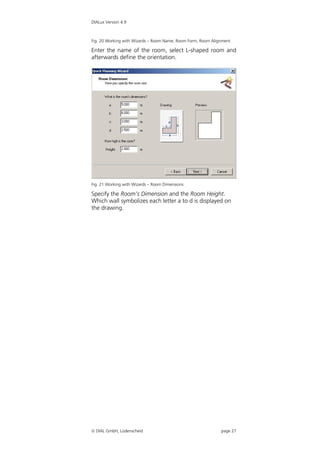
  • 36.
    DIALux Version 4.9 The right mouse button is very important when working with DIALux. Depending on the selected object, the program mode and the working area, different important options can be accessed. Fig. 35 Right mouse button Additionally you can move, scale, rotate or select objects Please note: Open context menu inside or outside the room. Right-click to access a with right mouse context menu. button! Fig. 36 3D CAD window context menu Fig. 37 Ground plan view context menu In the project manager you can right-click inside the room to select the 3D or the ground plan view. If more than one CAD window is open, you can arrange them as desired via the Window menu. If the window is full  DIAL GmbH, Lüdenscheid page 36
  • 37.
    DIALux Version 4.9 screen, you can change to another view via the tabs at the top of the screen. Simultaneously working in multiple windows is only recommended when working with a high screen resolution and a good display adapter. If an object has been inserted into a room, its context menu can also be accessed with a right-click. Please note: The red rotation point enables a rotation around the red axis, likewise the blue and the green rotation points enable rotations around the blue and green axis respectively. Fig. 38 Context menu of a selected object If the Rotate option is activated, the object can be rotated by clicking and rotating the point on the boom. The red rotation point enables a rotation around the red Please note: axis, likewise the blue and the green rotation points Context menus are accessed via the right mouse button enable rotations around the blue and green axis and "Properties" in the respectively. Please keep in mind that the object has its Inspector via the left mouse button! own coordinate system. The object can be moved by clicking and pulling on the arrow cross. New features since DIALux 4.4:  now you can switch via the tab key between the | rotation mode and the scaling mode |  the object can also be moved at the corners, then even the rotation in 2D will be positioned on adjacent surfaces  DIAL GmbH, Lüdenscheid page 37
  • 38.
    DIALux Version 4.9 TheProject manager Fig. 39 Project manager The Project manager enables a fast workflow with the elements used in your lighting design. Each individual element can be selected and its properties can be viewed and modified in the Inspector. The Project manager includes the Inspector and the respective tree structure (project, furniture, colour, luminaire selection, and output). The project, in this example called “BEW Wermels- kirchen”, organises the global project information such as the name and address of the operator and the customer, as well as all rooms, exterior scenes, streets and luminaires. In the luminaire list, all luminaires used in this project are listed, which were selected from a PlugIn via Use. Here the “alternative” luminaires, which have not (yet) been used in this layout, are also organised.  The room consists of the following sub-objects: room defining surfaces (floor, ceiling, walls), work plane, furniture and luminaire arrangements.  An exterior scene consists of the sub-objects: ground element, furniture and luminaire arrangements.  A street consists the sub-objects: street elements (roadways and lanes, parking lanes, sidewalk, grass strip, bicycle lane and emergency lane) and the luminaire arrangement.  DIAL GmbH, Lüdenscheid page 38
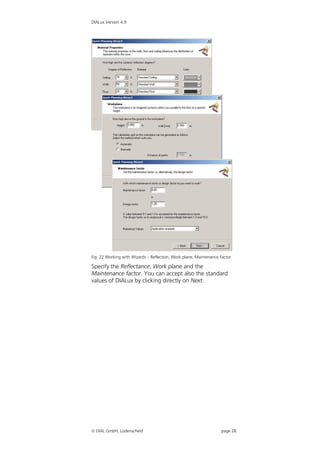
  • 39.
    DIALux Version 4.9 Ifyou select one of these elements (left-click), its properties are displayed in the Inspector. A right-click opens the context menu for that object, just as it does in the CAD view. The Luminaire Selection Another tree structure exists for the luminaire selection. This becomes visible if you click on the Luminaire Selection tab at the bottom of the Project manager. Fig. 40 PlugIn-Tree – Luminaire selection  DIAL GmbH, Lüdenscheid page 39
  • 40.
    DIALux Version 4.9 Installed PlugIns are automatically recognized by DIALux 4.9. It is not required to reinstall the PlugIns after updating from older DIALux versions. Double-click on a PlugIn to open it. You can also access this option via the Luminaire Selection menu. PlugIns provided by our partners that have not yet been installed are located a bit lower in the tree structure. A double-click on a PlugIn which has not been installed opens the Internet Explorer window and the homepage of the luminaire manufacturer is displayed, if available. Some manufacturers provide individual luminaires or entire PlugIns for downloading here. Create your own luminaire The User Database database. Insert, delete, search for The user has the possibility to select those luminaires specified criteria. Display of from the various manufacturers’ PlugIns, which are luminaire images and technical data. regular used in the DIALux project. These luminaires can be saved in the User Database. It is also possible to search for luminaires and to delete luminaires. Fig. 41 The User Database Use the Import button to transfer luminaires to the User Database. One or several ULD, *.ldt (Eulumdat), *.ies or *.cib files can be imported from any desired directory. If a luminaire has been imported into the project – i.e. it appears in the luminaire list – it can be copied to the user database via a right-click. Insert Luminaire Files into DIALux  DIAL GmbH, Lüdenscheid page 40
  • 41.
    DIALux Version 4.9 Fig.42 Explorer context menu whilst DIALux 4.9 is running When DIALux is running in the background, you can search any desired directories for luminaire data and import them to the current DIALux project, or you can insert them into your own database (right-click on the file). DIALux supports the following formats:  Eulumdat (ldt)  CIBSE TM14  IES (all variations)  LTLi Lamp PlugIns After selecting a luminaire in a luminaire PlugIn, some of them offer the possibility to start an installed lamp PlugIn to find a lamp that fits into the luminaire. The lamp PlugIn provides all the technical and marketing data needed including photometric files and maintenance factors. If a luminaire PlugIn is not yet prepared, to start a lamp PlugIn, the lamp selection can be started within DIALux instead. In the Property Page “Technical data” of the luminaire, there is a button with three dots besides the lamp type drop down list. Clicking on this button you gets a selection of all installed lamp PlugIns. One has to be selected to find the correct equipment according to the requirements of the lighting layout and the fittings.  DIAL GmbH, Lüdenscheid page 41
  • 42.
    DIALux Version 4.9 Fig.43 Starting a lamp PlugIn in DIALux If there is not yet a lamp PlugIn installed on this computer, you are able to try out the DIALux Lamp PlugIn. If the luminaire manufacturer has entered technical data, it will be used to pre select those lamps that fits into the luminaire. The search criteria can be: ILCOS-L code, power consumption, socket, voltage, etc. The lamp PlugIn then offers those products that fit into the luminaire. You can choose those lamps that are most suitable for the lighting layout. This choice could be a standard lamp or picking from special colours, colour rendering index, long maintenance lamps or other specific properties of the lamp. The lamps include all technical data, even light distribution curves for reflector lamps, so you can decide whether to use a spot or a flood reflector. If the “change” of the light distribution curve is not possible, the luminaire can restrict the replacement of the original LDC. Fig. 44 DIALux lamp demo database The user can insert one or more lamps to the luminaire. So it is possible to mix up spot and flood reflectors in a line of spotlights or it is possible to mix the light colours  DIAL GmbH, Lüdenscheid page 42
  • 43.
    DIALux Version 4.9 withinthe some arrangement. The selected lamp can be added to the original equipment or it can replace it.  DIAL GmbH, Lüdenscheid page 43
  • 44.
    DIALux Version 4.9 The Furniture Tree Furniture can be moved from the furniture tree to the project (any view) via the mouse using drag and drop. Fig. 45 The Furniture tree Create your own tree structure. In the furniture tree DIALux shows The furniture tree is divided into seven subdirectories. all directories and *.SAT.files under You can move the preview window of the furniture tree C:documents and settingAll and dock it in various positions in DIALux. You can move UsersAplication dataDIALuxfurniture and copy furniture from one folder / directory to another. Also you can create new folder and you can delete existing ones. All this is available by a right click on the furniture or on the folder. Now DIALux saves the furniture as *.m3d files. The benefit is that the preview pictures are saved also in that file. That makes it much easier to share DIALux furniture with friends and colleagues. Of course you can still save them as *.sat and *.jpg files. The Colours Tree (since version 4.3, formerly Texture Tree)  DIAL GmbH, Lüdenscheid page 44
  • 45.
    DIALux Version 4.9 Youcan use the Colours tree to modify the properties of surfaces via drag and drop - similar to inserting furniture into a room. In the textures tree you find predefined textures (surface pictures), RAL colours and you have the option to organise your own textures. You can move and copy textures from one folder / directory to another. Also you can create new folder and you can delete existing ones. All this is available by a right click on the texture or the folder. The subfolder Light colours and Colour filter will be explained in the chapter Light Colours. Fig. 46 The Colour tree When you select a texture in the texture tree, the Inspector shows a preview of it. After the import the reflection is calculated according to the RGB-values of the texture. You may modify this value later. It is important to specify the real size of the texture. The default value is 1 x 1 m. If you take a photo for example of a building’s facade and import this photo as a texture, you have to enter the real size of the building (length and height). After you drag a texture onto a surface, you may modify it (scale, rotate,…). Once a texture is placed on a surface, you can flip /mirror it by entering a negative length (e.g. -0.4m). This will only be used for the selected surface.  DIAL GmbH, Lüdenscheid page 45
  • 46.
    DIALux Version 4.9 The Output Tree Yet another tree structure exists for the output selection. You can open it by clicking on the Output tab in the Project manager Fig. 47 Output Tab or by selecting the icon in The Guide. Outputs whose page icon is highlighted are immediately available. The output types which are not highlighted can only be obtained after the calculation has been done. Fig. 48 Output tree To view an output on the screen, double-click on the Please note: The “Output” button in corresponding icon. To view multiple output types the Guide and the simultaneously, right-click an output icon and select “Output” tab open the Open in New Window. You can view all types of output output tree on the screen. The output types which have a tick made in the checkbox are printed or displayed as print preview when the File  Print or File  Print Preview commands are used. The observer position used in the CAD is used for the output 3D rendering. You may save the 3D rendering as a *.jpg picture. Just move the rendering into the required position and select in the menu File  Export Save CAD view as JPG. Here you can select a directory and enter a filename.  DIAL GmbH, Lüdenscheid page 46
  • 47.
    DIALux Version 4.9 Fig. 49 Save a 3D rendering as .jpg file The Guide: The connecting element which guides you through the programme. The Guide The Guide accesses all work steps required for the planning. It provides a “connecting thread” and helps you achieve your aims quickly. Fig. 50 The Guide  DIAL GmbH, Lüdenscheid page 47
  • 48.
    DIALux Version 4.9 If you click on an icon in The Guide, the corresponding option is directly accessed. If you hold the mouse pointer on Indoor Lighting all options for planning a room will be available. You can adapt the guide to your individual wishes. With this function you can hide and unhide respective application fields. If The Guide is hidden you can access it with DIALux 4.9, the function Display guide window is in the menu Window. Display Guide window Fig. 51 Display guide window The Inspector With the Inspector you can view the properties of each object selected either in the CAD view or in the Project The Inspector manager. Here you can also change the properties. Some The Inspector displays the values have a grey background. These cannot be Property Pages, which contain the properties of the modified here. selected object (here Room 1).  DIAL GmbH, Lüdenscheid page 48
  • 49.
    DIALux Version 4.9 Fig. 52 Property Page of the selected room in the Inspector In the previous example you can see several properties of Changes to individual walls or to the global setting for the selected room. Click on the Room Surfaces tab to the entire room? change the reflectance properties globally. Beware! Here you can only change the reflectance of all Changes to the luminaire or walls together. If you wish to change the reflectance of to the luminaire individual walls, you need to select the corresponding arrangement? wall and then change its property in the Inspector. Please keep in mind that the Inspector differentiates between individual luminaires and a luminaire arrangement. Fig. 53 Luminaire arrangement and its luminaires in the project manager Here you can change the properties of the entire luminaire arrangement, but not the properties of individual luminaires Fig. 54 Property Page “Position” of the selected luminaire arrangement  DIAL GmbH, Lüdenscheid page 49
  • 50.
    DIALux Version 4.9 Hereyou can change the properties of individual luminaires within the luminaire arrangement, but not the properties of the luminaire arrangement itself. Property Page colour appearance Fig. 55 Property Page of the luminaires within the selection Edit Mode Switch DIALux to the “Edit When certain options are used, DIALux 4.9 switches to Room Geometry” mode an edit mode. For example, this happens in the following situations: o Free input of a new room o Change room dimensions at a later stage o Edit a ground element in an exterior scene o Edit a calculation surface o Edit an extrusion volume To switch to the edit mode, go to the Project manager, select the object you want to edit with the right mouse button, and click on Edit Room Geometry, Edit Ground Element or Edit Calculation Surface. Alternatively you can select the options from the menu Edit. A third way is to click on Edit Room Geometry in The Guide. It is advisable to modify the room geometry in the ground plan view.  DIAL GmbH, Lüdenscheid page 50
  • 51.
    DIALux Version 4.9 Fig. 56 Room context menu (right-click on room) After this option has been activated, the room's ground plan can be modified individually. Relevant changes occur to ground elements and calculation surfaces. Fig. 57 Room edit mode Interactive room editing By clicking on the walls they can be moved interactively within the CAD view, parallel to their previous positions. Click on the room coordinates to move them to another position in the room as desired. Right-click on any position on the wall allows you to insert a point at this position via the context menu.  DIAL GmbH, Lüdenscheid page 51
  • 52.
    DIALux Version 4.9 Fig. 58 Insert a new corner Further room coordinates can be added or deleted in the Property Page by clicking on the corresponding row and selecting Insert Coordinates or Delete Coordinates. Then you can enter the coordinates numerically. You can also enter the maximum room dimensions via length and width. All lengths are then correspondingly transformed. DIALux automatically recognizes whether Please note that in the previous example (Fig. 57) the luminaires are positioned luminaire at the bottom right will not be displayed or inside or outside the room. calculated after the new coordinates have been applied. If, however, the room is enlarged again, the luminaire is automatically reinserted. You can edit ground elements of an exterior scene in a similar way. To insert a ground element into the exterior scene use The Guide or the furniture tree. Fig. 59 Edit a ground element Calculation surfaces and DIALux can handle calculation surfaces with any shapes. ground elements can have any polygonal shape. You can click with the right mouse button to edit the calculation surface. For example you may create a polygonal task area above a polygonal desk.  DIAL GmbH, Lüdenscheid page 52
  • 53.
    DIALux Version 4.9 Fig.60 Create a polygonal "Task Area" above a desk If there are already help lines placed in the room or exterior scene, their shape can be used for the surface which is currently in the edit mode. This is very helpful if firstly the shape of a template (DXF/DWG) has been copied with a helpline and secondly this shape should be taken over for the surface (room, ground element, calculation surface or extrusion volume). This function is started when making a right click on a helpline while the surface is in edit mode. Fig. 61 Taking over the shape of a helpline for the room geometry  DIAL GmbH, Lüdenscheid page 53
  • 54.
    DIALux Version 4.9 OptimisePersonal Settings The presetting that DIALux has can be changed. You can find all the menus for modification under File  Settings. Fig. 62 Menu Settings General Options The menu General Options has 8 tabs with various settings. Under Standard Values you can specify the national typical settings Room Dimensions, Reflectance, Work Plane etc.. Here you can determine which standard values DIALux should use. When creating new rooms, these values are used as presets. Of course you can change the current planning values or standard presets at any time. That means if you want to accomplish calculations for another country you do not have to change each entry individually. DIALux has the relevant parameters for all the usual standards and regulations of individual countries. Furthermore you can activate the British standard LG7 and the Australian standard IEQ-7. You can see those standards in the output under Summary and photometric results. Hint: These changes do not change the DIALux language setting. As an alternative you can change the values individually.  DIAL GmbH, Lüdenscheid page 54
  • 55.
    DIALux Version 4.9 Fig.63 General Options – Standard Values If the Global tab is selected, you can define the directory (the folder), in which you will save the projects. By using the entry Language you will change the language of the DIALux user interface. By default DIALux always starts with the language of the computer operating system. If a different language is selected DIALux will need to be closed and restarted to activate the language change. Under the Global tab you can specify additionally the dimensional units (metric or imperial) and the photometric units (European or American).  DIAL GmbH, Lüdenscheid page 55
  • 56.
    DIALux Version 4.9 Fig.64 General Options – Global A convenient and practical functionality is the automatic reminder to save data. You can set the time intervals individually. During work on a project, when the set time has expired, an info reminder box appears automatically. This allows you to carry out an initial saving of the project or, if you have already stored the project, to re- save it. Fig. 65 Automatic reminder to save data If the CAD Window tab is selected, you can select the Background Colours for your project and for the printout. Direct3D as an alternative to OpenGL DIALux uses the most modern techniques for visualisation of the lighting design. Before OpenGL or the MESA mode was used. Because several graphic card drivers, especially those from the “chip on board” cards, don’t have good support of OpenGL, DIALux is now also able to use Direct3D for the visualisation. Several graphic card drivers offer a better support for Direct3D than for OpenGL. We recommend working in OpenGL mode. If some problems in the visualisation or even crashes occur, you should switch over to Direct3D mode. If your  DIAL GmbH, Lüdenscheid page 56
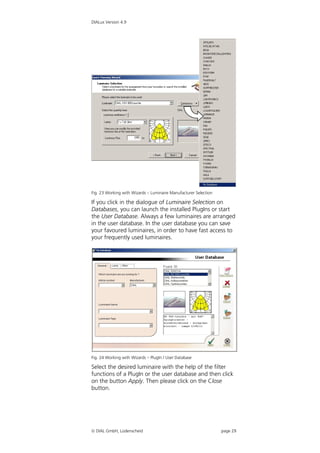
  • 57.
    DIALux Version 4.9 graphicscard doesn’t support this mode you will have to work in the MESA mode. This is the slowest mode but it is also the most reliable. The graphic mode can be selected from the Windows All Programs menu by selecting Start Options for DIALux or you can define the standard mode for your PC in file -> settings -> general options -> CAD window. Fig. 66 Start options Fig. 67 Graphic mode If you have an “older PC” it is advisable to select the Automatically change to wireframe display when moving within the CAD views option. If you move within the CAD while this option is activated, the room display is updated smoothly, following the mouse movement. After the mouse button is released, the entire scene is displayed again. Thus the calculation time is reduced and you can work with DIALux without disturbing “jerking” on the screen. Hint: By default the upper setting is activated. If you have an “efficient” PC, it is worthwhile trying the deactivated function. We suggest you use OpenGL mode if possible. If you want the X, Y and Z coordinate arrows to be visible in the 3D view, switch the Coordinate arrows visible in 3D option on. Since DIALux 4.1 you can hide the north arrow in 0° position.  DIAL GmbH, Lüdenscheid page 57
  • 58.
    DIALux Version 4.9 Inthe Output tab you can adjust general settings for your output that appears on the relevant pages. You can specify font sizes and line thickness of the outputs in the Output tab. Here you can modify the output footer and the logo. For the logo please click on the three-point-button besides the field Logo and then select the file in the opening window, which contains your logo. DIALux opens bitmaps (BMP) or JPG’s. Fig. 68 General Options – Output In the last tab Contact you can register your name and address. Here the address of the company doing the layout planning is entered. It appears in the output header. These entries are used in the Property Page of the project. Information about the operator is entered here too. This is then transferred in each new project.  DIAL GmbH, Lüdenscheid page 58
  • 59.
    DIALux Version 4.9 Fig. 69 General Options – Contact If the Customise function is selected, which you can access via menu File  Settings  Customize Toolbars and Keyboard, you can select the toolbars, which you need most frequently. As soon as you launch this function, you can alter the existing Toolbars. With the left mouse button you can drag the functions, which you do not need, into the Command tab. You can extract the functions, which you need, from the tab to the desired position. DIALux supports the standard Window’s Shortcuts, which you can launch by combinations of shortcut keys. You can specify additional combinations in the tab Shortcut Keys. The tab Options provides the option to select more settings in the menu. Fig. 70 Menu Customise Menu “?”: You can reset the user interface of DIALux in the menu ? Reset user interface to restore the default setting at the next start of DIALux.  DIAL GmbH, Lüdenscheid page 59
  • 60.
    DIALux Version 4.9 Fig.71 Reset user interface  DIAL GmbH, Lüdenscheid page 60
  • 61.
    DIALux Version 4.9 Createa New Project If you click on the New button you will generate a new project. DIALux can handle only one project at a time. An already opened project must therefore be closed before the new project can be generated. In the Inspector you can define the Project Name and Descriptions of the project. DIALux adds automatically the creation date. Alternatively you can edit the date, by deactivating the Automatic box. Fig. 72 Create a new project On the second tab you can arrange your Contact data. These are replicated from the option settings, if necessary you can modify these here. In the third tab your Address is located and in the fourth tab are the Details of the project. These details will appear also on the title page of the output. Fig. 73 Insert project details Since DIALux 4 the additional tab Location is included. This tab provides for the determination of the position of the sun with the daylight calculation (see chapter Daylight calculation in DIALux). You can insert here the location, provided that this is not selectable from the available list, as well as the longitude and latitude in degrees, time zone and summer time. Deactivated checkbox summertime is equal to the wintertime. You can save your inputs and remove any.  DIAL GmbH, Lüdenscheid page 61
  • 62.
    DIALux Version 4.9 Fig. 74 Insert Project data – Location Input data of location for the daylight calculation Open a new project An already existing project can be reopened at DIALux start, if you click in the start window on Open project Fig. 75 Open a project in the startup dialogue or in the menu File  Open you can access the saved project by double-click on it. Fig. 76 Open a project in the menu  DIAL GmbH, Lüdenscheid page 62
  • 63.
    DIALux Version 4.9 Projectinformation in the file open dialog The file open dialog has changed in the latest version of DIALux. While opening an existing project the user can see the most important information about the file. Fig. 77 Project preview The information given in this dialogue about the project is the 3D view of the first room or exterior scene, information about the designer, the description and the name of the customer. The button “other folders” opens a list of directories formerly used to store DIALux projects in.  DIAL GmbH, Lüdenscheid page 63
  • 64.
    DIALux Version 4.9 EditRooms In order to generate a room, click in The Guide on the Insert New Room button. Fig. 78 Edit Rooms – Generate a new room Edit Room Geometry Afterwards the ground plan view appears on the right side within the CAD window and the room coordinates are displayed in the Inspector. Generally the coordinate origin of the room is down left (x=0, y=0). You can change the room geometry by moving the individual points via the mouse or you can insert points with the right mouse button. Alternatively you can edit the room coordinates in the Inspector. DIALux transfers the values entered in the table after you have operated the tab key. After finishing editing the room data confirm with the OK button. Fig. 79 Edit Rooms – Insert room coordinates Instead of making a manual entry, you also have the option to draw the room geometry with the aid of a rectangle or a polygon. If you do not see all of your room, you can zoom out from the view by using the (Overall View of the Scene) loupe button for the complete room view. Fig. 80 Edit Rooms – Zoom to the overall view of the scene  DIAL GmbH, Lüdenscheid page 64
  • 65.
    DIALux Version 4.9 Inorder to see the 3D view you can use the right mouse button or click on the cube symbol (3D standard view). You can use the double arrow for the rotation of the 3D view. The button operations are: the loupe zooms, the hand moves and with the two feet you can roam the scene. If you use a wheel mouse (see page 35), these functions are also available. Fig. 81 Edit Rooms – 3D view Edit Room Data If you select a room in the Project manager, you can specify different properties via the Inspector. In the General tab you can define the room’s Name and a Description text. Fig. 82 Edit room data – General New in DIALux 4 is the maintenance plan method tab. Here you can determine maintenance factors and set parameters for a maintenance plan, based on EN 12464- 1 and CIE 97. The maintenance parameters of the inserted luminaire arrangements can be optimized to a target maintenance factor. It is possible for the user to use the maintenance factor as a consistent value for all luminaires in the room. The lighting designer is required, since the introduction of EN12464, to provide a maintenance plan for the lighting design. Now with DIALux 4 this is integrated into the lighting design workflow and is automatically provided.  DIAL GmbH, Lüdenscheid page 65
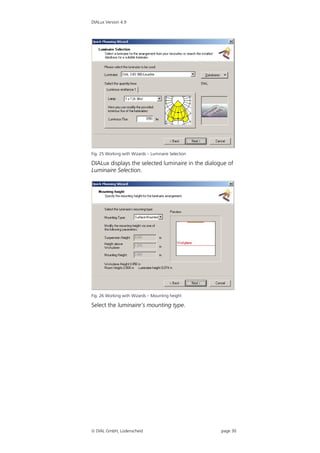
  • 66.
    DIALux Version 4.9 Fig. 83 Edit room data – Maintenance plan method Maintenance plan method for determination of the maintenance factor An easy method for determining maintenance factor In DIALux the user is able to select whether he wants to have a global, all inclusive, maintenance factor for the whole room, or whether he wants to determine the respective maintenance factor for every luminaire / luminaire arrangement. The easiest way, which is the method used in early DIALux versions, is to use the classical method. After a room or exterior scene was added to a project, the user can make the maintenance choice in the Property Page. Fig. 84 Edit room data – Selection of a reference value for the maintenance factor For the classical method the reference application examples are listed which appear in Mr. Stockmar article "Maintenance factor - theory and practise" in Licht 6- 2003 from table 1. Of course the user can also enter any other value of maintenance factor in the maintenance factor field. After choosing a luminaire, the user can place it in any arrangement. Also there is access to technical details of the luminaire.  DIAL GmbH, Lüdenscheid page 66
  • 67.
    DIALux Version 4.9 Fig.85 Technical data of the placed luminaire Because the luminous flux and the correction factor have an influence on the number of luminaires required these values can be edited here. Fig. 86 Determination of the luminaire number of pieces In DIALux the utilisation factor method is defined by the CIE to determine roughly the right number of luminaires for all luminaire arrangements. By using this method the expected initial illuminance as well as the maintained illuminance is indicated. Additionally, the initial and maintained value for the whole room is likewise indicated. The user can see immediately the contribution from this luminaire arrangement compared with the  DIAL GmbH, Lüdenscheid page 67
  • 68.
    DIALux Version 4.9 wholelayout of luminaires. In this case the values are different because other luminaires are in the room. In the outputs the maintenance factor is shown as before on different output pages. For example, like here on the page "Maintenance plan". The "classical" method is the default method when a new room is added. Fig. 87 Output – Maintenance plan Extended method for determining maintenance factor The user can determine if required also the maintenance factor for a singly used luminaire (arrangement). The extended maintenance method must be selected from the room Property Page.  DIAL GmbH, Lüdenscheid page 68
  • 69.
    DIALux Version 4.9 Fig.88 Selection of the determination of the enlarged maintenance factor For the room or the exterior scene the ambient condition is chosen. Here the user can select beside three given situations clean, normal and polluted, very clean which appears in the Trilux book "Planning help 12464". Next you pick the room maintenance interval. After the selection of a luminaire, the user can place this in any arrangement. You also have access to technical details of the luminaire. This Property Page is identical with the one associated with the easy method. Fig. 89 Technical settings of luminaires with different luminous emittances  DIAL GmbH, Lüdenscheid page 69
  • 70.
    DIALux Version 4.9 Ifyou use a luminaire with several (different) luminaire emittances, (LEO, Light Emitting Object), you can set each LEO lamp choice and correction factor. Both the initial illuminance and the maintained illuminance will be indicated as in the easy method. Also the initial and maintained illuminance of the whole room is shown. The user can see the contribution of this luminaire arrangement compared with the layout in the whole room. In this case the values are different because other luminaires are in the room. Fig. 90 Determination of the number of required luminaires To access the Property Page Maintenance factor right click on an item below Luminaires in the Inspector, for example Field Arrangement or Individual Luminaire, then from the context menu select Edit maintenance Factor. All parameters can be edited associated with maintenance factor for this luminaire. If a luminaire has several LEOs, their parameters can likewise be individually edited.  DIAL GmbH, Lüdenscheid page 70
  • 71.
    DIALux Version 4.9 Fig.91 Property Page Maintenance factor On this Property Page the user can optimize the maintenance factor for the luminaire arrangement. If the luminaire manufacturer has defined maintenance parameters for this luminaire in his PlugIn or his ULD-file, this will be marked in the field Luminaire type and, also if it is available, under Lamp type. The maintenance factor depends on the ambient conditions (already defined in the Property Page of the room), the mounting height (because of room index k is defined using mounting height), the hours of operation (insert at this point) and the lamp and luminaires maintenance interval (define also at this point). If the luminaire manufacturer has defined no parameters, the user can choose under luminaire type and lamp type in the drop down lists from the CIE example data. If you want to use other factors for some reasons, you can mark the checkbox in the lower area above the individual factors.  DIAL GmbH, Lüdenscheid page 71
  • 72.
    DIALux Version 4.9 Fig.92 User-defined maintenance factors For those maintenance factors which you have selected (LMF or/and LLMF) the lamp type or luminaire type is selected on User-defined. Now you can insert directly the factors and a relevant remark. On this Property Page you also have the overview for maintained and initial illuminance of the whole lighting system as well as this special arrangement. Therefore you are able to optimize the maintenance plan with regard to the number of luminaires and maintenance work. With another arrangement in the same room the values of the whole illuminance and those of the respective arrangement of course vary.  DIAL GmbH, Lüdenscheid page 72
  • 73.
    DIALux Version 4.9 Fig.93 Insert another arrangement in the same room Now an optimum number of luminaires can be determined here for the project as a whole. The maintenance factor also can be seen in the CAD view. Because luminaires in certain room zones can be subjected to different conditions, for example higher pollution or different operating hours, the maintenance factors of the individual luminaires can be shown in the CAD view. Local differences in maintenance factor consequently can be easily understood. You can display the maintenance plan factors either in the menu  view or in the menu bar in the CAD window. Fig. 94 Show maintenance factors in the CAD via menu  DIAL GmbH, Lüdenscheid page 73
  • 74.
    DIALux Version 4.9 Fig.95 Icon “Show maintenance factors in the CAD” The user has the ability to edit the maintenance factors from the menu Edit Fig. 96 Menu Edit – Edit Maintenance Factors or in the context menu of the luminaire arrangement. Fig. 97 Context menu of the luminaire arrangement - Edit Maintenance Factors  DIAL GmbH, Lüdenscheid page 74
  • 75.
    DIALux Version 4.9 Alsoin the floor plan the ascertained maintenance factors can be shown. Perhaps more importantly the output Maintenance Plan is added as a new output in DIALux. Fig. 98 View of the maintenance factors of individual luminaires in the CAD With DIALux it is possible to save the maintenance plan as a *.RTF file. Fig. 99 Export of the maintenance plan In the Room Surfaces tab you can specify the reflection properties for ceiling, walls and floor. If you change the reflection properties for the walls, you have to consider that always all walls of the room will be changed together.  DIAL GmbH, Lüdenscheid page 75
  • 76.
    DIALux Version 4.9 Fig. 100 Edit room data – Room surfaces The Alignment tab allows the setting of the north direction in relation to the Y-axis. For the room or the Deviation of north from exterior scene the north direction can be set. To show the Y-axis this clearly, the north arrow is drawn near the coordinate origin. Fig. 101 Edit room data - Alignment Modify Properties of Individual Walls Select a wall in the 3D view, so that it is indicated in red. Alternatively in the Project manager you can select the corresponding wall and then similarly it is indicated in red. As soon as you marked an object, the properties of the wall selected will appear in the Inspector. Here you can change the name of the wall and you can display the output results. If a shadow is displayed after the calculation, e.g. in the 3D rendering, you must define the calculation grid in the outputs. A better display will result from a smaller calculation grid (by increasing the number of points). Naturally the consequence of a smaller calculation grid is an increase in the calculation time for your computer.  DIAL GmbH, Lüdenscheid page 76
  • 77.
    DIALux Version 4.9 Fig.102 Properties of a wall – Name On the second tab –Material– you adjust the material properties for the wall. The reflectance value changes in response to new material choice. You can specify an alternative reflectance directly in the reflectance box. Fig. 103 Properties of a wall – Material In the Texture tab you can adapt the texture properties, if you have placed a texture on the wall (see page 93). In the Raytracer Options tab you can adjust the properties, which the wall should have if you have started the Raytracer provided by DIALux.  DIAL GmbH, Lüdenscheid page 77
  • 78.
    DIALux Version 4.9 InsertRoom Elements Modify a Room with Room Elements With DIALux you have the ability to modify the room with room elements. Clicking on the object tab of the Project Manager at the bottom of the screen shows a tree of elements and objects contained in folders that can be introduced into a project. For example selecting standard elements with the left mouse button displays a preview window of the elements available. Clicking on an element in the preview window shows geometric parameters in the inspector. You can either edit these parameters in the inspector to the values you need or later makes changes to the size and scale after putting the element into the project. Fig. 104 Inserting a standard element In the case of a cone it can be truncated by entering a size for Ф1 other than zero. The cone is constructed with a regular polygon as its base, the segment count is the number of sides the polygon has. Clicking on Paste adds the element to the project in the CAD window at the origin. Alternatively the Drag and Drop technique can be used, left mouse click on the element in the preview and while holding the button down drag to place the element in either the 3D view or plan view whichever is open.  DIAL GmbH, Lüdenscheid page 78
  • 79.
    DIALux Version 4.9 Aright click on the element in the CAD window shows a context menu that includes scale and rotate. With scale selected the bounding box around the element can be stretched in the X and Y direction to scale it. In the 3D view and elevation views the height can be scaled by hold the control key on the keyboard and stretching the bounding box in the Z direction. With rotate selected in the context menu the handles connected to the origin of the element can be rotated. Any geometric changes made are shown in the inspector for the element under the Geometry tab. There is a Calculations options tab that allows, if the use as decorative object box is checked, for the object to cause no obstruction to light in the space with regard to output results. The object does however appear as a ‘decorative object’ in any 3D rendering. Another example is that you can insert a sloped ceiling that cuts the existing wall surfaces and creates new surfaces called “ceiling 2”. The other room elements like the flat ceiling become a part of the room as well and you can create new room surfaces at the same time. Fig. 105 Edit rooms – Insert room element To insert room elements into a room, first of all you have to open the Furniture tree. Then select the file Room Elements. All room elements are displayed in the centre of the window. You can insert these simply by Drag & Drop into the 3D view or the ground plan view. You can likewise create the room elements in the ground plan view. Particularly the scaling option of the room elements is easier in the ground plan view. You can scale and rotate the room element simply by using the mouse.  DIAL GmbH, Lüdenscheid page 79
  • 80.
    DIALux Version 4.9 Fig.106 Edit rooms – Edit room element With DIALux it is possible to insert the following room elements. Naturally you can also combine these. As soon as a room element overlaps another, the invisible part is no longer considered in the calculation. Fig. 107 Edit rooms – DIALux room elements The room elements vaults are new in DIALux 4. Further possibilities for the construction of complicated ceiling forms have been improved. Now it is also possible to copy vault ceilings. Fig. 108 DIALux room elements – Vault  DIAL GmbH, Lüdenscheid page 80
  • 81.
    DIALux Version 4.9 Vaultand half vault The well known and well-tried room elements of DIALux are complemented with new objects, dome and half dome. These elements can be scaled or rotated just like any other room elements. They combine with the room. Their surfaces are automatically recognized as ceilings, so that ceiling mounted luminaires snap automatically to dome or half dome surfaces. Fig. 109 DIALux room elements – Dome and half dome Insert via Property Page You can also insert objects numerically by entering coordinates in the furniture Property Page within the Inspector. Select the object in the furniture tree, enter the desired position in the Inspector and click on Insert. Fig. 110 Edit rooms – Insert room elements via Property Page  DIAL GmbH, Lüdenscheid page 81
  • 82.
    DIALux Version 4.9 InsertFurniture Insert Furniture You can insert furniture into the project in the same way as room elements by using Drag & Drop or the Property Page. Fig. 111 Drag and Drop of furniture Insert via Property Page You can also insert objects numerically by entering coordinates in the furniture Property Page within the Inspector. Select the object in the furniture tree, enter the desired position in the Inspector and click on Insert. Create Furniture You can create your own furniture by combining standard bodies. The following example of a small shelf describes the procedure. Fig. 112 Create furniture – Standard bodies  DIAL GmbH, Lüdenscheid page 82
  • 83.
    DIALux Version 4.9 Modifythe geometry of the cube in such a way that it corresponds to a bottom shelf by using the Property Page. Fig. 113 Create furniture – Modify the dimensions Subsequently you can copy the bottom shelf and move it to the desired position. Possibly the height (Z-axis) will need modifying. Fig. 114 Create furniture – Copy Afterwards you can generate the side panels and position them correctly. Subsequently select all side panels and shelves and combine them via the right mouse button. Combining is very important particularly for the calculation. Otherwise DIALux will include each surface into the calculation, even those surfaces which are actually covered and no longer visible.  DIAL GmbH, Lüdenscheid page 83
  • 84.
    DIALux Version 4.9 Fig.115 Create furniture – Combine You can save furniture by using the context menu File  Export function  Save Furniture. That way it is possible to use furniture in another project again. Fig. 116 Create furniture – Export furniture Now you can see your saved furniture in the furniture tree (if necessary this must be updated once by changing into the Project manager and then back again into the furniture tree). From there you can move them at any time, like all other furniture, into a room or exterior scene via Drag & Drop into your CAD windows (see also page 180).  DIAL GmbH, Lüdenscheid page 84
  • 85.
    DIALux Version 4.9 Fig.117 Create furniture – Saved furniture Import Furniture and 3D model Files You can import furniture files from other programs, e.g. Auto-CAD over the menu File  Import  Furniture Files. DIALux imports furniture files with the ending SAT (*.sat) and ending m3d (*.m3d). Fig. 118 Import furniture files Also 3D model files can be imported with the ending 3ds (*.3ds). To do this select menu File  Import  Import and edit 3D models to start the importing wizard. The wizard has a few steps including: File selection Selection of object data Specifying measurement units Setting origin of object  DIAL GmbH, Lüdenscheid page 85
  • 86.
    DIALux Version 4.9 Fig.119 Importing 3D wizard Extrusion Volumes New to the standard elements is the furniture “Extrusion Volume”. To create an extrusion volume, just drag and drop the object into a room or an exterior scene. A cube with edge lengths 1m x 1m x 1m is displayed. Simultaneously the familiar room editor is shown in the Inspector. With this editor you can assign the extrusion volume any polygonal form you like, both numerically by  DIAL GmbH, Lüdenscheid page 86
  • 87.
    DIALux Version 4.9 insertingcoordinates and graphically by dragging points or lines or by inserting coordinates with right clicks. After the extrusion volume’s form is defined, any extrusion height can be selected. An extrusion volume can be rotated, combined, subtracted or saved as new personal furniture. Of course, colours and textures can be assigned to the volume’s surfaces. Fig. 120 Creating an extrusion volume Glass objects Glass objects have been introduced in DIALux 4.9 in combination with the Ray-Trace preview. Contrary to other objects glass objects can be masked or unmasked. Fig. 121 Mask and unmask glass objects By combining two or more glass objects the feature of transparency will trail off. As a matter of fact glass objects include the same features as the common standard objects. Therefore scaling, rotating and moving is possible. For the usage in the Ray-Trace preview and in PovRay glass objects feature predefined propositions for transparency and reflection. Please use glass objects for modelling room-divider, showcases and many more glass objects.  DIAL GmbH, Lüdenscheid page 87
  • 88.
    DIALux Version 4.9 Fig.122 Examples for objects of glass (before and after using the Ray-Trace preview) Subtraction of Objects Subtraction of objects is a helpful tool to create complex furniture. Similar to room elements subtracting areas from a room, you can subtract one or more objects from one other object. Objects can be standard elements, extrusion volumes, furniture or imported SAT objects. The resulting object is what remains after the one object is subtracted from all other objects. The following example shows a polygonal extrusion volume with a cone sticking in it. The cone will create a depression in the volume. To achieve that, both objects are selected and the command “Subtract furniture” is executed. “Subtract furniture” can be found in menu “Edit” or in the context menu that is displayed after right clicking the selected objects. The command shows a Property Page, in which you can select the one object; all other objects are subtracted from. Pressing button “Subtract” executes the command. The CAD window afterwards displays what is left of the extrusion volume.  DIAL GmbH, Lüdenscheid page 88
  • 89.
    DIALux Version 4.9 Fig.123 Subtractions from a volume If the cone goes completely through the extrusion volume, a hole is created. If the newly created furniture is split, all objects, even those which have been subtracted, are restored. Fig. 124 Resulting volume Selecting Single Surfaces Time and again it is necessary to work on single surfaces of an object. With complex objects with very many surfaces, it may take a lot of time to find the desired surface in the surface list of the object’s Property Page. To simplify this essentially, you can select a single surface now graphically. Just right click the object in the desired surface in the CAD and choose “Select this surface” from the context menu. The desired surface is selected in the Property Page and can be assigned a colour, a texture, material and so on.  DIAL GmbH, Lüdenscheid page 89
  • 90.
    DIALux Version 4.9 Fig.125 Selecting specific surfaces from a volume Windows and Doors Windows and doors can also be inserted into the layout via “Drag & Drop”. They can only be positioned in walls. Fig. 126 Drag & drop for windows and doors Since windows and doors can only be placed in walls, the door in this illustration is automatically placed vertically in the nearest wall. These objects automatically face the right way. Decoration Objects With furniture and models you can create attractive projects to improve the visual impression. However, especially nicely designed furniture often exist of numerous surfaces whereby the calculation time of the project is increased. If these models concern of purely  DIAL GmbH, Lüdenscheid page 90
  • 91.
    DIALux Version 4.9 decorativeused objects which have no influence on the photometrical results, this additional calculation time is unnecessary. Decoration objects are treated under unequally as the usual models in DIALux. Indeed they are completely taken into account into the calculation of the direct light. However the indirect part is determined strongly simplified. Decoration objects also reflect no light. Good examples of decoration objects can be among other things like desk utensils, shelve contents or plants. The simplified calculation is often sufficient to receive a good visual impression, while the calculation time is clearly reduced. Insert Decoration Objects Decoration objects are inserted just as other furniture in DIALux. After you have placed the furniture you can select the tab “calculation options” in the inspector and activate the checkbox “Use as decoration object”. Alternatively you can mark in the project tree one or several models and open the context menu via right click. Choose the menu “Use as decoration object”. Fig. 127 Context menu – decoration object Decoration objects are marked with another symbol than furniture in the project tree.  DIAL GmbH, Lüdenscheid page 91
  • 92.
    DIALux Version 4.9 Fig.128 Decoration object in the project tree Calculate with Decoration Objects In the calculation dialogue you can define whether the decoration objects are treated as those or as normal models. Fig. 129 Calculation dialogue  DIAL GmbH, Lüdenscheid page 92
  • 93.
    DIALux Version 4.9 Insert Textures Insert via Drag & Drop You can insert textures into your project with Drag & Drop. Fig. 130 Insert textures via Drag & Drop If you want to assign a texture to a surface, you simply go to the colours tree, select the desired texture or colour, hold the left mouse button and drag it to the CAD and drop it onto correct surface. You can place textures and colours on every “real” surface (furniture, walls, windows, doors, …) but not on a “virtual” calculation surface. The light colours and colour filters can only be used on luminaires. Inside of an object (room or furniture) the texture is assigned to all surfaces with the same colour or texture. For example if the walls in a In order to occupy only one surface of an object with the room have the same colour and you drag a masonry texture, hold the SHIFT key! texture to one wall, the texture is assigned to all other walls at the same time. Shift When you want to assign the texture only to one surface, you can hold the Shift-key while you drop the texture to the surface. In order to occupy all When you hold the Ctrl-key while you drop the texture surfaces of an object with onto a surface, all surfaces (e.g. the walls, the ceiling and the texture, hold the CTRL key! the floor of a room) get the same texture. Ctrl Edit Placed Textures When a texture is not placed properly on a surface, you can correct this afterwards.  DIAL GmbH, Lüdenscheid page 93
  • 94.
    DIALux Version 4.9 Fig.131 Edit textures on an object Select the object in the CAD view. The Inspector shows the Property Page Surfaces of the object with the additional information about the texture. If for example the texture has the wrong rotation, you can correct it on the Property Page Texture; similarly you can scale or move the texture. If you want to mirror a texture, you can easily do it by entering a minus (-) symbol in front of the length or the width (or both) of a texture. You can use it only for the texture placed on a surface not for the texture itself. Delete Textures You can remove a texture from an object by using the Eraser from the texture tree on the corresponding object. Thereby the object gets assigned again the origin colour. Fig. 132 Delete textures Import Textures into the Texture Tree You can insert your own textures or images into the texture tree. DIALux supports files in *.bmp, *.dib, *.jpg and *.gif-format.  DIAL GmbH, Lüdenscheid page 94
  • 95.
    DIALux Version 4.9 Texturescan be inserted via Drag & Drop into the texture tree. To import a new texture into the texture tree, open the texture tree and start the Windows Explorer. Now you can drag the image file from the Windows Explorer into the wanted directory of the texture tree. DIALux automatically converts the image file into the needed format. The reflection factor is calculated using the RGB-values. The size defaults to 1m x 1m. You should check these values and correct them if necessary. With the menu File  Import  Texture Files you can use a dialogue to copy the textures into a directory of the texture tree. Fig. 133 Import textures into DIALux Within the colour tree textures can be moved, copied or deleted. Also subfolders can be created or deleted. Just make a right click on the desired object. Edit Room Geometry with DWG or DXF-File Please read chapter DWG and DXF import and export starting from page 281.  DIAL GmbH, Lüdenscheid page 95
  • 96.
    DIALux Version 4.9 Materialdialogue for surfaces The material dialogue for a particular surface has been overworked completely in DIALux 4.9. To reach the material dialogue please directly select a surface (from an object, a wall etc.) or select the particular object, wall etc. and then click “Surfaces” in the project manager. Fig. 134 Opening the material dialogue of a surface Colour In “Colour” you can define the colour of a surface. In the first list you will find the primary colour of your selected surface. Dependent on the reflection and the selected transparency you are able to choose a resulting colour in the second list. Reflection (Rho) The value for reflection (Rho) indicates how much of the arriving light is being reflected. Please mind that values over 80% are barely present in practical life. Therefore DIALux is limited to a value of 90%. Transparency The value for transparency shows, contrary to reflection, how much of the arriving light diffuses through a surface. In Raytracer preview and in PovRay Raytracer as well those surfaces will be visualised transparent. Please mind that the sum of transparency and grad of reflection cannot exceed 100%.  DIAL GmbH, Lüdenscheid page 96
  • 97.
    DIALux Version 4.9 Calculationof transparency DIALux 4.9 takes transparent surfaces into account for calculation. Please choose for the surface of an object or a material (e.g. the texture of a wall) a transparency between 0 and 100%. The selected value is taken into account by the DIALux calculation. Please be informed that solely the direct orientated part of transparency is calculated correctly! As a matter of fact it’s unfortunately not possible to simulate dispersion like for example for using frosted glass. This transparency cannot be visualised directly in the DIALux CAD. For a realistic visualisation please use the raytracer preview or the PovRay Raytracer. Roughness Roughness points up if and if yes, how much texture a surface features. Info: Roughness is only considered for mirroring surfaces and highlights. Mirror effect The orientated grad of reflection can be changed by using the integrated slider. A highly mirroring surface should be obtained with a high mirroring effect. Please mind that the mirroring effect is only viewable in the Raytrace preview and in PovRay Raytracer. Info: The mirroring effect does not affect the calculation results. Material By selecting a standard material from the material list you can define your surfaces’ properties for calculation in DIALux as well as for the Raytrace preview and PovRay Raytracer. Metal / Plastics: Both feature different characteristics regarding reflection. Therefore please choose the appropriate settings for your surface(s). Raytrace preview Since DIALux 4.9 you are able to generate a preview of your actual rendering in different quality grades by the usage of the Raytrace preview. At first please calculate your actual project with DIALux and click next on the “Raytrace preview” symbol in the DIALux toolbar.  DIAL GmbH, Lüdenscheid page 97
  • 98.
    DIALux Version 4.9 Fig.135 Selection of the Raytrace preview The DIALux inspector provides the user with two different settings’ options for the Raytrace preview: Quality: The integrated slider allows you to set up the grad of smoothing edges from low to high. The higher you move the slider the more beautiful the rendering will get. As a matter of fact the calculation time will also increase fundamentally. Highlights: On reflecting surfaces high luminance, e.g. due to direct light from luminaries, could cause intense gloss effects. If these gloss effects should be paid attention to in your picture please select “Calculate highlights”. As a matter of fact the calculation time will also increase fundamentally in this case. Additionally in some scenes there might not be any changes viewable. Therefore please choose this option carefully. Fig. 136 Raytrace preview parameters Our tip: Please generate a picture (rendering) in lower quality and without highlights first. Thus you will recognise very quickly if your chosen perspective meets your demands and furthermore if the whole scene is well accentuated. You can render a second picture with higher quality if you are satisfied with the results.  DIAL GmbH, Lüdenscheid page 98
  • 99.
    DIALux Version 4.9 Fig.137 Output of the Raytrace preview  DIAL GmbH, Lüdenscheid page 99
  • 100.
    DIALux Version 4.9 Duplicate(Copy Rooms/Scenes/Streets) Duplicate an Existing Room An identical room can be created by clicking Duplicate. First select the original room in the tree, and then select the Duplicate Room command from the context menu. Please note that the room information is duplicated (dimensions, materials etc.) together with the objects inside the room (luminaires and furniture). Fig. 138 Duplicate rooms  DIAL GmbH, Lüdenscheid page 100
  • 101.
    DIALux Version 4.9 Insertand Edit Luminaires and Luminaire Arrangements You can open the luminaire tree by clicking in The Guide Select Luminaires. In the luminaire tree you will see installed PlugIns under DIALux catalogues. With one double-click on a name of a manufacturer you can open a PlugIn. Under not installed PlugIns you can find the DIALux project partners, whose PlugIns are not yet installed. A double-click on the corresponding names of the manufacturers opens its internet page. There you can download the DIALux PlugIn. Additionally telephone numbers and e-mail addresses are displayed. At the bottom of the list the last used luminaires are always indicated. This can be up to 20 luminaires of different manufacturers. Fig. 139 Launch luminaire tree  DIAL GmbH, Lüdenscheid page 101
  • 102.
    DIALux Version 4.9 OnlineCatalogues In DIALux it is possible to insert luminaire files over so- called Online Catalogues, functioning similarly as installed PlugIns. You can open an online catalogue by double-clicking on the corresponding symbol in the luminaire tree. Afterwards the online catalogue opens and you can insert a luminaire from the internet page of your manufacturer directly into your DIALux project. In this way you can constantly access current files of your manufacturer. Fig. 140 Launch online catalogues Hint: Inserting luminaires over the online catalogue works only if this service is offered by the corresponding manufacturer. Individual Luminaires Individual luminaires can be inserted into the room from the project or luminaire tree via Drag and Drop. Simply pull the luminaire from the tree to the room. The luminaire is inserted into the room at that position (X and Y coordinates) where you release the mouse button. The way it is inserted influences the arrangement type. Via Drag and Drop you can position luminaires only inside rooms.  DIAL GmbH, Lüdenscheid page 102
  • 103.
    DIALux Version 4.9 Inthe future, some luminaire manufacturers will supply PlugIns from which luminaires can also be positioned via Drag and Drop. Fig. 141 Insert individual luminaires If you click on Insert Single Luminaire in The Guide, a corresponding Property Page opens in the Inspector. In the CAD, the arrangement is highlighted by a rubber band lines, in the Property Page initial values are displayed and at the bottom of the Property Page the Insert and Cancel buttons are located. Depending on the currently activated tab, you can adjust the Position, the Rotation, as well as the Mounting height of the arrangement. In the Luminaire Property Page you can select the luminaire to be positioned. Fig. 142 Luminaire selection dropdown list In the list displayed in the illustration, you can find the luminaires that you have inserted into the project, as well  DIAL GmbH, Lüdenscheid page 103
  • 104.
    DIALux Version 4.9 asthe last luminaires you have used. According to the Mounting tab you can make various settings for the mounting. Fig. 143 Mounting tab Additionally information is shown giving the maintained and initial illuminance due to these luminaires and due to the whole room. Fig. 144 Modifying the technical data of luminaires To modify the Technical Data of the luminaires, these must have been inserted into the room. In the Project manager, the luminaires contained in the arrangement are listed beneath the respective arrangement type (An  DIAL GmbH, Lüdenscheid page 104
  • 105.
    DIALux Version 4.9 individual luminaire arrangement in this case). If you select one of these luminaires, you can modify its technical data. If you select multiple luminaires in the CAD, you can modify the values of all selected luminaires. Aligning Luminaires In DIALux you can switch on Help rays for the luminaires. In the menu View you can find the function Help rays for Luminaires. Fig. 145 Help rays for luminaires When you click on this icon, a C0 arrow (red line) – The C0 level of which indicates the direction of the C0 plane – and a luminaires with a rotation of 0° is directed yellow line –degree of light radiation gamma = 0° – lengthways in the appears at the inserted luminaires. The C0 planes of the positive X-axis. luminaires always show towards the X axis, if it wasn't Gamma0 points vertically from the top rotated. to the bottom. With DIALux you can switch on the 3D Light distribution curve, (LDC). This function is useful to check the correct placement of luminaires with asymmetrical distribution. Fig. 146 Luminaries with 3D LDC  DIAL GmbH, Lüdenscheid page 105
  • 106.
    DIALux Version 4.9 To show the LDC, click on the icon 3D Light Distribution Display or select the menu View  3D Light Distribution Display. In DIALux the alignment of luminaries is improved with the function Set illumination point, which allows you to align the yellow help ray (gamma = 0) with any point on a selected surface. The alignment of luminaries has further been simplified in DIALux. Beside the function of the alignment of the luminaries to C0, Gamma0 and C90, Gamma 0 the illumination point can be also aligned optionally to the Set illumination point  align to Imax. maximum luminous intensity (Imax.). Fig. 147 Mouse mode to define illumination point To set the illumination point, you have to select a single luminaire first. Maybe you even have to activate the single luminaire selection to select a luminaire inside of a luminaire arrangement. Fig. 148 Selection of individual luminaires  DIAL GmbH, Lüdenscheid page 106
  • 107.
    DIALux Version 4.9 Whenyou have selected the single luminaire, you can use the mouse mode Set illumination point and click on the position (surface or furniture) you want to illuminate. Fig. 149 Align a spotlight to a picture Inserting Luminaire Fields Luminaire fields can be positioned either by selecting the Insert Luminaire Field option in The Guide or the Luminaire Arrangement Wizard  Field Arrangement option. If you select a room and then perform a right- click, the context menu for that room opens. Here you can also select the Insert  Field Arrangement option. The Wizard sequentially queries all important parameters that must be entered. If you use one of the options with which the luminaire field is entered manually, the Inspector displays, in addition to the luminaire field, a Paste and a Cancel button. Fig. 150 Insert luminaire fields without wizard Until you click Paste, only the rubber band indicating the field arrangement is visible. You can modify all  DIAL GmbH, Lüdenscheid page 107
  • 108.
    DIALux Version 4.9 parametersin the Property Pages before or after inserting the field. To edit a luminaire field, select it in the tree or in the CAD view. If you click on a luminaire in the field, all luminaires in the field are selected by default. If you wish to edit individual luminaires, you first have to change the selection filter (see Fig. 148). The following filters can be selected (from left):  Allow or restrict the selection of luminaire arrangements  Allow or restrict the selection of individual luminaires within an arrangement  Allow or restrict the selection of rotatable luminaire parts  Allow or restrict the selection of furniture  Allow or restrict the selection of surfaces  Allow or restrict the selection of windows, doors, calculation surfaces  Allow or restrict the selection of calculation points Fig. 151 Manipulating a luminaire within an arrangement The figure above illustrates how individual luminaires within a field arrangement can be modified. The selection filter allows the selection of individual luminaires. The luminaire position is unchanged. This option, for example, can be useful when directing individual spotlights in a luminaire arrangement towards furniture pieces. In the Inspector the luminaire properties can be changed. Here it is possible to select the arrangement type and the dimensioning type of luminaire fields.  DIAL GmbH, Lüdenscheid page 108
  • 109.
    DIALux Version 4.9 Fig.152 Selecting the arrangement type of a luminaire field The selected arrangement type, as well as the dimensioning, influences the field properties. Luminaire centre Luminaire edge Symmetrical within Luminaire centre to Luminaire centre Luminaire edge to Luminaire edge Fig. 153 Effect of arrangement type and dimensioning type on the luminaire field dimensions The arrangement type is also taken into account when the luminaire fields are edited via CAD.  DIAL GmbH, Lüdenscheid page 109
  • 110.
    DIALux Version 4.9 Fig.154 Luminaire field insert frames depending on the arrangement type In the CAD ground plan view, three possible edit or insert frames for the luminaire field are shown. When the Symmetrical Within arrangement type is selected, the outer blue broken line appears. The frame in the middle appears when Outer Edge to Outer Edge and the innermost red frame correspondingly appears with the Luminaire Centre to Luminaire Centre selection. The dimensioning of the luminaires and of the start and end point of the field correspondingly changes. You can change the extent of the luminaire field via the mouse. To do this, right-click on the field (in the tree or in the CAD). By pulling on a line or on a corner coordinate, you can change the extent, just like you can do with the furniture. Please note that the amount and, of course, the size of the luminaires remain the same. Fig. 155 Luminaires used in the arrangement The luminaires in an arrangement can also be manipulated subsequently. As you can see in the  DIAL GmbH, Lüdenscheid page 110
  • 111.
    DIALux Version 4.9 illustrationabove, the luminaires and the lamps used in the field can be modified without having to delete the field. Fig. 156 Rotating the arrangement and the luminaires Both the rotation of the entire field as well as the rotation of the luminaires within the field can be modified numerically or graphically. To rotate a single luminaire within a field, it must be selected individually. Additionally there is the possibility to synchronize individual rotations. Fig. 157 Luminaire field position The position of a luminaire field can also be modified numerically or graphically. Inserting Luminaire Lines Luminaire lines can also be positioned via the Wizard or manually. After a line has been inserted, the length, the position or the angle can be graphically modified.  DIAL GmbH, Lüdenscheid page 111
  • 112.
    DIALux Version 4.9 Fig.158 Scale a luminaire line If you pull the cross in the middle of the line with the mouse, you change the position. The angle and the length of the line remain constant. With the blue end points you can modify the length and the angle at the same time. It is not necessary to switch between scale mode and rotate mode. Fig. 159 Edit a luminaire line If the luminaires within the arrangement have not been rotated, the C0 of the luminaires is directed towards the row axis (from the start point in the direction of the end point).  DIAL GmbH, Lüdenscheid page 112
  • 113.
    DIALux Version 4.9 Aligning Lights If you select individual luminaires in an arrangement via CAD, you can also modify their rotation within the arrangement. The position of the luminaires remains constant. You may also use the function set illumination point. Alignment of lights on a track. Alignment of luminaires within an arrangement. Use this option to switch on the luminaire help rays and the C0 arrows. The help rays indicates Gamma=0°. Fig. 160 Aligning individual luminaires within an arrangement To be able to select individual luminaires within an arrangement, the selection filter must be set accordingly. Fig. 161 Selection filter for CAD selection The fourth icon from the right enables the selection of individual luminaires within an arrangement. NOTE: A single luminaire is an individual luminaire arrangement. Inserting Luminaire Circles At the moment, no wizard for positioning luminaire circle arrangements is available. The options are very similar to those already described. Additionally we would like to point out the Start Angle and End Angle options.  DIAL GmbH, Lüdenscheid page 113
  • 114.
    DIALux Version 4.9 Fig.162 Luminaire circle start and end angle When the start angle is 0°, the first luminaire is positioned to the right of the mid-point at distance r on a straight line which is parallel to the X axis. Positive angles (> 0°) are created counter clockwise. If the individual luminaires are not rotated, the C0 level of each luminaire radiates outward. Separating Luminaire Arrangements An inserted luminaire arrangement can be separated into individual luminaires by right-clicking on the arrangement and selecting split. Subsequently the position of the individual luminaires can be modified. You can also separate a selected arrangement into individual luminaires via the Edit  Split Luminaire Arrangement menu option. Floodlighting The new features in DIALux 4.9 for floodlighting are very suitable for uniform illumination of large areas, e.g. sports complexes. Floodlight illumination consists of an arrangement of one or more luminaires which are mounted separately on a pole or traverse. In DIALux you have the additional option of mirroring such a pole etc, either vertically, horizontally or a combination of the two and thus achieving uniform illumination of the whole area. Inserting floodlight illumination In order to insert a floodlight arrangement in DIALux, select via the menu “Paste”  “Luminaire Arrangement” “Floodlight Arrangement”. At the position of the origin of the scene, a luminaire is now placed in the bottom left hand corner. The default setting is that the floodlighting illumination is aligned to the origin of the ground element. You can make a pre-  DIAL GmbH, Lüdenscheid page 114
  • 115.
    DIALux Version 4.9 selectionof the luminaires to be used as well as their arrangement (quantity, mounting method and mirroring properties). Please note: A luminaire which is added to a floodlighting illumination must already be available in the project. If several luminaires are available in the project, you can simply select from these in the project manager for floodlight illumination. After confirming with “Paste”, the floodlight illumination is inserted into your sports complex. Fig. 163 Inserting floodlight illumination in a sports complex You will find settings options in the Inspector of your floodlight illumination. Fig. 164 Settings options in the project manager  DIAL GmbH, Lüdenscheid page 115
  • 116.
    DIALux Version 4.9 Arrangingfloodlighting As mentioned before, it is possible to make a selection for mirroring floodlighting (in the tab “Arrangement” in the project manager). This can be done vertically, horizontally or by a combination of the two. In the latter case it improves illumination uniformity of the scene. Fig. 165 Mirroring options for floodlight illumination Under the tab “Arrangement” you can also determine the number of luminaires. This quantity is the same as the number of illumination points in “Illumination Points” tab of the floodlight arrangement. Focal points With the tab “Illumination Points” it is possible at this stage to add additional illumination points which results in a corresponding increase in the number of luminaires. According to the DIALux standard the illumination points of the luminaires are aligned to the position of origin of the sports complex; with the aid of the coordinates (x, y and z) they can be changed manually into absolute numbers or as an angle for each individual luminaire.  DIAL GmbH, Lüdenscheid page 116
  • 117.
    DIALux Version 4.9 Fig.166 Options for changing the illumination points A further option for changing the illumination points is simply to slide the illumination point to another position. Just use the left mouse button to click on the illumination point and slide it to the desired position. Fig. 167 Moving an illumination point manually The alignment of each luminaire to its illumination point is displayed in the CAD window as a blue arrow. The red arrow(s) belong to the original luminaire(s) which is (are) mirrored in the project. Symmetrical mirroring helps to save time when positioning the luminaires. If, in specific positions, you need different or more luminaires or even different illumination points you have the option to insert a further floodlighting illumination in addition to the existing one. Alternatively you can cancel the existing floodlight illumination. With the right mouse button simply select the item “Cancel Symmetry” in the context menu. Fig. 168 Cancelling the symmetry of floodlight illumination  DIAL GmbH, Lüdenscheid page 117
  • 118.
    DIALux Version 4.9 Anarrangement of individually adjustable luminaire positions now results from the mirrored arrangement. Fig. 169 Individually adjustable luminaire positions after cancelling the symmetry If you do not wish to change one particular luminaire position only, then it is best to remove this luminaire from the luminaire arrangement. You can do this by clicking with the right mouse button on the respective luminaire and then selecting “change illumination point into an individual arrangement” in the context menu. When you do this, the symmetry of the luminaire arrangement remains. Fig. 170 Transforming a single luminaire into an individual arrangement. Modify the position of a Luminaire To modify the position of a luminaire you can select the luminaire in the Project manager. Now you can use the Property Page with the coordinate fields.  DIAL GmbH, Lüdenscheid page 118
  • 119.
    DIALux Version 4.9 Fig.171 Modify luminaire data – Corrections Fig. 172 Modify luminaire data – Mounting height Luminaires with articulated joints With DIALux it is possible in computer-aided lighting design to make use of all the mechanical properties of luminaires. In DIALux with 3D luminaire models it is possible, as in real life, to grasp the articulated joints and adjust them (spots, fully suspended systems, floodlights, street lighting). The manufacturer defines the articulated joints, the maximum rotation and even the increments of articulation. You simply click on the luminaire and turn it to where the light should be directed. Of course you can do this numerically or graphically. Fig. 173 Selection of rotatable luminaire parts The third icon from left allows the selection of rotatable luminaire parts. If you have activated this icon, you can turn the luminaire with articulated joint to the desired position or you can specify the rotations in the appropriate Property Page.  DIAL GmbH, Lüdenscheid page 119
  • 120.
    DIALux Version 4.9 Fig.174 Turn the rotatable luminaire part by mouse pointer You can also align the luminaire with articulated joint to C0-G0, C90-G0 or Imax. (see similar chapter Aligning Luminaires). Fig. 175 Align the rotatable luminaire part Luminaires with several articulated joints In DIALux 4.9 luminaires can have several rotatable elements. Luminaires with one or more articulated joints, and therefore with one or more luminaire elements, can be shown separately in the project tree with their own symbol. Fig. 176 Symbol for luminaires with several articulated joints Unrestricted lighting arrangements With DIALux you can position the luminaires individually, in a circle, in a line or in a field. You can then form them into groups to deal with them geometrically and/or as an electrical unit. Just add your desired luminaire  DIAL GmbH, Lüdenscheid page 120
  • 121.
    DIALux Version 4.9 arrangementto a new luminaire arrangement via the context menu of the selected luminaire arrangement. Fig. 177 Context menu of the unrestricted luminaire arrangement You can modify these further by changing the name, position / rotate or modify the origin. Fig. 178 Modify the new luminaire arrangement You have the ability to copy and paste the whole luminaire arrangement in the context menu. If you want to take out individual luminaires of the new luminaire group, first of all you have to split the unrestricted luminaire arrangement. Then you can select the luminaire which should be removed from luminaire group and open the context menu. Now you can access the function Remove from luminaire group.  DIAL GmbH, Lüdenscheid page 121
  • 122.
    DIALux Version 4.9 Fig.179 Remove from luminaire group Aligning luminaire arrangements You can align to C0-G0, C90-G0 or Imax among individual luminaires as well as complete luminaire arrangements. To do this select the inserted luminaire arrangement (luminaire field, line or circle arrangement, unrestricted luminaire arrangement) and select Rotate with the context menu. Fig. 180 Aligning luminaire arrangements – Context menu Then the function Set illumination point (to C0-G0 or C90 –G0 or Imax) is activated and you can align the luminaire arrangements (see also chapter Aligning Luminaires).  DIAL GmbH, Lüdenscheid page 122
  • 123.
    DIALux Version 4.9 Fig.181 Set illumination point – Aligned luminaire field Calculation of luminaire geometry included On request the user can now include luminaire geometry in the calculation. This is not necessary with normal surface-mounted or recessed luminaires. Extended pendant luminaires which emit light directly or indirectly may hang in their own shadow, perhaps making it necessary to consider the luminaire geometry.  DIAL GmbH, Lüdenscheid page 123
  • 124.
    DIALux Version 4.9 Illuminationstrategies Insertion of luminaries with “direct planar lighting” To use direct lighting solutions one or more luminaries should be selected from the DIALux database initially. Afterwards the selected luminaries should be added to a DIALux project. By clicking the button “direct planar lighting” in the DIALux toolbar it is possible to insert a new direct planar lighting solution. Fig. 182 Selection of a direct planar lighting situation Another way to insert a direct planar lighting situation is through the selection of “Paste  Luminaire Arrangement” in the DIALux Menu. Fig. 183 Alternative solution to insert a direct planar lighting situation After inserting a room, click the left mouse button in the CAD window and drag the mouse to generate a rectangle in your actual room. This rectangle represents the direct surface which should be illuminated. By clicking “Paste” in the project manager on the left all selected luminaires are inserted into the project respectively into the room giving uniform illumination.  DIAL GmbH, Lüdenscheid page 124
  • 125.
    DIALux Version 4.9 Fig.184 Insertion of selected luminaries into the direct planar lighting situation The geometry of the direct planar lighting can be modified arbitrarily. Therefore choose a point on the selected rectangle and shift it to the preferred position. While clicking the right mouse button within the geometry additional points can be inserted. Fig. 185 Insertion of additional points to the lighting situation The project manager provides you with several possibilities to modify settings individually. Amongst others you are able to make changes in Mounting Height (Fig. 186.1), Arrangement of luminaries (Fig. 186.2) and Rotation of single luminaries (Fig. 186.3).  DIAL GmbH, Lüdenscheid page 125
  • 126.
    DIALux Version 4.9 Fig.186 Changes in Mounting Height (1), Arrangement of luminaries (2) and Rotations of single luminaries (3) at vertical planar lighting solutions For editing the two different axes within the geometry simply click the right mouse button and select Edit axes. The blue and red doted lines represent the two axes. On these axes the luminaries are arranged. By clicking the left mouse button and moving the mouse simultaneously the axes can be positioned. Fig. 187 Editing the single axes – direct planar lighting  DIAL GmbH, Lüdenscheid page 126
  • 127.
    DIALux Version 4.9 Insertionof luminaries with “vertical planar lighting” The procedure to insert a vertical planar lighting solution is the same as with direct planar lighting. Firstly one or more luminaries should be selected from the DIALux database. Secondly these luminaries should be added to the actual project. By clicking the button “vertical planar lighting” in the DIALux toolbar you are able to create a vertical planar lighting solution. Fig. 188 Selection of a vertical planar lighting situation Alternatively you can insert a vertical planar lighting situation as well through “Paste  Luminaire Arrangement” in the DIALux Menu. Fig. 189 Alternative solution to insert a vertical planar lighting situation After clicking the button a project window opens. You are now able to draw a line which represents the arrangement of the selected luminaries. By clicking the left mouse button and dragging a help line is drawn. By default every 1 metre a luminaire will be positioned. The button “Paste” on the left side will execute the insertion of the selected luminaires.  DIAL GmbH, Lüdenscheid page 127
  • 128.
    DIALux Version 4.9 Fig.190 Insertion of selected luminaries into the vertical planar lighting solution As well as direct planar lighting solutions the project manager provides you with several possibilities to modify settings individually. Amongst others you are able to make changes in Mounting Height (Figure 182.1), Arrangement of luminaries (Figure 182.2) and Rotation of single luminaries (Figure 182.3). Fig. 191 Changes in Mounting Height (1), Arrangement of luminaries (2) and Rotations of single luminaries (3) at vertical planar lighting solutions By clicking the right mouse button on a luminaire within the actual room you are able to adjust the axes by selecting Edit axes. The axes are blue and red doted. The  DIAL GmbH, Lüdenscheid page 128
  • 129.
    DIALux Version 4.9 luminariesare positioned on these axes. To shift the two different axes simply click left directly onto the axis and drag the mouse. Fig. 192 Editing the single axes – vertical planar lighting  DIAL GmbH, Lüdenscheid page 129
  • 130.
    DIALux Version 4.9 Colouredlight Background information Up to now DIALux only calculated “white” light. The amount of “light energy” distributed by the luminaire was defined by the luminous flux of the lamp(s) and the light output ratio of the luminaire. The spectral distribution, the wavelengths of the distributed radiation was not taken into account. This approach is usually correct, because interior and exterior lighting design is mainly made with “white” light sources. Calculated values are totally correct, as long as only direct light is taken into account (without reflection). When reflected light has to be considered, the mistake made in the calculation can be serious. This depends on the spectral reflection of the material and the spectral distribution of the light sources. Technical data of luminaires mainly describe the distribution of the light. Well known examples are the DIALux internal ULD format, CIBSE TM14, EULUMDAT, IES and others. The data describes the intensity of light from the light centre of the luminaire in defined directions. Unfortunately there is no information about the spectral distribution of the light from the light source given. Typically text informs the user which lamp is used e.g. T5 / 49W 830. The expert knows, that this is a triphosphor fluorescent lamp with a correlated colour temperature of 3000K and a colour rendering index greater than 80. The colour of light is now more or less described but not for a correct calculation. If light is to be calculated correctly including the colour information, it is absolutely necessary to know the spectral distribution. spectral lightcalculation 1 0,9 0,8 0,7 0,6 intensity Material 0,5 Lamp Result 0,4 0,3 0,2 0,1 0 380 430 480 530 580 630 680 730 780 wavelength Fig. 193 Spectral light calculation In this diagram you can see the spectral distribution of the light source (green) and the spectral reflection factor of a material (red) in the visible spectrum. The reflected light from this surface would have the spectral distribution as shown by the orange line. Up to now, this  DIAL GmbH, Lüdenscheid page 130
  • 131.
    DIALux Version 4.9 effectwas not taken into account by the calculation. For the light source the radiation was constant over the visible spectrum. The amount was defined by the luminous flux. For the material also the reflection factor was taken as constant over the visible spectrum. non spectral lightcalculation 1 0,9 0,8 0,7 0,6 intensity Material 0,5 Lamp Result 0,4 0,3 0,2 0,1 0 380 430 480 530 580 630 680 730 780 wavelength Fig. 194 Non spectral light calculation That this effect leads to serious errors calculating coloured light or coloured material is obvious. DIALux can now take into account the spectra of light sources, the spectra of colour filters and materials. The luminous flux of the lamp is now distributed to the individual wavelengths according to the data given in the spectral distribution. Because of this the results are more accurate and the visualisation is improved. Now all colour effects can be displayed in the rendering. Lamp spectrum / Light colours Lamps can have a spectrum already defined in the luminaire PlugIn or in the lamp PlugIn. In that case, the user does not have to do any additional spectra selection to take colour into account in the light calculation. Some luminaire manufacturers offer their own luminaire catalogue in combination with filter and lamp spectra. In the colour tree of DIALux you can see the subfolder Textures, Colours, Light colours and Colour filter. While textures and colours are only for use with objects (room surfaces, furniture,…) the light colours and colour filters are for use with luminaires. The difference between light colour and colour filter is very important. The light colour is the result of the spectral distribution of the luminous flux of the lamp. In the folder light colour there are three subfolders with specific spectral distributions for the black-body radiator, for standard spectra and for common lamps. The common lamps are again divided into the incandescent lamps, fluorescent lamps and high pressure discharge lamps.  DIAL GmbH, Lüdenscheid page 131
  • 132.
    DIALux Version 4.9 Fig.195 Light colours in the DIALux colour tree These spectra can be used for a lighting calculation. They can easily be dropped onto a luminaire. If a spectrum is selected, the inspector shows information regarding the correlated colour temperature, the spectral distribution and the colour rendering index. Fig. 196 Colour information for a selected spectrum Selecting a spectrum in the colour tree, the inspector shows a graphical preview of the spectral distribution and a value for the correlating colour temperature. This value is only exact for a thermal radiator. The colour appearance of this spectrum is displayed as the background colour of the spectrum itself on the right hand side. A click on the lower right corner of the diagram in the inspector shows a preview of the CIE test colour samples illuminated with the spectral radiation of this light source. For each colour sample the colour rendering index is given and the Ra is also calculated.  DIAL GmbH, Lüdenscheid page 132
  • 133.
    DIALux Version 4.9 Fig.197 Colour rendering indices of the CIE test colours (CIE 13.3) The display is to specify the colour rendering and colour matching properties of light sources. Standard Flourescent lamp High pressure illuminant D65 warm white 830 sodium RA 100 RA 80 RA 20 Fig. 198 Spectra and colour rendering properties of different light sources The colour rendering index (CRI) (sometimes called Colour Rendition Index), is a measure of the ability of a light source to reproduce the colours of various objects being lit by the source. It is a method devised by the International Commission on Illumination (CIE). The best possible rendition of colours is specified by a CRI of one hundred, while the very poorest rendition is specified by a CRI of zero. The CRI is measured by comparing the colour rendering of the test source to that of a "perfect" source which is generally a black body radiator, except for sources with colour temperatures above 5000K, in which case a simulated daylight (e.g. D65) is used. To add a spectrum to a luminaire, just drag and drop it onto it. All luminaires within the arrangement (field, line,  DIAL GmbH, Lüdenscheid page 133
  • 134.
    DIALux Version 4.9 circleor single) get that spectrum. To add a spectrum just to a single luminaire within the arrangement, just hold down the SHIFT key while dragging and dropping it. The luminaires show the replacement of a spectrum with blinking for a short time and the light emitting surface will appear in the colour of the light source (if available including the colour filter). If you want to put a spectrum to all luminaires in the room or exterior scene, just hold down the CTRL key while you drop it on any luminaire. Luminaires with rotatable elements can get a spectrum and filter for each light emitting object individually. If you just drag and drop a filter onto a luminaire with adjustable elements, all the luminaires of the same arrangement and all light outputs will get the spectrum / filter. Fig. 199 Drag and Drop of a spectrum onto a luminaire with rotatable elements The filter is not used on the luminaire of the same type which is in a single luminaire arrangement (in the middle) neither on the luminaire of a different type. If you hold down the CTRL key while drag and drop the filter / spectrum, all luminaires and all light emitting elements get the spectrum. This includes those of a different type and in another arrangement.  DIAL GmbH, Lüdenscheid page 134
  • 135.
    DIALux Version 4.9 Fig.200 Drag and drop of a filter / spectrum, while holding down the control key IMPORTANT: Holding down the SHIFT key, makes only that light emitting element getting the filter that is picked by the mouse. Fig. 201 Drag and drop of a spectrum / filter on a rotatable element of a luminaire while holding down the shift key After a spectrum is added to a luminaire the Property Page “Colour appearance” tab displays the lamp spectrum, the filter spectrum and the resulting colour data. In the line “lamp colour” the name of the lamp spectrum is shown.  DIAL GmbH, Lüdenscheid page 135
  • 136.
    DIALux Version 4.9 Fig. 202 Spectrum of the lamp, the filter and the resulting radiation. Click on the triangle on the bottom right to get the Ra values. Colour filters An optical filter is a device which selectively transmits light (often a particular range of wavelengths, representing a range of colours of light), while blocking the remainder. A filter can only block the specific unwanted range of wavelengths. The colour that the user wants to use has to be part of the spectral radiation of the light source. For example there is only a small amount of blue light in the spectral distribution of incandescent lamps. To get a high saturation of blue light another light source would be better. In DIALux there are several hundred colour filters available. These are clear filters which had their spectral radiation measured in the photometric laboratory of To add a light colour to just DIAL. According to the usage of these filters they are one luminaire in a scene, stored in subfolders in the DIALux colour tree. The hold down the Shift key while drag and drop numbering is according to the numbering of the available product. In the preview you can see the colour appearance and the transmission factor when used with standard illuminant D65. SHIFT To add a light colour to all luminaires in a scene, hold down the CTRL key while drag and drop CTRL  DIAL GmbH, Lüdenscheid page 136
  • 137.
    DIALux Version 4.9 Transmission factor using D65 Colour appearance Using D65 Fig. 203 Technical information of colour filter To add a filter to a luminaire, just drag and drop it onto it. All luminaires within the arrangement (field, line, circle or single) get that filter. To add a filter just to a single luminaire within the arrangement, just hold down the SHIFT key while dragging and dropping it. The luminaires show the replacement of a filter with blinking for a short time and the light emitting surface will appear in the colour of the filter (if available including the colour of the light source). If you want to use a filter with all luminaires in the room or exterior scene, just hold down the CTRL key while you drop it on any luminaire. Luminaires with rotatable elements can have a filter with each light emitting object individually. Coaction of spectral distribution of the light source and colour filter Most lighting calculation software has for each light source only one spectrum or even just a RGB value. But this is not enough for a professional lighting designer. The resulting colour is defined by the spectrum of the light source and the transmission spectrum of the filter. Fig. 204 Resulting spectrum of a luminaire with two times the same filter but different light sources The two pictures above are from the Property Pages of two luminaires. In both cases the same colour filter was used. However the light sources are different, one is a high pressure sodium lamp and the other is a metal halide lamp. Of course the resulting spectrum is totally different. Also the transmission factor is different. The  DIAL GmbH, Lüdenscheid page 137
  • 138.
    DIALux Version 4.9 transmissionfactor given for the filter at D65 is even higher at 41.6%. Fig. 205 All the spots are using the same colour filter, but have different light sources. From the left: Incandescent, Flourescent 830, D65, high pressure sodium, metal halide ceramic and metal halide quartz To get rid of a filter you can either click on the “Remove” button in the colour appearance Property Page or you drag and drop a “no filter” filter onto the luminaire. No filter is always in the top of the filter subfolders. Light colours in the ray tracing The used light colours and colour filters are automatically handed over to PovRay. There is no further setting necessary to use colours in the ray tracing visualisation. White balance The white balance is used to adjust the rendering on the monitor to the colour temperature of the lights in the scene. Digital and analogue recording of videos and pictures offer the option to use white balance to “correct” pictures. This imitates the ability of the human eye for chromatic adaptation. Fig. 206 Four identical photos using different values for the white balance (Source: wikipedia, foto Thomas Steiner)  DIAL GmbH, Lüdenscheid page 138
  • 139.
    DIALux Version 4.9 Inthe menu view you can select “Set white balance”. Selecting this function, you can choose different settings for using the white balance. Please keep in mind, that also your monitor has a setting for a white balance or at least for a colour temperature. These settings can counteract the software settings. Fig. 207 Adjusting the white balance Deselecting the checkbox “Carry out white balance” can make your rendering appear unrealistic and give a colour cast. We suggest using the automatic mode. If manual correction is necessary, switch of the automatic mode and adjust the slider to the colour temperature of the light in the rendering.  DIAL GmbH, Lüdenscheid page 139
  • 140.
    DIALux Version 4.9 Light Scenes and Control Groups Definition DIALux supports the planning of dynamic light controls, e.g., on the base of DALI. There is the possibility to define luminaire groups, switch and dimming levels, to calculate light scenes, to visualize and to process the planning results for easy implementation. Light scenes define the changeable qualities of the contained control groups, as for example dimming levels, light colour, inclining and panning the luminaire and LDC. In light scenes groups of luminaire arrangements are called "control groups". Requirements Any luminaries can be added to control groups and also an individual luminaire can be included within an arrangement. Luminaires can exist in more than one control group. Light scenes can contain one or several control groups. Control groups cannot exist at the same time in the light scenes which contain the same luminaire. The complete light scene can be calculated as a whole or all necessary control groups of a light scene are calculated and the result can be changed afterwards interactively by changes in the light scene. Generate a project with light scenes and control groups Insert a new room and adapt all settings in the Adding luminaire accompanying Property Pages (see chapter Edit Room arrangement to control Data). Subsequent you can insert the luminaires which group you would like to use in your project. Select those which you want to assign to a control group. If you have inserted a luminaire field, you should activate the function "Allow single luminaires selection", because the possibility exists to select single luminaires. DIALux offers the option to add your luminaire arrangement(s) to one or several control groups. In the menu  Paste  Control group, as well as in the context menu in the CAD window or in the Project manager you can add your selected luminaire(s) to a new or existing control group.  DIAL GmbH, Lüdenscheid page 140
  • 141.
    DIALux Version 4.9 Fig.208 Paste a control group via menu Fig. 209 Paste a control group – Context menu of the room Fig. 210 Paste a control group – Context menu in the CAD view Then in the Project manager the control group appears with a link to the luminaires. The control group has the Property Page Name.  DIAL GmbH, Lüdenscheid page 141
  • 142.
    DIALux Version 4.9 Fig.211 Property Page of a control group If luminaires are deleted, these are also removed at the same time from the appropriate control group, provided that these belong to a control group. In the menu Paste you can insert a light scene in your project. Fig. 212 Insert a light scene via menu Alternatively you have the option to insert a light scene from the context menu of the room.  DIAL GmbH, Lüdenscheid page 142
  • 143.
    DIALux Version 4.9 Fig.213 Context menu of the room – Insert a light scene If a control group was inserted already, you can access it by a right-click on the respective control group for the context menu and then add a new light scene. In Fig. 163 the suitable control group already exists. Fig. 214 Context menu control group – Add to light scene If you select the light scene in the Project manager, the accompanying Property Pages open. The same happens to the control group available in the light scene. The Property Page light scene contains the name of the light scene which you can customise. DIALux has the option to define light scenes as an emergency light scene and to include the first reflection on the ceiling in the calculation (LG 12). You can make these adjustments in the checkboxes of the light scene Property Page.  DIAL GmbH, Lüdenscheid page 143
  • 144.
    DIALux Version 4.9 Fig.215 Property Page of a light scene – Light scene The Daylight factors tab enables the determination of the position of the sun for the daylight calculation. You have the option to make various settings in the Inspector with respect to daylight. Activate the checkbox Take daylight into account during calculation, that way you include the daylight in your project. If the checkbox is deactivated, the room is calculated without daylight. Individual or all light scenes of a room can be calculated at the same time. Fig. 216 Property Page of a light scene – Daylight factors In the Property Page Dimming values the control groups with dimming levels are set in an editable list.  DIAL GmbH, Lüdenscheid page 144
  • 145.
    DIALux Version 4.9 Fig.217 Property Page of a light scene – Dimming values Fig. 218 Property Page of a control group – Dimming values The user has the option to make set dimming levels of the used luminaires visible in the CAD view and to edit in the appropriate Property Pages. By means of the icons in the menu bar the dimming levels can be switched on and off. Also there is the option to change between individual light scenes with the arrows, provided that several light scenes exist. Fig. 219 Icons for showing dimming values and light scenes in CAD  DIAL GmbH, Lüdenscheid page 145
  • 146.
    DIALux Version 4.9 Fig.220 Viewable dimming values in CAD If luminaires with more than one light output are used, the dimming values for each light emitting object (LEO) can be adjusted separately. In the Property Page of the control group in the lighting scene, you can define the dimming values for each LEO. This dimming value will be multiplied with the dimming value of the control group. Example: The control group will be dimmed to 100%. In this control group there is a luminaire with independent direct and indirect light output. The direct light should be switched off; the indirect light should be completely on. Settings: Dimming value of the control group: 100% Light output direct: 0% Total: 100% x 0% = 0% Light output indirect: 100% Total: 100% x 100%= 100% If the indirect light should be dimmed to 50%, you can either dim the control group or the LEO. Either: Total: 50% x 100% = 50% Or Total: 100% x 50% = 50%  DIAL GmbH, Lüdenscheid page 146
  • 147.
    DIALux Version 4.9 Fig.221 Dimming individual light outputs separately If no light scene is inserted in the room, only the room is calculated as before. Modify light scenes and control groups You have the potential to duplicate light scenes as well as control groups. In this manner the task is made easier for you if the same lights with different dimming levels are to be used. You can find this function in the context menu of the light scene or control group. Fig. 222 Duplicate light scene or control group  DIAL GmbH, Lüdenscheid page 147
  • 148.
    DIALux Version 4.9 Thefunction of brightness distribution in the calculated room can be accessed in the menu File  Settings  Adjust Brightness Fig. 223 Adjust brightness via menu or in the context menu within the CAD window. Fig. 224 Adjust brightness – CAD window The Property Page Brightness allows the setting of the brightness distribution in the room. After you have shifted the brightness control in the desired position, click on the Apply button, so that the currently displayed window can be refreshed in your 3D Rendering.  DIAL GmbH, Lüdenscheid page 148
  • 149.
    DIALux Version 4.9 Fig. 225 Brightness control for 3D rendering In the Extended Settings tab you can correct the exposure time of the CAD. Additionally you have the option to optimize light scenes together by means of the checkboxes. Light scenes can be optimized together Fig. 226 Extended settings Export of light scenes Export light scenes in Now DIALux offers the option to export light scenes in *.dlc format the *.dlc format (DIALux Light Control). You find this function in the menu File  Export  Save DIALux light scene file… Fig. 227 Export of light scenes  DIAL GmbH, Lüdenscheid page 149
  • 150.
    DIALux Version 4.9 Emergencylighting Global Emergency lighting can be calculated according to the European standard EN1838. In the introduction of the standard EN 1838 on page 2 it is stated that only the direct light has to be taken into account and not the reflected (indirect) component for the calculation of the emergency lighting scene. Also the special regulation of the Lighting Guide 12 (LG12) from the SLL in the UK, that the first reflection of direct light onto a ceiling is selectable for the calculation. In DIALux additional calculation methods are required for escape route lighting and open area lighting. Fig. 228 Types of emergency lighting Standby lighting is calculated like a regular lighting design. The option to do an emergency escape lighting design is available when a lighting scheme is inserted into a DIALux project and it is set to an emergency lighting scheme. Because the emergency situation and lighting is often integrated into a regular lighting design and realised with luminaires which are in use also for the regular lighting, this reduces the work the designer has to do. You are able to select those luminaires, which are used for emergency lighting from all the luminaires placed in a room and you can also place additional luminaires which are only used in an emergency. Such luminaires, which are only used in the emergency case, are not taken into account in the “regular” lighting calculation. But these luminaires are placed and they are listed for the outputs to locate them for the commissioning. You can select for each luminaire whether it is used in the regular lighting, in the  DIAL GmbH, Lüdenscheid page 150
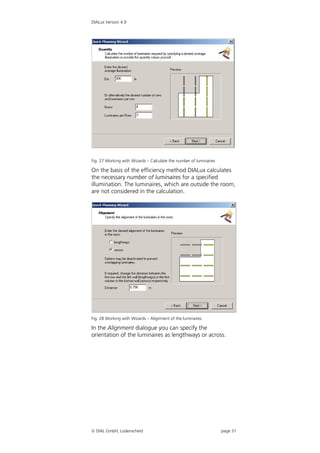
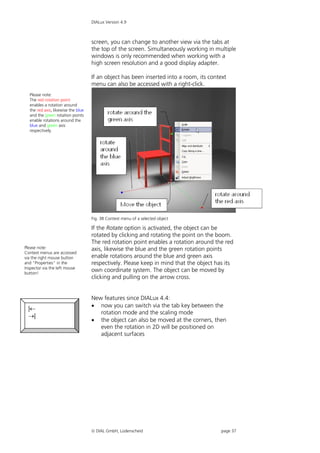
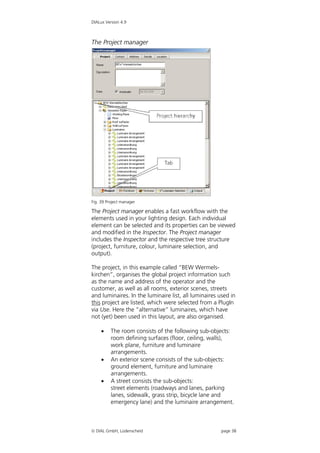
  • 151.
    DIALux Version 4.9 emergencylighting only or for both cases. The duration time and the luminous flux can be set for the emergency case. The dimming of luminaires and taking daylight into account in an emergency lighting scheme is of course not possible. To create an emergency lighting scheme you just have to select the desired room and make a right click to add a lighting scheme. Fig. 229 Emergency lighting scene If you want to design an emergency lighting project for the UK market, it will be possible to define here the calculation according to Lighting Guide 12, to take into account the first reflection of direct light on the ceiling(s). This, of course, will be automatically switched on if the user selected the standard settings according the UK market (global options, like UGR SHR and illuminance quotient). You can define for each light emitting object whether it is used for emergency lighting. Fig. 230 Property Page of emergency lighting  DIAL GmbH, Lüdenscheid page 151
  • 152.
    DIALux Version 4.9 Foreach luminaire and each LEO (Light emitting object, a luminaire may have more than one light output) of a luminaire, there will be a luminaire data sheet for emergency lighting available. This datasheet offers important information about the LEO. The first one will be a graphic for the “Disability Glare Zone”. In this graphic the maximum intensity values of EN1838, Table 1 will be listed and in two sketches the maximum intensity values of the LEO for the “flat floor” and for the “uneven floor” will be given. The second graphic / table will show the maximum distances for the mounting of the luminaire to achieve a desired illuminance (for example 1 lx). It will list several mounting heights (2m up to 5m) and the mounting options: wall to transverse, transverse to transverse, transverse to axial, axial to axial and axial to wall. Fig. 231 Output – Emergency lighting data sheet Escape route lighting To do an escape route design, you have to insert one or more escape route calculation object(s). The escape route can be edited by entering the coordinates or by moving with the mouse. With a right click additional points can be inserted to add a kink to the escape route. The width can be set to a maximum of 2m.  DIAL GmbH, Lüdenscheid page 152
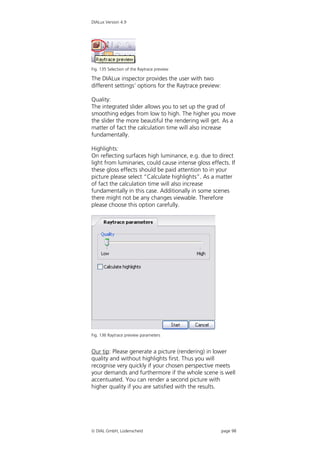
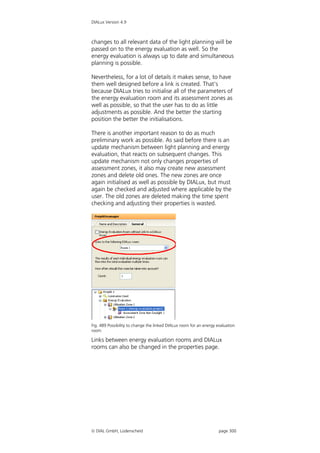
  • 153.
    DIALux Version 4.9 Fig.232 Emergency lighting – Modify escape route The surface is placed on the floor but you can move it around freely. After placing these escape route object(s) a luminaire has to be selected. With a right click on the escape route, a luminaire arrangement of single luminaires can be placed above the escape route. Fig. 233 Emergency lighting – Insert escape route lighting You can select the luminaries you want to use, you can define the luminous flux, which LEO to be used (if there is more than one) and you can define a desired illuminance level to be reached on the escape route. The maximum distances for the first luminaries and between the luminaries are calculated and used for the positioning of the luminaries. Also you can select if there should be luminaries in the positions of the kinks of the  DIAL GmbH, Lüdenscheid page 153
  • 154.
    DIALux Version 4.9 escaperoute. If necessary, there can be more than one escape route and luminaries arrangement in a room. Fig. 234 Escape route lighting Before the escape route with the escape route luminaries is planned, normally the positions of luminaires are also defined by the positions of “MANDATORY POINTS OF EMPHASIS”. Initial design is conducted by situating luminaires to reveal specific hazards and highlight safety equipment and signs, in addition to providing illumination to assist safe travel along the escape route. This should be performed regardless of whether it is an emergency escape route or an open (anti-panic) area. As seen in this visualisation, the manufacturer can use real 3D models for the visualisation of its luminaires. Fig. 235 Escape route lighting – Visualisation Open area lighting (anti panic) Open area lighting can be automatically prepared by inserting an emergency lighting scene. In the Property Page for the lighting scheme there is a button to insert “anti panic calculation surfaces” on each piece of floor in the room, even if the floor is tilted or consist of areas  DIAL GmbH, Lüdenscheid page 154
  • 155.
    DIALux Version 4.9 indifferent heights. The geometry is copied from the floor minus 0.5m from the walls. It is also possible to edit the surfaces manually. Fig. 236 Open area lighting The way to insert an open area luminaire arrangement is similar to that in the escape route lighting. A right click on the open area calculation surface opens the Property Page for the luminaire arrangement. Fig. 237 Insert open area lighting  DIAL GmbH, Lüdenscheid page 155
  • 156.
    DIALux Version 4.9 Fig.238 Properties of the open area luminaire arrangement This tool calculates the maximum distance for the selected fittings taking into account the desired minimum illuminance level and uniformity. You can see here the maximum distance lengthwise and crosswise between the luminaires and between luminaires and the border of the open area calculation surface. The arrangement will be placed symmetrically above the open area surface. To calculate the “open area” which means the unobstructed floor, you have to select in the calculation setting not to take the furniture into account. Fig. 239 Calculation dialogue – Without furniture Those luminaires, which are in use for emergency lighting, are marked with the expression “emergency luminaire”.  DIAL GmbH, Lüdenscheid page 156
  • 157.
    DIALux Version 4.9 Fig.240 Emergency luminaires in the CAD view High risk task area lighting For the high risk task area lighting, you can use the regular task area calculation surface of DIALux. It contains of the task area(s) and the surrounding area. The calculation surface will be calculated in the emergency lighting scheme as well as the other calculation surfaces. Luminaires with emergency lights A luminaire can transfer the information of several light emitting objects. These LEO can also be defined as “emergency LEO”. These emergency LEOs are only used for the emergency lighting calculation. Since DIALux version 4.1 these emergency LEOs will be used by DIALux for the emergency lighting calculation. A “regular” LEO can also be used for the emergency calculation. Often “normal luminaires are equipped with battery packs or they are connected to a central battery. So in the emergency case the “regular” light distribution curve is used for the calculation. Maybe the luminous flux is different. In DIALux a single luminaire can be picked and the settings to use it in the emergency lighting calculation can be defined. Fig. 241 Emergency lighting – Inspector You can define here if the luminaire has to be used for the emergency calculation. Also you can define if it is used only in the emergency case or for the normal  DIAL GmbH, Lüdenscheid page 157
  • 158.
    DIALux Version 4.9 lighting.The luminous flux for the duration time can be edited here. The emergency LEO is designed to handle a light distribution curve which is different from the regular LDC. There are for example fluorescent lamp luminaires on the market which have an incandescent lamp or a LED included for emergency lighting. In these cases it would be possible to use the fluorescent lamps LDC for the normal lighting situation and the incandescent lamp or LED LDC for the emergency lighting. Emergency lighting data sheet One element of good lighting design is of course complete lighting documentation. In accordance with prEN 13032-3 DIALux also provides evaluation of emergency luminaires with regard to glare and optimal positioning in the form of a data sheet. Fig. 242 Emergency lighting data sheet  DIAL GmbH, Lüdenscheid page 158
  • 159.
    DIALux Version 4.9 Daylightcalculation in DIALux DIALux is complemented by the extensive support of daylight calculations. Now daylight scenes can be inserted in your project allowing the influence of daylight in the interior and exterior scenes to be simply calculated. The different sky models (clear, overcast, partially overcast), as well as the direct sunlight influences the calculation. Of course location, time and alignment, as well as the daylight obstruction are taken into consideration with the calculation. Basics Since the introduction of version 4 DIALux can calculate daylight. No special mode is necessary for this. In exterior scenes daylight can be calculated basically, and in interiors whenever windows or skylights exist in the room. As a base for the calculation the DIN 5034 and the CIE publication 110 were used. The sky dome is divided into parameterised luminous surfaces, which get a luminance depending on the sky model, location, date and time. By the option "use direct sunlight" it is also calculated with the sun as a light source. The calculation occurs in the following steps: 1. Calculation of the skylight on all surfaces (inside and outside) 2. Calculation of the direct sunlight on all surfaces 3. Calculation of the direct light of luminaires (if available) 4. Calculation of the indirect component DIALux does not differentiate between inside and outside calculations; all surfaces are simply used for the radiative interchange. If you want to do a daylight calculation in DIALux, a suitable light scene must be inserted. Sky types in DIALux The sky types in DIALux correspond to the CIE 110-1994 "Spatial Distribution of Daylight - Luminance Distributions of Various Reference Skies". Thereby a luminance is assigned to every point of the sky. The luminance depends on the solar height, the solar azimuth, the sky point height and the sky point azimuth. Tab. 1 Sky types according to CIE 110-1994  DIAL GmbH, Lüdenscheid page 159
  • 160.
    DIALux Version 4.9 Overcast Sky Averaged Sky Clear Sky CIE-Name Overcast Sky Averaged Clear Sky Intermediate Sky Developed by Nakamura, Oki et al. Description Complete Developed from a Cloudless Sky Overcast Sky, long period of rotationally measurements, symmetrical described luminance average weather distribution conditions Direct sun No No Yes possible Number of possible 3 1 8 zenith luminance In DIALux used zenith Krochmann Krochmann luminance Light Scenes DIALux offers the possibility to define light scenes in a project. For this a light scene is inserted within the room or the exterior scene by right-click or insert-menu. In light scenes luminaires can be provided individually or as control groups with dimming levels. Likewise a daylight situation can be defined. Fig. 243 Specify dimming values of the control group To accomplish a daylight calculation, a light scene must exist in the room.  DIAL GmbH, Lüdenscheid page 160
  • 161.
    DIALux Version 4.9 Daylightcalculation If a project is started, the global position must be defined first. Fig. 244 Select the location Here the user can select any location. DIALux offers a very long list of places on all continents, so that the inputs are already filled for longitude and latitude as well as time zone. Other places can be added arbitrarily. Fig. 245 North alignment The north direction can be defined in each case for the room or the exterior scene. To recognize this easily, the north arrow is drawn near the coordinate origin. In the room windows or skylights must be included in the plan as before. These can be easily placed as a line or field if one uses "Copy along a line" function.  DIAL GmbH, Lüdenscheid page 161
  • 162.
    DIALux Version 4.9 Fig.246 Edit daylight factors Of course all the important parameters can be defined for windows and skylights. As usual DIALux already includes a selection of the most current choices. Fig. 247 Daylight factors To calculate a light scene with daylight, the necessary calculation options must be put in the light scene. If the checkbox "Calculate Daylight quotient" is activated, the settings are made accordingly: - Sky model of overcast sky - No sun - No consideration possibly of available luminaires As a result you get as usual a calculation including visualization, and in this case, the output of the daylight quotient as a component of the work plane. If you want to know the daylight quotient at other positions, you can insert suitable calculation surfaces or calculation points. In the following figure the value chart of the work plane is displayed. Currently (beta version) it doesn’t show the daylight quotients, but just the illumination in the  DIAL GmbH, Lüdenscheid page 162
  • 163.
    DIALux Version 4.9 suitablepositions. Also the outputs for Dmin, Dmax and Dm need to be shown as percentage values. Fig. 248 Output – Value chart of the workplane Obstruction Of course the obstruction can be also taken into consideration in DIALux. For this it is also necessary to define this in the CAD. By the selection "Edit daylight obstruction" in the menu Edit or by right-click on the room the obstruction can be inserted. In the obstruction scene the room is shown in its exterior view. Now objects can be planned arbitrarily round the room. Also the room can be raised if it necessary, e.g., a room in a higher floor. The obstruction shades the direct light as well as the reflected light which hits the obstruction objects.  DIAL GmbH, Lüdenscheid page 163
  • 164.
    DIALux Version 4.9 Fig.249 Obstruction in CAD view Sun and shadow visualisation The direct incidence of sunlight in the room can be simulated on a real-time basis. For this an OpenGL compatible graphic card is necessary. The incidence of light by windows and/or skylights is calculated as a function of place, orientation, geometry and date and time. Fig. 250 Sun and shadow visualisation At the top left of the Inspector there are two sliders. With these the date and time can be changed on a real- time basis and the path of the incidence light in the room can be simulated. Settings in the calculation dialogue Before starting the calculation you have the possibility to select the scenes to be calculated in the calculation window. Other settings are available. Thus you can select additional calculation options and operations.  DIAL GmbH, Lüdenscheid page 164
  • 165.
    DIALux Version 4.9 Fig.251 Calculation dialogue  DIAL GmbH, Lüdenscheid page 165
  • 166.
    DIALux Version 4.9 Working in the 3D View Setup the 3D View It is possible to roam through a planned scene to closely evaluate the results. The observer's position can also be inside a room. This is especially valuable when planning large rooms with a lot of furniture. If you have a “three-button mouse”, the “Move” option is assigned to the mouse button in the middle. If you have a wheel mouse, you can “Zoom” by turning the wheel and “Move” by pressing it. Fig. 252 Evaluating a staircase from the upper storey The following tools (from left) can be used to change the position in the 3D view: Fig. 253 Toolbar for switching between modes  Select Objects; when this mode is selected, objects (depending on the selection filter) can be selected by clicking on them. Various options are  Increase/Decrease View Size; to increase or available when roaming through a decrease the zoom factor, left-click in the CAD scene! window and move the mouse up or down. With DIALux 4.9 you can increase or decrease the CAD view about 10% by using CTRL key + + or CTRL Ctrl key + -.  Rotate 3D View; left-click and move the mouse while holding the mouse button pressed. Shift  Move; use this mode to move the area that is displayed in the window. If you have a “three-  DIAL GmbH, Lüdenscheid page 166
  • 167.
    DIALux Version 4.9 button mouse”, this option is always assigned to the mouse button in the middle.  Roam Scene o Left-click and move the mouse to move forward, backward or to rotate on the spot. o Left-click holding the CTRL key  you can roam up, down, left or right, the viewing direction remains constant. o Left-click holding the Shift key  you remain on the spot and can look around you. You can change the focal distance of the camera in the 3D view by selecting the mouse mode “zoom” (loupe symbol). While zooming (left-click and move the mouse) hold the CTRL key at the same time. Fig. 254 Change perspective and focal distance of the camera Check Calculation Values in the 3D View With the help of the Luxmeter function you can see the calculated illuminance value of any selected point. To do this you should switch to the 3D view, enable the Tool tips for calculation results and select the Rotate view mouse mode. Move the mouse pointer to any position in the CAD window. The calculation results are displayed at the bottom of the figure. In order to indicate different points of calculation in your CAD window set your mouse function to Rotate View. This way you can quickly reach each point in the room.  DIAL GmbH, Lüdenscheid page 167
  • 168.
    DIALux Version 4.9 Fig.255 Show calculation results in 3D view Now you can click at any point that is of interest to you and the calculated illuminance is displayed in a small tool tip. Save 3D View DIALux offers two different ways to export the current 3D rendering into a graphics file. The easiest way to get a picture of the visualisation is to rotate or move the 3D view of a scene (interior room, exterior room or street) into the desired position and then use the menu  Export  Save CAD view as JPG… which opens a file selection dialogue. Fig. 256 Save a 3D view as *.jpg-file Here you can enter the directory and the filename. The picture is stored as a *.jpg-file with a 1024 x 768 pixel image. To get a picture with a higher resolution, proceed as follows: o Make the planning as usual and adjust the perspective of the 3D CAD view.  DIAL GmbH, Lüdenscheid page 168
  • 169.
    DIALux Version 4.9 o Change to the output and open the 3D rendering. Fig. 257 Open the 3D rendering o Start the software that should import the image. This might be Word, Excel or any image processing software. o Click and hold the left mouse button on the 3D output and drag the image to the other program. Fig. 258 Copy the 3D rendering into another software o The image is copied into the other software with a resolution of 2000 x 2000 pixels.  DIAL GmbH, Lüdenscheid page 169
  • 170.
    DIALux Version 4.9 Presentationof false colour rendering With DIALux the user has the option to display the 3D rendering in a false colour rendering presentation. The presentation of illuminance and luminance with freely scalable value ranges and definable colour gradients is now available. Fig. 259 False colour – Illuminances Fig. 260 False colour – Luminance  DIAL GmbH, Lüdenscheid page 170
  • 171.
    DIALux Version 4.9 Working in Various Views DIALux provides various views to assist you with your layout. Fig. 261 Views toolbar You can open the various views via the toolbar illustrated. The button functions are, from left to right:  Open 3D view  Open ground plan view  Open side view  Open front view  Zoom to the overall view of the scene, for that DIALux zooms to the borderline of the room or exterior scene  Show previous / next light scene  Show dimming levels in CAD  Show maintenance factors in the CAD  Activate Project manager, DIALux shows the Project manager in addition to The Guide  Tile windows horizontally  Tile windows vertically In the menu file Settings  Customise Toolbars you can activate more functions in the view’s or window’s toolbar (see page 54). Fig. 262 Working in various views If your monitor is big enough, it is advisable to The display illustrated above can be achieved by first keep several views open opening the four views and then arranging the windows, simultaneously. e.g. Tile Horizontally. Fig. 263 Multiple view arrangement  DIAL GmbH, Lüdenscheid page 171
  • 172.
    DIALux Version 4.9 Click on the X icon in the upper right corner to close the window. Close views via the “X” icon Fig. 264 Closing CAD windows Save 3D CAD views In the 3D view it is possible since DIALux version 4.0 to save camera perspectives of 3D CAD displays with Saving of various CAD views (camera mode). certain key combinations. Turn and zoom the CAD into the required position and then press CTRL + number. This view will be saved in the project. The view can be set again automatically by pressing Alt + number. The numbers 1 to 10 can be allocated as wished. You can also do this with a right click in the CAD or under the menu “CAD”. Fig. 265 Save camera view via context menu  DIAL GmbH, Lüdenscheid page 172
  • 173.
    DIALux Version 4.9 Fig.266 Save camera view via menu The function redo camera view accesses the saved views. You can proceed via the context menu within the CAD view or in the menu  CAD. Fig. 267 Redo camera view – Redo positions  DIAL GmbH, Lüdenscheid page 173
  • 174.
    DIALux Version 4.9 WireframeModel With DIALux there is the option to change into the wireframe mode. This is so that you can work on an “older” computer without judder when moving in the 3D view. You can find the function in the menu View  Wireframe Display. It is quicker to use the keyboard shortcut Ctrl +W. Fig. 268 Changing into the wireframe mode  DIAL GmbH, Lüdenscheid page 174
  • 175.
    DIALux Version 4.9 Editing Inserted Objects Moving Objects After luminaires and furniture have been placed inside the room, they can be edited as desired. The Inspector displays all information relevant to the object which was selected in the Project manager or CAD view. This object can be modified by entering new values. If an object is modified in the CAD view (rotated, moved or scaled) the values in the Inspector are updated. Fig. 269 Graphically modifying the object height To change the height of an To modify the position of a body along the Z-axis, press object via the mouse, keep the control (Ctrl) key. Keep the button pressed while you the Ctrl button pressed! click on the arrow cross within the body. As long as the left mouse button and the Ctrl key are pressed, only the Ctrl height of the object can be modified. When you release the Ctrl key, you can modify the X and Y positions. In the 3D view, the point of intersection of the three positioning lines shows the position of the cross, projected onto the floor surface. In DIALux 4.9 it is also possible to move an object not only by its insertion point but also by dragging the corners of the bounding box. The benefit is that it is now easy to place one object directly next to another one and the object automatically rotates itself to get the same rotation as the adjoining object.  DIAL GmbH, Lüdenscheid page 175
  • 176.
    DIALux Version 4.9 Tochange the working area in the 3D view press the spacebar while the left mouse button is pressed and the mouse icon is above the area you would like the Fig. 270 Dragging an object by its corners and automatic rotation working area to be. In the 3D view using any surface as a working surface an S P A C E object can be moved by the mouse. The working surface is fixed as a parallel surface to the X-Y area (normally parallel to the floor). This can temporarily be changed if the SPACEBAR is hit while the mouse together with the object is in front of any other surface and the left mouse button is pressed. Example: You click (left) on a cube and move it towards a wall. Make sure that the mouse icon is in front of the wall. Now hit the space bar on the keyboard. The wall will become the working area of the cube now. Instead of moving to the left and to the right (X-Y axis) you can now move up and down (axis of the wall). It can be any other surface as well (tilted floor, furniture,..). The working area is reset when the left mouse button is released and another object is selected. Fading out objects Objects can fade out via context menu. For this, you have to mark the objects in the CAD view or project manager. After the marking you open the context menu with right-click in the CAD view. By clicking on “selection hidden” the selected objects fade out.  DIAL GmbH, Lüdenscheid page 176
  • 177.
    DIALux Version 4.9 Fig. 271 Fading out objects Fading in the hidden objects again, you hate to open the menu via right-click in the CAD View and choose “Cancel hidden”. Fig. 272 Fading in objects To deactivate the preset pick Moving and Rotating Objects without Pick Grid grid, press the shift button! When you move the object via the mouse, it only moves within the preset pick grid. If you press the Shift key Shift while you move the object, the pick grid is deactivated. The grid settings to be used when the pick is deactivated can also be preset. Select CAD  Pick Options  Set Pick Grid.  DIAL GmbH, Lüdenscheid page 177
  • 178.
    DIALux Version 4.9 Fig.273 Pick grid settings – Display Grid Fig. 274 Pick grid settings – Snap Grid Fig. 275 Pick grid settings – Angle Pick  DIAL GmbH, Lüdenscheid page 178
  • 179.
    DIALux Version 4.9 Fig. 276 Pick grid settings – Colours of the Pick grids Scale or rotate An object is either in scale or in rotate mode. After selecting an object it is initially in rotate mode. To |<- Tabulator change between the two modes you can either open the ->| context menu by doing a right click or, and this is new, you can hit the tabulator key to change between these modes. Rotating Objects If objects are to be rotated, they must be selected first. Then they can be modified numerically in the Property Page or graphically in the CAD view. Click on one of the three axes rotation points. There is a pick grid for rotations as well (Angle Pick). Please note: The red rotation point enables a rotation around the red axis, likewise the blue and the green rotation points enable rotations around the blue and green axes respectively. Fig. 277 Rotating objects Objects are rotated around their own coordinate origin. This is indicated by the arrow cross and by the point of intersection of the three axes. If multiple objects are selected to be rotated together, they are rotated around the centre of the encompassing cube.  DIAL GmbH, Lüdenscheid page 179
  • 180.
    DIALux Version 4.9 Scaling Objects Objects can be scaled along one, two or three axes. This can be done either in the Property Pages or in the CAD. To go to the scale mode in the CAD, open the object's context menu (right-click) and select the Scale option. Fig. 278 Object context menu In the 3D view you can scale the object in the X, Y or Z In the 3D View: Pull rubber band lines = direction by clicking and pulling one of the rubber band Scale in one dimension lines of the selected object. However, if you click on one Pull rubber band corners of the selected corner points, you simultaneously scale in = Scale in three all directions. dimensions In 2D views you can only scale in one dimension. Combining and Saving Objects If you have inserted multiple objects in the CAD which together you wish to treat as an arrangement or to save as a new custom piece of furniture, it is recommended to combine these objects in advance. Objects need not touch to be combined. They can also be positioned independently in the room. Fig. 279 Combining Objects To combine objects, select them and select Combine from the context menu.  DIAL GmbH, Lüdenscheid page 180
  • 181.
    DIALux Version 4.9 To save objects, select them and select Save as… from the context menu. Important! DIALux only loads furniture saved in the …DIALuxFurniture…. directory into the furniture tree. The user can create subdirectories beneath the Furniture directory. If you have received furniture files in the SAT file format (*.SAT) from the manufacturers, you can save these in the Furniture directory and use them in DIALux. (See also page 82) Moving the Coordinate Origin of an Object If you combine multiple objects, the centre of the en- compassing cube automatically becomes the coordinate origin. This is not always the preferred position, because when you insert an object into your project via Drag & Drop, the origin is placed at the height Z = 0. Before you save a new object, you should check and position the origin. You can do this in the Inspector when you go to the Property Page Origin. To move the coordinates system of an object, press the Alt button! Alt Fig. 280 Specify the coordinate origin To define the origin visually, press the Alt button. When you now move the object's coordinate cross, the coordinate origin is moved instead of the object itself. To change the height or to deactivate the pick grid when movements are made, use the Shift and Ctrl buttons. If you now save the object, the new coordinate origin is also saved.  DIAL GmbH, Lüdenscheid page 181
  • 182.
    DIALux Version 4.9 Fig.281 Coordinate origin which was moved outside the cube Resetting the rotation of the origin To create complex models from several simple ones, sometimes it is necessary and useful to reset the rotation of an object. To achieve that, you have to click the “Reset rotation of origin” button in the Origin Property Page of the Object. The length, width and height of the object are taken from the rotated bounding box. Fig. 282 Resetting the rotation of the origin of an object or furniture Editing Object Surfaces In DIALux you can assign any colour, reflectance, material and calculating grid and textures to any surface. To edit object surfaces, select the object and click the Surfaces tab.  DIAL GmbH, Lüdenscheid page 182
  • 183.
    DIALux Version 4.9 Fig. 283 Editing surfaces In the Inspector, the Property Page with a list of existing surfaces appears. If you select a surface (surface 1 in this case), this is highlighted with a rubber band line in the CAD. In the right-hand side of the Property Page you can select a material, a reflectance or a colour. By clicking on the empty field “…“ behind the name of the surface in the listbox on the left-hand side, the name can also be modified. To receive output on furniture surfaces, check the Result Output checkbox. Fig. 284 Calculating grid and furniture surface output To include the calculation results of a certain surface in the output, please check the Output Result checkbox in the Calculating Grid tab. Time and again it is necessary to work on single surfaces of an object. With complex objects with very many surfaces, it may take a lot of time to find the required surface in the surface list of the object’s Property Page. To make this simple you can now select a single surface graphically. Just right click the object on the required surface in the CAD and choose “Select this surface” from the context menu. The required surface is selected in the Property Page and it can be assigned a colour, a texture, material and so on.  DIAL GmbH, Lüdenscheid page 183
  • 184.
    DIALux Version 4.9 IfOutput Results is checked the surface selected appears in the project tree of the project manager. It may be helpful to rename this surface in the project tree so that results are easily identified. Fig. 285 Selecting a single surface with the mouse  DIAL GmbH, Lüdenscheid page 184
  • 185.
    DIALux Version 4.9 Arrangementaids Measurement of distances Using the tape measure it is easily possible to find the exact distances between objects in 2D and 3D view. To start the tape measure just click on the icon or select the tape measure in the menu CAD. Fig. 286 The tape measure icon In the 2D view, the tape measure is placed by clicking on two points in the CAD window. The end points of the tape measure will snap to grids, help lines, insertion points of objects and to the bounding box of objects. If the snap is not to that point you like it to be, just zoom into the scene and the snap will be more accurate. Fig. 287 The tape measure function in the ground plan view In the 3D view, there are even more distances visible. There you can see the direct distance between two points as well as their heights above the floor and the distance on floor level. Fig. 288 The tape measure function in the 3D view  DIAL GmbH, Lüdenscheid page 185
  • 186.
    DIALux Version 4.9 Workingwith the snap grid The snap grid is a tool to simplify the handling and the movement of any object in the CAD views. The objects will step in the distance that’s defined in the snap grid settings. The grid distances can be equal in all three directions but can also be different for X, Y and Z. Fig. 289 Fixed grid with a spacing of 0.5m in X and Y direction. If you want to move an object for a short period without a grid, just hold down the SHIFT key while you place the object. This is valid for all grids and help lines. To make the snap grid a visible tool as well, use the same settings for the display grid as you do it for the snap grid. The colour can also be changed to have a better contrast for example against a background DWG file. Automatic help lines Those objects which are already placed in a room or exterior scene can be used to align other objects. Moving an object you will recognize that in orthogonal direction there is a higher “gravity” than in any other direction. So moving along X, Y or Z axis is simple. Those objects (bounding boxes of furniture, walls, luminaries room elements), which are already in the scene can create automatically temporary help lines to align other objects to. Fig. 290 Automatically by the walls generated temporary help lines.  DIAL GmbH, Lüdenscheid page 186
  • 187.
    DIALux Version 4.9 Inthe screenshot you can see the red help lines which follow the direction of the tilted walls. These help lines are generated when you move with one object (e.g. luminaries) for a short while above any other object (e.g. wall). The help lines are visible until the left mouse button is released. Fig. 291 Automatically by an object generated temporary help lines. Here you can see help lines generated by the cube. Now it is pretty easy to align cube and luminary. Helping areas defined in the ruler In ground plan, front and side view there are rulers located on the left and on the top of the CAD window. This ruler will show you the mouse position in X-Y, X-Z and Y-Z direction. From this ruler you can generate helping areas which are defined in a specific position and are useful to align objects to. Fig. 292 Creating helping areas in the ruler You can create those helping areas by double clicking in the position of the ruler or drag and drop the helping area from the ruler into the CAD. It is called helping area because it is active in two dimensions. If you place a helping area in the ground plan view parallel two the X- axis, it will be available in the side view as a parallel line  DIAL GmbH, Lüdenscheid page 187
  • 188.
    DIALux Version 4.9 facingfrom top to bottom as well. If you place a helping area parallel to the Y axis, it will be visible in the front view. Having them available in two views makes it easy to place objects not only in a desired position but also in a correct height. If there are already objects in the CAD window available, the helping areas can be snapped to those objects as well. Working with help lines Help lines are objects which can be placed in any 2D view. When they are placed in the ground plan view, they are only visible in this view, not in any other 2D or 3D view. They are meant to align objects to them or to place objects on them. Moving an object towards a help line, the snap will work on the bounding box and on the objects origin. If an object is moved with the mouse on the bounding box dragger also the rotation of the object is align to follow the help line. This will not happen, if the object is dragged by its origin. Fig. 293 In the left sketch the object is moved on its origin, on the right it is moved on the bounding box. In the second case the rotation is adjusted. Help lines are not printed out. To insert a help line just press the icon or use the command “Insert” -> “Help lines”. Fig. 294 Icons to insert help lines After selecting a help line, you can continue to edit this in the room with the aid of the context menu. The functions available include “Delete last point” as well as cancelling the help line. Just place a help line in the room and open the context menu with the right mouse  DIAL GmbH, Lüdenscheid page 188
  • 189.
    DIALux Version 4.9 button. Fig.295 Further editing of a help line Simple help lines The simple help line is useful to align objects. Moving an object towards the help line it will be automatically snapped on the help line when a specific distance is reached. To avoid the snap temporarily just hold down the SHIFT key. To avoid the snap continuously, switch of the icon for the help line snap. Fig. 296 Icons to switch on and off the snap to help lines A help line is defined by clicking for the starting position and again clicking for the end position. Fig. 297 Inserting a help line In the inspector you can see the numeric values of start and end point. Further on you can see the angle the help line is rotated compared to the horizontal and the  DIAL GmbH, Lüdenscheid page 189
  • 190.
    DIALux Version 4.9 verticalaxis of the 2D view. That’s way the axes changes from ground to side views. The possibility to create parallel lines is also very useful. Just enter the number of parallel lines you need and the distance they should have. To delete help lines just select and press the del(ete) key or select delete from the context menu. Help lines can be selected to be displayed or not. To switch between this modes press the glasses icon with the help line on it. Fig. 298 Display help lines Poly help lines A poly line is working like a simple help line but instead of defining just a start and end point there can be any number of vertices in between. The line between vertices is always straight forward. Each left click defines a new vertex. To stop the poly line mode press the ESCAPE key or make a right click. In the context menu you can choose between closing the line between first and last point or just stop the mode at the last vertex. Fig. 299 Insert a poly line, stop the mode with a right click In the inspector each vertex can be changed numerically and by ticking the checkbox the poly line can be closed. To move the complete poly line after it is defined once, hold down the ALT key while the mouse is above one vertex and holding down the left mouse button.  DIAL GmbH, Lüdenscheid page 190
  • 191.
    DIALux Version 4.9 Fig.300 Move the complete poly line by holding down the ALT key Spline help line The spline help line can be placed like the poly help line. The lines between the vertices are not straight but curved to follow a smooth line between the vertices. In the start and end point there are draggers which can be used to change the line towards the start and end point. Fig. 301 A closed spline help line. In the start and end point are draggers to change the line To move the complete spline help line after it is defined once, hold down the ALT key while the mouse is above one vertex and holding down the left mouse button.  DIAL GmbH, Lüdenscheid page 191
  • 192.
    DIALux Version 4.9 Fig.302 Move the complete poly line by holding down the ALT key Circular help line The circular help line can be placed by first defining the mid point and then the radius. Copy along a help line Any help line can be used to be the copy and paste path of any object. Any object and any object combination can be copied along a help line, e.g. furniture, luminaries, Calc surface + furniture… To start that function, the help line has to be available in the scene. The object that has to be copied along a help line has to be in the scene as well. If you want to copy combined objects, you have to place them correctly next to each other first. The position in the room/exterior scene does not matter at all. Fig. 303 Copy along a help line with the mouse Start with selecting the object to be copied. Than make a right click and select “Copy along a help line” from the context menu. Now there is a symbol at the mouse to select the desired help line that should be used as a path where the object should be copied along. When the mouse is above a help line a small hook appears that tells you that this help line can be selected. The line is selected with a left click. Fig. 304 Mouse symbol to select a help line for copying Once the desired help line is selected, the inspector offers the possibility to define the desired number of copies and the distance between them.  DIAL GmbH, Lüdenscheid page 192
  • 193.
    DIALux Version 4.9 Fig.305 Copying in the standard setting with placing objects in the vertex If the standard setting is selected, DIALux places the first object in the start point, the last one in the end point and in every vertex also a copy. The distance between objects placed within two vertices will be averaged to keep the number of objects and the resulting distance close to the desired values in the inspector. If the second setting is selected, the distance between the objects is fixed. The first object is placed in the start point and every following one has the exact distance as defined. If the length of the help line is not integer literal of the distance, the complete length is not used and a rest of the line remains. Fig. 306 Copying along a help line with fixed distance In this way it is also possible to copy objects along spline help lines and circular help lines. Help grids In addition to the help lines it is also possible to insert help grids into the scene. To start this action, click on the insert help grid icon.  DIAL GmbH, Lüdenscheid page 193
  • 194.
    DIALux Version 4.9 Fig.307 Insert a help grid In the inspector start and end point as well as the grid angle and the grid distance can be adjusted. In the graphical way, first the start point has to be defined with the first click. The second click defines the position of the end of the first axis of the grid. The third click has to be made in a distance perpendicular to the second point to define the width of the grid area. Initially the grid distance is set to 0.625m. This value can be changed in the inspector or graphically by moving the dragger next to the start point. Fig. 308 Defining a help grid The grid has snap points on each edge, on the lines at half the grid length and in the middle of each grid element. Fig. 309 Snap points on the help Of course it is possible to place grids in other grids. This is useful if a luminaire arrangement should be placed within one ceiling element.  DIAL GmbH, Lüdenscheid page 194
  • 195.
    DIALux Version 4.9 Copyand paste with CTRL+C, CTRL+V and CTRL+H With CTRL+C objects can be copied into the clipboard. This can be single objects or combined objects even those ones of different types. With CTRL+V the copied objects will be placed next to the original objects in a distance of 1m in X and 1m in Y direction. With the keyboard shortcut CTRL+H the object in the clipboard will be pasted next to the position of the mouse, taking into snap of any snap grid nearby. To copy luminaires into a ceiling grid just place the first fixture. Than move the mouse to the ceiling panels you need a luminaire in and press the CTRL+H keys. The luminaire is pasted and (if the mouse was close enough) the grid snap takes the luminaire in the correct position. Copy Along a Line DIALux offers the possibility to copy an object repeatedly one behind the other. This function Copy Along a Line is selected in the CAD window using the right mouse button or the menu Edit. Fig. 310 Copy along a line with the mouse In the Inspector, as an alternative or supplement to using the mouse you can edit the number of copies; align the line, the distance and the position of the last copy.  DIAL GmbH, Lüdenscheid page 195
  • 196.
    DIALux Version 4.9 Fig.311 Copy along a line with the inspector Align and distribute It is often necessary when planning and positioning several different objects to achieve a flush surface or to adjust them vertically and horizontally to achieve a regular arrangement or a neat appearance to the ceiling. In DIALux you can edit this in the context menu of the marked objects or in the menu Edit  Align and distribute. Fig. 312 Context menu CAD – Align and distribute  DIAL GmbH, Lüdenscheid page 196
  • 197.
    DIALux Version 4.9 Fig.313 Menu Edit – Align and distribute Centre objects in the room This is a very useful tool to centre luminaires separated by a modular spacing (for example a 600mm ceiling grid) in the middle of a room. The luminaire arrangement will be placed in the middle of the room after defining the number of luminaires and the distance between them. Fig. 314 Align and distribute – centred in space  DIAL GmbH, Lüdenscheid page 197
  • 198.
    DIALux Version 4.9 CalculationSurfaces and other Calculation Objects In the furniture tree you can insert calculation surfaces or task area in DIALux. To do this simply select Calculation surfaces and move the appropriate object via Drag & Drop into a CAD window. Fig. 315 Inserting calculation surfaces or task areas Calculation Surfaces Fig. 316 Transparent calculation surfaces A calculation surface is an area in which the illuminance can be “measured” without affecting the light distribution themselves. Various calculation surface norms exist, for instance the work plane, the correct reading level for hospitals etc. A calculation surface is displayed as a transparent surface, as the example shows. The surface which  DIAL GmbH, Lüdenscheid page 198
  • 199.
    DIALux Version 4.9 appearstransparent is the surface which provides the calculation results. The surface is invisible when viewed from the other side. No results are calculated for the invisible side. These objects can be scaled and rotated like all other furniture. Exception: windows and doors are always plane-parallel to the respective wall. Calculation surfaces for different types of illuminance The calculation surfaces in DIALux can now calculate different types of illuminance. As well as calculating the normal, namely the planar illuminance, perpendicular to the receiving plane, it is now possible to explicitly calculate vertical planar, horizontal planar and camera directed planar illuminance and also semi-cylindrical and cylindrical illuminance. Fig. 317 Different types of illuminance Fig. 318 Property Page of calculation surface – Selection of the types of illuminance Penetration If calculation areas are penetrated by furniture (e.g. cupboard and working surface) these are now  DIAL GmbH, Lüdenscheid page 199
  • 200.
    DIALux Version 4.9 automatically“cut out” of the virtual planes with DIALux. It is not necessary for the user to make any special settings. Task Areas Task areas are calculation surfaces that consist of two parts. In DIN 5035 T7 and EN 12464 these two parts are defined. The two parts are the inner Work Area and the outer Surrounding Area. You can edit the polygonal shape of areas by clicking the right mouse button. The two parts are defined in the following way: o Both areas are plane-parallel. o The complete task area is positioned within the surrounding area. The output shows isoline and greyscale diagram for both areas together. Value charts and value tables are listed separately for each area. Fig. 319 Edit work area and surrounding area Calculation grids With DIALux 4.9 you can insert not only calculation surfaces but also calculation grids. The basic difference from calculation surfaces is the limitation of the number of calculation points. Calculation grids have a great number of associated outputs. All sports complexes have at least one calculation grid. You also have the additional option of inserting additional calculation grids. You will find these either in the project tree under “Objects” or in the menu under “Paste”  “Calculation Grid”.  DIAL GmbH, Lüdenscheid page 200
  • 201.
    DIALux Version 4.9 Fig.320 Inserting a calculation grid via the project manager By simply using the “drag and drop” function you can now insert a calculation grid. Just select a calculation grid, click on it with the left mouse button and pull it to any position within the project. Alternatively you can define the exact position in the Inspector beforehand and let DIALux position the calculation grid.  DIAL GmbH, Lüdenscheid page 201
  • 202.
    DIALux Version 4.9 Fig.321 Inserting a calculation grid via the menu In total there are three different calculation grids – quadratic, radial or user-defined according to your own parameters. Fig. 322 Types of calculation grids The quadratic and user-defined calculation grids are conceptually similar (size and shape). However, with the user-defined calculation grid it is possible to change the height of the grid’s position of origin and the quantity of calculation points. The radial calculation grid enables individual changes to the internal and external radii and the original coordinates. Editing As well as inserting calculation grids, you can also edit them and save them for later projects. Just click with the right mouse button on the calculation grid you have inserted and then, in the context menu which then appears, select the item “Convert for editing”. Then right click on the grid and select “Save calculation grid”.  DIAL GmbH, Lüdenscheid page 202
  • 203.
    DIALux Version 4.9 Pleasenote: When you do this, all automatic scaling options of the grid will be deactivated. Fig. 323 Converting the calculation grid Conversely you can then insert additional grid points or change existing points via the context menu under the sub-item “Edit grid points”. Fig. 324 Editing grid points You can adapt grid points either via the Inspector (under “Select”) by entering the coordinates or directly by moving with the mouse. If you decide on the second of these two options, just click on the respective grid point with the left mouse button and continue to press on the mouse button to move it to the desired position.  DIAL GmbH, Lüdenscheid page 203
  • 204.
    DIALux Version 4.9 Itis also possible to change the ‘z’-values which means that you can create very complex, three-dimensional calculation grids. Fig. 325 Changing individual grid points by using coordinates Under “Selection” in the Inspector the grid points differ according to world and grid coordinates. Grid coordinates depend on the position of the origin of the calculation grid, whereas world coordinates depend on the position of origin of the actual outdoor scene. Scaling It is possible in DIALux to scale calculation grids in different ways. To do this, just select the calculation grid and then open the context menu with a right mouse click. Here you can now select the scaling under “scaling options” e.g. with or without anchoring etc. Fig. 326 Selecting scaling options  DIAL GmbH, Lüdenscheid page 204
  • 205.
    DIALux Version 4.9 Mergingcalculation grids In DIALux the default setting is that all existing and additionally inserted calculation grids are calculated separately and displayed separately. However you have the option to merge two or more calculation grids and have only one output. For this just select one calculation grid first with the left mouse button, then press the shift key and select one or more calculation grids. Via the context menu (by clicking with the right mouse button on one of the selected calculation grids) you can then finally select the sub-item “Combine”. Fig. 327 Step-by-step procedure for merging calculation grids One possible application for merging or combining calculation grids could be a staircase. So that it is not necessary to have an output of the calculation grid of each individual step, all the calculation grids of the whole staircase can be merged by following the above described procedure. Calculation points in calculation grids As mentioned before there is a basic difference between calculation grids and calculation surfaces in the limited number of calculation points. The question therefore  DIAL GmbH, Lüdenscheid page 205
  • 206.
    DIALux Version 4.9 arisesas to the options there are to define the quantity and also the distribution of the calculation points in the grid. With DIALux there are three possible ways to make adjustments to the calculation points. You will find all the methods in the Inspector under the tab “Calculation grid”, in the sub-item “Number of Calculation Points”. Fig. 328 Methods for defining calculation points “Automatic”: This is the recommended setting if there are no specific requirements. With this method DIALux distributes the grid points uniformly over the whole calculation grid. “Manual”: DIALux distributes the calculation points uniformly with this method too, but in accordance with your specific default settings with regard to the x and y coordinates. “Distance”: With this method you are free to define the distances between the individual grid points yourself. Afterwards DIALux calculates the optimal number of grid points. In addition to these options you can also decide whether the grid points are positioned at the edges of the horizontal and/or vertical axes. You can decide on the settings in the tab “Calculation grid” under “Align Points to the Edge”. Either vertical or horizontal alignment or a combination of both can be chosen.  DIAL GmbH, Lüdenscheid page 206
  • 207.
    DIALux Version 4.9 Fig.329 Aligning the grid points to the edges of the axes All the above functions refer to quadratic calculation grids. The radial calculation grid has slightly different functions. Fig. 330 Inspector “Calculation grid” for radial calculation grids By contrast, in user-defined calculation grids all grid settings are made individually. Therefore there is no tab “Calculation grid”. Measuring grids Sports facilities can be dragged into the CAD window. In the project tree one or more calculation grids are listed for a sports facility. Another tab in the Inspector for each calculation grid is available called the measuring grid. A measuring grid is different to a calculation grid and can be inserted as well. There must always be a calculation grid before inserting a measuring grid.  DIAL GmbH, Lüdenscheid page 207
  • 208.
    DIALux Version 4.9 Fig.331 Creating a measuring grid In the tab “Measuring grid” different settings can be made. These include defining which grid points and which measuring points should be used. Similarly it is possible to make a setting which visually highlights the measuring points in the calculation grid more clearly by hiding the grid points in the calculation grid. Calculation In the tab “Calculation” you can define which values of the calculation grid are to be calculated. You have various options for selecting illuminance and also for changing the values for rotation (in º) and/or the height (in m) individually in the respective selection boxes. You can make changes as follows:  vertical  horizontal  vertical (including angle of rotation)  semi-cylindrical (including angle of rotation)  cylindrical  camera-oriented  in relation to the outside line  hemispherical In this context illuminance is calculated at specific points e.g. at a measuring or calculation point. To obtain results output carry out a calculation in DIALux with at least one luminaire.  DIAL GmbH, Lüdenscheid page 208
  • 209.
    DIALux Version 4.9 Fig.332 Pre-setting the calculation of the calculation grid Gradients By gradient is meant a rate of change of value between a specific measuring point and measuring points directly surrounding it. The gradient supplies information about the difference in illuminance between this and the measuring points in the immediate vicinity. Only calculation grids with a uniform and, as a rule, quadratic grid require gradients of illuminance. In the Inspector, under the tab “Gradients” you can activate gradients and their output, define the corresponding limit value and also define the distance for the gradient grid. By default in DIALux a gradient lies on a measuring or calculation point - depending on whether you use a measuring grid in addition to a calculation grid. Fig. 333 Setting limit values for gradients The limit value set prevents loss of image quality in camera or image recordings. This value should not exceed 20% for camera recorded events or 55 % for non-camera-recorded events.  DIAL GmbH, Lüdenscheid page 209
  • 210.
    DIALux Version 4.9 Bydefault, as mentioned above, the gradient grid lies on the calculation- and if applicable also on the measuring grid. Under “Distance for gradient grid” you can change the distance value in the gradient grid individually. Display settings In DIALux, calculation grids enable the direct display of results in CAD. This is especially useful in the planning phase of a project. In the tab “Display” of the Inspector for calculation grids the following information can be displayed:  grid points  measuring direction  calculated values  isolines  false colours Fig. 334 Changing an output option - Display values Real time calculation Often after making changes you want to see the results immediately in CAD but do not wish to run a calculation of the project beforehand. DIALux allows the option in the tab “Real time calculation” of selecting which illuminance you wish to have displayed in CAD. You can select between:  perpendicular  horizontal  vertical  DIAL GmbH, Lüdenscheid page 210
  • 211.
    DIALux Version 4.9  camera-oriented (at least one camera must be inserted beforehand. These can be found in the project manager under “Sports complexes”.) The display of the values must be activated beforehand under “Display”. Now you can read the values according to the illuminance option selected directly in CAD. Fig. 335 Procedure and values in real time calculation After changing the calculation option (e.g. from perpendicular to vertical) not only are the values change in the calculation grid but also the orientation of the calculation points (see previous screenshot). If several cameras are available, the camera-oriented illuminance option allows you to select each camera in turn to set the measuring height and the rotation of the camera. Fig. 336 Camera-oriented luminous intensity – selection and settings  DIAL GmbH, Lüdenscheid page 211
  • 212.
    DIALux Version 4.9 Fig.337 CAD output of camera-oriented luminous intensity Isolines Isolines display equal values of illuminance measured in the vicinity of a luminaire. Isolines can be displayed in CAD in the calculation grid during work on the project. Select the sub-item “Display isolines” in the tab “Display”. In the CAD you will now see the isolines of the inserted luminaire(s) in real time. Real time calculation only functions up to final visualization of the calculation results. Fig. 338 Displaying isolines in CAD All settings at this stage also apply automatically for false colours. The graphic lines illustrate the level of illuminance according to individual settings. These settings can be changed and adjusted in the tab “Isolines”. Isolines  DIAL GmbH, Lüdenscheid page 212
  • 213.
    DIALux Version 4.9 createdin this way can be saved as user default settings in DIALux. In addition, it is also possible in DIALux to open standard specifications. To do this, select the required isoline profile in the sub-item “Standard specifications“. For example, profiles for sports complexes or emergency lighting are available. Fig. 339 Selecting an isoline profile Calculation Points To get calculation results for a number of selected points. You can use horizontal calculation points, vertical calculation points and free calculation points. Fig. 340 Calculation points Horizontal calculation points (shown at the right side of the figure above) cannot be rotated. They always “measure” the planar illuminance of the perpendicular incoming light. Vertical calculation points (shown at the left side of the figure above) can be turned about the Z-axis. They can “measure” the planar (“normal”) illuminance, the semi-  DIAL GmbH, Lüdenscheid page 213
  • 214.
    DIALux Version 4.9 cylindricalilluminance or the cylindrical of the incoming light. This type can be selected in the Property Page. Free calculation points can be rotated about all axes. They “measure” the planar illuminance of the light incoming in the direction of the arrow. The output lists of all calculation points are on one page (“Calculation Points List”). They are sorted according to their type (planar, semi-cylindrical, cylindrical) and their designation. The summary of the results shows maximum, minimum and average value. Calculation points are a good tool to get the illuminance of stairs, blackboards, etc. UGR Calculation A major enhancement of DIALux affects the UGR calculation. It can produce the following UGR results: 1) The UGR table for all luminaires with direct lighting with a spacing to height ratio (SHR) of 0.25 or 1. 2) The single sheet output and the summary of “standard rooms” (rectangular, without furniture, only one type of luminaire) shows the four standard UGR values for the left wall and the lower wall viewing lengthways and across the luminaire axis. This saves doing the manual calculation with the help of the standard table. 3) You can place UGR observers at workplaces to get UGR values with respect to a. position and viewing direction b. all used luminaires c. position and rotation of the luminaires d. shadowing and reflection 4) With UGR calculation areas you get the distribution of the UGR values on an area. The calculation is comparable to the calculation of UGR observers. The output lists information about local glare problems on arbitrary places in the room. The output of part 1 is a table of the corresponding values. For part 2 and part 3 you get single UGR values. For part 4 you get isolines and greyscale diagram, a chart and a table of the values. Possible UGR values are between 10 and 30. Smaller values are shown as <10. Larger values are shown as >30. Insert UGR Calculation Point and UGR Calculation Area You can insert UGR calculation points and UGR calculation areas via drag and drop from the furniture tree into the CAD. NOTE: If you place these objects into  DIAL GmbH, Lüdenscheid page 214
  • 215.
    DIALux Version 4.9 theground plan, they are inserted at a default height of 1.2 m. This is the standard value that is used for a sitting observer. If you place them into the 3D view, they are placed on the surface you “touch” with your mouse. For example if you place them into the 3D view of an empty room they are positioned on the floor at a height Z=0. Fig. 341 Insert UGR objects into a room A second way to insert these objects is to use the Property Page. You just enter the numerical values of the position, the size and the rotation and click on Insert. It is the same Property Page that you can use to modify an existing object. Adjust Viewing Direction of UGR Observer and UGR Area To adjust the viewing direction, you can use the corresponding Property Page. A direction of 0° means that the observer looks lengthways, the X-axis. A positive angle means a counter clockwise rotation. An arrow shows the viewing direction. Fig. 342 Viewing direction of an UGR observer  DIAL GmbH, Lüdenscheid page 215
  • 216.
    DIALux Version 4.9 ExteriorLighting Exterior Scenes You can use DIALux for planning of exterior scenes with almost the same steps you normally use in indoor lighting. After starting DIALux you will see a startup dialogue. Fig. 343 Startup dialogue In the startup dialogue you can choose New exterior project and DIALux starts with a new empty exterior scene. You can have rooms, exterior scenes and street scenes in one project. Fig. 344 Start DIALux 4.9 with a new exterior scene In the Project manager, the exterior scene is quite comparable to a room. An exterior scene contains ground elements, furniture and luminaires. The room contains walls, floor and ceiling instead of the ground element.  DIAL GmbH, Lüdenscheid page 216
  • 217.
    DIALux Version 4.9 Ground elements have their own photometric properties. The calculation results are limited to their surface. You can insert additional ground elements from the furniture tree. Fig. 345 Insert a ground element from the furniture tree via "Drag & Drop" You can insert further You can edit a ground element similar to the rooms (see ground elements from the furniture tree Edit mode). They can have any polygonal shape. When you enable the option Result Output in the Property Page Calculation Grid, DIALux will create the relevant output. You can place furniture and luminaires in the same way as in the rooms of an indoor project. Ground Elements A ground element can only be used in an exterior scene. It is an area with a defined shape and an arbitrary height that may for example differ from the rest of the scene only because of its function. Fig. 346 A ground element By default a ground element has a rectangular shape and a height of 0.0 m. If you modify the height, the ground element is extruded consists of a top surface and sides. If  DIAL GmbH, Lüdenscheid page 217
  • 218.
    DIALux Version 4.9 youwant to modify the shape of the ground element, you can switch to the Edit mode with a right click. The Inspector shows the different surfaces of the ground element. You can change their material independently and you can select if the different surfaces will be listed in the calculation output. A ground element can appear as a “hole” inside of another ground element. The grey ground element and the selected ground element in the figure above are such “holes” that are cut out of the green meadow. In this example DIALux will not create calculation results for these parts of the outer meadow. Floodlight Illumination To calculate the floodlight illumination of objects or buildings you start with an exterior scene. On top of the ground element, you place the object you want to illuminate. Now you can select a surface of the object and enable the option Output Results. Fig. 347 Calculate results of a surface … or you can place a calculation surface in front of the object.  DIAL GmbH, Lüdenscheid page 218
  • 219.
    DIALux Version 4.9 Fig.348 Illumination of a facade with a calculation surface in front of it Lighting Design according to prEN12464 Part 2 / EN8995-2 Glare Rating The draft of EN 12464-2 / EN 8995-2 intends that glare has to be avoided for outdoor working places. To ensure this, glare limits for tasks and activities are prescribed. The glare rating system (GR) is defined in the CIE publication 112:1994. For glare evaluation, the veiling luminances produced by the luminaires and by the environment are the basic criteria. The latter is handled differently by EN 12464-2. In DIALux you can choose, whether you want to use the simplified method of EN or the complete method of CIE. The simplified method approximates the veiling luminance produced by the environment (Lve) with the formula Lve=0.035 x  x Ehav x , where  is the average reflection and Ehav the average illuminance of the “area”. Unfortunately this “area” is not exactly defined. DIALux uses all ground elements as the “area”. The complete method of CIE 112:1994 uses the correct veiling luminance produced by the environment in front of an observer. Here the illuminated area is considered to consist of an infinite number of small light sources. The veiling luminance produced by the environment is n E eye i Lve  10 i 1  i 2 defined by the formula where n is the total number of small light sources. Of course, this calculation is more accurate but more time consuming too. The DIALux outputs state which method was used to calculate GR values. Fig. 349 Property page of the GR Observer To calculate GR values, DIALux provides the GR observer tab. Any GR observer can be placed just like any other  DIAL GmbH, Lüdenscheid page 219
  • 220.
    DIALux Version 4.9 calculationpoint. There are some special properties, an inclination angle, viewing angles from a start to an end angle and a step width. The inclination angle defines the observer’s viewing direction towards the horizontal. Start and end angle define the observer’s vertical viewing section. Here 0° is the direction along the positive X-axis, positive angles move counter clockwise. Step width defines the different viewing directions between start and end angle. GR observers can easily be placed as a line or even as a field by using the function “Copy along a line”. Obtrusive Light / ULR Calculation The ULR (Upward Light Ratio) value is the percentage of luminaire flux of a luminaire or a lighting installation that is emitted above the horizontal, where all luminaires are considered in their real position in the installation. Sky glow limitations depend on the environmental zone of the lighting installation. The standard defines four environmental zone categories from E1 to E4. E1 category is used for intrinsically dark landscapes like national parks or areas of outstanding natural beauty. E4 category is used for high district brightness areas like city centres. Sky glow limitations reach from 0% to 25%. DIALux states the ULR value on the “Planning data” output page for exterior scenes. DIALux considers only luminaire flux that goes directly into the sky. Luminaire flux above the horizontal, that is both used for lighting of vertical structures such as facades, and is restricted to these structures, will not be considered.  DIAL GmbH, Lüdenscheid page 220
  • 221.
    DIALux Version 4.9 Fig.350 Luminous flux that is taken into account for the ULR value Obtrusive Light / Luminous Intensity Calculation Point To minimize obtrusive light, EN 12464 not only gives limitations for ULR values but also for luminous intensity values in obtrusive directions and light trespass into windows. These limitations depend on the environmental zone category as well. Limitations for light trespass into windows are given in lux. Values can easily be calculated with calculation points and calculation surfaces. To calculate luminous intensity values in obtrusive directions DIALux offers Luminous Intensity Calculation Points. Such points can be placed just like any other calculation points. They consider all luminous intensities of all light emitting surfaces of all placed luminaires. So for a luminaire with two brackets two values are calculated. DIALux uses the luminaire’s LDC in the installed position, the luminaire flux, the dimming level and the corrections factor, if applicable, for calculation. A Luminous Intensity Calculation Point can be placed for each potential obtrusive direction. Fig. 351 Luminous intensity calculation point Fig. 352 Property page for the outputs of the luminous intensity calculation point The luminous intensity calculation point output can be reduced to such luminaires and light emitting surfaces that do not hold a given limitation.  DIAL GmbH, Lüdenscheid page 221
  • 222.
    DIALux Version 4.9 StreetValuation Fields in Exterior Scenes DIALux users often expressed their wish to use “real” situations for street lighting planning. That is not possible in a design according to EN 13201 or the obsolete DIN 5044. The “standard street” does not encompass curves or the possibility of changing single luminaire technical values or positions. So we added a new calculation surface for exterior scenes to DIALux, which calculates the luminance distribution on a roadway for an observer: the Street Valuation Field. This calculation considers exactly all luminaires and other objects placed in the exterior scene. Indirect light, e.g. reflections from facades, is not considered, shadowing through trees or buildings is. Because of the strict definitions of street lighting standards, the results of a Street Valuation Field should be used with extreme caution regarding the limitations of EN 13201. Whereas the “standard street” considers a certain amount of luminaires in a line in front and behind a single calculation point, the new calculation surface considers all luminaires in the exterior scene, even luminaires with other tasks. Fig. 353 Calculation surface Street-valuation field A Street Valuation Field consists of two parts: the calculation surface itself and a corresponding observer. The surface is visible in CAD windows and can be changed as needed. It can even be polygonal. The observer position and his viewing direction define the calculation grid of the surface. This grid is displayed by little crosses in the CAD. Grid point counts are able to be changed; initially there are 10 x 3 grid points. Initially the observer is placed 60 m to the left from the start of the surface. This is the observer position in a “standard street”. The position can be changed as needed. His viewing direction is 0° that is in direction of the positive X-axis. Therefore the grid points are initially parallel to the X-axis as well.  DIAL GmbH, Lüdenscheid page 222
  • 223.
    DIALux Version 4.9 60m Observer / Beobachter Calculation point / Berechnungspunkt Luminaire / Leuchte Fig. 354 Simple Street-valuation field in an exterior scene Xm Observer / Beobachter Calculation point / Berechnungspunkt Luminaire / Leuchte Fig. 355 Complex Street-valuation field in an exterior scene The first graphic shows a simple example for Street Valuation Fields. It is very close to a “standard street” from EN 13201, only luminaire positions are different. The second graphic shows a more complex example. The observer is placed in the side street and views towards the crossing. His viewing direction (ca. 225°) defines the calculation grid’s orientation. Note: Reflection properties of tarmacs are only defined for close sectors. If the observer is placed too close to or too far away from the surface, no luminances can be calculated.  DIAL GmbH, Lüdenscheid page 223
  • 224.
    DIALux Version 4.9 Roadlighting Standard Streets You can use DIALux 4.9 for planning standard streets. You may also use a calculation of streets together with rooms or exterior scenes in one project. To insert a street in your project you can select it from the DIALux welcome screen, Fig. 356 Startup dialogue DIALux – New street project from the menu Insert  New Scene  Standard Street Fig. 357 Insert Standard Street via menu or from “The Guide”.  DIAL GmbH, Lüdenscheid page 224
  • 225.
    DIALux Version 4.9 Fig.358 Insert Standard Street via “The Guide” You can calculate your projects also by means of our quick street planning wizard (see also chapter Working with Wizards). Planning with standards In 2005 EN 13201 was established for street lighting planning. DIALux users can do street lighting planning according to that standard since the version 3.1.5. But sometimes it is still necessary to plan with obsolete DIN 5044, for example for checking old street luminaire arrangements. For such circumstances, DIALux allows street light planning according to DIN 5044 since the Version 4.2. There is another option with DIALux Version 4.9 to plan road lighting. As of now you can plan road lighting with the American standard IESNA RP-08-00 in addition to the CIE 140 / EN 13201 and the DIN 5044. To do this planning you have to set the corresponding Radio-Button at the inspector in the Property Page “General”. If you want to plan with the DIN 5044 you have to select the option in the drop-down list. Fig. 359 Planning with standards for road lighting Of course you also can select the standards in the wizards (see Quick Street Planning Wizard and Optimised Street Light Arrangement Wizard).  DIAL GmbH, Lüdenscheid page 225
  • 226.
    DIALux Version 4.9 Thereis a difference between North American (IESNA) standard and European (EN) standard at the arrangement of the luminaire during the photometric measurement. To conform the IESNA to the EN DIALux it is possible to rotate the LDC 90°. Basic: you can rotate the LDC without turning the geometric of the luminaire out of position. The American standard works in road lighting with IES- files. In the IES-file the “horizontal0” (it’s the equivalent to the C0-plane) is aligned perpendicular to the kerb. American standard of C0-plane Fig. 360 American standard of C0-plane Instead of that the European standard works with an alignment of the C0-plane parallel to the kerb. European standard of C0-plane Fig. 361 European standard of C0-plane In DIALux a window is displayed at the import from IES- files. To rotate the LDC you have to set the corresponding check box. In case of need it is possible to modify the geometry of the luminaire. That is necessary because the IES-file defines only the light emitting surface. Fig. 362 IES-file import You can rotate the LDC later too. For that purpose you have to select the luminaire in the project manager  DIAL GmbH, Lüdenscheid page 226
  • 227.
    DIALux Version 4.9 underused luminaires and then you have to set the check box in the property page “technical data”. Fig. 363 LDC rotation Street Planning without Wizard By default a street only consists of one roadway with a valuation field (at the beginning of a street planning). Fig. 364 Insert a new standard street When you mark the street in the Project manager, you can adjust some general settings. In the property page “general” you find options for the name, for a detailed description and for fix the illuminance conditions. The initial setting in DIALux is the standard CIE 140 / EN 13201. In the European standard CIE 140 / EN 13201 you can select the illuminance condition manually at the drop- down list. By default your street (project) always gets an illuminance condition with the designation A1. The luminance condition is based on the Technical Report of  DIAL GmbH, Lüdenscheid page 227
  • 228.
    DIALux Version 4.9 theEuropean committee for standardisation CEN/TR 13201-1. It serves as a basis for the definition of requirements for the street illumination. Fig. 365 luminance conditions By means of a wizard the respective illuminance condition of the street can be determined systematically. The illumination condition wizard can be started using the “Wizard… button” (see also chapter Illumination Conditions Wizard according to CIE 140 / EN13201). At the Property Page Maintenance plan methode you will find options to modify the light loss factor and reference values. Fig. 366 maintenance plan method A standard street may contain certain street elements, which you can add, sort or delete in the Property Page Arrangement. To sort the street elements (e.g. sidewalk, bicycle lane, lay-by,…) you can select one of these and use the Up or Down buttons.  DIAL GmbH, Lüdenscheid page 228
  • 229.
    DIALux Version 4.9 Fig.367 Insert and arrange the street elements Optionally you can insert street elements in the menu Paste  Street Element Fig. 368 Insert street elements via menu or by means of the right mouse in the context menu of the street.  DIAL GmbH, Lüdenscheid page 229
  • 230.
    DIALux Version 4.9 Fig.369 Insert street elements via context menu You can select a single street element at CAD or project manager. The inspector shows the characteristics of the individual street-elements like which you can modify user-defined. To modify, in the inspector you have to select the lane in the project manager. Fig. 370 Properties of a roadway – General The tarmac and the luminance coefficient can be modified in the Property Page Street Coating.  DIAL GmbH, Lüdenscheid page 230
  • 231.
    DIALux Version 4.9 Fig.371 Properties of a roadway – Street coating At the European standard each street has an observer whose average age can be varied individually for the calculation of TI. Fig. 372 Properties of a roadway – Observer DIALux positions the observers automatically according to the default of the EN. The observer is always 60m in front of the valuation field in the middle of the respective roadway, at a height of 1.5m above the ground. Normally every roadway has an observer who looks in the direction of the driving direction. On the basis of the resulting symmetries a rotation of the observation direction is not necessary. Note: The Property Page “Observer” is only available in the standard CIE 140 / EN 13201. Would you like to adjust the age of the observer in the IESNA RP-08-00 you can modify this in the Inspector “Calculation Grid”. The Property Page Surfaces offers the possibility to set material, texture and Raytracer Options. All settings only have an effect on the visualisation, but not on the calculation results.  DIAL GmbH, Lüdenscheid page 231
  • 232.
    DIALux Version 4.9 Fig.373 Properties of a roadway – Surfaces In the default setting median, parking lane and grass strip have no valuation field. Nevertheless, this can be inserted, while the respective street element is marked in the Project manager and with the right mouse button the option Insert Valuation Field is chosen. Fig. 374 Insert valuation field via context menu Similarly a valuation field can be deleted or renamed by means of right mouse button. DIALux allows the use of common valuation fields for different roadway elements. In the wizard this is possible by choosing the suitable checkbox. If additional validation fields are selected several more steps are necessary. DIALux defines for every surface (except median, parking lane and grass strip) a valuation field. Now if you want to have, for example, a bicycle lane and a sidewalk with a common valuation field, you must first cancel the existing valuation fields. Then select both roadway elements for which you would like to have a  DIAL GmbH, Lüdenscheid page 232
  • 233.
    DIALux Version 4.9 commonvaluation field by pressing the shift key and clicking those roadway elements. Then do a right-click on the marked objects and choose Insert Valuation Field. Now you will get a common valuation field for both roadway elements. Fig. 375 Common valuation field If you mark a valuation field in the Project manager, the Property Page calculation grid opens in the Inspector. Fig. 376 Calculation Grid The grid is generated automatically according to the selected standard. If the checkbox "Automatic" is chosen, the right number of calculation points is always chosen. If you want a different grid you can give the number of the calculation points in the X direction (longitudinal direction of a roadway) and the Y direction (width of a lane), after you have activated the checkbox "Points". Caution: Then the results are no longer according to the corresponding standard.  DIAL GmbH, Lüdenscheid page 233
  • 234.
    DIALux Version 4.9 Fig.377 Calculation Grid – Illuminance Class In the Calculation Grid you have additionally the option to specify the illuminance class. Here you have essential differences in the adjustments from the European standard to the American standard. In the European standard either the given illuminance class is selected manually from the available list, or by using the wizard to determine the illuminance class in according to the European Standard CEN/TR 13201-1. NOTE: If you need support by selecting the illuminance class, you can use the illuminance class wizard (see also chapter Illuminance Class Wizard according to CIE 140 / EN13201). The illuminance class contains a summary of the photometric requirements for your project which depends on the visual needs of specific street users using different kinds of traffic surfaces and their environment. Additionally illuminance classes can be chosen according to street situation for vertical and semicylindrical illuminances (see EN13201 – 1, chapter 6.4). Fig. 378 Additional lightning classes  DIAL GmbH, Lüdenscheid page 234
  • 235.
    DIALux Version 4.9 Forvaluation fields requiring illuminances rather than luminances it can be necessary within the scope of the norm to calculate each of four illuminances dimensions dependent on the interpretation criteria according to EN13201-2. These are:  horizontal illuminance;  hemispherical illuminance;  semicylindrical illuminance;  vertical illuminance. Horizontal illuminance is always calculated. However, in some countries hemispherical illuminance is needed instead of horizontal illuminance. Similarly this is always calculated and can be selected in the output for the printout. In table 4 of the CEN/TR 13201-1 the alternative A-classes are specified for the S- classes. Accordingly DIALux changes the necessary illuminance dimensions in the outputs. Horizontal illuminance: Calculation points shall be located in a plane at ground level in the relevant area. Hemispherical illuminance: Calculation points shall be located in a plane at ground level in the relevant area. Semicylindrical illuminance: Calculation points shall be located in a plane 1.5m above the surface in the relevant area. Semicylindrical illuminance varies with the direction of interest. The vertical plane at right angles to the rear flat surface, shall be oriented parallel to the main directions of pedestrian movement, which for a road is usually longitudinal. Vertical illuminance: Calculation points shall be located in a plane 1.5m above the surface in the relevant area. Vertical illuminance varies with the direction of interest. The vertical illumination plane shall be oriented at right-angles to the main directions of pedestrian movement, which for a road are usually up and down the road. You can activate the wizard for the determination of an illumination class via the wizard... button (see figure above). After starting it you are welcomed by a welcome screen. If the user needs a road lighting planning with the American standard RP-08-00, there are several selection criteria for the illuminance classes available. Additionally to the separate illuminance class, you have to select a method.  DIAL GmbH, Lüdenscheid page 235
  • 236.
    DIALux Version 4.9 method selection of IESNA RP-08-00 Fig. 379 Method selection NOTE: There are no methods available for pure Sidewalks and bikeways classes. A standard street can contain several street arrangements of luminaires but no other luminaire arrangements or furniture. The valuation field is defined with the first inserted street arrangement. To insert the street arrangement you can use “The Guide” Fig. 380 Insert street arrangement via “The Guide”  DIAL GmbH, Lüdenscheid page 236
  • 237.
    DIALux Version 4.9 orthe menu Insert  Luminaire Arrangement  Street Arrangement when you have selected the street in the Project manager Fig. 381 Insert street arrangement via menu or by means of right mouse button, after you have picked the street in the Project manager. Fig. 382 Insert street arrangement via right mouse button DIALux 4.9 offers all the key parameters for positioning street luminaires. First you choose the type of luminaire in the PlugIn of a manufacturer. After using the option “insert street arrangement” you can choose a luminaire from the list.  DIAL GmbH, Lüdenscheid page 237
  • 238.
    DIALux Version 4.9 Fig.383 Insert Street Arrangement – Luminaire The Property Page “Luminaire” allows you to choose the luminaires, as well as the entry of technical data of the luminous emittance. Fig. 384 Insert Street Arrangement – Boom properties and pole arrangement In the Property Page “Pole / Boom” you can define specific properties of the boom as well as the pole arrangement. The next figure in the Property “Page Pole/Boom” illustrates the Boom Length and Boom Inclination. The Overhang defines how far the middle of the luminaire plane (centre of gravity of the luminaire) overlaps the roadway. The Pole Distance to Roadway is measured between the root point of the pole and the border of the  DIAL GmbH, Lüdenscheid page 238
  • 239.
    DIALux Version 4.9 roadway.Additionally you can specify the Pole Arrangement here. Under property page Arrangement you can define the place along the street where you want to install the luminaires. A list of arrangement types is available to you. Fig. 385 Insert Street Arrangement – Arrangement To insert the luminaire arrangement in your street project, please, click on the Paste button. In the context menu of the street arrangement you can optimise individually the arrangement of your luminaires. To do this select with the right mouse button the street arrangement in the Project manager. Fig. 386 Street arrangement – Optimise arrangement The luminaire arrangement always defines the valuation field. If you insert several luminaire arrangements, the  DIAL GmbH, Lüdenscheid page 239
  • 240.
    DIALux Version 4.9 resultingvaluation field depends on each case of the maximum (pole) distance between two luminaires, shown in the following example. The luminaires of the lower arrangement therefore specify the calculation field. Fig. 387 Calculation field in the ground plan view The starting point of the arrangement, relatively to the calculation field can be changed under Pole Arrangement  Longitudinal. The Inspector provides technical data on the inserted luminaire arrangement (see chapter Luminaire Arrangement). DIALux displays the street in 2D and in 3D view just like rooms and exterior scenes. Fig. 388 3D visualisation of the street  DIAL GmbH, Lüdenscheid page 240
  • 241.
    DIALux Version 4.9 Youcan rotate, zoom and roam the 3D view and export it as *.jpg like all other scenes. NOTE: The rendering shows the distribution of the illuminance but not the luminance. Fig. 389 2D visualisation of the street In the floor plan view DIALux also shows the valuation field / calculation grid together with the street elements and luminaires. DIALux offers the option to insert streets into exterior scenes. Fig. 390 Insert street into exterior scene You can work on the individual street elements and luminaire arrangements in the same way as you did in your street project. All street elements are shown in the exterior scene as ground elements.  DIAL GmbH, Lüdenscheid page 241
  • 242.
    DIALux Version 4.9 Fig.391 Street in an exterior scene Quick Street Planning Wizard Click with the left mouse button on DIALux Wizards in the WELCOME window in order to use this wizard. Fig. 392 DIALux wizards – Quick street-planning wizard If you do not see the WELCOME dialogue any more, you will find the wizards in the menu File  Wizards. Fig. 393 Wizards via Menu This wizard guides you through the quick planning for streets.  DIAL GmbH, Lüdenscheid page 242
  • 243.
    DIALux Version 4.9 Fig.394 Startup dialogue for street light wizard Here you can specify the single elements for the street and their properties. Confirm each of your steps by clicking on Next. Fig. 395 Street profile After the start dialog you can select those roadway elements which belong to the street profile of the project. Additionally, it is possible to select the standard. In the wizard the base adjustment is the CIE 140 / EN 13201 standard. The road surface can be chosen for dry and wet surrounding conditions. This is necessary only for the calculation of the same uniformity "U0 wet". Street name and maintenance factor are inserted on this page too. In the following window you can fix the individual or combined valuation fields for the street. In order to define photometric requirements for the street, select an  DIAL GmbH, Lüdenscheid page 243
  • 244.
    DIALux Version 4.9 illuminationclass for every valuation field and a method for planning with the IESNA RP-08-00. Fig. 396 Valuation Fields and Illumination Classes By using the button “Selection”, the illumination class wizard can be started. To understand this see also the section Illumination class Wizard according to CIE 140 / EN 13201. You can also select single valuation fields and illumination classes for each element. Fig. 397 Valuation Fields and Illumination Classes In the window Valuation field you can select a valuation field for the optimisation, i.e. you define the photometrical data as basis for the optimisation. You can change the respective limit values via left-click on the numbers.  DIAL GmbH, Lüdenscheid page 244
  • 245.
    DIALux Version 4.9 Fig.398 Limit values for the optimisation DIALux provides you with the street arrangement adapted to the parameters selected. However, under circumstances according to selected parameters or used luminaires no arrangement which fulfils all limit values can be found. On the window Substitute list you can specify the lower limit values. Thus it is possible to sort all arrangement variants into three classes (suitable, largely suitable and inadequate). Without a substitute list only suitable and inadequate arrangements are possible. Fig. 399 Substitute list The next window you have to choose a luminaire via the button “catalogues”. You can ad several luminaires from DAILux catalogues, from online catalogues, from several luminaire files and your own database. The several luminaires are stored in a folder of your computer. After importing the luminaires, they will be taken automatically into the list of the “Selected luminaires”. All luminaires in the list will be included in the calculation  DIAL GmbH, Lüdenscheid page 245
  • 246.
    DIALux Version 4.9 process.Via double-click or via the buttons “Select” and “Delete” you can switch the luminaires between the windows Selected luminaires and recently used luminaires. The luminaires in the list of the recently used luminaires are not used in the calculation process. DIALux Version 4.9 gives the user the possibility to modify the luminous of each luminaire in the list Selected luminaires. Fig. 400 Luminaire selection At last you can specify the parameters for the arrangement to be optimised, like pole distance, height above working plane or light overhang. Furthermore, the restriction for inclination of the luminaires is reserved. With immediate effect you can assign each luminaire an inclination. If there are parameters, that are not variable, you can edit the values of fixed parameters alike the arrangement type. If you leave this window by clicking on “Next” the calculation of the optimal arrangement will be started automatically.  DIAL GmbH, Lüdenscheid page 246
  • 247.
    DIALux Version 4.9 Fig.401 Variable arrangement parameters After the calculation DIALux offers you possible positioning suggestions. The suggestions are divided into suitable, largely suitable (incase you have activated the substitute list) and not suitable arrangements. You can open or close these three groups individually via click on +/-sign in the list. The results are sorted depending on the single parameters up and down, as clicking on the suitable column header in the result list. DIALux shows you the values of the required parameter in the footer. In order to implement a suggestion, simply select it by clicking on it. Fig. 402 Positioning suggestions A new function in DIALux 4.9 is the CSV export and the save settings for Quick Street Planning wizard and Optimised Street Light Arrangement wizard. To start a CSV export click onto the button “CSV Export” in the window Positioning suggestion.  DIAL GmbH, Lüdenscheid page 247
  • 248.
    DIALux Version 4.9 Fig.403 CSV Export It will be generated a table by exporting a csv file. You can save this table as *.csv at your computer. You can open this file in all programmes including a table function. This table includes all arrangement variants with all adjusted parameters which have already been calculated by DIALux. You can save the adjusted parameters via setting the check box “Save set values for further optimisations” in the window “Positioning suggestions”. Fig. 404 Saving all adjusted parameters All settings from your luminaire configuration will be saved. You can use this saved configuration in the Optimised Street Light Arrangement Wizard (see chapter Optimised Street Light Arrangement Wizard). Accordingly you can calculate a new project with the  DIAL GmbH, Lüdenscheid page 248
  • 249.
    DIALux Version 4.9 sameluminaire configuration. It is no longer necessary to edit the same set values in a new project again. The specifications will only be deleted if you click onto the button “Delete”. If you save set values again you overwrite the last saved set values. Even if you start DIALux again the set values are still available. Afterwards a final dialogue will appear automatically. If you activate the checkbox, the generated street will be calculated immediately. Fig. 405 Final dialogue Click on the Finish button and your street project will be displayed. You can do further work on this later. Optimised Street Light Arrangement Wizard You can insert an optimised arrangement also in streets which are already created. For this you can select after planning the street the menu File  Wizards  “Optimised street light arrangement”.  DIAL GmbH, Lüdenscheid page 249
  • 250.
    DIALux Version 4.9 Fig.406 Wizard Optimised street light arrangement Alternatively you can open the context menu via right- click on the street in the project tree and select there the menu „Insert optimised luminaire arrangement“. Fig. 407 Context menu luminaire arrangement Additionally you can start an optimised arrangement via the “The Guide”.  DIAL GmbH, Lüdenscheid page 250
  • 251.
    DIALux Version 4.9 Fig.408 “The Guide” of optimised luminaire arrangement In the first window you have the option to load your saved set values, or to configure a new luminaire arrangement. To load the saved set values adjust the check box “Load value set last”. Fig. 409 Load value settings The setting values will be received until you click onto the button “Delete” or save new set values. The new saving will be done according to the Quick Street Planning Wizard.  DIAL GmbH, Lüdenscheid page 251
  • 252.
    DIALux Version 4.9 NOTE:DIALux always retains the last saved set value. A new saving overwrites the recent set values. The optimisation will be done according to the wizard for the quick street planning. The wizard starts in the window “valuation field”. Illumination Conditions Wizard according to CIE 140 / EN 13201 To start the Illumination Conditions Wizard click the button “Wizard” in the Property Page “General” from the inspector of the street. Fig. 410 Start Illumination Conditions Wizard Fig. 411 Illumination Conditions Wizard – Welcome dialogue You can set the typical speed of the main user by selecting from four options. Please confirm each of your steps by clicking on Next.  DIAL GmbH, Lüdenscheid page 252
  • 253.
    DIALux Version 4.9 Fig.412 Illumination Conditions Wizard – Typical Speed Specify the permitted traffic participants in the window Main Users and Other Users. Fig. 413 Illumination Conditions Wizard – Main Users and Other Users Afterwards a final dialogue appears with the information of the determined illuminance condition.  DIAL GmbH, Lüdenscheid page 253
  • 254.
    DIALux Version 4.9 Fig.414 Illumination Conditions Wizard – Final dialogue After finishing the wizard DIALux incorporates directly the illuminance condition in your street project. The wizard has already considered which kind of roadway element you have selected. For example, typical requirements of the roadway do not appear with a sidewalk. Illumination Class Wizard according to CIE 140 / EN 13201 Click with the left mouse button on the Wizard button from the inspector for the valuation field Roadway to start the Illumination Class Wizard. Fig. 415 Start Illumination Class Wizard  DIAL GmbH, Lüdenscheid page 254
  • 255.
    DIALux Version 4.9 Fig.416 Illumination Class Wizard – Welcome dialogue After activating the Next button you are called on to specify the typical speed of the main user. Fig. 417 Illumination Class Wizard – Typical Speed You can define the admitted main user in the street in the window Main Users and Other Users. Confirm each of your steps by clicking on Next.  DIAL GmbH, Lüdenscheid page 255
  • 256.
    DIALux Version 4.9 Fig.418 Illumination Class Wizard – Main Users and Other Users Afterwards you enter the typical weather. Fig. 419 Illumination Class Wizard – Main Weather Type In the window Interchanges you choose the kind and frequency of the interchanges.  DIAL GmbH, Lüdenscheid page 256
  • 257.
    DIALux Version 4.9 Fig.420 Illumination Class Wizard – Interchanges Specify the traffic flow of motorised vehicles, if it concerns vehicles for motorised traffic. Fig. 421 Illumination Class Wizard – Traffic Flow of Motorised Vehicles In the window Conflict Zone select whether a conflict zone exists or not.  DIAL GmbH, Lüdenscheid page 257
  • 258.
    DIALux Version 4.9 Fig.422 Illumination Class Wizard – Conflict Zone Specify the Complexity of Field of Vision. Fig. 423 Illumination Class Wizard – Complexity of Field of Vision You define the Degree of Navigational Difficulty of the traffic participant in the associated window.  DIAL GmbH, Lüdenscheid page 258
  • 259.
    DIALux Version 4.9 Fig.424 Illumination Class Wizard – Degree of Navigational Difficulty Afterwards you can select the estimated Brightness of Surroundings. Fig. 425 Illumination Class Wizard – Brightness of Surroundings The wizard indicates to you the determined illumination class in the final dialogue. Upon completion of the wizard the illumination class is automatically taken over in your calculation grid in DIALux.  DIAL GmbH, Lüdenscheid page 259
  • 260.
    DIALux Version 4.9 Fig.426 Illumination Class Wizard – Final dialogue Importing R-tables The road surface is an important element of an outdoor scene. Up to version 4.7 it was possible to select a road surface from a collection of standard surfaces. With DIALux 4.9 it is now possible to add or to import your own R-tables (collection of road surfaces) to DIALux and then use them for planning an outdoor scene. To do this select “File”  “Import”  “R-table files” Fig. 427 Importing your own R-table Now you can select the R-table of choice and insert it into DIALux.  DIAL GmbH, Lüdenscheid page 260
  • 261.
    DIALux Version 4.9 Fig.428 Selecting an R- table and inserting this in DIALux R- tables which are already available in DIALux are not imported. DIALux compares the existing R-tables with the new ones and provides an information report about the (negative) result. The newly inserted R-table can now be selected in the following objects in the road surfaces: 1. Street evaluation field (Inspector of a street scene “Calculation areas”  street calculation field  Street evaluation field  tab “Road surface”) 2. New/ existing street project (tab “Road surface”) 3. Assistant for quick street planning [Menu “File”  “Assistant”  ”Quick street planning”  page 2: Appropriate road(s)] If you wish to remove an inserted R-table from DIALux then you must delete the corresponding field from the DIALux folder. In Windows XP this is found as a default setting under “Documents and settingsAll usersApplication dataDIALuxRTables”. If you are using Windows Vista you will normally find the R-tables under “ProgrammesDIALuxRTables”.  DIAL GmbH, Lüdenscheid page 261
  • 262.
    DIALux Version 4.9 Sportscomplexes In DIALux 4.9 you can insert sports complexes of different kinds as well as standard roads into an outdoor scene. There are sports complexes for seven different types of sport as well as a general sports complex. Many different individual functions e.g. inserting a floodlighting arrangement or a TV camera are possible. Inserting a sports complex There are many options for inserting a sports complex. First of all you must create an outdoor scene (you will find out how to do this in the chapter “Exterior lighting/ exterior scenes”) Inserting a sports complex or a sports field can be done via the Guide, via the Paste menu or via the tab “Objects” in the DIALux project manager. Fig. 429 Inserting a sports complex via the guide  DIAL GmbH, Lüdenscheid page 262
  • 263.
    DIALux Version 4.9 Fig.430 Inserting a sports complex via the menu According to your individual requirements, you can now select from a total of eight different sports complexes. Each sports complex has its own symbol and has its own spatial geometry according to the type of sport. Fig. 431 Selecting a sports complex Editing a sports complex In DIALux, as with rooms or street scenes, you can change the spatial geometry of a sports complex. You can do this either manually in the plan or 3D view or via the project manager. After selecting the sports complex (with a left mouse click on the outer edge) you can make changes e.g. general description, position and size of the sports complex and other settings for marking the sports field. Alternatively changes can be made via the project tree by selecting the sports complex required.  DIAL GmbH, Lüdenscheid page 263
  • 264.
    DIALux Version 4.9 Fig.432 Opening the project manager for editing a sports complex After basic editing of the sports complex, you can also insert the sports field elements depending on the type of sport (e.g. two goalposts for a football field). You can do this by clicking with the right mouse button in the project tree on the sports complex (e.g. football field) and then selecting in the context menu which now appears “Insert sports complex elements”. Fig. 433 Inserting sports field elements Flood light table for sport complex lighting A new function at the sports complex buildings is the possibility to work with tables. It simplifies the positioning of luminaire in sports complex. To open a flood light table click in the menu  paste  luminaire arrangement  Guide for sports complex lighting or choose the corresponding icon on the toolbar.  DIAL GmbH, Lüdenscheid page 264
  • 265.
    DIALux Version 4.9 Fig.434 Start flood light table With the flood light table it is capable to position and adjust the luminaire arrangements in the project. Fig. 435 flood light table for sport complex You also can insert luminaires to the table. Those can be selected by a drop down list. You can also modify the rotation and luminous flux of the entry. The delete function works exclusively via the Del key. At the table you also can select all luminaires arrangements to arrange together on one aiming point.  DIAL GmbH, Lüdenscheid page 265
  • 266.
    DIALux Version 4.9 Initialcalculation grids In a sports complex, depending on the type of sport, there is at least one calculation grid. You can change and adjust these. At this stage it is also possible to insert additional calculation grids. You can find out how to do this and about the settings in the chapter “Calculation grids”. All these functionalities can be adapted to sports complexes. Pole positions In sports complexes poles can be inserted on which either luminaires or cameras can be mounted. To insert a pole in the project, either click with the left mouse button in the Inspector under sports complexes on the symbol for a pole position and pull this to any position in the project via “drag and drop”. The so-called snap- function or catch grid in DIALux makes it even simpler to insert objects. The pole catches automatically onto significant points in the project (e.g. in the corners of sports complexes). Alternatively you can enter the required coordinates in the tab “Geometry” of the pole position. Fig. 436 Inserting a pole position with the Inspector After inserting a pole you can add further settings to this. The name, the symbol and the geometry can be changed later. TV cameras TV cameras are also to be found under sports complexes and can be inserted in exactly the same way as pole positions - either with “Drag and drop” or by entering the geometrical data in the Inspector.  DIAL GmbH, Lüdenscheid page 266
  • 267.
    DIALux Version 4.9 TVcameras can be mounted, for example, on a previously inserted pole position. Just pull the camera to the pole position. After placing, as with pole positions, it is possible to change the camera name, symbol and geometry. TV cameras can be rotated and aligned. Do this either by aligning the camera on your own with the mouse or entering the desired angles in the tab “Geometry” in the sub-item “Rotation”. Fig. 437 Aligning a TV camera Outputs By default the calculation results for sports complexes are merged and displayed in the outputs. The outputs of a sports complex calculation are in the tab “Outputs” in the project tree. If you have inserted only one outdoor scene and, in this, only one sports complex, then you will find the outputs under (“Project”  “Exterior scene”  “Exterior surfaces”  Your sports complex or its individual calculation grids). Standard outputs include:  Merging  Isolines (quantity depends on the number of illuminance values selected)  Greyscale (quantity depends on the number of illuminance values selected)  Value chart (quantity depends on the number of illuminance values selected)  Table (quantity depends on the number of illuminance values selected)  DIAL GmbH, Lüdenscheid page 267
  • 268.
    DIALux Version 4.9 Fig.438 Example of outputs for a sports complex You can open the corresponding pages of the output with a double-click on the symbol next to the single output. For further information please look at the chapter “Output”.  DIAL GmbH, Lüdenscheid page 268
  • 269.
    DIALux Version 4.9 GlobalOutput Settings User Data and Project Data In the menu Settings  General Options  Output you can define user and project data that are stored as default values. These are used when you create a new project (see also page 54). In the Property Page Output you can specify a *.bmp file as a logo. The footer line is used for page 2 and the following pages. Furthermore you can specify the names of five edit fields that are used later for information on the cover page. Fig. 439 Output settings The logo and your user data are shown together on all pages after the cover page. Fig. 440 Output header line  DIAL GmbH, Lüdenscheid page 269
  • 270.
    DIALux Version 4.9 GlobalSettings The Property Page Global is used to specify whether you want to use European or American units in your projects. Fig. 441 Global settings  DIAL GmbH, Lüdenscheid page 270
  • 271.
    DIALux Version 4.9 Output ViewingCalculation Results After a calculation has been completed, DIALux shows the 3D display of the room. Project output can be viewed before or after a calculation. The output types which are not affected by the calculation results can be viewed at any time, for example the project cover sheet, luminaire parts lists, luminaire coordinates, room coordinates etc. Most output types need to be calculated first. If one of these output types is opened when there are no results yet, DIALux enquires whether the calculation should be performed. When you double-click on the desired page in the Project manager, it is displayed in the CAD window. DIALux differentiates between print output and monitor output. The monitor output enables experts to easily evaluate only the required information, without being limited by layout and page size. Big tables are displayed completely and can be viewed by scrolling. Here it is handy to use the middle mouse button. Fig. 442 Monitor output of a big table Scroll bars are located at the window edges. If you use the middle mouse button, the scroll icon appears and you can navigate by moving the mouse. You can use the print preview to view the printout on the monitor before it is printed. DIALux supports  DIAL GmbH, Lüdenscheid page 271
  • 272.
    DIALux Version 4.9 “WYSIWYG,What you see is what you get”. To go to the print preview, use the File  Print Preview option. Please keep in mind that only the output types that were selected with a black checkmark are included in the print preview and in the printout. Depending on the size of the report, generating the output can take some time. An information window displays the current status. Fig. 443 Print preview generation status The print preview supplies you with an overview of the chosen output. Fig. 444 Print preview Here you can also specify further print settings, depending on your printer. For larger print jobs it is advised that you send multiple print jobs consecutively (e.g. Page 1– 30, Page 31- 55). If the RAM is quite large (>128 MB), this is not required. Limit Result Output In the Project manager you can limit the amount of the output. For example with sloped ceilings there may be results for a number of surfaces that you are not interested in. For all these surfaces you can disable the checkbox Result Output so that they will not appear in the output tree.  DIAL GmbH, Lüdenscheid page 272
  • 273.
    DIALux Version 4.9 Fig.445 Limit result output Output Settings For many output types further settings can be specified. Select the respective output in the output tree and change the settings in the corresponding Property Page in the Inspector. Fig. 446 Output settings If you change the settings, the Refresh View button is activated. If you use this button, the changes entered are applied in the output window. The 3D rendering is generated using the observer position set in the CAD.  DIAL GmbH, Lüdenscheid page 273
  • 274.
    DIALux Version 4.9 Fig. 447 3D CAD at the top left (for editing purposes) and 3D rendering (as output) at the bottom right New Output in DIALux DIALux offers several new or enhanced output types since DIALux 4. Most of them refer to the new light controls. Thus there are suitable outputs for control groups and light scenes. These outputs are similar to the present outputs of other rooms. The calculation grid is fixed in DIALux in the outputs. Fixing the calculation Open in the output tree the summary of a light scene grid in the output and select the settings of your output grid. If you click on the "Refresh View" button DIALux determines the current calculation grid and displays the results in the output window. Fig. 448 Output of a light scene  DIAL GmbH, Lüdenscheid page 274
  • 275.
    DIALux Version 4.9 Thedocumentation of the used luminaires is modified in DIALux too. Luminaire Data Sheet The design is completely changed. Besides the picture and the text two customisable diagrams are created. When you use luminaires with several light outlets you can select which diagram is used for which outlet. The luminaire can be classified according to numerous regulations (DIN, BZ, UTE, CIE, NBN). Fig. 449 Settings of luminaire data sheet Luminance Diagram The luminance diagram is a new development that allows the evaluation of the luminance with regard to different angles of radiation (omni directional glare control).  DIAL GmbH, Lüdenscheid page 275
  • 276.
    DIALux Version 4.9 Fig.450 Luminance diagram for evaluation of omni directional glare control Tabular Presentation of Photometric Data of Luminaires The light intensity and the luminance are also presented in tabular form. The steps C-levels and Gamma angles can be adjusted in the Property Page. Fig. 451 Light intensity table Tabular Presentation of Exterior Scenes DIALux can create a summary which contains a ground plan with luminaires and furniture and their coordinates. With the Property Page you can adjust the scale, details and coordinates.  DIAL GmbH, Lüdenscheid page 276
  • 277.
    DIALux Version 4.9 Fig.452 Property page output exterior scene Creating User-Defined Standard Output The user can generate and save frequently-used combinations of output types in DIALux. To do this, a folder that contains output must be selected in the output tree. Fig. 453 Creating standard outputs Start on the highest hierarchy level, i.e. the project. Select the project in the output tree, in this case project 1. If you wish to use a preset standard, select it from the Name listbox. To generate a standard, check the output types which should be included in your standard. Please keep in mind that the list contains all output types, including those of lower hierarchy levels. For example, if you check the Isolines (E) output type in this hierarchy level, it is also checked in all lower hierarchical levels.  DIAL GmbH, Lüdenscheid page 277
  • 278.
    DIALux Version 4.9 Youcan now select lower hierarchical levels and use a different output standard here. For example you can select Room 1 and select the Complete Documentation standard, which in this example describes a very extensive documentation. The other rooms are not affected by this change, as these still use the Short Documentation output standard which has previously been assigned to the project. Thus you can influence the individual output subdirectories – thereby deviating from the global standard. Of course you additionally have the option of selecting the output types individually for every object in the output tree. To use a user-defined output standard as default setting, select it from the Name listbox and click on the As Standard button. In the listbox the phrase Standard appears in brackets behind the corresponding name. To delete a user-defined standard, select it and click on Delete. After another standard has been selected from the listbox the one deleted previously is not available anymore. Save Output as PDF-File Similar to the printing you also can export the output to a PDF-file. After you selected all desired information with the small printer symbol you select the menu File  Export  Save Output as PDF. Fig. 454 Export the output to a PDF-file This menu is only available if one output window is active. Then you are asked to specify the directory and the name of the PDF-file. Exporting to PDF can take some time if you have a large project but usually it is twice as fast as printing the output. Once you have the PDF-file you can send it to your customer. The PDF-file cannot be modified.  DIAL GmbH, Lüdenscheid page 278
  • 279.
    DIALux Version 4.9 ExportOutput Graphics, tables, text and graphic When the output in DIALux is opened (double-click on the desired output sheet) any type of output can be selected for copy and paste by a right click on it. Further on tables, graphics and text can be saved in a file. Fig. 455 Export the output table to a file or copy it into the clipboard Fig. 456 Export the output graphic to a file or copy it into the clipboard You can export the graphical output DIALux created to almost all other Windows software like Word or image processing software. To do this open the according output in the output tree and adjust the settings (e.g. steps, colours, font size…). Now click and hold the left mouse button in the output window and drag the output image to the other program. The image is copied to this program as a *.wmf-image.  DIAL GmbH, Lüdenscheid page 279
  • 280.
    DIALux Version 4.9 Fig.457 Export of output graphics to other programmes Of course you can also copy text and tables to other programs with Copy and Paste.  DIAL GmbH, Lüdenscheid page 280
  • 281.
    DIALux Version 4.9 DWGand DXF Import and Export With DIALux you may import DWG and DXF drawings and use them for your work. After you finished your planning you can export the room geometry, the room elements, the luminaires and the furniture into your CAD-drawing. DWG / DXF-Import o Create an empty rectangular room (If you work on an exterior scene create that) o Go to the ground plan view o From the menu File Import use the option DWG or DXF File. The wizard asks you to select the dwg or dxf-file. Fig. 458 DWG / DXF Import options o Let the wizard read the file. o The units used in the dwg / dxf-file are not yet defined. When you select the probable unit, the size of the drawing is listed in two fields. o You can place the origin of the planning at the origin of the global coordinates system (0.00/0.00/0.00) or you can choose a point defined in the file or you can place the origin at the gravity centre of the used area (the middle of the drawing). Basic DWG / DXF Settings and Layer Selection With the menu CAD you can change the properties of the dwg / dxf-file and of the layers similar to the CAD program. You can decide to show or hide single layers and to set the layer colour. If a layer of the dxf-file uses a certain colour you may overwrite this colour.  DIAL GmbH, Lüdenscheid page 281
  • 282.
    DIALux Version 4.9 Fig.459 DWG / DXF settings Edit a Room based on the DWG / DXF-Ground Plan To move the room to a certain position of the dwg / dxf- ground plan, just click on this point with the right mouse button, and use the option Set DWG or DXF-origin here. Fig. 460 Move the dwg / dxf-origin with mouse and context menu After you moved one corner of the room to the origin of the dwg / dxf-drawing, you can adjust the room geometry. The easiest way is to drag the corners of your room after selecting Edit room geometry from The Guide.  DIAL GmbH, Lüdenscheid page 282
  • 283.
    DIALux Version 4.9 Fig.461 Drag the corners to align the room with the drawing Now you can insert further elements like doors and windows based on the drawing. Fig. 462 Insert doors, windows, furniture Working with the DWG / DXF Background in the 3D View You can use the CAD-drawing as a background image in the 3D view. Usually it is recommended to use the option Represent 2D projection of dwg / dxf in 3D view from the Property Page.  DIAL GmbH, Lüdenscheid page 283
  • 284.
    DIALux Version 4.9 Fig.463 Using 2D projection of dwg / dxf in 3D view Fig. 464 3D view with DXF background You can display or hide the dwg / dxf background from the Window toolbar. DWG / DXF-Export You can export the result of your planning in dwg or dxf- format and specify the file type dwg or dxf in the “Save under“ dialogue which you can open via “Search…”.  DIAL GmbH, Lüdenscheid page 284
  • 285.
    DIALux Version 4.9 Fig.465 General settings for the DWG/DXF export Fig. 466 Object selection  DIAL GmbH, Lüdenscheid page 285
  • 286.
    DIALux Version 4.9 Fig.467 Selection of the current layers and designations Fig. 468 Options for the export  DIAL GmbH, Lüdenscheid page 286
  • 287.
    DIALux Version 4.9 Fig.469 Settings for the luminaire export  DIAL GmbH, Lüdenscheid page 287
  • 288.
    DIALux Version 4.9 Fig.470 Definition of the luminaires’ legend Fig. 471 DWG and DXF export - Isolines  DIAL GmbH, Lüdenscheid page 288
  • 289.
    DIALux Version 4.9 Fig.472 Export of the value chart in dxf and dwg You can specify the scope of the contents to be exported. The use of the settings of the original DWG or DXF file makes sense if you would like to integrate the DIALux planning there again.  DIAL GmbH, Lüdenscheid page 289
  • 290.
    DIALux Version 4.9 gbXMLfile import Up to Version 4.9 DIALux includes the gbXML import. This is the possibility to work with complex building projects. In the project you can modify and arrange lighting design for each room individually. Importing gbXML To import a gbXML file click “open project” at the welcome dialog, or menu  file  open, or  import gbXML file at the menu. Fig. 473 Importing gbXML Working with gbXML files After importing the file from the project you can modify each room individually. The individual rooms are listed in the project manager.  DIAL GmbH, Lüdenscheid page 290
  • 291.
    DIALux Version 4.9 Fig.474 Room overview in the project manager of agbXML file To look at the individually listed rooms as a complete project, add the rooms, via right click onto “edit daylight obstruction” in the project manager. STF Interface The STF interface is supported by DIALux since version 1.0. The interface is continuously extended and improved. Via STF CAD programs can exchange their planning data with DIALux. The workflow is normally as follows: Design in the CAD application by the architect / engineer. Design of the building, the storey or the room(s). If necessary the luminaire positions can be defined in the CAD application as well, for example in the case of a redevelopment or if the luminaires have to be placed in certain positions. Export of the information via STF file to DIALux. Import of the STF file into DIALux. All the rooms defined in the CAD will appear in the DIALux project, including additional information like the position of doors, windows, degree of reflection, room information…. The user can now do the lighting design in DIALux. The correct fittings can be placed; additional calculation objects can be defined. The calculation will be done and the documentation of the design can be made in DIALux. Export of the revised STF file from DIALux to the CAD application.  DIAL GmbH, Lüdenscheid page 291
  • 292.
    DIALux Version 4.9 Dependingon the CAD software used, a different level of information from the DIALux STF file is read in. The information exported by DIALux is for example the luminaire name, article number, description, electrical and light technical parameter, pictures, 3D model, isoline diagram and so on. Further information about the STF interface can be obtained from dialog@dial.de or hotline@dialux.com Energy Performance of Buildings Background information Under the Kyoto protocol, Europe is committed seriously to reduce CO2 emissions. One instrument to achieve this is the directive 2002/91/EC “Energy Performance of Buildings Directive“of the European Parliament and Council. The directive’s requirements hold for both new and to be renovated buildings and for both residential and non-residential buildings. Member states of the EU were committed to implement this directive into national right. As a guideline the EU created a general framework for the calculation of energy performances of buildings, which stated which aspects the calculation methodology must at least include. These aspects are heating, ventilation, air- conditioning, hot water supply and lighting. To support the implementation of the directive in the EU member states, the European committee for standardization CEN created a set of CEN standards. This set consists of more than 30 parts, includes more than 40 standards and drafts and covers 5 CEN technical committees. A good overview can be found in http://www.buildingsplatform.eu/epbd_publication/doc/P 02_EPBD_CEN_Standards_p2370.pdf. The part concerning lighting is EN 15193: “Energy performance of buildings – Energy requirements for lighting“. Besides the European implementation there are national implementations, for example in Germany the DIN 18599: “Energy efficiency of buildings”. This standard uses an integral approach for the calculation of the  DIAL GmbH, Lüdenscheid page 292
  • 293.
    DIALux Version 4.9 energybalance. That is a joint evaluation of energy demands for all parts of the building (heating, ventilation, air conditioning, cooling, humidification, domestic hot water and lighting), taking into account interactions between them and impacts on others. For example, the energy consumption for lighting is not only part of the energy balance for lighting, but also an inner heating source and so an important part of heating and cooling. For more information about the directive please visit site www.buildingsplatform.eu. This site really covers everything about the directive that is worth knowing. Why energy evaluation in DIALux? In the medium term, the energy performance for buildings directive means more work for lighting designers. Besides the well known lighting data characteristics, they will also have to pay attention to new energy performance characteristics. Fortunately, most lighting designs already contain a great deal of the necessary information for an energy evaluation. This information can be analyzed and reused for the energy evaluation. So if the energy evaluation is integrated into the lighting design process as efficiently as possible, the additional effort for this evaluation can be reduced significantly. That’s why DIALux 4.9 offers the means to include an energy evaluation according to EN 15193 or DIN 18599. A DIALux user can include an energy evaluation project into a DIALux project with only two mouse clicks. Fig. 475 Insertion of an energy evaluation project into a DIALux project via menu “Paste“ and via the context menu of the DIALux project. The rooms for lighting design can be transferred to the energy evaluation all together or only in part. It is important to realize that energy evaluation is only defined for inner rooms! Outdoor scenes and streets are not part of the evaluation.  DIAL GmbH, Lüdenscheid page 293
  • 294.
    DIALux Version 4.9 Propertiesof the room and the project (geometry, obstruction, location and north alignment) are automatically identified, analyzed and reused for energy evaluation by DIALux. The same holds for windows and roof lights. In particular daylit and non-daylit assessment zones are determined automatically. The specific connected load is no problem for the user too; it is taken directly from the planned luminaires in the room. DIALux 4.9 is designed in such a manner, that a lighting designer is able to do a lighting design and fulfill energy requirements at the same time, with as little additional effort as possible. Ideally the additional energy evaluation needs only a few mouse clicks. Structure of an energy evaluation project Once an energy evaluation is part of a DIALux project, there is an energy evaluation project beneath the DIALux project. Fig. 476 Energy evaluation project in project tree For this energy evaluation project a standard can be selected according to which the evaluation will be done. Currently EN 15193 and DIN 18599 are possible. Multiple simultaneous energy evaluation projects are not allowed. An energy evaluation project is activated by adding energy evaluation rooms to it. This can be done either via the context menu of the energy evaluation project or via the context menu of a DIALux-room. Fig. 477 Transfer of all DIALux-rooms into the energy evaluation project  DIAL GmbH, Lüdenscheid page 294
  • 295.
    DIALux Version 4.9 Fig.478 Transfer of one single DIALux room into the energy evaluation project With the first method all rooms of a DIALux project can rapidly be transferred to the energy evaluation project, so that they are part of the energy evaluation. Also you can create energy evaluation rooms without links to DIALux rooms in this context menu. Thus, you can evaluate energy demands for rooms, without doing any lighting planning for them, more about that later on. The second method via the context menu of one or even multiple DIALux rooms is best if you do not want all rooms of a DIALux project to be part of the energy evaluation. Caution: Each DIALux room can only be linked with one single energy evaluation room. Links with multiple energy evaluation rooms do not make sense, since each energy evaluation room can be taken into account multiple times during the energy evaluation. Fig. 479 Multi-consideration of one energy evaluation room during the evaluation of the complete energy performance project  DIAL GmbH, Lüdenscheid page 295
  • 296.
    DIALux Version 4.9 Fig.480 Multiple energy evaluation rooms and there utilisation zones Each energy evaluation room belongs to exactly one utilization zone. It is initially created in its own utilization zone, but can be moved to any other utilization zone. Fig. 481 An energy evaluation room with a selection of utilisation zones, to which it can be moved Utilization zones are a main issue in DIN 18599, where they are used to collect energy evaluation rooms with the same utilization conditions to provide them with a common utilization profile. Anyway utilization zones are a good way to group energy evaluation rooms. Caution: Utilization zones can not be created explicitly; they are only generated during the creation of energy evaluation rooms. Fig. 482 Energy evaluation room in project tree with its assessment zones Each energy evaluation room has one or more assessment zones. Each assessment zone is either completely supplied with daylight or not. Assessment zones can not be explicitly created, removed or changed in any way. They are exclusively created respectively  DIAL GmbH, Lüdenscheid page 296
  • 297.
    DIALux Version 4.9 adjustedto geometric and daylight dependent conditions. Each energy evaluation room is divided into assessment zones, that do not intersect one another and that build up the complete area of the room. These assessment zones can be displayed in 2D- and 3D- views of the associated DIALux room. Daylight supplied and non-daylight supplied zones are distinguished by color. Fig. 483 Display of assessment zones in CAD-windows (second icon from the left) Fig. 484 Display of assessment zones of an energy evaluation room in 3D- view Assessment zones are both the bottom and the most important level of the energy evaluation. The actual evaluation is done on this level, all needed parameters are determined here. Energy demands are explicitly calculated only for assessment zones, all other results for energy evaluation rooms, utilization zones or the complete energy performance project arise from summing up results of involved assessment zones. Of course, you can also use “The Guide“ to navigate through the complete energy evaluation process.  DIAL GmbH, Lüdenscheid page 297
  • 298.
    DIALux Version 4.9 Fig.485 Energy evaluations in The Guide Energy evaluation rooms with and without links to DIALux rooms As mentioned before, you can create energy evaluation rooms with a link to a DIALux room, but also without such a link. Fig. 486 Create an energy evaluation room with a link to a DIALux room.  DIAL GmbH, Lüdenscheid page 298
  • 299.
    DIALux Version 4.9 Fig.487 Create an energy evaluation room without a link to a DIALux room In the first case, an energy evaluation room is created that is linked to the corresponding DIALux room. In the second case, an energy evaluation room is created that is not linked to any DIALux room. Fig. 488 Energy evaluation rooms with and without link to DIALux rooms The linking of energy evaluation rooms and DIALux rooms has many advantages. Many aspects of the started or completed light planning can be automatically transferred to the energy evaluation with such links. The complete geometry of the DIALux room is analyzed for the energy evaluation, and this does not only mean the ground area and height, but even the daylight relevant information like position and properties of windows and roof lights, the orientation (north alignment) and obstruction, etc. One of the most important steps during energy evaluation, the determination of daylight supplied assessment zones, happens completely automatically. All technical information about luminaries and lamps are transferred as well. You do not need to think about mapping of total power values of luminaires and associated parasitic power values to assessment zones or even use some table or rough calculation methods to get such power values. All lighting data is determined from the light planning and assigned to the energy evaluation. And the advantages are not limited to the creation of energy evaluation rooms and their assessment zones. A comprehensive update mechanism makes sure that  DIAL GmbH, Lüdenscheid page 299
  • 300.
    DIALux Version 4.9 changesto all relevant data of the light planning will be passed on to the energy evaluation as well. So the energy evaluation is always up to date and simultaneous planning is possible. Nevertheless, for a lot of details it makes sense, to have them well designed before a link is created. That’s because DIALux tries to initialise all of the parameters of the energy evaluation room and its assessment zones as well as possible, so that the user has to do as little adjustments as possible. And the better the starting position the better the initialisations. There is another important reason to do as much preliminary work as possible. As said before there is an update mechanism between light planning and energy evaluation, that reacts on subsequent changes. This update mechanism not only changes properties of assessment zones, it also may create new assessment zones and delete old ones. The new zones are once again initialised as well as possible by DIALux, but must again be checked and adjusted where applicable by the user. The old zones are deleted making the time spent checking and adjusting their properties is wasted. Fig. 489 Possibility to change the linked DIALux room for an energy evaluation room Links between energy evaluation rooms and DIALux rooms can also be changed in the properties page.  DIAL GmbH, Lüdenscheid page 300
  • 301.
    DIALux Version 4.9 Fig.490 Possibility to cancel the link of an energy evaluation room to a DIALux room Caution: Each DIALux room can only be linked with one single energy evaluation room. As soon as there is a link between a DIALux room and an energy evaluation room, there can not be more. Therefore, there are only rooms in the selection list that are not linked to energy evaluation rooms. And what makes an energy evaluation room without a link to a DIALux room different? Because of lack of both geometric and lighting data information DIALux can’t do any automatic subdivisions into assessment zones for such energy evaluation rooms, no statements concerning daylight are possible and there is no information about luminaires and lamps. All parameters for the energy evaluation have to be set manually by the user. In this process, the user is restricted to just editing the consumption values of the energy evaluation room directly or working on lots of parameters to calculate consumption values. Fig. 491 Working on the assessment zone of an unlinked energy evaluation room  DIAL GmbH, Lüdenscheid page 301
  • 302.
    DIALux Version 4.9 Thepossibilities of working with unlinked energy evaluation rooms in DIALux are relatively rudimental right now. Each such room has exactly one assessment zone without daylight. More assessment zones can’t be created, daylight provision can’t be added. However, their main purpose is only to include rooms in the whole energy performance evaluation process, which have no light planning and whose energy consumption values are known from other sources. In fact, you could do an energy performance evaluation in DIALux completely without linked rooms. But by doing so, you would abandon all advantages DIALux is offering for simultaneous light planning and energy evaluation. You would have to define and work on a lot of aspects that would be in place automatically for linked rooms. So our recommendation is to work with linked energy evaluation and DIALux rooms as far as possible. Working on parameters For each assessment zone you can adjust a lot of parameters, influencing the energy demands of that assessment zone. There are partly different parameters for the EN 15193 and the DIN 18599. When using the DIN 18599, there are some parameters taken from the so called utilization profile of the super ordinate utilization zone. That can’t be done in EN 15193, since there is no such profile. Fig. 492 Utilisation profile of an utilisation zone in a planning according to DIN 18599 Furthermore, there are some parameters only for daylight supplied assessment zones.  DIAL GmbH, Lüdenscheid page 302
  • 303.
    DIALux Version 4.9 Fig.493 One property page of a daylight supplied assessment zone Some only for special daylight sources. Fig. 494 Property pages for assessment zones, that are daylight supplied by windows respectively roof lights Assessment zones of unlinked energy evaluation rooms have additional parameters, since direct input of energy consumption is possible. Fig. 495 Direct input of energy consumption values in unlinked energy evaluation rooms Most parameters can be edited in the usual manner, others can only be read and some others can be edited normally and additionally are resettable to an internally calculated value.  DIAL GmbH, Lüdenscheid page 303
  • 304.
    DIALux Version 4.9 Fig.496 Occupancy parameters of an assessment zone in EN 15193 (left) and in DIN 18599 (right) Within an EN planning the parameters “Absence Factor” and “Occupancy Control Factor” can both be edited in the usual way. Both have even a supporting functionality to set them to typical values. The parameter “Occupancy Dependency Factor” results from these two parameters by expressions and formulas from the EN 15193. One can easily understand that by changing one of the first two parameters and watch the changes of the third one. There is only one calculated value of the third parameter that results from the other ones. Nevertheless, the third parameter can be edited in the usual way. There may be special circumstances or information that define this parameter differently. So when you edit such a parameter, this will be stated in the output. The documentation will include not only the edited value, used for the energy evaluation, but also the initially calculated value, resulting from the other parameters. In such cases, you are well advised, to state why you changed the calculated value in the description of the assessment zone. If you want to return to the calculated value, you can easily reset it by pressing the “Reset” button. Within a DIN planning the “Absence Factor” is only readable, because it belongs to a utilization profile. The “Factor for Occupancy Control” is only readable as well, because it is only changed by the selection of “With Occupancy Sensor” yes or no. For the “Occupancy Dependency Factor” the same holds as with EN 15193. There are a lot of relations and dependencies between parameters. They all have one thing in common: the compliance of the documentation, to explain and circumstantiate calculated energy demands. Calculation and results When the complete building is subdivided into utilization zones, all energy evaluation rooms are created, all assessment zones are determined and all parameters are adjusted, then it’s time to calculate the energy demands and other energy characteristics. That’s the moment when the real energy evaluation is done.  DIAL GmbH, Lüdenscheid page 304
  • 305.
    DIALux Version 4.9 Fig.497 Start of an energy evaluation in menu „Output“ You can start the energy evaluation either with “Conduct energy evaluation” in menu “Output” or with the icon of the same name. Fig. 498 Start of an energy evaluation with the icon of the same name (second from left) In both cases a complete energy evaluation for the whole energy evaluation project is done. There’s no selection of utilisation zones, energy evaluation rooms or assessment zones, as they are known from light planning calculations. That is why energy evaluation is very quick. It takes a lot less time than the user reading and editing a selection dialogue box. As mentioned before, the real energy evaluation is done at the level of assessment zones. So when an evaluation is started, the energy demand for each assessment zone is calculated. Depending on the selected standard this may be “only” the total energy used for lighting or additionally the energy consumption used for illumination and the luminaire parasitic energy consumption. In each case annual consumption values are calculated. And that’s it, almost. All other characteristics can be derived from these values. Monthly values can be obtained with the help of redistribution factors; values for energy evaluation rooms are nothing else than sums of values of their contained assessment zones, values for utilization zones nothing other than sums of values of their contained energy evaluation rooms, and so on. Even the Lighting Energy Numeric Indicator (LENI) from EN 15193 is nothing more than an area weighted value. For assessment zones that are add to another assessment zone or to the super ordinate utilization zone, things are different. Such zones are not calculated independently.  DIAL GmbH, Lüdenscheid page 305
  • 306.
    DIALux Version 4.9 Fig.499 An assessment zone that is added to another assessment zone Fig. 500 An assessment zone that is added to the super ordinate utilisation zone When an assessment zone is added to another zone or to the super ordinate utilization zone, then this zone is no longer calculated independently, that is on the basis of its parameters. Instead, the results of the other assessment zone respectively the results of the super ordinate utilization zone are allocated to the dependent assessment zone. Such dependent assessment zones get their results as soon as the independent assessment zones are calculated. Results are simply allocated area weighted. There are two main constraints concerning adding of assessment zones to others: First, you can only add to such assessment zones that are independently calculated. Second, each utilization zone needs at least one assessment zone that is independently calculated.  DIAL GmbH, Lüdenscheid page 306
  • 307.
    DIALux Version 4.9 Documentationof energy evaluation results Fig. 501 Outputs for an energy evaluation There are several outputs for an energy evaluation, to show the calculated energy demands for different objects. The calculated total energy demands for lighting and other energetic characteristics can be shown for the complete energy evaluation project, for each contained utilization zone, each energy evaluation room and for each assessment zone. A subdivision in monthly values is also possible for each object. Fig. 502 Output for the complete energy evaluation project with all important characteristics Of course, the user has the possibility to select which details are shown on each output page.  DIAL GmbH, Lüdenscheid page 307
  • 308.
    DIALux Version 4.9 Fig.503 Property page of the above output page The output of all involved parameters is most important, because all energy performance standards demand such documentations. Fig. 504 Parameter output for an assessment zone Attention should be paid to using descriptions for assessment zones and other energy evaluation objects. These descriptions should not be too long, but should frequently be used. With precise comments you can explain the selection of one or more parameters. Particularly with regard to manually adjustments to automatically calculated values such explanations are in fact mandatory. Fig. 505 Input of a description for an assessment zone  DIAL GmbH, Lüdenscheid page 308
  • 309.
    DIALux Version 4.9 Makingvideos in DIALux To create a video with DIALux you have to define the camera path. First open the lighting design in the 3D window then use the command “File -> Export -> Save 3D video…”. Now a camera path appears in the CAD window. Fig. 506 Inserting a camera path in the 3D view At the beginning, the end and at all inserted points of the path, the camera position in X and Y direction can be defined by left click and moving the mouse. The Z position can be changed by left click and holding down the control (CTRL) key. Fig. 507 Inserting additional camera positions along the path  DIAL GmbH, Lüdenscheid page 309
  • 310.
    DIALux Version 4.9 Nearto the end points and in the middle between two points there are green “+” symbols. By clicking on these symbols, a new point is inserted into the camera path. If the red “-” symbol is clicked, the associated point is deleted. Fig. 508 Deleting camera positions At all the points there are thin green lines drawn. These lines are defining the “viewing direction” of the camera. The small ball at the end of these lines can be moved with the mouse. To move into the Z direction hold down the control key. Fig. 509 Defining the camera viewing direction  DIAL GmbH, Lüdenscheid page 310
  • 311.
    DIALux Version 4.9 Thecamera is moving along the path from point one to point two. It is turned during the movement according to the viewing directions in point one and two. If you want to have more rotations on the way from point one to point two, you have to insert more points directly on the path only changing the viewing direction and not the position of the path. The camera is not following strictly the path. The path is converged to the edges. That makes the video smoother and there is no judder effect. Fig. 510 Settings of the video Besides the camera path and the camera viewing direction, also the video size the number of frames per second and the duration can be defined. The size defines the number of pixels in the X and Y direction on the screen. The higher the resolution, the more space is required to save the video. If you want to prepare a presentation for a TV (DVD or S-VCD) you should select a standard resolution. In Europe the PAL format is common; in the US the NTSC format is used normally. Also the frame rate is defined in the standard format. The camera speed is defined by the film length, the frame rate and the length of the camera path. The speed along the camera path is constant. If anti-aliasing is selected, the quality of the video will be better but this function needs also some calculation time. In the field “camera motion” you can see a summary of the camera path and speed. Moving the slider “Preview” brings the 3D CAD view into the position of the camera along the path. So you can check the resulting video before you have created it. If the DIALux project becomes bigger a good graphic card is absolutely necessary. We recommend a Nvidia graphic card with a memory of at least 128MB. If you are working in MESA mode and the DIALux project is  DIAL GmbH, Lüdenscheid page 311
  • 312.
    DIALux Version 4.9 complex(a lot of objects, a large area …) the 3D CAD will soon start to judder. Clicking on “Create video” will open a Save As dialog. The location and the filename have to be selected here. After that a standard windows dialog appears where the user can select the video codec to compress the movie. Fig. 511 Windows dialog for the video compression settings In the drop down list all the codecs installed on the computer will be listed. These codecs are not installed by DIALux. The quality of the codec is responsible for the quality of the video. The better a codec is, the smaller the size of the file will be and the higher the quality of the video will be. Some of the codecs are free of charge. The codec has to be installed on the computer that creates the movie and on the computer that plays the movie. Microsoft XP already includes several codecs. These are available on all the XP machines if they were not deselected during the installation of the operating system. Some codecs are available from the internet. For example from here: www.divx.com or here: http://www.divx-digest.com/software/xvid.html . The last link leads to an open source project. The official site is here: http://www.xvid.org . Some of the codecs are offering a wide range of settings. Please click on settings to define the settings for the creation of the video. DIAL can not offer any support for the usage of a codec. NOTE a wrong codec or the selection of “uncompressed” full pictures will create a very large file size for the video. Start to test your codecs with small videos to find out which one and which settings are the best.  DIAL GmbH, Lüdenscheid page 312
  • 313.
    DIALux Version 4.9 Raytracer Important: For raytracing DIALux uses the external programme POV- You can open the separate Ray. If you want to have more detailed information POV-Ray help with “F1” while POV-Ray is running. about POV-Ray and the possible settings you can use the “F1”-key to open the POV-Ray help. Background DIALux automatically copies POV-Ray onto the PC. The software will be installed when the user for the first time starts to calculate a photorealistic image. The setup installs the standard version of POV-Ray 3.6. This software is freeware and available at www.povray.org. Additionally DIALux installs an adapted version of the povengine.exe into the DIALux directory. The major difference between the DIALux version and the original version of POV-Ray is that the DIALux version can handle real photometry of luminaires. The measured light distribution of a luminaire is used to define the distribution of light. The original version can only handle ideal light sources like spot and ambient light. Whenever the DIALux user wants to edit the POV-Ray files, it is important to use the pvengine.exe in the DIALux directory e.g. “C:Program FilesDIALuxpvengine.exe”. Otherwise the *.pov file can not be interpreted. You can continue to work with POV-Ray to edit the scene generated with DIALux. All functions of POV-Ray are available. For further editing you must use the program “pvengine.exe” that is stored in the directory “C:Programs FilesDIALux”. You cannot use the original POV-Ray software. POV-Ray Settings within DIALux The most important settings for the raytracing with POV- Ray can be made in DIALux. For the standard use of the photorealistic visualisation these settings are adequate. Expert users can use all the features of POV-Ray by loading the *.pov file made with DIALux into the editor of POV-Ray. Photo Realistic Images with Raytracing Raytracing means that the light beams from your own point of view with respect to mirroring, transparency and roughness of surfaces are followed. Basic Settings The newest version of the Raytracer POV-Ray (3.6) is integrated in DIALux. This is substantially quicker and can choose the right brightness settings independently. For the visualizations with POV-Ray the spectral distributions of the lamps and the colour filter as well as the dimming level for the control groups are handed over  DIAL GmbH, Lüdenscheid page 313
  • 314.
    DIALux Version 4.9 automatically. In the menu file Export you find the option Raytracing with POV-Ray which opens a dialogue where the usually recommended settings are selected. In the quick preference tab you can define the basic settings for your first applications. Experienced users might change options for Indirect Calculation, Brightness Preferences and Image Preferences. Quick preferences Fig. 512 Basic settings for Raytracing Additional In the quick preferences tab there are the following settings are settings: possible in the Quick  Picture properties: preference Here you can define the size of the generated tab picture in pixels (length × height). The larger the number of pixels, the larger is the final result. In addition, a large picture extends the calculation time.  Smoothing edges (Anti-aliasing): This feature improves the transitions at edges, e.g. from walls. This should be activated if textures with lines are used, like tiles, bricks or pavement. This setting uses a lot of calculation power so it should not be used for preview pictures. Not only textures are smoothed, also the edges of the geometry will be straightened. A higher degree of Anti-aliasing can be selected in the POV-Ray editor. See advanced settings.  DIAL GmbH, Lüdenscheid page 314
  • 315.
    DIALux Version 4.9 Fig.513 Smoothing edges with POV-Ray  Autobumpmaps: If textures are used which have a surface texture, e.g. wood or tiles, you can produce a better 3D view with the activation Autobumpmaps. They should be activated, if the light-dark information of the texture is identically with the high-low structure. E.g. water, bricks, wood. The bump map texture will be calculated from the grey values of the image. Within POV-Ray also there are independent bump maps that can be placed.  Lighting preferences: With Subdivide luminaires you can specify whether the influence of each individual luminaire or all luminaires should be calculated together. The Subdivide luminaires setting generates a better result, however the calculation time extends. Without this option, the light rays are starting only in the middle of the light emitting surface. If a long luminaire is placed near to surface, the resulting image seems unrealistic. If this option is switched on, for each pixel, depending on the distance to the light source, the luminaire is subdivided into small luminous parts. Of course, this increases the calculation time. With Indirect calculation you can specify the influence of the indirect lighting on the result. The higher you select the part that indirect lighting plays, the longer the calculation time becomes. This option starts an elementary radiosity. Without this option, those objects which are not directly hit by rays are invisible. The higher the accuracy that is chosen, the longer the calculation takes but the quality increases. For exterior scenes sometimes it could be better to skip the indirect calculation. For a first preview, the indirect calculation should be switched off or “standard” should be selected. If directional lighting (mainly spots) is used, high to very high indirect calculation should be selected. For  DIAL GmbH, Lüdenscheid page 315
  • 316.
    DIALux Version 4.9 diffuse, uniform illumination standard settings are adequate. This setting defines the number of rays used, for the calculation of the indirect light on each pixel. The more rays there are, the more correct the results are.  Project preferences: After POV-Ray completed its work, by default the rendered image (bitmap *.bmp) is stored in the directory - as standard preference in: “C:Program FilesDIALuxRaytracerRoom 1…bmp”.  Additional preferences are possible. You can display outer walls of rooms transparently or daylight obstruction by using the checkboxes. Image preferences This defines the size of the picture in pixel. Any size can be selected. The aspect ratio is 4:3. This ratio is correct for projectors, most monitors and TV screens. Modern TVs and laptops can have ratios of 16:9 or 16:10. To define such a ratio see advanced settings. For a first picture you should always start with a small picture like 640 x 480. Fig. 514 POV Ray – Image preferences Indirect calculation In addition to the settings of “indirect calculation” of the quick preferences, in this dialog the indirect calculation can be defined in a more detailed way.  DIAL GmbH, Lüdenscheid page 316
  • 317.
    DIALux Version 4.9 Fig.515 POV Ray – Indirect calculation The checkbox Use Radiosity switches the indirect calculation on and off.  Count The integer number of rays that are sent out whenever a new radiosity value has to be calculated is given by count. A value of 35 is the default, the maximum is 1600. When this value is too low, the light level will tend to look a little bit blotchy, as if the surfaces you're looking at were slightly warped. If this is not important to your scene (as in the case that you have a bump map or if you have a strong texture) then by all means use a lower number.  Error bound The error bound float value is one of the two main speed/quality tuning values (the other is of course the number of rays shot). In an ideal world, this would be the only value needed. It is intended to mean the fraction of errors tolerated. For example, if it were set to 1 the algorithm would not calculate a new value until the error on the last one was estimated at as high as 100%. Ignoring the error introduced by rotation for the moment, on flat surfaces this is equal to the fraction of the reuse distance, which in turn is the distance to the closest item hit. If you have an old sample on the floor 10 inches from a wall, an error bound of 0.5 will get you a new sample at a distance of about 5 inches from the wall. The default value of 1.8 is good for a smooth general lighting effect. Using lower values is more  DIAL GmbH, Lüdenscheid page 317
  • 318.
    DIALux Version 4.9 accurate, but requires a higher count. You can use values even lower than 0.1 but both render time and memory use can become extremely high then.  Pretrace To control the radiosity pre-trace gathering step, use the keywords pretrace_start and pretrace_end. Each of these is followed by a decimal value between 0.0 and 1.0 which specifies the size of the blocks in the mosaic preview as a percentage of the image size. The defaults are 0.08 for pretrace_start and 0.04 for pretrace_end.  Gray threshold Diffusely interreflected light is a function of the objects around the point in question. Since this is recursively defined to millions of levels of recursion, in any real life scene, every point is illuminated at least in part by every other part of the scene. Since we can't afford to compute this, if we only do one bounce, the calculated ambient light is very strongly affected by the colours of the objects near it. This is known as colour bleed and it really happens but not as much as this calculation method would have you believe. The gray_threshold float value grays it down a little, to make your scene more believable. A value of 6 means: calculate the ambient value as 60% of the equivalent gray value calculated, plus 40% of the actual value calculated. At 0%, this feature does nothing. At 100%, you always get white/ gray ambient light, with no hue. The following pictures show a spot light (white) directed to a green wall. The first picture has a gray threshold value of 0, the second of 0.5 and the last a value of 1. Fig. 516 Indirect calculation Brightness preferences In the Brightness preferences tab you can define, whether the scene tends to be rather dark or bright. Rule of thumb: the more luminaires that exist in the project,  DIAL GmbH, Lüdenscheid page 318
  • 319.
    DIALux Version 4.9 the brighter they becomes as does the scene. It would help to test it. In addition to the quick settings, the brightness of the picture can be manipulated freely. If there are too dark areas in an image, decrease the low_value slightly downwards. This will make more details visible were it has been too dark. If parts of the image seems to be overexposed (the ceiling in a room with only indirect light), modify this value upwards, to make more details visible. Fig. 517 POV Ray – Brightness preferences Now the new version of the Raytracers (POV-Ray 3.6) allows the conversion of the light colours from the control groups, so that the rendered image is shown in colour. Raytracing-Options for Surfaces You can assign certain options to all surfaces of the room, the room elements or the furniture. Just select the surfaces and use the Property Page to adjust the values. Glass surfaces You may select several surfaces using the Shift-key or the should have 15% Ctrl-key. The option Autobumbmaps assigns an reflection and 30% transparency additional structure like for example some ripple to the texture.  DIAL GmbH, Lüdenscheid page 319
  • 320.
    DIALux Version 4.9 Fig.518 Raytracing options modify the surfaces The amount of reflection should be 5 – 10 % for floors and 10 – 15 % for glass. The transparency of glass should be around 30 %. 3-D Standard View for Raytracing The Raytracing is based on the 3D view of your room or scene, where you can define the point of view, the perspective and the display window of the image. Fig. 519 3D view for the rendering Starting POV-Ray After you have adjusted the 3D view you can start POV- Ray from the menu File  Export  Calculate CAD view with POV-Ray or via Raytracer icon.  DIAL GmbH, Lüdenscheid page 320
  • 321.
    DIALux Version 4.9 Fig.520 Start the rendering If the POV-Ray software is not yet installed, the installation is initiated now. The necessary files have been copied during the installation of DIALux. If you have further questions you can use the POV-Ray help program, you can find it in the folder at “C:Program FilesPOV-Ray for Windows v3.6” or you can find the information at “http://www.povray.org”. Fig. 521 The rendered image The output of the rendering is a bmp-file that you can print, import into other software or use with an image processing program.  DIAL GmbH, Lüdenscheid page 321
  • 322.
    DIALux Version 4.9 Manipulationof the POV file and editing in POV-Ray Start of the adapted POV-Ray Version POV-Ray is freeware, available at www.povray.org. DIAL changed POV-Ray to adapt it to the needs of calculation with “real” luminaires. The POV files created by DIALux can only be modified by the POV-Ray version installed by DIALux. If the user tries to open these files with the regular POV-Ray, an error message will occur. To start the DIAL POV-Ray version, open the PVENGINE.EXE file in your DIALux directory e.g. C:Program FilesDIALux and by a double click. Smoothing edges The Anti-aliasing function can be set in DIALux and with more parameters in POV-Ray. To edit a POV file you have to start the POV-Ray program first and then load the *.pov file created by DIALux. The following pictures are showing the same scene without smoothing edges, with the setting switched on in DIALux and with a higher level defined in POV-Ray. This is normally only necessary for small, detailed textures in big distances. Calculation time increases with the level of Anti-aliasing.  DIAL GmbH, Lüdenscheid page 322
  • 323.
    DIALux Version 4.9 Fig.522 Smoothing edges After loading the POV file into the editor, the user can enter additional values for different parameters directly into the edit field in the top middle of the screen. The command for Anti-aliasing is +a followed by a number without a blank e.g. “+a0.001”. The lower this value is, the higher the smoothing is. Fig. 523 POV-Ray for Windows When the POV-Ray editor is started the user can always open the help by pressing F1 to get information for any command. Picture ratio Images created by DIALux are always in a ratio of 4:3. This is for the most presentation techniques a good value (TV, projector, monitor,…). Modern laptops or TVs have another ratio e.g. 16:9 and 16:10. After loading the POV file the user can search for the camera command in the text. The search command is one of the drop down menus at the top of the window. In the menu “search” you can select “find” and enter “camera”. Below “camera” there is a command for the “right vector” of the used camera. There is written: <1.3333,0,0>. 1.333 is the ratio 4:3. To achieve a ratio of 16:9 enter there <1.7777> or 16/9 (E.g. right <16/9,0,0>). It is important to define a correct picture size with the same ratio. The  DIAL GmbH, Lüdenscheid page 323
  • 324.
    DIALux Version 4.9 followingpictures of the same scene are made in 4:3 and 16:9 ratio. The 4:3 picture has a resolution of 800 by 600 pixel. If you want to keep the height of 600 pixel, you have to multiply the width with the desired ratio. In our example 600 x 16/9 = 600 x 1,7777 = 1066. Fig. 524 Picture ratio Fig. 525 Manipulated picture size Fig. 526 Change picture size  DIAL GmbH, Lüdenscheid page 324
  • 325.
    DIALux Version 4.9 Youcan manipulate the picture size by entering the desired size into the edit field with +w and +h directly followed by the numbers. w means width, h means height. Camera The camera definition describes the position, projection type and properties of the camera viewing the scene. Interesting types are spherical, cylinder and panoramic. In the POV-Ray help a number of camera types are explained. If none is specified, the perspective camera is the default. The perspective keyword specifies the default perspective camera which simulates the classic pinhole camera. The (horizontal) viewing angle is either determined by the ratio between the length of the direction vector and the length of the right vector or by the optional keyword angle, which is the preferred way. The viewing angle has to be larger than 0 degrees and smaller than 180 degrees. In the “camera” area of the POV file the settings for the camera can be changed. camera { location CAMLOCATION // parameter for the position, is defined in the beginning of the file right <16/9,0,0> // right vector of the camera up <0,1,0> // up vector of the camera sky <0,1,0> // Vector for the sky angle 77 // viewing angle look_at CAMLOOKAT // viewing direction of the camera } The primary purpose of the up and right vectors is to tell POV-Ray the relative height and width of the view screen. In the default perspective camera, these two vectors also define the initial plane of the view screen before moving it with the look_at or rotate vectors. The length of the right vector (together with the direction vector) may also be used to control the (horizontal) field of view with some types of projection. The look_at modifier changes both the up and right vectors. The angle calculation depends on the right vector.  DIAL GmbH, Lüdenscheid page 325
  • 326.
    DIALux Version 4.9 up (upwards vector) camera look at Y Z X right (right vector) angle camera location image plane Fig. 527 Camera look and location This picture shows the definition of the field of view. The blue plane is the image plane. DIALux exports those values as they are defined in the 3D view of the CAD. Depending on the camera type used, those values can differ. See POV-Ray help for more details. To create a “round view” the camera type “cylinder” is useful. Especially in exterior scenes interesting views can be created. To define such a view the user has to enter the command “cylinder 1” in the area of camera. Use 180° for the angle. It is important to select a correct image size. If you want to have a picture of 500 to 120 the picture ratio has to be 4.2666. The following image is calculated with a 180 degree viewing angle and a cylindrical camera. Fig. 528 Exterior scene visualisation  DIAL GmbH, Lüdenscheid page 326
  • 327.
    DIALux Version 4.9 Fig.529 Settings camera location Animation Animation with Keyframes You can create videos in DIALux with selecting Menu -> File -> Export -> Save 3D Video”. You have to define a camera path and several other parameter (see Making videos in DIALux). If you create a PovRay visualisation after defining the camera path, most of the work for making a PovRay video is done. Load the created *.pov file into the PovRay editor. Make sure, that you use the pvengine.exe in the DIALux subfolder. Look for the green lines in the pov file: // Right click on next line and select "Copy xxx to Command-Line" to render animation // +KFI0 +KFF249 As written in the first line, please make a right click on the line // +KFI0 +KFF249. Depending on the setting of your animation the values for KFI and KFF can differ.  DIAL GmbH, Lüdenscheid page 327
  • 328.
    DIALux Version 4.9 Fig.530 Starting an anmation in PovRay using key frames Making a right click a context menu appears. Select the “Copy xxx to Command Line” command. This is now written into the command line in the top of the PovRay editor. Clicking on run starts the PovRay raytracing. PLEASE KEEP IN MIND: a 10 second movie with 25 FPS (frames per second) has 250 pictures to be calculated. If one picture takes a minute, you will wait 250 minutes or 4 hours and ten minutes Animation with the clock parameter With POV-Ray also animation of scenes can be created. Up to now only static images with fixed camera position and viewing direction have been made. The following settings are defining camera position and viewing direction: #declare CAMLOCATION=<1.5,1.7,2.6>; #declare CAMLOOKAT=<6.4,1.7,-7.6>; It is important to know, that X, Y and Z are not the same directions as they are in DIALux. Y and Z are changed, compared with DIALux. With the following command lines you can prepare POV-Ray for creating animations.  DIAL GmbH, Lüdenscheid page 328
  • 329.
    DIALux Version 4.9 Fig.531 Animation settings The camera will be rotated around the upwards axis. Because of that, we will have a look around the room. Rotate <0,clock*360,0> defines the rotation around the up axis. Remember, Y and Z are exchanged, compared with DIALux. Clock is a counter which is going upwards from 0 to 1. The definition of the clock has to be done in the Ini file of POV-Ray. To do this open the Ini file by clicking on the icon. In this Ini file a section with the correct resolution, anti-aliasing and step width of the clock has to be added. Example: [320x240, Animation] Name Width=320 resolution width Height=240 resolution height Antialias=Off anti-alias switched off Initial_Frame=1 Image to start with Final_Frame=25 Image to stop with, defines the number of images Initial_Clock=0.0 start value of clock Final_Clock=1.0 stop value of clock After changing the Ini file, POV-Ray has to be closed and restarted. After the restart of POV-Ray this section can be selected in the top left area of the editor. Initial_Frame and Final_Frame define the number of pictures to be rendered. In our example there are 25 pictures. Initial_Clock and Final_Clock should be taken without changing. In Europe there are 25 frames per second in PAL format commonly. A 10 seconds lasting film needs 250 pictures (frames). In our example we create 25 pictures, coded as a PAL movie, it will last 1 second. In the POV file we have added the line rotate  DIAL GmbH, Lüdenscheid page 329
  • 330.
    DIALux Version 4.9 <0,clock*360,0>.From “Initial_clock=0” up to “Initial_clock=1” the camera is turned around 360°. POV-Ray creates every 360/25= 14.4 degree a picture. The camera should be turned around its own centre. Therefore it is necessary to translate it into the origin before rotating, otherwise the camera will be rotated around the origin on a circular path. To achieve this you have to enter <translate –camlocation> then <rotate <0,clock*360,0>> then again <translate camlocation> . desired gewünschte Drehung rotation camera Kamera 0/0 translation path Translationsweg turn without Drehung ohne translation Translation Fig. 532 Camera – Rotation and translation Each picture will be calculated one after another after clicking on the “Run” icon. Each picture will be saved into the work directory with consecutive numbering. With any animation tool, pictures can be combined to a movie (*.avi, *.mpeg,…) The freeware tool VirtualDub can create such movies in a short time in high quality. http://www.virtualdub.org/index Translation animation You can define a camera path using clock. To do so, the Ini file and the POV file have to be changed. Instead of the camera rotation you can change the camera location using the clock parameter. In the following example we change the POV file of the first example. The Ini is already changed. The POV file will be changed by adding the clock variable to the X position of the camera location. #declare GAMMA=1.4; #declare AMBIENTLIGHT=0.0; #declare LIGHTCORRECTIONVALUE=1.0; #declare CAMLOCATION=<1.23+clock*11,1.15,3.11>; #declare CAMLOOKAT=<12.4,1.5,-1.0>; In DIALux the 3D view was turned in that way to enable the camera path to go through the whole room. In the beginning clock=0, that means the position X is 1.23m.  DIAL GmbH, Lüdenscheid page 330
  • 331.
    DIALux Version 4.9 Clockwill be counted up in 25 steps from 0 to 1(value from the Ini file). The X position of the camera changes from 1.23m in the first step to 1.23m + 1/25 x 11m = 1.67m in the second step. The last X position is 1.23m + 25/25 x 11m = 12.23m. The clock variable can be used a number of times in one file. It can be used for translation and rotation in the same animation. So the camera moves along a path turning the viewing direction around its up axis. For example: #declare GAMMA=1.4; #declare AMBIENTLIGHT=0.0; #declare LIGHTCORRECTIONVALUE=1.0; #declare CAMLOCATION=<1.18+clock*11,1.15,3.13>; #declare CAMLOOKAT=<12.4,1.56,-1.02>; global_settings { ambient_light AMBIENTLIGHT assumed_gamma GAMMA tonemapper { low_value 1e-005 high_value 0.8 } } camera { location CAMLOCATION right <1.33333,0,0> up <0,1,0> sky <0,1,0> angle 77 look_at CAMLOOKAT translate -CAMLOCATION rotate<0,180*clock,0> translate CAMLOCATION } In this example the rotation is reduced to 180 degree and it is added to the POV file which already includes the movement of the camera.  DIAL GmbH, Lüdenscheid page 331
  • 332.
    DIALux Version 4.9 Fig.533 Movement of the camera Colour POV-Ray can calculate coloured light. DIALux will export light colour information of a lightsource in version 3.2. Up to that time, you can create coloured light either by using a transparent, coloured filter glass in front of a luminaire or you can edit the RGB value of a luminaire in the POV file. To add a “filter glass” in DIALux you have to place a small cube in front of the lightoutput of a luminaire. In the “Raytrace settings” of the geometry you have to define the transparency and the colour of the “filter”. It is necessary to remove these filters before calculating with DIALux. DIALux does not yet calculate transparency. To change the RGB value in the POV file you have to open the file and to find (menu search -> find) ldt_data. The underscore is important! light_source { <0,0,0> color <1,1,1> ldt_data { 72, 72, 1 * LIGHTCORRECTIONVALUE, color<1,1,1> means the RGB values for the light source are all 100%, means white light. If you change any of these parameters, (e.g. <1,0,1>) the resulting color will be according to the RGB values. This has to be done for each luminaire. It could be helpful to use the replace function (menu search -> replace…) Further functions of POV-Ray The following information is an excerpt from the POV- Ray online help you get when you press “F1” after POV-  DIAL GmbH, Lüdenscheid page 332
  • 333.
    DIALux Version 4.9 Rayis started. Furthermore you will find additional information under www.povray.org. Here follows an abstract of the POV-Ray help. 4.2.3 Radiosity without conventional lighting You can also leave out all light sources and have pure radiosity lighting. The situation then is similar to a cloudy day outside, when the light comes from no specific direction but from the whole sky. The following 2 pictures show what changes with the scene used in part 1, when the light source is removed. (default radiosity, but recursion_limit 1 and error_bound 0.2) with light source without light source You can see that when the light source is removed the whole picture becomes very blue, because the scene is illuminated by a blue sky, while on a cloudy day, the colour of the sky should be somewhere between gray and white. The following pictures show the sample scene used in this part with different settings for recursion_limit (everything else default settings). recursion_limit 1 recursion_limit 2 recursion_limit 3  DIAL GmbH, Lüdenscheid page 333
  • 334.
    DIALux Version 4.9 Thislooks much worse than in the first part, because the default settings are mainly selected for use with conventional light sources. The next three pictures show the effect of error_bound. (recursion_limit is 1 here) Without light sources, this is even more important than with good values, much depends on the scenery and the other settings, lower values do not necessarily lead to better results. error_bound 1.8 error_bound 0.4 error_bound 0.02 If there are artefacts it often helps to increase count, it does affect quality in general and often helps in removing them (the following three pictures use error_bound 0.02). count 2 count 50 count 200 The next sequence shows the effect of nearest_count, the difference is not very strong, but larger values always lead to better results (maximum is 20). From now on all the pictures use error_bound 0.2  DIAL GmbH, Lüdenscheid page 334
  • 335.
    DIALux Version 4.9 nearest_count 2 nearest_count 5 nearest_count 10 (default) The minimum reuse is a geometric value related to the size of the render in pixel and affects whether previous radiosity calculations are reused at a new point. Lower values lead to more often and therefore more accurate calculations. minimum_reuse minimum_reuse minimum_reuse 0.1 0.001 0.015 (default) In most cases it is not necessary to change the low_error_factor. This factor reduces the error_bound value during the final pretrace step. pretrace_end was lowered to 0.01 in these pictures, the second line shows the difference to default. Changing this value can sometimes help to remove persistent artefacts.  DIAL GmbH, Lüdenscheid page 335
  • 336.
    DIALux Version 4.9 low_error_factor low_error_factor 0.5 low_error_factor 1.0 0.01 (default) low_error_factor low_error_factor 1.0 0.01 gray_threshold reduces the colour in the radiosity calculations. As mentioned above the blue sky affects the colour of the whole scene when radiosity is calculated. To reduce this colouring effect without affecting radiosity in general you can increase gray_threshold. 1.0 means no colour in radiosity at all. gray_threshold 0.0 gray_threshold 0.5 gray_threshold 1.0 (default) Another important parameter is pretrace_end. Together with pretrace_start it specifies the pretrace steps that are done. Lower values lead to more pretrace  DIAL GmbH, Lüdenscheid page 336
  • 337.
    DIALux Version 4.9 stepsand more accurate results but also to significantly slower rendering. pretrace_end 0.2 pretrace_end 0.02 pretrace_end 0.004 It's worth experimenting with the things affecting radiosity to get some feeling for how things work. The next 3 images show some more experiments. ambient 3 instead of ambient 0.5 instead error_bound 0.04 ambient 0 for one of ambient 0 for all recursion_limit 2 object objects sky: ambient 0 Finally you can strongly change the appearance of the whole scene with the sky's texture. The following pictures give some example. yellow-blue gradient light-dark gradient light-dark gradient  DIAL GmbH, Lüdenscheid page 337
  • 338.
    DIALux Version 4.9 from left to right from left to right from bottom to top Really good results depend a lot on the unique situation and how the scene is meant to look. Here is a “higher quality” rendering of this particular scene, but the requirements can be considerably different in other situations. global_settings { radiosity { pretrace_start 0.08 pretrace_end 0.01 count 500 nearest_count 10 error_bound 0.02 recursion_limit 1 low_error_factor 0.2 gray_threshold 0.0 minimum_reuse 0.015 brightness 1 adc_bailout 0.01/2 } } higher quality  DIAL GmbH, Lüdenscheid page 338
  • 339.
    DIALux Version 4.9 Listof figures Fig. 1 DIALux Setup.............................................................. 12 Fig. 2 Selection of the components to be installed ............... 13 Fig. 3 DIALux CD browser .................................................... 13 Fig. 4 DIALux online menu ................................................... 14 Fig. 5 Online update of luminaire catalogues ....................... 16 Fig. 6 DIALux Light Wizard – DIALux Light icon .................... 19 Fig. 7 DIALux Light Wizard – Start ........................................ 19 Fig. 8 DIALux Light Wizard – Project information.................. 20 Fig. 9 DIALux Light Wizard – Data Input............................... 20 Fig. 10 DIALux Light Wizard – Launch a PlugIn..................... 21 Fig. 11 DIALux Light Wizard – User Database ....................... 21 Fig. 12 DIALux Light Wizard – Calculation............................ 22 Fig. 13 DIALux Light Wizard – Calculated Result................... 22 Fig. 14 DIALux Light Wizard – Result Output........................ 23 Fig. 15 DIALux Light Wizard – Output .................................. 23 Fig. 16 DIALux Light Wizard – End ....................................... 24 Fig. 17 DIALux Startup Dialogue........................................... 25 Fig. 18 Launch DIALux Wizard.............................................. 25 Fig. 19 Working with Wizards – Start ................................... 26 Fig. 20 Working with Wizards – Room Name, Room Form, Room Alignment ........................................... 27 Fig. 21 Working with Wizards – Room Dimensions .............. 27 Fig. 22 Working with Wizards – Reflection, Work plane, Maintenance Factor....................................... 28 Fig. 23 Working with Wizards – Luminaire Manufacturer Selection ....................................................... 29 Fig. 24 Working with Wizards – PlugIn / User Database........ 29 Fig. 25 Working with Wizards – Luminaire Selection ............ 30 Fig. 26 Working with Wizards – Mounting height ................ 30 Fig. 27 Working with Wizards – Calculate the number of luminaires...................................................... 31 Fig. 28 Working with Wizards – Alignment of the luminaires 31 Fig. 29 Working with Wizards – Calculate result .................. 32 Fig. 30 Working with Wizards – Visually represented result .. 32 Fig. 31 Working with Wizards – Single Sheet Output ........... 33 Fig. 32 DIALux user interface................................................ 34 Fig. 33 3D view of a room.................................................... 35 Fig. 34 Ground plan view of a room..................................... 35 Fig. 35 Right mouse button.................................................. 36 Fig. 36 3D CAD window context menu................................ 36 Fig. 37 Ground plan view context menu .............................. 36 Fig. 38 Context menu of a selected object ........................... 37 Fig. 39 Project manager ....................................................... 38 Fig. 40 PlugIn-Tree – Luminaire selection.............................. 39 Fig. 41 The User Database.................................................... 40 Fig. 42 Explorer context menu whilst DIALux 4.9 is running . 41 Fig. 43 Starting a lamp PlugIn in DIALux............................... 42 Fig. 44 DIALux lamp demo database .................................... 42 Fig. 45 The Furniture tree..................................................... 44 Fig. 46 The Colour tree ........................................................ 45 Fig. 47 Output Tab............................................................... 46 Fig. 48 Output tree .............................................................. 46 Fig. 49 Save a 3D rendering as .jpg file............................... 47 Fig. 50 The Guide ................................................................ 47 Fig. 51 Display guide window .............................................. 48 Fig. 52 Property Page of the selected room in the Inspector . 49  DIAL GmbH, Lüdenscheid page 339
  • 340.
    DIALux Version 4.9 Fig.53 Luminaire arrangement and its luminaires in the project manager........................................................ 49 Fig. 54 Property Page “Position” of the selected luminaire arrangement ................................................. 49 Fig. 55 Property Page of the luminaires within the selection . 50 Fig. 56 Room context menu (right-click on room)................. 51 Fig. 57 Room edit mode....................................................... 51 Fig. 58 Insert a new corner................................................... 52 Fig. 59 Edit a ground element .............................................. 52 Fig. 60 Create a polygonal "Task Area" above a desk .......... 53 Fig. 61 Taking over the shape of a helpline for the room geometry....................................................... 53 Fig. 62 Menu Settings .......................................................... 54 Fig. 63 General Options – Standard Values .......................... 55 Fig. 64 General Options – Global ......................................... 56 Fig. 65 Automatic reminder to save data.............................. 56 Fig. 66 Start options............................................................. 57 Fig. 67 Graphic mode .......................................................... 57 Fig. 68 General Options – Output ........................................ 58 Fig. 69 General Options – Contact ....................................... 59 Fig. 70 Menu Customise ...................................................... 59 Fig. 71 Reset user interface .................................................. 60 Fig. 72 Create a new project ................................................ 61 Fig. 73 Insert project details ................................................. 61 Fig. 74 Insert Project data – Location.................................... 62 Fig. 75 Open a project in the startup dialogue ..................... 62 Fig. 76 Open a project in the menu...................................... 62 Fig. 77 Project preview......................................................... 63 Fig. 78 Edit Rooms – Generate a new room ......................... 64 Fig. 79 Edit Rooms – Insert room coordinates....................... 64 Fig. 80 Edit Rooms – Zoom to the overall view of the scene . 64 Fig. 81 Edit Rooms – 3D view............................................... 65 Fig. 82 Edit room data – General.......................................... 65 Fig. 83 Edit room data – Maintenance plan method............. 66 Fig. 84 Edit room data – Selection of a reference value for the maintenance factor ....................................... 66 Fig. 85 Technical data of the placed luminaire...................... 67 Fig. 86 Determination of the luminaire number of pieces ..... 67 Fig. 87 Output – Maintenance plan...................................... 68 Fig. 88 Selection of the determination of the enlarged maintenance factor ....................................... 69 Fig. 89 Technical settings of luminaires with different luminous emittances..................................................... 69 Fig. 90 Determination of the number of required luminaires 70 Fig. 91 Property Page Maintenance factor............................ 71 Fig. 92 User-defined maintenance factors ............................ 72 Fig. 93 Insert another arrangement in the same room.......... 73 Fig. 94 Show maintenance factors in the CAD via menu ...... 73 Fig. 95 Icon “Show maintenance factors in the CAD”.......... 74 Fig. 96 Menu Edit – Edit Maintenance Factors...................... 74 Fig. 97 Context menu of the luminaire arrangement - Edit Maintenance Factors ..................................... 74 Fig. 98 View of the maintenance factors of individual luminaires in the CAD ................................... 75 Fig. 99 Export of the maintenance plan................................ 75 Fig. 100 Edit room data – Room surfaces ............................. 76 Fig. 101 Edit room data - Alignment .................................... 76 Fig. 102 Properties of a wall – Name .................................... 77 Fig. 103 Properties of a wall – Material ................................ 77 Fig. 104 Inserting a standard element .................................. 78  DIAL GmbH, Lüdenscheid page 340
  • 341.
    DIALux Version 4.9 Fig.105 Edit rooms – Insert room element........................... 79 Fig. 106 Edit rooms – Edit room element ............................. 80 Fig. 107 Edit rooms – DIALux room elements ....................... 80 Fig. 108 DIALux room elements – Vault ............................... 80 Fig. 109 DIALux room elements – Dome and half dome....... 81 Fig. 110 Edit rooms – Insert room elements via Property Page ..................................................................... 81 Fig. 111 Drag and Drop of furniture..................................... 82 Fig. 112 Create furniture – Standard bodies......................... 82 Fig. 113 Create furniture – Modify the dimensions............... 83 Fig. 114 Create furniture – Copy.......................................... 83 Fig. 115 Create furniture – Combine.................................... 84 Fig. 116 Create furniture – Export furniture ......................... 84 Fig. 117 Create furniture – Saved furniture .......................... 85 Fig. 118 Import furniture files............................................... 85 Fig. 119 Importing 3D wizard............................................... 86 Fig. 120 Creating an extrusion volume ................................. 87 Fig. 121 Mask and unmask glass objects.............................. 87 Fig. 122 Examples for objects of glass (before and after using the Ray-Trace preview) .................................. 88 Fig. 123 Subtractions from a volume.................................... 89 Fig. 124 Resulting volume .................................................... 89 Fig. 125 Selecting specific surfaces from a volume ............... 90 Fig. 126 Drag & drop for windows and doors ...................... 90 Fig. 127 Context menu – decoration object ......................... 91 Fig. 128 Decoration object in the project tree ...................... 92 Fig. 129 Calculation dialogue............................................... 92 Fig. 130 Insert textures via Drag & Drop ............................... 93 Fig. 131 Edit textures on an object ....................................... 94 Fig. 132 Delete textures ....................................................... 94 Fig. 133 Import textures into DIALux .................................... 95 Fig. 134 Opening the material dialogue of a surface ............ 96 Fig. 135 Selection of the Raytrace preview ........................... 98 Fig. 136 Raytrace preview parameters .................................. 98 Fig. 137 Output of the Raytrace preview.............................. 99 Fig. 138 Duplicate rooms ................................................... 100 Fig. 139 Launch luminaire tree ........................................... 101 Fig. 140 Launch online catalogues ..................................... 102 Fig. 141 Insert individual luminaires.................................... 103 Fig. 142 Luminaire selection dropdown list ........................ 103 Fig. 143 Mounting tab ....................................................... 104 Fig. 144 Modifying the technical data of luminaires ........... 104 Fig. 145 Help rays for luminaires ........................................ 105 Fig. 146 Luminaries with 3D LDC ....................................... 105 Fig. 147 Mouse mode to define illumination point ............. 106 Fig. 148 Selection of individual luminaires.......................... 106 Fig. 149 Align a spotlight to a picture ................................ 107 Fig. 150 Insert luminaire fields without wizard ................... 107 Fig. 151 Manipulating a luminaire within an arrangement . 108 Fig. 152 Selecting the arrangement type of a luminaire field ................................................................... 109 Fig. 153 Effect of arrangement type and dimensioning type on the luminaire field dimensions ..................... 109 Fig. 154 Luminaire field insert frames depending on the arrangement type........................................ 110 Fig. 155 Luminaires used in the arrangement..................... 110 Fig. 156 Rotating the arrangement and the luminaires....... 111 Fig. 157 Luminaire field position ........................................ 111 Fig. 158 Scale a luminaire line ............................................ 112 Fig. 159 Edit a luminaire line .............................................. 112  DIAL GmbH, Lüdenscheid page 341
  • 342.
    DIALux Version 4.9 Fig.160 Aligning individual luminaires within an arrangement ................................................................... 113 Fig. 161 Selection filter for CAD selection .......................... 113 Fig. 162 Luminaire circle start and end angle ..................... 114 Fig. 163 Inserting floodlight illumination in a sports complex ................................................................... 115 Fig. 164 Settings options in the project manager ............... 115 Fig. 165 Mirroring options for floodlight illumination ......... 116 Fig. 166 Options for changing the illumination points ........ 117 Fig. 167 Moving an illumination point manually................. 117 Fig. 168 Cancelling the symmetry of floodlight illumination 117 Fig. 169 Individually adjustable luminaire positions after cancelling the symmetry .............................. 118 Fig. 170 Transforming a single luminaire into an individual arrangement. .............................................. 118 Fig. 171 Modify luminaire data – Corrections..................... 119 Fig. 172 Modify luminaire data – Mounting height ............ 119 Fig. 173 Selection of rotatable luminaire parts ................... 119 Fig. 174 Turn the rotatable luminaire part by mouse pointer ................................................................... 120 Fig. 175 Align the rotatable luminaire part......................... 120 Fig. 176 Symbol for luminaires with several articulated joints ................................................................... 120 Fig. 177 Context menu of the unrestricted luminaire arrangement ............................................... 121 Fig. 178 Modify the new luminaire arrangement................ 121 Fig. 179 Remove from luminaire group .............................. 122 Fig. 180 Aligning luminaire arrangements – Context menu 122 Fig. 181 Set illumination point – Aligned luminaire field..... 123 Fig. 182 Selection of a direct planar lighting situation ........ 124 Fig. 183 Alternative solution to insert a direct planar lighting situation ...................................................... 124 Fig. 184 Insertion of selected luminaries into the direct planar lighting situation ......................................... 125 Fig. 185 Insertion of additional points to the lighting situation ................................................................... 125 Fig. 186 Changes in Mounting Height (1), Arrangement of luminaries (2) and Rotations of single luminaries (3) at vertical planar lighting solutions ......... 126 Fig. 187 Editing the single axes – direct planar lighting ...... 126 Fig. 188 Selection of a vertical planar lighting situation ...... 127 Fig. 189 Alternative solution to insert a vertical planar lighting situation ...................................................... 127 Fig. 190 Insertion of selected luminaries into the vertical planar lighting solution .......................................... 128 Fig. 191 Changes in Mounting Height (1), Arrangement of luminaries (2) and Rotations of single luminaries (3) at vertical planar lighting solutions ......... 128 Fig. 192 Editing the single axes – vertical planar lighting .... 129 Fig. 193 Spectral light calculation....................................... 130 Fig. 194 Non spectral light calculation................................ 131 Fig. 195 Light colours in the DIALux colour tree ................. 132 Fig. 196 Colour information for a selected spectrum.......... 132 Fig. 197 Colour rendering indices of the CIE test colours (CIE 13.3) ........................................................... 133 Fig. 198 Spectra and colour rendering properties of different light sources ................................................ 133 Fig. 199 Drag and Drop of a spectrum onto a luminaire with rotatable elements....................................... 134  DIAL GmbH, Lüdenscheid page 342
  • 343.
    DIALux Version 4.9 Fig.200 Drag and drop of a filter / spectrum, while holding down the control key .................................. 135 Fig. 201 Drag and drop of a spectrum / filter on a rotatable element of a luminaire while holding down the shift key ...................................................... 135 Fig. 202 Spectrum of the lamp, the filter and the resulting radiation. Click on the triangle on the bottom right to get the Ra values. ........................... 136 Fig. 203 Technical information of colour filter .................... 137 Fig. 204 Resulting spectrum of a luminaire with two times the same filter but different light sources .......... 137 Fig. 205 All the spots are using the same colour filter, but have different light sources. From the left: Incandescent, Flourescent 830, D65, high pressure sodium, metal halide ceramic and metal halide quartz...................................... 138 Fig. 206 Four identical photos using different values for the white balance (Source: wikipedia, foto Thomas Steiner)........................................................ 138 Fig. 207 Adjusting the white balance ................................. 139 Fig. 208 Paste a control group via menu ............................ 141 Fig. 209 Paste a control group – Context menu of the room ................................................................... 141 Fig. 210 Paste a control group – Context menu in the CAD view ............................................................ 141 Fig. 211 Property Page of a control group.......................... 142 Fig. 212 Insert a light scene via menu................................. 142 Fig. 213 Context menu of the room – Insert a light scene .. 143 Fig. 214 Context menu control group – Add to light scene 143 Fig. 215 Property Page of a light scene – Light scene ......... 144 Fig. 216 Property Page of a light scene – Daylight factors... 144 Fig. 217 Property Page of a light scene – Dimming values .. 145 Fig. 218 Property Page of a control group – Dimming values ................................................................... 145 Fig. 219 Icons for showing dimming values and light scenes in CAD ............................................................ 145 Fig. 220 Viewable dimming values in CAD ......................... 146 Fig. 221 Dimming individual light outputs separately ......... 147 Fig. 222 Duplicate light scene or control group .................. 147 Fig. 223 Adjust brightness via menu................................... 148 Fig. 224 Adjust brightness – CAD window ......................... 148 Fig. 225 Brightness control for 3D rendering...................... 149 Fig. 226 Extended settings ................................................. 149 Fig. 227 Export of light scenes ........................................... 149 Fig. 228 Types of emergency lighting ................................. 150 Fig. 229 Emergency lighting scene ..................................... 151 Fig. 230 Property Page of emergency lighting .................... 151 Fig. 231 Output – Emergency lighting data sheet............... 152 Fig. 232 Emergency lighting – Modify escape route ........... 153 Fig. 233 Emergency lighting – Insert escape route lighting . 153 Fig. 234 Escape route lighting ............................................ 154 Fig. 235 Escape route lighting – Visualisation ..................... 154 Fig. 236 Open area lighting................................................ 155 Fig. 237 Insert open area lighting....................................... 155 Fig. 238 Properties of the open area luminaire arrangement ................................................................... 156 Fig. 239 Calculation dialogue – Without furniture.............. 156 Fig. 240 Emergency luminaires in the CAD view................. 157 Fig. 241 Emergency lighting – Inspector............................. 157 Fig. 242 Emergency lighting data sheet.............................. 158  DIAL GmbH, Lüdenscheid page 343
  • 344.
    DIALux Version 4.9 Fig.243 Specify dimming values of the control group ........ 160 Fig. 244 Select the location ................................................ 161 Fig. 245 North alignment ................................................... 161 Fig. 246 Edit daylight factors.............................................. 162 Fig. 247 Daylight factors .................................................... 162 Fig. 248 Output – Value chart of the workplane ................ 163 Fig. 249 Obstruction in CAD view ...................................... 164 Fig. 250 Sun and shadow visualisation ............................... 164 Fig. 251 Calculation dialogue............................................. 165 Fig. 252 Evaluating a staircase from the upper storey......... 166 Fig. 253 Toolbar for switching between modes.................. 166 Fig. 254 Change perspective and focal distance of the camera ................................................................... 167 Fig. 255 Show calculation results in 3D view ...................... 168 Fig. 256 Save a 3D view as *.jpg-file .................................. 168 Fig. 257 Open the 3D rendering......................................... 169 Fig. 258 Copy the 3D rendering into another software ..... 169 Fig. 259 False colour – Illuminances.................................... 170 Fig. 260 False colour – Luminance...................................... 170 Fig. 261 Views toolbar ....................................................... 171 Fig. 262 Working in various views ...................................... 171 Fig. 263 Multiple view arrangement................................... 171 Fig. 264 Closing CAD windows.......................................... 172 Fig. 265 Save camera view via context menu ..................... 172 Fig. 266 Save camera view via menu .................................. 173 Fig. 267 Redo camera view – Redo positions...................... 173 Fig. 268 Changing into the wireframe mode...................... 174 Fig. 269 Graphically modifying the object height ............... 175 Fig. 270 Dragging an object by its corners and automatic rotation ....................................................... 176 Fig. 271 Fading out objects ................................................ 177 Fig. 272 Fading in objects .................................................. 177 Fig. 273 Pick grid settings – Display Grid ............................ 178 Fig. 274 Pick grid settings – Snap Grid ............................... 178 Fig. 275 Pick grid settings – Angle Pick .............................. 178 Fig. 276 Pick grid settings – Colours of the Pick grids ......... 179 Fig. 277 Rotating objects ................................................... 179 Fig. 278 Object context menu ............................................ 180 Fig. 279 Combining Objects............................................... 180 Fig. 280 Specify the coordinate origin ................................ 181 Fig. 281 Coordinate origin which was moved outside the cube ................................................................... 182 Fig. 282 Resetting the rotation of the origin of an object or furniture...................................................... 182 Fig. 283 Editing surfaces .................................................... 183 Fig. 284 Calculating grid and furniture surface output ....... 183 Fig. 285 Selecting a single surface with the mouse............. 184 Fig. 286 The tape measure icon ......................................... 185 Fig. 287 The tape measure function in the ground plan view ................................................................... 185 Fig. 288 The tape measure function in the 3D view............ 185 Fig. 289 Fixed grid with a spacing of 0.5m in X and Y direction...................................................... 186 Fig. 290 Automatically by the walls generated temporary help lines. ........................................................... 186 Fig. 291 Automatically by an object generated temporary help lines. ........................................................... 187 Fig. 292 Creating helping areas in the ruler........................ 187  DIAL GmbH, Lüdenscheid page 344
  • 345.
    DIALux Version 4.9 Fig.293 In the left sketch the object is moved on its origin, on the right it is moved on the bounding box. In the second case the rotation is adjusted. ..... 188 Fig. 294 Icons to insert help lines ....................................... 188 Fig. 295 Further editing of a help line................................. 189 Fig. 296 Icons to switch on and off the snap to help lines .. 189 Fig. 297 Inserting a help line .............................................. 189 Fig. 298 Display help lines .................................................. 190 Fig. 299 Insert a poly line, stop the mode with a right click 190 Fig. 300 Move the complete poly line by holding down the ALT key .............................................................. 191 Fig. 301 A closed spline help line. In the start and end point are draggers to change the line ................... 191 Fig. 302 Move the complete poly line by holding down the ALT key .............................................................. 192 Fig. 303 Copy along a help line with the mouse................. 192 Fig. 304 Mouse symbol to select a help line for copying..... 192 Fig. 305 Copying in the standard setting with placing objects in the vertex ................................................ 193 Fig. 306 Copying along a help line with fixed distance ....... 193 Fig. 307 Insert a help grid .................................................. 194 Fig. 308 Defining a help grid.............................................. 194 Fig. 309 Snap points on the help........................................ 194 Fig. 310 Copy along a line with the mouse ........................ 195 Fig. 311 Copy along a line with the inspector .................... 196 Fig. 312 Context menu CAD – Align and distribute............ 196 Fig. 313 Menu Edit – Align and distribute .......................... 197 Fig. 314 Align and distribute – centred in space ................. 197 Fig. 315 Inserting calculation surfaces or task areas............ 198 Fig. 316 Transparent calculation surfaces ........................... 198 Fig. 317 Different types of illuminance ............................... 199 Fig. 318 Property Page of calculation surface – Selection of the types of illuminance .................................... 199 Fig. 319 Edit work area and surrounding area.................... 200 Fig. 320 Inserting a calculation grid via the project manager ................................................................... 201 Fig. 321 Inserting a calculation grid via the menu............... 202 Fig. 322 Types of calculation grids...................................... 202 Fig. 323 Converting the calculation grid............................. 203 Fig. 324 Editing grid points ................................................ 203 Fig. 325 Changing individual grid points by using coordinates ................................................................... 204 Fig. 326 Selecting scaling options....................................... 204 Fig. 327 Step-by-step procedure for merging calculation grids ................................................................... 205 Fig. 328 Methods for defining calculation points................ 206 Fig. 329 Aligning the grid points to the edges of the axes.. 207 Fig. 330 Inspector “Calculation grid” for radial calculation grids............................................................ 207 Fig. 331 Creating a measuring grid .................................... 208 Fig. 332 Pre-setting the calculation of the calculation grid.. 209 Fig. 333 Setting limit values for gradients........................... 209 Fig. 334 Changing an output option - Display values ......... 210 Fig. 335 Procedure and values in real time calculation........ 211 Fig. 336 Camera-oriented luminous intensity – selection and settings ....................................................... 211 Fig. 337 CAD output of camera-oriented luminous intensity ................................................................... 212 Fig. 338 Displaying isolines in CAD..................................... 212 Fig. 339 Selecting an isoline profile .................................... 213  DIAL GmbH, Lüdenscheid page 345
  • 346.
    DIALux Version 4.9 Fig.340 Calculation points................................................. 213 Fig. 341 Insert UGR objects into a room ............................. 215 Fig. 342 Viewing direction of an UGR observer .................. 215 Fig. 343 Startup dialogue................................................... 216 Fig. 344 Start DIALux 4.9 with a new exterior scene........... 216 Fig. 345 Insert a ground element from the furniture tree via "Drag & Drop"............................................ 217 Fig. 346 A ground element ................................................ 217 Fig. 347 Calculate results of a surface ................................ 218 Fig. 348 Illumination of a facade with a calculation surface in front of it .................................................... 219 Fig. 349 Property page of the GR Observer ........................ 219 Fig. 350 Luminous flux that is taken into account for the ULR value ........................................................... 221 Fig. 351 Luminous intensity calculation point ..................... 221 Fig. 352 Property page for the outputs of the luminous intensity calculation point............................ 221 Fig. 353 Calculation surface Street-valuation field .............. 222 Fig. 354 Simple Street-valuation field in an exterior scene .. 223 Fig. 355 Complex Street-valuation field in an exterior scene223 Fig. 356 Startup dialogue DIALux – New street project....... 224 Fig. 357 Insert Standard Street via menu ............................ 224 Fig. 358 Insert Standard Street via “The Guide”................. 225 Fig. 359 Planning with standards for road lighting ............. 225 Fig. 360 American standard of C0-plane............................ 226 Fig. 361 European standard of C0-plane............................ 226 Fig. 362 IES-file import....................................................... 226 Fig. 363 LDC rotation......................................................... 227 Fig. 364 Insert a new standard street ................................. 227 Fig. 365 luminance conditions............................................ 228 Fig. 366 maintenance plan method.................................... 228 Fig. 367 Insert and arrange the street elements.................. 229 Fig. 368 Insert street elements via menu ............................ 229 Fig. 369 Insert street elements via context menu................ 230 Fig. 370 Properties of a roadway – General........................ 230 Fig. 371 Properties of a roadway – Street coating .............. 231 Fig. 372 Properties of a roadway – Observer ...................... 231 Fig. 373 Properties of a roadway – Surfaces ....................... 232 Fig. 374 Insert valuation field via context menu.................. 232 Fig. 375 Common valuation field ....................................... 233 Fig. 376 Calculation Grid ................................................... 233 Fig. 377 Calculation Grid – Illuminance Class ..................... 234 Fig. 378 Additional lightning classes................................... 234 Fig. 379 Method selection.................................................. 236 Fig. 380 Insert street arrangement via “The Guide” ........... 236 Fig. 381 Insert street arrangement via menu ...................... 237 Fig. 382 Insert street arrangement via right mouse button . 237 Fig. 383 Insert Street Arrangement – Luminaire ................. 238 Fig. 384 Insert Street Arrangement – Boom properties and pole arrangement ............................................... 238 Fig. 385 Insert Street Arrangement – Arrangement ............ 239 Fig. 386 Street arrangement – Optimise arrangement ........ 239 Fig. 387 Calculation field in the ground plan view.............. 240 Fig. 388 3D visualisation of the street ................................ 240 Fig. 389 2D visualisation of the street ................................ 241 Fig. 390 Insert street into exterior scene ............................. 241 Fig. 391 Street in an exterior scene .................................... 242 Fig. 392 DIALux wizards – Quick street-planning wizard..... 242 Fig. 393 Wizards via Menu................................................. 242 Fig. 394 Startup dialogue for street light wizard................. 243  DIAL GmbH, Lüdenscheid page 346
  • 347.
    DIALux Version 4.9 Fig.395 Street profile ........................................................ 243 Fig. 396 Valuation Fields and Illumination Classes .............. 244 Fig. 397 Valuation Fields and Illumination Classes .............. 244 Fig. 398 Limit values for the optimisation........................... 245 Fig. 399 Substitute list........................................................ 245 Fig. 400 Luminaire selection............................................... 246 Fig. 401 Variable arrangement parameters......................... 247 Fig. 402 Positioning suggestions ........................................ 247 Fig. 403 CSV Export ........................................................... 248 Fig. 404 Saving all adjusted parameters ............................. 248 Fig. 405 Final dialogue ....................................................... 249 Fig. 406 Wizard Optimised street light arrangement .......... 250 Fig. 407 Context menu luminaire arrangement .................. 250 Fig. 408 “The Guide” of optimised luminaire arrangement 251 Fig. 409 Load value settings ............................................... 251 Fig. 410 Start Illumination Conditions Wizard .................... 252 Fig. 411 Illumination Conditions Wizard – Welcome dialogue ................................................................... 252 Fig. 412 Illumination Conditions Wizard – Typical Speed .... 253 Fig. 413 Illumination Conditions Wizard – Main Users and Other Users ................................................. 253 Fig. 414 Illumination Conditions Wizard – Final dialogue.... 254 Fig. 415 Start Illumination Class Wizard ............................. 254 Fig. 416 Illumination Class Wizard – Welcome dialogue ..... 255 Fig. 417 Illumination Class Wizard – Typical Speed............. 255 Fig. 418 Illumination Class Wizard – Main Users and Other Users ........................................................... 256 Fig. 419 Illumination Class Wizard – Main Weather Type ... 256 Fig. 420 Illumination Class Wizard – Interchanges .............. 257 Fig. 421 Illumination Class Wizard – Traffic Flow of Motorised Vehicles....................................................... 257 Fig. 422 Illumination Class Wizard – Conflict Zone ............. 258 Fig. 423 Illumination Class Wizard – Complexity of Field of Vision .......................................................... 258 Fig. 424 Illumination Class Wizard – Degree of Navigational Difficulty...................................................... 259 Fig. 425 Illumination Class Wizard – Brightness of Surroundings............................................... 259 Fig. 426 Illumination Class Wizard – Final dialogue ............ 260 Fig. 427 Importing your own R-table.................................. 260 Fig. 428 Selecting an R- table and inserting this in DIALux . 261 Fig. 429 Inserting a sports complex via the guide ............... 262 Fig. 430 Inserting a sports complex via the menu ............... 263 Fig. 431 Selecting a sports complex.................................... 263 Fig. 432 Opening the project manager for editing a sports complex ...................................................... 264 Fig. 433 Inserting sports field elements .............................. 264 Fig. 434 Start flood light table............................................ 265 Fig. 435 flood light table for sport complex........................ 265 Fig. 436 Inserting a pole position with the Inspector .......... 266 Fig. 437 Aligning a TV camera ........................................... 267 Fig. 438 Example of outputs for a sports complex .............. 268 Fig. 439 Output settings .................................................... 269 Fig. 440 Output header line ............................................... 269 Fig. 441 Global settings ..................................................... 270 Fig. 442 Monitor output of a big table ............................... 271 Fig. 443 Print preview generation status ............................ 272 Fig. 444 Print preview ........................................................ 272 Fig. 445 Limit result output ................................................ 273 Fig. 446 Output settings .................................................... 273  DIAL GmbH, Lüdenscheid page 347
  • 348.
    DIALux Version 4.9 Fig.447 3D CAD at the top left (for editing purposes) and 3D rendering (as output) at the bottom right.... 274 Fig. 448 Output of a light scene......................................... 274 Fig. 449 Settings of luminaire data sheet ........................... 275 Fig. 450 Luminance diagram for evaluation of omni directional glare control................................................ 276 Fig. 451 Light intensity table .............................................. 276 Fig. 452 Property page output exterior scene ..................... 277 Fig. 453 Creating standard outputs.................................... 277 Fig. 454 Export the output to a PDF-file ............................. 278 Fig. 455 Export the output table to a file or copy it into the clipboard ..................................................... 279 Fig. 456 Export the output graphic to a file or copy it into the clipboard ..................................................... 279 Fig. 457 Export of output graphics to other programmes ... 280 Fig. 458 DWG / DXF Import options ................................... 281 Fig. 459 DWG / DXF settings.............................................. 282 Fig. 460 Move the dwg / dxf-origin with mouse and context menu .......................................................... 282 Fig. 461 Drag the corners to align the room with the drawing ................................................................... 283 Fig. 462 Insert doors, windows, furniture........................... 283 Fig. 463 Using 2D projection of dwg / dxf in 3D view......... 284 Fig. 464 3D view with DXF background ............................. 284 Fig. 465 General settings for the DWG/DXF export ............ 285 Fig. 466 Object selection.................................................... 285 Fig. 467 Selection of the current layers and designations ... 286 Fig. 468 Options for the export .......................................... 286 Fig. 469 Settings for the luminaire export .......................... 287 Fig. 470 Definition of the luminaires’ legend...................... 288 Fig. 471 DWG and DXF export - Isolines............................. 288 Fig. 472 Export of the value chart in dxf and dwg .............. 289 Fig. 473 Importing gbXML ................................................. 290 Fig. 474 Room overview in the project manager of agbXML file ................................................................... 291 Fig. 475 Insertion of an energy evaluation project into a DIALux project via menu “Paste“ and via the context menu of the DIALux project. ........... 293 Fig. 476 Energy evaluation project in project tree............... 294 Fig. 477 Transfer of all DIALux-rooms into the energy evaluation project........................................ 294 Fig. 478 Transfer of one single DIALux room into the energy evaluation project........................................ 295 Fig. 479 Multi-consideration of one energy evaluation room during the evaluation of the complete energy performance project.................................... 295 Fig. 480 Multiple energy evaluation rooms and there utilisation zones .......................................................... 296 Fig. 481 An energy evaluation room with a selection of utilisation zones, to which it can be moved . 296 Fig. 482 Energy evaluation room in project tree with its assessment zones ........................................ 296 Fig. 483 Display of assessment zones in CAD-windows (second icon from the left) ....................................... 297 Fig. 484 Display of assessment zones of an energy evaluation room in 3D-view......................................... 297 Fig. 485 Energy evaluations in The Guide........................... 298 Fig. 486 Create an energy evaluation room with a link to a DIALux room. .............................................. 298  DIAL GmbH, Lüdenscheid page 348
  • 349.
    DIALux Version 4.9 Fig.487 Create an energy evaluation room without a link to a DIALux room ............................................... 299 Fig. 488 Energy evaluation rooms with and without link to DIALux rooms.............................................. 299 Fig. 489 Possibility to change the linked DIALux room for an energy evaluation room............................... 300 Fig. 490 Possibility to cancel the link of an energy evaluation room to a DIALux room............................... 301 Fig. 491 Working on the assessment zone of an unlinked energy evaluation room............................... 301 Fig. 492 Utilisation profile of an utilisation zone in a planning according to DIN 18599 .............................. 302 Fig. 493 One property page of a daylight supplied assessment zone............................................................ 303 Fig. 494 Property pages for assessment zones, that are daylight supplied by windows respectively roof lights 303 Fig. 495 Direct input of energy consumption values in unlinked energy evaluation rooms ............................. 303 Fig. 496 Occupancy parameters of an assessment zone in EN 15193 (left) and in DIN 18599 (right)........... 304 Fig. 497 Start of an energy evaluation in menu „Output“ .. 305 Fig. 498 Start of an energy evaluation with the icon of the same name (second from left) ..................... 305 Fig. 499 An assessment zone that is added to another assessment zone.......................................... 306 Fig. 500 An assessment zone that is added to the super ordinate utilisation zone .............................. 306 Fig. 501 Outputs for an energy evaluation ......................... 307 Fig. 502 Output for the complete energy evaluation project with all important characteristics ................. 307 Fig. 503 Property page of the above output page .............. 308 Fig. 504 Parameter output for an assessment zone ............ 308 Fig. 505 Input of a description for an assessment zone ...... 308 Fig. 506 Inserting a camera path in the 3D view................. 309 Fig. 507 Inserting additional camera positions along the path ................................................................... 309 Fig. 508 Deleting camera positions..................................... 310 Fig. 509 Defining the camera viewing direction.................. 310 Fig. 510 Settings of the video............................................. 311 Fig. 511 Windows dialog for the video compression settings ................................................................... 312 Fig. 512 Basic settings for Raytracing ................................. 314 Fig. 513 Smoothing edges with POV-Ray ........................... 315 Fig. 514 POV Ray – Image preferences ............................... 316 Fig. 515 POV Ray – Indirect calculation............................... 317 Fig. 516 Indirect calculation ............................................... 318 Fig. 517 POV Ray – Brightness preferences......................... 319 Fig. 518 Raytracing options modify the surfaces................. 320 Fig. 519 3D view for the rendering..................................... 320 Fig. 520 Start the rendering ............................................... 321 Fig. 521 The rendered image ............................................. 321 Fig. 522 Smoothing edges ................................................. 323 Fig. 523 POV-Ray for Windows .......................................... 323 Fig. 524 Picture ratio.......................................................... 324 Fig. 525 Manipulated picture size....................................... 324 Fig. 526 Change picture size .............................................. 324 Fig. 527 Camera look and location..................................... 326 Fig. 528 Exterior scene visualisation.................................... 326 Fig. 529 Settings camera location....................................... 327 Fig. 530 Starting an anmation in PovRay using key frames . 328  DIAL GmbH, Lüdenscheid page 349
  • 350.
    DIALux Version 4.9 Fig.531 Animation settings ............................................... 329 Fig. 532 Camera – Rotation and translation ....................... 330 Fig. 533 Movement of the camera ..................................... 332  DIAL GmbH, Lüdenscheid page 350
  • 351.
    DIALux Version 4.9 Index *.jpg.................................................................................. 168 3D rendering........................................................................ 46 save as picture ................................................................. 46 alignment .......................................................................... 159 alignment of luminaires ..................................................... 106 angle of radiation .............................................................. 275 Angle Pick.......................................................................... 179 arrangement ...................................................................... 110 bicycle lane ........................................................................ 228 Boom................................................................................. 238 brightness .......................................................................... 148 C0 plane ............................................................................ 105 calculating grid .................................................................. 182 calculation ........................................................................... 46 calculation grid .................................................. 241, 259, 274 calculation results............................................................... 183 calculation surface Surrounding area ........................................................... 200 Calculation surface work area ...................................................................... 200 CIBSE TM14 ......................................................................... 41 context menu....................................................................... 36 Control Groups .................................................................. 140 coordinate arrows ................................................................ 57 coordinate origin................................................................ 179 daylight.............................................................................. 144 daylight calculation ...................................................... 61, 160 Daylight factors.................................................................. 144 daylight obstruction ........................................................... 159 Delete Coordinates .............................................................. 52 DIALux Light Control ......................................................... 149 dimming values.................................................................. 140 DVD or S-VCD.................................................................... 311 DWG and DXF DWG or DXF Import....................................................... 281 DXF.................................................................................... 281 Edit Calculation Surface ....................................................... 50 Edit Ground Element............................................................ 50 Edit Room Geometry............................................................ 50 End Angle .......................................................................... 113 Eulumdat ....................................................................... 40, 41 export output graphics.............................................................. 279 furniture save furniture................................................................. 180 furniture tree ................................................................. 44, 52 gamma = 0°....................................................................... 105 grass strip .......................................................................... 232 ground element ................................................... 52, 216, 217 hemispherical illuminance .................................................. 235 horizontal illuminance........................................................ 235 IES ....................................................................................... 41 illumination class................................................................ 244 illumination class wizard .................................................... 244 illumination point............................................................... 106 image processing software................................................. 169  DIAL GmbH, Lüdenscheid page 351
  • 352.
    DIALux Version 4.9 inserta point........................................................................ 51 Insert Coordinates................................................................ 52 interchanges ...................................................................... 256 LEO...................................................................................... 70 Light distribution curve ...................................................... 105 Light Scenes....................................................................... 140 LTLi ...................................................................................... 41 luminaire outside of a room ............................................................ 52 Luminaire Centre................................................................ 110 Luminaire Selection ........................................................ 39, 40 luminaire tree..................................................................... 102 luminance diagram ............................................................ 275 luminous intensity .............................................................. 106 luxmeter ............................................................................ 167 maintenance factor ............................................................ 243 maintenance factors ............................................................ 65 maintenance plan method ................................................... 65 maintenance value ....................................................... 67, 104 material ............................................................................. 182 median .............................................................................. 232 monitor output .................................................................. 271 mounting height ................................................................ 103 new value .......................................................................... 104 Not installed PlugIns............................................................. 40 observers ........................................................................... 231 Obstruction........................................................................ 163 omni directional glare control ............................................ 275 Optimisation ...................................................................... 239 Outer Edge ........................................................................ 110 output combinations of output types ........................................ 277 multiple output simultaneously ........................................ 46 screen .............................................................................. 46 output selection ................................................................... 46 parking lane............................................................... 228, 232 PDF .................................................................................... 278 photometric requirements.......................................... 234, 243 pick grid............................................................................. 177 Pole ................................................................................... 238 print output ....................................................................... 271 print preview...................................................................... 272 project tree .................................................................. 39, 104 Project tree .......................................................................... 34 Project Tree.......................................................................... 38 properties ............................................................................ 48 Quick Street Planning Wizard..................................... 225, 242 reflection factor ........................................................... 49, 182 rendering ........................................................................... 273 Result Output..................................................................... 217 right mouse button.............................................................. 36 roadway..................................................................... 227, 254 selection filter .................................................................... 108 semicylindrical illuminance ................................................. 235 sidewalk............................................................................. 228 sky models ......................................................................... 159 sky point azimuth............................................................... 159 sky point height ................................................................. 159 solar azimuth ..................................................................... 159 solar height........................................................................ 159  DIAL GmbH, Lüdenscheid page 352
  • 353.
    DIALux Version 4.9 StartAngle......................................................................... 113 Street Element ................................................................... 229 street luminaires................................................................. 237 streets................................................................................ 224 sunlight.............................................................................. 164 surface name ..................................................................... 183 Symmetrical ....................................................................... 110 tables................................................................................. 271 Tarmac............................................................................... 230 task area .............................................................................. 52 Task area DIN 5035 T7 .................................................................. 200 EN 12464....................................................................... 200 technical data of the luminaires ......................................... 104 Technical Report of the European committee for standardisation CEN/TR 13201-1.................................... 228 texture rotate a texture ................................................................ 94 textures file formats ...................................................................... 94 Import textures ................................................................ 95 Tool tips for calculation results ........................................... 167 Training ................................................................................. 3 UGR................................................................................... 214 UGR table ...................................................................... 214 viewing direction............................................................ 215 uniformity .......................................................................... 243 Upward Light Ratio ............................................................ 220 user interface ....................................................................... 34 valuation field ............................................................ 236, 244 vaults ................................................................................... 80 vertical illuminance............................................................. 235 video.................................................................................. 309 views ................................................................................. 171 www.dial.de Updates ............................................................................. 3  DIAL GmbH, Lüdenscheid page 353
  • 354.
    DIALux Version 4.9 AppendixA Keyboard Short Cuts General    Online help  F1  Display Guide‐window  F4      Edit    Rename  F2  Cut  Ctrl+X  Copy  Ctrl+C  Paste  Ctrl+V  New  Ctrl+N  Open  Ctrl+O  Save  Ctrl+S  Print  Ctrl+P  Undo  Ctrl+Z  Redo  Ctrl+Y  Delete  Del      View/CAD window    3D Standard view  F8  Floor plan (X‐Y level symbolic)  F9  Front view (X‐Z level)  F10  Side view (Y‐Z  level)  F11  Wireframe display  Ctrl‐W  Help rays for luminaires  Ctrl‐R  Show isolines in CAD  Ctrl‐I  Show false colours in CAD  Ctrl‐F  Zoom in  Ctrl+'+'  Zoom  out  Ctrl+'‐'  Measure distance  Ctrl+M  Cancel selection  Ctrl+Q  Ignore raster  Left mouse button + "Shift"  Roam scene up, down, left, right  Left mouse button + "Ctrl"  Change view  Left mouse button + "Shift"  Change perspective  Perspective mode via    left mouse button + "Ctrl"  Furniture    Rotate mode/ change scaling  "TAB" key  Move origin  Left mouse button + "Alt"  Move in z‐direction   Left mouse button + "Ctrl"  Change working plane in 3D  Left mouse button + "Space"  Mark several surfaces  Left mouse button + "Ctrl"      Colours/Textures    Change a surface  Left mouse button + "Shift"   DIAL GmbH, Lüdenscheid page 354
  • 355.
    DIALux Version 4.9     Filter    for a luminaire  Left mouse button + "Shift"  for all luminaires  Left mouse button + "Ctrl"      Help lines    End  "Esc"  Move whole lines  Left mouse button + "Alt"      Camera    Save position  1  Ctrl+1  Save position  2  Ctrl +2  Save position  3  Ctrl +3  Save position  4  Ctrl+4  Save position  5  Ctrl+5  Save position  6  Ctrl+6  Save position  7  Ctrl+7  Save position  8  Ctrl+8  Save position  9  Ctrl+9  Save position  10  Ctrl+0  Redo position  1  Alt+1  Redo position  2 Alt+2  Redo position  3 Alt+3  Redo position  4 Alt+4  Redo position  5 Alt+5  Redo position  6 Alt+6  Redo position  7 Alt+7  Redo position  8 Alt+8  Redo position  9 Alt+9  Redo position  10 Alt+0   DIAL GmbH, Lüdenscheid page 355