Managing Your CalendarUsing Technology to Keep Up with Your Appointments
Overview of This SessionOverview of Google Calendar FeaturesAdding Events to Your CalendarAdding Guests and Sending InvitationsSharing Your Calendar with OthersCustomizing Event NotificationsOther Things to Explore in Google Calendar
Google Calendar FeaturesSimple Calendar LayoutMultiple Display Choices: Day, Week, Month, 4-Day, 5-Day, and Agenda ViewClick and Drag Appointment SettingSearchable CalendarAccessible Any Where Web Access Is AvailableText Message Reminder Capability
Google Calendar FeaturesAbility to Easily Share Your Calendar with OthersAbility to Sync with Mobile DevicesIntegration with GmailIntegration with iGoogleMini-gadget Available for Desktop
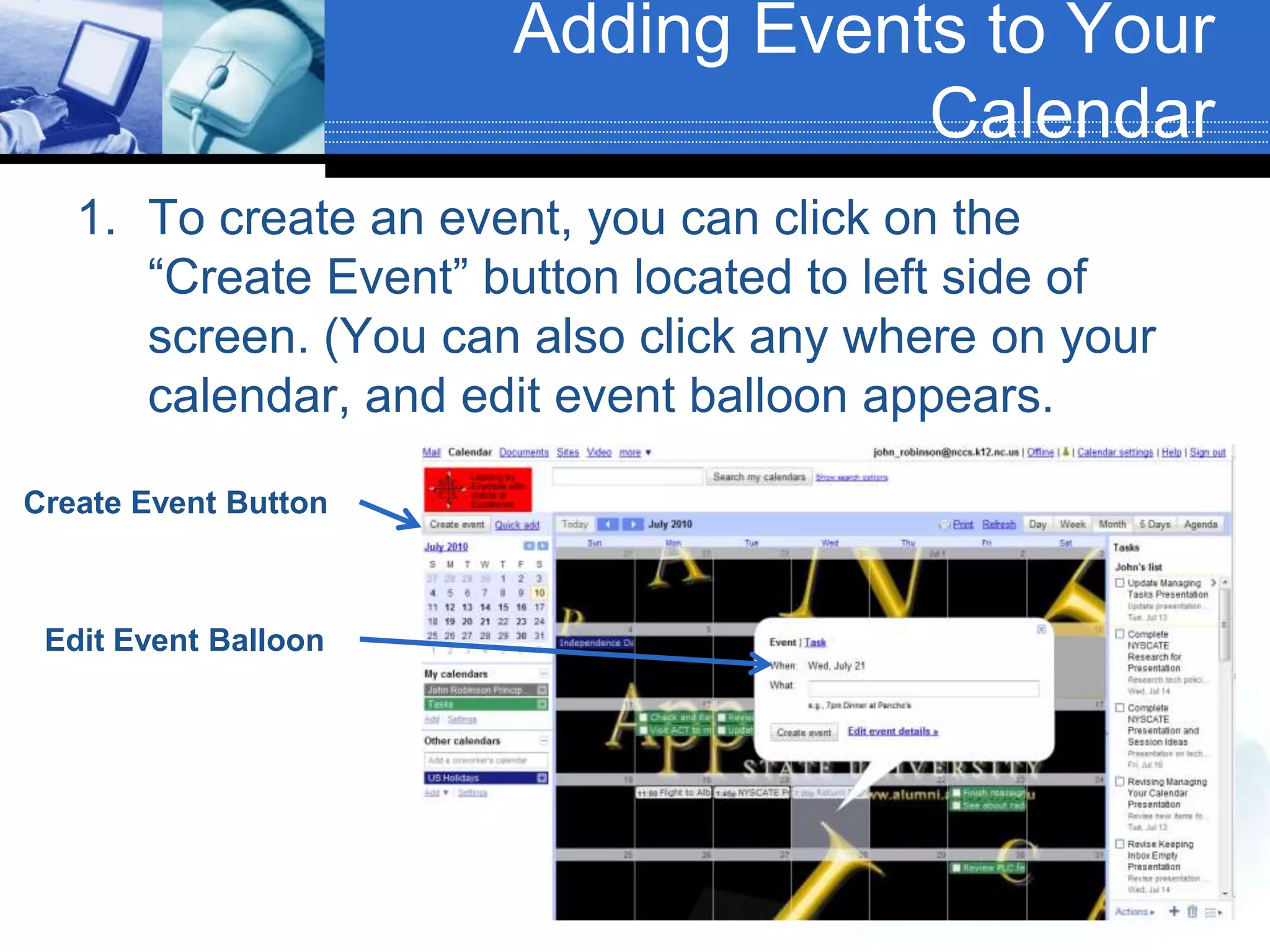
Adding Events to Your CalendarTo create an event, you can click on the “Create Event” button located to left side of screen. (You can also click any where on your calendar, and edit event balloon appears.Create Event ButtonEdit Event Balloon
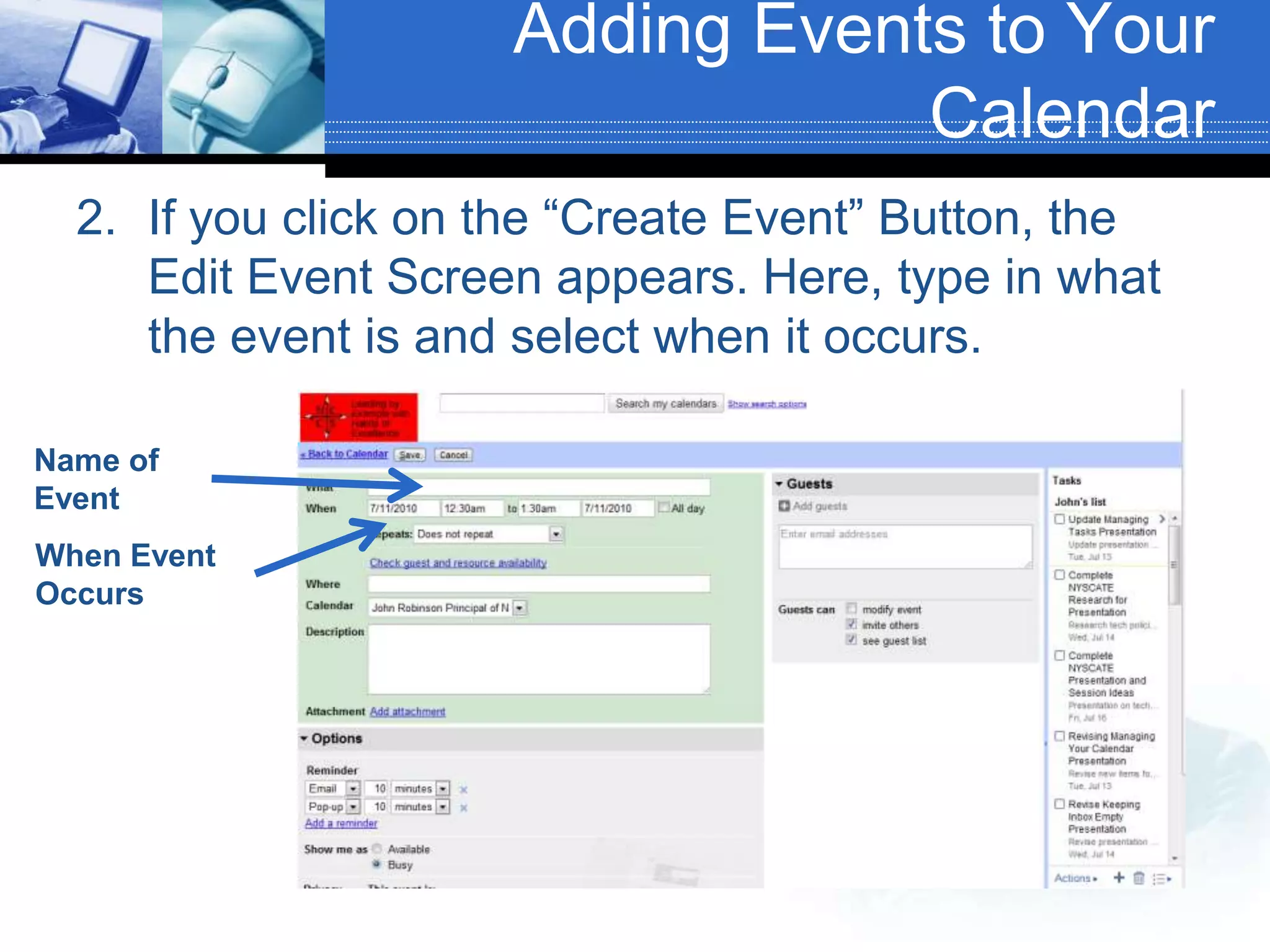
Adding Events to Your CalendarIf you click on the “Create Event” Button, the Edit Event Screen appears. Here, type in what the event is and select when it occurs.Name of EventWhen Event Occurs
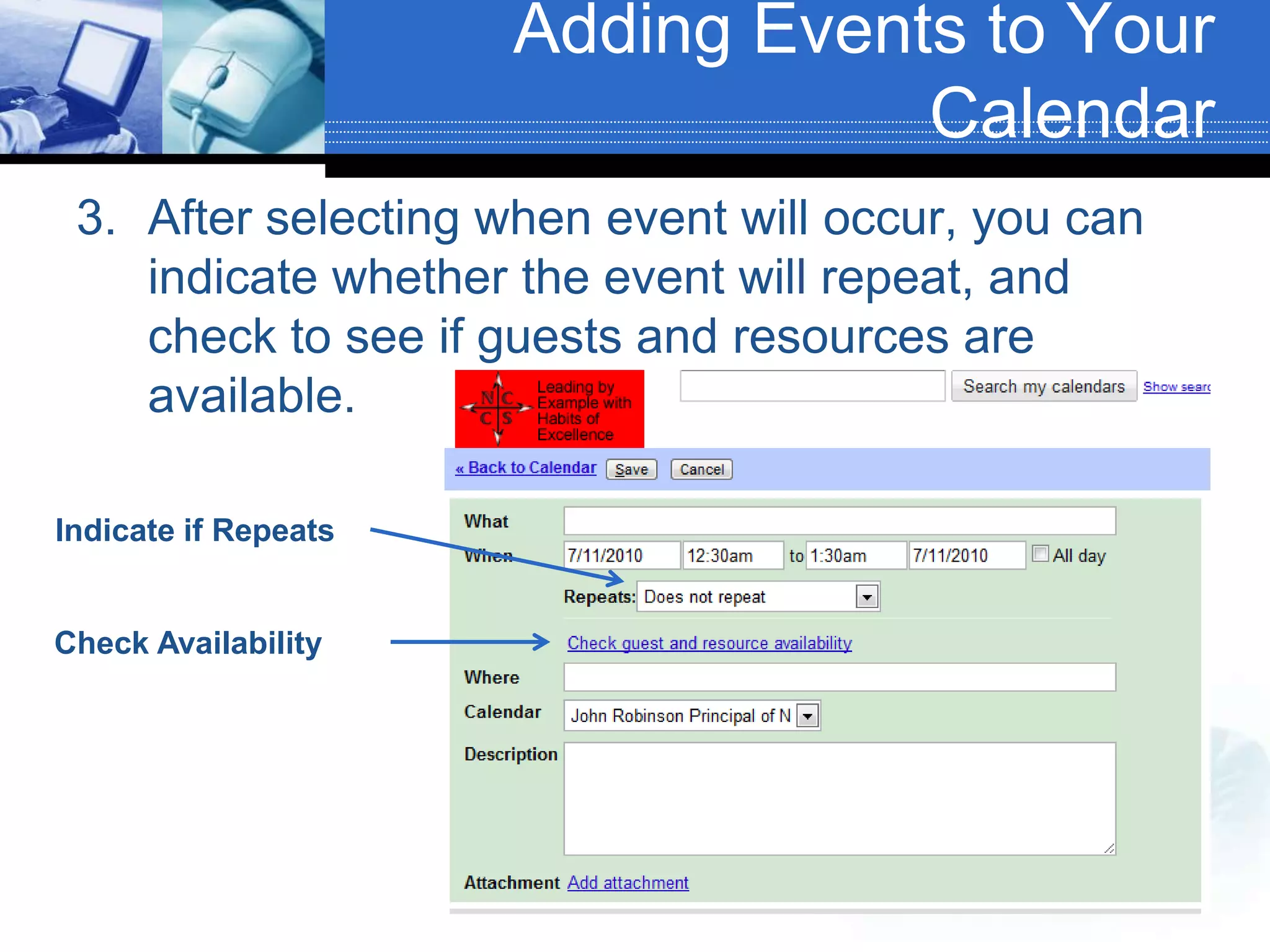
Adding Events to Your CalendarAfter selecting when event will occur, you can indicate whether the event will repeat, and check to see if guests and resources are available.Indicate if RepeatsCheck Availability
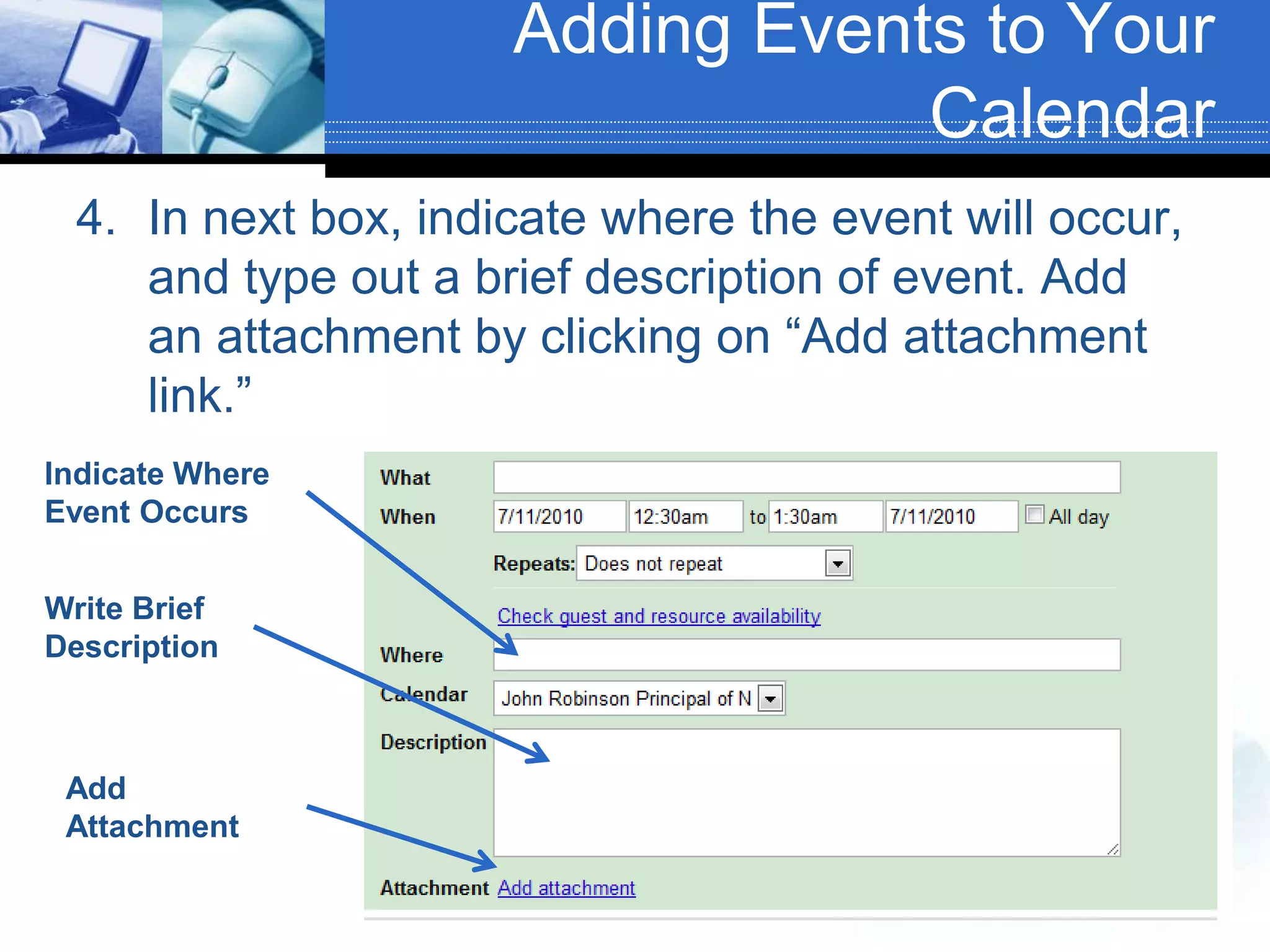
Adding Events to Your CalendarIn next box, indicate where the event will occur, and type out a brief description of event. Add an attachment by clicking on “Add attachment link.”Indicate Where Event OccursWrite Brief DescriptionAdd Attachment
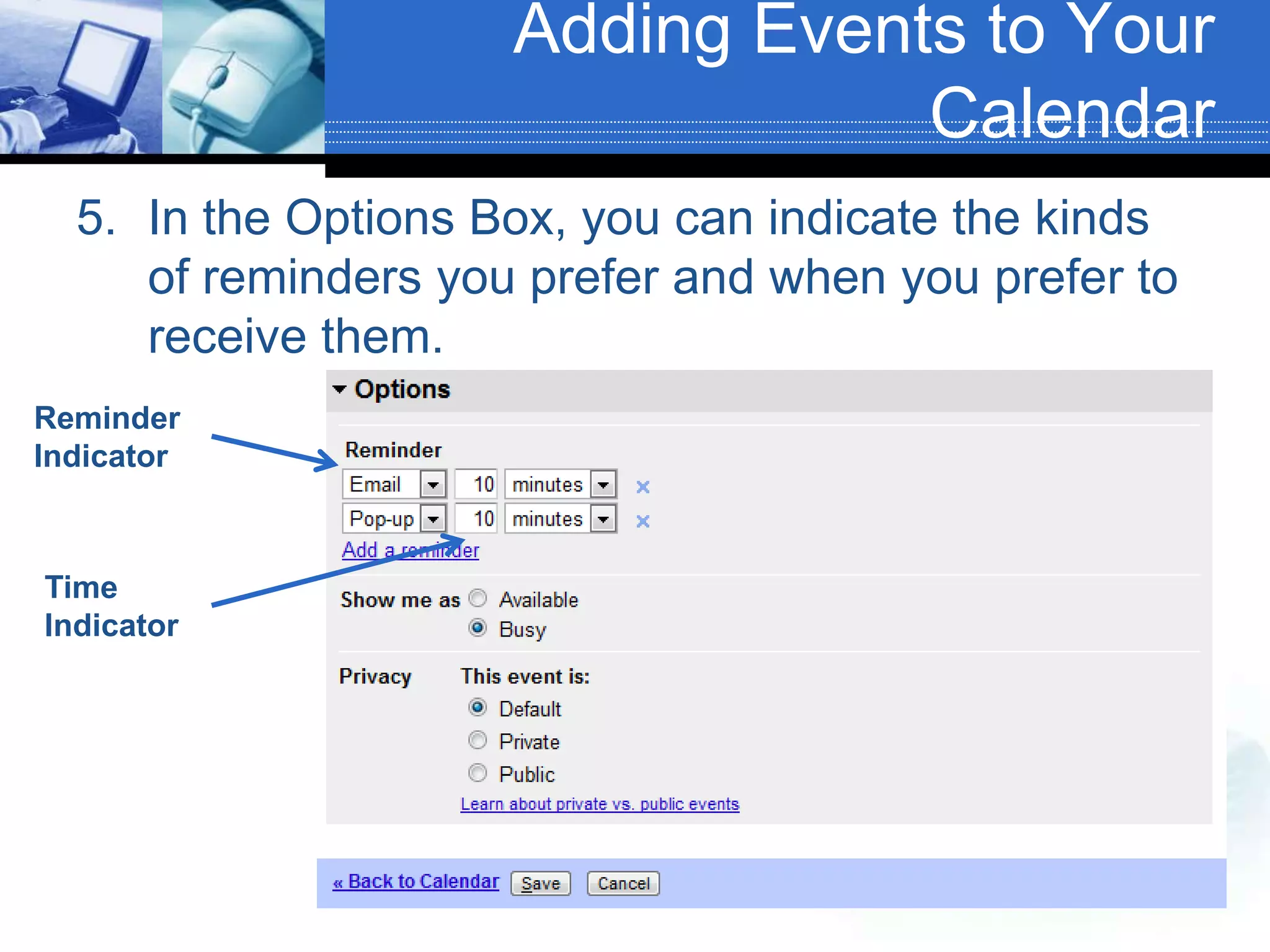
Adding Events to Your CalendarIn the Options Box, you can indicate the kinds of reminders you prefer and when you prefer to receive them.Reminder IndicatorTime Indicator
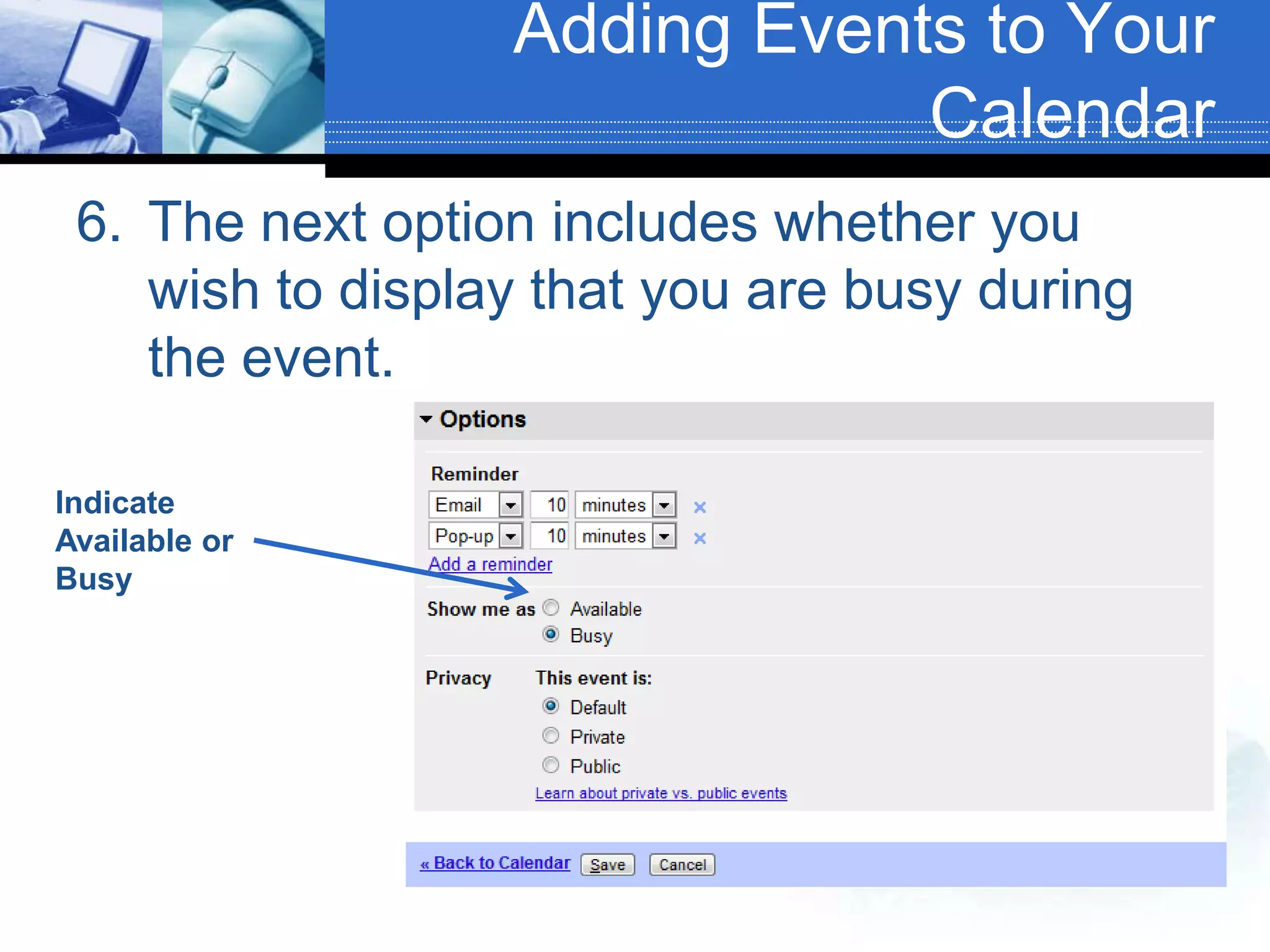
The next option includes whether you wish to display that you are busy during the event.Indicate Available or BusyAdding Events to Your Calendar
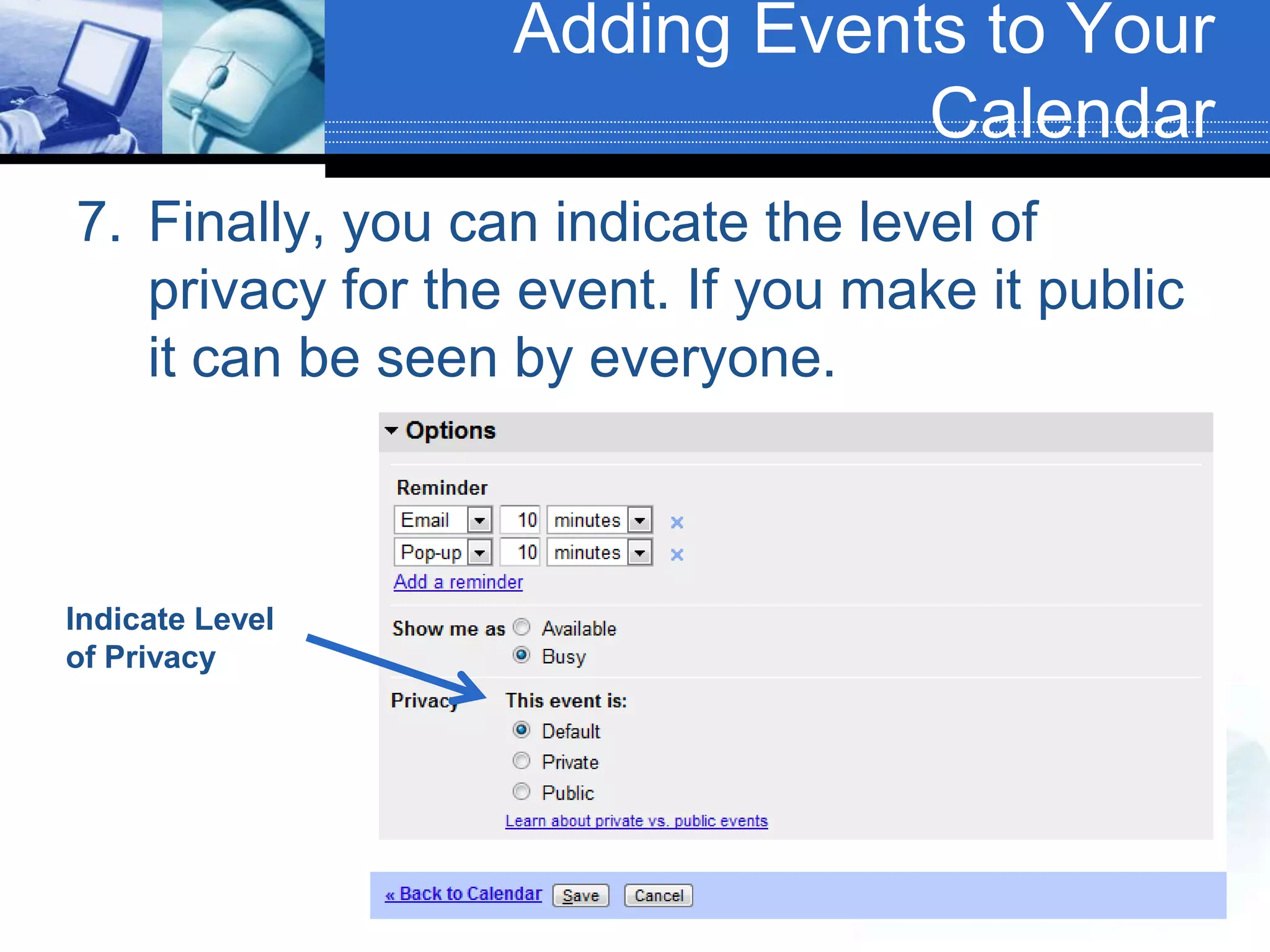
Finally, you can indicate the level of privacy for the event. If you make it public it can be seen by everyone.Adding Events to Your CalendarIndicate Level of Privacy
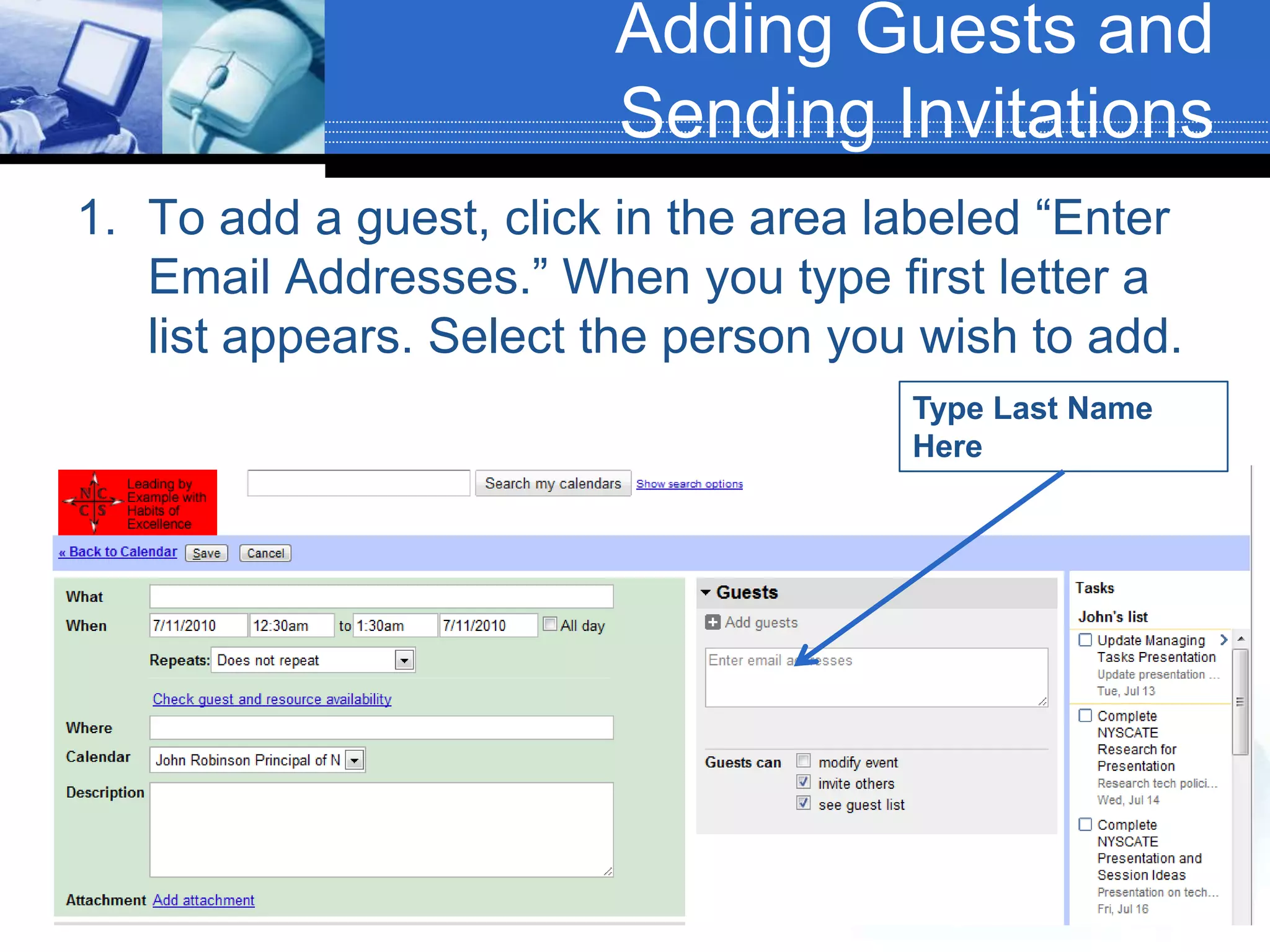
Adding Guests and Sending InvitationsTo add a guest, click in the area labeled “Enter Email Addresses.” When you type first letter a list appears. Select the person you wish to add.Type Last Name Here
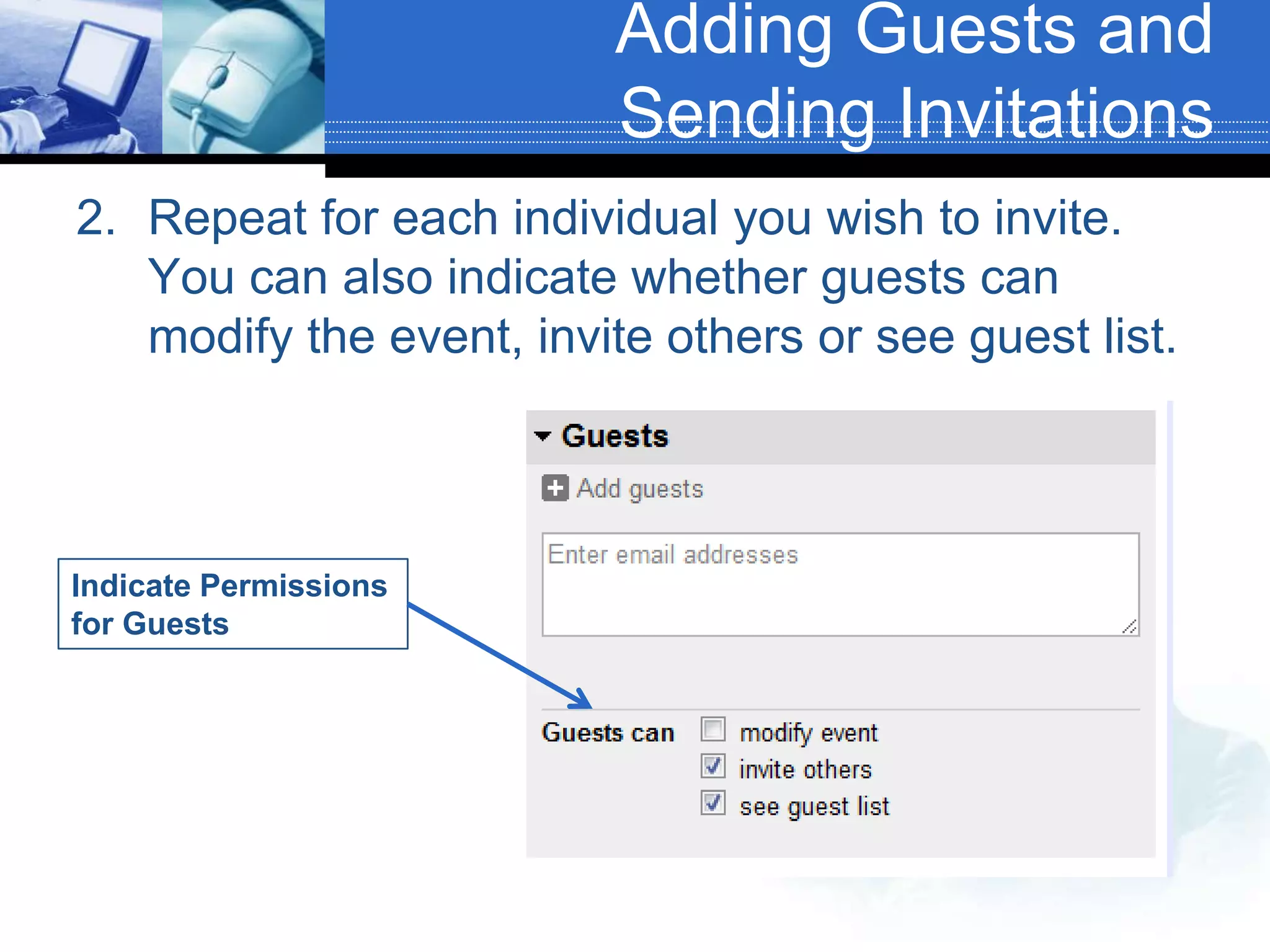
Adding Guests and Sending InvitationsRepeat for each individual you wish to invite. You can also indicate whether guests can modify the event, invite others or see guest list.Indicate Permissions for Guests
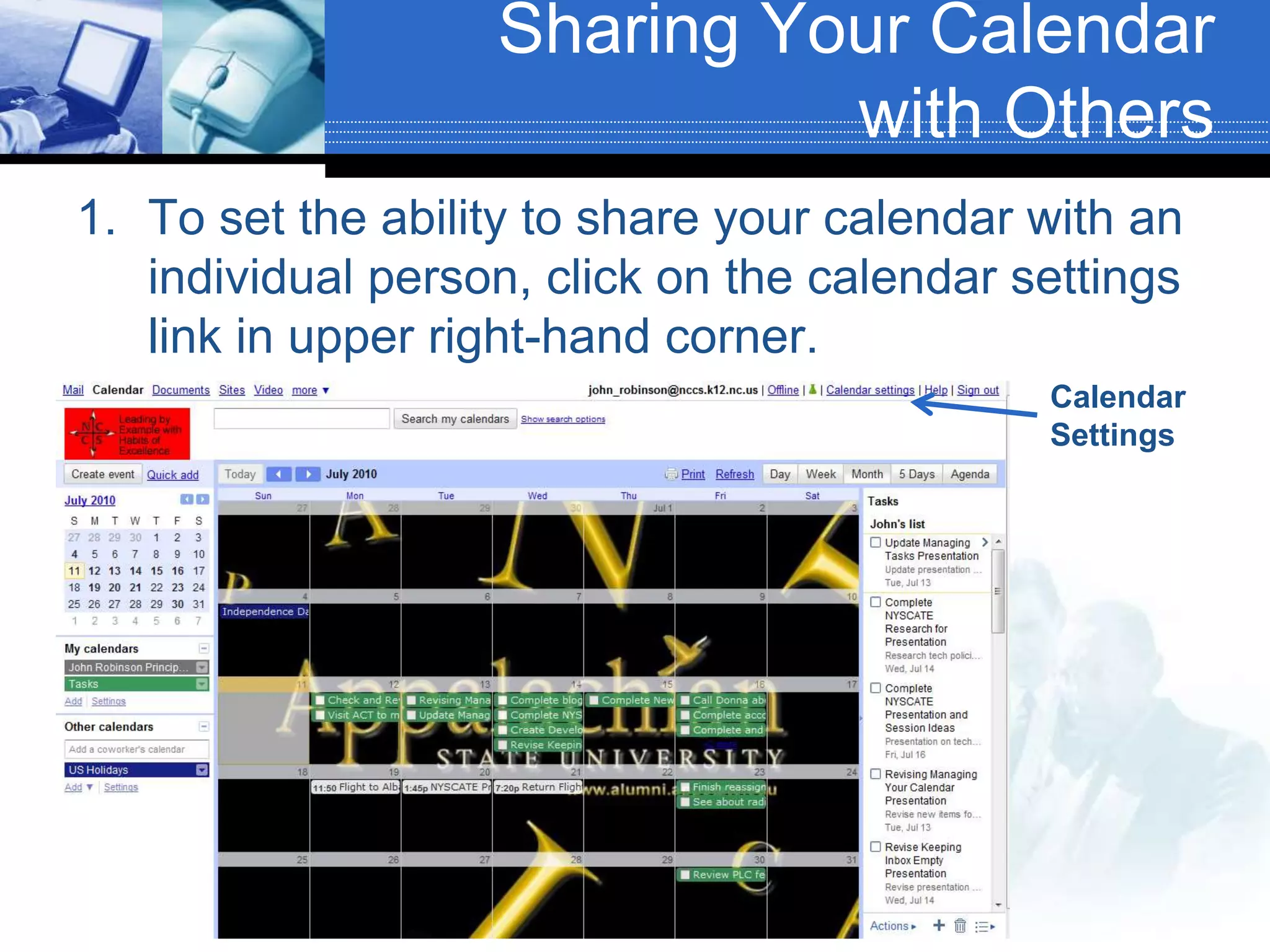
Sharing Your Calendar with OthersTo set the ability to share your calendar with an individual person, click on the calendar settings link in upper right-hand corner.Calendar Settings
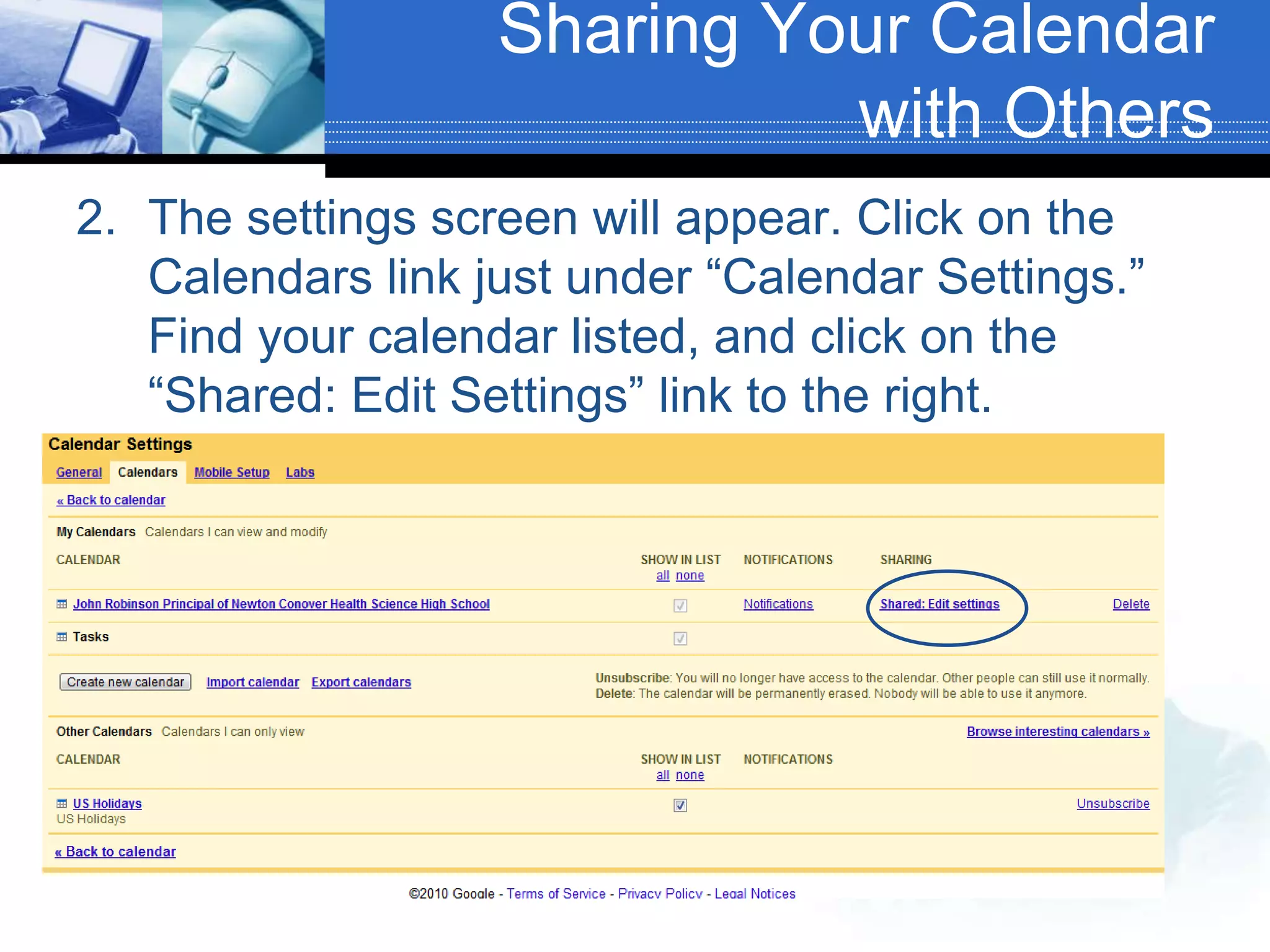
Sharing Your Calendar with OthersThe settings screen will appear. Click on the Calendars link just under “Calendar Settings.” Find your calendar listed, and click on the “Shared: Edit Settings” link to the right.
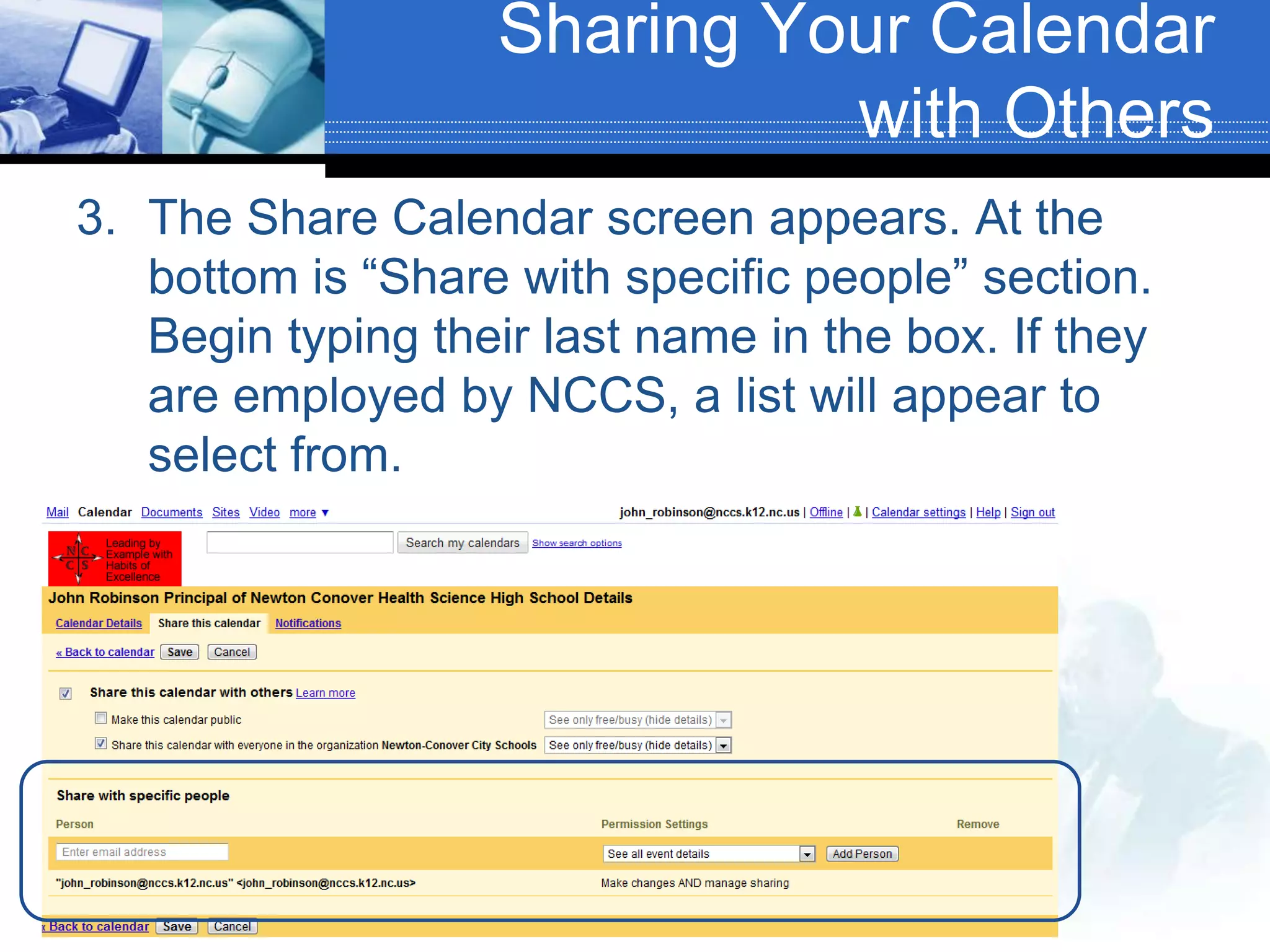
Sharing Your Calendar with OthersThe Share Calendar screen appears. At the bottom is “Share with specific people” section. Begin typing their last name in the box. If they are employed by NCCS, a list will appear to select from.
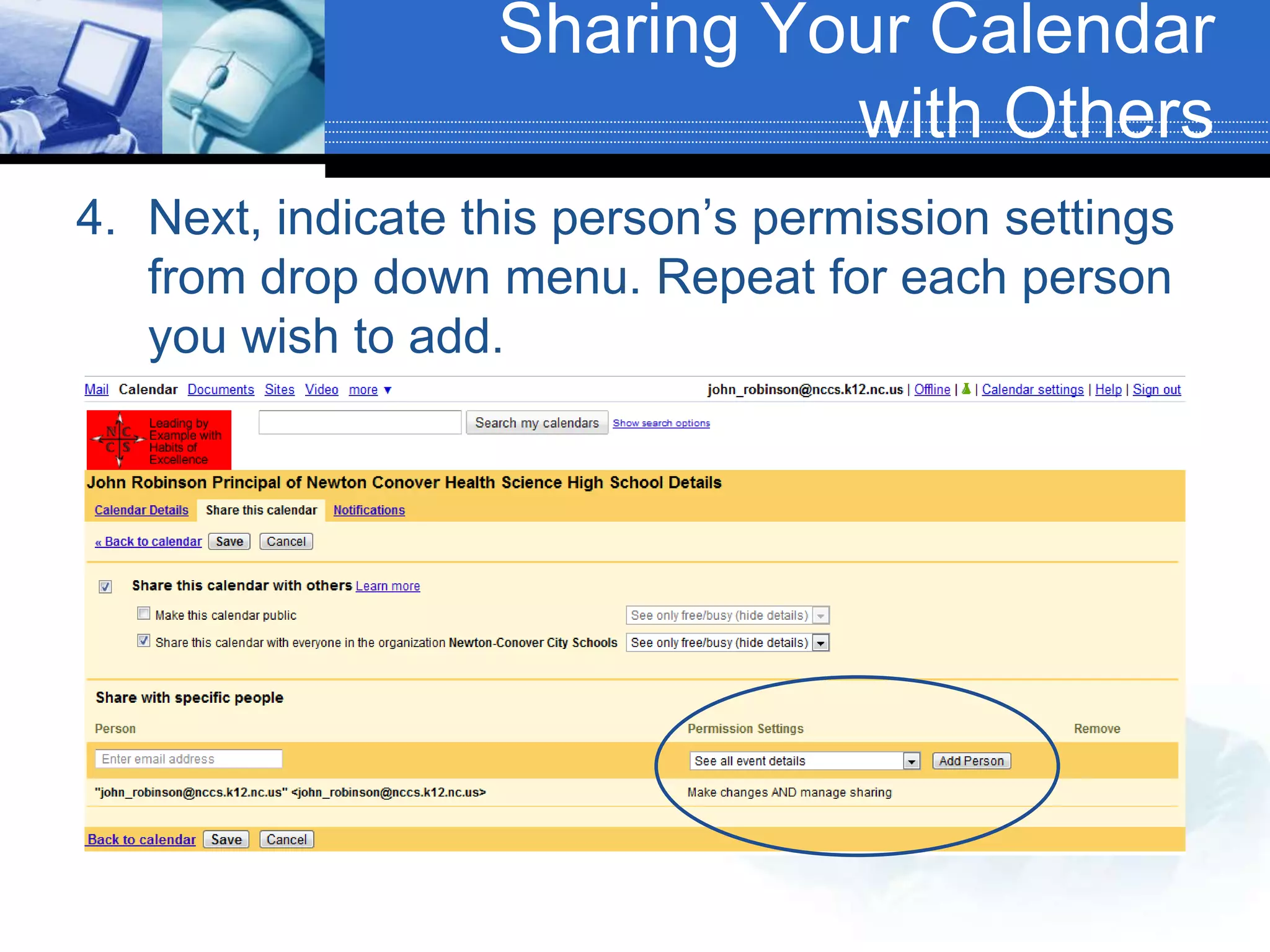
Sharing Your Calendar with OthersNext, indicate this person’s permission settings from drop down menu. Repeat for each person you wish to add.
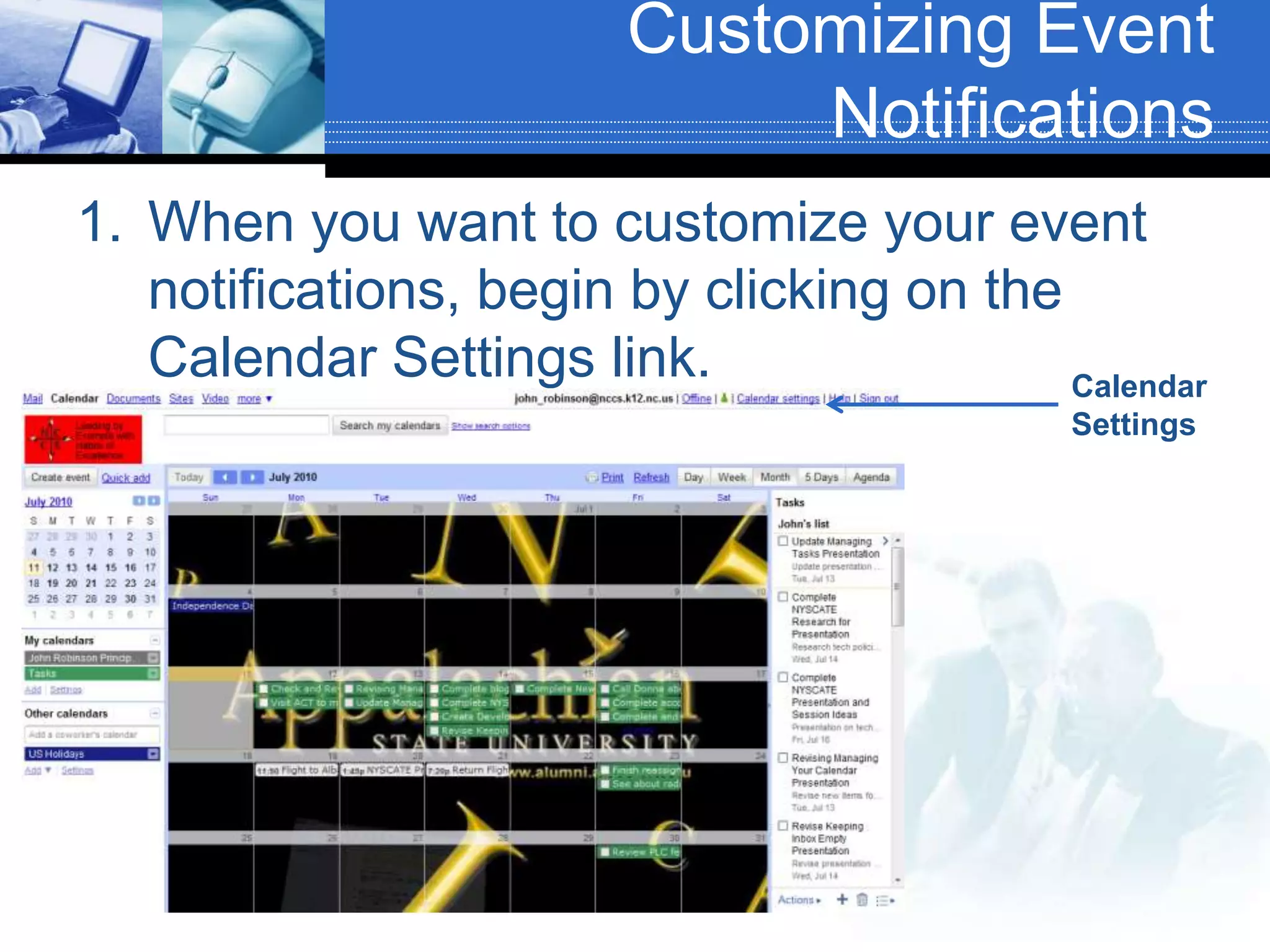
Customizing Event NotificationsWhen you want to customize your event notifications, begin by clicking on the Calendar Settings link.Calendar Settings
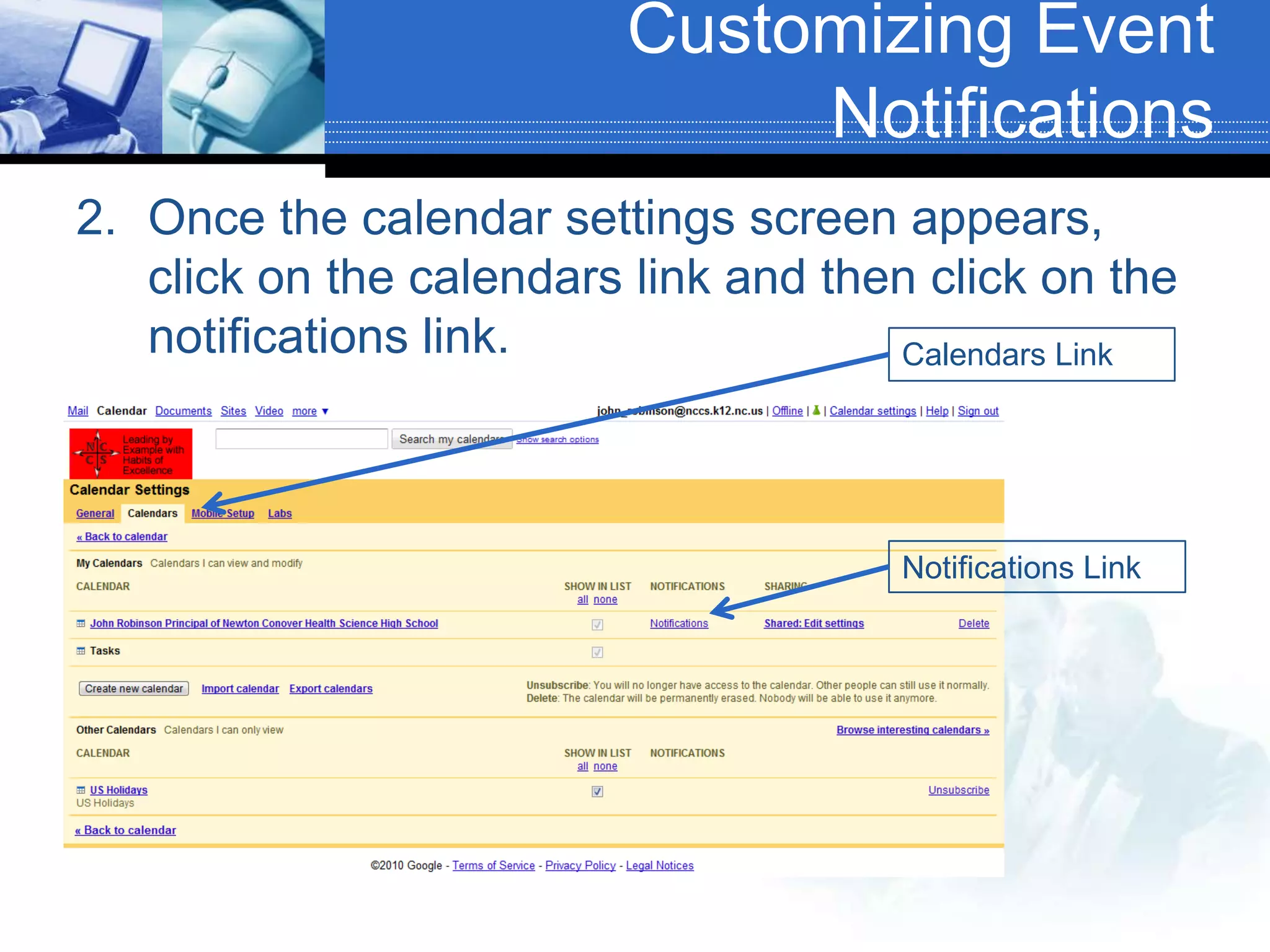
Customizing Event NotificationsOnce the calendar settings screen appears, click on the calendars link and then click on the notifications link.Calendars LinkNotifications Link
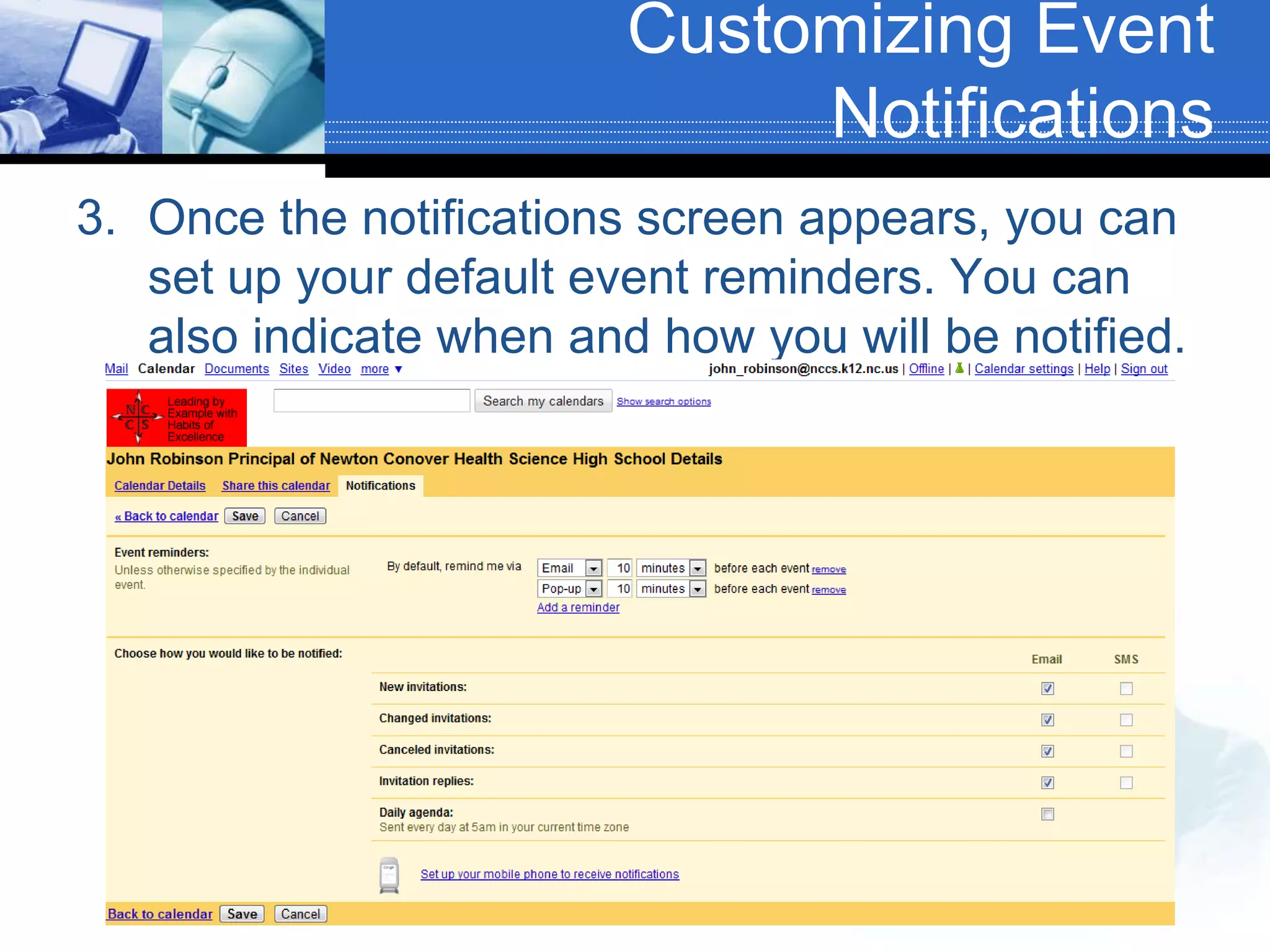
Customizing Event NotificationsOnce the notifications screen appears, you can set up your default event reminders. You can also indicate when and how you will be notified.
Other Things to Explore in Google CalendarYou can enable various Google Calendar Labs.You can set up your mobile phone to receive Text Message Reminders.You can import and export calendars.You can embed your calendar on a web page.You can print your calendar.

Managing your calendar

  • 1.
    Managing Your CalendarUsingTechnology to Keep Up with Your Appointments
  • 2.
    Overview of ThisSessionOverview of Google Calendar FeaturesAdding Events to Your CalendarAdding Guests and Sending InvitationsSharing Your Calendar with OthersCustomizing Event NotificationsOther Things to Explore in Google Calendar
  • 3.
    Google Calendar FeaturesSimpleCalendar LayoutMultiple Display Choices: Day, Week, Month, 4-Day, 5-Day, and Agenda ViewClick and Drag Appointment SettingSearchable CalendarAccessible Any Where Web Access Is AvailableText Message Reminder Capability
  • 4.
    Google Calendar FeaturesAbilityto Easily Share Your Calendar with OthersAbility to Sync with Mobile DevicesIntegration with GmailIntegration with iGoogleMini-gadget Available for Desktop
  • 5.
    Adding Events toYour CalendarTo create an event, you can click on the “Create Event” button located to left side of screen. (You can also click any where on your calendar, and edit event balloon appears.Create Event ButtonEdit Event Balloon
  • 6.
    Adding Events toYour CalendarIf you click on the “Create Event” Button, the Edit Event Screen appears. Here, type in what the event is and select when it occurs.Name of EventWhen Event Occurs
  • 7.
    Adding Events toYour CalendarAfter selecting when event will occur, you can indicate whether the event will repeat, and check to see if guests and resources are available.Indicate if RepeatsCheck Availability
  • 8.
    Adding Events toYour CalendarIn next box, indicate where the event will occur, and type out a brief description of event. Add an attachment by clicking on “Add attachment link.”Indicate Where Event OccursWrite Brief DescriptionAdd Attachment
  • 9.
    Adding Events toYour CalendarIn the Options Box, you can indicate the kinds of reminders you prefer and when you prefer to receive them.Reminder IndicatorTime Indicator
  • 10.
    The next optionincludes whether you wish to display that you are busy during the event.Indicate Available or BusyAdding Events to Your Calendar
  • 11.
    Finally, you canindicate the level of privacy for the event. If you make it public it can be seen by everyone.Adding Events to Your CalendarIndicate Level of Privacy
  • 12.
    Adding Guests andSending InvitationsTo add a guest, click in the area labeled “Enter Email Addresses.” When you type first letter a list appears. Select the person you wish to add.Type Last Name Here
  • 13.
    Adding Guests andSending InvitationsRepeat for each individual you wish to invite. You can also indicate whether guests can modify the event, invite others or see guest list.Indicate Permissions for Guests
  • 14.
    Sharing Your Calendarwith OthersTo set the ability to share your calendar with an individual person, click on the calendar settings link in upper right-hand corner.Calendar Settings
  • 15.
    Sharing Your Calendarwith OthersThe settings screen will appear. Click on the Calendars link just under “Calendar Settings.” Find your calendar listed, and click on the “Shared: Edit Settings” link to the right.
  • 16.
    Sharing Your Calendarwith OthersThe Share Calendar screen appears. At the bottom is “Share with specific people” section. Begin typing their last name in the box. If they are employed by NCCS, a list will appear to select from.
  • 17.
    Sharing Your Calendarwith OthersNext, indicate this person’s permission settings from drop down menu. Repeat for each person you wish to add.
  • 18.
    Customizing Event NotificationsWhenyou want to customize your event notifications, begin by clicking on the Calendar Settings link.Calendar Settings
  • 19.
    Customizing Event NotificationsOncethe calendar settings screen appears, click on the calendars link and then click on the notifications link.Calendars LinkNotifications Link
  • 20.
    Customizing Event NotificationsOncethe notifications screen appears, you can set up your default event reminders. You can also indicate when and how you will be notified.
  • 21.
    Other Things toExplore in Google CalendarYou can enable various Google Calendar Labs.You can set up your mobile phone to receive Text Message Reminders.You can import and export calendars.You can embed your calendar on a web page.You can print your calendar.