Kumadvathi College of Education,
Shikaripura
Subject : EducationalTechnology - 2
Unit: 03 ICT Skills for 21st CenturyTeachers
Topic: 3. 2 Learning Management System (LMS)
Google Classroom:
ಕಲಿಕಾ ನಿರ್ವಹಣಾ ರ್ಯ ರ್ಸ್ಥೆ
Dr. Ravi H
Assistant Professor
A learning management system (LMS) is software designed to
plan, deliver, track, and evaluate learning experiences. It's a centralized
platform used by organizations, educational institutions, and individuals to
manage and administer online learning content and track learner
progress.
ಕಲಿಕಾ ನಿರ್ವಹಣಾ ರ್ಯ ರ್ಸ್ಥೆ (LMS) ಎನ್ನು ವುದು ಕಲಿಕೆಯ
ಅನ್ನಭರ್ಗಳನ್ನು ಯೋಜಿಸಲು, ತಲುಪಿಸಲು, ಟ್ರ್
ಯ ಯ ಕ್ ಮಾಡಲು ಮತ್ತ
ು
ಮೌಲ್ಯ ಮಾ಩ನ ಮಾಡಲು ವಿನ್ಯಯ ಸಗೊಳಿಸಲಾದ ಸಾಫ್ಟ
್ ವೇರ್ ಆಗಿದೆ.
ಇದು ಆನ್ಲೈನ್ ಕಲಿಕಾ ವಿಷಯರ್ನ್ನು ನಿರ್ವಹಿಸಲು ಮತ್ತ
ು
ಕಲಿಯುರ್ರ್ರ ಩
ಯ ಗತಿಯನ್ನು ಟ್ರ್
ಯ ಯ ಕ್ ಮಾಡಲು ಸಂಘಟನೆಗಳು, ಶಿಕ್ಷಣ
ಸಂಸ್ಥೆ ಗಳು ಮತ್ತ
ು ರ್ಯ ಕ್ತ
ು ಗಳು ಬಳಸುರ್ ಕೇಂದ್
ಯ ೋಕೃತ ವೇದ್ಕೆಯಾಗಿದೆ.
Some LMS tools
Google Classroom, Moodle, Blackboard, Canvas, Schoology and
LearnDash etc
Dr. Ravi H
Google Classroom :
Google Classroom is a free, web-based platform developed by
Google for educational institutions that simplifies creating, distributing, and
grading assignments. It acts as a virtual classroom hub, streamlining
communication, organization, and assessment processes for both teachers
and students. Essentially, it's a tool that facilitates paperless learning and
enhances collaboration within a digital learning environment.
ಗೂಗಲ್ ಕಾ
ಾ ಸ್ರೂಮ್ ಎನ್ನು ವುದು ಶೈಕ್ಷಣಿಕ ಸಂಸ್ಥೆ ಗಳಿಗಾಗಿ
ಗೂಗಲ್ ಅಭಿವೃದ್ಿ ಩ಡಿಸಿದ ಉಚಿತ, ವೆಬ್ ಆಧಾರಿತ ವೇದ್ಕೆಯಾಗಿದುು ,
ಇದು ಕಾಯವಯೋಜನೆಗಳನ್ನು ರಚಿಸುವುದು, ವಿತರಿಸುವುದು ಮತ್ತ
ು
ಶ್
ಯ ೋಣಿೋಕರಿಸುವುದನ್ನು ಸರಳಗೊಳಿಸುತ
ು ದೆ. ಇದು ರ್ರ್ಚವರ್ಲ್ ತರಗತಿ
ಕೇಂದ
ಯ ವಾಗಿ ಕಾಯವನಿರ್ವಹಿಸುತ
ು ದೆ, ಶಿಕ್ಷಕರು ಮತ್ತ
ು ವಿದ್ಯಯ ರ್ಥವಗಳಿಗೆ
ಸಂರ್ಹನ, ಸಂಘಟನೆ ಮತ್ತ
ು ಮೌಲ್ಯ ಮಾ಩ನ ಩
ಯ ಕ್ತ
ಯ ಯೆಗಳನ್ನು
ಸುಗಮಗೊಳಿಸುತ
ು ದೆ. ಮೂಲ್ಭೂತವಾಗಿ, ಇದು ಕಾಗದರಹಿತ ಕಲಿಕೆಯನ್ನು
ಸರಳಗೊಳಿಸುರ್ ಮತ್ತ
ು ಡಿಜಿಟಲ್ ಕಲಿಕಾ ವಾತಾರ್ರಣದಲಿ
ಾ
ಸಹಯೋಗರ್ನ್ನು ಹೆಚಿಿ ಸುರ್ ಸಾಧನವಾಗಿದೆ. Dr. Ravi H
In essence, Google Classroom is a powerful tool for modernizing and
enhancing the learning experience by leveraging the power of digital
technology.
ಮೂಲ್ಭೂತವಾಗಿ, ಗೂಗಲ್ ಕಾ
ಾ ಸ್ರೂಮ್ ಡಿಜಿಟಲ್ ತಂತ
ಯ ಜ್ಞಾ ನದ
ಶಕ್ತ
ು ಯನ್ನು ಬಳಸಿಕೊಳುು ರ್ ಮೂಲ್ಕ ಕಲಿಕೆಯ ಅನ್ನಭರ್ರ್ನ್ನು
ಆಧುನಿೋಕರಿಸಲು ಮತ್ತ
ು ಹೆಚಿಿ ಸಲು ಒೇಂದು ಩
ಯ ಬಲ್ ಸಾಧನವಾಗಿದೆ.
Dr. Ravi H
Features of Google Classroom/ವೈಶಿಷ್ ಯ ಗಳು:
 Assignment Management: Teachers can easily create, distribute, and
grade assignments, including those using Google Docs, Slides, and Forms.
ದತ
ು ಕಾಯವ ನಿರ್ವಹಣೆ: ಶಿಕ್ಷಕರು Google ಡಾಕ್
್ , ಸ್ಥಾ ೈಡ್ಗಳು ಮತ್ತ
ು
ಫಾಮ್ವಗಳನ್ನು ಬಳಸಿಕೊೇಂಡು ನಿಯೋಜನೆಗಳನ್ನು ಸುಲ್ಭವಾಗಿ
ರಚಿಸಬಹುದು, ವಿತರಿಸಬಹುದು ಮತ್ತ
ು ಗೆ
ಯ ೋಡ್ ಮಾಡಬಹುದು.
 Communication: It facilitates announcements, sharing resources, and
providing feedback to students.
ಸಂರ್ಹನ: ಇದು ಩
ಯ ಕಟಣೆಗಳು, ಸಂ಩ನ್ಮೂ ಲ್ಗಳನ್ನು ಹಂಚಿಕೊಳುು ವುದು
ಮತ್ತ
ು ವಿದ್ಯಯ ರ್ಥವಗಳಿಗೆ ಩
ಯ ತಿಕ್ತ
ಯ ಯೆಯನ್ನು ಒದಗಿಸುವುದನ್ನು
ಸುಗಮಗೊಳಿಸುತ
ು ದೆ.
Dr. Ravi H
 Organization: Google Classroom centralizes all class materials,
assignments, and communication in one place.
ಸಂಘಟನೆ: Google Classroom ಎಲಾ
ಾ ತರಗತಿ ಸಾಮಗಿ
ಯ ಗಳು,
ದತ
ು ಕಾಯವಗಳು ಮತ್ತ
ು ಸಂರ್ಹನರ್ನ್ನು ಒೇಂದೇ ಸೆ ಳದಲಿ
ಾ
ಕೇಂದ್
ಯ ೋಕರಿಸುತ
ು ದೆ.
 Collaboration: It allows students to collaborate on projects and
assignments.
ಸಹಯೋಗ: ಇದು ವಿದ್ಯಯ ರ್ಥವಗಳು ಯೋಜನೆಗಳು ಮತ್ತ
ು ದತ
ು ಕಾಯವಗಳಲಿ
ಾ
ಸಹಯೋಗಿಸಲು ಅನ್ನವು ಮಾಡಿಕೊಡುತ
ು ದೆ.
Dr. Ravi H
 Integration: Google Classroom integrates seamlessly with other Google
tools like Google Drive, Docs, Sheets, and Meet.
ಏಕ್ತೋಕರಣ: Google Classroom Google ಡ್
ಯ ೈವ್, ಡಾಕ್
್ , ಶಿೋಟ್ಗಳು ಮತ್ತ
ು
Meet ನಂತಹ ಇತರ Google ಩ರಿಕರಗಳೇಂದ್ಗೆ ಸರಾಗವಾಗಿ
ಸಂಯೋಜಿಸುತ
ು ದೆ.
 Accessibility: It's accessible on various devices like laptops, tablets, and
mobile phones.
಩
ಯ ವೇಶಸಾಧಯ ತೆ: ಲಾಯ ಪ್ಟ್ರ್ಪ್ಗಳು, ಟ್ರ್ಯ ಬ್ಲಾ ಟ್ಗಳು ಮತ್ತ
ು ಮೊಬೈಲ್
ಫೋನ್ಗಳಂತಹ ವಿವಿಧ ಸಾಧನಗಳಲಿ
ಾ ಇದನ್ನು ಩
ಯ ವೇಶಿಸಬಹುದು.
Dr. Ravi H
Benefits of Google classroom/ ಩
ಯ ಯೋಜನಗಳು:
 Efficiency: It streamlines workflows for both teachers and students,
saving time and reducing paper usage.
ದಕ್ಷತೆ: ಇದು ಶಿಕ್ಷಕರು ಮತ್ತ
ು ವಿದ್ಯಯ ರ್ಥವಗಳಿಬಬ ರಿಗೂ ಕೆಲ್ಸದ ಹರಿರ್ನ್ನು
ಸುಗಮಗೊಳಿಸುತ
ು ದೆ, ಸಮಯರ್ನ್ನು ಉಳಿಸುತ
ು ದೆ ಮತ್ತ
ು ಕಾಗದದ
ಬಳಕೆಯನ್ನು ಕಡಿಮೆ ಮಾಡುತ
ು ದೆ.
 Engagement: It fosters greater student engagement through
interactive activities and collaborative opportunities.
ತೊಡಗಿಸಿಕೊಳುು ವಿಕೆ: ಇದು ಸಂವಾದ್ಯತೂ ಕ ಚಟುರ್ಟಿಕೆಗಳು ಮತ್ತ
ು
ಸಹಯೋಗದ ಅರ್ಕಾಶಗಳ ಮೂಲ್ಕ ಹೆಚಿಿ ನ ವಿದ್ಯಯ ರ್ಥವಗಳ
ತೊಡಗಿಸಿಕೊಳುು ವಿಕೆಯನ್ನು ಬ್ಲಳೆಸುತ
ು ದೆ. Dr. Ravi H
 Accessibility:It makes learning resources and assignments accessible
to students regardless of location or device.
಩
ಯ ವೇಶಸಾಧಯ ತೆ: ಇದು ಸೆ ಳ ಅಥವಾ ಸಾಧನರ್ನ್ನು ಲೆಕ್ತಿ ಸದೆ
ವಿದ್ಯಯ ರ್ಥವಗಳಿಗೆ ಕಲಿಕಾ ಸಂ಩ನ್ಮೂ ಲ್ಗಳು ಮತ್ತ
ು
ಕಾಯವಯೋಜನೆಗಳನ್ನು ಩
ಯ ವೇಶಿಸುವಂತೆ ಮಾಡುತ
ು ದೆ.
 Organization:It helps keep learning materials and assignments
organized and easily accessible.
ಸಂಘಟನೆ: ಇದು ಕಲಿಕಾ ಸಾಮಗಿ
ಯ ಗಳು ಮತ್ತ
ು ಕಾಯವಯೋಜನೆಗಳನ್ನು
ಸಂಘಟಿತವಾಗಿ ಮತ್ತ
ು ಸುಲ್ಭವಾಗಿ ಩
ಯ ವೇಶಿಸಲು ಸಹಾಯ ಮಾಡುತ
ು ದೆ.
 Communication:It improves communication between teachers,
students, and even parents.
ಸಂರ್ಹನ: ಇದು ಶಿಕ್ಷಕರು, ವಿದ್ಯಯ ರ್ಥವಗಳು ಮತ್ತ
ು ಪೋಷಕರ ನಡುವಿನ
ಸಂರ್ಹನರ್ನ್ನು ಸುಧಾರಿಸುತ
ು ದೆ.
Dr. Ravi H
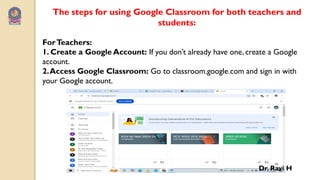
The steps for using Google Classroom for both teachers and
students:
ForTeachers:
1. Create a Google Account: If you don’t already have one, create a Google
account.
2.Access Google Classroom: Go to classroom.google.com and sign in with
your Google account.
Dr. Ravi H
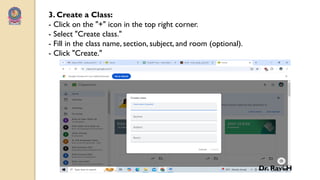
3. Create a Class:
- Click on the "+" icon in the top right corner.
- Select "Create class."
- Fill in the class name, section, subject, and room (optional).
- Click "Create."
Dr. Ravi H
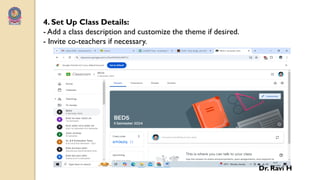
4. Set Up Class Details:
- Add a class description and customize the theme if desired.
- Invite co-teachers if necessary.
Dr. Ravi H
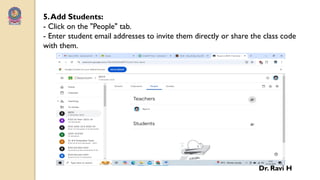
5.Add Students:
- Click on the "People" tab.
- Enter student email addresses to invite them directly or share the class code
with them.
Dr. Ravi H
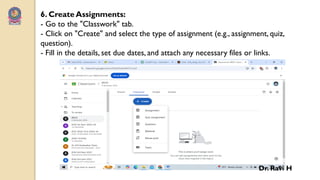
6. Create Assignments:
- Go to the "Classwork" tab.
- Click on "Create" and select the type of assignment (e.g., assignment, quiz,
question).
- Fill in the details, set due dates, and attach any necessary files or links.
Dr. Ravi H
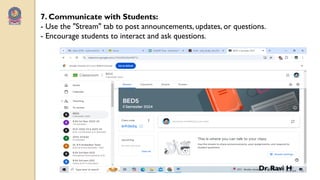
7. Communicate with Students:
- Use the "Stream" tab to post announcements, updates, or questions.
- Encourage students to interact and ask questions.
Dr. Ravi H
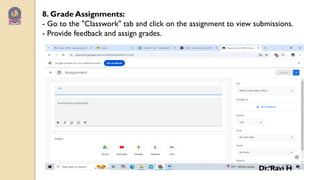
8. Grade Assignments:
- Go to the "Classwork" tab and click on the assignment to view submissions.
- Provide feedback and assign grades.
Dr. Ravi H
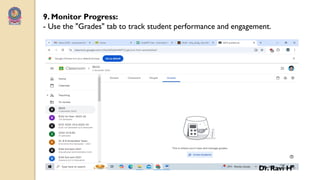
9. Monitor Progress:
- Use the "Grades" tab to track student performance and engagement.
Dr. Ravi H
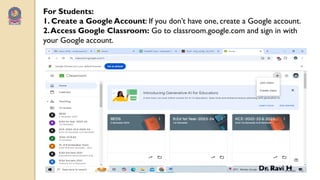
For Students:
1. Create a Google Account: If you don’t have one, create a Google account.
2.Access Google Classroom: Go to classroom.google.com and sign in with
your Google account.
Dr. Ravi H
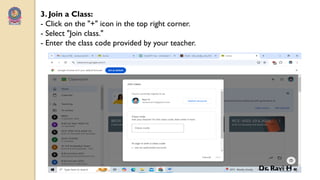
3. Join a Class:
- Click on the "+" icon in the top right corner.
- Select "Join class."
- Enter the class code provided by your teacher.
Dr. Ravi H
4.View Class Materials:
- Navigate to the "Classwork" tab to see assignments, resources, and
announcements.
5. Complete Assignments:
- Click on an assignment to view details.
- Follow the instructions, complete the work, and attach any necessary files.
6. Submit Assignments:
- Once completed, click "Turn in" to submit your work.
Dr. Ravi H
7. Participate in Discussions:
- Use the "Stream" tab to engage with announcements and communicate with
your teacher and classmates.
8. Check Grades and Feedback:
- Go to the "Grades" tab to view your performance and any feedback provided
by your teacher.
By following these steps, both teachers and students can effectively
utilize Google Classroom for a streamlined educational experience.
Dr. Ravi H
ThankYou
Dr. Ravi H

LMS : Google Classroom - Features, Benefits & Steps

  • 1.
    Kumadvathi College ofEducation, Shikaripura Subject : EducationalTechnology - 2 Unit: 03 ICT Skills for 21st CenturyTeachers Topic: 3. 2 Learning Management System (LMS) Google Classroom: ಕಲಿಕಾ ನಿರ್ವಹಣಾ ರ್ಯ ರ್ಸ್ಥೆ Dr. Ravi H Assistant Professor
  • 2.
    A learning managementsystem (LMS) is software designed to plan, deliver, track, and evaluate learning experiences. It's a centralized platform used by organizations, educational institutions, and individuals to manage and administer online learning content and track learner progress. ಕಲಿಕಾ ನಿರ್ವಹಣಾ ರ್ಯ ರ್ಸ್ಥೆ (LMS) ಎನ್ನು ವುದು ಕಲಿಕೆಯ ಅನ್ನಭರ್ಗಳನ್ನು ಯೋಜಿಸಲು, ತಲುಪಿಸಲು, ಟ್ರ್ ಯ ಯ ಕ್ ಮಾಡಲು ಮತ್ತ ು ಮೌಲ್ಯ ಮಾ಩ನ ಮಾಡಲು ವಿನ್ಯಯ ಸಗೊಳಿಸಲಾದ ಸಾಫ್ಟ ್ ವೇರ್ ಆಗಿದೆ. ಇದು ಆನ್ಲೈನ್ ಕಲಿಕಾ ವಿಷಯರ್ನ್ನು ನಿರ್ವಹಿಸಲು ಮತ್ತ ು ಕಲಿಯುರ್ರ್ರ ಩ ಯ ಗತಿಯನ್ನು ಟ್ರ್ ಯ ಯ ಕ್ ಮಾಡಲು ಸಂಘಟನೆಗಳು, ಶಿಕ್ಷಣ ಸಂಸ್ಥೆ ಗಳು ಮತ್ತ ು ರ್ಯ ಕ್ತ ು ಗಳು ಬಳಸುರ್ ಕೇಂದ್ ಯ ೋಕೃತ ವೇದ್ಕೆಯಾಗಿದೆ. Some LMS tools Google Classroom, Moodle, Blackboard, Canvas, Schoology and LearnDash etc Dr. Ravi H
  • 3.
    Google Classroom : GoogleClassroom is a free, web-based platform developed by Google for educational institutions that simplifies creating, distributing, and grading assignments. It acts as a virtual classroom hub, streamlining communication, organization, and assessment processes for both teachers and students. Essentially, it's a tool that facilitates paperless learning and enhances collaboration within a digital learning environment. ಗೂಗಲ್ ಕಾ ಾ ಸ್ರೂಮ್ ಎನ್ನು ವುದು ಶೈಕ್ಷಣಿಕ ಸಂಸ್ಥೆ ಗಳಿಗಾಗಿ ಗೂಗಲ್ ಅಭಿವೃದ್ಿ ಩ಡಿಸಿದ ಉಚಿತ, ವೆಬ್ ಆಧಾರಿತ ವೇದ್ಕೆಯಾಗಿದುು , ಇದು ಕಾಯವಯೋಜನೆಗಳನ್ನು ರಚಿಸುವುದು, ವಿತರಿಸುವುದು ಮತ್ತ ು ಶ್ ಯ ೋಣಿೋಕರಿಸುವುದನ್ನು ಸರಳಗೊಳಿಸುತ ು ದೆ. ಇದು ರ್ರ್ಚವರ್ಲ್ ತರಗತಿ ಕೇಂದ ಯ ವಾಗಿ ಕಾಯವನಿರ್ವಹಿಸುತ ು ದೆ, ಶಿಕ್ಷಕರು ಮತ್ತ ು ವಿದ್ಯಯ ರ್ಥವಗಳಿಗೆ ಸಂರ್ಹನ, ಸಂಘಟನೆ ಮತ್ತ ು ಮೌಲ್ಯ ಮಾ಩ನ ಩ ಯ ಕ್ತ ಯ ಯೆಗಳನ್ನು ಸುಗಮಗೊಳಿಸುತ ು ದೆ. ಮೂಲ್ಭೂತವಾಗಿ, ಇದು ಕಾಗದರಹಿತ ಕಲಿಕೆಯನ್ನು ಸರಳಗೊಳಿಸುರ್ ಮತ್ತ ು ಡಿಜಿಟಲ್ ಕಲಿಕಾ ವಾತಾರ್ರಣದಲಿ ಾ ಸಹಯೋಗರ್ನ್ನು ಹೆಚಿಿ ಸುರ್ ಸಾಧನವಾಗಿದೆ. Dr. Ravi H
  • 4.
    In essence, GoogleClassroom is a powerful tool for modernizing and enhancing the learning experience by leveraging the power of digital technology. ಮೂಲ್ಭೂತವಾಗಿ, ಗೂಗಲ್ ಕಾ ಾ ಸ್ರೂಮ್ ಡಿಜಿಟಲ್ ತಂತ ಯ ಜ್ಞಾ ನದ ಶಕ್ತ ು ಯನ್ನು ಬಳಸಿಕೊಳುು ರ್ ಮೂಲ್ಕ ಕಲಿಕೆಯ ಅನ್ನಭರ್ರ್ನ್ನು ಆಧುನಿೋಕರಿಸಲು ಮತ್ತ ು ಹೆಚಿಿ ಸಲು ಒೇಂದು ಩ ಯ ಬಲ್ ಸಾಧನವಾಗಿದೆ. Dr. Ravi H
  • 5.
    Features of GoogleClassroom/ವೈಶಿಷ್ ಯ ಗಳು:  Assignment Management: Teachers can easily create, distribute, and grade assignments, including those using Google Docs, Slides, and Forms. ದತ ು ಕಾಯವ ನಿರ್ವಹಣೆ: ಶಿಕ್ಷಕರು Google ಡಾಕ್ ್ , ಸ್ಥಾ ೈಡ್ಗಳು ಮತ್ತ ು ಫಾಮ್ವಗಳನ್ನು ಬಳಸಿಕೊೇಂಡು ನಿಯೋಜನೆಗಳನ್ನು ಸುಲ್ಭವಾಗಿ ರಚಿಸಬಹುದು, ವಿತರಿಸಬಹುದು ಮತ್ತ ು ಗೆ ಯ ೋಡ್ ಮಾಡಬಹುದು.  Communication: It facilitates announcements, sharing resources, and providing feedback to students. ಸಂರ್ಹನ: ಇದು ಩ ಯ ಕಟಣೆಗಳು, ಸಂ಩ನ್ಮೂ ಲ್ಗಳನ್ನು ಹಂಚಿಕೊಳುು ವುದು ಮತ್ತ ು ವಿದ್ಯಯ ರ್ಥವಗಳಿಗೆ ಩ ಯ ತಿಕ್ತ ಯ ಯೆಯನ್ನು ಒದಗಿಸುವುದನ್ನು ಸುಗಮಗೊಳಿಸುತ ು ದೆ. Dr. Ravi H
  • 6.
     Organization: GoogleClassroom centralizes all class materials, assignments, and communication in one place. ಸಂಘಟನೆ: Google Classroom ಎಲಾ ಾ ತರಗತಿ ಸಾಮಗಿ ಯ ಗಳು, ದತ ು ಕಾಯವಗಳು ಮತ್ತ ು ಸಂರ್ಹನರ್ನ್ನು ಒೇಂದೇ ಸೆ ಳದಲಿ ಾ ಕೇಂದ್ ಯ ೋಕರಿಸುತ ು ದೆ.  Collaboration: It allows students to collaborate on projects and assignments. ಸಹಯೋಗ: ಇದು ವಿದ್ಯಯ ರ್ಥವಗಳು ಯೋಜನೆಗಳು ಮತ್ತ ು ದತ ು ಕಾಯವಗಳಲಿ ಾ ಸಹಯೋಗಿಸಲು ಅನ್ನವು ಮಾಡಿಕೊಡುತ ು ದೆ. Dr. Ravi H
  • 7.
     Integration: GoogleClassroom integrates seamlessly with other Google tools like Google Drive, Docs, Sheets, and Meet. ಏಕ್ತೋಕರಣ: Google Classroom Google ಡ್ ಯ ೈವ್, ಡಾಕ್ ್ , ಶಿೋಟ್ಗಳು ಮತ್ತ ು Meet ನಂತಹ ಇತರ Google ಩ರಿಕರಗಳೇಂದ್ಗೆ ಸರಾಗವಾಗಿ ಸಂಯೋಜಿಸುತ ು ದೆ.  Accessibility: It's accessible on various devices like laptops, tablets, and mobile phones. ಩ ಯ ವೇಶಸಾಧಯ ತೆ: ಲಾಯ ಪ್ಟ್ರ್ಪ್ಗಳು, ಟ್ರ್ಯ ಬ್ಲಾ ಟ್ಗಳು ಮತ್ತ ು ಮೊಬೈಲ್ ಫೋನ್ಗಳಂತಹ ವಿವಿಧ ಸಾಧನಗಳಲಿ ಾ ಇದನ್ನು ಩ ಯ ವೇಶಿಸಬಹುದು. Dr. Ravi H
  • 8.
    Benefits of Googleclassroom/ ಩ ಯ ಯೋಜನಗಳು:  Efficiency: It streamlines workflows for both teachers and students, saving time and reducing paper usage. ದಕ್ಷತೆ: ಇದು ಶಿಕ್ಷಕರು ಮತ್ತ ು ವಿದ್ಯಯ ರ್ಥವಗಳಿಬಬ ರಿಗೂ ಕೆಲ್ಸದ ಹರಿರ್ನ್ನು ಸುಗಮಗೊಳಿಸುತ ು ದೆ, ಸಮಯರ್ನ್ನು ಉಳಿಸುತ ು ದೆ ಮತ್ತ ು ಕಾಗದದ ಬಳಕೆಯನ್ನು ಕಡಿಮೆ ಮಾಡುತ ು ದೆ.  Engagement: It fosters greater student engagement through interactive activities and collaborative opportunities. ತೊಡಗಿಸಿಕೊಳುು ವಿಕೆ: ಇದು ಸಂವಾದ್ಯತೂ ಕ ಚಟುರ್ಟಿಕೆಗಳು ಮತ್ತ ು ಸಹಯೋಗದ ಅರ್ಕಾಶಗಳ ಮೂಲ್ಕ ಹೆಚಿಿ ನ ವಿದ್ಯಯ ರ್ಥವಗಳ ತೊಡಗಿಸಿಕೊಳುು ವಿಕೆಯನ್ನು ಬ್ಲಳೆಸುತ ು ದೆ. Dr. Ravi H
  • 9.
     Accessibility:It makeslearning resources and assignments accessible to students regardless of location or device. ಩ ಯ ವೇಶಸಾಧಯ ತೆ: ಇದು ಸೆ ಳ ಅಥವಾ ಸಾಧನರ್ನ್ನು ಲೆಕ್ತಿ ಸದೆ ವಿದ್ಯಯ ರ್ಥವಗಳಿಗೆ ಕಲಿಕಾ ಸಂ಩ನ್ಮೂ ಲ್ಗಳು ಮತ್ತ ು ಕಾಯವಯೋಜನೆಗಳನ್ನು ಩ ಯ ವೇಶಿಸುವಂತೆ ಮಾಡುತ ು ದೆ.  Organization:It helps keep learning materials and assignments organized and easily accessible. ಸಂಘಟನೆ: ಇದು ಕಲಿಕಾ ಸಾಮಗಿ ಯ ಗಳು ಮತ್ತ ು ಕಾಯವಯೋಜನೆಗಳನ್ನು ಸಂಘಟಿತವಾಗಿ ಮತ್ತ ು ಸುಲ್ಭವಾಗಿ ಩ ಯ ವೇಶಿಸಲು ಸಹಾಯ ಮಾಡುತ ು ದೆ.  Communication:It improves communication between teachers, students, and even parents. ಸಂರ್ಹನ: ಇದು ಶಿಕ್ಷಕರು, ವಿದ್ಯಯ ರ್ಥವಗಳು ಮತ್ತ ು ಪೋಷಕರ ನಡುವಿನ ಸಂರ್ಹನರ್ನ್ನು ಸುಧಾರಿಸುತ ು ದೆ. Dr. Ravi H
  • 10.
    The steps forusing Google Classroom for both teachers and students: ForTeachers: 1. Create a Google Account: If you don’t already have one, create a Google account. 2.Access Google Classroom: Go to classroom.google.com and sign in with your Google account. Dr. Ravi H
  • 11.
    3. Create aClass: - Click on the "+" icon in the top right corner. - Select "Create class." - Fill in the class name, section, subject, and room (optional). - Click "Create." Dr. Ravi H
  • 12.
    4. Set UpClass Details: - Add a class description and customize the theme if desired. - Invite co-teachers if necessary. Dr. Ravi H
  • 13.
    5.Add Students: - Clickon the "People" tab. - Enter student email addresses to invite them directly or share the class code with them. Dr. Ravi H
  • 14.
    6. Create Assignments: -Go to the "Classwork" tab. - Click on "Create" and select the type of assignment (e.g., assignment, quiz, question). - Fill in the details, set due dates, and attach any necessary files or links. Dr. Ravi H
  • 15.
    7. Communicate withStudents: - Use the "Stream" tab to post announcements, updates, or questions. - Encourage students to interact and ask questions. Dr. Ravi H
  • 16.
    8. Grade Assignments: -Go to the "Classwork" tab and click on the assignment to view submissions. - Provide feedback and assign grades. Dr. Ravi H
  • 17.
    9. Monitor Progress: -Use the "Grades" tab to track student performance and engagement. Dr. Ravi H
  • 18.
    For Students: 1. Createa Google Account: If you don’t have one, create a Google account. 2.Access Google Classroom: Go to classroom.google.com and sign in with your Google account. Dr. Ravi H
  • 19.
    3. Join aClass: - Click on the "+" icon in the top right corner. - Select "Join class." - Enter the class code provided by your teacher. Dr. Ravi H
  • 20.
    4.View Class Materials: -Navigate to the "Classwork" tab to see assignments, resources, and announcements. 5. Complete Assignments: - Click on an assignment to view details. - Follow the instructions, complete the work, and attach any necessary files. 6. Submit Assignments: - Once completed, click "Turn in" to submit your work. Dr. Ravi H
  • 21.
    7. Participate inDiscussions: - Use the "Stream" tab to engage with announcements and communicate with your teacher and classmates. 8. Check Grades and Feedback: - Go to the "Grades" tab to view your performance and any feedback provided by your teacher. By following these steps, both teachers and students can effectively utilize Google Classroom for a streamlined educational experience. Dr. Ravi H
  • 22.