LINUX BASIC
Kumar Hariom
2
INTRODUCTION TO LINUX
Introduction to Linux
 Overview of Linux
Linux is a powerful and versatile operating system that has become incredibly popular over the
years, particularly in server environments, development, and increasingly in desktop computing.
Here's a brief overview:
Linux is an open-source operating system that is based on Unix. It's widely used for its flexibility,
security, and performance. Unlike proprietary operating systems like Windows or macOS, Linux is
free to use and distribute.
 History and Evolution
Created by Linus Torvalds in 1991, Linux started as a hobby project but quickly grew into a large-
scale, professional operating system. Over time, it has attracted contributions from developers
around the world, resulting in a variety of distributions (distros) tailored for different purposes.
Pitch Deck 3
20XX
 Popular Linux Distributions (Ubuntu, Fedora, Debian, etc.)
•Ubuntu: Known for its user-friendliness and strong community
support. Ideal for newcomers and everyday desktop use.
•Fedora: Focuses on innovation and includes the latest features and
technologies.
•Debian: Known for its stability and extensive software repositories.
Often used as a base for other distributions like Ubuntu.
•CentOS/RHEL: Commonly used in enterprise environments due to
its stability and long-term support.
•Arch Linux: Known for its simplicity and customization, aimed at
more experienced users.
WHY USE
LINUX?
•Open Source and Free: Linux is developed and maintained by a global community,
making it free to use and modify.
•Security and Stability: Linux is less prone to malware and viruses compared to
other operating systems. Its architecture promotes security and stability.
•Customizability: Users can customize their system to meet their specific needs,
from the kernel level to the user interface.
•Active Community Support: There is a vast amount of community support
available through forums, mailing lists, and online documentation.
5
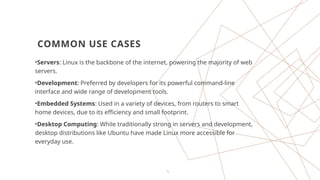
COMMON USE CASES
•Servers: Linux is the backbone of the internet, powering the majority of web
servers.
•Development: Preferred by developers for its powerful command-line
interface and wide range of development tools.
•Embedded Systems: Used in a variety of devices, from routers to smart
home devices, due to its efficiency and small footprint.
•Desktop Computing: While traditionally strong in servers and development,
desktop distributions like Ubuntu have made Linux more accessible for
everyday use.
6
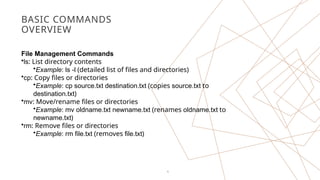
BASIC COMMANDS
OVERVIEW
File Management Commands
•ls: List directory contents
•Example: ls -l (detailed list of files and directories)
•cp: Copy files or directories
•Example: cp source.txt destination.txt (copies source.txt to
destination.txt)
•mv: Move/rename files or directories
•Example: mv oldname.txt newname.txt (renames oldname.txt to
newname.txt)
•rm: Remove files or directories
•Example: rm file.txt (removes file.txt)
7
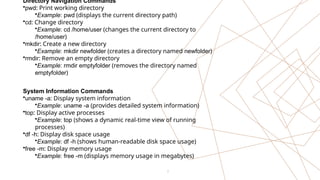
Directory Navigation Commands
•pwd: Print working directory
•Example: pwd (displays the current directory path)
•cd: Change directory
•Example: cd /home/user (changes the current directory to
/home/user)
•mkdir: Create a new directory
•Example: mkdir newfolder (creates a directory named newfolder)
•rmdir: Remove an empty directory
•Example: rmdir emptyfolder (removes the directory named
emptyfolder)
System Information Commands
•uname -a: Display system information
•Example: uname -a (provides detailed system information)
•top: Display active processes
•Example: top (shows a dynamic real-time view of running
processes)
•df -h: Display disk space usage
•Example: df -h (shows human-readable disk space usage)
•free -m: Display memory usage
•Example: free -m (displays memory usage in megabytes)
8
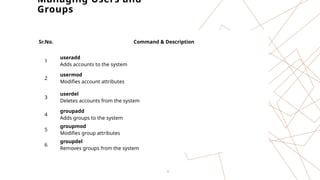
Managing Users and
Groups
Sr.No. Command & Description
1
useradd
Adds accounts to the system
2
usermod
Modifies account attributes
3
userdel
Deletes accounts from the system
4
groupadd
Adds groups to the system
5
groupmod
Modifies group attributes
6
groupdel
Removes groups from the system
9
Managing Users and Groups
There are four main user administration files −
•/etc/passwd − Keeps the user account and password
information. This file holds the majority of information about
accounts on the Unix system.
•/etc/shadow − Holds the encrypted password of the
corresponding account. Not all the systems support this file.
•/etc/group − This file contains the group information for each
account.
•/etc/gshadow − This file contains secure group account
information.
Check all the above files using the cat command.
The following table lists out commands that are available on
majority of Unix systems to create and manage accounts and
groups −
CREATE PARTITION
CREATE PARTITION
11
THANK YOU!
12

Linux Basic having information about basic of linux

  • 1.
  • 2.
    2 INTRODUCTION TO LINUX Introductionto Linux  Overview of Linux Linux is a powerful and versatile operating system that has become incredibly popular over the years, particularly in server environments, development, and increasingly in desktop computing. Here's a brief overview: Linux is an open-source operating system that is based on Unix. It's widely used for its flexibility, security, and performance. Unlike proprietary operating systems like Windows or macOS, Linux is free to use and distribute.  History and Evolution Created by Linus Torvalds in 1991, Linux started as a hobby project but quickly grew into a large- scale, professional operating system. Over time, it has attracted contributions from developers around the world, resulting in a variety of distributions (distros) tailored for different purposes.
  • 3.
    Pitch Deck 3 20XX Popular Linux Distributions (Ubuntu, Fedora, Debian, etc.) •Ubuntu: Known for its user-friendliness and strong community support. Ideal for newcomers and everyday desktop use. •Fedora: Focuses on innovation and includes the latest features and technologies. •Debian: Known for its stability and extensive software repositories. Often used as a base for other distributions like Ubuntu. •CentOS/RHEL: Commonly used in enterprise environments due to its stability and long-term support. •Arch Linux: Known for its simplicity and customization, aimed at more experienced users.
  • 4.
    WHY USE LINUX? •Open Sourceand Free: Linux is developed and maintained by a global community, making it free to use and modify. •Security and Stability: Linux is less prone to malware and viruses compared to other operating systems. Its architecture promotes security and stability. •Customizability: Users can customize their system to meet their specific needs, from the kernel level to the user interface. •Active Community Support: There is a vast amount of community support available through forums, mailing lists, and online documentation.
  • 5.
    5 COMMON USE CASES •Servers:Linux is the backbone of the internet, powering the majority of web servers. •Development: Preferred by developers for its powerful command-line interface and wide range of development tools. •Embedded Systems: Used in a variety of devices, from routers to smart home devices, due to its efficiency and small footprint. •Desktop Computing: While traditionally strong in servers and development, desktop distributions like Ubuntu have made Linux more accessible for everyday use.
  • 6.
    6 BASIC COMMANDS OVERVIEW File ManagementCommands •ls: List directory contents •Example: ls -l (detailed list of files and directories) •cp: Copy files or directories •Example: cp source.txt destination.txt (copies source.txt to destination.txt) •mv: Move/rename files or directories •Example: mv oldname.txt newname.txt (renames oldname.txt to newname.txt) •rm: Remove files or directories •Example: rm file.txt (removes file.txt)
  • 7.
    7 Directory Navigation Commands •pwd:Print working directory •Example: pwd (displays the current directory path) •cd: Change directory •Example: cd /home/user (changes the current directory to /home/user) •mkdir: Create a new directory •Example: mkdir newfolder (creates a directory named newfolder) •rmdir: Remove an empty directory •Example: rmdir emptyfolder (removes the directory named emptyfolder) System Information Commands •uname -a: Display system information •Example: uname -a (provides detailed system information) •top: Display active processes •Example: top (shows a dynamic real-time view of running processes) •df -h: Display disk space usage •Example: df -h (shows human-readable disk space usage) •free -m: Display memory usage •Example: free -m (displays memory usage in megabytes)
  • 8.
    8 Managing Users and Groups Sr.No.Command & Description 1 useradd Adds accounts to the system 2 usermod Modifies account attributes 3 userdel Deletes accounts from the system 4 groupadd Adds groups to the system 5 groupmod Modifies group attributes 6 groupdel Removes groups from the system
  • 9.
    9 Managing Users andGroups There are four main user administration files − •/etc/passwd − Keeps the user account and password information. This file holds the majority of information about accounts on the Unix system. •/etc/shadow − Holds the encrypted password of the corresponding account. Not all the systems support this file. •/etc/group − This file contains the group information for each account. •/etc/gshadow − This file contains secure group account information. Check all the above files using the cat command. The following table lists out commands that are available on majority of Unix systems to create and manage accounts and groups −
  • 10.
  • 11.
  • 12.