项目部 Linux 服务器部署标准
Comsenz Project Department Linux
   Server Deployment Standard
             版本: 5.1.2
            Version: 5.1.2


 适用操作系统: CentOS 5.2-x86_64


    发布日期: 2009 年 07 月 1 日
 Distribution Date: September 1, 2009
            By Comsenz Victor
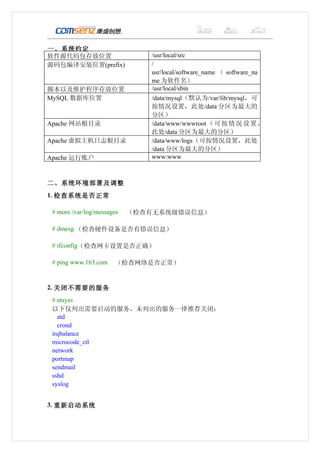
一、系统约定
软件源代码包存放位置                     /usr/local/src
源码包编译安装位置(prefix)              /
                               usr/local/software_name ( software_na
                               me 为软件名)
脚本以及维护程序存放位置                   /usr/local/sbin
MySQL 数据库位置                    /data/mysql(默认为/var/lib/mysql,可
                               按情况设置,此处/data 分区为最大的
                               分区)
Apache 网站根目录                   /data/www/wwwroot ( 可 按 情 况 设 置 ,
                               此处/data 分区为最大的分区)
Apache 虚拟主机日志根目录               /data/www/logs(可按情况设置,此处
                               /data 分区为最大的分区)
Apache 运行账户                    www:www


二、系统环境部署及调整
1. 检查系统是否正常

 # more /var/log/messages   (检查有无系统级错误信息)

 # dmesg (检查硬件设备是否有错误信息)

 # ifconfig(检查网卡设置是否正确)

 # ping www.163.com    (检查网络是否正常)


2. 关闭不需要的服务
 # ntsysv
 以下仅列出需要启动的服务,未列出的服务一律推荐关闭:
   atd
   crond
 irqbalance
 microcode_ctl
 network
 portmap
 sendmail
 sshd
 syslog


3. 重新启动系统
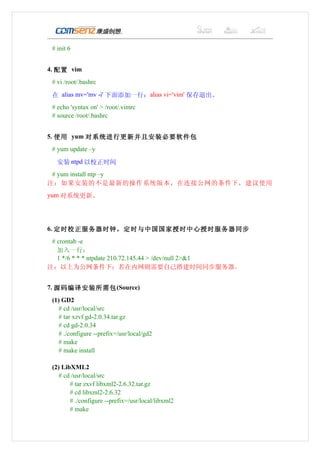
# init 6


4. 配置 vim
 # vi /root/.bashrc

 在 alias mv='mv -i' 下面添加一行:alias vi='vim' 保存退出。
 # echo 'syntax on' > /root/.vimrc
 # source /root/.bashrc


5. 使用 yum 对系统进行更新并且安装必要软件包
 # yum update –y

   安装 ntpd 以校正时间
 # yum install ntp –y
注:如果安装的不是最新的操作系统版本,在连接公网的条件下,建议使用
yum 对系统更新。


6. 定时校正服务器时钟,定时与中国国家授时中心授时服务器同步
 # crontab -e
   加入一行:
   1 */6 * * * ntpdate 210.72.145.44 > /dev/null 2>&1
注:以上为公网条件下;若在内网则需要自己搭建时间同步服务器。


7. 源码编译安装所需包 (Source)
 (1) GD2
    # cd /usr/local/src
    # tar xzvf gd-2.0.34.tar.gz
    # cd gd-2.0.34
    # ./configure --prefix=/usr/local/gd2
    # make
    # make install

 (2) LibXML2
    # cd /usr/local/src
        # tar zxvf libxml2-2.6.32.tar.gz
        # cd libxml2-2.6.32
        # ./configure --prefix=/usr/local/libxml2
        # make
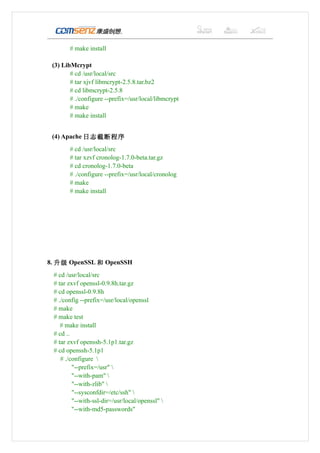
# make install

 (3) LibMcrypt
        # cd /usr/local/src
        # tar xjvf libmcrypt-2.5.8.tar.bz2
        # cd libmcrypt-2.5.8
        # ./configure --prefix=/usr/local/libmcrypt
        # make
        # make install


 (4) Apache 日志截断程序
        # cd /usr/local/src
        # tar xzvf cronolog-1.7.0-beta.tar.gz
        # cd cronolog-1.7.0-beta
        # ./configure --prefix=/usr/local/cronolog
        # make
        # make install


8. 升级 OpenSSL 和 OpenSSH
 # cd /usr/local/src
 # tar zxvf openssl-0.9.8h.tar.gz
 # cd openssl-0.9.8h
 # ./config --prefix=/usr/local/openssl
 # make
 # make test
    # make install
 # cd ..
 # tar zxvf openssh-5.1p1.tar.gz
 # cd openssh-5.1p1
    # ./configure 
         "--prefix=/usr" 
         "--with-pam" 
         "--with-zlib" 
         "--sysconfdir=/etc/ssh" 
         "--with-ssl-dir=/usr/local/openssl" 
         "--with-md5-passwords"
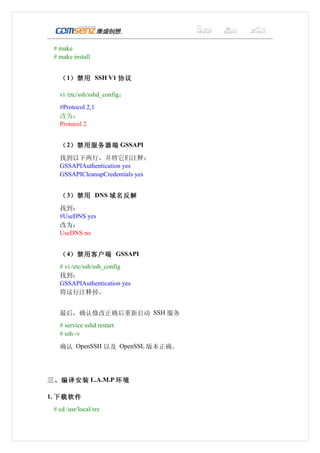
# make
 # make install


   ( 1)禁用 SSH V1 协议

   vi /etc/ssh/sshd_config:
   #Protocol 2,1
   改为:
   Protocol 2


   ( 2)禁用服务器端 GSSAPI
   找到以下两行,并将它们注释:
   GSSAPIAuthentication yes
   GSSAPICleanupCredentials yes


   ( 3)禁用 DNS 域名反解
   找到:
   #UseDNS yes
   改为:
   UseDNS no


   ( 4)禁用客户端 GSSAPI
   # vi /etc/ssh/ssh_config
   找到:
   GSSAPIAuthentication yes
   将这行注释掉。


   最后,确认修改正确后重新启动 SSH 服务
   # service sshd restart
   # ssh -v

   确认 OpenSSH 以及 OpenSSL 版本正确。


三、编译安装 L.A.M.P 环境

1. 下载软件
 # cd /usr/local/src
httpd-2.2.11.tar.gz
 mysql-5.1.34-linux-x86_64-icc-glibc23.tar.gz
 php-5.2.8.tar.bz2
 eaccelerator-0.9.5.3.tar.bz2
 memcache-2.2.3.tgz
    ZendOptimizer-3.3.3-linux-glibc23-x86_64.tar.gz


2. 安装 MySQL
 # tar xzvf mysql-5.1.34-rc-linux-x86_64-icc-glibc23.tar.gz
    # mv mysql-5.1.34-rc-linux-x86_64-icc-glibc23 /usr/local/
    # ln –s /usr/local/ mysql-5.1.34-rc-linux-x86_64-icc-glibc23 /usr/local/mysql
    # useradd mysql –s /sbin/nologin
 # chown -R mysql:root /usr/local/mysql/
    # cd /usr/local/mysql
    # ./scripts/mysql_install_db --user=mysql
    # cp ./support-files/mysql.server /etc/rc.d/init.d/mysqld
    # chown root:root /etc/rc.d/init.d/mysqld
 # chmod 755 /etc/rc.d/init.d/mysqld
    # chkconfig --add mysqld
    # chkconfig --level 3 mysqld on
    # cp ./support-files/my-huge.cnf /etc/my.cnf
    # mv /usr/local/mysql/data /data/mysql
    # chown -R mysql:mysql /data/mysql/
   # vi /etc/my.cnf 修改以下内容:


              在           [mysqld]            段       增     加   或     修       改     :
              datadir                             =                       /data/mysql
              skip-innodb
              wait-timeout                                =                        5
              max_connections                               =                    512
              max_connect_errors                          =                 10000000
              thread_concurrency          =           CPU       个         数         ×2

              将 log-bin 注释(如果需要使用 mysql 的主从备份功能,需要 log-

              bin 参数打开,不能注释)
   # bin/mysqladmin -u root password 'password_for_root'
   (注:password_for_root 为 mysql 的 root 帐户的密码,用户自行设定)
针对大型用户 mysql 优化的参数设置 (供参考 ):


   [mysqld]
   port          = 3306
   socket        = /tmp/mysql.sock

   datadir = /data/mysql
   skip-locking
   skip-name-resolve
   skip-innodb
   skip-symbolic-links
   local-infile=0

   low_priority_updates=1
   back_log = 300
   key_buffer = 256M
   max_allowed_packet = 16M
   thread_stack = 128K
   table_cache = 1024
   sort_buffer_size = 4M
   read_buffer_size = 256K
   join_buffer_size = 4M
   record_buffer = 2M
   read_rnd_buffer_size = 4M
   myisam_sort_buffer_size = 64M
   thread_cache_size = 64
   query_cache_size = 32M
   tmp_table_size = 196M
   max_connections = 1600
   max_connect_errors = 10000000000000
   wait_timeout = 5
   thread_concurrency=16

   long_query_time = 1
   log-slow-queries = /data/mysql/slow.log


3. 编译安装 Apache
 # cd /usr/local/src
    # tar xjvf httpd-2.2.11.tar.bz2
    # cd httpd-2.2.11
 # ./configure
"--prefix=/usr/local/apache2" 
         "--with-included-apr" 
    "--enable-so" 
    "--enable-deflate=shared" 
    "--enable-expires=shared" 
    "--enable-rewrite=shared" 
    "--enable-static-support" 
    "--disable-userdir"
  # make
    # make install
    # echo '/usr/local/apache2/bin/apachectl start ' >> /etc/rc.local


4. 编译安装 PHP

  在编译安装 PHP 之前,我们首先关闭 selinux,以免编译时出现错误。
    # vi /etc/selinux/config

    找到:SELINUX=enforcing

    改为:SELINUX=disabled


    # echo '0' > /selinux/enforce


  开始安装编译 PHP:


      # cd /usr/local/src
   # tar xjvf php-5.2.8.tar.bz2
   # cd php-5.2.8
      #./configure --prefix=/usr/local/php --with-apxs2=/usr/local/apache2/bin/apxs --
with-config-file-path=/usr/local/php/etc --with-mysql=/usr/local/mysql --with-mysql-
sock=/tmp --with-libxml-dir=/usr/local/libxml2 --with-gd --with-jpeg-dir --with-png-
dir --with-freetype-dir --with-iconv-dir --with-zlib-dir --with-curl --with-
mcrypt=/usr/local/libmcrypt --enable-soap --enable-gd-native-ttf --enable-ftp --enable-
mbstring --enable-sockets --enable-exif --enable-zend-multibyte --disable-ipv6
--disable-cgi
   # make
      # make install
      # cp php.ini-dist /usr/local/php/etc/php.ini


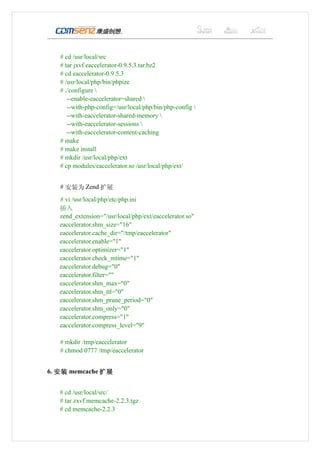
5. 安装 Eaccelerator
# cd /usr/local/src
   # tar jxvf eaccelerator-0.9.5.3.tar.bz2
   # cd eaccelerator-0.9.5.3
   # /usr/local/php/bin/phpize
   # ./configure 
      --enable-eaccelerator=shared 
      --with-php-config=/usr/local/php/bin/php-config 
      --with-eaccelerator-shared-memory 
      --with-eaccelerator-sessions 
      --with-eaccelerator-content-caching
   # make
   # make install
   # mkdir /usr/local/php/ext
   # cp modules/eaccelerator.so /usr/local/php/ext/


   # 安装为 Zend 扩展
   # vi /usr/local/php/etc/php.ini
   插入
   zend_extension="/usr/local/php/ext/eaccelerator.so"
   eaccelerator.shm_size="16"
   eaccelerator.cache_dir="/tmp/eaccelerator"
   eaccelerator.enable="1"
   eaccelerator.optimizer="1"
   eaccelerator.check_mtime="1"
   eaccelerator.debug="0"
   eaccelerator.filter=""
   eaccelerator.shm_max="0"
   eaccelerator.shm_ttl="0"
   eaccelerator.shm_prune_period="0"
   eaccelerator.shm_only="0"
   eaccelerator.compress="1"
   eaccelerator.compress_level="9"

   # mkdir /tmp/eaccelerator
   # chmod 0777 /tmp/eaccelerator


6. 安装 memcache 扩展


   # cd /usr/local/src/
   # tar zxvf memcache-2.2.3.tgz
   # cd memcache-2.2.3
# /usr/local/php/bin/phpize
   # ./configure --with-php-config=/usr/local/php/bin/php-config
   # make
   # make install
   # cp modules/memcache.so /usr/local/php/ext/


7. 安装 Zend Optimizer
 # cd /usr/local/src
    # tar xzvf ZendOptimizer-3.3.3-linux-glibc23-x86_64.tar.gz
    # ./ ZendOptimizer-3.3.3-linux-glibc23-x86_64/install.sh

   安装过程中需要指定 php.ini 的路径即/usr/local/php/etc

 最后暂时先不要选择重启 Apache。


8. 整合 Apache 与 PHP
   修改 PHP 配置文件:
   # vi /usr/local/php/etc/php.ini
   找到:
   extension_dir = "./"
   改为:
   extension_dir = "/usr/local/php/ext"
   找到:
   ;extension=php_zip.dll
   在该行下添加
   extension=memcache.so

   修改完成后保存退出。

   修改 Apache 配置文件:
   # vi /usr/local/apache2/conf/httpd.conf

   找到:
   AddType application/x-gzip .gz .tgz
   在该行下面添加
   AddType application/x-httpd-php .php

   找到:
   <IfModule dir_module>
     DirectoryIndex index.html
   </IfModule>
   将该行改为
<IfModule dir_module>
    DirectoryIndex index.html index.htm index.php
  </IfModule>

  找到:
  User daemon
  Group daemon
改为:
User www
  Group www

  找到:
  <Directory />
    Options FollowSymLinks
    AllowOverride None
    Order deny,allow
    Deny from all
  </Directory>


将其中的 Deny from all 改为 Allow from all


  找到:
  #Include conf/extra/httpd-mpm.conf
  #Include conf/extra/httpd-info.conf
  #Include conf/extra/httpd-vhosts.conf
  #Include conf/extra/httpd-default.conf

  去掉前面的“#”号,取消注释。


  注意:以上 4 个扩展配置文件中的设置请按照相关原则进行合理配置!


  修改完成后保存退出。


  添加 www 用户,用来运行 Apache
  # useradd www


  重启 Apache
  # /usr/local/apache2/bin/apachectl restart
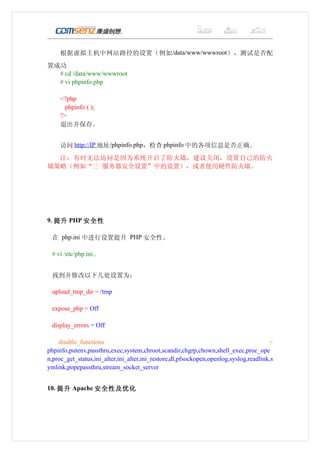
根据虚拟主机中网站路径的设置(例如 /data/www/wwwroot),测试是否配
置成功
  # cd /data/www/wwwroot
  # vi phpinfo.php

     <?php
       phpinfo ( );
     ?>
     退出并保存。


     访问 http://IP 地址/phpinfo.php,检查 phpinfo 中的各项信息是否正确。
  注:有时无法访问是因为系统开启了防火墙,建议关闭,设置自己的防火
墙策略(例如“三 服务器安全设置”中的设置),或者使用硬件防火墙。


9. 提升 PHP 安全性

 在 php.ini 中进行设置提升 PHP 安全性。

 # vi /etc/php.ini、


 找到并修改以下几处设置为:

 upload_tmp_dir = /tmp

 expose_php = Off

 display_errors = Off

    disable_functions                                                                  =
phpinfo,putenv,passthru,exec,system,chroot,scandir,chgrp,chown,shell_exec,proc_ope
n,proc_get_status,ini_alter,ini_alter,ini_restore,dl,pfsockopen,openlog,syslog,readlink,s
ymlink,popepassthru,stream_socket_server


10. 提升 Apache 安全性及优化
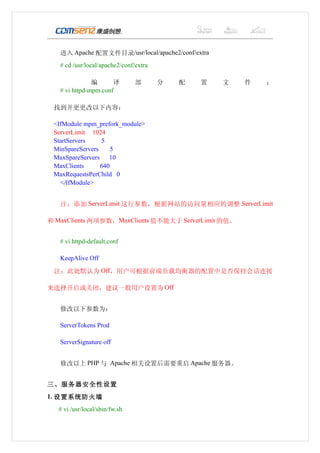
  进入 Apache 配置文件目录/usr/local/apache2/conf/extra
  # cd /usr/local/apache2/conf/extra

               编      译          部     分   配   置   文   件   :
   # vi httpd-mpm.conf

  找到并更更改以下内容:

  <IfModule mpm_prefork_module>
  ServerLimit 1024
  StartServers    5
  MinSpareServers     5
  MaxSpareServers    10
  MaxClients      640
  MaxRequestsPerChild 0
    </IfModule>


  注:添加 ServerLimit 这行参数,根据网站的访问量相应的调整 ServerLimit

和 MaxClients 两项参数,MaxClients 值不能大于 ServerLimit 的值。


  # vi httpd-default.conf

  KeepAlive Off
  注:此处默认为 Off,用户可根据前端负载均衡器的配置中是否保持会话连接

来选择开启或关闭,建议一般用户设置为 Off


  修改以下参数为:

  ServerTokens Prod

    ServerSignature off


    修改以上 PHP 与 Apache 相关设置后需要重启 Apache 服务器。


三、服务器安全性设置
1. 设置系统防火墙
    # vi /usr/local/sbin/fw.sh
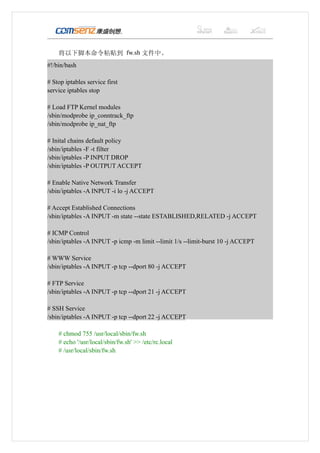
将以下脚本命令粘贴到 fw.sh 文件中。
#!/bin/bash

# Stop iptables service first
service iptables stop

# Load FTP Kernel modules
/sbin/modprobe ip_conntrack_ftp
/sbin/modprobe ip_nat_ftp

# Inital chains default policy
/sbin/iptables -F -t filter
/sbin/iptables -P INPUT DROP
/sbin/iptables -P OUTPUT ACCEPT

# Enable Native Network Transfer
/sbin/iptables -A INPUT -i lo -j ACCEPT

# Accept Established Connections
/sbin/iptables -A INPUT -m state --state ESTABLISHED,RELATED -j ACCEPT

# ICMP Control
/sbin/iptables -A INPUT -p icmp -m limit --limit 1/s --limit-burst 10 -j ACCEPT

# WWW Service
/sbin/iptables -A INPUT -p tcp --dport 80 -j ACCEPT

# FTP Service
/sbin/iptables -A INPUT -p tcp --dport 21 -j ACCEPT

# SSH Service
/sbin/iptables -A INPUT -p tcp --dport 22 -j ACCEPT

    # chmod 755 /usr/local/sbin/fw.sh
    # echo '/usr/local/sbin/fw.sh' >> /etc/rc.local
    # /usr/local/sbin/fw.sh

康盛创想项目部Linux 服务器部署标准(最新版)

  • 1.
    项目部 Linux 服务器部署标准 ComsenzProject Department Linux Server Deployment Standard 版本: 5.1.2 Version: 5.1.2 适用操作系统: CentOS 5.2-x86_64 发布日期: 2009 年 07 月 1 日 Distribution Date: September 1, 2009 By Comsenz Victor
  • 2.
    一、系统约定 软件源代码包存放位置 /usr/local/src 源码包编译安装位置(prefix) / usr/local/software_name ( software_na me 为软件名) 脚本以及维护程序存放位置 /usr/local/sbin MySQL 数据库位置 /data/mysql(默认为/var/lib/mysql,可 按情况设置,此处/data 分区为最大的 分区) Apache 网站根目录 /data/www/wwwroot ( 可 按 情 况 设 置 , 此处/data 分区为最大的分区) Apache 虚拟主机日志根目录 /data/www/logs(可按情况设置,此处 /data 分区为最大的分区) Apache 运行账户 www:www 二、系统环境部署及调整 1. 检查系统是否正常 # more /var/log/messages (检查有无系统级错误信息) # dmesg (检查硬件设备是否有错误信息) # ifconfig(检查网卡设置是否正确) # ping www.163.com (检查网络是否正常) 2. 关闭不需要的服务 # ntsysv 以下仅列出需要启动的服务,未列出的服务一律推荐关闭: atd crond irqbalance microcode_ctl network portmap sendmail sshd syslog 3. 重新启动系统
  • 3.
    # init 6 4.配置 vim # vi /root/.bashrc 在 alias mv='mv -i' 下面添加一行:alias vi='vim' 保存退出。 # echo 'syntax on' > /root/.vimrc # source /root/.bashrc 5. 使用 yum 对系统进行更新并且安装必要软件包 # yum update –y 安装 ntpd 以校正时间 # yum install ntp –y 注:如果安装的不是最新的操作系统版本,在连接公网的条件下,建议使用 yum 对系统更新。 6. 定时校正服务器时钟,定时与中国国家授时中心授时服务器同步 # crontab -e 加入一行: 1 */6 * * * ntpdate 210.72.145.44 > /dev/null 2>&1 注:以上为公网条件下;若在内网则需要自己搭建时间同步服务器。 7. 源码编译安装所需包 (Source) (1) GD2 # cd /usr/local/src # tar xzvf gd-2.0.34.tar.gz # cd gd-2.0.34 # ./configure --prefix=/usr/local/gd2 # make # make install (2) LibXML2 # cd /usr/local/src # tar zxvf libxml2-2.6.32.tar.gz # cd libxml2-2.6.32 # ./configure --prefix=/usr/local/libxml2 # make
  • 4.
    # make install (3) LibMcrypt # cd /usr/local/src # tar xjvf libmcrypt-2.5.8.tar.bz2 # cd libmcrypt-2.5.8 # ./configure --prefix=/usr/local/libmcrypt # make # make install (4) Apache 日志截断程序 # cd /usr/local/src # tar xzvf cronolog-1.7.0-beta.tar.gz # cd cronolog-1.7.0-beta # ./configure --prefix=/usr/local/cronolog # make # make install 8. 升级 OpenSSL 和 OpenSSH # cd /usr/local/src # tar zxvf openssl-0.9.8h.tar.gz # cd openssl-0.9.8h # ./config --prefix=/usr/local/openssl # make # make test # make install # cd .. # tar zxvf openssh-5.1p1.tar.gz # cd openssh-5.1p1 # ./configure "--prefix=/usr" "--with-pam" "--with-zlib" "--sysconfdir=/etc/ssh" "--with-ssl-dir=/usr/local/openssl" "--with-md5-passwords"
  • 5.
    # make #make install ( 1)禁用 SSH V1 协议 vi /etc/ssh/sshd_config: #Protocol 2,1 改为: Protocol 2 ( 2)禁用服务器端 GSSAPI 找到以下两行,并将它们注释: GSSAPIAuthentication yes GSSAPICleanupCredentials yes ( 3)禁用 DNS 域名反解 找到: #UseDNS yes 改为: UseDNS no ( 4)禁用客户端 GSSAPI # vi /etc/ssh/ssh_config 找到: GSSAPIAuthentication yes 将这行注释掉。 最后,确认修改正确后重新启动 SSH 服务 # service sshd restart # ssh -v 确认 OpenSSH 以及 OpenSSL 版本正确。 三、编译安装 L.A.M.P 环境 1. 下载软件 # cd /usr/local/src
  • 6.
    httpd-2.2.11.tar.gz mysql-5.1.34-linux-x86_64-icc-glibc23.tar.gz php-5.2.8.tar.bz2 eaccelerator-0.9.5.3.tar.bz2 memcache-2.2.3.tgz ZendOptimizer-3.3.3-linux-glibc23-x86_64.tar.gz 2. 安装 MySQL # tar xzvf mysql-5.1.34-rc-linux-x86_64-icc-glibc23.tar.gz # mv mysql-5.1.34-rc-linux-x86_64-icc-glibc23 /usr/local/ # ln –s /usr/local/ mysql-5.1.34-rc-linux-x86_64-icc-glibc23 /usr/local/mysql # useradd mysql –s /sbin/nologin # chown -R mysql:root /usr/local/mysql/ # cd /usr/local/mysql # ./scripts/mysql_install_db --user=mysql # cp ./support-files/mysql.server /etc/rc.d/init.d/mysqld # chown root:root /etc/rc.d/init.d/mysqld # chmod 755 /etc/rc.d/init.d/mysqld # chkconfig --add mysqld # chkconfig --level 3 mysqld on # cp ./support-files/my-huge.cnf /etc/my.cnf # mv /usr/local/mysql/data /data/mysql # chown -R mysql:mysql /data/mysql/ # vi /etc/my.cnf 修改以下内容: 在 [mysqld] 段 增 加 或 修 改 : datadir = /data/mysql skip-innodb wait-timeout = 5 max_connections = 512 max_connect_errors = 10000000 thread_concurrency = CPU 个 数 ×2 将 log-bin 注释(如果需要使用 mysql 的主从备份功能,需要 log- bin 参数打开,不能注释) # bin/mysqladmin -u root password 'password_for_root' (注:password_for_root 为 mysql 的 root 帐户的密码,用户自行设定)
  • 7.
    针对大型用户 mysql 优化的参数设置(供参考 ): [mysqld] port = 3306 socket = /tmp/mysql.sock datadir = /data/mysql skip-locking skip-name-resolve skip-innodb skip-symbolic-links local-infile=0 low_priority_updates=1 back_log = 300 key_buffer = 256M max_allowed_packet = 16M thread_stack = 128K table_cache = 1024 sort_buffer_size = 4M read_buffer_size = 256K join_buffer_size = 4M record_buffer = 2M read_rnd_buffer_size = 4M myisam_sort_buffer_size = 64M thread_cache_size = 64 query_cache_size = 32M tmp_table_size = 196M max_connections = 1600 max_connect_errors = 10000000000000 wait_timeout = 5 thread_concurrency=16 long_query_time = 1 log-slow-queries = /data/mysql/slow.log 3. 编译安装 Apache # cd /usr/local/src # tar xjvf httpd-2.2.11.tar.bz2 # cd httpd-2.2.11 # ./configure
  • 8.
    "--prefix=/usr/local/apache2" "--with-included-apr" "--enable-so" "--enable-deflate=shared" "--enable-expires=shared" "--enable-rewrite=shared" "--enable-static-support" "--disable-userdir" # make # make install # echo '/usr/local/apache2/bin/apachectl start ' >> /etc/rc.local 4. 编译安装 PHP 在编译安装 PHP 之前,我们首先关闭 selinux,以免编译时出现错误。 # vi /etc/selinux/config 找到:SELINUX=enforcing 改为:SELINUX=disabled # echo '0' > /selinux/enforce 开始安装编译 PHP: # cd /usr/local/src # tar xjvf php-5.2.8.tar.bz2 # cd php-5.2.8 #./configure --prefix=/usr/local/php --with-apxs2=/usr/local/apache2/bin/apxs -- with-config-file-path=/usr/local/php/etc --with-mysql=/usr/local/mysql --with-mysql- sock=/tmp --with-libxml-dir=/usr/local/libxml2 --with-gd --with-jpeg-dir --with-png- dir --with-freetype-dir --with-iconv-dir --with-zlib-dir --with-curl --with- mcrypt=/usr/local/libmcrypt --enable-soap --enable-gd-native-ttf --enable-ftp --enable- mbstring --enable-sockets --enable-exif --enable-zend-multibyte --disable-ipv6 --disable-cgi # make # make install # cp php.ini-dist /usr/local/php/etc/php.ini 5. 安装 Eaccelerator
  • 9.
    # cd /usr/local/src # tar jxvf eaccelerator-0.9.5.3.tar.bz2 # cd eaccelerator-0.9.5.3 # /usr/local/php/bin/phpize # ./configure --enable-eaccelerator=shared --with-php-config=/usr/local/php/bin/php-config --with-eaccelerator-shared-memory --with-eaccelerator-sessions --with-eaccelerator-content-caching # make # make install # mkdir /usr/local/php/ext # cp modules/eaccelerator.so /usr/local/php/ext/ # 安装为 Zend 扩展 # vi /usr/local/php/etc/php.ini 插入 zend_extension="/usr/local/php/ext/eaccelerator.so" eaccelerator.shm_size="16" eaccelerator.cache_dir="/tmp/eaccelerator" eaccelerator.enable="1" eaccelerator.optimizer="1" eaccelerator.check_mtime="1" eaccelerator.debug="0" eaccelerator.filter="" eaccelerator.shm_max="0" eaccelerator.shm_ttl="0" eaccelerator.shm_prune_period="0" eaccelerator.shm_only="0" eaccelerator.compress="1" eaccelerator.compress_level="9" # mkdir /tmp/eaccelerator # chmod 0777 /tmp/eaccelerator 6. 安装 memcache 扩展 # cd /usr/local/src/ # tar zxvf memcache-2.2.3.tgz # cd memcache-2.2.3
  • 10.
    # /usr/local/php/bin/phpize # ./configure --with-php-config=/usr/local/php/bin/php-config # make # make install # cp modules/memcache.so /usr/local/php/ext/ 7. 安装 Zend Optimizer # cd /usr/local/src # tar xzvf ZendOptimizer-3.3.3-linux-glibc23-x86_64.tar.gz # ./ ZendOptimizer-3.3.3-linux-glibc23-x86_64/install.sh 安装过程中需要指定 php.ini 的路径即/usr/local/php/etc 最后暂时先不要选择重启 Apache。 8. 整合 Apache 与 PHP 修改 PHP 配置文件: # vi /usr/local/php/etc/php.ini 找到: extension_dir = "./" 改为: extension_dir = "/usr/local/php/ext" 找到: ;extension=php_zip.dll 在该行下添加 extension=memcache.so 修改完成后保存退出。 修改 Apache 配置文件: # vi /usr/local/apache2/conf/httpd.conf 找到: AddType application/x-gzip .gz .tgz 在该行下面添加 AddType application/x-httpd-php .php 找到: <IfModule dir_module> DirectoryIndex index.html </IfModule> 将该行改为
  • 11.
    <IfModule dir_module> DirectoryIndex index.html index.htm index.php </IfModule> 找到: User daemon Group daemon 改为: User www Group www 找到: <Directory /> Options FollowSymLinks AllowOverride None Order deny,allow Deny from all </Directory> 将其中的 Deny from all 改为 Allow from all 找到: #Include conf/extra/httpd-mpm.conf #Include conf/extra/httpd-info.conf #Include conf/extra/httpd-vhosts.conf #Include conf/extra/httpd-default.conf 去掉前面的“#”号,取消注释。 注意:以上 4 个扩展配置文件中的设置请按照相关原则进行合理配置! 修改完成后保存退出。 添加 www 用户,用来运行 Apache # useradd www 重启 Apache # /usr/local/apache2/bin/apachectl restart
  • 12.
    根据虚拟主机中网站路径的设置(例如 /data/www/wwwroot),测试是否配 置成功 # cd /data/www/wwwroot # vi phpinfo.php <?php phpinfo ( ); ?> 退出并保存。 访问 http://IP 地址/phpinfo.php,检查 phpinfo 中的各项信息是否正确。 注:有时无法访问是因为系统开启了防火墙,建议关闭,设置自己的防火 墙策略(例如“三 服务器安全设置”中的设置),或者使用硬件防火墙。 9. 提升 PHP 安全性 在 php.ini 中进行设置提升 PHP 安全性。 # vi /etc/php.ini、 找到并修改以下几处设置为: upload_tmp_dir = /tmp expose_php = Off display_errors = Off disable_functions = phpinfo,putenv,passthru,exec,system,chroot,scandir,chgrp,chown,shell_exec,proc_ope n,proc_get_status,ini_alter,ini_alter,ini_restore,dl,pfsockopen,openlog,syslog,readlink,s ymlink,popepassthru,stream_socket_server 10. 提升 Apache 安全性及优化
  • 13.
      进入 Apache 配置文件目录/usr/local/apache2/conf/extra   #cd /usr/local/apache2/conf/extra     编 译 部 分 配 置 文 件 :    # vi httpd-mpm.conf 找到并更更改以下内容: <IfModule mpm_prefork_module> ServerLimit 1024 StartServers 5 MinSpareServers 5 MaxSpareServers 10 MaxClients 640 MaxRequestsPerChild 0 </IfModule>   注:添加 ServerLimit 这行参数,根据网站的访问量相应的调整 ServerLimit 和 MaxClients 两项参数,MaxClients 值不能大于 ServerLimit 的值。   # vi httpd-default.conf   KeepAlive Off 注:此处默认为 Off,用户可根据前端负载均衡器的配置中是否保持会话连接 来选择开启或关闭,建议一般用户设置为 Off   修改以下参数为:   ServerTokens Prod ServerSignature off 修改以上 PHP 与 Apache 相关设置后需要重启 Apache 服务器。 三、服务器安全性设置 1. 设置系统防火墙 # vi /usr/local/sbin/fw.sh
  • 14.
    将以下脚本命令粘贴到 fw.sh 文件中。 #!/bin/bash #Stop iptables service first service iptables stop # Load FTP Kernel modules /sbin/modprobe ip_conntrack_ftp /sbin/modprobe ip_nat_ftp # Inital chains default policy /sbin/iptables -F -t filter /sbin/iptables -P INPUT DROP /sbin/iptables -P OUTPUT ACCEPT # Enable Native Network Transfer /sbin/iptables -A INPUT -i lo -j ACCEPT # Accept Established Connections /sbin/iptables -A INPUT -m state --state ESTABLISHED,RELATED -j ACCEPT # ICMP Control /sbin/iptables -A INPUT -p icmp -m limit --limit 1/s --limit-burst 10 -j ACCEPT # WWW Service /sbin/iptables -A INPUT -p tcp --dport 80 -j ACCEPT # FTP Service /sbin/iptables -A INPUT -p tcp --dport 21 -j ACCEPT # SSH Service /sbin/iptables -A INPUT -p tcp --dport 22 -j ACCEPT # chmod 755 /usr/local/sbin/fw.sh # echo '/usr/local/sbin/fw.sh' >> /etc/rc.local # /usr/local/sbin/fw.sh