Maximizing LinkedIn
Why LinkedIn Matters Active and Passive tool Provides an online presence Digital Rolodex Allows you to “see” your network and what people are doing Lets people “get to know you” Local, regional, national & int’l reach
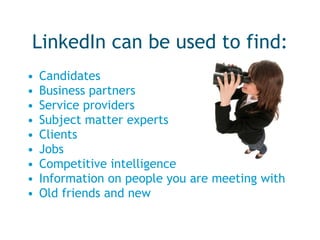
LinkedIn can be used to find: Candidates Business partners Service providers Subject matter experts Clients Jobs Competitive intelligence Information on people you are meeting with Old friends and new
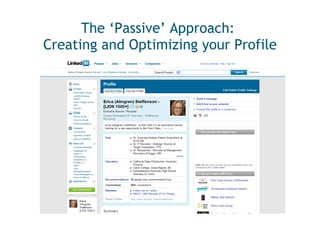
The ‘Passive’ Approach:  Creating and Optimizing your Profile
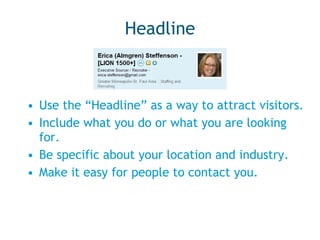
Headline Use the “Headline” as a way to attract visitors. Include what you do or what you are looking for. Be specific about your location and industry. Make it easy for people to contact you.
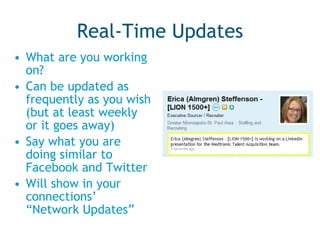
Real-Time Updates What are you working on? Can be updated as frequently as you wish (but at least weekly or it goes away) Say what you are doing similar to Facebook and Twitter Will show in your connections’ “Network Updates”
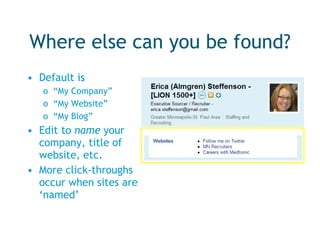
Where else can you be found? Default is  “ My Company”  “ My Website”  “ My Blog” Edit to  name  your company, title of website, etc. More click-throughs occur when sites are ‘named’
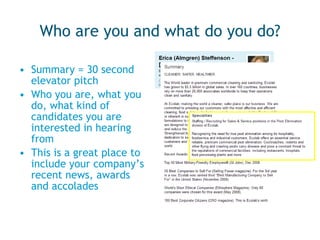
Who are you and what do you do? Summary = 30 second elevator pitch Who you are, what you do, what kind of candidates you are interested in hearing from This is a great place to include your company’s recent news, awards and accolades
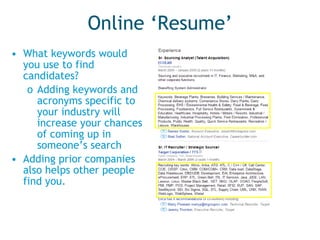
Online ‘Resume’ What keywords would you use to find candidates?  Adding keywords and acronyms specific to your industry will increase your chances of coming up in someone’s search Adding prior companies also helps other people find you.
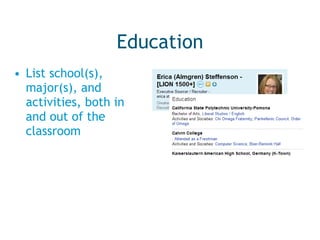
Education List school(s), major(s), and activities, both in and out of the classroom
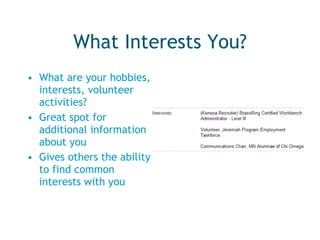
What Interests You? What are your hobbies, interests, volunteer activities? Great spot for additional information about you Gives others the ability to find common interests with you
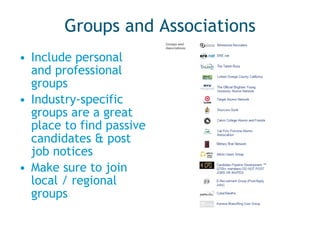
Groups and Associations Include personal and professional groups Industry-specific groups are a great place to find passive candidates & post job notices Make sure to join local / regional groups
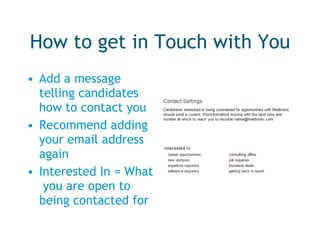
How to get in Touch with You Add a message telling candidates how to contact you Recommend adding your email address again Interested In = What  you are open to being contacted for
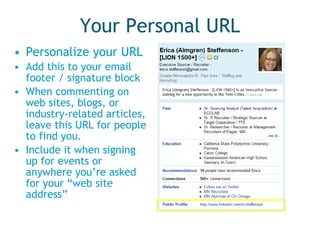
Your Personal URL Personalize your URL Add this to your email footer / signature block When commenting on web sites, blogs, or industry-related articles, leave this URL for people to find you. Include it when signing up for events or anywhere you’re asked for your “web site address”
Groups You can belong to a maximum of 50 groups Local, regional, (inter)national Industry-specific Special interest and causes College and school alumni This increases the size and scope of your network You can also create a group
Super Connectors Those with 500+ connections Anyone with an email in their “Headline” is generally an open networker who will accept all invitations Most Recruiters are open networkers LIONS, TopLinked.com(35,000+) This can be a quick way to grow your network One caution: Many will include you in their newsletters or other infrequent email
Who are your Connections? Current and former colleagues, bosses, vendors Friends Candidates College/school connections Recruiters People in this room According to About.com's Alison Doyle, on LinkedIn, "There are members from all 500 of the Fortune 500 companies. LinkedIn members comprise 130 different industries, and include 130,000 recruiters."
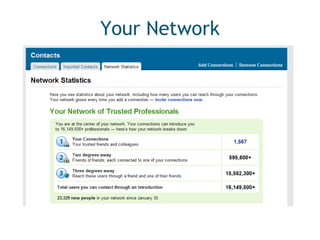
Your Network
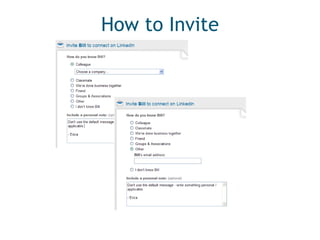
How to Connect, 4 Options When reading a profile you can send an invitation to connect – email address maybe required if you do not know the individual or aren’t connected through a group, school, or previous employer Click  on the LI homepage Here you can add a small number of connections at one time if you know the individuals’ email addresses From the ‘Add Connections’ page you can import contacts by uploading your email address book(s) On the Colleagues and Classmates tabs you can find people who used to work with you or attended the same schools
How to Invite
How to Search for People: The Active Approach Quick Search Advanced Search Saved Searches Company Search
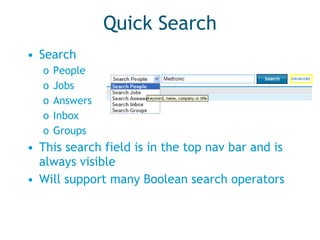
Quick Search Search People Jobs Answers Inbox Groups This search field is in the top nav bar and is always visible Will support many Boolean search operators
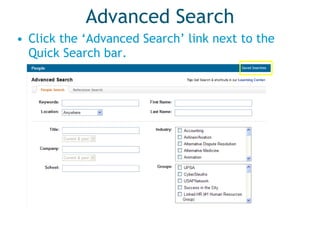
Advanced Search Click the ‘Advanced Search’ link next to the Quick Search bar.
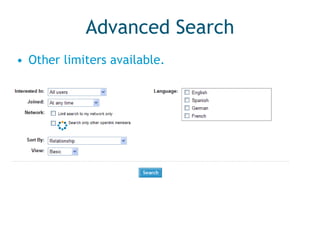
Advanced Search Other limiters available.
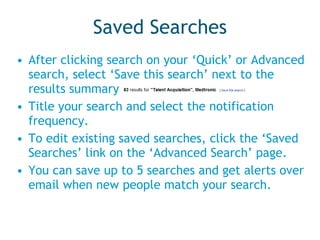
Saved Searches After clicking search on your ‘Quick’ or Advanced search, select ‘Save this search’ next to the results summary Title your search and select the notification frequency. To edit existing saved searches, click the ‘Saved Searches’ link on the ‘Advanced Search’ page. You can save up to 5 searches and get alerts over email when new people match your search.
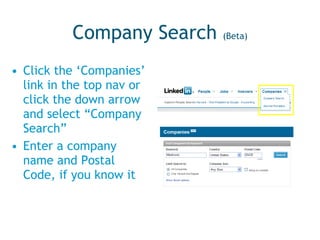
Company Search  (Beta) Click the ‘Companies’ link in the top nav or click the down arrow and select “Company Search” Enter a company name and Postal Code, if you know it
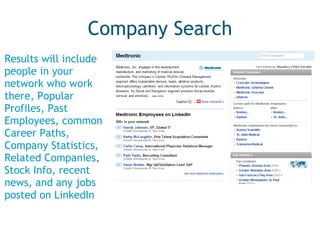
Company Search Results will include people in your network who work there, Popular Profiles, Past Employees, common Career Paths, Company Statistics, Related Companies, Stock Info, recent news, and any jobs posted on LinkedIn
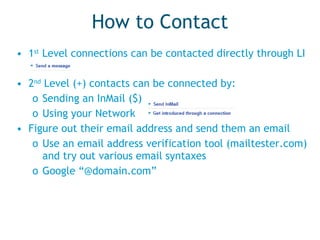
How to Contact 1 st  Level connections can be contacted directly through LI 2 nd  Level (+) contacts can be connected by: Sending an InMail ($) Using your Network  Figure out their email address and send them an email Use an email address verification tool (mailtester.com) and try out various email syntaxes Google “@domain.com”
Use Google to Search LinkedIn Google indexes most personal and company profiles Depending on the size of your network, your reach is only so big Start with this search string on Google Site:LinkedIn.com, then enter keywords You may need to “play” with words, phrases, “”, like you would usually do on any Boolean Google search
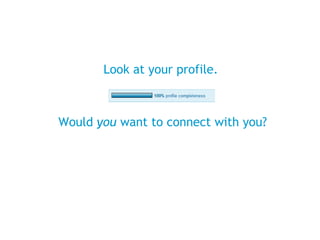
Tips to Maximize your LinkedIn Success Make sure your profile is 100% complete Add all email addresses you use so people can more easily connect to you Archive unwanted or unknown connection requests 5 ‘I Don’t Knows’ can get you in trouble with LinkedIn 3,000 Invitations allowed (can request more) Personalize invites or create your own templates; LinkedIn templates are boring. People are more likely to accept if they know how connecting with you will help them. Write recommendations for people whose work you respect Participate in Questions & Answers to increase your visibility
LinkedIn is a Great Beginning!
Look at your profile.  Would  you  want to connect with you?
Thank You! Questions?
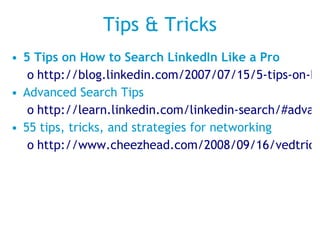
Tips & Tricks 5 Tips on How to Search LinkedIn Like a Pro http://blog.linkedin.com/2007/07/15/5-tips-on-how-t/ Advanced Search Tips http://learn.linkedin.com/linkedin-search/#advanced_search_tips 55 tips, tricks, and strategies for networking http://www.cheezhead.com/2008/09/16/vedtricks-and-tips-for-networking-on-linkedin/

Linked In Presentation

  • 1.
  • 2.
    Why LinkedIn MattersActive and Passive tool Provides an online presence Digital Rolodex Allows you to “see” your network and what people are doing Lets people “get to know you” Local, regional, national & int’l reach
  • 3.
    LinkedIn can beused to find: Candidates Business partners Service providers Subject matter experts Clients Jobs Competitive intelligence Information on people you are meeting with Old friends and new
  • 4.
    The ‘Passive’ Approach: Creating and Optimizing your Profile
  • 5.
    Headline Use the“Headline” as a way to attract visitors. Include what you do or what you are looking for. Be specific about your location and industry. Make it easy for people to contact you.
  • 6.
    Real-Time Updates Whatare you working on? Can be updated as frequently as you wish (but at least weekly or it goes away) Say what you are doing similar to Facebook and Twitter Will show in your connections’ “Network Updates”
  • 7.
    Where else canyou be found? Default is “ My Company” “ My Website” “ My Blog” Edit to name your company, title of website, etc. More click-throughs occur when sites are ‘named’
  • 8.
    Who are youand what do you do? Summary = 30 second elevator pitch Who you are, what you do, what kind of candidates you are interested in hearing from This is a great place to include your company’s recent news, awards and accolades
  • 9.
    Online ‘Resume’ Whatkeywords would you use to find candidates? Adding keywords and acronyms specific to your industry will increase your chances of coming up in someone’s search Adding prior companies also helps other people find you.
  • 10.
    Education List school(s),major(s), and activities, both in and out of the classroom
  • 11.
    What Interests You?What are your hobbies, interests, volunteer activities? Great spot for additional information about you Gives others the ability to find common interests with you
  • 12.
    Groups and AssociationsInclude personal and professional groups Industry-specific groups are a great place to find passive candidates & post job notices Make sure to join local / regional groups
  • 13.
    How to getin Touch with You Add a message telling candidates how to contact you Recommend adding your email address again Interested In = What you are open to being contacted for
  • 14.
    Your Personal URLPersonalize your URL Add this to your email footer / signature block When commenting on web sites, blogs, or industry-related articles, leave this URL for people to find you. Include it when signing up for events or anywhere you’re asked for your “web site address”
  • 15.
    Groups You canbelong to a maximum of 50 groups Local, regional, (inter)national Industry-specific Special interest and causes College and school alumni This increases the size and scope of your network You can also create a group
  • 16.
    Super Connectors Thosewith 500+ connections Anyone with an email in their “Headline” is generally an open networker who will accept all invitations Most Recruiters are open networkers LIONS, TopLinked.com(35,000+) This can be a quick way to grow your network One caution: Many will include you in their newsletters or other infrequent email
  • 17.
    Who are yourConnections? Current and former colleagues, bosses, vendors Friends Candidates College/school connections Recruiters People in this room According to About.com's Alison Doyle, on LinkedIn, "There are members from all 500 of the Fortune 500 companies. LinkedIn members comprise 130 different industries, and include 130,000 recruiters."
  • 18.
  • 19.
    How to Connect,4 Options When reading a profile you can send an invitation to connect – email address maybe required if you do not know the individual or aren’t connected through a group, school, or previous employer Click on the LI homepage Here you can add a small number of connections at one time if you know the individuals’ email addresses From the ‘Add Connections’ page you can import contacts by uploading your email address book(s) On the Colleagues and Classmates tabs you can find people who used to work with you or attended the same schools
  • 20.
  • 21.
    How to Searchfor People: The Active Approach Quick Search Advanced Search Saved Searches Company Search
  • 22.
    Quick Search SearchPeople Jobs Answers Inbox Groups This search field is in the top nav bar and is always visible Will support many Boolean search operators
  • 23.
    Advanced Search Clickthe ‘Advanced Search’ link next to the Quick Search bar.
  • 24.
    Advanced Search Otherlimiters available.
  • 25.
    Saved Searches Afterclicking search on your ‘Quick’ or Advanced search, select ‘Save this search’ next to the results summary Title your search and select the notification frequency. To edit existing saved searches, click the ‘Saved Searches’ link on the ‘Advanced Search’ page. You can save up to 5 searches and get alerts over email when new people match your search.
  • 26.
    Company Search (Beta) Click the ‘Companies’ link in the top nav or click the down arrow and select “Company Search” Enter a company name and Postal Code, if you know it
  • 27.
    Company Search Resultswill include people in your network who work there, Popular Profiles, Past Employees, common Career Paths, Company Statistics, Related Companies, Stock Info, recent news, and any jobs posted on LinkedIn
  • 28.
    How to Contact1 st Level connections can be contacted directly through LI 2 nd Level (+) contacts can be connected by: Sending an InMail ($) Using your Network Figure out their email address and send them an email Use an email address verification tool (mailtester.com) and try out various email syntaxes Google “@domain.com”
  • 29.
    Use Google toSearch LinkedIn Google indexes most personal and company profiles Depending on the size of your network, your reach is only so big Start with this search string on Google Site:LinkedIn.com, then enter keywords You may need to “play” with words, phrases, “”, like you would usually do on any Boolean Google search
  • 30.
    Tips to Maximizeyour LinkedIn Success Make sure your profile is 100% complete Add all email addresses you use so people can more easily connect to you Archive unwanted or unknown connection requests 5 ‘I Don’t Knows’ can get you in trouble with LinkedIn 3,000 Invitations allowed (can request more) Personalize invites or create your own templates; LinkedIn templates are boring. People are more likely to accept if they know how connecting with you will help them. Write recommendations for people whose work you respect Participate in Questions & Answers to increase your visibility
  • 31.
    LinkedIn is aGreat Beginning!
  • 32.
    Look at yourprofile. Would you want to connect with you?
  • 33.
  • 34.
    Tips & Tricks5 Tips on How to Search LinkedIn Like a Pro http://blog.linkedin.com/2007/07/15/5-tips-on-how-t/ Advanced Search Tips http://learn.linkedin.com/linkedin-search/#advanced_search_tips 55 tips, tricks, and strategies for networking http://www.cheezhead.com/2008/09/16/vedtricks-and-tips-for-networking-on-linkedin/