RAC Database Creation
Objectives
• After completing this lesson, you should be able to:
– Install the Enterprise Manager agent on each cluster
node
– Create a cluster database
– Perform required tasks after database creation
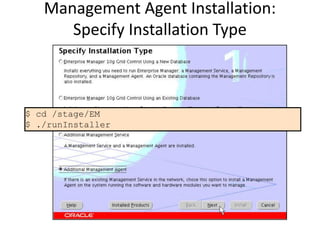
Management Agent Installation:
Specify Installation Type
$ cd /stage/EM
$ ./runInstaller
Specify Installation Location
Specify Cluster Installation Mode
Prerequisite Check and OMS Location
Agent Registration Password
Management Agent Installation Finish
Executing the root.sh Script
Creating the Cluster Database
$ cd /u01/app/oracle/product/11.1.0/db_1/bin
$ ./dbca
Node Selection
Select Database Type
Database Identification
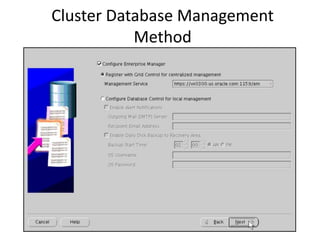
Cluster Database Management
Method
Passwords for Database Schema
Owners
Storage Options for Database Files
ASM Disk Groups
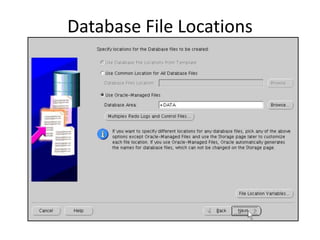
Database File Locations
Recovery Configuration
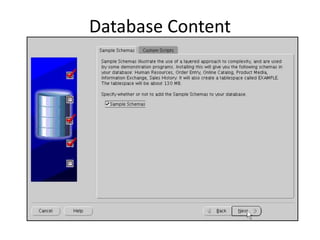
Database Content
Initialization Parameters
Security Settings and Maintenance
Tasks
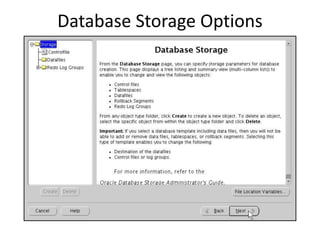
Database Storage Options
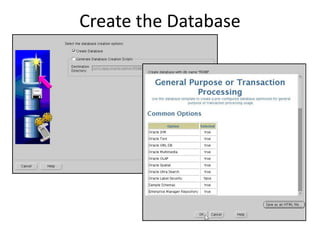
Create the Database
Monitor Progress
Postinstallation Tasks
– Verify the cluster database configuration.
– Back up the root.sh script.
– Back up the voting disk.
– Download and install the required patch updates.
$ srvctl config database -d racdb
vx0306 racdb1 /u01/app/.../db_1
vx0313 racdb2 /u01/app/.../db_1
$ cd $ORACLE_HOME
$ cp root.sh root.sh.bak
$ dd if=/dev/sdb6 of=/RACdb/OCR/backup/vdisk.bak
Check Managed Targets
• http://vx0314.us.oracle.com:4889/em
Single Instance to RAC Conversion
– Single-instance databases can be
converted to RAC using:
• DBCA
• Enterprise Manager
• RCONFIG utility
– DBCA automates most of the
conversion tasks.
– Before conversion, ensure that:
• Your hardware and operating
system are supported
• Your cluster nodes have access to
shared storage
Single-instance
database
RAC database
Single-Instance Conversion Using the
DBCA
• Conversion steps for a single-instance database on
• nonclustered hardware:
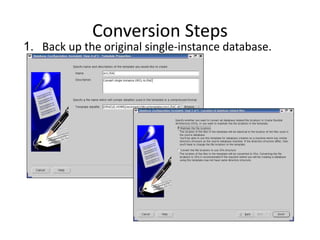
1. Back up the original single-instance database.
2. Perform the preinstallation steps.
3. Set up and validate the cluster.
4. Copy the preconfigured database image.
5. Install the Oracle Database 10g software with Real
Application Clusters.
Conversion Steps
1. Back up the original single-instance database.
Conversion Steps
2. Perform the preinstallation steps.
• Tasks include kernel parameter configuration, hardware
setup, network configuration, and shared storage setup.
3. Set up and validate the cluster.
• Create a cluster with the required number of nodes
according to your hardware vendor’s documentation.
• Validate cluster components before installation.
• Install Oracle Clusterware.
• Validate the completed cluster installation using cluvfy.
4. Copy the preconfigured database image.
• Copy the preconfigured database image including:
– The database structure *.dbc file
– The preconfigured database image *.dfb file
Conversion Steps
5. Install the Oracle Database 11g software with RAC.
Single-Instance Conversion Using
rconfig
1. Edit the ConvertToRAC.xml file located in the
$ORACLE_HOME/assistants/rconfig/samp
leXMLs directory.
2. Modify the parameters in the ConvertToRAC.xml
file as required for your system.
3. Save the file under a different name.
$ cd $ORACLE_HOME/assistants/rconfig/sampleXMLs
$ vi ConvertToRAC.xml
$ rconfig my_rac_conversion.xml
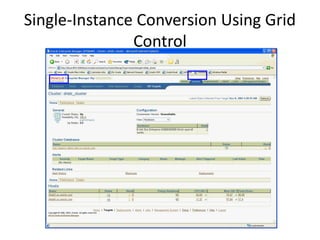
Single-Instance Conversion Using Grid
Control
Summary
• In this lesson, you should have learned how to:
– Install the Oracle Enterprise Manager agent
– Create a cluster database
– Perform required tasks after database creation
Practice 3: Overview
• This practice covers the following topics:
– Installing the Enterprise Manager agent on each cluster
node
– Confirming that the services needed by the database
creation process are running
– Creating a cluster database

les03.pdf