4
Copyright © 2009, Oracle. All rights reserved.
Configuring Backup Settings
Copyright © 2009, Oracle. All rights reserved.4 - 2
Objectives
After completing this lesson, you should be able to:
• Use Enterprise Manager to configure backup settings
• Enable control file autobackup
• Configure backup destinations
• Allocate channels for tape destination
• Configure backup optimization
• Create a compressed backup
• Create an encrypted backup
Copyright © 2009, Oracle. All rights reserved.4 - 3
Configuring Persistent Settings for RMAN
• RMAN is preset with default configuration settings.
• Use the CONFIGURE command to:
– Configure automatic channels
– Specify the backup retention policy
– Specify the number of backup copies to be created
– Set the default backup type to BACKUPSET or COPY
– Limit the size of backup pieces
– Exempt a tablespace from backup
– Enable and disable backup optimization
– Configure automatic backups of control files
– Define the archivelog deletion policy
– Specify the parallelism for a device
– Set the encryption and compression parameters to be used
for backups
Copyright © 2009, Oracle. All rights reserved.4 - 4
Viewing Persistent Settings
To examine the persistent RMAN settings for a database:
• Connected only to the target, you enter SHOW ALL at the
RMAN prompt.
Or:
• Logged in to the target database instance, you query the
V$RMAN_CONFIGURATION view.
Copyright © 2009, Oracle. All rights reserved.4 - 5
Control File Autobackups
RMAN> CONFIGURE CONTROLFILE AUTOBACKUP ON;
Best Practice Tip: Oracle recommends that you enable
control file autobackup.
Copyright © 2009, Oracle. All rights reserved.4 - 7
Managing Persistent Settings
• Use multiple streams of data to and from a device:
• Use the SHOW command to list current settings:
• Use the CLEAR option of the CONFIGURE command to
reset any persistent setting to its default value:
RMAN> SHOW CONTROLFILE AUTOBACKUP FORMAT;
RMAN> SHOW EXCLUDE;
RMAN> SHOW ALL;
RMAN> CONFIGURE BACKUP OPTIMIZATION CLEAR;
RMAN> CONFIGURE MAXSETSIZE CLEAR;
RMAN> CONFIGURE DEFAULT DEVICE TYPE CLEAR;
RMAN> CONFIGURE DEVICE TYPE sbt PARALLELISM 3;
Copyright © 2009, Oracle. All rights reserved.4 - 8
Using a Media Manager
Recovery
Manager
Media
management
server software
Media
Management
Library
Server
session
(channel)
Oracle Secure
Backup with
built-in MML
Or
Copyright © 2009, Oracle. All rights reserved.4 - 10
Specifying a Backup Destination
Backups can be written to:
• Disk directory
• Tape, using Oracle Secure Backup
• Media Management Library
– Tape
– Disk or tape, using proxy copy
• Fast Recovery Area: Disk area set aside for backup and
recovery and flashback database purposes
– Define the location and the size.
– Files are automatically retained and deleted as necessary.
RMAN> CONFIGURE DEFAULT DEVICE TYPE TO TAPE;
RMAN> CONFIGURE DEFAULT DEVICE TYPE TO DISK;
Copyright © 2009, Oracle. All rights reserved.4 - 11
Configuring and Allocating Channels
• Configure automatic channels with the CONFIGURE
command:
• Allocate channels manually with the ALLOCATE CHANNEL
command within a RUN block:
RMAN> CONFIGURE DEVICE TYPE sbt;
RMAN> CONFIGURE DEFAULT DEVICE TYPE TO sbt;
RMAN> CONFIGURE CHANNEL DEVICE TYPE sbt ...
RMAN> BACKUP DATABASE;
RMAN> RUN
{
ALLOCATE CHANNEL ch1 DEVICE TYPE DISK;
BACKUP DATABASE PLUS ARCHIVELOG;
}
Copyright © 2009, Oracle. All rights reserved.4 - 12
Creating Duplexed Backup Sets
To create a duplexed backup set, use:
• CONFIGURE ... BACKUP COPIES
• BACKUP...COPIES
Backup set
copy 1
Data file
1
Data file
2
Data file
3
Data file
1
Data file
2
Data file
3
Tablespace
HR_DATA
Backup set
copy 2
Data file
1
Data file
2
Data file
3
Copyright © 2009, Oracle. All rights reserved.4 - 13
Creating Duplexed Backup Sets Using
CONFIGURE BACKUP COPIES
RMAN> CONFIGURE ARCHIVELOG BACKUP COPIES
2> FOR DEVICE TYPE sbt TO 2;
RMAN> CONFIGURE DATAFILE BACKUP COPIES
2> FOR DEVICE TYPE sbt TO 2;
RMAN> BACKUP DATABASE PLUS ARCHIVELOG;
RMAN> BACKUP DEVICE TYPE DISK AS COPY DATABASE;
Two copies of the
backup are made to
two different tapes.
Not affected by the
COPIES configuration
setting. Only one
copy is made on disk.
Copyright © 2009, Oracle. All rights reserved.4 - 14
Backup Optimization
• Skips already backed-up files
• Is used when:
– Backup optimization is enabled
– BACKUP DATABASE, BACKUP ARCHIVELOG with ALL or
LIKE options, or BACKUP BACKUPSET ALL commands are
executed
– Only one type of channel is allocated
• Can be overridden with the FORCE option
• Is always used for RECOVERY AREA,
DB_RECOVERY_FILE_DEST, and RECOVERY FILES
backup options
RMAN> BACKUP DEVICE TYPE sbt BACKUPSET ALL FORCE;
RMAN> CONFIGURE BACKUP OPTIMIZATION ON;
Copyright © 2009, Oracle. All rights reserved.4 - 16
Saving Backup Space with
Unused Block Compression
HWM
Unallocated
Allocated
Unused
Data file
The following blocks may be
skipped during certain types of
backup operations:
• Unallocated blocks: These are
above the data file’s high-
water mark (HWM).
• Unused blocks: These are
blocks that have been
allocated but no longer belong
to a segment.
Copyright © 2009, Oracle. All rights reserved.4 - 17
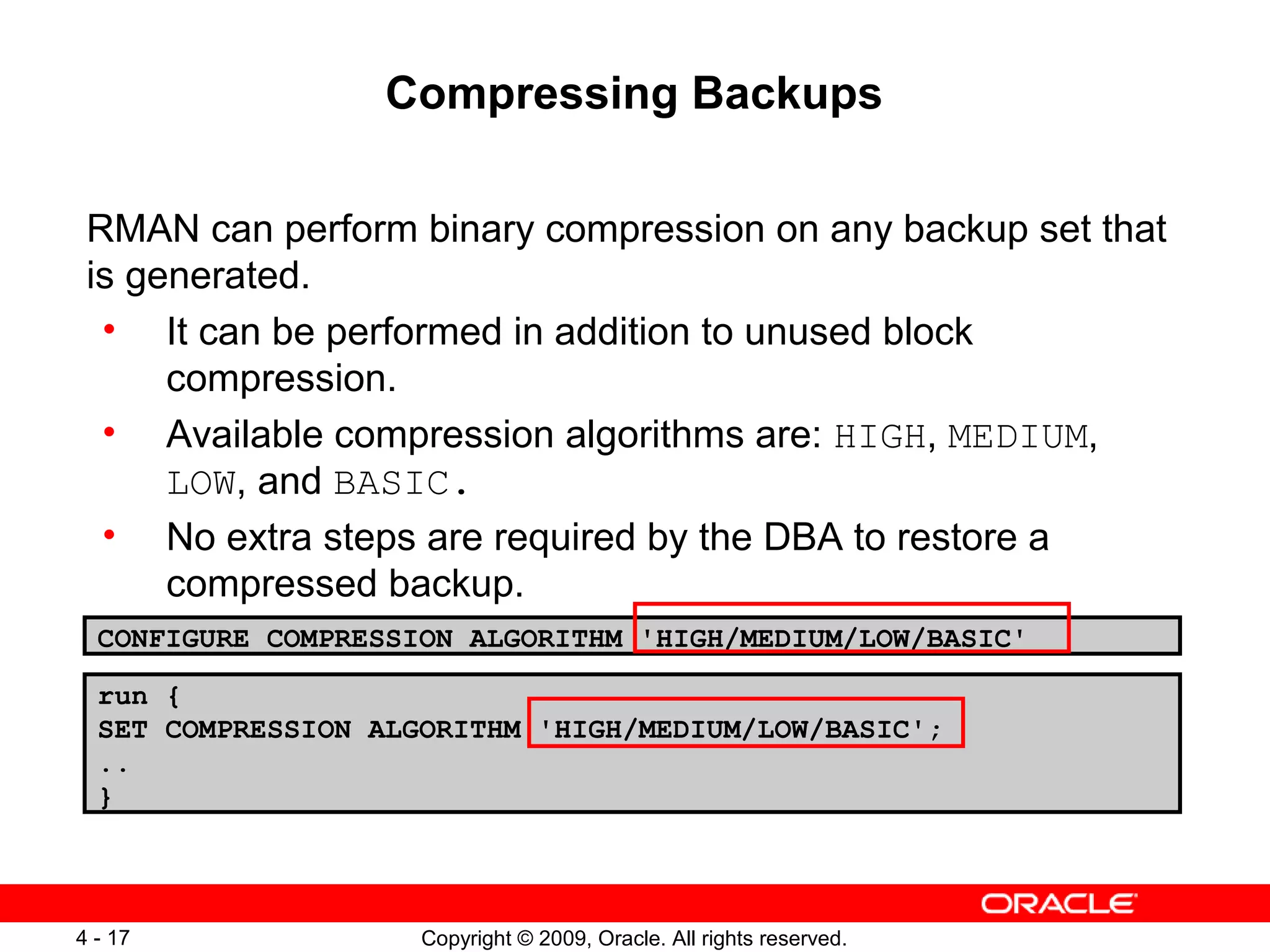
Compressing Backups
RMAN can perform binary compression on any backup set that
is generated.
• It can be performed in addition to unused block
compression.
• Available compression algorithms are: HIGH, MEDIUM,
LOW, and BASIC.
• No extra steps are required by the DBA to restore a
compressed backup.
CONFIGURE COMPRESSION ALGORITHM 'HIGH/MEDIUM/LOW/BASIC'
run {
SET COMPRESSION ALGORITHM 'HIGH/MEDIUM/LOW/BASIC';
..
}
Copyright © 2009, Oracle. All rights reserved.4 - 18
Using RMAN Backup Compression
Compression
Ratio or Level
Considerations Requires Advanced
Compression Option
LOW Fastest. Best suited to address
backup: CPU resources
MEDIUM Fast. Good balance of CPU
usage and compression ratio
HIGH Best compression ratio at the
expense of high CPU
consumption. Best suited to
address backup constraint:
network.
BASIC Fair. Compression ratio similar to
MEDIUM at expense of
additional CPU usage.
Compression ratio between
MEDIUM and HIGH
Copyright © 2009, Oracle. All rights reserved.4 - 19
Encrypting Backups
Password: **********
• Transparent encryption: With a wallet (default)
• Password encryption: With a password (no wallet)
• Dual mode encryption:
– Has both transparent and password encryption modes
– Can be restored in either transparent or password mode
Copyright © 2009, Oracle. All rights reserved.4 - 20
Quiz
How can you examine the persistent RMAN settings for a
database? Select all true answers:
1. Connected only to the target, you enter SHOW ALL at the
RMAN prompt.
2. In a SQL*Plus session, you use the SHOW RMAN
CONFIGURATION command.
3. Connected only to the recovery catalog, you enter SHOW
ALL at the RMAN prompt.
4. Logged in to the target database instance, you query the
V$RMAN_CONFIGURATION view.
Copyright © 2009, Oracle. All rights reserved.4 - 21
Quiz
Select the true statements about RMAN backup functionality:
1. Backup FORCE overrides the backup optimization and
backs up all files, whether they have changed or not.
2. Persistent RMAN settings can only be used for one-time
backups.
3. Parallelism is the number of possible streams of data to
and from a backup device .
Copyright © 2009, Oracle. All rights reserved.4 - 22
Summary
In this lesson, you should have learned how to:
• Use Enterprise Manager to configure backup settings
• Enable control file autobackup
• Configure backup destinations
• Allocate channels for tape destination
• Configure backup optimization
• Create a compressed backup
• Create an encrypted backup
Copyright © 2009, Oracle. All rights reserved.4 - 23
Practice 4 Overview:
Configuring Backup Specifications
This practice covers the following topics:
• Configuring RMAN persistent settings
• Configuring autobackup for control file

Les 04 config_bu

  • 1.
    4 Copyright © 2009,Oracle. All rights reserved. Configuring Backup Settings
  • 2.
    Copyright © 2009,Oracle. All rights reserved.4 - 2 Objectives After completing this lesson, you should be able to: • Use Enterprise Manager to configure backup settings • Enable control file autobackup • Configure backup destinations • Allocate channels for tape destination • Configure backup optimization • Create a compressed backup • Create an encrypted backup
  • 3.
    Copyright © 2009,Oracle. All rights reserved.4 - 3 Configuring Persistent Settings for RMAN • RMAN is preset with default configuration settings. • Use the CONFIGURE command to: – Configure automatic channels – Specify the backup retention policy – Specify the number of backup copies to be created – Set the default backup type to BACKUPSET or COPY – Limit the size of backup pieces – Exempt a tablespace from backup – Enable and disable backup optimization – Configure automatic backups of control files – Define the archivelog deletion policy – Specify the parallelism for a device – Set the encryption and compression parameters to be used for backups
  • 4.
    Copyright © 2009,Oracle. All rights reserved.4 - 4 Viewing Persistent Settings To examine the persistent RMAN settings for a database: • Connected only to the target, you enter SHOW ALL at the RMAN prompt. Or: • Logged in to the target database instance, you query the V$RMAN_CONFIGURATION view.
  • 5.
    Copyright © 2009,Oracle. All rights reserved.4 - 5 Control File Autobackups RMAN> CONFIGURE CONTROLFILE AUTOBACKUP ON; Best Practice Tip: Oracle recommends that you enable control file autobackup.
  • 6.
    Copyright © 2009,Oracle. All rights reserved.4 - 7 Managing Persistent Settings • Use multiple streams of data to and from a device: • Use the SHOW command to list current settings: • Use the CLEAR option of the CONFIGURE command to reset any persistent setting to its default value: RMAN> SHOW CONTROLFILE AUTOBACKUP FORMAT; RMAN> SHOW EXCLUDE; RMAN> SHOW ALL; RMAN> CONFIGURE BACKUP OPTIMIZATION CLEAR; RMAN> CONFIGURE MAXSETSIZE CLEAR; RMAN> CONFIGURE DEFAULT DEVICE TYPE CLEAR; RMAN> CONFIGURE DEVICE TYPE sbt PARALLELISM 3;
  • 7.
    Copyright © 2009,Oracle. All rights reserved.4 - 8 Using a Media Manager Recovery Manager Media management server software Media Management Library Server session (channel) Oracle Secure Backup with built-in MML Or
  • 8.
    Copyright © 2009,Oracle. All rights reserved.4 - 10 Specifying a Backup Destination Backups can be written to: • Disk directory • Tape, using Oracle Secure Backup • Media Management Library – Tape – Disk or tape, using proxy copy • Fast Recovery Area: Disk area set aside for backup and recovery and flashback database purposes – Define the location and the size. – Files are automatically retained and deleted as necessary. RMAN> CONFIGURE DEFAULT DEVICE TYPE TO TAPE; RMAN> CONFIGURE DEFAULT DEVICE TYPE TO DISK;
  • 9.
    Copyright © 2009,Oracle. All rights reserved.4 - 11 Configuring and Allocating Channels • Configure automatic channels with the CONFIGURE command: • Allocate channels manually with the ALLOCATE CHANNEL command within a RUN block: RMAN> CONFIGURE DEVICE TYPE sbt; RMAN> CONFIGURE DEFAULT DEVICE TYPE TO sbt; RMAN> CONFIGURE CHANNEL DEVICE TYPE sbt ... RMAN> BACKUP DATABASE; RMAN> RUN { ALLOCATE CHANNEL ch1 DEVICE TYPE DISK; BACKUP DATABASE PLUS ARCHIVELOG; }
  • 10.
    Copyright © 2009,Oracle. All rights reserved.4 - 12 Creating Duplexed Backup Sets To create a duplexed backup set, use: • CONFIGURE ... BACKUP COPIES • BACKUP...COPIES Backup set copy 1 Data file 1 Data file 2 Data file 3 Data file 1 Data file 2 Data file 3 Tablespace HR_DATA Backup set copy 2 Data file 1 Data file 2 Data file 3
  • 11.
    Copyright © 2009,Oracle. All rights reserved.4 - 13 Creating Duplexed Backup Sets Using CONFIGURE BACKUP COPIES RMAN> CONFIGURE ARCHIVELOG BACKUP COPIES 2> FOR DEVICE TYPE sbt TO 2; RMAN> CONFIGURE DATAFILE BACKUP COPIES 2> FOR DEVICE TYPE sbt TO 2; RMAN> BACKUP DATABASE PLUS ARCHIVELOG; RMAN> BACKUP DEVICE TYPE DISK AS COPY DATABASE; Two copies of the backup are made to two different tapes. Not affected by the COPIES configuration setting. Only one copy is made on disk.
  • 12.
    Copyright © 2009,Oracle. All rights reserved.4 - 14 Backup Optimization • Skips already backed-up files • Is used when: – Backup optimization is enabled – BACKUP DATABASE, BACKUP ARCHIVELOG with ALL or LIKE options, or BACKUP BACKUPSET ALL commands are executed – Only one type of channel is allocated • Can be overridden with the FORCE option • Is always used for RECOVERY AREA, DB_RECOVERY_FILE_DEST, and RECOVERY FILES backup options RMAN> BACKUP DEVICE TYPE sbt BACKUPSET ALL FORCE; RMAN> CONFIGURE BACKUP OPTIMIZATION ON;
  • 13.
    Copyright © 2009,Oracle. All rights reserved.4 - 16 Saving Backup Space with Unused Block Compression HWM Unallocated Allocated Unused Data file The following blocks may be skipped during certain types of backup operations: • Unallocated blocks: These are above the data file’s high- water mark (HWM). • Unused blocks: These are blocks that have been allocated but no longer belong to a segment.
  • 14.
    Copyright © 2009,Oracle. All rights reserved.4 - 17 Compressing Backups RMAN can perform binary compression on any backup set that is generated. • It can be performed in addition to unused block compression. • Available compression algorithms are: HIGH, MEDIUM, LOW, and BASIC. • No extra steps are required by the DBA to restore a compressed backup. CONFIGURE COMPRESSION ALGORITHM 'HIGH/MEDIUM/LOW/BASIC' run { SET COMPRESSION ALGORITHM 'HIGH/MEDIUM/LOW/BASIC'; .. }
  • 15.
    Copyright © 2009,Oracle. All rights reserved.4 - 18 Using RMAN Backup Compression Compression Ratio or Level Considerations Requires Advanced Compression Option LOW Fastest. Best suited to address backup: CPU resources MEDIUM Fast. Good balance of CPU usage and compression ratio HIGH Best compression ratio at the expense of high CPU consumption. Best suited to address backup constraint: network. BASIC Fair. Compression ratio similar to MEDIUM at expense of additional CPU usage. Compression ratio between MEDIUM and HIGH
  • 16.
    Copyright © 2009,Oracle. All rights reserved.4 - 19 Encrypting Backups Password: ********** • Transparent encryption: With a wallet (default) • Password encryption: With a password (no wallet) • Dual mode encryption: – Has both transparent and password encryption modes – Can be restored in either transparent or password mode
  • 17.
    Copyright © 2009,Oracle. All rights reserved.4 - 20 Quiz How can you examine the persistent RMAN settings for a database? Select all true answers: 1. Connected only to the target, you enter SHOW ALL at the RMAN prompt. 2. In a SQL*Plus session, you use the SHOW RMAN CONFIGURATION command. 3. Connected only to the recovery catalog, you enter SHOW ALL at the RMAN prompt. 4. Logged in to the target database instance, you query the V$RMAN_CONFIGURATION view.
  • 18.
    Copyright © 2009,Oracle. All rights reserved.4 - 21 Quiz Select the true statements about RMAN backup functionality: 1. Backup FORCE overrides the backup optimization and backs up all files, whether they have changed or not. 2. Persistent RMAN settings can only be used for one-time backups. 3. Parallelism is the number of possible streams of data to and from a backup device .
  • 19.
    Copyright © 2009,Oracle. All rights reserved.4 - 22 Summary In this lesson, you should have learned how to: • Use Enterprise Manager to configure backup settings • Enable control file autobackup • Configure backup destinations • Allocate channels for tape destination • Configure backup optimization • Create a compressed backup • Create an encrypted backup
  • 20.
    Copyright © 2009,Oracle. All rights reserved.4 - 23 Practice 4 Overview: Configuring Backup Specifications This practice covers the following topics: • Configuring RMAN persistent settings • Configuring autobackup for control file

Editor's Notes

  • #3 Oracle Database 11g: Administration Workshop II 4 - <number>
  • #4 Configuring Persistent Settings for RMAN To simplify ongoing use of RMAN for backup and recovery, RMAN enables you to set several persistent configuration settings for each target database. These settings control many aspects of RMAN’s behavior. You can save persistent configuration information such as channel parameters, parallelism, and the default device type in the RMAN repository. These configuration settings are always stored in the control file and in the recovery catalog database (if it exists). These settings have default values, which allow you to use RMAN immediately. However, as you develop a more advanced backup and recovery strategy, you may have to change these settings to implement that strategy. You can use the CONFIGURE command to configure persistent settings for RMAN backup, restore, duplication, and maintenance jobs. These settings are in effect for any RMAN session until the configuration is cleared or changed. Note: The configuration settings can be changed in an RMAN job (or session) just for the duration of the job (or session) with the SET command. EM Note: The same is true for using RMAN via the Enterprise Manager interface. The backup settings provide the default settings for all backups taken. When creating a backup, some of these settings can be overridden for that specific backup.
  • #5 Viewing Persistent Settings You can view RMAN persistent settings, when you are connected to the target and enter the SHOW ALL command, or when you are logged in to SQL*Plus and query the V$RMAN_CONFIGURATION view. Example: SQL> select * from V$RMAN_CONFIGURATION 2 / CONF# NAME VALUE ------ ---------------------- -------------------------------- 1 CONTROLFILE AUTOBACKUP ON 2 CHANNEL DEVICE TYPE 'SBT_TAPE' PARMS 'SBT_LIBRARY=oracle.disksbt,ENV=(BACKUP_DIR=/tape) '
  • #6 Control File Autobackups You can use Oracle Enterprise Manager to specify the backup settings for an instance. From the Database Home page, navigate to Availability > Backup Settings. To easily recover from the loss of all control file copies, you should configure RMAN to take automatic backups of the control file. The automatic backup of the control file occurs independently of any backup of the current control file explicitly requested as part of your backup command. If you are running RMAN in NOCATALOG mode, it is highly recommended that you activate control file autobackup. Otherwise, if you lose your control file, your database may be unrecoverable. To configure control file autobackup, modify the backup policy for your database by using Enterprise Manager or use the following RMAN command: CONFIGURE CONTROLFILE AUTOBACKUP ON; By default, control file autobackups are disabled. If you enable control file autobackups, then RMAN automatically backs up the control file and the current server parameter file (if used to start up the database) under the following circumstances: At the end of a run script When a successful backup is recorded in the RMAN repository When a structural change of the database occurs the Oracle kernel itself makes the backup (for example, after DDL operations that affect the content of the control file)
  • #7 Control File Autobackups (continued) The control file autobackup file name has a default format of %F for all device types, so that RMAN can infer the file location and restore it without a repository. This variable format translates into c-IIIIIIIIII-YYYYMMDD-QQ, where: IIIIIIIIII stands for the DBID YYYYMMDD is a time stamp of the day the backup is generated QQ is the hex sequence that starts with 00 and has a maximum of FF You can change the default format by using the CONFIGURE CONTROLFILE AUTOBACKUP FORMAT FOR DEVICE TYPE type TO 'string' command. The value of string must contain the substitution variable %F and cannot contain other substitution variables. For example: CONFIGURE CONTROLFILE AUTOBACKUP FORMAT FOR DEVICE TYPE DISK TO '/u01/oradata/cf_ORCL_auto_%F'; Control file autobackups are stored in the Flash Recovery Area, unless otherwise specified. With a control file autobackup, RMAN can recover the database even if the current control file, recovery catalog, and server parameter file are inaccessible. Because the path used to store the autobackup follows a well-known format, RMAN can search for and restore the server parameter file or control file from that autobackup.
  • #8 Managing Persistent Settings Parallelism is the number of streams of data that can be used to read from and write to the device. This effectively causes that number of channels to be allocated when the device is used by RMAN. For example, if a media manager has two tape drives available, then parallelism 2 would allow both tape drives to be used simultaneously for BACKUP commands using that media manager. Parallelism for the disk device type is also useful, when you want to spread out a backup over multiple disks. Specify the parallelism to be used on the device using the PARALLELISM clause, like this: CONFIGURE DEVICE TYPE <device> PARALLELISM <n> where <n> is the parallelism value. Using the RMAN SHOW command, you can view the RMAN configuration settings. If SHOW ALL is executed when connected to a target database, only node-specific configurations and database configurations are displayed. You can return to the default value for any CONFIGURE command by executing the same command with the CLEAR option.
  • #9 Oracle Database 11g: Administration Workshop II 4 - <number> Using a Media Manager To use tape storage for your database backups, RMAN requires Oracle Secure Backup or a media manager. A media manager is a utility that loads, labels, and unloads sequential media (such as tape drives) for the purpose of backing up, restoring, and recovering data. The Oracle database server calls Media Management Library (MML) software routines to back up and restore data files to and from media that is controlled by the media manager. Note that the Oracle database server does not need to connect to the MML software when it backs up to disk. Oracle Backup Solutions Program (BSP) provides a range of media management products that are compliant with Oracle’s MML specification. Software that is compliant with the MML interface enables an Oracle database session to back up data to a media manager and request the media manager to restore backups. Check with your media vendor to determine whether it is a member of Oracle BSP. Before you can begin using RMAN with a media manager, you must install the media manager software and make sure that RMAN can communicate with it. Instructions for this procedure should be available in the media manager vendor’s software documentation.
  • #10 Oracle Database 11g: Administration Workshop II 4 - <number> Using a Media Manager (continued) Depending on the product that you are installing, perform the following basic steps: 1.Install and configure the media management software on the target host or production network. No RMAN integration is required at this stage. 2.Ensure that you can make non-RMAN backups of operating system files on the target database host. This step makes it easier to troubleshoot problems at a later time. Refer to your media management documentation to learn how to back up files to the media manager. 3.Obtain and install the third-party media management module for integration with the Oracle database. This module must contain the library loaded by the Oracle database server when accessing the media manager. Backup and Restore Operations Using a Media Manager The following Recovery Manager script performs a data file backup to a tape drive controlled by a media manager: run { # Allocating a channel of type 'sbt' for serial device ALLOCATE CHANNEL ch1 DEVICE TYPE sbt; BACKUP DATAFILE 3; } When Recovery Manager executes this command, it sends the backup request to the Oracle database session performing the backup. The Oracle database session identifies the output channel as a media management device and requests the media manager to load a tape and write the output. The media manager labels and keeps track of the tape and the names of the files on each tape. The media manager also handles restore operations. When you restore a file, the following steps occur: 1.The Oracle database server requests the restoration of a particular file. 2.The media manager identifies the tape containing the file and reads the tape. 3.The media manager passes the information back to the Oracle database session. 4.The Oracle database server writes the file to disk.
  • #11 Oracle Database 11g: Administration Workshop II 4 - <number> Specifying a Backup Destination Backups can be written to a designated disk directory, a media management library (MML), or the Fast Recovery Area. Specifying a disk directory or the Fast Recovery Area means that backups go to hard-disk media. Typically, backups are regularly moved offline to tape via the media management interface in order to maintain disk space availability. Any disk directory can be specified as the destination of a backup provided that it already exists. A media management library can be used to copy files to tape devices, or to carry out proxy copies. A proxy copy is where the MML is requested to make a copy of a file to a disk or tape device. The MML must be able to provide the proxy copy service for this to work. If you set up a Fast Recovery Area, many backup and recovery tasks are simplified for you. The Oracle database automatically names files for you, and deletes obsolete files when there is space pressure. To specify that backups are to be written to disk, use the first command in the slide. Subsequently, when backups are made, if the FORMAT keyword is used (that specifies a disk directory location for the backup), then the backup is written there. If there is a Fast Recovery Area configured, then it goes there; otherwise, backups are written to a platform-specific default location. To specify that a tape device is to be used, use the second command in the slide. Note: See the Oracle Secure Backup Administrator’s Guide for more information about Oracle Secure Backup.
  • #12 Configuring and Allocating Channels Choose from the following options for configuring channels and executing backups: Configure automatic channels with the CONFIGURE command, and then issue the BACKUP command at the RMAN prompt or within a RUN block. Manually allocate channels with the ALLOCATE CHANNEL command within a RUN block, and then issue BACKUP commands.
  • #13 Oracle Database 11g: Administration Workshop II 4 - <number> Creating Duplexed Backup Sets RMAN can make up to four copies of a backup set simultaneously, each an exact duplicate of the others. A copy of a backup set is a copy of each backup piece in the backup set, with each copy getting a unique copy number (for example, 0tcm8u2s_1_1 and 0tcm8u2s_1_2). In most cases, the easiest method of duplexing backup sets is to use BACKUP...COPIES or CONFIGURE ... BACKUP COPIES to duplex backup sets. For DISK channels, specify multiple values in the FORMAT option to direct the multiple copies to different physical disks. For sbt channels, if you use a media manager that supports Version 2 of the SBT API, then the media manager automatically puts each copy onto a separate medium (for example, a separate tape). Note: The System Backup to Tape (SBT) API is the interface defined for Media Management Library (MML) developers, so that they can provide MMLs that communicate with RMAN. Note that it is not possible to duplex backup sets to the Fast Recovery Area, and that duplexing applies only to backup sets, not image copies. You receive an error if you specify the BACKUP... COPIES option when creating image copy backups. The CONFIGURE...BACKUP COPIES setting is ignored for image copy backups. Duplexed backup sets are typically used for tape backups.
  • #14 Oracle Database 11g: Administration Workshop II 4 - <number> Creating Duplexed Backup Sets Using CONFIGURE BACKUP COPIES Use the CONFIGURE ... BACKUP COPIES command to specify the number of identical backup sets that you want to create on the specified device type. This setting applies to all backups except control file autobackups (because the autobackup of a control file always produces one copy) and backup sets when backed up with the BACKUP BACKUPSET command. Note: You must have automatic channels configured. To create a duplexed backup set with CONFIGURE BACKUP COPIES, perform the following steps: 1.Configure the number of copies on the desired device type for data files and archived redo log files. 2.Execute the BACKUP command. 3.Issue a LIST BACKUP command to verify your backup. Note: The last BACKUP command is not affected by the COPIES configuration setting. It creates a single copy to disk.
  • #15 Backup Optimization If you enable backup optimization, the BACKUP command skips files when the identical files have already been backed up to the specified device type. If RMAN determines that a file is identical and it has already been backed up, it is a candidate to be skipped. However, RMAN performs further checking to determine whether to skip the file, because both the retention policy and the backup duplexing feature are factors in the algorithm that RMAN uses to determine whether there are sufficient backups on the specified device type. Refer to the Oracle Database Backup and Recovery User’s Guide for detailed information about the criteria that RMAN uses to determine whether a file is identical and the backup optimization algorithm. You can enable backup optimization on the Backup Settings page in Enterprise Manager or by issuing the CONFIGURE BACKUP OPTIMIZATION ON command. By default, backup optimization is disabled. Backup optimization is automatically enabled for the BACKUP RECOVERY AREA | DB_RECOVERY_FILE_DEST and BACKUP RECOVERY FILES commands.
  • #16 Oracle Database 11g: Administration Workshop II 4 - <number> Configuring Backup Optimization (continued) To override backup optimization and back up all files whether or not they have changed, specify the FORCE option on the BACKUP command as in the following example: BACKUP DEVICE TYPE sbt BACKUPSET ALL FORCE; Note that the FORCE option does not apply to files in the recovery area. You can disable backup optimization on a persistent basis using Enterprise Manager or by issuing the following command: CONFIGURE BACKUP OPTIMIZATION OFF;
  • #17 Oracle Database 11g: Administration Workshop II 4 - <number> Saving Backup Space with Unused Block Compression When certain types of backups occur, RMAN is able to skip some blocks. Unallocated blocks may be skipped. They are those that have not been allocated; they are above the HWM. Also, some allocated blocks that no longer belong to a segment (are not in use) may be skipped, provided the following are true: There are no guaranteed restore points defined. The data file contains data only for locally managed tablespaces. The data file is being backed up to a backup set as part of a full backup or a level 0 incremental. The backup is going to disk or Oracle Secure Backup is the media manager.
  • #18 Compressing Backups Undo data that is not needed for transaction recovery (for example, for committed transactions), is not backed up. The benefit is reduced overall backup time and storage by not backing up undo that applies to committed transactions. This optimization is automatically enabled. While unused block compression decreases the number of blocks that are written to the backup (and the backup time), binary compression can be used to algorithmically compact the data that is written. The available compression algorithms are HIGH, MEDIUM, LOW, and BASIC. If you specify it for a specific backup device, then use the COMPRESSED keyword after the BACKUP TYPE TO clause. You do not have to perform any additional steps when restoring a compressed backup. Note, however, that compression and decompression operations require CPU resources. So both creating and restoring a compressed backup will, of course, probably take longer and require more system resources. When choosing an algorithm, consider your disk space in addition to dynamic system resources such as CPU and memory.
  • #19 Oracle Database 11g: Administration Workshop II 4 - <number> Using RMAN Backup Compression Binary compression of backup sets is supported with the algorithm settings as shown in the slide. All modes except BASIC require the Oracle Advanced Compression Database option. Because the performance of the various compression levels depends on the nature of the data in the database, network configuration, system resources, and the type of your computer system and its capabilities, Oracle Corporation cannot document universally applicable performance statistics. To decide which level is best for you, consider how balanced your system is regarding bandwidth into the CPU, as well as the actual speed of the CPU. It is highly recommended that you run tests with the different compression levels on the data in your environment. Choosing a compression level based on your own environment, network traffic (workload), and dataset is the only way to ensure that the backup set compression level can satisfy your organization's performance requirements and any applicable service-level agreements. The following level or compression ratios are available: LOW: This level is the fastest. It provides less compression than MEDIUM, but uses the least CPU. (It corresponds to the LZO compression.) MEDIUM: This level provides a good balance of CPU usage and compression ratio. (It corresponds to the ZLIB compression.) HIGH: This level provides the best compression ratio, but consumes the most CPU. (It corresponds to the GZIP compression.) BASIC: This corresponds to BZIP2 (10g style compression).
  • #20 Encrypting Backups You can encrypt backups in one of three ways: Transparent encryption: This method uses a wallet, and it is the default mode. Password encryption: This method of encryption relies on a password. There is no need to configure a wallet. You must know the password that was used for the backup in order to restore. Dual mode encryption: Both transparent and password encryption are used. In order to restore, either the transparent mode or the password mode can be used. This type of encryption is useful if you usually restore your backups to the local site, but sometimes ship the backups to other sites. Encrypting backups is covered in detail in the Oracle Database 11g: Security course.
  • #21 Answer: 1, 4
  • #22 Answer: 1, 3
  • #23 Oracle Database 11g: Administration Workshop II 4 - <number>
  • #24 Oracle Database 11g: Administration Workshop II 4 - <number> Configuring Backup Specifications Practice Tip: Because the output of the RMAN commands can be quite long, consider using the RMAN SPOOL LOG command to direct the output to your specified file. Example RMAN> SPOOL LOG TO '/home/oracle/labs/my_lab_output.txt';