Learning Management
Systems –
Online Education
Brian Pichman | Evolve Project
Learning Management Systems
Online Education
• Schools and universities around the world are teaching today's future leaders
through online classroom environments. They utilize a tool called a Learning
Management System to track student progress and performance throughout the
course. In today's shifting landscape, many companies are adopting the same
approach to train and ensure their team is up to date with processes and
procedures. At the same time, they are developing content to teach their employees
skills. Join Brian Pichman of the Evolve Project as he navigates you through what
an LMS is and how it can be applied to train library staff (and even patrons). Learn
how you can create a strategy to create a robust learning environment to help your
staff to help them learn and grow.
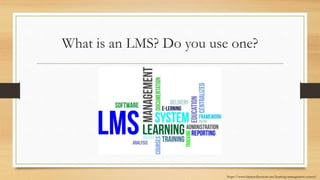
What is an LMS? Do you use one?
https://www.hrpayrollsystems.net/learning-management-system/
What is an LMS?
• Learning
• Delivers educational courses and resources
• Management
• Helps organize, report, and store information
• System
• Software program that creates, manages, and delivers “eLearning”
Use Cases
• Employee or User Orientation
(On-Boarding)
• Employee Training or Refresher
Training
• Knowledge Retention
• Schools/Universities/Colleges for
Education
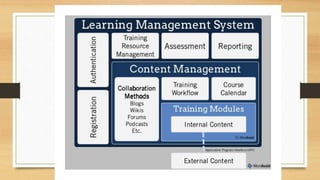
Core Components
• Logins / Registration
• Hosting of content (Web Pages, PDFs, PowerPoints, Videos, etc)
• This can be restricted based on user / login / enrolled course
• Delivery of this content to those specific individuals quickly and easily
• Reporting / Track Learning Progress
• Report access of content, assessment scores, ensure user participation
• Communication (email, chat, discussions)
• Assignments/Submissions
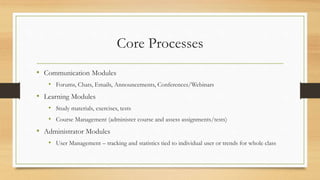
Core Processes
• Communication Modules
• Forums, Chats, Emails, Announcements, Conferences/Webinars
• Learning Modules
• Study materials, exercises, tests
• Course Management (administer course and assess assignments/tests)
• Administrator Modules
• User Management – tracking and statistics tied to individual user or trends for whole class
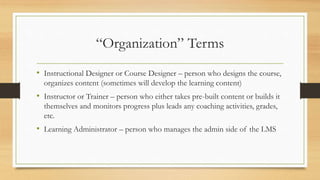
“Organization” Terms
• Instructional Designer or Course Designer – person who designs the course,
organizes content (sometimes will develop the learning content)
• Instructor or Trainer – person who either takes pre-built content or builds it
themselves and monitors progress plus leads any coaching activities, grades,
etc.
• Learning Administrator – person who manages the admin side of the LMS
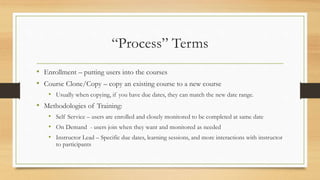
“Process” Terms
• Enrollment – putting users into the courses
• Course Clone/Copy – copy an existing course to a new course
• Usually when copying, if you have due dates, they can match the new date range.
• Methodologies of Training:
• Self Service – users are enrolled and closely monitored to be completed at same date
• On Demand - users join when they want and monitored as needed
• Instructor Lead – Specific due dates, learning sessions, and more interactions with instructor
to participants
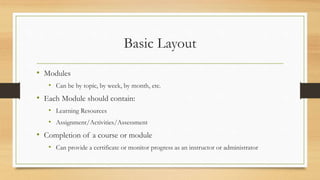
Basic Layout
• Modules
• Can be by topic, by week, by month, etc.
• Each Module should contain:
• Learning Resources
• Assignment/Activities/Assessment
• Completion of a course or module
• Can provide a certificate or monitor progress as an instructor or administrator
Learning Resources
• Study Guides such as PDFs
• Reading Materials
• PowerPoints that highlight information
• Recorded Lectures or Videos
• Plugins to 3rd Party Sites that provide some level of training and report back
scores/status
Assignment/Activities/Assessments
• Submission of documents (Paper, Presentation, Videos, etc)
• Discussion Boards for group collaboration or communication
• Announcements posted by instructor (usually for a “call to action”)
• Other Social Learning Activities: Wikis, Blogs, Podcasts, Journals, Surveys
which allow for more peer-review
Plugins / Add-Ons
• Synchronous e-learning or virtual classrooms
• WebEx, Adobe Connect, Blackboard Collaborate
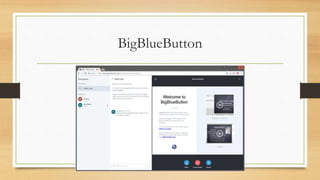
• Free and Open Source: BigBlueButton
• Authoring / Plagiarism Checker
• TurnItIn, Vericite
• Extended Platforms
• Voicethread, APIs into McGrawHill, Pearson, etc,
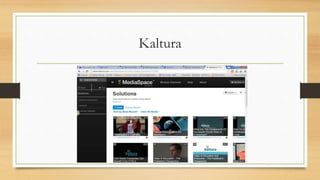
• Free and Open Source: Kaltura
• Proctoring Tools
• Remote Proctor, Respondus
BigBlueButton
Kaltura
Why use an LMS?
• Increase Productivity
• Can be done during downtime
• Real-time access
• Always* available
• Standardization of Material + Single
Site for Resources
• Deliver training in a clear and consistent
manner
• Encouragement of Sharing and
Collaboration
• Decrease in costs of Training
• Rinse and repeat
• Tracking and Trending
• Monitor people’s progress and skillset
for core work functions, promotion
opportunities, and core competencies
overall for the team.
LMS Benefits Based on Goal
• Competency Management –
• Identify core skills for each position,
and coach and train to it.
• Phone System
• Putting Book Into System
• Circulation Process
• Soft Skills
• Diversity Training, Communication
Strategies, etc.
• Role Management
• Define roles and responsibilities and
have modules to teach those.
• Leadership Training
• Career Paths
• Teach the job before they get it
• Maturity Model
• What should their skill set be by X time
employed
Rolling out Access to Modules
• All Open At Once
• This is usually the default.
Users enter the course
and see everything they
need.
• This allows for the most
independent way of
learning without the need
of continued involvement
of instructors.
• Adaptive Release
• This means the next section, module, or even
reading/assignment is available until the user does or
completes something. Examples:
• Open the Reading Link, to get access to later get access to
a new Reading Link or PDF File
• Score an 80% or higher to get to the next assessment or
next module
• Upload an assignment to continue OR can’t continue the
instructor grades the assignment.
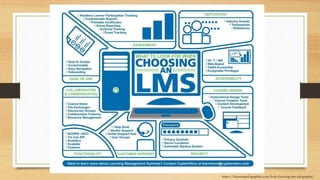
https://elearninginfographics.com/look-choosing-lms-infographic/
LMS Options
• Hosted (SaaS)
• Self-Hosted (licensed)
• Open Source
• Usually self hosted
*SCORM complaint (meaning it can be
used in other platforms) shareable
content object reference model
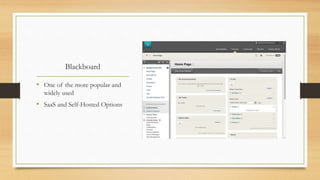
Blackboard
• One of the more popular and
widely used
• SaaS and Self-Hosted Options
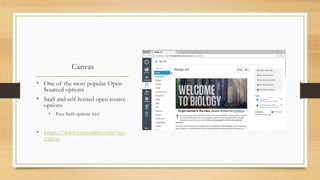
Canvas
• One of the most popular Open-
Sourced options
• SaaS and self-hosted open source
options
• Free SaaS options too!
• https://www.canvaslms.com/try-
canvas
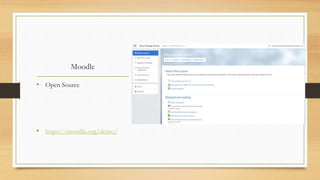
Moodle
• Open Source
• https://moodle.org/demo/
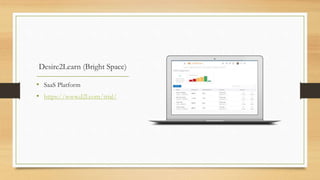
Desire2Learn (Bright Space)
• SaaS Platform
• https://www.d2l.com/trial/
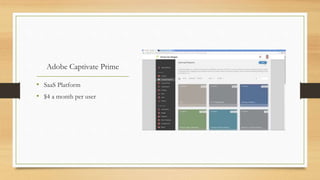
Adobe Captivate Prime
• SaaS Platform
• $4 a month per user
Setting Up A LMS For Your Staff
• Communication on Benefits
• Training Opportunities
• Promotion Support
• Survey “What do you want to learn more about”
• Create Learning Buckets
• Which organizational group complete which functions?
• Do you have existing training now?
On-Demand and Refresher Training
• On-Demand
• Build require on-boarding training for new employees and for each position.
• Divide your work buckets into 6 or 12 containers (so refresh every six months or
twelve months)
• Have a mix of customer service centric based training, technical job function training, and
process based job training.
• Require due dates (end of each month) and assessment on everything trained. If
you do a one-off training for a new phone system, have the training available within
your LMS and require everyone to complete the assessment.
Data is Only Good If You Act On It
• If the group fails an assessment
• Was the training not sufficient?
• If a person fails – how much time did they spend looking at the content? Did they actually
absorb the information or sped through it?
• Do they continually fail (bad performer)
• What should you do if someone fails?
• Retake? Take a test with more questions after reviewing the content in full again? Do an in person
session, and then take a full test?
• Make test scores part of the annual performance review. High performers will be easier to
identify and tie to promotional opportunities.
Ideal Processes for Best Outcomes
• Build test banks consisting of at least 20 questions.
• Define a failure as less than 80%.
• Everything should be due by the end of the month. No exceptions. If they don’t, its an assumed failure.
• Each refresher should include at least 10 questions – pulling randomly from the test bank.
• Give people two chances to take and pass the test. Don’t show answers if they fail, but show what they got wrong.
• When they take it a second time, they will be presented with some different questions. Ensures they re-studied.
• If they fail, they must take either an in-person training or self-driven training and then complete the assessment
with the full test bank.
• If they fail multiple tests within a month – warning. If they fail multiple tests over multiple months – corrective
action.
Patrons
• Use of Makerspaces
• Build a course with training content and partner with an in-person training. The
assessment could be based for safety, understanding of the technology, and acting as a
owner. This helps validate “they know and accept the rules and responsibilities of use”
• Continued Education
• Build courses for job aids, how to use XYZ, etc. This will allow less staff involvement
unless a hands-on need is identified. It can also open doors for people who are
uncomfortable asking for help and this gives them an opportunity to learn
independently.
Test Drive Canvas
• My recommended LMS
• https://canvas.instructure.com/courses/1346850
Extra Resources
• LMS White Paper: Leverage your LMS to Predict Success and Persistence
• http://ns.eab.com/leveraging-your-lms?WT.ac=GrayboxA_SSCC_CG-
Whitepaper_DataManagement_LMS_x_2018Q1_x_DirectWeb
• Choosing an LMS (slightly outdated, but a good benchmark)
• https://www.elearninglist.com/whitepapers/1269AGuidetoChoosingtheRightLMSforY
ourOrganization-byOxagile.pdf
• Project Plan for LMS Migration (long but really well detailed)
• https://it.umn.edu/sites/it.umn.edu/files/umnlmsreview.docx.pdf
Questions?
• Brian Pichman
• Twitter: @Bpichman
• Email: bpichman@evolveproject.org

Learning Management Systems - Online Education

  • 1.
    Learning Management Systems – OnlineEducation Brian Pichman | Evolve Project
  • 2.
    Learning Management Systems OnlineEducation • Schools and universities around the world are teaching today's future leaders through online classroom environments. They utilize a tool called a Learning Management System to track student progress and performance throughout the course. In today's shifting landscape, many companies are adopting the same approach to train and ensure their team is up to date with processes and procedures. At the same time, they are developing content to teach their employees skills. Join Brian Pichman of the Evolve Project as he navigates you through what an LMS is and how it can be applied to train library staff (and even patrons). Learn how you can create a strategy to create a robust learning environment to help your staff to help them learn and grow.
  • 3.
    What is anLMS? Do you use one? https://www.hrpayrollsystems.net/learning-management-system/
  • 4.
    What is anLMS? • Learning • Delivers educational courses and resources • Management • Helps organize, report, and store information • System • Software program that creates, manages, and delivers “eLearning”
  • 5.
    Use Cases • Employeeor User Orientation (On-Boarding) • Employee Training or Refresher Training • Knowledge Retention • Schools/Universities/Colleges for Education
  • 7.
    Core Components • Logins/ Registration • Hosting of content (Web Pages, PDFs, PowerPoints, Videos, etc) • This can be restricted based on user / login / enrolled course • Delivery of this content to those specific individuals quickly and easily • Reporting / Track Learning Progress • Report access of content, assessment scores, ensure user participation • Communication (email, chat, discussions) • Assignments/Submissions
  • 8.
    Core Processes • CommunicationModules • Forums, Chats, Emails, Announcements, Conferences/Webinars • Learning Modules • Study materials, exercises, tests • Course Management (administer course and assess assignments/tests) • Administrator Modules • User Management – tracking and statistics tied to individual user or trends for whole class
  • 9.
    “Organization” Terms • InstructionalDesigner or Course Designer – person who designs the course, organizes content (sometimes will develop the learning content) • Instructor or Trainer – person who either takes pre-built content or builds it themselves and monitors progress plus leads any coaching activities, grades, etc. • Learning Administrator – person who manages the admin side of the LMS
  • 10.
    “Process” Terms • Enrollment– putting users into the courses • Course Clone/Copy – copy an existing course to a new course • Usually when copying, if you have due dates, they can match the new date range. • Methodologies of Training: • Self Service – users are enrolled and closely monitored to be completed at same date • On Demand - users join when they want and monitored as needed • Instructor Lead – Specific due dates, learning sessions, and more interactions with instructor to participants
  • 11.
    Basic Layout • Modules •Can be by topic, by week, by month, etc. • Each Module should contain: • Learning Resources • Assignment/Activities/Assessment • Completion of a course or module • Can provide a certificate or monitor progress as an instructor or administrator
  • 12.
    Learning Resources • StudyGuides such as PDFs • Reading Materials • PowerPoints that highlight information • Recorded Lectures or Videos • Plugins to 3rd Party Sites that provide some level of training and report back scores/status
  • 13.
    Assignment/Activities/Assessments • Submission ofdocuments (Paper, Presentation, Videos, etc) • Discussion Boards for group collaboration or communication • Announcements posted by instructor (usually for a “call to action”) • Other Social Learning Activities: Wikis, Blogs, Podcasts, Journals, Surveys which allow for more peer-review
  • 14.
    Plugins / Add-Ons •Synchronous e-learning or virtual classrooms • WebEx, Adobe Connect, Blackboard Collaborate • Free and Open Source: BigBlueButton • Authoring / Plagiarism Checker • TurnItIn, Vericite • Extended Platforms • Voicethread, APIs into McGrawHill, Pearson, etc, • Free and Open Source: Kaltura • Proctoring Tools • Remote Proctor, Respondus
  • 15.
  • 16.
  • 17.
    Why use anLMS? • Increase Productivity • Can be done during downtime • Real-time access • Always* available • Standardization of Material + Single Site for Resources • Deliver training in a clear and consistent manner • Encouragement of Sharing and Collaboration • Decrease in costs of Training • Rinse and repeat • Tracking and Trending • Monitor people’s progress and skillset for core work functions, promotion opportunities, and core competencies overall for the team.
  • 18.
    LMS Benefits Basedon Goal • Competency Management – • Identify core skills for each position, and coach and train to it. • Phone System • Putting Book Into System • Circulation Process • Soft Skills • Diversity Training, Communication Strategies, etc. • Role Management • Define roles and responsibilities and have modules to teach those. • Leadership Training • Career Paths • Teach the job before they get it • Maturity Model • What should their skill set be by X time employed
  • 19.
    Rolling out Accessto Modules • All Open At Once • This is usually the default. Users enter the course and see everything they need. • This allows for the most independent way of learning without the need of continued involvement of instructors. • Adaptive Release • This means the next section, module, or even reading/assignment is available until the user does or completes something. Examples: • Open the Reading Link, to get access to later get access to a new Reading Link or PDF File • Score an 80% or higher to get to the next assessment or next module • Upload an assignment to continue OR can’t continue the instructor grades the assignment.
  • 20.
  • 21.
    LMS Options • Hosted(SaaS) • Self-Hosted (licensed) • Open Source • Usually self hosted *SCORM complaint (meaning it can be used in other platforms) shareable content object reference model
  • 22.
    Blackboard • One ofthe more popular and widely used • SaaS and Self-Hosted Options
  • 23.
    Canvas • One ofthe most popular Open- Sourced options • SaaS and self-hosted open source options • Free SaaS options too! • https://www.canvaslms.com/try- canvas
  • 24.
    Moodle • Open Source •https://moodle.org/demo/
  • 25.
    Desire2Learn (Bright Space) •SaaS Platform • https://www.d2l.com/trial/
  • 26.
    Adobe Captivate Prime •SaaS Platform • $4 a month per user
  • 27.
    Setting Up ALMS For Your Staff • Communication on Benefits • Training Opportunities • Promotion Support • Survey “What do you want to learn more about” • Create Learning Buckets • Which organizational group complete which functions? • Do you have existing training now?
  • 28.
    On-Demand and RefresherTraining • On-Demand • Build require on-boarding training for new employees and for each position. • Divide your work buckets into 6 or 12 containers (so refresh every six months or twelve months) • Have a mix of customer service centric based training, technical job function training, and process based job training. • Require due dates (end of each month) and assessment on everything trained. If you do a one-off training for a new phone system, have the training available within your LMS and require everyone to complete the assessment.
  • 29.
    Data is OnlyGood If You Act On It • If the group fails an assessment • Was the training not sufficient? • If a person fails – how much time did they spend looking at the content? Did they actually absorb the information or sped through it? • Do they continually fail (bad performer) • What should you do if someone fails? • Retake? Take a test with more questions after reviewing the content in full again? Do an in person session, and then take a full test? • Make test scores part of the annual performance review. High performers will be easier to identify and tie to promotional opportunities.
  • 30.
    Ideal Processes forBest Outcomes • Build test banks consisting of at least 20 questions. • Define a failure as less than 80%. • Everything should be due by the end of the month. No exceptions. If they don’t, its an assumed failure. • Each refresher should include at least 10 questions – pulling randomly from the test bank. • Give people two chances to take and pass the test. Don’t show answers if they fail, but show what they got wrong. • When they take it a second time, they will be presented with some different questions. Ensures they re-studied. • If they fail, they must take either an in-person training or self-driven training and then complete the assessment with the full test bank. • If they fail multiple tests within a month – warning. If they fail multiple tests over multiple months – corrective action.
  • 31.
    Patrons • Use ofMakerspaces • Build a course with training content and partner with an in-person training. The assessment could be based for safety, understanding of the technology, and acting as a owner. This helps validate “they know and accept the rules and responsibilities of use” • Continued Education • Build courses for job aids, how to use XYZ, etc. This will allow less staff involvement unless a hands-on need is identified. It can also open doors for people who are uncomfortable asking for help and this gives them an opportunity to learn independently.
  • 32.
    Test Drive Canvas •My recommended LMS • https://canvas.instructure.com/courses/1346850
  • 33.
    Extra Resources • LMSWhite Paper: Leverage your LMS to Predict Success and Persistence • http://ns.eab.com/leveraging-your-lms?WT.ac=GrayboxA_SSCC_CG- Whitepaper_DataManagement_LMS_x_2018Q1_x_DirectWeb • Choosing an LMS (slightly outdated, but a good benchmark) • https://www.elearninglist.com/whitepapers/1269AGuidetoChoosingtheRightLMSforY ourOrganization-byOxagile.pdf • Project Plan for LMS Migration (long but really well detailed) • https://it.umn.edu/sites/it.umn.edu/files/umnlmsreview.docx.pdf
  • 34.
    Questions? • Brian Pichman •Twitter: @Bpichman • Email: bpichman@evolveproject.org