Inside Government - London
8/7/2015 Jisc Learning Analytics
Jisc’s Learning Analytics Project
»About Jisc
»Learning Analytics
»Jisc’s Open Learning Analytics Project
»Finding out more
2
About Jisc…
3
Mission
To enable people in higher education,
further education and skills in the UK
to perform at the forefront of
international practice by exploiting
fully the possibilities of modern digital
empowerment, content and
connectivity
Vision
To make the UK the most
digitally advanced
education and research
nation in the world
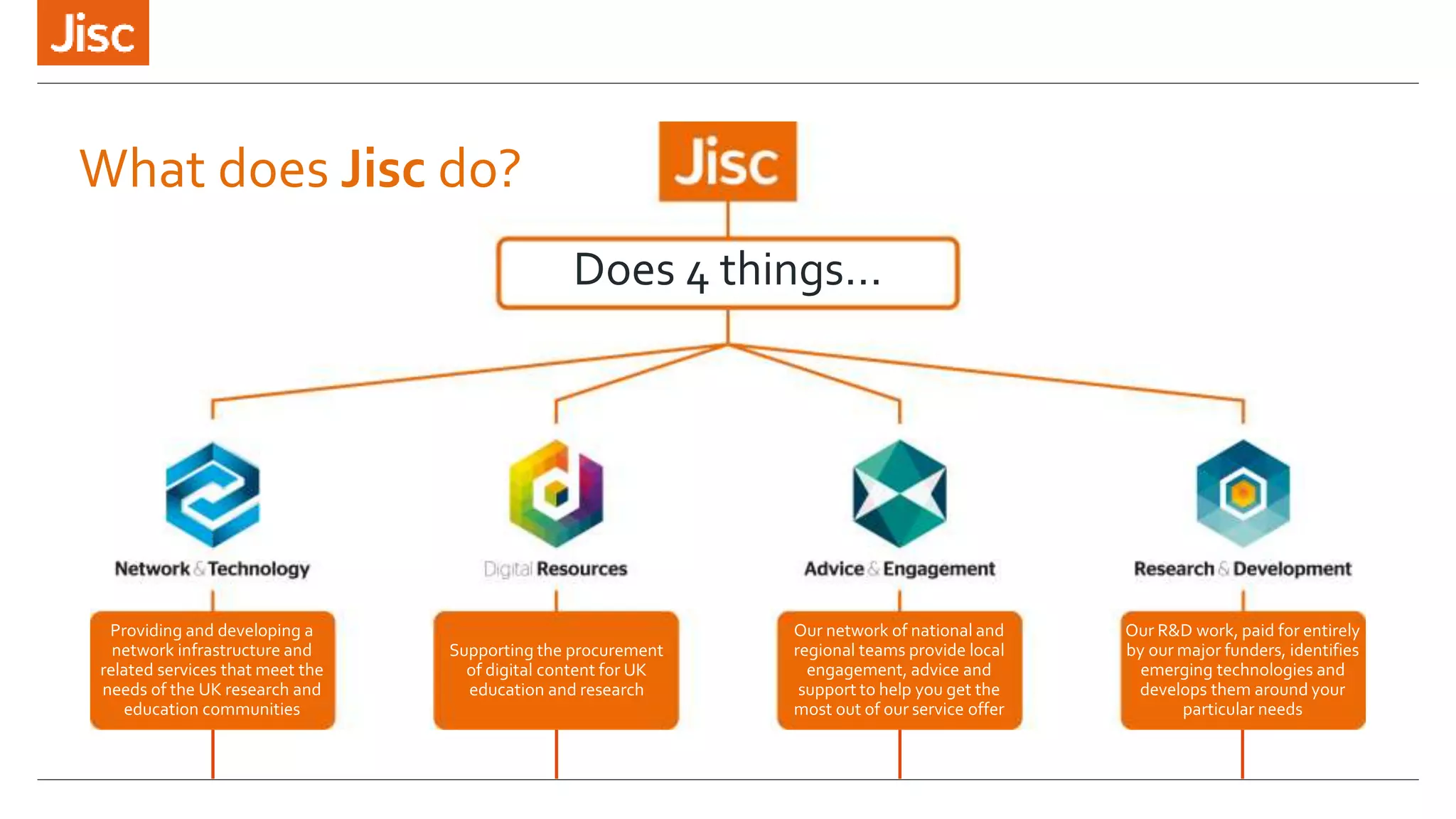
What does Jisc do?
Does 4 things…
Providing and developing a
network infrastructure and
related services that meet the
needs of the UK research and
education communities
Supporting the procurement
of digital content for UK
education and research
Our network of national and
regional teams provide local
engagement, advice and
support to help you get the
most out of our service offer
Our R&D work, paid for entirely
by our major funders, identifies
emerging technologies and
develops them around your
particular needs
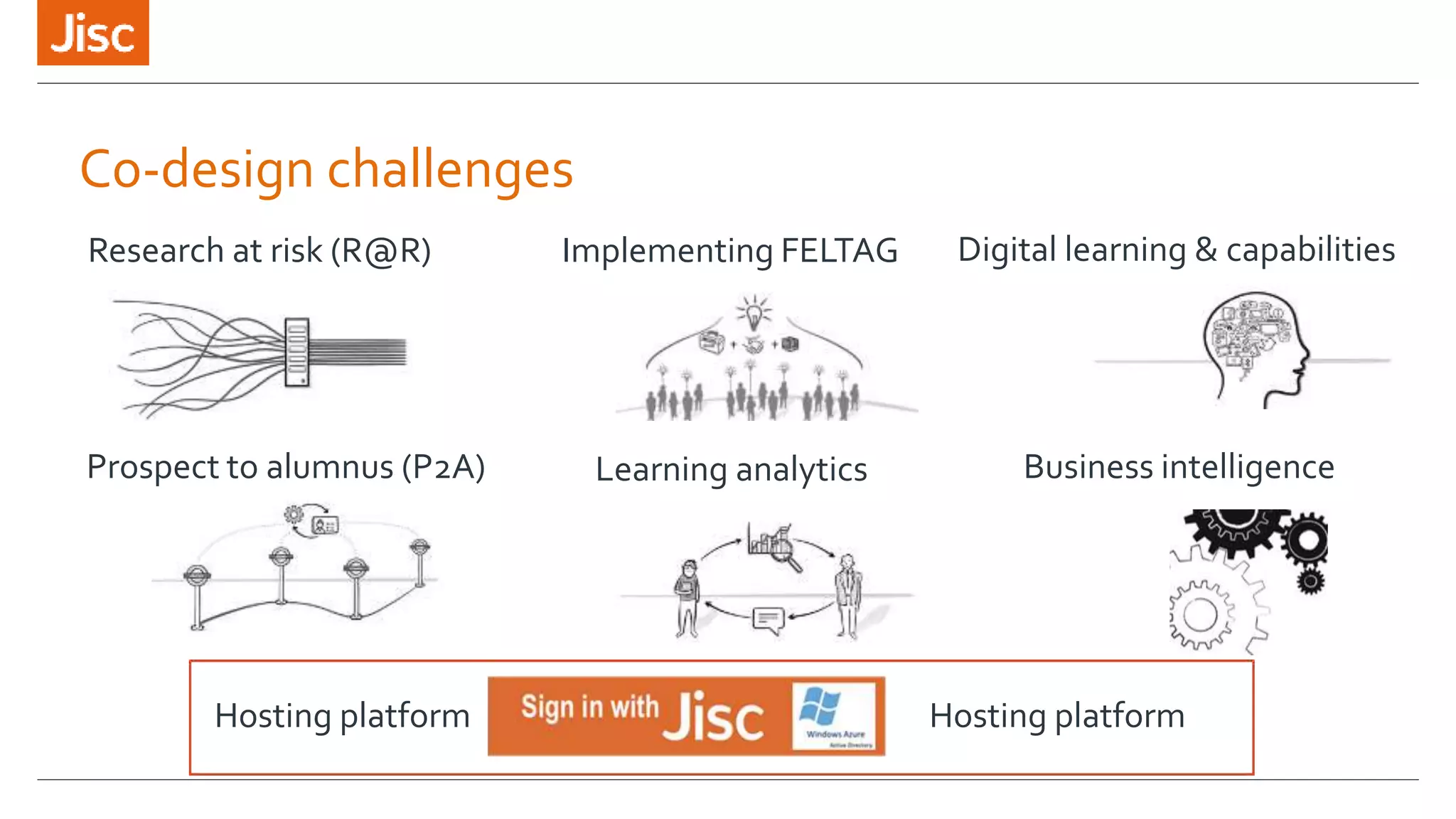
Co-design challenges
Research at risk (R@R)
Prospect to alumnus (P2A) Learning analytics
Digital learning & capabilitiesImplementing FELTAG
Business intelligence
Hosting platform Hosting platform
About Learning Analytics…
7
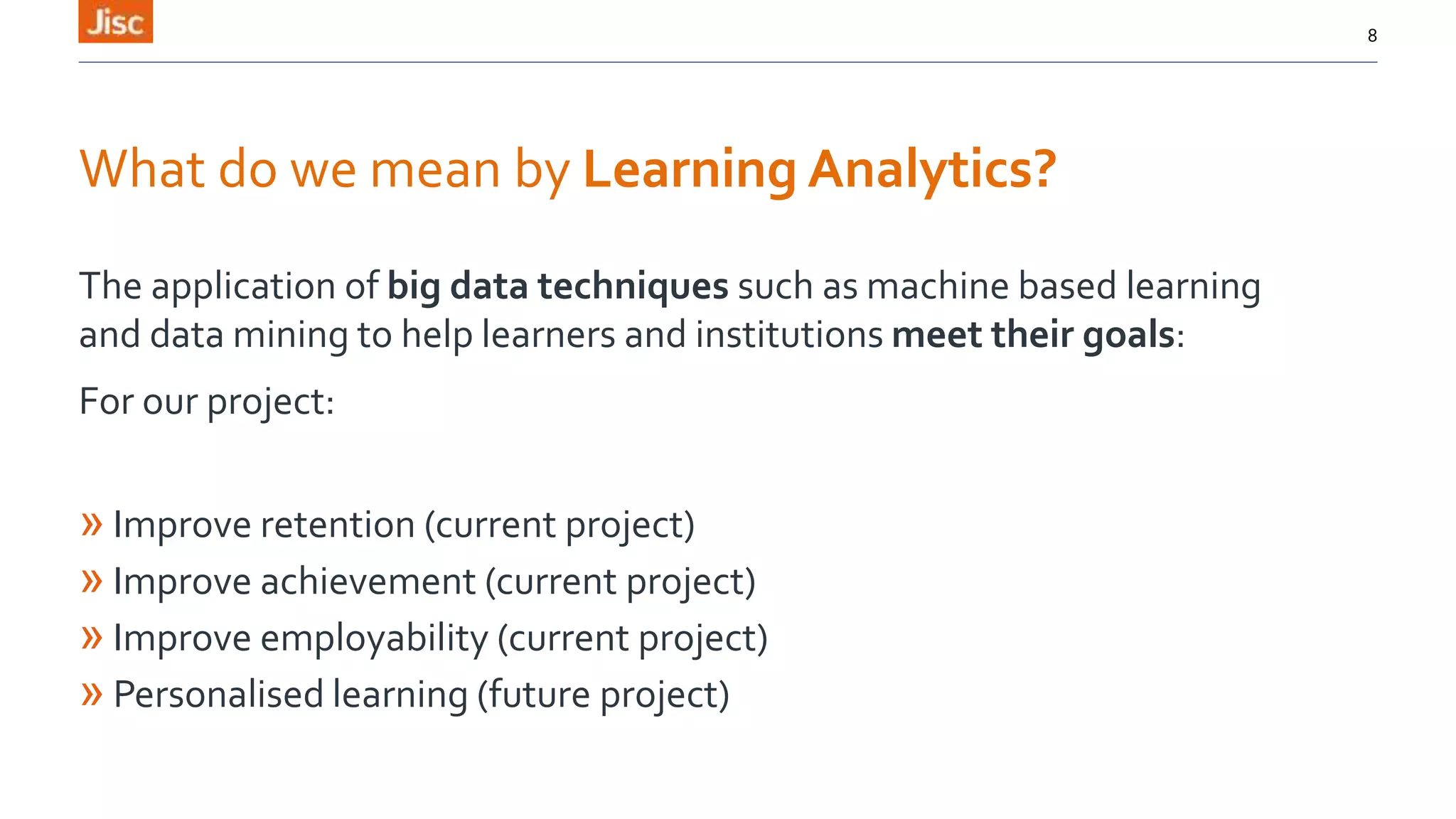
What do we mean by Learning Analytics?
The application of big data techniques such as machine based learning
and data mining to help learners and institutions meet their goals:
For our project:
» Improve retention (current project)
» Improve achievement (current project)
» Improve employability (current project)
» Personalised learning (future project)
8
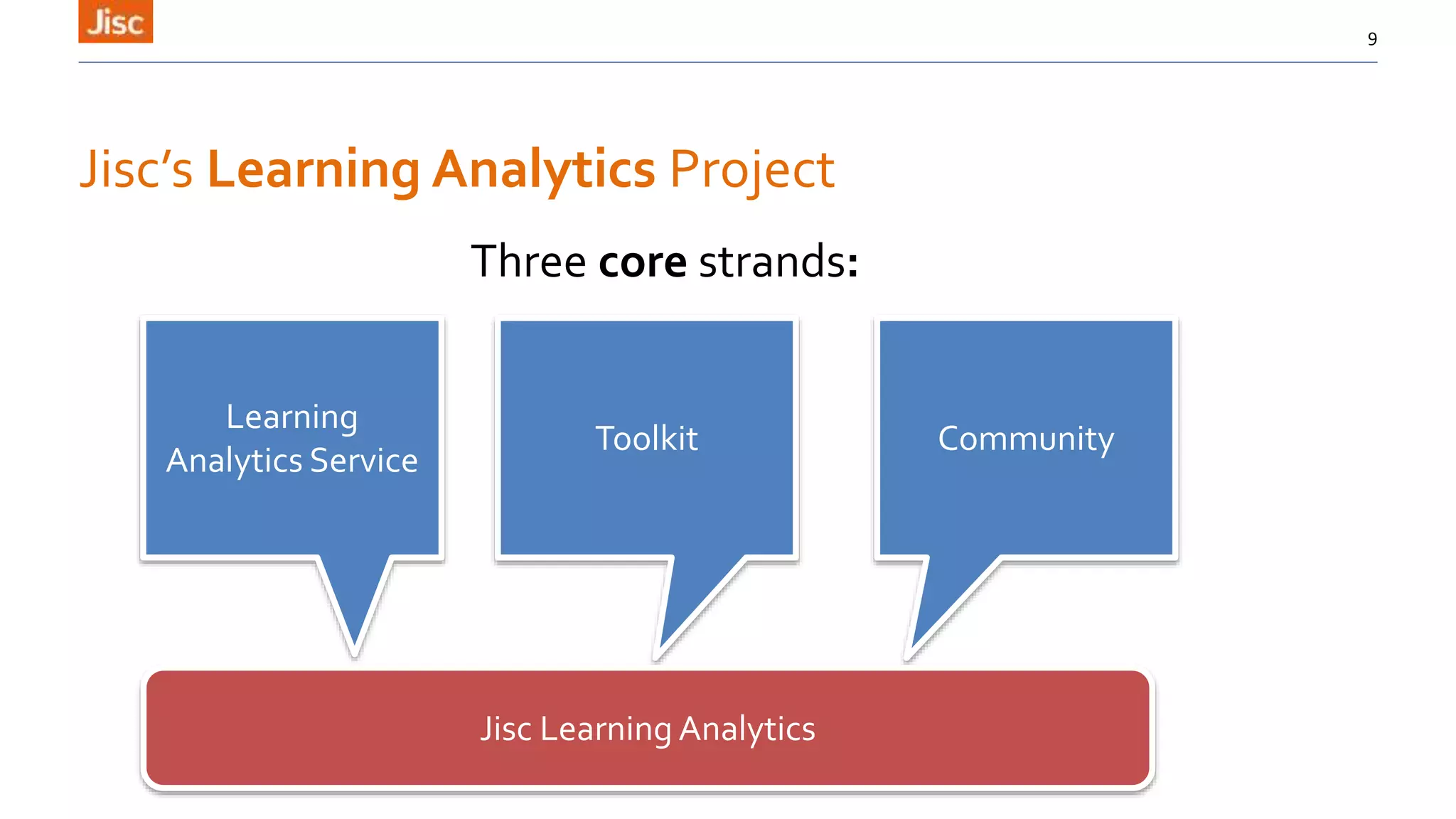
Jisc’s Learning Analytics Project
9
Three core strands:
Learning
Analytics Service
Toolkit Community
Jisc Learning Analytics
Jisc’s Learning Analytics Service
and Open Learning Analytics Architecture
10
Learning
Analytics Service
11
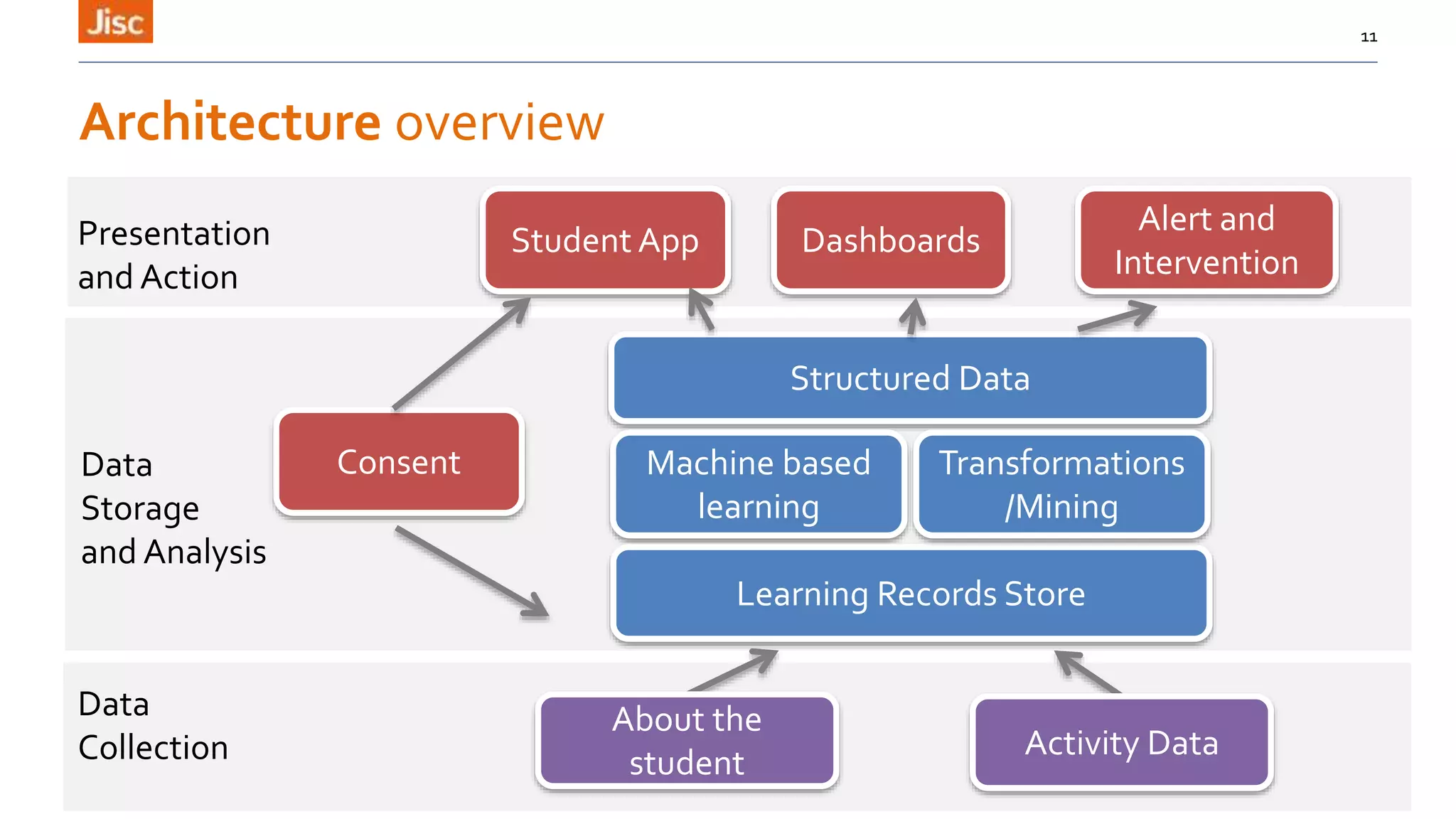
Student App Dashboards
Alert and
Intervention
Structured Data
Machine based
learning
Learning Records Store
Transformations
/Mining
About the
student
Activity Data
Consent
Data
Collection
Data
Storage
and Analysis
Presentation
and Action
Architecture overview
Our project partners
12
Presentation and Action Layer
13
Presentation and Action Layer Pt1
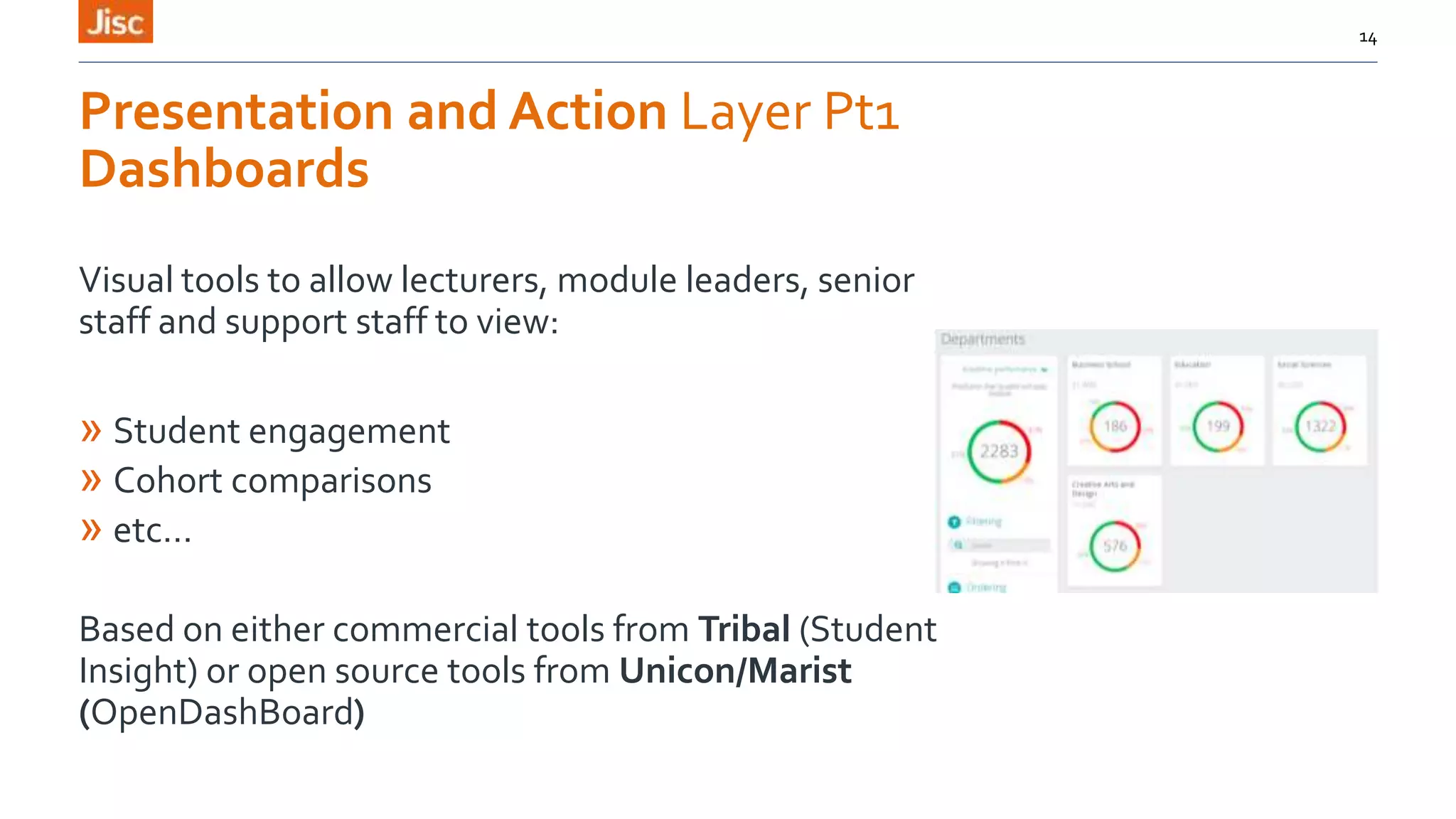
Dashboards
14
Visual tools to allow lecturers, module leaders, senior
staff and support staff to view:
» Student engagement
» Cohort comparisons
» etc…
Based on either commercial tools from Tribal (Student
Insight) or open source tools from Unicon/Marist
(OpenDashBoard)
Presentation and Action Layer Pt2
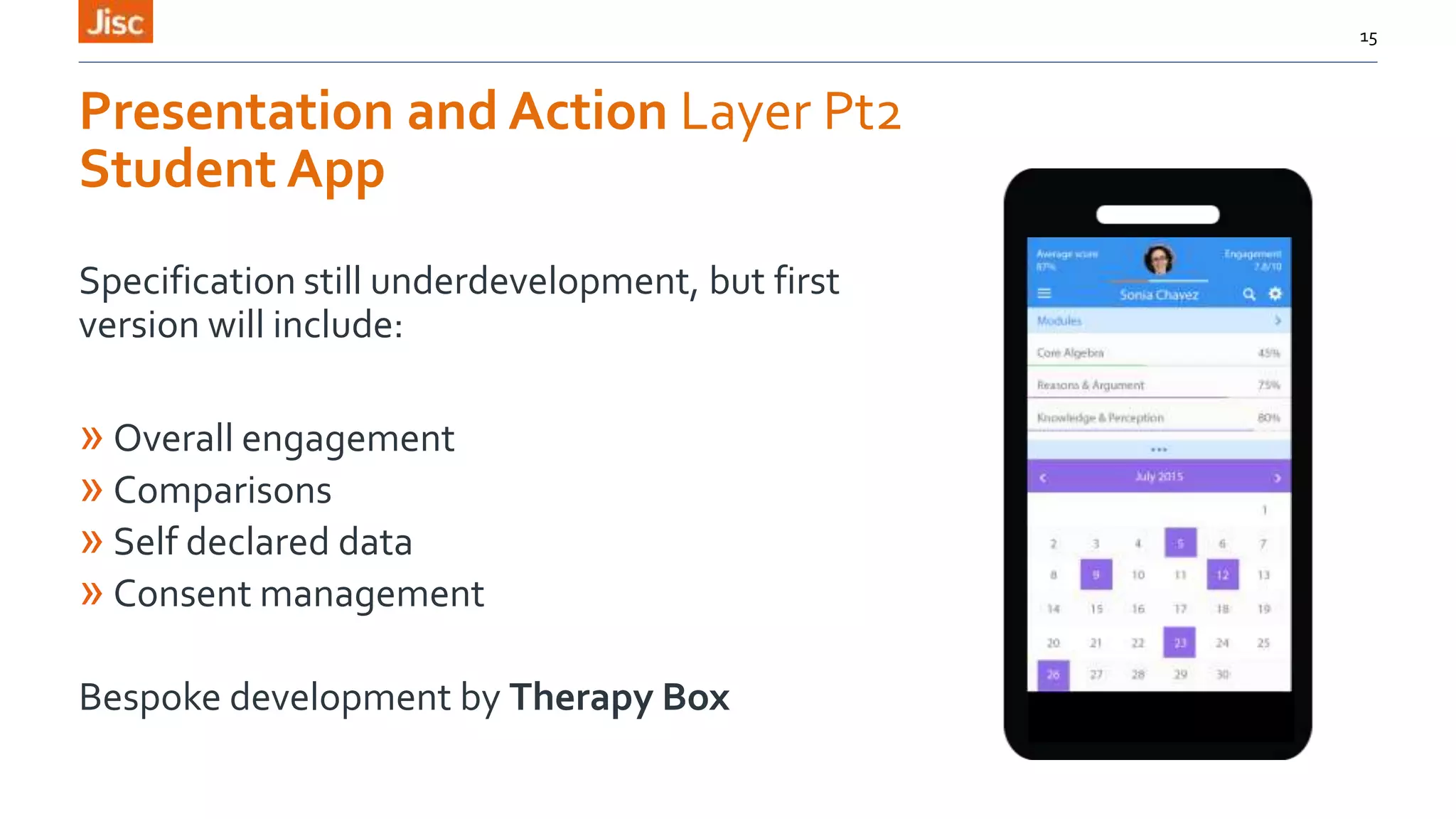
Student App
Specification still underdevelopment, but first
version will include:
» Overall engagement
» Comparisons
» Self declared data
» Consent management
Bespoke development by Therapy Box
15
Presentation and Action Layer Pt 3
Alert and Intervention System
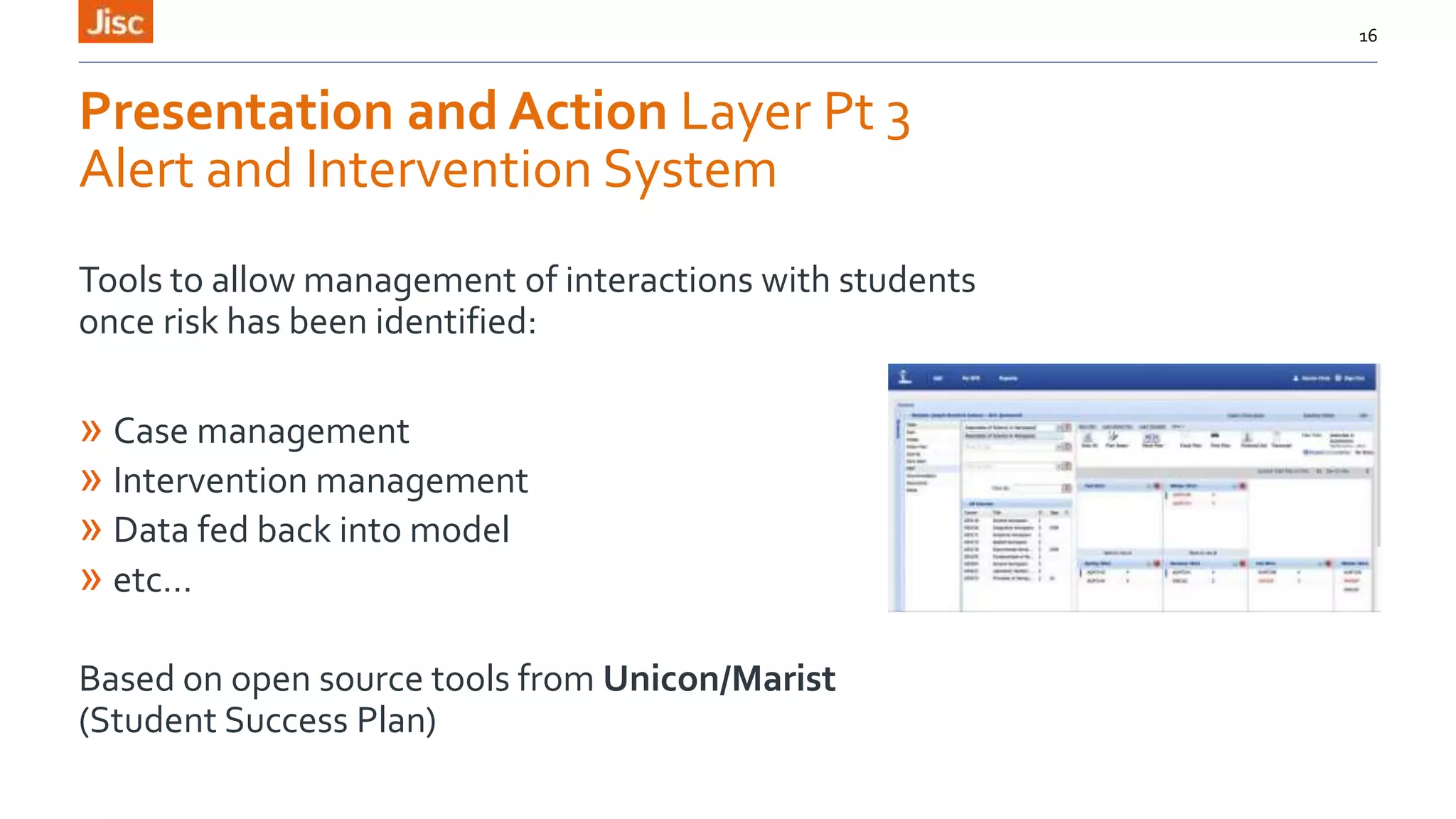
Tools to allow management of interactions with students
once risk has been identified:
» Case management
» Intervention management
» Data fed back into model
» etc…
Based on open source tools from Unicon/Marist
(Student Success Plan)
16
Data Storage and analysis layer
17
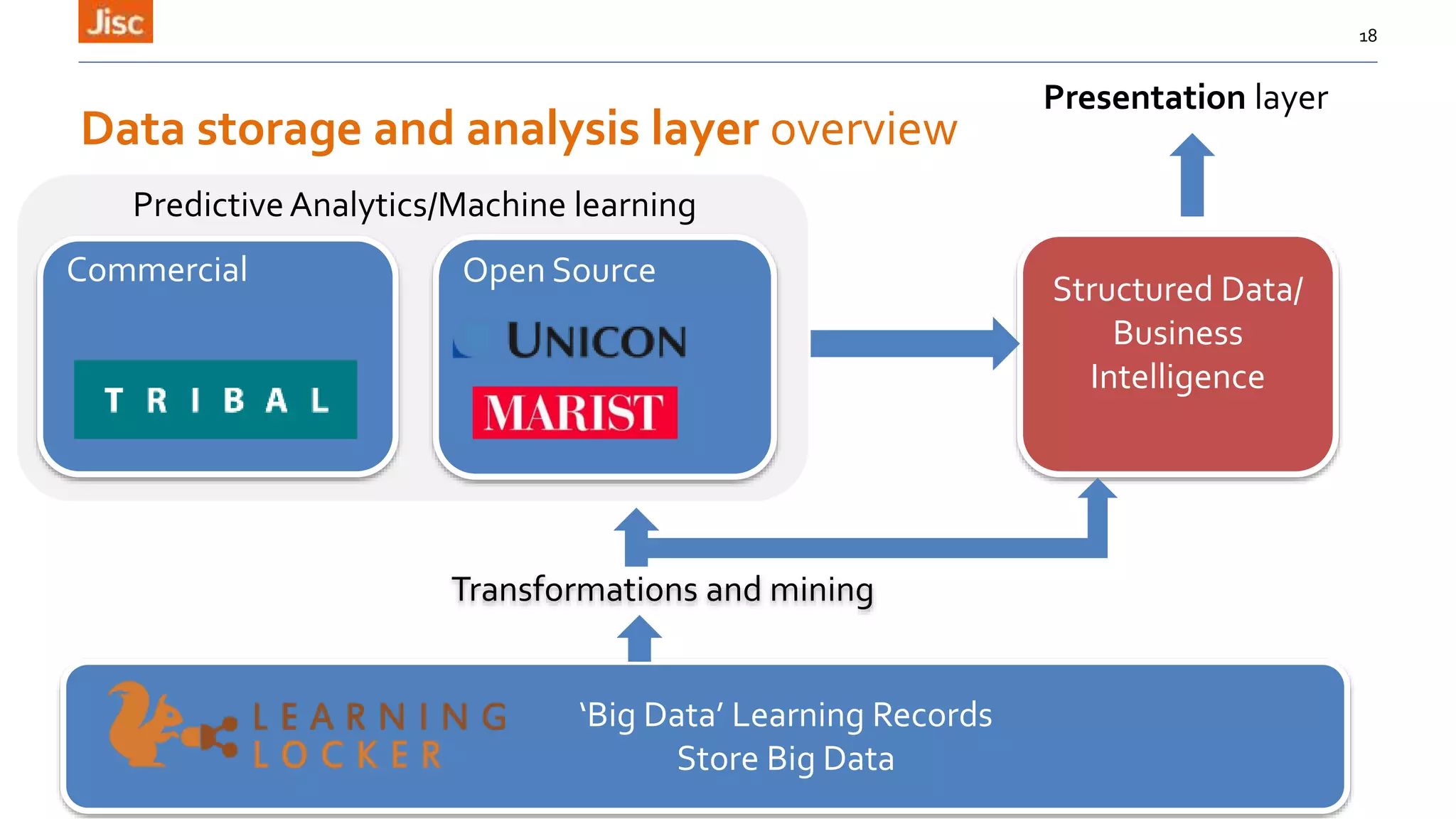
Open SourceCommercial
18
Predictive Analytics/Machine learning
Transformations and mining
Structured Data/
Business
Intelligence
‘Big Data’ Learning Records
Store Big Data
Data storage and analysis layer overview
Presentation layer
Data Collection Layer
19
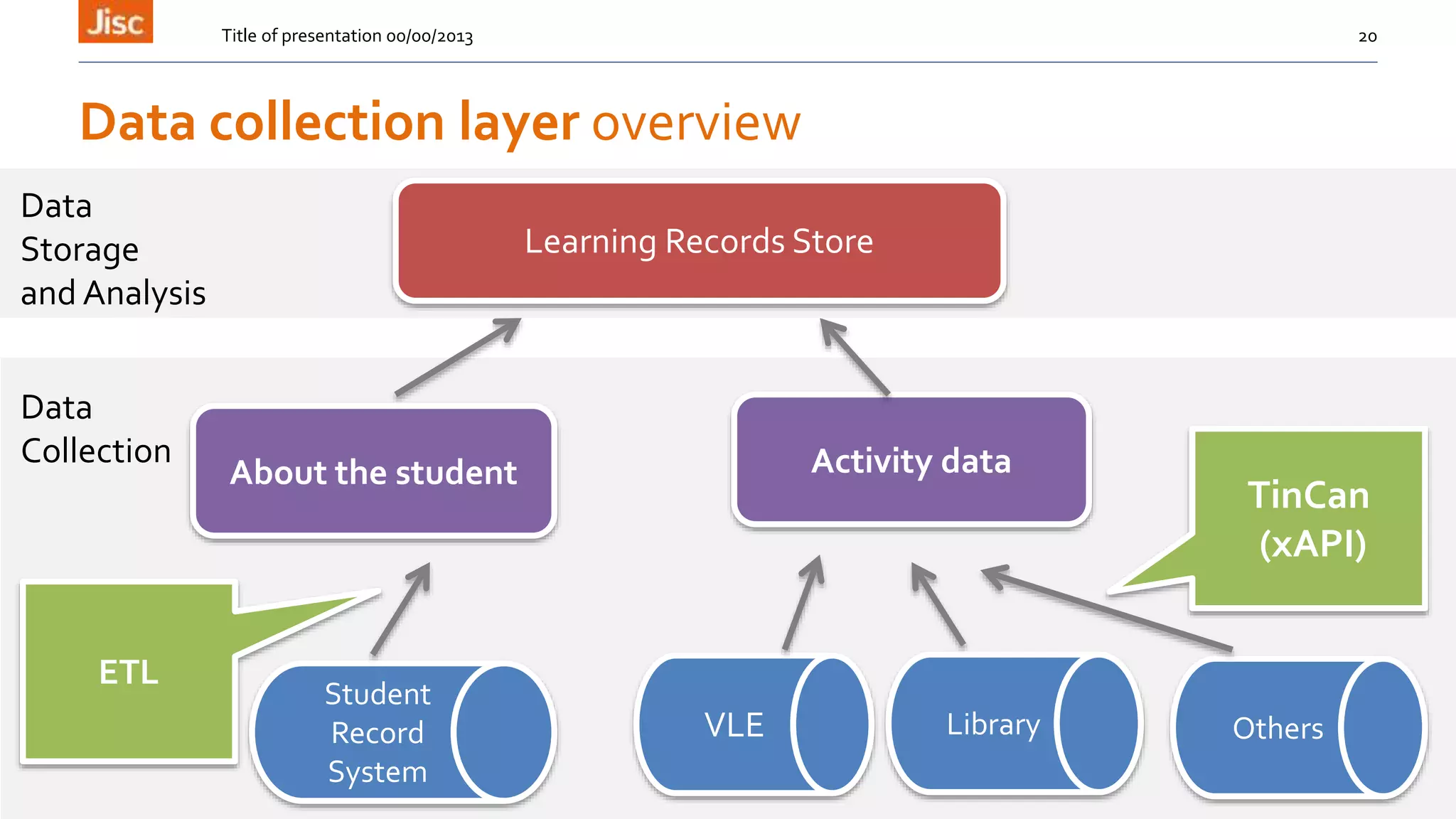
Title of presentation 00/00/2013 20
Learning Records Store
About the student Activity data
TinCan
(xAPI)
ETL
Student
Record
System
LibraryVLE Others
Data collection layer overview
Data
Collection
Data
Storage
and Analysis
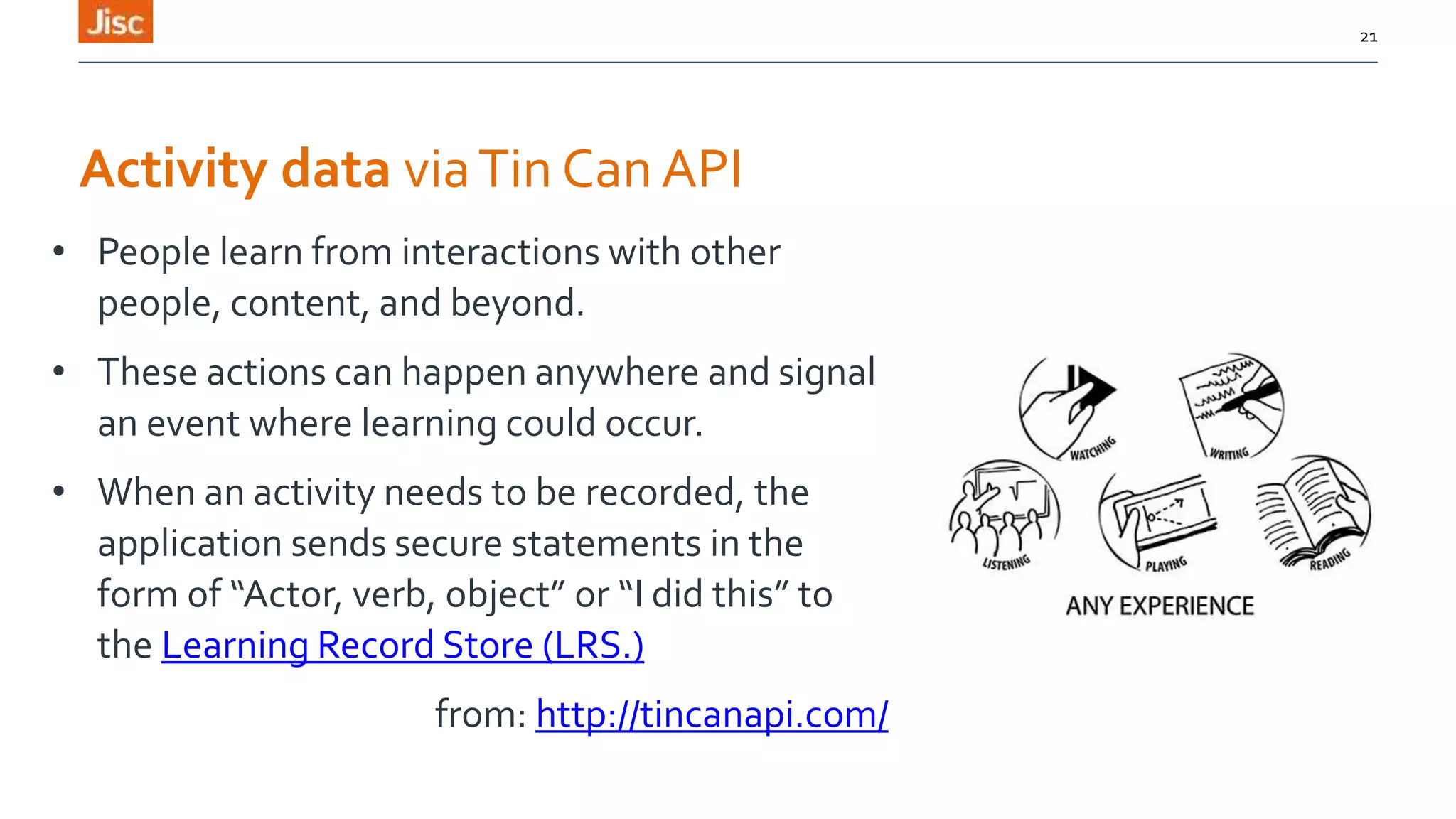
Activity data viaTin Can API
• People learn from interactions with other
people, content, and beyond.
• These actions can happen anywhere and signal
an event where learning could occur.
• When an activity needs to be recorded, the
application sends secure statements in the
form of “Actor, verb, object” or “I did this” to
the Learning Record Store (LRS.)
from: http://tincanapi.com/
21
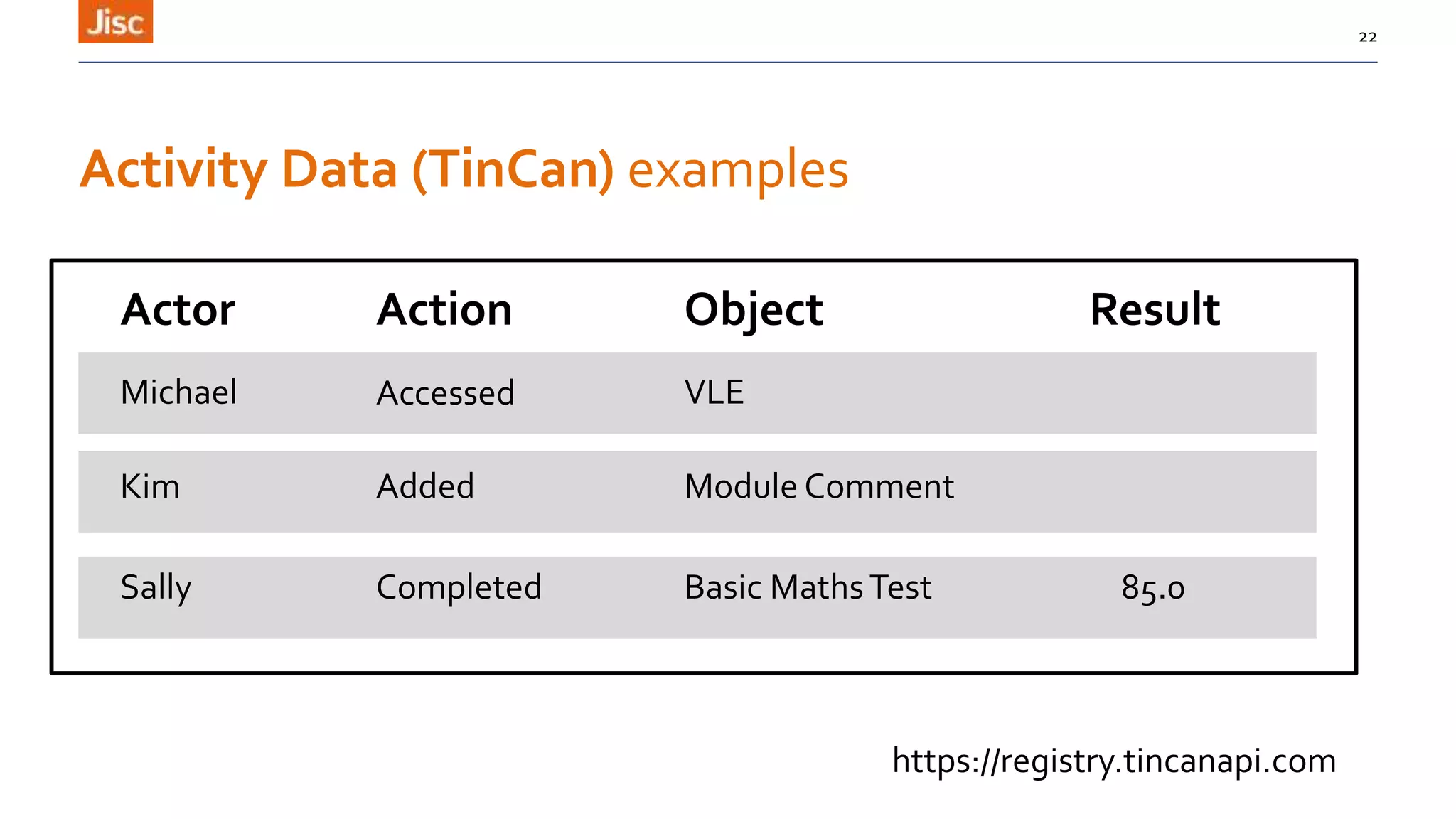
Activity Data (TinCan) examples
22
Actor Action Object Result
Michael Accessed VLE
Sally Completed Basic MathsTest 85.0
Kim Module CommentAdded
https://registry.tincanapi.com
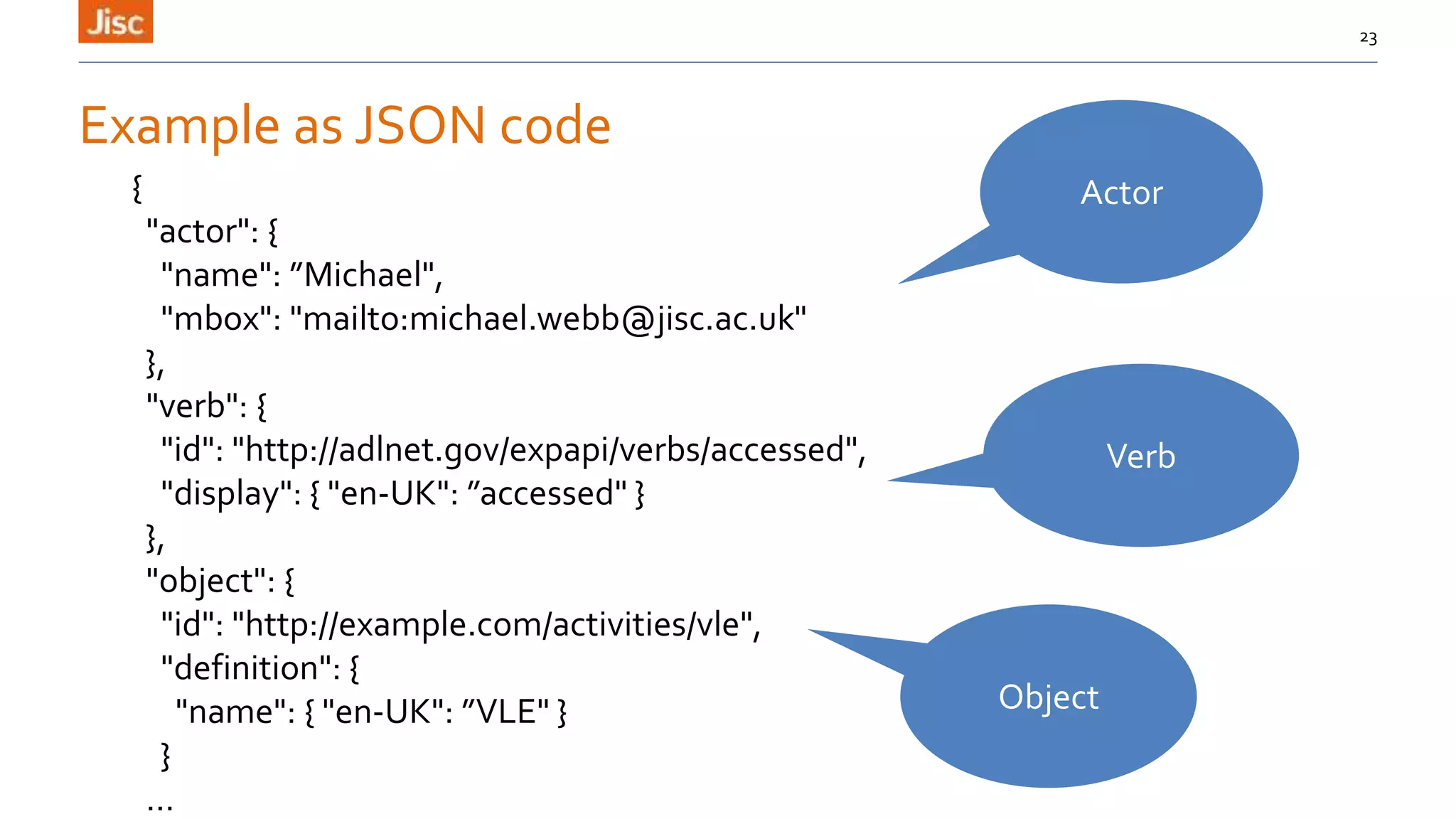
Example as JSON code
23
{
"actor": {
"name": ”Michael",
"mbox": "mailto:michael.webb@jisc.ac.uk"
},
"verb": {
"id": "http://adlnet.gov/expapi/verbs/accessed",
"display": { "en-UK": ”accessed" }
},
"object": {
"id": "http://example.com/activities/vle",
"definition": {
"name": { "en-UK": ”VLE" }
}
…
Actor
Verb
Object
About the student’ data
Personal (demographic) data
Birthdate, gender etc.
Course data
mode of study, level etc.
Grade data
Assignment, module etc.
(aligned with HESA data)
Title of presentation 00/00/2013 24
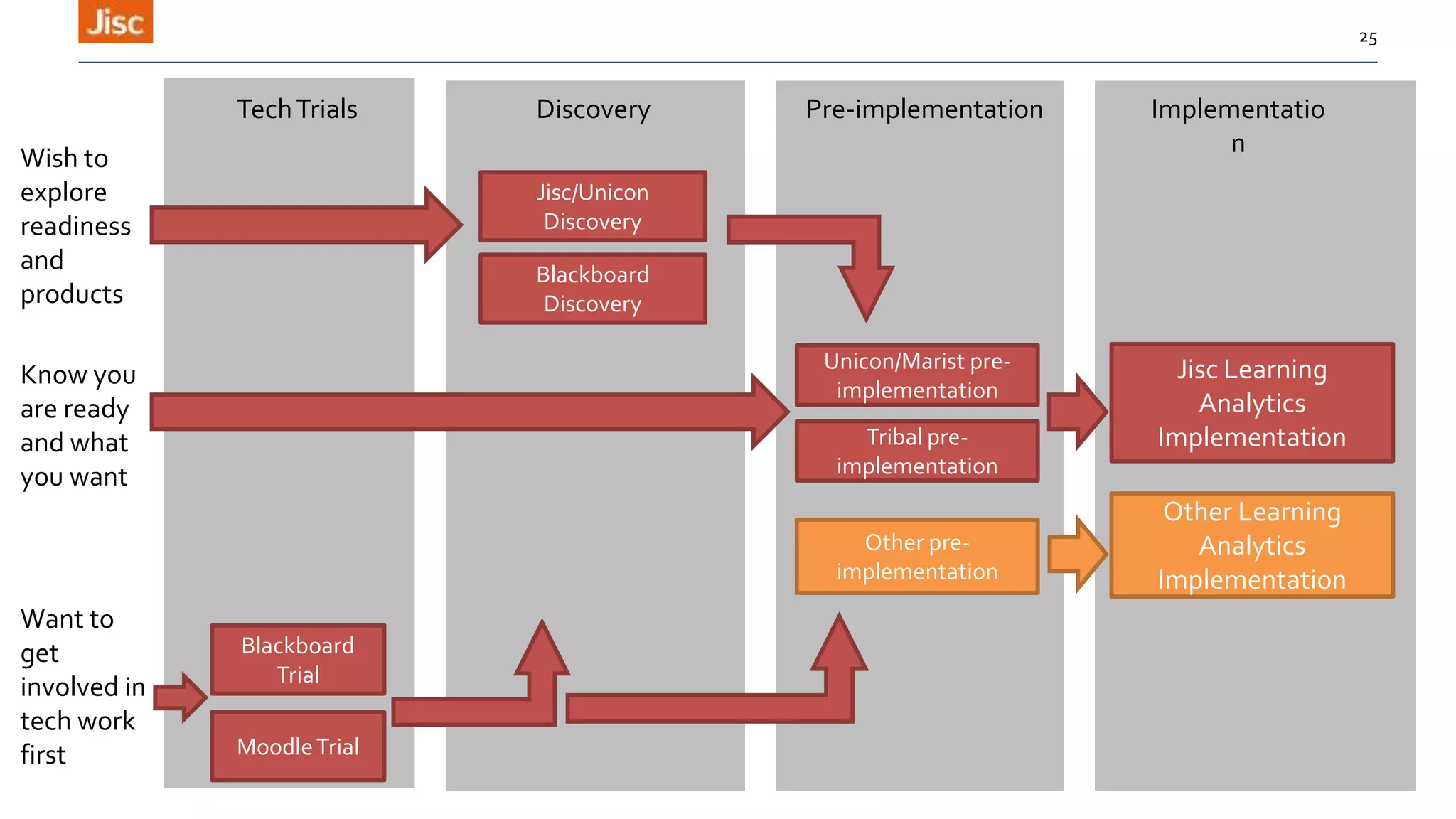
25
Jisc/Unicon
Discovery
Jisc Learning
Analytics
Implementation
Wish to
explore
readiness
and
products
Know you
are ready
and what
you want
Want to
get
involved in
tech work
first
Blackboard
Discovery
Unicon/Marist pre-
implementation
Tribal pre-
implementation
Other pre-
implementation
Blackboard
Trial
MoodleTrial
Other Learning
Analytics
Implementation
TechTrials Discovery Pre-implementation Implementatio
n
Jisc Learning AnalyticsToolkit
26
Toolkit
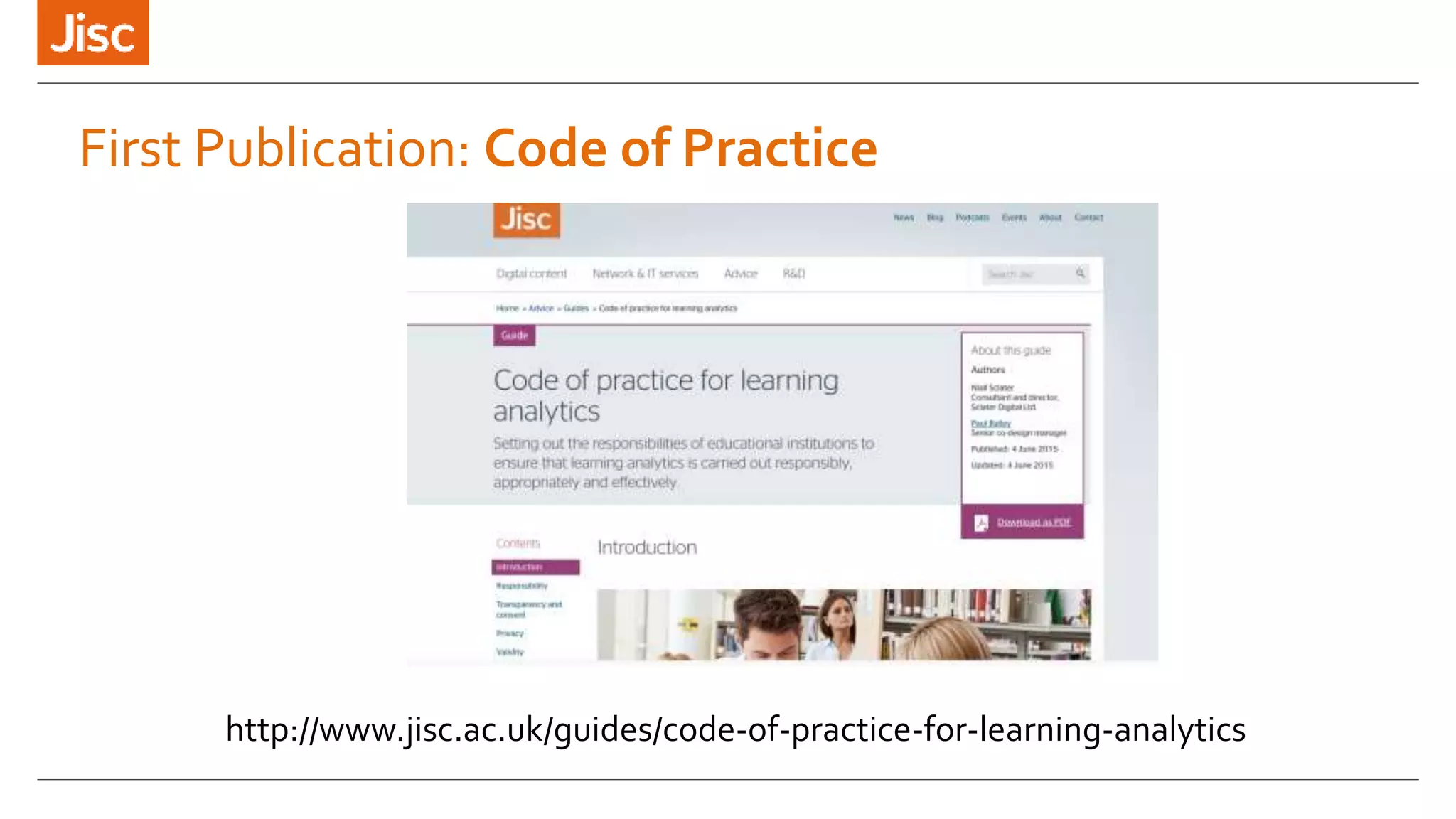
http://www.jisc.ac.uk/guides/code-of-practice-for-learning-analytics
First Publication: Code of Practice
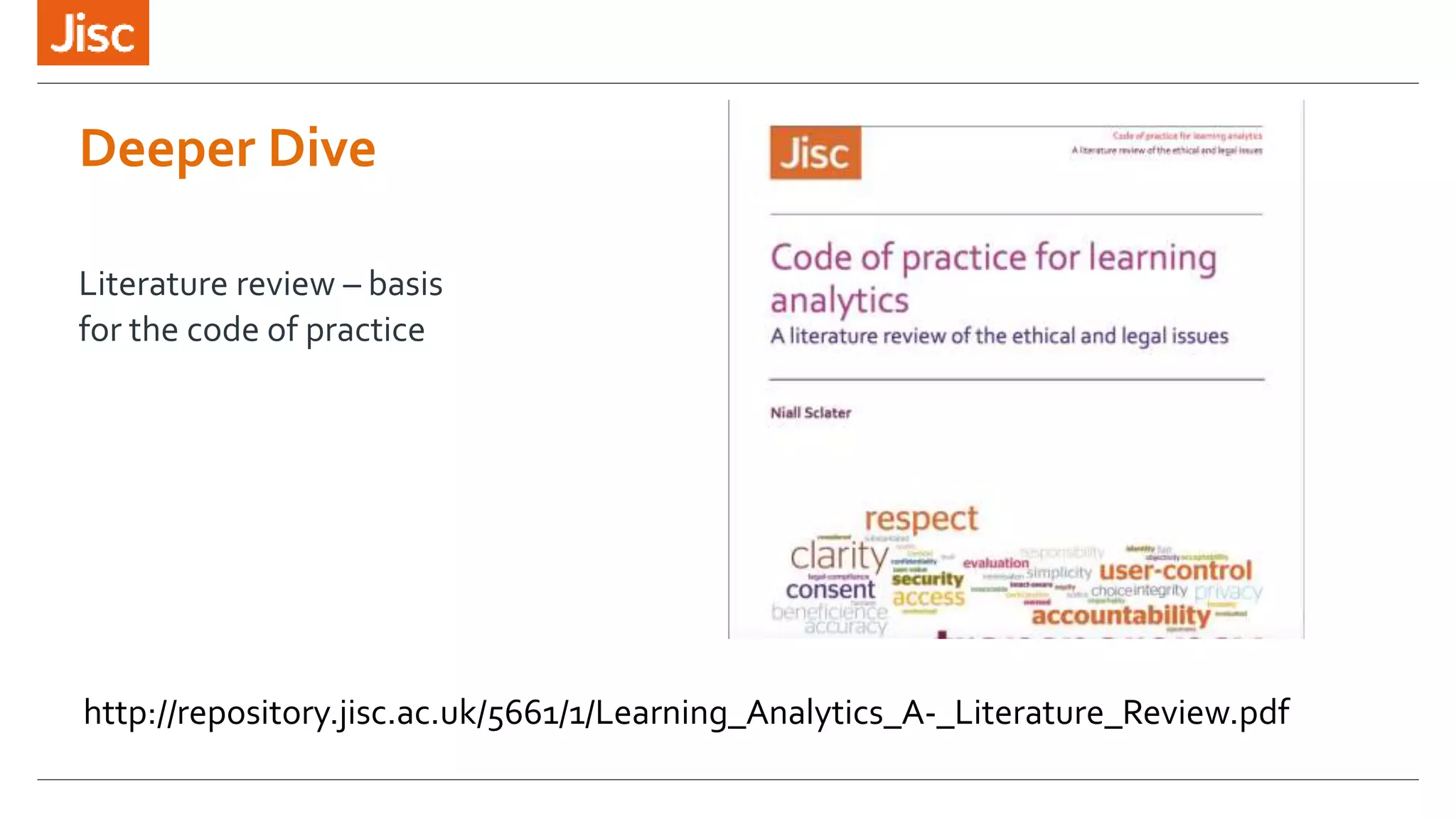
Deeper Dive
http://repository.jisc.ac.uk/5661/1/Learning_Analytics_A-_Literature_Review.pdf
Literature review – basis
for the code of practice
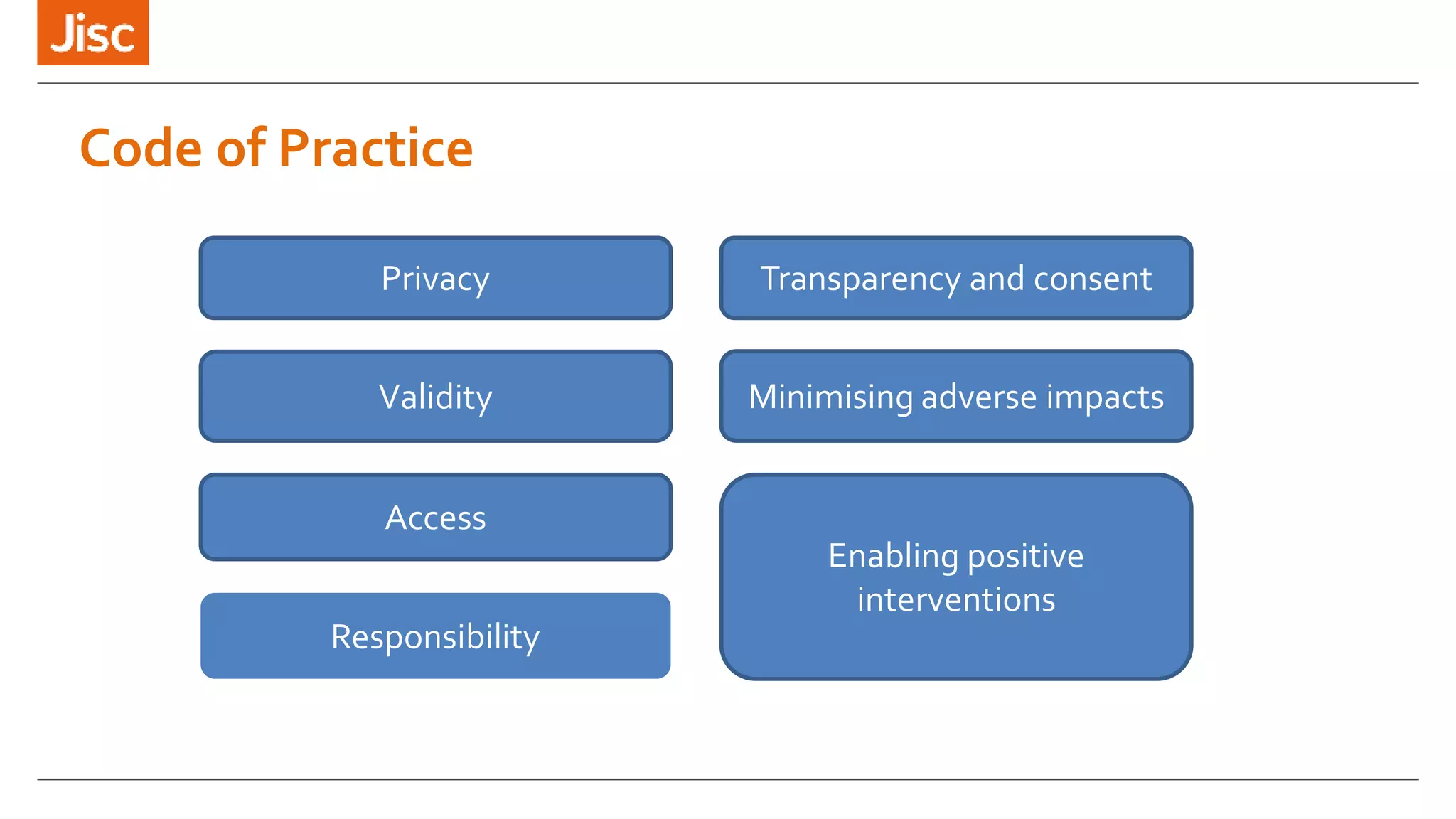
Code of Practice
Privacy
Validity
Responsibility
Access
Enabling positive
interventions
Minimising adverse impacts
Transparency and consent
30
Community
Community
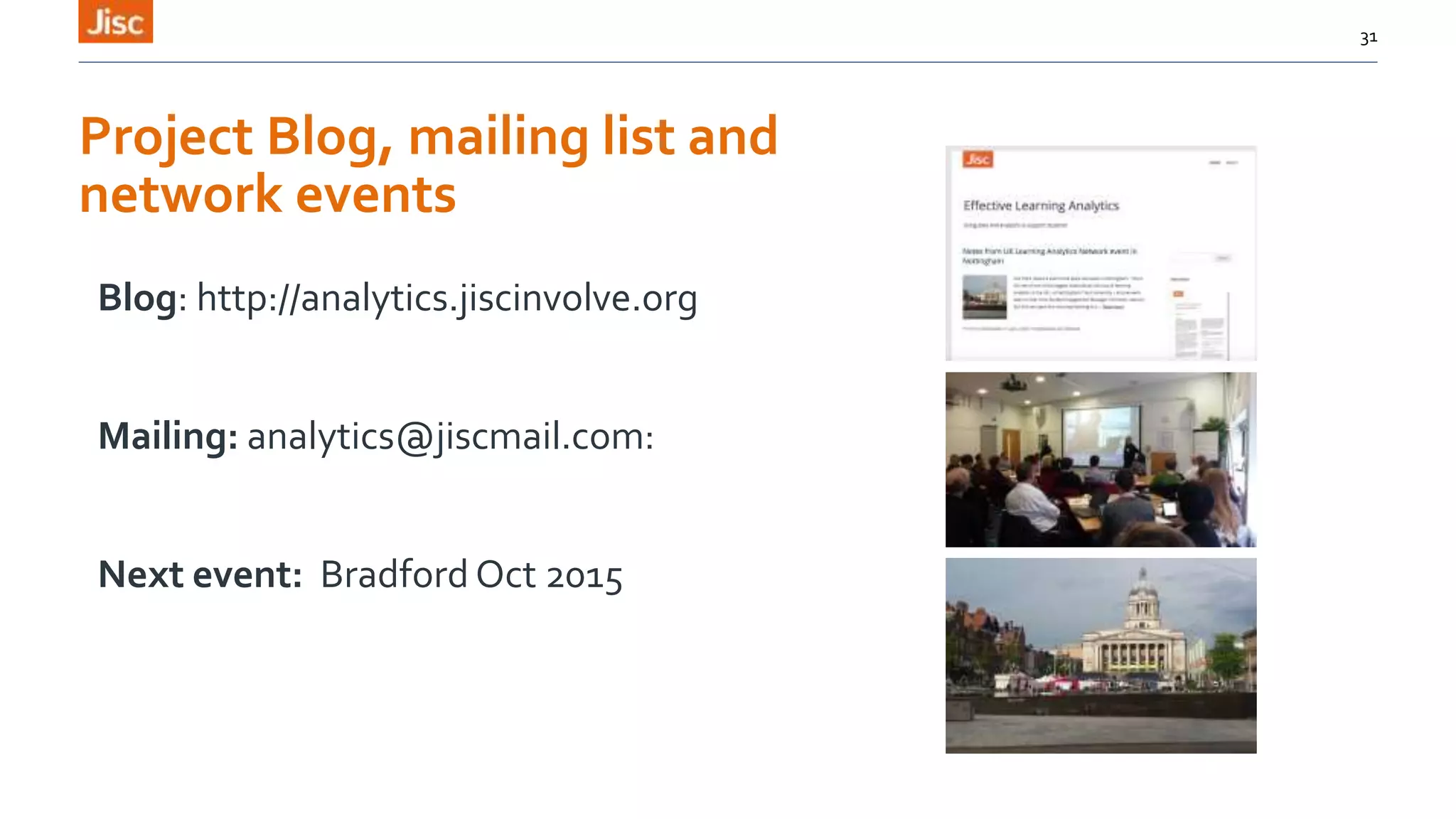
Project Blog, mailing list and
network events
Blog: http://analytics.jiscinvolve.org
Mailing: analytics@jiscmail.com:
Next event: Bradford Oct 2015
31
michael.webb@jisc.ac.uk
One Castlepark Tower Hill Bristol BS2 0JA
T 020 3697 5800
info@jisc.ac.uk jisc.ac.uk
MichaelWebb
Director ofTechnology andAnalytics

Learning analytics inside government

  • 1.
    Inside Government -London 8/7/2015 Jisc Learning Analytics
  • 2.
    Jisc’s Learning AnalyticsProject »About Jisc »Learning Analytics »Jisc’s Open Learning Analytics Project »Finding out more 2
  • 3.
  • 4.
    Mission To enable peoplein higher education, further education and skills in the UK to perform at the forefront of international practice by exploiting fully the possibilities of modern digital empowerment, content and connectivity Vision To make the UK the most digitally advanced education and research nation in the world
  • 5.
    What does Jiscdo? Does 4 things… Providing and developing a network infrastructure and related services that meet the needs of the UK research and education communities Supporting the procurement of digital content for UK education and research Our network of national and regional teams provide local engagement, advice and support to help you get the most out of our service offer Our R&D work, paid for entirely by our major funders, identifies emerging technologies and develops them around your particular needs
  • 6.
    Co-design challenges Research atrisk (R@R) Prospect to alumnus (P2A) Learning analytics Digital learning & capabilitiesImplementing FELTAG Business intelligence Hosting platform Hosting platform
  • 7.
  • 8.
    What do wemean by Learning Analytics? The application of big data techniques such as machine based learning and data mining to help learners and institutions meet their goals: For our project: » Improve retention (current project) » Improve achievement (current project) » Improve employability (current project) » Personalised learning (future project) 8
  • 9.
    Jisc’s Learning AnalyticsProject 9 Three core strands: Learning Analytics Service Toolkit Community Jisc Learning Analytics
  • 10.
    Jisc’s Learning AnalyticsService and Open Learning Analytics Architecture 10 Learning Analytics Service
  • 11.
    11 Student App Dashboards Alertand Intervention Structured Data Machine based learning Learning Records Store Transformations /Mining About the student Activity Data Consent Data Collection Data Storage and Analysis Presentation and Action Architecture overview
  • 12.
  • 13.
  • 14.
    Presentation and ActionLayer Pt1 Dashboards 14 Visual tools to allow lecturers, module leaders, senior staff and support staff to view: » Student engagement » Cohort comparisons » etc… Based on either commercial tools from Tribal (Student Insight) or open source tools from Unicon/Marist (OpenDashBoard)
  • 15.
    Presentation and ActionLayer Pt2 Student App Specification still underdevelopment, but first version will include: » Overall engagement » Comparisons » Self declared data » Consent management Bespoke development by Therapy Box 15
  • 16.
    Presentation and ActionLayer Pt 3 Alert and Intervention System Tools to allow management of interactions with students once risk has been identified: » Case management » Intervention management » Data fed back into model » etc… Based on open source tools from Unicon/Marist (Student Success Plan) 16
  • 17.
    Data Storage andanalysis layer 17
  • 18.
    Open SourceCommercial 18 Predictive Analytics/Machinelearning Transformations and mining Structured Data/ Business Intelligence ‘Big Data’ Learning Records Store Big Data Data storage and analysis layer overview Presentation layer
  • 19.
  • 20.
    Title of presentation00/00/2013 20 Learning Records Store About the student Activity data TinCan (xAPI) ETL Student Record System LibraryVLE Others Data collection layer overview Data Collection Data Storage and Analysis
  • 21.
    Activity data viaTinCan API • People learn from interactions with other people, content, and beyond. • These actions can happen anywhere and signal an event where learning could occur. • When an activity needs to be recorded, the application sends secure statements in the form of “Actor, verb, object” or “I did this” to the Learning Record Store (LRS.) from: http://tincanapi.com/ 21
  • 22.
    Activity Data (TinCan)examples 22 Actor Action Object Result Michael Accessed VLE Sally Completed Basic MathsTest 85.0 Kim Module CommentAdded https://registry.tincanapi.com
  • 23.
    Example as JSONcode 23 { "actor": { "name": ”Michael", "mbox": "mailto:michael.webb@jisc.ac.uk" }, "verb": { "id": "http://adlnet.gov/expapi/verbs/accessed", "display": { "en-UK": ”accessed" } }, "object": { "id": "http://example.com/activities/vle", "definition": { "name": { "en-UK": ”VLE" } } … Actor Verb Object
  • 24.
    About the student’data Personal (demographic) data Birthdate, gender etc. Course data mode of study, level etc. Grade data Assignment, module etc. (aligned with HESA data) Title of presentation 00/00/2013 24
  • 25.
    25 Jisc/Unicon Discovery Jisc Learning Analytics Implementation Wish to explore readiness and products Knowyou are ready and what you want Want to get involved in tech work first Blackboard Discovery Unicon/Marist pre- implementation Tribal pre- implementation Other pre- implementation Blackboard Trial MoodleTrial Other Learning Analytics Implementation TechTrials Discovery Pre-implementation Implementatio n
  • 26.
  • 27.
  • 28.
  • 29.
    Code of Practice Privacy Validity Responsibility Access Enablingpositive interventions Minimising adverse impacts Transparency and consent
  • 30.
  • 31.
    Project Blog, mailinglist and network events Blog: http://analytics.jiscinvolve.org Mailing: analytics@jiscmail.com: Next event: Bradford Oct 2015 31
  • 32.
    michael.webb@jisc.ac.uk One Castlepark TowerHill Bristol BS2 0JA T 020 3697 5800 info@jisc.ac.uk jisc.ac.uk MichaelWebb Director ofTechnology andAnalytics

Editor's Notes

  • #2 Go to ‘View’ menu > ‘Header and Footer…’ to edit the footers on this slide (click ‘Apply’ to change only the currently selected slide, or ‘Apply to All’ to change the footers on all slides). To change the image on this slide: Click once on the image to select it, and then delete it Drag a replacement picture to the placeholder or click the icon in the centre of the placeholder to browse for & add another image Once you have added your replacement image, you may need to put it into the background so that it doesn’t cover other items on the slide. Do this by right-clicking on the new image and choosing ‘Arrange’ > ‘Send to Back’ from the contextual menu
  • #3 Go to ‘View’ menu > ‘Header and Footer…’ to edit the footers on this slide (click ‘Apply’ to change only the currently selected slide, or ‘Apply to All’ to change the footers on all slides). To change the images on this slide: Click once on an image to select it, and then delete it Drag a replacement picture to the placeholder or click the icon in the centre of the placeholder to browse for & add another image Once you have added your replacement image, you may need to put it into the background so that it doesn’t cover other items on the slide. Do this by right-clicking on the new image and choosing ‘Arrange’ > ‘Send to Back’ from the contextual menu
  • #4 Go to ‘View’ menu > ‘Header and Footer…’ to edit the footers on this slide (click ‘Apply’ to change only the currently selected slide, or ‘Apply to All’ to change the footers on all slides). To change the images on this slide: Click once on an image to select it, and then delete it Drag a replacement picture to the placeholder or click the icon in the centre of the placeholder to browse for & add another image Once you have added your replacement image, you may need to put it into the background so that it doesn’t cover other items on the slide. Do this by right-clicking on the new image and choosing ‘Arrange’ > ‘Send to Back’ from the contextual menu
  • #8 Go to ‘View’ menu > ‘Header and Footer…’ to edit the footers on this slide (click ‘Apply’ to change only the currently selected slide, or ‘Apply to All’ to change the footers on all slides). To change the images on this slide: Click once on an image to select it, and then delete it Drag a replacement picture to the placeholder or click the icon in the centre of the placeholder to browse for & add another image Once you have added your replacement image, you may need to put it into the background so that it doesn’t cover other items on the slide. Do this by right-clicking on the new image and choosing ‘Arrange’ > ‘Send to Back’ from the contextual menu
  • #9 Go to ‘View’ menu > ‘Header and Footer…’ to edit the footers on this slide (click ‘Apply’ to change only the currently selected slide, or ‘Apply to All’ to change the footers on all slides).
  • #10 Go to ‘View’ menu > ‘Header and Footer…’ to edit the footers on this slide (click ‘Apply’ to change only the currently selected slide, or ‘Apply to All’ to change the footers on all slides).
  • #11 Go to ‘View’ menu > ‘Header and Footer…’ to edit the footers on this slide (click ‘Apply’ to change only the currently selected slide, or ‘Apply to All’ to change the footers on all slides). To change the images on this slide: Click once on an image to select it, and then delete it Drag a replacement picture to the placeholder or click the icon in the centre of the placeholder to browse for & add another image Once you have added your replacement image, you may need to put it into the background so that it doesn’t cover other items on the slide. Do this by right-clicking on the new image and choosing ‘Arrange’ > ‘Send to Back’ from the contextual menu
  • #14 Go to ‘View’ menu > ‘Header and Footer…’ to edit the footers on this slide (click ‘Apply’ to change only the currently selected slide, or ‘Apply to All’ to change the footers on all slides). To change the images on this slide: Click once on an image to select it, and then delete it Drag a replacement picture to the placeholder or click the icon in the centre of the placeholder to browse for & add another image Once you have added your replacement image, you may need to put it into the background so that it doesn’t cover other items on the slide. Do this by right-clicking on the new image and choosing ‘Arrange’ > ‘Send to Back’ from the contextual menu
  • #15 Go to ‘View’ menu > ‘Header and Footer…’ to edit the footers on this slide (click ‘Apply’ to change only the currently selected slide, or ‘Apply to All’ to change the footers on all slides).
  • #16 Go to ‘View’ menu > ‘Header and Footer…’ to edit the footers on this slide (click ‘Apply’ to change only the currently selected slide, or ‘Apply to All’ to change the footers on all slides).
  • #18 Go to ‘View’ menu > ‘Header and Footer…’ to edit the footers on this slide (click ‘Apply’ to change only the currently selected slide, or ‘Apply to All’ to change the footers on all slides). To change the images on this slide: Click once on an image to select it, and then delete it Drag a replacement picture to the placeholder or click the icon in the centre of the placeholder to browse for & add another image Once you have added your replacement image, you may need to put it into the background so that it doesn’t cover other items on the slide. Do this by right-clicking on the new image and choosing ‘Arrange’ > ‘Send to Back’ from the contextual menu
  • #20 Go to ‘View’ menu > ‘Header and Footer…’ to edit the footers on this slide (click ‘Apply’ to change only the currently selected slide, or ‘Apply to All’ to change the footers on all slides). To change the images on this slide: Click once on an image to select it, and then delete it Drag a replacement picture to the placeholder or click the icon in the centre of the placeholder to browse for & add another image Once you have added your replacement image, you may need to put it into the background so that it doesn’t cover other items on the slide. Do this by right-clicking on the new image and choosing ‘Arrange’ > ‘Send to Back’ from the contextual menu
  • #27 Go to ‘View’ menu > ‘Header and Footer…’ to edit the footers on this slide (click ‘Apply’ to change only the currently selected slide, or ‘Apply to All’ to change the footers on all slides). To change the images on this slide: Click once on an image to select it, and then delete it Drag a replacement picture to the placeholder or click the icon in the centre of the placeholder to browse for & add another image Once you have added your replacement image, you may need to put it into the background so that it doesn’t cover other items on the slide. Do this by right-clicking on the new image and choosing ‘Arrange’ > ‘Send to Back’ from the contextual menu
  • #31 Go to ‘View’ menu > ‘Header and Footer…’ to edit the footers on this slide (click ‘Apply’ to change only the currently selected slide, or ‘Apply to All’ to change the footers on all slides). To change the images on this slide: Click once on an image to select it, and then delete it Drag a replacement picture to the placeholder or click the icon in the centre of the placeholder to browse for & add another image Once you have added your replacement image, you may need to put it into the background so that it doesn’t cover other items on the slide. Do this by right-clicking on the new image and choosing ‘Arrange’ > ‘Send to Back’ from the contextual menu