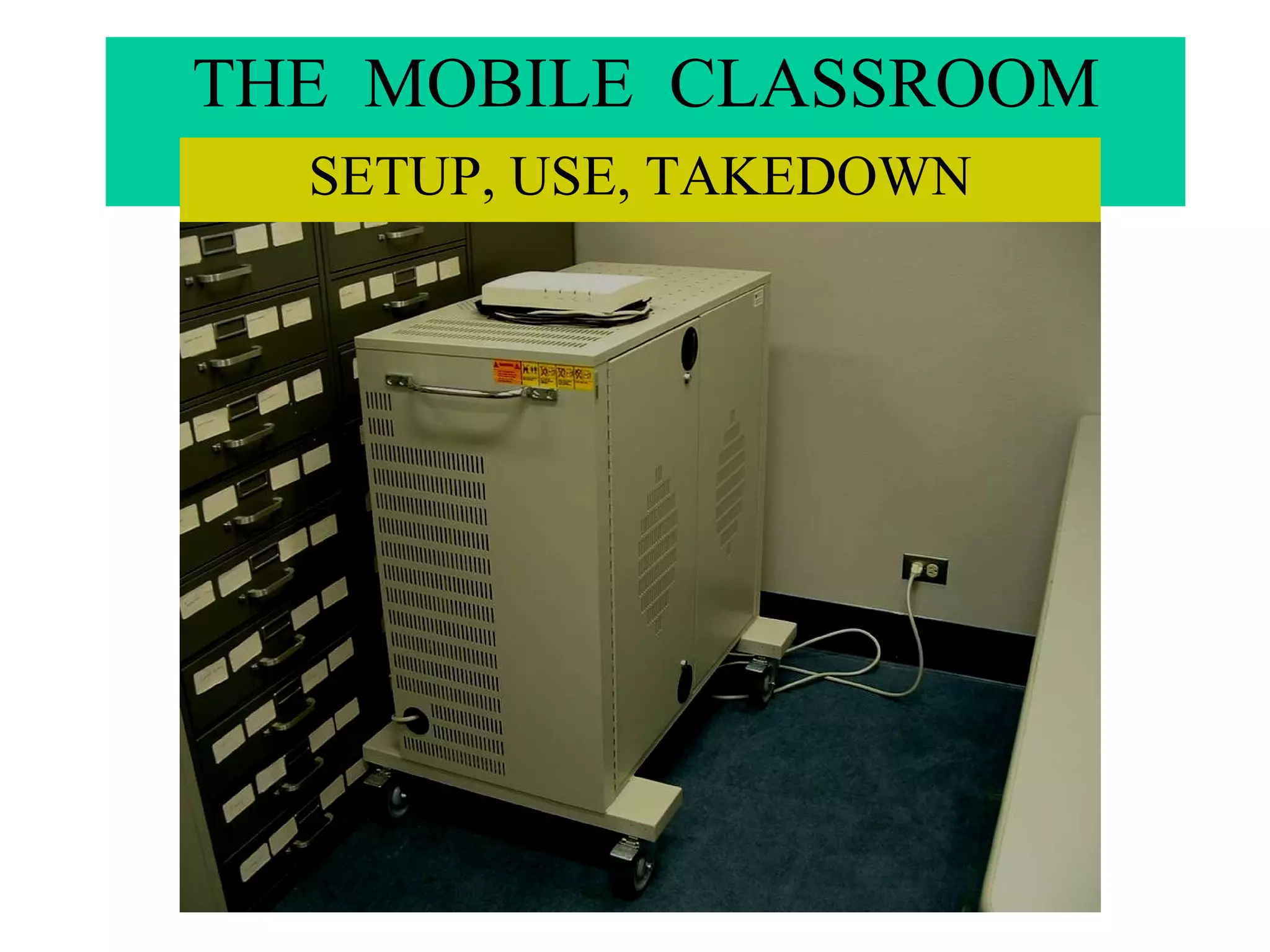
THE  MOBILE  CLASSROOM SETUP, USE, TAKEDOWN
Cart Specs 16 laptops HP 1200 laser printer 802.11b wireless Ethernet 3 pointing devices per computer 1.8 GHz CPUs, Windows 2000 MS Office 2000 HD Floppy & CD drives standard DVD & Zip drives available
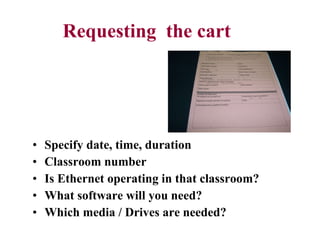
Requesting  the cart Specify date, time, duration Classroom number Is Ethernet operating in that classroom? What software will you need? Which media / Drives are needed?
Transporting  the  cart Cart must be  picked up  &  returned  by the user Go slowly over elevator threshholds A  presentation system  (smartcart or Tegrity) must be reserved seperately Allow sufficient  lead time  to pick up the cart & prepare it for use Request student assistance to help – it’s  heavy ! …
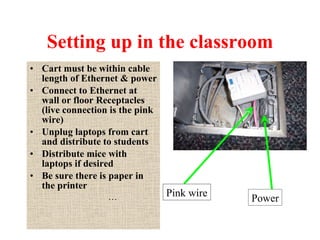
Setting up in the classroom Cart must be within cable length of Ethernet & power Connect to Ethernet at wall or floor Receptacles (live connection is the pink wire) Unplug laptops from cart and distribute to students Distribute mice with laptops if desired Be sure there is paper in the printer … Pink wire Power
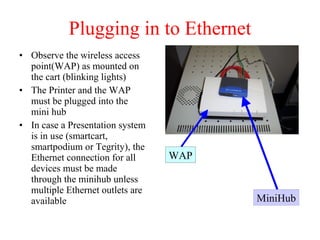
Plugging in to Ethernet Observe the wireless access point(WAP) as mounted on the cart (blinking lights) The Printer and the WAP must be plugged into the mini hub In case a Presentation system is in use (smartcart, smartpodium or Tegrity), the Ethernet connection for all devices must be made through the minihub unless multiple Ethernet outlets are available WAP MiniHub
Using the wireless (Basics)  Students must place laptops flat on desk!   (No walking around with them.) Ensure battery recharge at every 2hr -interval  Printing goes to the on-board printer In case of all - day workshop, chargers can be deployed with laptops
Using the wireless - logging in For laptop login:  ec-mobile-#  and password is  mobile NETWORK ACCESS Tree =  DCCCDEDU Context =  MOBILE_UNITS.EDU2.ECC.DCCCDEDU Server =  ECCEDU2 …
Using the wireless   (continued) Always instruct students to  save  work to floppy or zip disk. When machine reboots all files are deleted! Set expectations – inform students that they should not access pornographic site or use e-mail  Laptops power down when unused …
Using the   wireless  ( Security ) Do not leave the classroom while the cart is in use If possible, have a staff member, TA, or  an instructor assist you while using the cart …
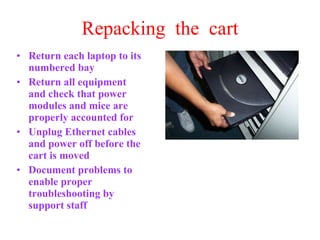
Repacking  the  cart Return each laptop to its numbered bay Return all equipment and check that power modules and mice are properly accounted for Unplug Ethernet cables and power off before the cart is moved Document problems to enable proper troubleshooting by support staff
Class preparation Try exercises out in advance and have realistic ideas about what students can do If you expect students to access the web, databases, and library catalogue, consider scheduling a librarian to conduct an orientation Prepare detailed handouts to guide novice students in the tasks you want them to accomplish Be prepared to work with students with limited computer literacy and limited software and Web knowledge …
The End Any questions? The ERC/Library Web site is at: http://www.ecc.dcccd.edu/library/index.htm …

laptoptraining

  • 1.
    THE MOBILE CLASSROOM SETUP, USE, TAKEDOWN
  • 2.
    Cart Specs 16laptops HP 1200 laser printer 802.11b wireless Ethernet 3 pointing devices per computer 1.8 GHz CPUs, Windows 2000 MS Office 2000 HD Floppy & CD drives standard DVD & Zip drives available
  • 3.
    Requesting thecart Specify date, time, duration Classroom number Is Ethernet operating in that classroom? What software will you need? Which media / Drives are needed?
  • 4.
    Transporting the cart Cart must be picked up & returned by the user Go slowly over elevator threshholds A presentation system (smartcart or Tegrity) must be reserved seperately Allow sufficient lead time to pick up the cart & prepare it for use Request student assistance to help – it’s heavy ! …
  • 5.
    Setting up inthe classroom Cart must be within cable length of Ethernet & power Connect to Ethernet at wall or floor Receptacles (live connection is the pink wire) Unplug laptops from cart and distribute to students Distribute mice with laptops if desired Be sure there is paper in the printer … Pink wire Power
  • 6.
    Plugging in toEthernet Observe the wireless access point(WAP) as mounted on the cart (blinking lights) The Printer and the WAP must be plugged into the mini hub In case a Presentation system is in use (smartcart, smartpodium or Tegrity), the Ethernet connection for all devices must be made through the minihub unless multiple Ethernet outlets are available WAP MiniHub
  • 7.
    Using the wireless(Basics) Students must place laptops flat on desk! (No walking around with them.) Ensure battery recharge at every 2hr -interval Printing goes to the on-board printer In case of all - day workshop, chargers can be deployed with laptops
  • 8.
    Using the wireless- logging in For laptop login: ec-mobile-# and password is mobile NETWORK ACCESS Tree = DCCCDEDU Context = MOBILE_UNITS.EDU2.ECC.DCCCDEDU Server = ECCEDU2 …
  • 9.
    Using the wireless (continued) Always instruct students to save work to floppy or zip disk. When machine reboots all files are deleted! Set expectations – inform students that they should not access pornographic site or use e-mail Laptops power down when unused …
  • 10.
    Using the wireless ( Security ) Do not leave the classroom while the cart is in use If possible, have a staff member, TA, or an instructor assist you while using the cart …
  • 11.
    Repacking the cart Return each laptop to its numbered bay Return all equipment and check that power modules and mice are properly accounted for Unplug Ethernet cables and power off before the cart is moved Document problems to enable proper troubleshooting by support staff
  • 12.
    Class preparation Tryexercises out in advance and have realistic ideas about what students can do If you expect students to access the web, databases, and library catalogue, consider scheduling a librarian to conduct an orientation Prepare detailed handouts to guide novice students in the tasks you want them to accomplish Be prepared to work with students with limited computer literacy and limited software and Web knowledge …
  • 13.
    The End Anyquestions? The ERC/Library Web site is at: http://www.ecc.dcccd.edu/library/index.htm …