• Presentations
A presentation is a collection of data and
information that is to be delivered to a specific
audience. A PowerPoint presentation is a
collection of electronic slides that can have
text, pictures, graphics, tables, sound and
video. This collection can run automatically or
can be controlled by a presenter.
Who uses PowerPoint?
◊ Government Agencies
◊ To disseminate information to other
agencies
◊ Researchers
◊ To present researches to peers at
conferences
◊ Executives
◊ To present projects and plan of actions
◊ Educators
◊ To teach concept using print and visual
media
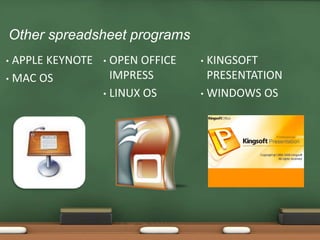
Other spreadsheet programs
• APPLE KEYNOTE
• MAC OS
• OPEN OFFICE
IMPRESS
• LINUX OS
• KINGSOFT
PRESENTATION
• WINDOWS OS
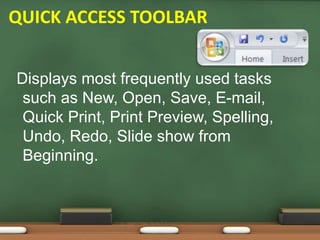
Displays most frequently used tasks
such as New, Open, Save, E-mail,
Quick Print, Print Preview, Spelling,
Undo, Redo, Slide show from
Beginning.
QUICK ACCESS TOOLBAR
this contains the general menus
OFFICE BUTTON
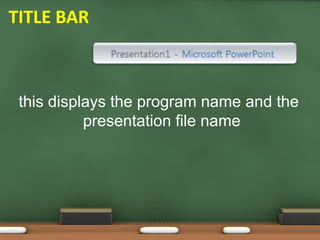
this displays the program name and the
presentation file name
TITLE BAR
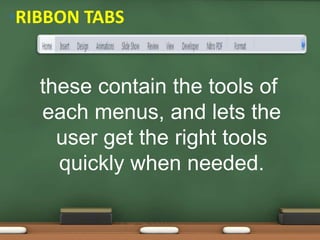
•RIBBON TABS
these contain the tools of
each menus, and lets the
user get the right tools
quickly when needed.
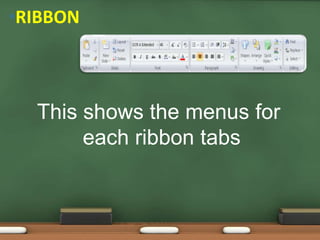
•RIBBON
This shows the menus for
each ribbon tabs
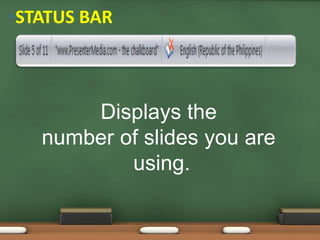
•STATUS BAR
Displays the
number of slides you are
using.
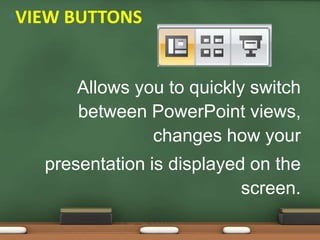
Allows you to quickly switch
between PowerPoint views,
changes how your
presentation is displayed on the
screen.
•VIEW BUTTONS
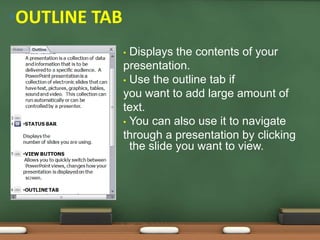
• Displays the contents of your
presentation.
• Use the outline tab if
you want to add large amount of
text.
• You can also use it to navigate
through a presentation by clicking
the slide you want to view.
•OUTLINE TAB
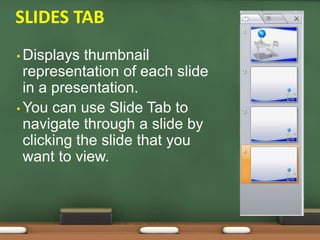
• Displays thumbnail
representation of each slide
in a presentation.
• You can use Slide Tab to
navigate through a slide by
clicking the slide that you
want to view.
•SLIDES TAB
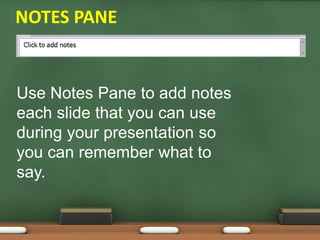
Use Notes Pane to add notes
each slide that you can use
during your presentation so
you can remember what to
say.
•NOTES PANE
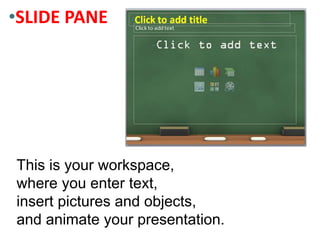
This is your workspace,
where you enter text,
insert pictures and objects,
and animate your presentation.
•SLIDE PANE

L1 introenparts

  • 1.
    • Presentations A presentationis a collection of data and information that is to be delivered to a specific audience. A PowerPoint presentation is a collection of electronic slides that can have text, pictures, graphics, tables, sound and video. This collection can run automatically or can be controlled by a presenter.
  • 2.
    Who uses PowerPoint? ◊Government Agencies ◊ To disseminate information to other agencies ◊ Researchers ◊ To present researches to peers at conferences ◊ Executives ◊ To present projects and plan of actions ◊ Educators ◊ To teach concept using print and visual media
  • 3.
    Other spreadsheet programs •APPLE KEYNOTE • MAC OS • OPEN OFFICE IMPRESS • LINUX OS • KINGSOFT PRESENTATION • WINDOWS OS
  • 5.
    Displays most frequentlyused tasks such as New, Open, Save, E-mail, Quick Print, Print Preview, Spelling, Undo, Redo, Slide show from Beginning. QUICK ACCESS TOOLBAR
  • 6.
    this contains thegeneral menus OFFICE BUTTON
  • 7.
    this displays theprogram name and the presentation file name TITLE BAR
  • 8.
    •RIBBON TABS these containthe tools of each menus, and lets the user get the right tools quickly when needed.
  • 9.
    •RIBBON This shows themenus for each ribbon tabs
  • 10.
    •STATUS BAR Displays the numberof slides you are using.
  • 11.
    Allows you toquickly switch between PowerPoint views, changes how your presentation is displayed on the screen. •VIEW BUTTONS
  • 12.
    • Displays thecontents of your presentation. • Use the outline tab if you want to add large amount of text. • You can also use it to navigate through a presentation by clicking the slide you want to view. •OUTLINE TAB
  • 13.
    • Displays thumbnail representationof each slide in a presentation. • You can use Slide Tab to navigate through a slide by clicking the slide that you want to view. •SLIDES TAB
  • 14.
    Use Notes Paneto add notes each slide that you can use during your presentation so you can remember what to say. •NOTES PANE
  • 15.
    This is yourworkspace, where you enter text, insert pictures and objects, and animate your presentation. •SLIDE PANE