Teaching with KnowledgenetTo impart to participants the skills to setup and manage their first KnowledgeNET class, and understand the range of capabilities that KnowledgeNET provides.
KnowledgeNET Teacher Essentials
Proudly presented by sarahingram – kn educational consultant
Workshop AgendaSession 1 – Introduction to KnowledgeNETSession 2 – Teaching with KnowledgeNETMorning TeaSession 2 – Teaching with KnowledgeNET cont..9.00  - 9.459.45 – 10.3010.30– 10.4510:45 – 12.00
Session 1 – Introduction to KnowledgeNETTo provide the participants with an understanding of what KnowledgeNET is, and what it is capable of doing for Students and Teachers.
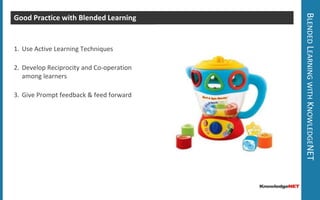
Blended Learning with KnowledgeNETGood Practice with Blended Learning Use Active Learning Techniques Develop Reciprocity and Co-operation among learnersGive Prompt feedback & feed forward
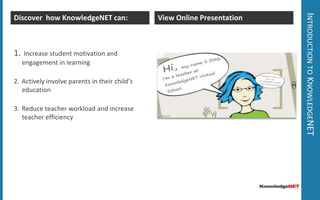
Introduction to KnowledgeNETDiscover  how KnowledgeNET can:View Online Presentation Increase student motivation and engagement in learningActively involve parents in their child’s educationReduce teacher workload and increase teacher efficiency
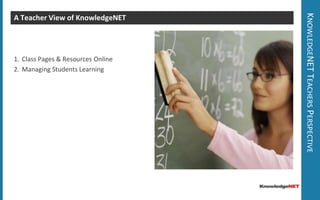
KnowledgeNET Teachers PerspectiveA Teacher View of KnowledgeNET Class Pages & Resources OnlineManaging Students Learning
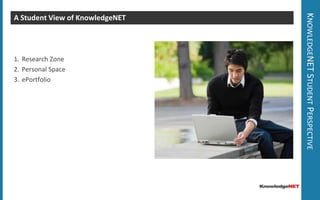
KnowledgeNET Student PerspectiveA Student View of KnowledgeNET Research ZonePersonal SpaceePortfolio
Session 2 – Teaching with KnowledgeNETTo impart to the participants the skills to set up and manage their first KnowledgeNET class, and understand the range of capabilities that KnowledgeNET provides.
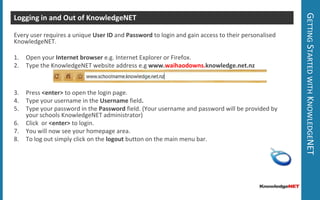
Getting Started with KnowledgeNETLogging in and Out of KnowledgeNET Every user requires a unique User ID and Password to login and gain access to their personalised KnowledgeNET.Open your Internet browser e.g. Internet Explorer or Firefox.Type the KnowledgeNET website address e.gwww.waihaodowns.knowledge.net.nzPress <enter> to open the login page.Type your username in the Username field.Type your password in the Password field. (Your username and password will be provided by your schools KnowledgeNET administrator)Click  or <enter> to login.You will now see your homepage area.To log out simply click on the logout button on the main menu bar.
Getting Started with KnowledgeNETGetting Help What do I do if I get lost or stuck? Go to the Help Wiki under Help in the Main MenuPhone or Email the help deskp: +64 9426 9460 e: support@knowledge.net.nzNew live chat system will be implemented shortly!Squash any lady bugs before they multiply!If you have any questions during today’s session please add them to the staff forum titled “KnowledgeNET Questions”
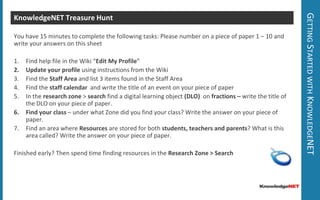
Getting Started with KnowledgeNETKnowledgeNET Treasure Hunt You have 15 minutes to complete the following tasks: Please number on a piece of paper 1 – 10 and write your answers on this sheetFind help file in the Wiki “Edit My Profile”Update your profile using instructions from the WikiFind the Staff Area and list 3 items found in the Staff AreaFind the staff calendar  and write the title of an event on your piece of paperIn the research zone > search find a digital learning object (DLO)  on fractions – write the title of the DLO on your piece of paper.Find your class – under what Zone did you find your class? Write the answer on your piece of paper.Find an area where Resources are stored for both students, teachers and parents? What is this area called? Write the answer on your piece of paper.Finished early? Then spend time finding resources in the Research Zone > Search
Find It, Rate it, Use it!Harness the power of free resources from the KN database, national library and beyond. Learn to search for, review and embed links to your favourite resources.
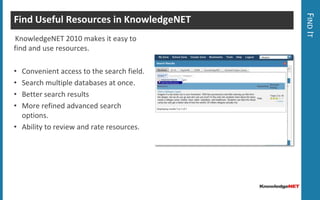
Find ItFind Useful Resources in KnowledgeNET KnowledgeNET 2010 makes it easy to find and use resources. Convenient access to the search field.
Search multiple databases at once.
Better search results
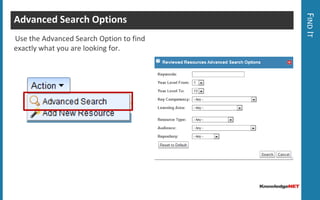
More refined advanced search options.
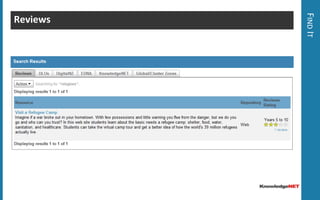
Ability to review and rate resources.Find ItReviews
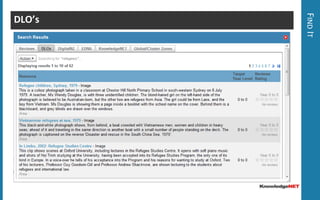
Find ItDLO’s
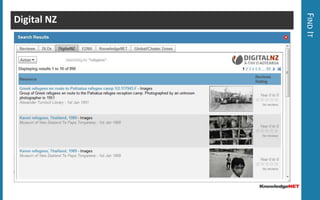
Find ItDigital NZ
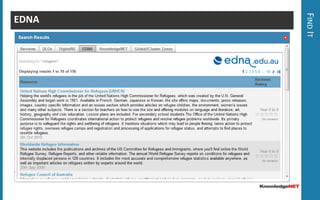
Find ItEDNA
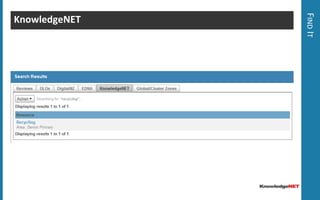
Find ItKnowledgeNET
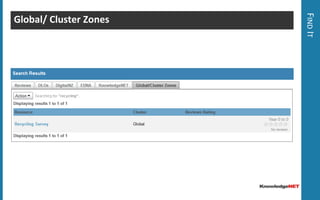
Find ItGlobal/ Cluster Zones
Find ItAdvanced Search Options Use the Advanced Search Option to find exactly what you are looking for.
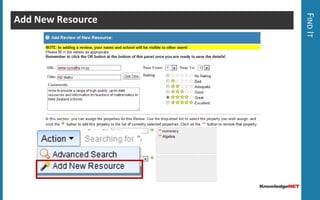
Find ItAdd New Resource
Review ResourcesHelp the KnowledgeNET Community by reviewing web resources
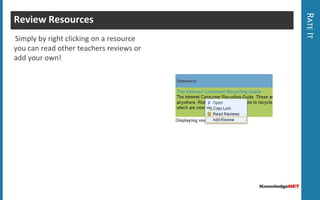
Rate ItReview Resources Simply by right clicking on a resource you can read other teachers reviewsor add your own!
Use ResourcesLearn how to integrate these resources into your classroom programme.
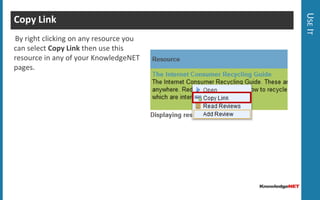
Use ItCopy Link By right clicking on any resource you can select Copy Link then use this resource in any of your KnowledgeNET pages.
Use ItEnable Links Area
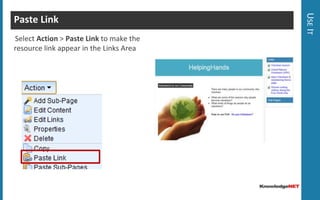
Use ItPaste Link Select Action > PasteLink to make the resource link appear in the Links Area
Your Class SpaceEngage Learners and their Parents!
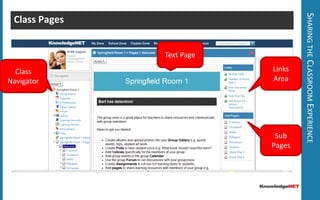
Sharing the Classroom ExperienceClass PagesText PageLinks AreaClass NavigatorSub Pages
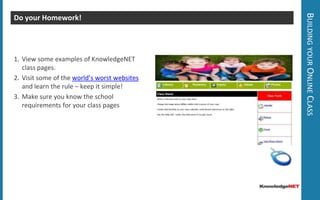
Building your Online ClassDo your Homework! View some examples of KnowledgeNET class pages.Visit some of the world’s worst websites and learn the rule – keep it simple!Make sure you know the school requirements for your class pages
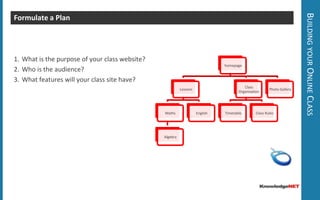
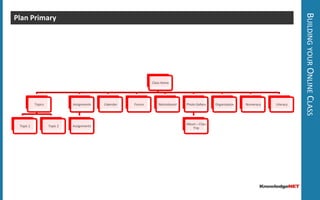
Building your Online ClassFormulate a Plan What is the purpose of your class website?Who is the audience?What features will your class site have?
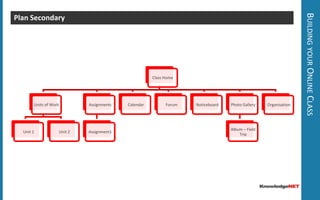
Building your Online ClassPlan Secondary
Building your Online ClassPlan Primary
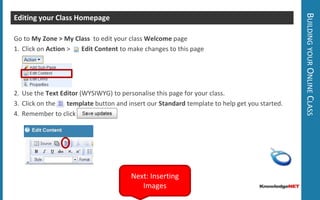
Building your Online ClassEditing your Class Homepage Go to My Zone > My Class  to edit your class Welcome pageClick on Action >       Edit Content to make changes to this pageUse the Text Editor (WYSIWYG) to personalise this page for your class.Click on the       template button and insert our Standard template to help get you started.Remember to click Next: Inserting Images
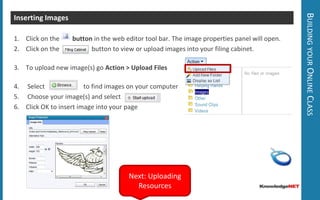
Building your Online ClassInserting Images Click on the        button in the web editor tool bar. The image properties panel will open. Click on the                    button to view or upload images into your filing cabinet.To upload new image(s) go Action > Upload Files Select                        to find images on your computerChoose your image(s) and select             Click OK to insert image into your pageNext: Uploading Resources
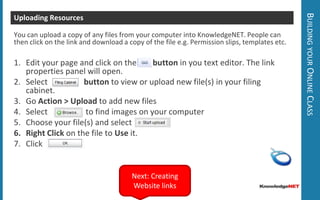
Building your Online ClassUploading Resources You can upload a copy of any files from your computer into KnowledgeNET. People can then click on the link and download a copy of the filee.g. Permission slips, templates etc. Edit your page and click on the        button in you text editor. The link properties panel will open. Select 	   button to view or upload new file(s) in your filing cabinet.Go Action > Upload to add new filesSelect                   to find images on your computerChoose your file(s) and select             Right Click on the file to Use it.Click Next: Creating Website links
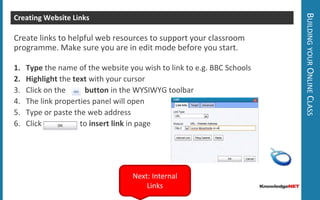
Building your Online ClassCreating Website Links Create links to helpful web resources to support your classroom programme. Make sure you are in edit mode before you start. Typethe name of the website you wish to link to e.g. BBC SchoolsHighlight the text with your cursorClick on the          button in the WYSIWYG toolbarThe link properties panel will openType or paste the web addressClick  	                  to insert link in pageNext: Internal Links
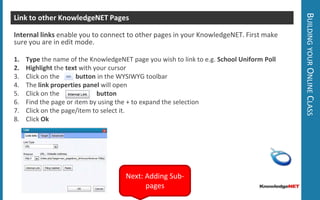
Building your Online ClassLink to other KnowledgeNET Pages Internal links enable you to connect to other pages in your KnowledgeNET. First make sure you are in edit mode.Type the name of the KnowledgeNET page you wish to link to e.g. School Uniform PollHighlight the text with your cursorClick on the          button in the WYSIWYG toolbarThe link properties panel will openClick on the                       buttonFind the page or item by using the + to expand the selectionClick on the page/item to select it.Click OkNext: Adding Sub-pages
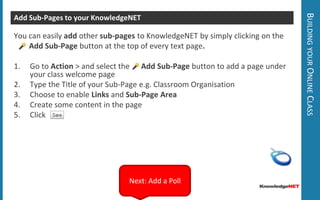
Building your Online ClassAdd Sub-Pages to your KnowledgeNET You can easily addother sub-pagesto KnowledgeNET by simply clicking on the                   Add Sub-Page button at the top of every text page. Go to Action > and select the      Add Sub-Page buttonto add a page under your class welcome pageType the Title of your Sub-Page e.g. Classroom OrganisationChoose to enable Links and Sub-Page AreaCreate some content in the page Click Next: Add a Poll
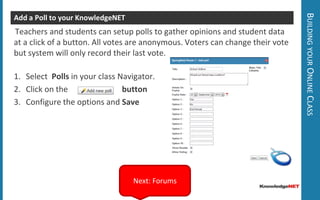
Building your Online ClassAdd a Poll to your KnowledgeNET Teachers and students can setup polls to gather opinions and student data at a click of a button. All votes are anonymous. Voters can change their vote but system will only record their last vote.Select  Polls in your class Navigator.Click on the      buttonConfigure the options and SaveNext: Forums
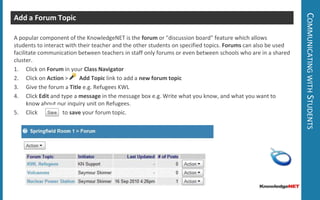
Communicating with StudentsAdd a Forum TopicA popular component of the KnowledgeNET is the forum or "discussion board" feature which allows students to interact with their teacher and the other students on specified topics. Forums can also be used facilitate communication between teachers in staff only forums or even between schools who are in a shared cluster.Click on Forum in your Class NavigatorClick on Action >        Add Topic linkto add a new forum topicGive the forum a Title e.g. Refugees KWLClick Edit and type a message in the message box e.g. Write what you know, and what you want to know about our inquiry unit on Refugees.Click                  to save your forum topic.
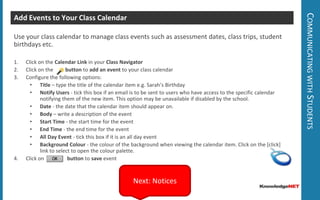
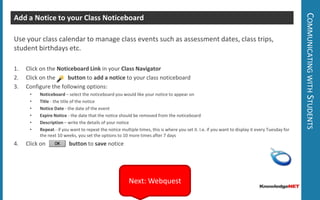
Communicating with StudentsAdd Events to Your Class Calendar Use your class calendar to manage class events such as assessment dates, class trips, student birthdays etc.Click on the Calendar Link in your Class NavigatorClick on the         button to add an event to your class calendarConfigure the following options:Title – type the title of the calendar item e.g. Sarah’s Birthday
Notify Users - tick this box if an email is to be sent to users who have access to the specific calendar notifying them of the new item. This option may be unavailable if disabled by the school.
Date - the date that the calendar item should appear on.

Knowledge net teacher_essentials2010

  • 1.
    Teaching with KnowledgenetToimpart to participants the skills to setup and manage their first KnowledgeNET class, and understand the range of capabilities that KnowledgeNET provides.
  • 2.
  • 3.
    Proudly presented bysarahingram – kn educational consultant
  • 4.
    Workshop AgendaSession 1– Introduction to KnowledgeNETSession 2 – Teaching with KnowledgeNETMorning TeaSession 2 – Teaching with KnowledgeNET cont..9.00 - 9.459.45 – 10.3010.30– 10.4510:45 – 12.00
  • 5.
    Session 1 –Introduction to KnowledgeNETTo provide the participants with an understanding of what KnowledgeNET is, and what it is capable of doing for Students and Teachers.
  • 6.
    Blended Learning withKnowledgeNETGood Practice with Blended Learning Use Active Learning Techniques Develop Reciprocity and Co-operation among learnersGive Prompt feedback & feed forward
  • 7.
    Introduction to KnowledgeNETDiscover how KnowledgeNET can:View Online Presentation Increase student motivation and engagement in learningActively involve parents in their child’s educationReduce teacher workload and increase teacher efficiency
  • 8.
    KnowledgeNET Teachers PerspectiveATeacher View of KnowledgeNET Class Pages & Resources OnlineManaging Students Learning
  • 9.
    KnowledgeNET Student PerspectiveAStudent View of KnowledgeNET Research ZonePersonal SpaceePortfolio
  • 10.
    Session 2 –Teaching with KnowledgeNETTo impart to the participants the skills to set up and manage their first KnowledgeNET class, and understand the range of capabilities that KnowledgeNET provides.
  • 11.
    Getting Started withKnowledgeNETLogging in and Out of KnowledgeNET Every user requires a unique User ID and Password to login and gain access to their personalised KnowledgeNET.Open your Internet browser e.g. Internet Explorer or Firefox.Type the KnowledgeNET website address e.gwww.waihaodowns.knowledge.net.nzPress <enter> to open the login page.Type your username in the Username field.Type your password in the Password field. (Your username and password will be provided by your schools KnowledgeNET administrator)Click  or <enter> to login.You will now see your homepage area.To log out simply click on the logout button on the main menu bar.
  • 12.
    Getting Started withKnowledgeNETGetting Help What do I do if I get lost or stuck? Go to the Help Wiki under Help in the Main MenuPhone or Email the help deskp: +64 9426 9460 e: support@knowledge.net.nzNew live chat system will be implemented shortly!Squash any lady bugs before they multiply!If you have any questions during today’s session please add them to the staff forum titled “KnowledgeNET Questions”
  • 13.
    Getting Started withKnowledgeNETKnowledgeNET Treasure Hunt You have 15 minutes to complete the following tasks: Please number on a piece of paper 1 – 10 and write your answers on this sheetFind help file in the Wiki “Edit My Profile”Update your profile using instructions from the WikiFind the Staff Area and list 3 items found in the Staff AreaFind the staff calendar and write the title of an event on your piece of paperIn the research zone > search find a digital learning object (DLO) on fractions – write the title of the DLO on your piece of paper.Find your class – under what Zone did you find your class? Write the answer on your piece of paper.Find an area where Resources are stored for both students, teachers and parents? What is this area called? Write the answer on your piece of paper.Finished early? Then spend time finding resources in the Research Zone > Search
  • 14.
    Find It, Rateit, Use it!Harness the power of free resources from the KN database, national library and beyond. Learn to search for, review and embed links to your favourite resources.
  • 15.
    Find ItFind UsefulResources in KnowledgeNET KnowledgeNET 2010 makes it easy to find and use resources. Convenient access to the search field.
  • 16.
  • 17.
  • 18.
    More refined advancedsearch options.
  • 19.
    Ability to reviewand rate resources.Find ItReviews
  • 20.
  • 21.
  • 22.
  • 23.
  • 24.
  • 25.
    Find ItAdvanced SearchOptions Use the Advanced Search Option to find exactly what you are looking for.
  • 26.
  • 27.
    Review ResourcesHelp theKnowledgeNET Community by reviewing web resources
  • 28.
    Rate ItReview Resources Simplyby right clicking on a resource you can read other teachers reviewsor add your own!
  • 29.
    Use ResourcesLearn howto integrate these resources into your classroom programme.
  • 30.
    Use ItCopy Link Byright clicking on any resource you can select Copy Link then use this resource in any of your KnowledgeNET pages.
  • 31.
  • 32.
    Use ItPaste Link SelectAction > PasteLink to make the resource link appear in the Links Area
  • 33.
    Your Class SpaceEngageLearners and their Parents!
  • 34.
    Sharing the ClassroomExperienceClass PagesText PageLinks AreaClass NavigatorSub Pages
  • 35.
    Building your OnlineClassDo your Homework! View some examples of KnowledgeNET class pages.Visit some of the world’s worst websites and learn the rule – keep it simple!Make sure you know the school requirements for your class pages
  • 36.
    Building your OnlineClassFormulate a Plan What is the purpose of your class website?Who is the audience?What features will your class site have?
  • 37.
    Building your OnlineClassPlan Secondary
  • 38.
    Building your OnlineClassPlan Primary
  • 39.
    Building your OnlineClassEditing your Class Homepage Go to My Zone > My Class to edit your class Welcome pageClick on Action > Edit Content to make changes to this pageUse the Text Editor (WYSIWYG) to personalise this page for your class.Click on the template button and insert our Standard template to help get you started.Remember to click Next: Inserting Images
  • 40.
    Building your OnlineClassInserting Images Click on the    button in the web editor tool bar. The image properties panel will open. Click on the button to view or upload images into your filing cabinet.To upload new image(s) go Action > Upload Files Select to find images on your computerChoose your image(s) and select Click OK to insert image into your pageNext: Uploading Resources
  • 41.
    Building your OnlineClassUploading Resources You can upload a copy of any files from your computer into KnowledgeNET. People can then click on the link and download a copy of the filee.g. Permission slips, templates etc. Edit your page and click on the button in you text editor. The link properties panel will open. Select button to view or upload new file(s) in your filing cabinet.Go Action > Upload to add new filesSelect to find images on your computerChoose your file(s) and select Right Click on the file to Use it.Click Next: Creating Website links
  • 42.
    Building your OnlineClassCreating Website Links Create links to helpful web resources to support your classroom programme. Make sure you are in edit mode before you start. Typethe name of the website you wish to link to e.g. BBC SchoolsHighlight the text with your cursorClick on the   button in the WYSIWYG toolbarThe link properties panel will openType or paste the web addressClick to insert link in pageNext: Internal Links
  • 43.
    Building your OnlineClassLink to other KnowledgeNET Pages Internal links enable you to connect to other pages in your KnowledgeNET. First make sure you are in edit mode.Type the name of the KnowledgeNET page you wish to link to e.g. School Uniform PollHighlight the text with your cursorClick on the   button in the WYSIWYG toolbarThe link properties panel will openClick on the buttonFind the page or item by using the + to expand the selectionClick on the page/item to select it.Click OkNext: Adding Sub-pages
  • 44.
    Building your OnlineClassAdd Sub-Pages to your KnowledgeNET You can easily addother sub-pagesto KnowledgeNET by simply clicking on the Add Sub-Page button at the top of every text page. Go to Action > and select the Add Sub-Page buttonto add a page under your class welcome pageType the Title of your Sub-Page e.g. Classroom OrganisationChoose to enable Links and Sub-Page AreaCreate some content in the page Click Next: Add a Poll
  • 45.
    Building your OnlineClassAdd a Poll to your KnowledgeNET Teachers and students can setup polls to gather opinions and student data at a click of a button. All votes are anonymous. Voters can change their vote but system will only record their last vote.Select Polls in your class Navigator.Click on the buttonConfigure the options and SaveNext: Forums
  • 46.
    Communicating with StudentsAdda Forum TopicA popular component of the KnowledgeNET is the forum or "discussion board" feature which allows students to interact with their teacher and the other students on specified topics. Forums can also be used facilitate communication between teachers in staff only forums or even between schools who are in a shared cluster.Click on Forum in your Class NavigatorClick on Action > Add Topic linkto add a new forum topicGive the forum a Title e.g. Refugees KWLClick Edit and type a message in the message box e.g. Write what you know, and what you want to know about our inquiry unit on Refugees.Click to save your forum topic.
  • 47.
    Communicating with StudentsAddEvents to Your Class Calendar Use your class calendar to manage class events such as assessment dates, class trips, student birthdays etc.Click on the Calendar Link in your Class NavigatorClick on the button to add an event to your class calendarConfigure the following options:Title – type the title of the calendar item e.g. Sarah’s Birthday
  • 48.
    Notify Users -tick this box if an email is to be sent to users who have access to the specific calendar notifying them of the new item. This option may be unavailable if disabled by the school.
  • 49.
    Date - thedate that the calendar item should appear on.

Editor's Notes

  • #7 1. Active learning is a critical component of the learning process in an online environment as it is face-to-face. KnowledgeNET is not about delivering information to learners but about building an online collaborative environment that is challenging and exploratory. Students learn best when they are actively engaged in the content.2. Encourage interactions and collaborative learning techniques in KnowledgeNET. Get students working in groups and discussing ideas in forums so they can learn from each other and refine their thinking.3. KnowledgeNET supports prompt feedback through the use of assignment drop boxes, comment boxes and forums.
  • #9 www.knconference.knowledge.net.nz : Username &amp; Password: principalwww.cornwallpark.knowledge.net.nz &gt; Room 2 &gt; Discovery Zonewww.ranginet.knowledge.net.nz &gt; Graphics Year 10www.brownsbay.knowlwedge.net.nz &gt; Room 26
  • #10 www.demo.knowledge.net.nz &gt; username:lisa password: simpson
  • #12 Tip: Bookmark this website!
  • #13 http://wiki.knowledge.net.nz
  • #17 Once a keyword is entered,KnowledgeNET will simultaneously search all our databases. The Reviews tab is a list of resources that have the highest rating. These resources have been reviewed and rated by teachers. Just right click on the resource to read what other teachers think of this resource and ideas for using this resource in classroom programmes.
  • #18 Digital learning Objects - a repository of digital artefacts and interactive games that The Learning Federation has granted KnowledgeNET a license to host. Integrate these objects into units of work,webquests, and group lessons to support the development of hard to teach concepts in different learning areas. For a full list of DLO’’s download the catalogues from the Learning Federation website. http://www.thelearningfederation.edu.au/for_teachers/catalogues/catalogues.html
  • #19 DigitalNZ is a collaborative initiative led by the National Library of New Zealand. They work with a wide range of contributing institutions and organisations. DigitalNZ includes content from government departments, publicly funded organisations, the private sector, and community groups. See http://www.digitalnz.org/contributor/current-contributors/ for a full list of contributors.
  • #20 They’ve tried to claim Phar Lap, Pavlova, Crowded House and more recently the All Whites so we have done you a favour New Zealand and claimed EDNA for KnowledgeNET. EDNA is an extensive collection of resources for teaching, learning and research, identified and contributed by Australian educators.http://www.edna.edu.au/edna/go
  • #21 KnowledgeNET tab searches resources that other school members have added to your KnowledgeNET. Or check here if you have lost something you have created.
  • #22 Find a range of resources added by the KnowledgeNET Community of users.
  • #23 A range of advanced search options make it easier to find what you are looking for e.g. Resource Type, Learning Area etc.
  • #24 Can’t Find What You’re Looking For? - Help the KnowledgeNET community by adding new resources from the web. In a few easy steps you can describe it, rate it and link it to the curriculum. Remember the person who adds the most New Resources will win a Lenovo ideapad!
  • #26 Remember the person who adds the most reviews will win a Lenovo ideapad!
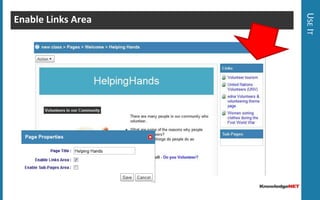
  • #29 Before Pasting the Link: Make sure you have enabled the Links Area by going Action &gt; Properties &gt; Enable Links Area and then Save.
  • #32 Class Navigator – shows all pages and items for that class e.g. Class Members Link, Assignments, Class Calendar etcText Page – A page you can personalise for your class using the web editor (like word processor)Links Area – copy and paste links from research zone or filing cabinet into hereSubpage – show list of pages underneath this page.
  • #38 Drag n drop files into uploader (Google Gears plugin) Ctrl &amp; Shft to select multiple filesCan change image properties e.g width, border size, alignment
  • #39 If you use the links area of a page – go to your filing cabinet – right click copy resource&gt; go to page &gt; right click paste resource link
  • #40 We recommend that you use the search area to review and store resources – to help support KnowledgeNET community.
  • #42 Tip: Sometimes we need to create new text pages (sub-pages) if there is too much information on a page. Don’t overcrowd your page with too much information – simply put this info on a new page.
  • #43 Question: How would you use polls in your classroom? Discuss with the person next to you.Title: e.g. School UniformsDescription: e.g. Should our school have a uniform?Delete on expiry: tick if you want poll to be deleted on expiry date.Expiry Date: Choose a date when poll is closed to votingOptions: Select the choices e.g. Yes, No, Don&apos;t KnowShow Results: Display results in real timeAllow Voting: Open poll for people to start voting
  • #44 Question: How would you use forums in your classroom? E.g. To kick of a new topic...
  • #45 Question: What would you use calendars for?
  • #48 Tip: Use the template button in the Web Editor to insert the Web Quest template so you are now ready to create a rich learning task for your students.