Setting up a private network on AWS using geth
Introduction
This is a step by step guide to setup a private Ethereum network on AWS using geth. This document is
useful for anyone trying to create a private chain/testnet using geth
This document is divided into two parts:
o Creating EC2 instance on AWS and installing geth
o Synchronizing this node with other nodes
1. Launching EC2 instance and installing geth
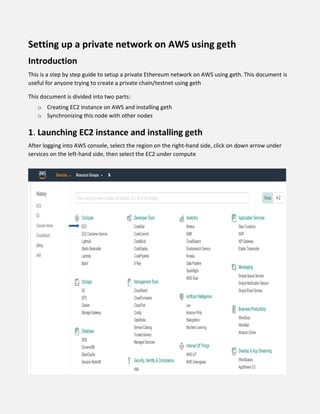
After logging into AWS console, select the region on the right-hand side, click on down arrow under
services on the left-hand side, then select the EC2 under compute
Select launch instance under create instance which will take you to the OS selection screen
Select any of the amazon machine images depending on your OS requirements, in our case we choose
ubuntu server
Choose instance type, we recommend using t2.medium (2 vCPU, 4 GB RAM) with default 8G SSD,we
chose a medium server to have more memory and not crash during testing or development, but you
can choose any size depending on your expected usage
Click Next: Configure instance details in the bottom right hand corner, select the number of instances
you want in our case we launch one instance first, select the availability zone under subnet and enable
the accidental termination protection and cloudwatch detailed monitoring
The next step is to add storage we used 8GB standard and volume type as magnetic. You can either check
the box to delete on termination or not. If it is checked it means that if you delete an EC2 instance, it will
also delete the data on it. We recommend this option to avoid storing extra data in the cloud
1.1 Setup Security Groups
Setting up a security group on an Amazon EC2 instance is done to let the server know which ports to
accept inbound or outbound data from. First you need to name your security group and include a
description. Make sure that both instances are under same security groups which allows Custom TCP
(30000-30999) as in our case. Use source to restrict access to custom IPs, in our case we use anywhere
with default IP as 0.0.0.0/0, ::/0.
1.2 Setup Key Pair
After reviewing all the information, as you launch your EC2 instance, you will see an alert show up to
either select an existing key pair or to create a new key pair. Setting up your key pair is to enable you to
securely SSH into your instance, while ensuring that others cannot. As shown in the image, your key pair
consists of a public key which AWS stores and a private key which you store on your computer. Make
sure to download your private key to SSH into your instance later when needed
Now that you have completed activating your cloud server and you have downloaded your key pair you
should be shown a screen to confirm your Instance has been setup properly and an ID for your Instance.
It might take a few minutes to complete loading, but be patient as you need it to complete for it to return
the public IP that enables you to connect to your cloud instance. Once it is completed loading and it has
returned your public IP you are able to SSH into your EC2 from your terminal, using the key pair that you
just created
1.3 SSH into you EC2 instance and install geth
In order SSH into your EC2 instance we use chmod 400 command to lock your private key and change
permission on keypair file
From your terminal, change directory to the folder that has the key pair and input the command below.
Type yes, then click enter, and your terminal will respond that you have permanently added your public
IP to the list of known hosts, which will give access to your amazon machine image
Now you are logged into your geth node1 on AWS, make a directory to store the private chain data and
install geth using the the following commands. We named node1 as our chain directory
You can check the installed geth version on you amazon machine image using following command
Every blockchain needs a genesis block. For private network you need to use a different genesis file.
Initialize geth with genesis.json file in node1 data directory, the json file configuration should be edited
as per the private network requirements. Both the nodes on amazon machine must be initialized with
the genesis file having similar configurations. This Genesis.json file was used to initialize the private
blockchain
We used aws s3 service to first upload the genesis.json file and then used wget to upload the genesis file
to node1 directory on our AMI
Initialize the private chain using geth in node1 data directory on amazon machine image as shown below
using the following command
Repeat the steps above to create a second ec2 instance and install geth on the same. We named our
second instance on amazon machine as geth node 2 and chain data directory in second instance as node2
2. Make sure that both the nodes are synchronized
There are different ways of node synchronization on private network, I have used one of the many
possible ways. After initializing the client with genesis file in node1 and follow the steps below to get the
node information and to know the number of peers that are connected to this node. The command
below opens the JavaScript console, geth provides us JavaScript runtime environment to build and
deploy applications on top of it. Get the node information using the command below
There are no peers connected to the node1 currently, using enode info we can connect our geth node2 to geth
node1. Replace [::] in enode info with the private IP address of geth node1 and using the command
admin.addpeer("enodeinfo"), add node1 as a peer of node2. We can public use ip address but to avoid connecting
to node1 every time we start and stop our instance we use private ip address
Note that after admin.addPeer() on node2, two nodes are synchronized. We do not need to do the same
thing on node1. After peering, we see Block synchronization has started

Knowledge article

  • 1.
    Setting up aprivate network on AWS using geth Introduction This is a step by step guide to setup a private Ethereum network on AWS using geth. This document is useful for anyone trying to create a private chain/testnet using geth This document is divided into two parts: o Creating EC2 instance on AWS and installing geth o Synchronizing this node with other nodes 1. Launching EC2 instance and installing geth After logging into AWS console, select the region on the right-hand side, click on down arrow under services on the left-hand side, then select the EC2 under compute
  • 2.
    Select launch instanceunder create instance which will take you to the OS selection screen Select any of the amazon machine images depending on your OS requirements, in our case we choose ubuntu server
  • 3.
    Choose instance type,we recommend using t2.medium (2 vCPU, 4 GB RAM) with default 8G SSD,we chose a medium server to have more memory and not crash during testing or development, but you can choose any size depending on your expected usage Click Next: Configure instance details in the bottom right hand corner, select the number of instances you want in our case we launch one instance first, select the availability zone under subnet and enable the accidental termination protection and cloudwatch detailed monitoring
  • 4.
    The next stepis to add storage we used 8GB standard and volume type as magnetic. You can either check the box to delete on termination or not. If it is checked it means that if you delete an EC2 instance, it will also delete the data on it. We recommend this option to avoid storing extra data in the cloud 1.1 Setup Security Groups Setting up a security group on an Amazon EC2 instance is done to let the server know which ports to accept inbound or outbound data from. First you need to name your security group and include a description. Make sure that both instances are under same security groups which allows Custom TCP (30000-30999) as in our case. Use source to restrict access to custom IPs, in our case we use anywhere with default IP as 0.0.0.0/0, ::/0.
  • 5.
    1.2 Setup KeyPair After reviewing all the information, as you launch your EC2 instance, you will see an alert show up to either select an existing key pair or to create a new key pair. Setting up your key pair is to enable you to securely SSH into your instance, while ensuring that others cannot. As shown in the image, your key pair consists of a public key which AWS stores and a private key which you store on your computer. Make sure to download your private key to SSH into your instance later when needed Now that you have completed activating your cloud server and you have downloaded your key pair you should be shown a screen to confirm your Instance has been setup properly and an ID for your Instance. It might take a few minutes to complete loading, but be patient as you need it to complete for it to return the public IP that enables you to connect to your cloud instance. Once it is completed loading and it has returned your public IP you are able to SSH into your EC2 from your terminal, using the key pair that you just created 1.3 SSH into you EC2 instance and install geth In order SSH into your EC2 instance we use chmod 400 command to lock your private key and change permission on keypair file
  • 6.
    From your terminal,change directory to the folder that has the key pair and input the command below. Type yes, then click enter, and your terminal will respond that you have permanently added your public IP to the list of known hosts, which will give access to your amazon machine image Now you are logged into your geth node1 on AWS, make a directory to store the private chain data and install geth using the the following commands. We named node1 as our chain directory You can check the installed geth version on you amazon machine image using following command
  • 7.
    Every blockchain needsa genesis block. For private network you need to use a different genesis file. Initialize geth with genesis.json file in node1 data directory, the json file configuration should be edited as per the private network requirements. Both the nodes on amazon machine must be initialized with the genesis file having similar configurations. This Genesis.json file was used to initialize the private blockchain We used aws s3 service to first upload the genesis.json file and then used wget to upload the genesis file to node1 directory on our AMI Initialize the private chain using geth in node1 data directory on amazon machine image as shown below using the following command
  • 8.
    Repeat the stepsabove to create a second ec2 instance and install geth on the same. We named our second instance on amazon machine as geth node 2 and chain data directory in second instance as node2 2. Make sure that both the nodes are synchronized There are different ways of node synchronization on private network, I have used one of the many possible ways. After initializing the client with genesis file in node1 and follow the steps below to get the node information and to know the number of peers that are connected to this node. The command below opens the JavaScript console, geth provides us JavaScript runtime environment to build and deploy applications on top of it. Get the node information using the command below There are no peers connected to the node1 currently, using enode info we can connect our geth node2 to geth node1. Replace [::] in enode info with the private IP address of geth node1 and using the command admin.addpeer("enodeinfo"), add node1 as a peer of node2. We can public use ip address but to avoid connecting to node1 every time we start and stop our instance we use private ip address Note that after admin.addPeer() on node2, two nodes are synchronized. We do not need to do the same thing on node1. After peering, we see Block synchronization has started