YO UT
        FX LA
JA VA

          January 13, 2010
        amy.fowler@sun.com
AGENDA


   JavaFX Layout Fundamentals
     *Changes for 1.3 (in blue)


* we reserve the right to change our minds (at least until we ship)
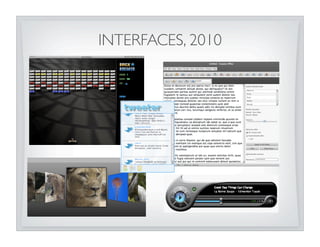
INTERFACES, 2010
JAVAFX LAYOUT GOALS


• Make common layout idioms easy
 • rows/columns, forms, alignment, spacing, etc.
• Don’t get in the way of creativity
 • animation - must allow things to move
 • free form shapes - no longer restricted by nested, clipped, rectangles!
• Performance a major focus for 1.3
LAYOUT MECHANISM

• Scene graph layed out once per pulse, before rendering
 • nodes call requestLayout() when preferred size changes
 • requests all coalesced for next layout pass
 • layout executes top-down (dirty branches only)
• MUCH more efficient in 1.3
 • fine-tuned calls to requestLayout
 • more efficient bounds calculations
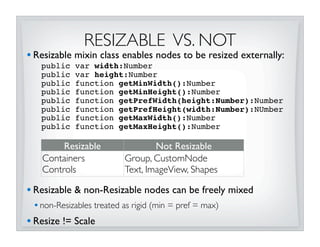
RESIZABLE VS. NOT
• Resizable mixin class enables nodes to be resized externally:
   public   var width:Number
   public   var height:Number
   public   function getMinWidth():Number
   public   function getMinHeight():Number
   public   function getPrefWidth(height:Number):Number
   public   function getPrefHeight(width:Number):NUmber
   public   function getMaxWidth():Number
   public   function getMaxHeight():Number

        Resizable                 Not Resizable
   Containers             Group, CustomNode
   Controls               Text, ImageView, Shapes

• Resizable & non-Resizable nodes can be freely mixed
 • non-Resizables treated as rigid (min = pref = max)
• Resize != Scale
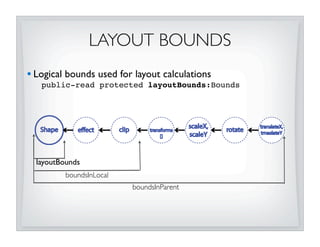
LAYOUT BOUNDS
• Logical bounds used for layout calculations
   public-read protected layoutBounds:Bounds


  layoutBounds
          boundsInLocal
                          boundsInParent
LAYOUT BOUNDS
                           CONTINUED

      Node type                           layoutBounds
Non-Resizable            geometry only
(Shapes, Text, etc.)     •no effect/clip/transforms
Resizable               0, 0 width x height
(Controls & Containers) •regardless of visual bounds

Group                    union of childrens’ boundsInParent
                         • effects/clip/transforms on children included
                         • effects/clip/transforms on Group not included
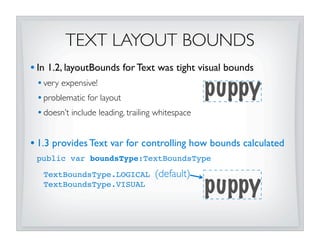
TEXT LAYOUT BOUNDS
• In 1.2, layoutBounds for Text was tight visual bounds
 • very expensive!
 • problematic for layout                         puppy
 • doesn’t include leading, trailing whitespace

• 1.3 provides Text var for controlling how bounds calculated
 public var boundsType:TextBoundsType

   TextBoundsType.LOGICAL           (default)
   TextBoundsType.VISUAL
                                                  puppy
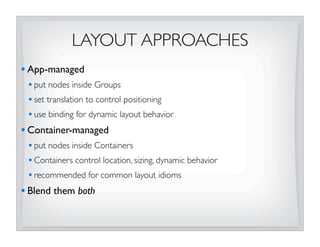
LAYOUT APPROACHES
• App-managed
 • put nodes inside Groups
 • set translation to control positioning
 • use binding for dynamic layout behavior
• Container-managed
 • put nodes inside Containers
 • Containers control location, sizing, dynamic behavior
 • recommended for common layout idioms
• Blend them both
APP MANAGED
                            POSITIONING


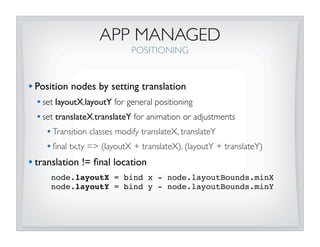
• Position nodes by setting translation
 • set layoutX,layoutY for general positioning
 • set translateX,translateY for animation or adjustments
    • Transition classes modify translateX, translateY
    • final tx,ty => (layoutX + translateX), (layoutY + translateY)
• translation != final location
     node.layoutX = bind x - node.layoutBounds.minX
     node.layoutY = bind y - node.layoutBounds.minY
APP MANAGED
                           SIZING


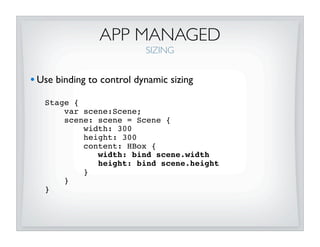
• Use binding to control dynamic sizing
   Stage {
       var scene:Scene;
       scene: scene = Scene {
           width: 300
           height: 300
           content: HBox {
              width: bind scene.width
              height: bind scene.height
           }
       }
   }
CONTAINER MANAGED
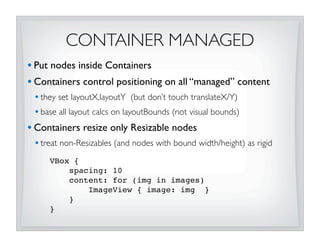
• Put nodes inside Containers
• Containers control positioning on all “managed” content
 • they set layoutX,layoutY (but don’t touch translateX/Y)
 • base all layout calcs on layoutBounds (not visual bounds)
• Containers resize only Resizable nodes
 • treat non-Resizables (and nodes with bound width/height) as rigid
     VBox {
         spacing: 10
         content: for (img in images)
             ImageView { image: img }
         }
     }
AUTO SIZING
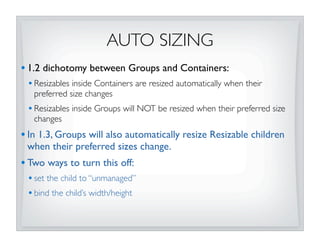
• 1.2 dichotomy between Groups and Containers:
 • Resizables inside Containers are resized automatically when their
   preferred size changes
 • Resizables inside Groups will NOT be resized when their preferred size
   changes
• In 1.3, Groups will also automatically resize Resizable children
 when their preferred sizes change.
• Two ways to turn this off:
 • set the child to “unmanaged”
 • bind the child’s width/height
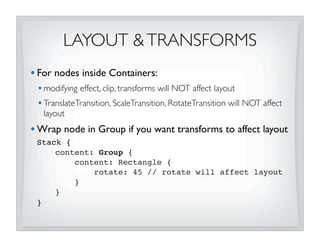
LAYOUT & TRANSFORMS
• For nodes inside Containers:
 • modifying effect, clip, transforms will NOT affect layout
 • TranslateTransition, ScaleTransition, RotateTransition will NOT affect
   layout
• Wrap node in Group if you want transforms to affect layout
 Stack {
     content: Group {
         content: Rectangle {
             rotate: 45 // rotate will affect layout
         }
     }
 }
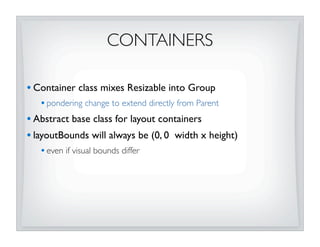
CONTAINERS

• Container class mixes Resizable into Group
   • pondering change to extend directly from Parent
• Abstract base class for layout containers
• layoutBounds will always be (0, 0 width x height)
   • even if visual bounds differ
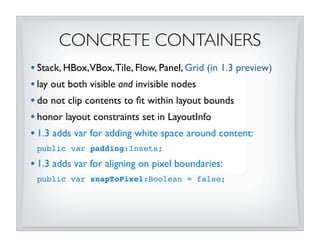
CONCRETE CONTAINERS
• Stack, HBox,VBox, Tile, Flow, Panel, Grid (in 1.3 preview)
• lay out both visible and invisible nodes
• do not clip contents to fit within layout bounds
• honor layout constraints set in LayoutInfo
• 1.3 adds var for adding white space around content:
 public var padding:Insets;

• 1.3 adds var for aligning on pixel boundaries:
 public var snapToPixel:Boolean = false;
STACK
• Easy back-to-front layering
   • z-order matches order of content[] sequence
• Its preferred size is largest preferred width/height of children
• Resizes Resizables to “fill” stack (up to their max size limits)
 Stack {
     content: [
         Rectangle { ...         }
         Circle { ... }
         Label {
             text: “3”
         }
     ]
 }
HBOX & VBOX

• Simple horizontal row or vertical column of nodes
• Configurable spacing & alignment
• Resizes Resizables to their preferred sizes
 HBox {
     spacing: 4
     content: for (in in [0..4])
         Thing {
             text: “{i}”
         }
     ]
 }
TILE
• Lays out nodes in grid of uniform-sized “tiles”
• Horizontal or vertical orientation
• Wraps tiles when Tile’s size changes
• Size of each “tile” defaults to largest preferred content
• Resizes nodes to “fill” tile (up to their max size limits)
• Configurable spacing & alignment
 Tile {
     columns: 3
     hgap: 3 vgap: 3
     content: for (i in [0..5])
         Thing { text: “{i}” }
 }
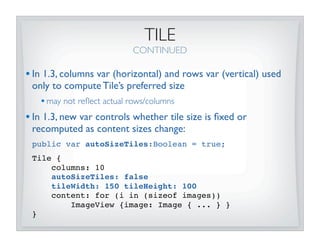
TILE
                           CONTINUED

• In 1.3, columns var (horizontal) and rows var (vertical) used
 only to compute Tile’s preferred size
   • may not reflect actual rows/columns
• In 1.3, new var controls whether tile size is fixed or
 recomputed as content sizes change:
 public var autoSizeTiles:Boolean = true;
 Tile {
     columns: 10
     autoSizeTiles: false
     tileWidth: 150 tileHeight: 100
     content: for (i in (sizeof images))
         ImageView {image: Image { ... } }
 }
FLOW
• Horizontal or vertical flow that wrap on width/height
 boundaries
• Always resizes Resizables to their preferred sizes
• Configurable spacing & alignment
• 1.3 adds var to control the preferred wrap dimension:
 public var wrapLength:Number = 400;
 Flow {
     wrapLength: 300
     hgap: 5 vgap: 10
     content: for (i in [0..7])
         Thing { ... }
 }
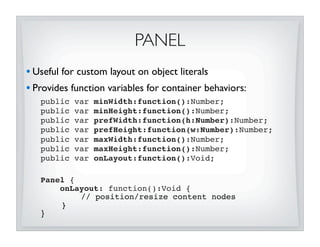
PANEL
• Useful for custom layout on object literals
• Provides function variables for container behaviors:
   public   var   minWidth:function():Number;
   public   var   minHeight:function():Number;
   public   var   prefWidth:function(h:Number):Number;
   public   var   prefHeight:function(w:Number):Number;
   public   var   maxWidth:function():Number;
   public   var   maxHeight:function():Number;
   public   var   onLayout:function():Void;

   Panel {
       onLayout: function():Void {
           // position/resize content nodes
       }
   }
IMPLEMENTING PANELS
• Use convenience functions from Container!
 import javafx.scene.layout.Container.*;

 getManaged(content:Node[]):Node[]
 getNodePrefWidth(node)/getNodePrefHeight(node)
 positionNode(node, x, y)
 resizeNode(node, width, height)
 layoutNode(node, areaX, areaY, areaWidth, areaHeight,
            baseline, hfill, vfill, hpos, vpos)
• They are smart...
    • handle subtracting minX, minY for positioning
    • deal with Resizable vs. non-Resizable nodes
    • honor LayoutInfo if set on node
    • swallow bind exceptions when width/height are bound
GRID
• Based on Grid from JFXtra’s (thanks, Stephen!)
• Supports rich, row-oriented grid layout
 • spanning, growing, alignment, etc
 Grid {
     hgap: 5 vgap: 8
     rows: [
         GridRow { cells: [
             Label{},
             ListView {
                layoutInfo: GridLayoutInfo { hspan:3 }
             }
         ]}
         GridRow { cells: [ ...] }
      ]
 }
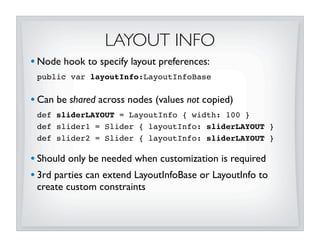
LAYOUT INFO
• Node hook to specify layout preferences:
 public var layoutInfo:LayoutInfoBase


• Can be shared across nodes (values not copied)
 def sliderLAYOUT = LayoutInfo { width: 100 }
 def slider1 = Slider { layoutInfo: sliderLAYOUT }
 def slider2 = Slider { layoutInfo: sliderLAYOUT }

• Should only be needed when customization is required
• 3rd parties can extend LayoutInfoBase or LayoutInfo to
 create custom constraints
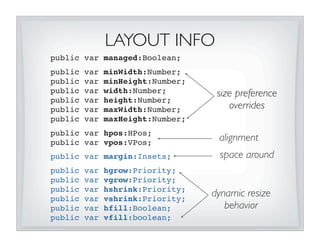
LAYOUT INFO
public var managed:Boolean;
public   var   minWidth:Number;
public   var   minHeight:Number;
public   var   width:Number;        size preference
public   var   height:Number;
public   var   maxWidth:Number;        overrides
public   var   maxHeight:Number;
public var hpos:HPos;
public var vpos:VPos;
                                    alignment
public var margin:Insets;           space around
public   var   hgrow:Priority;
public   var   vgrow:Priority;
public   var   hshrink:Priority;
public   var   vshrink:Priority;
                                   dynamic resize
public   var   hfill:Boolean;         behavior
public   var   vfill:boolean;
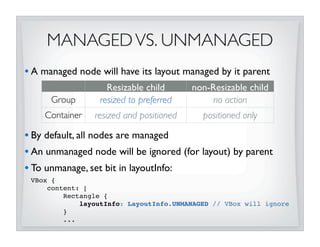
MANAGED VS. UNMANAGED
• A managed node will have its layout managed by it parent
                    Resizable child      non-Resizable child
      Group       resized to preferred        no action
    Container   resized and positioned     positioned only

• By default, all nodes are managed
• An unmanaged node will be ignored (for layout) by parent
• To unmanage, set bit in layoutInfo:
 VBox {
     content: [
         Rectangle {
             layoutInfo: LayoutInfo.UNMANAGED // VBox will ignore
         }
         ...
OVERRIDING SIZE PREFS
• Resizables have intrinsic values for min, pref, max sizes
• Can use LayoutInfo to override values
• To set a specific size on a Resizable, override it’s preferred:
 VBox {
     content: [
         Button {
            // VBox will resize button to 100x100
            layoutInfo: LayoutInfo {
                  width: 100 height: 100
            }
         }...
     ]
 }
• DO NOT set width/height directly on Resizable - parent will
 obliterate values! (unless Resizable is unmanaged)
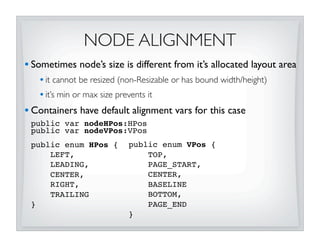
NODE ALIGNMENT
• Sometimes node’s size is different from it’s allocated layout area
   • it cannot be resized (non-Resizable or has bound width/height)
   • it’s min or max size prevents it
• Containers have default alignment vars for this case
 public var nodeHPos:HPos
 public var nodeVPos:VPos
 public enum HPos {         public enum VPos {
     LEFT,                      TOP,
     LEADING,                   PAGE_START,
     CENTER,                    CENTER,
     RIGHT,                     BASELINE
     TRAILING                   BOTTOM,
 }                              PAGE_END
                            }
NODE ALIGNMENT
                         CONTINUED


• LayoutInfo can be used to override alignment for specific nodes
 VBox {
     // nodeHPos defaults to HPos.LEFT
     content: [
         Thing { text: “0” }
         Thing { text: “1” }
         Thing { text: “2”
            layoutInfo: LayoutInfo {
                hpos: HPos.CENTER
            }
         }
     ]
 }
BASELINE ALIGNMENT
• 1.3 Containers supports roman baseline vertical alignment!
 HBox {
     nodeVPos: VPos.BASELINE
     content: [ ... ]
 }

• TextOffsets mixin must be implemented by classes that want
 to be aligned on baseline:
 public var baselineOffset:Number

• Text, Container, and Controls all implement TextOffsets
• Classes that don’t implement TextOffsets will be treated as if
 baseline was on bottom edge
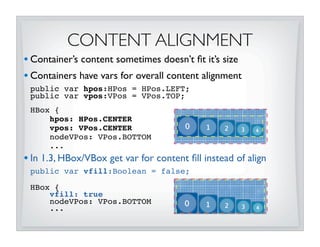
CONTENT ALIGNMENT
• Container’s content sometimes doesn’t fit it’s size
• Containers have vars for overall content alignment
 public var hpos:HPos = HPos.LEFT;
 public var vpos:VPos = VPos.TOP;
 HBox {
     hpos: HPos.CENTER
     vpos: VPos.CENTER
     nodeVPos: VPos.BOTTOM
     ...
• In 1.3, HBox/VBox get var for content fill instead of align
 public var vfill:Boolean = false;

 HBox {
     vfill: true
     nodeVPos: VPos.BOTTOM
     ...
FILLING
• “Filling” defines behavior when Resizable’s allocated layout area
  is larger than its preferred size
               fill = false                    fill = true
    keep node to preferred size expand node to fill layout area
                                    (up to max limit)
• Stack and Tile do filling by default
• HBox,VBox, Flow, and Grid do not fill by default
• In 1.3 LayoutInfo can be used to change node’s fill behavior:
 Stack {
     content: [
         Button {
            layoutInfo: LayoutInfo { vfill: false }
         }...
     ]
 }
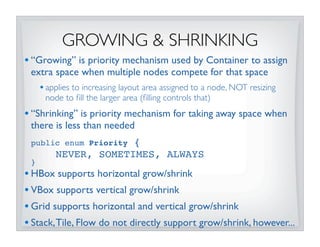
GROWING & SHRINKING
• “Growing” is priority mechanism used by Container to assign
 extra space when multiple nodes compete for that space
     • applies to increasing layout area assigned to a node, NOT resizing
      node to fill the larger area (filling controls that)
• “Shrinking” is priority mechanism for taking away space when
 there is less than needed
 public enum Priority {
         NEVER, SOMETIMES, ALWAYS
 }
• HBox supports horizontal grow/shrink
• VBox supports vertical grow/shrink
• Grid supports horizontal and vertical grow/shrink
• Stack, Tile, Flow do not directly support grow/shrink, however...
GROWING & SHRINKING
• Grow/shrink priorities are propagated up scene-graph
   • if Container has child with a grow of ALWAYS, then its grow value will
    be ALWAYS
   • enables powerful default behavior without heavy customization
   HBox {
     content: [
       Button{},
       Button{},
       TextBox {
          layoutInfo: LayoutInfo {
              hfill: true
              hgrow: Priority.ALWAYS
              hshrink: Priority.ALWAYS
          }
       }
       Label{}
     ]
   }
1.3 WORK IN PROGRESS

• Support for layout roots
   • enable scene-graph branches to be laid out without affecting ancestors
   • useful for clipped content (scroll panes, viewports, etc)
• Default LayoutInfo for Controls
   • sensible resizing “just works” out of the box
• More efficient min/pref/max size calculations during layout
   • currently recalculated (for nested containers) at every level of layout
     pass
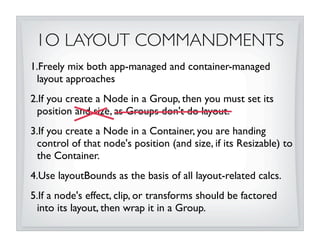
1O LAYOUT COMMANDMENTS
1.Freely mix both app-managed and container-managed
 layout approaches
2.If you create a Node in a Group, then you must set its
 position and size, as Groups don't do layout.
3.If you create a Node in a Container, you are handing
 control of that node's position (and size, if its Resizable) to
 the Container.
4.Use layoutBounds as the basis of all layout-related calcs.
5.If a node's effect, clip, or transforms should be factored
 into its layout, then wrap it in a Group.
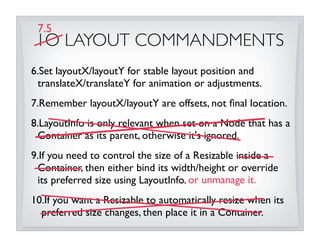
7.5
 1O LAYOUT COMMANDMENTS
6.Set layoutX/layoutY for stable layout position and
 translateX/translateY for animation or adjustments.
7.Remember layoutX/layoutY are offsets, not final location.
8.LayoutInfo is only relevant when set on a Node that has a
 Container as its parent, otherwise it's ignored.
9.If you need to control the size of a Resizable inside a
 Container, then either bind its width/height or override
 its preferred size using LayoutInfo. or unmanage it.
10.If you want a Resizable to automatically resize when its
  preferred size changes, then place it in a Container.
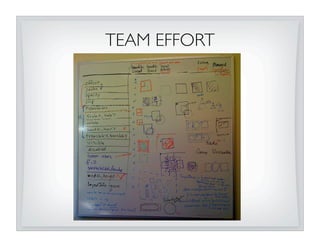
TEAM EFFORT
JOIN THE TEAM

             We’re hiring!
     Senior Software Engineer/Text/UI-Controls
        contact: brian.beck@sun.com

 Senior Software Engineer/Graphics/OpenGL/shaders
Senior Software Engineer/Text/Unicode/bi-di/OpenType
  contact: srividhya.Narayanan@sun.com
THE END.

JavaFX Layout Secrets with Amy Fowler

  • 1.
    YO UT FX LA JA VA January 13, 2010 amy.fowler@sun.com
  • 2.
    AGENDA JavaFX Layout Fundamentals *Changes for 1.3 (in blue) * we reserve the right to change our minds (at least until we ship)
  • 3.
  • 4.
    JAVAFX LAYOUT GOALS •Make common layout idioms easy • rows/columns, forms, alignment, spacing, etc. • Don’t get in the way of creativity • animation - must allow things to move • free form shapes - no longer restricted by nested, clipped, rectangles! • Performance a major focus for 1.3
  • 5.
    LAYOUT MECHANISM • Scenegraph layed out once per pulse, before rendering • nodes call requestLayout() when preferred size changes • requests all coalesced for next layout pass • layout executes top-down (dirty branches only) • MUCH more efficient in 1.3 • fine-tuned calls to requestLayout • more efficient bounds calculations
  • 6.
    RESIZABLE VS. NOT •Resizable mixin class enables nodes to be resized externally: public var width:Number public var height:Number public function getMinWidth():Number public function getMinHeight():Number public function getPrefWidth(height:Number):Number public function getPrefHeight(width:Number):NUmber public function getMaxWidth():Number public function getMaxHeight():Number Resizable Not Resizable Containers Group, CustomNode Controls Text, ImageView, Shapes • Resizable & non-Resizable nodes can be freely mixed • non-Resizables treated as rigid (min = pref = max) • Resize != Scale
  • 7.
    LAYOUT BOUNDS • Logicalbounds used for layout calculations public-read protected layoutBounds:Bounds layoutBounds boundsInLocal boundsInParent
  • 8.
    LAYOUT BOUNDS CONTINUED Node type layoutBounds Non-Resizable geometry only (Shapes, Text, etc.) •no effect/clip/transforms Resizable 0, 0 width x height (Controls & Containers) •regardless of visual bounds Group union of childrens’ boundsInParent • effects/clip/transforms on children included • effects/clip/transforms on Group not included
  • 9.
    TEXT LAYOUT BOUNDS •In 1.2, layoutBounds for Text was tight visual bounds • very expensive! • problematic for layout puppy • doesn’t include leading, trailing whitespace • 1.3 provides Text var for controlling how bounds calculated public var boundsType:TextBoundsType TextBoundsType.LOGICAL (default) TextBoundsType.VISUAL puppy
  • 10.
    LAYOUT APPROACHES • App-managed • put nodes inside Groups • set translation to control positioning • use binding for dynamic layout behavior • Container-managed • put nodes inside Containers • Containers control location, sizing, dynamic behavior • recommended for common layout idioms • Blend them both
  • 11.
    APP MANAGED POSITIONING • Position nodes by setting translation • set layoutX,layoutY for general positioning • set translateX,translateY for animation or adjustments • Transition classes modify translateX, translateY • final tx,ty => (layoutX + translateX), (layoutY + translateY) • translation != final location node.layoutX = bind x - node.layoutBounds.minX node.layoutY = bind y - node.layoutBounds.minY
  • 12.
    APP MANAGED SIZING • Use binding to control dynamic sizing Stage { var scene:Scene; scene: scene = Scene { width: 300 height: 300 content: HBox { width: bind scene.width height: bind scene.height } } }
  • 13.
    CONTAINER MANAGED • Putnodes inside Containers • Containers control positioning on all “managed” content • they set layoutX,layoutY (but don’t touch translateX/Y) • base all layout calcs on layoutBounds (not visual bounds) • Containers resize only Resizable nodes • treat non-Resizables (and nodes with bound width/height) as rigid VBox { spacing: 10 content: for (img in images) ImageView { image: img } } }
  • 14.
    AUTO SIZING • 1.2dichotomy between Groups and Containers: • Resizables inside Containers are resized automatically when their preferred size changes • Resizables inside Groups will NOT be resized when their preferred size changes • In 1.3, Groups will also automatically resize Resizable children when their preferred sizes change. • Two ways to turn this off: • set the child to “unmanaged” • bind the child’s width/height
  • 15.
    LAYOUT & TRANSFORMS •For nodes inside Containers: • modifying effect, clip, transforms will NOT affect layout • TranslateTransition, ScaleTransition, RotateTransition will NOT affect layout • Wrap node in Group if you want transforms to affect layout Stack { content: Group { content: Rectangle { rotate: 45 // rotate will affect layout } } }
  • 16.
    CONTAINERS • Container classmixes Resizable into Group • pondering change to extend directly from Parent • Abstract base class for layout containers • layoutBounds will always be (0, 0 width x height) • even if visual bounds differ
  • 17.
    CONCRETE CONTAINERS • Stack,HBox,VBox, Tile, Flow, Panel, Grid (in 1.3 preview) • lay out both visible and invisible nodes • do not clip contents to fit within layout bounds • honor layout constraints set in LayoutInfo • 1.3 adds var for adding white space around content: public var padding:Insets; • 1.3 adds var for aligning on pixel boundaries: public var snapToPixel:Boolean = false;
  • 18.
    STACK • Easy back-to-frontlayering • z-order matches order of content[] sequence • Its preferred size is largest preferred width/height of children • Resizes Resizables to “fill” stack (up to their max size limits) Stack { content: [ Rectangle { ... } Circle { ... } Label { text: “3” } ] }
  • 19.
    HBOX & VBOX •Simple horizontal row or vertical column of nodes • Configurable spacing & alignment • Resizes Resizables to their preferred sizes HBox { spacing: 4 content: for (in in [0..4]) Thing { text: “{i}” } ] }
  • 20.
    TILE • Lays outnodes in grid of uniform-sized “tiles” • Horizontal or vertical orientation • Wraps tiles when Tile’s size changes • Size of each “tile” defaults to largest preferred content • Resizes nodes to “fill” tile (up to their max size limits) • Configurable spacing & alignment Tile { columns: 3 hgap: 3 vgap: 3 content: for (i in [0..5]) Thing { text: “{i}” } }
  • 21.
    TILE CONTINUED • In 1.3, columns var (horizontal) and rows var (vertical) used only to compute Tile’s preferred size • may not reflect actual rows/columns • In 1.3, new var controls whether tile size is fixed or recomputed as content sizes change: public var autoSizeTiles:Boolean = true; Tile { columns: 10 autoSizeTiles: false tileWidth: 150 tileHeight: 100 content: for (i in (sizeof images)) ImageView {image: Image { ... } } }
  • 22.
    FLOW • Horizontal orvertical flow that wrap on width/height boundaries • Always resizes Resizables to their preferred sizes • Configurable spacing & alignment • 1.3 adds var to control the preferred wrap dimension: public var wrapLength:Number = 400; Flow { wrapLength: 300 hgap: 5 vgap: 10 content: for (i in [0..7]) Thing { ... } }
  • 23.
    PANEL • Useful forcustom layout on object literals • Provides function variables for container behaviors: public var minWidth:function():Number; public var minHeight:function():Number; public var prefWidth:function(h:Number):Number; public var prefHeight:function(w:Number):Number; public var maxWidth:function():Number; public var maxHeight:function():Number; public var onLayout:function():Void; Panel { onLayout: function():Void { // position/resize content nodes } }
  • 24.
    IMPLEMENTING PANELS • Useconvenience functions from Container! import javafx.scene.layout.Container.*; getManaged(content:Node[]):Node[] getNodePrefWidth(node)/getNodePrefHeight(node) positionNode(node, x, y) resizeNode(node, width, height) layoutNode(node, areaX, areaY, areaWidth, areaHeight, baseline, hfill, vfill, hpos, vpos) • They are smart... • handle subtracting minX, minY for positioning • deal with Resizable vs. non-Resizable nodes • honor LayoutInfo if set on node • swallow bind exceptions when width/height are bound
  • 25.
    GRID • Based onGrid from JFXtra’s (thanks, Stephen!) • Supports rich, row-oriented grid layout • spanning, growing, alignment, etc Grid { hgap: 5 vgap: 8 rows: [ GridRow { cells: [ Label{}, ListView { layoutInfo: GridLayoutInfo { hspan:3 } } ]} GridRow { cells: [ ...] } ] }
  • 26.
    LAYOUT INFO • Nodehook to specify layout preferences: public var layoutInfo:LayoutInfoBase • Can be shared across nodes (values not copied) def sliderLAYOUT = LayoutInfo { width: 100 } def slider1 = Slider { layoutInfo: sliderLAYOUT } def slider2 = Slider { layoutInfo: sliderLAYOUT } • Should only be needed when customization is required • 3rd parties can extend LayoutInfoBase or LayoutInfo to create custom constraints
  • 27.
    LAYOUT INFO public varmanaged:Boolean; public var minWidth:Number; public var minHeight:Number; public var width:Number; size preference public var height:Number; public var maxWidth:Number; overrides public var maxHeight:Number; public var hpos:HPos; public var vpos:VPos; alignment public var margin:Insets; space around public var hgrow:Priority; public var vgrow:Priority; public var hshrink:Priority; public var vshrink:Priority; dynamic resize public var hfill:Boolean; behavior public var vfill:boolean;
  • 28.
    MANAGED VS. UNMANAGED •A managed node will have its layout managed by it parent Resizable child non-Resizable child Group resized to preferred no action Container resized and positioned positioned only • By default, all nodes are managed • An unmanaged node will be ignored (for layout) by parent • To unmanage, set bit in layoutInfo: VBox { content: [ Rectangle { layoutInfo: LayoutInfo.UNMANAGED // VBox will ignore } ...
  • 29.
    OVERRIDING SIZE PREFS •Resizables have intrinsic values for min, pref, max sizes • Can use LayoutInfo to override values • To set a specific size on a Resizable, override it’s preferred: VBox { content: [ Button { // VBox will resize button to 100x100 layoutInfo: LayoutInfo { width: 100 height: 100 } }... ] } • DO NOT set width/height directly on Resizable - parent will obliterate values! (unless Resizable is unmanaged)
  • 30.
    NODE ALIGNMENT • Sometimesnode’s size is different from it’s allocated layout area • it cannot be resized (non-Resizable or has bound width/height) • it’s min or max size prevents it • Containers have default alignment vars for this case public var nodeHPos:HPos public var nodeVPos:VPos public enum HPos { public enum VPos { LEFT, TOP, LEADING, PAGE_START, CENTER, CENTER, RIGHT, BASELINE TRAILING BOTTOM, } PAGE_END }
  • 31.
    NODE ALIGNMENT CONTINUED • LayoutInfo can be used to override alignment for specific nodes VBox { // nodeHPos defaults to HPos.LEFT content: [ Thing { text: “0” } Thing { text: “1” } Thing { text: “2” layoutInfo: LayoutInfo { hpos: HPos.CENTER } } ] }
  • 32.
    BASELINE ALIGNMENT • 1.3Containers supports roman baseline vertical alignment! HBox { nodeVPos: VPos.BASELINE content: [ ... ] } • TextOffsets mixin must be implemented by classes that want to be aligned on baseline: public var baselineOffset:Number • Text, Container, and Controls all implement TextOffsets • Classes that don’t implement TextOffsets will be treated as if baseline was on bottom edge
  • 33.
    CONTENT ALIGNMENT • Container’scontent sometimes doesn’t fit it’s size • Containers have vars for overall content alignment public var hpos:HPos = HPos.LEFT; public var vpos:VPos = VPos.TOP; HBox { hpos: HPos.CENTER vpos: VPos.CENTER nodeVPos: VPos.BOTTOM ... • In 1.3, HBox/VBox get var for content fill instead of align public var vfill:Boolean = false; HBox { vfill: true nodeVPos: VPos.BOTTOM ...
  • 34.
    FILLING • “Filling” definesbehavior when Resizable’s allocated layout area is larger than its preferred size fill = false fill = true keep node to preferred size expand node to fill layout area (up to max limit) • Stack and Tile do filling by default • HBox,VBox, Flow, and Grid do not fill by default • In 1.3 LayoutInfo can be used to change node’s fill behavior: Stack { content: [ Button { layoutInfo: LayoutInfo { vfill: false } }... ] }
  • 35.
    GROWING & SHRINKING •“Growing” is priority mechanism used by Container to assign extra space when multiple nodes compete for that space • applies to increasing layout area assigned to a node, NOT resizing node to fill the larger area (filling controls that) • “Shrinking” is priority mechanism for taking away space when there is less than needed public enum Priority { NEVER, SOMETIMES, ALWAYS } • HBox supports horizontal grow/shrink • VBox supports vertical grow/shrink • Grid supports horizontal and vertical grow/shrink • Stack, Tile, Flow do not directly support grow/shrink, however...
  • 36.
    GROWING & SHRINKING •Grow/shrink priorities are propagated up scene-graph • if Container has child with a grow of ALWAYS, then its grow value will be ALWAYS • enables powerful default behavior without heavy customization HBox { content: [ Button{}, Button{}, TextBox { layoutInfo: LayoutInfo { hfill: true hgrow: Priority.ALWAYS hshrink: Priority.ALWAYS } } Label{} ] }
  • 37.
    1.3 WORK INPROGRESS • Support for layout roots • enable scene-graph branches to be laid out without affecting ancestors • useful for clipped content (scroll panes, viewports, etc) • Default LayoutInfo for Controls • sensible resizing “just works” out of the box • More efficient min/pref/max size calculations during layout • currently recalculated (for nested containers) at every level of layout pass
  • 38.
    1O LAYOUT COMMANDMENTS 1.Freelymix both app-managed and container-managed layout approaches 2.If you create a Node in a Group, then you must set its position and size, as Groups don't do layout. 3.If you create a Node in a Container, you are handing control of that node's position (and size, if its Resizable) to the Container. 4.Use layoutBounds as the basis of all layout-related calcs. 5.If a node's effect, clip, or transforms should be factored into its layout, then wrap it in a Group.
  • 39.
    7.5 1O LAYOUTCOMMANDMENTS 6.Set layoutX/layoutY for stable layout position and translateX/translateY for animation or adjustments. 7.Remember layoutX/layoutY are offsets, not final location. 8.LayoutInfo is only relevant when set on a Node that has a Container as its parent, otherwise it's ignored. 9.If you need to control the size of a Resizable inside a Container, then either bind its width/height or override its preferred size using LayoutInfo. or unmanage it. 10.If you want a Resizable to automatically resize when its preferred size changes, then place it in a Container.
  • 40.
  • 41.
    JOIN THE TEAM We’re hiring! Senior Software Engineer/Text/UI-Controls contact: brian.beck@sun.com Senior Software Engineer/Graphics/OpenGL/shaders Senior Software Engineer/Text/Unicode/bi-di/OpenType contact: srividhya.Narayanan@sun.com
  • 42.