VIEWS IN SENCHA TOUCH
APPLICATION
- NITHYA
1
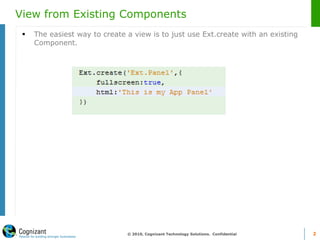
View from Existing Components
 The easiest way to create a view is to just use Ext.create with an existing
Component.
© 2010, Cognizant Technology Solutions. Confidential 2
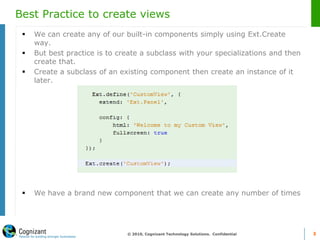
Best Practice to create views
 We can create any of our built-in components simply using Ext.Create
way.
 But best practice is to create a subclass with your specializations and then
create that.
 Create a subclass of an existing component then create an instance of it
later.
 We have a brand new component that we can create any number of times
© 2010, Cognizant Technology Solutions. Confidential 3
Create Vs Define
© 2010, Cognizant Technology Solutions. Confidential 4
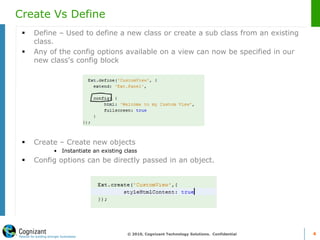
 Define – Used to define a new class or create a sub class from an existing
class.
 Any of the config options available on a view can now be specified in our
new class's config block
 Create – Create new objects
• Instantiate an existing class
 Config options can be directly passed in an object.
Layouts in Views
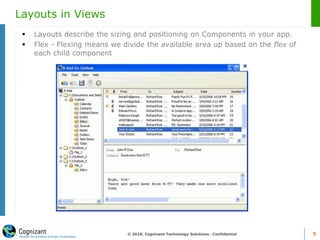
 Layouts describe the sizing and positioning on Components in your app.
 Flex - Flexing means we divide the available area up based on the flex of
each child component
© 2010, Cognizant Technology Solutions. Confidential 5
Hbox
© 2010, Cognizant Technology Solutions. Confidential 6
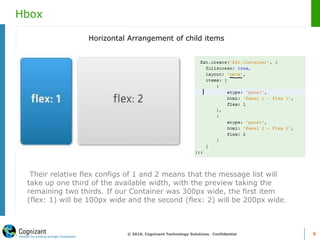
Horizontal Arrangement of child items
Their relative flex configs of 1 and 2 means that the message list will
take up one third of the available width, with the preview taking the
remaining two thirds. If our Container was 300px wide, the first item
(flex: 1) will be 100px wide and the second (flex: 2) will be 200px wide.
VBox
© 2010, Cognizant Technology Solutions. Confidential 7
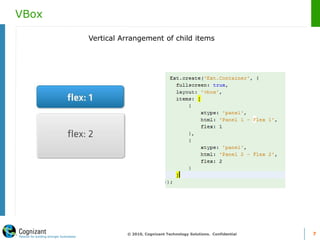
Vertical Arrangement of child items
Card
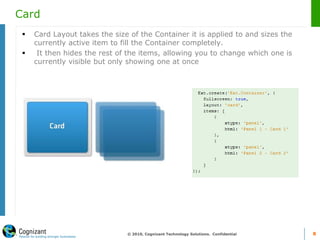
 Card Layout takes the size of the Container it is applied to and sizes the
currently active item to fill the Container completely.
 It then hides the rest of the items, allowing you to change which one is
currently visible but only showing one at once
© 2010, Cognizant Technology Solutions. Confidential 8
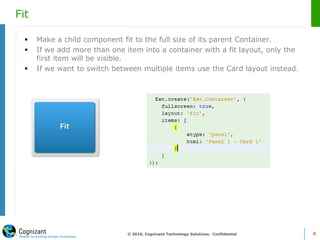
Fit
 Make a child component fit to the full size of its parent Container.
 If we add more than one item into a container with a fit layout, only the
first item will be visible.
 If we want to switch between multiple items use the Card layout instead.
© 2010, Cognizant Technology Solutions. Confidential 9
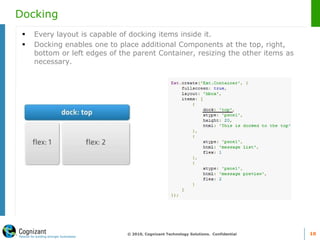
Docking
 Every layout is capable of docking items inside it.
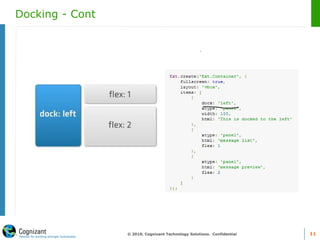
 Docking enables one to place additional Components at the top, right,
bottom or left edges of the parent Container, resizing the other items as
necessary.
© 2010, Cognizant Technology Solutions. Confidential 10
Docking - Cont
© 2010, Cognizant Technology Solutions. Confidential 11
Pack and Align
 Pack and Align control how your child elements are aligned in your layout.
 'Pack' refers to the axis of your current layout, while 'Align' is the
opposite.
» So in an HBox layout, Pack refers to the horizontal axis, and Align the vertical
axis.
© 2010, Cognizant Technology Solutions. Confidential 12

Workshop on Sencha Touch - Part 4 - Views in sencha touch

  • 1.
    VIEWS IN SENCHATOUCH APPLICATION - NITHYA 1
  • 2.
    View from ExistingComponents  The easiest way to create a view is to just use Ext.create with an existing Component. © 2010, Cognizant Technology Solutions. Confidential 2
  • 3.
    Best Practice tocreate views  We can create any of our built-in components simply using Ext.Create way.  But best practice is to create a subclass with your specializations and then create that.  Create a subclass of an existing component then create an instance of it later.  We have a brand new component that we can create any number of times © 2010, Cognizant Technology Solutions. Confidential 3
  • 4.
    Create Vs Define ©2010, Cognizant Technology Solutions. Confidential 4  Define – Used to define a new class or create a sub class from an existing class.  Any of the config options available on a view can now be specified in our new class's config block  Create – Create new objects • Instantiate an existing class  Config options can be directly passed in an object.
  • 5.
    Layouts in Views Layouts describe the sizing and positioning on Components in your app.  Flex - Flexing means we divide the available area up based on the flex of each child component © 2010, Cognizant Technology Solutions. Confidential 5
  • 6.
    Hbox © 2010, CognizantTechnology Solutions. Confidential 6 Horizontal Arrangement of child items Their relative flex configs of 1 and 2 means that the message list will take up one third of the available width, with the preview taking the remaining two thirds. If our Container was 300px wide, the first item (flex: 1) will be 100px wide and the second (flex: 2) will be 200px wide.
  • 7.
    VBox © 2010, CognizantTechnology Solutions. Confidential 7 Vertical Arrangement of child items
  • 8.
    Card  Card Layouttakes the size of the Container it is applied to and sizes the currently active item to fill the Container completely.  It then hides the rest of the items, allowing you to change which one is currently visible but only showing one at once © 2010, Cognizant Technology Solutions. Confidential 8
  • 9.
    Fit  Make achild component fit to the full size of its parent Container.  If we add more than one item into a container with a fit layout, only the first item will be visible.  If we want to switch between multiple items use the Card layout instead. © 2010, Cognizant Technology Solutions. Confidential 9
  • 10.
    Docking  Every layoutis capable of docking items inside it.  Docking enables one to place additional Components at the top, right, bottom or left edges of the parent Container, resizing the other items as necessary. © 2010, Cognizant Technology Solutions. Confidential 10
  • 11.
    Docking - Cont ©2010, Cognizant Technology Solutions. Confidential 11
  • 12.
    Pack and Align Pack and Align control how your child elements are aligned in your layout.  'Pack' refers to the axis of your current layout, while 'Align' is the opposite. » So in an HBox layout, Pack refers to the horizontal axis, and Align the vertical axis. © 2010, Cognizant Technology Solutions. Confidential 12