Introduction to Windows Services (Easier then you think) Josef Finsel AzureDBA.com
Who am I? Database Administrator C# Programmer Author/Maintainer of a half dozen Services used daily on my job
What’s a Service Long running program Runs when computer starts Can specify security context
Services Have Bad Rep Supposedly Services are: Hard to program Hard to debug Only true if you let them be true
Windows Services the Easy Way Solution with three projects: Class Library that does all of the work Win Form app for debugging Actual service that is nothing more than a wrapper for the Class Library Every line of code excluded from the service is one less line to debug the hard way
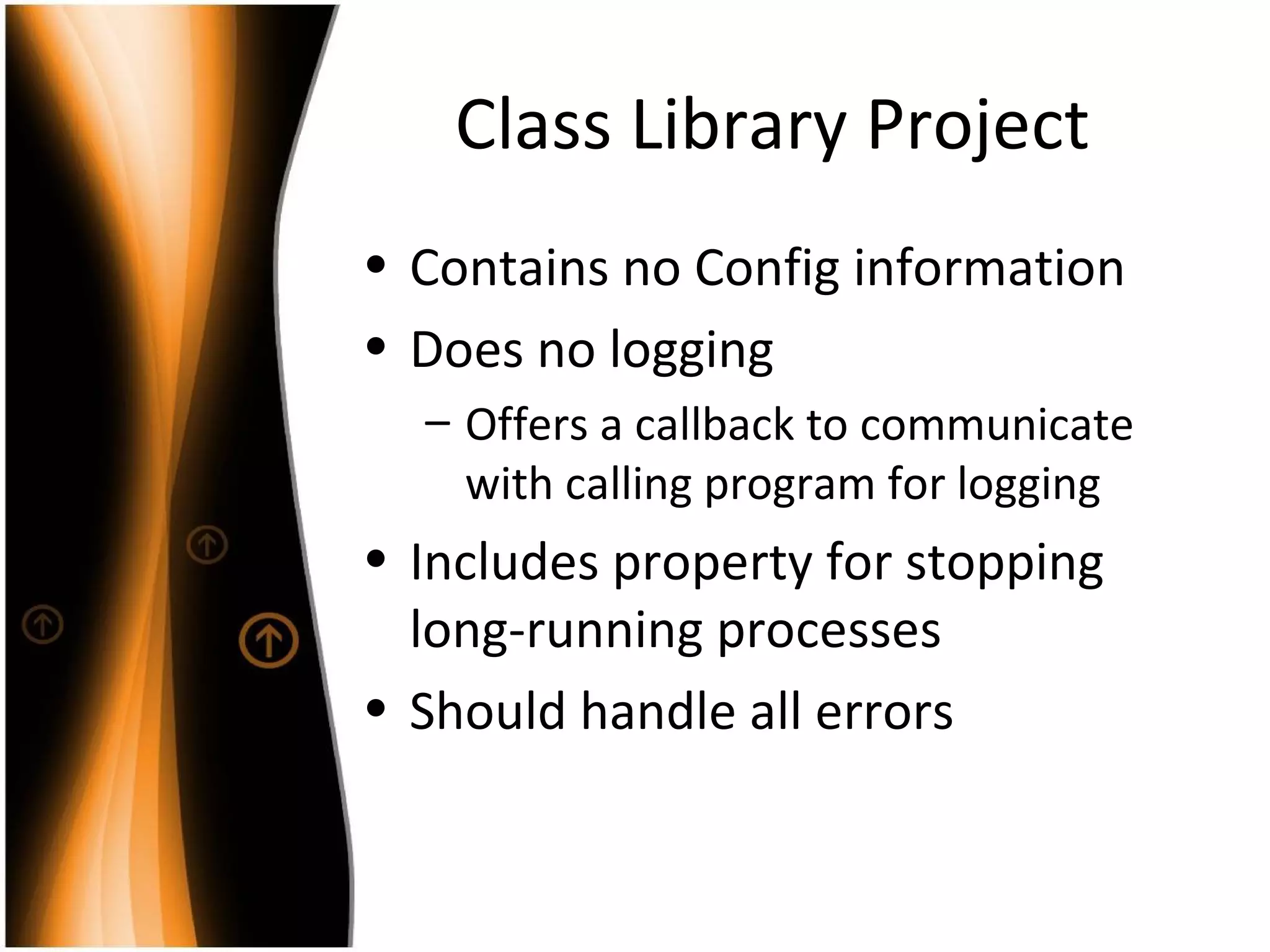
Class Library Project Contains no Config information Does no logging Offers a callback to communicate with calling program for logging Includes property for stopping long-running processes Should handle all errors
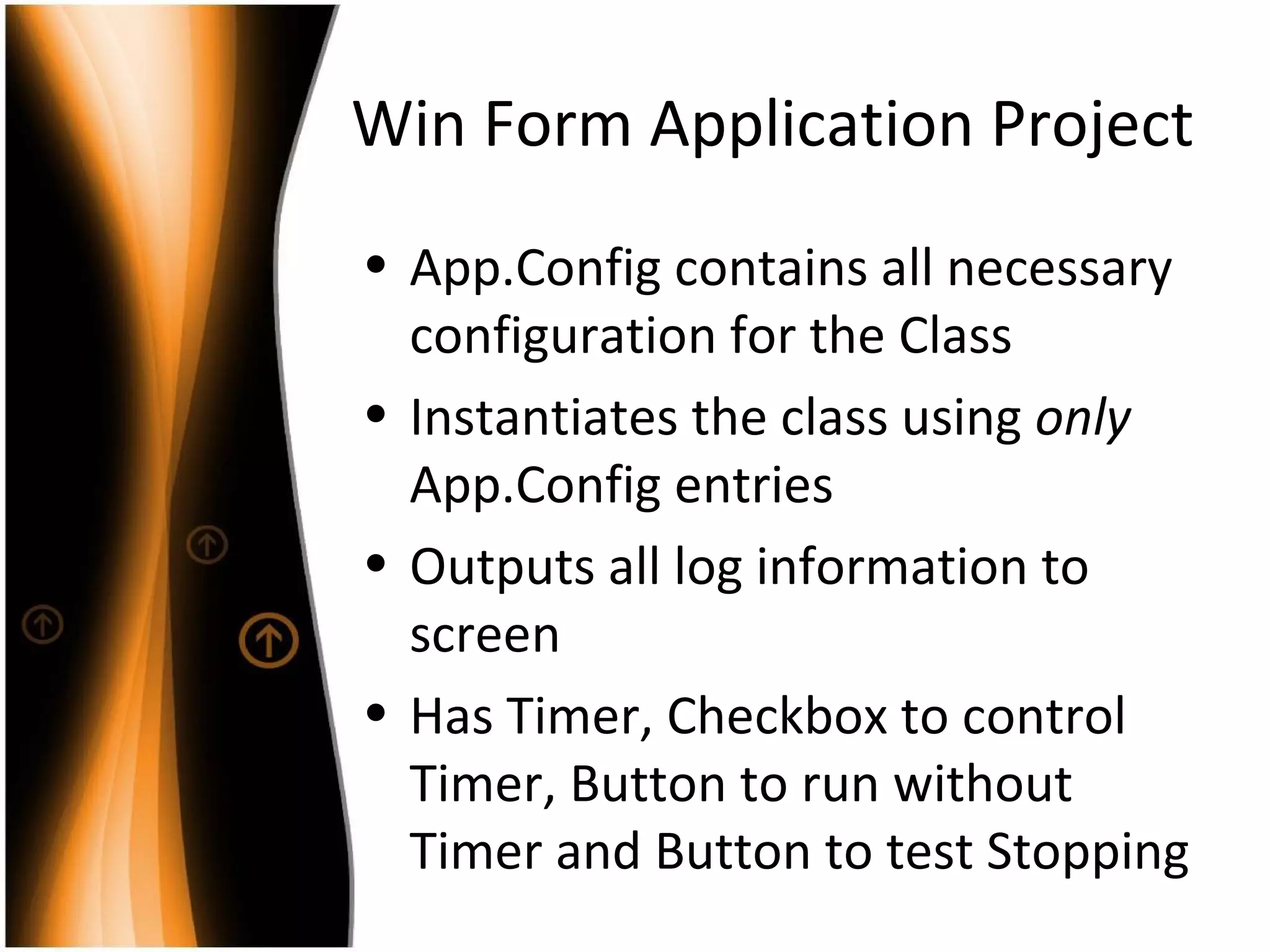
Win Form Application Project App.Config contains all necessary configuration for the Class Instantiates the class using  only  App.Config entries Outputs all log information to screen Has Timer, Checkbox to control Timer, Button to run without Timer and Button to test Stopping
Demo 1 Using the Win Form and the Class Library
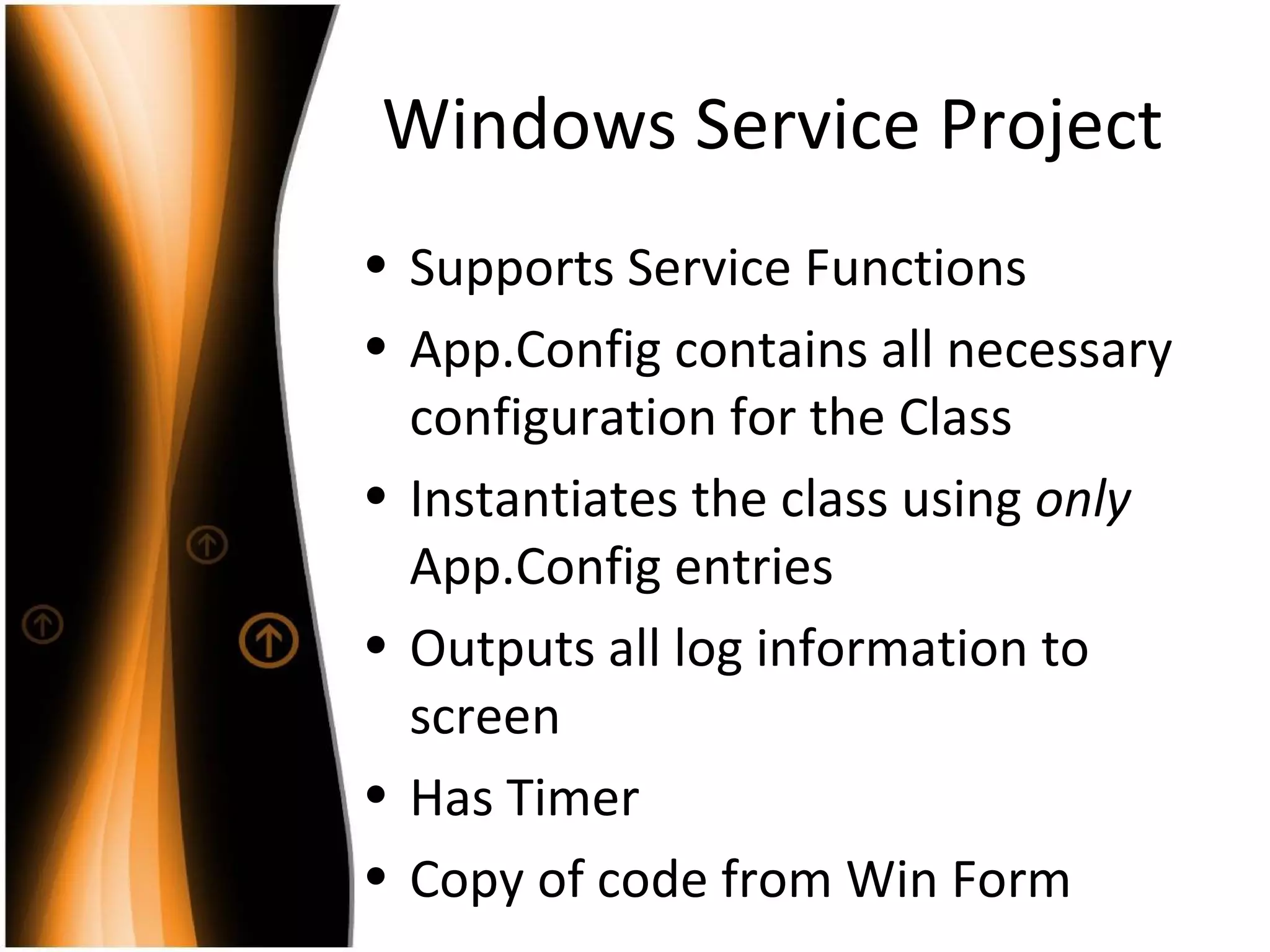
Windows Service Project Supports Service Functions App.Config contains all necessary configuration for the Class Instantiates the class using  only  App.Config entries Outputs all log information to screen Has Timer Copy of code from Win Form
Reviewing Service Code
Service Installer Class used for installing a service Right-click on the Service Component Window and select Add Installer Set the Description Display name Start type Other service dependencies
Service Process Installer Set Security Context
Installing the Service InstallUtil (Visual Studio Command Prompt) Provide account context if required
Important Caveat Do not recompile after the Installer information has changed without uninstalling first! Uninstall is same as install but with  –u Failure to Uninstall leads to RegEdit
Running and Debugging a Service Demo
Service States OnStart enable timer OnStop disable timer OnShutdown disable timer OnPause disable timer OnContinue enable timer
When is a Service Frozen? If Windows initiates a State Change and gets no response in 30 seconds, it’s frozen and may get killed
When a Service Fails When a service fails you can: Do nothing Restart it Run a program Restart the computer
Deploying a Service Deploy in stages: Running WinForm on Desktop in Debug mode to test stability Running as a Service on your box with Debugger Attached Deploying as real service
Best Practices Service = Lightweight Wrapper around class Class has callback for logging Class has cancel mechanism Most debugging done in WinForm
Questions?
Contact me http://www.azuredba.com Twitter: @carpdeus

Introduction To Windows Services

  • 1.
    Introduction to WindowsServices (Easier then you think) Josef Finsel AzureDBA.com
  • 2.
    Who am I?Database Administrator C# Programmer Author/Maintainer of a half dozen Services used daily on my job
  • 3.
    What’s a ServiceLong running program Runs when computer starts Can specify security context
  • 4.
    Services Have BadRep Supposedly Services are: Hard to program Hard to debug Only true if you let them be true
  • 5.
    Windows Services theEasy Way Solution with three projects: Class Library that does all of the work Win Form app for debugging Actual service that is nothing more than a wrapper for the Class Library Every line of code excluded from the service is one less line to debug the hard way
  • 6.
    Class Library ProjectContains no Config information Does no logging Offers a callback to communicate with calling program for logging Includes property for stopping long-running processes Should handle all errors
  • 7.
    Win Form ApplicationProject App.Config contains all necessary configuration for the Class Instantiates the class using only App.Config entries Outputs all log information to screen Has Timer, Checkbox to control Timer, Button to run without Timer and Button to test Stopping
  • 8.
    Demo 1 Usingthe Win Form and the Class Library
  • 9.
    Windows Service ProjectSupports Service Functions App.Config contains all necessary configuration for the Class Instantiates the class using only App.Config entries Outputs all log information to screen Has Timer Copy of code from Win Form
  • 10.
  • 11.
    Service Installer Classused for installing a service Right-click on the Service Component Window and select Add Installer Set the Description Display name Start type Other service dependencies
  • 12.
    Service Process InstallerSet Security Context
  • 13.
    Installing the ServiceInstallUtil (Visual Studio Command Prompt) Provide account context if required
  • 14.
    Important Caveat Donot recompile after the Installer information has changed without uninstalling first! Uninstall is same as install but with –u Failure to Uninstall leads to RegEdit
  • 15.
    Running and Debugginga Service Demo
  • 16.
    Service States OnStartenable timer OnStop disable timer OnShutdown disable timer OnPause disable timer OnContinue enable timer
  • 17.
    When is aService Frozen? If Windows initiates a State Change and gets no response in 30 seconds, it’s frozen and may get killed
  • 18.
    When a ServiceFails When a service fails you can: Do nothing Restart it Run a program Restart the computer
  • 19.
    Deploying a ServiceDeploy in stages: Running WinForm on Desktop in Debug mode to test stability Running as a Service on your box with Debugger Attached Deploying as real service
  • 20.
    Best Practices Service= Lightweight Wrapper around class Class has callback for logging Class has cancel mechanism Most debugging done in WinForm
  • 21.
  • 22.