INTRODUCTION TO
INTERNET
Outline
• Things you can do on the Internet
• Accessing the Internet
• Opening an Internet browser
• Navigating websites
• Internet Searches
• Online safety
Things can you do on the
Internet
• Find information
• Access services
• Communicate with friends and family
• See pictures, watch videos
• Book vacations, pay bills, shop
• Take online courses
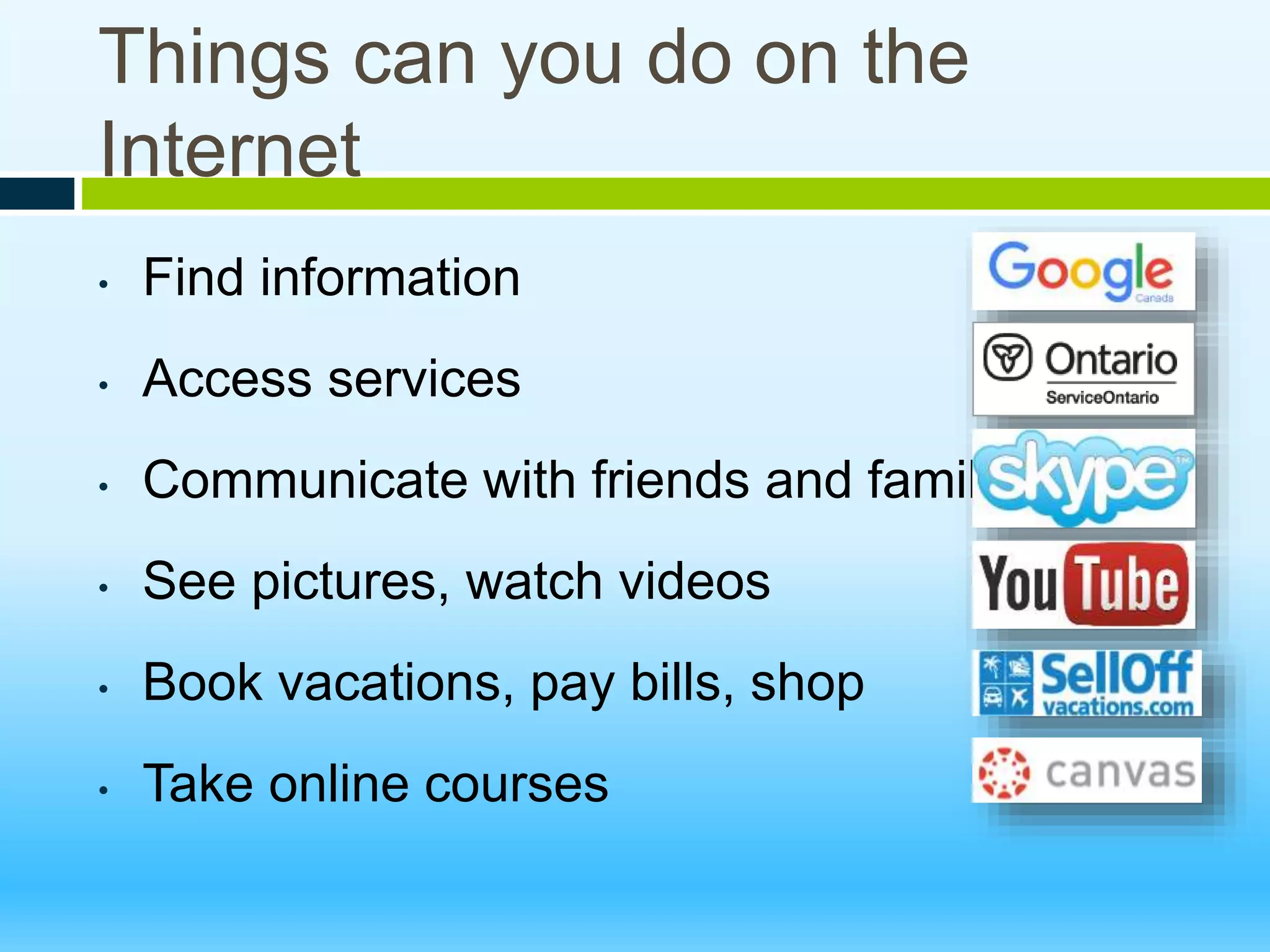
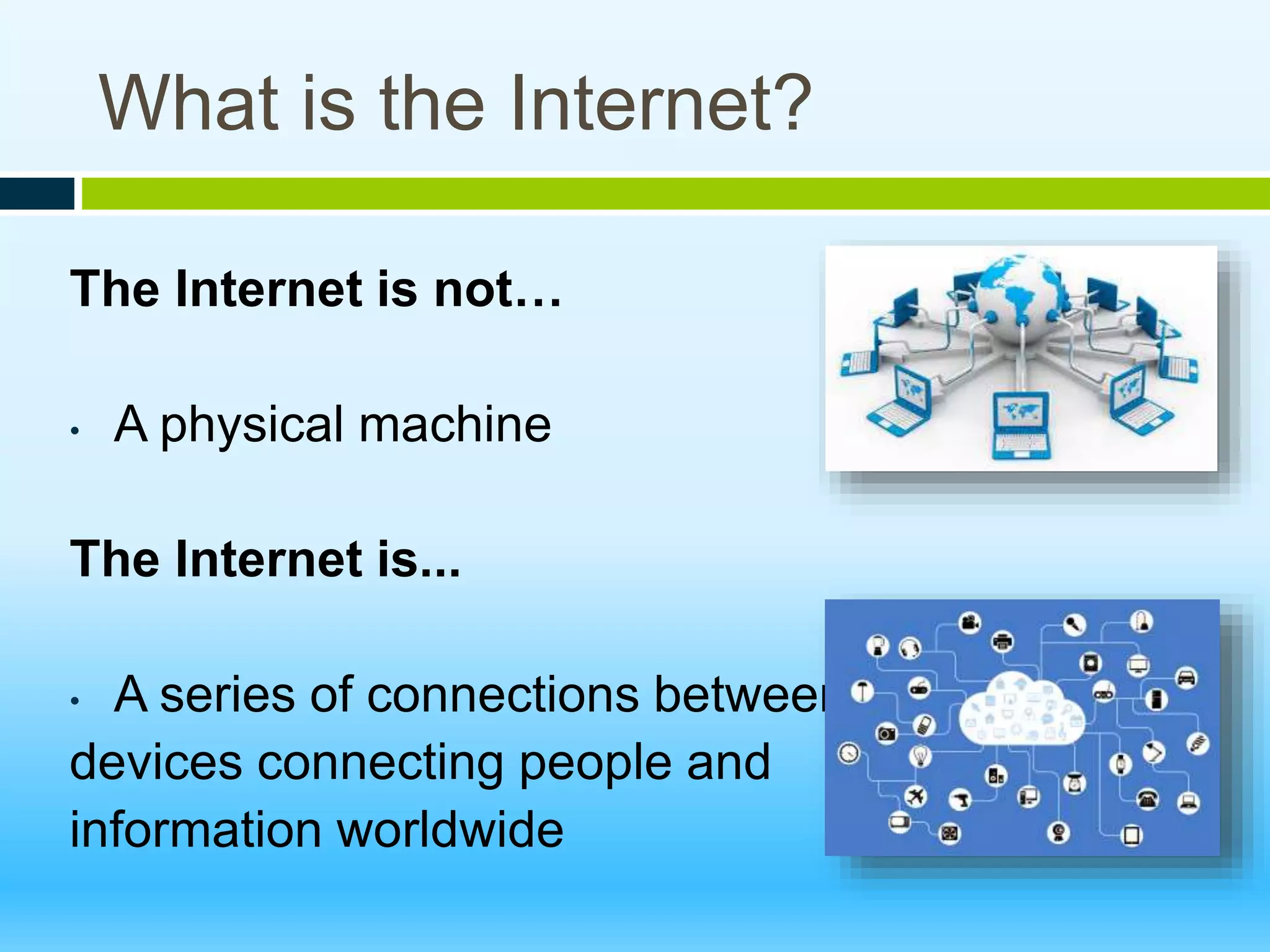
What is the Internet?
The Internet is not…
• A physical machine
The Internet is...
• A series of connections between
devices connecting people and
information worldwide
What you need to access the
Internet?
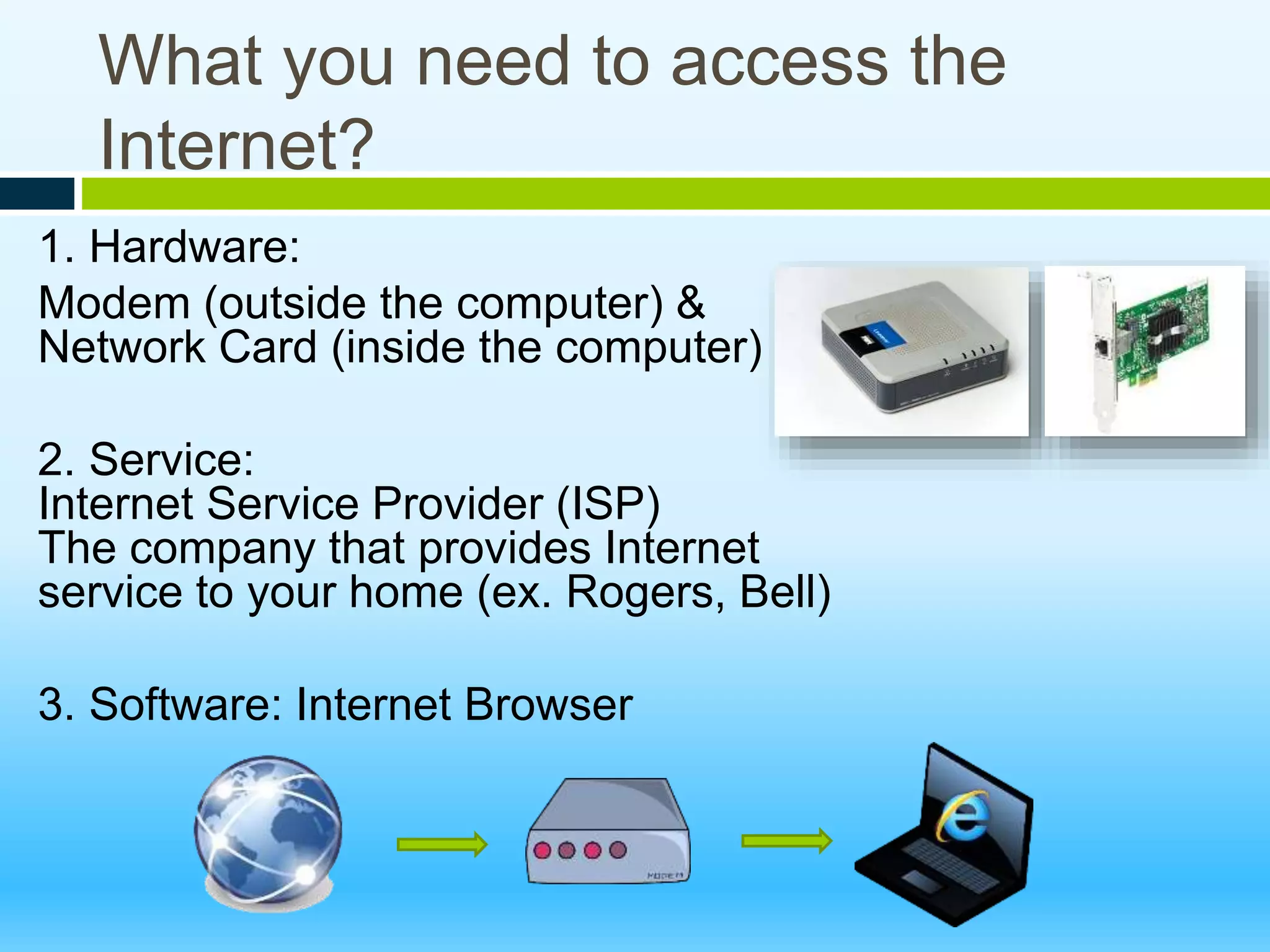
1. Hardware:
Modem (outside the computer) &
Network Card (inside the computer)
2. Service:
Internet Service Provider (ISP)
The company that provides Internet
service to your home (ex. Rogers, Bell)
3. Software: Internet Browser
What is an Internet Browser
Internet Browser is a computer
program that searches and shows you
information found on the Internet.
Browsers have same functions, they
access the same information and the
same websites but differ in appearance
• Layout of buttons
• How much you can customize them
Opening an Internet Browser
• Left-click on a browser icon on your
desktop or taskbar
• Find the browser in your Start Menu
> Search for Firefox, Internet
Explorer, Chrome
Internet Browsers
• All browsers access the same information and the
same websites
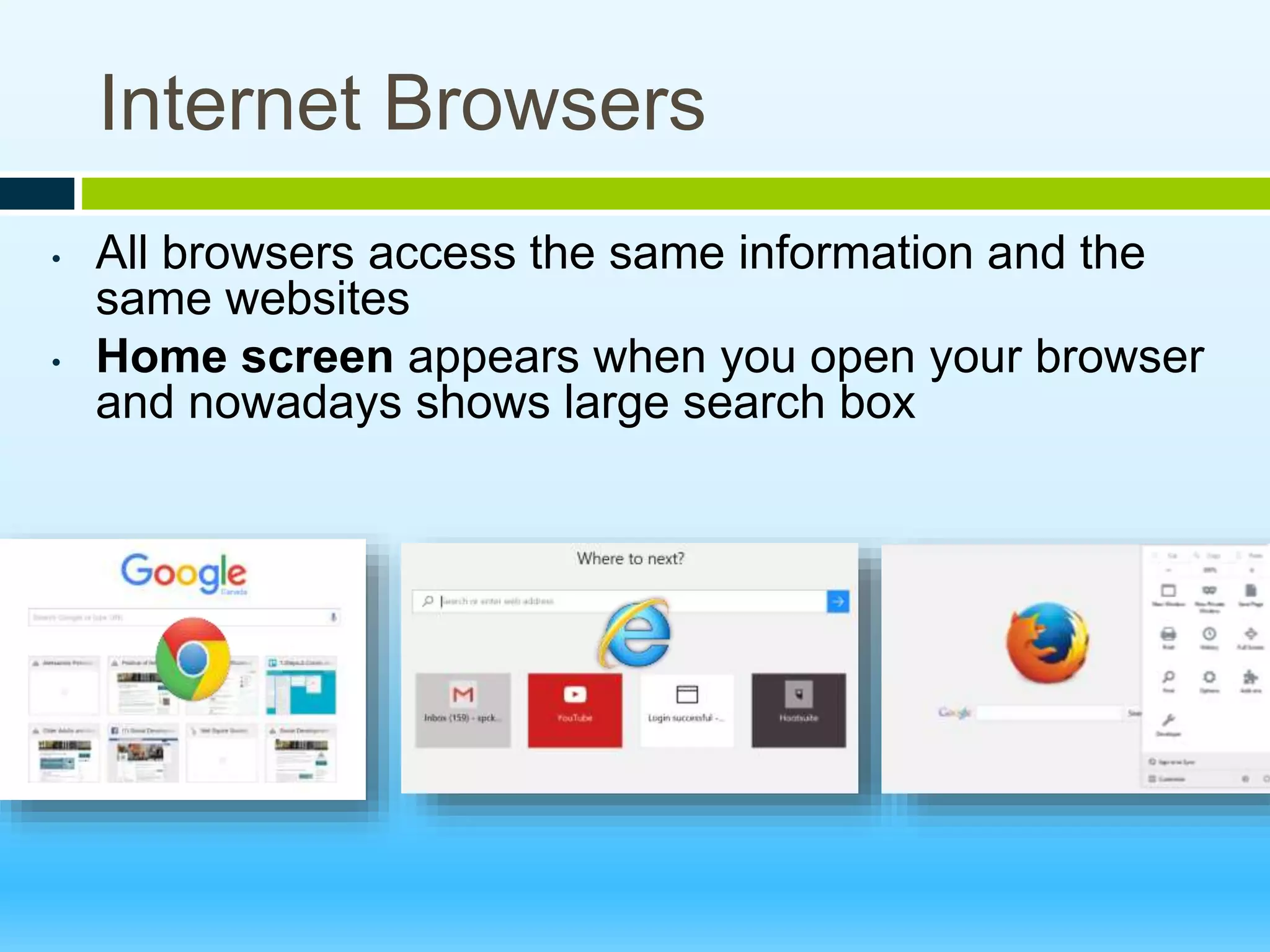
• Home screen appears when you open your browser
and nowadays shows large search box
Parts of an Internet Browser Search
bar
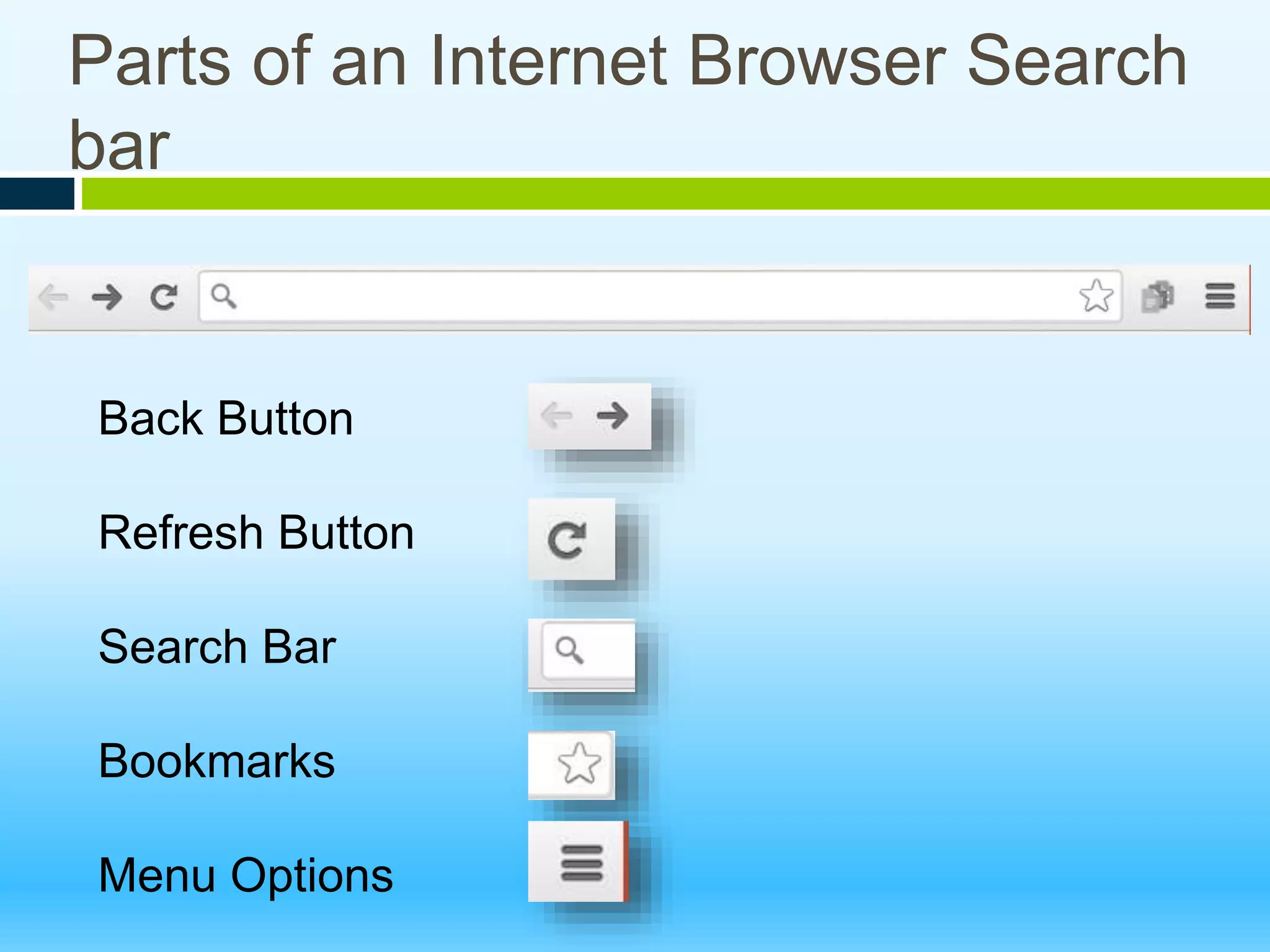
Back Button
Refresh Button
Search Bar
Bookmarks
Menu Options
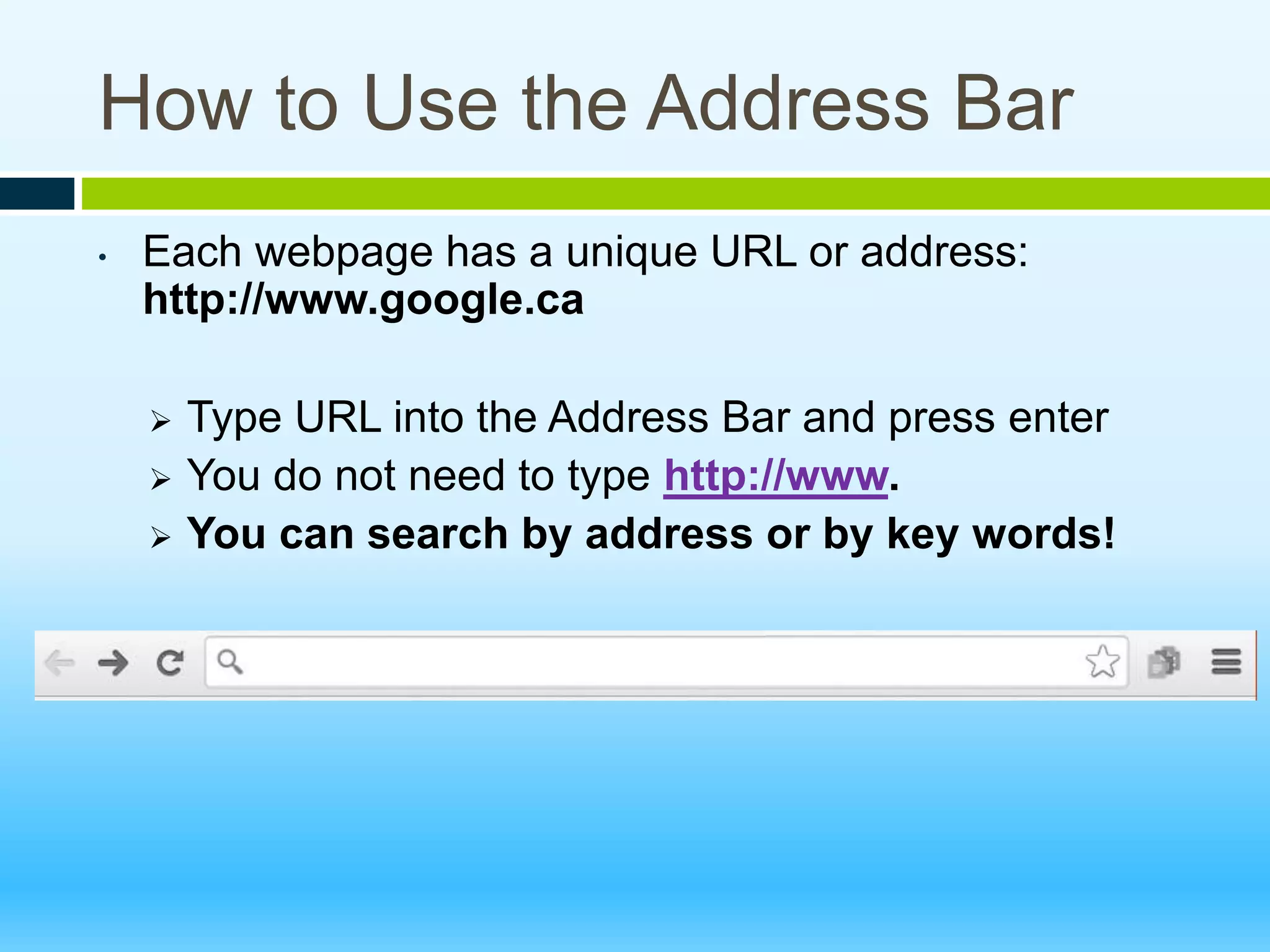
How to Use the Address Bar
• Each webpage has a unique URL or address:
http://www.google.ca
 Type URL into the Address Bar and press enter
 You do not need to type http://www.
 You can search by address or by key words!
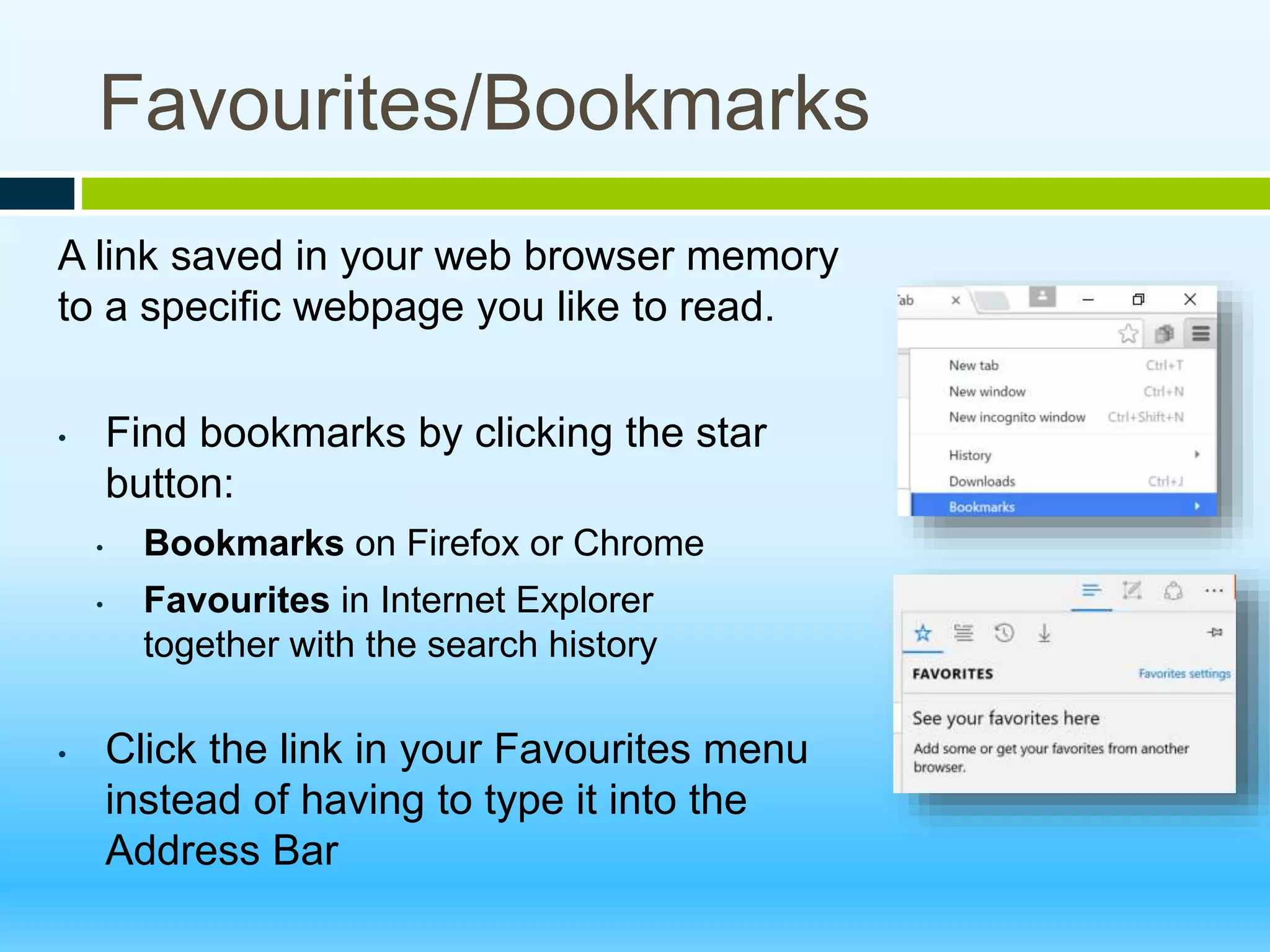
Favourites/Bookmarks
A link saved in your web browser memory
to a specific webpage you like to read.
• Find bookmarks by clicking the star
button:
• Bookmarks on Firefox or Chrome
• Favourites in Internet Explorer
together with the search history
• Click the link in your Favourites menu
instead of having to type it into the
Address Bar
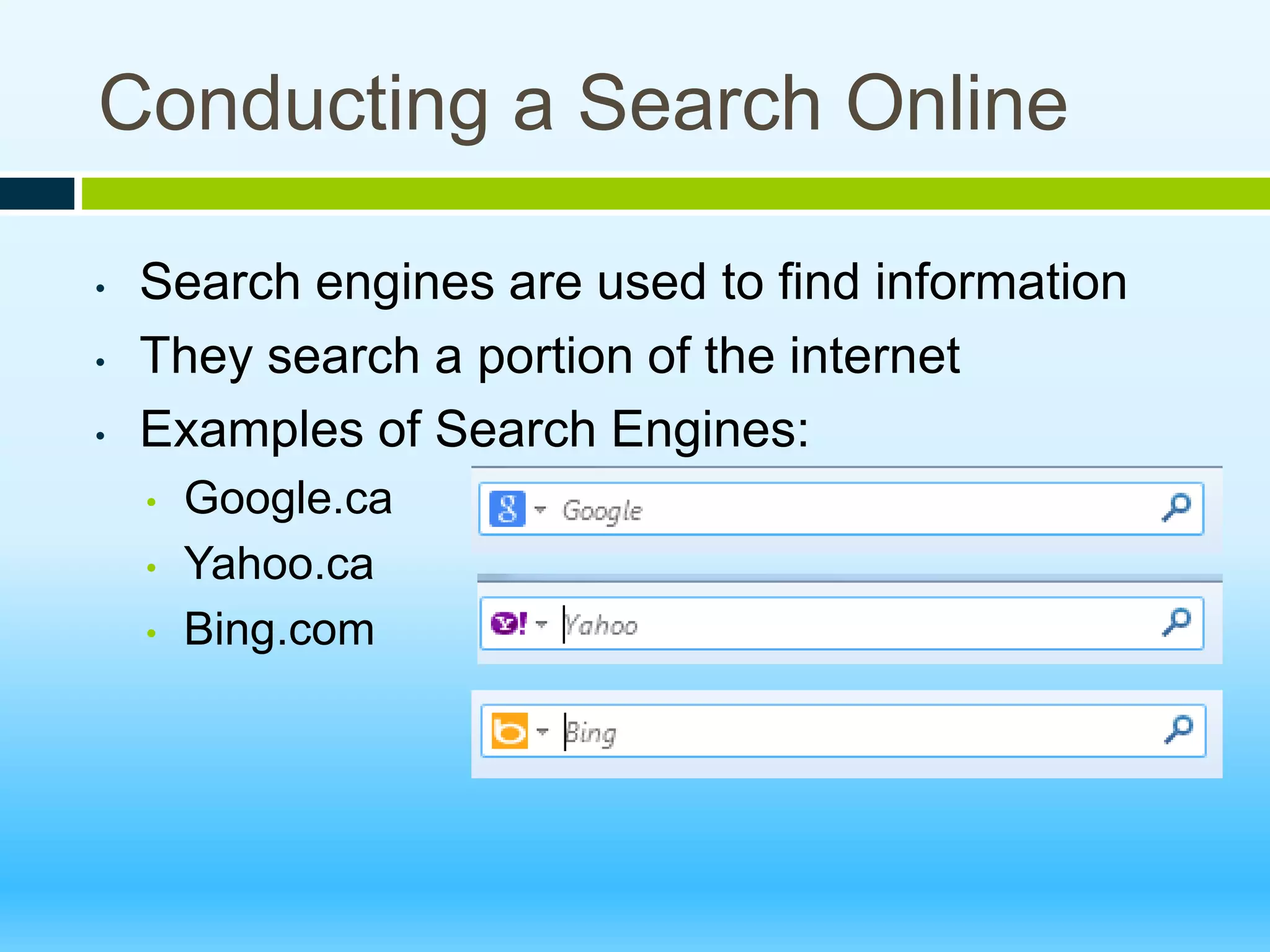
Conducting a Search Online
• Search engines are used to find information
• They search a portion of the internet
• Examples of Search Engines:
• Google.ca
• Yahoo.ca
• Bing.com
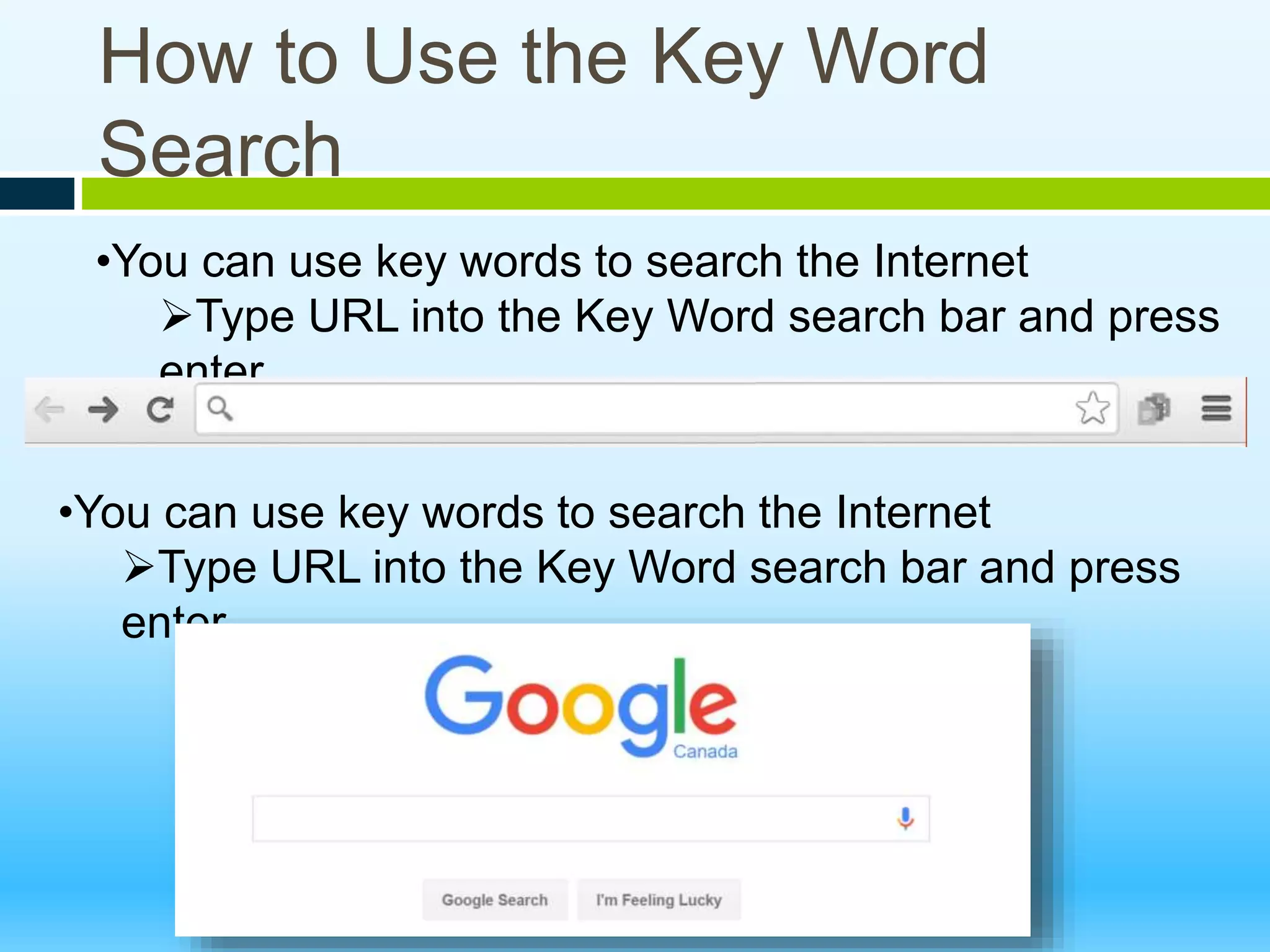
How to Use the Key Word
Search
•You can use key words to search the Internet
Type URL into the Key Word search bar and press
enter
•You can use key words to search the Internet
Type URL into the Key Word search bar and press
enter
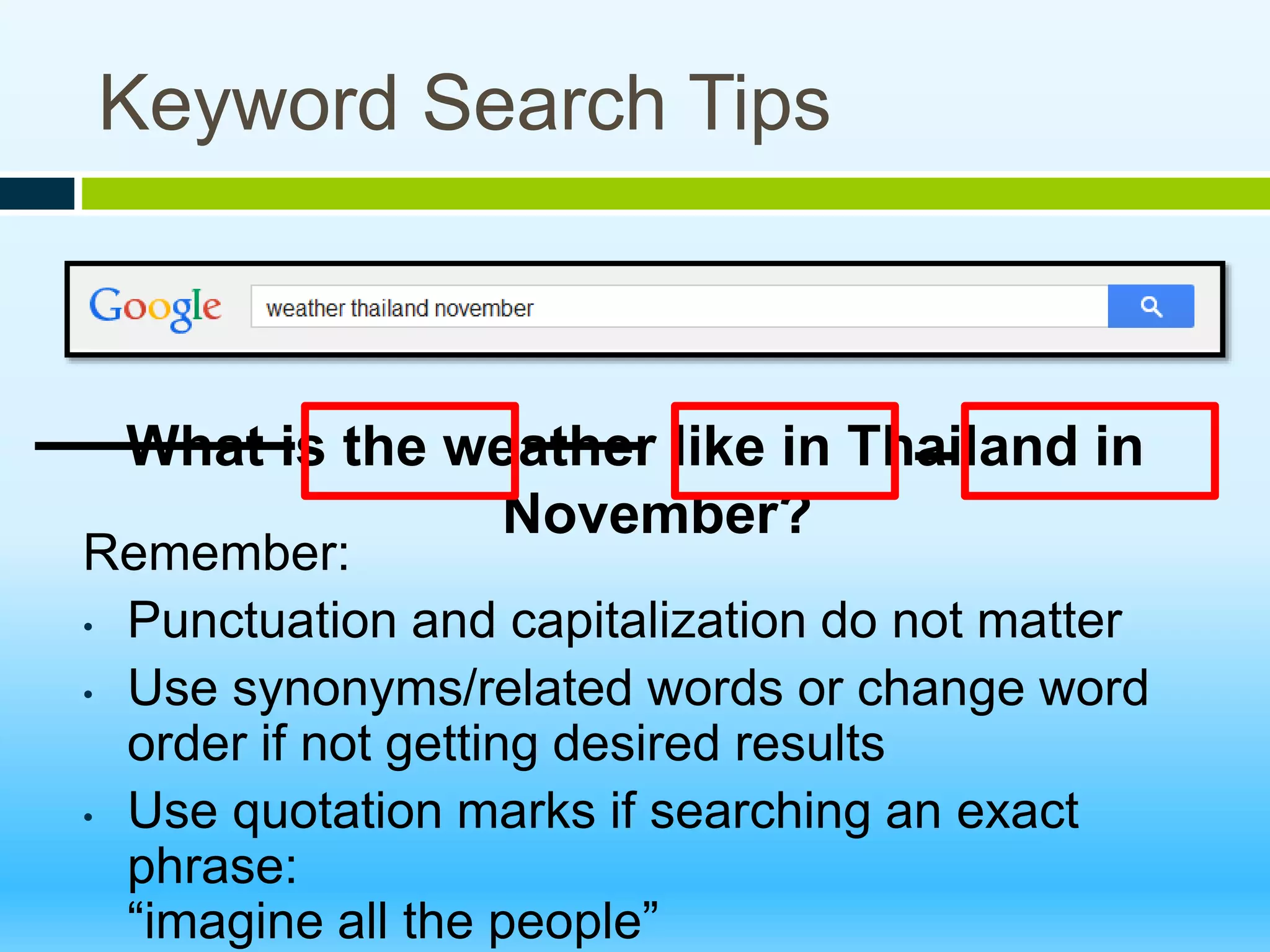
Keyword Search Tips
What is the weather like in Thailand in
November?
Remember:
• Punctuation and capitalization do not matter
• Use synonyms/related words or change word
order if not getting desired results
• Use quotation marks if searching an exact
phrase:
“imagine all the people”
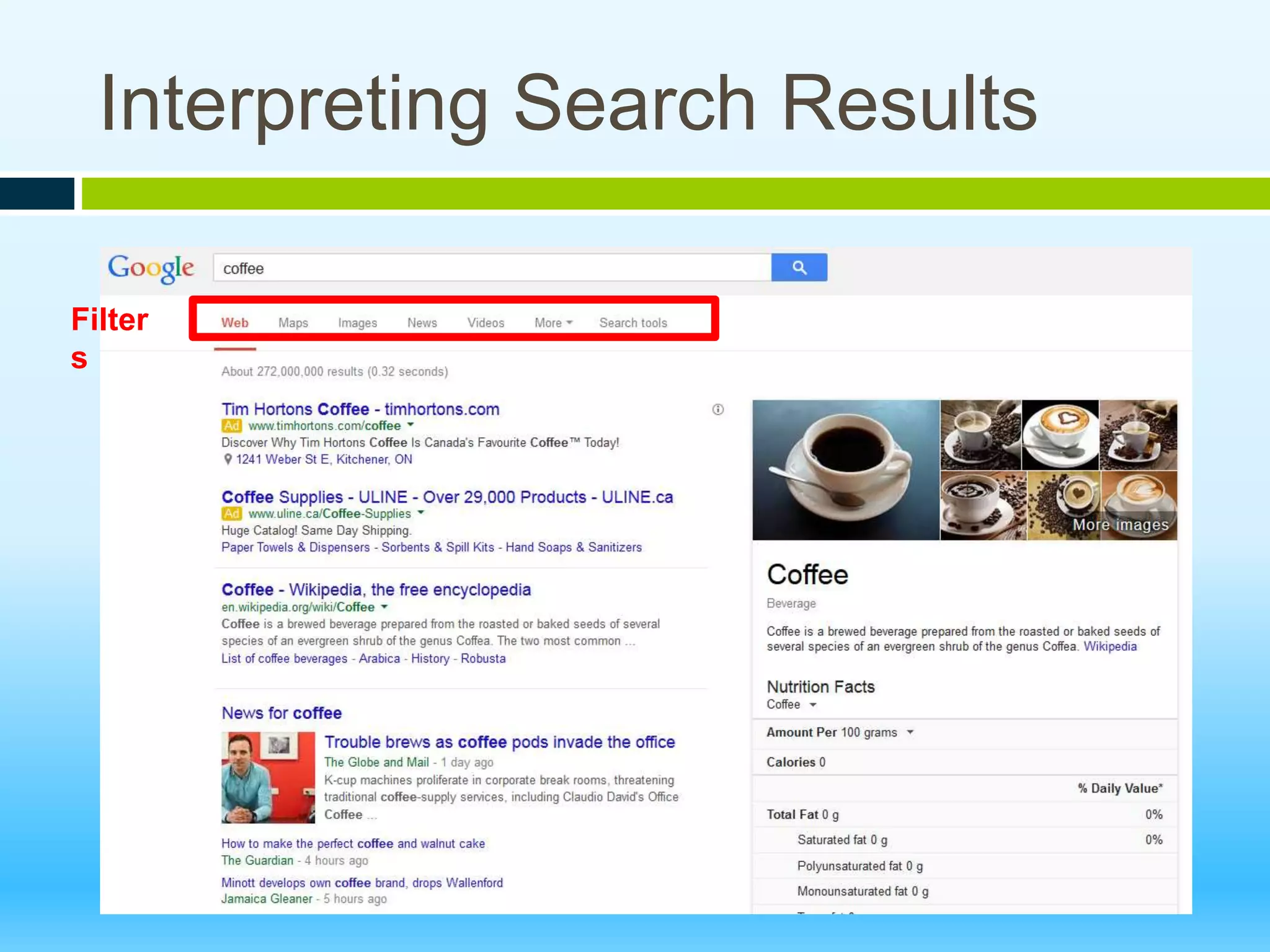
Interpreting Search Results
Filter
s
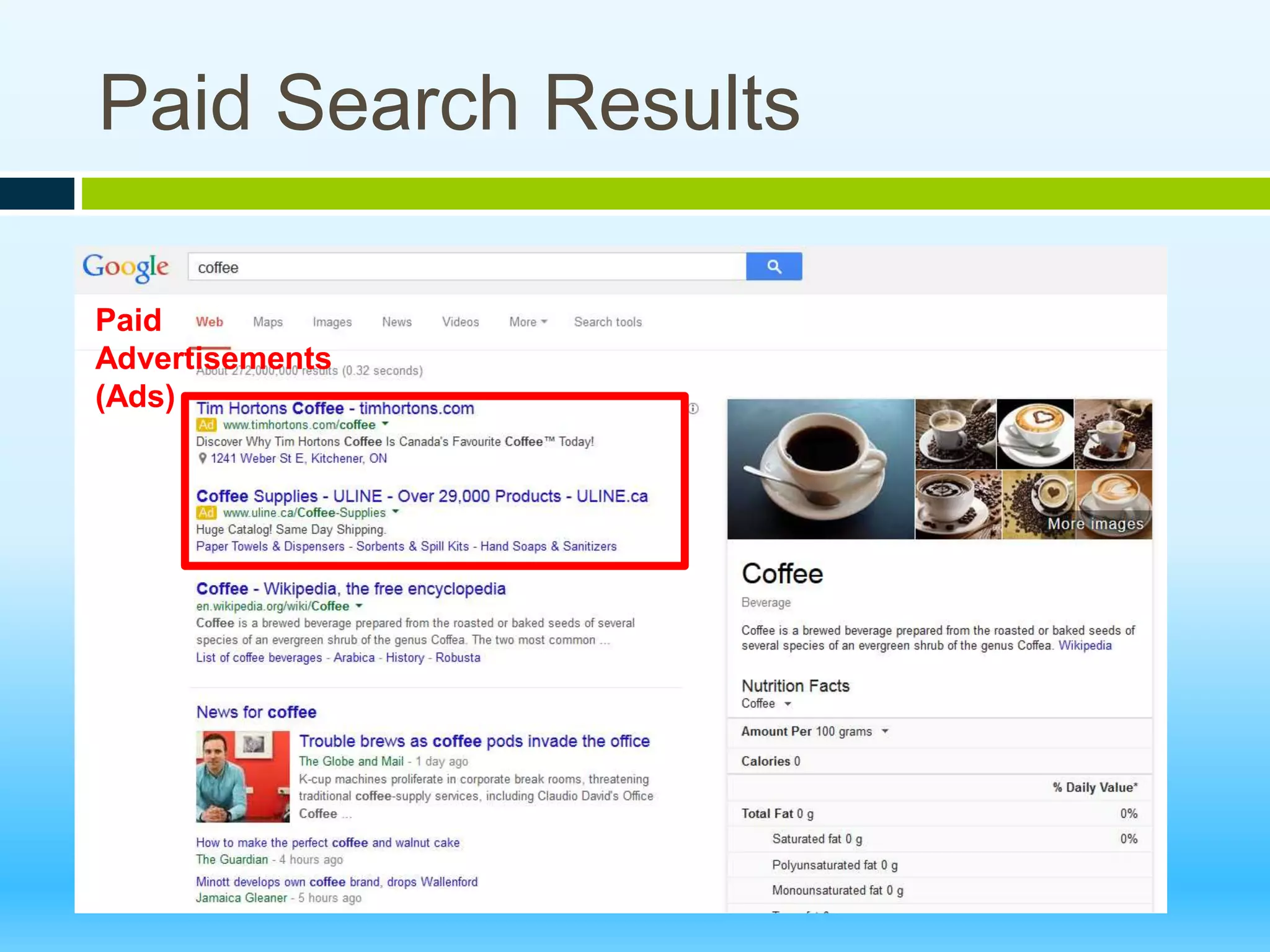
Paid Search Results
Paid
Advertisements
(Ads)
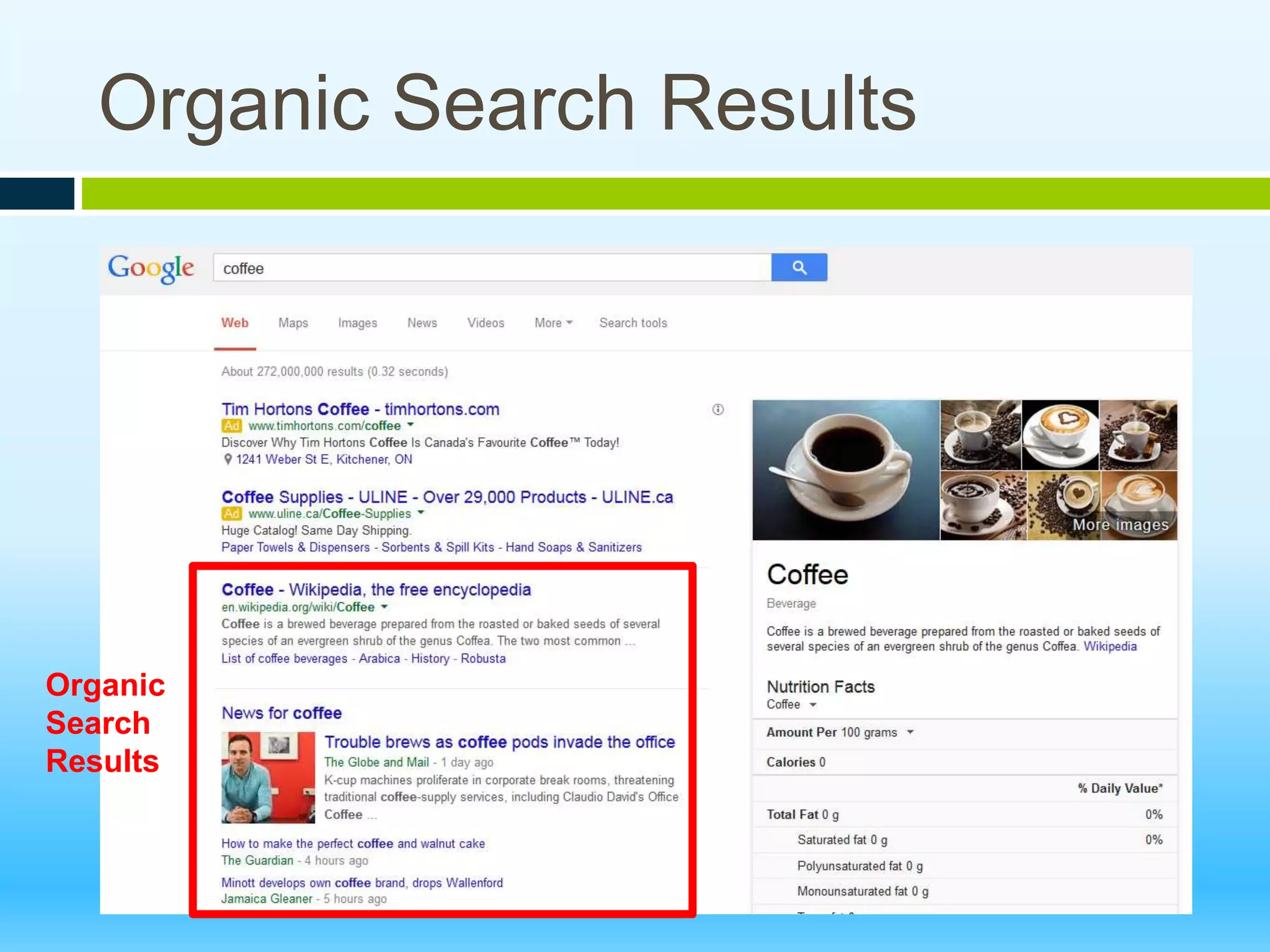
Organic Search Results
Organic
Search
Results
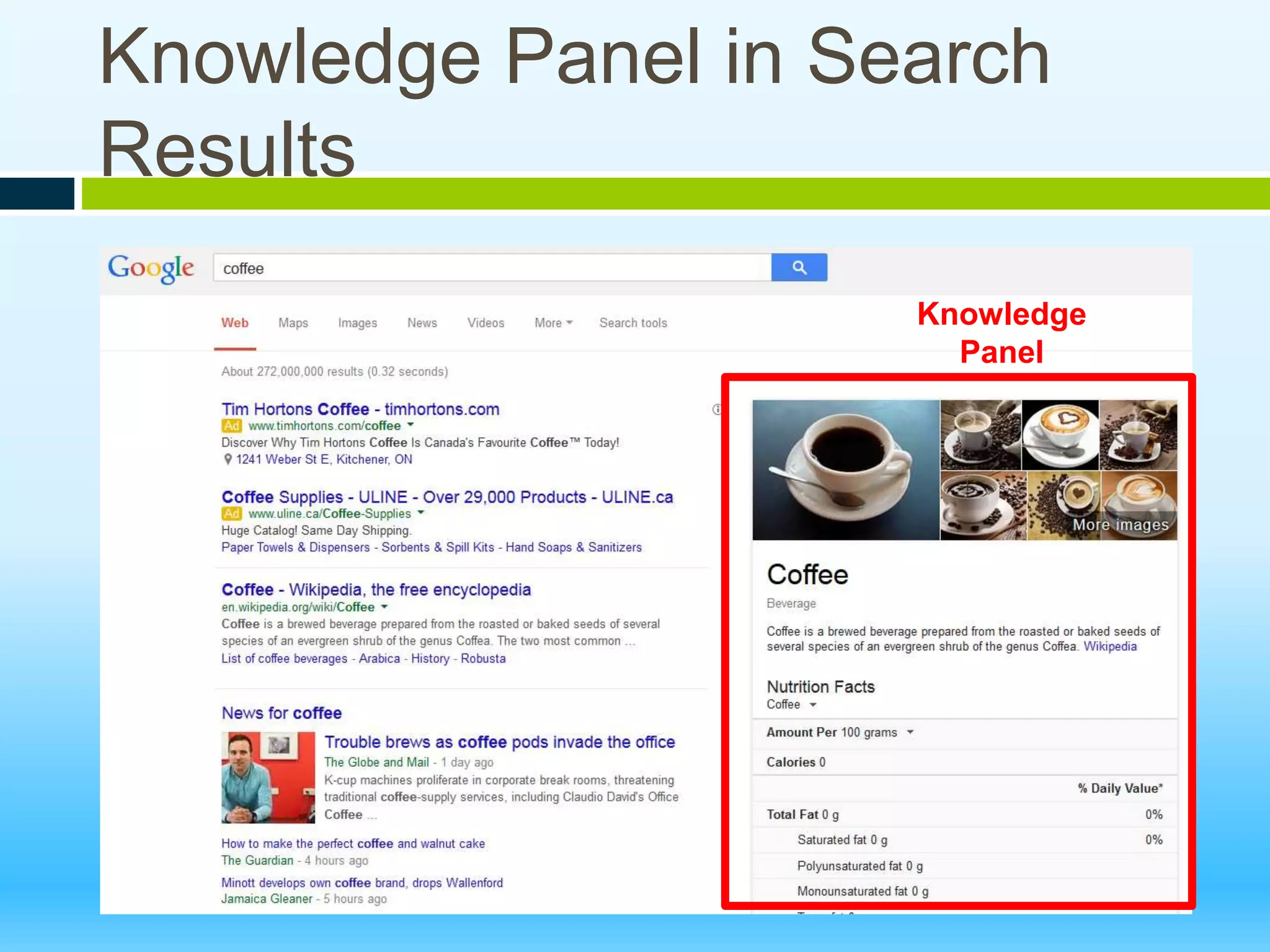
Knowledge Panel in Search
Results
Knowledge
Panel
Safety and Security
Online Safety
• Avoid clicking on pop-ups / advertisements
• It may lead to junk scripts running on your
device
• Look for X button to close them
• Be aware of what you are
downloading/opening
Remember
• If a pop up or a window asks you to click on
something, don’t – unless it’s a valid part of the
web page and you would expect that action
there
• If you’re told you’ve won something, you
haven’t.
Do not click on the announcements and offers.
• If it seems too good to be true, it is!
Contact Information
Social Planning Council of Kitchener-Waterloo
151 Frederick St, Ste 300
Kitchener, ON Canada N2H 2M2
519-579-1096
connectKW@waterlooregion.org

Introduction to the Internet

  • 1.
  • 2.
    Outline • Things youcan do on the Internet • Accessing the Internet • Opening an Internet browser • Navigating websites • Internet Searches • Online safety
  • 3.
    Things can youdo on the Internet • Find information • Access services • Communicate with friends and family • See pictures, watch videos • Book vacations, pay bills, shop • Take online courses
  • 4.
    What is theInternet? The Internet is not… • A physical machine The Internet is... • A series of connections between devices connecting people and information worldwide
  • 5.
    What you needto access the Internet? 1. Hardware: Modem (outside the computer) & Network Card (inside the computer) 2. Service: Internet Service Provider (ISP) The company that provides Internet service to your home (ex. Rogers, Bell) 3. Software: Internet Browser
  • 6.
    What is anInternet Browser Internet Browser is a computer program that searches and shows you information found on the Internet. Browsers have same functions, they access the same information and the same websites but differ in appearance • Layout of buttons • How much you can customize them Opening an Internet Browser • Left-click on a browser icon on your desktop or taskbar • Find the browser in your Start Menu > Search for Firefox, Internet Explorer, Chrome
  • 7.
    Internet Browsers • Allbrowsers access the same information and the same websites • Home screen appears when you open your browser and nowadays shows large search box
  • 8.
    Parts of anInternet Browser Search bar Back Button Refresh Button Search Bar Bookmarks Menu Options
  • 9.
    How to Usethe Address Bar • Each webpage has a unique URL or address: http://www.google.ca  Type URL into the Address Bar and press enter  You do not need to type http://www.  You can search by address or by key words!
  • 10.
    Favourites/Bookmarks A link savedin your web browser memory to a specific webpage you like to read. • Find bookmarks by clicking the star button: • Bookmarks on Firefox or Chrome • Favourites in Internet Explorer together with the search history • Click the link in your Favourites menu instead of having to type it into the Address Bar
  • 11.
    Conducting a SearchOnline • Search engines are used to find information • They search a portion of the internet • Examples of Search Engines: • Google.ca • Yahoo.ca • Bing.com
  • 12.
    How to Usethe Key Word Search •You can use key words to search the Internet Type URL into the Key Word search bar and press enter •You can use key words to search the Internet Type URL into the Key Word search bar and press enter
  • 13.
    Keyword Search Tips Whatis the weather like in Thailand in November? Remember: • Punctuation and capitalization do not matter • Use synonyms/related words or change word order if not getting desired results • Use quotation marks if searching an exact phrase: “imagine all the people”
  • 14.
  • 15.
  • 16.
  • 17.
    Knowledge Panel inSearch Results Knowledge Panel
  • 18.
  • 19.
    Online Safety • Avoidclicking on pop-ups / advertisements • It may lead to junk scripts running on your device • Look for X button to close them • Be aware of what you are downloading/opening
  • 20.
    Remember • If apop up or a window asks you to click on something, don’t – unless it’s a valid part of the web page and you would expect that action there • If you’re told you’ve won something, you haven’t. Do not click on the announcements and offers. • If it seems too good to be true, it is!
  • 21.
    Contact Information Social PlanningCouncil of Kitchener-Waterloo 151 Frederick St, Ste 300 Kitchener, ON Canada N2H 2M2 519-579-1096 connectKW@waterlooregion.org

Editor's Notes

  • #5 There is no “Internet Machine” sitting on a shelf somewhere; each website is located on a server, and the network of connections between servers and computers are what makes up the Internet.
  • #6 A router is a small box that allows multiple computers to join the same network A modem is a device that provides access to the Internet. In order for devices on the network to connect to the Internet, the router must be connected to a modem. Therefore, most routers have a specific Ethernet port that is designed to connect to the Ethernet port of a cable or DSL modem. The modem connects to your ISP, which typically provides either cable or DSL Internet service. Cable modems have a coaxial (or "coax") connection, which is the same type of connector found on a TV or cable box. This connects to a cable port on the wall. DSL modems have a telephone connector, also called an RJ-11 jack, which connects to a telephone socket on the wall.
  • #9 Animated