Taking Physical Infrastructure from Automation to Autonomy
May 2018
Immutable Deployments
2
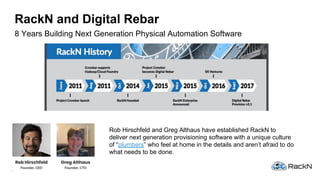
8 Years Building Next Generation Physical Automation Software
RackN and Digital Rebar
Rob Hirschfeld and Greg Althaus have established RackN to
deliver next generation provisioning software with a unique culture
of “plumbers” who feel at home in the details and aren’t afraid to do
what needs to be done.
3
Physical Infrastructure Automation
Digital Rebar Provision
● PXE Provisioner
● Tiny Footprint w/ No External
Dependencies
● Supports Bare Metal, Containers,
Virtualization, Cloud, Edge, etc.
Open Source Digital Rebar Community
● http://rebar.digital
● GitHub : https://github.com/digitalrebar
4
What is “modern” Provisioning?
Cloud Native Architecture
• Create/Destroy Cloud Pattern
• Operator Control
API-First Focus
• All Features API implementation
• CLI is 100% generated from API
• UX is Modern, Air Gap, & SaaS
Lightweight
• DRP is 30MB standalone binary
• Portable (Intel, ARM, …)
Visibility into Operations
• Logs all Activities
• Success/Fail Info in UX
Flexible Workflow Mechanism
• Precise Control of Provisioning
• Build Complex Workflows from
Simple Components
Integrations and Connections
• Extensibility via Plugins
• Leverage Existing
Infrastructure
5
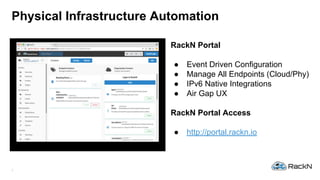
Physical Infrastructure Automation
RackN Portal
● Event Driven Configuration
● Manage All Endpoints (Cloud/Phy)
● IPv6 Native Integrations
● Air Gap UX
RackN Portal Access
● http://portal.rackn.io
6
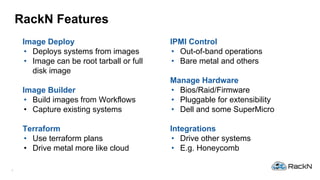
RackN Features
Image Deploy
• Deploys systems from images
• Image can be root tarball or full
disk image
Image Builder
• Build images from Workflows
• Capture existing systems
Terraform
• Use terraform plans
• Drive metal more like cloud
IPMI Control
• Out-of-band operations
• Bare metal and others
Manage Hardware
• Bios/Raid/Firmware
• Pluggable for extensibility
• Dell and some SuperMicro
Integrations
• Drive other systems
• E.g. Honeycomb
Immutable Deployments
What are we going to do?!?
8
What is the plan for today?
1. Gather the Required Items
2. Deploy Digital Rebar Provision
3. Log into RackN SaaS
4. Add Content and Plugins
5. Configure to Deploy Images
6. Configure to Access Packet.net
7. Add Systems for Terraform to Manage
8. Image Systems with Terraform
9. Reset Systems with Terraform
10. Reimage Systems with Terraform
9
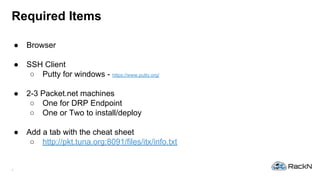
Required Items
● Browser
● SSH Client
○ Putty for windows - https://www.putty.org/
● 2-3 Packet.net machines
○ One for DRP Endpoint
○ One or Two to install/deploy
● Add a tab with the cheat sheet
○ http://pkt.tuna.org:8091/files/itx/info.txt
10
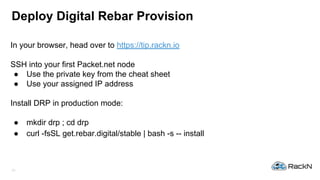
Deploy Digital Rebar Provision
In your browser, head over to https://tip.rackn.io
SSH into your first Packet.net node
● Use the private key from the cheat sheet
● Use your assigned IP address
Install DRP in production mode:
● mkdir drp ; cd drp
● curl -fsSL get.rebar.digital/stable | bash -s -- install
11
Deploy Digital Rebar Provision
At this point, DRP is available to start and enable
● systemctl daemon-reload && systemctl start dr-provision
● systemctl daemon-reload && systemctl enable dr-provision
● Should be in you install.sh command output
We also need to include the discovery iso.
● drpcli bootenvs uploadiso sledgehammer
● Should be in your install.sh output
● Takes about 30 seconds
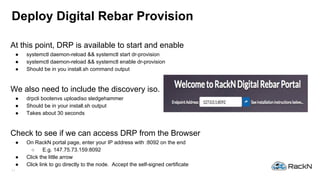
Check to see if we can access DRP from the Browser
● On RackN portal page, enter your IP address with :8092 on the end
○ E.g. 147.75.73.159:8092
● Click the little arrow
● Click link to go directly to the node. Accept the self-signed certificate
12
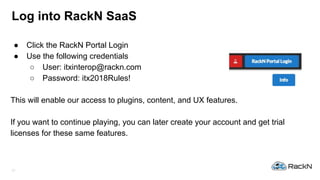
Log into RackN SaaS
● Click the RackN Portal Login
● Use the following credentials
○ User: itxinterop@rackn.com
○ Password: itx2018Rules!
This will enable our access to plugins, content, and UX features.
If you want to continue playing, you can later create your account and get trial
licenses for these same features.
13
Add Content and Plugins
● Head over the the Content Packages section of the UX
● Add Content Packages
○ Terraform
○ Task-Library
14
Add Content and Plugins
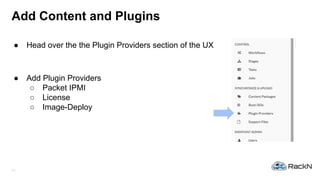
● Head over the the Plugin Providers section of the UX
● Add Plugin Providers
○ Packet IPMI
○ License
○ Image-Deploy
15
Add Content and Plugins
● Where are we?
○ We have content loaded
○ We have plugins that can be configured.
○ We have a discovery ISO ready to go
● Next Up
○ Configuring system to control machines
16
Configure to Deploy Images
● Create Discover Workflow
○ Process machines go through when first discovered or reset.
● Select Workflows Navigation
● Click Add to add the discover workflow
● In the newly added discover workflow, drag and drop the following in order
○ discover
○ packet-discover
○ terraform-ready
17
Configure to Deploy Images
● Create Image Workflow
○ Process machines go through to image a system.
● Select Workflows Navigation
● Click Add to add the image workflow
● In the newly added image workflow, drag and drop the following in order
○ image-deploy
○ image-deploy-cloud-init
○ runner-service
○ complete
18
Configure to Deploy Images
19
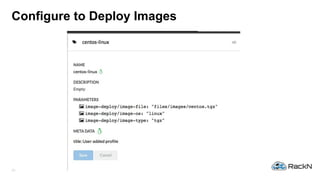
Configure to Deploy Images
● Create Profile To Define Image Deployment
● Select Profiles Navigation
● Click Add to add the centos-image profile
● Add the following parameters to the profile
○ image-deploy/image-file: "files/images/centos.tgz"
○ image-deploy/image-os: "linux"
○ image-deploy/image-type: "tgz"
20
Configure to Deploy Images
21
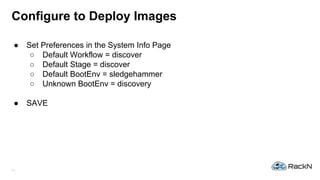
Configure to Deploy Images
● Set Preferences in the System Info Page
○ Default Workflow = discover
○ Default Stage = discover
○ Default BootEnv = sledgehammer
○ Unknown BootEnv = discovery
● SAVE
22
Configure to Deploy Images
● Get the centos image
● Do the following:
○ curl -O http://pkt.tuna.org:8091/files/images/centos.tgz
○ drpcli files upload centos.tgz as images/centos.tgz
23
Configure to Access Packet.net
We need to let DRP access the Packet.net portal to do IPMI actions against the
machines.
● Navigate to Plugins
● Click Add
● Select the packet-ipmi Provider
● In the parameter box, type packet/api-key and click add
● In the new box by packet/api-key, add 9QiCXcTSpMMSc7vRna2mqSsoCcWUpRbx
● In the parameter box, type packet/project-id and click add
● In the new box by packet/project-id, add cc522a04-ef6a-4c09-8d9c-4aebea63a434
● Save
24
Add Systems for Terraform to Manage
● Reboot Machines
○ Using Master DRP Endpoint to restart install machines
● Wait for machines to show up!
25
Image Systems with Terraform
● Install Terraform
○ yum install -y unzip
○ curl -O http://pkt.tuna.org:8091/files/itx/terraform_0.11.7_linux_amd64.zip
○ unzip terraform_0.11.7_linux_amd64.zip
○ cp terraform /usr/local/bin
○ chmod +x /usr/local/bin/terraform
○ rm -f terraform_0.11.7_linux_amd64.zip
● Install Terraform plugin
○ mkdir /root/terraform ; cd /root/terraform
○ curl -O http://pkt.tuna.org:8091/files/itx/terraform-provider-drp
○ chmod +x terraform-provider-drp
26
Image Systems with Terraform
● Build Plan File
● vi image.tf
provider "drp" {
api_user = "rocketskates"
api_password = "r0cketsk8ts"
api_url = "https://127.0.0.1:8092"
}
resource "drp_machine" "image_one_node" {
count = 1
Workflow = "image"
Description = "Terraform controller linux image node"
add_profiles = [ "centos-linux" ]
}
● Or cheat: curl -O http://pkt.tuna.org:8091/files/itx/image.tf
27
Image Systems with Terraform
● Apply plan
○ terraform init
○ terraform plan
○ terraform apply
● Watch systems
○ Using the Packet.net ssh remote console
○ drpcli machines list | grep packet/sos
28
Reset Systems with Terraform
● Terraform Destroy
○ terraform destroy
● Watch systems return to discovery and ready state
○ Same ssh command and UX views
29
Reimage Systems with Terraform
● Apply plan
○ terraform init
○ terraform plan
○ terraform apply
● Watch systems
○ Using the Packet.net ssh remote console
○ drpcli machines list | grep packet/sos
Thanks!
Greg Althaus
CTO/Founder RackN
@galthaus
portal.rackn.io
Backup Slides / Next Steps
What is Immutable?
● https://www.slideshare.net/rhirschfeld/srecon-immutable-infrastructure
-rethinking-configuration-mgmt
DRP Terraform Guided Tour
● https://youtu.be/RtuZQHKmd9U

Immutable Deployment Hands-On Lab Interop ITX

  • 1.
    Taking Physical Infrastructurefrom Automation to Autonomy May 2018 Immutable Deployments
  • 2.
    2 8 Years BuildingNext Generation Physical Automation Software RackN and Digital Rebar Rob Hirschfeld and Greg Althaus have established RackN to deliver next generation provisioning software with a unique culture of “plumbers” who feel at home in the details and aren’t afraid to do what needs to be done.
  • 3.
    3 Physical Infrastructure Automation DigitalRebar Provision ● PXE Provisioner ● Tiny Footprint w/ No External Dependencies ● Supports Bare Metal, Containers, Virtualization, Cloud, Edge, etc. Open Source Digital Rebar Community ● http://rebar.digital ● GitHub : https://github.com/digitalrebar
  • 4.
    4 What is “modern”Provisioning? Cloud Native Architecture • Create/Destroy Cloud Pattern • Operator Control API-First Focus • All Features API implementation • CLI is 100% generated from API • UX is Modern, Air Gap, & SaaS Lightweight • DRP is 30MB standalone binary • Portable (Intel, ARM, …) Visibility into Operations • Logs all Activities • Success/Fail Info in UX Flexible Workflow Mechanism • Precise Control of Provisioning • Build Complex Workflows from Simple Components Integrations and Connections • Extensibility via Plugins • Leverage Existing Infrastructure
  • 5.
    5 Physical Infrastructure Automation RackNPortal ● Event Driven Configuration ● Manage All Endpoints (Cloud/Phy) ● IPv6 Native Integrations ● Air Gap UX RackN Portal Access ● http://portal.rackn.io
  • 6.
    6 RackN Features Image Deploy •Deploys systems from images • Image can be root tarball or full disk image Image Builder • Build images from Workflows • Capture existing systems Terraform • Use terraform plans • Drive metal more like cloud IPMI Control • Out-of-band operations • Bare metal and others Manage Hardware • Bios/Raid/Firmware • Pluggable for extensibility • Dell and some SuperMicro Integrations • Drive other systems • E.g. Honeycomb
  • 7.
  • 8.
    8 What is theplan for today? 1. Gather the Required Items 2. Deploy Digital Rebar Provision 3. Log into RackN SaaS 4. Add Content and Plugins 5. Configure to Deploy Images 6. Configure to Access Packet.net 7. Add Systems for Terraform to Manage 8. Image Systems with Terraform 9. Reset Systems with Terraform 10. Reimage Systems with Terraform
  • 9.
    9 Required Items ● Browser ●SSH Client ○ Putty for windows - https://www.putty.org/ ● 2-3 Packet.net machines ○ One for DRP Endpoint ○ One or Two to install/deploy ● Add a tab with the cheat sheet ○ http://pkt.tuna.org:8091/files/itx/info.txt
  • 10.
    10 Deploy Digital RebarProvision In your browser, head over to https://tip.rackn.io SSH into your first Packet.net node ● Use the private key from the cheat sheet ● Use your assigned IP address Install DRP in production mode: ● mkdir drp ; cd drp ● curl -fsSL get.rebar.digital/stable | bash -s -- install
  • 11.
    11 Deploy Digital RebarProvision At this point, DRP is available to start and enable ● systemctl daemon-reload && systemctl start dr-provision ● systemctl daemon-reload && systemctl enable dr-provision ● Should be in you install.sh command output We also need to include the discovery iso. ● drpcli bootenvs uploadiso sledgehammer ● Should be in your install.sh output ● Takes about 30 seconds Check to see if we can access DRP from the Browser ● On RackN portal page, enter your IP address with :8092 on the end ○ E.g. 147.75.73.159:8092 ● Click the little arrow ● Click link to go directly to the node. Accept the self-signed certificate
  • 12.
    12 Log into RackNSaaS ● Click the RackN Portal Login ● Use the following credentials ○ User: itxinterop@rackn.com ○ Password: itx2018Rules! This will enable our access to plugins, content, and UX features. If you want to continue playing, you can later create your account and get trial licenses for these same features.
  • 13.
    13 Add Content andPlugins ● Head over the the Content Packages section of the UX ● Add Content Packages ○ Terraform ○ Task-Library
  • 14.
    14 Add Content andPlugins ● Head over the the Plugin Providers section of the UX ● Add Plugin Providers ○ Packet IPMI ○ License ○ Image-Deploy
  • 15.
    15 Add Content andPlugins ● Where are we? ○ We have content loaded ○ We have plugins that can be configured. ○ We have a discovery ISO ready to go ● Next Up ○ Configuring system to control machines
  • 16.
    16 Configure to DeployImages ● Create Discover Workflow ○ Process machines go through when first discovered or reset. ● Select Workflows Navigation ● Click Add to add the discover workflow ● In the newly added discover workflow, drag and drop the following in order ○ discover ○ packet-discover ○ terraform-ready
  • 17.
    17 Configure to DeployImages ● Create Image Workflow ○ Process machines go through to image a system. ● Select Workflows Navigation ● Click Add to add the image workflow ● In the newly added image workflow, drag and drop the following in order ○ image-deploy ○ image-deploy-cloud-init ○ runner-service ○ complete
  • 18.
  • 19.
    19 Configure to DeployImages ● Create Profile To Define Image Deployment ● Select Profiles Navigation ● Click Add to add the centos-image profile ● Add the following parameters to the profile ○ image-deploy/image-file: "files/images/centos.tgz" ○ image-deploy/image-os: "linux" ○ image-deploy/image-type: "tgz"
  • 20.
  • 21.
    21 Configure to DeployImages ● Set Preferences in the System Info Page ○ Default Workflow = discover ○ Default Stage = discover ○ Default BootEnv = sledgehammer ○ Unknown BootEnv = discovery ● SAVE
  • 22.
    22 Configure to DeployImages ● Get the centos image ● Do the following: ○ curl -O http://pkt.tuna.org:8091/files/images/centos.tgz ○ drpcli files upload centos.tgz as images/centos.tgz
  • 23.
    23 Configure to AccessPacket.net We need to let DRP access the Packet.net portal to do IPMI actions against the machines. ● Navigate to Plugins ● Click Add ● Select the packet-ipmi Provider ● In the parameter box, type packet/api-key and click add ● In the new box by packet/api-key, add 9QiCXcTSpMMSc7vRna2mqSsoCcWUpRbx ● In the parameter box, type packet/project-id and click add ● In the new box by packet/project-id, add cc522a04-ef6a-4c09-8d9c-4aebea63a434 ● Save
  • 24.
    24 Add Systems forTerraform to Manage ● Reboot Machines ○ Using Master DRP Endpoint to restart install machines ● Wait for machines to show up!
  • 25.
    25 Image Systems withTerraform ● Install Terraform ○ yum install -y unzip ○ curl -O http://pkt.tuna.org:8091/files/itx/terraform_0.11.7_linux_amd64.zip ○ unzip terraform_0.11.7_linux_amd64.zip ○ cp terraform /usr/local/bin ○ chmod +x /usr/local/bin/terraform ○ rm -f terraform_0.11.7_linux_amd64.zip ● Install Terraform plugin ○ mkdir /root/terraform ; cd /root/terraform ○ curl -O http://pkt.tuna.org:8091/files/itx/terraform-provider-drp ○ chmod +x terraform-provider-drp
  • 26.
    26 Image Systems withTerraform ● Build Plan File ● vi image.tf provider "drp" { api_user = "rocketskates" api_password = "r0cketsk8ts" api_url = "https://127.0.0.1:8092" } resource "drp_machine" "image_one_node" { count = 1 Workflow = "image" Description = "Terraform controller linux image node" add_profiles = [ "centos-linux" ] } ● Or cheat: curl -O http://pkt.tuna.org:8091/files/itx/image.tf
  • 27.
    27 Image Systems withTerraform ● Apply plan ○ terraform init ○ terraform plan ○ terraform apply ● Watch systems ○ Using the Packet.net ssh remote console ○ drpcli machines list | grep packet/sos
  • 28.
    28 Reset Systems withTerraform ● Terraform Destroy ○ terraform destroy ● Watch systems return to discovery and ready state ○ Same ssh command and UX views
  • 29.
    29 Reimage Systems withTerraform ● Apply plan ○ terraform init ○ terraform plan ○ terraform apply ● Watch systems ○ Using the Packet.net ssh remote console ○ drpcli machines list | grep packet/sos
  • 30.
  • 31.
    Backup Slides /Next Steps What is Immutable? ● https://www.slideshare.net/rhirschfeld/srecon-immutable-infrastructure -rethinking-configuration-mgmt DRP Terraform Guided Tour ● https://youtu.be/RtuZQHKmd9U