1. The document discusses various image processing techniques in R using the EBImage library. It loads images from URLs and locally, and performs operations like brightness/contrast manipulation, gamma correction, grayscale conversion, cropping, flipping, rotating, resizing, and low-pass/high-pass filtering.
2. It also demonstrates combining two images through addition and weighted addition, and saves the processed image as a new file.
3. The key functions used include readImage(), display(), print(), hist(), colorMode(), filter2(), flip(), flop(), rotate(), resize(), makeBrush(), combine(), and writeImage().
![IMAGE PROCESSING IN R
SARAVANAKUMAR SEKAR
14 May 2018
library(EBImage)
#image1=readImage("~//pp//pic1.jpg")
#image2=readImage("~//pp//pic2.jpg")
#print(image1)
#display(image1)
image3=readImage("http://all4desktop.com/data_images/1920%20x%201080/4166784-
ms-dhoni-HD.jpg")
Inference
Here I get image from internet using link of that image
print(image3)
## Image
## colorMode : Color
## storage.mode : double
## dim : 1920 1080 3
## frames.total : 3
## frames.render: 1
##
## imageData(object)[1:5,1:6,1]
## [,1] [,2] [,3] [,4] [,5] [,6]
## [1,] 0.4235294 0.4078431 0.4274510 0.4235294 0.4235294 0.4392157
## [2,] 0.4196078 0.4039216 0.4078431 0.4156863 0.4274510 0.4431373
## [3,] 0.4156863 0.4078431 0.3960784 0.4039216 0.4156863 0.4274510
## [4,] 0.4117647 0.4156863 0.4000000 0.4000000 0.4000000 0.4000000
## [5,] 0.4000000 0.4156863 0.4039216 0.4078431 0.4078431 0.4000000
Inference
In this print statement , it tell about overview of the image
In this image colorMode is denoted the it color or not ?
And it tell dim size ,frame.total,frames.render and image clarity weight](https://image.slidesharecdn.com/imageprocessing-190719054220/75/Image-Processing-in-R-1-2048.jpg)
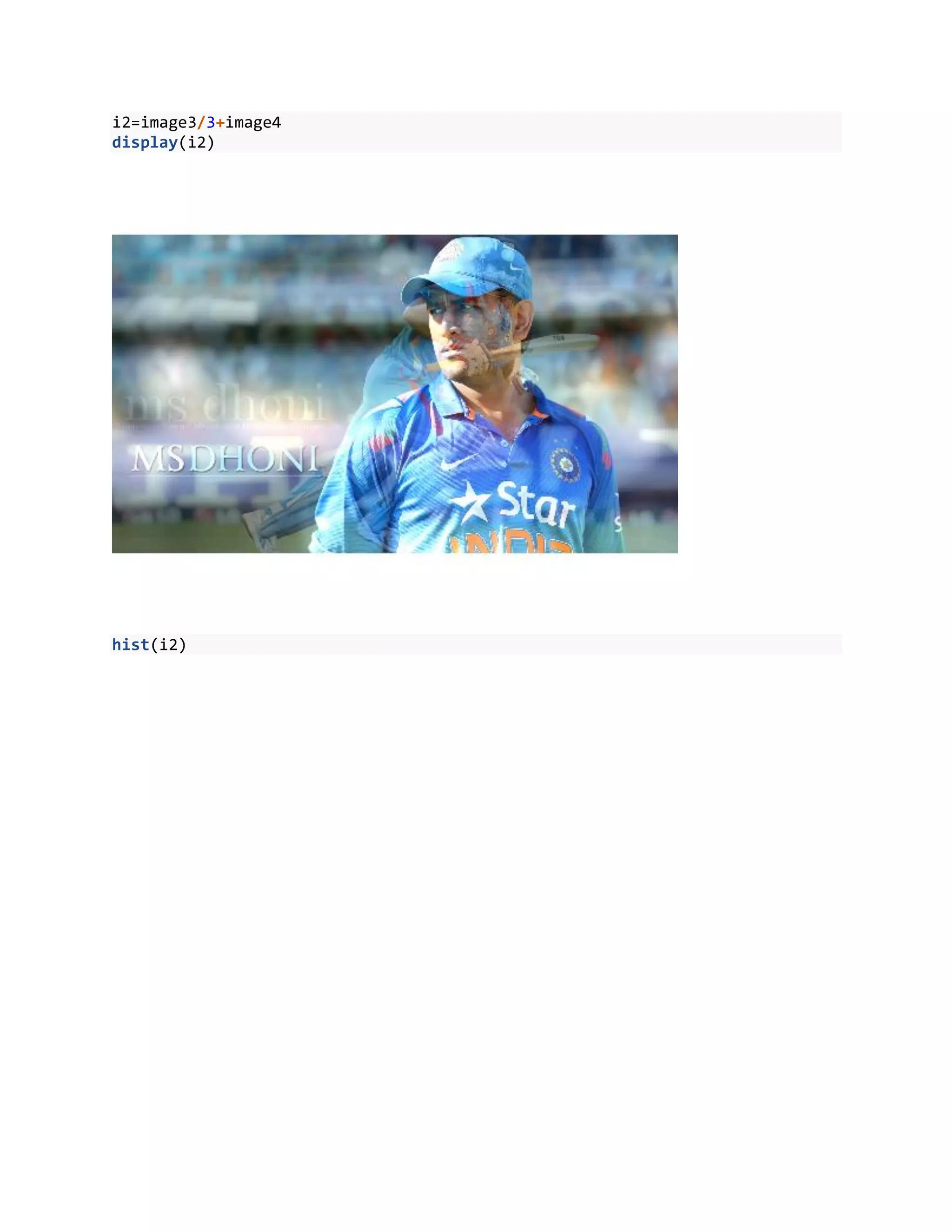
![display(image3)
Inference
Using display for view the image
image4=readImage("http://www.olympicsupdate.com/wp-content/uploads/2016/02/MS
-Dhoni-wallpapers.jpg")
print(image4)
## Image
## colorMode : Color
## storage.mode : double
## dim : 1920 1080 3
## frames.total : 3
## frames.render: 1
##
## imageData(object)[1:5,1:6,1]
## [,1] [,2] [,3] [,4] [,5] [,6]
## [1,] 0.2705882 0.2666667 0.2666667 0.2627451 0.2627451 0.2666667
## [2,] 0.2745098 0.2745098 0.2705882 0.2666667 0.2666667 0.2666667
## [3,] 0.2823529 0.2784314 0.2745098 0.2705882 0.2705882 0.2705882](https://image.slidesharecdn.com/imageprocessing-190719054220/75/Image-Processing-in-R-2-2048.jpg)
![## [4,] 0.2784314 0.2784314 0.2745098 0.2705882 0.2705882 0.2705882
## [5,] 0.2705882 0.2705882 0.2705882 0.2705882 0.2705882 0.2705882
display(image4)
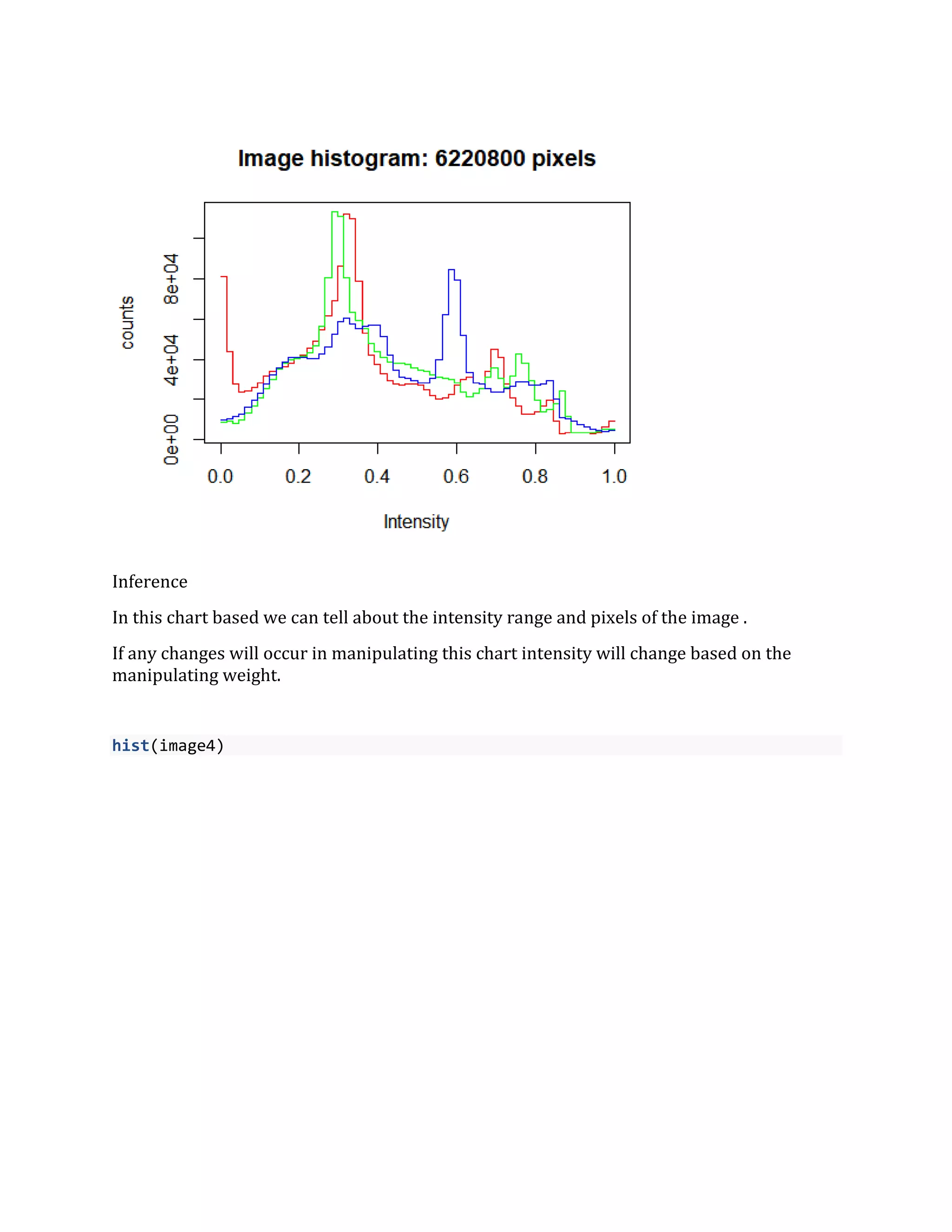
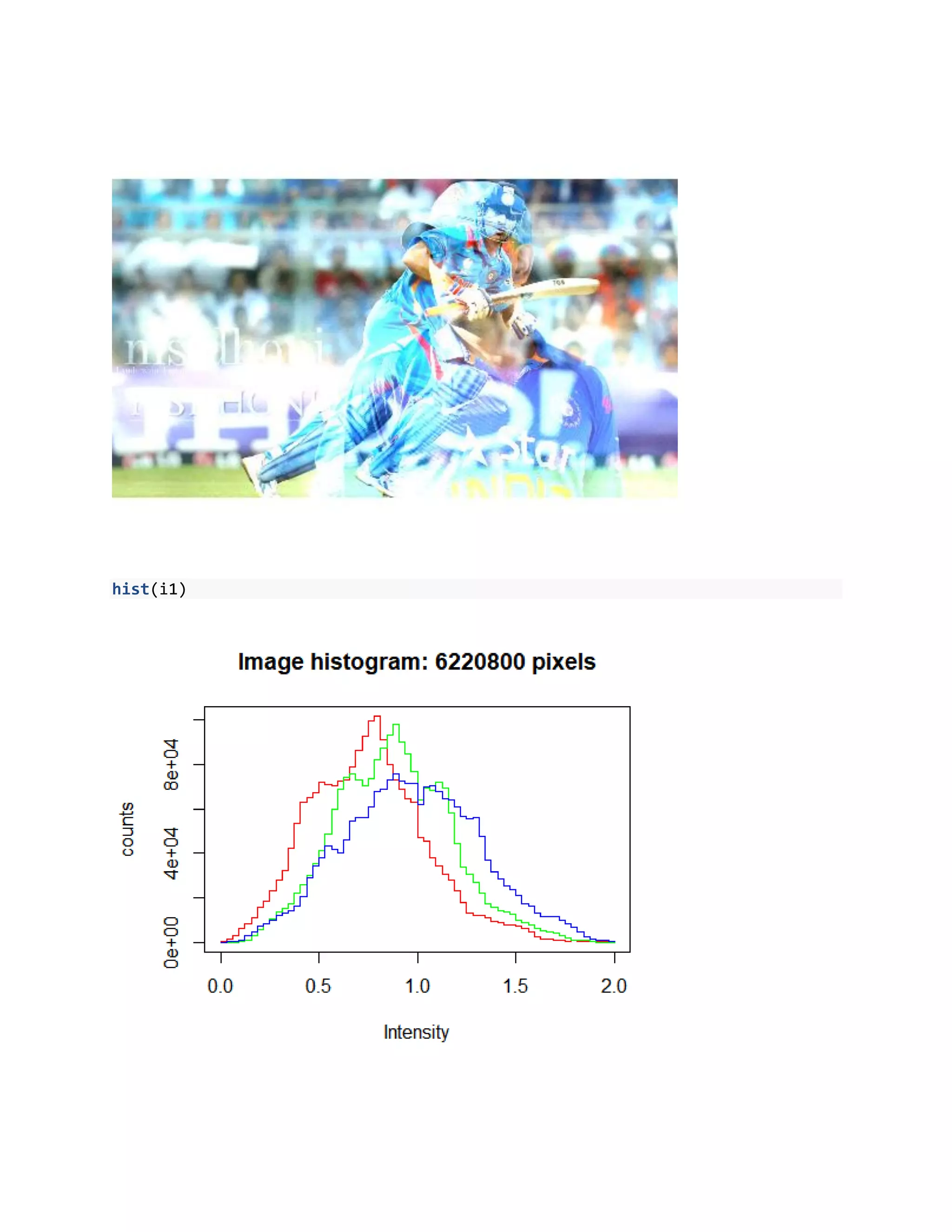
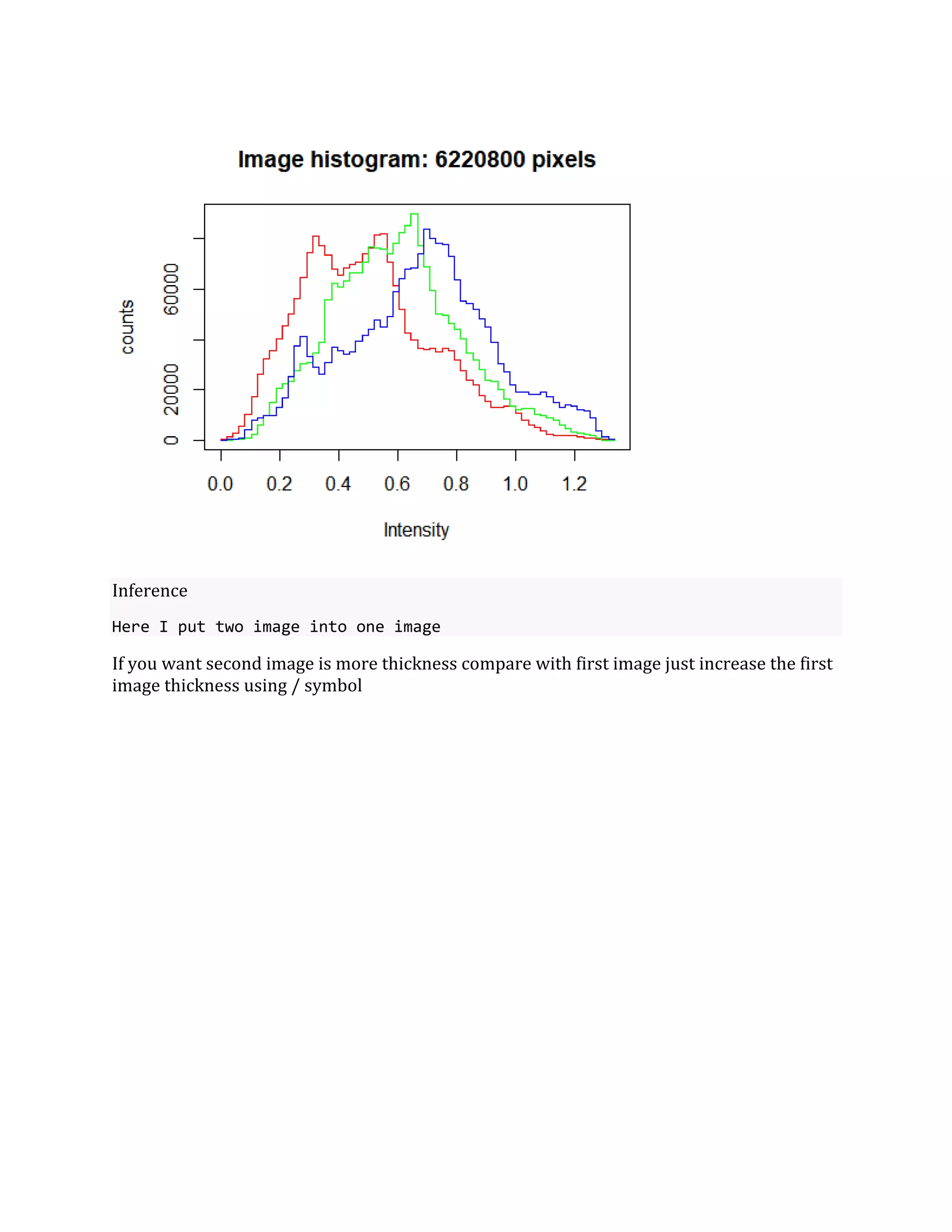
#histogram for image
hist(image3)](https://image.slidesharecdn.com/imageprocessing-190719054220/75/Image-Processing-in-R-3-2048.jpg)
![#manipulating brightness
b1=image4+0.2
Inference
In this image I just increase the brightness 0.2 for image 4
print(b1)
## Image
## colorMode : Color
## storage.mode : double
## dim : 1920 1080 3
## frames.total : 3
## frames.render: 1
##
## imageData(object)[1:5,1:6,1]
## [,1] [,2] [,3] [,4] [,5] [,6]
## [1,] 0.4705882 0.4666667 0.4666667 0.4627451 0.4627451 0.4666667
## [2,] 0.4745098 0.4745098 0.4705882 0.4666667 0.4666667 0.4666667
## [3,] 0.4823529 0.4784314 0.4745098 0.4705882 0.4705882 0.4705882
## [4,] 0.4784314 0.4784314 0.4745098 0.4705882 0.4705882 0.4705882
## [5,] 0.4705882 0.4705882 0.4705882 0.4705882 0.4705882 0.4705882
Inference](https://image.slidesharecdn.com/imageprocessing-190719054220/75/Image-Processing-in-R-5-2048.jpg)
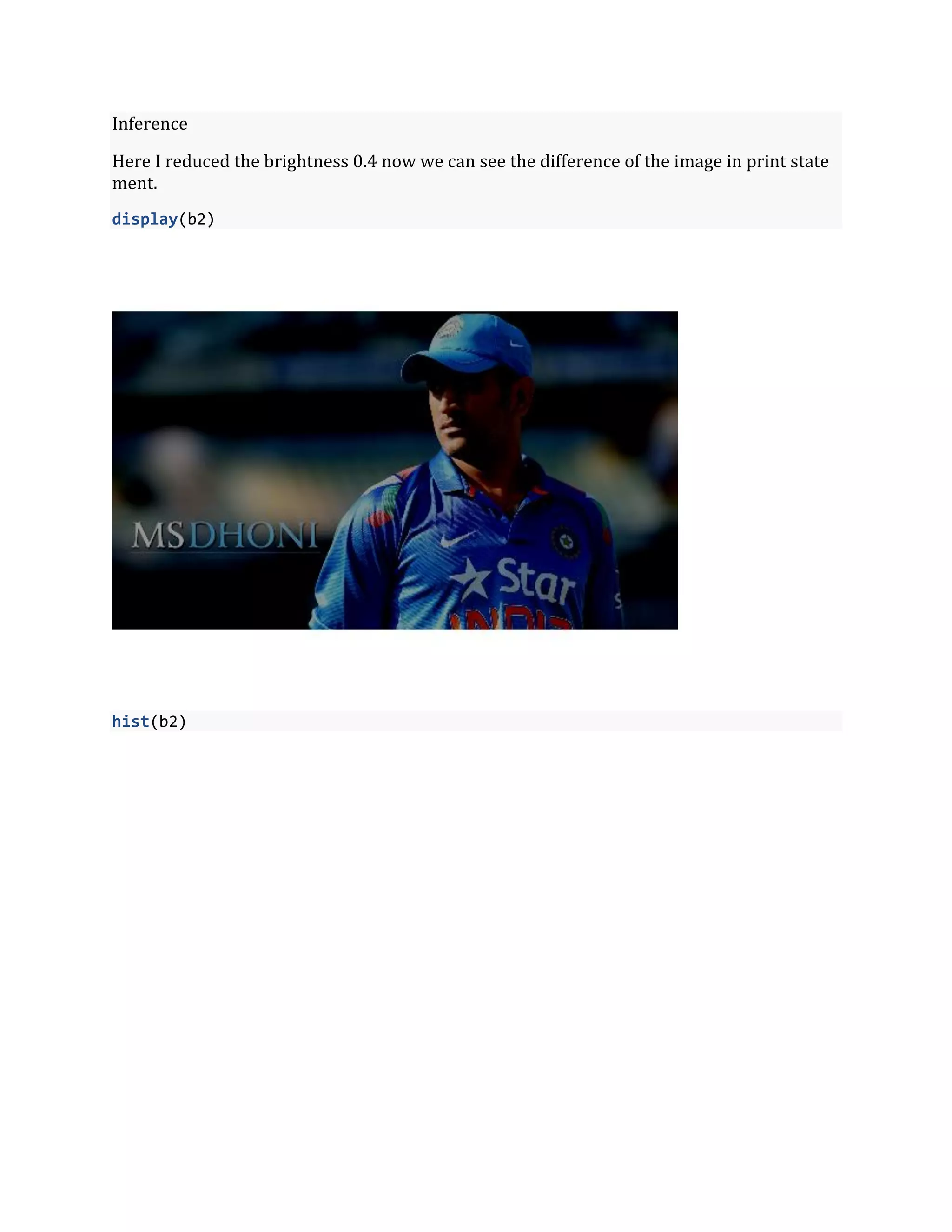
![Using print statement we can see the weight difference before weight is 0.27 but now 0.47i
n the category of brightness
display(b1)
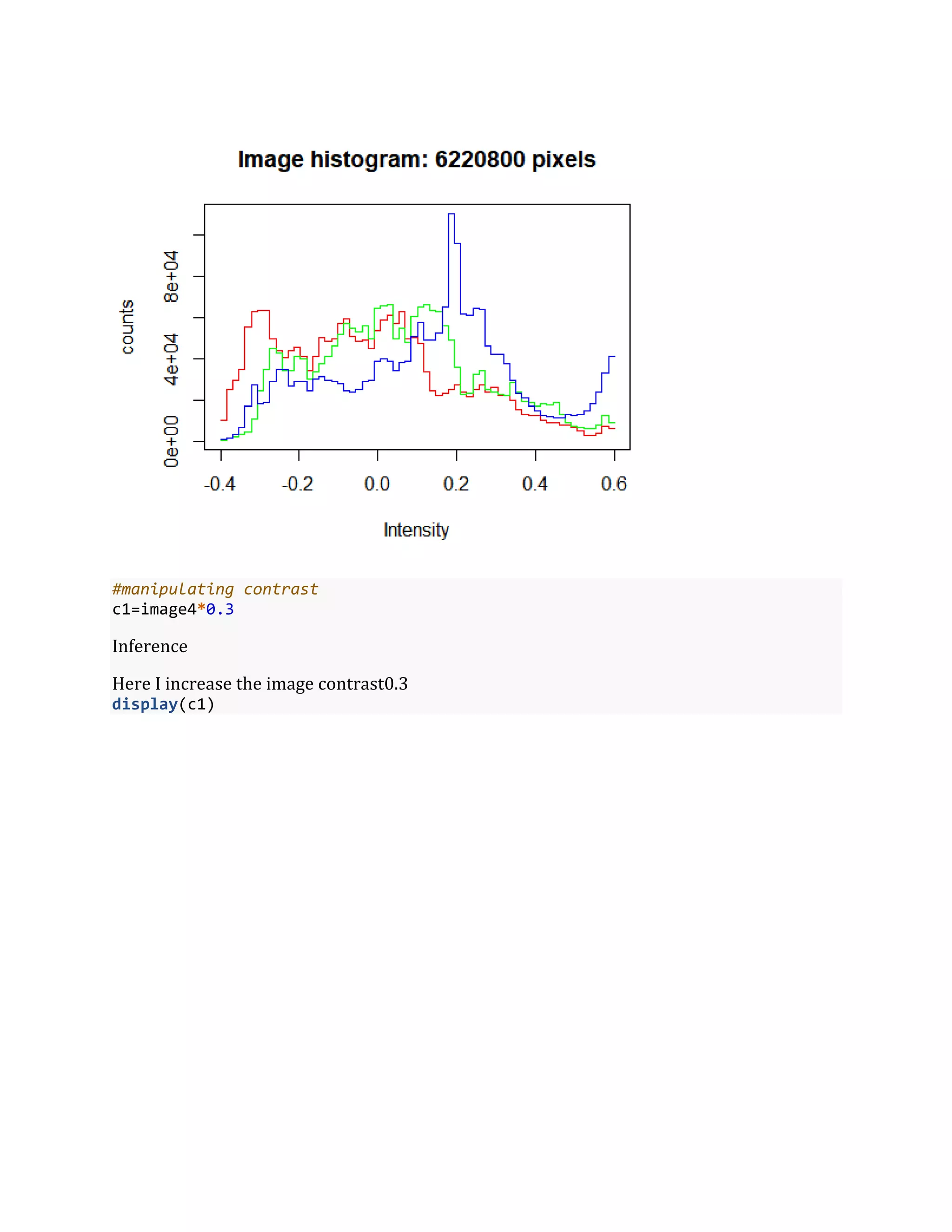
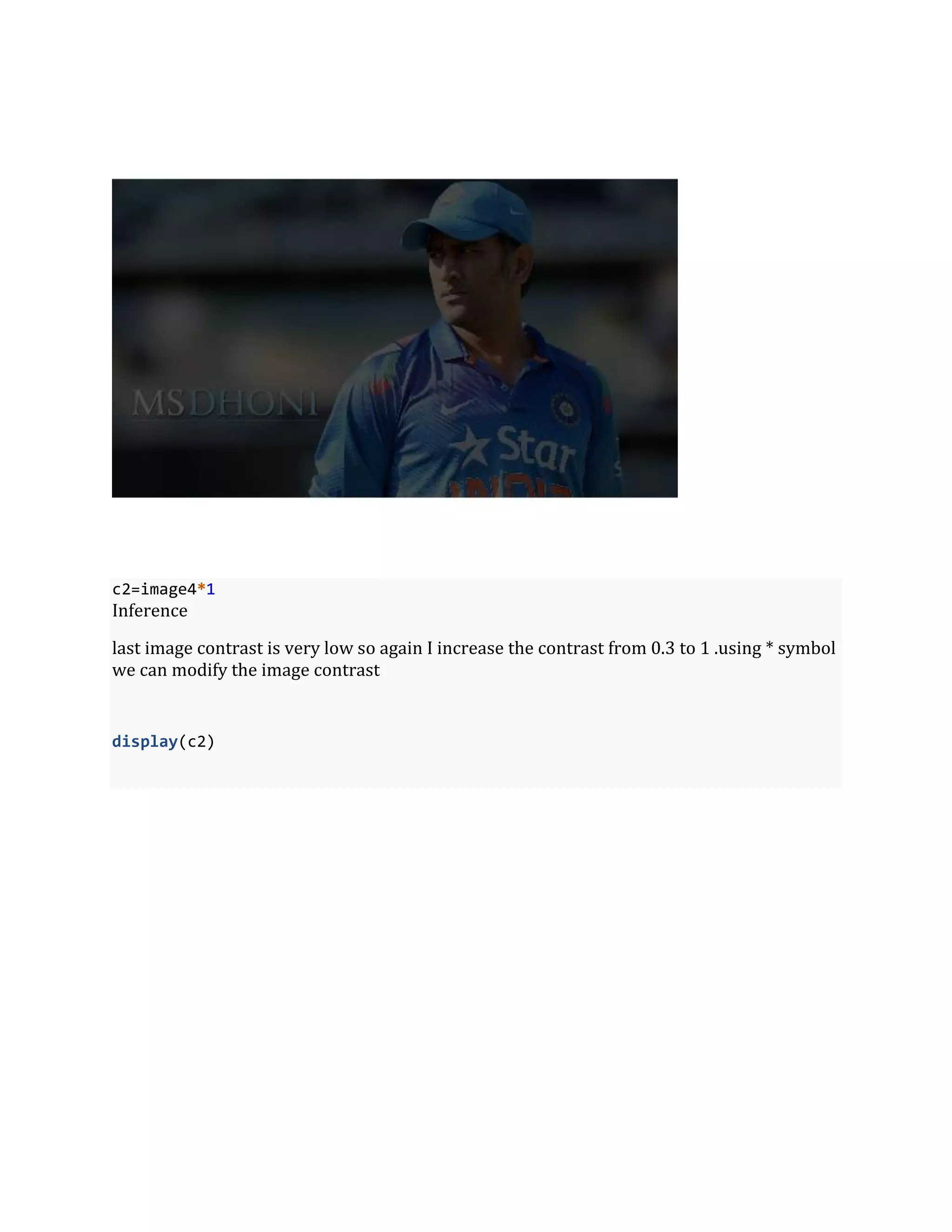
b2=image4-0.4
print(b2)
## Image
## colorMode : Color
## storage.mode : double
## dim : 1920 1080 3
## frames.total : 3
## frames.render: 1
##
## imageData(object)[1:5,1:6,1]
## [,1] [,2] [,3] [,4] [,5] [,6]
## [1,] -0.1294118 -0.1333333 -0.1333333 -0.1372549 -0.1372549 -0.1333333
## [2,] -0.1254902 -0.1254902 -0.1294118 -0.1333333 -0.1333333 -0.1333333
## [3,] -0.1176471 -0.1215686 -0.1254902 -0.1294118 -0.1294118 -0.1294118
## [4,] -0.1215686 -0.1215686 -0.1254902 -0.1294118 -0.1294118 -0.1294118
## [5,] -0.1294118 -0.1294118 -0.1294118 -0.1294118 -0.1294118 -0.1294118](https://image.slidesharecdn.com/imageprocessing-190719054220/75/Image-Processing-in-R-6-2048.jpg)
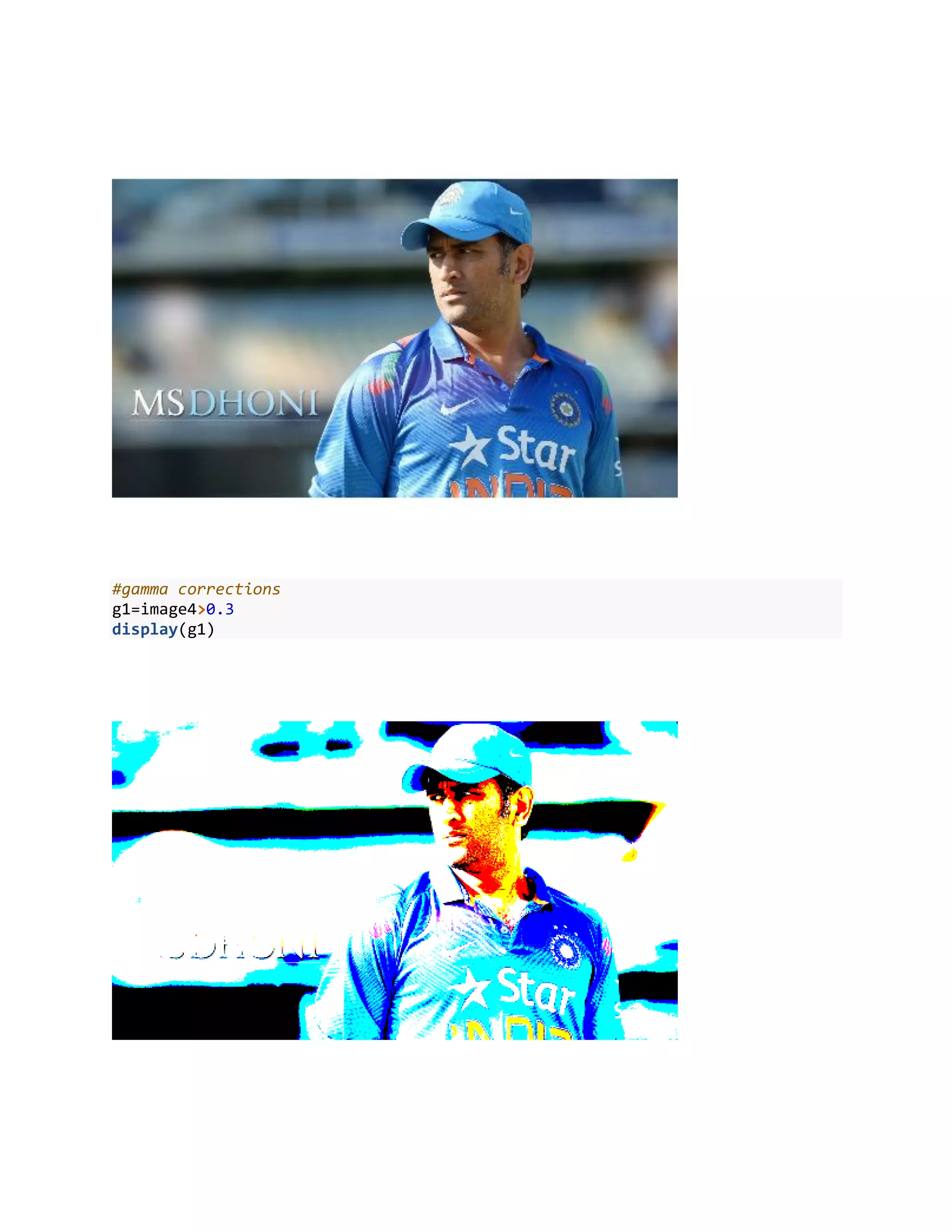
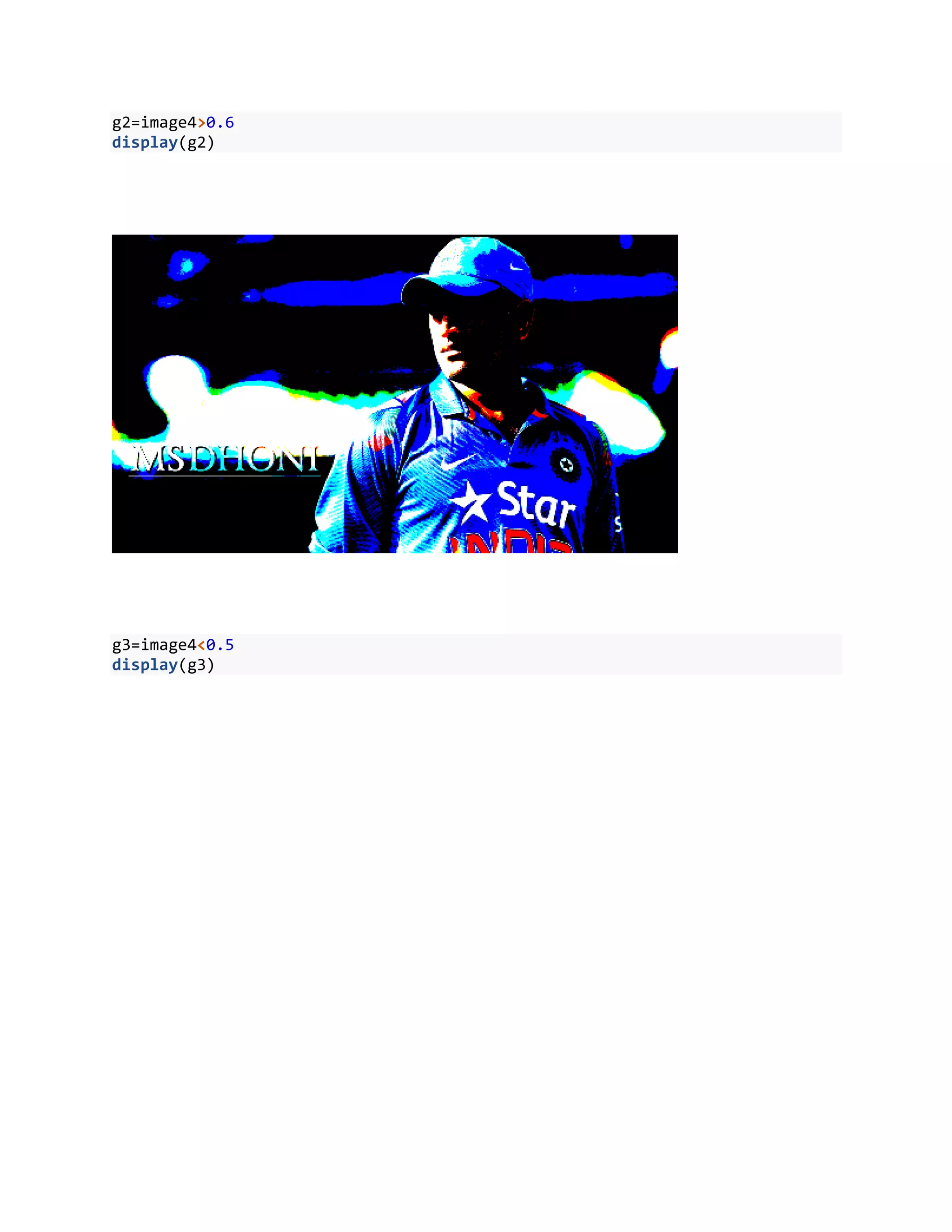
![Inference
Gamma is used for manipulate the darkness of the picture. Here, I just increase the darknes
s from 0.3 to 0.6 using >and < symbols
#color
colorMode(image4)=Grayscale
print(image4)
## Image
## colorMode : Grayscale
## storage.mode : double
## dim : 1920 1080 3
## frames.total : 3
## frames.render: 3
##
## imageData(object)[1:5,1:6,1]
## [,1] [,2] [,3] [,4] [,5] [,6]
## [1,] 0.2705882 0.2666667 0.2666667 0.2627451 0.2627451 0.2666667
## [2,] 0.2745098 0.2745098 0.2705882 0.2666667 0.2666667 0.2666667
## [3,] 0.2823529 0.2784314 0.2745098 0.2705882 0.2705882 0.2705882
## [4,] 0.2784314 0.2784314 0.2745098 0.2705882 0.2705882 0.2705882
## [5,] 0.2705882 0.2705882 0.2705882 0.2705882 0.2705882 0.2705882](https://image.slidesharecdn.com/imageprocessing-190719054220/75/Image-Processing-in-R-12-2048.jpg)
![#to return to color
colorMode(image4)=Color
Inference
ColorMode is use for manipulate color. Here I changed the colorMode from color to graysca
le and again I changed to color
#cropping
k=image4[60:860,360:960,]
display(k)
Inference
Cropping is again important manipulating operating in image processing . Here,I just crop
in this range of 60:860,360:960.
#new image file
writeImage(k,"MS.jpg")
Inference
In EBimage have write operation for save your all updates pictures in your local machine u
sing writeImage.
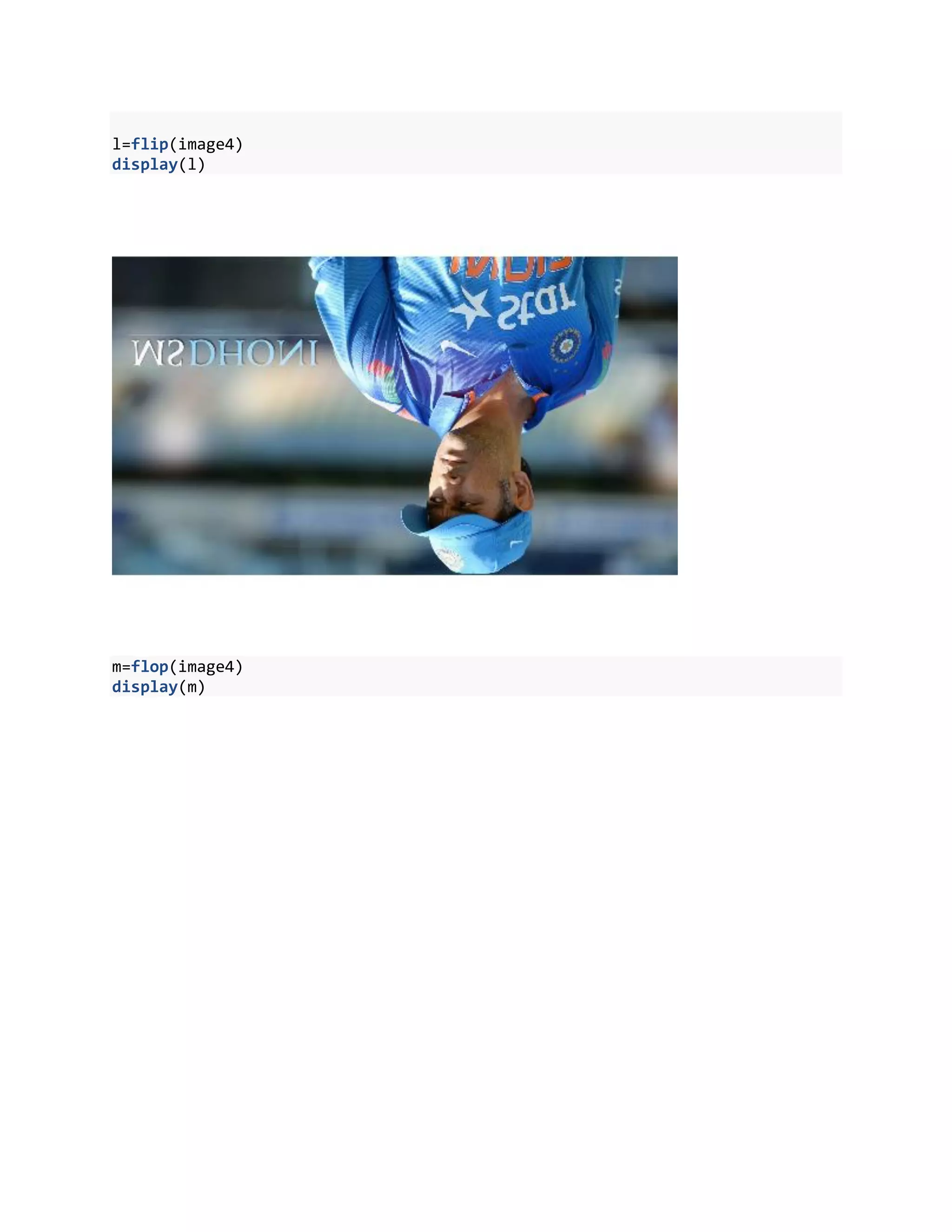
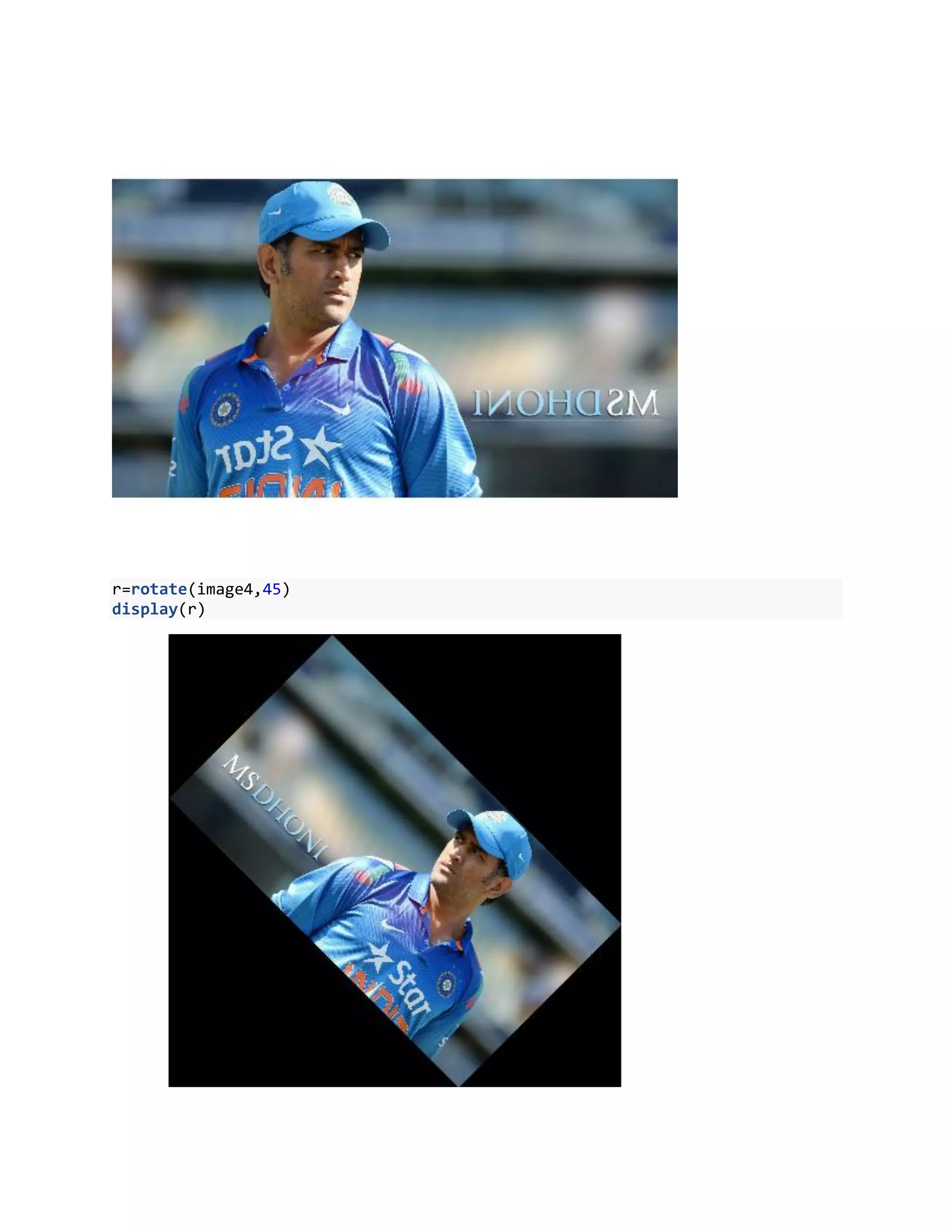
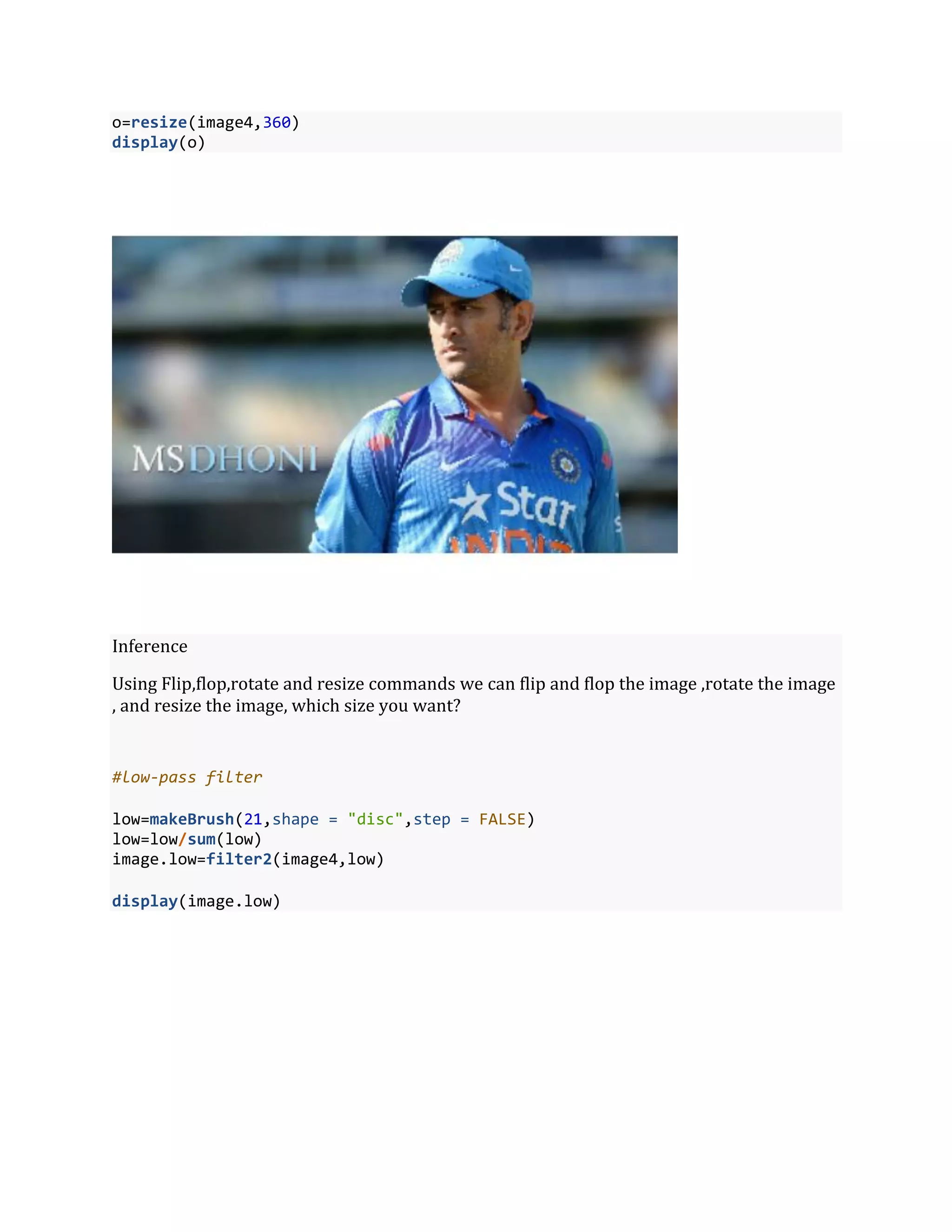
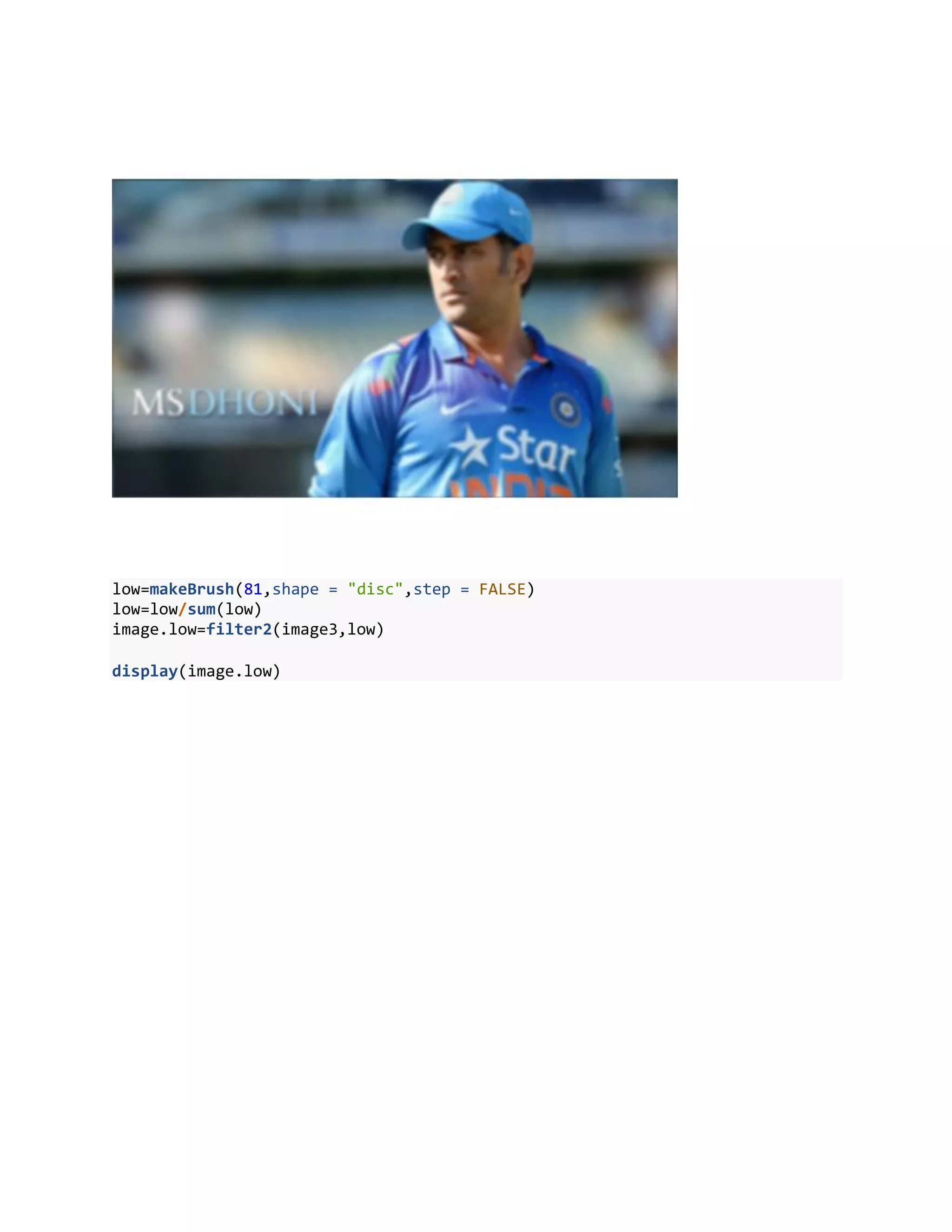
#flip,flop,rotate resize](https://image.slidesharecdn.com/imageprocessing-190719054220/75/Image-Processing-in-R-13-2048.jpg)
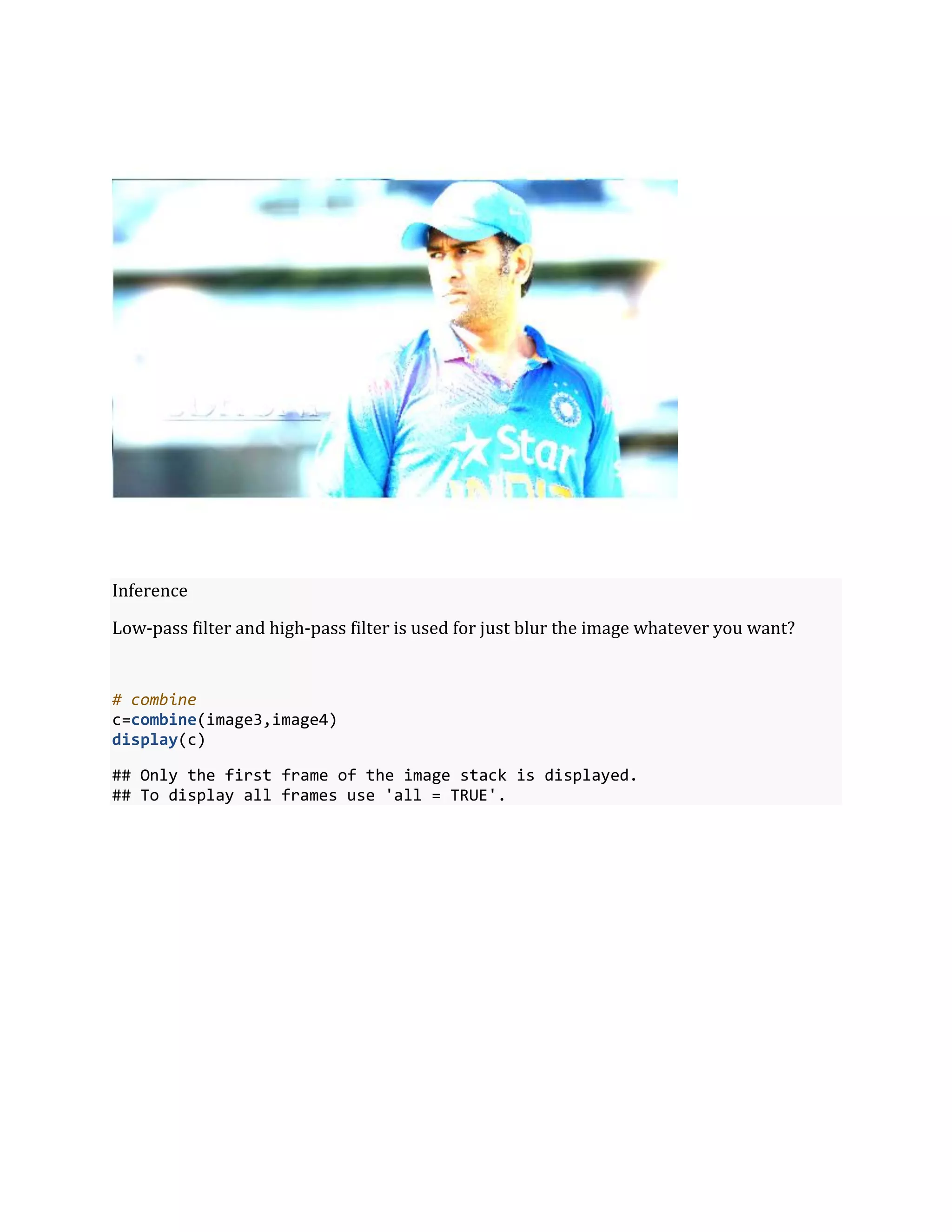
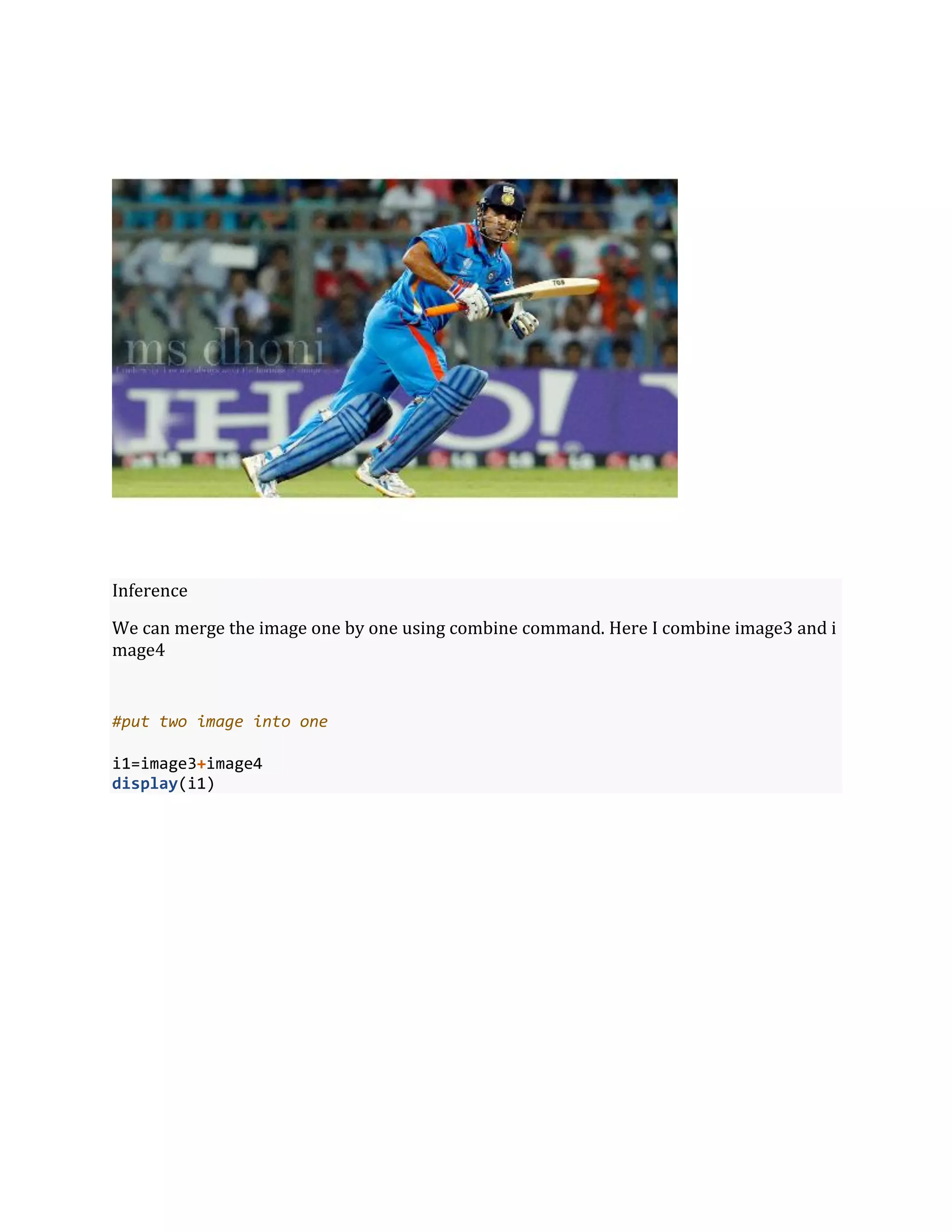
![#high-pass filter
high=matrix(1,nc=3,nr=3)
high[2,2]=-5
image.high=filter2(image4,high)
display(image.high)](https://image.slidesharecdn.com/imageprocessing-190719054220/75/Image-Processing-in-R-18-2048.jpg)


![[DSC Europe 25] Miodrag Pesovic & Vladislav Radonjic - Federated Data Archite...](https://cdn.slidesharecdn.com/ss_thumbnails/gsbe3y5it5uhndi4e08e-1-251212103249-f1008e0c-thumbnail.jpg?width=640&height=640&fit=bounds)
![[DSC Europe 25] Uros Pesic - The Reality of AI in Marketing.pdf](https://cdn.slidesharecdn.com/ss_thumbnails/rtkodnmtycovsllvzsyn-9-251215095918-b0c6bfe3-thumbnail.jpg?width=640&height=640&fit=bounds)

![[DSC Europe 25] Ivan Peric - Intelligence Swarm Logic and Techno-Functional M...](https://cdn.slidesharecdn.com/ss_thumbnails/7my7c97fsduiccadgavw-2-251212103249-5a03f7c6-thumbnail.jpg?width=640&height=640&fit=bounds)


![[DSC Europe 25] Marko Krstic - Understanding the AI Threat Landscape - Risks,...](https://cdn.slidesharecdn.com/ss_thumbnails/tiyim1ins5jvbrvzpzla-2-251209104645-c69d3553-thumbnail.jpg?width=640&height=640&fit=bounds)


![[DSC Europe 25] Bassam Maharmeh - Artificial Intelligence: Opportunities and ...](https://cdn.slidesharecdn.com/ss_thumbnails/thhfmr2fqpawzj7hsjpg-5-251211083048-2c23204f-thumbnail.jpg?width=640&height=640&fit=bounds)
![[DSC Europe 25] Jovan Bogicevic - Legacy to AI-Driven Defense: Transforming D...](https://cdn.slidesharecdn.com/ss_thumbnails/rsarluadt563hntyfc8q-3-251211083849-3e7bc4c0-thumbnail.jpg?width=640&height=640&fit=bounds)
![[DSC Europe 25] Dusan Nesic - Securing Tomorrow’s Infrastructure: Why Cyber-P...](https://cdn.slidesharecdn.com/ss_thumbnails/qikbszfftyowjm2q6duw-1-251211083848-8f2ead6b-thumbnail.jpg?width=640&height=640&fit=bounds)


![[DSC Europe 25] Hans Kleinsman - The Compliance Gearbox: How Tax Tech Mediate...](https://cdn.slidesharecdn.com/ss_thumbnails/dxdytie1toel0hr90bjs-2-251212103250-174fdbe7-thumbnail.jpg?width=640&height=640&fit=bounds)
![[DSC Europe 25] Debmalya Biswas - Agentification: the art of transforming man...](https://cdn.slidesharecdn.com/ss_thumbnails/r5azlggvtqiaiiusrqdr-4-251212103249-5a12c89b-thumbnail.jpg?width=640&height=640&fit=bounds)
