Section 1
Introductions, HTML and Getting Started with Git
Setting up your environment
These slides are here for reference to help you setup your environment. There are
three main steps you need to complete in order to work on assignments:
1. Making a directory
2. Installing a programming environment
3. Setting up Git for downloading/submitting assignments
Each step is covered in these walkthroughts (Mac or Windows)
Common HTML Tags
There are many different types of HTML tags used to structure web pages (we
can't possibly cover all of them within class). We've consolidated a handy slide
deck with examples of common tags you should know, but you can find a
comprehensive list on MDN (it's a great bookmark page for reference this quarter!)
Exercise 1: Marking up a text file
To familiarize ourselves with HTML, let's use the slide deck linked on the previous
slide to give HTML structure to this text file.
solution - inspect the page to see the HTML, but don't peek yet :)
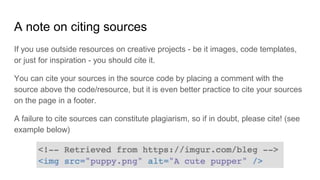
A note on citing sources
If you use outside resources on creative projects - be it images, code templates,
or just for inspiration - you should cite it.
You can cite your sources in the source code by placing a comment with the
source above the code/resource, but it is even better practice to cite your sources
on the page in a footer.
A failure to cite sources can constitute plagiarism, so if in doubt, please cite! (see
example below)
Resource: Command Line Basics
New to the bash terminal? It's just like a text-based alternative to your computer's
file-finder GUI, but with a ton of features to edit and run different programs in the
same location. Here are some tips for getting around the command line! To learn
more, use the next few slides
Moving around the command line
ls "List" files and directories directly inside
the current working directory
cd [folder-name] "Change directory" - change directories
to the given path (relative to the current
working directory)
cd .. Using cd to move up a directory
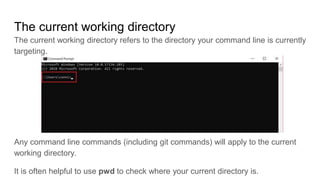
The current working directory
The current working directory refers to the directory your command line is currently
targeting.
Any command line commands (including git commands) will apply to the current
working directory.
It is often helpful to use pwd to check where your current directory is.
Basic Git Workflow Summary
1. Make a copy of the repository locally
2. Edit code locally
3. Publish your changes on the online repository (remote repository)
a. Add
b. Commit
c. Push
Clone a repository
Copy the URL of the repository on GitLab
Use ls and cd to navigate to the directory where you want to store your Git
repositories (e.g. cse154/assignments/), then type: git clone [repository-path].
This creates a copy of the repository in the current working directory
Publishing Changes: Add
The git add command adds a change in the working directory to the staging area.
Specifies changed file for the next commit.
To add multiple specific files:
git add [file1] [file2] [etc...]
To add everything in the current directory:
git add .
Publishing Changes: Commit
The git commit commands will add your added changes with a descriptive commit
message (local to your computer until next push)
git commit -m "descriptive message"
Publishing Changes: Push
The git push command updates your online Git repository with all of your
committed changes (internet required)
git push
Summary of Git Commands You'll Use in This Class
Command Description
git clone [link to repository]
Download a local copy of a Git repository
git add [filename]
Proposes changes to be committed
git commit -m "message"
Commits changes locally with a descriptive message
git push Pushes to remote (online) repository
Section 2
Introduction to CSS
Agenda
● Introduction to CSS
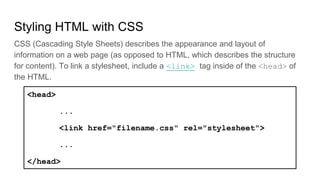
Styling HTML with CSS
CSS (Cascading Style Sheets) describes the appearance and layout of
information on a web page (as opposed to HTML, which describes the structure
for content). To link a stylesheet, include a <link> tag inside of the <head> of
the HTML.
<head>
...
<link href="filename.css" rel="stylesheet">
...
</head>
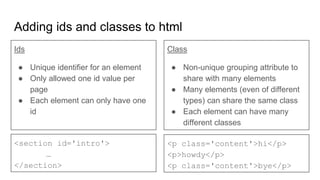
Adding ids and classes to html
Ids
● Unique identifier for an element
● Only allowed one id value per
page
● Each element can only have one
id
Class
● Non-unique grouping attribute to
share with many elements
● Many elements (even of different
types) can share the same class
● Each element can have many
different classes
<section id='intro'>
…
</section>
<p class='content'>hi</p>
<p>howdy</p>
<p class='content'>bye</p>
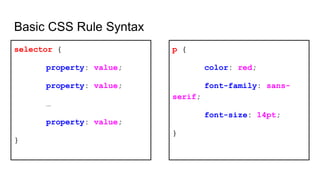
Basic CSS Rule Syntax
selector {
property: value;
property: value;
…
property: value;
}
p {
color: red;
font-family: sans-
serif;
font-size: 14pt;
}
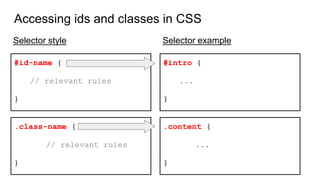
Accessing ids and classes in CSS
#id-name {
// relevant rules
}
.class-name {
// relevant rules
}
#intro {
...
}
.content {
...
}
Selector style Selector example
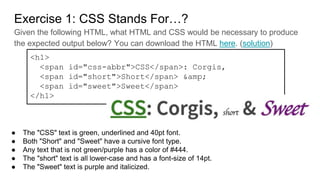
Exercise 1: CSS Stands For…?
Given the following HTML, what HTML and CSS would be necessary to produce
the expected output below? You can download the HTML here. (solution)
<h1>
<span id="css-abbr">CSS</span>: Corgis,
<span id="short">Short</span> &amp;
<span id="sweet">Sweet</span>
</h1>
● The "CSS" text is green, underlined and 40pt font.
● Both "Short" and "Sweet" have a cursive font type.
● Any text that is not green/purple has a color of #444.
● The "short" text is all lower-case and has a font-size of 14pt.
● The "Sweet" text is purple and italicized.
CSS Redundancy Checker
There should not be any repeated rules in your CSS file. Instead, they should be
factored out into grouped selectors. We have a handy CSS Redundancy Checker
that can help you spot repeated rules in your code.
Exercise 2: GOT Selectors
Given the HTML on this page, fill in the selectors that would select the specified
tags
- Remember: to reference an id use the # followed by the id name. To
reference a class use a . followed by the class name
Solutions on next slide. Don’t peek yet until you’ve tried it out ;)
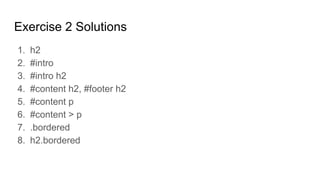
Exercise 2 Solutions
1. h2
2. #intro
3. #intro h2
4. #content h2, #footer h2
5. #content p
6. #content > p
7. .bordered
8. h2.bordered
Section 3
Box Model and Flex
Section Goals
By the end of this section, you should be able to:
● Use box model properties like margin, padding and borders to layout
elements on a page.
● Flexbox overview and practice flexbox layout
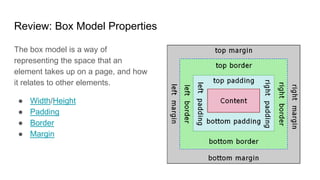
Review: Box Model Properties
The box model is a way of
representing the space that an
element takes up on a page, and how
it relates to other elements.
● Width/Height
● Padding
● Border
● Margin
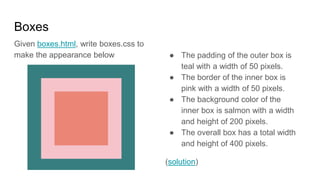
Boxes
Given boxes.html, write boxes.css to
make the appearance below ● The padding of the outer box is
teal with a width of 50 pixels.
● The border of the inner box is
pink with a width of 50 pixels.
● The background color of the
inner box is salmon with a width
and height of 200 pixels.
● The overall box has a total width
and height of 400 pixels.
(solution)
Introduction to Flex
● Flexbox is a set of CSS properties for aligning block level content.
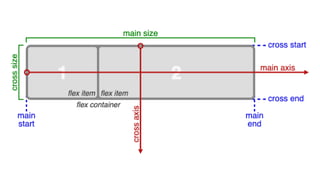
● Flexbox defines two types of content
○ "Container": The parent block element
○ "Items": anything directly nested inside of a flex container becomes a flex
item.
● Various properties on the container determine how its items are layed out.
Basic Properties of Flex Container
● display: flex;
○ makes an element a "container", items inside automatically become
"items"
● justify-content: flex-end; (flex-start, space-around,...)
○ indicates how to space the items inside the container along the main axis
● align-items: flex-end; (flex-start, center, baseline,...)
○ indicates how to space the items inside the container along the cross
axis
● flex-direction: row; (column)
○ indicates whether the container flows horizontally or vertically
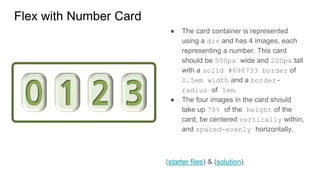
Flex with Number Card
● The card container is represented
using a div and has 4 images, each
representing a number. This card
should be 500px wide and 200px tall
with a solid #698733 border of
0.5em width and a border-
radius of 1em.
● The four images in the card should
take up 70% of the height of the
card, be centered vertically within,
and spaced-evenly horizontally.
(starter files) & (solution)
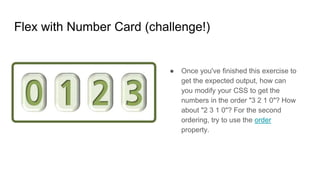
Flex with Number Card (challenge!)
● Once you've finished this exercise to
get the expected output, how can
you modify your CSS to get the
numbers in the order "3 2 1 0"? How
about "2 3 1 0"? For the second
ordering, try to use the order
property.
Extra Practice: more flexbox resources
● Weird-flex
○ A visual aid for learning and seeing flex properties in action. Made by Chao, a
former CSE 154 TA!
● Flexbox ducky
○ a CSS game for learning the basics of Flexbox. It's fairly self-contained, but feel
free to talk to your neighbors with any questions or let your TA know if you run into
anything you're not sure about along the way!
● CSS-Tricks Guide to Flexbox
○ goes into a deeper explanation of the flex properties and has some great
examples to compare each - it's a great bookmark resource to reference for this
class!

HTML and CSS.pptx

  • 1.
    Section 1 Introductions, HTMLand Getting Started with Git
  • 2.
    Setting up yourenvironment These slides are here for reference to help you setup your environment. There are three main steps you need to complete in order to work on assignments: 1. Making a directory 2. Installing a programming environment 3. Setting up Git for downloading/submitting assignments Each step is covered in these walkthroughts (Mac or Windows)
  • 3.
    Common HTML Tags Thereare many different types of HTML tags used to structure web pages (we can't possibly cover all of them within class). We've consolidated a handy slide deck with examples of common tags you should know, but you can find a comprehensive list on MDN (it's a great bookmark page for reference this quarter!)
  • 4.
    Exercise 1: Markingup a text file To familiarize ourselves with HTML, let's use the slide deck linked on the previous slide to give HTML structure to this text file. solution - inspect the page to see the HTML, but don't peek yet :)
  • 5.
    A note onciting sources If you use outside resources on creative projects - be it images, code templates, or just for inspiration - you should cite it. You can cite your sources in the source code by placing a comment with the source above the code/resource, but it is even better practice to cite your sources on the page in a footer. A failure to cite sources can constitute plagiarism, so if in doubt, please cite! (see example below)
  • 6.
    Resource: Command LineBasics New to the bash terminal? It's just like a text-based alternative to your computer's file-finder GUI, but with a ton of features to edit and run different programs in the same location. Here are some tips for getting around the command line! To learn more, use the next few slides
  • 7.
    Moving around thecommand line ls "List" files and directories directly inside the current working directory cd [folder-name] "Change directory" - change directories to the given path (relative to the current working directory) cd .. Using cd to move up a directory
  • 8.
    The current workingdirectory The current working directory refers to the directory your command line is currently targeting. Any command line commands (including git commands) will apply to the current working directory. It is often helpful to use pwd to check where your current directory is.
  • 9.
    Basic Git WorkflowSummary 1. Make a copy of the repository locally 2. Edit code locally 3. Publish your changes on the online repository (remote repository) a. Add b. Commit c. Push
  • 10.
    Clone a repository Copythe URL of the repository on GitLab Use ls and cd to navigate to the directory where you want to store your Git repositories (e.g. cse154/assignments/), then type: git clone [repository-path]. This creates a copy of the repository in the current working directory
  • 11.
    Publishing Changes: Add Thegit add command adds a change in the working directory to the staging area. Specifies changed file for the next commit. To add multiple specific files: git add [file1] [file2] [etc...] To add everything in the current directory: git add .
  • 12.
    Publishing Changes: Commit Thegit commit commands will add your added changes with a descriptive commit message (local to your computer until next push) git commit -m "descriptive message"
  • 13.
    Publishing Changes: Push Thegit push command updates your online Git repository with all of your committed changes (internet required) git push
  • 14.
    Summary of GitCommands You'll Use in This Class Command Description git clone [link to repository] Download a local copy of a Git repository git add [filename] Proposes changes to be committed git commit -m "message" Commits changes locally with a descriptive message git push Pushes to remote (online) repository
  • 15.
  • 16.
  • 17.
    Styling HTML withCSS CSS (Cascading Style Sheets) describes the appearance and layout of information on a web page (as opposed to HTML, which describes the structure for content). To link a stylesheet, include a <link> tag inside of the <head> of the HTML. <head> ... <link href="filename.css" rel="stylesheet"> ... </head>
  • 18.
    Adding ids andclasses to html Ids ● Unique identifier for an element ● Only allowed one id value per page ● Each element can only have one id Class ● Non-unique grouping attribute to share with many elements ● Many elements (even of different types) can share the same class ● Each element can have many different classes <section id='intro'> … </section> <p class='content'>hi</p> <p>howdy</p> <p class='content'>bye</p>
  • 19.
    Basic CSS RuleSyntax selector { property: value; property: value; … property: value; } p { color: red; font-family: sans- serif; font-size: 14pt; }
  • 20.
    Accessing ids andclasses in CSS #id-name { // relevant rules } .class-name { // relevant rules } #intro { ... } .content { ... } Selector style Selector example
  • 21.
    Exercise 1: CSSStands For…? Given the following HTML, what HTML and CSS would be necessary to produce the expected output below? You can download the HTML here. (solution) <h1> <span id="css-abbr">CSS</span>: Corgis, <span id="short">Short</span> &amp; <span id="sweet">Sweet</span> </h1> ● The "CSS" text is green, underlined and 40pt font. ● Both "Short" and "Sweet" have a cursive font type. ● Any text that is not green/purple has a color of #444. ● The "short" text is all lower-case and has a font-size of 14pt. ● The "Sweet" text is purple and italicized.
  • 22.
    CSS Redundancy Checker Thereshould not be any repeated rules in your CSS file. Instead, they should be factored out into grouped selectors. We have a handy CSS Redundancy Checker that can help you spot repeated rules in your code.
  • 23.
    Exercise 2: GOTSelectors Given the HTML on this page, fill in the selectors that would select the specified tags - Remember: to reference an id use the # followed by the id name. To reference a class use a . followed by the class name Solutions on next slide. Don’t peek yet until you’ve tried it out ;)
  • 24.
    Exercise 2 Solutions 1.h2 2. #intro 3. #intro h2 4. #content h2, #footer h2 5. #content p 6. #content > p 7. .bordered 8. h2.bordered
  • 25.
  • 26.
    Section Goals By theend of this section, you should be able to: ● Use box model properties like margin, padding and borders to layout elements on a page. ● Flexbox overview and practice flexbox layout
  • 27.
    Review: Box ModelProperties The box model is a way of representing the space that an element takes up on a page, and how it relates to other elements. ● Width/Height ● Padding ● Border ● Margin
  • 28.
    Boxes Given boxes.html, writeboxes.css to make the appearance below ● The padding of the outer box is teal with a width of 50 pixels. ● The border of the inner box is pink with a width of 50 pixels. ● The background color of the inner box is salmon with a width and height of 200 pixels. ● The overall box has a total width and height of 400 pixels. (solution)
  • 29.
    Introduction to Flex ●Flexbox is a set of CSS properties for aligning block level content. ● Flexbox defines two types of content ○ "Container": The parent block element ○ "Items": anything directly nested inside of a flex container becomes a flex item. ● Various properties on the container determine how its items are layed out.
  • 31.
    Basic Properties ofFlex Container ● display: flex; ○ makes an element a "container", items inside automatically become "items" ● justify-content: flex-end; (flex-start, space-around,...) ○ indicates how to space the items inside the container along the main axis ● align-items: flex-end; (flex-start, center, baseline,...) ○ indicates how to space the items inside the container along the cross axis ● flex-direction: row; (column) ○ indicates whether the container flows horizontally or vertically
  • 32.
    Flex with NumberCard ● The card container is represented using a div and has 4 images, each representing a number. This card should be 500px wide and 200px tall with a solid #698733 border of 0.5em width and a border- radius of 1em. ● The four images in the card should take up 70% of the height of the card, be centered vertically within, and spaced-evenly horizontally. (starter files) & (solution)
  • 33.
    Flex with NumberCard (challenge!) ● Once you've finished this exercise to get the expected output, how can you modify your CSS to get the numbers in the order "3 2 1 0"? How about "2 3 1 0"? For the second ordering, try to use the order property.
  • 34.
    Extra Practice: moreflexbox resources ● Weird-flex ○ A visual aid for learning and seeing flex properties in action. Made by Chao, a former CSE 154 TA! ● Flexbox ducky ○ a CSS game for learning the basics of Flexbox. It's fairly self-contained, but feel free to talk to your neighbors with any questions or let your TA know if you run into anything you're not sure about along the way! ● CSS-Tricks Guide to Flexbox ○ goes into a deeper explanation of the flex properties and has some great examples to compare each - it's a great bookmark resource to reference for this class!