10/11/2015jhayrutch@gmail.com 1
Linked-In is a site used for
professional purposes.
10/11/2015jhayrutch@gmail.com 2
It can be use to connect your existing
professional network, as well as to
expand your network.
10/11/2015jhayrutch@gmail.com 3
You can interact with your secondary up
to your tertiary connection through
those you already know.
10/11/2015jhayrutch@gmail.com 4
It’s a social networking site that
have all the best to server it’s core
purpose.
10/11/2015jhayrutch@gmail.com 5
For you to expand your professional
horizon you must create your own
Linked-In account.
10/11/2015jhayrutch@gmail.com 6
Let us begin by creating your account
10/11/2015jhayrutch@gmail.com 7
First, you must go to
https://www.linkedin.com
10/11/2015jhayrutch@gmail.com 8
Go to https://www.linkedin.com
10/11/2015jhayrutch@gmail.com 9
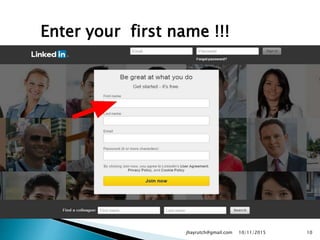
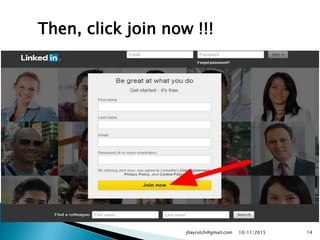
Enter your first name !!!
10/11/2015jhayrutch@gmail.com 10
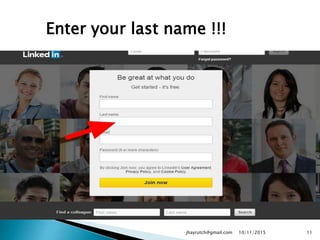
Enter your last name !!!
10/11/2015jhayrutch@gmail.com 11
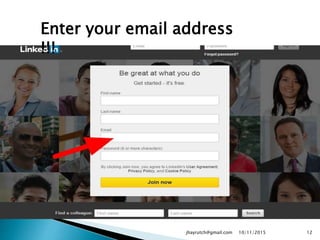
Enter your email address
!!!
10/11/2015jhayrutch@gmail.com 12
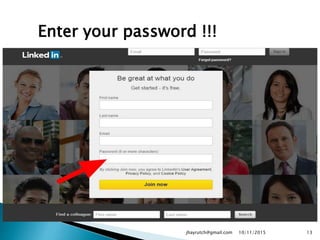
Enter your password !!!
10/11/2015jhayrutch@gmail.com 13
Then, click join now !!!
10/11/2015jhayrutch@gmail.com 14
Congrats !!! you can login now …
10/11/2015jhayrutch@gmail.com 15
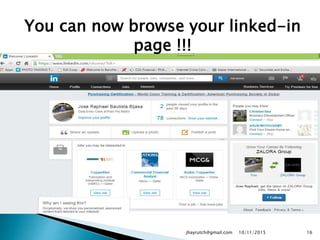
You can now browse your linked-in
page !!!
10/11/2015jhayrutch@gmail.com 16
Editting your profile
10/11/2015jhayrutch@gmail.com 17
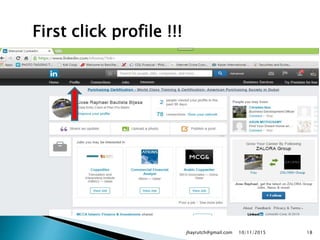
First click profile !!!
10/11/2015jhayrutch@gmail.com 18
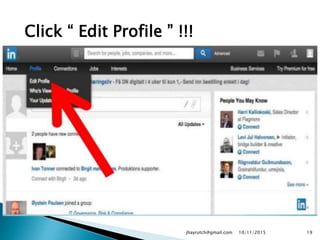
Click “ Edit Profile ” !!!
10/11/2015jhayrutch@gmail.com 19
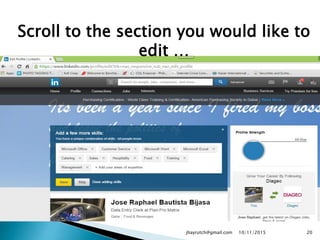
Scroll to the section you would like to
edit …
10/11/2015jhayrutch@gmail.com 20
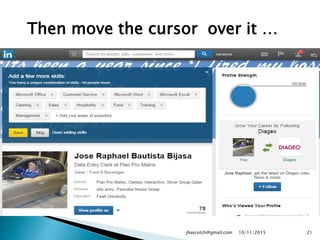
Then move the cursor over it …
10/11/2015jhayrutch@gmail.com 21
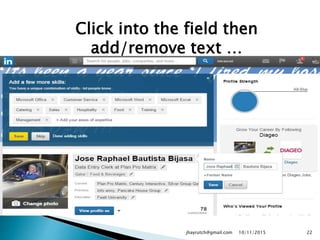
Click into the field then
add/remove text …
10/11/2015jhayrutch@gmail.com 22
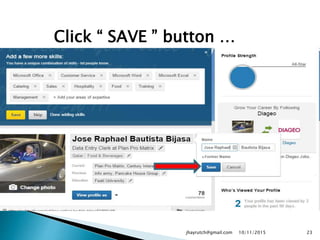
Click “ SAVE ” button …
10/11/2015jhayrutch@gmail.com 23
Ways to properly do it !!!
10/11/2015jhayrutch@gmail.com 24
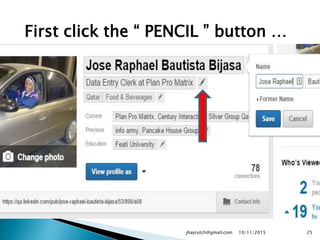
First click the “ PENCIL ” button …
10/11/2015jhayrutch@gmail.com 25
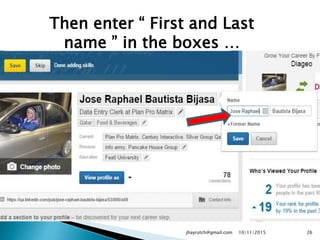
Then enter “ First and Last
name ” in the boxes …
10/11/2015jhayrutch@gmail.com 26
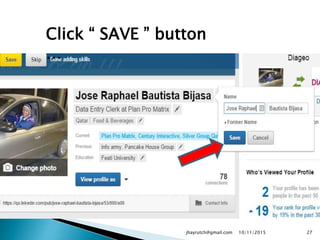
Click “ SAVE ” button
…
10/11/2015jhayrutch@gmail.com 27
Tip’s just always find the helpful
pencil to start editing anything
you wants .
10/11/2015jhayrutch@gmail.com 28
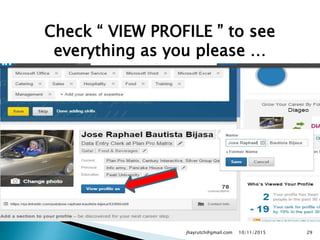
Check “ VIEW PROFILE ” to see
everything as you please …
10/11/2015jhayrutch@gmail.com 29
and how you wants your profile,
look’s to your connections and the
public.
10/11/2015jhayrutch@gmail.com 30
Uploading your “ PROFILE
PICTURE ”
10/11/2015jhayrutch@gmail.com 31
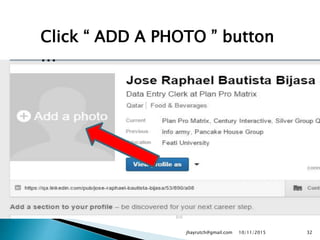
Click “ ADD A PHOTO ” button
…
10/11/2015jhayrutch@gmail.com 32
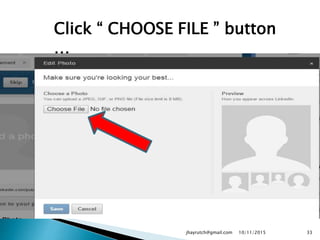
Click “ CHOOSE FILE ” button
…
10/11/2015jhayrutch@gmail.com 33
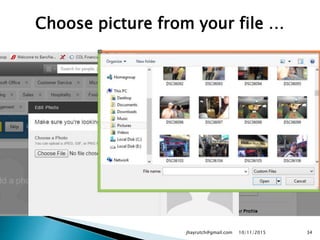
Choose picture from your file …
10/11/2015jhayrutch@gmail.com 34
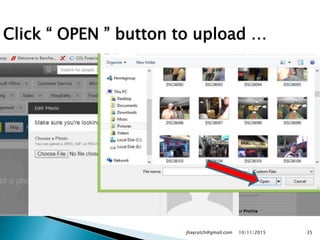
Click “ OPEN ” button to upload …
10/11/2015jhayrutch@gmail.com 35
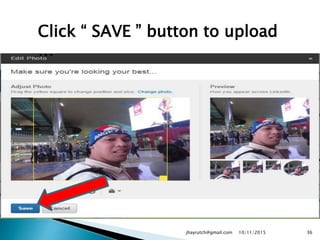
Click “ SAVE ” button to upload
…
10/11/2015jhayrutch@gmail.com 36
Adding Connections
10/11/2015jhayrutch@gmail.com 37
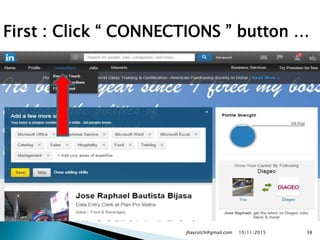
First : Click “ CONNECTIONS ” button …
10/11/2015jhayrutch@gmail.com 38
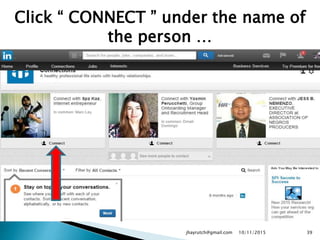
Click “ CONNECT ” under the name of
the person …
10/11/2015jhayrutch@gmail.com 39
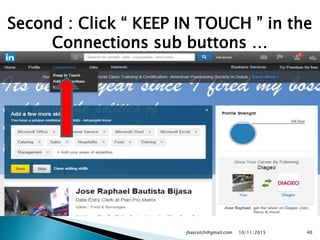
Second : Click “ KEEP IN TOUCH ” in the
Connections sub buttons …
10/11/2015jhayrutch@gmail.com 40
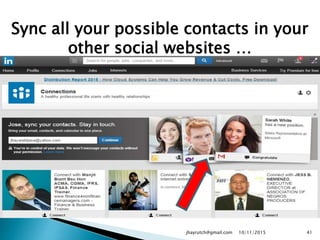
Sync all your possible contacts in your
other social websites …
10/11/2015jhayrutch@gmail.com 41
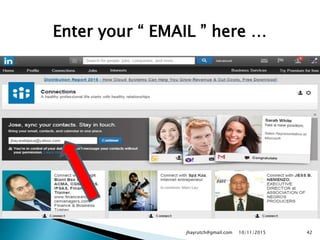
Enter your “ EMAIL ” here …
10/11/2015jhayrutch@gmail.com 42
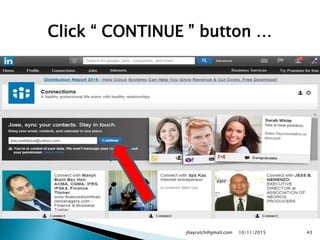
Click “ CONTINUE ” button …
10/11/2015jhayrutch@gmail.com 43
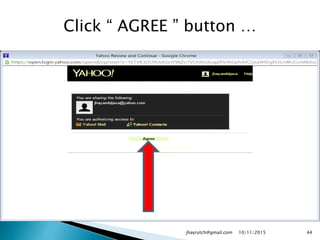
Click “ AGREE ” button …
10/11/2015jhayrutch@gmail.com 44
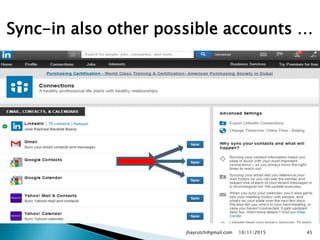
Sync-in also other possible accounts …
10/11/2015jhayrutch@gmail.com 45
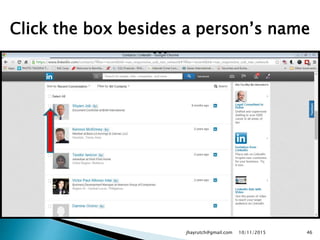
Click the box besides a person’s name
…
10/11/2015jhayrutch@gmail.com 46
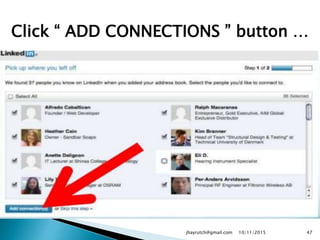
Click “ ADD CONNECTIONS ” button …
10/11/2015jhayrutch@gmail.com 47
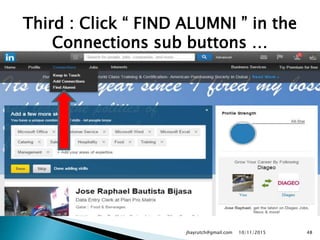
Third : Click “ FIND ALUMNI ” in the
Connections sub buttons …
10/11/2015jhayrutch@gmail.com 48
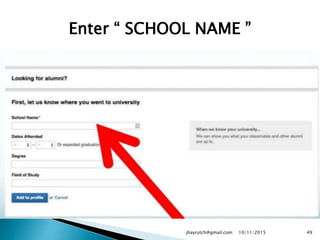
Enter “ SCHOOL NAME ”
10/11/2015jhayrutch@gmail.com 49
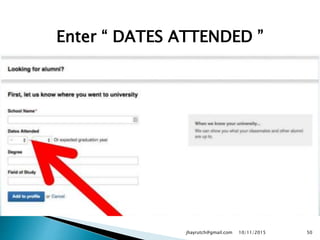
Enter “ DATES ATTENDED ”
10/11/2015jhayrutch@gmail.com 50
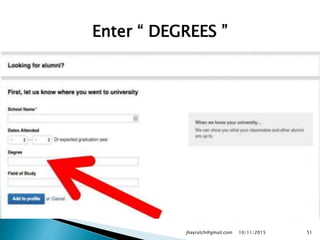
Enter “ DEGREES ”
10/11/2015jhayrutch@gmail.com 51
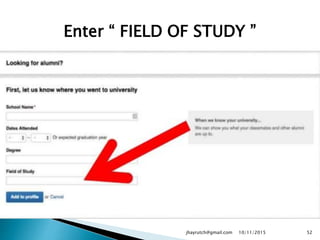
Enter “ FIELD OF STUDY ”
10/11/2015jhayrutch@gmail.com 52
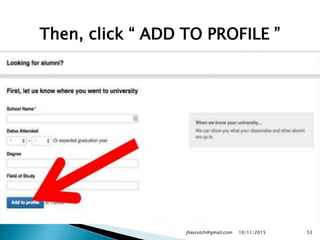
Then, click “ ADD TO PROFILE ”
10/11/2015jhayrutch@gmail.com 53
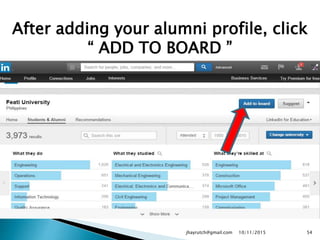
After adding your alumni profile, click
“ ADD TO BOARD ”
10/11/2015jhayrutch@gmail.com 54
Lets start job hunting via Linked-In
10/11/2015jhayrutch@gmail.com 55
Click “ JOBS ” button …
10/11/2015jhayrutch@gmail.com 56
Key-in your job title or prospect
company here …
10/11/2015jhayrutch@gmail.com 57
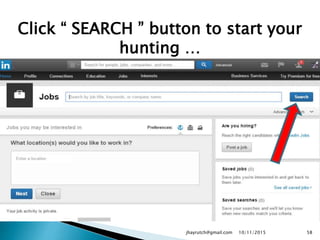
Click “ SEARCH ” button to start your
hunting …
10/11/2015jhayrutch@gmail.com 58
Scroll all the jobs related to your
qualifications …
10/11/2015jhayrutch@gmail.com 59
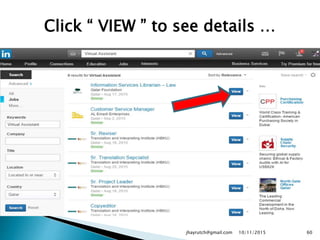
Click “ VIEW ” to see details …
10/11/2015jhayrutch@gmail.com 60
Click “ APPLY ” if you want to …
10/11/2015jhayrutch@gmail.com 61
Ways to delete a connections …
10/11/2015jhayrutch@gmail.com 62
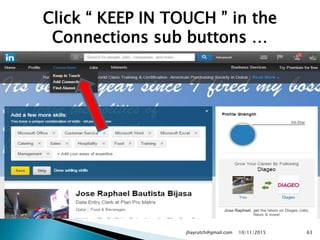
Click “ KEEP IN TOUCH ” in the
Connections sub buttons …
10/11/2015jhayrutch@gmail.com 63
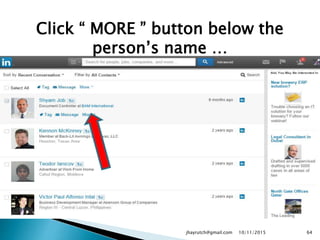
Click “ MORE ” button below the
person’s name …
10/11/2015jhayrutch@gmail.com 64
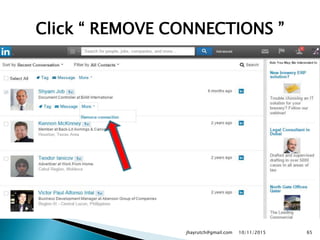
Click “ REMOVE CONNECTIONS ”
10/11/2015jhayrutch@gmail.com 65
Uploading or Adding work samples on your profile
10/11/2015jhayrutch@gmail.com 66
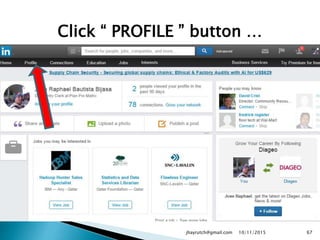
Click “ PROFILE ” button …
10/11/2015jhayrutch@gmail.com 67
Scroll down and upload where you
intend to add your file/s, in your profile
10/11/2015jhayrutch@gmail.com 68
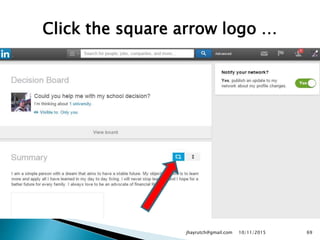
Click the square arrow logo …
10/11/2015jhayrutch@gmail.com 69
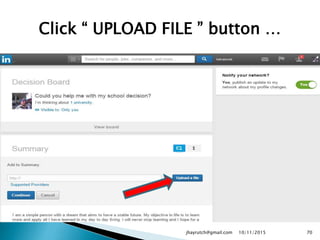
Click “ UPLOAD FILE ” button …
10/11/2015jhayrutch@gmail.com 70
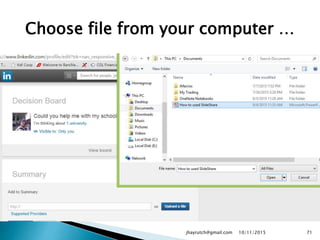
Choose file from your computer …
10/11/2015jhayrutch@gmail.com 71
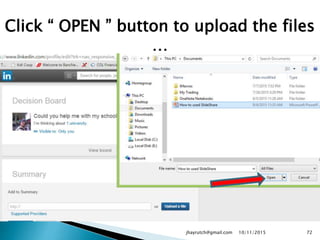
Click “ OPEN ” button to upload the files
…
10/11/2015jhayrutch@gmail.com 72
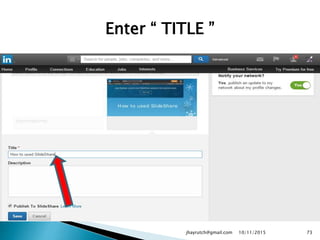
Enter “ TITLE ”
10/11/2015jhayrutch@gmail.com 73
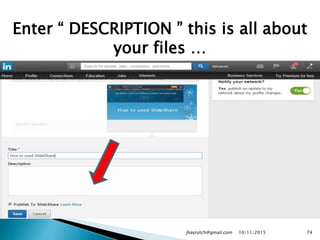
Enter “ DESCRIPTION ” this is all about
your files …
10/11/2015jhayrutch@gmail.com 74
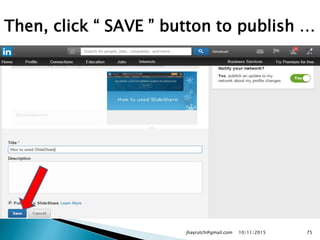
Then, click “ SAVE ” button to publish …
10/11/2015jhayrutch@gmail.com 75
Ways to create or update a post
10/11/2015jhayrutch@gmail.com 76
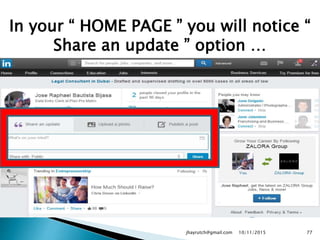
In your “ HOME PAGE ” you will notice “
Share an update ” option …
10/11/2015jhayrutch@gmail.com 77
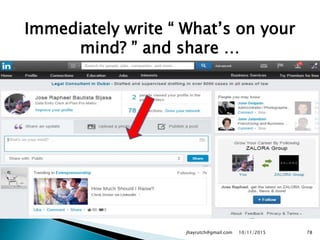
Immediately write “ What’s on your
mind? ” and share …
10/11/2015jhayrutch@gmail.com 78
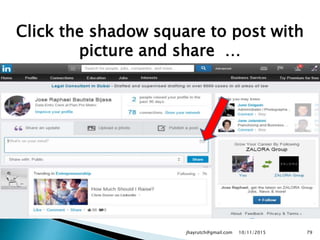
Click the shadow square to post with
picture and share …
10/11/2015jhayrutch@gmail.com 79
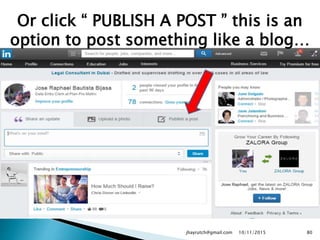
Or click “ PUBLISH A POST ” this is an
option to post something like a blog…
10/11/2015jhayrutch@gmail.com 80
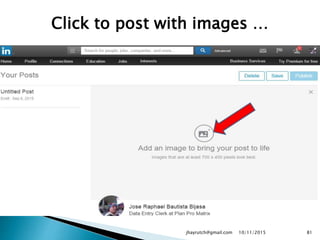
Click to post with images …
10/11/2015jhayrutch@gmail.com 81
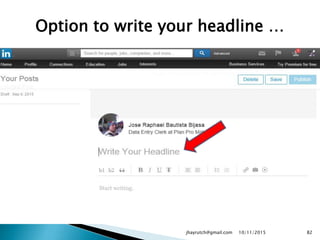
Option to write your headline …
10/11/2015jhayrutch@gmail.com 82
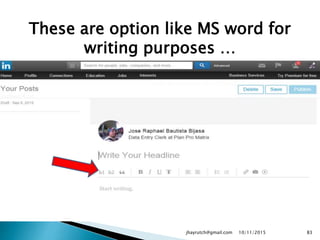
These are option like MS word for
writing purposes …
10/11/2015jhayrutch@gmail.com 83
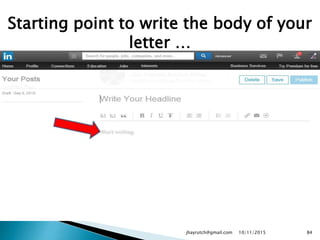
Starting point to write the body of your
letter …
10/11/2015jhayrutch@gmail.com 84
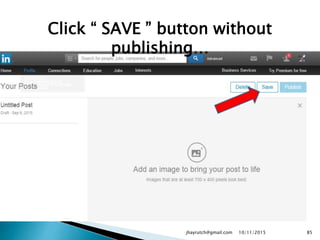
Click “ SAVE ” button without
publishing…
10/11/2015jhayrutch@gmail.com 85
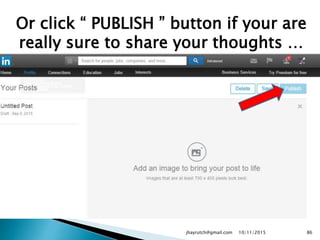
Or click “ PUBLISH ” button if your are
really sure to share your thoughts …
10/11/2015jhayrutch@gmail.com 86
Ways to delete or closed an
account
10/11/2015jhayrutch@gmail.com 87
Login to you account …
10/11/2015jhayrutch@gmail.com 88
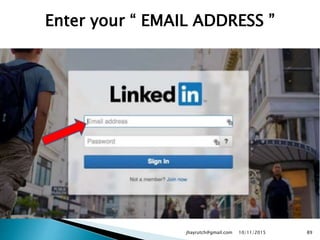
Enter your “ EMAIL ADDRESS ”
10/11/2015jhayrutch@gmail.com 89
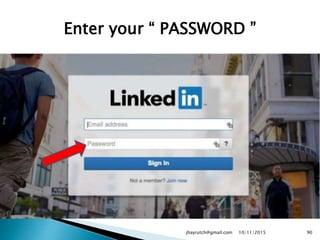
Enter your “ PASSWORD ”
10/11/2015jhayrutch@gmail.com 90
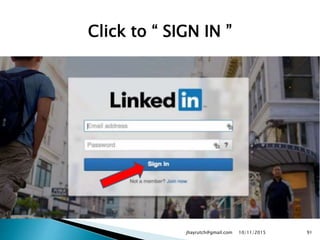
Click to “ SIGN IN ”
10/11/2015jhayrutch@gmail.com 91
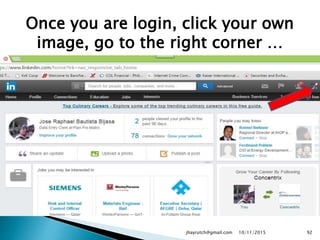
Once you are login, click your own
image, go to the right corner …
10/11/2015jhayrutch@gmail.com 92
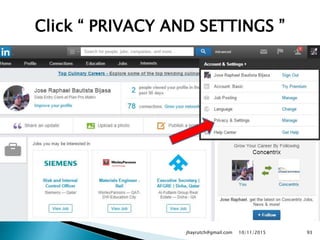
Click “ PRIVACY AND SETTINGS ”
10/11/2015jhayrutch@gmail.com 93
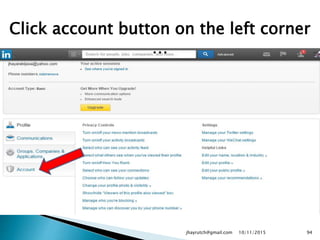
Click account button on the left corner
…
10/11/2015jhayrutch@gmail.com 94
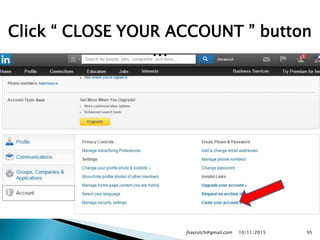
Click “ CLOSE YOUR ACCOUNT ” button
…
10/11/2015jhayrutch@gmail.com 95
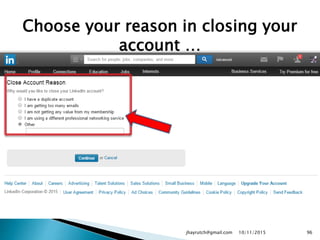
Choose your reason in closing your
account …
10/11/2015jhayrutch@gmail.com 96
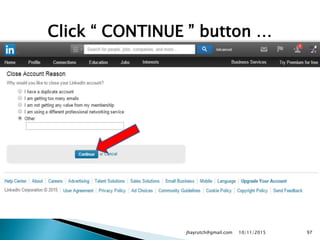
Click “ CONTINUE ” button …
10/11/2015jhayrutch@gmail.com 97
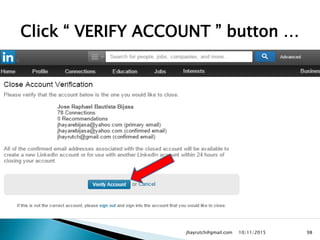
Click “ VERIFY ACCOUNT ” button …
10/11/2015jhayrutch@gmail.com 98
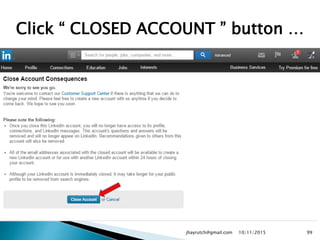
Click “ CLOSED ACCOUNT ” button …
10/11/2015jhayrutch@gmail.com 99
End of my presentation
fin
10/11/2015jhayrutch@gmail.com
10
0
As the years goes by more features will
be added to Linked-In. Learning those
thing must be my priority and you.
10/11/2015jhayrutch@gmail.com
10
1
10/11/2015jhayrutch@gmail.com
10
2

How to use linked in