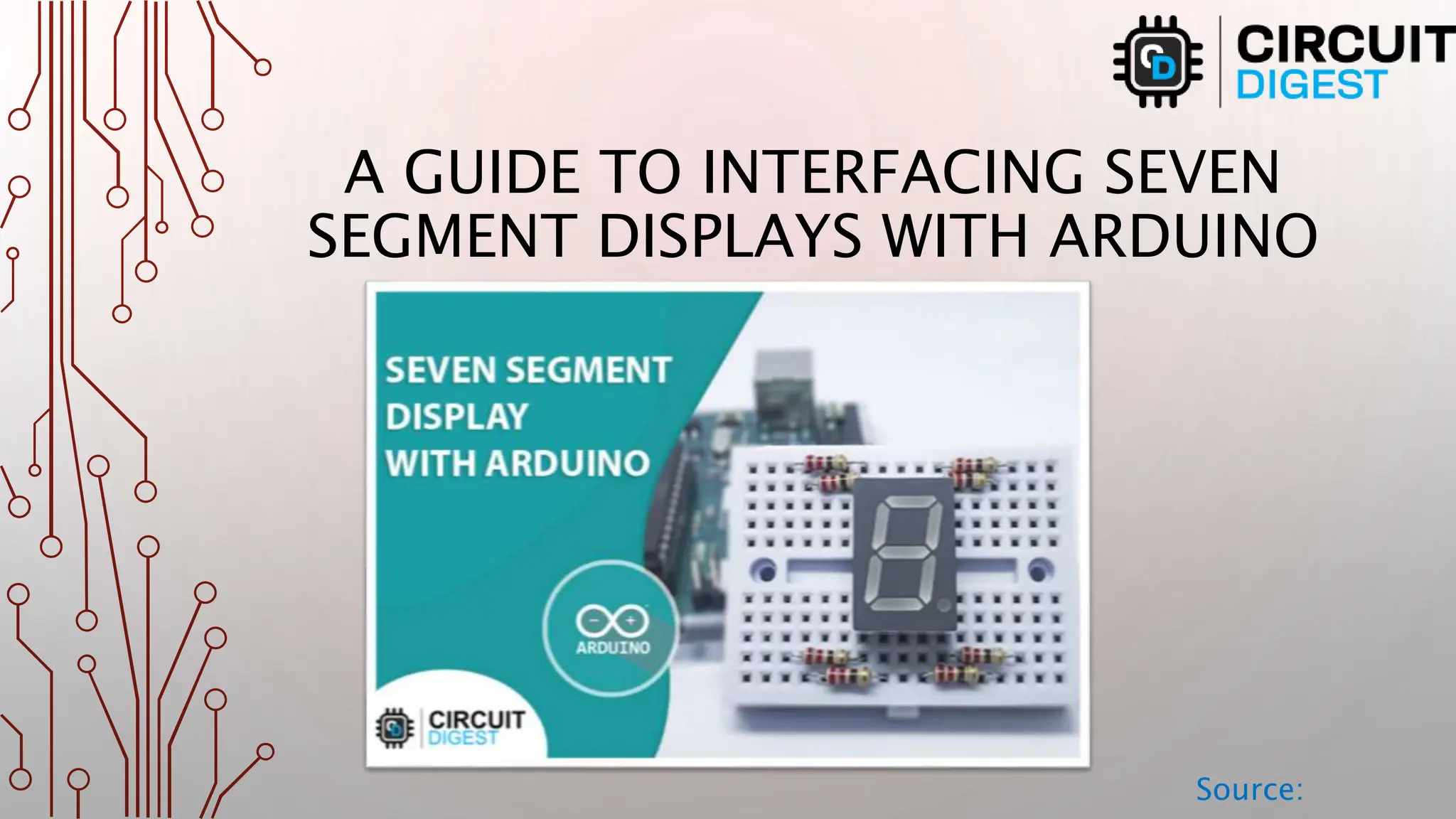
A GUIDE TO INTERFACING SEVEN
SEGMENT DISPLAYS WITH ARDUINO
Source:
UNDERSTANDING SEVEN-
SEGMENT DISPLAYS
Source:
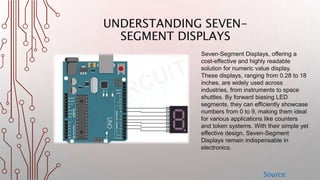
Seven-Segment Displays, offering a
cost-effective and highly readable
solution for numeric value display.
These displays, ranging from 0.28 to 18
inches, are widely used across
industries, from instruments to space
shuttles. By forward biasing LED
segments, they can efficiently showcase
numbers from 0 to 9, making them ideal
for various applications like counters
and token systems. With their simple yet
effective design, Seven-Segment
Displays remain indispensable in
electronics.
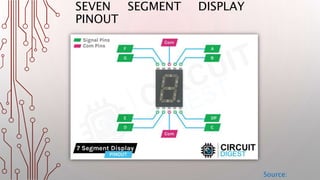
SEVEN SEGMENT DISPLAY
PINOUT
Source:
TYPES OF SEVEN SEGMENT
DISPLAYS
Source:
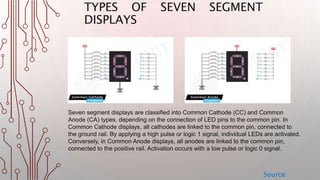
Seven segment displays are classified into Common Cathode (CC) and Common
Anode (CA) types, depending on the connection of LED pins to the common pin. In
Common Cathode displays, all cathodes are linked to the common pin, connected to
the ground rail. By applying a high pulse or logic 1 signal, individual LEDs are activated.
Conversely, in Common Anode displays, all anodes are linked to the common pin,
connected to the positive rail. Activation occurs with a low pulse or logic 0 signal.
CONNECTING SEVEN SEGMENT
DISPLAY WITH ARDUINO
Source:
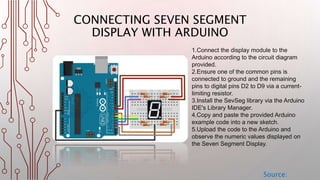
1.Connect the display module to the
Arduino according to the circuit diagram
provided.
2.Ensure one of the common pins is
connected to ground and the remaining
pins to digital pins D2 to D9 via a current-
limiting resistor.
3.Install the SevSeg library via the Arduino
IDE's Library Manager.
4.Copy and paste the provided Arduino
example code into a new sketch.
5.Upload the code to the Arduino and
observe the numeric values displayed on
the Seven Segment Display.
SOME PROJECTS FEATURING SEVEN
SEGMENT DISPLAYS
Source:
1. Raspberry Pi Interface: Connect Seven Segment Display to
Raspberry Pi with guide and code.
2. Arduino Clock: Build digital clock using Arduino and four 7-segment
displays.
3. 555 Timer Counter: Create digital counter with 555 Timer IC.
4. ARM7-LPC2148 Interface: Connect Seven Segment Display to
ARM7-LPC2148 with circuit diagram and code.
5. Object Counter Circuit: Design simple object counter circuit without
microcontroller.
THANK YOU!!
Source:
https://circuitdigest.com/microcontroller-projects/interfacing-seven-segment-
display-with-Arduino
Full Tutorial:

How to interface a Seven Segment Display with Arduino?

  • 1.
    A GUIDE TOINTERFACING SEVEN SEGMENT DISPLAYS WITH ARDUINO Source:
  • 2.
    UNDERSTANDING SEVEN- SEGMENT DISPLAYS Source: Seven-SegmentDisplays, offering a cost-effective and highly readable solution for numeric value display. These displays, ranging from 0.28 to 18 inches, are widely used across industries, from instruments to space shuttles. By forward biasing LED segments, they can efficiently showcase numbers from 0 to 9, making them ideal for various applications like counters and token systems. With their simple yet effective design, Seven-Segment Displays remain indispensable in electronics.
  • 3.
  • 4.
    TYPES OF SEVENSEGMENT DISPLAYS Source: Seven segment displays are classified into Common Cathode (CC) and Common Anode (CA) types, depending on the connection of LED pins to the common pin. In Common Cathode displays, all cathodes are linked to the common pin, connected to the ground rail. By applying a high pulse or logic 1 signal, individual LEDs are activated. Conversely, in Common Anode displays, all anodes are linked to the common pin, connected to the positive rail. Activation occurs with a low pulse or logic 0 signal.
  • 5.
    CONNECTING SEVEN SEGMENT DISPLAYWITH ARDUINO Source: 1.Connect the display module to the Arduino according to the circuit diagram provided. 2.Ensure one of the common pins is connected to ground and the remaining pins to digital pins D2 to D9 via a current- limiting resistor. 3.Install the SevSeg library via the Arduino IDE's Library Manager. 4.Copy and paste the provided Arduino example code into a new sketch. 5.Upload the code to the Arduino and observe the numeric values displayed on the Seven Segment Display.
  • 6.
    SOME PROJECTS FEATURINGSEVEN SEGMENT DISPLAYS Source: 1. Raspberry Pi Interface: Connect Seven Segment Display to Raspberry Pi with guide and code. 2. Arduino Clock: Build digital clock using Arduino and four 7-segment displays. 3. 555 Timer Counter: Create digital counter with 555 Timer IC. 4. ARM7-LPC2148 Interface: Connect Seven Segment Display to ARM7-LPC2148 with circuit diagram and code. 5. Object Counter Circuit: Design simple object counter circuit without microcontroller.
  • 7.