
How To Install Magento 2
If you have already tried installing the alpha
version, you’ll find that there are some little
changes in this latest one. Let’s check!
I. Install
Magento 2
in localhost
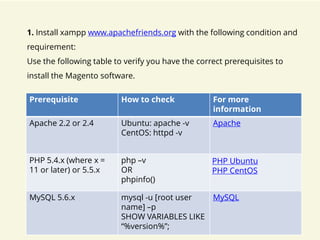
1. Install xampp www.apachefriends.org with the following condition and
requirement:
Use the following table to verify you have the correct prerequisites to
install the Magento software.
Prerequisite How to check For more
information
Apache 2.2 or 2.4 Ubuntu: apache -v
CentOS: httpd -v
Apache
PHP 5.4.x (where x =
11 or later) or 5.5.x
php –v
OR
phpinfo()
PHP Ubuntu
PHP CentOS
MySQL 5.6.x mysql -u [root user
name] –p
SHOW VARIABLES LIKE
“%version%”;
MySQL
2. Install composer: https://getcomposer.org/doc/00-intro.md
a. Download Composer-Setup.exe and install on local
b. Run file Composer-Setup.exe
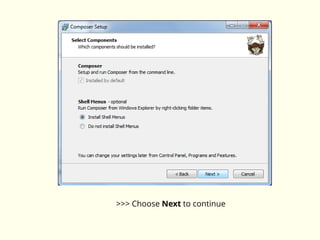
>>> Choose Next to continue
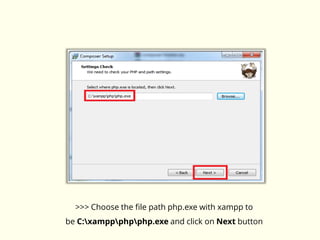
>>> Choose the file path php.exe with xampp to
be C:xamppphpphp.exe and click on Next button
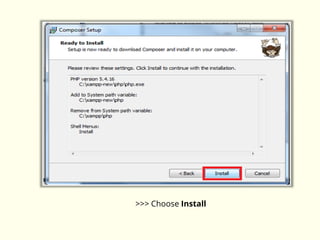
>>> Choose Install
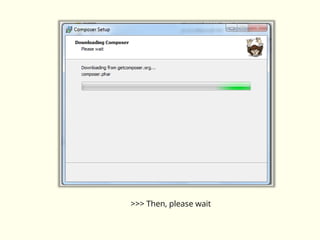
>>> Then, please wait
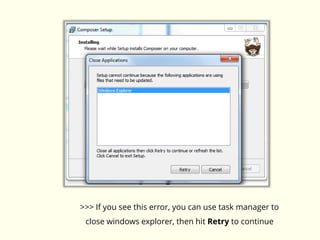
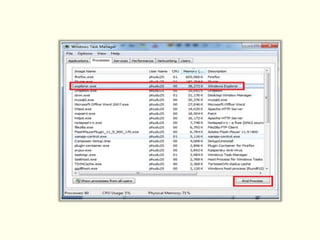
>>> If you see this error, you can use task manager to
close windows explorer, then hit Retry to continue
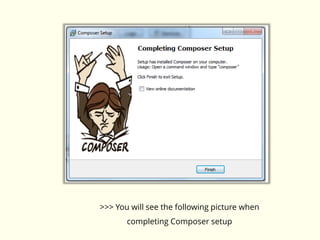
>>> You will see the following picture when
completing Composer setup
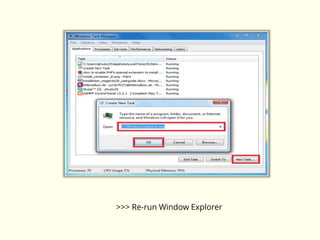
>>> Re-run Window Explorer
3. Install Magento 2.0
Setup version is 0.42.0-
beta1: https://drive.google.com/file/d/0B9BrisTMtKNad1pGRExxOWJUVD
A/view?usp=sharing
Or download the latest version at https://github.com/magento/magento2
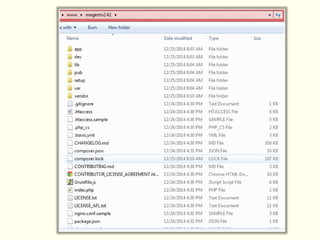
Extract the source code in web folder
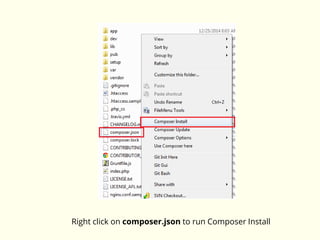
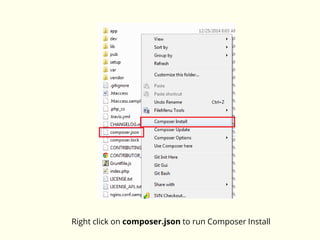
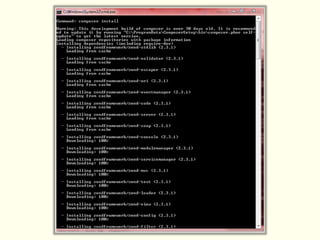
Right click on composer.json to run Composer Install
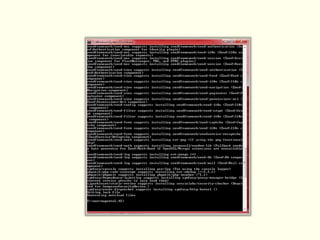
Here comes the cmd screen, you
should wait for a few minutes
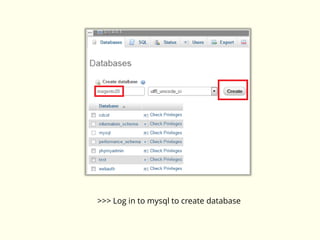
>>> Log in to mysql to create database
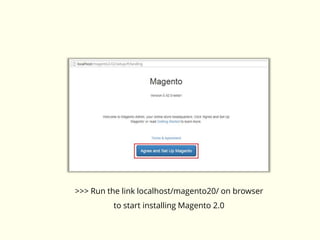
>>> Run the link localhost/magento20/ on browser
to start installing Magento 2.0
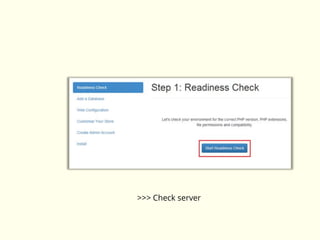
>>> Check server
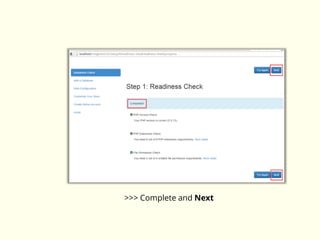
>>> Complete and Next
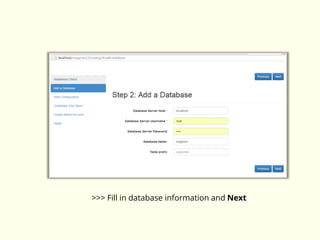
>>> Fill in database information and Next
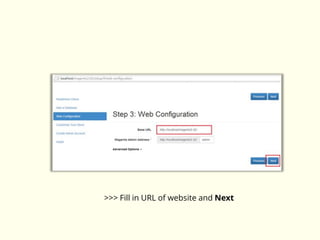
>>> Fill in URL of website and Next
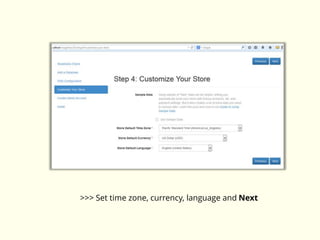
>>> Set time zone, currency, language and Next
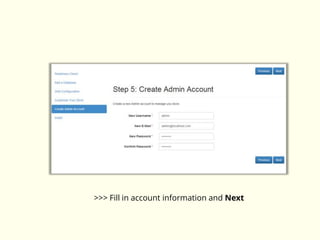
>>> Fill in account information and Next
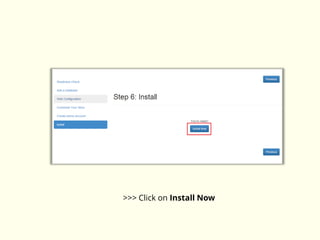
>>> Click on Install Now
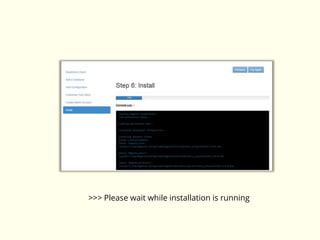
>>> Please wait while installation is running
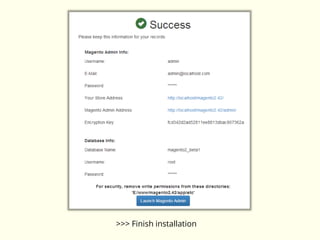
>>> Finish installation
II. Install
Magento 2
on server
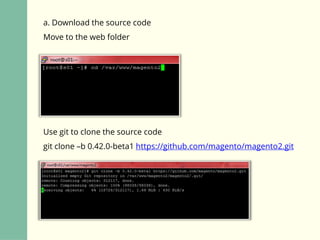
a. Download the source code
Move to the web folder
Use git to clone the source code
git clone –b 0.42.0-beta1 https://github.com/magento/magento2.git
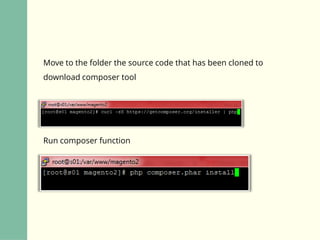
Move to the folder the source code that has been cloned to
download composer tool
Run composer function
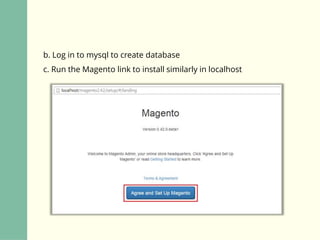
b. Log in to mysql to create database
c. Run the Magento link to install similarly in localhost
We have finished Magento 2 installation.
You can refer here for more information
and subscribe so that you won’t miss any
useful tutorials about Magento 2.
Never miss any updates about
Magento 2
Visit Magestore Blog

How To Install Magento 2 (updated for the latest version)

  • 1.
    How To InstallMagento 2
  • 2.
    If you havealready tried installing the alpha version, you’ll find that there are some little changes in this latest one. Let’s check!
  • 3.
  • 4.
    1. Install xamppwww.apachefriends.org with the following condition and requirement: Use the following table to verify you have the correct prerequisites to install the Magento software. Prerequisite How to check For more information Apache 2.2 or 2.4 Ubuntu: apache -v CentOS: httpd -v Apache PHP 5.4.x (where x = 11 or later) or 5.5.x php –v OR phpinfo() PHP Ubuntu PHP CentOS MySQL 5.6.x mysql -u [root user name] –p SHOW VARIABLES LIKE “%version%”; MySQL
  • 5.
    2. Install composer:https://getcomposer.org/doc/00-intro.md a. Download Composer-Setup.exe and install on local b. Run file Composer-Setup.exe
  • 6.
    >>> Choose Nextto continue
  • 7.
    >>> Choose thefile path php.exe with xampp to be C:xamppphpphp.exe and click on Next button
  • 8.
  • 9.
  • 10.
    >>> If yousee this error, you can use task manager to close windows explorer, then hit Retry to continue
  • 12.
    >>> You willsee the following picture when completing Composer setup
  • 13.
  • 14.
    3. Install Magento2.0 Setup version is 0.42.0- beta1: https://drive.google.com/file/d/0B9BrisTMtKNad1pGRExxOWJUVD A/view?usp=sharing Or download the latest version at https://github.com/magento/magento2 Extract the source code in web folder
  • 16.
    Right click oncomposer.json to run Composer Install
  • 17.
    Right click oncomposer.json to run Composer Install
  • 18.
    Here comes thecmd screen, you should wait for a few minutes
  • 21.
    >>> Log into mysql to create database
  • 22.
    >>> Run thelink localhost/magento20/ on browser to start installing Magento 2.0
  • 23.
  • 24.
  • 25.
    >>> Fill indatabase information and Next
  • 26.
    >>> Fill inURL of website and Next
  • 27.
    >>> Set timezone, currency, language and Next
  • 28.
    >>> Fill inaccount information and Next
  • 29.
    >>> Click onInstall Now
  • 30.
    >>> Please waitwhile installation is running
  • 31.
  • 32.
  • 33.
    a. Download thesource code Move to the web folder Use git to clone the source code git clone –b 0.42.0-beta1 https://github.com/magento/magento2.git
  • 34.
    Move to thefolder the source code that has been cloned to download composer tool Run composer function
  • 35.
    b. Log into mysql to create database c. Run the Magento link to install similarly in localhost
  • 36.
    We have finishedMagento 2 installation. You can refer here for more information and subscribe so that you won’t miss any useful tutorials about Magento 2.
  • 37.
    Never miss anyupdates about Magento 2 Visit Magestore Blog