


How to Install Magento
2 On Wamp
How To Install Magento 2
• Magento 2.0, the next generation open source E-commerce platform is
discover the inner workings of magento , And how to built and open with
modern technology. Get a deeper understanding on how to install magento 2
and for it designed for speed, extensibility and scalability. We have some
steps here to magento 2 installation in your browser
PRE REQUIREMENT
• COMPOSER
Composer is required on your system for install magento 2. If your system doesn’t have composer then click on this link Get
Composer-Setup.exe and download and install on your system
SERVER / DATABASE / PHP
Make sure your wamp server 2.5 or higher apache version higher then 2.2 and mod_rewrite enable, MySQL version 5.6
or higher and PHP version 5.5 and higher.
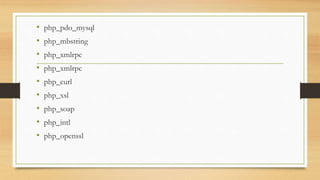
You must enable list of extension in php.ini
• php_pdo_mysql
• php_mbstring
• php_xmlrpc
• php_xmlrpc
• php_curl
• php_xsl
• php_soap
• php_intl
• php_openssl
DOWNLOAD MAGENTO 2
• Download source from there Download Magento and if you need sample
data then also download sample data from same link.
• Extract Downloaded file and move to WWW folder in wamp server.
• Open phpmyadmin(http://localhost/phpmyadmin) then create blank data base.
• Open your browser and type http://localhost/your-folder
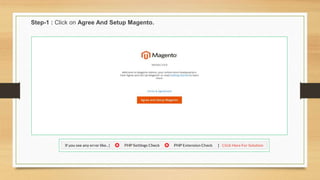
Step-1 : Click on Agree And Setup Magento.
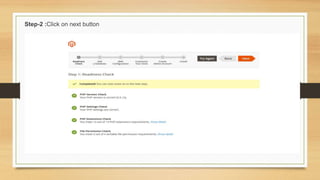
Step-2 :Click on next button
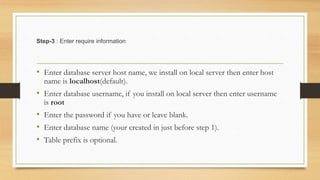
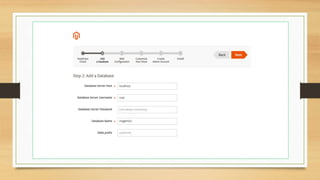
• Enter database server host name, we install on local server then enter host
name is localhost(default).
• Enter database username, if you install on local server then enter username
is root
• Enter the password if you have or leave blank.
• Enter database name (your created in just before step 1).
• Table prefix is optional.
Step-3 : Enter require information
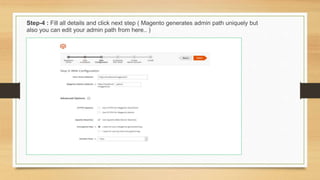
Step-4 : Fill all details and click next step ( Magento generates admin path uniquely but
also you can edit your admin path from here.. )
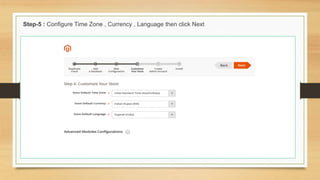
Step-5 : Configure Time Zone , Currency , Language then click Next
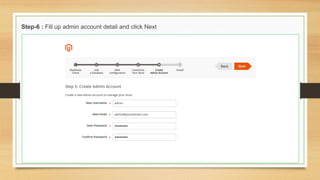
Step-6 : Fill up admin account detail and click Next
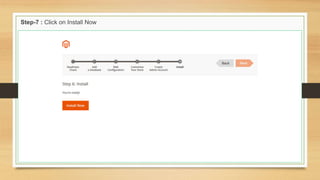
Step-7 : Click on Install Now
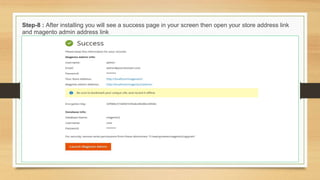
Step-8 : After installing you will see a success page in your screen then open your store address link
and magento admin address link
Step-9 : Magento 2 home page, cool ! finally your magento 2 store is ready.
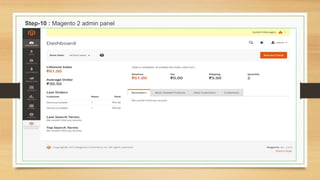
Step-10 : Magento 2 admin panel

How to Install Magento 2 On Wamp

  • 1.
    How to InstallMagento 2 On Wamp
  • 2.
    How To InstallMagento 2 • Magento 2.0, the next generation open source E-commerce platform is discover the inner workings of magento , And how to built and open with modern technology. Get a deeper understanding on how to install magento 2 and for it designed for speed, extensibility and scalability. We have some steps here to magento 2 installation in your browser
  • 3.
    PRE REQUIREMENT • COMPOSER Composeris required on your system for install magento 2. If your system doesn’t have composer then click on this link Get Composer-Setup.exe and download and install on your system SERVER / DATABASE / PHP Make sure your wamp server 2.5 or higher apache version higher then 2.2 and mod_rewrite enable, MySQL version 5.6 or higher and PHP version 5.5 and higher. You must enable list of extension in php.ini
  • 4.
    • php_pdo_mysql • php_mbstring •php_xmlrpc • php_xmlrpc • php_curl • php_xsl • php_soap • php_intl • php_openssl
  • 5.
    DOWNLOAD MAGENTO 2 •Download source from there Download Magento and if you need sample data then also download sample data from same link. • Extract Downloaded file and move to WWW folder in wamp server. • Open phpmyadmin(http://localhost/phpmyadmin) then create blank data base. • Open your browser and type http://localhost/your-folder
  • 6.
    Step-1 : Clickon Agree And Setup Magento.
  • 7.
    Step-2 :Click onnext button
  • 8.
    • Enter databaseserver host name, we install on local server then enter host name is localhost(default). • Enter database username, if you install on local server then enter username is root • Enter the password if you have or leave blank. • Enter database name (your created in just before step 1). • Table prefix is optional. Step-3 : Enter require information
  • 10.
    Step-4 : Fillall details and click next step ( Magento generates admin path uniquely but also you can edit your admin path from here.. )
  • 11.
    Step-5 : ConfigureTime Zone , Currency , Language then click Next
  • 12.
    Step-6 : Fillup admin account detail and click Next
  • 13.
    Step-7 : Clickon Install Now
  • 14.
    Step-8 : Afterinstalling you will see a success page in your screen then open your store address link and magento admin address link
  • 15.
    Step-9 : Magento2 home page, cool ! finally your magento 2 store is ready.
  • 16.
    Step-10 : Magento2 admin panel