PowerPoint Presentation
for Beginners
on Desktop or Laptop
An easy-to-follow tutorial for beginners on making a presentation
in PowerPoint
CREATED BY ROSALIND SHARON GOH CYBERJAYA
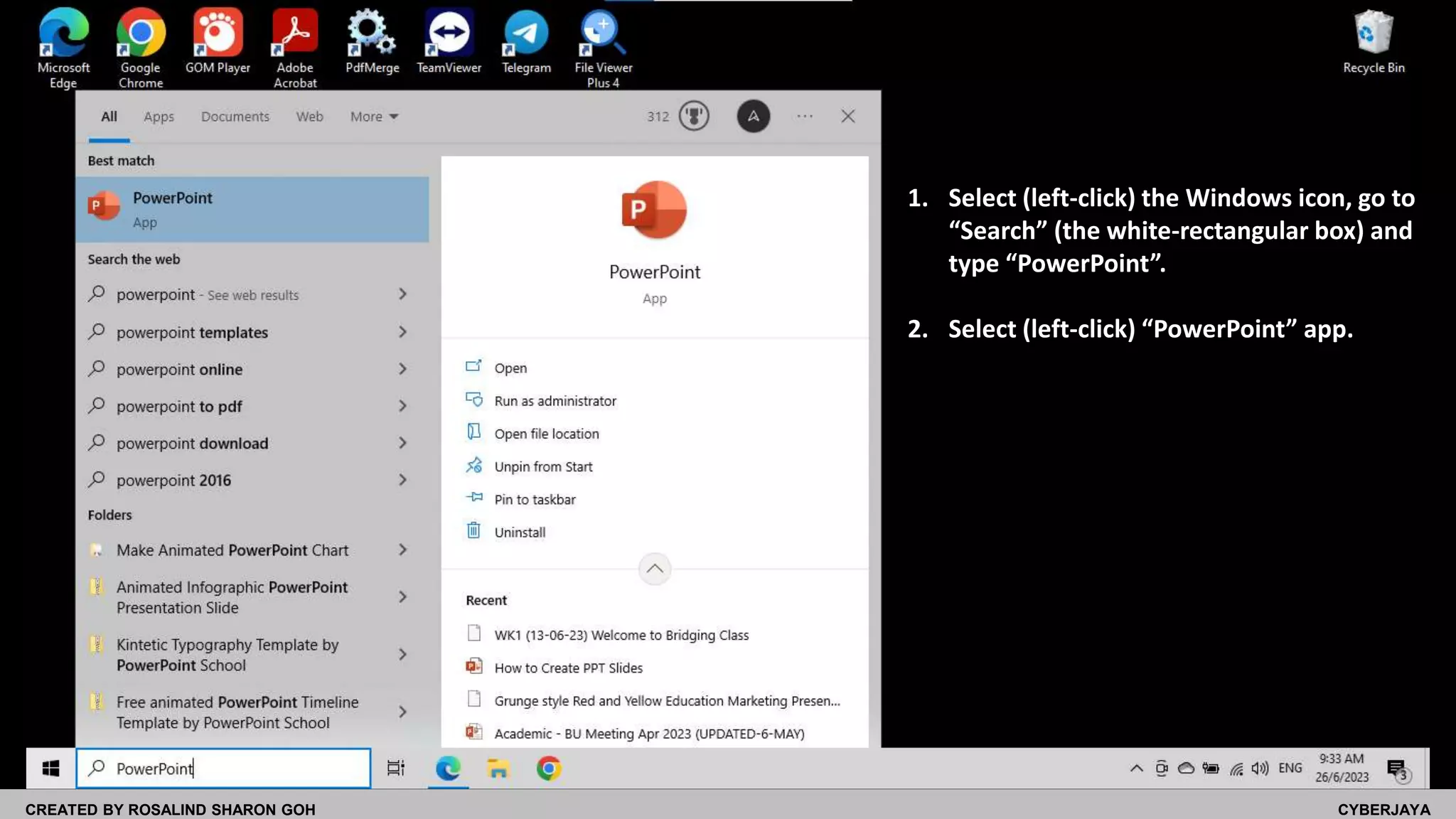
1. Select (left-click) the Windows icon, go to
“Search” (the white-rectangular box) and
type “PowerPoint”.
2. Select (left-click) “PowerPoint” app.
CREATED BY ROSALIND SHARON GOH CYBERJAYA
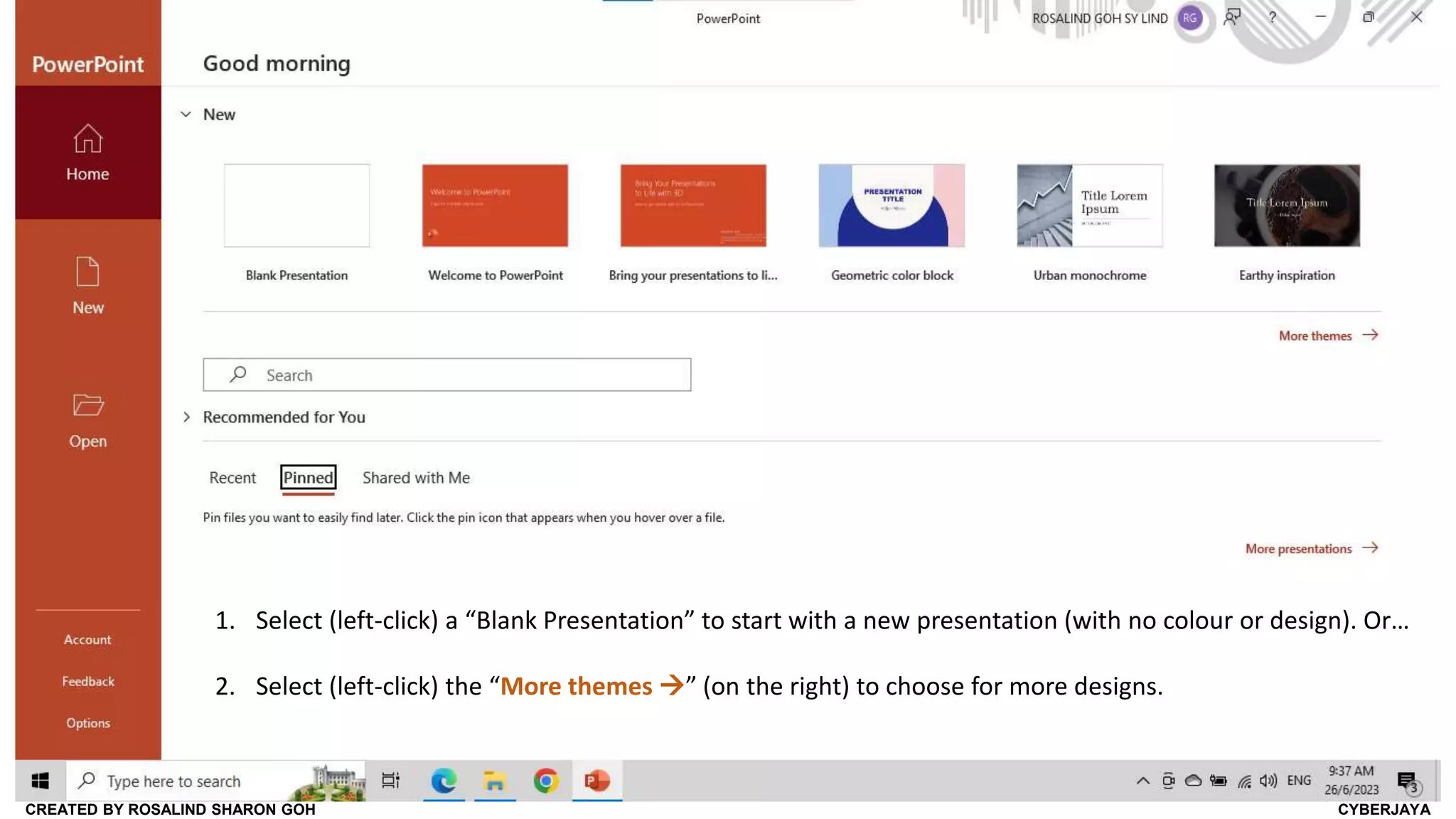
1. Select (left-click) a “Blank Presentation” to start with a new presentation (with no colour or design). Or…
2. Select (left-click) the “More themes ” (on the right) to choose for more designs.
CREATED BY ROSALIND SHARON GOH CYBERJAYA
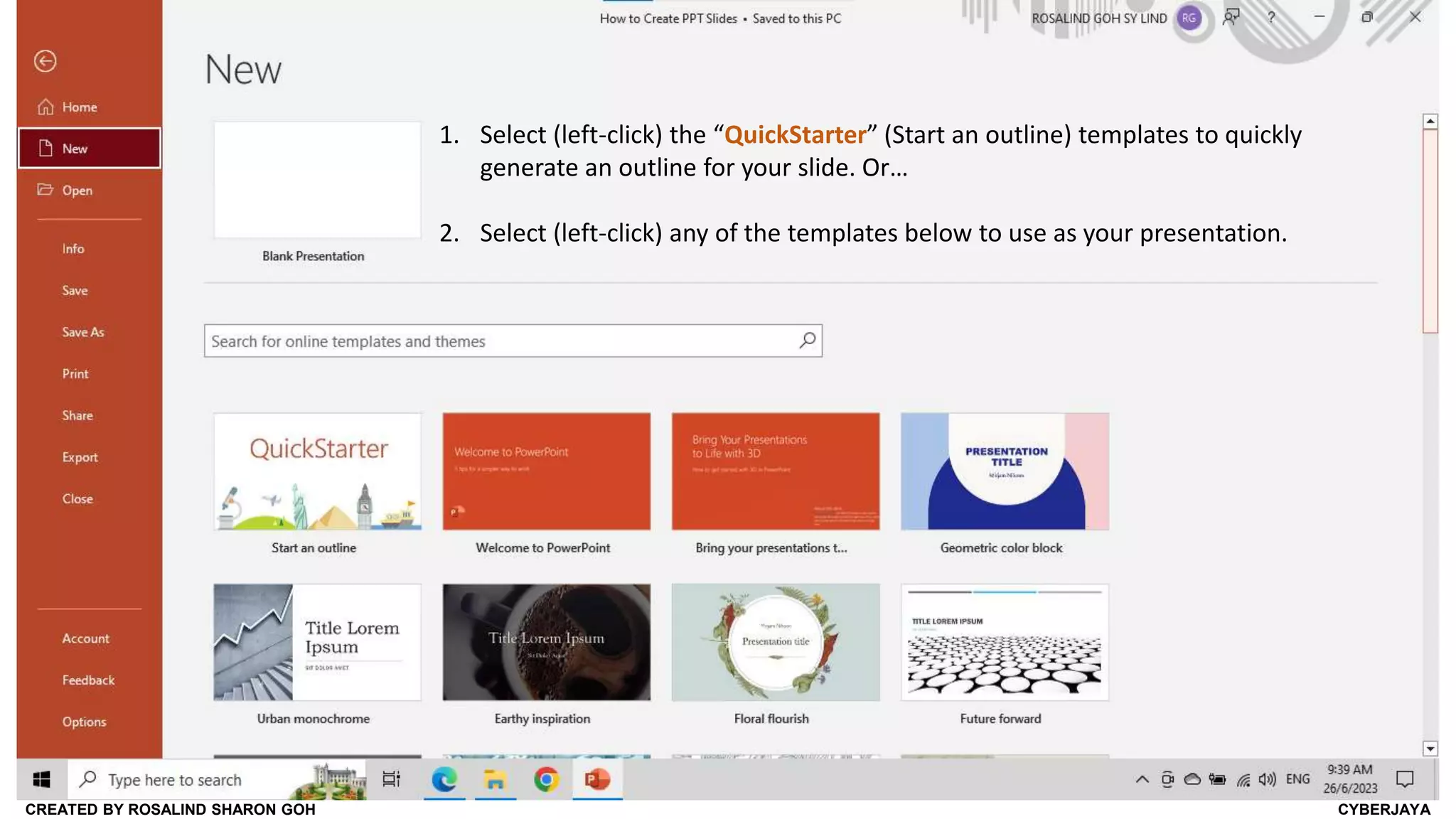
1. Select (left-click) the “QuickStarter” (Start an outline) templates to quickly
generate an outline for your slide. Or…
2. Select (left-click) any of the templates below to use as your presentation.
CREATED BY ROSALIND SHARON GOH CYBERJAYA
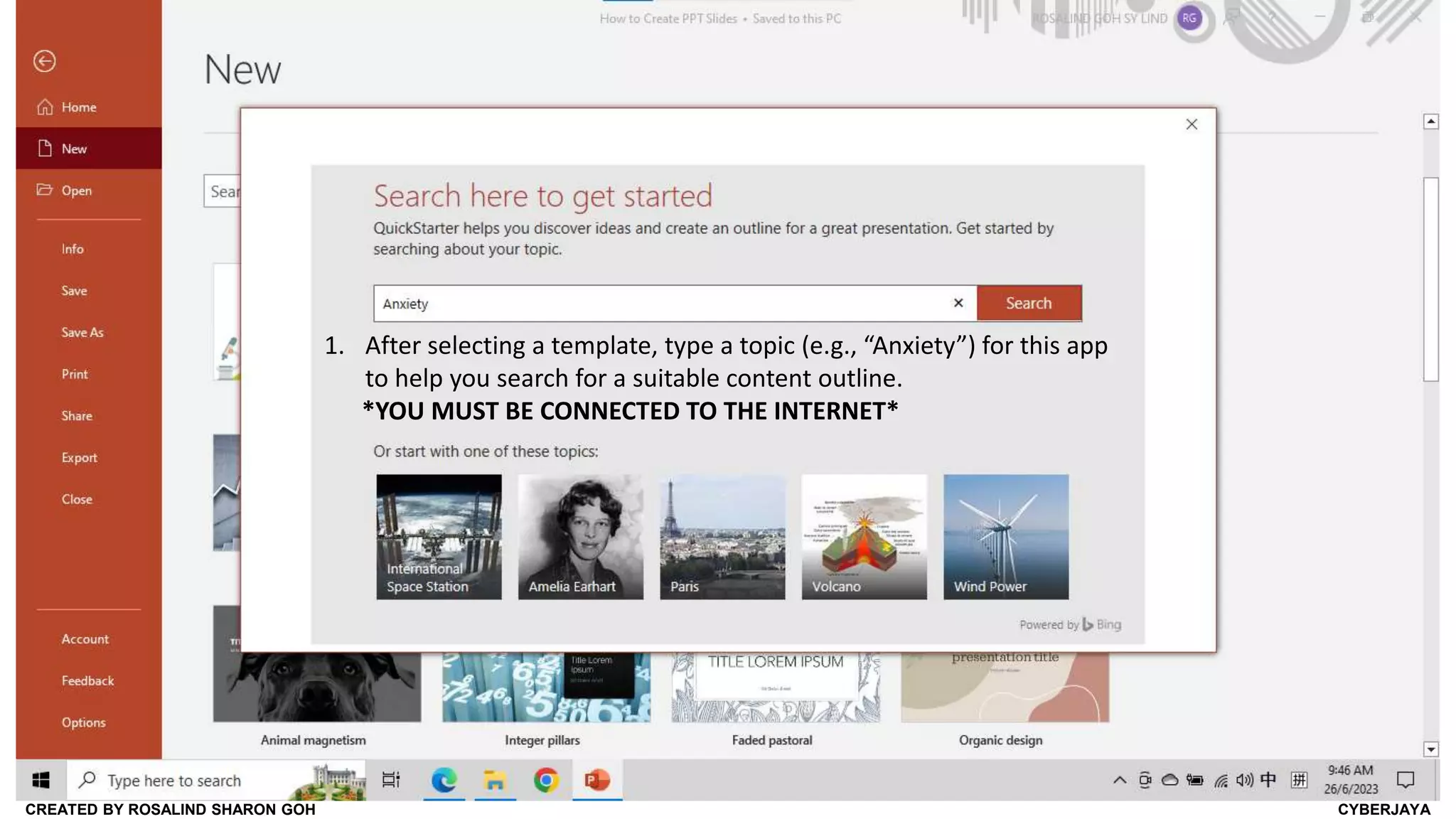
1. After selecting a template, type a topic (e.g., “Anxiety”) for this app
to help you search for a suitable content outline.
*YOU MUST BE CONNECTED TO THE INTERNET*
CREATED BY ROSALIND SHARON GOH CYBERJAYA
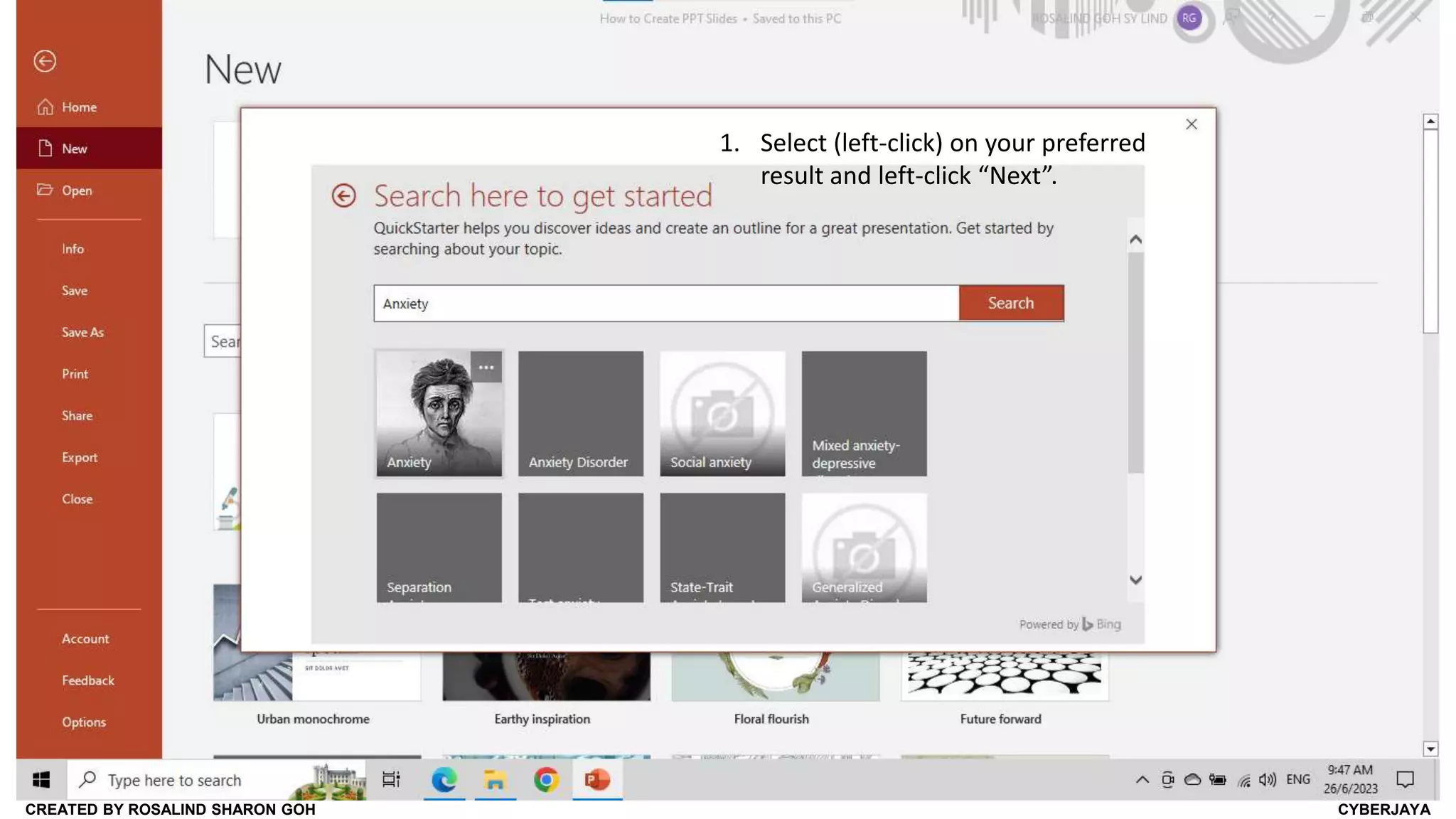
1. Select (left-click) on your preferred
result and left-click “Next”.
CREATED BY ROSALIND SHARON GOH CYBERJAYA
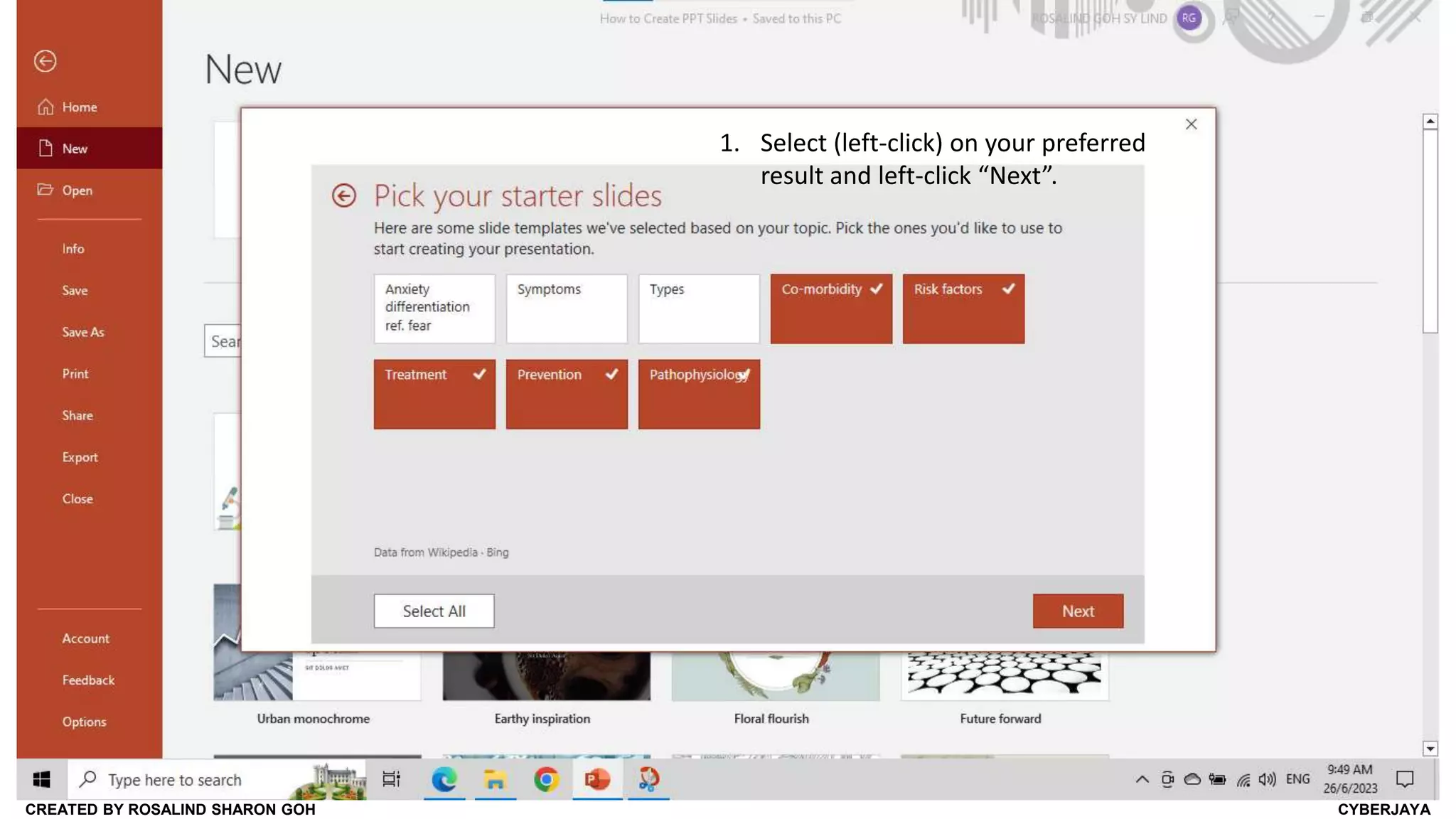
1. Select (left-click) on your preferred
result and left-click “Next”.
CREATED BY ROSALIND SHARON GOH CYBERJAYA
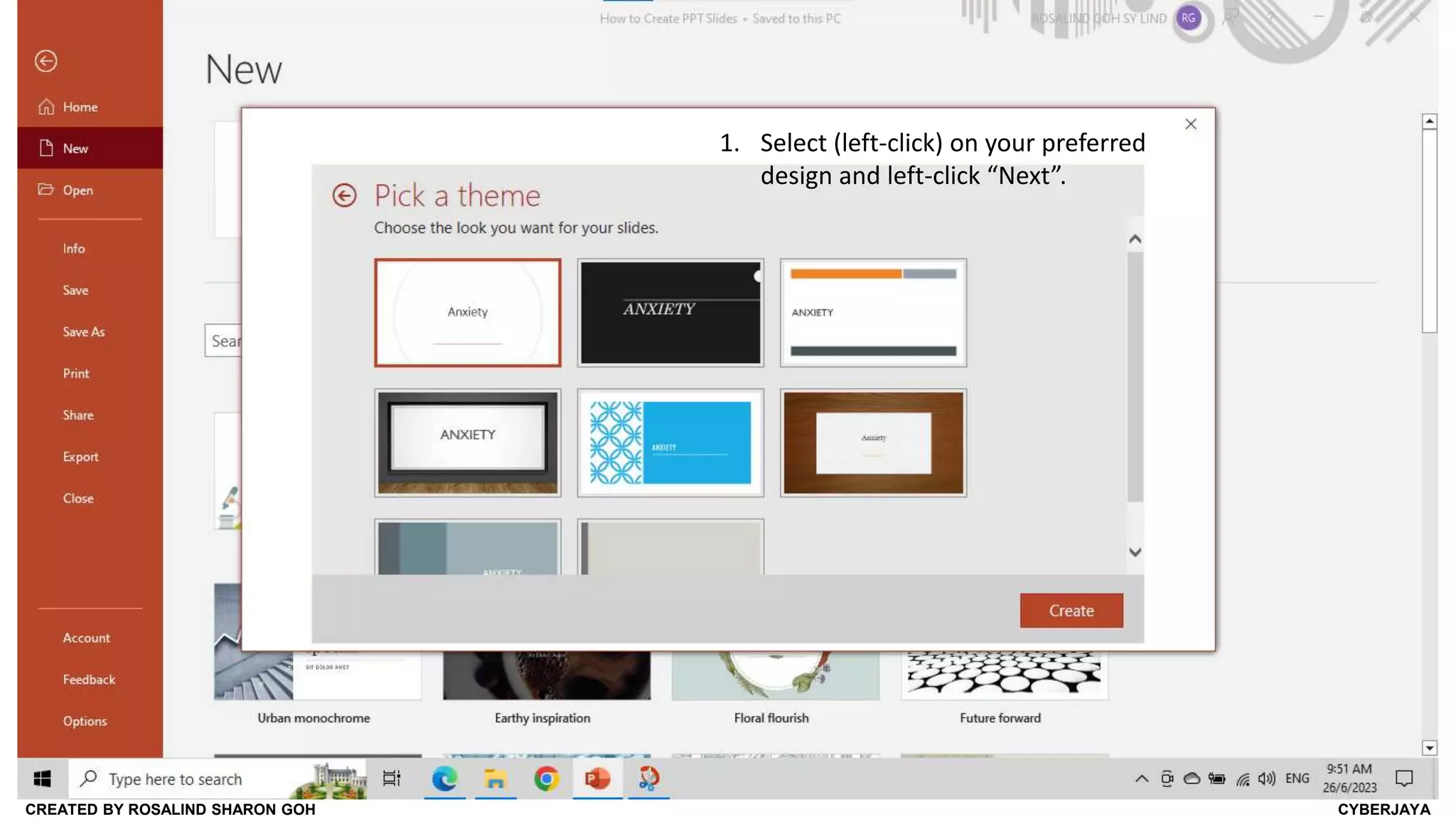
1. Select (left-click) on your preferred
design and left-click “Next”.
CREATED BY ROSALIND SHARON GOH CYBERJAYA
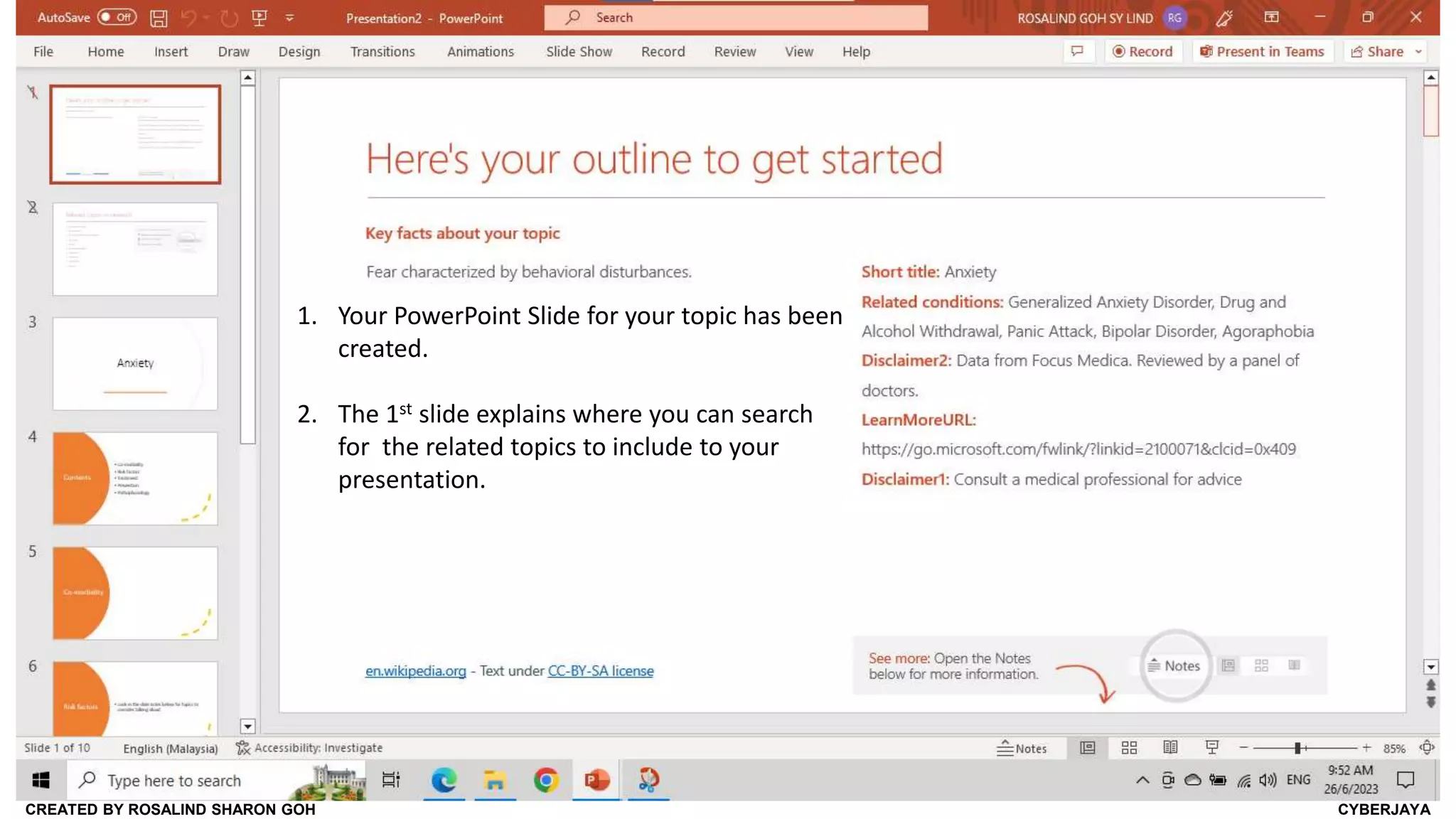
1. Your PowerPoint Slide for your topic has been
created.
2. The 1st slide explains where you can search
for the related topics to include to your
presentation.
CREATED BY ROSALIND SHARON GOH CYBERJAYA
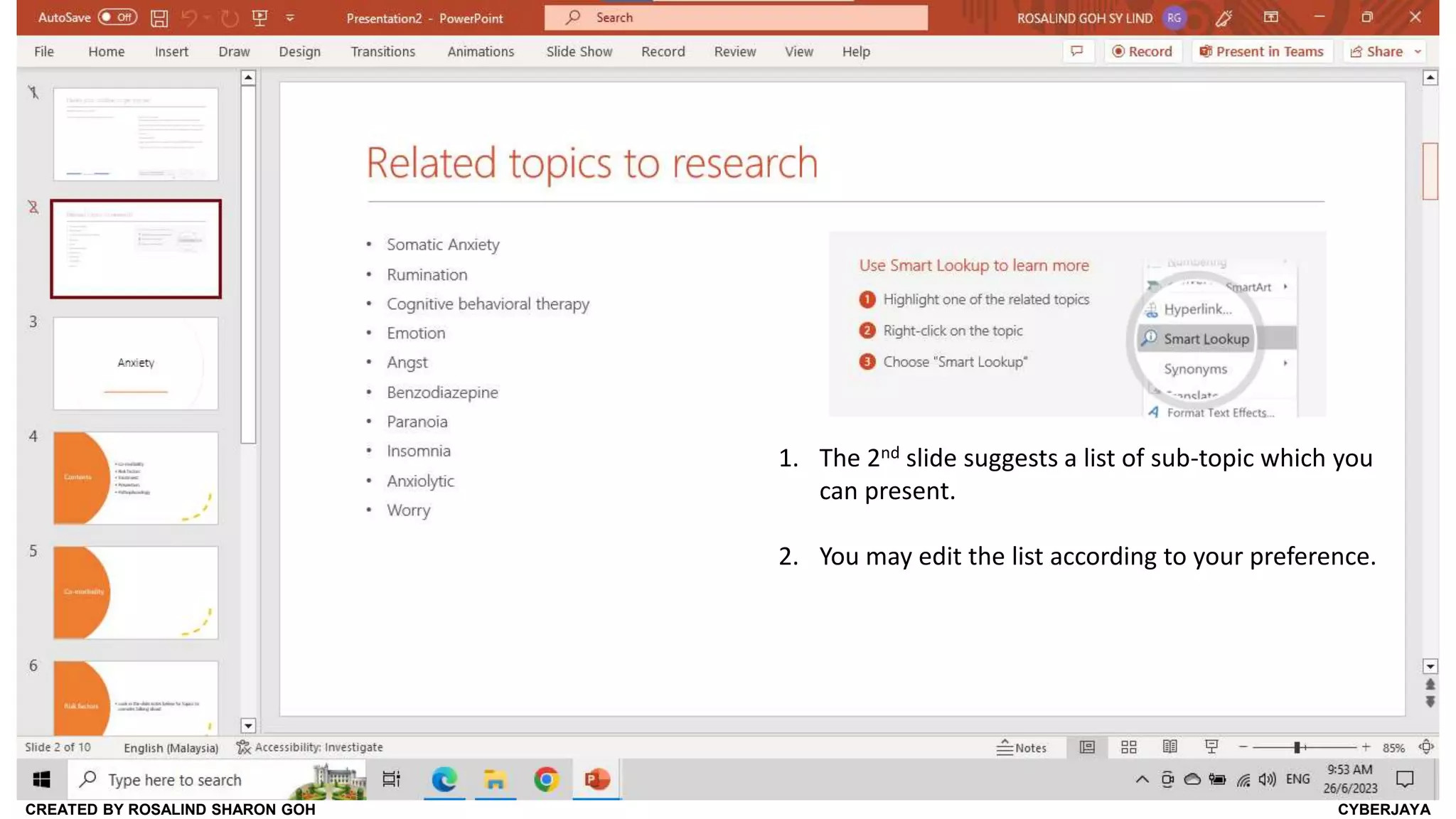
1. The 2nd slide suggests a list of sub-topic which you
can present.
2. You may edit the list according to your preference.
CREATED BY ROSALIND SHARON GOH CYBERJAYA
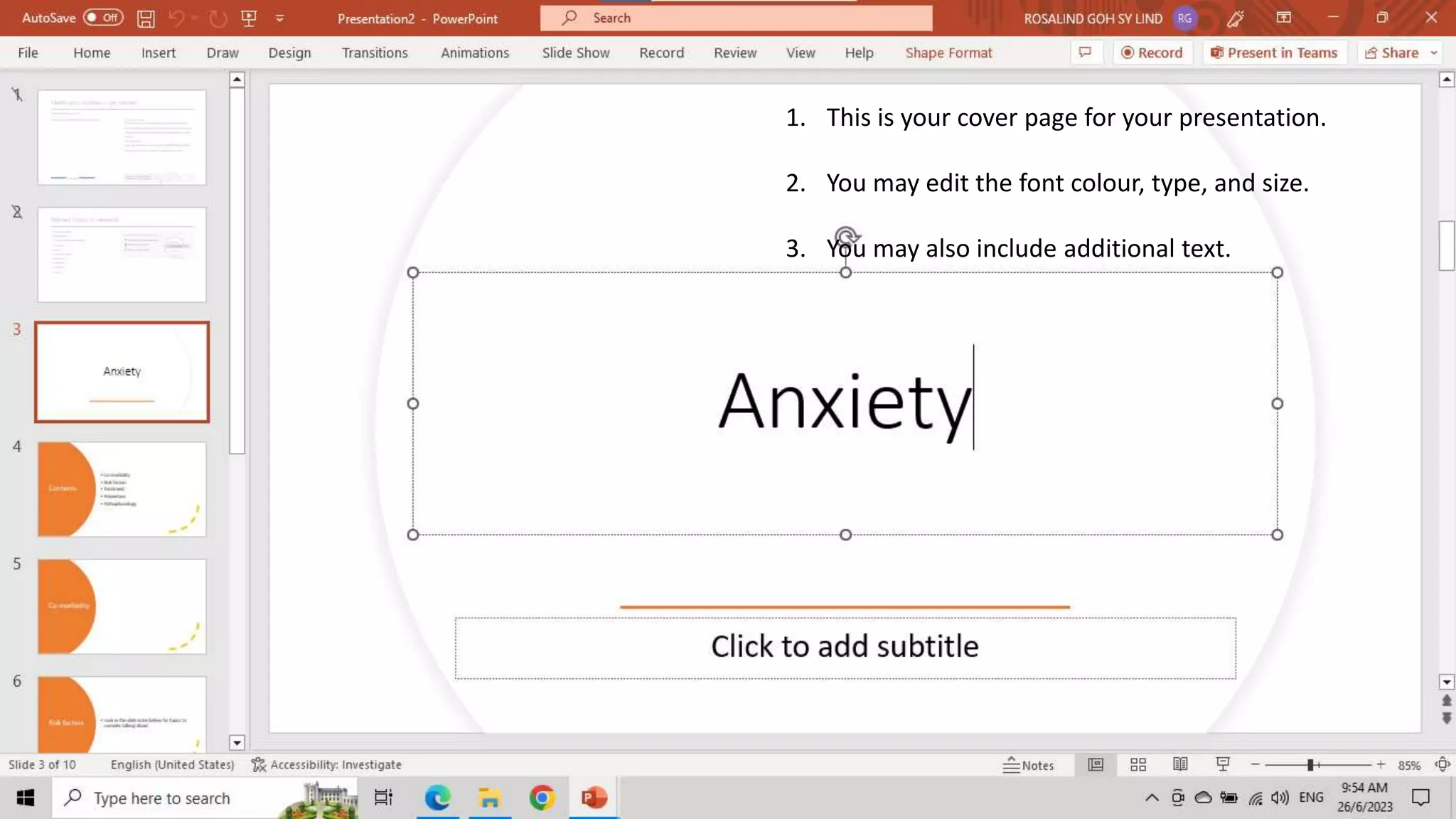
1. This is your cover page for your presentation.
2. You may edit the font colour, type, and size.
3. You may also include additional text.
CREATED BY ROSALIND SHARON GOH CYBERJAYA
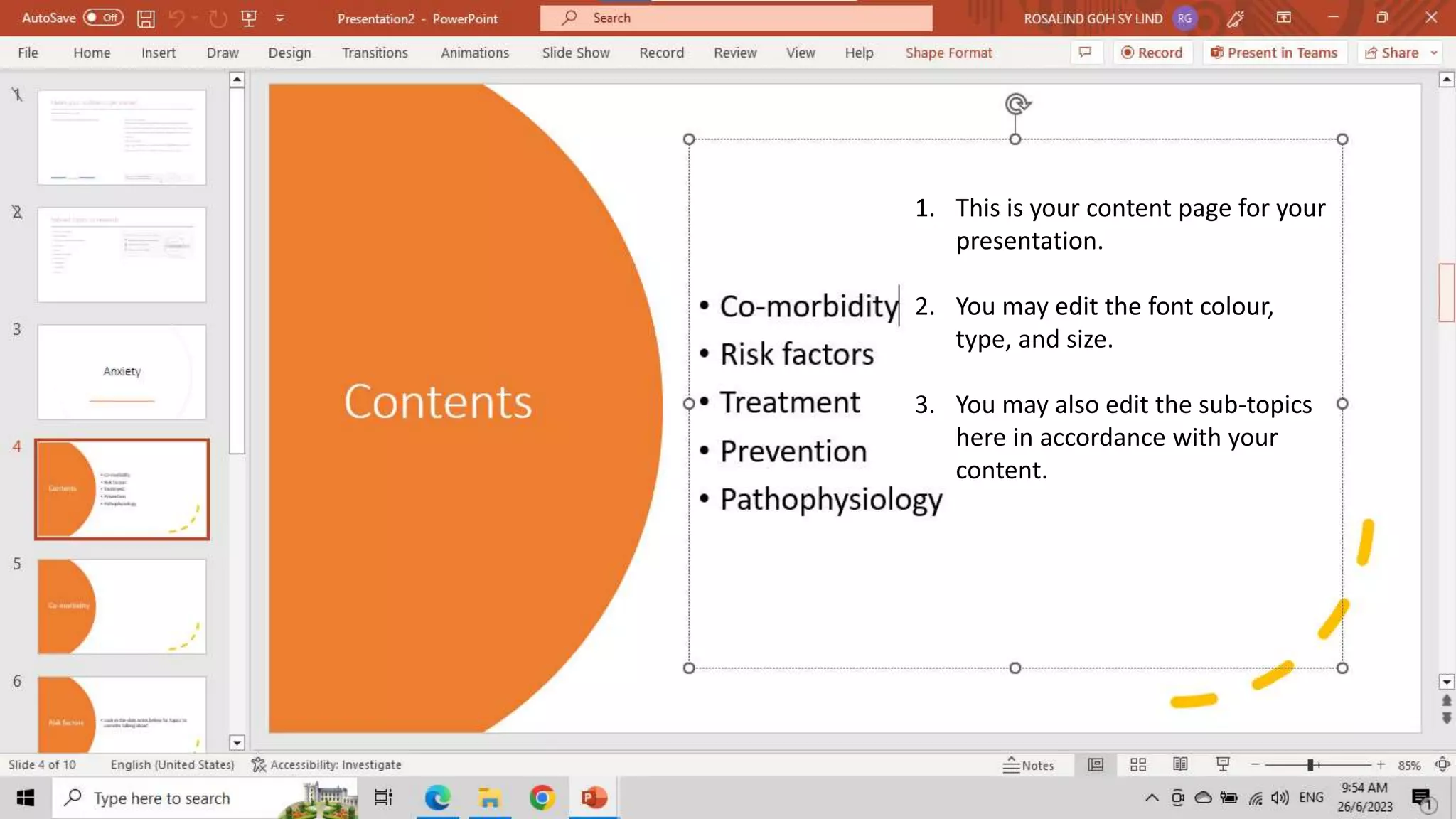
1. This is your content page for your
presentation.
2. You may edit the font colour,
type, and size.
3. You may also edit the sub-topics
here in accordance with your
content.
CREATED BY ROSALIND SHARON GOH CYBERJAYA
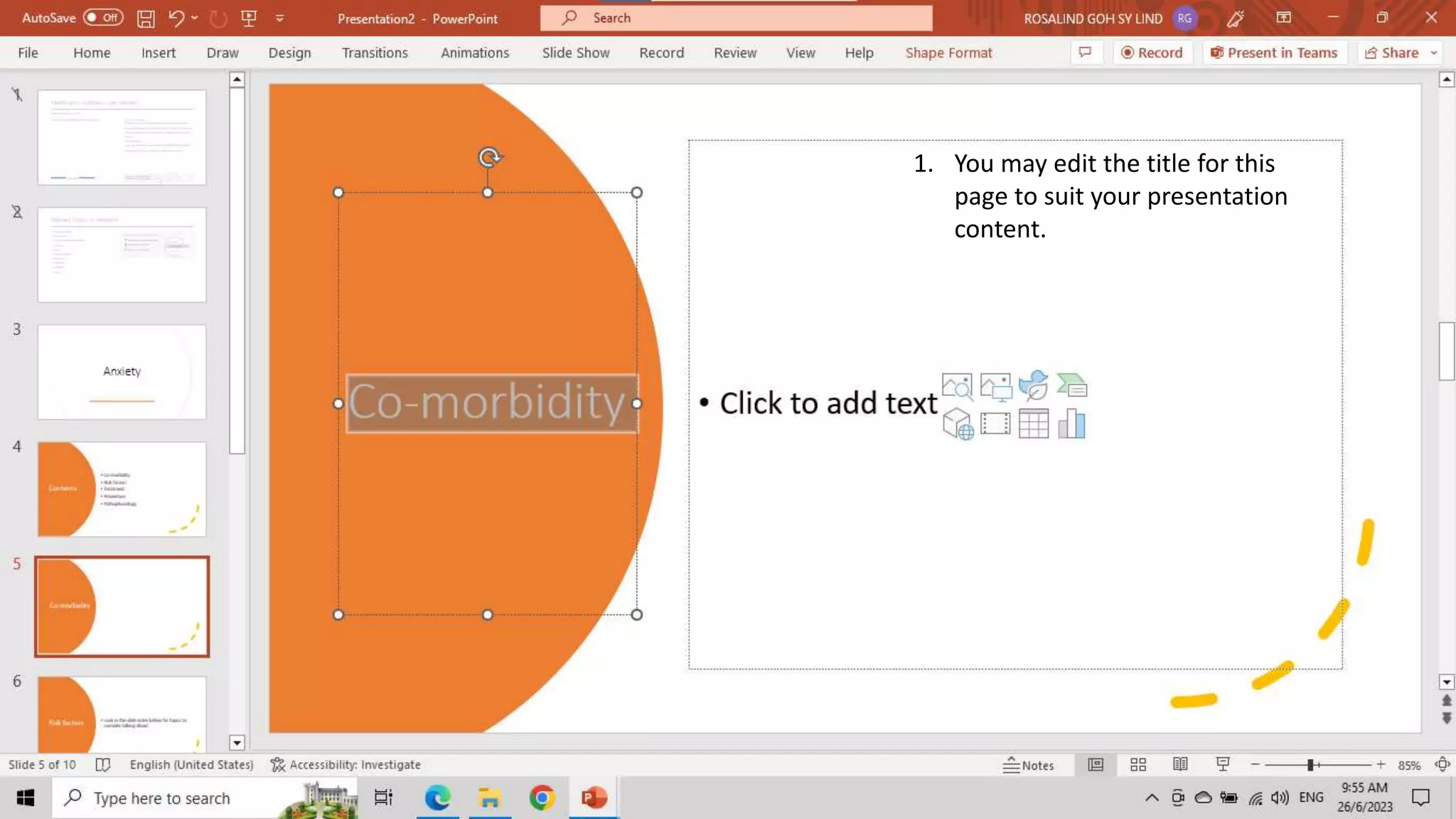
1. You may edit the title for this
page to suit your presentation
content.
CREATED BY ROSALIND SHARON GOH CYBERJAYA
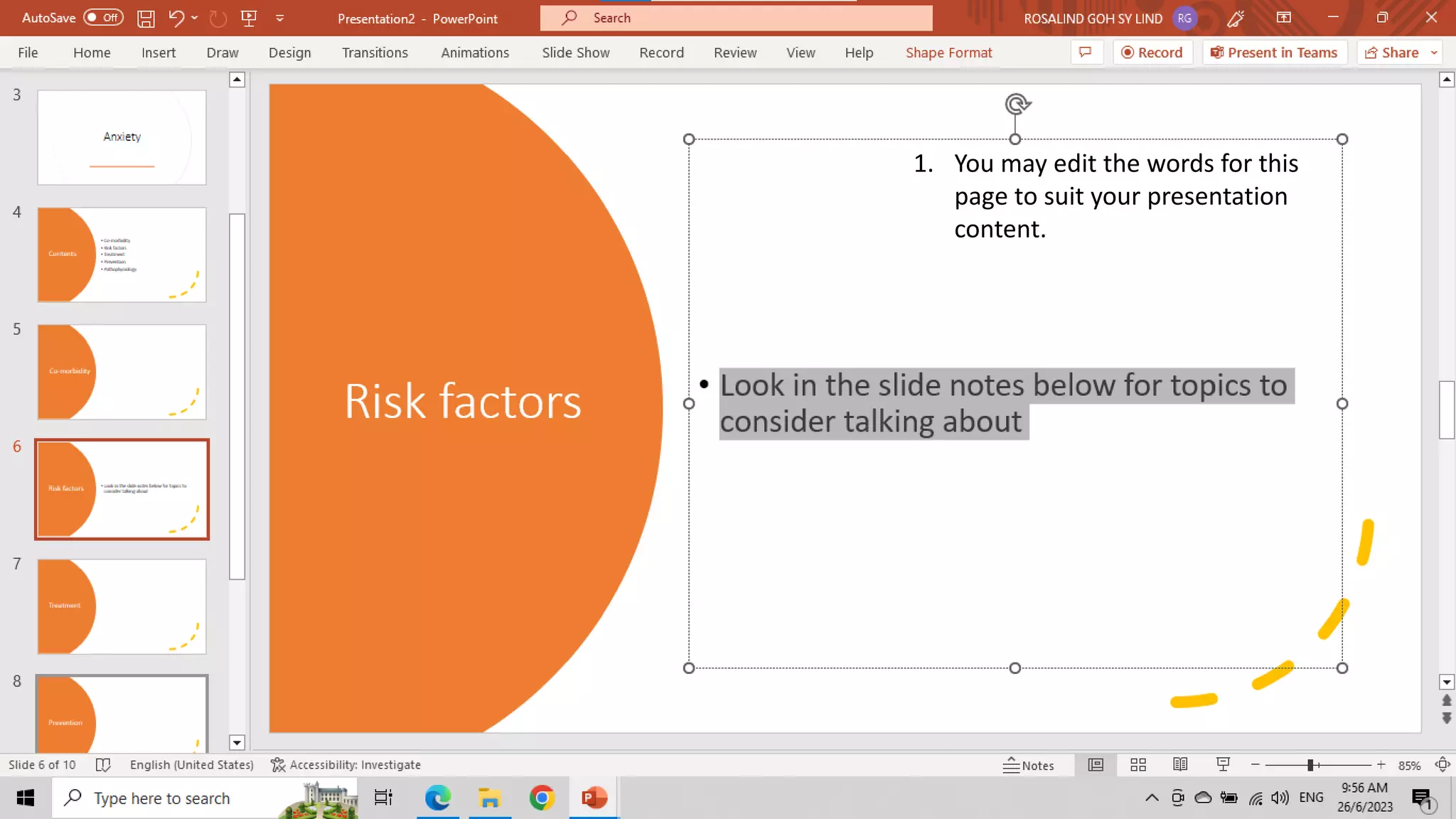
1. You may edit the words for this
page to suit your presentation
content.
CREATED BY ROSALIND SHARON GOH CYBERJAYA
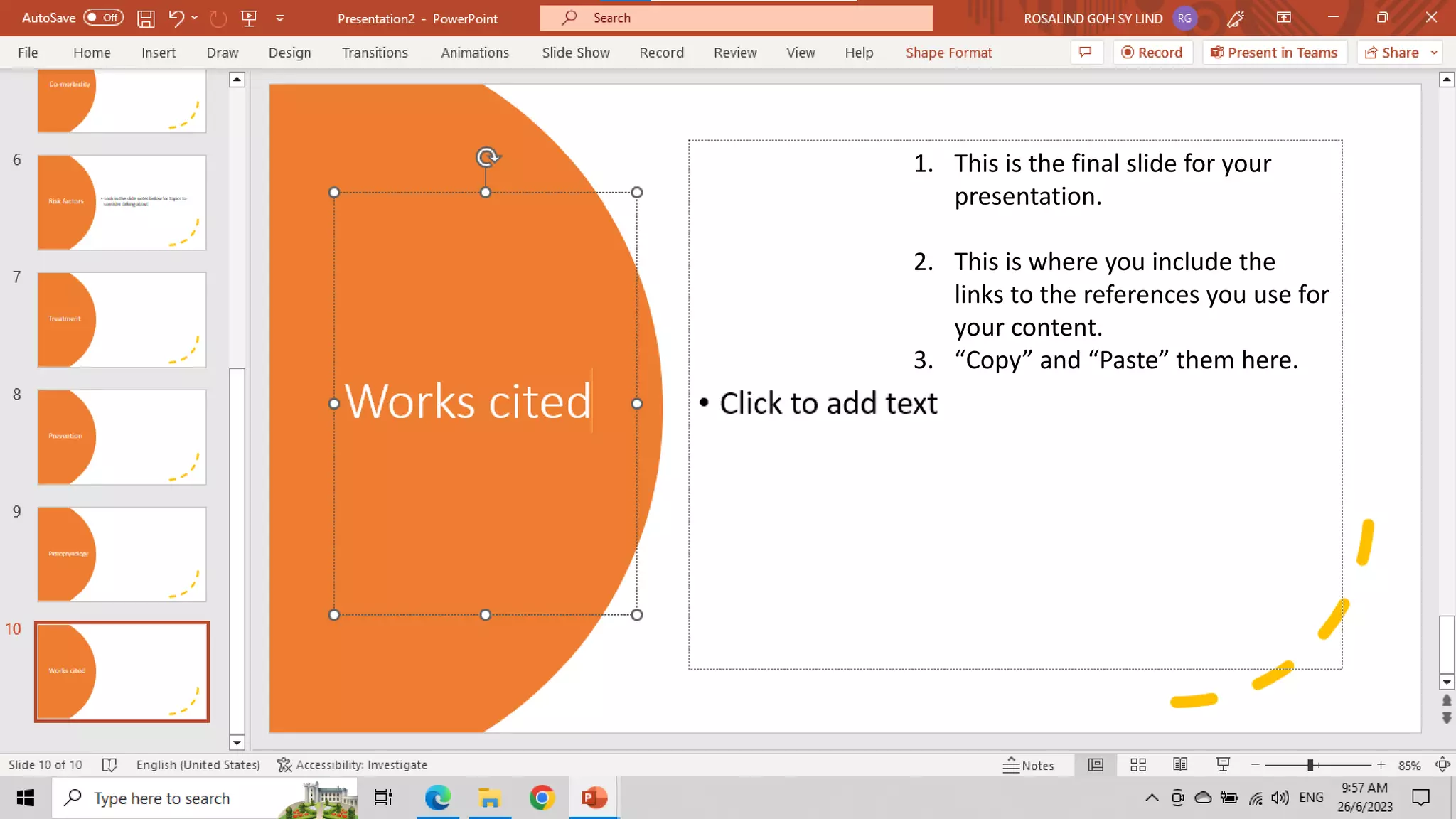
1. This is the final slide for your
presentation.
2. This is where you include the
links to the references you use for
your content.
3. “Copy” and “Paste” them here.
CREATED BY ROSALIND SHARON GOH CYBERJAYA
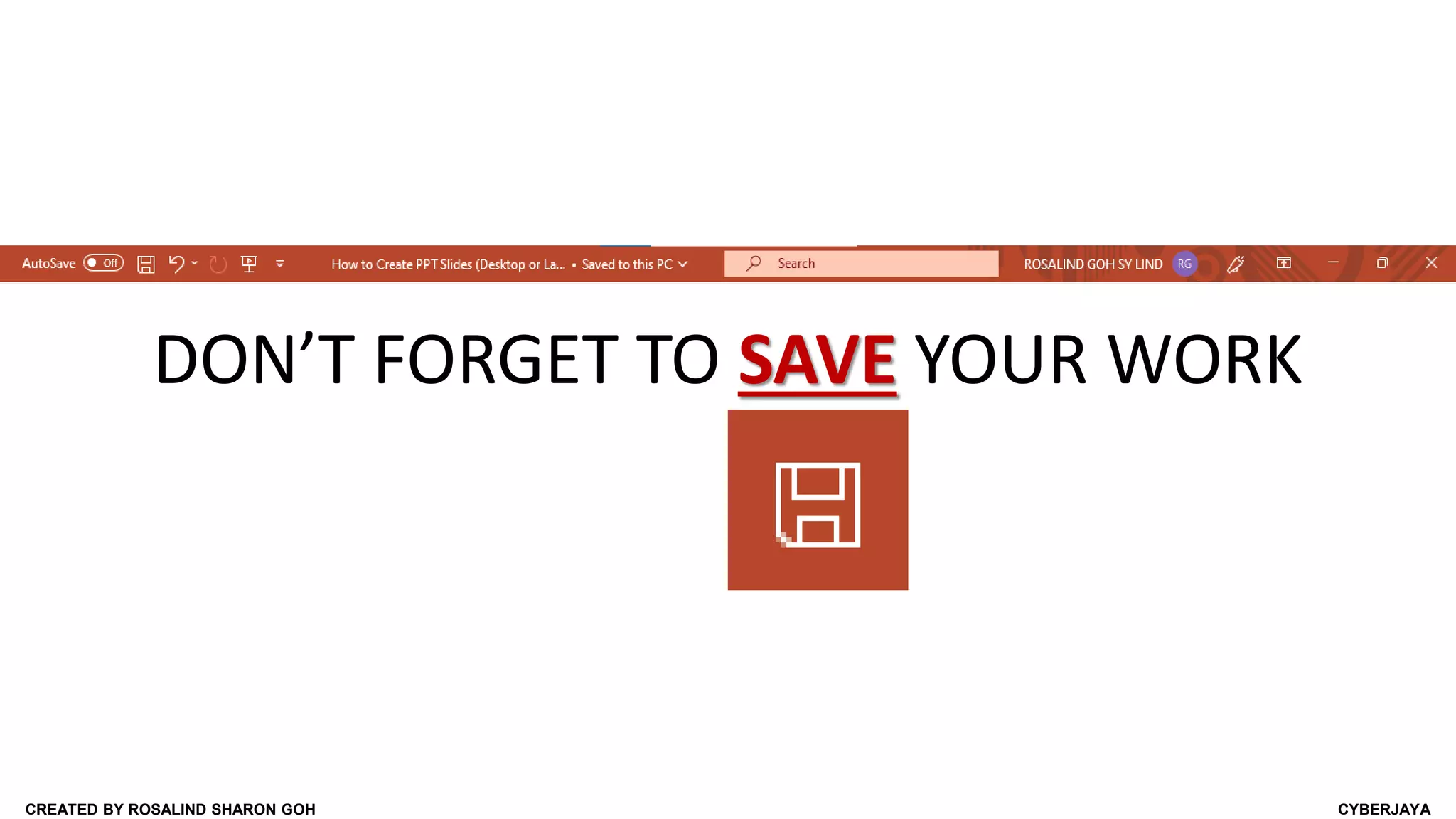
DON’T FORGET TO SAVE YOUR WORK

How to Create PPT Slides (Desktop or Laptop).pptx

  • 1.
    PowerPoint Presentation for Beginners onDesktop or Laptop An easy-to-follow tutorial for beginners on making a presentation in PowerPoint CREATED BY ROSALIND SHARON GOH CYBERJAYA
  • 2.
    CREATED BY ROSALINDSHARON GOH CYBERJAYA 1. Select (left-click) the Windows icon, go to “Search” (the white-rectangular box) and type “PowerPoint”. 2. Select (left-click) “PowerPoint” app.
  • 3.
    CREATED BY ROSALINDSHARON GOH CYBERJAYA 1. Select (left-click) a “Blank Presentation” to start with a new presentation (with no colour or design). Or… 2. Select (left-click) the “More themes ” (on the right) to choose for more designs.
  • 4.
    CREATED BY ROSALINDSHARON GOH CYBERJAYA 1. Select (left-click) the “QuickStarter” (Start an outline) templates to quickly generate an outline for your slide. Or… 2. Select (left-click) any of the templates below to use as your presentation.
  • 5.
    CREATED BY ROSALINDSHARON GOH CYBERJAYA 1. After selecting a template, type a topic (e.g., “Anxiety”) for this app to help you search for a suitable content outline. *YOU MUST BE CONNECTED TO THE INTERNET*
  • 6.
    CREATED BY ROSALINDSHARON GOH CYBERJAYA 1. Select (left-click) on your preferred result and left-click “Next”.
  • 7.
    CREATED BY ROSALINDSHARON GOH CYBERJAYA 1. Select (left-click) on your preferred result and left-click “Next”.
  • 8.
    CREATED BY ROSALINDSHARON GOH CYBERJAYA 1. Select (left-click) on your preferred design and left-click “Next”.
  • 9.
    CREATED BY ROSALINDSHARON GOH CYBERJAYA 1. Your PowerPoint Slide for your topic has been created. 2. The 1st slide explains where you can search for the related topics to include to your presentation.
  • 10.
    CREATED BY ROSALINDSHARON GOH CYBERJAYA 1. The 2nd slide suggests a list of sub-topic which you can present. 2. You may edit the list according to your preference.
  • 11.
    CREATED BY ROSALINDSHARON GOH CYBERJAYA 1. This is your cover page for your presentation. 2. You may edit the font colour, type, and size. 3. You may also include additional text.
  • 12.
    CREATED BY ROSALINDSHARON GOH CYBERJAYA 1. This is your content page for your presentation. 2. You may edit the font colour, type, and size. 3. You may also edit the sub-topics here in accordance with your content.
  • 13.
    CREATED BY ROSALINDSHARON GOH CYBERJAYA 1. You may edit the title for this page to suit your presentation content.
  • 14.
    CREATED BY ROSALINDSHARON GOH CYBERJAYA 1. You may edit the words for this page to suit your presentation content.
  • 15.
    CREATED BY ROSALINDSHARON GOH CYBERJAYA 1. This is the final slide for your presentation. 2. This is where you include the links to the references you use for your content. 3. “Copy” and “Paste” them here.
  • 16.
    CREATED BY ROSALINDSHARON GOH CYBERJAYA DON’T FORGET TO SAVE YOUR WORK