Presentation 
Making Guidelines 
Key Points of Making Presentations 
Doncho Minkov 
Telerik Corporation 
www.telerik.com
Table of Contents 
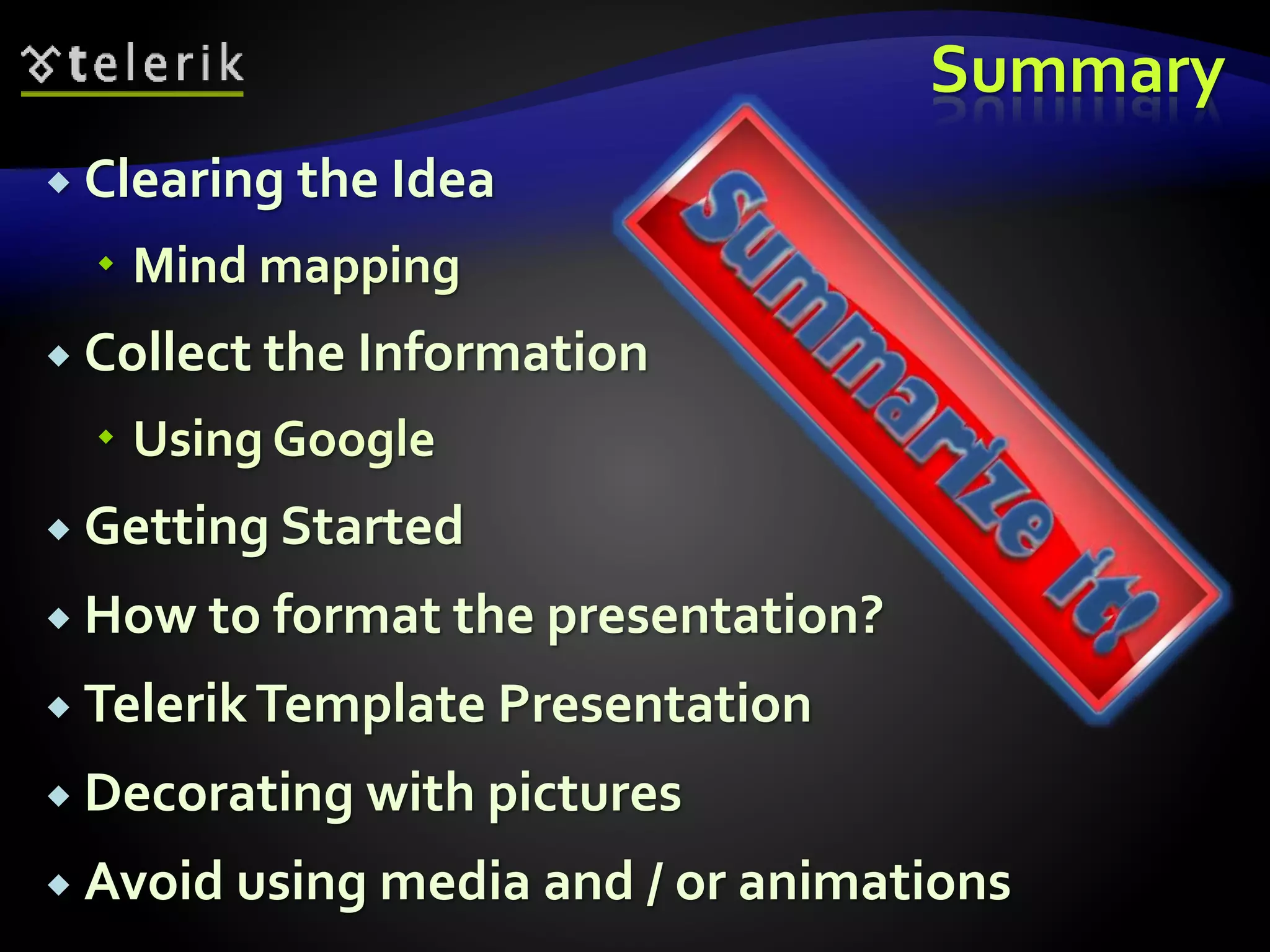
 Clearing the Idea 
 Collect the Information 
 Getting Started 
 Formatting the Content 
 Styling the Content 
 Telerik Template Presentation 
 Final Touches 
 What to Avoid in a Presentation?
Clearing the Idea 
What to include? What to exclude?
Clearing the Idea 
 The first thing to do when starting to build a 
presentation is to clear the idea 
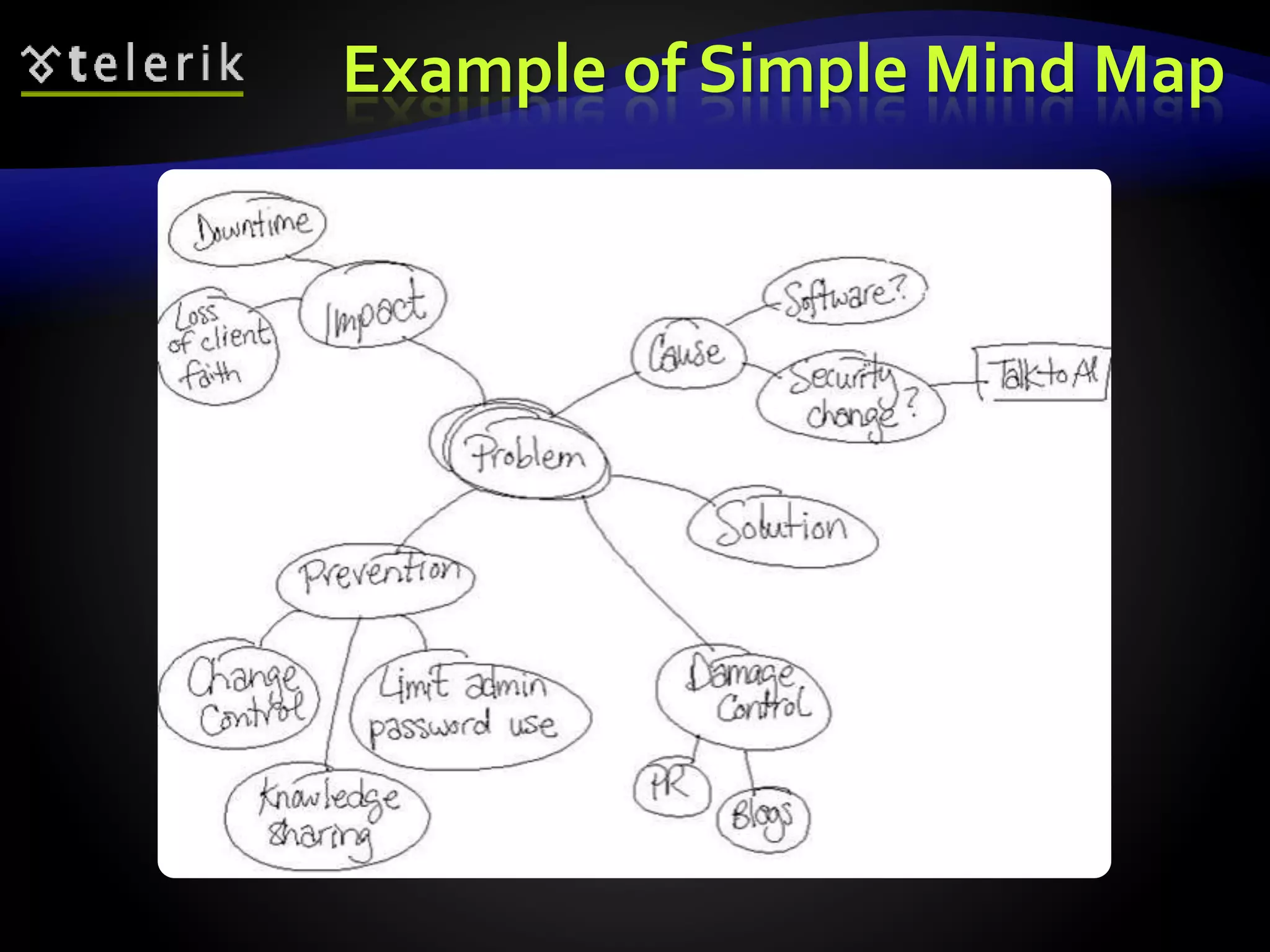
 Might be done using mind mappings 
 I.e. draw a circle and write inside the name of 
the presentation 
 Then start drawing around the main circle 
everything that comes to your mind and is 
somehow connected to the subject 
 After finishing with that get the most important 
things and do the same with them, etc.
Clearing the Idea 
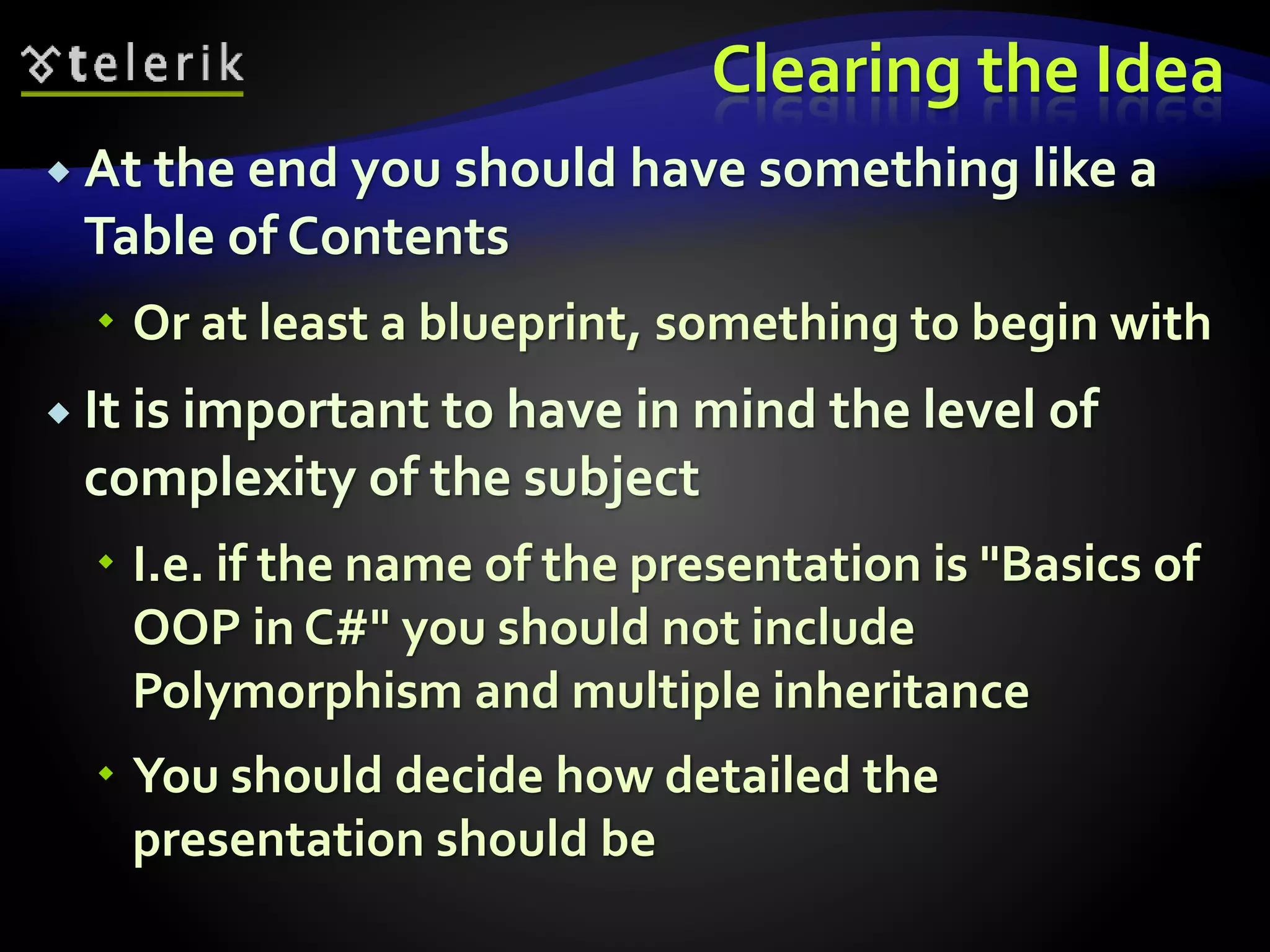
 At the end you should have something like a 
Table of Contents 
 Or at least a blueprint, something to begin with 
 It is important to have in mind the level of 
complexity of the subject 
 I.e. if the name of the presentation is "Basics of 
OOP in C#" you should not include 
Polymorphism and multiple inheritance 
 You should decide how detailed the 
presentation should be
Example of Simple Mind Map
Clearing the Idea 
Live Demo
Collecting the Information
Collecting the Information 
 Once you have a sample Table of Contents you 
should start to collect the information 
 How to do that? 
 The answer is simple: googling 
 Google is the perfect way to collect materials 
 Google is full of tutorials and already done 
presentations 
 Do not copy the presentations, just use them as 
source 
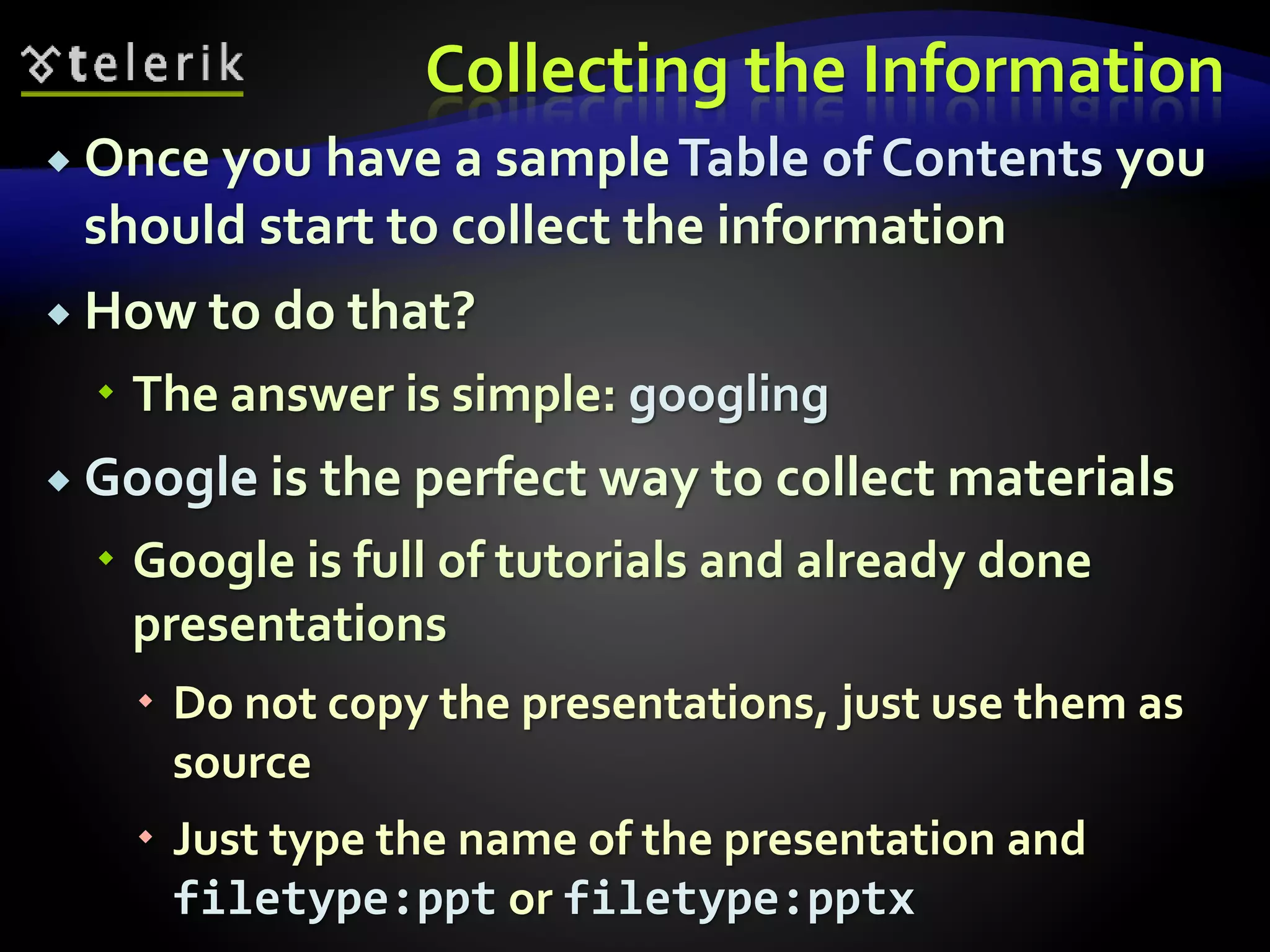
 Just type the name of the presentation and 
filetype:ppt or filetype:pptx
Collecting the 
Information 
Live Demo
Getting Started
Getting Started 
 Now you have some materials on hand 
 But sometimes it is not enough 
 It is better to start making the presentation on 
your own and later on seek for help 
 You should make sure that your presentations 
are well structured and organized 
 Not a random list of bullet points with no 
logical order
Formatting the Content 
What and how to format the information
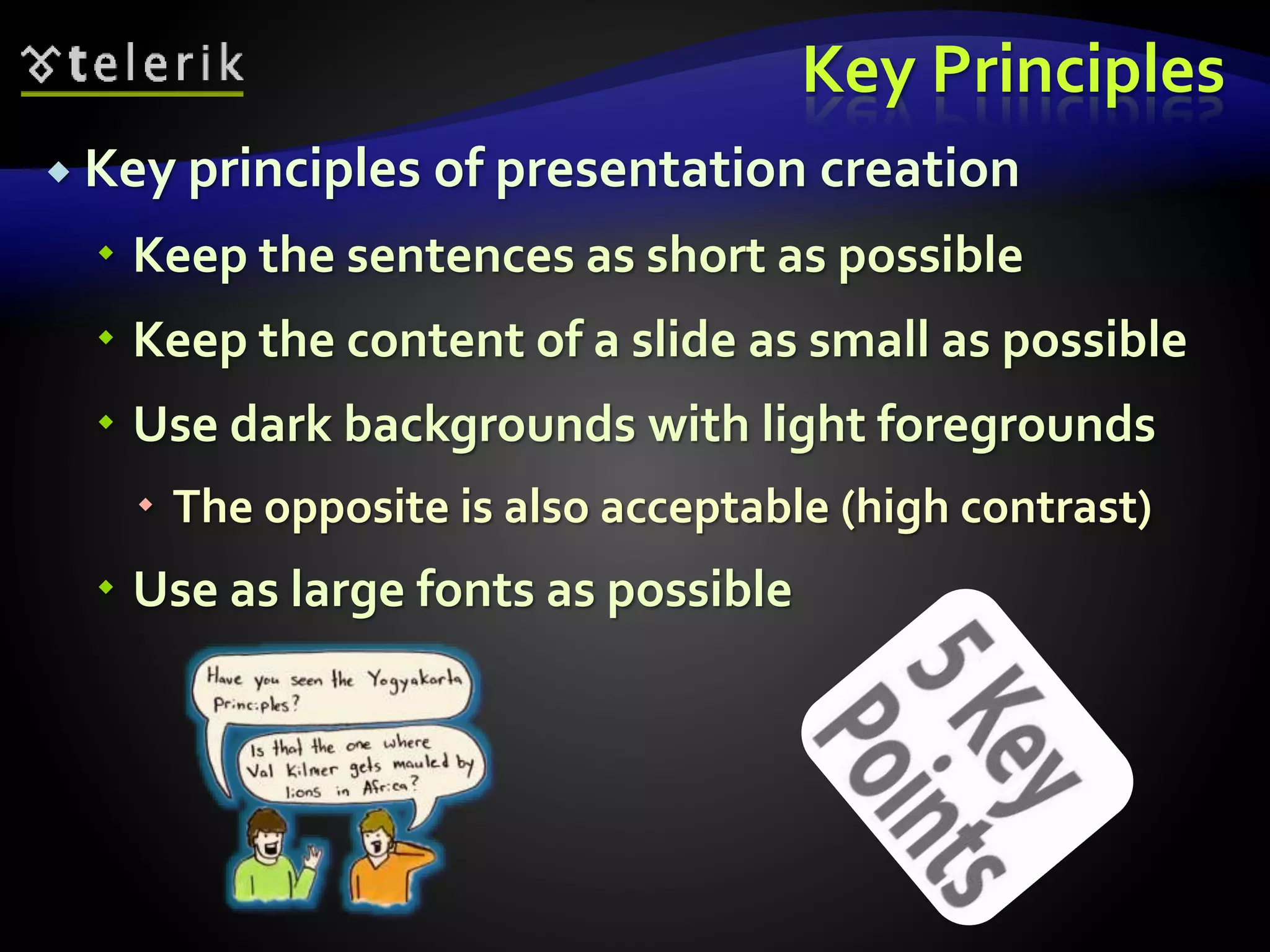
Key Principles 
 Key principles of presentation creation 
 Keep the sentences as short as possible 
 Keep the content of a slide as small as possible 
 Use dark backgrounds with light foregrounds 
 The opposite is also acceptable (high contrast) 
 Use as large fonts as possible
What to Include in the 
Presentation? 
 Keep the content in the presentation small 
 The presentation serves to point the most 
important aspects of the topic 
 There will be a trainer to explain the details 
 If all the information is on the slides what is 
the point of having a trainer? 
 Or the point of having this presentation? 
 Better email the presentation
Example of Bad Presentation 
Hello! My name is Doncho Minkov and today we 
will talk about HTML Fundamentals. We will see 
the basics of the Hyper-Text-Markup Language 
and will explain what is a tag in HTML, the parts 
of a HTML document, and some of the tags…. 
<a> this is the tag 'a'. 'a' comes from anchor and 
this tag is used for redirecting from one HTML 
document to another… 
bla bla bla
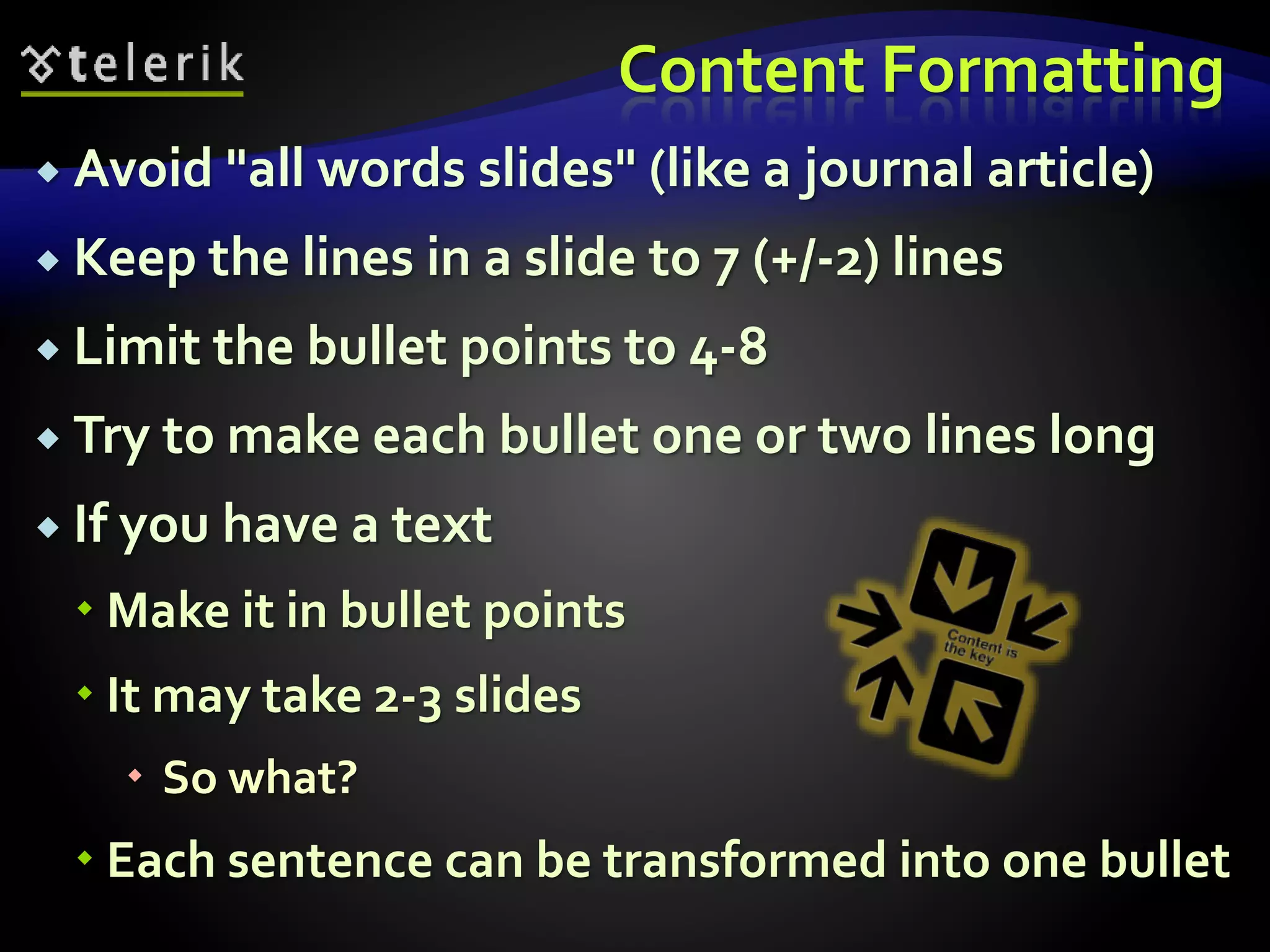
Content Formatting 
 Avoid "all words slides" (like a journal article) 
 Keep the lines in a slide to 7 (+/-2) lines 
 Limit the bullet points to 4-8 
 Try to make each bullet one or two lines long 
 If you have a text 
 Make it in bullet points 
 It may take 2-3 slides 
 So what? 
 Each sentence can be transformed into one bullet
Content Formatting (2) 
 When there is too much text on one slide the 
audience 
 Starts reading and does not listen to the trainer 
 Could fall asleep 
 It is easier for the trainer when there is less 
information on each slide 
 Less topics to cover on this slide 
 More concentrated in the slide
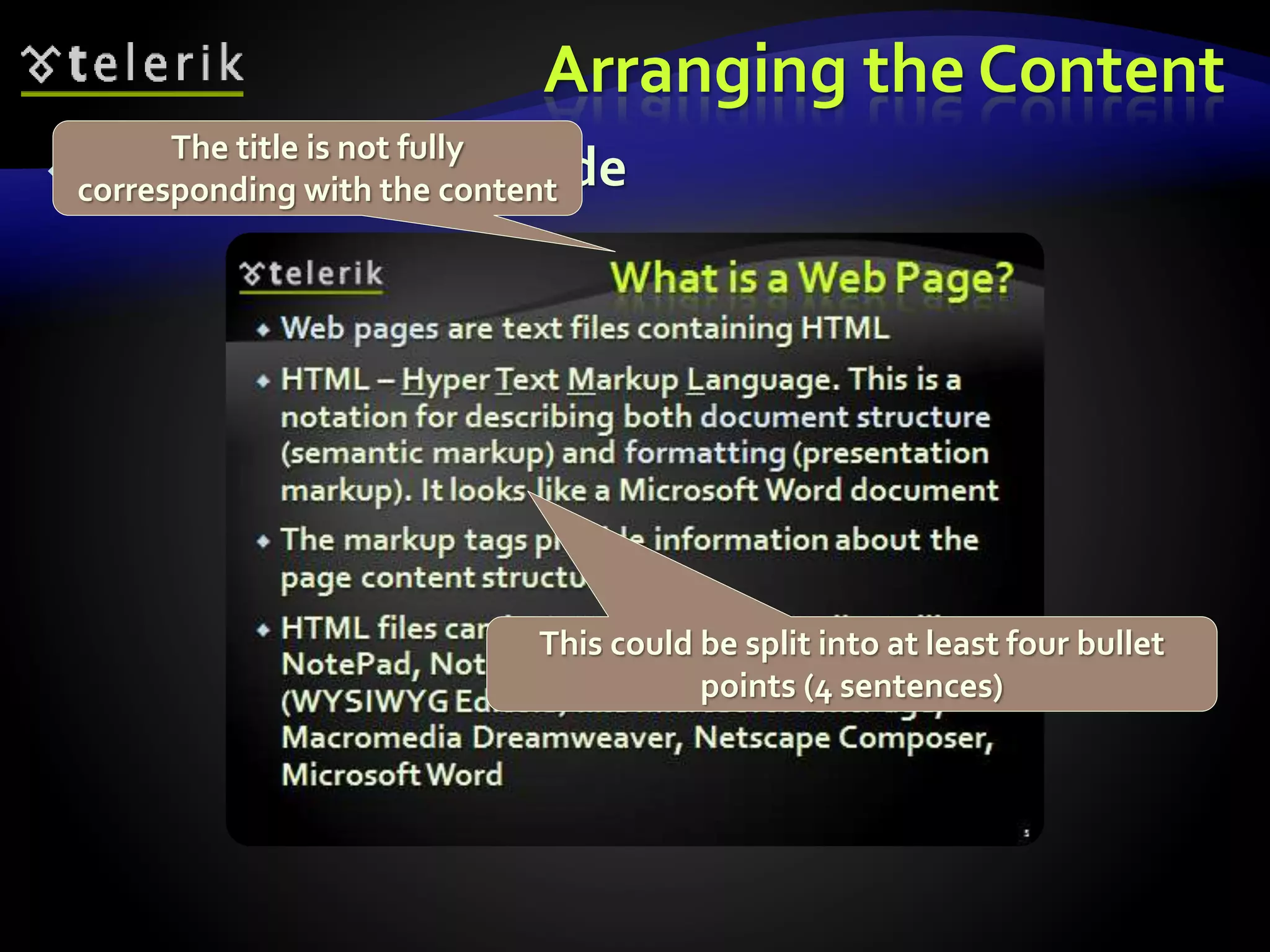
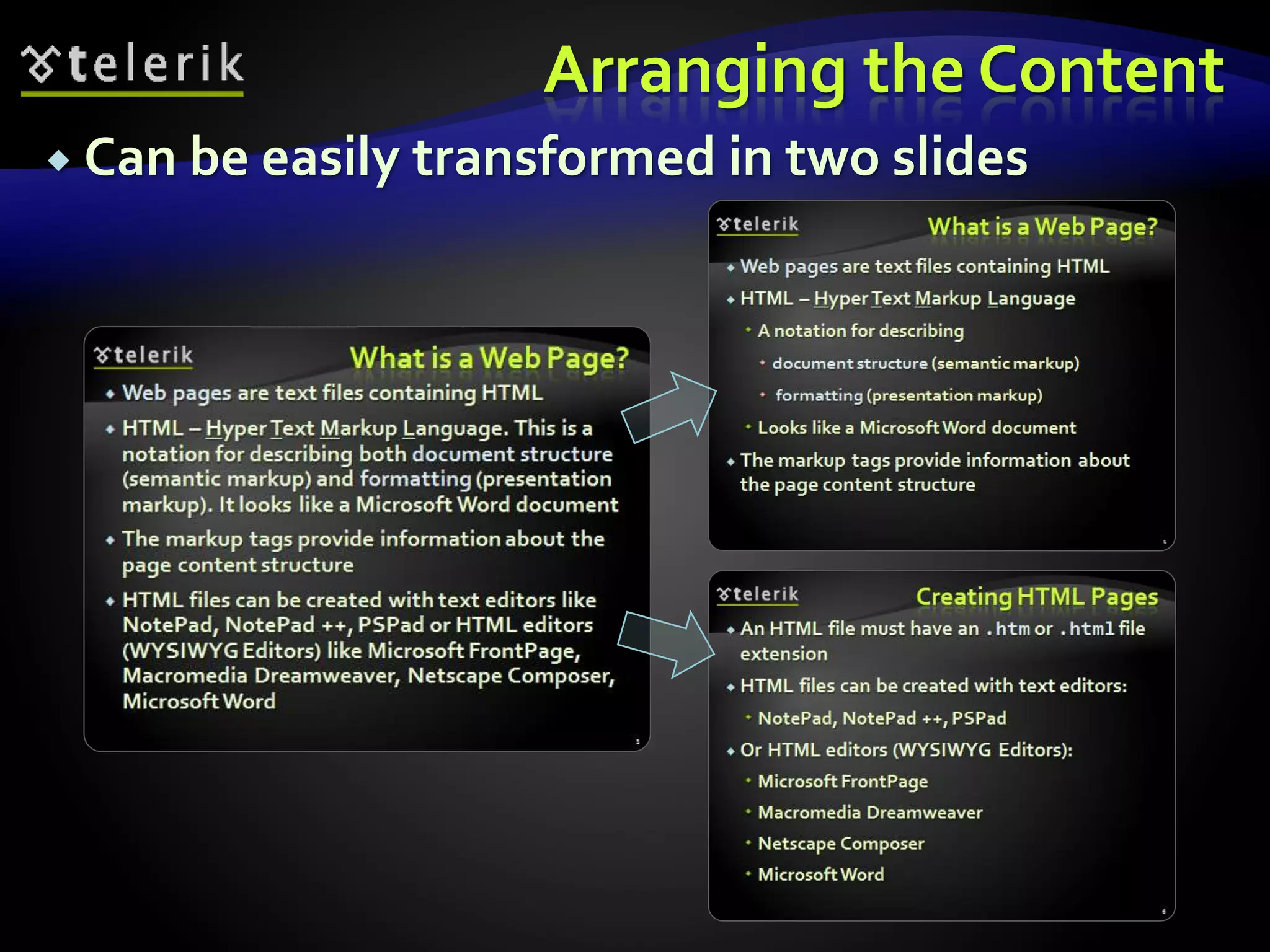
Arranging the Content 
 Example of a bad slide 
This could be split into at least four bullet 
points (4 sentences) 
The title is not fully 
corresponding with the content
Arranging the Content 
 Can be easily transformed in two slides
Formatting the Content 
Live Demo
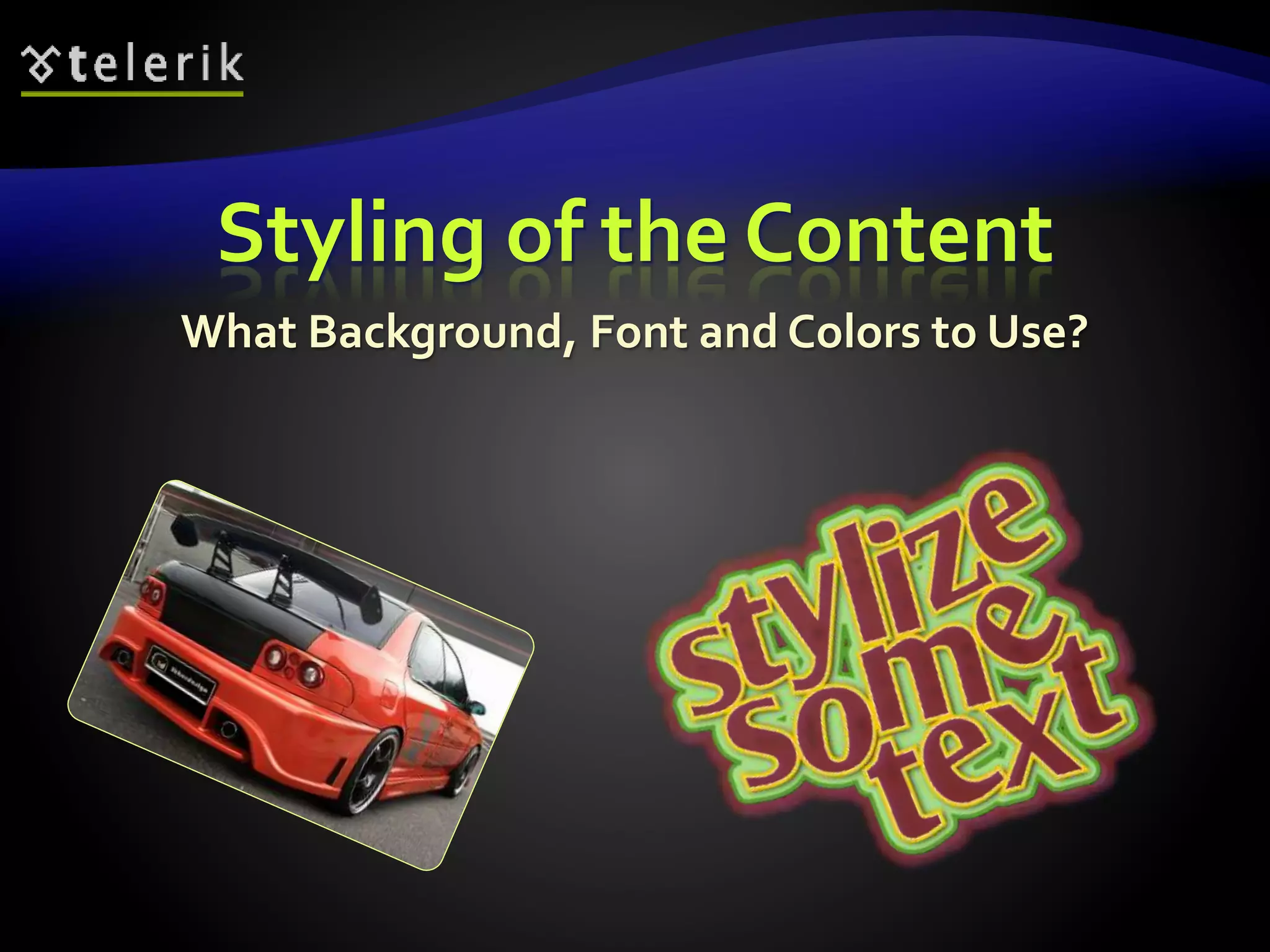
Styling of the Content 
What Background, Font and Colors to Use?
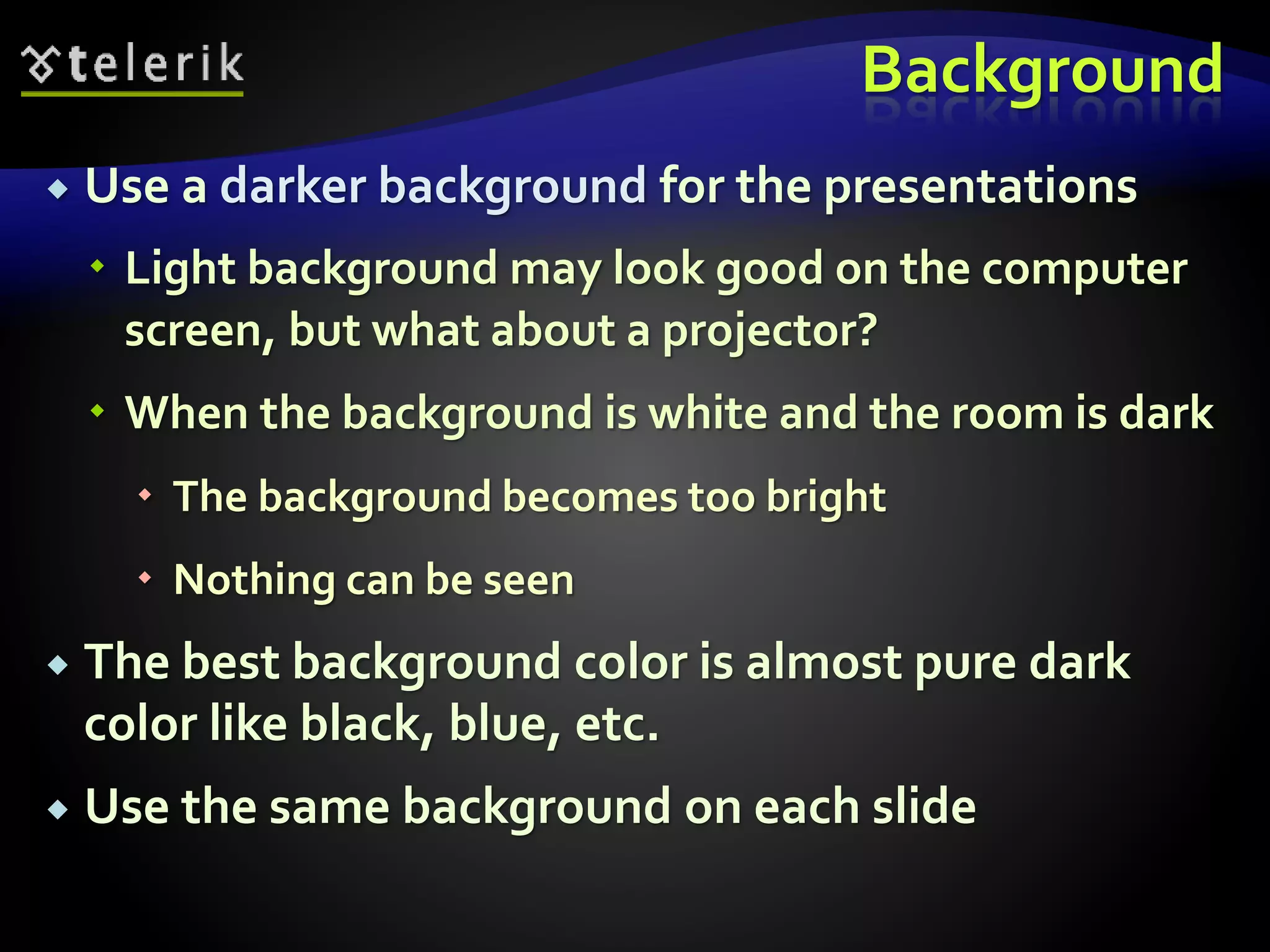
Background 
 Use a darker background for the presentations 
 Light background may look good on the computer 
screen, but what about a projector? 
 When the background is white and the room is dark 
 The background becomes too bright 
 Nothing can be seen 
 The best background color is almost pure dark 
color like black, blue, etc. 
 Use the same background on each slide
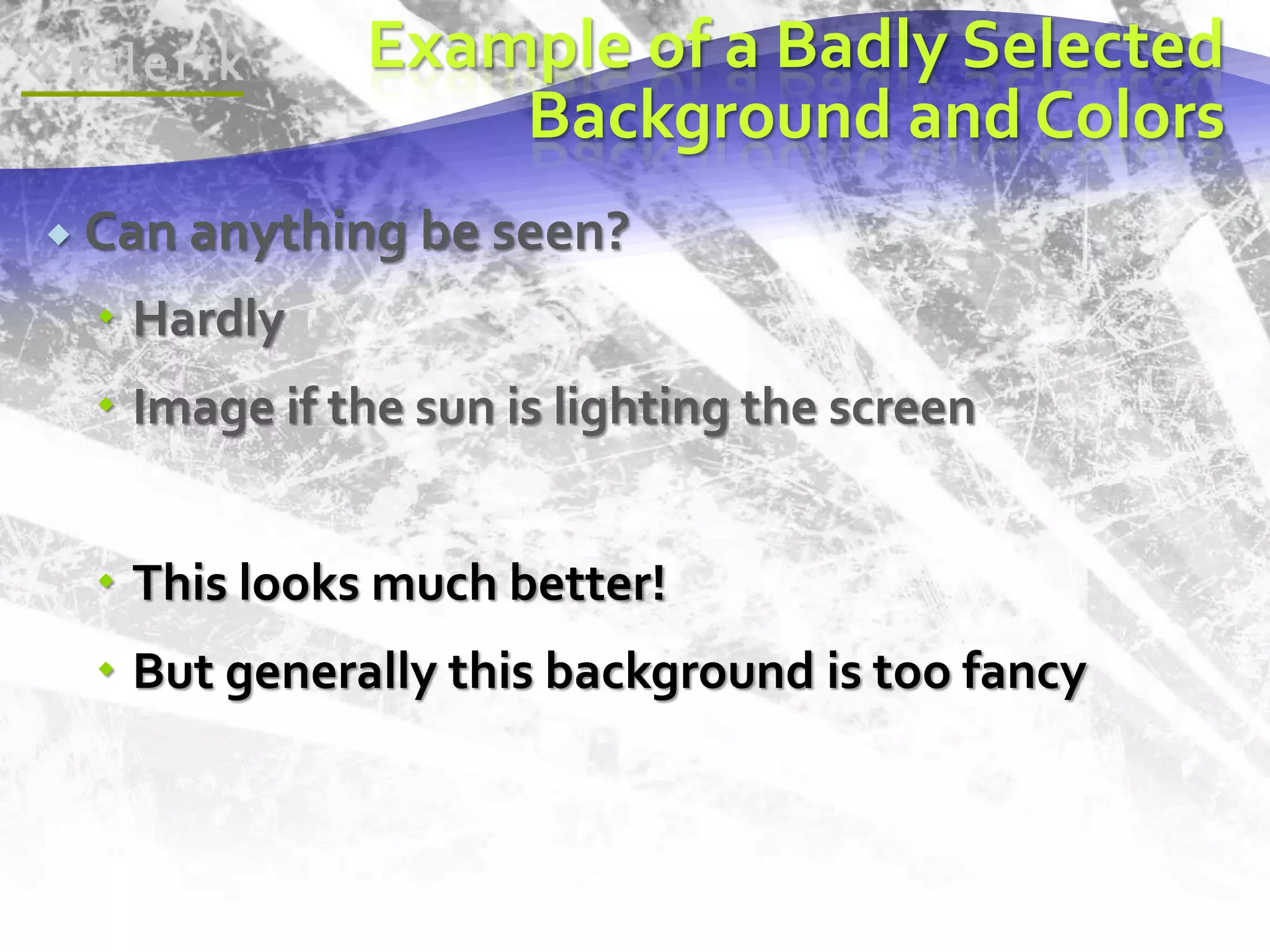
Example of a Badly Selected 
Background and Colors 
 Can anything be seen? 
 Hardly 
 Image if the sun is lighting the screen 
 This looks much better! 
 But generally this background is too fancy
Font 
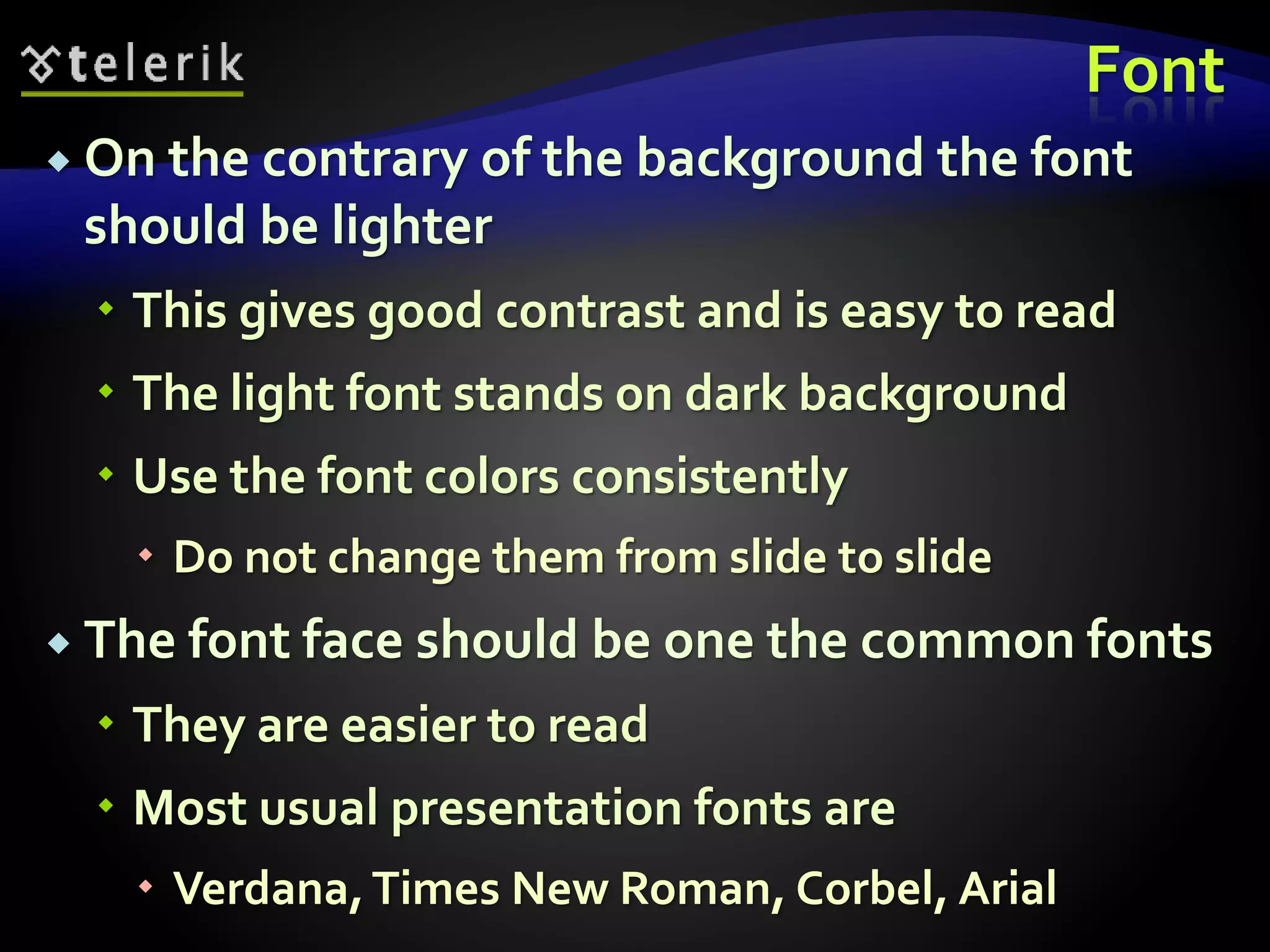
 On the contrary of the background the font 
should be lighter 
 This gives good contrast and is easy to read 
 The light font stands on dark background 
 Use the font colors consistently 
 Do not change them from slide to slide 
 The font face should be one the common fonts 
 They are easier to read 
 Most usual presentation fonts are 
 Verdana, Times New Roman, Corbel, Arial
Font (2) 
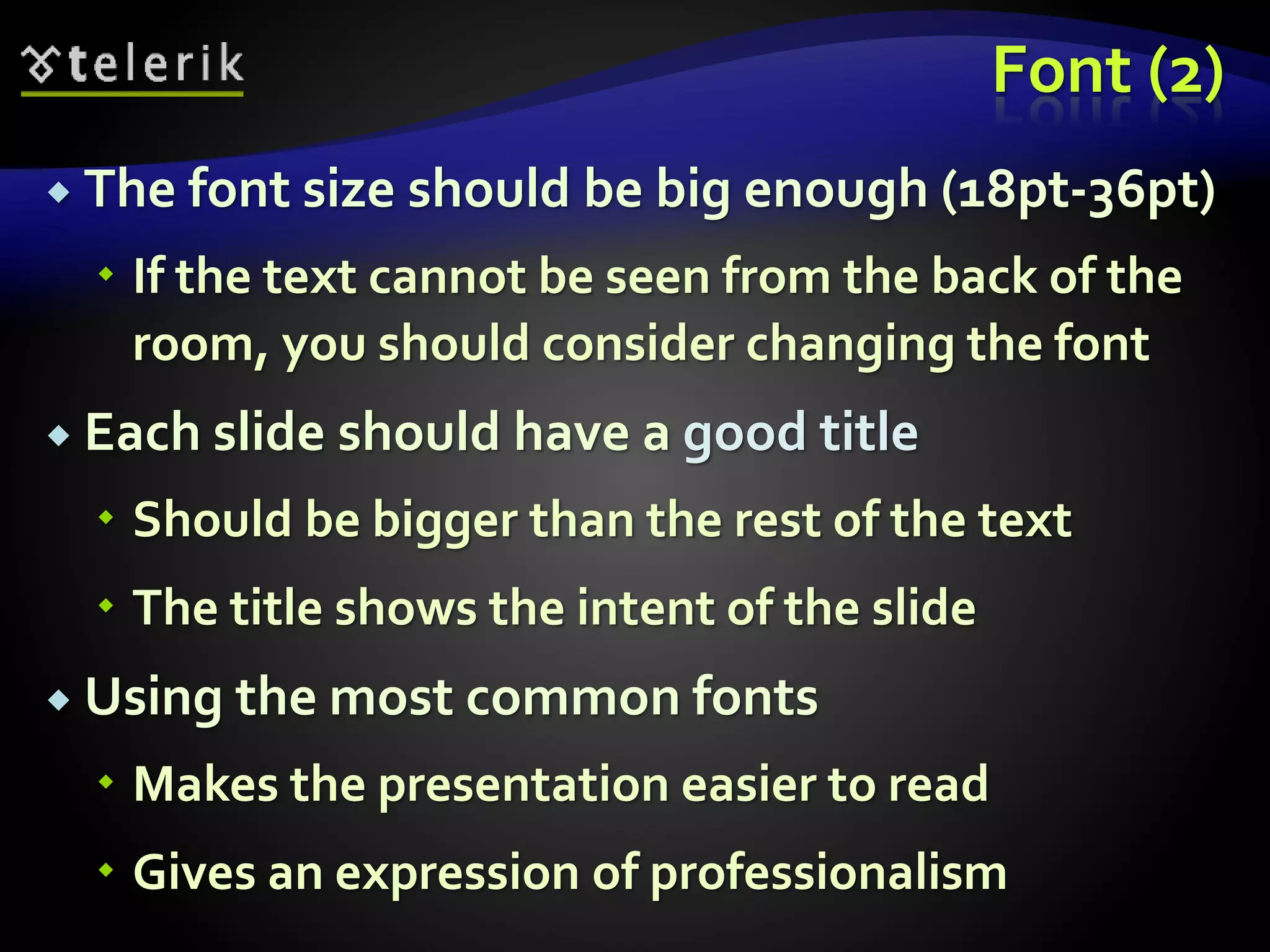
 The font size should be big enough (18pt-36pt) 
 If the text cannot be seen from the back of the 
room, you should consider changing the font 
 Each slide should have a good title 
 Should be bigger than the rest of the text 
 The title shows the intent of the slide 
 Using the most common fonts 
 Makes the presentation easier to read 
 Gives an expression of professionalism
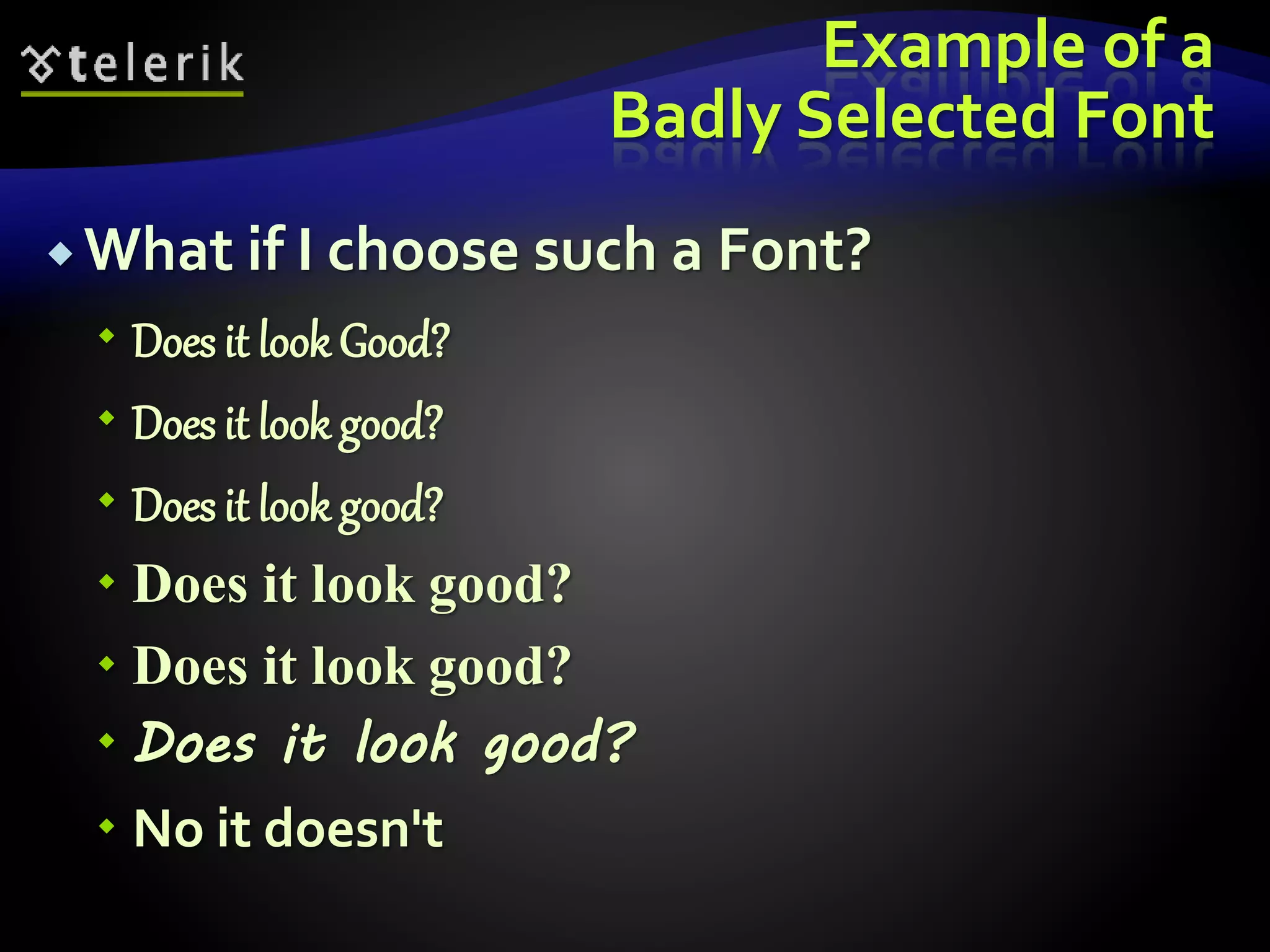
Example of a 
Badly Selected Font 
 What if I choose such a Font? 
 Does it look Good? 
 Does it look good? 
 No it doesn't
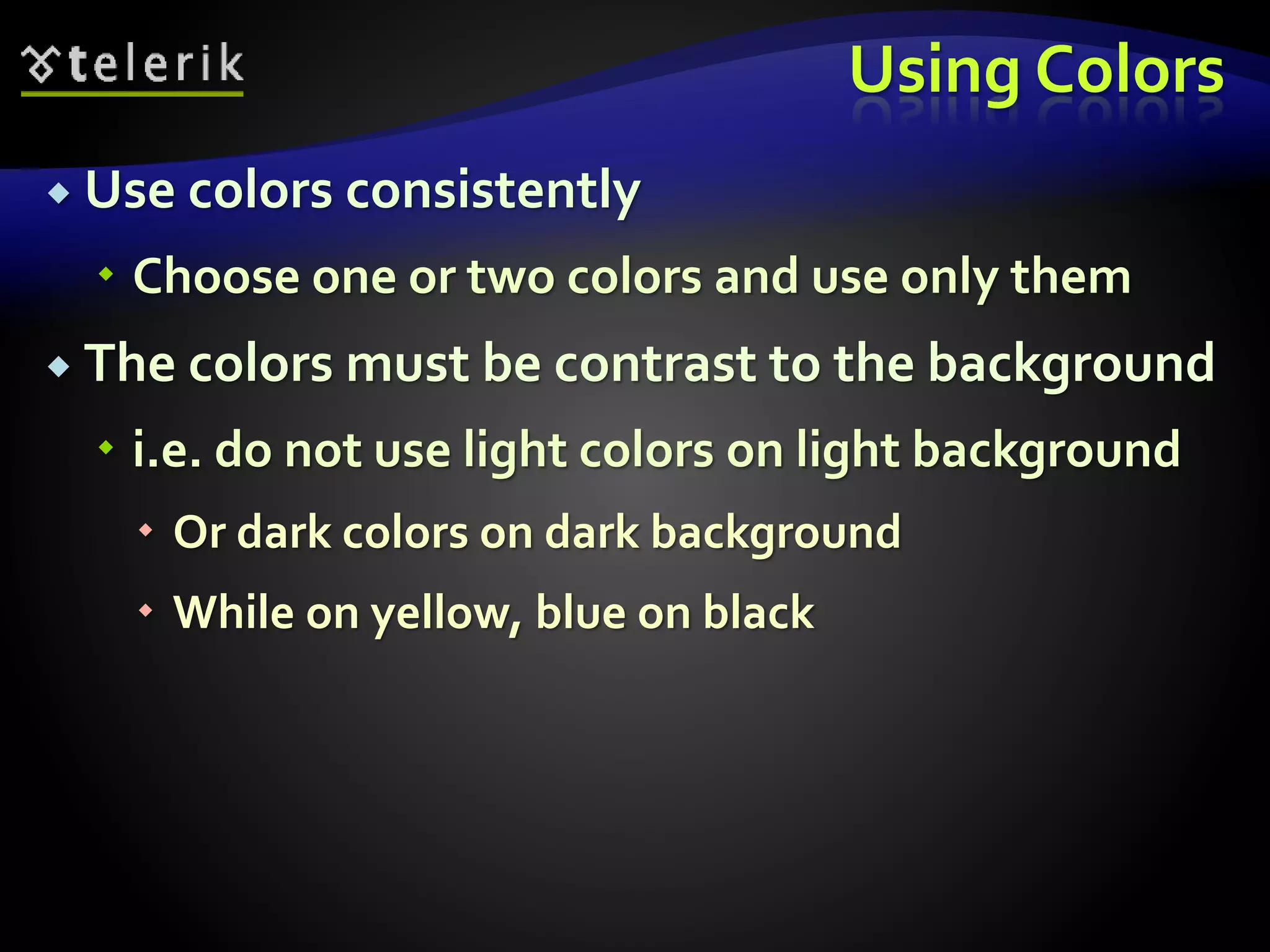
Using Colors 
 Use colors consistently 
 Choose one or two colors and use only them 
 The colors must be contrast to the background 
 i.e. do not use light colors on light background 
 Or dark colors on dark background 
 While on yellow, blue on black
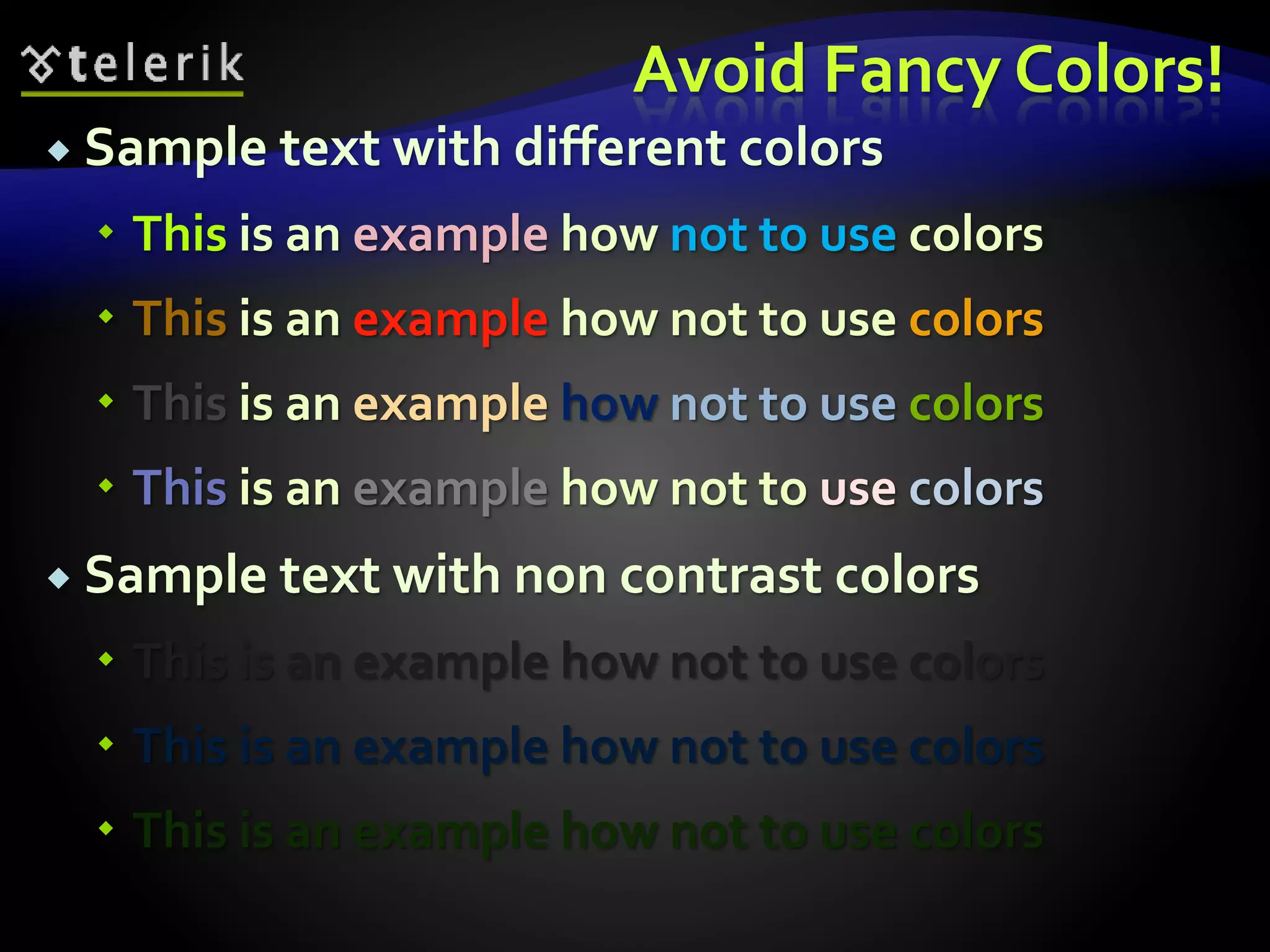
Avoid Fancy Colors! 
 Sample text with different colors 
 This is an example how not to use colors 
 Sample text with non contrast colors 
 This is an example how not to use colors 
 This is an example how not to use colors
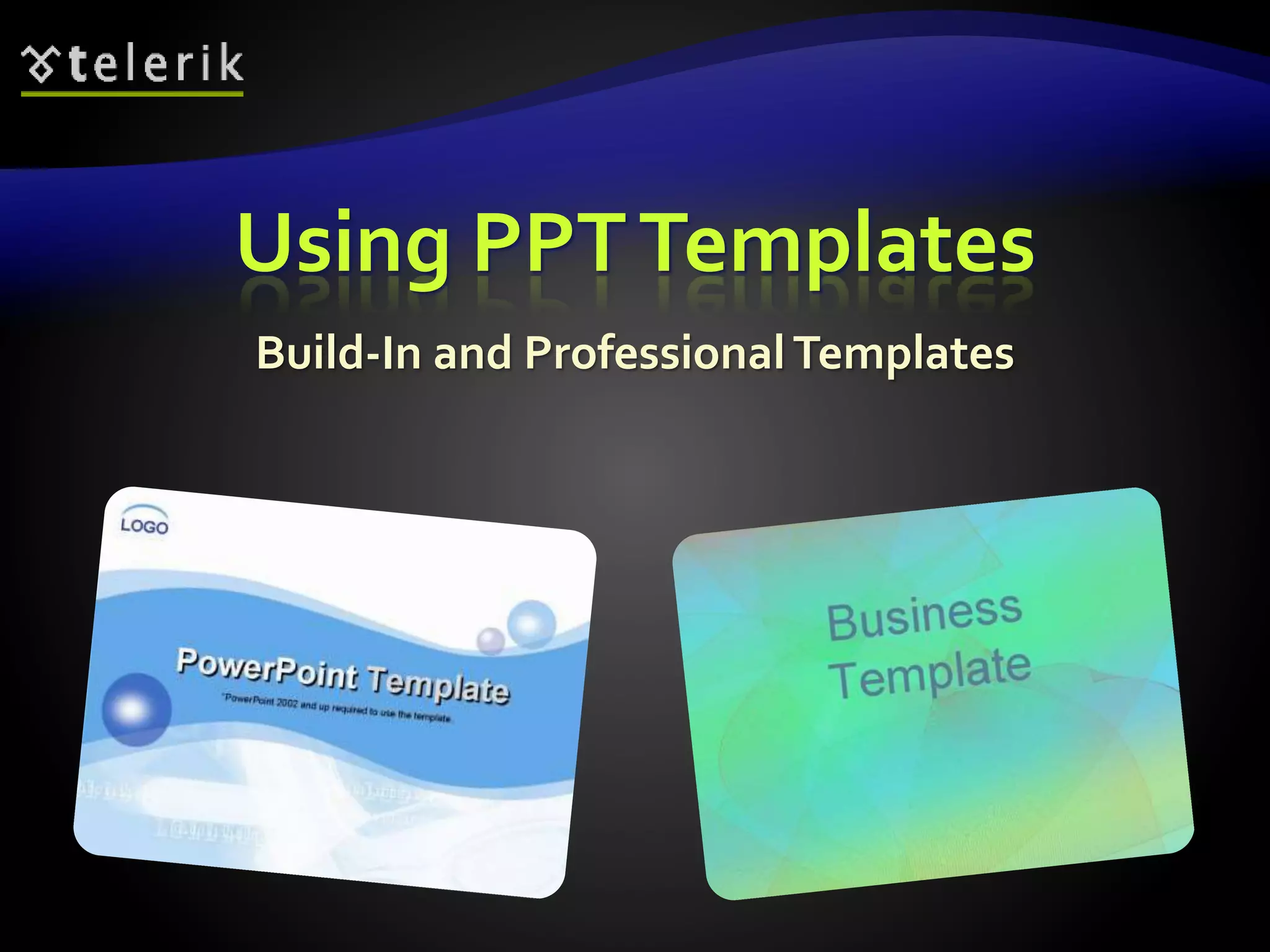
Using PPT Templates 
Build-In and Professional Templates
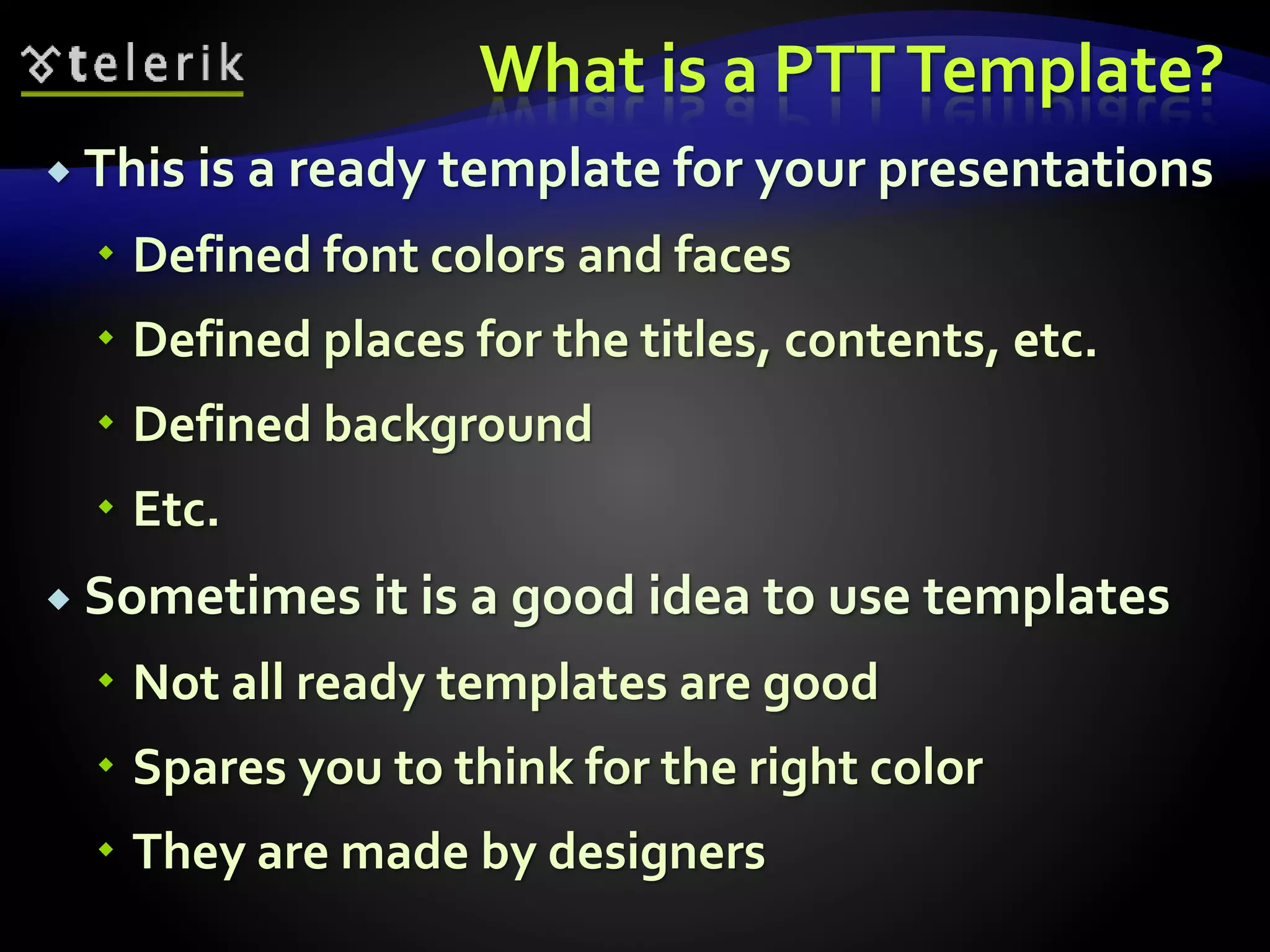
What is a PTT Template? 
 This is a ready template for your presentations 
 Defined font colors and faces 
 Defined places for the titles, contents, etc. 
 Defined background 
 Etc. 
 Sometimes it is a good idea to use templates 
 Not all ready templates are good 
 Spares you to think for the right color 
 They are made by designers
 There are some built-in templates 
 But can also be downloaded from the web 
 Examples of free PPT templates: 
 http://www.presentationpoint.com/powerpoint-templates/ 
 http://www.templateswise.com/
Styling of the Content 
Live Demo
Telerik Academy 
Template Presentation 
How to execute the rules upon 
Telerik Academy Presentations
Telerik Template Presentation 
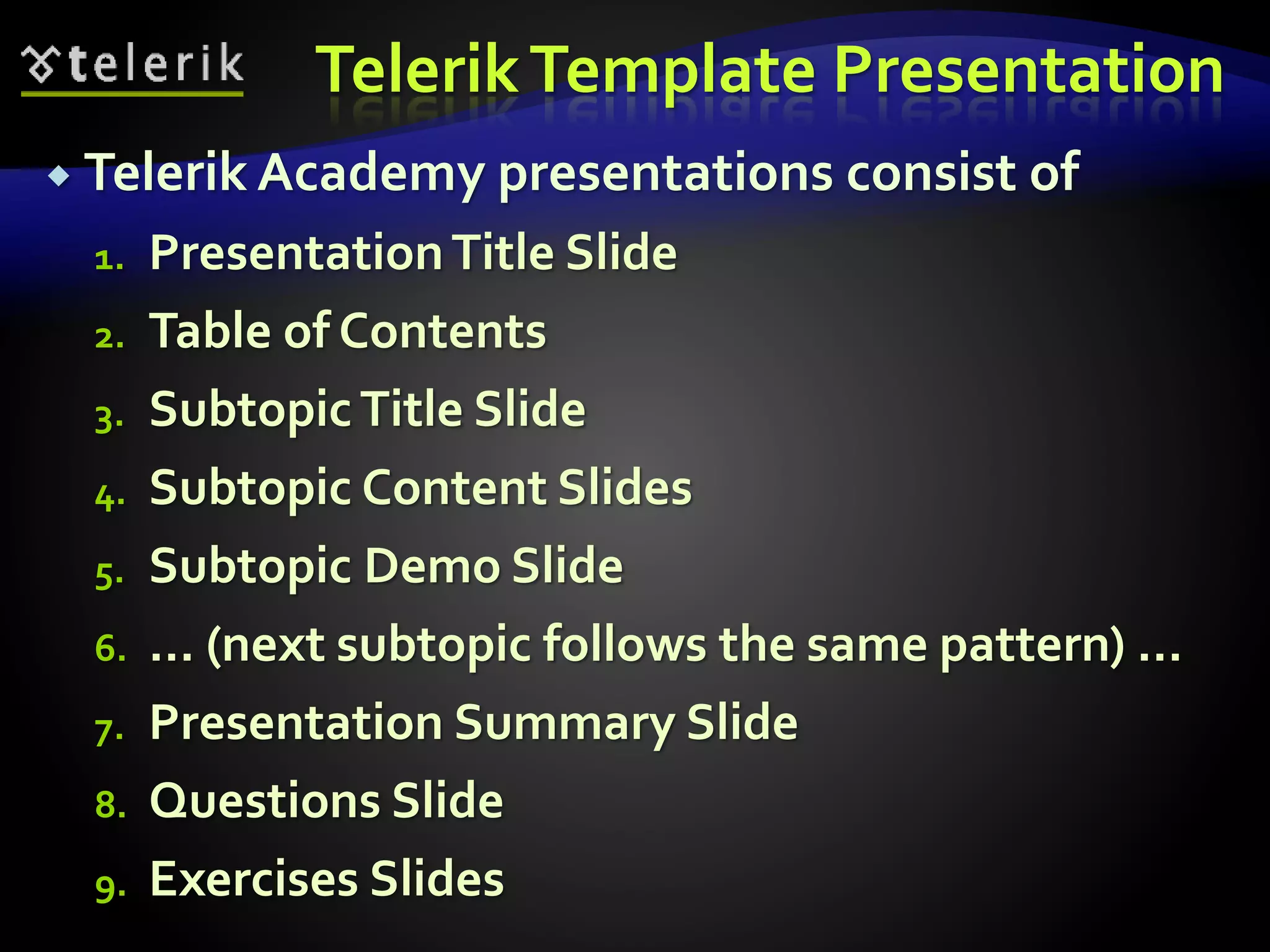
 Telerik Academy presentations consist of 
1. Presentation Title Slide 
2. Table of Contents 
3. Subtopic Title Slide 
4. Subtopic Content Slides 
5. Subtopic Demo Slide 
6. … (next subtopic follows the same pattern) … 
7. Presentation Summary Slide 
8. Questions Slide 
9. Exercises Slides
Telerik Template Presentation 
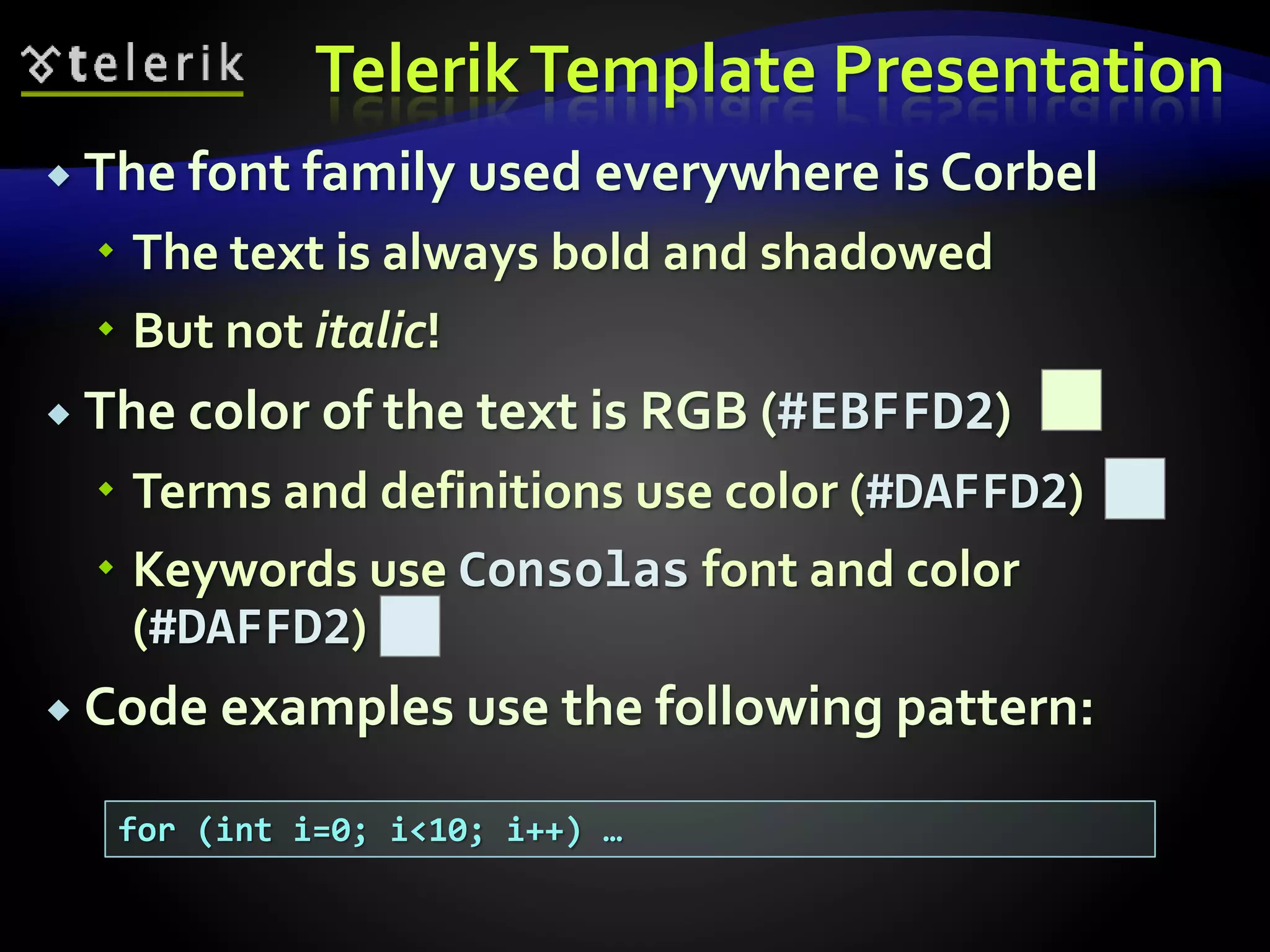
 The font family used everywhere is Corbel 
 The text is always bold and shadowed 
 But not italic! 
 The color of the text is RGB (#EBFFD2) 
 Terms and definitions use color (#DAFFD2) 
 Keywords use Consolas font and color 
(#DAFFD2) 
 Code examples use the following pattern: 
for (int i=0; i<10; i++) …
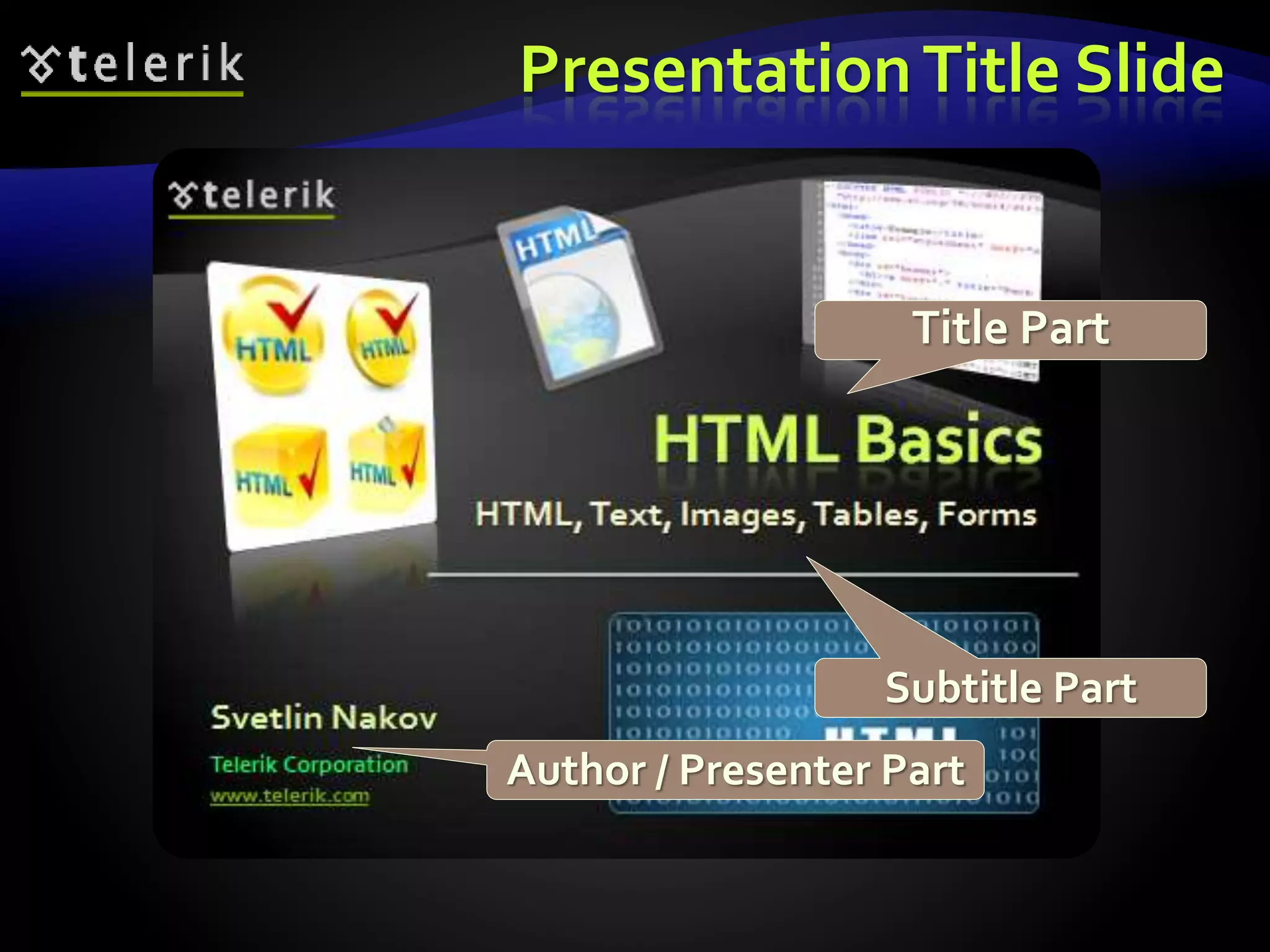
Presentation Title Slide 
Title Part 
Subtitle Part 
Author / Presenter Part
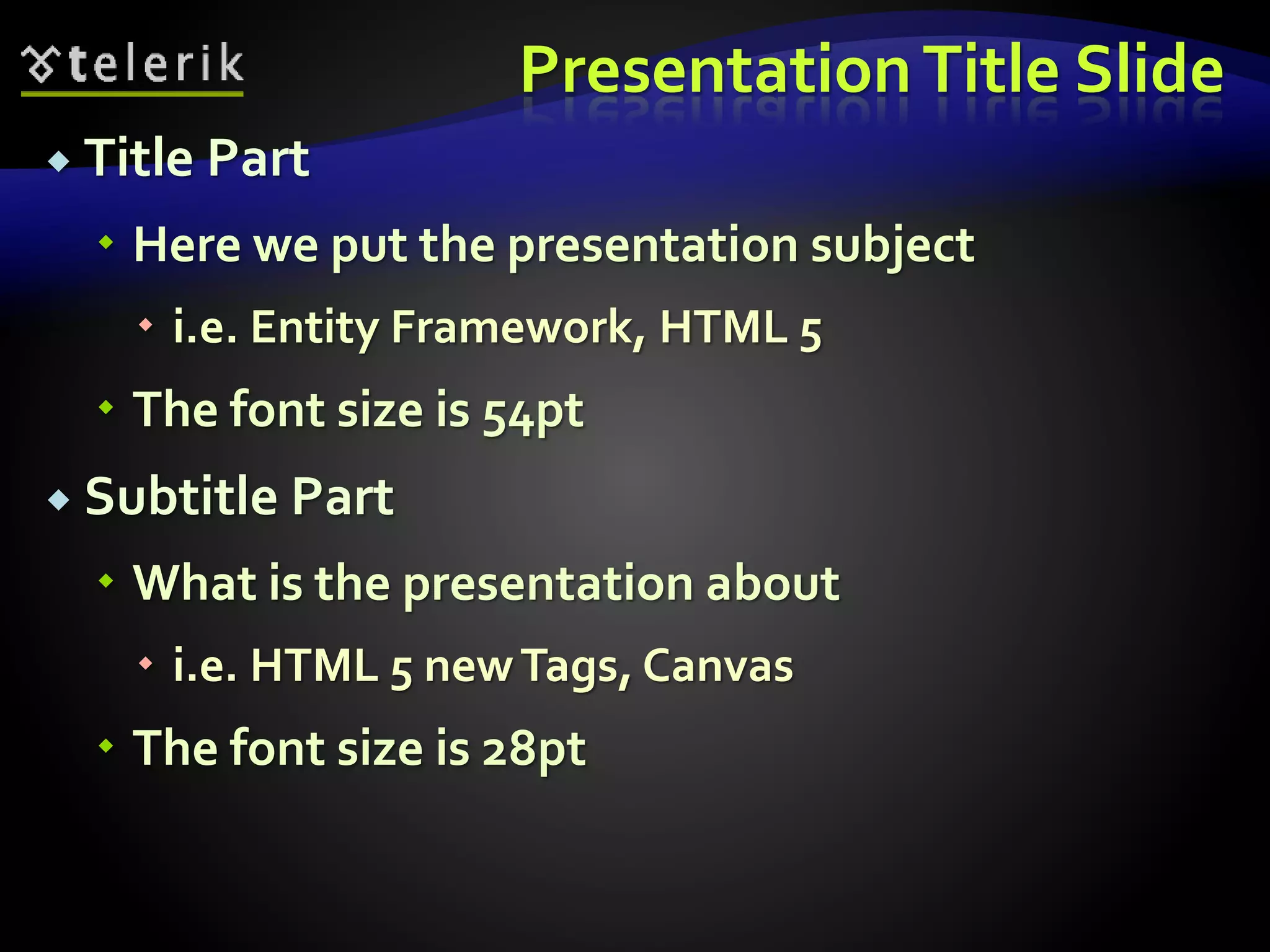
Presentation Title Slide 
 Title Part 
 Here we put the presentation subject 
 i.e. Entity Framework, HTML 5 
 The font size is 54pt 
 Subtitle Part 
 What is the presentation about 
 i.e. HTML 5 new Tags, Canvas 
 The font size is 28pt
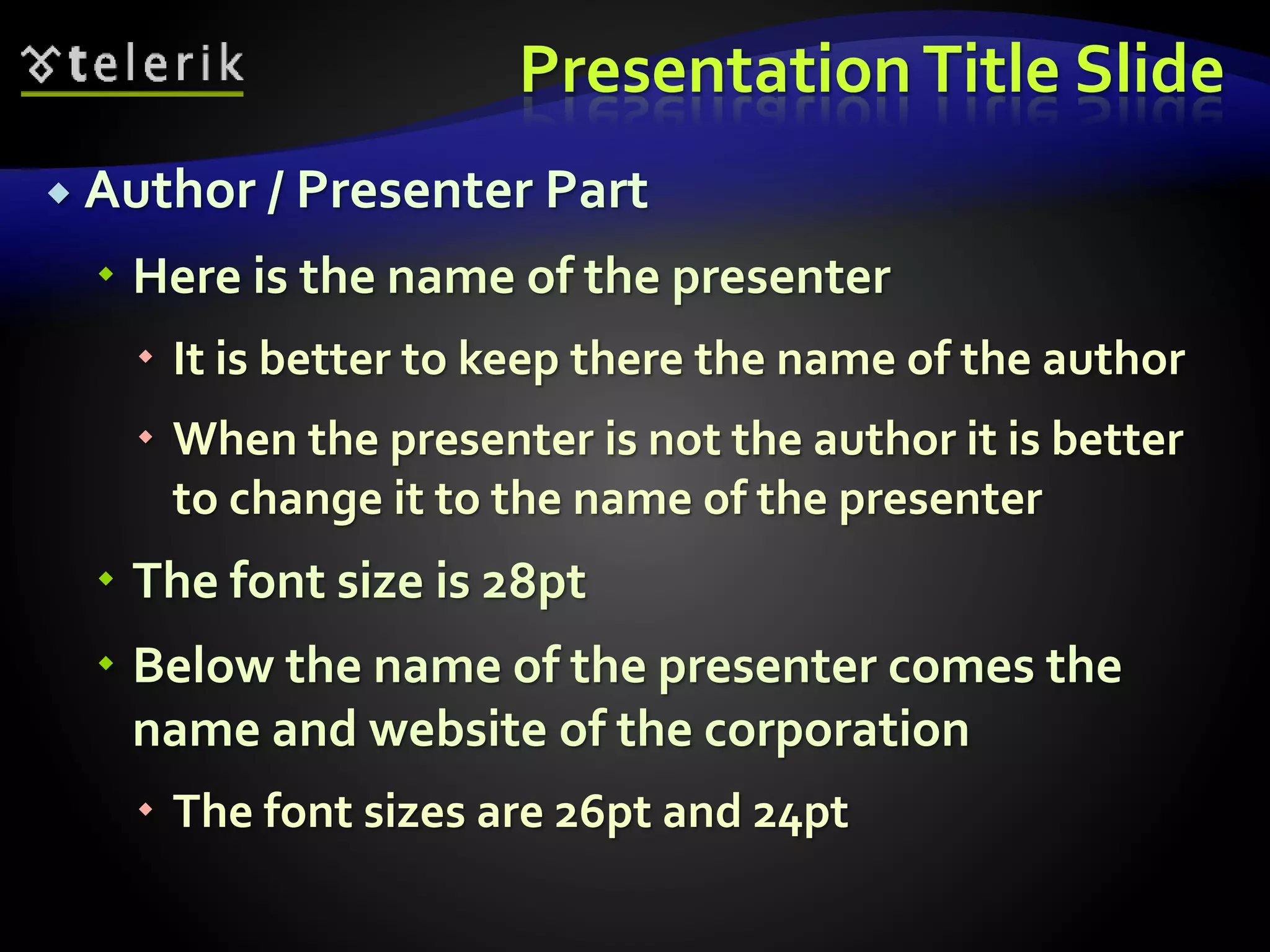
Presentation Title Slide 
 Author / Presenter Part 
 Here is the name of the presenter 
 It is better to keep there the name of the author 
 When the presenter is not the author it is better 
to change it to the name of the presenter 
 The font size is 28pt 
 Below the name of the presenter comes the 
name and website of the corporation 
 The font sizes are 26pt and 24pt
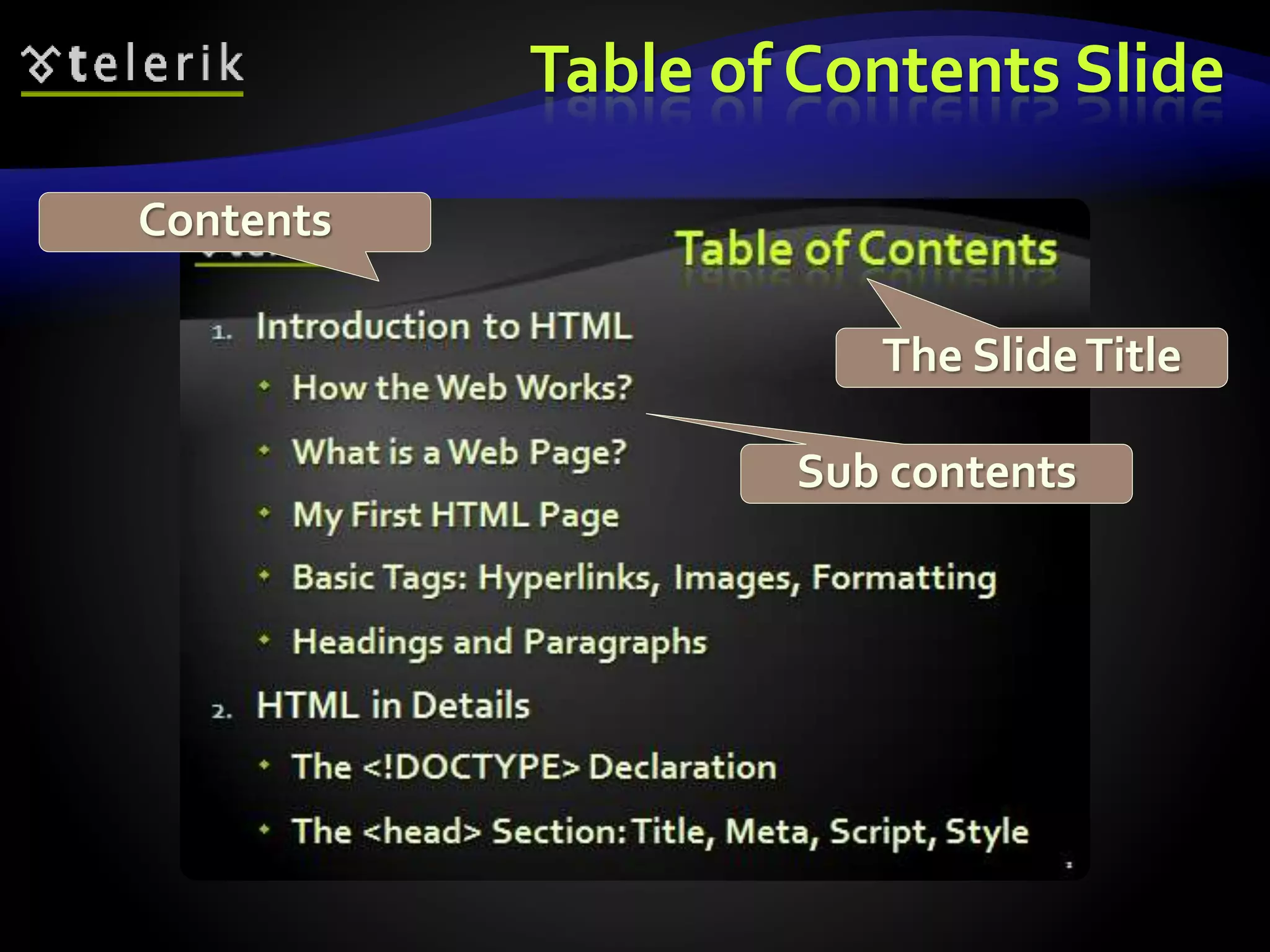
Table of Contents Slide 
The Slide Title 
Contents 
Sub contents
Table of Contents Slide (2) 
 The slide title part is always with font family 
Corbel with font size 40pt 
 Describes the slide contents 
 i.e. Anchor tag or Anchors in HTML, etc. 
 In the Table of Contents slide are listed the 
contents of the current presentation 
 i.e. which topics will be covered 
 The main list item is with size of 32pt 
 Each level below is decreased with 2pt 
 i.e. 30, 28, 26, etc.
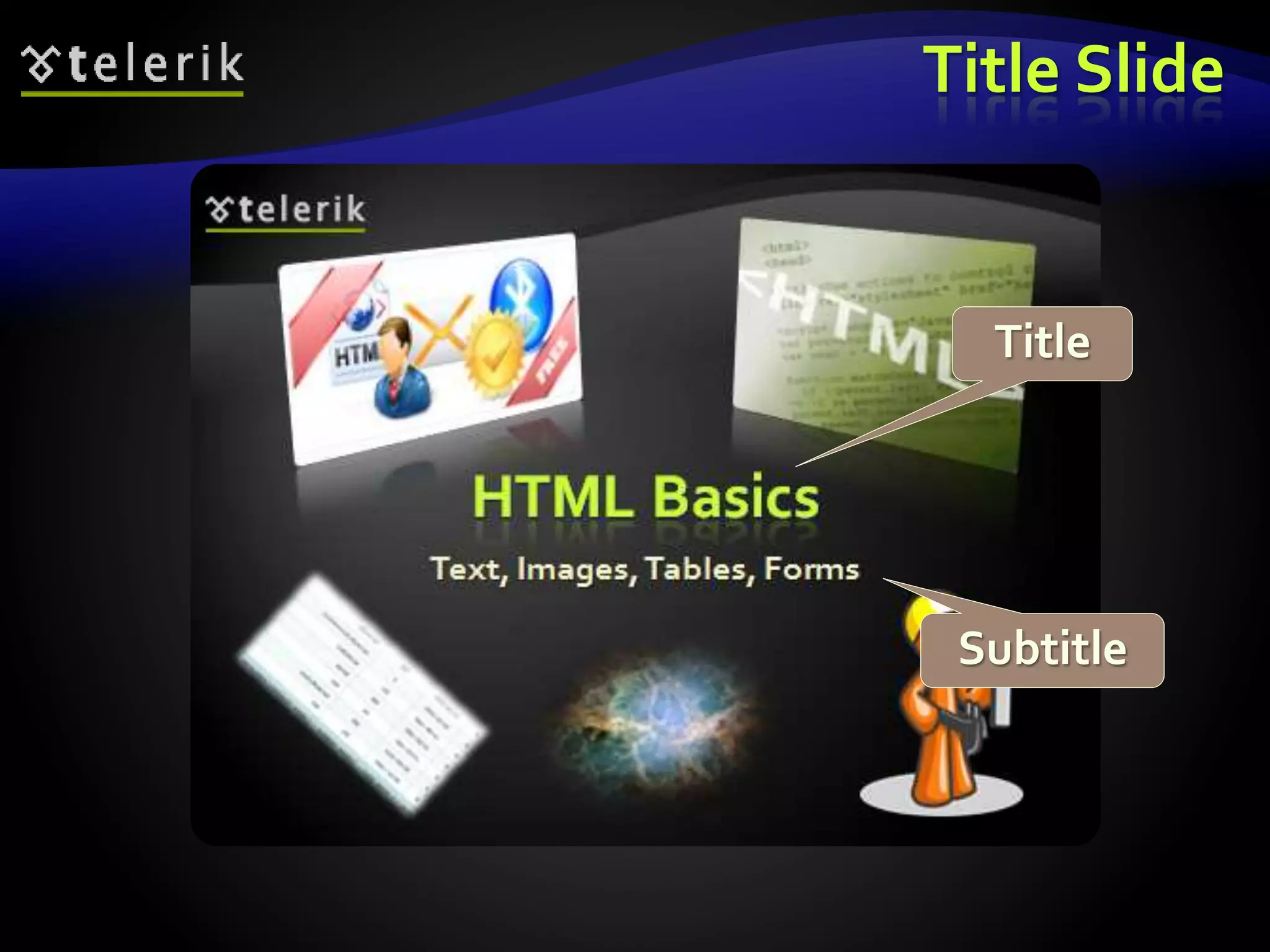
Title Slide 
Title 
Subtitle
Title Slide 
 The title slide is to show that a new part of the 
presentation is about to begin 
 i.e. HTML Basics 
 The subtitle points the most important parts 
of this title 
 i.e. Head and Body, HTML Tags, HTML 
Documents
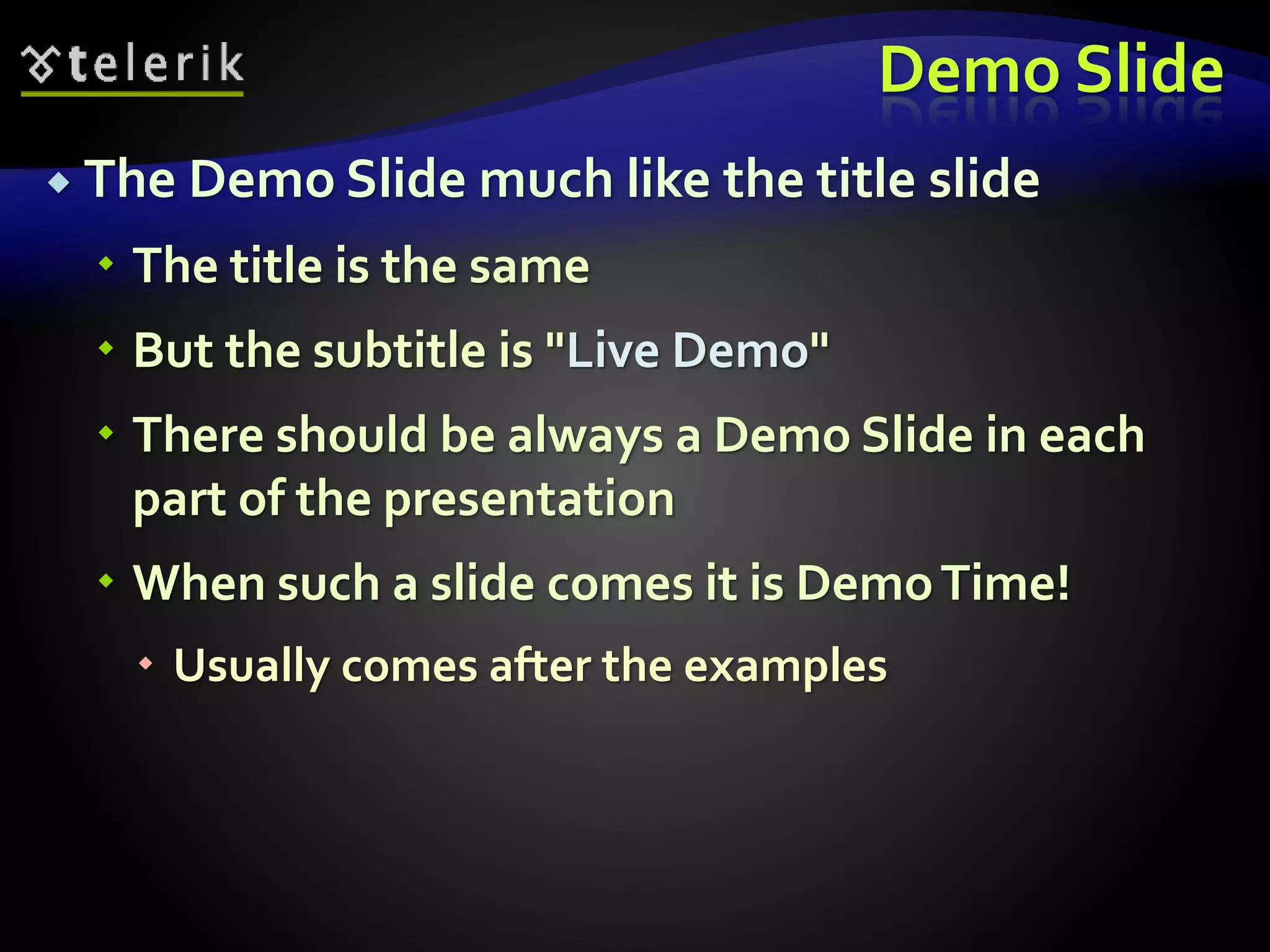
Demo Slide 
 The Demo Slide much like the title slide 
 The title is the same 
 But the subtitle is "Live Demo" 
 There should be always a Demo Slide in each 
part of the presentation 
 When such a slide comes it is Demo Time! 
 Usually comes after the examples
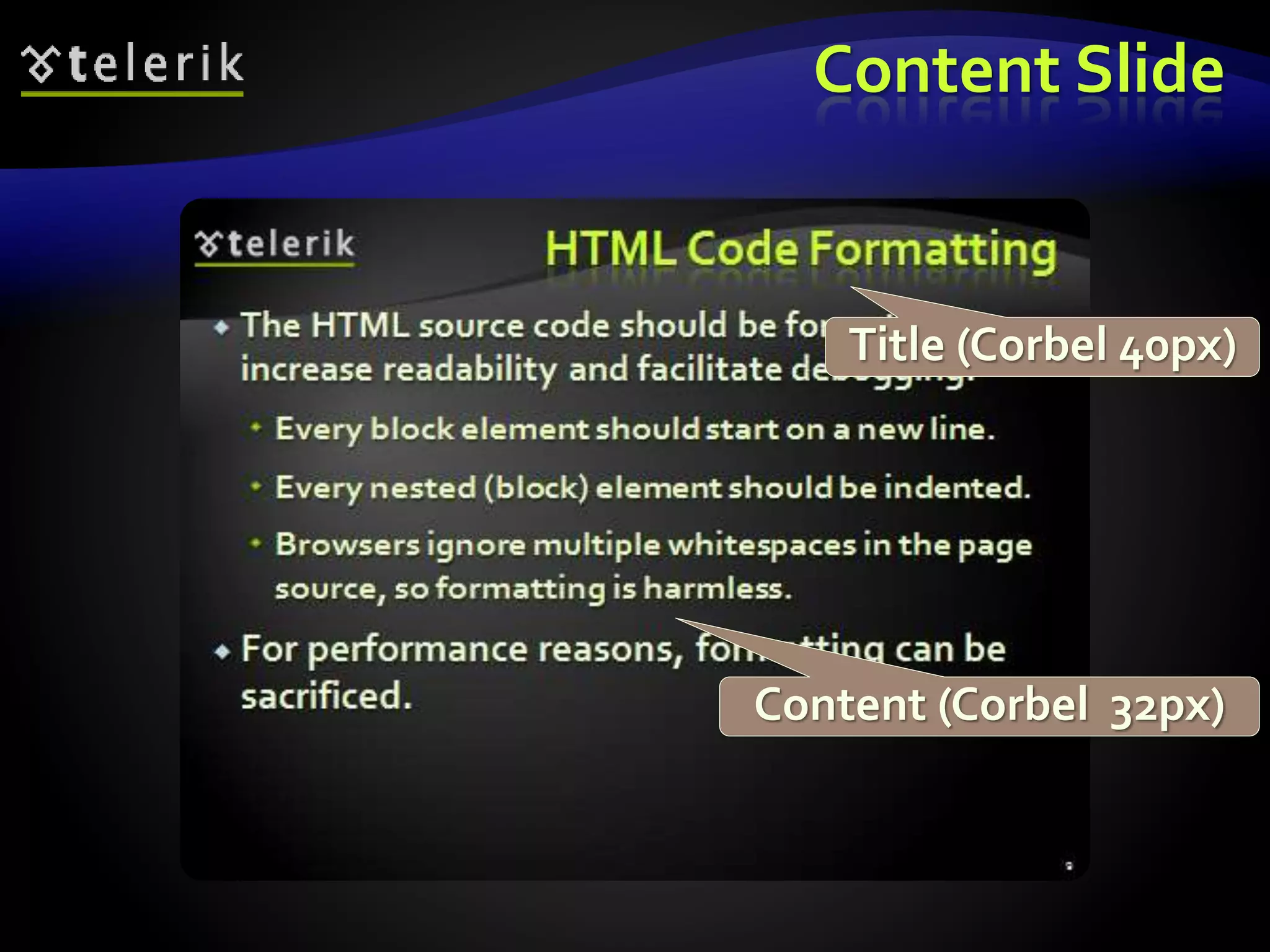
Content Slide 
Title (Corbel 40px) 
Content (Corbel 32px)
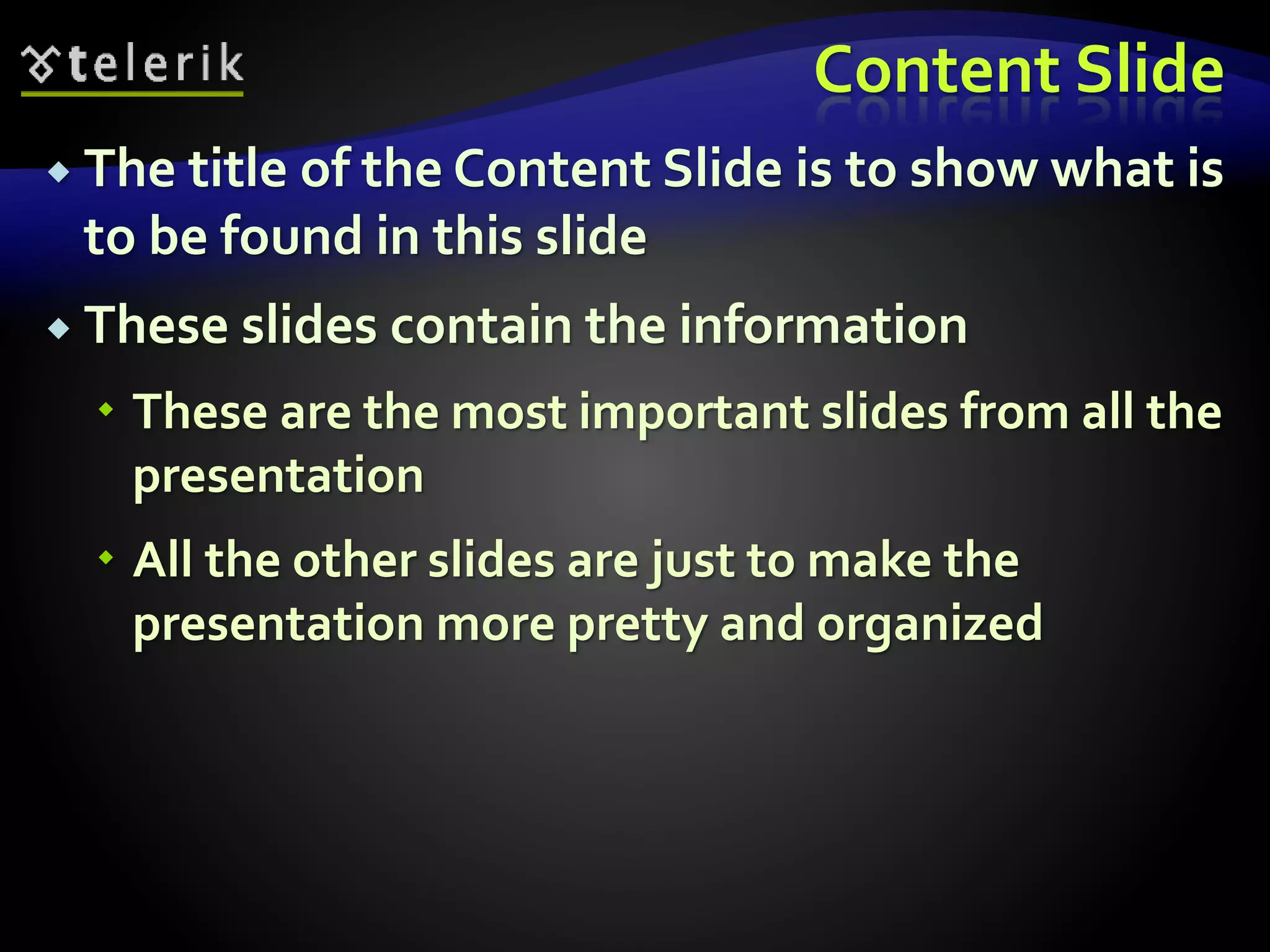
Content Slide 
 The title of the Content Slide is to show what is 
to be found in this slide 
 These slides contain the information 
 These are the most important slides from all the 
presentation 
 All the other slides are just to make the 
presentation more pretty and organized
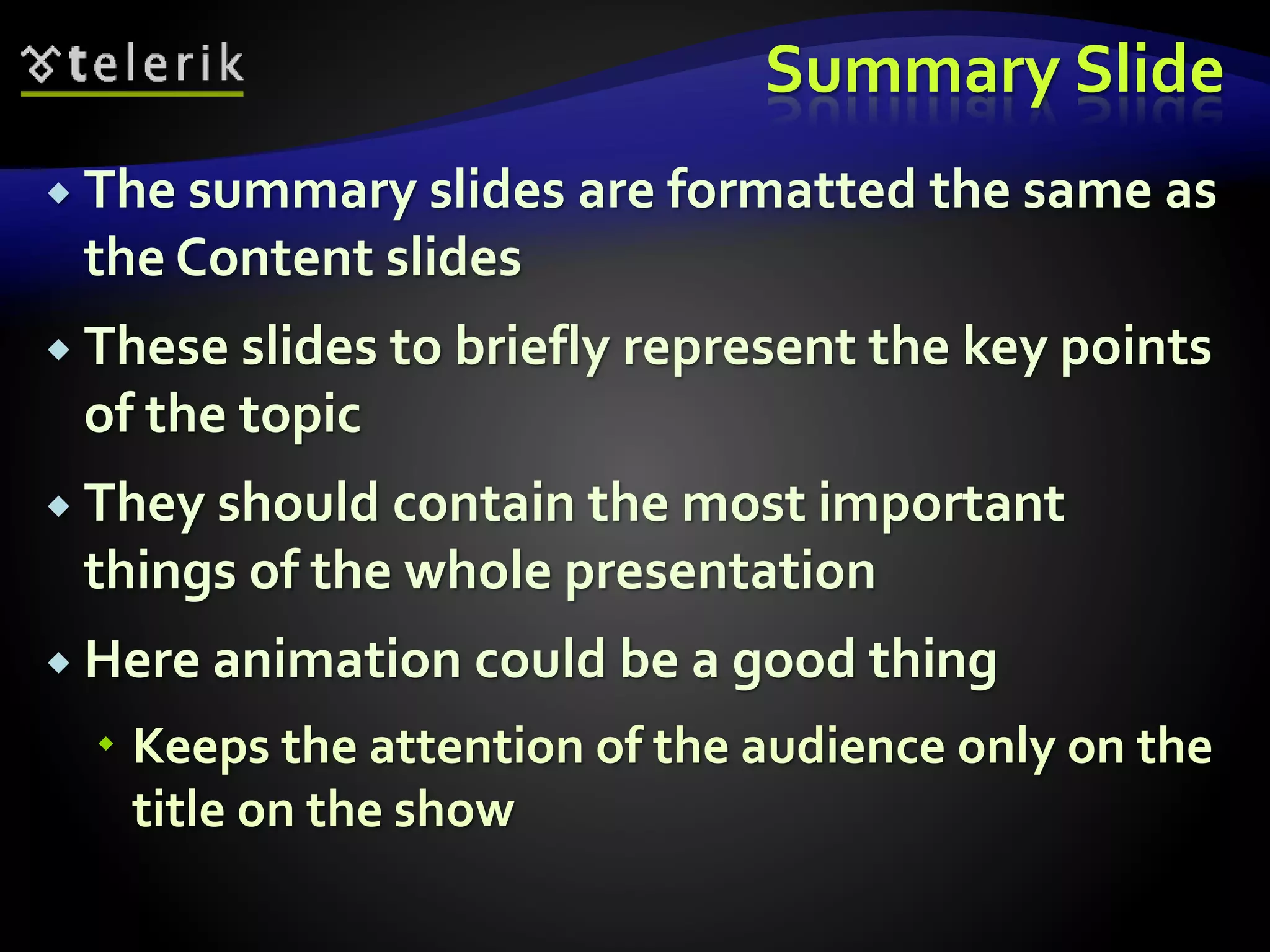
Summary Slide 
 The summary slides are formatted the same as 
the Content slides 
 These slides to briefly represent the key points 
of the topic 
 They should contain the most important 
things of the whole presentation 
 Here animation could be a good thing 
 Keeps the attention of the audience only on the 
title on the show
The Exercises Slide 
 The exercises part the could consist of one or 
more slides 
 Each slide contains exercise/s connected with 
the topic presented 
 Why having such slides? 
 Most of the people learn the material when 
they "touch" it 
 Messing around with the technology is the best 
way to exceed
Telerik Academy 
Template Presentation 
Live Demo
Final Touches 
Just Before Finishing the Presentation
Final Touches 
 When we are done with the content of the 
presentation? 
 The content is full and well formatted 
 The presentation is well structured 
 The format and font size are OK 
 Then all we have to do is to decorate it 
 Put some pictures in the 
 Title slides 
 Contents slides 
 In all empty places of the presentation
Final Touches (2) 
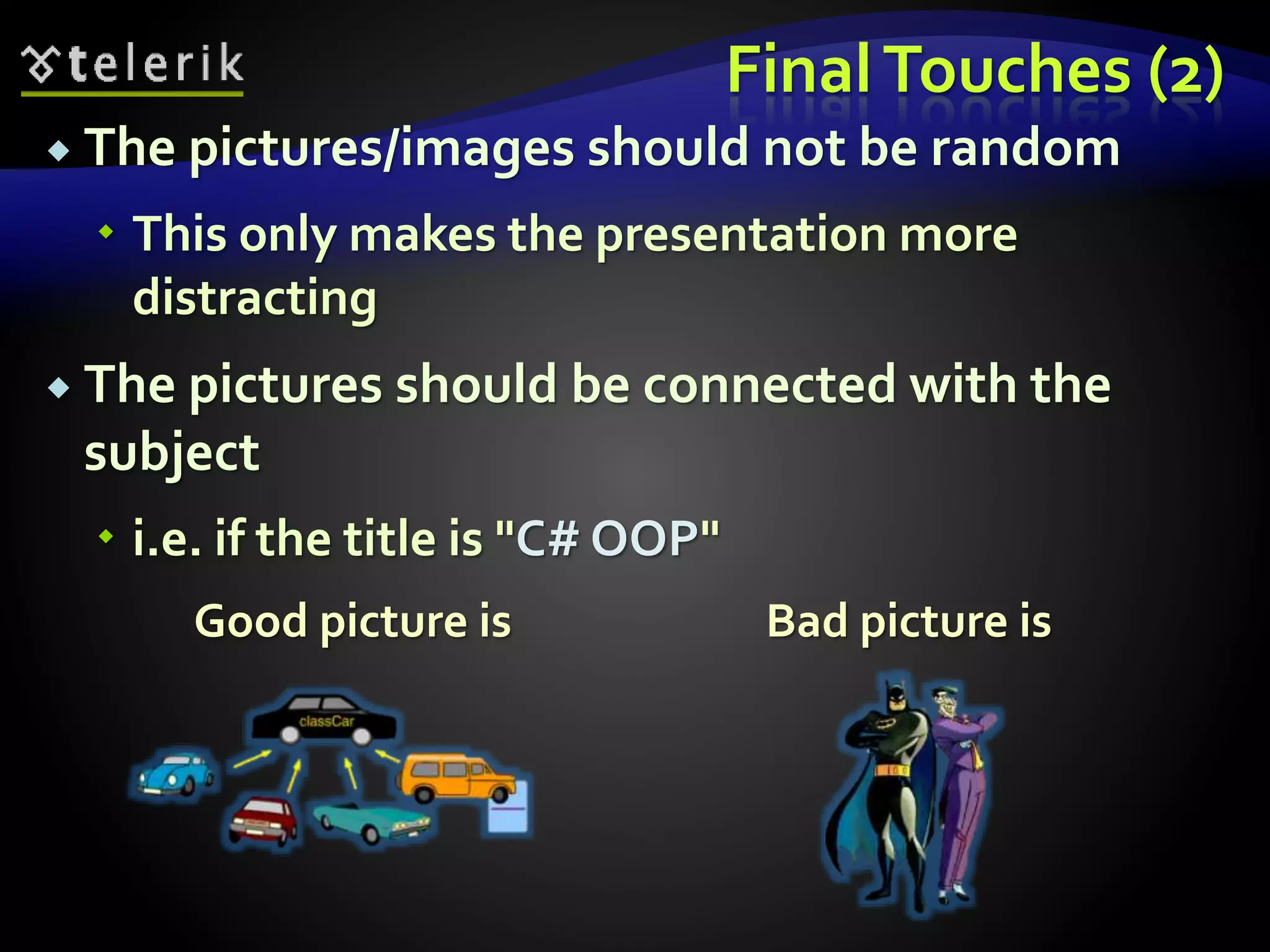
 The pictures/images should not be random 
 This only makes the presentation more 
distracting 
 The pictures should be connected with the 
subject 
 i.e. if the title is "C# OOP" 
Good picture is Bad picture is
Final Touches 
Live Demo
What not to Use in a 
Presentation? 
Media, Animations
Animations 
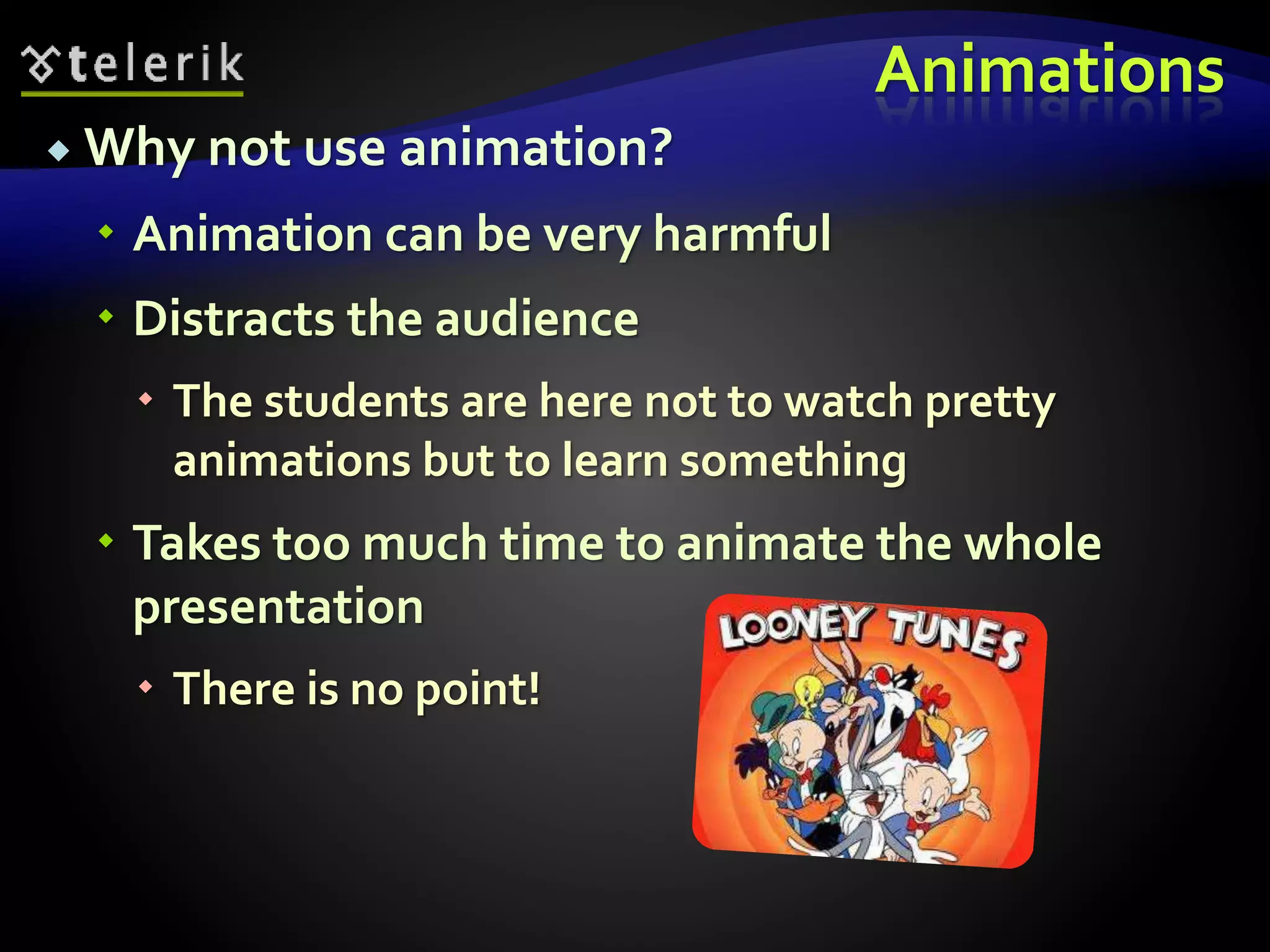
 Why not use animation? 
 Animation can be very harmful 
 Distracts the audience 
 The students are here not to watch pretty 
animations but to learn something 
 Takes too much time to animate the whole 
presentation 
 There is no point!
Animations (2) 
 When using an animation 
 Nobody is listening to the trainer 
 Or following the presentation 
 They are waiting to see the next animation 
 What is the point? 
 Avoid using animation 
 If you decide to use animation 
 Choose a simple animation 
 And use it consistently all over the slides
Some Bad Animations 
This is a very bad animation 
 Avoid using animation 
 Use as simple animation as you can 
 Use it consistently 
 If you decide to use animation 
 Limit it as much as you can 
 Another example line 
 Yet another one
Some Very Bad Animations 
This is a very bad animation 
 Avoid using animation 
 Use as simple animation as you can 
 Use it consistently 
 If you decide to use animation 
 Limit it as much as you can 
 Another example line 
 Yet another one
Media 
 Avoid media inside you presentations 
 Better put an external link and show it as demo 
 Why? 
 The audience is here to see the presenter and 
his / her talk 
 They can watch the video / listen audio at home 
 It will be more comfortable for them too
Summary 
 Clearing the Idea 
 Mind mapping 
 Collect the Information 
 Using Google 
 Getting Started 
 How to format the presentation? 
 Telerik Template Presentation 
 Decorating with pictures 
 Avoid using media and / or animations
How to Create a Presentation 
Questions?

6. presentation making-guidelines

  • 1.
    Presentation Making Guidelines Key Points of Making Presentations Doncho Minkov Telerik Corporation www.telerik.com
  • 2.
    Table of Contents  Clearing the Idea  Collect the Information  Getting Started  Formatting the Content  Styling the Content  Telerik Template Presentation  Final Touches  What to Avoid in a Presentation?
  • 3.
    Clearing the Idea What to include? What to exclude?
  • 4.
    Clearing the Idea  The first thing to do when starting to build a presentation is to clear the idea  Might be done using mind mappings  I.e. draw a circle and write inside the name of the presentation  Then start drawing around the main circle everything that comes to your mind and is somehow connected to the subject  After finishing with that get the most important things and do the same with them, etc.
  • 5.
    Clearing the Idea  At the end you should have something like a Table of Contents  Or at least a blueprint, something to begin with  It is important to have in mind the level of complexity of the subject  I.e. if the name of the presentation is "Basics of OOP in C#" you should not include Polymorphism and multiple inheritance  You should decide how detailed the presentation should be
  • 6.
  • 7.
  • 8.
  • 9.
    Collecting the Information  Once you have a sample Table of Contents you should start to collect the information  How to do that?  The answer is simple: googling  Google is the perfect way to collect materials  Google is full of tutorials and already done presentations  Do not copy the presentations, just use them as source  Just type the name of the presentation and filetype:ppt or filetype:pptx
  • 10.
  • 11.
  • 12.
    Getting Started Now you have some materials on hand  But sometimes it is not enough  It is better to start making the presentation on your own and later on seek for help  You should make sure that your presentations are well structured and organized  Not a random list of bullet points with no logical order
  • 13.
    Formatting the Content What and how to format the information
  • 14.
    Key Principles Key principles of presentation creation  Keep the sentences as short as possible  Keep the content of a slide as small as possible  Use dark backgrounds with light foregrounds  The opposite is also acceptable (high contrast)  Use as large fonts as possible
  • 15.
    What to Includein the Presentation?  Keep the content in the presentation small  The presentation serves to point the most important aspects of the topic  There will be a trainer to explain the details  If all the information is on the slides what is the point of having a trainer?  Or the point of having this presentation?  Better email the presentation
  • 16.
    Example of BadPresentation Hello! My name is Doncho Minkov and today we will talk about HTML Fundamentals. We will see the basics of the Hyper-Text-Markup Language and will explain what is a tag in HTML, the parts of a HTML document, and some of the tags…. <a> this is the tag 'a'. 'a' comes from anchor and this tag is used for redirecting from one HTML document to another… bla bla bla
  • 17.
    Content Formatting Avoid "all words slides" (like a journal article)  Keep the lines in a slide to 7 (+/-2) lines  Limit the bullet points to 4-8  Try to make each bullet one or two lines long  If you have a text  Make it in bullet points  It may take 2-3 slides  So what?  Each sentence can be transformed into one bullet
  • 18.
    Content Formatting (2)  When there is too much text on one slide the audience  Starts reading and does not listen to the trainer  Could fall asleep  It is easier for the trainer when there is less information on each slide  Less topics to cover on this slide  More concentrated in the slide
  • 19.
    Arranging the Content  Example of a bad slide This could be split into at least four bullet points (4 sentences) The title is not fully corresponding with the content
  • 20.
    Arranging the Content  Can be easily transformed in two slides
  • 21.
  • 22.
    Styling of theContent What Background, Font and Colors to Use?
  • 23.
    Background  Usea darker background for the presentations  Light background may look good on the computer screen, but what about a projector?  When the background is white and the room is dark  The background becomes too bright  Nothing can be seen  The best background color is almost pure dark color like black, blue, etc.  Use the same background on each slide
  • 24.
    Example of aBadly Selected Background and Colors  Can anything be seen?  Hardly  Image if the sun is lighting the screen  This looks much better!  But generally this background is too fancy
  • 25.
    Font  Onthe contrary of the background the font should be lighter  This gives good contrast and is easy to read  The light font stands on dark background  Use the font colors consistently  Do not change them from slide to slide  The font face should be one the common fonts  They are easier to read  Most usual presentation fonts are  Verdana, Times New Roman, Corbel, Arial
  • 26.
    Font (2) The font size should be big enough (18pt-36pt)  If the text cannot be seen from the back of the room, you should consider changing the font  Each slide should have a good title  Should be bigger than the rest of the text  The title shows the intent of the slide  Using the most common fonts  Makes the presentation easier to read  Gives an expression of professionalism
  • 27.
    Example of a Badly Selected Font  What if I choose such a Font?  Does it look Good?  Does it look good?  Does it look good?  Does it look good?  Does it look good?  Does it look good?  No it doesn't
  • 28.
    Using Colors Use colors consistently  Choose one or two colors and use only them  The colors must be contrast to the background  i.e. do not use light colors on light background  Or dark colors on dark background  While on yellow, blue on black
  • 29.
    Avoid Fancy Colors!  Sample text with different colors  This is an example how not to use colors  This is an example how not to use colors  This is an example how not to use colors  This is an example how not to use colors  Sample text with non contrast colors  This is an example how not to use colors  This is an example how not to use colors  This is an example how not to use colors
  • 30.
    Using PPT Templates Build-In and Professional Templates
  • 31.
    What is aPTT Template?  This is a ready template for your presentations  Defined font colors and faces  Defined places for the titles, contents, etc.  Defined background  Etc.  Sometimes it is a good idea to use templates  Not all ready templates are good  Spares you to think for the right color  They are made by designers
  • 32.
     There aresome built-in templates  But can also be downloaded from the web  Examples of free PPT templates:  http://www.presentationpoint.com/powerpoint-templates/  http://www.templateswise.com/
  • 33.
    Styling of theContent Live Demo
  • 34.
    Telerik Academy TemplatePresentation How to execute the rules upon Telerik Academy Presentations
  • 35.
    Telerik Template Presentation  Telerik Academy presentations consist of 1. Presentation Title Slide 2. Table of Contents 3. Subtopic Title Slide 4. Subtopic Content Slides 5. Subtopic Demo Slide 6. … (next subtopic follows the same pattern) … 7. Presentation Summary Slide 8. Questions Slide 9. Exercises Slides
  • 36.
    Telerik Template Presentation  The font family used everywhere is Corbel  The text is always bold and shadowed  But not italic!  The color of the text is RGB (#EBFFD2)  Terms and definitions use color (#DAFFD2)  Keywords use Consolas font and color (#DAFFD2)  Code examples use the following pattern: for (int i=0; i<10; i++) …
  • 37.
    Presentation Title Slide Title Part Subtitle Part Author / Presenter Part
  • 38.
    Presentation Title Slide  Title Part  Here we put the presentation subject  i.e. Entity Framework, HTML 5  The font size is 54pt  Subtitle Part  What is the presentation about  i.e. HTML 5 new Tags, Canvas  The font size is 28pt
  • 39.
    Presentation Title Slide  Author / Presenter Part  Here is the name of the presenter  It is better to keep there the name of the author  When the presenter is not the author it is better to change it to the name of the presenter  The font size is 28pt  Below the name of the presenter comes the name and website of the corporation  The font sizes are 26pt and 24pt
  • 40.
    Table of ContentsSlide The Slide Title Contents Sub contents
  • 41.
    Table of ContentsSlide (2)  The slide title part is always with font family Corbel with font size 40pt  Describes the slide contents  i.e. Anchor tag or Anchors in HTML, etc.  In the Table of Contents slide are listed the contents of the current presentation  i.e. which topics will be covered  The main list item is with size of 32pt  Each level below is decreased with 2pt  i.e. 30, 28, 26, etc.
  • 42.
  • 43.
    Title Slide The title slide is to show that a new part of the presentation is about to begin  i.e. HTML Basics  The subtitle points the most important parts of this title  i.e. Head and Body, HTML Tags, HTML Documents
  • 44.
    Demo Slide The Demo Slide much like the title slide  The title is the same  But the subtitle is "Live Demo"  There should be always a Demo Slide in each part of the presentation  When such a slide comes it is Demo Time!  Usually comes after the examples
  • 45.
    Content Slide Title(Corbel 40px) Content (Corbel 32px)
  • 46.
    Content Slide The title of the Content Slide is to show what is to be found in this slide  These slides contain the information  These are the most important slides from all the presentation  All the other slides are just to make the presentation more pretty and organized
  • 47.
    Summary Slide The summary slides are formatted the same as the Content slides  These slides to briefly represent the key points of the topic  They should contain the most important things of the whole presentation  Here animation could be a good thing  Keeps the attention of the audience only on the title on the show
  • 48.
    The Exercises Slide  The exercises part the could consist of one or more slides  Each slide contains exercise/s connected with the topic presented  Why having such slides?  Most of the people learn the material when they "touch" it  Messing around with the technology is the best way to exceed
  • 49.
    Telerik Academy TemplatePresentation Live Demo
  • 50.
    Final Touches JustBefore Finishing the Presentation
  • 51.
    Final Touches When we are done with the content of the presentation?  The content is full and well formatted  The presentation is well structured  The format and font size are OK  Then all we have to do is to decorate it  Put some pictures in the  Title slides  Contents slides  In all empty places of the presentation
  • 52.
    Final Touches (2)  The pictures/images should not be random  This only makes the presentation more distracting  The pictures should be connected with the subject  i.e. if the title is "C# OOP" Good picture is Bad picture is
  • 53.
  • 54.
    What not toUse in a Presentation? Media, Animations
  • 55.
    Animations  Whynot use animation?  Animation can be very harmful  Distracts the audience  The students are here not to watch pretty animations but to learn something  Takes too much time to animate the whole presentation  There is no point!
  • 56.
    Animations (2) When using an animation  Nobody is listening to the trainer  Or following the presentation  They are waiting to see the next animation  What is the point?  Avoid using animation  If you decide to use animation  Choose a simple animation  And use it consistently all over the slides
  • 57.
    Some Bad Animations This is a very bad animation  Avoid using animation  Use as simple animation as you can  Use it consistently  If you decide to use animation  Limit it as much as you can  Another example line  Yet another one
  • 58.
    Some Very BadAnimations This is a very bad animation  Avoid using animation  Use as simple animation as you can  Use it consistently  If you decide to use animation  Limit it as much as you can  Another example line  Yet another one
  • 59.
    Media  Avoidmedia inside you presentations  Better put an external link and show it as demo  Why?  The audience is here to see the presenter and his / her talk  They can watch the video / listen audio at home  It will be more comfortable for them too
  • 60.
    Summary  Clearingthe Idea  Mind mapping  Collect the Information  Using Google  Getting Started  How to format the presentation?  Telerik Template Presentation  Decorating with pictures  Avoid using media and / or animations
  • 61.
    How to Createa Presentation Questions?