How to Automate
CAD & GIS Integration
Welcome!
Dale Lutz Jovita Chan
Agenda
1. Who we are
2. CAD-GIS
a. Challenges, e.g. complex geometry, annotations…
b. Real-world application (scenarios and case studies)
c. Demo: digital plan submission workflow
3. GIS-CAD
a. Challenges, e.g. coordinate systems...
b. Real-world application (scenarios and case studies)
c. Demo: requesting cad data from GIS workflow
4. Q&A
Tell us your thoughts!
What are your CAD to GIS integration challenges?
CAD vs GIS: Different Perspectives
CAD users have a drawing perspective:
● Layers & levels
● Styles & Symbology
● Dimensions & Labels
CAD vs GIS: Different Perspectives
GIS users have a feature perspective:
● Attributes and geometry
● Data structure, model
● Relational tables, domains
● Location (including Coordinate System)
● Connectivity and proximity
● Analysis
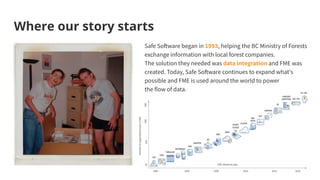
Where our story starts
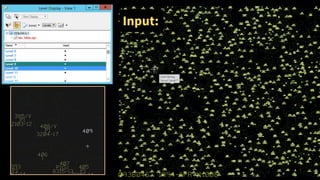
Safe Software began in 1993, helping the BC Ministry of Forests
exchange information with local forest companies.
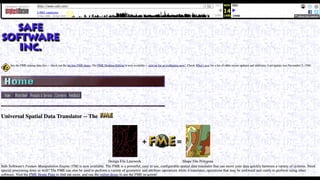
The solution they needed was data integration and FME was
created. Today, Safe Software continues to expand what's
possible and FME is used around the world to power
the flow of data.
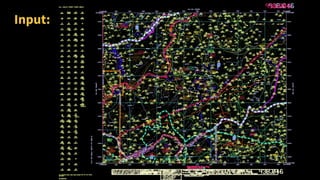
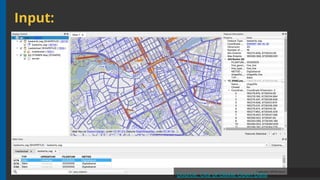
Input:
Input:
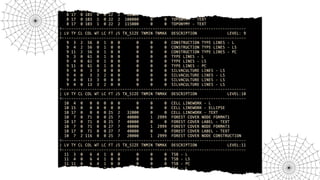
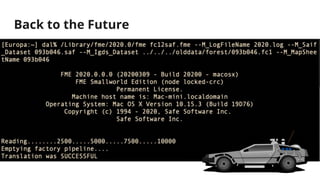
Back to the Future
CAD→GIS
Scenario 1
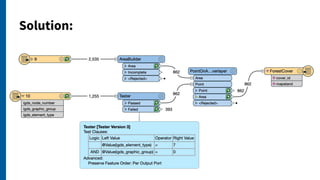
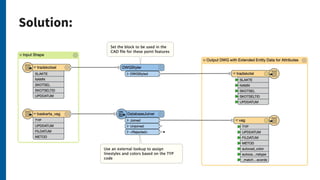
Solution:
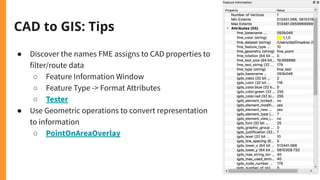
CAD to GIS: Tips
● Discover the names FME assigns to CAD properties to
filter/route data
○ Feature Information Window
○ Feature Type -> Format Attributes
○ Tester
● Use Geometric operations to convert representation
to information
○ PointOnAreaOverlay
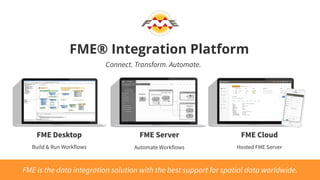
FME Desktop FME Server FME Cloud
Build & Run Workflows Automate Workflows Hosted FME Server
FME® Integration Platform
Connect. Transform. Automate.
FME is the data integration solution with the best support for spatial data worldwide.
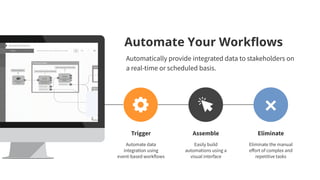
Eliminate
Eliminate the manual
effort of complex and
repetitive tasks
Automate Your Workflows
Automatically provide integrated data to stakeholders on
a real-time or scheduled basis.
Trigger
Automate data
integration using
event-based workflows
Assemble
Easily build
automations using a
visual interface
Our Mission
To help you maximize the
value of your data.
CAD–GIS
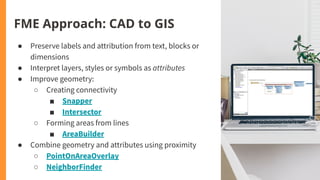
FME Approach: CAD to GIS
● Preserve labels and attribution from text, blocks or
dimensions
● Interpret layers, styles or symbols as attributes
● Improve geometry:
○ Creating connectivity
■ Snapper
■ Intersector
○ Forming areas from lines
■ AreaBuilder
● Combine geometry and attributes using proximity
○ PointOnAreaOverlay
○ NeighborFinder
CAD→GIS
Scenario 2
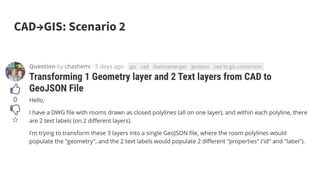
CAD→GIS: Scenario 2
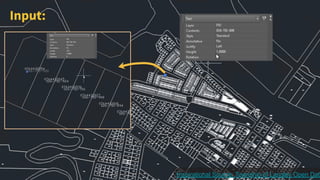
Input:
Inspirational Source: Township of Langley Open Data
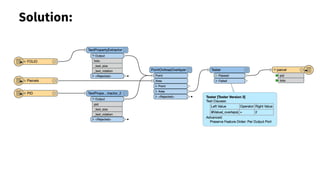
Solution:
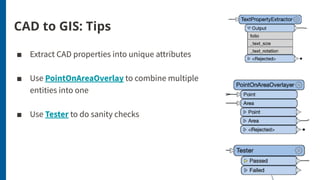
CAD to GIS: Tips
■ Extract CAD properties into unique attributes
■ Use PointOnAreaOverlay to combine multiple
entities into one
■ Use Tester to do sanity checks
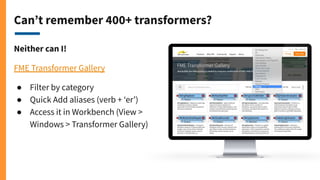
Can’t remember 400+ transformers?
Neither can I!
FME Transformer Gallery
● Filter by category
● Quick Add aliases (verb + ‘er’)
● Access it in Workbench (View >
Windows > Transformer Gallery)
CAD→GIS
Scenario 3
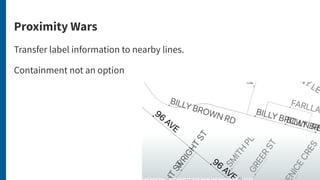
Proximity Wars
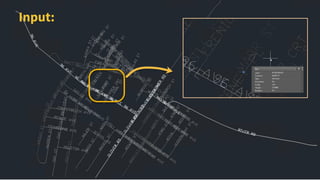
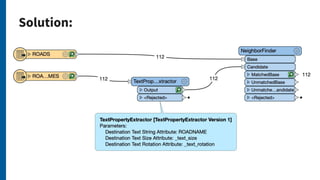
Transfer label information to nearby lines.
Containment not an option
Input:
Solution:
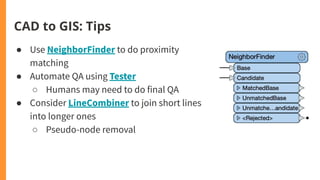
CAD to GIS: Tips
● Use NeighborFinder to do proximity
matching
● Automate QA using Tester
○ Humans may need to do final QA
● Consider LineCombiner to join short lines
into longer ones
○ Pseudo-node removal
CAD→GIS
Scenario 4
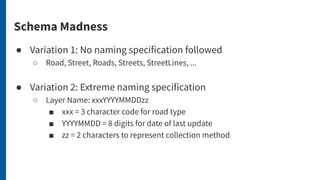
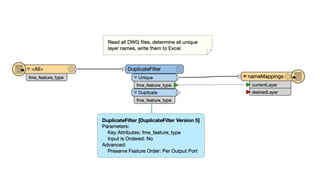
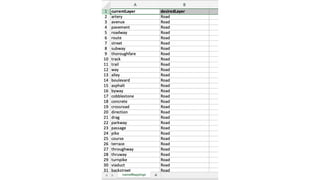
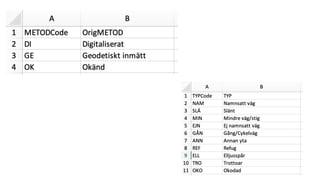
Schema Madness
● Variation 1: No naming specification followed
○ Road, Street, Roads, Streets, StreetLines, ...
● Variation 2: Extreme naming specification
○ Layer Name: xxxYYYYMMDDzz
■ xxx = 3 character code for road type
■ YYYYMMDD = 8 digits for date of last update
■ zz = 2 characters to represent collection method
CAD→GIS
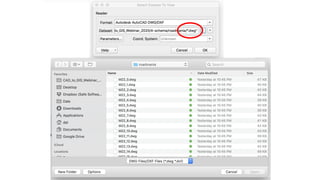
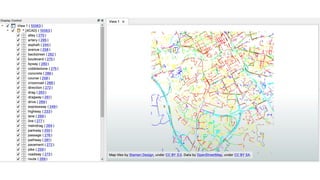
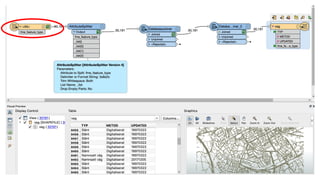
Scenario 4 Variation 1
CAD→GIS
Scenario 4 Variation 2
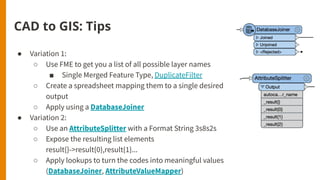
CAD to GIS: Tips
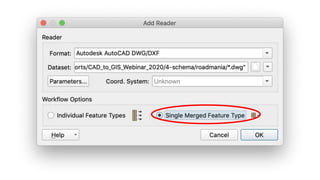
● Variation 1:
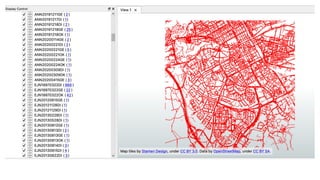
○ Use FME to get you a list of all possible layer names
■ Single Merged Feature Type, DuplicateFilter
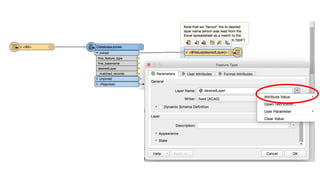
○ Create a spreadsheet mapping them to a single desired
output
○ Apply using a DatabaseJoiner
● Variation 2:
○ Use an AttributeSplitter with a Format String 3s8s2s
○ Expose the resulting list elements
result{}->result{0},result{1}...
○ Apply lookups to turn the codes into meaningful values
(DatabaseJoiner, AttributeValueMapper)
CAD→GIS
Scenario 5
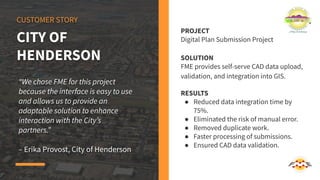
CUSTOMER STORY
“We chose FME for this project
because the interface is easy to use
and allows us to provide an
adaptable solution to enhance
interaction with the City’s
partners.”
– Erika Provost, City of Henderson
PROJECT
Digital Plan Submission Project
SOLUTION
FME provides self-serve CAD data upload,
validation, and integration into GIS.
RESULTS
● Reduced data integration time by
75%.
● Eliminated the risk of manual error.
● Removed duplicate work.
● Faster processing of submissions.
● Ensured CAD data validation.
CITY OF
HENDERSON
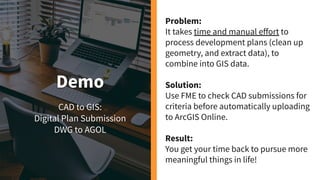
Demo
CAD to GIS:
Digital Plan Submission
DWG to AGOL
Problem:
It takes time and manual effort to
process development plans (clean up
geometry, and extract data), to
combine into GIS data.
Solution:
Use FME to check CAD submissions for
criteria before automatically uploading
to ArcGIS Online.
Result:
You get your time back to pursue more
meaningful things in life!
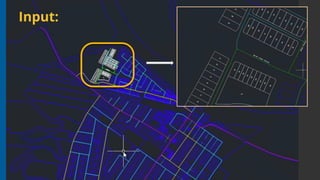
Input:
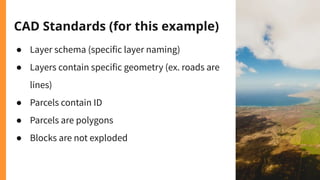
CAD Standards (for this example)
● Layer schema (specific layer naming)
● Layers contain specific geometry (ex. roads are
lines)
● Parcels contain ID
● Parcels are polygons
● Blocks are not exploded
This slide is left intentionally blank. (lies).
To FME Server!
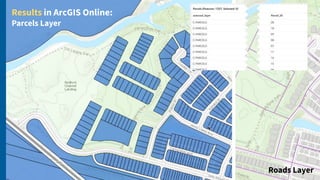
Results in ArcGIS Online:
Parcels Layer
Roads Layer
GIS→CAD
GIS-CAD Challenges
● Creating visually appealing CAD drawings
● Representing GIS intelligence
● Useful symbology
GIS→CAD
Scenario 6
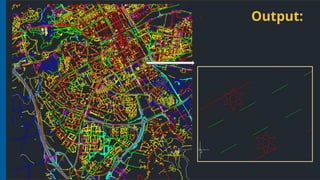
Gävle - 1997
Input:
Source: City of Gävle Open Data
Solution:
Output:
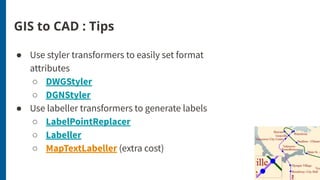
GIS to CAD : Tips
● Use styler transformers to easily set format
attributes
○ DWGStyler
○ DGNStyler
● Use labeller transformers to generate labels
○ LabelPointReplacer
○ Labeller
○ MapTextLabeller (extra cost)
GIS→CAD
Scenario 7
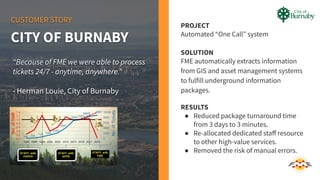
CUSTOMER STORY
PROJECT
Automated “One Call” system
SOLUTION
FME automatically extracts information
from GIS and asset management systems
to fulfill underground information
packages.
RESULTS
● Reduced package turnaround time
from 3 days to 3 minutes.
● Re-allocated dedicated staff resource
to other high-value services.
● Removed the risk of manual errors.
CITY OF BURNABY
“Because of FME we were able to process
tickets 24/7 - anytime, anywhere.”
- Herman Louie, City of Burnaby
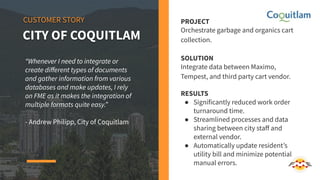
PROJECT
Orchestrate garbage and organics cart
collection.
SOLUTION
Integrate data between Maximo,
Tempest, and third party cart vendor.
RESULTS
● Significantly reduced work order
turnaround time.
● Streamlined processes and data
sharing between city staff and
external vendor.
● Automatically update resident’s
utility bill and minimize potential
manual errors.
CUSTOMER STORY
CITY OF COQUITLAM
“Whenever I need to integrate or
create different types of documents
and gather information from various
databases and make updates, I rely
on FME as it makes the integration of
multiple formats quite easy.”
- Andrew Philipp, City of Coquitlam
Demo
GIS to CAD:
Self-Serve Data Requests
Problem:
My colleagues from other departments only talk
to me when they need data from the GIS, and I
always feel bad when I’m not able to get back to
them immediately, and so they are left waiting.
Solution:
Let FME do the grunt work and allow users to
serve themselves data whenever they need it!
Result:
More meaningful cross-team collaborations
and friendships. Get your time back, less
stress, more hair.
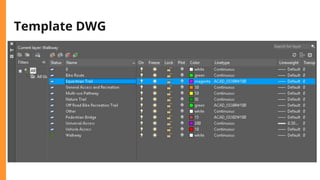
Template DWG
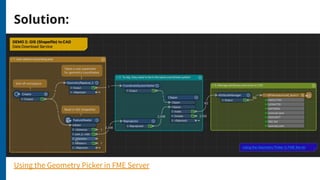
Solution:
Using the Geometry Picker in FME Server
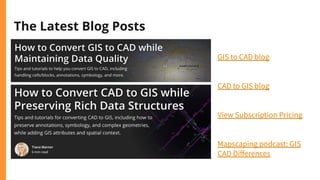
The Latest Blog Posts
GIS to CAD blog
CAD to GIS blog
View Subscription Pricing
Mapscaping podcast: GIS
CAD Differences
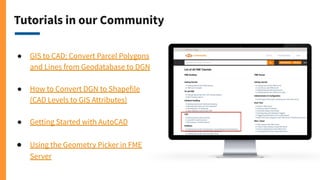
Tutorials in our Community
● GIS to CAD: Convert Parcel Polygons
and Lines from Geodatabase to DGN
● How to Convert DGN to Shapefile
(CAD Levels to GIS Attributes)
● Getting Started with AutoCAD
● Using the Geometry Picker in FME
Server
"FME sets the
standard for
support and is the
leader by far".
- Brad
Very helpful and
went above and
beyond to help
find a solution to
my request! A+"
- Justin
"Thank you!
Answered all my
questions - AGAIN.
You folks always
seem to have a
way of doing that."
- Ray
FREE RESOURCES
WE’RE ALL ABOUT
FME
Community
+10,000 Global Users
Knowledge
& Training
Learn FME
Technical
Support
Report a Problem
Support cases
Live Chat
When in doubt… ask us!
Articles & tutorials
Live online training
On-demand resources
Ask how-to questions
Engage with Safers
Submit ideas for FME
Thank you!
Get a free trial of FME or live chat at safe.com

How to Automate CAD & GIS Integration

  • 1.
    How to Automate CAD& GIS Integration
  • 2.
  • 3.
    Agenda 1. Who weare 2. CAD-GIS a. Challenges, e.g. complex geometry, annotations… b. Real-world application (scenarios and case studies) c. Demo: digital plan submission workflow 3. GIS-CAD a. Challenges, e.g. coordinate systems... b. Real-world application (scenarios and case studies) c. Demo: requesting cad data from GIS workflow 4. Q&A
  • 4.
    Tell us yourthoughts! What are your CAD to GIS integration challenges?
  • 5.
    CAD vs GIS:Different Perspectives CAD users have a drawing perspective: ● Layers & levels ● Styles & Symbology ● Dimensions & Labels
  • 6.
    CAD vs GIS:Different Perspectives GIS users have a feature perspective: ● Attributes and geometry ● Data structure, model ● Relational tables, domains ● Location (including Coordinate System) ● Connectivity and proximity ● Analysis
  • 7.
    Where our storystarts Safe Software began in 1993, helping the BC Ministry of Forests exchange information with local forest companies. The solution they needed was data integration and FME was created. Today, Safe Software continues to expand what's possible and FME is used around the world to power the flow of data.
  • 10.
  • 11.
  • 12.
  • 13.
  • 14.
  • 15.
    CAD to GIS:Tips ● Discover the names FME assigns to CAD properties to filter/route data ○ Feature Information Window ○ Feature Type -> Format Attributes ○ Tester ● Use Geometric operations to convert representation to information ○ PointOnAreaOverlay
  • 16.
    FME Desktop FMEServer FME Cloud Build & Run Workflows Automate Workflows Hosted FME Server FME® Integration Platform Connect. Transform. Automate. FME is the data integration solution with the best support for spatial data worldwide.
  • 17.
    Eliminate Eliminate the manual effortof complex and repetitive tasks Automate Your Workflows Automatically provide integrated data to stakeholders on a real-time or scheduled basis. Trigger Automate data integration using event-based workflows Assemble Easily build automations using a visual interface
  • 18.
    Our Mission To helpyou maximize the value of your data.
  • 19.
  • 20.
    FME Approach: CADto GIS ● Preserve labels and attribution from text, blocks or dimensions ● Interpret layers, styles or symbols as attributes ● Improve geometry: ○ Creating connectivity ■ Snapper ■ Intersector ○ Forming areas from lines ■ AreaBuilder ● Combine geometry and attributes using proximity ○ PointOnAreaOverlay ○ NeighborFinder
  • 21.
  • 22.
  • 23.
  • 24.
  • 25.
    CAD to GIS:Tips ■ Extract CAD properties into unique attributes ■ Use PointOnAreaOverlay to combine multiple entities into one ■ Use Tester to do sanity checks
  • 26.
    Can’t remember 400+transformers? Neither can I! FME Transformer Gallery ● Filter by category ● Quick Add aliases (verb + ‘er’) ● Access it in Workbench (View > Windows > Transformer Gallery)
  • 27.
  • 28.
    Proximity Wars Transfer labelinformation to nearby lines. Containment not an option
  • 29.
  • 30.
  • 31.
    CAD to GIS:Tips ● Use NeighborFinder to do proximity matching ● Automate QA using Tester ○ Humans may need to do final QA ● Consider LineCombiner to join short lines into longer ones ○ Pseudo-node removal
  • 32.
  • 33.
    Schema Madness ● Variation1: No naming specification followed ○ Road, Street, Roads, Streets, StreetLines, ... ● Variation 2: Extreme naming specification ○ Layer Name: xxxYYYYMMDDzz ■ xxx = 3 character code for road type ■ YYYYMMDD = 8 digits for date of last update ■ zz = 2 characters to represent collection method
  • 34.
  • 41.
  • 45.
    CAD to GIS:Tips ● Variation 1: ○ Use FME to get you a list of all possible layer names ■ Single Merged Feature Type, DuplicateFilter ○ Create a spreadsheet mapping them to a single desired output ○ Apply using a DatabaseJoiner ● Variation 2: ○ Use an AttributeSplitter with a Format String 3s8s2s ○ Expose the resulting list elements result{}->result{0},result{1}... ○ Apply lookups to turn the codes into meaningful values (DatabaseJoiner, AttributeValueMapper)
  • 46.
  • 47.
    CUSTOMER STORY “We choseFME for this project because the interface is easy to use and allows us to provide an adaptable solution to enhance interaction with the City’s partners.” – Erika Provost, City of Henderson PROJECT Digital Plan Submission Project SOLUTION FME provides self-serve CAD data upload, validation, and integration into GIS. RESULTS ● Reduced data integration time by 75%. ● Eliminated the risk of manual error. ● Removed duplicate work. ● Faster processing of submissions. ● Ensured CAD data validation. CITY OF HENDERSON
  • 48.
    Demo CAD to GIS: DigitalPlan Submission DWG to AGOL Problem: It takes time and manual effort to process development plans (clean up geometry, and extract data), to combine into GIS data. Solution: Use FME to check CAD submissions for criteria before automatically uploading to ArcGIS Online. Result: You get your time back to pursue more meaningful things in life!
  • 49.
  • 50.
    CAD Standards (forthis example) ● Layer schema (specific layer naming) ● Layers contain specific geometry (ex. roads are lines) ● Parcels contain ID ● Parcels are polygons ● Blocks are not exploded
  • 51.
    This slide isleft intentionally blank. (lies). To FME Server!
  • 52.
    Results in ArcGISOnline: Parcels Layer Roads Layer
  • 53.
  • 54.
    GIS-CAD Challenges ● Creatingvisually appealing CAD drawings ● Representing GIS intelligence ● Useful symbology
  • 55.
  • 56.
  • 57.
    Input: Source: City ofGävle Open Data
  • 58.
  • 59.
  • 60.
    GIS to CAD: Tips ● Use styler transformers to easily set format attributes ○ DWGStyler ○ DGNStyler ● Use labeller transformers to generate labels ○ LabelPointReplacer ○ Labeller ○ MapTextLabeller (extra cost)
  • 61.
  • 62.
    CUSTOMER STORY PROJECT Automated “OneCall” system SOLUTION FME automatically extracts information from GIS and asset management systems to fulfill underground information packages. RESULTS ● Reduced package turnaround time from 3 days to 3 minutes. ● Re-allocated dedicated staff resource to other high-value services. ● Removed the risk of manual errors. CITY OF BURNABY “Because of FME we were able to process tickets 24/7 - anytime, anywhere.” - Herman Louie, City of Burnaby
  • 63.
    PROJECT Orchestrate garbage andorganics cart collection. SOLUTION Integrate data between Maximo, Tempest, and third party cart vendor. RESULTS ● Significantly reduced work order turnaround time. ● Streamlined processes and data sharing between city staff and external vendor. ● Automatically update resident’s utility bill and minimize potential manual errors. CUSTOMER STORY CITY OF COQUITLAM “Whenever I need to integrate or create different types of documents and gather information from various databases and make updates, I rely on FME as it makes the integration of multiple formats quite easy.” - Andrew Philipp, City of Coquitlam
  • 64.
    Demo GIS to CAD: Self-ServeData Requests Problem: My colleagues from other departments only talk to me when they need data from the GIS, and I always feel bad when I’m not able to get back to them immediately, and so they are left waiting. Solution: Let FME do the grunt work and allow users to serve themselves data whenever they need it! Result: More meaningful cross-team collaborations and friendships. Get your time back, less stress, more hair.
  • 65.
  • 66.
    Solution: Using the GeometryPicker in FME Server
  • 67.
    The Latest BlogPosts GIS to CAD blog CAD to GIS blog View Subscription Pricing Mapscaping podcast: GIS CAD Differences
  • 68.
    Tutorials in ourCommunity ● GIS to CAD: Convert Parcel Polygons and Lines from Geodatabase to DGN ● How to Convert DGN to Shapefile (CAD Levels to GIS Attributes) ● Getting Started with AutoCAD ● Using the Geometry Picker in FME Server
  • 69.
    "FME sets the standardfor support and is the leader by far". - Brad Very helpful and went above and beyond to help find a solution to my request! A+" - Justin "Thank you! Answered all my questions - AGAIN. You folks always seem to have a way of doing that." - Ray FREE RESOURCES WE’RE ALL ABOUT FME Community +10,000 Global Users Knowledge & Training Learn FME Technical Support Report a Problem Support cases Live Chat When in doubt… ask us! Articles & tutorials Live online training On-demand resources Ask how-to questions Engage with Safers Submit ideas for FME
  • 70.
    Thank you! Get afree trial of FME or live chat at safe.com