Storybird

for Learning

Welcome!
Thank you for joining me for this Storybird Webinar.
Just a few notes before we get started:
•Please check your audio to ensure you are able to hear and be heard.
•Please mute your audio (click the microphone icon next to your name) unless you are asking a
question or engaging in discussion.
•Please feel free to ask questions verbally or through the chat function…
Storybird
Webinar Agenda
• Introduction to Storybird
• Signing up for Storybird
• Creating a Classroom Account
• Creating an Assignment & a Storybird
• Using Storybird for Learning
• Resources
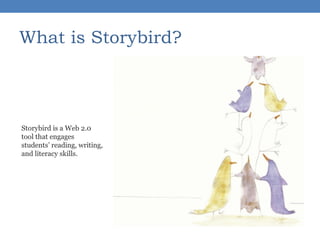
What is Storybird?
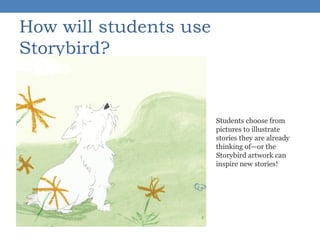
How will students use
Storybird?
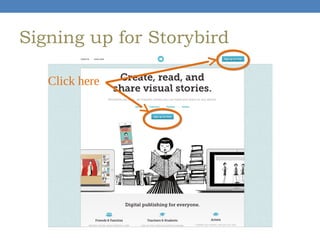
Signing up for Storybird
Click here
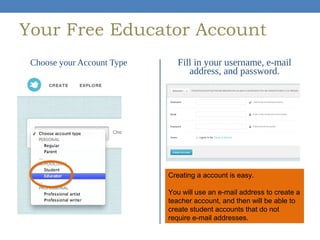
Your Free Educator Account
Choose your Account Type

Fill in your username, e-mail
address, and password.

Creating a account is easy.
You will use an e-mail address to create a
teacher account, and then will be able to
create student accounts that do not
require e-mail addresses.
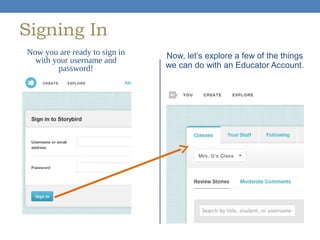
Signing In
Now you are ready to sign in
with your username and
password!

Now, let’s explore a few of the things
we can do with an Educator Account.
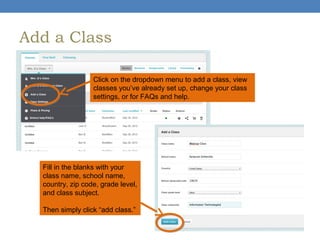
Add a Class
Click on the dropdown menu to add a class, view
classes you’ve already set up, change your class
settings, or for FAQs and help.

Fill in the blanks with your
class name, school name,
country, zip code, grade level,
and class subject.
Then simply click “add class.”
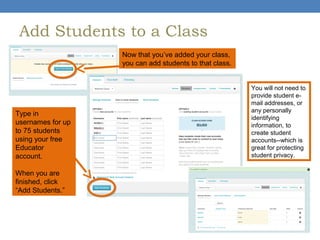
Add Students to a Class
Now that you’ve added your class,
you can add students to that class.

Type in
usernames for up
to 75 students
using your free
Educator
account.
When you are
finished, click
“Add Students.”

You will not need to
provide student email addresses, or
any personally
identifying
information, to
create student
accounts--which is
great for protecting
student privacy.
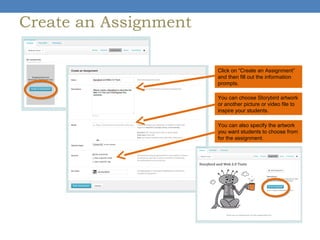
Create an Assignment
Click on “Create an Assignment”
and then fill out the information
prompts.
You can choose Storybird artwork
or another picture or video file to
inspire your students.
You can also specify the artwork
you want students to choose from
for the assignment.
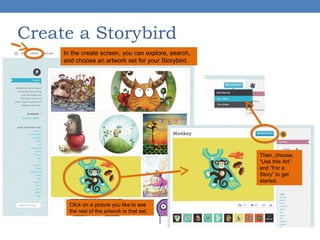
Create a Storybird
In the create screen, you can explore, search,
and choose an artwork set for your Storybird.

Then, choose,
“Use this Art”
and “For a
Story” to get
started.

Click on a picture you like to see
the rest of the artwork in that set.
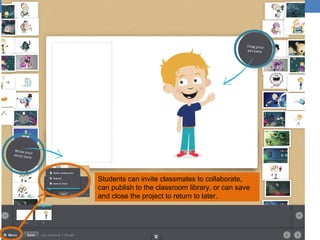
Students can invite classmates to collaborate,
can publish to the classroom library, or can save
and close the project to return to later.
Using Storybird for Learning
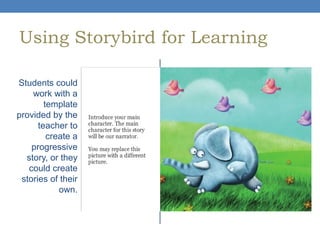
Students could
work with a
template
provided by the
teacher to
create a
progressive
story, or they
could create
stories of their
own.
Using Storybird for Learning
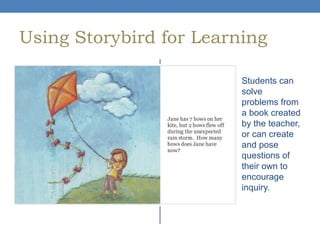
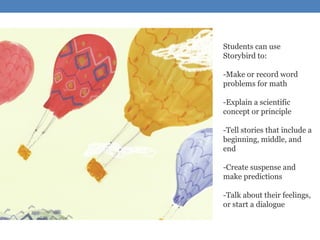
Students can
solve
problems from
a book created
by the teacher,
or can create
and pose
questions of
their own to
encourage
inquiry.
Using Storybird for Learning

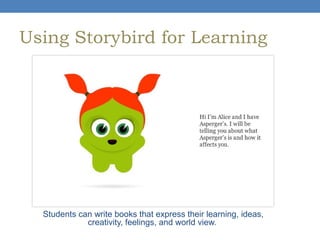
Students can write books that express their learning, ideas,
creativity, feelings, and world view.
Using Storybird for Learning
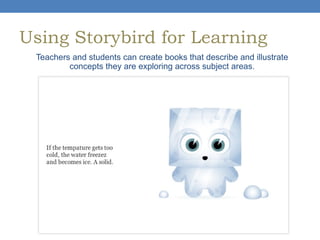
Teachers and students can create books that describe and illustrate
concepts they are exploring across subject areas.
Storybird, Bloom’s Taxonomy &
Common Core Learning Standards
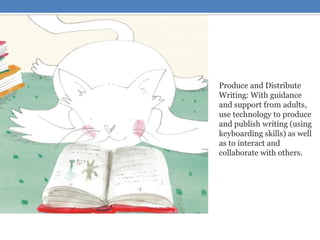
Production &
Distribution of Writing
With guidance and support from
adults, use technology to
produce and publish writing
(using keyboarding skills) as well
as to interact and collaborate
with others.

Craft & Structure
Distinguish their own point of
view from that of the narrator or
those of the characters.

Creating
Evaluating
Analyzing
Applying
Understanding

Share the Main Idea
& Supporting Facts
Determine the main idea of a
text; recount the key details and
explain how they support the
main idea.

Remembering

Integration of
Knowledge & Ideas
Compare and contrast the most
important points and key details
presented in two texts on the
same topic.

Text Types &
Purposes
Develop the topic with facts,
definitions, and details.

Key Ideas & Details
Ask and answer questions to
demonstrate understanding of a
text, referring explicitly to the text
as the basis for the answers.
Sharing the Learning
Student work is automatically private, but can be
seen within the classroom environment online once
a story is published to the class library.
Teachers and classmates can comment on stories
within the closed classroom environment online,
encouraging collaboration and giving students a
safe and supervised opportunity to practice online
citizenship and interaction.
To share student work with parents and friends,
educators can embed the story to a class blog or
purchase a downloadable or print copy of the story.
Storybirds can also be copied to a personal account
for sharing.
Resources
Storybird for Learning on Wikispaces
This wiki includes additional information about Storybird, ideas for using Storybird to support
learning across the curriculum, printable handouts, and a Symbaloo with even more resources
and examples of Storybirds to explore.
http://storybirdforlearning.wikispaces.com/Storybird%2C+a+Web+2.0+Learning+Tool
Storybird Tutorial for Students on YouTube
http://www.youtube.com/watch?v=6eUYpigHWho
Storybird Resources Symbaloo
http://www.symbaloo.com/mix/storybird1
Using Storybird in the Classroom
Dabbs, L. (2011). New Teacher Boot Camp Week 3 – Using Storybird. Edutopia. Retrieved
from http://www.edutopia.org/blog/storybird-new-teacher-boot-camp-lisa-dabbs

Gukeisen Storybird Webinar

  • 1.
    Storybird for Learning Welcome! Thank youfor joining me for this Storybird Webinar. Just a few notes before we get started: •Please check your audio to ensure you are able to hear and be heard. •Please mute your audio (click the microphone icon next to your name) unless you are asking a question or engaging in discussion. •Please feel free to ask questions verbally or through the chat function…
  • 2.
    Storybird Webinar Agenda • Introductionto Storybird • Signing up for Storybird • Creating a Classroom Account • Creating an Assignment & a Storybird • Using Storybird for Learning • Resources
  • 3.
  • 4.
    How will studentsuse Storybird?
  • 5.
    Signing up forStorybird Click here
  • 6.
    Your Free EducatorAccount Choose your Account Type Fill in your username, e-mail address, and password. Creating a account is easy. You will use an e-mail address to create a teacher account, and then will be able to create student accounts that do not require e-mail addresses.
  • 7.
    Signing In Now youare ready to sign in with your username and password! Now, let’s explore a few of the things we can do with an Educator Account.
  • 8.
    Add a Class Clickon the dropdown menu to add a class, view classes you’ve already set up, change your class settings, or for FAQs and help. Fill in the blanks with your class name, school name, country, zip code, grade level, and class subject. Then simply click “add class.”
  • 9.
    Add Students toa Class Now that you’ve added your class, you can add students to that class. Type in usernames for up to 75 students using your free Educator account. When you are finished, click “Add Students.” You will not need to provide student email addresses, or any personally identifying information, to create student accounts--which is great for protecting student privacy.
  • 10.
    Create an Assignment Clickon “Create an Assignment” and then fill out the information prompts. You can choose Storybird artwork or another picture or video file to inspire your students. You can also specify the artwork you want students to choose from for the assignment.
  • 11.
    Create a Storybird Inthe create screen, you can explore, search, and choose an artwork set for your Storybird. Then, choose, “Use this Art” and “For a Story” to get started. Click on a picture you like to see the rest of the artwork in that set.
  • 12.
    Students can inviteclassmates to collaborate, can publish to the classroom library, or can save and close the project to return to later.
  • 13.
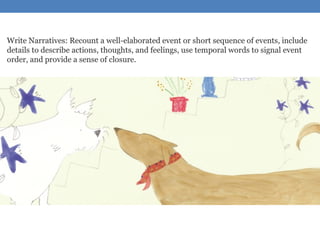
    Using Storybird forLearning Students could work with a template provided by the teacher to create a progressive story, or they could create stories of their own.
  • 14.
    Using Storybird forLearning Students can solve problems from a book created by the teacher, or can create and pose questions of their own to encourage inquiry.
  • 15.
    Using Storybird forLearning Students can write books that express their learning, ideas, creativity, feelings, and world view.
  • 16.
    Using Storybird forLearning Teachers and students can create books that describe and illustrate concepts they are exploring across subject areas.
  • 23.
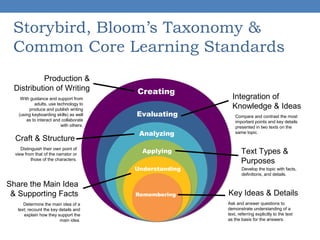
    Storybird, Bloom’s Taxonomy& Common Core Learning Standards Production & Distribution of Writing With guidance and support from adults, use technology to produce and publish writing (using keyboarding skills) as well as to interact and collaborate with others. Craft & Structure Distinguish their own point of view from that of the narrator or those of the characters. Creating Evaluating Analyzing Applying Understanding Share the Main Idea & Supporting Facts Determine the main idea of a text; recount the key details and explain how they support the main idea. Remembering Integration of Knowledge & Ideas Compare and contrast the most important points and key details presented in two texts on the same topic. Text Types & Purposes Develop the topic with facts, definitions, and details. Key Ideas & Details Ask and answer questions to demonstrate understanding of a text, referring explicitly to the text as the basis for the answers.
  • 24.
    Sharing the Learning Studentwork is automatically private, but can be seen within the classroom environment online once a story is published to the class library. Teachers and classmates can comment on stories within the closed classroom environment online, encouraging collaboration and giving students a safe and supervised opportunity to practice online citizenship and interaction. To share student work with parents and friends, educators can embed the story to a class blog or purchase a downloadable or print copy of the story. Storybirds can also be copied to a personal account for sharing.
  • 25.
    Resources Storybird for Learningon Wikispaces This wiki includes additional information about Storybird, ideas for using Storybird to support learning across the curriculum, printable handouts, and a Symbaloo with even more resources and examples of Storybirds to explore. http://storybirdforlearning.wikispaces.com/Storybird%2C+a+Web+2.0+Learning+Tool Storybird Tutorial for Students on YouTube http://www.youtube.com/watch?v=6eUYpigHWho Storybird Resources Symbaloo http://www.symbaloo.com/mix/storybird1 Using Storybird in the Classroom Dabbs, L. (2011). New Teacher Boot Camp Week 3 – Using Storybird. Edutopia. Retrieved from http://www.edutopia.org/blog/storybird-new-teacher-boot-camp-lisa-dabbs