Storybird Studio
Technology Tutorial
SHELLI DANIELS
ITEC 57427
Technology: Storybird Studio
 Why I chose Storybird Studio
 Storybird Studio was chosen because of it’s cross discipline possibilities and its
multi-age, multi-grade level appeal.
 Target Demographic
 School Librarians
 3rd – 12th grade teachers (any discipline)
What is Storybird Studio?
 Storybird is a free Web 2.0 application designed to allow children and
adults to create, share & read art-inspired stories and poetry in a safe, fun
and collaborative space.
 Storybird Studio is the educator platform of Storybird. With Storybird Studio
school librarians and teachers can set up private classrooms, create and
maintain assignments, share and embed stories right from the dashboard.
Storybird studio allows creation of an unlimited number of both longform
and picture books as well as poetry. Pro features (unlimited PDF
downloads, grading, etc.)can be added for an additional cost.
Technology Requirements
Storybird Studio is a web based application. It is built entirely in HTML
 Desktop or laptop computer is required.
 Suggest Chrome, Safari 5+, Firefox 5+ or IE 7+
 Minimum internet speed of 2-5 Mbps
 At this time there is no mobile version of Storybird studio. It will work on
tablets using a traditional browser.
The Tutorial
Following this tutorial users will be able to
 Successfully set up an educator account
 Comfortably navigate through the Storybird site, find artwork
and create stories.
 Create a classroom with an assignment
1. Watch the tutorial videos
2. Set-up a teacher account
3. Have fun, write a 3-5 page story and publish it
4. Create a class
5. Create an assignment
Instructional videos
View the instructional videos
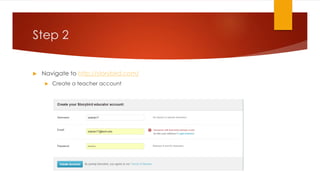
Step 2
 Navigate to http://storybird.com/
 Create a teacher account
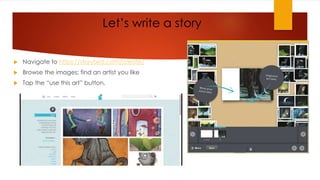
Let’s write a story
 Navigate to https://storybird.com/create/
 Browse the images; find an artist you like
 Tap the “use this art” button,
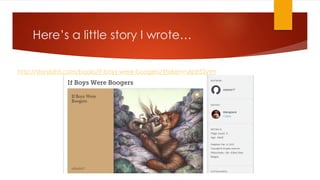
Here’s a little story I wrote…
http://storybird.com/books/if-boys-were-boogers/?token=s6jqt52ytm
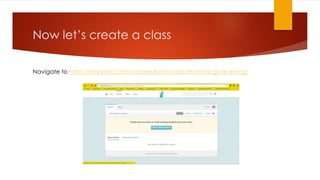
Now let’s create a class
Navigate to https://storybird.com/classes/kent-state/technology-learning/
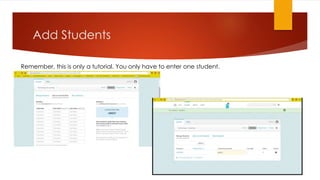
Add Students
Remember, this is only a tutorial. You only have to enter one student.
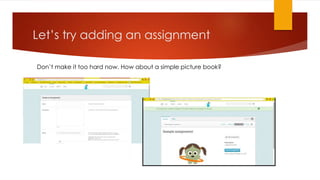
Let’s try adding an assignment
Don’t make it too hard now. How about a simple picture book?
Let’s review
 What we accomplished…
 Signed-up for Storybird studio
 Created a short story picture book
 Created a class
 Created an assignment
 One last thing
 Complete the tutorial assessment

Storybird studio technology tutorial

  • 1.
  • 2.
    Technology: Storybird Studio Why I chose Storybird Studio  Storybird Studio was chosen because of it’s cross discipline possibilities and its multi-age, multi-grade level appeal.  Target Demographic  School Librarians  3rd – 12th grade teachers (any discipline)
  • 3.
    What is StorybirdStudio?  Storybird is a free Web 2.0 application designed to allow children and adults to create, share & read art-inspired stories and poetry in a safe, fun and collaborative space.  Storybird Studio is the educator platform of Storybird. With Storybird Studio school librarians and teachers can set up private classrooms, create and maintain assignments, share and embed stories right from the dashboard. Storybird studio allows creation of an unlimited number of both longform and picture books as well as poetry. Pro features (unlimited PDF downloads, grading, etc.)can be added for an additional cost.
  • 4.
    Technology Requirements Storybird Studiois a web based application. It is built entirely in HTML  Desktop or laptop computer is required.  Suggest Chrome, Safari 5+, Firefox 5+ or IE 7+  Minimum internet speed of 2-5 Mbps  At this time there is no mobile version of Storybird studio. It will work on tablets using a traditional browser.
  • 5.
    The Tutorial Following thistutorial users will be able to  Successfully set up an educator account  Comfortably navigate through the Storybird site, find artwork and create stories.  Create a classroom with an assignment 1. Watch the tutorial videos 2. Set-up a teacher account 3. Have fun, write a 3-5 page story and publish it 4. Create a class 5. Create an assignment
  • 6.
    Instructional videos View theinstructional videos
  • 7.
    Step 2  Navigateto http://storybird.com/  Create a teacher account
  • 8.
    Let’s write astory  Navigate to https://storybird.com/create/  Browse the images; find an artist you like  Tap the “use this art” button,
  • 9.
    Here’s a littlestory I wrote… http://storybird.com/books/if-boys-were-boogers/?token=s6jqt52ytm
  • 10.
    Now let’s createa class Navigate to https://storybird.com/classes/kent-state/technology-learning/
  • 11.
    Add Students Remember, thisis only a tutorial. You only have to enter one student.
  • 12.
    Let’s try addingan assignment Don’t make it too hard now. How about a simple picture book?
  • 13.
    Let’s review  Whatwe accomplished…  Signed-up for Storybird studio  Created a short story picture book  Created a class  Created an assignment  One last thing  Complete the tutorial assessment