Authorized Publisher Manager 
(APM) Program: 
A Step-by-Step Guide
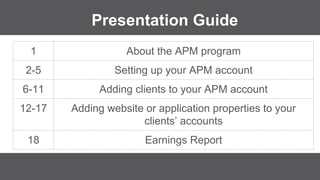
Presentation Guide 
1 About the APM program 
2-5 Setting up your APM account 
6-11 Adding clients to your APM account 
12-17 Adding website or application properties to your 
clients’ accounts 
18 Earnings Report
you? 1. 
About the APM Program 
Review: is the APM program for 
Does your company maintain or have a good relationship with several websites? 
Are you or your clients interested in monetizing your websites via online ads? 
Are you looking for an easier way to manage the monetization of these sites?
Setting Up Your APM Account 
partner@gandr.com.bd 2. 
If the answer is “yes,” email us:
Setting Up Your APM Account 
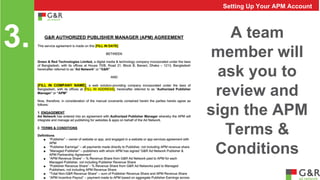
3. A team 
member will 
ask you to 
review and 
sign the APM 
Terms & 
Conditions
Setting Up Your APM Account 
4. Then you’ll be asked to send us 
basic info so we can set up your 
APM account: 
NAME 
EMAIL 
PHONE ADDRESS 
COMPANY NAME 
PAYEE NAME COUNTRY
You’ll receive an email with your 
login credentials 
5. 
Setting Up Your APM Account
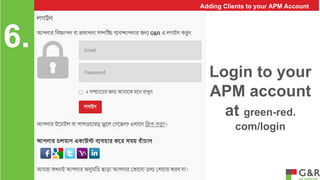
Login to your 
APM account 
at green-red. 
com/login 
6. 
Adding Clients to your APM Account
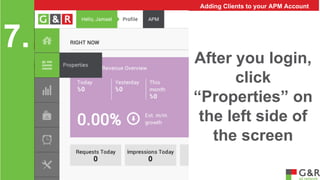
After you login, 
click 
“Properties” on 
the left side of 
the screen 
7. 
Adding Clients to your APM Account
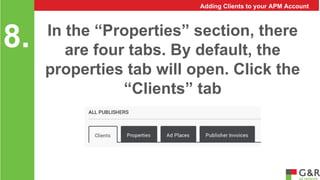
In the “Properties” section, there 
are four tabs. By default, the 
properties tab will open. Click the 
“Clients” tab 
8. 
Adding Clients to your APM Account
Adding Clients to your APM Account 
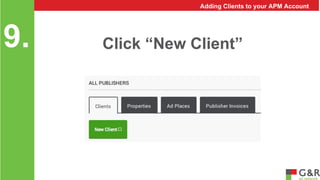
9. Click “New Client”
Adding Clients to your APM Account 
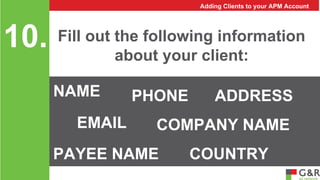
about your client: 10. 
Fill out the following information 
NAME 
EMAIL 
PHONE ADDRESS 
COMPANY NAME 
PAYEE NAME COUNTRY
Adding Clients to your APM Account 
When you click “Submit” an 
email will be sent to your client 
with their login credentials 
11.
Adding Properties to your Clients’ Accounts 
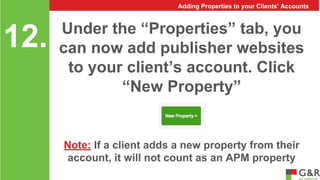
Under the “Properties” tab, you 
can now add publisher websites 
to your client’s account. Click 
“New Property” 
12. 
Note: If a client adds a new property from their 
account, it will not count as an APM property
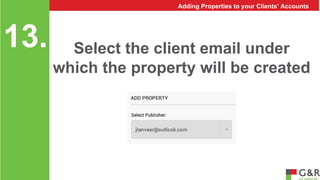
Select the client email under 
which the property will be created 
13. 
Adding Properties to your Clients’ Accounts
Select the type of property 
(website or application). 
You will be asked for different 
information depending on 
whether you are submitting a 
website or application 
14. 
Adding Properties to your Clients’ Accounts
You will be prompted to insert 
what share of your client’s 
earnings will go to you and what 
share will go to your client. 
15. 
Adding Properties to your Clients’ Accounts
After you click submit, your client 
will get an email stating that a 
new property has been created 
under his/her email address 
They’ll be given a link to review 
the info that you submitted. They 
can make changes if needed. 
16. 
Adding Properties to your Clients’ Accounts
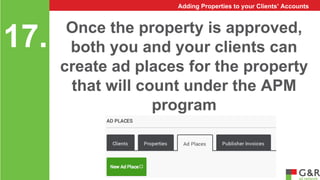
Once the property is approved, 
both you and your clients can 
create ad places for the property 
that will count under the APM 
program 
17. 
Adding Properties to your Clients’ Accounts
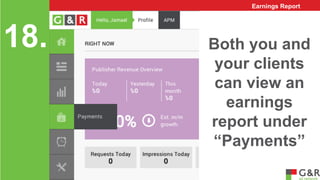
Both you and 
your clients 
can view an 
earnings 
report under 
“Payments” 
18. 
Earnings Report

G&R APM guide

  • 1.
    Authorized Publisher Manager (APM) Program: A Step-by-Step Guide
  • 2.
    Presentation Guide 1About the APM program 2-5 Setting up your APM account 6-11 Adding clients to your APM account 12-17 Adding website or application properties to your clients’ accounts 18 Earnings Report
  • 3.
    you? 1. Aboutthe APM Program Review: is the APM program for Does your company maintain or have a good relationship with several websites? Are you or your clients interested in monetizing your websites via online ads? Are you looking for an easier way to manage the monetization of these sites?
  • 4.
    Setting Up YourAPM Account partner@gandr.com.bd 2. If the answer is “yes,” email us:
  • 5.
    Setting Up YourAPM Account 3. A team member will ask you to review and sign the APM Terms & Conditions
  • 6.
    Setting Up YourAPM Account 4. Then you’ll be asked to send us basic info so we can set up your APM account: NAME EMAIL PHONE ADDRESS COMPANY NAME PAYEE NAME COUNTRY
  • 7.
    You’ll receive anemail with your login credentials 5. Setting Up Your APM Account
  • 8.
    Login to your APM account at green-red. com/login 6. Adding Clients to your APM Account
  • 9.
    After you login, click “Properties” on the left side of the screen 7. Adding Clients to your APM Account
  • 10.
    In the “Properties”section, there are four tabs. By default, the properties tab will open. Click the “Clients” tab 8. Adding Clients to your APM Account
  • 11.
    Adding Clients toyour APM Account 9. Click “New Client”
  • 12.
    Adding Clients toyour APM Account about your client: 10. Fill out the following information NAME EMAIL PHONE ADDRESS COMPANY NAME PAYEE NAME COUNTRY
  • 13.
    Adding Clients toyour APM Account When you click “Submit” an email will be sent to your client with their login credentials 11.
  • 14.
    Adding Properties toyour Clients’ Accounts Under the “Properties” tab, you can now add publisher websites to your client’s account. Click “New Property” 12. Note: If a client adds a new property from their account, it will not count as an APM property
  • 15.
    Select the clientemail under which the property will be created 13. Adding Properties to your Clients’ Accounts
  • 16.
    Select the typeof property (website or application). You will be asked for different information depending on whether you are submitting a website or application 14. Adding Properties to your Clients’ Accounts
  • 17.
    You will beprompted to insert what share of your client’s earnings will go to you and what share will go to your client. 15. Adding Properties to your Clients’ Accounts
  • 18.
    After you clicksubmit, your client will get an email stating that a new property has been created under his/her email address They’ll be given a link to review the info that you submitted. They can make changes if needed. 16. Adding Properties to your Clients’ Accounts
  • 19.
    Once the propertyis approved, both you and your clients can create ad places for the property that will count under the APM program 17. Adding Properties to your Clients’ Accounts
  • 20.
    Both you and your clients can view an earnings report under “Payments” 18. Earnings Report