Creating an Interactive Google Map
Anthony Bryant
University of South Florida
EME 6053: Internet in Education
CREATING YOUR MAP
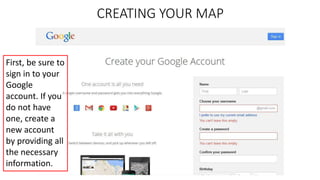
First, be sure to
sign in to your
Google
account. If you
do not have
one, create a
new account
by providing all
the necessary
information.
CREATING YOUR MAP
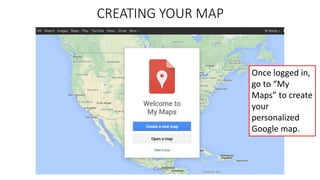
Once logged in,
go to “My
Maps” to create
your
personalized
Google map.
BASICS FOR ADDING TO/EDITING YOUR MAP
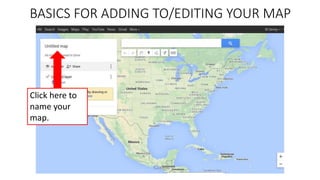
Click here to
name your
map.
BASICS FOR ADDING TO/EDITING YOUR MAP
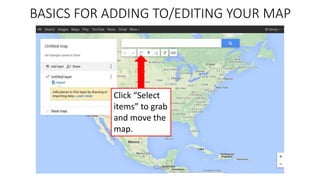
Click “Select
items” to grab
and move the
map.
BASICS FOR ADDING TO/EDITING YOUR MAP
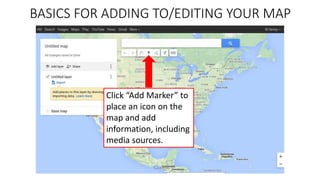
Click “Add Marker” to
place an icon on the
map and add
information, including
media sources.
BASICS FOR ADDING TO/EDITING YOUR MAP
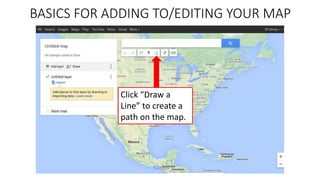
Click “Draw a
Line” to create a
path on the map.
ADDING A MARKER TO YOUR MAP
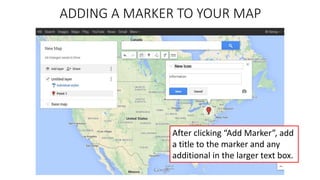
After clicking “Add Marker”, add
a title to the marker and any
additional in the larger text box.
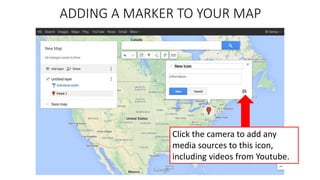
ADDING A MARKER TO YOUR MAP
Click the camera to add any
media sources to this icon,
including videos from Youtube.
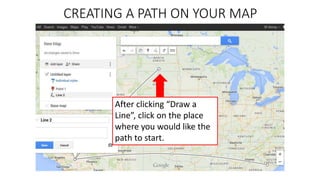
CREATING A PATH ON YOUR MAP
After clicking “Draw a
Line”, click on the place
where you would like the
path to start.
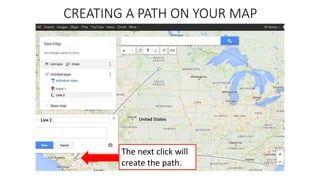
CREATING A PATH ON YOUR MAP
The next click will
create the path.
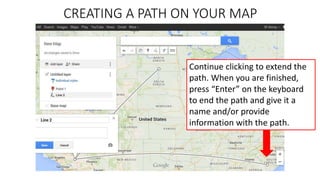
CREATING A PATH ON YOUR MAP
Continue clicking to extend the
path. When you are finished,
press “Enter” on the keyboard
to end the path and give it a
name and/or provide
information with the path.

Creating an Interactive Google Map

  • 1.
    Creating an InteractiveGoogle Map Anthony Bryant University of South Florida EME 6053: Internet in Education
  • 2.
    CREATING YOUR MAP First,be sure to sign in to your Google account. If you do not have one, create a new account by providing all the necessary information.
  • 3.
    CREATING YOUR MAP Oncelogged in, go to “My Maps” to create your personalized Google map.
  • 4.
    BASICS FOR ADDINGTO/EDITING YOUR MAP Click here to name your map.
  • 5.
    BASICS FOR ADDINGTO/EDITING YOUR MAP Click “Select items” to grab and move the map.
  • 6.
    BASICS FOR ADDINGTO/EDITING YOUR MAP Click “Add Marker” to place an icon on the map and add information, including media sources.
  • 7.
    BASICS FOR ADDINGTO/EDITING YOUR MAP Click “Draw a Line” to create a path on the map.
  • 8.
    ADDING A MARKERTO YOUR MAP After clicking “Add Marker”, add a title to the marker and any additional in the larger text box.
  • 9.
    ADDING A MARKERTO YOUR MAP Click the camera to add any media sources to this icon, including videos from Youtube.
  • 10.
    CREATING A PATHON YOUR MAP After clicking “Draw a Line”, click on the place where you would like the path to start.
  • 11.
    CREATING A PATHON YOUR MAP The next click will create the path.
  • 12.
    CREATING A PATHON YOUR MAP Continue clicking to extend the path. When you are finished, press “Enter” on the keyboard to end the path and give it a name and/or provide information with the path.