Objectives:
•
By the endof this lesson, students should be able to:
• Understand the purpose and benefits of Google Calendar.
• Navigate the Google Calendar interface.
• Create, edit, and delete events.
• Invite participants using shared calendars.
• Set and manage appointments using appointment slots.
5.
• Google Calendaris a free, web-
based time management and
scheduling tool developed by
Google.
• It allows users to create and
organize events, set reminders,
schedule appointments, and share
calendars with others.
6.
• Part ofGoogle Workspace
• Accessible via web browser and mobile app
• Automatically syncs with your Google Account
• Integrates with Gmail, Google Meet and other Google
Services.
Key Characteristics
7.
• Create andmanage events
• Share your calendar or invite others to events
• Set notifications to remind you before an event starts
• Use appointment slots to let others book time with
you
• View multiple calendars in one place
What You Can Do with Google
Calendar?
9.
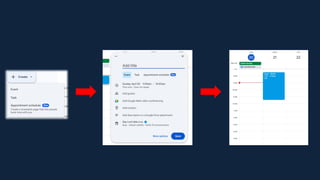
A. CREATING EVENTS
is a process of adding a specific activity to
your calendar with details like title, date,
time, location and guests.
Features of Google Calendar
11.
B. Inviting Calendar(Sharing Events)
Refers to the action of inviting other people to
your event so others can see your schedule
and collaborate with you.
Features of Google Calendar
12.
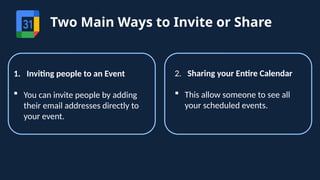
Two Main Waysto Invite or Share
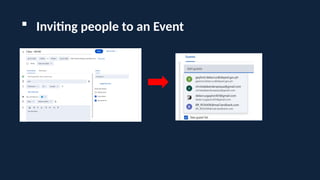
1. Inviting people to an Event
You can invite people by adding
their email addresses directly to
your event.
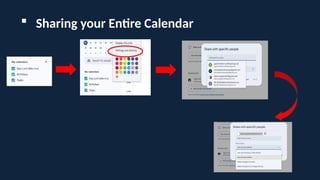
2. Sharing your Entire Calendar
This allow someone to see all
your scheduled events.
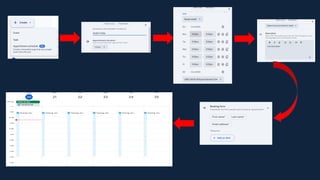
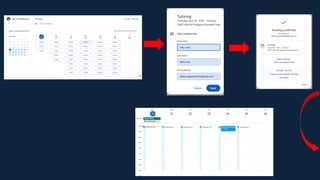
C. Setting Appointment
Refers to using Google Calendar’s
Appointment Slots feature to create bookable
time blocks.
Features of Google Calendar
18.
Using Google Calendaron Mobile & Offline
Google Calendar is available on all major
platforms.
Offline mode allows event viewing without
internet
Weather can be integrated to enhance planning.
Editor's Notes
#7 1. Like classes, meetings, or reminders)
5. Such as personal, work, school
#8 This is your default calendar, it is the main calendar automatically created for your Google account when you first use Gcalendar. It is usually named after your email addresses and is used to store all the events, tasks and appointments.
This default calendar cannot be deleted because it is your primary calendar.
But you can still create another calendar for your personal, work and school. In this you can create unlimited calendar by manual typing, importing and email dragging.
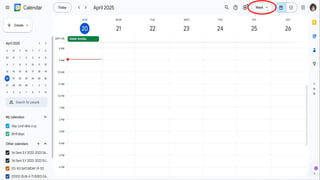
Once inside the Gcalendar, you can choose how you want to view your schedule: DAY, WEEK , MONTH.
Bakit walang year? It is because a full year view is unreadable.
#9 If your going to set a reminder for an event it is called NOTIFICATION
If you receive notification via email pop-ups or mobile alert it is called REMINDER
#11 You can invite others to an event using their email and send sharable calendar link.
There’s no strict limit on how many guest you can invite. It allows unlimited guests invitation per event.
#14 1. Go to my calendar on the left panel. You can see a list of calendar associated with your default calendar
2. Click the three dots and this open the drop down menu
3. Select setting and sharing and this opens a new page
4. Scroll down to find the shared with specific people. Then click add people
5. Enter their email address of the oerson you want to shared with. You can add multiple user since there's is no limitation in sharing.
6. Set a permission level
* See only free/busy (hide details)
They can see when you're available or busy, but no event details will be shown.
*See all event details
They can see the event name, time, location, and description, but can't edit anything..
*Make changes to events
They can edit your events, such as changing the time, adding guests, or updating descriptions.
They cannot share your calendar or adjust sharing settings..
*Make changes and manage sharing
They have full access, including the ability to: Create and delete events, Change any event details and Add or remove people from your calendar sharing
7. Click "Send"
The recipient(s) will receive an email invitation and will be able to access your calendar based on the permission you granted.
#18 (Android, iOS and web) in mobile you can create, delete and share
Offline access is available through Google Calendar Offline
You can integrate weather manually using a third party add ons in calendar feed like accuweather or weather underground. These show basic forecasts like icons for sun, rain but they're not dynamic or highly detailed.