A guide to the new
AdWords experience
2 |
Intro - About the new AdWords experience
Module 1 - Finding your way around
Module 2 - New and improved reporting
Module 3 - New features
Module 4 - Keyword Planner
Module 5 - Changes to the Search Network
Module 6 - Changes to Video campaigns
Module 7 - Changes to Shopping campaigns
Module 8 - Troubleshooting issues
Table of contents
3 |
● For the best experience, use AdWords in Firefox, Chrome or Safari
● Disable ad blockers, as they may restrict features
● Keep in mind that some features aren’t available yet – so you’ll need to use the
existing setup for those.
Some tips for using the new AdWords
experience
The new AdWords experience has arrived, designed to make it even easier for you to
reach your advertising goals. With the new changes, you’ll be able to:
● Create and improve campaigns based on your unique business goals
● Save time and get more done with faster and more intuitive access to the
features you use most
● Gain actionable insights with new graphs and powerful reporting tools.
But don’t worry - your campaigns will run the same as they run today. We’re not
overhauling the way AdWords functions; we’re just making it easier to view and access
the features you use the most.
Intro: About the new AdWords experience
4 |
To switch from the previous AdWords experience to the new AdWords experience, click
the gear icon in the upper right corner of your account and select Try the new AdWords.
Switching between the new and previous
AdWords experience
You can switch from the new AdWords experience to the previous AdWords experience
by clicking the 3-dot icon in the upper right corner of your account, and selecting Return
to previous AdWords.
Your data remains the same regardless of which experience you’re using. For instance, if
you create a campaign in the new AdWords experience, it will be in your account no
matter whether you're viewing the new experience or the previous experience.
5 |
The main changes you’ll notice are:
● Easier navigation: as an advertiser, you’ll find the features you use every day are
now more accessible. So you can get straight to features like reporting,
monitoring, and optimization. Other functions you rely on, like targeting and
bidding options and consolidated account-level tools, are now accessible in the
page menu on the left and menus on the upper right.
● Overviews: You’ll now find Google-curated performance insights and
visualizations for managed accounts.
● New campaign creation features: Create multiple ad groups and ads at the same
time, and get tailored suggestions to help you build a campaign that meets your
business goals.
● Extensions: The new combined table for all extensions is easier to find, and
provides added performance insights. The new Extension Preview feature also
allows you to see an example of how your ad will look with extensions.
● Tables: A new, cleaner design can support much larger data tables and you can
readjust the size of columns now - to fit more data in.
6 |
Here are the basics about how and where to find key features
Move among campaigns and ad groups
Use the navigation panel on the far left-hand side. If you're on a smaller screen, the
navigation panel is hidden by default. To open it, either hover your mouse over the
left-hand side of the page, or click the arrow icon.
Module 1: Finding your way around
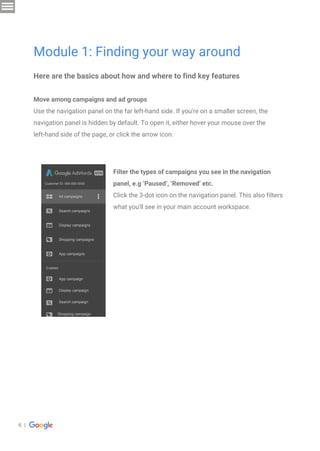
Filter the types of campaigns you see in the navigation
panel, e.g ‘Paused’, ‘Removed’ etc.
Click the 3-dot icon on the navigation panel. This also filters
what you'll see in your main account workspace.
All campaigns
Search campaigns
Display campaigns
Shopping campaigns
App campaigns
Customer ID: 000-000-0000
App campaign
Display campaign
Search campaign
Shopping campaign
Enabled
7 |
Move among pages in your account
Click items in the page menu (the bar along
the near left-hand side of the page). The
contents of this page menu change depending
on whether you're at the account, campaign or
ad group level. Only the options relevant to
that campaign or ad group show in the page
menu.
Create something new
To create campaigns, ad groups, ads, and
keywords, or to add location targeting or ad
scheduling, click the item you want to create in
the page menu, then click the plus button.
Ad groups
Product groups
Ads & extensions
Keywords
Audiences
Demographics
Topics
Placements
Overview
Opportunities
Settings
Locations
Ad schedule
Devices
Advanced bid adj.
Change history
Campaigns
8 |
Access your performance reports
Access your performance reports by clicking the reporting icon in the
upper right corner of your account and choosing Reports or Dashboards.
Optimize your account
To access optimization and planning tools: look for the main, 3-dot icon on the upper
right-hand-side of your account.
See important alerts
Get the most critical account alerts the same
way you did in the previous AdWords
experience. Just click the bell icon in the upper
right-hand corner of any page in your account.
REPORTING
Reports
Predefined reports (formerly Dimensions)
Dashboards
NOTIFICATIONS
1 ad group without ads
Some of your ad groups have no enabled ads
FIX IT DISMISS
1 campaign with no ad groups
Some of your campaigns aren’t running ads
because they have no enabled ad groups
FIX IT DISMISS
9 |
Manage billing and account settings
Click the main 3-dot icon in the upper right-hand corner of your account to go to billing,
account management, and notification preferences. For now, these items each open in
the previous AdWords experience, in a new tab. When you're done using them, just close
the tab to return to the new AdWords experience.
Get help
Click the help icon (?) in the upper right-hand corner of your account and choose
Get help if you require support with anything. You can also access a guided tour of your
account from here.
Keyword Planner
Af Preview and Diagnosis
Audience center
Portfolio bid strategies
Negative keyword lists
Shared budgets
Placement exclusion lists
Account placement exclusions
All bulk actions
Rules
Scripts
Uploads
Conversions
Google Analytics
Search attribution
Billing & payments
Business data
Account access
Linked accounts
Preferences
PLANNING SHARED LIBRARY SETUP LIBRARYMEASUREMENTBULK ACTIONS
10 |
Get insights with the new Overview page
The Overview page is the new landing page for your account. It shows a selection of
cards with performance highlights and other insights generated by Google. You can look
through each level of your account—from overall campaigns, down to specific ad groups.
Your Overview page will include two types of cards; summary cards and insight cards.
Summary cards
● Get an at-a-glance summary of your performance over a date range of your choice
● Compare up to four metrics of your choosing at a time
● See performance broken down by device, day, time, and more
● Review your top videos, products, campaigns, keyword searches, and more
● See the geographic location of people who interacted with your ads
Module 2: New and improved reporting
Clicks CostCTR AVG.CPC
4th quarter 2012 2nd quarter 2012
24.1K 1.17% $0.78
$18.9K
$18.9K
Refine your data with customizable tables and charts
The best way to spot opportunities for your business is to regularly review your
performance data.
Customize your tables and charts so you can review the data that matters most to your
business – from analyzing account-wide trends to finding out how customers are
interacting with your ads.
You can:
● Change the date range or time interval
● Modify table columns
● Sort and segment table rows
● Create a filter
● View or hide a chart
● Change the metrics in a chart
11 |
Insight cards
● See valuable and relevant observations or patterns in your data
● Get insights that highlight what matters in your account not, not specific to the
date range selected
● Use the observations to help you monitor your performance
You can choose a campaign, or click a specific card detail to continue discovering more
insights. We'll continue adding more types of cards, so keep checking your Overview
page for even more insights.
12 |
Audience manager
The audience manager is the new home for everything related to an advertiser’s
first-party data. It allows advertisers to add or link remarketing lists to their AdWords
accounts, provides troubleshooting help for source maintenance, and enables
advertisers to create or edit lists of users that can be targeted in display, video, and
search campaigns.
Call bid adjustment
Gives advertisers more control over bid adjustments on their call extensions, helping
them to gain additional CTC (cost to call) impression share.
AdWords manager account
View opportunities and overviews for all your accounts in one place. Export opportunity
data for further analysis and action.
Promotion extensions
Promotion extensions is a new search ad format that allows you to highlight specific
sales, discounts, or promotions across their AdWords ads.
With this feature, you can quickly and prominently display information about your
promotions without updating every individual ad creative, which also frees up creative
text for other messaging.
Showcase Shopping ads
This new shopping ad format contains information about related products, and are more
likely to show when people search for general terms rather than for a specific product.
You can create these ads with Shopping campaigns, and they can appear on Google
Shopping, Google Search, and Google Search Partners.
Module 3: New features
13 |
Say hello to speedier keyword research
The new keyword Planner includes updated visualizations to help you quickly identify the
best options for your campaigns. What’s more, keyword research is easier with a
simpler, more intuitive landing page.
Available features for Keyword Planner:
● Keyword ideas
● Historical stats
● Charts
● Targeting (location, language, search networks)
● Date range customizer
Stay tuned for:
● Download suggestions and stats
● Performance forecasts
● Create a plan with ad groups and keywords
● Save plans to your account
● Keyword bid ranges
Module 4: Keyword Planner in AdWords
14 |
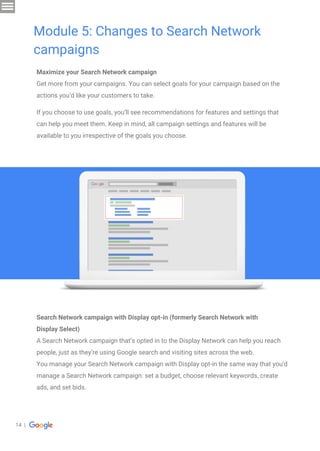
Maximize your Search Network campaign
Get more from your campaigns. You can select goals for your campaign based on the
actions you’d like your customers to take.
If you choose to use goals, you’ll see recommendations for features and settings that
can help you meet them. Keep in mind, all campaign settings and features will be
available to you irrespective of the goals you choose.
Module 5: Changes to Search Network
campaigns
Search Network campaign with Display opt-in (formerly Search Network with
Display Select)
A Search Network campaign that’s opted in to the Display Network can help you reach
people, just as they’re using Google search and visiting sites across the web.
You manage your Search Network campaign with Display opt-in the same way that you'd
manage a Search Network campaign: set a budget, choose relevant keywords, create
ads, and set bids.
15 |
Your ads can appear when people search for terms on Google search and search partner
sites that match your keywords. They can also appear on relevant pages across the web
on the Google Display Network. However, your ads are shown selectively on the Display
Network and bidding is automated; helping you reach people who are most likely to be
interested in the products and services you’re advertising.
In general, your ads will show primarily on the Search Network, and can show on the
Display Network if it appears you’ll have remaining budget at the end of the day.
Finding your audience quicker with Video campaigns
Video campaigns are now available for all advertisers on the new AdWords experience.
We’ve streamlined targeting workflows and updated some features, so it’s easier than
ever to create and manage your campaigns.Plus, interest targeting and remarketing
features are now all grouped under the Audiences page.
This includes:
· Affinity audiences and in-market audiences (previously located under ‘interests’)
· Remarketing and similar audiences (previously located under ‘remarketing’)
Custom affinity audiences can now be created directly within your video campaigns,
using an updated custom affinity builder.
Module 6: Changes to Video campaigns
16 |
Available features for video campaigns:
● Overview
● Campaign creation and management
● Video ad creation and management
● Location targeting
● Ad scheduling
● Demographic, placement, keyword, audience, and topic targeting
● Campaign ad group and video ad analytics
● Change history
Stay tuned for:
● TrueView for Shopping and TrueView for mobile app installs campaign creation
● Bumper ads
● Companion banners in ad creation
● Device targeting
● Advanced editing
● Shared library
● Opportunities
● Manager accounts
● Account linking
17 |
Shopping campaigns are now available on the new AdWords experience.
Take advantage of new AdWords features to manage your campaigns.
Available features for Shopping campaigns:
● Overview
● Campaign creation and management
● Product group creation and management
● Products information
● Ad scheduling
● Critical account alerts
● Location targeting
● Advanced location options
● Advanced editing
● Business data / shared library
● Opportunities
● Manager accounts
● Account linking
For more information in changes to Shopping campaigns, visit the Help Center.
Module 7: Changes to Shopping
campaigns
18 |
How we deal with disapproved ads or suspended sites is largely the same as it was, you
might notice some presentational differences, the speech bubbles are gone, but the
policies are the same.
Fix a disapproved ad
If you ad has not been approved, don’t worry you can always try and fix it. You may
notice a few new ways to get notified of disapproved ads or suspended sites.
To find out more, click the policy link for specific details about what we don’t allow. If
you have multiple disapproved ads, then you can create a filter to view them all at once.
To view all disapproved ads, use the “Status” filter.
Click on the ad or the edit icon that appears when you hover over the ad, then make edits
so that it complies with AdWords policies. Note that some policies apply to the ad’s
destination, so you should make any necessary changes to your site before editing.
When you’ve finished editing your ad, click “Save” and the ad will immediately be sent for
review. If the review determines that all policy violations have been resolved, the ad will
be approved to run.
Fix a suspended site
To discover why your site has been suspended, go to the Ads & Extensions page. In the
Status column, hover your cursor over any “site suspended” status. Click the policy link
for specific details on how to resolve the issue.
You’ll typically receive an email with a link that details the policies that have been
violated, and how to resolve the issue.
Once you’ve made the necessary changes to your site, request a review. You may also
need to edit any associated ads that violate AdWords policies. If the review shows that
all policy violations have been resolved, the site will be approved for advertising.
Module 8: Troubleshooting issues
19 |
We want to hear about what's working for you in the new AdWords and what could be
improved. To share your thoughts, click the help icon in the upper right side of your
account, then hit “leave feedback”.
Learn more about how to navigate the new AdWords experience at our Help Center.
Share your thoughts

Google ad words experience guide

  • 1.
    A guide tothe new AdWords experience
  • 2.
    2 | Intro -About the new AdWords experience Module 1 - Finding your way around Module 2 - New and improved reporting Module 3 - New features Module 4 - Keyword Planner Module 5 - Changes to the Search Network Module 6 - Changes to Video campaigns Module 7 - Changes to Shopping campaigns Module 8 - Troubleshooting issues Table of contents
  • 3.
    3 | ● Forthe best experience, use AdWords in Firefox, Chrome or Safari ● Disable ad blockers, as they may restrict features ● Keep in mind that some features aren’t available yet – so you’ll need to use the existing setup for those. Some tips for using the new AdWords experience The new AdWords experience has arrived, designed to make it even easier for you to reach your advertising goals. With the new changes, you’ll be able to: ● Create and improve campaigns based on your unique business goals ● Save time and get more done with faster and more intuitive access to the features you use most ● Gain actionable insights with new graphs and powerful reporting tools. But don’t worry - your campaigns will run the same as they run today. We’re not overhauling the way AdWords functions; we’re just making it easier to view and access the features you use the most. Intro: About the new AdWords experience
  • 4.
    4 | To switchfrom the previous AdWords experience to the new AdWords experience, click the gear icon in the upper right corner of your account and select Try the new AdWords. Switching between the new and previous AdWords experience You can switch from the new AdWords experience to the previous AdWords experience by clicking the 3-dot icon in the upper right corner of your account, and selecting Return to previous AdWords. Your data remains the same regardless of which experience you’re using. For instance, if you create a campaign in the new AdWords experience, it will be in your account no matter whether you're viewing the new experience or the previous experience.
  • 5.
    5 | The mainchanges you’ll notice are: ● Easier navigation: as an advertiser, you’ll find the features you use every day are now more accessible. So you can get straight to features like reporting, monitoring, and optimization. Other functions you rely on, like targeting and bidding options and consolidated account-level tools, are now accessible in the page menu on the left and menus on the upper right. ● Overviews: You’ll now find Google-curated performance insights and visualizations for managed accounts. ● New campaign creation features: Create multiple ad groups and ads at the same time, and get tailored suggestions to help you build a campaign that meets your business goals. ● Extensions: The new combined table for all extensions is easier to find, and provides added performance insights. The new Extension Preview feature also allows you to see an example of how your ad will look with extensions. ● Tables: A new, cleaner design can support much larger data tables and you can readjust the size of columns now - to fit more data in.
  • 6.
    6 | Here arethe basics about how and where to find key features Move among campaigns and ad groups Use the navigation panel on the far left-hand side. If you're on a smaller screen, the navigation panel is hidden by default. To open it, either hover your mouse over the left-hand side of the page, or click the arrow icon. Module 1: Finding your way around Filter the types of campaigns you see in the navigation panel, e.g ‘Paused’, ‘Removed’ etc. Click the 3-dot icon on the navigation panel. This also filters what you'll see in your main account workspace. All campaigns Search campaigns Display campaigns Shopping campaigns App campaigns Customer ID: 000-000-0000 App campaign Display campaign Search campaign Shopping campaign Enabled
  • 7.
    7 | Move amongpages in your account Click items in the page menu (the bar along the near left-hand side of the page). The contents of this page menu change depending on whether you're at the account, campaign or ad group level. Only the options relevant to that campaign or ad group show in the page menu. Create something new To create campaigns, ad groups, ads, and keywords, or to add location targeting or ad scheduling, click the item you want to create in the page menu, then click the plus button. Ad groups Product groups Ads & extensions Keywords Audiences Demographics Topics Placements Overview Opportunities Settings Locations Ad schedule Devices Advanced bid adj. Change history Campaigns
  • 8.
    8 | Access yourperformance reports Access your performance reports by clicking the reporting icon in the upper right corner of your account and choosing Reports or Dashboards. Optimize your account To access optimization and planning tools: look for the main, 3-dot icon on the upper right-hand-side of your account. See important alerts Get the most critical account alerts the same way you did in the previous AdWords experience. Just click the bell icon in the upper right-hand corner of any page in your account. REPORTING Reports Predefined reports (formerly Dimensions) Dashboards NOTIFICATIONS 1 ad group without ads Some of your ad groups have no enabled ads FIX IT DISMISS 1 campaign with no ad groups Some of your campaigns aren’t running ads because they have no enabled ad groups FIX IT DISMISS
  • 9.
    9 | Manage billingand account settings Click the main 3-dot icon in the upper right-hand corner of your account to go to billing, account management, and notification preferences. For now, these items each open in the previous AdWords experience, in a new tab. When you're done using them, just close the tab to return to the new AdWords experience. Get help Click the help icon (?) in the upper right-hand corner of your account and choose Get help if you require support with anything. You can also access a guided tour of your account from here. Keyword Planner Af Preview and Diagnosis Audience center Portfolio bid strategies Negative keyword lists Shared budgets Placement exclusion lists Account placement exclusions All bulk actions Rules Scripts Uploads Conversions Google Analytics Search attribution Billing & payments Business data Account access Linked accounts Preferences PLANNING SHARED LIBRARY SETUP LIBRARYMEASUREMENTBULK ACTIONS
  • 10.
    10 | Get insightswith the new Overview page The Overview page is the new landing page for your account. It shows a selection of cards with performance highlights and other insights generated by Google. You can look through each level of your account—from overall campaigns, down to specific ad groups. Your Overview page will include two types of cards; summary cards and insight cards. Summary cards ● Get an at-a-glance summary of your performance over a date range of your choice ● Compare up to four metrics of your choosing at a time ● See performance broken down by device, day, time, and more ● Review your top videos, products, campaigns, keyword searches, and more ● See the geographic location of people who interacted with your ads Module 2: New and improved reporting Clicks CostCTR AVG.CPC 4th quarter 2012 2nd quarter 2012 24.1K 1.17% $0.78 $18.9K $18.9K
  • 11.
    Refine your datawith customizable tables and charts The best way to spot opportunities for your business is to regularly review your performance data. Customize your tables and charts so you can review the data that matters most to your business – from analyzing account-wide trends to finding out how customers are interacting with your ads. You can: ● Change the date range or time interval ● Modify table columns ● Sort and segment table rows ● Create a filter ● View or hide a chart ● Change the metrics in a chart 11 | Insight cards ● See valuable and relevant observations or patterns in your data ● Get insights that highlight what matters in your account not, not specific to the date range selected ● Use the observations to help you monitor your performance You can choose a campaign, or click a specific card detail to continue discovering more insights. We'll continue adding more types of cards, so keep checking your Overview page for even more insights.
  • 12.
    12 | Audience manager Theaudience manager is the new home for everything related to an advertiser’s first-party data. It allows advertisers to add or link remarketing lists to their AdWords accounts, provides troubleshooting help for source maintenance, and enables advertisers to create or edit lists of users that can be targeted in display, video, and search campaigns. Call bid adjustment Gives advertisers more control over bid adjustments on their call extensions, helping them to gain additional CTC (cost to call) impression share. AdWords manager account View opportunities and overviews for all your accounts in one place. Export opportunity data for further analysis and action. Promotion extensions Promotion extensions is a new search ad format that allows you to highlight specific sales, discounts, or promotions across their AdWords ads. With this feature, you can quickly and prominently display information about your promotions without updating every individual ad creative, which also frees up creative text for other messaging. Showcase Shopping ads This new shopping ad format contains information about related products, and are more likely to show when people search for general terms rather than for a specific product. You can create these ads with Shopping campaigns, and they can appear on Google Shopping, Google Search, and Google Search Partners. Module 3: New features
  • 13.
    13 | Say helloto speedier keyword research The new keyword Planner includes updated visualizations to help you quickly identify the best options for your campaigns. What’s more, keyword research is easier with a simpler, more intuitive landing page. Available features for Keyword Planner: ● Keyword ideas ● Historical stats ● Charts ● Targeting (location, language, search networks) ● Date range customizer Stay tuned for: ● Download suggestions and stats ● Performance forecasts ● Create a plan with ad groups and keywords ● Save plans to your account ● Keyword bid ranges Module 4: Keyword Planner in AdWords
  • 14.
    14 | Maximize yourSearch Network campaign Get more from your campaigns. You can select goals for your campaign based on the actions you’d like your customers to take. If you choose to use goals, you’ll see recommendations for features and settings that can help you meet them. Keep in mind, all campaign settings and features will be available to you irrespective of the goals you choose. Module 5: Changes to Search Network campaigns Search Network campaign with Display opt-in (formerly Search Network with Display Select) A Search Network campaign that’s opted in to the Display Network can help you reach people, just as they’re using Google search and visiting sites across the web. You manage your Search Network campaign with Display opt-in the same way that you'd manage a Search Network campaign: set a budget, choose relevant keywords, create ads, and set bids.
  • 15.
    15 | Your adscan appear when people search for terms on Google search and search partner sites that match your keywords. They can also appear on relevant pages across the web on the Google Display Network. However, your ads are shown selectively on the Display Network and bidding is automated; helping you reach people who are most likely to be interested in the products and services you’re advertising. In general, your ads will show primarily on the Search Network, and can show on the Display Network if it appears you’ll have remaining budget at the end of the day. Finding your audience quicker with Video campaigns Video campaigns are now available for all advertisers on the new AdWords experience. We’ve streamlined targeting workflows and updated some features, so it’s easier than ever to create and manage your campaigns.Plus, interest targeting and remarketing features are now all grouped under the Audiences page. This includes: · Affinity audiences and in-market audiences (previously located under ‘interests’) · Remarketing and similar audiences (previously located under ‘remarketing’) Custom affinity audiences can now be created directly within your video campaigns, using an updated custom affinity builder. Module 6: Changes to Video campaigns
  • 16.
    16 | Available featuresfor video campaigns: ● Overview ● Campaign creation and management ● Video ad creation and management ● Location targeting ● Ad scheduling ● Demographic, placement, keyword, audience, and topic targeting ● Campaign ad group and video ad analytics ● Change history Stay tuned for: ● TrueView for Shopping and TrueView for mobile app installs campaign creation ● Bumper ads ● Companion banners in ad creation ● Device targeting ● Advanced editing ● Shared library ● Opportunities ● Manager accounts ● Account linking
  • 17.
    17 | Shopping campaignsare now available on the new AdWords experience. Take advantage of new AdWords features to manage your campaigns. Available features for Shopping campaigns: ● Overview ● Campaign creation and management ● Product group creation and management ● Products information ● Ad scheduling ● Critical account alerts ● Location targeting ● Advanced location options ● Advanced editing ● Business data / shared library ● Opportunities ● Manager accounts ● Account linking For more information in changes to Shopping campaigns, visit the Help Center. Module 7: Changes to Shopping campaigns
  • 18.
    18 | How wedeal with disapproved ads or suspended sites is largely the same as it was, you might notice some presentational differences, the speech bubbles are gone, but the policies are the same. Fix a disapproved ad If you ad has not been approved, don’t worry you can always try and fix it. You may notice a few new ways to get notified of disapproved ads or suspended sites. To find out more, click the policy link for specific details about what we don’t allow. If you have multiple disapproved ads, then you can create a filter to view them all at once. To view all disapproved ads, use the “Status” filter. Click on the ad or the edit icon that appears when you hover over the ad, then make edits so that it complies with AdWords policies. Note that some policies apply to the ad’s destination, so you should make any necessary changes to your site before editing. When you’ve finished editing your ad, click “Save” and the ad will immediately be sent for review. If the review determines that all policy violations have been resolved, the ad will be approved to run. Fix a suspended site To discover why your site has been suspended, go to the Ads & Extensions page. In the Status column, hover your cursor over any “site suspended” status. Click the policy link for specific details on how to resolve the issue. You’ll typically receive an email with a link that details the policies that have been violated, and how to resolve the issue. Once you’ve made the necessary changes to your site, request a review. You may also need to edit any associated ads that violate AdWords policies. If the review shows that all policy violations have been resolved, the site will be approved for advertising. Module 8: Troubleshooting issues
  • 19.
    19 | We wantto hear about what's working for you in the new AdWords and what could be improved. To share your thoughts, click the help icon in the upper right side of your account, then hit “leave feedback”. Learn more about how to navigate the new AdWords experience at our Help Center. Share your thoughts