Gmail Login TestCases Basic TestCases
11/10/2018 18:40:43
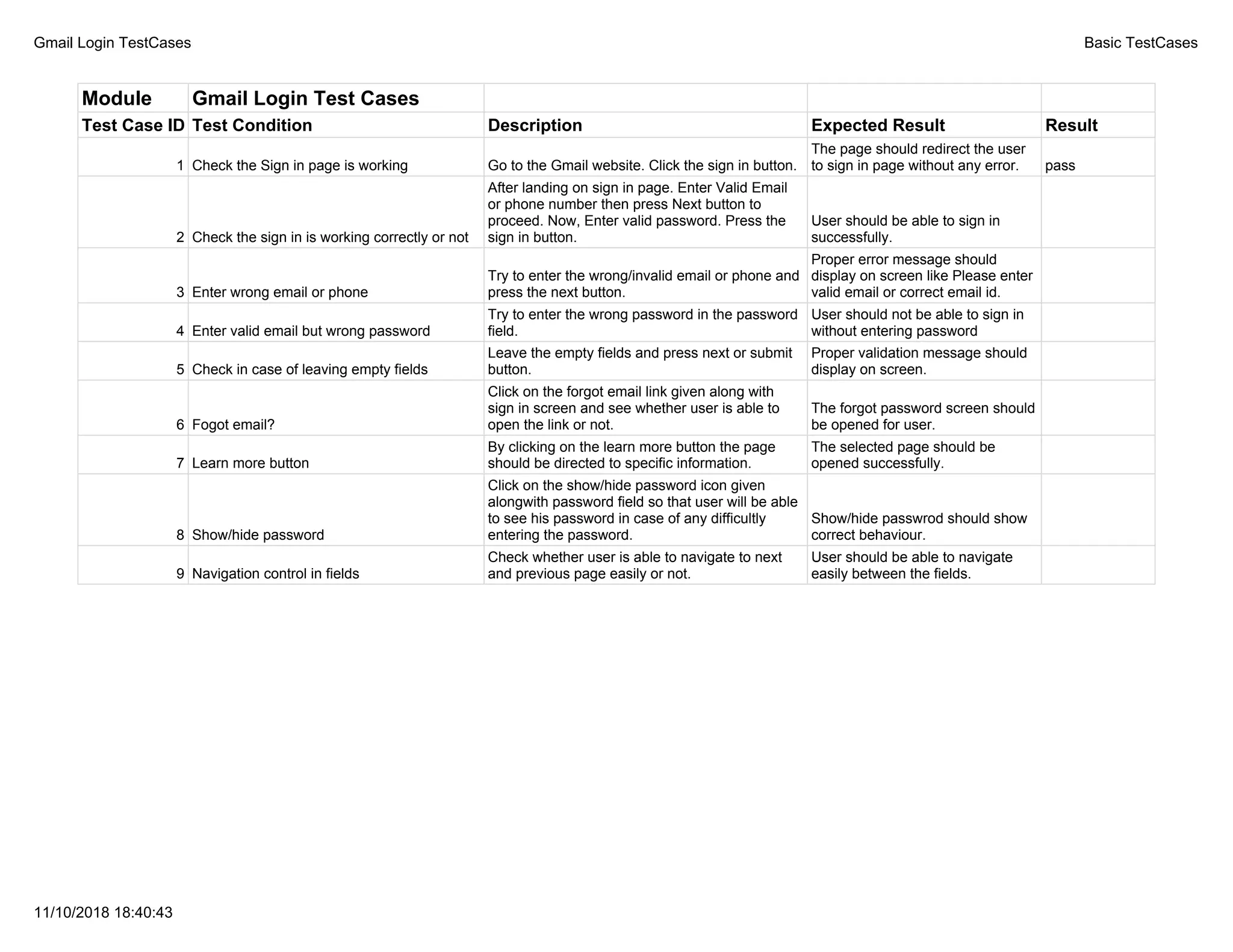
Module Gmail Login Test Cases
Test Case ID Test Condition Description Expected Result Result
1 Check the Sign in page is working Go to the Gmail website. Click the sign in button.
The page should redirect the user
to sign in page without any error. pass
2 Check the sign in is working correctly or not
After landing on sign in page. Enter Valid Email
or phone number then press Next button to
proceed. Now, Enter valid password. Press the
sign in button.
User should be able to sign in
successfully.
3 Enter wrong email or phone
Try to enter the wrong/invalid email or phone and
press the next button.
Proper error message should
display on screen like Please enter
valid email or correct email id.
4 Enter valid email but wrong password
Try to enter the wrong password in the password
field.
User should not be able to sign in
without entering password
5 Check in case of leaving empty fields
Leave the empty fields and press next or submit
button.
Proper validation message should
display on screen.
6 Fogot email?
Click on the forgot email link given along with
sign in screen and see whether user is able to
open the link or not.
The forgot password screen should
be opened for user.
7 Learn more button
By clicking on the learn more button the page
should be directed to specific information.
The selected page should be
opened successfully.
8 Show/hide password
Click on the show/hide password icon given
alongwith password field so that user will be able
to see his password in case of any difficultly
entering the password.
Show/hide passwrod should show
correct behaviour.
9 Navigation control in fields
Check whether user is able to navigate to next
and previous page easily or not.
User should be able to navigate
easily between the fields.

Gmail login test cases - basic testcases

  • 1.
    Gmail Login TestCasesBasic TestCases 11/10/2018 18:40:43 Module Gmail Login Test Cases Test Case ID Test Condition Description Expected Result Result 1 Check the Sign in page is working Go to the Gmail website. Click the sign in button. The page should redirect the user to sign in page without any error. pass 2 Check the sign in is working correctly or not After landing on sign in page. Enter Valid Email or phone number then press Next button to proceed. Now, Enter valid password. Press the sign in button. User should be able to sign in successfully. 3 Enter wrong email or phone Try to enter the wrong/invalid email or phone and press the next button. Proper error message should display on screen like Please enter valid email or correct email id. 4 Enter valid email but wrong password Try to enter the wrong password in the password field. User should not be able to sign in without entering password 5 Check in case of leaving empty fields Leave the empty fields and press next or submit button. Proper validation message should display on screen. 6 Fogot email? Click on the forgot email link given along with sign in screen and see whether user is able to open the link or not. The forgot password screen should be opened for user. 7 Learn more button By clicking on the learn more button the page should be directed to specific information. The selected page should be opened successfully. 8 Show/hide password Click on the show/hide password icon given alongwith password field so that user will be able to see his password in case of any difficultly entering the password. Show/hide passwrod should show correct behaviour. 9 Navigation control in fields Check whether user is able to navigate to next and previous page easily or not. User should be able to navigate easily between the fields.