Hi! I’m Amanda. I’m here
to help you get started.
Welcome
to iSpring Suite!
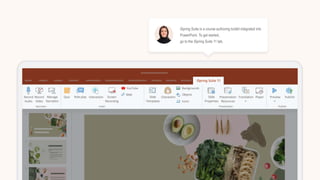
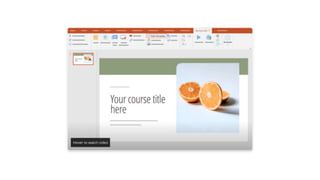
iSpring Suite is a course authoring toolkit integrated into
PowerPoint. To get started,
go to the iSpring Suite 11 tab.
Let’s see what amazing things you can do with
iSpring Suite
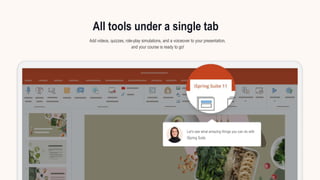
Add videos, quizzes, role-play simulations, and a voiceover to your presentation,
and your course is ready to go!
All tools under a single tab
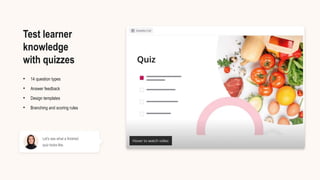
Let's see what a finished
quiz looks like.
• 14 question types
• Answer feedback
• Design templates
• Branching and scoring rules
Test learner
knowledge
with quizzes
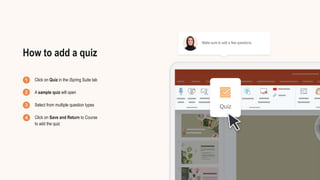
Make sure to add a few questions.
Click on Quiz in the iSpring Suite tab
A sample quiz will open
Select from multiple question types
Click on Save and Return to Course
to add the quiz
How to add a quiz
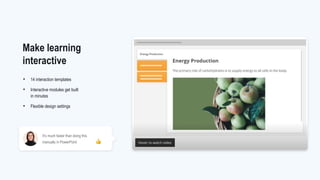
• 14 interaction templates
• Interactive modules get built
in minutes
• Flexible design settings
Make learning
interactive
It's much faster than doing this
manually in PowerPoint
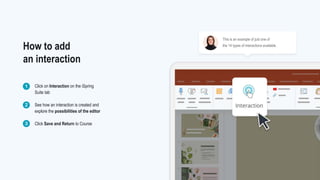
This is an example of just one of
the 14 types of interactions available.
Click on Interaction on the iSpring
Suite tab
See how an interaction is created and
explore the possibilities of the editor
Click Save and Return to Course
How to add
an interaction
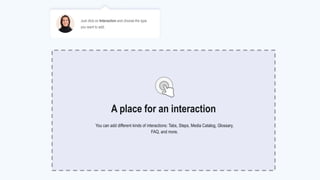
You can add different kinds of interactions: Tabs, Steps, Media Catalog, Glossary,
FAQ, and more.
A place for an interaction
Just click on Interaction and choose the type
you want to add.
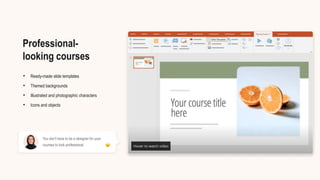
• Ready-made slide templates
• Themed backgrounds
• Illustrated and photographic characters
• Icons and objects
Professional-
looking courses
You don't have to be a designer for your
courses to look professional
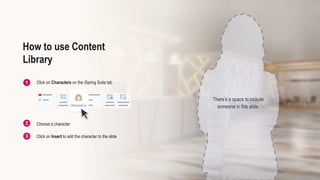
There’s a space to include
someone in this slide.
Click on Characters on the iSpring Suite tab
Choose a character
Click on Insert to add the character to the slide
How to use Content
Library
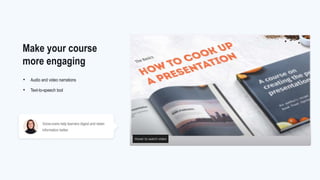
Voice-overs help learners digest and retain
information better.
• Audio and video narrations
• Text-to-speech tool
Make your course
more engaging
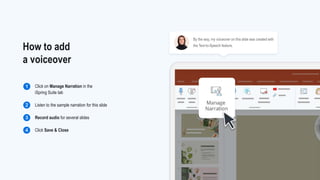
By the way, my voiceover on this slide was created with
the Text-to-Speech feature.
Click on Manage Narration in the
iSpring Suite tab
Listen to the sample narration for this slide
Record audio for several slides
Click Save & Close
How to add
a voiceover
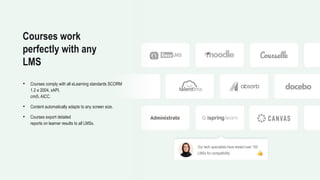
• Courses comply with all eLearning standards SCORM
1.2 и 2004, xAPI,
cmi5, AICC.
• Content automatically adapts to any screen size.
• Courses export detailed
reports on learner results to all LMSs.
Courses work
perfectly with any
LMS
Our tech specialists have tested over 150
LMSs for compatibility
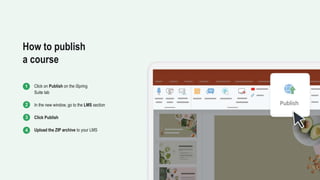
Click on Publish on the iSpring
Suite tab
In the new window, go to the LMS section
Click Publish
Upload the ZIP archive to your LMS
How to publish
a course
Publish a course to an LMS
Manage audio narration
Insert characters
Add interactions
Create quizzes
Great job, you’re all done!
Now you know how to
Need help? Check out these video tutorials on how to use
iSpring Suite.
Share a course in iSpring Space
Publish a course to iSpring Space
Design a course player
Create a role-play simulation
Record a screencast
Also, try to…

Getting Started with iSpring Suite 1.pptx

  • 1.
    Hi! I’m Amanda.I’m here to help you get started. Welcome to iSpring Suite!
  • 2.
    iSpring Suite isa course authoring toolkit integrated into PowerPoint. To get started, go to the iSpring Suite 11 tab.
  • 3.
    Let’s see whatamazing things you can do with iSpring Suite Add videos, quizzes, role-play simulations, and a voiceover to your presentation, and your course is ready to go! All tools under a single tab
  • 4.
    Let's see whata finished quiz looks like. • 14 question types • Answer feedback • Design templates • Branching and scoring rules Test learner knowledge with quizzes
  • 5.
    Make sure toadd a few questions. Click on Quiz in the iSpring Suite tab A sample quiz will open Select from multiple question types Click on Save and Return to Course to add the quiz How to add a quiz
  • 6.
    • 14 interactiontemplates • Interactive modules get built in minutes • Flexible design settings Make learning interactive It's much faster than doing this manually in PowerPoint
  • 7.
    This is anexample of just one of the 14 types of interactions available. Click on Interaction on the iSpring Suite tab See how an interaction is created and explore the possibilities of the editor Click Save and Return to Course How to add an interaction
  • 8.
    You can adddifferent kinds of interactions: Tabs, Steps, Media Catalog, Glossary, FAQ, and more. A place for an interaction Just click on Interaction and choose the type you want to add.
  • 10.
    • Ready-made slidetemplates • Themed backgrounds • Illustrated and photographic characters • Icons and objects Professional- looking courses You don't have to be a designer for your courses to look professional
  • 11.
    There’s a spaceto include someone in this slide. Click on Characters on the iSpring Suite tab Choose a character Click on Insert to add the character to the slide How to use Content Library
  • 12.
    Voice-overs help learnersdigest and retain information better. • Audio and video narrations • Text-to-speech tool Make your course more engaging
  • 13.
    By the way,my voiceover on this slide was created with the Text-to-Speech feature. Click on Manage Narration in the iSpring Suite tab Listen to the sample narration for this slide Record audio for several slides Click Save & Close How to add a voiceover
  • 14.
    • Courses complywith all eLearning standards SCORM 1.2 и 2004, xAPI, cmi5, AICC. • Content automatically adapts to any screen size. • Courses export detailed reports on learner results to all LMSs. Courses work perfectly with any LMS Our tech specialists have tested over 150 LMSs for compatibility
  • 15.
    Click on Publishon the iSpring Suite tab In the new window, go to the LMS section Click Publish Upload the ZIP archive to your LMS How to publish a course
  • 16.
    Publish a courseto an LMS Manage audio narration Insert characters Add interactions Create quizzes Great job, you’re all done! Now you know how to
  • 17.
    Need help? Checkout these video tutorials on how to use iSpring Suite. Share a course in iSpring Space Publish a course to iSpring Space Design a course player Create a role-play simulation Record a screencast Also, try to…

Editor's Notes

  • #14 Text for the voiceover: A great way to make the information in your content come alive is to record a voiceover. You can also turn written text into spoken words by using Text to Speech, found in the Insert Audio section of the toolbar.