favor
socialfave
Getting Started
Getting Started
with
Favor
favor
socialfave
Getting Started
Import your tweets and favorites
favor
socialfave
Getting Started
Click to import tweets and favorites from your Twitter account
favor
socialfave
Getting Started
Click to refresh the view
favor
socialfave
Getting Started
All your tweets and retweets appear here
favor
socialfave
Getting Started
Click to show favorites instead of tweets
favor
socialfave
Getting Started
Now you can see your favorites
favor
socialfave
Getting Started
Create categories
favor
socialfave
Getting Started
Click the header to show all categories
favor
socialfave
Getting Started
When you import tweets, they are put into the uncategorized category (here: 34 favorites)
favor
socialfave
Getting Started
Click to manage your categories
favor
socialfave
Getting Started
You can add, rename and delete categories
favor
socialfave
Getting Started
Here is a screen shot after the addition of the categories animals, architecture, cinema, photo, space.
favor
socialfave
Getting Started
	 Click to return to the display of the favorites
favor
socialfave
Getting Started
Click the header to show all categories
favor
socialfave
Getting Started
You can see the new categories
favor
socialfave
Getting Started
Assign categories
favor
socialfave
Getting Started
Click to add categories to this tweet
favor
socialfave
Getting Started
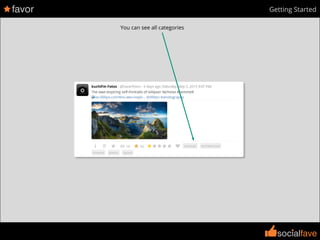
You can see all categories
favor
socialfave
Getting Started
Click on photo to assign this category to the tweet
favor
socialfave
Getting Started
This tweet is now in the photo category
There is 1 favorite in the photo category
The number of uncategorized favorites has decreased by 1
favor
socialfave
Getting Started
When you edit the categories of another tweet or after a refresh, you can see only
the categories assigned to the tweet
favor
socialfave
Getting Started
You can assign more than one category to a tweet
Click to unassign the erroneous architecture category
favor
socialfave
Getting Started
Search within categories
favor
socialfave
Getting Started
You can filter your tweets or favorites according to their categories
Click the right part (the label) to see all the
favorites in the photo category
The top area contains only the selected categories
The bottom area contains all categories
favor
socialfave
Getting Started
Click the left part to exclude the category
The space category is excluded from the search
favor
socialfave
Getting Started
Click the left part to include the category
Click the right part to deselect the category
favor
socialfave
Getting Started
By default, when several categories are included, a tweet appears in the result of the search only if it is in all the categories
Ckick if you want to search for the tweets in any of the categories
The left part of the categories has changed
favor
socialfave
Getting Started
If you prefer to work with the categories one by one, use the ONE mode
favor
socialfave
Getting Started
If you have a lot of categories, the filter will be useful
For example, enter ‘a’ in the text field to get all the
categories which begin with this letter
favor
socialfave
Getting Started
Other search criteria
favor
socialfave
Getting Started
Search for tweets according to their contents
All these filters work the same way
Search for tweets according to their authors
Search for tweets according to their hashtags
Search for tweets according to their mentions
Search for tweets according to their categories
favor
socialfave
Getting Started
When there are a lot of attributes, they are grouped together
Click on the group to open it
Click to go back to the preceding level
favor
socialfave
Getting Started
Delete tweets
favor
socialfave
Getting Started
Click to send the tweet to the trashcan
The tweet is marked as deleted
Note: to cancel the deletion, click again on the
trashcan icon
favor
socialfave
Getting Started
Click to open the trashcan
favor
socialfave
Getting Started
Click to delete the tweet permanently
favor
socialfave
Getting Started
Share your tweets and favorites
favor
socialfave
Getting Started
Click to add this tweet to your public profile
The tweet is marked as public
Note: to remove the tweet from your public
profile, click again on heart icon
favor
socialfave
Getting Started
Click to show public tweets
favor
socialfave
Getting Started
Here is your public profile address Click to go to your public profile
favor
socialfave
Getting Started
Here is your public profile
favor
socialfave
Getting Started
Configure your public profile
favor
socialfave
Getting Started
Click to access additional options
favor
socialfave
Getting Started
Click to configure the public profile
favor
socialfave
Getting Started
You can now customize your public profile
favor
socialfave
Getting Started
Click to add a topic
Choose the category corresponding to
the topic
Enter a name for the topic
Click to validate
favor
socialfave
Getting Started
Drag and drop the handles to change
the order
A few additions later ...
favor
socialfave
Getting Started
Here is your updated public profile
favor
socialfave
Getting Started
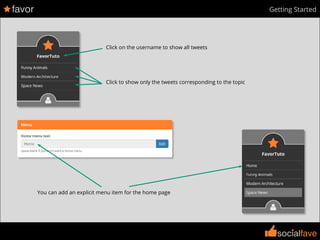
Click to show only the tweets corresponding to the topic
Click on the username to show all tweets
You can add an explicit menu item for the home page
favor
socialfave
Getting Started
You can change the titles of the pages
favor
socialfave
Getting Started
You can add a little bio
Click to edit
Add your text
Click to valid
favor
socialfave
Getting Started
You can add your Twitter accounts
Note: you can have more than one Twitter account
favor
socialfave
Getting Started
Here is your customized public profile

Getting started