

Get that Corner Office
with Angular 2 and Electron
Get acquainted with how to
build native, desktop
applications using Electron
and Angular 2
Agenda
Running Electron
Adding Angular 2
Notifications
IPC
Packaging Electron
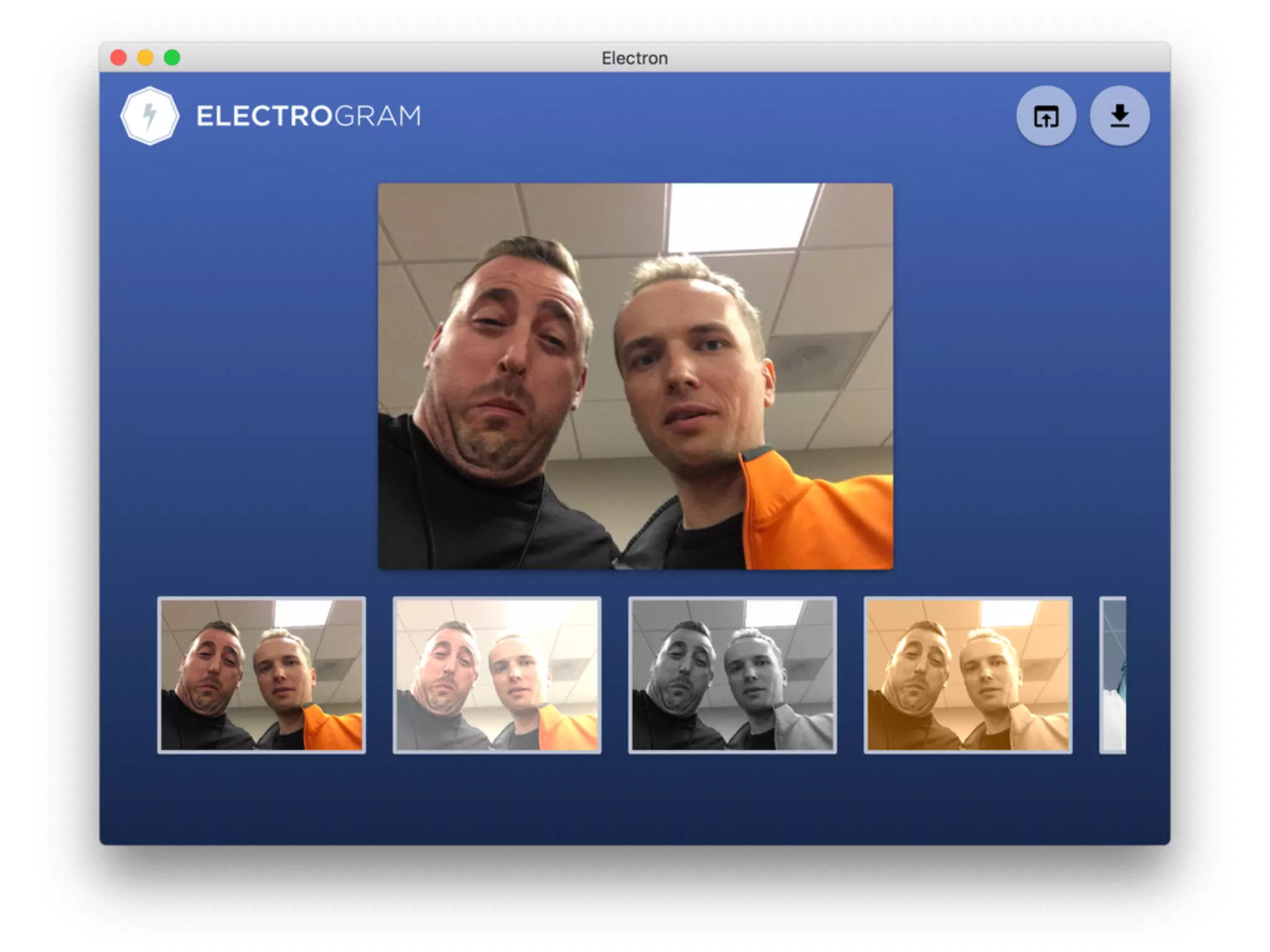
The Demo Application
• An Instagram style application that allows us to select
an image, apply a filter and then save it to our computer
• Feel free to use the existing code as a reference point
• Please explore! Don't be afraid to try new things!
http://bit.ly/ng-electrogram
Hello Electron
The Elevator Pitch
• Use HTML, CSS, and JavaScript with Chromium and
Node.js to build your app.
• Electron is open source; maintained by GitHub and an
active community.
• Electron apps build and run on Mac, Windows, and
Linux.
The Elevator Pitch Pt. 2
• Automatic updates
• Crash reporting
• Windows installers
• Debugging & profiling
• Native menus & notifications
http://electron.atom.io/docs/latest/tutorial/quick-start/
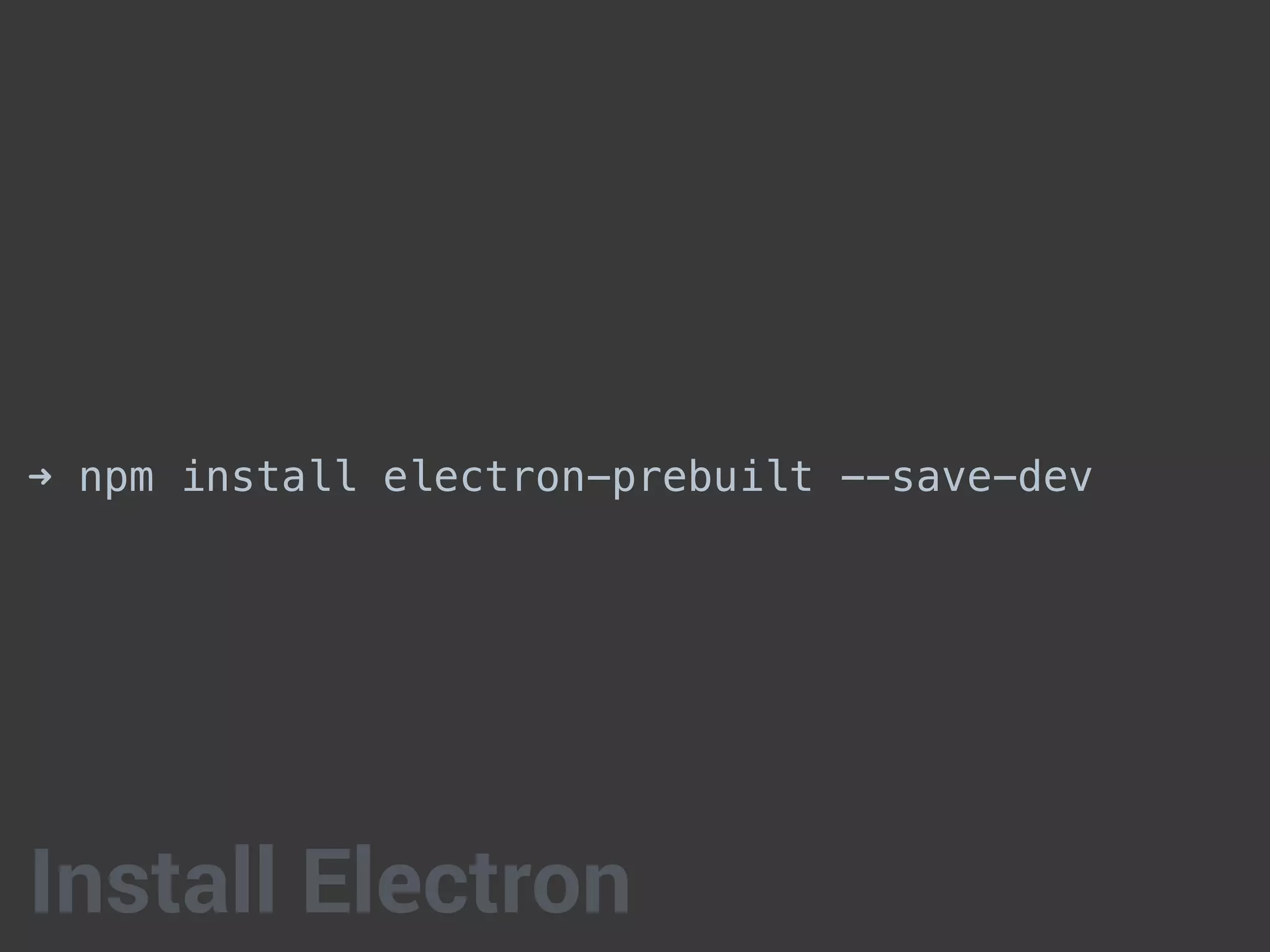
➜ npm install electron-prebuilt --save-dev
Install Electron
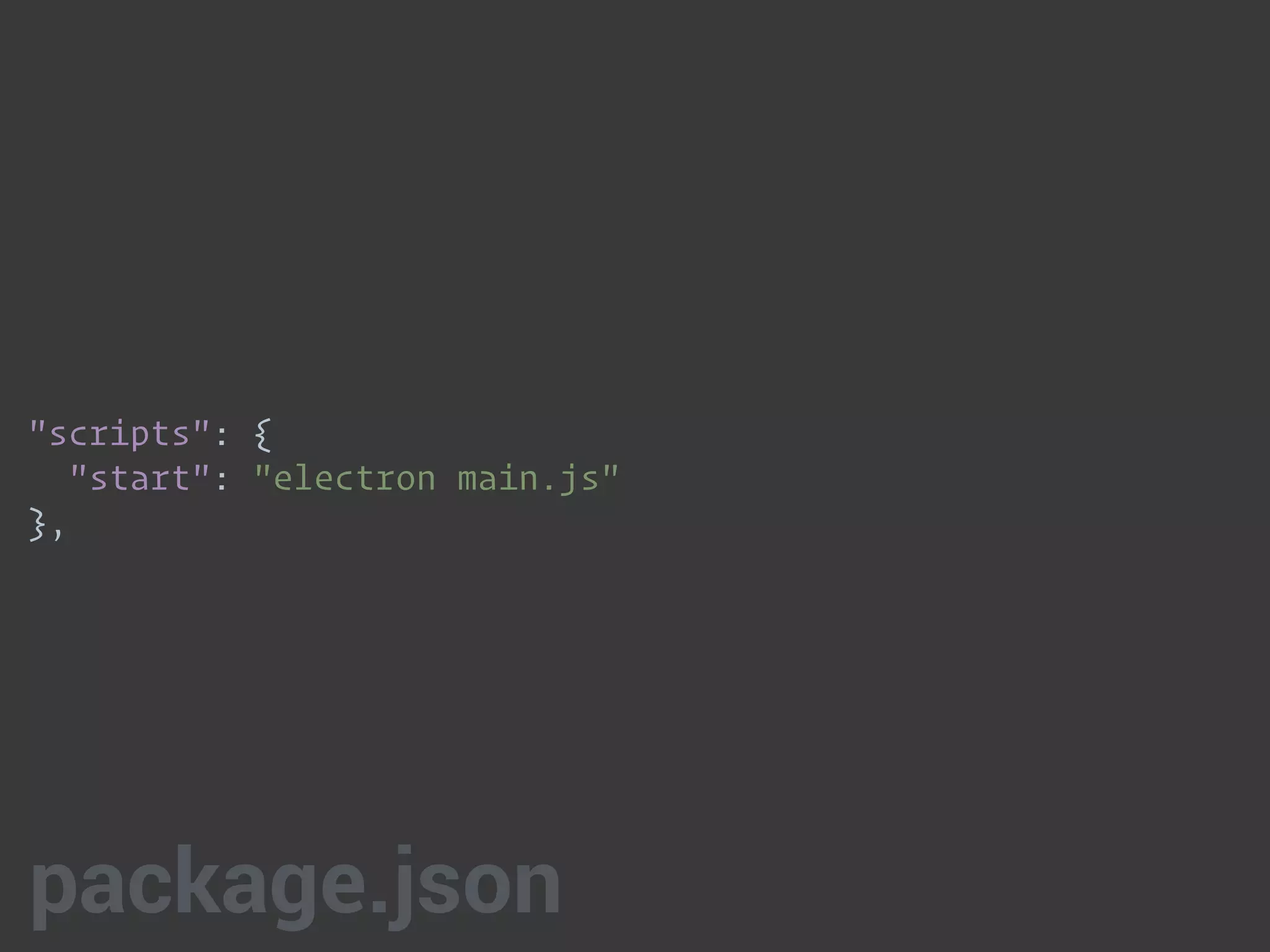
"scripts": {

"start": "electron main.js"

},
package.json
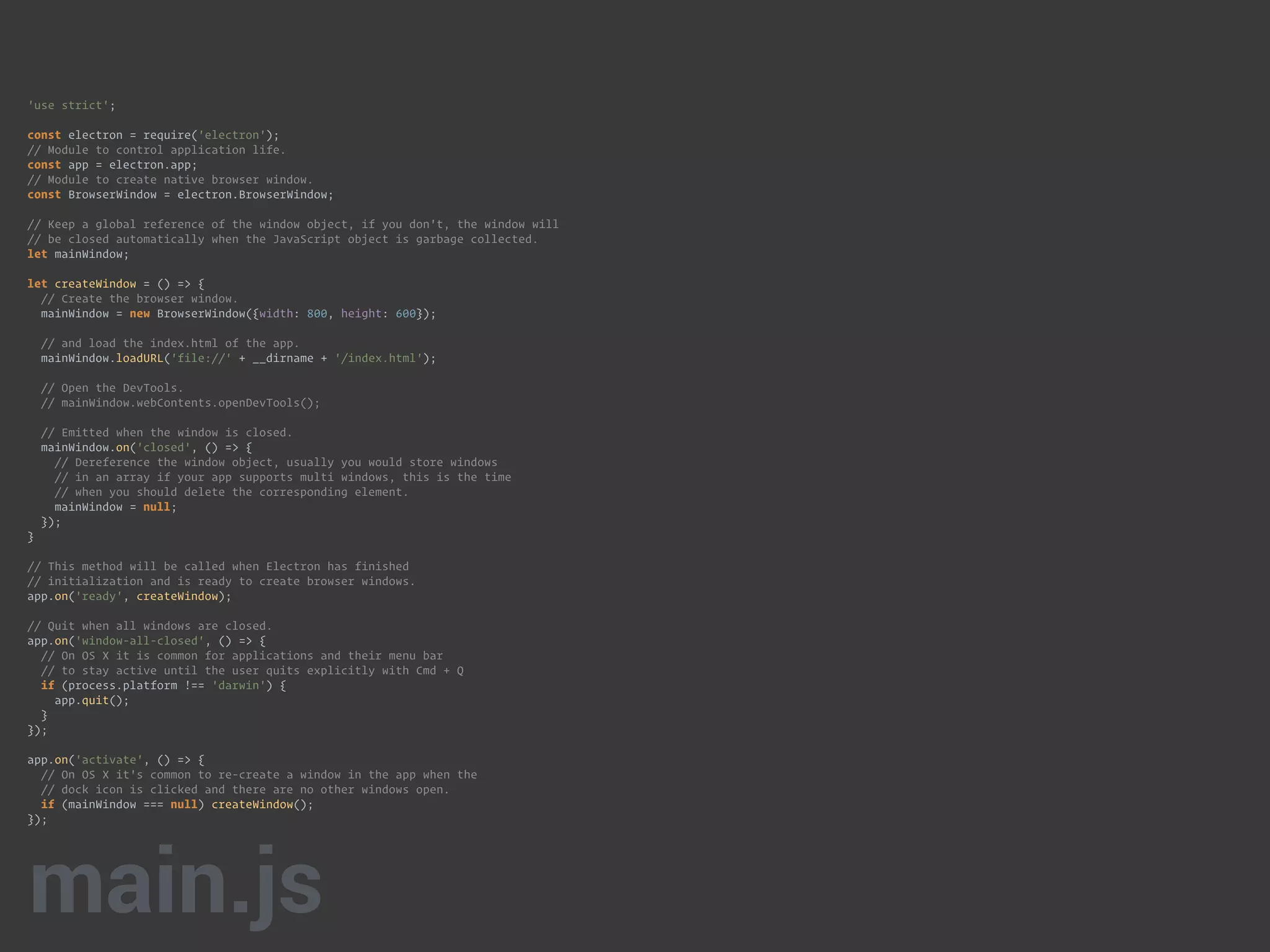
'use strict';


const electron = require('electron');

// Module to control application life.

const app = electron.app;

// Module to create native browser window.

const BrowserWindow = electron.BrowserWindow;


// Keep a global reference of the window object, if you don't, the window will

// be closed automatically when the JavaScript object is garbage collected.

let mainWindow;


let createWindow = () => {

// Create the browser window.

mainWindow = new BrowserWindow({width: 800, height: 600});


// and load the index.html of the app.

mainWindow.loadURL('file://' + __dirname + '/index.html');


// Open the DevTools.

// mainWindow.webContents.openDevTools();


// Emitted when the window is closed.

mainWindow.on('closed', () => {

// Dereference the window object, usually you would store windows

// in an array if your app supports multi windows, this is the time

// when you should delete the corresponding element.

mainWindow = null;

});

}


// This method will be called when Electron has finished

// initialization and is ready to create browser windows.

app.on('ready', createWindow);


// Quit when all windows are closed.

app.on('window-all-closed', () => {

// On OS X it is common for applications and their menu bar

// to stay active until the user quits explicitly with Cmd + Q

if (process.platform !== 'darwin') {

app.quit();

}

});


app.on('activate', () => {

// On OS X it's common to re-create a window in the app when the

// dock icon is clicked and there are no other windows open.

if (mainWindow === null) createWindow();

});

main.js
01-hello-electron-start
Challenges
• Install electron-prebuilt
• Create a main.js file
• Run electron
• In the package.json file, create a start task to run
electron
Adding Angular 2
Adding Angular 2
• Your Angular app generally goes into a sub-folder like
src or app
• If you are using a build system, you may have to tweak
file references to get everything working
• We need target attribute to the webpack config that is
set to electron-renderer. This gave us the ability to
import node and electron modules without breaking.
• Finally, the Angular app is in TypeScript, so we need to
install the electron typings to use electron packages in
our code.
02-adding-angular
Notifications
Notifications
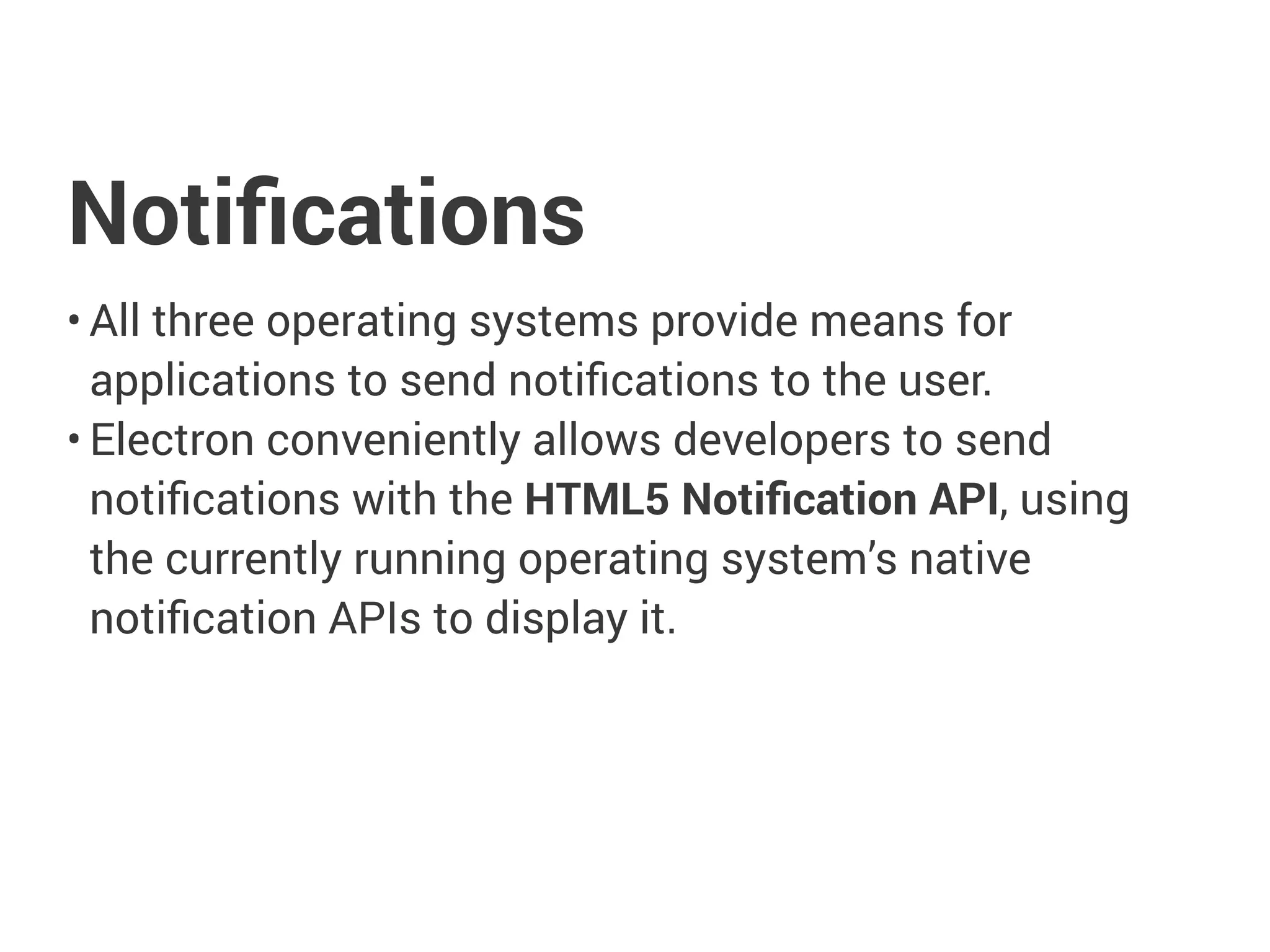
• All three operating systems provide means for
applications to send notifications to the user.
• Electron conveniently allows developers to send
notifications with the HTML5 Notification API, using the
currently running operating system’s native notification
APIs to display it.
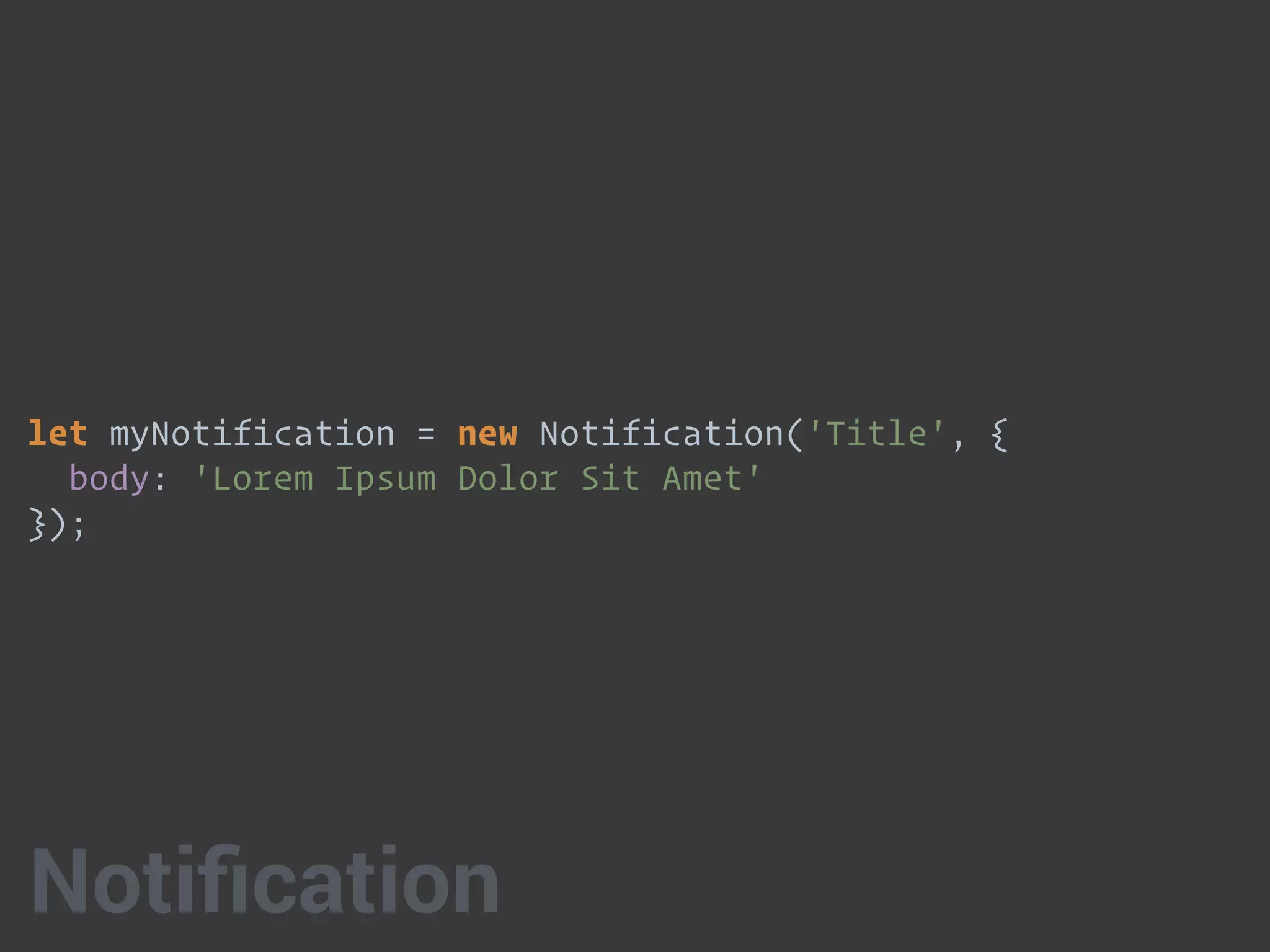
let myNotification = new Notification('Title', {

body: 'Lorem Ipsum Dolor Sit Amet'

});
Notification
03-notifications-start
Challenges
• In the saveFileCallback method in the app.ts file, create
an error notification and a success notification
IPC
IPC
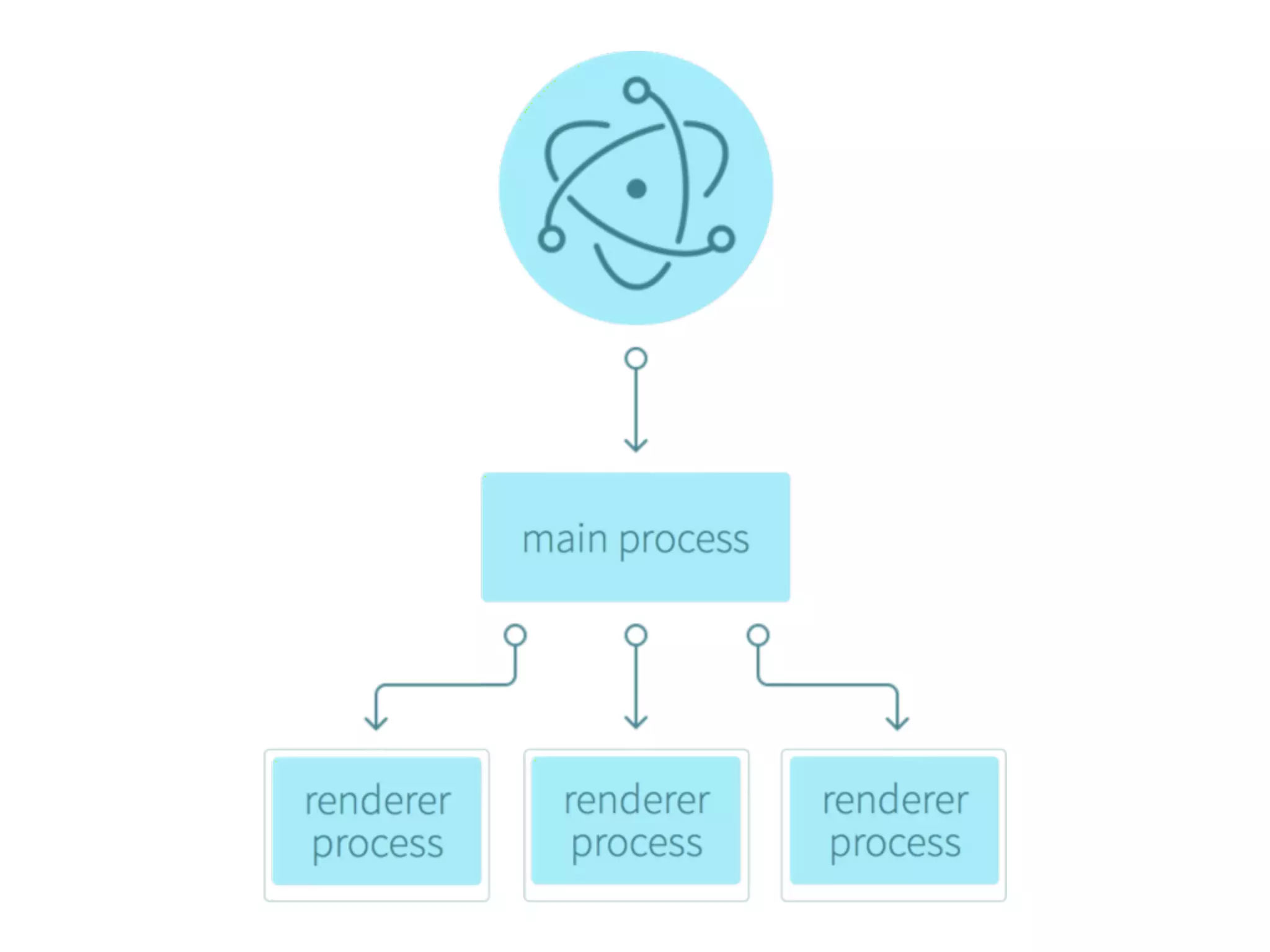
• Inter-process communication (IPC) is handled by two
different modules
• ipcMain in the main process
• ipcRenderer in the renderer process
• You can also use webContents to send messages to
your renderer process
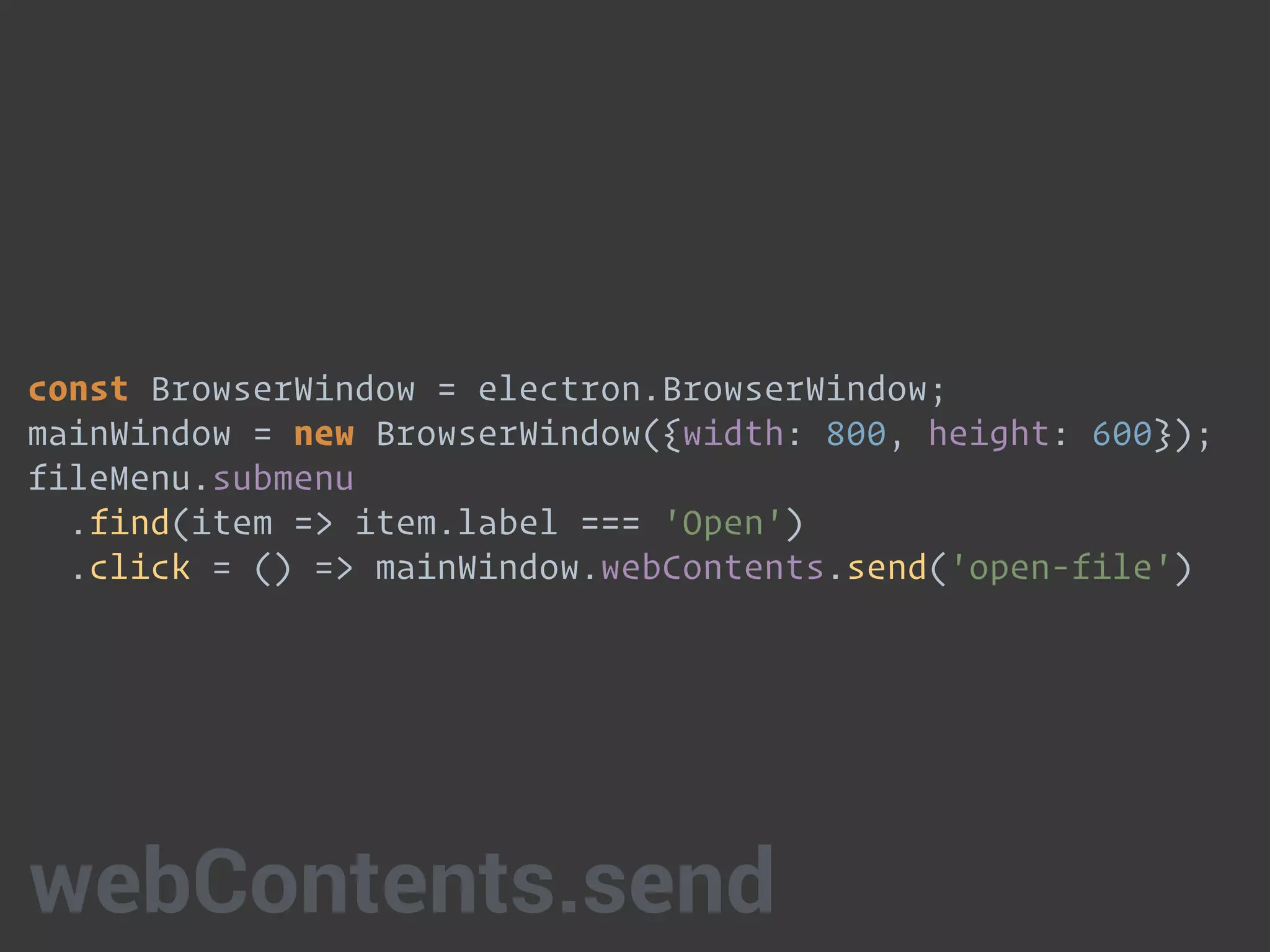
const BrowserWindow = electron.BrowserWindow;
mainWindow = new BrowserWindow({width: 800, height: 600});
fileMenu.submenu

.find(item => item.label === 'Open')

.click = () => mainWindow.webContents.send('open-file')
webContents.send
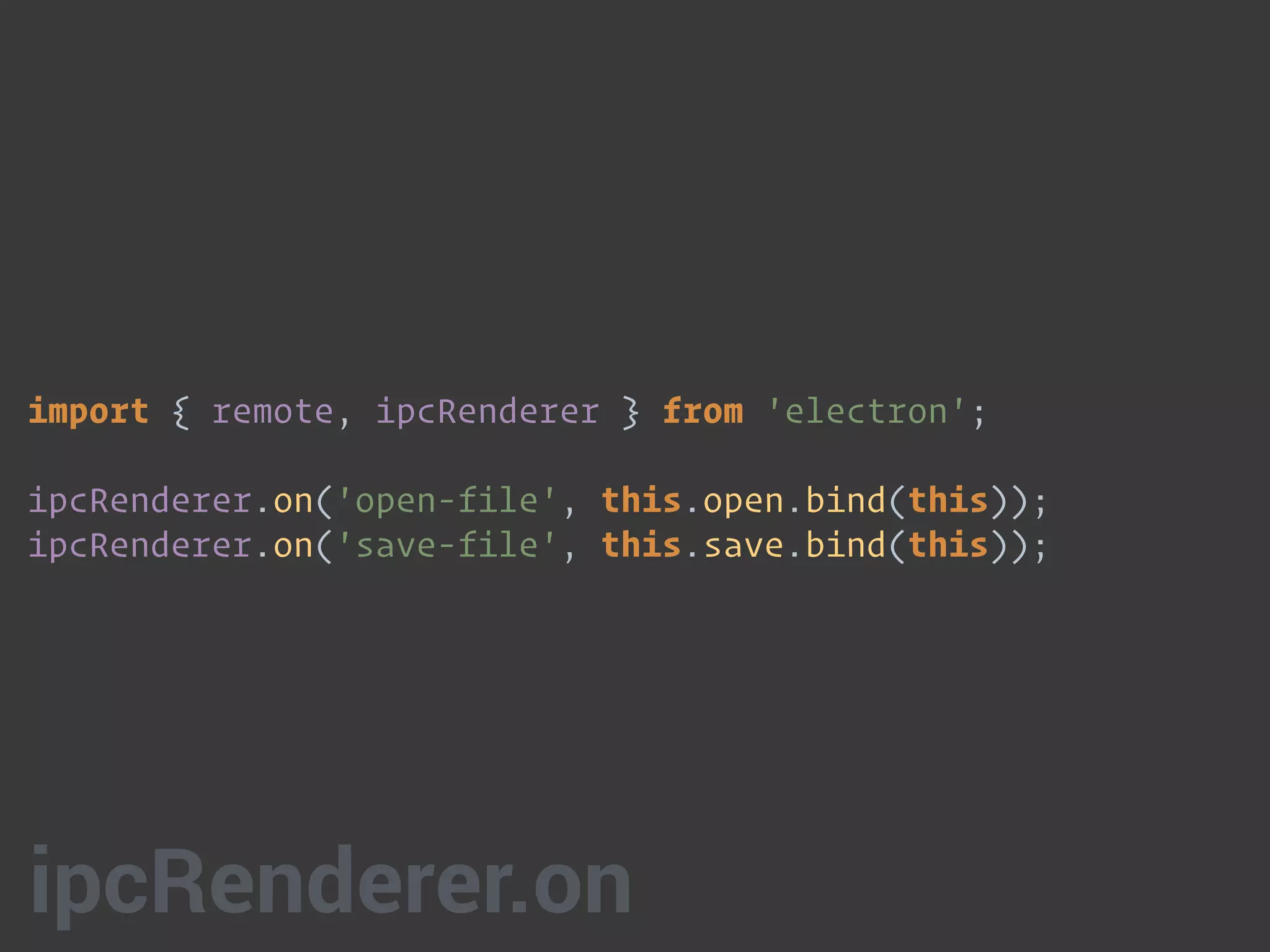
import { remote, ipcRenderer } from 'electron';
ipcRenderer.on('open-file', this.open.bind(this));

ipcRenderer.on('save-file', this.save.bind(this));
ipcRenderer.on
04-ipc-start
Challenges
• In the main.js file, complete the save and open click
handlers in the setMenu method
• Use app.ts file, add save and open handlers to the App
constructor
Packaging Electron
Packaging Electron
• We used to have to worry about all of packaging for
each OS ourselves
• Fortunately, electron-packager abstracts most of the
tedium away and allows us to run a one script to build
for our OS
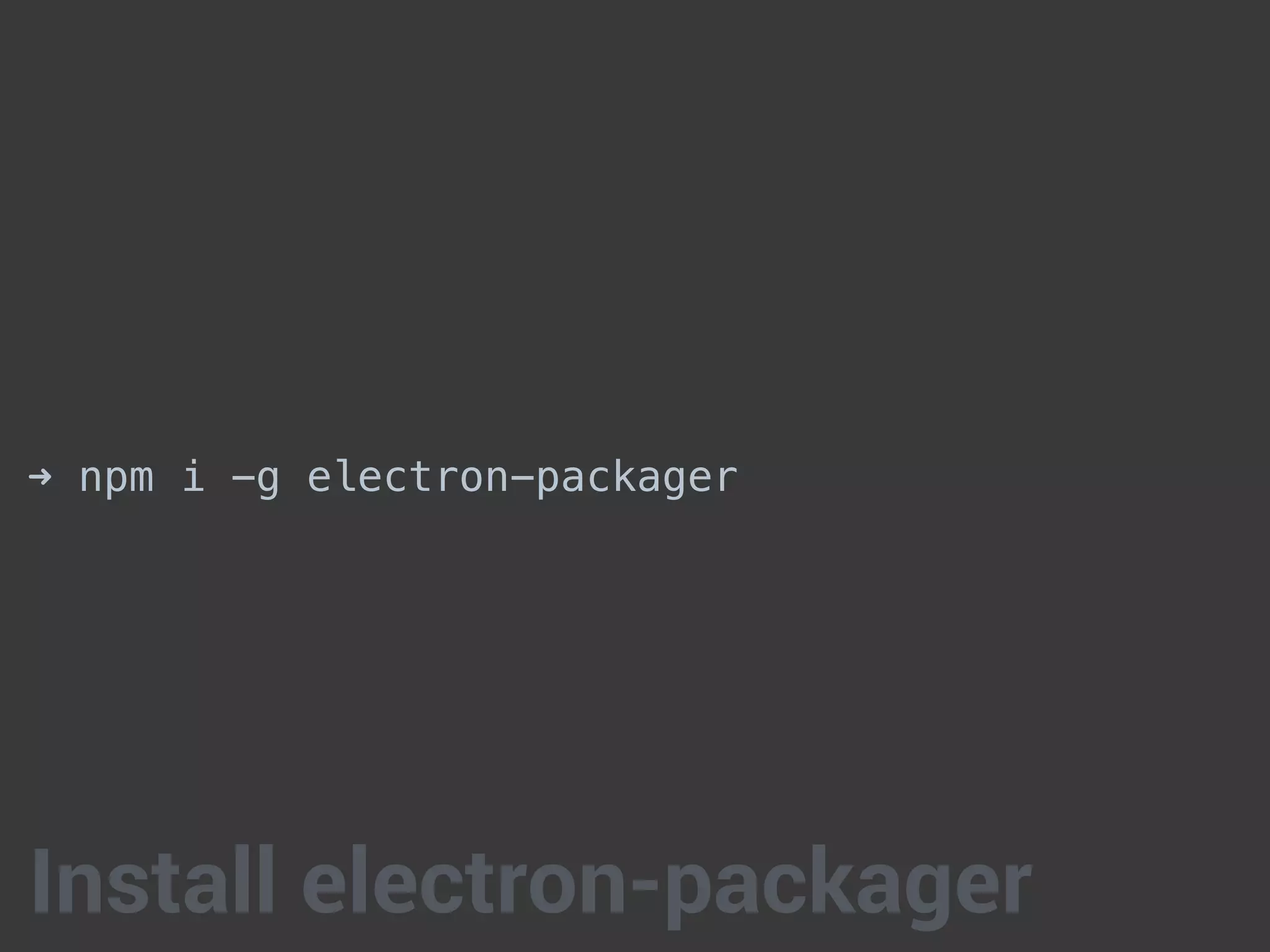
➜ npm i -g electron-packager
Install electron-packager
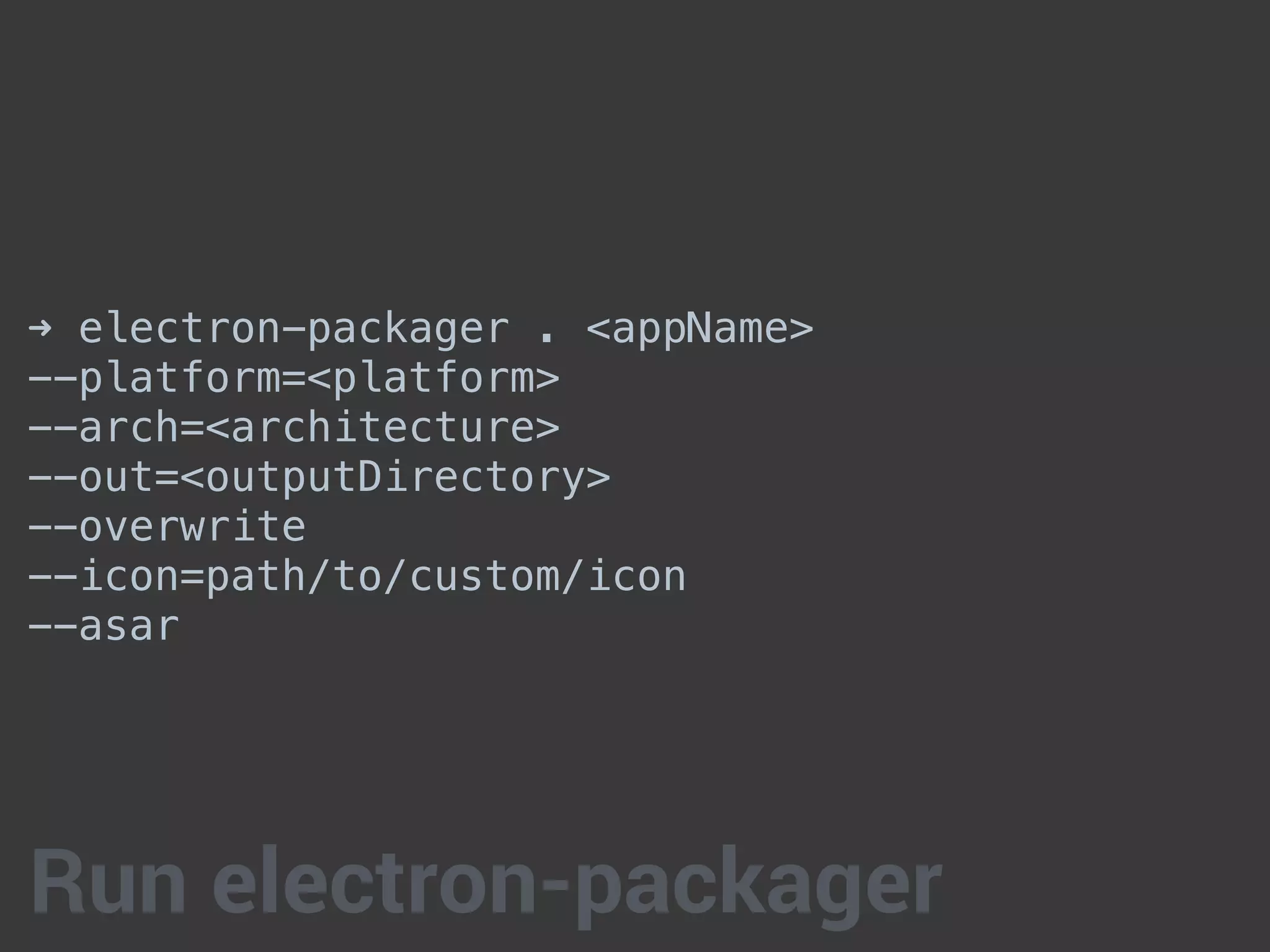
➜ electron-packager . <appName>
--platform=<platform>
--arch=<architecture>
--out=<outputDirectory>
--overwrite
--icon=path/to/custom/icon
--asar
Run electron-packager
05-packaging-start
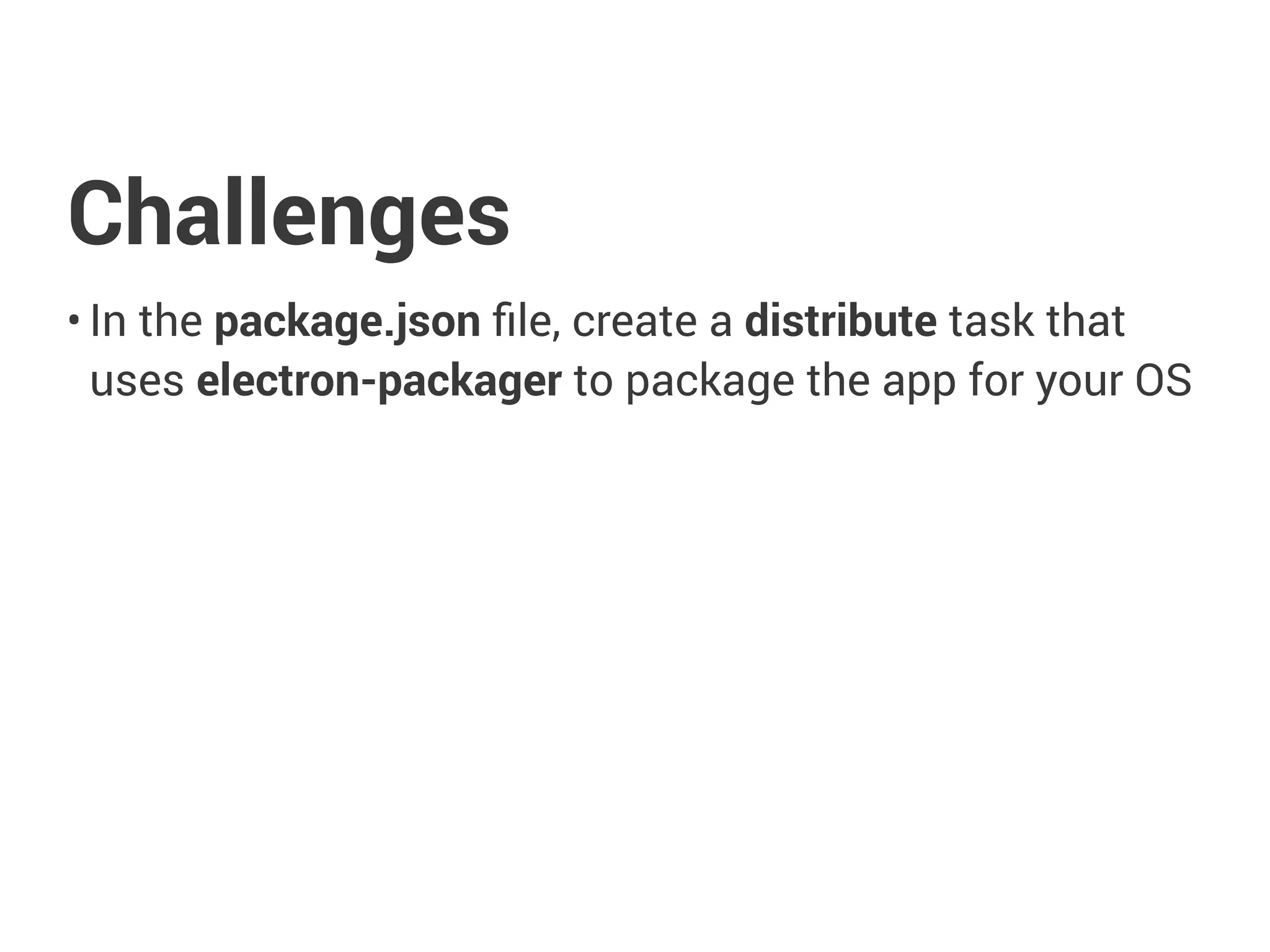
Challenges
• In the package.json file, create a distribute task that
uses electron-packager to package the app for your OS
Thanks!

Get that Corner Office with Angular 2 and Electron

  • 1.
    Get that CornerOffice with Angular 2 and Electron
  • 2.
    Get acquainted withhow to build native, desktop applications using Electron and Angular 2
  • 3.
    Agenda Running Electron Adding Angular2 Notifications IPC Packaging Electron
  • 4.
    The Demo Application •An Instagram style application that allows us to select an image, apply a filter and then save it to our computer • Feel free to use the existing code as a reference point • Please explore! Don't be afraid to try new things!
  • 7.
  • 8.
  • 9.
    The Elevator Pitch •Use HTML, CSS, and JavaScript with Chromium and Node.js to build your app. • Electron is open source; maintained by GitHub and an active community. • Electron apps build and run on Mac, Windows, and Linux.
  • 10.
    The Elevator PitchPt. 2 • Automatic updates • Crash reporting • Windows installers • Debugging & profiling • Native menus & notifications
  • 13.
  • 14.
    ➜ npm installelectron-prebuilt --save-dev Install Electron
  • 15.
    "scripts": {
 "start": "electronmain.js"
 }, package.json
  • 16.
    'use strict';
 
 const electron= require('electron');
 // Module to control application life.
 const app = electron.app;
 // Module to create native browser window.
 const BrowserWindow = electron.BrowserWindow;
 
 // Keep a global reference of the window object, if you don't, the window will
 // be closed automatically when the JavaScript object is garbage collected.
 let mainWindow;
 
 let createWindow = () => {
 // Create the browser window.
 mainWindow = new BrowserWindow({width: 800, height: 600});
 
 // and load the index.html of the app.
 mainWindow.loadURL('file://' + __dirname + '/index.html');
 
 // Open the DevTools.
 // mainWindow.webContents.openDevTools();
 
 // Emitted when the window is closed.
 mainWindow.on('closed', () => {
 // Dereference the window object, usually you would store windows
 // in an array if your app supports multi windows, this is the time
 // when you should delete the corresponding element.
 mainWindow = null;
 });
 }
 
 // This method will be called when Electron has finished
 // initialization and is ready to create browser windows.
 app.on('ready', createWindow);
 
 // Quit when all windows are closed.
 app.on('window-all-closed', () => {
 // On OS X it is common for applications and their menu bar
 // to stay active until the user quits explicitly with Cmd + Q
 if (process.platform !== 'darwin') {
 app.quit();
 }
 });
 
 app.on('activate', () => {
 // On OS X it's common to re-create a window in the app when the
 // dock icon is clicked and there are no other windows open.
 if (mainWindow === null) createWindow();
 });
 main.js
  • 17.
  • 18.
    Challenges • Install electron-prebuilt •Create a main.js file • Run electron • In the package.json file, create a start task to run electron
  • 19.
  • 20.
    Adding Angular 2 •Your Angular app generally goes into a sub-folder like src or app • If you are using a build system, you may have to tweak file references to get everything working • We need target attribute to the webpack config that is set to electron-renderer. This gave us the ability to import node and electron modules without breaking. • Finally, the Angular app is in TypeScript, so we need to install the electron typings to use electron packages in our code.
  • 21.
  • 22.
  • 23.
    Notifications • All threeoperating systems provide means for applications to send notifications to the user. • Electron conveniently allows developers to send notifications with the HTML5 Notification API, using the currently running operating system’s native notification APIs to display it.
  • 24.
    let myNotification =new Notification('Title', {
 body: 'Lorem Ipsum Dolor Sit Amet'
 }); Notification
  • 25.
  • 26.
    Challenges • In thesaveFileCallback method in the app.ts file, create an error notification and a success notification
  • 27.
  • 28.
    IPC • Inter-process communication(IPC) is handled by two different modules • ipcMain in the main process • ipcRenderer in the renderer process • You can also use webContents to send messages to your renderer process
  • 29.
    const BrowserWindow =electron.BrowserWindow; mainWindow = new BrowserWindow({width: 800, height: 600}); fileMenu.submenu
 .find(item => item.label === 'Open')
 .click = () => mainWindow.webContents.send('open-file') webContents.send
  • 30.
    import { remote,ipcRenderer } from 'electron'; ipcRenderer.on('open-file', this.open.bind(this));
 ipcRenderer.on('save-file', this.save.bind(this)); ipcRenderer.on
  • 31.
  • 32.
    Challenges • In themain.js file, complete the save and open click handlers in the setMenu method • Use app.ts file, add save and open handlers to the App constructor
  • 33.
  • 34.
    Packaging Electron • Weused to have to worry about all of packaging for each OS ourselves • Fortunately, electron-packager abstracts most of the tedium away and allows us to run a one script to build for our OS
  • 35.
    ➜ npm i-g electron-packager Install electron-packager
  • 36.
    ➜ electron-packager .<appName> --platform=<platform> --arch=<architecture> --out=<outputDirectory> --overwrite --icon=path/to/custom/icon --asar Run electron-packager
  • 37.
  • 38.
    Challenges • In thepackage.json file, create a distribute task that uses electron-packager to package the app for your OS
  • 39.