Web development
Organised by:
Aswath C M
Sudha J
Quickstart : HTML to Deploy
Rules to be followed :
• Lets try to be interactive
• For every interactive Q&A lets have its point updated in
the leaderboard
Why web development ?
• Its in high demand
• It combines both creativity and logic.
• There are so many directions you can take your career.
• All you need is coding knowledge and an internet
connection to potentially reach billions of users globally.
• Mark Zuckerberg started Facebook as a simple college
website
• GitHub began as a weekend project to simplify code
sharing
• Instagram started as a simple photo-sharing website
• WordPress began as a basic blogging platform
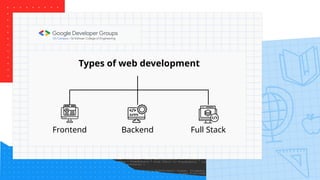
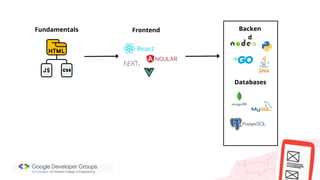
Types of web development
Frontend Backend Full Stack
Fundamentals Frontend Backen
d
Databases
What’s on our plate today ?
• Lets get started with web foundations with new topics
• Let’s make it hands on
• At the end of the session you’ll have your applications deployed
• Lets add pinch of salts to it with some engaging activity
HTML Uncovered : Discover,
Learn, Build
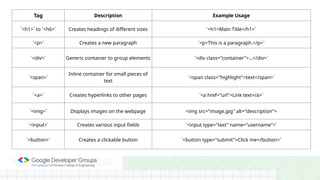
Tag Description Example Usage
`<h1>` to `<h6>` Creates headings of different sizes `<h1>Main Title</h1>`
`<p>` Creates a new paragraph `<p>This is a paragraph.</p>`
`<div>` Generic container to group elements `<div class="container">...</div>`
`<span>`
Inline container for small pieces of
text
`<span class="highlight">text</span>`
`<a>` Creates hyperlinks to other pages `<a href="url">Link text</a>`
`<img>` Displays images on the webpage <img src="image.jpg" alt="description">
`<input>` Creates various input fields `<input type="text" name="username">`
`<button>` Creates a clickable button `<button type="submit">Click me</button>`
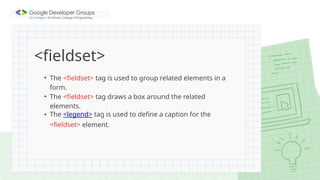
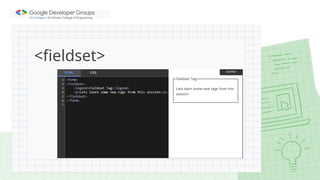
<fieldset>
• The <fieldset> tag is used to group related elements in a
form.
• The <fieldset> tag draws a box around the related
elements.
• The <legend> tag is used to define a caption for the
<fieldset> element.
<fieldset>
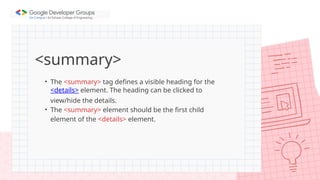
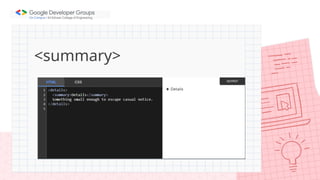
<summary>
• The <summary> tag defines a visible heading for the
<details> element. The heading can be clicked to
view/hide the details.
• The <summary> element should be the first child
element of the <details> element.
<summary>
Lets make a riddle app :
→ Display the riddle question inside the <fieldset>
→ Display a sample question using your preferred tag
→ Add an <input> box for users to type their answer
→ Use a <summary> tag to provide a hint for the riddle
→ Include a <button> for submitting the answer
Task 1
Estimated time : 6 min
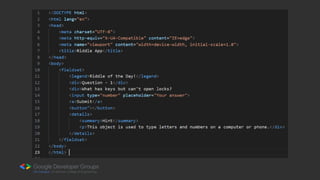
Here's your HTML code with intentional
errors added for debugging practice
Beyond Basics:
CSS in Motion
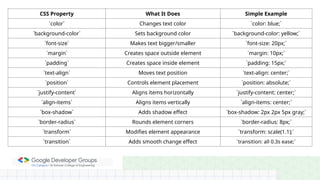
CSS Property What It Does Simple Example
`color` Changes text color `color: blue;`
`background-color` Sets background color `background-color: yellow;`
`font-size` Makes text bigger/smaller `font-size: 20px;`
`margin` Creates space outside element `margin: 10px;`
`padding` Creates space inside element `padding: 15px;`
`text-align` Moves text position `text-align: center;`
`position` Controls element placement `position: absolute;`
`justify-content` Aligns items horizontally `justify-content: center;`
`align-items` Aligns items vertically `align-items: center;`
`box-shadow` Adds shadow effect `box-shadow: 2px 2px 5px gray;`
`border-radius` Rounds element corners `border-radius: 8px;`
`transform` Modifies element appearance `transform: scale(1.1);`
`transition` Adds smooth change effect `transition: all 0.3s ease;`
Lets add some salt with css
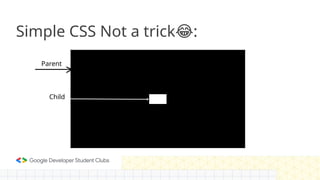
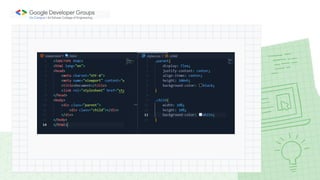
Simple CSS Not a trick :
😂
Parent
Child
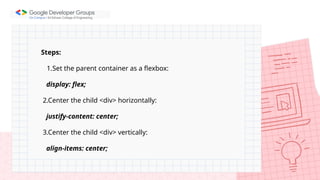
Steps:
1.Set the parent container as a flexbox:
display: flex;
2.Center the child <div> horizontally:
justify-content: center;
3.Center the child <div> vertically:
align-items: center;
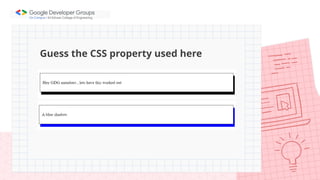
Guess the CSS property used here
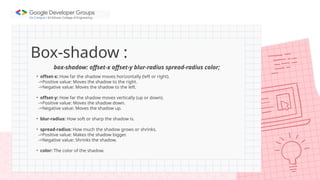
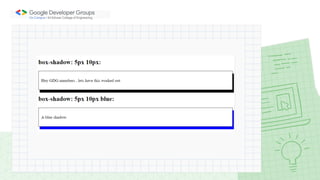
Box-shadow :
box-shadow: offset-x offset-y blur-radius spread-radius color;
• offset-x: How far the shadow moves horizontally (left or right).
->Positive value: Moves the shadow to the right.
->Negative value: Moves the shadow to the left.
• offset-y: How far the shadow moves vertically (up or down).
->Positive value: Moves the shadow down.
->Negative value: Moves the shadow up.
• blur-radius: How soft or sharp the shadow is.
• spread-radius: How much the shadow grows or shrinks.
->Positive value: Makes the shadow bigger.
->Negative value: Shrinks the shadow.
• color: The color of the shadow.
Transition :
CSS transitions allows you to change property values smoothly, over a
given duration.
To create a transition effect, you must specify two things:
• the CSS property you want to add an effect to
• the duration of the effect
Click here for quick demo
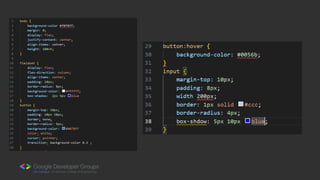
Lets style our riddle app :
→ Center the riddle question, input box, and submit button on the
page using flex property
→ Apply a background color to the entire page.
→ Implement a hover effect for the submit button and add a
smooth transition effect
→ Make your application more attractive
Task 2
Estimated time : 6 min
Lets add some interactions with JavaScript
JavaScript Unlocked:
DOMination with Js
DO
M?
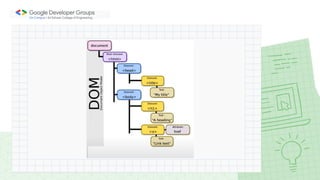
• DOM is a tree-like structure of all the elements on a webpage (like
headings, paragraphs, images, etc.).
• The DOM organizes your HTML as a tree where each element (like
<div>, <p>, etc.) is a node.
• The root of the tree is the <html> element, with its children being
<head> and <body>.
• JavaScript can access and modify the DOM.
Document Object Model
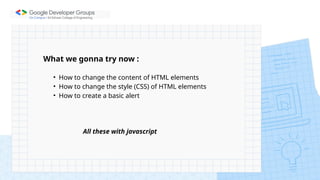
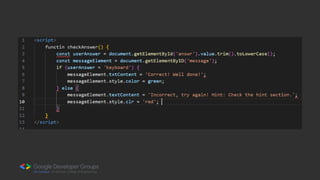
What we gonna try now :
• How to change the content of HTML elements
• How to change the style (CSS) of HTML elements
• How to create a basic alert
All these with javascript
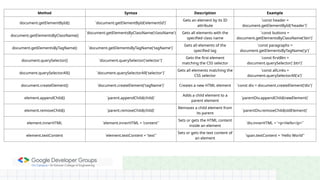
Method Syntax Description Example
document.getElementById() `document.getElementById('elementId')`
Gets an element by its ID
attribute
`const header =
document.getElementById('header')`
document.getElementsByClassName()
`document.getElementsByClassName('className')
`
Gets all elements with the
specified class name
`const buttons =
document.getElementsByClassName('btn')`
document.getElementsByTagName() `document.getElementsByTagName('tagName')`
Gets all elements of the
specified tag
`const paragraphs =
document.getElementsByTagName('p')`
document.querySelector() `document.querySelector('selector')`
Gets the first element
matching the CSS selector
`const firstBtn =
document.querySelector('.btn')`
document.querySelectorAll() `document.querySelectorAll('selector')`
Gets all elements matching the
CSS selector
`const allLinks =
document.querySelectorAll('a')`
document.createElement() `document.createElement('tagName')` Creates a new HTML element `const div = document.createElement('div')`
element.appendChild() `parent.appendChild(child)`
Adds a child element to a
parent element
`parentDiv.appendChild(newElement)`
element.removeChild() `parent.removeChild(child)`
Removes a child element from
its parent
`parentDiv.removeChild(oldElement)`
element.innerHTML `element.innerHTML = 'content'`
Sets or gets the HTML content
inside an element
`div.innerHTML = '<p>Hello</p>'`
element.textContent `element.textContent = 'text'`
Sets or gets the text content of
an element
`span.textContent = 'Hello World'`
Power Up Your Projects
Lets deploy
Live Demo: Seamless
Deployment in Action
“Knowledge is of no value
unless you put it into practice”
•Anton Chekhov
GDG On Campus SECE
chapter
@gdg_sece
GDG on Campus: SECE

GDG On Campus SECE - Web Development Session.pptx

  • 1.
    Web development Organised by: AswathC M Sudha J Quickstart : HTML to Deploy
  • 2.
    Rules to befollowed : • Lets try to be interactive • For every interactive Q&A lets have its point updated in the leaderboard
  • 3.
  • 4.
    • Its inhigh demand • It combines both creativity and logic. • There are so many directions you can take your career. • All you need is coding knowledge and an internet connection to potentially reach billions of users globally.
  • 5.
    • Mark Zuckerbergstarted Facebook as a simple college website • GitHub began as a weekend project to simplify code sharing • Instagram started as a simple photo-sharing website • WordPress began as a basic blogging platform
  • 6.
    Types of webdevelopment Frontend Backend Full Stack
  • 8.
  • 10.
    What’s on ourplate today ? • Lets get started with web foundations with new topics • Let’s make it hands on • At the end of the session you’ll have your applications deployed • Lets add pinch of salts to it with some engaging activity
  • 11.
    HTML Uncovered :Discover, Learn, Build
  • 13.
    Tag Description ExampleUsage `<h1>` to `<h6>` Creates headings of different sizes `<h1>Main Title</h1>` `<p>` Creates a new paragraph `<p>This is a paragraph.</p>` `<div>` Generic container to group elements `<div class="container">...</div>` `<span>` Inline container for small pieces of text `<span class="highlight">text</span>` `<a>` Creates hyperlinks to other pages `<a href="url">Link text</a>` `<img>` Displays images on the webpage <img src="image.jpg" alt="description"> `<input>` Creates various input fields `<input type="text" name="username">` `<button>` Creates a clickable button `<button type="submit">Click me</button>`
  • 15.
    <fieldset> • The <fieldset>tag is used to group related elements in a form. • The <fieldset> tag draws a box around the related elements. • The <legend> tag is used to define a caption for the <fieldset> element.
  • 16.
  • 17.
    <summary> • The <summary>tag defines a visible heading for the <details> element. The heading can be clicked to view/hide the details. • The <summary> element should be the first child element of the <details> element.
  • 18.
  • 19.
    Lets make ariddle app : → Display the riddle question inside the <fieldset> → Display a sample question using your preferred tag → Add an <input> box for users to type their answer → Use a <summary> tag to provide a hint for the riddle → Include a <button> for submitting the answer Task 1 Estimated time : 6 min
  • 21.
    Here's your HTMLcode with intentional errors added for debugging practice
  • 23.
  • 24.
    CSS Property WhatIt Does Simple Example `color` Changes text color `color: blue;` `background-color` Sets background color `background-color: yellow;` `font-size` Makes text bigger/smaller `font-size: 20px;` `margin` Creates space outside element `margin: 10px;` `padding` Creates space inside element `padding: 15px;` `text-align` Moves text position `text-align: center;` `position` Controls element placement `position: absolute;` `justify-content` Aligns items horizontally `justify-content: center;` `align-items` Aligns items vertically `align-items: center;` `box-shadow` Adds shadow effect `box-shadow: 2px 2px 5px gray;` `border-radius` Rounds element corners `border-radius: 8px;` `transform` Modifies element appearance `transform: scale(1.1);` `transition` Adds smooth change effect `transition: all 0.3s ease;`
  • 25.
    Lets add somesalt with css
  • 26.
    Simple CSS Nota trick : 😂 Parent Child
  • 27.
    Steps: 1.Set the parentcontainer as a flexbox: display: flex; 2.Center the child <div> horizontally: justify-content: center; 3.Center the child <div> vertically: align-items: center;
  • 29.
    Guess the CSSproperty used here
  • 30.
    Box-shadow : box-shadow: offset-xoffset-y blur-radius spread-radius color; • offset-x: How far the shadow moves horizontally (left or right). ->Positive value: Moves the shadow to the right. ->Negative value: Moves the shadow to the left. • offset-y: How far the shadow moves vertically (up or down). ->Positive value: Moves the shadow down. ->Negative value: Moves the shadow up. • blur-radius: How soft or sharp the shadow is. • spread-radius: How much the shadow grows or shrinks. ->Positive value: Makes the shadow bigger. ->Negative value: Shrinks the shadow. • color: The color of the shadow.
  • 32.
    Transition : CSS transitionsallows you to change property values smoothly, over a given duration. To create a transition effect, you must specify two things: • the CSS property you want to add an effect to • the duration of the effect Click here for quick demo
  • 34.
    Lets style ourriddle app : → Center the riddle question, input box, and submit button on the page using flex property → Apply a background color to the entire page. → Implement a hover effect for the submit button and add a smooth transition effect → Make your application more attractive Task 2 Estimated time : 6 min
  • 37.
    Lets add someinteractions with JavaScript
  • 38.
  • 40.
  • 42.
    • DOM isa tree-like structure of all the elements on a webpage (like headings, paragraphs, images, etc.). • The DOM organizes your HTML as a tree where each element (like <div>, <p>, etc.) is a node. • The root of the tree is the <html> element, with its children being <head> and <body>. • JavaScript can access and modify the DOM. Document Object Model
  • 43.
    What we gonnatry now : • How to change the content of HTML elements • How to change the style (CSS) of HTML elements • How to create a basic alert All these with javascript
  • 45.
    Method Syntax DescriptionExample document.getElementById() `document.getElementById('elementId')` Gets an element by its ID attribute `const header = document.getElementById('header')` document.getElementsByClassName() `document.getElementsByClassName('className') ` Gets all elements with the specified class name `const buttons = document.getElementsByClassName('btn')` document.getElementsByTagName() `document.getElementsByTagName('tagName')` Gets all elements of the specified tag `const paragraphs = document.getElementsByTagName('p')` document.querySelector() `document.querySelector('selector')` Gets the first element matching the CSS selector `const firstBtn = document.querySelector('.btn')` document.querySelectorAll() `document.querySelectorAll('selector')` Gets all elements matching the CSS selector `const allLinks = document.querySelectorAll('a')` document.createElement() `document.createElement('tagName')` Creates a new HTML element `const div = document.createElement('div')` element.appendChild() `parent.appendChild(child)` Adds a child element to a parent element `parentDiv.appendChild(newElement)` element.removeChild() `parent.removeChild(child)` Removes a child element from its parent `parentDiv.removeChild(oldElement)` element.innerHTML `element.innerHTML = 'content'` Sets or gets the HTML content inside an element `div.innerHTML = '<p>Hello</p>'` element.textContent `element.textContent = 'text'` Sets or gets the text content of an element `span.textContent = 'Hello World'`
  • 48.
    Power Up YourProjects Lets deploy
  • 50.
  • 52.
    “Knowledge is ofno value unless you put it into practice” •Anton Chekhov
  • 54.
    GDG On CampusSECE chapter @gdg_sece GDG on Campus: SECE