Introduction to web technologies
Introduction
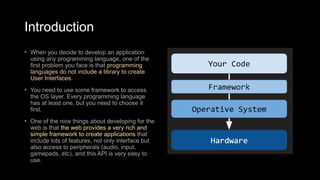
• When you decide to develop an application
using any programming language, one of the
first problem you face is that programming
languages do not include a library to create
User Interfaces.
• You need to use some framework to access
the OS layer. Every programming language
has at least one, but you need to choose it
first.
• One of the nice things about developing for the
web is that the web provides a very rich and
simple framework to create applications that
include lots of features, not only interface but
also access to peripherals (audio, input,
gamepads, etc), and this API is very easy to
use.
Goals
• Introduction to web technologies:
• HTML to create the document structure and
content
• CSS to control is visual aspect
• Javascript for interactivity
Deploy
What do we need to start:
- a good web-browser (Chrome or Firefox)
- the example HTML code to start
- a good text editor like Editplus (win), VSCode (cross platform),
textWrangler (osx), vim (unix) or sublime text (cross platform)
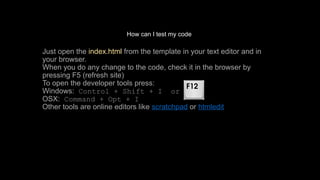
How can I test my code
Just open the index.html from the template in your text editor and in
your browser.
When you do any change to the code, check it in the browser by
pressing F5 (refresh site)
To open the developer tools press:
Windows: Control + Shift + I or
OSX: Command + Opt + I
Other tools are online editors like scratchpad or htmledit
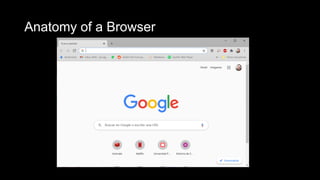
Anatomy of a Browser
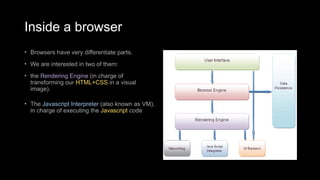
Inside a browser
• Browsers have very differentiate parts.
• We are interested in two of them:
• the Rendering Engine (in charge of
transforming our HTML+CSS in a visual
image).
• The Javascript Interpreter (also known as VM),
in charge of executing the Javascript code
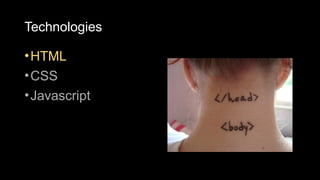
Technologies
•HTML
•CSS
•Javascript
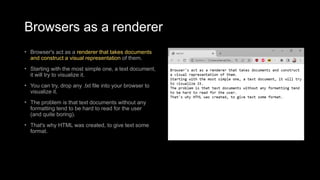
Browsers as a renderer
• Browser's act as a renderer that takes documents
and construct a visual representation of them.
• Starting with the most simple one, a text document,
it will try to visualize it.
• You can try, drop any .txt file into your browser to
visualize it.
• The problem is that text documents without any
formatting tend to be hard to read for the user
(and quite boring).
• That's why HTML was created, to give text some
format.
Markup language
There are many markup
languages that add special tags
into the text that the renderer
wont show but use to know how
to display the text.
In HTML this tags use the next
notation:
My name is <b>Javi</b>
HTML
HTML means Hyper Text Markup Language.
• The HTML allow us to define the structure of a document or a
website.
• HTML is NOT a programming language, it’s a markup language,
which means its purpose is to give structure to the content of the
website, not to define an algorithm.
• It is a series of nested tags (it is a subset of XML) that contain all the
website information (like texts, images and videos). Here is an
example of tags:
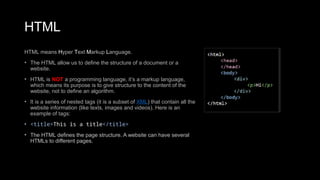
• <title>This is a title</title>
• The HTML defines the page structure. A website can have several
HTMLs to different pages.
HTML: basic rules
Some rules about HTML:
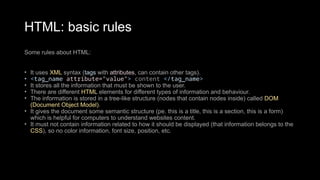
• It uses XML syntax (tags with attributes, can contain other tags).
• <tag_name attribute="value"> content </tag_name>
• It stores all the information that must be shown to the user.
• There are different HTML elements for different types of information and behaviour.
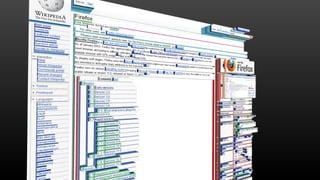
• The information is stored in a tree-like structure (nodes that contain nodes inside) called DOM
(Document Object Model).
• It gives the document some semantic structure (pe. this is a title, this is a section, this is a form)
which is helpful for computers to understand websites content.
• It must not contain information related to how it should be displayed (that information belongs to the
CSS), so no color information, font size, position, etc.
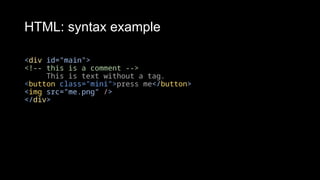
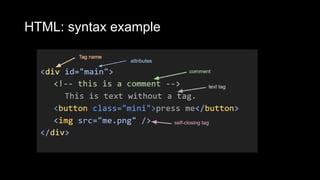
HTML: syntax example
<div id="main">
<!-- this is a comment -->
This is text without a tag.
<button class="mini">press me</button>
<img src="me.png" />
</div>
HTML: syntax example
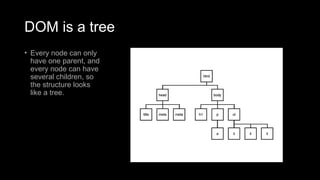
DOM is a tree
• Every node can only
have one parent, and
every node can have
several children, so
the structure looks
like a tree.
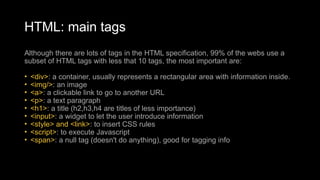
HTML: main tags
Although there are lots of tags in the HTML specification, 99% of the webs use a
subset of HTML tags with less that 10 tags, the most important are:
• <div>: a container, usually represents a rectangular area with information inside.
• <img/>: an image
• <a>: a clickable link to go to another URL
• <p>: a text paragraph
• <h1>: a title (h2,h3,h4 are titles of less importance)
• <input>: a widget to let the user introduce information
• <style> and <link>: to insert CSS rules
• <script>: to execute Javascript
• <span>: a null tag (doesn't do anything), good for tagging info
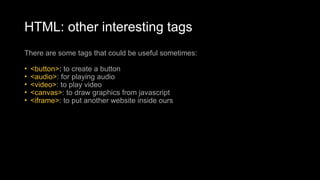
HTML: other interesting tags
There are some tags that could be useful sometimes:
• <button>: to create a button
• <audio>: for playing audio
• <video>: to play video
• <canvas>: to draw graphics from javascript
• <iframe>: to put another website inside ours
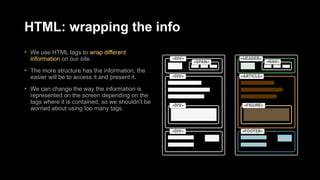
HTML: wrapping the info
• We use HTML tags to wrap different
information on our site.
• The more structure has the information, the
easier will be to access it and present it.
• We can change the way the information is
represented on the screen depending on the
tags where it is contained, so we shouldn't be
worried about using too many tags.
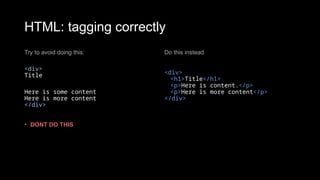
HTML: tagging correctly
Try to avoid doing this:
<div>
Title
Here is some content
Here is more content
</div>
• DONT DO THIS
Do this instead
<div>
<h1>Title</h1>
<p>Here is content.</p>
<p>Here is more content</p>
</div>
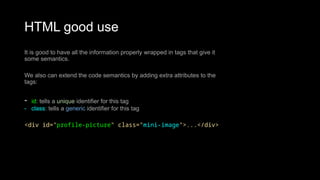
HTML good use
It is good to have all the information properly wrapped in tags that give it
some semantics.
We also can extend the code semantics by adding extra attributes to the
tags:
- id: tells a unique identifier for this tag
- class: tells a generic identifier for this tag
<div id="profile-picture" class="mini-image">...</div>
HTML references
• HTML Reference: a description of all HTML tags.
• The 25 Most used tags: a list with information of the more common tags.
• HTML5 Good practices: some tips for starters
Technologies
• HTML
• CSS
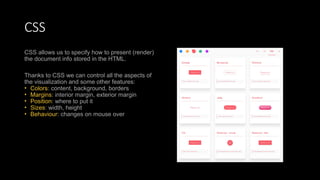
CSS
CSS allows us to specify how to present (render)
the document info stored in the HTML.
Thanks to CSS we can control all the aspects of
the visualization and some other features:
• Colors: content, background, borders
• Margins: interior margin, exterior margin
• Position: where to put it
• Sizes: width, height
• Behaviour: changes on mouse over
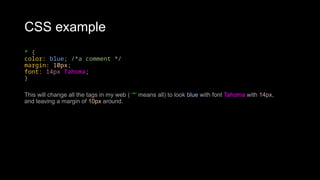
CSS example
* {
color: blue; /*a comment */
margin: 10px;
font: 14px Tahoma;
}
This will change all the tags in my web ( ‘*‘ means all) to look blue with font Tahoma with 14px,
and leaving a margin of 10px around.
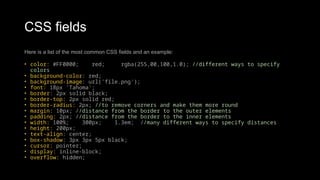
CSS fields
Here is a list of the most common CSS fields and an example:
• color: #FF0000; red; rgba(255,00,100,1.0); //different ways to specify
colors
• background-color: red;
• background-image: url('file.png');
• font: 18px 'Tahoma';
• border: 2px solid black;
• border-top: 2px solid red;
• border-radius: 2px; //to remove corners and make them more round
• margin: 10px; //distance from the border to the outer elements
• padding: 2px; //distance from the border to the inner elements
• width: 100%; 300px; 1.3em; //many different ways to specify distances
• height: 200px;
• text-align: center;
• box-shadow: 3px 3px 5px black;
• cursor: pointer;
• display: inline-block;
• overflow: hidden;
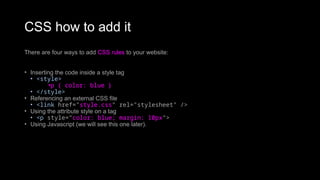
CSS how to add it
There are four ways to add CSS rules to your website:
• Inserting the code inside a style tag
• <style>
•p { color: blue }
• </style>
• Referencing an external CSS file
• <link href="style.css" rel="stylesheet" />
• Using the attribute style on a tag
• <p style="color: blue; margin: 10px">
• Using Javascript (we will see this one later).
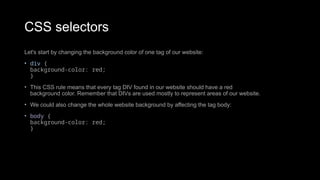
CSS selectors
Let's start by changing the background color of one tag of our website:
• div {
background-color: red;
}
• This CSS rule means that every tag DIV found in our website should have a red
background color. Remember that DIVs are used mostly to represent areas of our website.
• We could also change the whole website background by affecting the tag body:
• body {
background-color: red;
}
CSS selectors
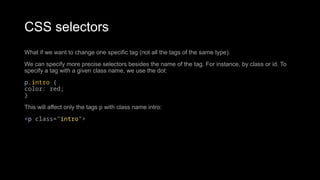
What if we want to change one specific tag (not all the tags of the same type).
We can specify more precise selectors besides the name of the tag. For instance, by class or id. To
specify a tag with a given class name, we use the dot:
p.intro {
color: red;
}
This will affect only the tags p with class name intro:
<p class="intro">
CSS Selectors
There are several selectors we can use to narrow our rules to very specific tags of our website.
The main selectors are:
• tag name: just the name of the tag
• p { ... } //affects to all <p> tags
• dot (.): affects to tags with that class
• p.highlight { ... } //affects all <p> tags with class="highlight"
• sharp character (#): specifies tags with that id
• p#intro { ... } //affects to the <p> tag with the id="intro"
• two dots (:): behaviour states (mouse on top)
• p:hover { ... } //affects to <p> tags with the mouse over
• brackets ([attr='value']): tags with the attribute attr with the value 'value'
• input[type="text"] {...} // affects to the input tags of the type text
CSS Selectors
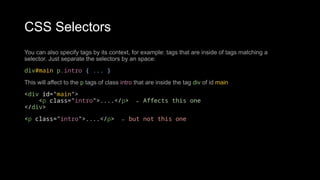
You can also specify tags by its context, for example: tags that are inside of tags matching a
selector. Just separate the selectors by an space:
div#main p.intro { ... }
This will affect to the p tags of class intro that are inside the tag div of id main
<div id="main">
<p class="intro">....</p> ← Affects this one
</div>
<p class="intro">....</p> ← but not this one
CSS Selectors
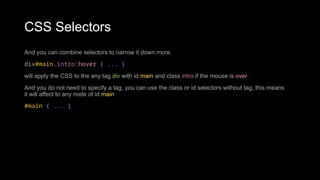
And you can combine selectors to narrow it down more.
div#main.intro:hover { ... }
will apply the CSS to the any tag div with id main and class intro if the mouse is over.
And you do not need to specify a tag, you can use the class or id selectors without tag, this means
it will affect to any node of id main
#main { ... }
CSS Selectors
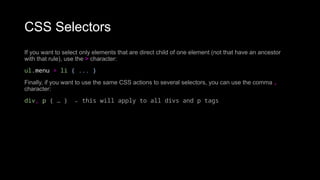
If you want to select only elements that are direct child of one element (not that have an ancestor
with that rule), use the > character:
ul.menu > li { ... }
Finally, if you want to use the same CSS actions to several selectors, you can use the comma ,
character:
div, p { … } ← this will apply to all divs and p tags
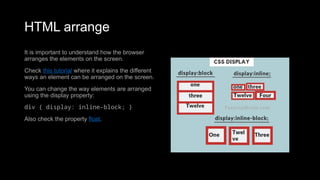
HTML arrange
It is important to understand how the browser
arranges the elements on the screen.
Check this tutorial where it explains the different
ways an element can be arranged on the screen.
You can change the way elements are arranged
using the display property:
div { display: inline-block; }
Also check the property float.
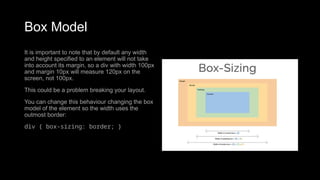
Box Model
It is important to note that by default any width
and height specified to an element will not take
into account its margin, so a div with width 100px
and margin 10px will measure 120px on the
screen, not 100px.
This could be a problem breaking your layout.
You can change this behaviour changing the box
model of the element so the width uses the
outmost border:
div { box-sizing: border; }
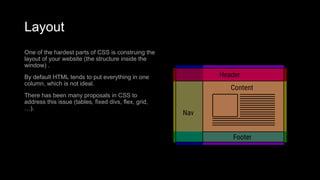
Layout
One of the hardest parts of CSS is construing the
layout of your website (the structure inside the
window) .
By default HTML tends to put everything in one
column, which is not ideal.
There has been many proposals in CSS to
address this issue (tables, fixed divs, flex, grid,
…).
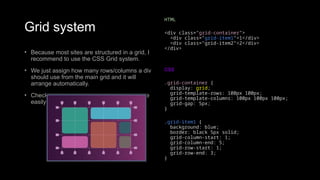
Grid system
• Because most sites are structured in a grid, I
recommend to use the CSS Grid system.
• We just assign how many rows/columns a div
should use from the main grid and it will
arrange automatically.
• Check this tutorial to create the site structure
easily
HTML
<div class="grid-container">
<div class="grid-item1">1</div>
<div class="grid-item2">2</div>
</div>
CSS
.grid-container {
display: grid;
grid-template-rows: 100px 100px;
grid-template-columns: 100px 100px 100px;
grid-gap: 5px;
}
.grid-item1 {
background: blue;
border: black 5px solid;
grid-column-start: 1;
grid-column-end: 5;
grid-row-start: 1;
grid-row-end: 3;
}
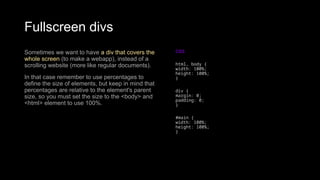
Fullscreen divs
Sometimes we want to have a div that covers the
whole screen (to make a webapp), instead of a
scrolling website (more like regular documents).
In that case remember to use percentages to
define the size of elements, but keep in mind that
percentages are relative to the element's parent
size, so you must set the size to the <body> and
<html> element to use 100%.
CSS
html, body {
width: 100%;
height: 100%;
}
div {
margin: 0;
padding: 0;
}
#main {
width: 100%;
height: 100%;
}
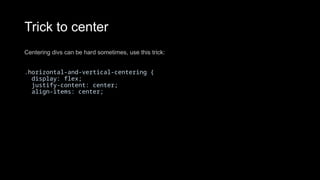
Trick to center
Centering divs can be hard sometimes, use this trick:
.horizontal-and-vertical-centering {
display: flex;
justify-content: center;
align-items: center;
CSS further reading
• There are many more rules for selectors.
• Check some of the links to understand them better.
• One line layouts tutorials
• Understanding the Box Model: a good explanation of how to position the information on your
document.
• All CSS Selectors: the CSS selectors specification page.
• CSS Transition: how to make animations just using CSS
• TailwindCSS: a CSS Framework
HTMLforbeginerslearntocodeforbeginersinfh

HTMLforbeginerslearntocodeforbeginersinfh

  • 1.
    Introduction to webtechnologies
  • 2.
    Introduction • When youdecide to develop an application using any programming language, one of the first problem you face is that programming languages do not include a library to create User Interfaces. • You need to use some framework to access the OS layer. Every programming language has at least one, but you need to choose it first. • One of the nice things about developing for the web is that the web provides a very rich and simple framework to create applications that include lots of features, not only interface but also access to peripherals (audio, input, gamepads, etc), and this API is very easy to use.
  • 3.
    Goals • Introduction toweb technologies: • HTML to create the document structure and content • CSS to control is visual aspect • Javascript for interactivity
  • 4.
    Deploy What do weneed to start: - a good web-browser (Chrome or Firefox) - the example HTML code to start - a good text editor like Editplus (win), VSCode (cross platform), textWrangler (osx), vim (unix) or sublime text (cross platform)
  • 5.
    How can Itest my code Just open the index.html from the template in your text editor and in your browser. When you do any change to the code, check it in the browser by pressing F5 (refresh site) To open the developer tools press: Windows: Control + Shift + I or OSX: Command + Opt + I Other tools are online editors like scratchpad or htmledit
  • 6.
    Anatomy of aBrowser
  • 7.
    Inside a browser •Browsers have very differentiate parts. • We are interested in two of them: • the Rendering Engine (in charge of transforming our HTML+CSS in a visual image). • The Javascript Interpreter (also known as VM), in charge of executing the Javascript code
  • 8.
  • 9.
    Browsers as arenderer • Browser's act as a renderer that takes documents and construct a visual representation of them. • Starting with the most simple one, a text document, it will try to visualize it. • You can try, drop any .txt file into your browser to visualize it. • The problem is that text documents without any formatting tend to be hard to read for the user (and quite boring). • That's why HTML was created, to give text some format.
  • 10.
    Markup language There aremany markup languages that add special tags into the text that the renderer wont show but use to know how to display the text. In HTML this tags use the next notation: My name is <b>Javi</b>
  • 11.
    HTML HTML means HyperText Markup Language. • The HTML allow us to define the structure of a document or a website. • HTML is NOT a programming language, it’s a markup language, which means its purpose is to give structure to the content of the website, not to define an algorithm. • It is a series of nested tags (it is a subset of XML) that contain all the website information (like texts, images and videos). Here is an example of tags: • <title>This is a title</title> • The HTML defines the page structure. A website can have several HTMLs to different pages.
  • 12.
    HTML: basic rules Somerules about HTML: • It uses XML syntax (tags with attributes, can contain other tags). • <tag_name attribute="value"> content </tag_name> • It stores all the information that must be shown to the user. • There are different HTML elements for different types of information and behaviour. • The information is stored in a tree-like structure (nodes that contain nodes inside) called DOM (Document Object Model). • It gives the document some semantic structure (pe. this is a title, this is a section, this is a form) which is helpful for computers to understand websites content. • It must not contain information related to how it should be displayed (that information belongs to the CSS), so no color information, font size, position, etc.
  • 13.
    HTML: syntax example <divid="main"> <!-- this is a comment --> This is text without a tag. <button class="mini">press me</button> <img src="me.png" /> </div>
  • 14.
  • 15.
    DOM is atree • Every node can only have one parent, and every node can have several children, so the structure looks like a tree.
  • 17.
    HTML: main tags Althoughthere are lots of tags in the HTML specification, 99% of the webs use a subset of HTML tags with less that 10 tags, the most important are: • <div>: a container, usually represents a rectangular area with information inside. • <img/>: an image • <a>: a clickable link to go to another URL • <p>: a text paragraph • <h1>: a title (h2,h3,h4 are titles of less importance) • <input>: a widget to let the user introduce information • <style> and <link>: to insert CSS rules • <script>: to execute Javascript • <span>: a null tag (doesn't do anything), good for tagging info
  • 18.
    HTML: other interestingtags There are some tags that could be useful sometimes: • <button>: to create a button • <audio>: for playing audio • <video>: to play video • <canvas>: to draw graphics from javascript • <iframe>: to put another website inside ours
  • 19.
    HTML: wrapping theinfo • We use HTML tags to wrap different information on our site. • The more structure has the information, the easier will be to access it and present it. • We can change the way the information is represented on the screen depending on the tags where it is contained, so we shouldn't be worried about using too many tags.
  • 20.
    HTML: tagging correctly Tryto avoid doing this: <div> Title Here is some content Here is more content </div> • DONT DO THIS Do this instead <div> <h1>Title</h1> <p>Here is content.</p> <p>Here is more content</p> </div>
  • 21.
    HTML good use Itis good to have all the information properly wrapped in tags that give it some semantics. We also can extend the code semantics by adding extra attributes to the tags: - id: tells a unique identifier for this tag - class: tells a generic identifier for this tag <div id="profile-picture" class="mini-image">...</div>
  • 22.
    HTML references • HTMLReference: a description of all HTML tags. • The 25 Most used tags: a list with information of the more common tags. • HTML5 Good practices: some tips for starters
  • 23.
  • 24.
    CSS CSS allows usto specify how to present (render) the document info stored in the HTML. Thanks to CSS we can control all the aspects of the visualization and some other features: • Colors: content, background, borders • Margins: interior margin, exterior margin • Position: where to put it • Sizes: width, height • Behaviour: changes on mouse over
  • 25.
    CSS example * { color:blue; /*a comment */ margin: 10px; font: 14px Tahoma; } This will change all the tags in my web ( ‘*‘ means all) to look blue with font Tahoma with 14px, and leaving a margin of 10px around.
  • 26.
    CSS fields Here isa list of the most common CSS fields and an example: • color: #FF0000; red; rgba(255,00,100,1.0); //different ways to specify colors • background-color: red; • background-image: url('file.png'); • font: 18px 'Tahoma'; • border: 2px solid black; • border-top: 2px solid red; • border-radius: 2px; //to remove corners and make them more round • margin: 10px; //distance from the border to the outer elements • padding: 2px; //distance from the border to the inner elements • width: 100%; 300px; 1.3em; //many different ways to specify distances • height: 200px; • text-align: center; • box-shadow: 3px 3px 5px black; • cursor: pointer; • display: inline-block; • overflow: hidden;
  • 27.
    CSS how toadd it There are four ways to add CSS rules to your website: • Inserting the code inside a style tag • <style> •p { color: blue } • </style> • Referencing an external CSS file • <link href="style.css" rel="stylesheet" /> • Using the attribute style on a tag • <p style="color: blue; margin: 10px"> • Using Javascript (we will see this one later).
  • 28.
    CSS selectors Let's startby changing the background color of one tag of our website: • div { background-color: red; } • This CSS rule means that every tag DIV found in our website should have a red background color. Remember that DIVs are used mostly to represent areas of our website. • We could also change the whole website background by affecting the tag body: • body { background-color: red; }
  • 29.
    CSS selectors What ifwe want to change one specific tag (not all the tags of the same type). We can specify more precise selectors besides the name of the tag. For instance, by class or id. To specify a tag with a given class name, we use the dot: p.intro { color: red; } This will affect only the tags p with class name intro: <p class="intro">
  • 30.
    CSS Selectors There areseveral selectors we can use to narrow our rules to very specific tags of our website. The main selectors are: • tag name: just the name of the tag • p { ... } //affects to all <p> tags • dot (.): affects to tags with that class • p.highlight { ... } //affects all <p> tags with class="highlight" • sharp character (#): specifies tags with that id • p#intro { ... } //affects to the <p> tag with the id="intro" • two dots (:): behaviour states (mouse on top) • p:hover { ... } //affects to <p> tags with the mouse over • brackets ([attr='value']): tags with the attribute attr with the value 'value' • input[type="text"] {...} // affects to the input tags of the type text
  • 31.
    CSS Selectors You canalso specify tags by its context, for example: tags that are inside of tags matching a selector. Just separate the selectors by an space: div#main p.intro { ... } This will affect to the p tags of class intro that are inside the tag div of id main <div id="main"> <p class="intro">....</p> ← Affects this one </div> <p class="intro">....</p> ← but not this one
  • 32.
    CSS Selectors And youcan combine selectors to narrow it down more. div#main.intro:hover { ... } will apply the CSS to the any tag div with id main and class intro if the mouse is over. And you do not need to specify a tag, you can use the class or id selectors without tag, this means it will affect to any node of id main #main { ... }
  • 33.
    CSS Selectors If youwant to select only elements that are direct child of one element (not that have an ancestor with that rule), use the > character: ul.menu > li { ... } Finally, if you want to use the same CSS actions to several selectors, you can use the comma , character: div, p { … } ← this will apply to all divs and p tags
  • 34.
    HTML arrange It isimportant to understand how the browser arranges the elements on the screen. Check this tutorial where it explains the different ways an element can be arranged on the screen. You can change the way elements are arranged using the display property: div { display: inline-block; } Also check the property float.
  • 35.
    Box Model It isimportant to note that by default any width and height specified to an element will not take into account its margin, so a div with width 100px and margin 10px will measure 120px on the screen, not 100px. This could be a problem breaking your layout. You can change this behaviour changing the box model of the element so the width uses the outmost border: div { box-sizing: border; }
  • 36.
    Layout One of thehardest parts of CSS is construing the layout of your website (the structure inside the window) . By default HTML tends to put everything in one column, which is not ideal. There has been many proposals in CSS to address this issue (tables, fixed divs, flex, grid, …).
  • 37.
    Grid system • Becausemost sites are structured in a grid, I recommend to use the CSS Grid system. • We just assign how many rows/columns a div should use from the main grid and it will arrange automatically. • Check this tutorial to create the site structure easily HTML <div class="grid-container"> <div class="grid-item1">1</div> <div class="grid-item2">2</div> </div> CSS .grid-container { display: grid; grid-template-rows: 100px 100px; grid-template-columns: 100px 100px 100px; grid-gap: 5px; } .grid-item1 { background: blue; border: black 5px solid; grid-column-start: 1; grid-column-end: 5; grid-row-start: 1; grid-row-end: 3; }
  • 38.
    Fullscreen divs Sometimes wewant to have a div that covers the whole screen (to make a webapp), instead of a scrolling website (more like regular documents). In that case remember to use percentages to define the size of elements, but keep in mind that percentages are relative to the element's parent size, so you must set the size to the <body> and <html> element to use 100%. CSS html, body { width: 100%; height: 100%; } div { margin: 0; padding: 0; } #main { width: 100%; height: 100%; }
  • 39.
    Trick to center Centeringdivs can be hard sometimes, use this trick: .horizontal-and-vertical-centering { display: flex; justify-content: center; align-items: center;
  • 40.
    CSS further reading •There are many more rules for selectors. • Check some of the links to understand them better. • One line layouts tutorials • Understanding the Box Model: a good explanation of how to position the information on your document. • All CSS Selectors: the CSS selectors specification page. • CSS Transition: how to make animations just using CSS • TailwindCSS: a CSS Framework