Code & Design Your First Website
May 2017
http://bit.ly/first-website-la
About us
We train developers and data
scientists through 1-on-1
mentorship and career prep
About me
• Noel Duarte
• Los Angeles Area General Manager
• UC Berkeley ’15 — worked primarily with R
for population genetics analysis, at Thinkful
since January 2016
About you
• What's your name? !
• What brought you here today?
• I'm curious about a career as a developer
• I'm considering enrolling in a bootcamp
• What is your programming experience?
• I'm completely new to programming 🐣
• I've been self-teaching for a few months 🐥
• I'm already a developer🐓
Roadmap for today
• Overview of frontend vs. backend development
• Intro to UX design
• Wireframe our page (25 min)
• Intro to HTML
• Begin writing HTML (25 min)
• Intro to CSS
• Style your page with CSS (25 min)
• How to keep building & learning
Why start learning frontend development?
• Easy to get started
• See if working with code is for you
• Immediate visualization of code you are writing
• Discover job opportunities: 

UX / UI Designer

Frontend Developer

Content Strategist
What is frontend development?
First, let’s understand the term.

Every websites we visit is displayed inside a browser
window.
That browser is a software application that’s accessing
the internet. And it lives on your computer.


Both can be called the ‘client’ in this scenario.

And they are accessing a service on a ‘server’.
What is frontend development?
Frontend web development is the practice of developing the
HTML, CSS and JS that people see and interact with directly.


That’s why its also known as “client-side development.”
client
clientclient
Frontend vs. backend
Client
Frontend Developer
Develops what we see
Server
Backend Developer

Often develops what we do not see
How the web works
You type a URL: facebook.com (your computer is the client)
The browser communicates with the DNS server to find the
IP address
The browser sends an HTTP ( Hypertext Transfer Protocol) to the
server (which it finds using that IP address) asking for specific
files
The browser receives those files and renders them as a
website
How that relates to what we’re doing today?
When we write our HTML & CSS today, we’ll be creating
the files that are stored on a server, sent through a
series of tubes, and then rendered by your browser.
Design and build your own “About Me” page
Today we’ll be exploring a common process used create
a webpage.
We’ll start out by thinking about the purpose and
structure of our page from a user experience
perspective. Then we’ll wireframe it and eventually
build it with HTML and CSS.
What is user experience design?
UX design is a process used to enhance the usability,
accessibility, and pleasure of interacting with a
product.
In the context of web development, it is a multi-
disciplinary approach to design that can solve
important questions like:
• What information will users remember and how can
we shape the way they view it?
• How likely are users to behave a certain way and why
would we want them to?
• Will a user return to use the product again?
The UX design process
In its simplest form, we can categorize the UX design
process into four different steps:
1. User Research
2. Design
3. Testing
4. Implementation
Today we’ll be focusing on just the first two, user
research and design.
User research + design
User research helps us determine design that users can
effortlessly interact with.
Without knowing who our users are, what is
important to them, and how they’ll interact with our
product, we can’t effectively design a product that will
be user-friendly.
What is the purpose of a wireframe?
• Lo-fi sketches are meant to get ideas down and get a
rough concept… fast.
• Saves time and money before development
• It focus’s your attention on the purpose, structure,
and content of a page without the distraction of
design elements

• Quickly iterate and test out layouts.
Wireframe structure
A wireframe consists of:

• Simple, boxed drawings
• Sections of a page
• Filler text represented as
lines
• X-boxes generally 

represents images /
illustrations
Example #1
Example #2
Wireframe exercise (25 min)
Everybody, include the following in your wireframe
• List out the topics you want to include
• Name, copy, images, illustrations, contact info
• Divide each topic into a section
• Organize your content into boxes.

• Layout the page (start at top and work down)
• Try emphasizing content by size

• Keep it simple — use these resources for “inspiration”:
• blog.mockupbuilder.com/10-fresh-beautiful-examples-of-website-wireframes/
• www.dcrazed.com/website-wireframe-examples
• https://speckyboy.com/free-wireframe-templates-mobile-app-web-ux-design/
Before we get started with HTML/CSS
Normally, developers use a text editor to write code.
Today, we’re using a tool called CodePen.
Why? CodePen lets you write HTML/CSS and instantly
see the results of your work.
CodePen setup
• Create an account: https://codepen.io/accounts/
signup
• On second page, fill out your info if you want to save
your work
• Create a new “pen”
What is HTML?
HTML is the content and structure of a webpage
Three key concepts:
Tags
Elements
Attributes
HTML Tags
Every tag starts with a “less than” sign and ends with a
“greater than” sign
<html> This is an HTML tag
<body> This is a body tag
<h1>Hello world!</h1> This line has two
H1 tags, one opening and one closing
</body>
</html>
HTML Tags
There are opening tags and closing tags. Closing
tags have a backslash before the tag name.
HTML tags have become more semantic with
HTML5 (or, the word signals the purpose of the
tag). We’ll review some common tags shortly.
HTML Elements
HTML elements usually consist of an opening tag, closing tag,
and some content.
<html>
<body> This element starts here and ends two lines below
<h1>Hello world!</h1> This is an HTML element
</body>
</html>
Some consist of just a self-closing tag
<img src=“http://i.imgur.com/Th5404r.jpg">
HTML Elements
A non-exhaustive list of HTML elements:
<html> HTML tags wrap your entire page
<head> Head tags
<body> Body tags
<h1> H1 tags signify the largest headline. H2 signifies
subhead… through h6
<p> Paragraph tags wrap a paragraph of writing
HTML Elements
<p> Paragraph tags wrap a paragraph of writing
<section> Section tags help you organize different
sections of your layout
<div> Div tags are generic/non-semantic container tags
for anything that needs a container
<a> Anchor tags are for setting some text to be a link
<ul> <li> / <ol><li> Unordered list and ordered lists are
for lists of items, containing list item elements
<button> This is a button
HTML Attributes
HTML attributes set properties on an element. They belong in
the opening tag. Here are three common attributes:
<a href=“https://somewhere.com">This is a link</a> href
is an attribute for setting the destination of a link
<h1 class=“headline”>This is a headline</h1> class is an
attribute that doesn’t show up in the rendered webpage,
but will be important when we start talking about CSS
<h1 id=“headline”>This is a headline</h1> id is an
attribute that doesn’t show up in the rendered webpage,
but will be important when we start talking about CSS
About Me page
http://codepen.io/danfriedman9/pen/pEOWZA
Let’s walk through the starter code together
HTML Exercise (25 min)
Let’s get started building our About Me page
• Create each section of your page with HTML
• Header, paragraphs, images

• This will be a lot more difficult than you imagine at
first, but refer to the elements we covered earlier.
• Slides 25 & 26
What is CSS?
Cascading Style Sheets determine the visual
presentation of your HTML webpages
Key concepts:
Selectors
Property
Value
Declaration / Declaration block
Two problems we solve with CSS:
Presentation of specific elements
Layout
CSS Selectors
CSS selectors determine which HTML elements are targeted
for specific styles:
p This selects all paragraph tags
.header This selects HTML elements with the class
“header”
#navigation This selects HTML elements with the ID
navigation
p.header This selects paragraph tags with the header
class
Selectors can be combined.
CSS Properties
CSS properties determine what about the appearance
you’re setting:
color This determines the font color
font-family This lets you set the typeface as well as
backup typefaces
background-image This lets you set a
background image for an element
height This lets you set the height of an element
CSS Properties
Each property has a default value for a given element.
When you write CSS, you over-ride that default value
with a new value.
For a full list, see: http://www.htmldog.com/
references/css/properties/
CSS Values
Each property has a set of acceptable values that you can set:
color: red, blue, green, #CCCCCC These are all
acceptable values for the color property
font-family: helvetica, arial, sans-serif These are all
acceptable values for the font-family property
background-image: url("imageFile.jpg") This property
looks for a URL value that points to a specific image file
height: 40px 50% Height can be set as an explicit width or
as a percentage of the containing box
Click on a property to see the acceptable values: http://
www.htmldog.com/references/css/properties/
CSS Example
h1 {
color: red;
font-size: 36px;
}
This is a declaration block, containing two declarations:
Linking CSS to HTML
We don’t have to deal with this thanks to Codepen
Normally you’d have one HTML file for each webpage
(for example, home.html and profile.html), and a single
CSS file for the whole website’s styles (styles.css)
To link your stylesheet to your HTML, you’d insert the
following line into the <head> section of your HTML
webpage:
<link rel="stylesheet" type="text/css"
href="theme.css">
CSS Exercise (25 min)
Let’s get started styling our About Me page
• Begin changing the style of your page
• Color, size, positioning, etc. 

• There are lots of CSS properties you can use to style
your content. Use the following reference sheet to
explore them:
• http://www.htmldog.com/references/css/properties/
Let’s wrap it up!
Great, you’ve officially created the very first version (v1)
of your About Me page. From here, your mission is to
keep learning about HTML and CSS by trial and
error.
Even as an experienced developer you’ll often find
yourself googling the solution to a problem you may
not know. Start practicing this from the very beginning.
Ways to keep learningLevelofsupport
Structure efficiency
1-on-1 mentorship enables flexibility
325+ mentors with an average of 10
years of experience in the field
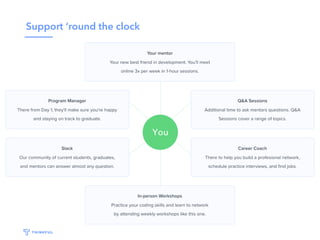
Support ‘round the clock
Our results
Job Titles after GraduationMonths until Employed
Try us out!
• Initial 2-week trial
includes six mentor
sessions for $50
• Learn HTML/CSS and
JavaScript
• Option to continue
onto web
development
bootcamp
• Talk to me (or email
noel@thinkful.com) if
you’re interested

Code & Design Your First Website (Downtown Los Angeles)

  • 1.
    Code & DesignYour First Website May 2017 http://bit.ly/first-website-la
  • 2.
    About us We traindevelopers and data scientists through 1-on-1 mentorship and career prep
  • 3.
    About me • NoelDuarte • Los Angeles Area General Manager • UC Berkeley ’15 — worked primarily with R for population genetics analysis, at Thinkful since January 2016
  • 4.
    About you • What'syour name? ! • What brought you here today? • I'm curious about a career as a developer • I'm considering enrolling in a bootcamp • What is your programming experience? • I'm completely new to programming 🐣 • I've been self-teaching for a few months 🐥 • I'm already a developer🐓
  • 5.
    Roadmap for today •Overview of frontend vs. backend development • Intro to UX design • Wireframe our page (25 min) • Intro to HTML • Begin writing HTML (25 min) • Intro to CSS • Style your page with CSS (25 min) • How to keep building & learning
  • 6.
    Why start learningfrontend development? • Easy to get started • See if working with code is for you • Immediate visualization of code you are writing • Discover job opportunities: 
 UX / UI Designer
 Frontend Developer
 Content Strategist
  • 7.
    What is frontenddevelopment? First, let’s understand the term.
 Every websites we visit is displayed inside a browser window. That browser is a software application that’s accessing the internet. And it lives on your computer. 
 Both can be called the ‘client’ in this scenario.
 And they are accessing a service on a ‘server’.
  • 8.
    What is frontenddevelopment? Frontend web development is the practice of developing the HTML, CSS and JS that people see and interact with directly. 
 That’s why its also known as “client-side development.” client clientclient
  • 9.
    Frontend vs. backend Client FrontendDeveloper Develops what we see Server Backend Developer
 Often develops what we do not see
  • 10.
    How the webworks You type a URL: facebook.com (your computer is the client) The browser communicates with the DNS server to find the IP address The browser sends an HTTP ( Hypertext Transfer Protocol) to the server (which it finds using that IP address) asking for specific files The browser receives those files and renders them as a website
  • 11.
    How that relatesto what we’re doing today? When we write our HTML & CSS today, we’ll be creating the files that are stored on a server, sent through a series of tubes, and then rendered by your browser.
  • 12.
    Design and buildyour own “About Me” page Today we’ll be exploring a common process used create a webpage. We’ll start out by thinking about the purpose and structure of our page from a user experience perspective. Then we’ll wireframe it and eventually build it with HTML and CSS.
  • 13.
    What is userexperience design? UX design is a process used to enhance the usability, accessibility, and pleasure of interacting with a product. In the context of web development, it is a multi- disciplinary approach to design that can solve important questions like: • What information will users remember and how can we shape the way they view it? • How likely are users to behave a certain way and why would we want them to? • Will a user return to use the product again?
  • 14.
    The UX designprocess In its simplest form, we can categorize the UX design process into four different steps: 1. User Research 2. Design 3. Testing 4. Implementation Today we’ll be focusing on just the first two, user research and design.
  • 15.
    User research +design User research helps us determine design that users can effortlessly interact with. Without knowing who our users are, what is important to them, and how they’ll interact with our product, we can’t effectively design a product that will be user-friendly.
  • 16.
    What is thepurpose of a wireframe? • Lo-fi sketches are meant to get ideas down and get a rough concept… fast. • Saves time and money before development • It focus’s your attention on the purpose, structure, and content of a page without the distraction of design elements
 • Quickly iterate and test out layouts.
  • 17.
    Wireframe structure A wireframeconsists of:
 • Simple, boxed drawings • Sections of a page • Filler text represented as lines • X-boxes generally 
 represents images / illustrations
  • 18.
  • 19.
  • 20.
    Wireframe exercise (25min) Everybody, include the following in your wireframe • List out the topics you want to include • Name, copy, images, illustrations, contact info • Divide each topic into a section • Organize your content into boxes.
 • Layout the page (start at top and work down) • Try emphasizing content by size
 • Keep it simple — use these resources for “inspiration”: • blog.mockupbuilder.com/10-fresh-beautiful-examples-of-website-wireframes/ • www.dcrazed.com/website-wireframe-examples • https://speckyboy.com/free-wireframe-templates-mobile-app-web-ux-design/
  • 21.
    Before we getstarted with HTML/CSS Normally, developers use a text editor to write code. Today, we’re using a tool called CodePen. Why? CodePen lets you write HTML/CSS and instantly see the results of your work.
  • 22.
    CodePen setup • Createan account: https://codepen.io/accounts/ signup • On second page, fill out your info if you want to save your work • Create a new “pen”
  • 23.
    What is HTML? HTMLis the content and structure of a webpage Three key concepts: Tags Elements Attributes
  • 24.
    HTML Tags Every tagstarts with a “less than” sign and ends with a “greater than” sign <html> This is an HTML tag <body> This is a body tag <h1>Hello world!</h1> This line has two H1 tags, one opening and one closing </body> </html>
  • 25.
    HTML Tags There areopening tags and closing tags. Closing tags have a backslash before the tag name. HTML tags have become more semantic with HTML5 (or, the word signals the purpose of the tag). We’ll review some common tags shortly.
  • 26.
    HTML Elements HTML elementsusually consist of an opening tag, closing tag, and some content. <html> <body> This element starts here and ends two lines below <h1>Hello world!</h1> This is an HTML element </body> </html> Some consist of just a self-closing tag <img src=“http://i.imgur.com/Th5404r.jpg">
  • 27.
    HTML Elements A non-exhaustivelist of HTML elements: <html> HTML tags wrap your entire page <head> Head tags <body> Body tags <h1> H1 tags signify the largest headline. H2 signifies subhead… through h6 <p> Paragraph tags wrap a paragraph of writing
  • 28.
    HTML Elements <p> Paragraphtags wrap a paragraph of writing <section> Section tags help you organize different sections of your layout <div> Div tags are generic/non-semantic container tags for anything that needs a container <a> Anchor tags are for setting some text to be a link <ul> <li> / <ol><li> Unordered list and ordered lists are for lists of items, containing list item elements <button> This is a button
  • 29.
    HTML Attributes HTML attributesset properties on an element. They belong in the opening tag. Here are three common attributes: <a href=“https://somewhere.com">This is a link</a> href is an attribute for setting the destination of a link <h1 class=“headline”>This is a headline</h1> class is an attribute that doesn’t show up in the rendered webpage, but will be important when we start talking about CSS <h1 id=“headline”>This is a headline</h1> id is an attribute that doesn’t show up in the rendered webpage, but will be important when we start talking about CSS
  • 30.
  • 31.
    HTML Exercise (25min) Let’s get started building our About Me page • Create each section of your page with HTML • Header, paragraphs, images
 • This will be a lot more difficult than you imagine at first, but refer to the elements we covered earlier. • Slides 25 & 26
  • 32.
    What is CSS? CascadingStyle Sheets determine the visual presentation of your HTML webpages Key concepts: Selectors Property Value Declaration / Declaration block Two problems we solve with CSS: Presentation of specific elements Layout
  • 33.
    CSS Selectors CSS selectorsdetermine which HTML elements are targeted for specific styles: p This selects all paragraph tags .header This selects HTML elements with the class “header” #navigation This selects HTML elements with the ID navigation p.header This selects paragraph tags with the header class Selectors can be combined.
  • 34.
    CSS Properties CSS propertiesdetermine what about the appearance you’re setting: color This determines the font color font-family This lets you set the typeface as well as backup typefaces background-image This lets you set a background image for an element height This lets you set the height of an element
  • 35.
    CSS Properties Each propertyhas a default value for a given element. When you write CSS, you over-ride that default value with a new value. For a full list, see: http://www.htmldog.com/ references/css/properties/
  • 36.
    CSS Values Each propertyhas a set of acceptable values that you can set: color: red, blue, green, #CCCCCC These are all acceptable values for the color property font-family: helvetica, arial, sans-serif These are all acceptable values for the font-family property background-image: url("imageFile.jpg") This property looks for a URL value that points to a specific image file height: 40px 50% Height can be set as an explicit width or as a percentage of the containing box Click on a property to see the acceptable values: http:// www.htmldog.com/references/css/properties/
  • 37.
    CSS Example h1 { color:red; font-size: 36px; } This is a declaration block, containing two declarations:
  • 38.
    Linking CSS toHTML We don’t have to deal with this thanks to Codepen Normally you’d have one HTML file for each webpage (for example, home.html and profile.html), and a single CSS file for the whole website’s styles (styles.css) To link your stylesheet to your HTML, you’d insert the following line into the <head> section of your HTML webpage: <link rel="stylesheet" type="text/css" href="theme.css">
  • 39.
    CSS Exercise (25min) Let’s get started styling our About Me page • Begin changing the style of your page • Color, size, positioning, etc. 
 • There are lots of CSS properties you can use to style your content. Use the following reference sheet to explore them: • http://www.htmldog.com/references/css/properties/
  • 40.
    Let’s wrap itup! Great, you’ve officially created the very first version (v1) of your About Me page. From here, your mission is to keep learning about HTML and CSS by trial and error. Even as an experienced developer you’ll often find yourself googling the solution to a problem you may not know. Start practicing this from the very beginning.
  • 41.
    Ways to keeplearningLevelofsupport Structure efficiency
  • 42.
    1-on-1 mentorship enablesflexibility 325+ mentors with an average of 10 years of experience in the field
  • 43.
  • 44.
    Our results Job Titlesafter GraduationMonths until Employed
  • 45.
    Try us out! •Initial 2-week trial includes six mentor sessions for $50 • Learn HTML/CSS and JavaScript • Option to continue onto web development bootcamp • Talk to me (or email noel@thinkful.com) if you’re interested