Formula Ninja
Deepa Patel
President,
Halak Consulting, LLC
@halakconsulting
Steve Molis
Salesforce Administrator,
Epsilon
@stevemoforce
Francis Pindar
Solutions Architect,
Cloud Sherpas
@radnip
James Garfield
Salesforce Analyst,
Agendia, Inc.
@James__Garfield
Safe Harbor
Safe harbor statement under the Private Securities Litigation ReformAct of 1995:
This presentation may contain forward-looking statements that involve risks, uncertainties, and assumptions. If any such uncertainties materialize or if any of
the assumptions proves incorrect, the results of salesforce.com, inc. could differ materially from the results expressed or implied by the forward-looking
statements we make.All statements other than statements of historical fact could be deemed forward-looking, including any projections of product or service
availability, subscriber growth, earnings, revenues, or other financial items and any statements regarding strategies or plans of management for future
operations, statements of belief, any statements concerning new, planned, or upgraded services or technology developments and customer contracts or use of
our services.
The risks and uncertainties referred to above include – but are not limited to – risks associated with developing and delivering new functionality for our service,
new products and services, our new business model, our past operating losses, possible fluctuations in our operating results and rate of growth, interruptions or
delays in our Web hosting, breach of our security measures, the outcome of any litigation, risks associated with completed and any possible mergers and
acquisitions, the immature market in which we operate, our relatively limited operating history, our ability to expand, retain, and motivate our employees and
manage our growth, new releases of our service and successful customer deployment, our limited history reselling non-salesforce.com products, and utilization
and selling to larger enterprise customers. Further information on potential factors that could affect the financial results of salesforce.com, inc. is included in our
annual report on Form 10-K for the most recent fiscal year and in our quarterly report on Form 10-Q for the most recent fiscal quarter. These documents and
others containing important disclosures are available on the SEC Filings section of the Investor Information section of our Web site.
Any unreleased services or features referenced in this or other presentations, press releases or public statements are not currently available and may not be
delivered on time or at all. Customers who purchase our services should make the purchase decisions based upon features that are currently available.
Salesforce.com, inc. assumes no obligation and does not intend to update these forward-looking statements.
Deepa Patel
President, Halak Consulting, LLC
Formula Basics
Traditional Formula Writing
vs.
Writing Formulas In Salesforce
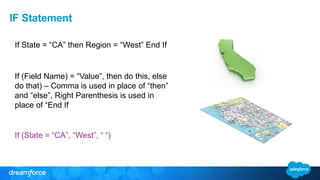
IF Statement
If State = “CA” then Region = “West” End If
If (Field Name) = “Value”, then do this, else
do that) – Comma is used in place of “then”
and “else”, Right Parenthesis is used in
place of “End If
If (State = “CA”, “West”, “ “)
Nested IF Statement
If State = “CA” then Region = “West” Else
If State = “WA” then Region = “West” Else
If State = “NY” then Region = “East” Else
If State = “IL” then Region = “Mid-West” Else
……EndIf
If (State = “CA”, “West”,
If (State = “WA”, “West”,
If (State = “NY”, “East”,
If (State = “IL”, “Mid-West”,“ “))))
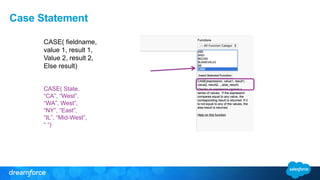
Case Statement
CASE( fieldname,
value 1, result 1,
Value 2, result 2,
Else result)
CASE( State,
“CA”, “West”,
“WA”, West”,
“NY”, “East”,
“IL”, “Mid-West”,
“ “)
AND Statement
If State = “CA” and Country = “USA” then Region =
“West USA” End If
AND (value1, value 2, value 3…..)
(value 1 && value 2 && value 3 && …..)
If (
AND(State = “CA”, Country = “USA”), “West USA”,
“ “)
If (
(State = “CA” && Country = “USA”), “West USA”, “ “
)
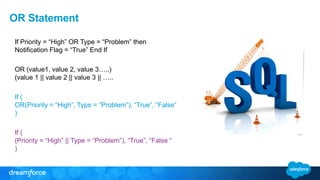
OR Statement
If Priority = “High” OR Type = “Problem” then
Notification Flag = “True” End If
OR (value1, value 2, value 3…..)
(value 1 || value 2 || value 3 || …..
If (
OR(Priority = “High”, Type = “Problem”), “True”, “False“
)
If (
(Priority = “High” || Type = “Problem”), “True”, “False “
)
And & OR Combined
If (Priority = “High” OR Type = “Problem”) AND Status =
“Open” then Notification Flag = “True” End If
IF(
AND(
OR(ISPICKVAL(Priority, ”High"), ISPICKVAL(Type,
”Problem”)),ISPICKVAL(Status, ”Open”)), “True”, ”False”)
IF(
(ISPICKVAL(Priority, ”High") || ISPICKVAL(Type,
”Problem”))
&& ISPICKVAL(Status, ”Open”), “True”, “False”)
Business Case
Completeness and Qualitative Scoring Formula
1000s of leads added to the system by Marketing
department on a regular basis. How do we know if
the data is any good on these leads? We need to
design a Completeness Score that shows the lead
rating based on the information in the lead
Once the reps have started working on the leads,
we need to know how good are the leads based on
the qualification questions. High quality leads
needs to be transferred over to Outside Sales.
Completeness
What is Completeness?
Here we are checking for the number of fields
that are populated with data and give each field
a score for completeness
 Title
 Phone Number
 Email
 Company Name
 Web Site
Completeness Lead Scoring
Compile Size = 395
If Field is blank, then give it a score 0 or else give it
a score 5
CASE (Title,””, 0,5)+
CASE (Street,””, 0,5)+
CASE (Email,””, 0,5)+
CASE (Phone,””, 0,5)+
CASE (Website,””, 0,5)
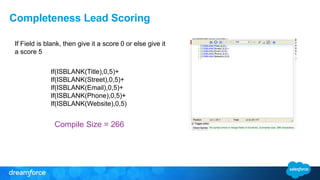
Completeness Lead Scoring
Compile Size = 266
If Field is blank, then give it a score 0 or else give it
a score 5
If(ISBLANK(Title),0,5)+
If(ISBLANK(Street),0,5)+
If(ISBLANK(Email),0,5)+
If(ISBLANK(Phone),0,5)+
If(ISBLANK(Website),0,5)
Qualitative
What is Qualitative?
Here we are checking for the values of fields and give
each field a score based on values
 Is there a Budget?
 Does this person have Authority?
 Do they have a need for our Product or Services?
 What is their purchasing Time frame?
Qualitative Lead Scoring
Compile Size = 507
If Authority = “Yes” score = 5,
Need = “Yes” score = 5,
Budget = “Yes” score = 5
Purchasing Timeframe –
 < 3 months, score = 5
 3 – 6 months, score = 4
 6 – 12 months, score = 3
 > 12 months, score = 2
CASE(TEXT(Authority__c),"Yes", 5, 0) +
CASE(TEXT(Is_there_a_Need__c), "Yes", 5, 0) +
CASE(TEXT(Is_there_a_budget__c), "Yes", 5, 0) +
CASE(TEXT( Purchasing_Timeframe__c), "< 3
months", 5, "3 - 6 months", 4, "6 - 12 months", 3,
"> 12 months", 2, 0)
What does this look like?
Visual Representation of both Scoring values
We want to show a Star Rating field on the List View so that reps can see at a high level which
leads are hot
We want to show a Quality Rating field on the Lead Record so that management can get an idea
on how well are leading getting qualified
Star Rating Formula Field
Compile Size = 4969
IF (Lead_Score__c <=5,
IMAGE("/img/samples/stars_100.gif","1 Star"),
IF (Lead_Score__c <=10,
IMAGE("/img/samples/stars_200.gif","2 Star"),
IF (Lead_Score__c <=15,
IMAGE("/img/samples/stars_300.gif","3 Star"),
IF (Lead_Score__c <=20,
IMAGE("/img/samples/stars_400.gif","4 Star"),
IMAGE("/img/samples/stars_500.gif","5 Star")))))
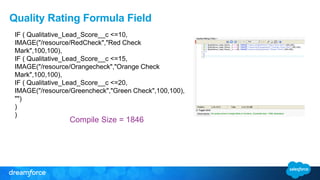
Quality Rating Formula Field
Compile Size = 1846
IF ( Qualitative_Lead_Score__c <=10,
IMAGE("/resource/RedCheck","Red Check
Mark",100,100),
IF ( Qualitative_Lead_Score__c <=15,
IMAGE("/resource/Orangecheck","Orange Check
Mark",100,100),
IF ( Qualitative_Lead_Score__c <=20,
IMAGE("/resource/Greencheck","Green Check",100,100),
"")
)
)
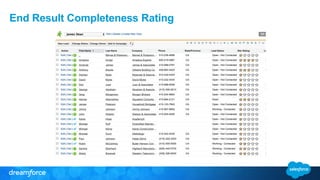
End Result Completeness Rating
End Result Qualitative Rating
Francis Pindar
Technical Architect
Hmmm…
• Ever received one of these?
• What did it make you think of the
organization involved?
• Have you ever sent one?
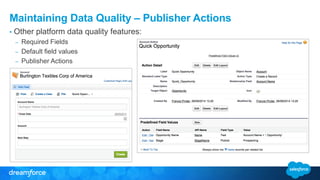
Maintaining Data Quality – Publisher Actions
• Other platform data quality features:
– Required Fields
– Default field values
– Publisher Actions
Maintaining Data Quality - Formulas
• Hard Stops – Validation Rules
– Validating record fields
– Validating record fields on change
– Validating parents record fields
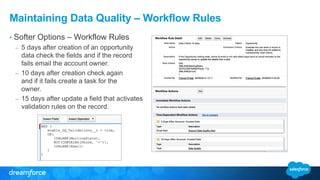
Maintaining Data Quality – Workflow Rules
• Softer Options – Workflow Rules
– 5 days after creation of an opportunity
data check the fields and if the record
fails email the account owner.
– 10 days after creation check again
and if it fails create a task for the
owner.
– 15 days after update a field that activates
validation rules on the record.
Maintaining Data Quality: Using Image Formulas!
Maintaining Data Quality: Using FORMULA FIELDS!
Creating Image Formulas
Steve Molis
Salesforce MVP
@SteveMoForce
• 4 Time Salesforce MVP: 2011, 2012, 2013, 2014
• Self-Taught System Administrator/Developer
• 0 Salesforce Admin or Developer Certifications
• 1 App named after me “Thanks Reid Carlberg!”
• Community College Drop-Out : 0.67 GPA *
* Margin of error: +/- 0.67
About SteveMo…
Safe Harbor
More than one way to deal with a Picklist field (or skin a cat)*
•Using the ISPICKVAL and CASE Functions
•Creating an Opportunity Rollback Validation Rule
•Using the TEXT Function to convert Picklist Values
* No Animals Were Harmed in the Making of These Formulas
Function: ISPICKVAL (aka “old faithful”)
Description: Determines if the value of a picklist field is
equal to a text literal you specify.
Example:
IF(ISPICKVAL(Weather, "Zombies!"), "RUN!!!",
IF(ISPICKVAL(Weather, "HOT"), "Go Swimming",
IF(ISPICKVAL(Weather, "WARM"), “Have a picnic",
IF(ISPICKVAL(Weather, "COLD"), "Sit by the fire",
"Send out for Pizza"))))
Function: CASE
Description: Checks a given expression against a series of
values.
Example:
CASE(Weather,
"Zombies!", "RUN!!!",
"HOT", "Go Swimming",
"WARM", “Have a picnic",
"COLD", "Sit by the fire",
"Send out for Pizza")
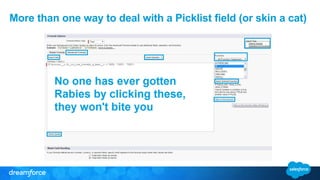
More than one way to deal with a Picklist field (or skin a cat)
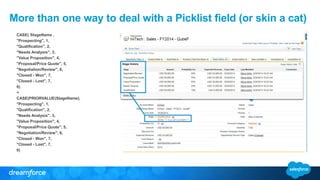
Business Requirement
Prevent user from changing the Opportunity Stage to a
previous Opportunity Stage
Solution
Use a Validation Rule to evaluate current Opportunity
Stage and compare it to the previous Opportunity
Stage
Fields Referenced
Opportunity: StageName
Functions and Operators Used
CASE
PRIORVALUE
<
More than one way to deal with a Picklist field (or skin a cat)
CASE( StageName ,
"Prospecting", 1,
"Qualification", 2,
"Needs Analysis", 3,
"Value Proposition", 4,
"Proposal/Price Quote", 5,
"Negotiation/Review", 6,
"Closed - Won", 7,
"Closed - Lost", 7,
0)
<
CASE(PRIORVALUE(StageName),
"Prospecting", 1,
"Qualification", 2,
"Needs Analysis", 3,
"Value Proposition", 4,
"Proposal/Price Quote", 5,
"Negotiation/Review", 6,
"Closed - Won", 7,
"Closed - Lost", 7,
0)
More than one way to deal with a Picklist field (or skin a cat)
Function: TEXT
Description: Converts picklist values to text in Validation Rules, Formula Fields,
and Workflow Rules.
So you can do stuff like this…
More than one way to deal with a Picklist field (or skin a cat)
• TEXT
• Operators: > < = >= <= <>
• ISBLANK
• VALUE
• BEGINS
• CONTAINS
• LEFT/RIGHT
• FIND/SUBSTITUTE
More than one way to deal with a Picklist field (or skin a cat)
Problem:
Extract the Numeric Value from the end of Picklist
Values that contain mixed length text characters.
Use Case:
Approval Processes, Workflow Rules, Validation
Rules, Formula Fields.
More than one way to deal with a Picklist field (or skin a cat)
CASE Formula:
CASE( SLA__c ,
"Diamond 5.0", 5.0,
"Platinum 4.0", 4.0,
"Gold 2.5", 2.5,
"Silver 1.5", 1.5,
"Bronze 0.5", 0.5,
0)
Compiled size:
5 Values = 326 bytes
10 Values = 426 bytes
Nested IF Formula:
IF(ISPICKVAL(SLA__c ,"Diamond 5.0"), 5.0,
IF(ISPICKVAL(SLA__c ,"Platinum 4.0"), 4.0,
IF(ISPICKVAL(SLA__c ,"Gold 2.5"), 2.5,
IF(ISPICKVAL(SLA__c ,"Silver 1.5"), 1.5,
IF(ISPICKVAL(SLA__c ,"Bronze 0.5"), 0.5,
0)))))
Compiled size:
5 Values = 465 bytes
10 Values = 950 bytes
More than one way to deal with a Picklist field (or skin a cat)
Solution:
Formula:
VALUE( RIGHT ( TEXT ( SLA__c ), 3 ))
Compiled size: 280 bytes
• Use the TEXT function to convert the Picklist Value to a Text
String.
• Then use the RIGHT function to extract the last 3 characters
or the Text String.
• Then use the VALUE function to convert the last 3 characters
to a Numeric Value.
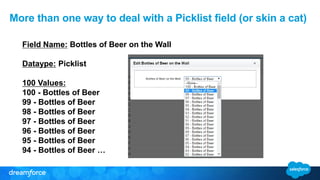
Field Name: Bottles of Beer on the Wall
Dataype: Picklist
100 Values:
100 - Bottles of Beer
99 - Bottles of Beer
98 - Bottles of Beer
97 - Bottles of Beer
96 - Bottles of Beer
95 - Bottles of Beer
94 - Bottles of Beer …
More than one way to deal with a Picklist field (or skin a cat)
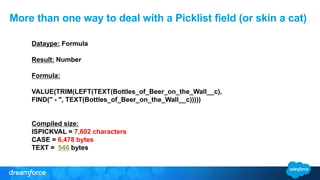
Dataype: Formula
Result: Number
Formula:
VALUE(TRIM(LEFT(TEXT(Bottles_of_Beer_on_the_Wall__c),
FIND(" - ", TEXT(Bottles_of_Beer_on_the_Wall__c)))))
Compiled size:
ISPICKVAL = 7,602 characters
CASE = 6,478 bytes
TEXT = 546 bytes
More than one way to deal with a Picklist field (or skin a cat)
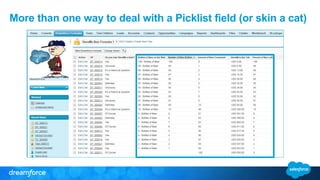
Who owes me a beer?!?
More than one way to deal with a Picklist field (or skin a cat)
Formula Resources
• Introduction to Formulas –
http://wiki.developerforce.com/page/An_Introduction_to_Formulas
• Formulas Quick Reference Guide –
https://na1.salesforce.com/help/pdfs/en/salesforce_formulas_cheatsheet.pdf
• Useful Validation Rules –
http://na1.salesforce.com/help/pdfs/en/salesforce_useful_validation_formulas.pdf
• Building a Cross Object Formula –
https://help.salesforce.com/HTViewHelpDoc?id=fields_creating_cross_object_advanced.htm&lang
uage=en_US
• Formula Editor for Chrome Browser
http://bit.ly/FormulaEditor
Q & A
Formula Ninja at Dreamforce 2014

Formula Ninja at Dreamforce 2014

  • 1.
    Formula Ninja Deepa Patel President, HalakConsulting, LLC @halakconsulting Steve Molis Salesforce Administrator, Epsilon @stevemoforce Francis Pindar Solutions Architect, Cloud Sherpas @radnip James Garfield Salesforce Analyst, Agendia, Inc. @James__Garfield
  • 2.
    Safe Harbor Safe harborstatement under the Private Securities Litigation ReformAct of 1995: This presentation may contain forward-looking statements that involve risks, uncertainties, and assumptions. If any such uncertainties materialize or if any of the assumptions proves incorrect, the results of salesforce.com, inc. could differ materially from the results expressed or implied by the forward-looking statements we make.All statements other than statements of historical fact could be deemed forward-looking, including any projections of product or service availability, subscriber growth, earnings, revenues, or other financial items and any statements regarding strategies or plans of management for future operations, statements of belief, any statements concerning new, planned, or upgraded services or technology developments and customer contracts or use of our services. The risks and uncertainties referred to above include – but are not limited to – risks associated with developing and delivering new functionality for our service, new products and services, our new business model, our past operating losses, possible fluctuations in our operating results and rate of growth, interruptions or delays in our Web hosting, breach of our security measures, the outcome of any litigation, risks associated with completed and any possible mergers and acquisitions, the immature market in which we operate, our relatively limited operating history, our ability to expand, retain, and motivate our employees and manage our growth, new releases of our service and successful customer deployment, our limited history reselling non-salesforce.com products, and utilization and selling to larger enterprise customers. Further information on potential factors that could affect the financial results of salesforce.com, inc. is included in our annual report on Form 10-K for the most recent fiscal year and in our quarterly report on Form 10-Q for the most recent fiscal quarter. These documents and others containing important disclosures are available on the SEC Filings section of the Investor Information section of our Web site. Any unreleased services or features referenced in this or other presentations, press releases or public statements are not currently available and may not be delivered on time or at all. Customers who purchase our services should make the purchase decisions based upon features that are currently available. Salesforce.com, inc. assumes no obligation and does not intend to update these forward-looking statements.
  • 3.
  • 4.
    Formula Basics Traditional FormulaWriting vs. Writing Formulas In Salesforce
  • 5.
    IF Statement If State= “CA” then Region = “West” End If If (Field Name) = “Value”, then do this, else do that) – Comma is used in place of “then” and “else”, Right Parenthesis is used in place of “End If If (State = “CA”, “West”, “ “)
  • 6.
    Nested IF Statement IfState = “CA” then Region = “West” Else If State = “WA” then Region = “West” Else If State = “NY” then Region = “East” Else If State = “IL” then Region = “Mid-West” Else ……EndIf If (State = “CA”, “West”, If (State = “WA”, “West”, If (State = “NY”, “East”, If (State = “IL”, “Mid-West”,“ “))))
  • 7.
    Case Statement CASE( fieldname, value1, result 1, Value 2, result 2, Else result) CASE( State, “CA”, “West”, “WA”, West”, “NY”, “East”, “IL”, “Mid-West”, “ “)
  • 8.
    AND Statement If State= “CA” and Country = “USA” then Region = “West USA” End If AND (value1, value 2, value 3…..) (value 1 && value 2 && value 3 && …..) If ( AND(State = “CA”, Country = “USA”), “West USA”, “ “) If ( (State = “CA” && Country = “USA”), “West USA”, “ “ )
  • 9.
    OR Statement If Priority= “High” OR Type = “Problem” then Notification Flag = “True” End If OR (value1, value 2, value 3…..) (value 1 || value 2 || value 3 || ….. If ( OR(Priority = “High”, Type = “Problem”), “True”, “False“ ) If ( (Priority = “High” || Type = “Problem”), “True”, “False “ )
  • 10.
    And & ORCombined If (Priority = “High” OR Type = “Problem”) AND Status = “Open” then Notification Flag = “True” End If IF( AND( OR(ISPICKVAL(Priority, ”High"), ISPICKVAL(Type, ”Problem”)),ISPICKVAL(Status, ”Open”)), “True”, ”False”) IF( (ISPICKVAL(Priority, ”High") || ISPICKVAL(Type, ”Problem”)) && ISPICKVAL(Status, ”Open”), “True”, “False”)
  • 11.
    Business Case Completeness andQualitative Scoring Formula 1000s of leads added to the system by Marketing department on a regular basis. How do we know if the data is any good on these leads? We need to design a Completeness Score that shows the lead rating based on the information in the lead Once the reps have started working on the leads, we need to know how good are the leads based on the qualification questions. High quality leads needs to be transferred over to Outside Sales.
  • 12.
    Completeness What is Completeness? Herewe are checking for the number of fields that are populated with data and give each field a score for completeness  Title  Phone Number  Email  Company Name  Web Site
  • 13.
    Completeness Lead Scoring CompileSize = 395 If Field is blank, then give it a score 0 or else give it a score 5 CASE (Title,””, 0,5)+ CASE (Street,””, 0,5)+ CASE (Email,””, 0,5)+ CASE (Phone,””, 0,5)+ CASE (Website,””, 0,5)
  • 14.
    Completeness Lead Scoring CompileSize = 266 If Field is blank, then give it a score 0 or else give it a score 5 If(ISBLANK(Title),0,5)+ If(ISBLANK(Street),0,5)+ If(ISBLANK(Email),0,5)+ If(ISBLANK(Phone),0,5)+ If(ISBLANK(Website),0,5)
  • 15.
    Qualitative What is Qualitative? Herewe are checking for the values of fields and give each field a score based on values  Is there a Budget?  Does this person have Authority?  Do they have a need for our Product or Services?  What is their purchasing Time frame?
  • 16.
    Qualitative Lead Scoring CompileSize = 507 If Authority = “Yes” score = 5, Need = “Yes” score = 5, Budget = “Yes” score = 5 Purchasing Timeframe –  < 3 months, score = 5  3 – 6 months, score = 4  6 – 12 months, score = 3  > 12 months, score = 2 CASE(TEXT(Authority__c),"Yes", 5, 0) + CASE(TEXT(Is_there_a_Need__c), "Yes", 5, 0) + CASE(TEXT(Is_there_a_budget__c), "Yes", 5, 0) + CASE(TEXT( Purchasing_Timeframe__c), "< 3 months", 5, "3 - 6 months", 4, "6 - 12 months", 3, "> 12 months", 2, 0)
  • 17.
    What does thislook like? Visual Representation of both Scoring values We want to show a Star Rating field on the List View so that reps can see at a high level which leads are hot We want to show a Quality Rating field on the Lead Record so that management can get an idea on how well are leading getting qualified
  • 18.
    Star Rating FormulaField Compile Size = 4969 IF (Lead_Score__c <=5, IMAGE("/img/samples/stars_100.gif","1 Star"), IF (Lead_Score__c <=10, IMAGE("/img/samples/stars_200.gif","2 Star"), IF (Lead_Score__c <=15, IMAGE("/img/samples/stars_300.gif","3 Star"), IF (Lead_Score__c <=20, IMAGE("/img/samples/stars_400.gif","4 Star"), IMAGE("/img/samples/stars_500.gif","5 Star")))))
  • 19.
    Quality Rating FormulaField Compile Size = 1846 IF ( Qualitative_Lead_Score__c <=10, IMAGE("/resource/RedCheck","Red Check Mark",100,100), IF ( Qualitative_Lead_Score__c <=15, IMAGE("/resource/Orangecheck","Orange Check Mark",100,100), IF ( Qualitative_Lead_Score__c <=20, IMAGE("/resource/Greencheck","Green Check",100,100), "") ) )
  • 20.
  • 21.
  • 22.
  • 23.
    Hmmm… • Ever receivedone of these? • What did it make you think of the organization involved? • Have you ever sent one?
  • 24.
    Maintaining Data Quality– Publisher Actions • Other platform data quality features: – Required Fields – Default field values – Publisher Actions
  • 25.
    Maintaining Data Quality- Formulas • Hard Stops – Validation Rules – Validating record fields – Validating record fields on change – Validating parents record fields
  • 26.
    Maintaining Data Quality– Workflow Rules • Softer Options – Workflow Rules – 5 days after creation of an opportunity data check the fields and if the record fails email the account owner. – 10 days after creation check again and if it fails create a task for the owner. – 15 days after update a field that activates validation rules on the record.
  • 27.
    Maintaining Data Quality:Using Image Formulas!
  • 28.
    Maintaining Data Quality:Using FORMULA FIELDS!
  • 29.
  • 30.
  • 31.
    • 4 TimeSalesforce MVP: 2011, 2012, 2013, 2014 • Self-Taught System Administrator/Developer • 0 Salesforce Admin or Developer Certifications • 1 App named after me “Thanks Reid Carlberg!” • Community College Drop-Out : 0.67 GPA * * Margin of error: +/- 0.67 About SteveMo…
  • 32.
  • 33.
    More than oneway to deal with a Picklist field (or skin a cat)* •Using the ISPICKVAL and CASE Functions •Creating an Opportunity Rollback Validation Rule •Using the TEXT Function to convert Picklist Values * No Animals Were Harmed in the Making of These Formulas
  • 34.
    Function: ISPICKVAL (aka“old faithful”) Description: Determines if the value of a picklist field is equal to a text literal you specify. Example: IF(ISPICKVAL(Weather, "Zombies!"), "RUN!!!", IF(ISPICKVAL(Weather, "HOT"), "Go Swimming", IF(ISPICKVAL(Weather, "WARM"), “Have a picnic", IF(ISPICKVAL(Weather, "COLD"), "Sit by the fire", "Send out for Pizza")))) Function: CASE Description: Checks a given expression against a series of values. Example: CASE(Weather, "Zombies!", "RUN!!!", "HOT", "Go Swimming", "WARM", “Have a picnic", "COLD", "Sit by the fire", "Send out for Pizza") More than one way to deal with a Picklist field (or skin a cat)
  • 35.
    Business Requirement Prevent userfrom changing the Opportunity Stage to a previous Opportunity Stage Solution Use a Validation Rule to evaluate current Opportunity Stage and compare it to the previous Opportunity Stage Fields Referenced Opportunity: StageName Functions and Operators Used CASE PRIORVALUE < More than one way to deal with a Picklist field (or skin a cat)
  • 36.
    More than oneway to deal with a Picklist field (or skin a cat)
  • 37.
    CASE( StageName , "Prospecting",1, "Qualification", 2, "Needs Analysis", 3, "Value Proposition", 4, "Proposal/Price Quote", 5, "Negotiation/Review", 6, "Closed - Won", 7, "Closed - Lost", 7, 0) < CASE(PRIORVALUE(StageName), "Prospecting", 1, "Qualification", 2, "Needs Analysis", 3, "Value Proposition", 4, "Proposal/Price Quote", 5, "Negotiation/Review", 6, "Closed - Won", 7, "Closed - Lost", 7, 0) More than one way to deal with a Picklist field (or skin a cat)
  • 38.
    Function: TEXT Description: Convertspicklist values to text in Validation Rules, Formula Fields, and Workflow Rules. So you can do stuff like this… More than one way to deal with a Picklist field (or skin a cat)
  • 39.
    • TEXT • Operators:> < = >= <= <> • ISBLANK • VALUE • BEGINS • CONTAINS • LEFT/RIGHT • FIND/SUBSTITUTE More than one way to deal with a Picklist field (or skin a cat)
  • 40.
    Problem: Extract the NumericValue from the end of Picklist Values that contain mixed length text characters. Use Case: Approval Processes, Workflow Rules, Validation Rules, Formula Fields. More than one way to deal with a Picklist field (or skin a cat)
  • 41.
    CASE Formula: CASE( SLA__c, "Diamond 5.0", 5.0, "Platinum 4.0", 4.0, "Gold 2.5", 2.5, "Silver 1.5", 1.5, "Bronze 0.5", 0.5, 0) Compiled size: 5 Values = 326 bytes 10 Values = 426 bytes Nested IF Formula: IF(ISPICKVAL(SLA__c ,"Diamond 5.0"), 5.0, IF(ISPICKVAL(SLA__c ,"Platinum 4.0"), 4.0, IF(ISPICKVAL(SLA__c ,"Gold 2.5"), 2.5, IF(ISPICKVAL(SLA__c ,"Silver 1.5"), 1.5, IF(ISPICKVAL(SLA__c ,"Bronze 0.5"), 0.5, 0))))) Compiled size: 5 Values = 465 bytes 10 Values = 950 bytes More than one way to deal with a Picklist field (or skin a cat)
  • 42.
    More than oneway to deal with a Picklist field (or skin a cat) Solution: Formula: VALUE( RIGHT ( TEXT ( SLA__c ), 3 )) Compiled size: 280 bytes • Use the TEXT function to convert the Picklist Value to a Text String. • Then use the RIGHT function to extract the last 3 characters or the Text String. • Then use the VALUE function to convert the last 3 characters to a Numeric Value.
  • 43.
    Field Name: Bottlesof Beer on the Wall Dataype: Picklist 100 Values: 100 - Bottles of Beer 99 - Bottles of Beer 98 - Bottles of Beer 97 - Bottles of Beer 96 - Bottles of Beer 95 - Bottles of Beer 94 - Bottles of Beer … More than one way to deal with a Picklist field (or skin a cat)
  • 44.
    Dataype: Formula Result: Number Formula: VALUE(TRIM(LEFT(TEXT(Bottles_of_Beer_on_the_Wall__c), FIND("- ", TEXT(Bottles_of_Beer_on_the_Wall__c))))) Compiled size: ISPICKVAL = 7,602 characters CASE = 6,478 bytes TEXT = 546 bytes More than one way to deal with a Picklist field (or skin a cat)
  • 45.
    More than oneway to deal with a Picklist field (or skin a cat)
  • 46.
    Who owes mea beer?!? More than one way to deal with a Picklist field (or skin a cat)
  • 47.
    Formula Resources • Introductionto Formulas – http://wiki.developerforce.com/page/An_Introduction_to_Formulas • Formulas Quick Reference Guide – https://na1.salesforce.com/help/pdfs/en/salesforce_formulas_cheatsheet.pdf • Useful Validation Rules – http://na1.salesforce.com/help/pdfs/en/salesforce_useful_validation_formulas.pdf • Building a Cross Object Formula – https://help.salesforce.com/HTViewHelpDoc?id=fields_creating_cross_object_advanced.htm&lang uage=en_US • Formula Editor for Chrome Browser http://bit.ly/FormulaEditor
  • 48.