Hands on Flutter
Apoorv Pandey
Organizer: Flutter Bhopal
@apoorvpandey0
Create your first Flutter app
Week 1
Contents
What all we’ll cover today
1. Quick recap
2. Flutter app architecture
3. Fundamental widgets in Flutter
4. Code along session and QnA
• Flutter is developed by Google
• It is open sourced
• Flutter provides a wide range of
widgets for ex. Text,Image,Card
etc.
• Flutter is a cross-platform
application development framework.
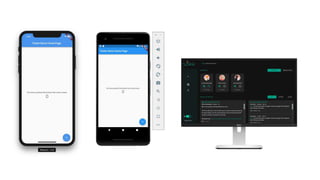
• It allows us to create applications
for both Android and iOS,web,
desktop using a single codebase.
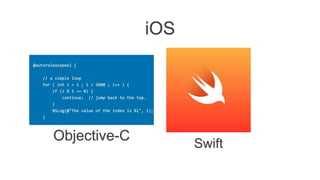
Objective-C
Swift
iOS
Skia is a 2D rendering engine written in C++ used in Google
Chrome and Mozilla Firefox. Flutter requests a window from
the underlying OS and entirely manages its own content
in Skia using Dart. This means that all UI logic such as
scrolling, touch events and animations have to be re-
implemented in Flutter.
v
Everything is a widget in
Flutter
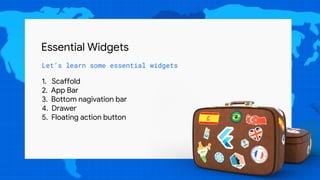
Essential Widgets
Let’s learn some essential widgets
1. Scaffold
2. App Bar
3. Bottom nagivation bar
4. Drawer
5. Floating action button
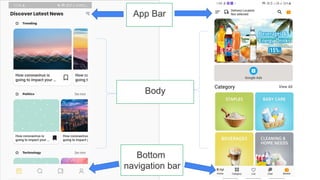
App Bar
Bottom
navigation bar
Body
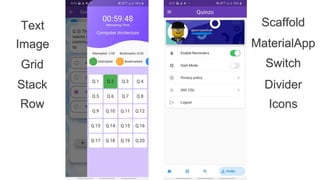
Image
Grid
Text
Stack
Row
Scaffold
MaterialApp
Switch
Divider
Icons
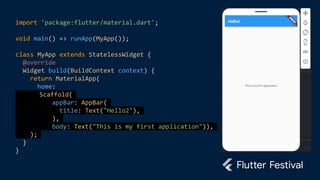
import 'package:flutter/material.dart';
void main() => runApp(MyApp());
class MyApp extends StatelessWidget {
@override
Widget build(BuildContext context) {
return MaterialApp(
home:
Scaffold(
appBar: AppBar(
title: Text("Hello2"),
),
body: Text("This is my first application")),
);
}
}
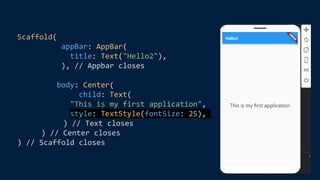
Scaffold(
appBar: AppBar(
title: Text("Hello2"),
), // Appbar closes
body: Center(
child: Text(
"This is my first application",
style: TextStyle(fontSize: 25),
) // Text closes
) // Center closes
) // Scaffold closes
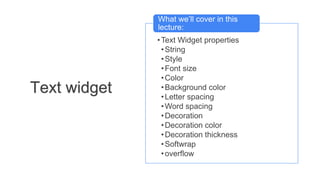
•Text Widget properties
•String
•Style
•Font size
•Color
•Background color
•Letter spacing
•Word spacing
•Decoration
•Decoration color
•Decoration thickness
•Softwrap
•overflow
What we’ll cover in this
lecture:
Text widget
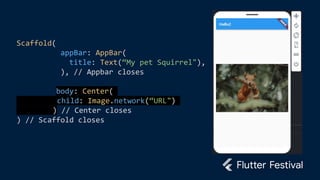
Scaffold(
appBar: AppBar(
title: Text(“My pet Squirrel"),
), // Appbar closes
body: Center(
child: Image.network(“URL")
) // Center closes
) // Scaffold closes
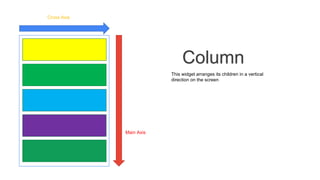
Column
This widget arranges its children in a vertical
direction on the screen
Main Axis
Cross Axis
body: Column(
mainAxisAlignment: MainAxisAlignment.spaceEvenly,
children: [
Image.network(“url1"),
Image.network(“url2"),
],
)
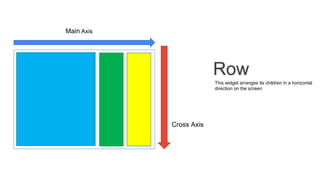
Main Axis
Cross Axis
Row
This widget arranges its children in a horizontal
direction on the screen
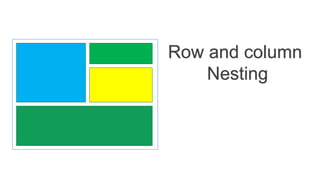
Row and column
Nesting
Thank you!

Flutter festival - Write your first Flutter application