JACOBS UNIVERSITY BREMEN
GUIDED RESEARCH IN ELECTRICAL ENGINEERING
Bluetooth Controlled Intelligent Car
Author:
Syedzaada Mouhammad
Alee Kazmi
Supervisor:
Dr. Fangning Hu
A thesis submitted in fulfillment of the requirements
for the degree of Bachelor of Electrical and Computer Engineering
in the
School of Engineering and Computer Sciences
May 25, 2016
ii
Declaration of Authorship
I, Syedzaada Mouhammad Alee Kazmi, declare that this thesis titled, “Blue-
tooth Controlled Intelligent Car” and the work presented in it are my own.
I confirm that:
• This work was done wholly or mainly while in candidature for a re-
search degree at this University.
• Where any part of this thesis has previously been submitted for a de-
gree or any other qualification at this University or any other institu-
tion, this has been clearly stated.
• Where I have consulted the published work of others, this is always
clearly attributed.
• Where I have quoted from the work of others, the source is always
given. With the exception of such quotations, this thesis is entirely
my own work.
• I have acknowledged all main sources of help.
• Where the thesis is based on work done by myself jointly with others,
I have made clear exactly what was done by others and what I have
contributed myself.
Signed:
Date: May 25, 2016
iii
JACOBS UNIVERSITY BREMEN
Abstract
Engineering Faculty
School of Engineering and Computer Sciences
Bachelor of Electrical and Computer Engineering
Bluetooth Controlled Intelligent Car
by Syedzaada Mouhammad Alee Kazmi
ENGLISH VERSION
Briefly, my project is divided into two steps. The first being coding a dis-
tance detection for the arduino using the sonic detector provided with it
and then mounting that on a remote controlled RC car. Following that, the
arduino will also be programmed to remotely use bluetooth in its detection
so that the remote controlled(RC) car can be controlled through a portable
phone or laptop. If possibly completed, I should be able to remotely control
an RC car without direct visual sight as the sonar detector should be able to
guide me.
GERMAN VERSION
Kurz gesagt, ist mein Projekt in zwei Schritte unterteilt: Die Programmierung
einer Abstandserfassung für den Arduino mit dem Schalldetektor, und dann
die Montage auf einem ferngesteuerten RC-Car. Im Anschluss daran wird
der Arduino programmiert werden, um die Fernsteuerung des Autos durch
ein tragbares Telefon oder Laptop zu ermoeglichen. Nach Abschluss der
Arbeit, sollte ich in der Lage sein ein RC-Auto nur mit Sonar-Detektor, ohne
direkten Sichtkontakt, fernzusteuern.
iv
Acknowledgements
I would like to express my deepest appreciation for those that have pro-
vided me the possibility to complete this endeavour. First of all, I would
like to be thankful to Dr. Fangning Hu for letting me take on this project
with her. Secondly, I would like to thank my friend Dorin Gabriel Clisu for
being an honest friend. Lastly, I would like to thank Jason Becker for creat-
ing the music he creates.
Dedicated to JASoN Becker
v
Contents
Declaration of Authorship ii
Abstract iii
Acknowledgements iv
1 Introduction to the Arduino 1
1.1 Hardware . . . . . . . . . . . . . . . . . . . . . . . . . . . . . 1
1.2 Software . . . . . . . . . . . . . . . . . . . . . . . . . . . . . . 2
1.2.1 Arduino IDE . . . . . . . . . . . . . . . . . . . . . . . 2
1.2.2 Processing . . . . . . . . . . . . . . . . . . . . . . . . . 3
1.2.3 Paint . . . . . . . . . . . . . . . . . . . . . . . . . . . . 3
2 Explanation of the Code 4
2.1 Arduino IDE Code . . . . . . . . . . . . . . . . . . . . . . . . 4
2.2 Processing Code . . . . . . . . . . . . . . . . . . . . . . . . . . 7
3 Running the Experiment 12
3.1 Power Sources . . . . . . . . . . . . . . . . . . . . . . . . . . . 12
3.2 Signal Chain . . . . . . . . . . . . . . . . . . . . . . . . . . . . 12
3.3 Building and Assembling the Vehicle . . . . . . . . . . . . . . 13
3.4 Simulation Results . . . . . . . . . . . . . . . . . . . . . . . . 13
4 Conclusion 15
vi
List of Figures
1.1 Arduino Uno . . . . . . . . . . . . . . . . . . . . . . . . . . . . 1
1.2 Arduino First Page . . . . . . . . . . . . . . . . . . . . . . . . 2
1.3 Arduino’s Serial Monitor . . . . . . . . . . . . . . . . . . . . . 2
1.4 Processing Start Up Screen . . . . . . . . . . . . . . . . . . . . 3
2.1 Arduino Uno . . . . . . . . . . . . . . . . . . . . . . . . . . . . 8
2.2 rectMode(CORNERS) . . . . . . . . . . . . . . . . . . . . . . . 9
3.1 Arduino connected to the car . . . . . . . . . . . . . . . . . . 12
3.2 Vehicle Details . . . . . . . . . . . . . . . . . . . . . . . . . . . 13
3.3 Processing Screenshots . . . . . . . . . . . . . . . . . . . . . . 14
1
Chapter 1
Introduction to the Arduino
1.1 Hardware
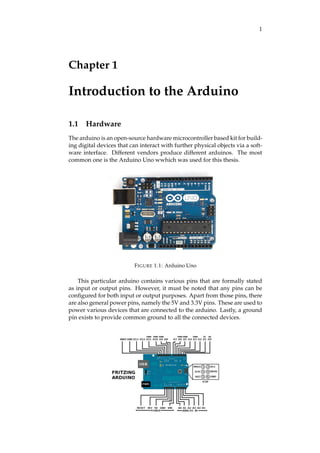
The arduino is an open-source hardware microcontroller based kit for build-
ing digital devices that can interact with further physical objects via a soft-
ware interface. Different vendors produce different arduinos. The most
common one is the Arduino Uno wwhich was used for this thesis.
FIGURE 1.1: Arduino Uno
This particular arduino contains various pins that are formally stated
as input or output pins. However, it must be noted that any pins can be
configured for both input or output purposes. Apart from those pins, there
are also general power pins, namely the 5V and 3.3V pins. These are used to
power various devices that are connected to the arduino. Lastly, a ground
pin exists to provide common ground to all the connected devices.
2 Chapter 1. Introduction to the Arduino
1.2 Software
1.2.1 Arduino IDE
For communicating with the arduino, the open-source Arduino IDE is used.
The Arduino IDE is based on a custom version of C++.
FIGURE 1.2: Arduino First Page
The arduino software communicates with the arduino hardware via the
serial monitor which acts as a tether. It shows in real time the values re-
ceived from the arduino hardware.
FIGURE 1.3: Arduino’s Serial Monitor
1.2. Software 3
It should be noted that the 9600 baud indicated in the figure can be
thought of as the communicating speed with the arduino. The reading
speed of the serial monitor should be the same as the writing speed from
the arduino which is set in the code itself else the serial monitor will only
read junk values.
1.2.2 Processing
Another use of the serial monitor is for it to be a medium of connection with
other software programs. The one which I used for this project is called
"Processing".
FIGURE 1.4: Processing Start Up Screen
Processing contains useful visualization tools and thats why it was used
to handle that part. It imports data via the serial monitor too.
1.2.3 Paint
Last but not the least, Microsoft Paint was used to create the background of
the processing visualization page
4
Chapter 2
Explanation of the Code
In this chapter, I will explain my code section by section and then finally
combine it with my partner’s code.
2.1 Arduino IDE Code
It should be noted that this was a group project so the code is jointly written
and it is too much interwoven to be separated so I will begin by defining
only my parts and then giving a broad overview of everything as will be
presented during the thesis presentation. First of all I add the NewPing
Library developed by Arduino itself. It saves a lot of time and effort to con-
figure the sonic sensors as everything is already predefined. Next I define
the pin numbers where every pin is connected and the maximum distance
that the sonic sensors can sense-:
#include <NewPing.h>
#define TRIGGER_PIN1 12
#define ECHO_PIN1 11
#define MAX_DISTANCE 2000
#define TRIGGER_PIN2 10
#define ECHO_PIN2 9
Now I create two new classes of sonic sensors and include the previ-
ous defined constants in them. This tells the compiler that i am using two
separate sonic sensors-:
NewPing sonar1(TRIGGER_PIN1, ECHO_PIN1, MAX_DISTANCE);
NewPing sonar2(TRIGGER_PIN2, ECHO_PIN2, MAX_DISTANCE);
Now I explicitly tell the arduino to send data to the serial monitor at a
speed of 9600 baud. Note that baud was the old unit of measuring speed
and 9600 baud is roughly equal to 1.20Kilobytes/second-:
void setup() {
Serial.begin(9600);
}
Now I define the loop part of the code where everything is run con-
stantly. The .ping() function is used from the newping library and this is
used to obtain the time it takes for the signal to return. Next this is multi-
pled by the predefined speed of the sonic sensors which is a constant stored
as-:
2.1. Arduino IDE Code 5
1
US _ROUNDTRIP _CM
The result is Distance=Speed*Time which is printed on the serial monitor.
void loop() {
int uS1 = sonar1.ping();
int uS2 = sonar2.ping();
Serial.print(uS1 / US_ROUNDTRIP_CM);
Serial.print(",");
Serial.println(uS2 / US_ROUNDTRIP_CM);
}
The complete code that will be used is as follows-:
#include <NewPing.h>
#define TRIGGER_PIN1 7
#define ECHO_PIN1 6
#define MAX_DISTANCE 2000
#define TRIGGER_PIN2 5
#define ECHO_PIN2 4
NewPing sonar1(TRIGGER_PIN1, ECHO_PIN1, MAX_DISTANCE);
NewPing sonar2(TRIGGER_PIN2, ECHO_PIN2, MAX_DISTANCE);
const int right = 13;
const int left = 12;
const int reverse = 11;
const int forward = 10;
int incomingByte;
void setup() {
pinMode(forward, OUTPUT);
pinMode(reverse, OUTPUT);
pinMode(left, OUTPUT);
pinMode(right, OUTPUT);
Serial.begin(9600);
}
void loop() {
int uS1 = sonar1.ping();
int uS2 = sonar2.ping();
int distanceback=uS1/US_ROUNDTRIP_CM;
int distancefront=uS2/US_ROUNDTRIP_CM;
if (Serial.available() > 0) {
incomingByte = Serial.read();
if ((incomingByte == ’w’) && (distancefront > 13))
{
digitalWrite(forward, HIGH);
digitalWrite(reverse, LOW);
}
6 Chapter 2. Explanation of the Code
if (incomingByte == ’A’)
{
digitalWrite(forward, LOW);
}
if ((incomingByte == ’q’) && (distancefront > 13))
{
digitalWrite(forward, HIGH);
digitalWrite(left, HIGH);
digitalWrite(reverse, LOW);
digitalWrite(right, LOW);
}
if (incomingByte == ’I’) {
digitalWrite(forward, LOW);
digitalWrite(left, LOW);
}
if ((incomingByte == ’e’) && (distancefront > 13))
{
digitalWrite(forward, HIGH);
digitalWrite(right, HIGH);
digitalWrite(reverse, LOW);
digitalWrite(left, LOW);
}
if (incomingByte == ’O’) {
digitalWrite(forward, LOW);
digitalWrite(right, LOW);
}
if ((incomingByte == ’s’) && (distanceback > 13))
{
digitalWrite(reverse, HIGH);
digitalWrite(forward, LOW);
}
if (incomingByte == ’B’)
{
digitalWrite(reverse, LOW);
}
if (incomingByte == ’a’)
{
digitalWrite(reverse,HIGH);
digitalWrite(forward,LOW);
digitalWrite(left, HIGH);
digitalWrite(right, LOW);
}
if (incomingByte == ’C’)
{
digitalWrite(left, LOW);
digitalWrite(reverse,LOW);
}
if (incomingByte == ’d’)
2.2. Processing Code 7
{
digitalWrite(reverse,HIGH);
digitalWrite(forward,LOW);
digitalWrite(right, HIGH);
digitalWrite(left, LOW);
}
if (incomingByte == ’E’)
{
digitalWrite(right, LOW);
digitalWrite(reverse,LOW);
}
}
{
Serial.print(distanceback);
Serial.print(",");
Serial.println(distancefront);
if ((distanceback<11)&&(distanceback!=0))
{
digitalWrite(reverse,HIGH);
digitalWrite(forward,LOW);
}
if
((distanceback>=12)&&(incomingByte!=’s’)&&(incomingByte!=’a’)&&(incomingByt
{
digitalWrite(reverse,LOW);
}
if ((distancefront<11)&&(distancefront!=0)) {
digitalWrite(forward,HIGH);
digitalWrite(reverse,LOW);
}
if
((distancefront>=12)&&(incomingByte!=’w’)&&(incomingByte!=’q’)&&(incomingBy
{
digitalWrite(forward,LOW);
}
return loop();
}}
In our code, we designed a security feature such that if the car is within
10 cm of a forward or backward obstacle, it automatically reverses and for-
wards respectively until 10 cm are left
2.2 Processing Code
In Processing, I imported the values from the arduino via the serial mon-
itor as told in the first line. Then I begin to define some parameters. The
important one being String first value and String second value. These are
basically the data from the first sonic sensor and then the second one. The
variable lf is used later in the code to specify the maximum length of a string
that can be read from the serial monitor at a time.
import processing.serial.*;
8 Chapter 2. Explanation of the Code
int lf =10;
Serial myPort;
String myString=null;
float num1;
float num2;
String firstvalue;
String secondvalue;
PImage bg;
This is the setup part where I define certain important parameters. First
of all size(500,500) creates a window of 500 by 500 dimension where the
visualization is supposed to take place. The black line on the graph indi-
cates the 10cm line, which tells the user that the car is 10cm away from an
obstacle. The background of this window is then loaded from a file called
background.jpg. It looks as follows-:
FIGURE 2.1: Arduino Uno
Smooth(2) is an internal processing function that smooths out the figure. I
set the framerate to 60fps and tell the arduino which COM to use which is
automatically retrieved by ’Serial.list()[0]’
void setup()
{
size(500,500);
bg=loadImage("background.jpg");
smooth(2);
frameRate(60);
String portName = Serial.list()[0];
myPort = new Serial(this,portName,9600);
}
The next code is basically a string splitter. The arduino sends the ultrasonic
readers values in the following format-:
x,y
where x and y are integer lengths from the front and back ultrasonic reader
respectively. This is parsed as a string in processing. Now I need to break
2.2. Processing Code 9
this string up into x and y for which I make use of the following function.
This was taken directly from the stackexchange site. Basically, it takes the
string "data" and reads until the char "separator". Then it reads again until
the function ends and using the index, stores the first, second... string into
the return variable.
String getValue(String data, char separator, int index)
{
int found = 0;
int strIndex[] = {0, -1};
int maxIndex = data.length()-1;
for(int i=0; i<=maxIndex && found<=index; i++){
if(data.charAt(i)==separator || i==maxIndex){
found++;
strIndex[0] = strIndex[1]+1;
strIndex[1] = (i == maxIndex) ? i+1 : i;
}
}
return found>index ? data.substring(strIndex[0],
strIndex[1]) : "";
}
This is the main part of the code where every previous function is made
use of. The background is declared. While the serial monitor is transmit-
ting data, the first stream of data is read until the new line. That data is
split using the string splitting function and stored in first value and second
value. These are then converted to floats since they are still a string. Now I
use a specific method to draw rectangles in the figure. It is as follows -:
FIGURE 2.2: rectMode(CORNERS)
As we can see, the coordinates of the vertices are given in the rectMode
function. I use this to draw two rectangles corresponding to the length from
the obstacle. x1,y1 are fixed for both the rectangles since they stay at one
place. However, the other end depends on the length of obstacle in front
of the sonic detector. Lastly, I have disregarded the 0 distance value since
there is an internal error in the sonic sensors and they send out clusters of 0
at times.
void draw()
{
background(bg);
10 Chapter 2. Explanation of the Code
while ( myPort.available() > 0)
{ // If data is available,
myString = myPort.readStringUntil(lf);
if (myString != null)
{
firstvalue=getValue(myString,’,’,0);
secondvalue=getValue(myString,’,’,1);
num1=float(firstvalue); // Converts and prints float
num2=float(secondvalue);
if (num1==0)
{
num1 = 10000;
}
if (num2==0)
{
num2 = 10000;
}
rectMode(CORNERS);
rect(230,500,130,100+10*num1);
rect(370,500,270,100+10*num2);
}
}
myPort.clear();
}
Lastly, the next section is about reading the key entered from Process-
ing and sending it to the Arduino IDE. This was written by my colleague,
Nurlan Nurdildauly. There is a limitation to this code that we cannot press
two keys at the same time. Therefore, we cannot accelerate and go right
at the same time by pressing forward and right. However, there is a quick
solution around this. It was to separately define 6 keys for forwardleft, for-
wardright, backwardleft, backwardright, forward and backward only.
if(keyPressed == true) {
if ( key == ’w’ ){ println("FORWARD"); myPort.write(key);
println(key); }
}
if(keyPressed == false) {
if ( key == ’w’ ){ println("OFF"); myPort.write(’A’); }
}
if (keyPressed == true) {
if ( key == ’s’ ){ println("REVERSE"); myPort.write(key);
println(key); }
}
if(keyPressed == false) {
if ( key == ’s’ ){ println("OFF"); myPort.write(’B’); }
}
if(keyPressed == true) {
if ( key == ’a’ ){ println("BACKWARDLEFT");
myPort.write(key); println(key); }
}
if(keyPressed == false) {
if ( key == ’a’ ){ println("OFF"); myPort.write(’C’); }
}
2.2. Processing Code 11
if(keyPressed == true) {
if ( key == ’d’ ){ println("BACKWARDRIGHT");
myPort.write(key); println(key); }
}
if(keyPressed == false) {
if ( key == ’d’ ){ println("OFF"); myPort.write(’E’); }
}
if(keyPressed == true) {
if ( key == ’q’ ){ println("FORWARDLEFT");
myPort.write(key); println(key); }
}
if(keyPressed == false) {
if ( key == ’q’ ){ println("OFF"); myPort.write(’I’); }
}
if(keyPressed == true) {
if ( key == ’e’ ){ println("FORWARDRIGHT");
myPort.write(key); println(key); }
}
if(keyPressed == false) {
if ( key == ’e’ ){ println("OFF"); myPort.write(’O’); }
}
}
12
Chapter 3
Running the Experiment
In this section, I would discuss about running the experiment. The dissas-
sembled car is as follows-:
FIGURE 3.1: Arduino connected to the car
As we can see, the components used were an arduino, two ultrasonic
sensors, the H bridge motor and the vehicle’s motor. The H bridge motor is
used to power the vehicles motor.
3.1 Power Sources
We drew power from 4 energizer batteries having 1.5V, 2300mAh each.
However, we soon discovered that this was not enough for all the compo-
nents. Initially, we just thought of using more batteries but soon we found
out that it was the voltage and not the current creating the limitation. So,
we took a parallel branch out of those 4 and gave that to the H motor bridge
that was drawing the most power.
3.2 Signal Chain
After I have uploaded the code in the arduino, processing refreshes and
checks if a key has been entered by the user. Simultaneously, arduino gets
the values of the distance by the sonic sensors. In our code we have given
precedence to the automatic reverse and forward security feature over the
keyboard entry so even if the user presses forwards or backward and less
then 10 cm of distance is left from either ways, the car will move away until
the distance is greater then 10cm.
3.3. Building and Assembling the Vehicle 13
(A) Basic Circuit used (B) Car after assembling
FIGURE 3.2: Vehicle Details
3.3 Building and Assembling the Vehicle
The car was built in layers. The first layer consisted of just the Arduino
connected to the ultrasonic sensors. Next, we added an H motor bridge
and two motors in front. Now, I wanted to close the top of the car so a
couple of adjustments had to be made. First of all, we had to solder the
power cables onto the battery contacts. Then we had to solder again to
draw voltage from the 3 batteries. Now we bundled the cables together
and burnt few holes in the plastic covers to allow space for the cables to
come out. Lastly, we mounted the Arduino and the breadboard on top of
the vehicle. Small components such as the distance detectors were taped on
while the Arduino and breadboard itself were sealed by a plastic wire.
3.4 Simulation Results
I am going to show some of the simulation results I got for different values
of the sonic sensors and how they are shown on the screen. As we can see,
the obstacle is represented by the block at the top. The rectangle grows in
size as the obstacle comes nearer. It should be noted that the sensors do not
interfere with each other’s readings.
14 Chapter 3. Running the Experiment
(A) Arduino sensors far away from
obstacle
(B) Forward sensor 10cm from obsta-
cle
(C) Backward Sensor 10cm from ob-
stacle
(D) Forward sensor almost touching
an obstacle while backward one far
away
(E) Backward sensor almost touch-
ing an obstacle while forward one far
away
(F) Both sensors 10 cm from obstacle
FIGURE 3.3: Processing Screenshots
15
Chapter 4
Conclusion
We accomplished a lot of goals in this thesis. First of all, I further explored
the functionalities of the Arduino and its capabilities. I also learned how
to solder and manage space in compartments that are not build to contain
more cables. We also realized that weight is a huge issue that should not be
simply underestimated. This costed us heavily as our prototype could not
move.
A quick solution could have been to remove the breadboard and just use
wires to connect the modules. Furthermore, we could have used a Lithium
Polymer battery instead of Lithium Ion. Next, I learned more about power
consumption and how to deal with inadequate power issues. I realized that
a device only needs to have the same voltage requirement as the power
supply can provide. Anything above is harmful and anything below wont
power the device and could cause frequent trips which are harmful by
themselves. However, current by the source only needs to exceed the cur-
rent drawn by the load. Even if the current on the source is 10A, the load
will only draw the amount it needs. Using this, we can use parallel and
series circuits to our advantage.
Wireless Communication is slowly replacing wires. Although we are re-
stricted to slower speeds, higher latency and wireless interferance, over
time these issues should be solves as more funding is being put into wire-
less research. Maybe, one day we would recycle all the cables on the planet
to produce a cleaner and healthier world.
16
Bibliography
[1] Dr Fangning Hu. Embedded System Laboratory Course Lecture Notes. Bre-
men, Germany, 2016
[2] Friends of Fritzing. Fritzing Arduino Official Learning Guide. FH Pots-
dam, 2016
[3] Alvaro Luis Bustamante. String Splitting Code used on page 9, http://
stackoverflow.com/a/14824108, 2012
[4] Daniel Shiffman. Learning Processing, https://processing.org/
tutorials/drawing, 2008

FinalThesisdraft

  • 1.
    JACOBS UNIVERSITY BREMEN GUIDEDRESEARCH IN ELECTRICAL ENGINEERING Bluetooth Controlled Intelligent Car Author: Syedzaada Mouhammad Alee Kazmi Supervisor: Dr. Fangning Hu A thesis submitted in fulfillment of the requirements for the degree of Bachelor of Electrical and Computer Engineering in the School of Engineering and Computer Sciences May 25, 2016
  • 2.
    ii Declaration of Authorship I,Syedzaada Mouhammad Alee Kazmi, declare that this thesis titled, “Blue- tooth Controlled Intelligent Car” and the work presented in it are my own. I confirm that: • This work was done wholly or mainly while in candidature for a re- search degree at this University. • Where any part of this thesis has previously been submitted for a de- gree or any other qualification at this University or any other institu- tion, this has been clearly stated. • Where I have consulted the published work of others, this is always clearly attributed. • Where I have quoted from the work of others, the source is always given. With the exception of such quotations, this thesis is entirely my own work. • I have acknowledged all main sources of help. • Where the thesis is based on work done by myself jointly with others, I have made clear exactly what was done by others and what I have contributed myself. Signed: Date: May 25, 2016
  • 3.
    iii JACOBS UNIVERSITY BREMEN Abstract EngineeringFaculty School of Engineering and Computer Sciences Bachelor of Electrical and Computer Engineering Bluetooth Controlled Intelligent Car by Syedzaada Mouhammad Alee Kazmi ENGLISH VERSION Briefly, my project is divided into two steps. The first being coding a dis- tance detection for the arduino using the sonic detector provided with it and then mounting that on a remote controlled RC car. Following that, the arduino will also be programmed to remotely use bluetooth in its detection so that the remote controlled(RC) car can be controlled through a portable phone or laptop. If possibly completed, I should be able to remotely control an RC car without direct visual sight as the sonar detector should be able to guide me. GERMAN VERSION Kurz gesagt, ist mein Projekt in zwei Schritte unterteilt: Die Programmierung einer Abstandserfassung für den Arduino mit dem Schalldetektor, und dann die Montage auf einem ferngesteuerten RC-Car. Im Anschluss daran wird der Arduino programmiert werden, um die Fernsteuerung des Autos durch ein tragbares Telefon oder Laptop zu ermoeglichen. Nach Abschluss der Arbeit, sollte ich in der Lage sein ein RC-Auto nur mit Sonar-Detektor, ohne direkten Sichtkontakt, fernzusteuern.
  • 4.
    iv Acknowledgements I would liketo express my deepest appreciation for those that have pro- vided me the possibility to complete this endeavour. First of all, I would like to be thankful to Dr. Fangning Hu for letting me take on this project with her. Secondly, I would like to thank my friend Dorin Gabriel Clisu for being an honest friend. Lastly, I would like to thank Jason Becker for creat- ing the music he creates. Dedicated to JASoN Becker
  • 5.
    v Contents Declaration of Authorshipii Abstract iii Acknowledgements iv 1 Introduction to the Arduino 1 1.1 Hardware . . . . . . . . . . . . . . . . . . . . . . . . . . . . . 1 1.2 Software . . . . . . . . . . . . . . . . . . . . . . . . . . . . . . 2 1.2.1 Arduino IDE . . . . . . . . . . . . . . . . . . . . . . . 2 1.2.2 Processing . . . . . . . . . . . . . . . . . . . . . . . . . 3 1.2.3 Paint . . . . . . . . . . . . . . . . . . . . . . . . . . . . 3 2 Explanation of the Code 4 2.1 Arduino IDE Code . . . . . . . . . . . . . . . . . . . . . . . . 4 2.2 Processing Code . . . . . . . . . . . . . . . . . . . . . . . . . . 7 3 Running the Experiment 12 3.1 Power Sources . . . . . . . . . . . . . . . . . . . . . . . . . . . 12 3.2 Signal Chain . . . . . . . . . . . . . . . . . . . . . . . . . . . . 12 3.3 Building and Assembling the Vehicle . . . . . . . . . . . . . . 13 3.4 Simulation Results . . . . . . . . . . . . . . . . . . . . . . . . 13 4 Conclusion 15
  • 6.
    vi List of Figures 1.1Arduino Uno . . . . . . . . . . . . . . . . . . . . . . . . . . . . 1 1.2 Arduino First Page . . . . . . . . . . . . . . . . . . . . . . . . 2 1.3 Arduino’s Serial Monitor . . . . . . . . . . . . . . . . . . . . . 2 1.4 Processing Start Up Screen . . . . . . . . . . . . . . . . . . . . 3 2.1 Arduino Uno . . . . . . . . . . . . . . . . . . . . . . . . . . . . 8 2.2 rectMode(CORNERS) . . . . . . . . . . . . . . . . . . . . . . . 9 3.1 Arduino connected to the car . . . . . . . . . . . . . . . . . . 12 3.2 Vehicle Details . . . . . . . . . . . . . . . . . . . . . . . . . . . 13 3.3 Processing Screenshots . . . . . . . . . . . . . . . . . . . . . . 14
  • 7.
    1 Chapter 1 Introduction tothe Arduino 1.1 Hardware The arduino is an open-source hardware microcontroller based kit for build- ing digital devices that can interact with further physical objects via a soft- ware interface. Different vendors produce different arduinos. The most common one is the Arduino Uno wwhich was used for this thesis. FIGURE 1.1: Arduino Uno This particular arduino contains various pins that are formally stated as input or output pins. However, it must be noted that any pins can be configured for both input or output purposes. Apart from those pins, there are also general power pins, namely the 5V and 3.3V pins. These are used to power various devices that are connected to the arduino. Lastly, a ground pin exists to provide common ground to all the connected devices.
  • 8.
    2 Chapter 1.Introduction to the Arduino 1.2 Software 1.2.1 Arduino IDE For communicating with the arduino, the open-source Arduino IDE is used. The Arduino IDE is based on a custom version of C++. FIGURE 1.2: Arduino First Page The arduino software communicates with the arduino hardware via the serial monitor which acts as a tether. It shows in real time the values re- ceived from the arduino hardware. FIGURE 1.3: Arduino’s Serial Monitor
  • 9.
    1.2. Software 3 Itshould be noted that the 9600 baud indicated in the figure can be thought of as the communicating speed with the arduino. The reading speed of the serial monitor should be the same as the writing speed from the arduino which is set in the code itself else the serial monitor will only read junk values. 1.2.2 Processing Another use of the serial monitor is for it to be a medium of connection with other software programs. The one which I used for this project is called "Processing". FIGURE 1.4: Processing Start Up Screen Processing contains useful visualization tools and thats why it was used to handle that part. It imports data via the serial monitor too. 1.2.3 Paint Last but not the least, Microsoft Paint was used to create the background of the processing visualization page
  • 10.
    4 Chapter 2 Explanation ofthe Code In this chapter, I will explain my code section by section and then finally combine it with my partner’s code. 2.1 Arduino IDE Code It should be noted that this was a group project so the code is jointly written and it is too much interwoven to be separated so I will begin by defining only my parts and then giving a broad overview of everything as will be presented during the thesis presentation. First of all I add the NewPing Library developed by Arduino itself. It saves a lot of time and effort to con- figure the sonic sensors as everything is already predefined. Next I define the pin numbers where every pin is connected and the maximum distance that the sonic sensors can sense-: #include <NewPing.h> #define TRIGGER_PIN1 12 #define ECHO_PIN1 11 #define MAX_DISTANCE 2000 #define TRIGGER_PIN2 10 #define ECHO_PIN2 9 Now I create two new classes of sonic sensors and include the previ- ous defined constants in them. This tells the compiler that i am using two separate sonic sensors-: NewPing sonar1(TRIGGER_PIN1, ECHO_PIN1, MAX_DISTANCE); NewPing sonar2(TRIGGER_PIN2, ECHO_PIN2, MAX_DISTANCE); Now I explicitly tell the arduino to send data to the serial monitor at a speed of 9600 baud. Note that baud was the old unit of measuring speed and 9600 baud is roughly equal to 1.20Kilobytes/second-: void setup() { Serial.begin(9600); } Now I define the loop part of the code where everything is run con- stantly. The .ping() function is used from the newping library and this is used to obtain the time it takes for the signal to return. Next this is multi- pled by the predefined speed of the sonic sensors which is a constant stored as-:
  • 11.
    2.1. Arduino IDECode 5 1 US _ROUNDTRIP _CM The result is Distance=Speed*Time which is printed on the serial monitor. void loop() { int uS1 = sonar1.ping(); int uS2 = sonar2.ping(); Serial.print(uS1 / US_ROUNDTRIP_CM); Serial.print(","); Serial.println(uS2 / US_ROUNDTRIP_CM); } The complete code that will be used is as follows-: #include <NewPing.h> #define TRIGGER_PIN1 7 #define ECHO_PIN1 6 #define MAX_DISTANCE 2000 #define TRIGGER_PIN2 5 #define ECHO_PIN2 4 NewPing sonar1(TRIGGER_PIN1, ECHO_PIN1, MAX_DISTANCE); NewPing sonar2(TRIGGER_PIN2, ECHO_PIN2, MAX_DISTANCE); const int right = 13; const int left = 12; const int reverse = 11; const int forward = 10; int incomingByte; void setup() { pinMode(forward, OUTPUT); pinMode(reverse, OUTPUT); pinMode(left, OUTPUT); pinMode(right, OUTPUT); Serial.begin(9600); } void loop() { int uS1 = sonar1.ping(); int uS2 = sonar2.ping(); int distanceback=uS1/US_ROUNDTRIP_CM; int distancefront=uS2/US_ROUNDTRIP_CM; if (Serial.available() > 0) { incomingByte = Serial.read(); if ((incomingByte == ’w’) && (distancefront > 13)) { digitalWrite(forward, HIGH); digitalWrite(reverse, LOW); }
  • 12.
    6 Chapter 2.Explanation of the Code if (incomingByte == ’A’) { digitalWrite(forward, LOW); } if ((incomingByte == ’q’) && (distancefront > 13)) { digitalWrite(forward, HIGH); digitalWrite(left, HIGH); digitalWrite(reverse, LOW); digitalWrite(right, LOW); } if (incomingByte == ’I’) { digitalWrite(forward, LOW); digitalWrite(left, LOW); } if ((incomingByte == ’e’) && (distancefront > 13)) { digitalWrite(forward, HIGH); digitalWrite(right, HIGH); digitalWrite(reverse, LOW); digitalWrite(left, LOW); } if (incomingByte == ’O’) { digitalWrite(forward, LOW); digitalWrite(right, LOW); } if ((incomingByte == ’s’) && (distanceback > 13)) { digitalWrite(reverse, HIGH); digitalWrite(forward, LOW); } if (incomingByte == ’B’) { digitalWrite(reverse, LOW); } if (incomingByte == ’a’) { digitalWrite(reverse,HIGH); digitalWrite(forward,LOW); digitalWrite(left, HIGH); digitalWrite(right, LOW); } if (incomingByte == ’C’) { digitalWrite(left, LOW); digitalWrite(reverse,LOW); } if (incomingByte == ’d’)
  • 13.
    2.2. Processing Code7 { digitalWrite(reverse,HIGH); digitalWrite(forward,LOW); digitalWrite(right, HIGH); digitalWrite(left, LOW); } if (incomingByte == ’E’) { digitalWrite(right, LOW); digitalWrite(reverse,LOW); } } { Serial.print(distanceback); Serial.print(","); Serial.println(distancefront); if ((distanceback<11)&&(distanceback!=0)) { digitalWrite(reverse,HIGH); digitalWrite(forward,LOW); } if ((distanceback>=12)&&(incomingByte!=’s’)&&(incomingByte!=’a’)&&(incomingByt { digitalWrite(reverse,LOW); } if ((distancefront<11)&&(distancefront!=0)) { digitalWrite(forward,HIGH); digitalWrite(reverse,LOW); } if ((distancefront>=12)&&(incomingByte!=’w’)&&(incomingByte!=’q’)&&(incomingBy { digitalWrite(forward,LOW); } return loop(); }} In our code, we designed a security feature such that if the car is within 10 cm of a forward or backward obstacle, it automatically reverses and for- wards respectively until 10 cm are left 2.2 Processing Code In Processing, I imported the values from the arduino via the serial mon- itor as told in the first line. Then I begin to define some parameters. The important one being String first value and String second value. These are basically the data from the first sonic sensor and then the second one. The variable lf is used later in the code to specify the maximum length of a string that can be read from the serial monitor at a time. import processing.serial.*;
  • 14.
    8 Chapter 2.Explanation of the Code int lf =10; Serial myPort; String myString=null; float num1; float num2; String firstvalue; String secondvalue; PImage bg; This is the setup part where I define certain important parameters. First of all size(500,500) creates a window of 500 by 500 dimension where the visualization is supposed to take place. The black line on the graph indi- cates the 10cm line, which tells the user that the car is 10cm away from an obstacle. The background of this window is then loaded from a file called background.jpg. It looks as follows-: FIGURE 2.1: Arduino Uno Smooth(2) is an internal processing function that smooths out the figure. I set the framerate to 60fps and tell the arduino which COM to use which is automatically retrieved by ’Serial.list()[0]’ void setup() { size(500,500); bg=loadImage("background.jpg"); smooth(2); frameRate(60); String portName = Serial.list()[0]; myPort = new Serial(this,portName,9600); } The next code is basically a string splitter. The arduino sends the ultrasonic readers values in the following format-: x,y where x and y are integer lengths from the front and back ultrasonic reader respectively. This is parsed as a string in processing. Now I need to break
  • 15.
    2.2. Processing Code9 this string up into x and y for which I make use of the following function. This was taken directly from the stackexchange site. Basically, it takes the string "data" and reads until the char "separator". Then it reads again until the function ends and using the index, stores the first, second... string into the return variable. String getValue(String data, char separator, int index) { int found = 0; int strIndex[] = {0, -1}; int maxIndex = data.length()-1; for(int i=0; i<=maxIndex && found<=index; i++){ if(data.charAt(i)==separator || i==maxIndex){ found++; strIndex[0] = strIndex[1]+1; strIndex[1] = (i == maxIndex) ? i+1 : i; } } return found>index ? data.substring(strIndex[0], strIndex[1]) : ""; } This is the main part of the code where every previous function is made use of. The background is declared. While the serial monitor is transmit- ting data, the first stream of data is read until the new line. That data is split using the string splitting function and stored in first value and second value. These are then converted to floats since they are still a string. Now I use a specific method to draw rectangles in the figure. It is as follows -: FIGURE 2.2: rectMode(CORNERS) As we can see, the coordinates of the vertices are given in the rectMode function. I use this to draw two rectangles corresponding to the length from the obstacle. x1,y1 are fixed for both the rectangles since they stay at one place. However, the other end depends on the length of obstacle in front of the sonic detector. Lastly, I have disregarded the 0 distance value since there is an internal error in the sonic sensors and they send out clusters of 0 at times. void draw() { background(bg);
  • 16.
    10 Chapter 2.Explanation of the Code while ( myPort.available() > 0) { // If data is available, myString = myPort.readStringUntil(lf); if (myString != null) { firstvalue=getValue(myString,’,’,0); secondvalue=getValue(myString,’,’,1); num1=float(firstvalue); // Converts and prints float num2=float(secondvalue); if (num1==0) { num1 = 10000; } if (num2==0) { num2 = 10000; } rectMode(CORNERS); rect(230,500,130,100+10*num1); rect(370,500,270,100+10*num2); } } myPort.clear(); } Lastly, the next section is about reading the key entered from Process- ing and sending it to the Arduino IDE. This was written by my colleague, Nurlan Nurdildauly. There is a limitation to this code that we cannot press two keys at the same time. Therefore, we cannot accelerate and go right at the same time by pressing forward and right. However, there is a quick solution around this. It was to separately define 6 keys for forwardleft, for- wardright, backwardleft, backwardright, forward and backward only. if(keyPressed == true) { if ( key == ’w’ ){ println("FORWARD"); myPort.write(key); println(key); } } if(keyPressed == false) { if ( key == ’w’ ){ println("OFF"); myPort.write(’A’); } } if (keyPressed == true) { if ( key == ’s’ ){ println("REVERSE"); myPort.write(key); println(key); } } if(keyPressed == false) { if ( key == ’s’ ){ println("OFF"); myPort.write(’B’); } } if(keyPressed == true) { if ( key == ’a’ ){ println("BACKWARDLEFT"); myPort.write(key); println(key); } } if(keyPressed == false) { if ( key == ’a’ ){ println("OFF"); myPort.write(’C’); } }
  • 17.
    2.2. Processing Code11 if(keyPressed == true) { if ( key == ’d’ ){ println("BACKWARDRIGHT"); myPort.write(key); println(key); } } if(keyPressed == false) { if ( key == ’d’ ){ println("OFF"); myPort.write(’E’); } } if(keyPressed == true) { if ( key == ’q’ ){ println("FORWARDLEFT"); myPort.write(key); println(key); } } if(keyPressed == false) { if ( key == ’q’ ){ println("OFF"); myPort.write(’I’); } } if(keyPressed == true) { if ( key == ’e’ ){ println("FORWARDRIGHT"); myPort.write(key); println(key); } } if(keyPressed == false) { if ( key == ’e’ ){ println("OFF"); myPort.write(’O’); } } }
  • 18.
    12 Chapter 3 Running theExperiment In this section, I would discuss about running the experiment. The dissas- sembled car is as follows-: FIGURE 3.1: Arduino connected to the car As we can see, the components used were an arduino, two ultrasonic sensors, the H bridge motor and the vehicle’s motor. The H bridge motor is used to power the vehicles motor. 3.1 Power Sources We drew power from 4 energizer batteries having 1.5V, 2300mAh each. However, we soon discovered that this was not enough for all the compo- nents. Initially, we just thought of using more batteries but soon we found out that it was the voltage and not the current creating the limitation. So, we took a parallel branch out of those 4 and gave that to the H motor bridge that was drawing the most power. 3.2 Signal Chain After I have uploaded the code in the arduino, processing refreshes and checks if a key has been entered by the user. Simultaneously, arduino gets the values of the distance by the sonic sensors. In our code we have given precedence to the automatic reverse and forward security feature over the keyboard entry so even if the user presses forwards or backward and less then 10 cm of distance is left from either ways, the car will move away until the distance is greater then 10cm.
  • 19.
    3.3. Building andAssembling the Vehicle 13 (A) Basic Circuit used (B) Car after assembling FIGURE 3.2: Vehicle Details 3.3 Building and Assembling the Vehicle The car was built in layers. The first layer consisted of just the Arduino connected to the ultrasonic sensors. Next, we added an H motor bridge and two motors in front. Now, I wanted to close the top of the car so a couple of adjustments had to be made. First of all, we had to solder the power cables onto the battery contacts. Then we had to solder again to draw voltage from the 3 batteries. Now we bundled the cables together and burnt few holes in the plastic covers to allow space for the cables to come out. Lastly, we mounted the Arduino and the breadboard on top of the vehicle. Small components such as the distance detectors were taped on while the Arduino and breadboard itself were sealed by a plastic wire. 3.4 Simulation Results I am going to show some of the simulation results I got for different values of the sonic sensors and how they are shown on the screen. As we can see, the obstacle is represented by the block at the top. The rectangle grows in size as the obstacle comes nearer. It should be noted that the sensors do not interfere with each other’s readings.
  • 20.
    14 Chapter 3.Running the Experiment (A) Arduino sensors far away from obstacle (B) Forward sensor 10cm from obsta- cle (C) Backward Sensor 10cm from ob- stacle (D) Forward sensor almost touching an obstacle while backward one far away (E) Backward sensor almost touch- ing an obstacle while forward one far away (F) Both sensors 10 cm from obstacle FIGURE 3.3: Processing Screenshots
  • 21.
    15 Chapter 4 Conclusion We accomplisheda lot of goals in this thesis. First of all, I further explored the functionalities of the Arduino and its capabilities. I also learned how to solder and manage space in compartments that are not build to contain more cables. We also realized that weight is a huge issue that should not be simply underestimated. This costed us heavily as our prototype could not move. A quick solution could have been to remove the breadboard and just use wires to connect the modules. Furthermore, we could have used a Lithium Polymer battery instead of Lithium Ion. Next, I learned more about power consumption and how to deal with inadequate power issues. I realized that a device only needs to have the same voltage requirement as the power supply can provide. Anything above is harmful and anything below wont power the device and could cause frequent trips which are harmful by themselves. However, current by the source only needs to exceed the cur- rent drawn by the load. Even if the current on the source is 10A, the load will only draw the amount it needs. Using this, we can use parallel and series circuits to our advantage. Wireless Communication is slowly replacing wires. Although we are re- stricted to slower speeds, higher latency and wireless interferance, over time these issues should be solves as more funding is being put into wire- less research. Maybe, one day we would recycle all the cables on the planet to produce a cleaner and healthier world.
  • 22.
    16 Bibliography [1] Dr FangningHu. Embedded System Laboratory Course Lecture Notes. Bre- men, Germany, 2016 [2] Friends of Fritzing. Fritzing Arduino Official Learning Guide. FH Pots- dam, 2016 [3] Alvaro Luis Bustamante. String Splitting Code used on page 9, http:// stackoverflow.com/a/14824108, 2012 [4] Daniel Shiffman. Learning Processing, https://processing.org/ tutorials/drawing, 2008