OPERATIONS MANAGEMENT 1
OPERATIONS MANAGEMENT: IMPROVING ORDER FULFILLMENT PROCESS
BY
BAHAREH SEIFIKABIR
University California, Riverside
FIELD STUDY PROJECT: DISPATCHING SOLUTIONS, INC
Submitted in partial fulfillment of the requirements for
the degree of Masters in Business Administration in the Graduate School
University of California, Riverside
2013
OPERATIONS MANAGEMENT 2
© Copyright by Bahareh Seifikabir 2013
All rights reserved
OPERATIONS MANAGEMENT 3
Abstract
Operations management is central to the success of any organization since this business function
is responsible for not only planning, and coordinating, but also controlling the resources required
to produce and deliver a certain mixture of goods and services as output to customers. In fact, no
business can truly exist, at least not for very long, without functioning efficiently.
The efficacy of business function also depends on making sound decisions, which have
substantial impact on the production cost and ultimately an organization’s profits. In this field
study, the activities within the order fulfillment process of a local software company,
Dispatching Solutions, Inc. (DSI), was analyzed. Since order fulfillment involves more than
merely providing products to customers, important activities within the order processing
operation were evaluated. Any bottlenecks within the process were identified to improve
capacity of output. One of DSI’s main challenges has been manually processing orders by using
multiple databases to complete the following: create customer accounts, retrieve information
from an existing customer account, activate SIM cards for devices, to configure devices, assign
devices to customers; and other activities associated with order fulfillment. Thus, due to the fact
that there is no centralized system, order fulfillment is cumbersome and time consuming for DSI
staff. By developing a centralized system through which various databases can communicate
with each other and automate the majority of labor intensive activities within the ordering
process, DSI can easily increase its order capacity in the near future. Thus, two real time
scenarios involving fulfillment of one and multiple orders of a popular GPS device were tested.
During these tests, the bottlenecks limiting the processes were identified. It was determined that
the best solution for increasing capacity is to move DSI to a single web framework. This is
thoroughly discussed in this paper.
OPERATIONS MANAGEMENT 4
Dedications
Dedicated to my family and loved ones
To my parents for their continuous love and support
To my husband for believing in my abilities and encouragement
To my two wonderful sons for making me laugh and enjoy life
To my Grandparents for watching and guiding my spirit from the Heavens above
OPERATIONS MANAGEMENT 5
Acknowledgments
I would like to acknowledge those who have helped me
making my dream of obtaining a master’s degree possible.
Thanks to Professor Richard Savich for keeping the EMBA
program alive.
Thanks to Professor Roger Conway for providing wisdom
in how to be a good leader both professionally and
personally. Thanks to Dr. Yunzeng Wang for his dedication
to excellence and for ensuring the success of all members of
Cohort III.
Thanks to my EMBA cohort for their continued support and
collaboration. Finally, thanks for DSI’s employees for
allowing me to be part of their world and sharing their
knowledge in order for to be complete this field study.
OPERATIONS MANAGEMENT 6
Table of Contents
Abstract........................................................................................................................................... 3
List of Tables and Figure................................................................................................................ 8
Introduction..................................................................................................................................... 9
Objective....................................................................................................................................... 10
Company Background ................................................................................................................ 111
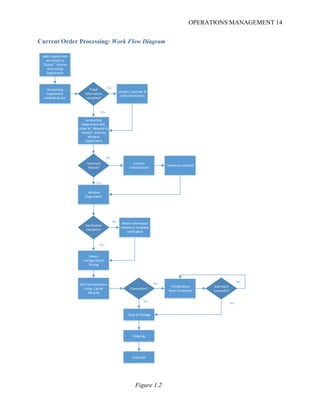
Current Order Processing: Work Flow Diagram ........................................................................ 144
Evaluation Current Order Process: ............................................................................................... 15
Order Processing Activities of Geometris (VT101): Timed Work Flow ..................................... 17
Analysis of Current Capacity........................................................................................................ 23
Analysis of Current Findings: Geometris ..................................................................................... 23
Order Processing Activities of Micronet (CE507): Timed Work Flow........................................ 27
Analysis of Current Capacity: Micronet....................................................................................... 32
Analysis of Current Findings: Micronet ....................................................................................... 32
The Effect of Inventory................................................................................................................. 35
Implications on Inventory............................................................................................................. 37
Single Web Framework: Proposed Solution................................................................................. 37
Internalization ............................................................................................................................... 56
Conclusion and Recommendations............................................................................................... 83
References..................................................................................................................................... 89
Exhibit A....................................................................................................................................... 90
Exhibit B..................................................................................................................................... 116
Exhibit C..................................................................................................................................... 120
OPERATIONS MANAGEMENT 7
Appendix I .................................................................................................................................. 125
Appendix II................................................................................................................................. 131
OPERATIONS MANAGEMENT 8
List of Tables and Figures
Table 1.1 One Customer- Five Orders of the Same Device Type (Geometris)
Table 1.2 Multiple Customers- One Separate Order of the Same Device Type (Geometris)
Table 1.3 One Customer- Five Orders of the Same Device Type (Micronet)
Table 1.4 Multiple Customers- One Separate Order of the Same Device Type (Micronet)
Figure 1.1 DSI Mobile Roadmap
Figure 1.2 Current Order Processing: Work Flow Diagram
Figure 1.3 Process Flow
Figure 1.4 New Centralized Platform Layout
Figure 1.5 PRISMPro by Kore
Figure 1.6 High Level Overview of All the Major Systems
OPERATIONS MANAGEMENT 9
Introduction
The idea behind an operation is to add value by converting input such as materials, labor, or
even capital equipment into useful outputs as in an actual product or service. Since an operation is
composed of processes that have a significant influence on a company’s performance, it is imperative
to improve these in an effort to provide the company with a better competitive edge (Reid and
Sander, 2007). The first step toward improving a process is determining if the process is operating at
capacity or not. Thus, to make such an assessment, the activities within the process and the
relationships between these activities must be analyzed as well (“Process Analysis,” 2012). The
second step is to identify what activity or set of activities are limiting the output, thereby creating a
bottleneck, which is essentially the slowest activity or task within the process. This is a critical part of
process analysis since identifying a bottleneck(s) would not only determine the process but also
provide the opportunity to increase that capacity as well (“Process Analysis,” 2012). The third step is
to find possible solutions that would improve the process by making bottleneck activity more
efficient to increase process capacity, adding an additional resource such as additional personnel to
increase bottleneck capacity or move the activities away from the bottleneck resource as much as
possible (“Process Analysis,” 2012).
Essentially, for the majority of companies that are in the business of providing goods to their
customers, delivering high level customer service will not only retain their current customer base, but
also obtain new customers, which is paramount. To achieve this goal, it is essential to have a robust
and effective order management system in place that is capable of meeting the customers’ needs and
fulfill any order obligation with quick turnaround time (“Process Analysis,” 2012). Of course, the
challenge often has to do with limitations in activities within the ordering process that can decrease
capacity and ultimately limit the output. Hence, when an order or even multiple orders are placed by
OPERATIONS MANAGEMENT 10
a customer or groups of customers that are fulfilled quickly, the delay in order fulfillment would lead
to poor customer experience and decrease customer satisfaction. The outcome would be a decrease in
order activity and a decline in sales volume.
Objective
For Dispatching Solution, Inc. (DSI), fulfilling a customer’s device order is currently a labor
intensive process. This is mainly due to the fact that DSI device orders are handled through manual
data entry using multiple support databases that store and manage vital information necessary for
completing an order. The company’s management team has proposed creating a centralized system
(using DSI Mobile). Here, the most labor intensive activities within the ordering process such as
searching for customer information, customer server information, and device activation can be
completed without having to use multiple systems that do not talk to each other (refer to Figure 1.1
for DSI Mobile Roadmap). In this way, order processing capacity can be improved. However, the
team was unsure if centralization would in fact render favorable results as projected (“Automating
Sales Order,” 2012).
The purpose of analyzing DSI’s order processing operation is to ultimately determine how
many GPS device orders the company could actually fulfill with its current process as well as how
they can improve the output capacity should their current methods render unfavorable results. In
addition, as part of the process analysis and to determine whether automation would in fact improve
the capacity, each activity of the current order process was timed and analyzed (“Automating Sales
Order,” 2012). The deficiencies within the system were identified. And, the databases used in
managing important information for order processing were also evaluated to see if automation would
make sense and if creating a centralized internal support system would be possible (“Automating
OPERATIONS MANAGEMENT 11
Sales Order,” 2012). A detailed analysis of current order activities are laid out in a subsequent section
of this paper labeled “Order Processing Activities: Timed Work Flow.”
DSI Mobile Roadmap
Company Background
In the Beginning from 1991-2001
Similar to many entrepreneurially-based companies, DSI has an interesting beginning and,
certainly, an exciting and promising future. The foundation of the company began in 1991 when the
founder, Jim Jackson, began working as a freelance programmer providing software-based solutions
to local trucking companies in need of organizing their dispatch workflow (“Why DSI Mobile,“
2013). Jim’s natural intrigue in problem solving and product development led to the creation of his
Figure 1.1
OPERATIONS MANAGEMENT 12
first software system that would fulfill the needs for dispatchers. He called it “Transport System.” In
fact, the software solution is now embraced by Caterpillar.
After ten years of hard work and establishing a long lasting client base, Jim officially created
DSI in 2001. The company’s primary focus was to provide businesses that specialized in equipment
service, transportation, or rental industries with service and nationwide transport management
software solutions (“Why DSI Mobile,” 2013). The company also added a full feature GPS tracking
such as Geometris’s black box devices to its list of products. For the next ten years, DSI continued
innovating and perfecting many other software solutions such as Service Manager and refining its
GPS offerings. The company steadily increased growth and revenue through its unparalleled
customer service, innovative technology, and solution-based offerings, which helped DSI to charter
the murky waters of the 2008 economic downturn without hurting its bottom line (“Why DSI
Mobile,” 2013).
Rapid Growth in 2011
In fact, the success of the company was further enhanced when in 2011 DSI signed an official
agreement with John Deere, providing the agricultural giant with field service
and transportation solutions to its worldwide dealer network. By utilizing Field Service, companies
like John Deere are able to manage their essential aspects of operations such as order management,
GPS asset monitoring, labor tracking, invoicing, intelligent mapping, and routing in order to reduce
errors and ultimately save time. Of course, the agreement with John Deere was a catalyst for a period
of rapid growth for DSI, not just in the form of revenue generation, but also in company size and
resources necessary to ensure milestones and product deliverables were on task and completed
without any glitches.
OPERATIONS MANAGEMENT 13
Outlook for 2012 and Beyond
Recently John Deere has discussed funneling all of its dealers’ GPS device orders directly
through DSI. While this is indeed a fantastic revenue generating opportunity for DSI, it imposes some
challenges that would need to first be considered to ensure this endeavor is successful. Obviously,
since John Deere has a large volume of dealers, there is a great possibility that the number of device
orders placed through DSI would likely exceed DSI’s current capacity for order processing. In fact,
DSI’s goal is to process 50 device orders per day or 200 orders per month beginning in 2013 without
having to hire any additional personnel in the order processing departments. Additionally, John
Deere’s order placement is projected to begin in four to six months from now, targeted for April of
2013. Considering these facts, DSI has decided to launch an investigation of its current order
processing activities in an effort to identify the bottlenecks and improve its capacity as quickly as
possible. This will ensure they are prepared for any future device order placement, not only from
John Deere dealers, but also from any of their existing or future customers as well.
OPERATIONS MANAGEMENT 14
Current Order Processing: Work Flow Diagram
Sales Department
sets ticket to
“Quote,” informs
Accounting
Department
Accounting
Department
Validate Quote
Ticket
information
complete?
Accounting
Department sets
ticket to” Allowed to
Invoice”, informs
Wireless
Department
Inventory
Instock?
Wireless
Department
SIMCard Activation
Using Carrier
Website
Device
Configuration/
Testing
Obtain information
needed to complete
verification
Inventory received
Close & Package
Shipping
Customer
Contact customer to
verify information
Troubleshoot
Reset Command
No
No
Yes
Yes
Yes
No
Contact
manufacturer
Verification
Complete?
No
Yes
Connection?
Command
Successful?
Yes
No
Figure 1.2
OPERATIONS MANAGEMENT 15
Evaluation Current Order Process:
Sales Department
In reviewing the above diagram, whenever a customer orders a specific device, the order is
first processed by the Sales Department, which manually creates an order ticket using DSI Service
Manager (SM) database as shown in Exhibit A. However, for this field study, the Geometris black
box device is used to illustrate the current order process. The ticket that is created through the SM
would need to have all of the necessary information such as device price, customer PO (purchase
order), name of the business, contact name and number, quantity of devices requested, device model,
shipping address, and the desired delivery date for the order in the SM. Of course, if the order is for
an existing customer, then the data entry portion of ticket creation would be minimal. However, a
new ticket for the order would still need to be created. At this point, the Request Status drop down
box of the ticket is set to “Quote,” as shown below.
Lastly, an email notification is then sent to the Accounting Department indicating that an
order has been placed in the system using the “action required” check box in the same SM database.
The entire process takes five minutes to complete, provided that all of the pertinent information such
as order quantity, shipping information and contact information is given by the customer at the time
the order is received. However, there are incidences where an order is placed via email rather than
telephone, in which case the Sales Department would need to first contact the customer to verify the
necessary information before proceeding with the ticket and quote creation processes.
Accounting Department
Once the Accounting Department is alerted via email by the Sales Department that an order
has been placed and entered into SM database, an invoice is created within Quickbooks. It is based on
the information that has been previously entered into the SM database. Generally, this process takes
OPERATIONS MANAGEMENT 16
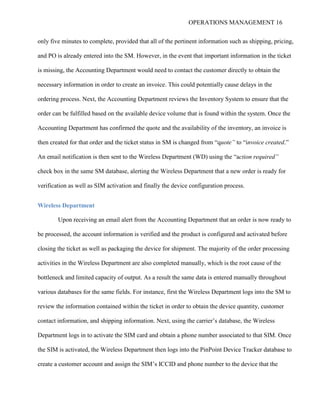
only five minutes to complete, provided that all of the pertinent information such as shipping, pricing,
and PO is already entered into the SM. However, in the event that important information in the ticket
is missing, the Accounting Department would need to contact the customer directly to obtain the
necessary information in order to create an invoice. This could potentially cause delays in the
ordering process. Next, the Accounting Department reviews the Inventory System to ensure that the
order can be fulfilled based on the available device volume that is found within the system. Once the
Accounting Department has confirmed the quote and the availability of the inventory, an invoice is
then created for that order and the ticket status in SM is changed from “quote” to “invoice created.”
An email notification is then sent to the Wireless Department (WD) using the “action required”
check box in the same SM database, alerting the Wireless Department that a new order is ready for
verification as well as SIM activation and finally the device configuration process.
Wireless Department
Upon receiving an email alert from the Accounting Department that an order is now ready to
be processed, the account information is verified and the product is configured and activated before
closing the ticket as well as packaging the device for shipment. The majority of the order processing
activities in the Wireless Department are also completed manually, which is the root cause of the
bottleneck and limited capacity of output. As a result the same data is entered manually throughout
various databases for the same fields. For instance, first the Wireless Department logs into the SM to
review the information contained within the ticket in order to obtain the device quantity, customer
contact information, and shipping information. Next, using the carrier’s database, the Wireless
Department logs in to activate the SIM card and obtain a phone number associated to that SIM. Once
the SIM is activated, the Wireless Department then logs into the PinPoint Device Tracker database to
create a customer account and assign the SIM’s ICCID and phone number to the device that the
OPERATIONS MANAGEMENT 17
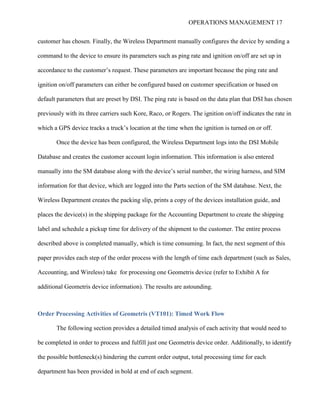
customer has chosen. Finally, the Wireless Department manually configures the device by sending a
command to the device to ensure its parameters such as ping rate and ignition on/off are set up in
accordance to the customer’s request. These parameters are important because the ping rate and
ignition on/off parameters can either be configured based on customer specification or based on
default parameters that are preset by DSI. The ping rate is based on the data plan that DSI has chosen
previously with its three carriers such Kore, Raco, or Rogers. The ignition on/off indicates the rate in
which a GPS device tracks a truck’s location at the time when the ignition is turned on or off.
Once the device has been configured, the Wireless Department logs into the DSI Mobile
Database and creates the customer account login information. This information is also entered
manually into the SM database along with the device’s serial number, the wiring harness, and SIM
information for that device, which are logged into the Parts section of the SM database. Next, the
Wireless Department creates the packing slip, prints a copy of the devices installation guide, and
places the device(s) in the shipping package for the Accounting Department to create the shipping
label and schedule a pickup time for delivery of the shipment to the customer. The entire process
described above is completed manually, which is time consuming. In fact, the next segment of this
paper provides each step of the order process with the length of time each department (such as Sales,
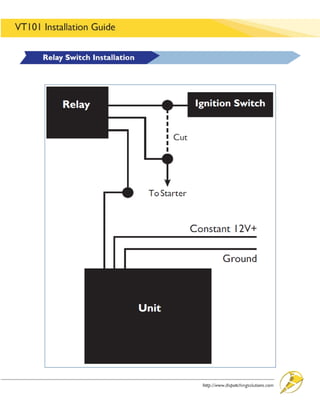
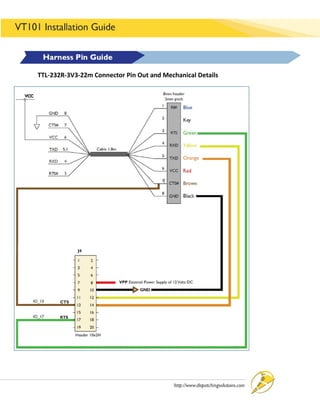
Accounting, and Wireless) take for processing one Geometris device (refer to Exhibit A for
additional Geometris device information). The results are astounding.
Order Processing Activities of Geometris (VT101): Timed Work Flow
The following section provides a detailed timed analysis of each activity that would need to
be completed in order to process and fulfill just one Geometris device order. Additionally, to identify
the possible bottleneck(s) hindering the current order output, total processing time for each
department has been provided in bold at end of each segment.
OPERATIONS MANAGEMENT 18
Sales Department:
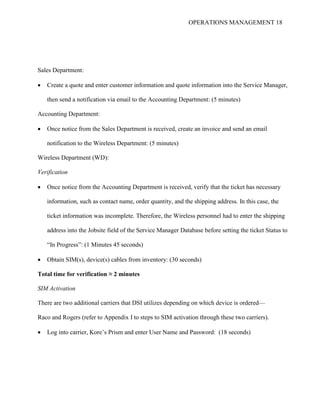
 Create a quote and enter customer information and quote information into the Service Manager,
then send a notification via email to the Accounting Department: (5 minutes)
Accounting Department:
 Once notice from the Sales Department is received, create an invoice and send an email
notification to the Wireless Department: (5 minutes)
Wireless Department (WD):
Verification
 Once notice from the Accounting Department is received, verify that the ticket has necessary
information, such as contact name, order quantity, and the shipping address. In this case, the
ticket information was incomplete. Therefore, the Wireless personnel had to enter the shipping
address into the Jobsite field of the Service Manager Database before setting the ticket Status to
“In Progress”: (1 Minutes 45 seconds)
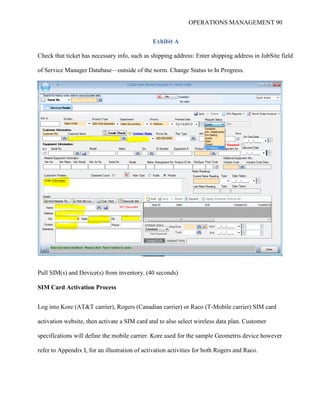
 Obtain SIM(s), device(s) cables from inventory: (30 seconds)
Total time for verification ≈ 2 minutes
SIM Activation
There are two additional carriers that DSI utilizes depending on which device is ordered—
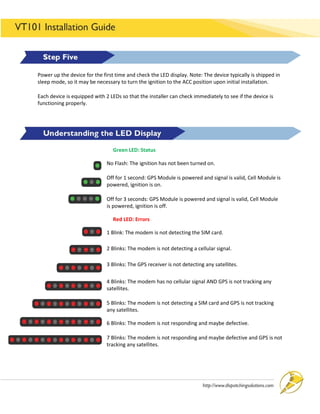
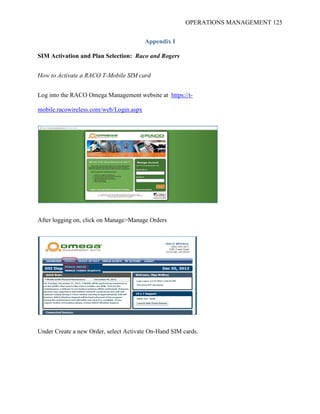
Raco and Rogers (refer to Appendix I to steps to SIM activation through these two carriers).
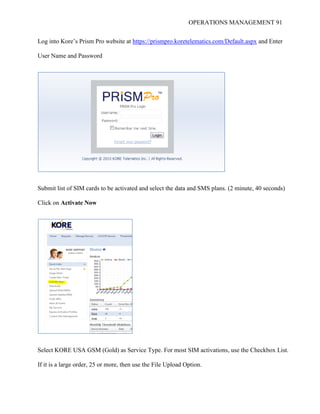
 Log into carrier, Kore’s Prism and enter User Name and Password: (18 seconds)
OPERATIONS MANAGEMENT 19
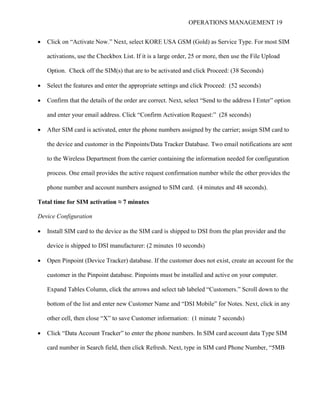
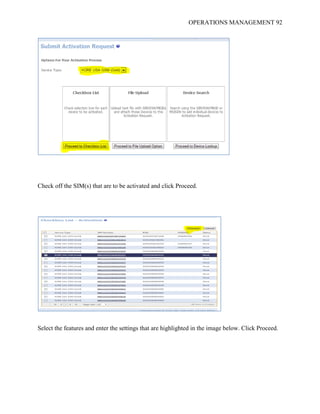
 Click on “Activate Now.” Next, select KORE USA GSM (Gold) as Service Type. For most SIM
activations, use the Checkbox List. If it is a large order, 25 or more, then use the File Upload
Option. Check off the SIM(s) that are to be activated and click Proceed: (38 Seconds)
 Select the features and enter the appropriate settings and click Proceed: (52 seconds)
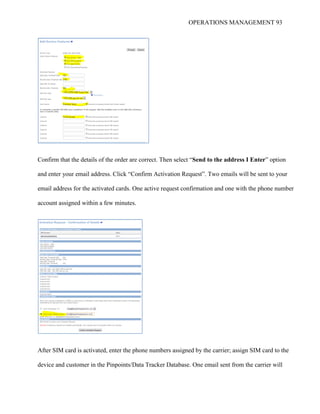
 Confirm that the details of the order are correct. Next, select “Send to the address I Enter” option
and enter your email address. Click “Confirm Activation Request:” (28 seconds)
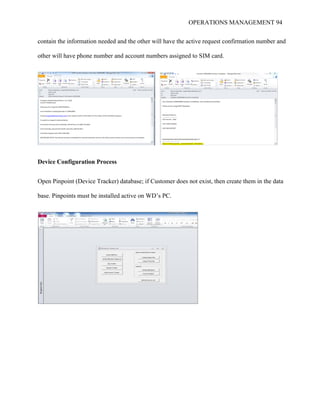
 After SIM card is activated, enter the phone numbers assigned by the carrier; assign SIM card to
the device and customer in the Pinpoints/Data Tracker Database. Two email notifications are sent
to the Wireless Department from the carrier containing the information needed for configuration
process. One email provides the active request confirmation number while the other provides the
phone number and account numbers assigned to SIM card. (4 minutes and 48 seconds).
Total time for SIM activation ≈ 7 minutes
Device Configuration
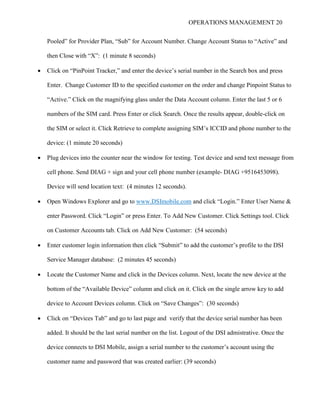
 Install SIM card to the device as the SIM card is shipped to DSI from the plan provider and the
device is shipped to DSI manufacturer: (2 minutes 10 seconds)
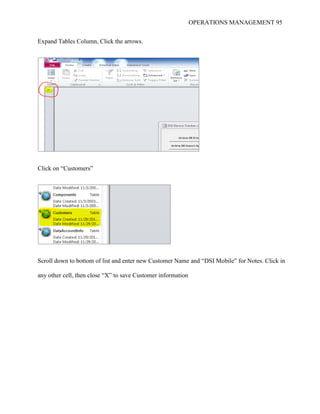
 Open Pinpoint (Device Tracker) database. If the customer does not exist, create an account for the
customer in the Pinpoint database. Pinpoints must be installed and active on your computer.
Expand Tables Column, click the arrows and select tab labeled “Customers.” Scroll down to the
bottom of the list and enter new Customer Name and “DSI Mobile” for Notes. Next, click in any
other cell, then close “X” to save Customer information: (1 minute 7 seconds)
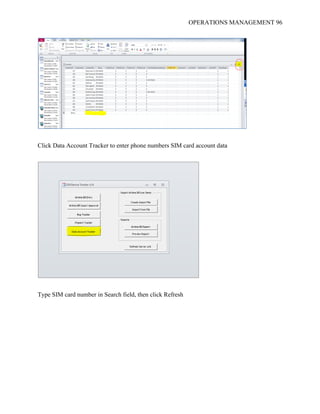
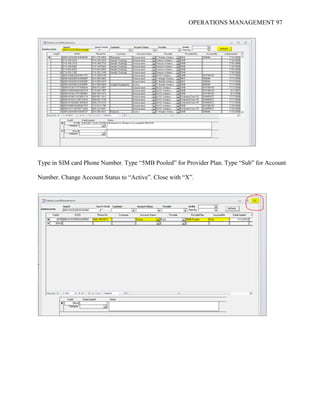
 Click “Data Account Tracker” to enter the phone numbers. In SIM card account data Type SIM
card number in Search field, then click Refresh. Next, type in SIM card Phone Number, “5MB
OPERATIONS MANAGEMENT 20
Pooled” for Provider Plan, “Sub” for Account Number. Change Account Status to “Active” and
then Close with “X”: (1 minute 8 seconds)
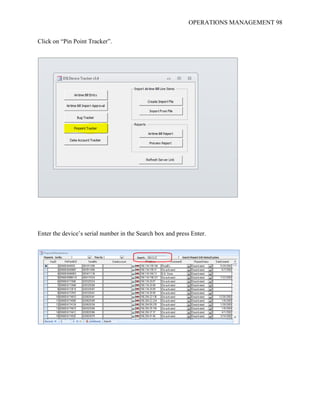
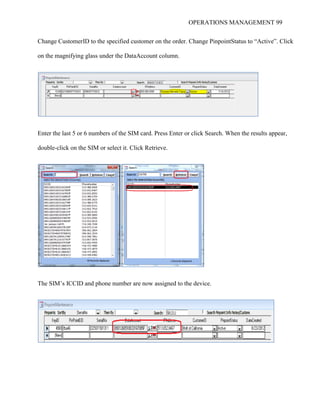
 Click on “PinPoint Tracker,” and enter the device’s serial number in the Search box and press
Enter. Change Customer ID to the specified customer on the order and change Pinpoint Status to
“Active.” Click on the magnifying glass under the Data Account column. Enter the last 5 or 6
numbers of the SIM card. Press Enter or click Search. Once the results appear, double-click on
the SIM or select it. Click Retrieve to complete assigning SIM’s ICCID and phone number to the
device: (1 minute 20 seconds)
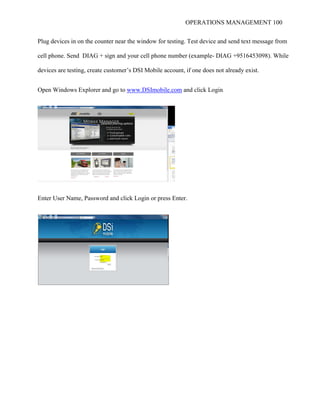
 Plug devices into the counter near the window for testing. Test device and send text message from
cell phone. Send DIAG + sign and your cell phone number (example- DIAG +9516453098).
Device will send location text: (4 minutes 12 seconds).
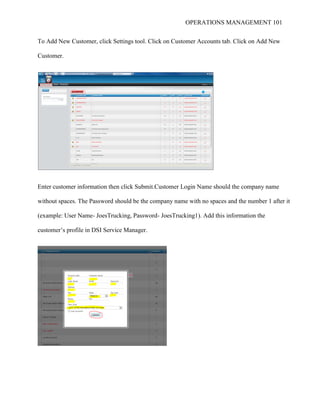
 Open Windows Explorer and go to www.DSImobile.com and click “Login.” Enter User Name &
enter Password. Click “Login” or press Enter. To Add New Customer. Click Settings tool. Click
on Customer Accounts tab. Click on Add New Customer: (54 seconds)
 Enter customer login information then click “Submit” to add the customer’s profile to the DSI
Service Manager database: (2 minutes 45 seconds)
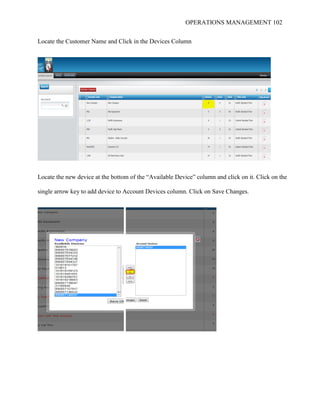
 Locate the Customer Name and click in the Devices column. Next, locate the new device at the
bottom of the “Available Device” column and click on it. Click on the single arrow key to add
device to Account Devices column. Click on “Save Changes”: (30 seconds)
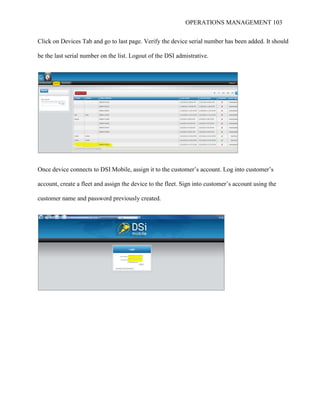
 Click on “Devices Tab” and go to last page and verify that the device serial number has been
added. It should be the last serial number on the list. Logout of the DSI admistrative. Once the
device connects to DSI Mobile, assign a serial number to the customer’s account using the
customer name and password that was created earlier: (39 seconds)
OPERATIONS MANAGEMENT 21
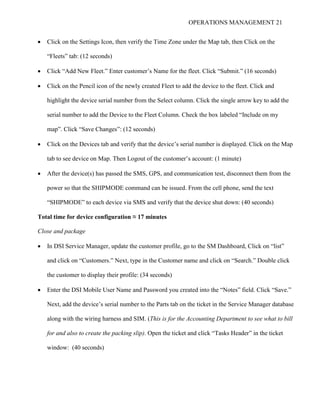
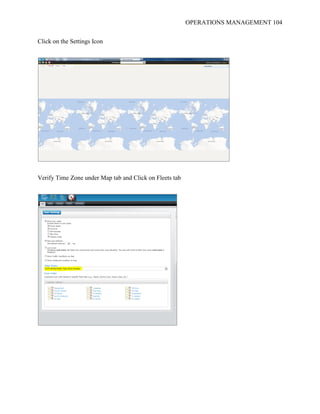
 Click on the Settings Icon, then verify the Time Zone under the Map tab, then Click on the
“Fleets” tab: (12 seconds)
 Click “Add New Fleet.” Enter customer’s Name for the fleet. Click “Submit.” (16 seconds)
 Click on the Pencil icon of the newly created Fleet to add the device to the fleet. Click and
highlight the device serial number from the Select column. Click the single arrow key to add the
serial number to add the Device to the Fleet Column. Check the box labeled “Include on my
map”. Click “Save Changes”: (12 seconds)
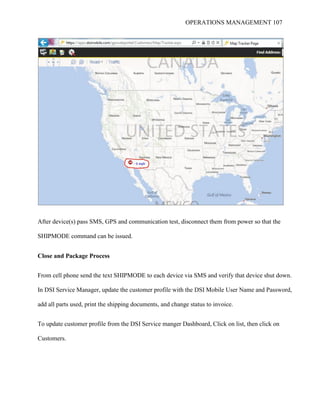
 Click on the Devices tab and verify that the device’s serial number is displayed. Click on the Map
tab to see device on Map. Then Logout of the customer’s account: (1 minute)
 After the device(s) has passed the SMS, GPS, and communication test, disconnect them from the
power so that the SHIPMODE command can be issued. From the cell phone, send the text
“SHIPMODE” to each device via SMS and verify that the device shut down: (40 seconds)
Total time for device configuration ≈ 17 minutes
Close and package
 In DSI Service Manager, update the customer profile, go to the SM Dashboard, Click on “list”
and click on “Customers.” Next, type in the Customer name and click on “Search.” Double click
the customer to display their profile: (34 seconds)
 Enter the DSI Mobile User Name and Password you created into the “Notes” field. Click “Save.”
Next, add the device’s serial number to the Parts tab on the ticket in the Service Manager database
along with the wiring harness and SIM. (This is for the Accounting Department to see what to bill
for and also to create the packing slip). Open the ticket and click “Tasks Header” in the ticket
window: (40 seconds)
OPERATIONS MANAGEMENT 22
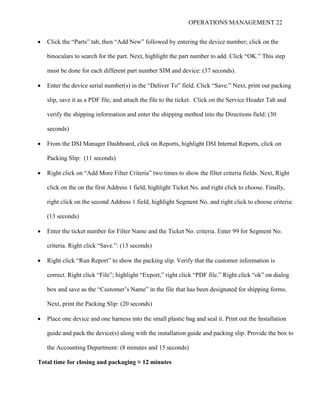
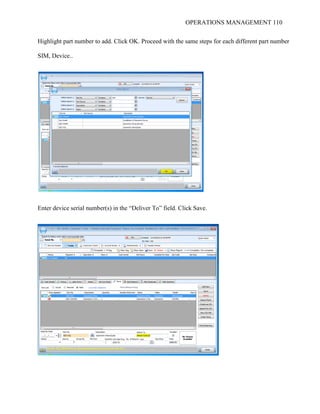
 Click the “Parts” tab, then “Add New” followed by entering the device number; click on the
binoculars to search for the part. Next, highlight the part number to add. Click “OK.” This step
must be done for each different part number SIM and device: (37 seconds).
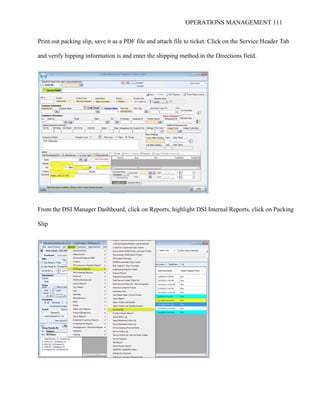
 Enter the device serial number(s) in the “Deliver To” field. Click “Save.” Next, print out packing
slip, save it as a PDF file, and attach the file to the ticket. Click on the Service Header Tab and
verify the shipping information and enter the shipping method into the Directions field: (30
seconds)
 From the DSI Manager Dashboard, click on Reports, highlight DSI Internal Reports, click on
Packing Slip: (11 seconds)
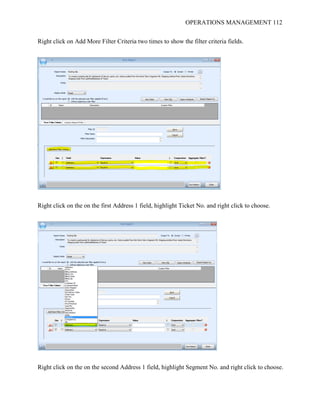
 Right click on “Add More Filter Criteria” two times to show the filter criteria fields. Next, Right
click on the on the first Address 1 field, highlight Ticket No. and right click to choose. Finally,
right click on the second Address 1 field, highlight Segment No. and right click to choose criteria:
(13 seconds)
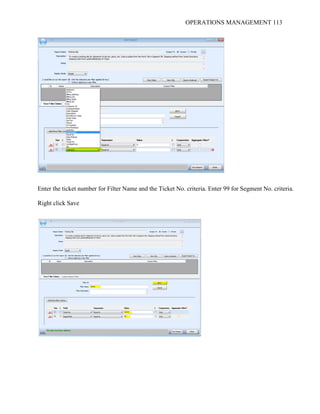
 Enter the ticket number for Filter Name and the Ticket No. criteria. Enter 99 for Segment No.
criteria. Right click “Save.”: (13 seconds)
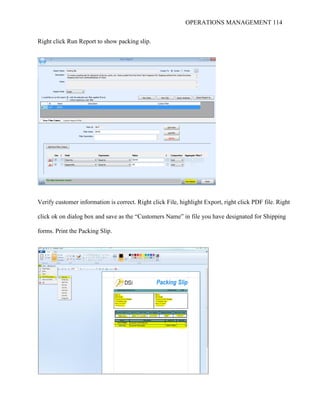
 Right click “Run Report” to show the packing slip. Verify that the customer information is
correct. Right click “File”; highlight “Export,” right click “PDF file.” Right click “ok” on dialog
box and save as the “Customer’s Name” in the file that has been designated for shipping forms.
Next, print the Packing Slip: (20 seconds)
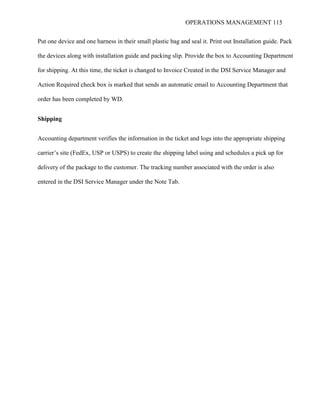
 Place one device and one harness into the small plastic bag and seal it. Print out the Installation
guide and pack the device(s) along with the installation guide and packing slip. Provide the box to
the Accounting Department: (8 minutes and 15 seconds)
Total time for closing and packaging ≈ 12 minutes
OPERATIONS MANAGEMENT 23
Accounting Department:
 Ship package to customer, providing an email confirmation to the customer with the order and
tracking information: (5 minutes per device)
Grand total for processing one Geometris order from step 1 to step 4 ≈ 53 minutes
Analysis of Current Capacity
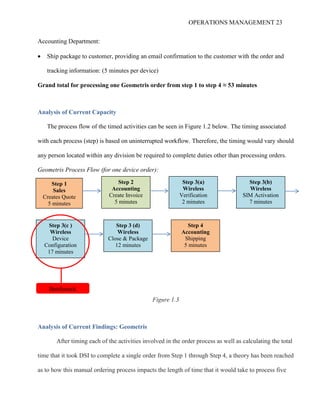
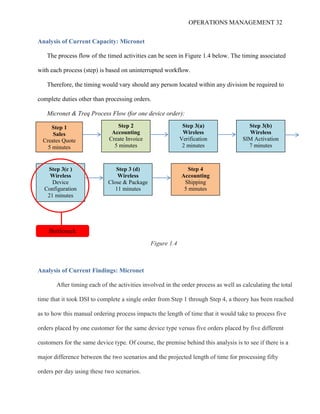
The process flow of the timed activities can be seen in Figure 1.2 below. The timing associated
with each process (step) is based on uninterrupted workflow. Therefore, the timing would vary should
any person located within any division be required to complete duties other than processing orders.
Geometris Process Flow (for one device order):
Figure 1.3
Analysis of Current Findings: Geometris
After timing each of the activities involved in the order process as well as calculating the total
time that it took DSI to complete a single order from Step 1 through Step 4, a theory has been reached
as to how this manual ordering process impacts the length of time that it would take to process five
Step 1
Sales
Creates Quote
5 minutes
Step 2
Accounting
Create Invoice
5 minutes
Step 3(a)
Wireless
Verification
2 minutes
2 minutes
Step 3(b)
Wireless
SIM Activation
7 minutes
Step 3(c )
Wireless
Device
Configuration
17 minutes
Step 3 (d)
Wireless
Close & Package
12 minutes
2 minutes
Step 4
Accounting
Shipping
5 minutes
Bottleneck
OPERATIONS MANAGEMENT 24
orders placed by one customer for the same device type versus five orders placed by five different
customers for the same device type. Of course, the premise behind this analysis is to see if there is a
major difference between the two scenarios and the projected length of time for processing fifty
orders per day using these two scenarios.
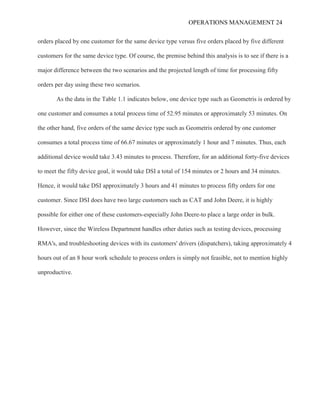
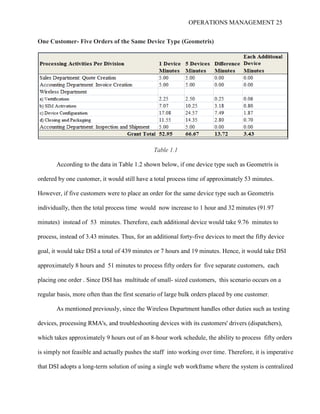
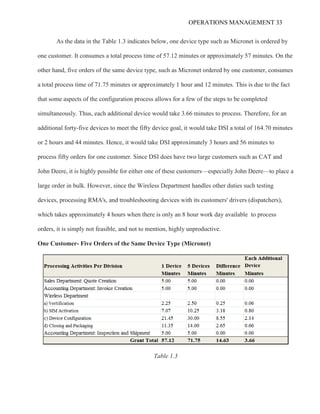
As the data in the Table 1.1 indicates below, one device type such as Geometris is ordered by
one customer and consumes a total process time of 52.95 minutes or approximately 53 minutes. On
the other hand, five orders of the same device type such as Geometris ordered by one customer
consumes a total process time of 66.67 minutes or approximately 1 hour and 7 minutes. Thus, each
additional device would take 3.43 minutes to process. Therefore, for an additional forty-five devices
to meet the fifty device goal, it would take DSI a total of 154 minutes or 2 hours and 34 minutes.
Hence, it would take DSI approximately 3 hours and 41 minutes to process fifty orders for one
customer. Since DSI does have two large customers such as CAT and John Deere, it is highly
possible for either one of these customers-especially John Deere-to place a large order in bulk.
However, since the Wireless Department handles other duties such as testing devices, processing
RMA's, and troubleshooting devices with its customers' drivers (dispatchers), taking approximately 4
hours out of an 8 hour work schedule to process orders is simply not feasible, not to mention highly
unproductive.
OPERATIONS MANAGEMENT 25
One Customer- Five Orders of the Same Device Type (Geometris)
Table 1.1
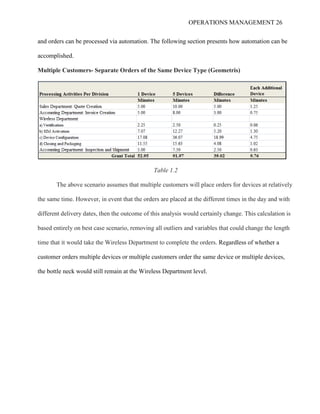
According to the data in Table 1.2 shown below, if one device type such as Geometris is
ordered by one customer, it would still have a total process time of approximately 53 minutes.
However, if five customers were to place an order for the same device type such as Geometris
individually, then the total process time would now increase to 1 hour and 32 minutes (91.97
minutes) instead of 53 minutes. Therefore, each additional device would take 9.76 minutes to
process, instead of 3.43 minutes. Thus, for an additional forty-five devices to meet the fifty device
goal, it would take DSI a total of 439 minutes or 7 hours and 19 minutes. Hence, it would take DSI
approximately 8 hours and 51 minutes to process fifty orders for five separate customers, each
placing one order . Since DSI has multitude of small- sized customers, this scenario occurs on a
regular basis, more often than the first scenario of large bulk orders placed by one customer.
As mentioned previously, since the Wireless Department handles other duties such as testing
devices, processing RMA's, and troubleshooting devices with its customers' drivers (dispatchers),
which takes approximately 9 hours out of an 8-hour work schedule, the ability to process fifty orders
is simply not feasible and actually pushes the staff into working over time. Therefore, it is imperative
that DSI adopts a long-term solution of using a single web workframe where the system is centralized
OPERATIONS MANAGEMENT 26
and orders can be processed via automation. The following section presents how automation can be
accomplished.
Multiple Customers- Separate Orders of the Same Device Type (Geometris)
Table 1.2
The above scenario assumes that multiple customers will place orders for devices at relatively
the same time. However, in event that the orders are placed at the different times in the day and with
different delivery dates, then the outcome of this analysis would certainly change. This calculation is
based entirely on best case scenario, removing all outliers and variables that could change the length
time that it would take the Wireless Department to complete the orders. Regardless of whether a
customer orders multiple devices or multiple customers order the same device or multiple devices,
the bottle neck would still remain at the Wireless Department level.
OPERATIONS MANAGEMENT 27
In addition to the Geometris device, two additional devices Micronet and Treq models were
also timed so that the order processing time for these additional devices can also be calculated and
analyzed. Since both Micronet and Treq units run under similar application systems, the processing
times were relatively identical for these two devices. Therefore, the following data findings have been
recorded just for Micronet, yet also vouch for Treq devices as well. Due to the complexity of these
devices, the majority of the configuration and packaging processes were slightly longer than the
Geometris devices.
Order Processing Activities of Micronet (CE507): Timed Work Flow
The following section provides a detailed timed analysis of each activity that would need to
be completed to process and fulfill just one Micronet or Treq device order. Additionally, to identify
the possible bottleneck(s) hindering the current order output, total process time for each department
has been provided in bold at end of each segment.
Sales Department:
 Create a quote and enter customer information and quote information into the Service Manager,
then send a notification via email to the Accounting Department: (5 minutes)
Accounting Department:
 Once a notice from the Sales Department is received, create an invoice and send an email
notification to the Wireless Department: (5 minutes)
Wireless Department (WD):
Verification
 Once a notice from the Accounting Department is received, verify that the ticket has the
necessary information such as a contact name, order quantity, and the shipping address. In this
case, the ticket information was incomplete. Therefore, the Wireless personnel had to enter the
OPERATIONS MANAGEMENT 28
shipping address into the Jobsite field of the Service Manager Database before setting the ticket
Status to “In Progress”: (1 Minutes 45 seconds)
 Obtain SIM(s), device(s) cables from inventory: (30 seconds)
Total time for verification ≈ 2 minutes
SIM Activation
There are two additional carriers that DSI utilizes, depending on which device is ordered—
Raco and Rogers (refer to Appendix I, for steps to SIM activation through these two carriers).
 Log into carrier, Kore’s Prism and enter the User Name and Password: (18 seconds)
 Click on “Activate Now.” Next, select KORE USA GSM (Gold) as Service Type. For most SIM
activations, use the Checkbox List. If it is a large order, 25 or more, then use the File Upload
Option. Check off the SIM(s) that are to be activated and click “Proceed”: (38 Seconds)
 Select the features and enter the appropriate settings and click “Proceed”: (52 seconds)
 Confirm that the details of the order are correct. Next, select “Send to the address I Enter” option
and enter your email address. Click “Confirm Activation Request”: (28 seconds)
 After the SIM card is activated, enter the phone numbers assigned by the carrier; assign the SIM
card to the device and the customer in the Pinpoints/Data Tracker Database. Two email
notifications are sent to the Wireless Department from the carrier containing the information
needed for the configuration process. One email provides the active request confirmation number
while the other provides the phone number and account numbers assigned to the SIM card. (4
minutes and 48 seconds).
Total time for SIM activation ≈ 7 minutes
Device Configuration
OPERATIONS MANAGEMENT 29
 Install the SIM card into the device and connect it to the antenna and power, then connect the
device to antenna and power: (2 minutes)
 Open the Pinpoint (Device Tracker) database. If the customer does not exist, create an account for
the customer in the Pinpoint database. Pinpoints must be installed and active on your computer.
Expand Tables Column, click the arrows and select tab labeled “Customers.” Scroll down to the
bottom of the list and enter the new Customer Name and “DSI Mobile” for Notes. Next, click in
any other cell, then close “X” to save the Customer information: (1 minute 7 seconds)
 Click “Data Account Tracker” to enter the phone numbers and SIM card account data. Type the
SIM card number into the Search field, and then click “Refresh.” Next, type in the SIM card
Phone Number, “5MB Pooled” for Provider Plan, and “Sub” for Account Number. Change
Account Status to “Active” and then Close with “X”: (1 minute 8 seconds)
 Click on “PinPoint Tracker,” and enter the device’s serial number into the Search box and press
“Enter.” Change the Customer ID to the specified customer on the order and change the Pinpoint
Status to “Active.” Click on the magnifying glass under the Data Account column. Enter the last 5
or 6 numbers of the SIM card. Press “Enter” or click “Search.” Once the results appear, double-
click on the SIM or select it. Click “Retrieve” to complete assigning SIM’s ICCID and phone
number to the device: (1 minute 20 seconds)
 Get an SD card and copy the necessary install and copilot files to the card, including pk.txt file
that has an available copilot license: (2 Minutes)
 Set device to factory defaults: (1 Minute, 2 seconds)
 Insert SD card into device. Also assign that card to the device in pinpoints. Copy mobile manager
file from card to device: (1 Minute, 22 seconds)
 Run the Mobile Manager install. The device will reset twice during this procedure: (3 Minutes)
OPERATIONS MANAGEMENT 30
 Set the time zone, customer's server IP, and carrier network in Mobile Manager System Settings:
(1 Minute, 5 seconds)
 Remove “Dialing from Car” from the DSI Connection Dialing Properties. Reset the device via
Mobile Manager: (1 Minute, 3 seconds)
 Once back up, verify that communication is working, and manually open Copilot. Go through the
activation steps: (2Minute, 50 seconds)
 Enable navigation in mobile manager and verify that it opens successfully upon reset: (1 Minutes,
13 seconds)
 Verify that the device can connect to the customer's server, send and receive a message, and that
it is reporting the correct location: (2 Minutes, 15 seconds)
Total time for device configuration ≈ 21 minutes and 45 seconds
Close and package
 Next, add the device serial number to the Parts tab on the ticket in the Service Manager database
along with the each accessory, Copilot SD card, and SIM card. (This is for the Accounting
Department to see what to bill for and also to create the packing slip). Open the ticket and click
“Tasks Header” in the ticket window: (40 seconds)
 Click “Parts” tab, then “Add New” followed by entering the device number. Click the binoculars
to search for the part. Next, highlight the part number to add. Click “OK.” This step must be done
for each different part number - SIM and device:
 For CE507’s, there are nine different parts to be added: (3 Minutes)
 Enter the device serial number(s) in the “Deliver To” field. Click “Save.” Next, print out the
packing slip, save it as a PDF file, and attach the file to the ticket. Click on the Service Header
OPERATIONS MANAGEMENT 31
Tab and verify the shipping information. Enter the shipping method into the Directions field: (30
seconds)
 From the DSI Manager Dashboard, click on Reports, highlight DSI Internal Reports, click on
Packing Slip: (11 seconds)
 Right click on Add More Filter Criteria two times to show the filter criteria fields. Next, Right
click on the on the first Address 1 field, highlight Ticket No. and right click to choose. Finally,
right click on the on the second Address 1 field, highlight Segment No. and right click to choose
criteria: (16 seconds)
 Enter the ticket number for Filter Name and the Ticket No. criteria. Enter 99 for Segment No.
criteria. Right click “Save”: (15 seconds)
 Right click “Run Report” to show the packing slip. Verify that the customer information is
correct. Right click “File”; highlight Export, right click “PDF file.” Right click “ok” on dialog
box and save as the “Customer’s Name” in the file that has been designated for the shipping
forms. Next, print the Packing Slip: (20 seconds)
 Power down the device, pack it and the accessories along with a hard copy of the installation
guide. Each CE507 goes into a separate 11x8x4 box with foam-eggshell packing material. The
accessories go into a separate box with packing peanuts, or bubble wrap. Those boxes then go
into a bigger box. Be sure that there is about two inches on every side between the outer box and
the inner boxes. Fill the extra space with packing materials: (3 minutes)
 Send the box and packing slip to the front desk for shipping: (2 minutes, 45 seconds )
Total time for closing and packaging ≈ 11 minutes and 35 seconds
OPERATIONS MANAGEMENT 32
Analysis of Current Capacity: Micronet
The process flow of the timed activities can be seen in Figure 1.4 below. The timing associated
with each process (step) is based on uninterrupted workflow.
Therefore, the timing would vary should any person located within any division be required to
complete duties other than processing orders.
Micronet & Treq Process Flow (for one device order):
Figure 1.4
Analysis of Current Findings: Micronet
After timing each of the activities involved in the order process as well as calculating the total
time that it took DSI to complete a single order from Step 1 through Step 4, a theory has been reached
as to how this manual ordering process impacts the length of time that it would take to process five
orders placed by one customer for the same device type versus five orders placed by five different
customers for the same device type. Of course, the premise behind this analysis is to see if there is a
major difference between the two scenarios and the projected length of time for processing fifty
orders per day using these two scenarios.
Step 1
Sales
Creates Quote
5 minutes
Step 2
Accounting
Create Invoice
5 minutes
Step 3(a)
Wireless
Verification
2 minutes
2 minutes
Step 3(b)
Wireless
SIM Activation
7 minutes
Step 3(c )
Wireless
Device
Configuration
21 minutes
Step 3 (d)
Wireless
Close & Package
11 minutes
2 minutes
Step 4
Accounting
Shipping
5 minutes
Bottleneck
OPERATIONS MANAGEMENT 33
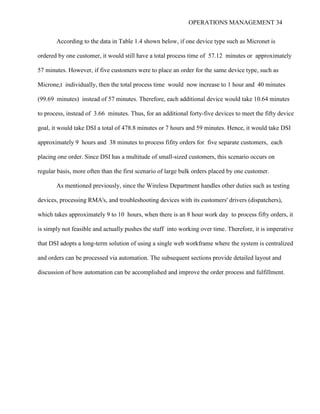
As the data in the Table 1.3 indicates below, one device type such as Micronet is ordered by
one customer. It consumes a total process time of 57.12 minutes or approximately 57 minutes. On the
other hand, five orders of the same device type, such as Micronet ordered by one customer, consumes
a total process time of 71.75 minutes or approximately 1 hour and 12 minutes. This is due to the fact
that some aspects of the configuration process allows for a few of the steps to be completed
simultaneously. Thus, each additional device would take 3.66 minutes to process. Therefore, for an
additional forty-five devices to meet the fifty device goal, it would take DSI a total of 164.70 minutes
or 2 hours and 44 minutes. Hence, it would take DSI approximately 3 hours and 56 minutes to
process fifty orders for one customer. Since DSI does have two large customers such as CAT and
John Deere, it is highly possible for either one of these customers—especially John Deere—to place a
large order in bulk. However, since the Wireless Department handles other duties such testing
devices, processing RMA's, and troubleshooting devices with its customers' drivers (dispatchers),
which takes approximately 4 hours when there is only an 8 hour work day available to process
orders, it is simply not feasible, and not to mention, highly unproductive.
One Customer- Five Orders of the Same Device Type (Micronet)
Table 1.3
OPERATIONS MANAGEMENT 34
According to the data in Table 1.4 shown below, if one device type such as Micronet is
ordered by one customer, it would still have a total process time of 57.12 minutes or approximately
57 minutes. However, if five customers were to place an order for the same device type, such as
Microne,t individually, then the total process time would now increase to 1 hour and 40 minutes
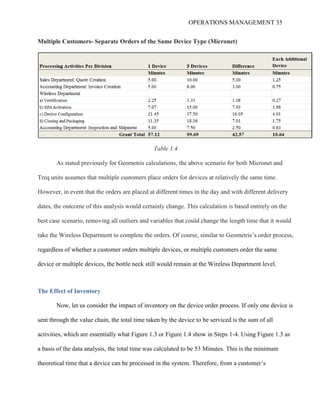
(99.69 minutes) instead of 57 minutes. Therefore, each additional device would take 10.64 minutes
to process, instead of 3.66 minutes. Thus, for an additional forty-five devices to meet the fifty device
goal, it would take DSI a total of 478.8 minutes or 7 hours and 59 minutes. Hence, it would take DSI
approximately 9 hours and 38 minutes to process fifity orders for five separate customers, each
placing one order. Since DSI has a multitude of small-sized customers, this scenario occurs on
regular basis, more often than the first scenario of large bulk orders placed by one customer.
As mentioned previously, since the Wireless Department handles other duties such as testing
devices, processing RMA's, and troubleshooting devices with its customers' drivers (dispatchers),
which takes approximately 9 to 10 hours, when there is an 8 hour work day to process fifty orders, it
is simply not feasible and actually pushes the staff into working over time. Therefore, it is imperative
that DSI adopts a long-term solution of using a single web workframe where the system is centralized
and orders can be processed via automation. The subsequent sections provide detailed layout and
discussion of how automation can be accomplished and improve the order process and fulfillment.
OPERATIONS MANAGEMENT 35
Multiple Customers- Separate Orders of the Same Device Type (Micronet)
Table 1.4
As stated previously for Geometris calculations, the above scenario for both Micronet and
Treq units assumes that multiple customers place orders for devices at relatively the same time.
However, in event that the orders are placed at different times in the day and with different delivery
dates, the outcome of this analysis would certainly change. This calculation is based entirely on the
best case scenario, removing all outliers and variables that could change the length time that it would
take the Wireless Department to complete the orders. Of course, similar to Geometris’s order process,
regardless of whether a customer orders multiple devices, or multiple customers order the same
device or multiple devices, the bottle neck still would remain at the Wireless Department level.
The Effect of Inventory
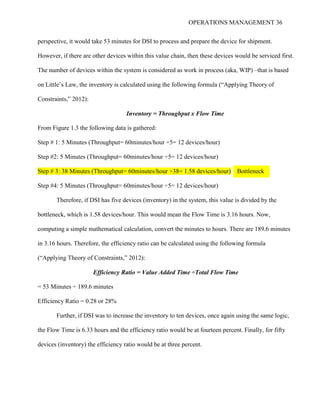
Now, let us consider the impact of inventory on the device order process. If only one device is
sent through the value chain, the total time taken by the device to be serviced is the sum of all
activities, which are essentially what Figure 1.3 or Figure 1.4 show in Steps 1-4. Using Figure 1.3 as
a basis of the data analysis, the total time was calculated to be 53 Minutes. This is the minimum
theoretical time that a device can be processed in the system. Therefore, from a customer’s
OPERATIONS MANAGEMENT 36
perspective, it would take 53 minutes for DSI to process and prepare the device for shipment.
However, if there are other devices within this value chain, then these devices would be serviced first.
The number of devices within the system is considered as work in process (aka, WIP) –that is based
on Little’s Law, the inventory is calculated using the following formula (“Applying Theory of
Constraints,” 2012):
Inventory = Throughput x Flow Time
From Figure 1.3 the following data is gathered:
Step # 1: 5 Minutes (Throughput= 60minutes/hour ÷5= 12 devices/hour)
Step #2: 5 Minutes (Throughput= 60minutes/hour ÷5= 12 devices/hour)
Step # 3: 38 Minutes (Throughput= 60minutes/hour ÷38= 1.58 devices/hour)
Step #4: 5 Minutes (Throughput= 60minutes/hour ÷5= 12 devices/hour)
Therefore, if DSI has five devices (inventory) in the system, this value is divided by the
bottleneck, which is 1.58 devices/hour. This would mean the Flow Time is 3.16 hours. Now,
computing a simple mathematical calculation, convert the minutes to hours. There are 189.6 minutes
in 3.16 hours. Therefore, the efficiency ratio can be calculated using the following formula
(“Applying Theory of Constraints,” 2012):
Efficiency Ratio = Value Added Time ÷Total Flow Time
= 53 Minutes ÷ 189.6 minutes
Efficiency Ratio = 0.28 or 28%
Further, if DSI was to increase the inventory to ten devices, once again using the same logic,
the Flow Time is 6.33 hours and the efficiency ratio would be at fourteen percent. Finally, for fifty
devices (inventory) the efficiency ratio would be at three percent.
Bottleneck
OPERATIONS MANAGEMENT 37
Implications on Inventory
Based on the scenario discussed earlier, adding inventory to a system greatly increases the
lead time for a customer. In fact, by adding an average of fifty devices within the system, an
individual device would spend three percent of its time with value-added work performed while the
rest is considered waiting time (“Applying Theory of Constraints,” 2012). This is an important result
that would need to be reviewed by DSI. In the beginning, DSI management team erroneously focused
exclusively on reducing the wait times without understanding the bottleneck resources or the amount
of inventory that may be the cause of the bottleneck effect. Once, the remedy was to limit the number
of units that can enter into the system, but this would certainly result in revenue loss (“Applying
Theory of Constraints,” 2012). Therefore, since this is not a viable solution, an alternative solution is
to create a centralized system where the majority of Wireless functions can be automated in the areas
which the majority of bottlenecks reside. Of course, there is some cost implication to the process, but
this option would definitely speed up the order process and ultimately the delivery of the device to
the customer.
Single Web Framework: Proposed Solution
Extending DSI Mobile Platform
DSI Mobile is primarily set up as a GPS Tracking web application. However, as part of DSI’s
initiative to go to a cloud solution for all of its products, there is a need to correct some early design
flaws and to integrate with DSI’s single web framework, which handles not only device management
and security, but also product management, inventory management, customer account management,
and creation as well. DSI Mobile has also been designed to employ DSI’s TDPS Wireless Server for
communication with legacy device data. However, since DSI Mobile currently uses the existing
database schema to handle multiple customer scenarios, this has led to expansion problems. The
OPERATIONS MANAGEMENT 38
deficiency in DSI Mobile is due to the fact that it is not really built as a centralized system. As a
result, the DSI Mobile web application handles some aspect of account management and device
management, but its current functionality is insufficient and cumbersome. Essentially, DSI would be
expanding on the existing platform to optimize the company’s asset utilization.
As Figure 1.5 below provides, the layout of the centralized system should operate in such a
way where information is sent and received to DSI Mobile from all of the subsystems within the web
framework. Thus, according to the diagram, upon completion of DSI Mobile’s online infrastructure,
the native devices would continue to utilize the TDPS Server. From that point forward, the TDPS
Server would utilize all of the services available to update devices housed in DMS, send and retrieve
data from SDMS to send to devices and to update SDMS with data coming from devices. Of course,
the long-term solution would be to phase out the TDPS server and scale it up with a new wireless
server, which would then redirect the devices accordingly.
New Centralized Platform Layout
Figure 1.5
Native Devices
TDPS Server DSI Mobile
Web Framework
DMS SDMS
OPERATIONS MANAGEMENT 39
Device Management
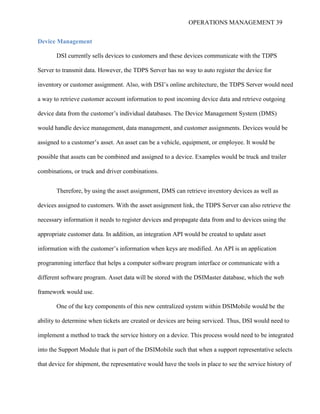
DSI currently sells devices to customers and these devices communicate with the TDPS
Server to transmit data. However, the TDPS Server has no way to auto register the device for
inventory or customer assignment. Also, with DSI’s online architecture, the TDPS Server would need
a way to retrieve customer account information to post incoming device data and retrieve outgoing
device data from the customer’s individual databases. The Device Management System (DMS)
would handle device management, data management, and customer assignments. Devices would be
assigned to a customer’s asset. An asset can be a vehicle, equipment, or employee. It would be
possible that assets can be combined and assigned to a device. Examples would be truck and trailer
combinations, or truck and driver combinations.
Therefore, by using the asset assignment, DMS can retrieve inventory devices as well as
devices assigned to customers. With the asset assignment link, the TDPS Server can also retrieve the
necessary information it needs to register devices and propagate data from and to devices using the
appropriate customer data. In addition, an integration API would be created to update asset
information with the customer’s information when keys are modified. An API is an application
programming interface that helps a computer software program interface or communicate with a
different software program. Asset data will be stored with the DSIMaster database, which the web
framework would use.
One of the key components of this new centralized system within DSIMobile would be the
ability to determine when tickets are created or devices are being serviced. Thus, DSI would need to
implement a method to track the service history on a device. This process would need to be integrated
into the Support Module that is part of the DSIMobile such that when a support representative selects
that device for shipment, the representative would have the tools in place to see the service history of
OPERATIONS MANAGEMENT 40
that device to make an informed decision. For example, if a device has been shipped out five times
but returned each time due to communication issues, this data would give the representative adequate
information to determine if the device needs to be sent back to the manufacturer due to this
reoccurring issue.
Device Firmware
On the device management side, in the event the firmware is upgraded. there should be a tool
that support can utilize to view the current device firmware, If there is a batch of defected firmware,
then DSI support will need the proper tools to update a single device or multiple devices with the
latest firmware.
User Interface (UI)
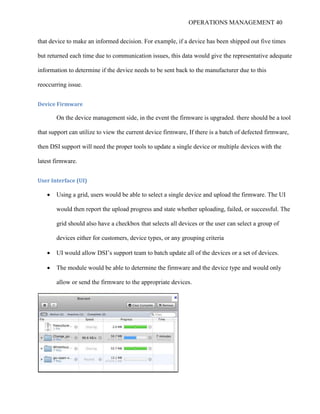
 Using a grid, users would be able to select a single device and upload the firmware. The UI
would then report the upload progress and state whether uploading, failed, or successful. The
grid should also have a checkbox that selects all devices or the user can select a group of
devices either for customers, device types, or any grouping criteria
 UI would allow DSI’s support team to batch update all of the devices or a set of devices.
 The module would be able to determine the firmware and the device type and would only
allow or send the firmware to the appropriate devices.
OPERATIONS MANAGEMENT 41
 The device updater should display the following :
o Device info – Serial
o Current firmware version
o Last Communicated
o Status
 Downloading
o Estimated time
o Signal strength
o GPS stats
o If download, then display “In Progress”
o If complete, then show an icon indicator stating “Completion of download”
 Stopped, driving,
 This is important because if the device is moving, then it is not
necessary to send firmware updates. Therefore, there should be an
option to send firmware only when a device has stopped so that there is
no fluctuation in signal strength.
The portal should allow DSI to do the following:
 Activate devices
 Ping devices
o It should intercept and display the information the device is reporting
 Reconfigure devices, send new parameters
UI should be a grid format with right click capabilities and also multi select capabilities
The User Interface would appear similar to the following illustration:
OPERATIONS MANAGEMENT 42
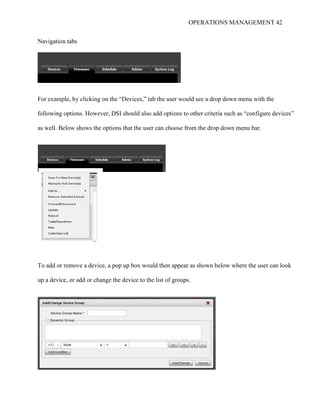
Navigation tabs
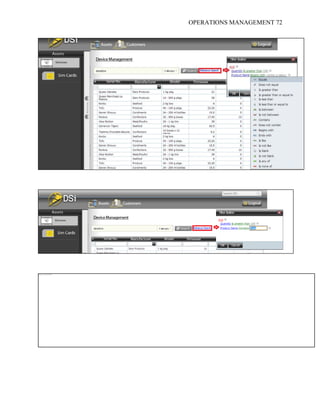
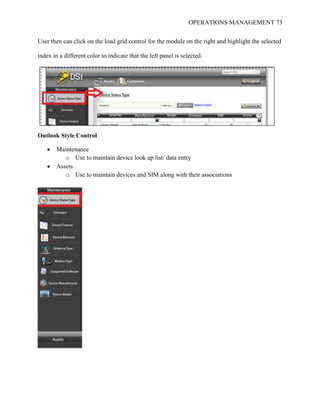
For example, by clicking on the “Devices,” tab the user would see a drop down menu with the
following options. However, DSI should also add options to other criteria such as “configure devices”
as well. Below shows the options that the user can choose from the drop down menu bar.
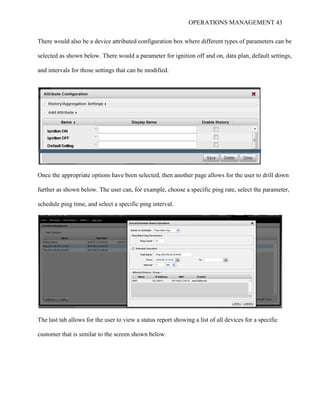
To add or remove a device, a pop up box would then appear as shown below where the user can look
up a device, or add or change the device to the list of groups.
OPERATIONS MANAGEMENT 43
There would also be a device attributed configuration box where different types of parameters can be
selected as shown below. There would a parameter for ignition off and on, data plan, default settings,
and intervals for those settings that can be modified.
Once the appropriate options have been selected, then another page allows for the user to drill down
further as shown below. The user can, for example, choose a specific ping rate, select the parameter,
schedule ping time, and select a specific ping interval.
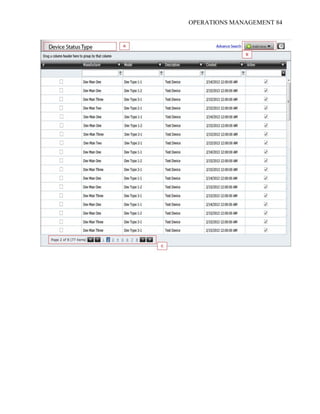
The last tab allows for the user to view a status report showing a list of all devices for a specific
customer that is similar to the screen shown below.
OPERATIONS MANAGEMENT 44
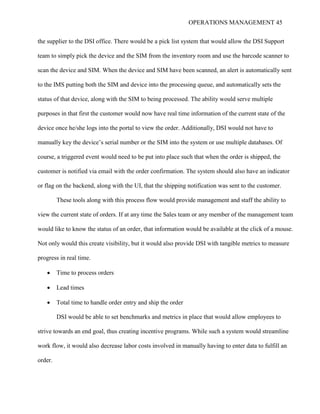
Inventory Management and DSI Mobile Integration
Once the customer has decided on a device (product) the order quantity has been entered, DSI
Mobile would automatically communicate with the Inventory Management System (IMS), which is
one component within the web framework, to extrapolate the inventory status information of that
device model. In other words, IMS would have the updated status of inventory availability. The IMS
would also have a built-in lead time calculator, forecasting how long shipment of a device would take
from each of DSI’s vendors to DSI and from DSI to the customer, respectively. In this way, IMS
would be able to determine the lead time of an out-of-stock device, project delivery timeframe of that
device to DSI Mobile, and update the Product Management System to show that a device is out of
stock. Since the IMS is a forecasting module, the system would also be able to stipulate how much
inventory DSI would require to have in stock based on the previous order volume.
IMS would also communicate with a Vendor Management Module (VMM), where a directory
of all vendors, including devices associated with those vendors, would be housed. Upon receiving a
notice from IMS that a particular device is out of stock, the VMM would send an automatic alert via
email to that vendor(s) indicating that “x” number of devices need to be ordered by a pre-determined
timeframe. If an email confirmation is not received by the vendor within 48 hours, another email
notice would be automatically sent by the system to follow up on the inventory request.
In addition, bar-coding should be integrated with IMS to eliminate having to manually enter
the SIM card’s serial numbers and device serial numbers into the system when they are shipped from
OPERATIONS MANAGEMENT 45
the supplier to the DSI office. There would be a pick list system that would allow the DSI Support
team to simply pick the device and the SIM from the inventory room and use the barcode scanner to
scan the device and SIM. When the device and SIM have been scanned, an alert is automatically sent
to the IMS putting both the SIM and device into the processing queue, and automatically sets the
status of that device, along with the SIM to being processed. The ability would serve multiple
purposes in that first the customer would now have real time information of the current state of the
device once he/she logs into the portal to view the order. Additionally, DSI would not have to
manually key the device’s serial number or the SIM into the system or use multiple databases. Of
course, a triggered event would need to be put into place such that when the order is shipped, the
customer is notified via email with the order confirmation. The system should also have an indicator
or flag on the backend, along with the UI, that the shipping notification was sent to the customer.
These tools along with this process flow would provide management and staff the ability to
view the current state of orders. If at any time the Sales team or any member of the management team
would like to know the status of an order, that information would be available at the click of a mouse.
Not only would this create visibility, but it would also provide DSI with tangible metrics to measure
progress in real time.
 Time to process orders
 Lead times
 Total time to handle order entry and ship the order
DSI would be able to set benchmarks and metrics in place that would allow employees to
strive towards an end goal, thus creating incentive programs. While such a system would streamline
work flow, it would also decrease labor costs involved in manually having to enter data to fulfill an
order.
OPERATIONS MANAGEMENT 46
Product Management
The Product Management System (PMS) would allow DSI to manage the number of devices
in stock, and to be informed when the last available device is added to a customer’s shopping cart.
Therefore, in the case where a device is out of stock, the “Add to Cart” button would be replaced by
an “out of Stock” message with the approximate timeframe that is anticipated for the product to be
back in stock. In the event that the store is down to the last device in stock, the system would allow
for only one additional customer to purchase the device, but it would be based on the FIFO method.
In other words, the first customer who selects the last device in stock for purchase would essentially
be able to purchase it. If another customer also attempts to purchase the device, then a warning
message appears letting the customer know that the device is no longer available. The system then
updates the shopping cart accordingly.
From the Main Admin page, the system would allow for the change to the device quantity to
decrease with each sale. There would be a "turn on" function in the Main Admin page that would
enable this functionality. Also, this feature would notify the customer when a device is available. At
that time, any customer that had not been able to place an order based on a previous attempt when the
device was out of stock at the time of purchase and had requested that a notice be sent to them when
the item was available, would have priority positioning for purchasing the device. Hence, the PMS
would have FIFO capability by communicating with IMS and DSI Mobile.
Customer Account Creation and Management
Unlike the current method of having the Sales Department enter or create the customer’s
account information into the DSI Service Manager and then manually setting the ticket to Quote to
inform the Accounting Department about the new order, the customer would directly initiate the
OPERATIONS MANAGEMENT 47
order process instead using DSIMobile.com’s Web site. Currently, DSI Mobile does not have the
capability to allow a customer to register and create his/her own account. As previously stated, at this
point, customer account creation is a manual process that requires a full-time employee to not only
create the account, but also to manage it as well. Thus, the current system does not meet DSI’s
operational needs, which creates several bottlenecks in the process. The bottlenecks decrease the
overall productivity within the company because the Support does not have the adequate tools in
place to create further efficiencies. In order to eliminate bottlenecks in the existing process, making
the necessary enhancements to DSI Mobile so that the site can allow users to self-create and manage
their own accounts would certainly service a multitude of purposes as outlined below:
1. Ability to streamline the customer account creation, thus eliminating the need to have a full-
time DSI employee to manage and maintain the process. According to the operational analysis
that was conducted, this process is currently the bottleneck and it occurs at each process
segment. It is most prominent within the Wireless Department, which consumes
approximately 38 minutes of the department’s time for processing just one order of a
Geometris device, and approximately 52 minutes for five Geometris device orders. Of course,
as mentioned on pages 19-20 of this paper, these numbers are calculated based on the
assumption that one customer would place multiple orders of the same device type. However,
in the event that five customers each place an order, then the order process could take up 1
hour and 32 minutes to complete. In the case of DSI, the latter is a much likelier scenario that
the company faces. Hence, to process fifty orders per day, as the company aims to
accomplish, by using the single web framework, they can eliminate a large portion of the
manual labor involved in verification, activation of the SIM, configuration of the device,
testing, and packaging of the devices.
OPERATIONS MANAGEMENT 48
2. By having customers create their own accounts online, as well as the ability to navigate
directly to the shopping cart page where all of the devices are listed, users can simply point
and click and process a device transaction themselves. Thus eliminating the need for
customers to contact the sales team in order place an order. This would provide a better
customer experience and would also provide the customer an opportunity to possibly purchase
other devices or product offers from DSIMobile.
If DSI were to automate this process, the system can eliminate the involvement of sales
personnel as well as the majority of the processing function that is currently rendered by the Wireless
Department (WD). This will effectively cut down the processing time and increase the overall
capacity of the ordering process. Thus, rather than processing one device order in 53 minutes, DSI
can potentially process one order in about 10 minutes for the majority of the manual labor involving
sales, accounting, and the Wireless Department would be automated through the single web
framework. In other words, by moving forward through an automated process that streamlines the
current manual process and de-compartmentalizes the job functions of the support representative, it
creates a position that is ultimately self-managed by the systems in place. The end result for DSI
would be to consolidate multiple systems into one platform, thus eliminating the need for multiple
databases such as PinPoint, which is inefficient and adds redundancy in labor.
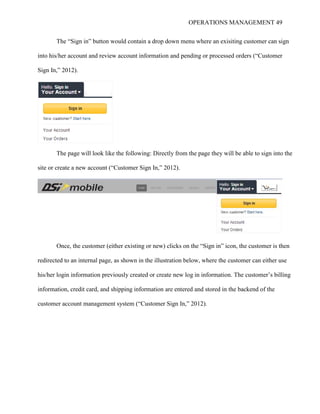
After adding a “Sign in” button and shopping cart icon on the top navigation bar of the DSI
Mobile Web site, the navigation bar would appear as shown below:
OPERATIONS MANAGEMENT 49
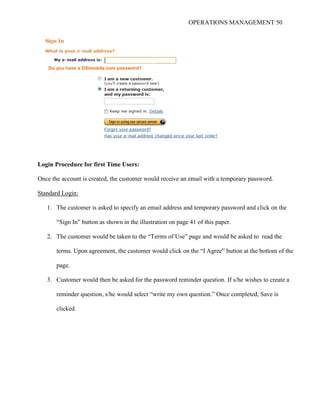
The “Sign in” button would contain a drop down menu where an exisiting customer can sign
into his/her account and review account information and pending or processed orders (“Customer
Sign In,” 2012).
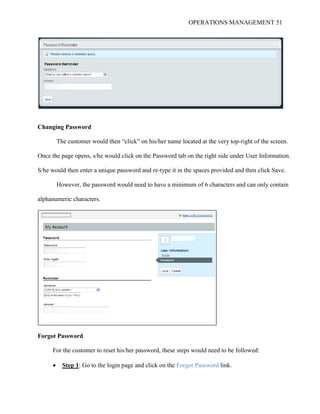
The page will look like the following: Directly from the page they will be able to sign into the
site or create a new account (“Customer Sign In,” 2012).
Once, the customer (either existing or new) clicks on the “Sign in” icon, the customer is then
redirected to an internal page, as shown in the illustration below, where the customer can either use
his/her login information previously created or create new log in information. The customer’s billing
information, credit card, and shipping information are entered and stored in the backend of the
customer account management system (“Customer Sign In,” 2012).
OPERATIONS MANAGEMENT 50
Login Procedure for first Time Users:
Once the account is created, the customer would receive an email with a temporary password.
Standard Login:
1. The customer is asked to specify an email address and temporary password and click on the
“Sign In” button as shown in the illustration on page 41 of this paper.
2. The customer would be taken to the “Terms of Use” page and would be asked to read the
terms. Upon agreement, the customer would click on the “I Agree” button at the bottom of the
page.
3. Customer would then be asked for the password reminder question. If s/he wishes to create a
reminder question, s/he would select “write my own question.” Once completed, Save is
clicked.
Do you have a DSimobile.com password?
OPERATIONS MANAGEMENT 51
Changing Password
The customer would then “click” on his/her name located at the very top-right of the screen.
Once the page opens, s/he would click on the Password tab on the right side under User Information.
S/he would then enter a unique password and re-type it in the spaces provided and then click Save.
However, the password would need to have a minimum of 6 characters and can only contain
alphanumeric characters.
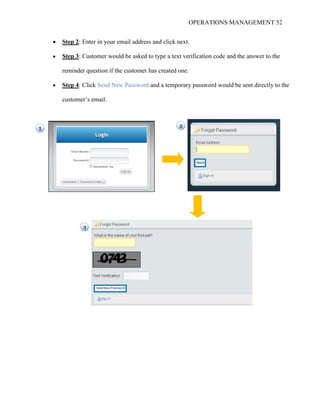
Forgot Password
For the customer to reset his/her password, these steps would need to be followed:
 Step 1: Go to the login page and click on the Forgot Password link.
OPERATIONS MANAGEMENT 52
 Step 2: Enter in your email address and click next.
 Step 3: Customer would be asked to type a text verification code and the answer to the
reminder question if the customer has created one.
 Step 4: Click Send New Password and a temporary password would be sent directly to the
customer’s email.
OPERATIONS MANAGEMENT 53
Customer Portal Page
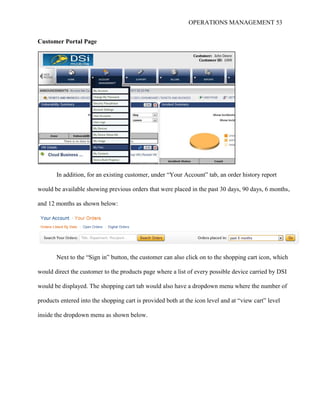
In addition, for an existing customer, under “Your Account” tab, an order history report
would be available showing previous orders that were placed in the past 30 days, 90 days, 6 months,
and 12 months as shown below:
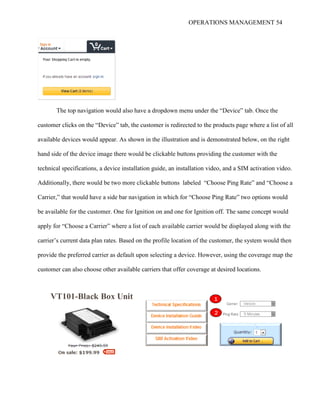
Next to the “Sign in” button, the customer can also click on to the shopping cart icon, which
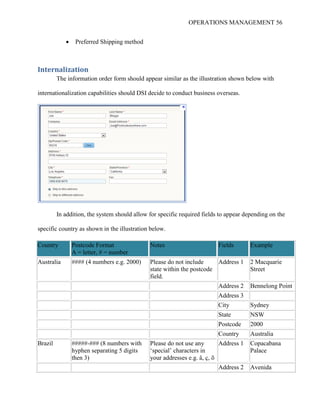
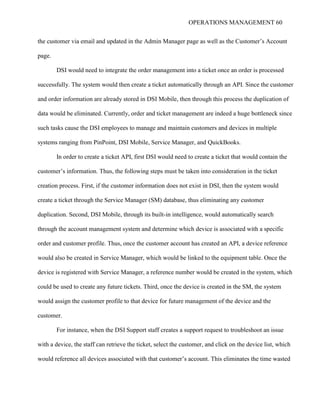
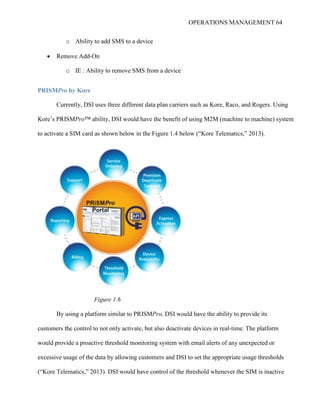
would direct the customer to the products page where a list of every possible device carried by DSI
would be displayed. The shopping cart tab would also have a dropdown menu where the number of
products entered into the shopping cart is provided both at the icon level and at “view cart” level
inside the dropdown menu as shown below.
OPERATIONS MANAGEMENT 54
The top navigation would also have a dropdown menu under the “Device” tab. Once the
customer clicks on the “Device” tab, the customer is redirected to the products page where a list of all
available devices would appear. As shown in the illustration and is demonstrated below, on the right
hand side of the device image there would be clickable buttons providing the customer with the
technical specifications, a device installation guide, an installation video, and a SIM activation video.
Additionally, there would be two more clickable buttons labeled “Choose Ping Rate” and “Choose a
Carrier,” that would have a side bar navigation in which for “Choose Ping Rate” two options would
be available for the customer. One for Ignition on and one for Ignition off. The same concept would
apply for “Choose a Carrier” where a list of each available carrier would be displayed along with the
carrier’s current data plan rates. Based on the profile location of the customer, the system would then
provide the preferred carrier as default upon selecting a device. However, using the coverage map the
customer can also choose other available carriers that offer coverage at desired locations.
Verizon
5 Minutes
VT101-Black Box Unit
Carrier
Ping Rate
1
2
OPERATIONS MANAGEMENT 55
1 - List of available carriers provided by DSI
2 - List of available ping rates
The shopping cart would have a built-in calculation capability where, depending on the ping
rate and data plan the customer chooses, the cart would reflect the change and price associated with
those parameters. In terms of shipping, if the customer has his/her own UPS or FedEx account, that
information could also be provided in the account section of the page, which then would alert the DSI
Mobile system to reconfigure the shipping charge from the device’s final price at the time of check
out.
Note: When the customer creates the profile, the profile form should include the following
information:
 Company Name
 Address
 Billing info
 Shipping info
 Credit card info (encrypted data for security)
 Primary contacts (list of contacts)
OPERATIONS MANAGEMENT 56
 Preferred Shipping method
Internalization
The information order form should appear similar as the illustration shown below with
internationalization capabilities should DSI decide to conduct business overseas.
In addition, the system should allow for specific required fields to appear depending on the
specific country as shown in the illustration below.
Country Postcode Format
A = letter, # = number
Notes Fields Example
Australia #### (4 numbers e.g. 2000) Please do not include
state within the postcode
field.
Address 1 2 Macquarie
Street
Address 2 Bennelong Point
Address 3
City Sydney
State NSW
Postcode 2000
Country Australia
Brazil #####-### (8 numbers with
hyphen separating 5 digits
then 3)
Please do not use any
‘special’ characters in
your addresses e.g. â, ç, õ
Address 1 Copacabana
Palace
Address 2 Avenida
OPERATIONS MANAGEMENT 57
Atlantica 1702
Address 3
City Rio de Janeiro
State CEP
Postcode 22021-001
Country Brazil
Internationalization of Customer Account:
DSI Mobile would also have a built-in translation capability so that users can easily interact in
their own language. The translations are bundled within the modules itself. The user can create the
following settings within the customer account module. The following illustrations provide a
synopsis of this capability.
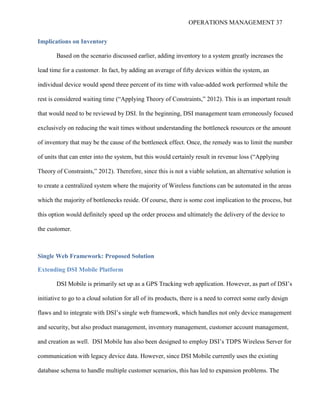
The user would be able to select a Language using the following steps:
Menu: Settings->Translations->Languages
As shown below, the user can easily create a language in order to fill the fields entitled
"name” and “local Code" and then check the field for "Translatable."
The user can also choose a specific language as a preferred language.
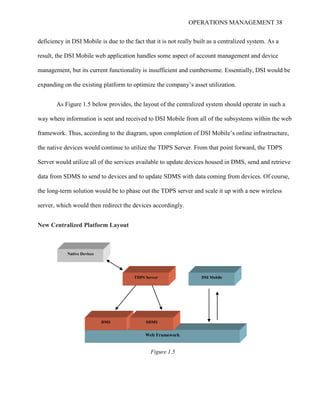
OPERATIONS MANAGEMENT 58
The user can also choose specific fields within the module to be translated by using the following
steps:
Select language and choose desired resource from list view
Menu: Settings->Translations->Application terms->Translated terms
There would be two text fields (Source term & translation):
o Source term is the existing field name that would need to be translated.
o Translation is the field, in which we have to add the desired translation for the 'Source term'
Click ‘save” then “reload” to see the Changes that were implemented.
OPERATIONS MANAGEMENT 59
If the customer selects any of the major shipping carriers such UPS, FedEx, and USPS as an
option, then there would be a section that allows the customer to enter an account number, which
would be used to process the customer’s shipping request. If the account number is not provided, then
the shipping cost would be added to the final bill.
When a customer is ready to activate the device, there would be additional parameters
available to the customer similar to the settings as shown in the diagram below. For example, the
system allows for the customer to have the option to choose a two hour ping rate for vehicles that are
stopped. There should be a legend per setting such as Ignition ON/OFF – with setting controls such
as “abcd123.”
Once the customer has chosen the device of choice and has clicked on “proceed to check out,”
the customer would be redirected to an order confirmation page where an order number would be
provided to reference the purchase. The confirmation number would also be cross-referenced with
DSI’s ticket number that is obtained from the Service Manager (SM). SM’s API would communicate
with DSI Mobile’s API and both the Ticket number along with order number would be provided to
OPERATIONS MANAGEMENT 60
the customer via email and updated in the Admin Manager page as well as the Customer’s Account
page.
DSI would need to integrate the order management into a ticket once an order is processed
successfully. The system would then create a ticket automatically through an API. Since the customer
and order information are already stored in DSI Mobile, then through this process the duplication of
data would be eliminated. Currently, order and ticket management are indeed a huge bottleneck since
such tasks cause the DSI employees to manage and maintain customers and devices in multiple
systems ranging from PinPoint, DSI Mobile, Service Manager, and QuickBooks.
In order to create a ticket API, first DSI would need to create a ticket that would contain the
customer’s information. Thus, the following steps must be taken into consideration in the ticket
creation process. First, if the customer information does not exist in DSI, then the system would
create a ticket through the Service Manager (SM) database, thus eliminating any customer
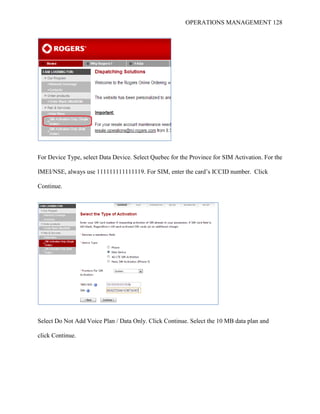
duplication. Second, DSI Mobile, through its built-in intelligence, would automatically search
through the account management system and determine which device is associated with a specific
order and customer profile. Thus, once the customer account has created an API, a device reference
would also be created in Service Manager, which would be linked to the equipment table. Once the
device is registered with Service Manager, a reference number would be created in the system, which
could be used to create any future tickets. Third, once the device is created in the SM, the system
would assign the customer profile to that device for future management of the device and the
customer.
For instance, when the DSI Support staff creates a support request to troubleshoot an issue
with a device, the staff can retrieve the ticket, select the customer, and click on the device list, which
would reference all devices associated with that customer’s account. This eliminates the time wasted
OPERATIONS MANAGEMENT 61
in sorting through countless accounts to find the device or the customer who has ordered that device,
making troubleshooting an easy task and improving customer satisfaction by having shorter response
time to resolving issues. Of course, the caveat to having such a flow to this automation process would
be for the DSI Engineering Department to implement an active synchronization process, which would
update all device associations in the SM once the device is changed in DSI Mobile. Thus, an API or a
server side process would need to be created, which would send an update request to the appropriate
system to keep the data up to date.
SIM Activation
First, a SIM activation module would need to be created in DSI Mobile. Next, a list of serial
numbers for the devices as well as the SIM card numbers would be provided to DSI by each
vendor/carrier. This list would be automatically inserted into DSI Mobile’s system. In this way, the
Wireless Department would not have to log into the carrier’s Web site to activate a SIM card and
obtain a phone to assign to a customer’s device and account. For example, consider SIM activation
for a Geometris device (VT101). The manufacturer, Geometris, would provide the serial numbers for
all VT101 devices via a CSV file to the module in the DSI Mobile system. Thus, the use of the
Pinpoint database to assign the SIM’s ICCID and phone number to a device would also be
eliminated. If DSI has adequate device quantity in inventory, then the module would automatically
assign a list of SIM cards, phone numbers, and device serial numbers with appropriate carrier(s) to a
customer(s). Now, the SIM is ready for activation, but the activation trigger would not be pulled until
after the device has been shipped to the customer.
Immediately after DSI has shipped the device to the customer, not only would the system
automatically send an email confirmation directly to the customer informing the customer of the
order shipment, but the customer’s account would also be updated showing a screen on the portal
OPERATIONS MANAGEMENT 62
with a grid of each device that has been sent out but not registered. A link would be provided in the
order history box for that device showing a SIM Activation Video notice along with an email
confirmation that would be sent out to the customer while updating the current status of the device
and SIM in the Device Management module where the device information would be housed. Upon
receiving the email alert, the customer would be able to log into his/her DSIMobile account where
s/he would be able to click on the “my devices” tab and then right click on each record to activate the
SIM. At that time, the system would automatically send the API to the appropriate carrier to activate
the SIM. Therefore, DSI would also need to implement a device threshold API, Artificial
Intelligence as well.
Device Threshold API Artificial Intelligence Implementation
A detailed API documentation should also be created by DSI’s Business Development
Department, preferably by an individual who has an in depth understanding of not only API
functionality and implementation, but the aptitude to recommend the appropriate API as well. For
instance, Kore’s PRISMPro™ has the API capability that DSI would be able to leverage as part of
its SIM activation and automation process (“Kore Telematics,” 2013). Thus, when a particular carrier
is considered, the carrier’s API’s should be made available to third party users. Therefore, it is
important for DSI to obtain more information to determine which of the three carriers that DSI uses
can provide their APIs to third party users. While the API would need to be implemented per carrier,
the common code that would handle the device processing should be the same and available for reuse
by each API (“Kore Telematics,” 2013). In addition, the carriers should also have the ability for DSI
to extract the following information:
 Return all available rate plans
OPERATIONS MANAGEMENT 63
o In the event that a data plan changes or a new plan(s) is added, DSI would be able to
retrieve a list of available plans and set the plans to the appropriate devices accordingly.
 SIMS Management
o Activate Devices (SIMS)
 Allow a set of SIMS to be activated
o Deactivate Devices (SIMS)
 Allow a set of SIMS to be deactivated
o Get SIM Details
 Give DSI information about the SIM such as IMEI number
o Suspend SIMS
 Suspend a list of SIM Cards
o Restore SIMS
 Allow to un-suspend (Restore) the devices requested
o Change Usage Threshold
 In the event a device it pinging excessively, the AI layer would auto roll up
device to prevent overages
 Billing
 Get Billing Details
o Provide all Billing Details for a specified billing date that can be optionally filtered by
a single device identifier and/or by tags
 Change Rate Plan
o Ability to submit a Rate Plan Change Request
 Add Add-On
OPERATIONS MANAGEMENT 64
o Ability to add SMS to a device
 Remove Add-On
o IE : Ability to remove SMS from a device
PRISMPro by Kore
Currently, DSI uses three different data plan carriers such as Kore, Raco, and Rogers. Using
Kore’s PRISMPro™ ability, DSI would have the benefit of using M2M (machine to machine) system
to activate a SIM card as shown below in the Figure 1.4 below (“Kore Telematics,” 2013).
Figure 1.6
By using a platform similar to PRISMPro, DSI would have the ability to provide its
customers the control to not only activate, but also deactivate devices in real-time. The platform
would provide a proactive threshold monitoring system with email alerts of any unexpected or
excessive usage of the data by allowing customers and DSI to set the appropriate usage thresholds
(“Kore Telematics,” 2013). DSI would have control of the threshold whenever the SIM is inactive
OPERATIONS MANAGEMENT 65
before the device is sold and when the device is returned to inventory. This ability to control the SIM
threshold enables DSI and its customers to reduce usage costs due to not having real time information
of the status of the SIM cards. The management of SIM cards can be done on a per device basis or
across all devices (“Kore Telematics,” 2013). Since KORE provides an API that supports XML Web-
services, this would allow both DSI to integrate all of its device activations and management through
an encrypted Web interface, making the entire process easy through one platform, which is DSI
Mobile. In fact, DSI could also use such a capability for device management to its elite customers
such as CAT and John Deere.
Device Configuration:
Since DSI would know which SIM, serial number, and phone number is associated with a
particular device, once the SIM has been activated and the device has een installed, the device can
communicate with DSI Mobile by sending its first request to DSI Mobile for registration. Upon
registration, based on the parameters the customer has chosen such as ping rate, ignition on/off (when
the truck is off the device reports its location, every 2 hours, when ignition is on, the device reports
location every 5 minutes) the server configures the device automatically by setting the parameters to
what the customer has indicated. If the customer’s parameters are the same as the default parameters,
then no configuration would be needed. Otherwise, the configuration would be initiated.
Shipping:
Ideally, the carrier’s API would communicate with DSI Mobile’s API. This capability would
mean that DSI’s Accounting Department can easily print the shipping label by extracting the
customer’s shipping information from the Account Management module. For example, DSI Mobile
offers shipping through FedEx. Therefore, the way the proposed shipping system would work is
OPERATIONS MANAGEMENT 66
through direct connection to FedEx’s API via the Internet (“FedEx Ship Manager,” 2013). FedEx’s
Ship Manager API is designed to use a secure Internet protocol (IPSec) and Hypertext Transfer
Protocol Secure (HTTPS), a secure communication method over a computer network, to establish an
Internet connection for passing information from DSI Mobile to the FedEx servers and then back to
DSI Mobile (“FedEx Ship Manager,” 2013). Basically, the system would automatically enter
packages into the FedEx shipping network—usually via computer-generated, bar-coded air bill.
Yet, in order for this functionality to occur for DSI, the company would first have to establish
a FedEx Account Number(s) in order to download the FedEx Ship Manager API (“FedEx Ship
Manager,” 2013). Once, a FedEx account number is established and FedEx’s Ship Manager API has
been setup, DSI would be able to take advantage of tools such as the FedExAPI Client Library, which
sends transactions to the FedEx servers: FedExAPI Parser Library, which is provides the ability for
DSI to insert and extract specific data fields within the transaction and FedExAPI Label Extensions
Library, which allows for such functionality like decoding the FedEx label and allowing Signature
Proof of Delivery to be saved to a file (“FedEx Ship Manager,” 2013).
Proposed Full System Overview
In figure 1.6 below, the directional arrows indicate that the system the arrow originates from
will access the system to which the arrow points. For DMS, the inventory management system will
access the DMS API to check for hard inventory (# of device available, # of device reserved, etc).
The DSI Service Manager Application will access the DMS API to push open any trouble ticket
summaries that are associated with each device in question. DMS will access the data account
management system to assign available data accounts to a device. DMS will also access the account
management system to access customer account information to assign to a device.
OPERATIONS MANAGEMENT 67
Device Management
System
Inventory
Management System
Order Management
System
Account Management
System
Data Account
Management System
Carrier Common API
Service Manager API
Kore
Raco
Other
Shipping Common
API
USPS
UPS
FedEx
Other
Service Manager API
Figure 1.6
OPERATIONS MANAGEMENT 68
DSI Mobile Proposed Platform
Based on the analysis and findings of the order process and bottleneck due to manual labor
involved in completing a device order, the following platform that aggregates all data entries in one
centralized system can be created. In fact, screen shots below provide the functional design
specification for the generation of the Dashboard Page in the Asset Management System. This page
will allow users to see lists of information for Assets and their components stored within the system.
This page is intended for DSI internal use only, based upon user permissions set in the Security
System. This screen will be used primarily by personnel for Device related support and maintenance
tasks within the Asset Management System. Thus, under this system, DSI team has an entry point for
inserting and updating information required for device entry into the Asset Management System.
Grid Requirements
o Columns Chooser (already built in dev-express) use dev-express default UI
 Save last column layout next time the control is rendered
o Add new record from Grid
 Must ensure to validate data as the form does
o Must be able to edit some of the rows directly from the grid
OPERATIONS MANAGEMENT 69
 For example, if the user wants to set ten rows to active, the user should be able to
through the grid having the data propagate to the back end
o Grid should have grouping (already built into dev-express control)
 Grouping criteria should be saved so that it loads it accordingly last time
 User can activate what he or she wants by dragging and dropping the columns to
rearrange the sequence.
OPERATIONS MANAGEMENT 70
o Add new
 Should open the form modally in add mode
o Double click
 Should open the form modally in edit mode
 On add new open the same form in edit mode
OPERATIONS MANAGEMENT 71
OPERATIONS MANAGEMENT 72
OPERATIONS MANAGEMENT 73
User then can click on the load grid control for the module on the right and highlight the selected
index in a different color to indicate that the left panel is selected.
Outlook Style Control
 Maintenance
o Use to maintain device look up list/ data entry
 Assets
o Use to maintain devices and SIM along with their associations
OPERATIONS MANAGEMENT 74
The end user can indicate which module is selected by highlighting the selected region.
Search
 Category drop down should contain a list of available columns
 User can select the column and the text box on the left and should perform a smart search that
will retrieve the values from the field. User can then select and have it put it into the textbox
using a delimiter
Category
 Dropdown list of searchable columns
OPERATIONS MANAGEMENT 75
Basic Page Layout
The system UI specification will dictate the final appearance of this screen. (The data shown
in the images is inapplicable for this discussion and it appears only for its descriptive value in
understanding the images). The left menu as shown will be hierarchal through pop open, initially
containing values for Assets and Maintenance at the highest level.
Assets
o The Asset section is design to get a snapshot view of the Devices and SIM Cards
within the system inventory (additional Asset Entities can be added moving forward).
Of course, depending on the menu selection, the respective values are displayed the
OPERATIONS MANAGEMENT 76
grid. The grid view can be filtered by the User as desired. Details for an Asset Entity
can be displayed through selection and clicking functionality to be detailed in the
following document. The altering of data from this view will be limited and controlled
through the User Security System.
 Devices: Grid to show list of Device values based on user selected filtering
criteria.
 SIM Cards: Grid to show list of SIM Card values based on user selected
filtering criteria.
o Pages here are primarily used for Device and SIM Card support and maintenance of
their association.
o See User Filtering/Search Functionality for detailed specification of this functionality
The SIM Card data shall be contained within the Account Management System. This
component shall reference values in that component through a defined pipeline that is controlled by
the Web Services associated with it. Also, the definition of the Account Management System is a
separate project. However, since this relationship is known at this time, it is suggested that the DSI
development team creates the left menu functionality and take steps to allow for quick integration.
OPERATIONS MANAGEMENT 77
Maintenance
When expanded, the Maintenance section will show selections to navigate to the different
maintenance pages displaying a list of Device components. Depending on menu selection, the
respective values are displayed on the grid. The grid view can be filtered by the User as desired.
Details for an Asset Entity can be displayed through selection and clicking functionality to be
detailed in the following document. The altering of data from this view would be limited and
controlled through the User Security System. Thus, the pages here are primarily used for lookup list
and data entry for Device management.
OPERATIONS MANAGEMENT 78
o See User Filtering/Search Functionality for detailed specification of this functionality.
o See Grid Functionality for detailed specification of Grid Control functionality.
The structure of this Dashboard is intended to follow an Outlook style navigation schema.
The Dashboard Header provides access/navigation to the multiple modules that will be available in
the system. Values that appear for selection are determined at login by the User Security System.
Selected value should be highlighted to indicate it is selected. User information, software version,
global system search, and button to logout (exit system) are shown. Constructing the header in this
way will allow for use throughout the system(s), providing a consistent look and feel to our
applications. It will also make the actual navigation consistent. When Users are using multiple DSI
Systems, the user would be able to easily navigate within each one. Also, once the menu button is
clicked, the Asset Dashboard will display be updated as shown below:
 Selected button is grayed to show selection.
 Header/Title in grid area is updated to reflect selected value.
 The grid is populated with values based on selection and User’s Column Chooser (See User
Filtering/Search Functionality) selections for the selection.
OPERATIONS MANAGEMENT 79
User Filtering/Search Functionality
Users can filter displayed grid results through two main methods: Column Chooser to limit the
columns presented for display, and Search functionality to limit the set of displayed values. These are
both built-in features of the Dev Express grid view.
Column Chooser
1) Select Column Chooser from drop menu
2) Display columns in table(s) currently used to populate grid and allows User to select which
columns to display (checkbox)
OPERATIONS MANAGEMENT 80
3) Save selections for User and repopulate grid based on selection.
This is used to select which values to display in each view. The System will need to store the selected
columns for each grid view for each User.
This is a built-in Dev Express component, implementation for use with the grid, and saving
functionality should be all that is required.
Search/Filter
1) Column Filter
a) Show list of values in column
b) Allows user to filter by a single selection
c) Can be used on multiple columns within the grid, narrowing displayed values appropriately
OPERATIONS MANAGEMENT 81
2) Column Search
a) User enters value in textbox
b) User selects search criteria in popup
c) Can be used on multiple columns within the grid, narrowing displayed values appropriately
3) Advanced Search
a) Click on link
b) Browser grays, modal popup to build advanced Search displayed
OPERATIONS MANAGEMENT 82
c) On ‘OK’ click, grid re-populated with values based on Search.
i) Search selections displayed at foot (under) grid
These are built in Dev Express grid features. Implementation effort should be minimal.
Grouping
1) Grouping is also a built-in feature of the DevExpress ASPxGridView. This should also be
implemented.
a) User drags column header to grouping area on page
b) Grid is refreshed, incorporating selected change
OPERATIONS MANAGEMENT 83
Grid Functionality
Implementation of a common control containing the DevExpress ASPxGridView with above
properties enabled and with the additional features needed, would allow each of the dashboards that
will appear in subsequent systems to use this common control. This will give consistency in
appearance and functionality across the DSi Systems, and reduce implementation time moving
forward.
A) Label to allow value to change per displayed values
B) Add new button to add new values
a. This control will be visible/not visible, so it can be set to not show in some instances.
b. Based on where in system and user permissions, this could be unavailable to a User
C) Paging control
a. Property of the ASPxGridView
OPERATIONS MANAGEMENT 84
OPERATIONS MANAGEMENT 85
Add New Click function
The “Add New” button will open the appropriate form modally for entry of a new record,
depending on the left menu selected item, currently in view. The browser page is grayed, and the
input screen shall appear on top of the page. The page is either enabled or disabled as described in the
specification for Edit Mode of the respective page.
Double Click grid row (Edit mode)
Appearance and method for page load are the same as Add New. The page is either enabled or
disabled as described in the specification for Edit Mode of the respective page.
OPERATIONS MANAGEMENT 86
Grid Row Editable Columns
Rows in the grid will have editable columns, based on the same criteria for the entry screens.
The values must also be validated in the same way before saving any changes to the database.
Customer Module
The customer module shall have an overview of customer profile information, general
account information as highlighted in red below, additional subscription to modules available by DSI,
current DSI storage notification, device count and invoice information. Thus, the customer module
provides all pertinent data at a glance to the DSI customers.
OPERATIONS MANAGEMENT 87
Conclusion and Recommendations
At this point, DSI is on a journey toward expanding its order operations from a few device
orders per day to fifty daily orders in the near future. Yet, with such an immediate increase in
demand, comes growing pains. Careful analysis of the company’s current order fulfillment process
has confirmed that DSI must streamline their methods for order processing and move away from the
conventional, manual processing methods using multiple systems that do not communicate with one
another. By continuing, the conventional method of order processing would certainly have a negative
effect on DSI’s business efficiency. Not only would it delay cash collection, slow down order
fulfillment turnaround time, and lead to high vulnerability to errors, but also lower the company’s
long-standing pride in having an excellent customer satisfaction rating.
Thus, in order to improve order processing performance, and through careful audit of the
entire order process, this field study has been able to determine where DSI’s bottlenecks are and has
concluded that implementing a single web framework platform can definitely provide many added
benefits to DSI. It would not only eliminate cumbersome document handling by removing manual
data entry, but also coordinate all process that must occur along the way and provide easy
accessibility to the information about the processes within a single system. As a result, centralization
provides DSI with automating inventory control as well as sales monitoring and forecasting.
This level of automation also enables businesses to increase production speed and responsive
time, thus making the entire process quicker and more efficient. This will reduce operational costs by
removing manual administration and adding business rules to corporate forms and reduce per-
transaction costs through streamlining. The company will ultimately realize the following
achievements: Save money while improving service; gain a clear view into the process by using and
sharing the information for more effective management; realize a rapid return on investment through
OPERATIONS MANAGEMENT 88
cost reduction; improving controls boosts the bottom line; and finally, ensuring high-quality
presentations through applying consistent rules to all of DSI’s online and offline processes. In short,
automation minimizes the amount of manual labor and the number of keystrokes required to complete
order processing, which enables DSI to improve the customer experience by increasing speed and
responsiveness. Indeed, centralization is a win-win proposal to DSI’s future success in order
fulfillment.
OPERATIONS MANAGEMENT 89
References
Applying Theory of Constraints to Manage Bottlenecks. (n.d). Retrieved on August 20, 2012 from
http://www.isixsigma.com/methodology/theory-of-constraints/applying-theory-constraints-
manage-bottlenecks/
Automating Sales Order. (n.d) [PDF Document]. Retrieved on August 7, 2012 from
http://www.esker.com/fm/others/005-Esker_OnDemand_WhitePaper_SOP-US.pdf
Customer Sign-in. (n.d). Retrieved on September 27, 2012 from
https://www.amazon.com/gp/css/homepage.html/ref=ap_frn_ya
FedEx Ship Manager. (n.d) [PDF Document]. Retrieved on January, 22 2013 from
http://images.fedex.com/us/solutions/wis/pdf/TagTransGuide.pdf?link=4
Kore Telematics. (n.d). Retrieved on January 3, 2013 from http://www.koretelematics.com/the-kore-
difference/prismpro-business-management-portal.html
Process Analysis. (n.d.). [PDF Document]. Retrieved on December 7, 2012 from highered.mcgraw-
hill.com/sites/dl/free/.../Jacobs1ce_Ch06.pdf
Reid, R. D., & Sander, N. R. (2007). Introduction to Operations Management. [PowerPoint
Presentation]. Retrieved on December 19, 2012 from
www.csus.edu/indiv/b/blakeh/mgmt/.../OPM101Chapter1.ppt
Why DSI Mobile (n.d). Retrieved January 9, 2013 from
http://www.dsimobile.com/whydsi/index.html
OPERATIONS MANAGEMENT 90
Exhibit A
Check that ticket has necessary info, such as shipping address: Enter shipping address in JobSite field
of Service Manager Database—outside of the norm. Change Status to In Progress.
Pull SIM(s) and Device(s) from inventory. (40 seconds)
SIM Card Activation Process
Log into Kore (AT&T carrier), Rogers (Canadian carrier) or Raco (T-Mobile carrier) SIM card
activation website, then activate a SIM card and to also select wireless data plan. Customer
specifications will define the mobile carrier. Kore used for the sample Geometris device however
refer to Appendix I, for an illustration of activation activities for both Rogers and Raco.
OPERATIONS MANAGEMENT 91
Log into Kore’s Prism Pro website at https://prismpro.koretelematics.com/Default.aspx and Enter
User Name and Password
Submit list of SIM cards to be activated and select the data and SMS plans. (2 minute, 40 seconds)
Click on Activate Now
Select KORE USA GSM (Gold) as Service Type. For most SIM activations, use the Checkbox List.
If it is a large order, 25 or more, then use the File Upload Option.
OPERATIONS MANAGEMENT 92
Check off the SIM(s) that are to be activated and click Proceed.
Select the features and enter the settings that are highlighted in the image below. Click Proceed.
OPERATIONS MANAGEMENT 93
Confirm that the details of the order are correct. Then select “Send to the address I Enter” option
and enter your email address. Click “Confirm Activation Request”. Two emails will be sent to your
email address for the activated cards. One active request confirmation and one with the phone number
account assigned within a few minutes.
After SIM card is activated, enter the phone numbers assigned by the carrier; assign SIM card to the
device and customer in the Pinpoints/Data Tracker Database. One email sent from the carrier will
OPERATIONS MANAGEMENT 94
contain the information needed and the other will have the active request confirmation number and
other will have phone number and account numbers assigned to SIM card.
Device Configuration Process
Open Pinpoint (Device Tracker) database; if Customer does not exist, then create them in the data
base. Pinpoints must be installed active on WD’s PC.
OPERATIONS MANAGEMENT 95
Expand Tables Column, Click the arrows.
Click on “Customers”
Scroll down to bottom of list and enter new Customer Name and “DSI Mobile” for Notes. Click in
any other cell, then close “X” to save Customer information
OPERATIONS MANAGEMENT 96
Click Data Account Tracker to enter phone numbers SIM card account data
Type SIM card number in Search field, then click Refresh
OPERATIONS MANAGEMENT 97
Type in SIM card Phone Number. Type “5MB Pooled” for Provider Plan. Type “Sub” for Account
Number. Change Account Status to “Active”. Close with “X”.
OPERATIONS MANAGEMENT 98
Click on “Pin Point Tracker”.
Enter the device’s serial number in the Search box and press Enter.
OPERATIONS MANAGEMENT 99
Change CustomerID to the specified customer on the order. Change PinpointStatus to “Active”. Click
on the magnifying glass under the DataAccount column.
Enter the last 5 or 6 numbers of the SIM card. Press Enter or click Search. When the results appear,
double-click on the SIM or select it. Click Retrieve.
The SIM’s ICCID and phone number are now assigned to the device.
OPERATIONS MANAGEMENT 100
Plug devices in on the counter near the window for testing. Test device and send text message from
cell phone. Send DIAG + sign and your cell phone number (example- DIAG +9516453098). While
devices are testing, create customer’s DSI Mobile account, if one does not already exist.
Open Windows Explorer and go to www.DSImobile.com and click Login
Enter User Name, Password and click Login or press Enter.
OPERATIONS MANAGEMENT 101
To Add New Customer, click Settings tool. Click on Customer Accounts tab. Click on Add New
Customer.
Enter customer information then click Submit.Customer Login Name should the company name
without spaces. The Password should be the company name with no spaces and the number 1 after it
(example: User Name- JoesTrucking, Password- JoesTrucking1). Add this information the
customer’s profile in DSI Service Manager.
OPERATIONS MANAGEMENT 102
Locate the Customer Name and Click in the Devices Column
Locate the new device at the bottom of the “Available Device” column and click on it. Click on the
single arrow key to add device to Account Devices column. Click on Save Changes.
OPERATIONS MANAGEMENT 103
Click on Devices Tab and go to last page. Verify the device serial number has been added. It should
be the last serial number on the list. Logout of the DSI admistrative.
Once device connects to DSI Mobile, assign it to the customer’s account. Log into customer’s
account, create a fleet and assign the device to the fleet. Sign into customer’s account using the
customer name and password previously created.
OPERATIONS MANAGEMENT 104
Click on the Settings Icon
Verify Time Zone under Map tab and Click on Fleets tab
OPERATIONS MANAGEMENT 105
Click Add New Fleet. Enter customer’s Name for the fleet. Click Submit.
Click on the Pencil icon of the newly create Fleet to add device to the fleet.
OPERATIONS MANAGEMENT 106
Click and highlight device serial number from the Select column. Click single arrow key to add the
serial number to add the Device in Fleet column. Check box “Include on my map”. Click Save
Changes.
Click on Devices tab and verify the device serial number is displayed. Click on Map tab to see device
on Map and Logout of customer account.
OPERATIONS MANAGEMENT 107
After device(s) pass SMS, GPS and communication test, disconnect them from power so that the
SHIPMODE command can be issued.
Close and Package Process
From cell phone send the text SHIPMODE to each device via SMS and verify that device shut down.
In DSI Service Manager, update the customer profile with the DSI Mobile User Name and Password,
add all parts used, print the shipping documents, and change status to invoice.
To update customer profile from the DSI Service manger Dashboard, Click on list, then click on
Customers.
OPERATIONS MANAGEMENT 108
Type in Customer name and click on Search. Double click the customer to display profile.
Enter the DSI Mobile User Name and Password you created into the “Notes” field. Click Save
OPERATIONS MANAGEMENT 109
Add the device serial number to the Parts tab on the ticket in Service Manager database along with
the wiring harness and SIM. This is for Accounting Dept to see what to bill for and also to create the
packing slip.
Open the ticket and click Tasks Header in the ticket window
Click Parts tab, Click Add New. Enter part of the device number and click binoculars to search for
part.
OPERATIONS MANAGEMENT 110
Highlight part number to add. Click OK. Proceed with the same steps for each different part number
SIM, Device..
Enter device serial number(s) in the “Deliver To” field. Click Save.
OPERATIONS MANAGEMENT 111
Print out packing slip, save it as a PDF file and attach file to ticket. Click on the Service Header Tab
and verify hipping information is and enter the shipping method in the Directions field.
From the DSI Manager Dashboard, click on Reports, highlight DSI Internal Reports, click on Packing
Slip
OPERATIONS MANAGEMENT 112
Right click on Add More Filter Criteria two times to show the filter criteria fields.
Right click on the on the first Address 1 field, highlight Ticket No. and right click to choose.
Right click on the on the second Address 1 field, highlight Segment No. and right click to choose.
OPERATIONS MANAGEMENT 113
Enter the ticket number for Filter Name and the Ticket No. criteria. Enter 99 for Segment No. criteria.
Right click Save
OPERATIONS MANAGEMENT 114
Right click Run Report to show packing slip.
Verify customer information is correct. Right click File, highlight Export, right click PDF file. Right
click ok on dialog box and save as the “Customers Name” in file you have designated for Shipping
forms. Print the Packing Slip.
OPERATIONS MANAGEMENT 115
Put one device and one harness in their small plastic bag and seal it. Print out Installation guide. Pack
the devices along with installation guide and packing slip. Provide the box to Accounting Department
for shipping. At this time, the ticket is changed to Invoice Created in the DSI Service Manager and
Action Required check box is marked that sends an automatic email to Accounting Department that
order has been completed by WD.
Shipping
Accounting department verifies the information in the ticket and logs into the appropriate shipping
carrier’s site (FedEx, USP or USPS) to create the shipping label using and schedules a pick up for
delivery of the package to the customer. The tracking number associated with the order is also
entered in the DSI Service Manager under the Note Tab.
OPERATIONS MANAGEMENT 116
Exhibit B
OPERATIONS MANAGEMENT 117
OPERATIONS MANAGEMENT 118
OPERATIONS MANAGEMENT 119
OPERATIONS MANAGEMENT 120
Exhibit C
Before beginning the installation process, check to make sure that you have the device along with all the
required wiring and components.
For safety reasons, please switch off your car and disconnect the battery from the car to avoid any
electrical shock. This should be performed when installing any device into the vehicle.
Select a location in your vehicle for your GPS device. The best possible location is under the
dashboard in front of the driver. It should be installed label side up.
The GPS device needs direct access/exposure to the sky. This means the device cannot be blocked by
any steel within the dashboard, or be placed under tinted glass. GPS devices can function through foam,
fiberglass, glass and plastic, but not through steel or tinted glass. As long as there is no steel or tinted
glass, between the device and the sky, the device should function properly.
OPERATIONS MANAGEMENT 121
When connecting the wires between the device and the vehicle, always use the solder and tape
method. Do not use scotch-lock style or connect bare wires. Using “quick fix” methods will result in a
poor quality installation and result in having to re-install the device in the near future. A high quality
install will insure that this process will not have to be revisited again.
Note: The device should never be visible to the driver. Also, the device and all its respective wiring
should be secured properly, so as to avoid being dislodged when the car is in motion. Device can be
mounted using Velcro and/or screws. If using Velcro, be sure to thoroughly clean the surface where the
device will be mounted.
Next, verify the wiring connections.
Please note: it is very important that the correct, corresponding wires are connected between your
vehicle and the device. Failure to adhere to these standards will result in damage to the device and/or
your vehicle.
Red: (Power) 12V+ power lead. Connect this lead to a 12V+ wire directly to the vehicle’s battery.
Black: (Ground) Connect this to the vehicle’s chassis ground.
Brown: (Ignition wire) Connect this wire to the vehicle’s 12V+ ignition wire. The ignition wire will read 0
volts at rest and 12V+ when the ignition is on the “start” and “on” positions.
OPERATIONS MANAGEMENT 122
Power up the device for the first time and check the LED display. Note: The device typically is shipped in
sleep mode, so it may be necessary to turn the ignition to the ACC position upon initial installation.
Each device is equipped with 2 LEDs so that the installer can check immediately to see if the device is
functioning properly.
Green LED: Status
No Flash: The ignition has not been turned on.
Off for 1 second: GPS Module is powered and signal is valid, Cell Module is
powered, ignition is on.
Off for 3 seconds: GPS Module is powered and signal is valid, Cell Module
is powered, ignition is off.
Red LED: Errors
1 Blink: The modem is not detecting the SIM card.
2 Blinks: The modem is not detecting a cellular signal.
3 Blinks: The GPS receiver is not detecting any satellites.
4 Blinks: The modem has no cellular signal AND GPS is not tracking any
satellites.
5 Blinks: The modem is not detecting a SIM card and GPS is not tracking
any satellites.
6 Blinks: The modem is not responding and maybe defective.
7 Blinks: The modem is not responding and maybe defective and GPS is not
tracking any satellites.
OPERATIONS MANAGEMENT 123
OPERATIONS MANAGEMENT 124
TTL-232R-3V3-22m Connector Pin Out and Mechanical Details
OPERATIONS MANAGEMENT 125
Appendix I
SIM Activation and Plan Selection: Raco and Rogers
How to Activate a RACO T-Mobile SIM card
Log into the RACO Omega Management website at https://t-
mobile.racowireless.com/web/Login.aspx
After logging on, click on Manage>Manage Orders
Under Create a new Order, select Activate On-Hand SIM cards.
OPERATIONS MANAGEMENT 126
Select the SIM(s) to be activated in the left column and use the single arrow to transfer selection
to the right column. Select the Rate Plan. DSI uses Flat Rate Plus 3MB VB.
Select the appropriate SMS plan. If this is for a Geometris, Atrack or other type of black box
device, select the 30 SMS plan. If it is a smart phone or tablet type device, select Block SMS. Set
the Roaming to None (regardless of device type). Set the Alert Threshold as pictured, enter the
customer name as the Tag, and put the ticket number in the Notes field. Click Submit Order.
OPERATIONS MANAGEMENT 127
How to Activate a Rogers SIM Card
Log into Rogers Direct website.
https://secure.rogersdirect.ca/authenticate/logon.asp?lng=&programID=0&program=bulk
Enter the Passcode and click Login.
If activating just one SIM card, click on SIM Activation Only (Single Order).
OPERATIONS MANAGEMENT 128
For Device Type, select Data Device. Select Quebec for the Province for SIM Activation. For the
IMEI/NSE, always use 111111111111119. For SIM, enter the card’s ICCID number. Click
Continue.
Select Do Not Add Voice Plan / Data Only. Click Continue. Select the 10 MB data plan and
click Continue.
OPERATIONS MANAGEMENT 129
Under Additional Wireless Option, select Text Messaging under SMS Packages. Everything else
should be unchecked. Click Continue.
The default values for the Account Information page and the Address Information page should
be fine. Click Continue on both. Under Credit Information, enter 514 for Preferred Area Code,
PQ for Province, and Quebec as City. WD member would need the name and email and our main
phone number within the WD. Click Continue.
OPERATIONS MANAGEMENT 130
Verify that order information is correct which can be seen in the order summary page and click
Submit. Make a note of the Order number. In order to the test the device at DSI office, WD
would need to ask Rogers to temporarily enable the Roaming feature on the SIM card. Send the
request to ESD1@rci.rogers.com and include the SIM’s ICCID and the order number and copy
both Accounting and Wireless departments on the email.
OPERATIONS MANAGEMENT 131
Appendix II
DSI’s Available Devices
OPERATIONS MANAGEMENT 132
OPERATIONS MANAGEMENT 133

Field Study Paper 2-25-13_Bahareh's Final

  • 1.
    OPERATIONS MANAGEMENT 1 OPERATIONSMANAGEMENT: IMPROVING ORDER FULFILLMENT PROCESS BY BAHAREH SEIFIKABIR University California, Riverside FIELD STUDY PROJECT: DISPATCHING SOLUTIONS, INC Submitted in partial fulfillment of the requirements for the degree of Masters in Business Administration in the Graduate School University of California, Riverside 2013
  • 2.
    OPERATIONS MANAGEMENT 2 ©Copyright by Bahareh Seifikabir 2013 All rights reserved
  • 3.
    OPERATIONS MANAGEMENT 3 Abstract Operationsmanagement is central to the success of any organization since this business function is responsible for not only planning, and coordinating, but also controlling the resources required to produce and deliver a certain mixture of goods and services as output to customers. In fact, no business can truly exist, at least not for very long, without functioning efficiently. The efficacy of business function also depends on making sound decisions, which have substantial impact on the production cost and ultimately an organization’s profits. In this field study, the activities within the order fulfillment process of a local software company, Dispatching Solutions, Inc. (DSI), was analyzed. Since order fulfillment involves more than merely providing products to customers, important activities within the order processing operation were evaluated. Any bottlenecks within the process were identified to improve capacity of output. One of DSI’s main challenges has been manually processing orders by using multiple databases to complete the following: create customer accounts, retrieve information from an existing customer account, activate SIM cards for devices, to configure devices, assign devices to customers; and other activities associated with order fulfillment. Thus, due to the fact that there is no centralized system, order fulfillment is cumbersome and time consuming for DSI staff. By developing a centralized system through which various databases can communicate with each other and automate the majority of labor intensive activities within the ordering process, DSI can easily increase its order capacity in the near future. Thus, two real time scenarios involving fulfillment of one and multiple orders of a popular GPS device were tested. During these tests, the bottlenecks limiting the processes were identified. It was determined that the best solution for increasing capacity is to move DSI to a single web framework. This is thoroughly discussed in this paper.
  • 4.
    OPERATIONS MANAGEMENT 4 Dedications Dedicatedto my family and loved ones To my parents for their continuous love and support To my husband for believing in my abilities and encouragement To my two wonderful sons for making me laugh and enjoy life To my Grandparents for watching and guiding my spirit from the Heavens above
  • 5.
    OPERATIONS MANAGEMENT 5 Acknowledgments Iwould like to acknowledge those who have helped me making my dream of obtaining a master’s degree possible. Thanks to Professor Richard Savich for keeping the EMBA program alive. Thanks to Professor Roger Conway for providing wisdom in how to be a good leader both professionally and personally. Thanks to Dr. Yunzeng Wang for his dedication to excellence and for ensuring the success of all members of Cohort III. Thanks to my EMBA cohort for their continued support and collaboration. Finally, thanks for DSI’s employees for allowing me to be part of their world and sharing their knowledge in order for to be complete this field study.
  • 6.
    OPERATIONS MANAGEMENT 6 Tableof Contents Abstract........................................................................................................................................... 3 List of Tables and Figure................................................................................................................ 8 Introduction..................................................................................................................................... 9 Objective....................................................................................................................................... 10 Company Background ................................................................................................................ 111 Current Order Processing: Work Flow Diagram ........................................................................ 144 Evaluation Current Order Process: ............................................................................................... 15 Order Processing Activities of Geometris (VT101): Timed Work Flow ..................................... 17 Analysis of Current Capacity........................................................................................................ 23 Analysis of Current Findings: Geometris ..................................................................................... 23 Order Processing Activities of Micronet (CE507): Timed Work Flow........................................ 27 Analysis of Current Capacity: Micronet....................................................................................... 32 Analysis of Current Findings: Micronet ....................................................................................... 32 The Effect of Inventory................................................................................................................. 35 Implications on Inventory............................................................................................................. 37 Single Web Framework: Proposed Solution................................................................................. 37 Internalization ............................................................................................................................... 56 Conclusion and Recommendations............................................................................................... 83 References..................................................................................................................................... 89 Exhibit A....................................................................................................................................... 90 Exhibit B..................................................................................................................................... 116 Exhibit C..................................................................................................................................... 120
  • 7.
    OPERATIONS MANAGEMENT 7 AppendixI .................................................................................................................................. 125 Appendix II................................................................................................................................. 131
  • 8.
    OPERATIONS MANAGEMENT 8 Listof Tables and Figures Table 1.1 One Customer- Five Orders of the Same Device Type (Geometris) Table 1.2 Multiple Customers- One Separate Order of the Same Device Type (Geometris) Table 1.3 One Customer- Five Orders of the Same Device Type (Micronet) Table 1.4 Multiple Customers- One Separate Order of the Same Device Type (Micronet) Figure 1.1 DSI Mobile Roadmap Figure 1.2 Current Order Processing: Work Flow Diagram Figure 1.3 Process Flow Figure 1.4 New Centralized Platform Layout Figure 1.5 PRISMPro by Kore Figure 1.6 High Level Overview of All the Major Systems
  • 9.
    OPERATIONS MANAGEMENT 9 Introduction Theidea behind an operation is to add value by converting input such as materials, labor, or even capital equipment into useful outputs as in an actual product or service. Since an operation is composed of processes that have a significant influence on a company’s performance, it is imperative to improve these in an effort to provide the company with a better competitive edge (Reid and Sander, 2007). The first step toward improving a process is determining if the process is operating at capacity or not. Thus, to make such an assessment, the activities within the process and the relationships between these activities must be analyzed as well (“Process Analysis,” 2012). The second step is to identify what activity or set of activities are limiting the output, thereby creating a bottleneck, which is essentially the slowest activity or task within the process. This is a critical part of process analysis since identifying a bottleneck(s) would not only determine the process but also provide the opportunity to increase that capacity as well (“Process Analysis,” 2012). The third step is to find possible solutions that would improve the process by making bottleneck activity more efficient to increase process capacity, adding an additional resource such as additional personnel to increase bottleneck capacity or move the activities away from the bottleneck resource as much as possible (“Process Analysis,” 2012). Essentially, for the majority of companies that are in the business of providing goods to their customers, delivering high level customer service will not only retain their current customer base, but also obtain new customers, which is paramount. To achieve this goal, it is essential to have a robust and effective order management system in place that is capable of meeting the customers’ needs and fulfill any order obligation with quick turnaround time (“Process Analysis,” 2012). Of course, the challenge often has to do with limitations in activities within the ordering process that can decrease capacity and ultimately limit the output. Hence, when an order or even multiple orders are placed by
  • 10.
    OPERATIONS MANAGEMENT 10 acustomer or groups of customers that are fulfilled quickly, the delay in order fulfillment would lead to poor customer experience and decrease customer satisfaction. The outcome would be a decrease in order activity and a decline in sales volume. Objective For Dispatching Solution, Inc. (DSI), fulfilling a customer’s device order is currently a labor intensive process. This is mainly due to the fact that DSI device orders are handled through manual data entry using multiple support databases that store and manage vital information necessary for completing an order. The company’s management team has proposed creating a centralized system (using DSI Mobile). Here, the most labor intensive activities within the ordering process such as searching for customer information, customer server information, and device activation can be completed without having to use multiple systems that do not talk to each other (refer to Figure 1.1 for DSI Mobile Roadmap). In this way, order processing capacity can be improved. However, the team was unsure if centralization would in fact render favorable results as projected (“Automating Sales Order,” 2012). The purpose of analyzing DSI’s order processing operation is to ultimately determine how many GPS device orders the company could actually fulfill with its current process as well as how they can improve the output capacity should their current methods render unfavorable results. In addition, as part of the process analysis and to determine whether automation would in fact improve the capacity, each activity of the current order process was timed and analyzed (“Automating Sales Order,” 2012). The deficiencies within the system were identified. And, the databases used in managing important information for order processing were also evaluated to see if automation would make sense and if creating a centralized internal support system would be possible (“Automating
  • 11.
    OPERATIONS MANAGEMENT 11 SalesOrder,” 2012). A detailed analysis of current order activities are laid out in a subsequent section of this paper labeled “Order Processing Activities: Timed Work Flow.” DSI Mobile Roadmap Company Background In the Beginning from 1991-2001 Similar to many entrepreneurially-based companies, DSI has an interesting beginning and, certainly, an exciting and promising future. The foundation of the company began in 1991 when the founder, Jim Jackson, began working as a freelance programmer providing software-based solutions to local trucking companies in need of organizing their dispatch workflow (“Why DSI Mobile,“ 2013). Jim’s natural intrigue in problem solving and product development led to the creation of his Figure 1.1
  • 12.
    OPERATIONS MANAGEMENT 12 firstsoftware system that would fulfill the needs for dispatchers. He called it “Transport System.” In fact, the software solution is now embraced by Caterpillar. After ten years of hard work and establishing a long lasting client base, Jim officially created DSI in 2001. The company’s primary focus was to provide businesses that specialized in equipment service, transportation, or rental industries with service and nationwide transport management software solutions (“Why DSI Mobile,” 2013). The company also added a full feature GPS tracking such as Geometris’s black box devices to its list of products. For the next ten years, DSI continued innovating and perfecting many other software solutions such as Service Manager and refining its GPS offerings. The company steadily increased growth and revenue through its unparalleled customer service, innovative technology, and solution-based offerings, which helped DSI to charter the murky waters of the 2008 economic downturn without hurting its bottom line (“Why DSI Mobile,” 2013). Rapid Growth in 2011 In fact, the success of the company was further enhanced when in 2011 DSI signed an official agreement with John Deere, providing the agricultural giant with field service and transportation solutions to its worldwide dealer network. By utilizing Field Service, companies like John Deere are able to manage their essential aspects of operations such as order management, GPS asset monitoring, labor tracking, invoicing, intelligent mapping, and routing in order to reduce errors and ultimately save time. Of course, the agreement with John Deere was a catalyst for a period of rapid growth for DSI, not just in the form of revenue generation, but also in company size and resources necessary to ensure milestones and product deliverables were on task and completed without any glitches.
  • 13.
    OPERATIONS MANAGEMENT 13 Outlookfor 2012 and Beyond Recently John Deere has discussed funneling all of its dealers’ GPS device orders directly through DSI. While this is indeed a fantastic revenue generating opportunity for DSI, it imposes some challenges that would need to first be considered to ensure this endeavor is successful. Obviously, since John Deere has a large volume of dealers, there is a great possibility that the number of device orders placed through DSI would likely exceed DSI’s current capacity for order processing. In fact, DSI’s goal is to process 50 device orders per day or 200 orders per month beginning in 2013 without having to hire any additional personnel in the order processing departments. Additionally, John Deere’s order placement is projected to begin in four to six months from now, targeted for April of 2013. Considering these facts, DSI has decided to launch an investigation of its current order processing activities in an effort to identify the bottlenecks and improve its capacity as quickly as possible. This will ensure they are prepared for any future device order placement, not only from John Deere dealers, but also from any of their existing or future customers as well.
  • 14.
    OPERATIONS MANAGEMENT 14 CurrentOrder Processing: Work Flow Diagram Sales Department sets ticket to “Quote,” informs Accounting Department Accounting Department Validate Quote Ticket information complete? Accounting Department sets ticket to” Allowed to Invoice”, informs Wireless Department Inventory Instock? Wireless Department SIMCard Activation Using Carrier Website Device Configuration/ Testing Obtain information needed to complete verification Inventory received Close & Package Shipping Customer Contact customer to verify information Troubleshoot Reset Command No No Yes Yes Yes No Contact manufacturer Verification Complete? No Yes Connection? Command Successful? Yes No Figure 1.2
  • 15.
    OPERATIONS MANAGEMENT 15 EvaluationCurrent Order Process: Sales Department In reviewing the above diagram, whenever a customer orders a specific device, the order is first processed by the Sales Department, which manually creates an order ticket using DSI Service Manager (SM) database as shown in Exhibit A. However, for this field study, the Geometris black box device is used to illustrate the current order process. The ticket that is created through the SM would need to have all of the necessary information such as device price, customer PO (purchase order), name of the business, contact name and number, quantity of devices requested, device model, shipping address, and the desired delivery date for the order in the SM. Of course, if the order is for an existing customer, then the data entry portion of ticket creation would be minimal. However, a new ticket for the order would still need to be created. At this point, the Request Status drop down box of the ticket is set to “Quote,” as shown below. Lastly, an email notification is then sent to the Accounting Department indicating that an order has been placed in the system using the “action required” check box in the same SM database. The entire process takes five minutes to complete, provided that all of the pertinent information such as order quantity, shipping information and contact information is given by the customer at the time the order is received. However, there are incidences where an order is placed via email rather than telephone, in which case the Sales Department would need to first contact the customer to verify the necessary information before proceeding with the ticket and quote creation processes. Accounting Department Once the Accounting Department is alerted via email by the Sales Department that an order has been placed and entered into SM database, an invoice is created within Quickbooks. It is based on the information that has been previously entered into the SM database. Generally, this process takes
  • 16.
    OPERATIONS MANAGEMENT 16 onlyfive minutes to complete, provided that all of the pertinent information such as shipping, pricing, and PO is already entered into the SM. However, in the event that important information in the ticket is missing, the Accounting Department would need to contact the customer directly to obtain the necessary information in order to create an invoice. This could potentially cause delays in the ordering process. Next, the Accounting Department reviews the Inventory System to ensure that the order can be fulfilled based on the available device volume that is found within the system. Once the Accounting Department has confirmed the quote and the availability of the inventory, an invoice is then created for that order and the ticket status in SM is changed from “quote” to “invoice created.” An email notification is then sent to the Wireless Department (WD) using the “action required” check box in the same SM database, alerting the Wireless Department that a new order is ready for verification as well as SIM activation and finally the device configuration process. Wireless Department Upon receiving an email alert from the Accounting Department that an order is now ready to be processed, the account information is verified and the product is configured and activated before closing the ticket as well as packaging the device for shipment. The majority of the order processing activities in the Wireless Department are also completed manually, which is the root cause of the bottleneck and limited capacity of output. As a result the same data is entered manually throughout various databases for the same fields. For instance, first the Wireless Department logs into the SM to review the information contained within the ticket in order to obtain the device quantity, customer contact information, and shipping information. Next, using the carrier’s database, the Wireless Department logs in to activate the SIM card and obtain a phone number associated to that SIM. Once the SIM is activated, the Wireless Department then logs into the PinPoint Device Tracker database to create a customer account and assign the SIM’s ICCID and phone number to the device that the
  • 17.
    OPERATIONS MANAGEMENT 17 customerhas chosen. Finally, the Wireless Department manually configures the device by sending a command to the device to ensure its parameters such as ping rate and ignition on/off are set up in accordance to the customer’s request. These parameters are important because the ping rate and ignition on/off parameters can either be configured based on customer specification or based on default parameters that are preset by DSI. The ping rate is based on the data plan that DSI has chosen previously with its three carriers such Kore, Raco, or Rogers. The ignition on/off indicates the rate in which a GPS device tracks a truck’s location at the time when the ignition is turned on or off. Once the device has been configured, the Wireless Department logs into the DSI Mobile Database and creates the customer account login information. This information is also entered manually into the SM database along with the device’s serial number, the wiring harness, and SIM information for that device, which are logged into the Parts section of the SM database. Next, the Wireless Department creates the packing slip, prints a copy of the devices installation guide, and places the device(s) in the shipping package for the Accounting Department to create the shipping label and schedule a pickup time for delivery of the shipment to the customer. The entire process described above is completed manually, which is time consuming. In fact, the next segment of this paper provides each step of the order process with the length of time each department (such as Sales, Accounting, and Wireless) take for processing one Geometris device (refer to Exhibit A for additional Geometris device information). The results are astounding. Order Processing Activities of Geometris (VT101): Timed Work Flow The following section provides a detailed timed analysis of each activity that would need to be completed in order to process and fulfill just one Geometris device order. Additionally, to identify the possible bottleneck(s) hindering the current order output, total processing time for each department has been provided in bold at end of each segment.
  • 18.
    OPERATIONS MANAGEMENT 18 SalesDepartment:  Create a quote and enter customer information and quote information into the Service Manager, then send a notification via email to the Accounting Department: (5 minutes) Accounting Department:  Once notice from the Sales Department is received, create an invoice and send an email notification to the Wireless Department: (5 minutes) Wireless Department (WD): Verification  Once notice from the Accounting Department is received, verify that the ticket has necessary information, such as contact name, order quantity, and the shipping address. In this case, the ticket information was incomplete. Therefore, the Wireless personnel had to enter the shipping address into the Jobsite field of the Service Manager Database before setting the ticket Status to “In Progress”: (1 Minutes 45 seconds)  Obtain SIM(s), device(s) cables from inventory: (30 seconds) Total time for verification ≈ 2 minutes SIM Activation There are two additional carriers that DSI utilizes depending on which device is ordered— Raco and Rogers (refer to Appendix I to steps to SIM activation through these two carriers).  Log into carrier, Kore’s Prism and enter User Name and Password: (18 seconds)
  • 19.
    OPERATIONS MANAGEMENT 19 Click on “Activate Now.” Next, select KORE USA GSM (Gold) as Service Type. For most SIM activations, use the Checkbox List. If it is a large order, 25 or more, then use the File Upload Option. Check off the SIM(s) that are to be activated and click Proceed: (38 Seconds)  Select the features and enter the appropriate settings and click Proceed: (52 seconds)  Confirm that the details of the order are correct. Next, select “Send to the address I Enter” option and enter your email address. Click “Confirm Activation Request:” (28 seconds)  After SIM card is activated, enter the phone numbers assigned by the carrier; assign SIM card to the device and customer in the Pinpoints/Data Tracker Database. Two email notifications are sent to the Wireless Department from the carrier containing the information needed for configuration process. One email provides the active request confirmation number while the other provides the phone number and account numbers assigned to SIM card. (4 minutes and 48 seconds). Total time for SIM activation ≈ 7 minutes Device Configuration  Install SIM card to the device as the SIM card is shipped to DSI from the plan provider and the device is shipped to DSI manufacturer: (2 minutes 10 seconds)  Open Pinpoint (Device Tracker) database. If the customer does not exist, create an account for the customer in the Pinpoint database. Pinpoints must be installed and active on your computer. Expand Tables Column, click the arrows and select tab labeled “Customers.” Scroll down to the bottom of the list and enter new Customer Name and “DSI Mobile” for Notes. Next, click in any other cell, then close “X” to save Customer information: (1 minute 7 seconds)  Click “Data Account Tracker” to enter the phone numbers. In SIM card account data Type SIM card number in Search field, then click Refresh. Next, type in SIM card Phone Number, “5MB
  • 20.
    OPERATIONS MANAGEMENT 20 Pooled”for Provider Plan, “Sub” for Account Number. Change Account Status to “Active” and then Close with “X”: (1 minute 8 seconds)  Click on “PinPoint Tracker,” and enter the device’s serial number in the Search box and press Enter. Change Customer ID to the specified customer on the order and change Pinpoint Status to “Active.” Click on the magnifying glass under the Data Account column. Enter the last 5 or 6 numbers of the SIM card. Press Enter or click Search. Once the results appear, double-click on the SIM or select it. Click Retrieve to complete assigning SIM’s ICCID and phone number to the device: (1 minute 20 seconds)  Plug devices into the counter near the window for testing. Test device and send text message from cell phone. Send DIAG + sign and your cell phone number (example- DIAG +9516453098). Device will send location text: (4 minutes 12 seconds).  Open Windows Explorer and go to www.DSImobile.com and click “Login.” Enter User Name & enter Password. Click “Login” or press Enter. To Add New Customer. Click Settings tool. Click on Customer Accounts tab. Click on Add New Customer: (54 seconds)  Enter customer login information then click “Submit” to add the customer’s profile to the DSI Service Manager database: (2 minutes 45 seconds)  Locate the Customer Name and click in the Devices column. Next, locate the new device at the bottom of the “Available Device” column and click on it. Click on the single arrow key to add device to Account Devices column. Click on “Save Changes”: (30 seconds)  Click on “Devices Tab” and go to last page and verify that the device serial number has been added. It should be the last serial number on the list. Logout of the DSI admistrative. Once the device connects to DSI Mobile, assign a serial number to the customer’s account using the customer name and password that was created earlier: (39 seconds)
  • 21.
    OPERATIONS MANAGEMENT 21 Click on the Settings Icon, then verify the Time Zone under the Map tab, then Click on the “Fleets” tab: (12 seconds)  Click “Add New Fleet.” Enter customer’s Name for the fleet. Click “Submit.” (16 seconds)  Click on the Pencil icon of the newly created Fleet to add the device to the fleet. Click and highlight the device serial number from the Select column. Click the single arrow key to add the serial number to add the Device to the Fleet Column. Check the box labeled “Include on my map”. Click “Save Changes”: (12 seconds)  Click on the Devices tab and verify that the device’s serial number is displayed. Click on the Map tab to see device on Map. Then Logout of the customer’s account: (1 minute)  After the device(s) has passed the SMS, GPS, and communication test, disconnect them from the power so that the SHIPMODE command can be issued. From the cell phone, send the text “SHIPMODE” to each device via SMS and verify that the device shut down: (40 seconds) Total time for device configuration ≈ 17 minutes Close and package  In DSI Service Manager, update the customer profile, go to the SM Dashboard, Click on “list” and click on “Customers.” Next, type in the Customer name and click on “Search.” Double click the customer to display their profile: (34 seconds)  Enter the DSI Mobile User Name and Password you created into the “Notes” field. Click “Save.” Next, add the device’s serial number to the Parts tab on the ticket in the Service Manager database along with the wiring harness and SIM. (This is for the Accounting Department to see what to bill for and also to create the packing slip). Open the ticket and click “Tasks Header” in the ticket window: (40 seconds)
  • 22.
    OPERATIONS MANAGEMENT 22 Click the “Parts” tab, then “Add New” followed by entering the device number; click on the binoculars to search for the part. Next, highlight the part number to add. Click “OK.” This step must be done for each different part number SIM and device: (37 seconds).  Enter the device serial number(s) in the “Deliver To” field. Click “Save.” Next, print out packing slip, save it as a PDF file, and attach the file to the ticket. Click on the Service Header Tab and verify the shipping information and enter the shipping method into the Directions field: (30 seconds)  From the DSI Manager Dashboard, click on Reports, highlight DSI Internal Reports, click on Packing Slip: (11 seconds)  Right click on “Add More Filter Criteria” two times to show the filter criteria fields. Next, Right click on the on the first Address 1 field, highlight Ticket No. and right click to choose. Finally, right click on the second Address 1 field, highlight Segment No. and right click to choose criteria: (13 seconds)  Enter the ticket number for Filter Name and the Ticket No. criteria. Enter 99 for Segment No. criteria. Right click “Save.”: (13 seconds)  Right click “Run Report” to show the packing slip. Verify that the customer information is correct. Right click “File”; highlight “Export,” right click “PDF file.” Right click “ok” on dialog box and save as the “Customer’s Name” in the file that has been designated for shipping forms. Next, print the Packing Slip: (20 seconds)  Place one device and one harness into the small plastic bag and seal it. Print out the Installation guide and pack the device(s) along with the installation guide and packing slip. Provide the box to the Accounting Department: (8 minutes and 15 seconds) Total time for closing and packaging ≈ 12 minutes
  • 23.
    OPERATIONS MANAGEMENT 23 AccountingDepartment:  Ship package to customer, providing an email confirmation to the customer with the order and tracking information: (5 minutes per device) Grand total for processing one Geometris order from step 1 to step 4 ≈ 53 minutes Analysis of Current Capacity The process flow of the timed activities can be seen in Figure 1.2 below. The timing associated with each process (step) is based on uninterrupted workflow. Therefore, the timing would vary should any person located within any division be required to complete duties other than processing orders. Geometris Process Flow (for one device order): Figure 1.3 Analysis of Current Findings: Geometris After timing each of the activities involved in the order process as well as calculating the total time that it took DSI to complete a single order from Step 1 through Step 4, a theory has been reached as to how this manual ordering process impacts the length of time that it would take to process five Step 1 Sales Creates Quote 5 minutes Step 2 Accounting Create Invoice 5 minutes Step 3(a) Wireless Verification 2 minutes 2 minutes Step 3(b) Wireless SIM Activation 7 minutes Step 3(c ) Wireless Device Configuration 17 minutes Step 3 (d) Wireless Close & Package 12 minutes 2 minutes Step 4 Accounting Shipping 5 minutes Bottleneck
  • 24.
    OPERATIONS MANAGEMENT 24 ordersplaced by one customer for the same device type versus five orders placed by five different customers for the same device type. Of course, the premise behind this analysis is to see if there is a major difference between the two scenarios and the projected length of time for processing fifty orders per day using these two scenarios. As the data in the Table 1.1 indicates below, one device type such as Geometris is ordered by one customer and consumes a total process time of 52.95 minutes or approximately 53 minutes. On the other hand, five orders of the same device type such as Geometris ordered by one customer consumes a total process time of 66.67 minutes or approximately 1 hour and 7 minutes. Thus, each additional device would take 3.43 minutes to process. Therefore, for an additional forty-five devices to meet the fifty device goal, it would take DSI a total of 154 minutes or 2 hours and 34 minutes. Hence, it would take DSI approximately 3 hours and 41 minutes to process fifty orders for one customer. Since DSI does have two large customers such as CAT and John Deere, it is highly possible for either one of these customers-especially John Deere-to place a large order in bulk. However, since the Wireless Department handles other duties such as testing devices, processing RMA's, and troubleshooting devices with its customers' drivers (dispatchers), taking approximately 4 hours out of an 8 hour work schedule to process orders is simply not feasible, not to mention highly unproductive.
  • 25.
    OPERATIONS MANAGEMENT 25 OneCustomer- Five Orders of the Same Device Type (Geometris) Table 1.1 According to the data in Table 1.2 shown below, if one device type such as Geometris is ordered by one customer, it would still have a total process time of approximately 53 minutes. However, if five customers were to place an order for the same device type such as Geometris individually, then the total process time would now increase to 1 hour and 32 minutes (91.97 minutes) instead of 53 minutes. Therefore, each additional device would take 9.76 minutes to process, instead of 3.43 minutes. Thus, for an additional forty-five devices to meet the fifty device goal, it would take DSI a total of 439 minutes or 7 hours and 19 minutes. Hence, it would take DSI approximately 8 hours and 51 minutes to process fifty orders for five separate customers, each placing one order . Since DSI has multitude of small- sized customers, this scenario occurs on a regular basis, more often than the first scenario of large bulk orders placed by one customer. As mentioned previously, since the Wireless Department handles other duties such as testing devices, processing RMA's, and troubleshooting devices with its customers' drivers (dispatchers), which takes approximately 9 hours out of an 8-hour work schedule, the ability to process fifty orders is simply not feasible and actually pushes the staff into working over time. Therefore, it is imperative that DSI adopts a long-term solution of using a single web workframe where the system is centralized
  • 26.
    OPERATIONS MANAGEMENT 26 andorders can be processed via automation. The following section presents how automation can be accomplished. Multiple Customers- Separate Orders of the Same Device Type (Geometris) Table 1.2 The above scenario assumes that multiple customers will place orders for devices at relatively the same time. However, in event that the orders are placed at the different times in the day and with different delivery dates, then the outcome of this analysis would certainly change. This calculation is based entirely on best case scenario, removing all outliers and variables that could change the length time that it would take the Wireless Department to complete the orders. Regardless of whether a customer orders multiple devices or multiple customers order the same device or multiple devices, the bottle neck would still remain at the Wireless Department level.
  • 27.
    OPERATIONS MANAGEMENT 27 Inaddition to the Geometris device, two additional devices Micronet and Treq models were also timed so that the order processing time for these additional devices can also be calculated and analyzed. Since both Micronet and Treq units run under similar application systems, the processing times were relatively identical for these two devices. Therefore, the following data findings have been recorded just for Micronet, yet also vouch for Treq devices as well. Due to the complexity of these devices, the majority of the configuration and packaging processes were slightly longer than the Geometris devices. Order Processing Activities of Micronet (CE507): Timed Work Flow The following section provides a detailed timed analysis of each activity that would need to be completed to process and fulfill just one Micronet or Treq device order. Additionally, to identify the possible bottleneck(s) hindering the current order output, total process time for each department has been provided in bold at end of each segment. Sales Department:  Create a quote and enter customer information and quote information into the Service Manager, then send a notification via email to the Accounting Department: (5 minutes) Accounting Department:  Once a notice from the Sales Department is received, create an invoice and send an email notification to the Wireless Department: (5 minutes) Wireless Department (WD): Verification  Once a notice from the Accounting Department is received, verify that the ticket has the necessary information such as a contact name, order quantity, and the shipping address. In this case, the ticket information was incomplete. Therefore, the Wireless personnel had to enter the
  • 28.
    OPERATIONS MANAGEMENT 28 shippingaddress into the Jobsite field of the Service Manager Database before setting the ticket Status to “In Progress”: (1 Minutes 45 seconds)  Obtain SIM(s), device(s) cables from inventory: (30 seconds) Total time for verification ≈ 2 minutes SIM Activation There are two additional carriers that DSI utilizes, depending on which device is ordered— Raco and Rogers (refer to Appendix I, for steps to SIM activation through these two carriers).  Log into carrier, Kore’s Prism and enter the User Name and Password: (18 seconds)  Click on “Activate Now.” Next, select KORE USA GSM (Gold) as Service Type. For most SIM activations, use the Checkbox List. If it is a large order, 25 or more, then use the File Upload Option. Check off the SIM(s) that are to be activated and click “Proceed”: (38 Seconds)  Select the features and enter the appropriate settings and click “Proceed”: (52 seconds)  Confirm that the details of the order are correct. Next, select “Send to the address I Enter” option and enter your email address. Click “Confirm Activation Request”: (28 seconds)  After the SIM card is activated, enter the phone numbers assigned by the carrier; assign the SIM card to the device and the customer in the Pinpoints/Data Tracker Database. Two email notifications are sent to the Wireless Department from the carrier containing the information needed for the configuration process. One email provides the active request confirmation number while the other provides the phone number and account numbers assigned to the SIM card. (4 minutes and 48 seconds). Total time for SIM activation ≈ 7 minutes Device Configuration
  • 29.
    OPERATIONS MANAGEMENT 29 Install the SIM card into the device and connect it to the antenna and power, then connect the device to antenna and power: (2 minutes)  Open the Pinpoint (Device Tracker) database. If the customer does not exist, create an account for the customer in the Pinpoint database. Pinpoints must be installed and active on your computer. Expand Tables Column, click the arrows and select tab labeled “Customers.” Scroll down to the bottom of the list and enter the new Customer Name and “DSI Mobile” for Notes. Next, click in any other cell, then close “X” to save the Customer information: (1 minute 7 seconds)  Click “Data Account Tracker” to enter the phone numbers and SIM card account data. Type the SIM card number into the Search field, and then click “Refresh.” Next, type in the SIM card Phone Number, “5MB Pooled” for Provider Plan, and “Sub” for Account Number. Change Account Status to “Active” and then Close with “X”: (1 minute 8 seconds)  Click on “PinPoint Tracker,” and enter the device’s serial number into the Search box and press “Enter.” Change the Customer ID to the specified customer on the order and change the Pinpoint Status to “Active.” Click on the magnifying glass under the Data Account column. Enter the last 5 or 6 numbers of the SIM card. Press “Enter” or click “Search.” Once the results appear, double- click on the SIM or select it. Click “Retrieve” to complete assigning SIM’s ICCID and phone number to the device: (1 minute 20 seconds)  Get an SD card and copy the necessary install and copilot files to the card, including pk.txt file that has an available copilot license: (2 Minutes)  Set device to factory defaults: (1 Minute, 2 seconds)  Insert SD card into device. Also assign that card to the device in pinpoints. Copy mobile manager file from card to device: (1 Minute, 22 seconds)  Run the Mobile Manager install. The device will reset twice during this procedure: (3 Minutes)
  • 30.
    OPERATIONS MANAGEMENT 30 Set the time zone, customer's server IP, and carrier network in Mobile Manager System Settings: (1 Minute, 5 seconds)  Remove “Dialing from Car” from the DSI Connection Dialing Properties. Reset the device via Mobile Manager: (1 Minute, 3 seconds)  Once back up, verify that communication is working, and manually open Copilot. Go through the activation steps: (2Minute, 50 seconds)  Enable navigation in mobile manager and verify that it opens successfully upon reset: (1 Minutes, 13 seconds)  Verify that the device can connect to the customer's server, send and receive a message, and that it is reporting the correct location: (2 Minutes, 15 seconds) Total time for device configuration ≈ 21 minutes and 45 seconds Close and package  Next, add the device serial number to the Parts tab on the ticket in the Service Manager database along with the each accessory, Copilot SD card, and SIM card. (This is for the Accounting Department to see what to bill for and also to create the packing slip). Open the ticket and click “Tasks Header” in the ticket window: (40 seconds)  Click “Parts” tab, then “Add New” followed by entering the device number. Click the binoculars to search for the part. Next, highlight the part number to add. Click “OK.” This step must be done for each different part number - SIM and device:  For CE507’s, there are nine different parts to be added: (3 Minutes)  Enter the device serial number(s) in the “Deliver To” field. Click “Save.” Next, print out the packing slip, save it as a PDF file, and attach the file to the ticket. Click on the Service Header
  • 31.
    OPERATIONS MANAGEMENT 31 Taband verify the shipping information. Enter the shipping method into the Directions field: (30 seconds)  From the DSI Manager Dashboard, click on Reports, highlight DSI Internal Reports, click on Packing Slip: (11 seconds)  Right click on Add More Filter Criteria two times to show the filter criteria fields. Next, Right click on the on the first Address 1 field, highlight Ticket No. and right click to choose. Finally, right click on the on the second Address 1 field, highlight Segment No. and right click to choose criteria: (16 seconds)  Enter the ticket number for Filter Name and the Ticket No. criteria. Enter 99 for Segment No. criteria. Right click “Save”: (15 seconds)  Right click “Run Report” to show the packing slip. Verify that the customer information is correct. Right click “File”; highlight Export, right click “PDF file.” Right click “ok” on dialog box and save as the “Customer’s Name” in the file that has been designated for the shipping forms. Next, print the Packing Slip: (20 seconds)  Power down the device, pack it and the accessories along with a hard copy of the installation guide. Each CE507 goes into a separate 11x8x4 box with foam-eggshell packing material. The accessories go into a separate box with packing peanuts, or bubble wrap. Those boxes then go into a bigger box. Be sure that there is about two inches on every side between the outer box and the inner boxes. Fill the extra space with packing materials: (3 minutes)  Send the box and packing slip to the front desk for shipping: (2 minutes, 45 seconds ) Total time for closing and packaging ≈ 11 minutes and 35 seconds
  • 32.
    OPERATIONS MANAGEMENT 32 Analysisof Current Capacity: Micronet The process flow of the timed activities can be seen in Figure 1.4 below. The timing associated with each process (step) is based on uninterrupted workflow. Therefore, the timing would vary should any person located within any division be required to complete duties other than processing orders. Micronet & Treq Process Flow (for one device order): Figure 1.4 Analysis of Current Findings: Micronet After timing each of the activities involved in the order process as well as calculating the total time that it took DSI to complete a single order from Step 1 through Step 4, a theory has been reached as to how this manual ordering process impacts the length of time that it would take to process five orders placed by one customer for the same device type versus five orders placed by five different customers for the same device type. Of course, the premise behind this analysis is to see if there is a major difference between the two scenarios and the projected length of time for processing fifty orders per day using these two scenarios. Step 1 Sales Creates Quote 5 minutes Step 2 Accounting Create Invoice 5 minutes Step 3(a) Wireless Verification 2 minutes 2 minutes Step 3(b) Wireless SIM Activation 7 minutes Step 3(c ) Wireless Device Configuration 21 minutes Step 3 (d) Wireless Close & Package 11 minutes 2 minutes Step 4 Accounting Shipping 5 minutes Bottleneck
  • 33.
    OPERATIONS MANAGEMENT 33 Asthe data in the Table 1.3 indicates below, one device type such as Micronet is ordered by one customer. It consumes a total process time of 57.12 minutes or approximately 57 minutes. On the other hand, five orders of the same device type, such as Micronet ordered by one customer, consumes a total process time of 71.75 minutes or approximately 1 hour and 12 minutes. This is due to the fact that some aspects of the configuration process allows for a few of the steps to be completed simultaneously. Thus, each additional device would take 3.66 minutes to process. Therefore, for an additional forty-five devices to meet the fifty device goal, it would take DSI a total of 164.70 minutes or 2 hours and 44 minutes. Hence, it would take DSI approximately 3 hours and 56 minutes to process fifty orders for one customer. Since DSI does have two large customers such as CAT and John Deere, it is highly possible for either one of these customers—especially John Deere—to place a large order in bulk. However, since the Wireless Department handles other duties such testing devices, processing RMA's, and troubleshooting devices with its customers' drivers (dispatchers), which takes approximately 4 hours when there is only an 8 hour work day available to process orders, it is simply not feasible, and not to mention, highly unproductive. One Customer- Five Orders of the Same Device Type (Micronet) Table 1.3
  • 34.
    OPERATIONS MANAGEMENT 34 Accordingto the data in Table 1.4 shown below, if one device type such as Micronet is ordered by one customer, it would still have a total process time of 57.12 minutes or approximately 57 minutes. However, if five customers were to place an order for the same device type, such as Microne,t individually, then the total process time would now increase to 1 hour and 40 minutes (99.69 minutes) instead of 57 minutes. Therefore, each additional device would take 10.64 minutes to process, instead of 3.66 minutes. Thus, for an additional forty-five devices to meet the fifty device goal, it would take DSI a total of 478.8 minutes or 7 hours and 59 minutes. Hence, it would take DSI approximately 9 hours and 38 minutes to process fifity orders for five separate customers, each placing one order. Since DSI has a multitude of small-sized customers, this scenario occurs on regular basis, more often than the first scenario of large bulk orders placed by one customer. As mentioned previously, since the Wireless Department handles other duties such as testing devices, processing RMA's, and troubleshooting devices with its customers' drivers (dispatchers), which takes approximately 9 to 10 hours, when there is an 8 hour work day to process fifty orders, it is simply not feasible and actually pushes the staff into working over time. Therefore, it is imperative that DSI adopts a long-term solution of using a single web workframe where the system is centralized and orders can be processed via automation. The subsequent sections provide detailed layout and discussion of how automation can be accomplished and improve the order process and fulfillment.
  • 35.
    OPERATIONS MANAGEMENT 35 MultipleCustomers- Separate Orders of the Same Device Type (Micronet) Table 1.4 As stated previously for Geometris calculations, the above scenario for both Micronet and Treq units assumes that multiple customers place orders for devices at relatively the same time. However, in event that the orders are placed at different times in the day and with different delivery dates, the outcome of this analysis would certainly change. This calculation is based entirely on the best case scenario, removing all outliers and variables that could change the length time that it would take the Wireless Department to complete the orders. Of course, similar to Geometris’s order process, regardless of whether a customer orders multiple devices, or multiple customers order the same device or multiple devices, the bottle neck still would remain at the Wireless Department level. The Effect of Inventory Now, let us consider the impact of inventory on the device order process. If only one device is sent through the value chain, the total time taken by the device to be serviced is the sum of all activities, which are essentially what Figure 1.3 or Figure 1.4 show in Steps 1-4. Using Figure 1.3 as a basis of the data analysis, the total time was calculated to be 53 Minutes. This is the minimum theoretical time that a device can be processed in the system. Therefore, from a customer’s
  • 36.
    OPERATIONS MANAGEMENT 36 perspective,it would take 53 minutes for DSI to process and prepare the device for shipment. However, if there are other devices within this value chain, then these devices would be serviced first. The number of devices within the system is considered as work in process (aka, WIP) –that is based on Little’s Law, the inventory is calculated using the following formula (“Applying Theory of Constraints,” 2012): Inventory = Throughput x Flow Time From Figure 1.3 the following data is gathered: Step # 1: 5 Minutes (Throughput= 60minutes/hour ÷5= 12 devices/hour) Step #2: 5 Minutes (Throughput= 60minutes/hour ÷5= 12 devices/hour) Step # 3: 38 Minutes (Throughput= 60minutes/hour ÷38= 1.58 devices/hour) Step #4: 5 Minutes (Throughput= 60minutes/hour ÷5= 12 devices/hour) Therefore, if DSI has five devices (inventory) in the system, this value is divided by the bottleneck, which is 1.58 devices/hour. This would mean the Flow Time is 3.16 hours. Now, computing a simple mathematical calculation, convert the minutes to hours. There are 189.6 minutes in 3.16 hours. Therefore, the efficiency ratio can be calculated using the following formula (“Applying Theory of Constraints,” 2012): Efficiency Ratio = Value Added Time ÷Total Flow Time = 53 Minutes ÷ 189.6 minutes Efficiency Ratio = 0.28 or 28% Further, if DSI was to increase the inventory to ten devices, once again using the same logic, the Flow Time is 6.33 hours and the efficiency ratio would be at fourteen percent. Finally, for fifty devices (inventory) the efficiency ratio would be at three percent. Bottleneck
  • 37.
    OPERATIONS MANAGEMENT 37 Implicationson Inventory Based on the scenario discussed earlier, adding inventory to a system greatly increases the lead time for a customer. In fact, by adding an average of fifty devices within the system, an individual device would spend three percent of its time with value-added work performed while the rest is considered waiting time (“Applying Theory of Constraints,” 2012). This is an important result that would need to be reviewed by DSI. In the beginning, DSI management team erroneously focused exclusively on reducing the wait times without understanding the bottleneck resources or the amount of inventory that may be the cause of the bottleneck effect. Once, the remedy was to limit the number of units that can enter into the system, but this would certainly result in revenue loss (“Applying Theory of Constraints,” 2012). Therefore, since this is not a viable solution, an alternative solution is to create a centralized system where the majority of Wireless functions can be automated in the areas which the majority of bottlenecks reside. Of course, there is some cost implication to the process, but this option would definitely speed up the order process and ultimately the delivery of the device to the customer. Single Web Framework: Proposed Solution Extending DSI Mobile Platform DSI Mobile is primarily set up as a GPS Tracking web application. However, as part of DSI’s initiative to go to a cloud solution for all of its products, there is a need to correct some early design flaws and to integrate with DSI’s single web framework, which handles not only device management and security, but also product management, inventory management, customer account management, and creation as well. DSI Mobile has also been designed to employ DSI’s TDPS Wireless Server for communication with legacy device data. However, since DSI Mobile currently uses the existing database schema to handle multiple customer scenarios, this has led to expansion problems. The
  • 38.
    OPERATIONS MANAGEMENT 38 deficiencyin DSI Mobile is due to the fact that it is not really built as a centralized system. As a result, the DSI Mobile web application handles some aspect of account management and device management, but its current functionality is insufficient and cumbersome. Essentially, DSI would be expanding on the existing platform to optimize the company’s asset utilization. As Figure 1.5 below provides, the layout of the centralized system should operate in such a way where information is sent and received to DSI Mobile from all of the subsystems within the web framework. Thus, according to the diagram, upon completion of DSI Mobile’s online infrastructure, the native devices would continue to utilize the TDPS Server. From that point forward, the TDPS Server would utilize all of the services available to update devices housed in DMS, send and retrieve data from SDMS to send to devices and to update SDMS with data coming from devices. Of course, the long-term solution would be to phase out the TDPS server and scale it up with a new wireless server, which would then redirect the devices accordingly. New Centralized Platform Layout Figure 1.5 Native Devices TDPS Server DSI Mobile Web Framework DMS SDMS
  • 39.
    OPERATIONS MANAGEMENT 39 DeviceManagement DSI currently sells devices to customers and these devices communicate with the TDPS Server to transmit data. However, the TDPS Server has no way to auto register the device for inventory or customer assignment. Also, with DSI’s online architecture, the TDPS Server would need a way to retrieve customer account information to post incoming device data and retrieve outgoing device data from the customer’s individual databases. The Device Management System (DMS) would handle device management, data management, and customer assignments. Devices would be assigned to a customer’s asset. An asset can be a vehicle, equipment, or employee. It would be possible that assets can be combined and assigned to a device. Examples would be truck and trailer combinations, or truck and driver combinations. Therefore, by using the asset assignment, DMS can retrieve inventory devices as well as devices assigned to customers. With the asset assignment link, the TDPS Server can also retrieve the necessary information it needs to register devices and propagate data from and to devices using the appropriate customer data. In addition, an integration API would be created to update asset information with the customer’s information when keys are modified. An API is an application programming interface that helps a computer software program interface or communicate with a different software program. Asset data will be stored with the DSIMaster database, which the web framework would use. One of the key components of this new centralized system within DSIMobile would be the ability to determine when tickets are created or devices are being serviced. Thus, DSI would need to implement a method to track the service history on a device. This process would need to be integrated into the Support Module that is part of the DSIMobile such that when a support representative selects that device for shipment, the representative would have the tools in place to see the service history of
  • 40.
    OPERATIONS MANAGEMENT 40 thatdevice to make an informed decision. For example, if a device has been shipped out five times but returned each time due to communication issues, this data would give the representative adequate information to determine if the device needs to be sent back to the manufacturer due to this reoccurring issue. Device Firmware On the device management side, in the event the firmware is upgraded. there should be a tool that support can utilize to view the current device firmware, If there is a batch of defected firmware, then DSI support will need the proper tools to update a single device or multiple devices with the latest firmware. User Interface (UI)  Using a grid, users would be able to select a single device and upload the firmware. The UI would then report the upload progress and state whether uploading, failed, or successful. The grid should also have a checkbox that selects all devices or the user can select a group of devices either for customers, device types, or any grouping criteria  UI would allow DSI’s support team to batch update all of the devices or a set of devices.  The module would be able to determine the firmware and the device type and would only allow or send the firmware to the appropriate devices.
  • 41.
    OPERATIONS MANAGEMENT 41 The device updater should display the following : o Device info – Serial o Current firmware version o Last Communicated o Status  Downloading o Estimated time o Signal strength o GPS stats o If download, then display “In Progress” o If complete, then show an icon indicator stating “Completion of download”  Stopped, driving,  This is important because if the device is moving, then it is not necessary to send firmware updates. Therefore, there should be an option to send firmware only when a device has stopped so that there is no fluctuation in signal strength. The portal should allow DSI to do the following:  Activate devices  Ping devices o It should intercept and display the information the device is reporting  Reconfigure devices, send new parameters UI should be a grid format with right click capabilities and also multi select capabilities The User Interface would appear similar to the following illustration:
  • 42.
    OPERATIONS MANAGEMENT 42 Navigationtabs For example, by clicking on the “Devices,” tab the user would see a drop down menu with the following options. However, DSI should also add options to other criteria such as “configure devices” as well. Below shows the options that the user can choose from the drop down menu bar. To add or remove a device, a pop up box would then appear as shown below where the user can look up a device, or add or change the device to the list of groups.
  • 43.
    OPERATIONS MANAGEMENT 43 Therewould also be a device attributed configuration box where different types of parameters can be selected as shown below. There would a parameter for ignition off and on, data plan, default settings, and intervals for those settings that can be modified. Once the appropriate options have been selected, then another page allows for the user to drill down further as shown below. The user can, for example, choose a specific ping rate, select the parameter, schedule ping time, and select a specific ping interval. The last tab allows for the user to view a status report showing a list of all devices for a specific customer that is similar to the screen shown below.
  • 44.
    OPERATIONS MANAGEMENT 44 InventoryManagement and DSI Mobile Integration Once the customer has decided on a device (product) the order quantity has been entered, DSI Mobile would automatically communicate with the Inventory Management System (IMS), which is one component within the web framework, to extrapolate the inventory status information of that device model. In other words, IMS would have the updated status of inventory availability. The IMS would also have a built-in lead time calculator, forecasting how long shipment of a device would take from each of DSI’s vendors to DSI and from DSI to the customer, respectively. In this way, IMS would be able to determine the lead time of an out-of-stock device, project delivery timeframe of that device to DSI Mobile, and update the Product Management System to show that a device is out of stock. Since the IMS is a forecasting module, the system would also be able to stipulate how much inventory DSI would require to have in stock based on the previous order volume. IMS would also communicate with a Vendor Management Module (VMM), where a directory of all vendors, including devices associated with those vendors, would be housed. Upon receiving a notice from IMS that a particular device is out of stock, the VMM would send an automatic alert via email to that vendor(s) indicating that “x” number of devices need to be ordered by a pre-determined timeframe. If an email confirmation is not received by the vendor within 48 hours, another email notice would be automatically sent by the system to follow up on the inventory request. In addition, bar-coding should be integrated with IMS to eliminate having to manually enter the SIM card’s serial numbers and device serial numbers into the system when they are shipped from
  • 45.
    OPERATIONS MANAGEMENT 45 thesupplier to the DSI office. There would be a pick list system that would allow the DSI Support team to simply pick the device and the SIM from the inventory room and use the barcode scanner to scan the device and SIM. When the device and SIM have been scanned, an alert is automatically sent to the IMS putting both the SIM and device into the processing queue, and automatically sets the status of that device, along with the SIM to being processed. The ability would serve multiple purposes in that first the customer would now have real time information of the current state of the device once he/she logs into the portal to view the order. Additionally, DSI would not have to manually key the device’s serial number or the SIM into the system or use multiple databases. Of course, a triggered event would need to be put into place such that when the order is shipped, the customer is notified via email with the order confirmation. The system should also have an indicator or flag on the backend, along with the UI, that the shipping notification was sent to the customer. These tools along with this process flow would provide management and staff the ability to view the current state of orders. If at any time the Sales team or any member of the management team would like to know the status of an order, that information would be available at the click of a mouse. Not only would this create visibility, but it would also provide DSI with tangible metrics to measure progress in real time.  Time to process orders  Lead times  Total time to handle order entry and ship the order DSI would be able to set benchmarks and metrics in place that would allow employees to strive towards an end goal, thus creating incentive programs. While such a system would streamline work flow, it would also decrease labor costs involved in manually having to enter data to fulfill an order.
  • 46.
    OPERATIONS MANAGEMENT 46 ProductManagement The Product Management System (PMS) would allow DSI to manage the number of devices in stock, and to be informed when the last available device is added to a customer’s shopping cart. Therefore, in the case where a device is out of stock, the “Add to Cart” button would be replaced by an “out of Stock” message with the approximate timeframe that is anticipated for the product to be back in stock. In the event that the store is down to the last device in stock, the system would allow for only one additional customer to purchase the device, but it would be based on the FIFO method. In other words, the first customer who selects the last device in stock for purchase would essentially be able to purchase it. If another customer also attempts to purchase the device, then a warning message appears letting the customer know that the device is no longer available. The system then updates the shopping cart accordingly. From the Main Admin page, the system would allow for the change to the device quantity to decrease with each sale. There would be a "turn on" function in the Main Admin page that would enable this functionality. Also, this feature would notify the customer when a device is available. At that time, any customer that had not been able to place an order based on a previous attempt when the device was out of stock at the time of purchase and had requested that a notice be sent to them when the item was available, would have priority positioning for purchasing the device. Hence, the PMS would have FIFO capability by communicating with IMS and DSI Mobile. Customer Account Creation and Management Unlike the current method of having the Sales Department enter or create the customer’s account information into the DSI Service Manager and then manually setting the ticket to Quote to inform the Accounting Department about the new order, the customer would directly initiate the
  • 47.
    OPERATIONS MANAGEMENT 47 orderprocess instead using DSIMobile.com’s Web site. Currently, DSI Mobile does not have the capability to allow a customer to register and create his/her own account. As previously stated, at this point, customer account creation is a manual process that requires a full-time employee to not only create the account, but also to manage it as well. Thus, the current system does not meet DSI’s operational needs, which creates several bottlenecks in the process. The bottlenecks decrease the overall productivity within the company because the Support does not have the adequate tools in place to create further efficiencies. In order to eliminate bottlenecks in the existing process, making the necessary enhancements to DSI Mobile so that the site can allow users to self-create and manage their own accounts would certainly service a multitude of purposes as outlined below: 1. Ability to streamline the customer account creation, thus eliminating the need to have a full- time DSI employee to manage and maintain the process. According to the operational analysis that was conducted, this process is currently the bottleneck and it occurs at each process segment. It is most prominent within the Wireless Department, which consumes approximately 38 minutes of the department’s time for processing just one order of a Geometris device, and approximately 52 minutes for five Geometris device orders. Of course, as mentioned on pages 19-20 of this paper, these numbers are calculated based on the assumption that one customer would place multiple orders of the same device type. However, in the event that five customers each place an order, then the order process could take up 1 hour and 32 minutes to complete. In the case of DSI, the latter is a much likelier scenario that the company faces. Hence, to process fifty orders per day, as the company aims to accomplish, by using the single web framework, they can eliminate a large portion of the manual labor involved in verification, activation of the SIM, configuration of the device, testing, and packaging of the devices.
  • 48.
    OPERATIONS MANAGEMENT 48 2.By having customers create their own accounts online, as well as the ability to navigate directly to the shopping cart page where all of the devices are listed, users can simply point and click and process a device transaction themselves. Thus eliminating the need for customers to contact the sales team in order place an order. This would provide a better customer experience and would also provide the customer an opportunity to possibly purchase other devices or product offers from DSIMobile. If DSI were to automate this process, the system can eliminate the involvement of sales personnel as well as the majority of the processing function that is currently rendered by the Wireless Department (WD). This will effectively cut down the processing time and increase the overall capacity of the ordering process. Thus, rather than processing one device order in 53 minutes, DSI can potentially process one order in about 10 minutes for the majority of the manual labor involving sales, accounting, and the Wireless Department would be automated through the single web framework. In other words, by moving forward through an automated process that streamlines the current manual process and de-compartmentalizes the job functions of the support representative, it creates a position that is ultimately self-managed by the systems in place. The end result for DSI would be to consolidate multiple systems into one platform, thus eliminating the need for multiple databases such as PinPoint, which is inefficient and adds redundancy in labor. After adding a “Sign in” button and shopping cart icon on the top navigation bar of the DSI Mobile Web site, the navigation bar would appear as shown below:
  • 49.
    OPERATIONS MANAGEMENT 49 The“Sign in” button would contain a drop down menu where an exisiting customer can sign into his/her account and review account information and pending or processed orders (“Customer Sign In,” 2012). The page will look like the following: Directly from the page they will be able to sign into the site or create a new account (“Customer Sign In,” 2012). Once, the customer (either existing or new) clicks on the “Sign in” icon, the customer is then redirected to an internal page, as shown in the illustration below, where the customer can either use his/her login information previously created or create new log in information. The customer’s billing information, credit card, and shipping information are entered and stored in the backend of the customer account management system (“Customer Sign In,” 2012).
  • 50.
    OPERATIONS MANAGEMENT 50 LoginProcedure for first Time Users: Once the account is created, the customer would receive an email with a temporary password. Standard Login: 1. The customer is asked to specify an email address and temporary password and click on the “Sign In” button as shown in the illustration on page 41 of this paper. 2. The customer would be taken to the “Terms of Use” page and would be asked to read the terms. Upon agreement, the customer would click on the “I Agree” button at the bottom of the page. 3. Customer would then be asked for the password reminder question. If s/he wishes to create a reminder question, s/he would select “write my own question.” Once completed, Save is clicked. Do you have a DSimobile.com password?
  • 51.
    OPERATIONS MANAGEMENT 51 ChangingPassword The customer would then “click” on his/her name located at the very top-right of the screen. Once the page opens, s/he would click on the Password tab on the right side under User Information. S/he would then enter a unique password and re-type it in the spaces provided and then click Save. However, the password would need to have a minimum of 6 characters and can only contain alphanumeric characters. Forgot Password For the customer to reset his/her password, these steps would need to be followed:  Step 1: Go to the login page and click on the Forgot Password link.
  • 52.
    OPERATIONS MANAGEMENT 52 Step 2: Enter in your email address and click next.  Step 3: Customer would be asked to type a text verification code and the answer to the reminder question if the customer has created one.  Step 4: Click Send New Password and a temporary password would be sent directly to the customer’s email.
  • 53.
    OPERATIONS MANAGEMENT 53 CustomerPortal Page In addition, for an existing customer, under “Your Account” tab, an order history report would be available showing previous orders that were placed in the past 30 days, 90 days, 6 months, and 12 months as shown below: Next to the “Sign in” button, the customer can also click on to the shopping cart icon, which would direct the customer to the products page where a list of every possible device carried by DSI would be displayed. The shopping cart tab would also have a dropdown menu where the number of products entered into the shopping cart is provided both at the icon level and at “view cart” level inside the dropdown menu as shown below.
  • 54.
    OPERATIONS MANAGEMENT 54 Thetop navigation would also have a dropdown menu under the “Device” tab. Once the customer clicks on the “Device” tab, the customer is redirected to the products page where a list of all available devices would appear. As shown in the illustration and is demonstrated below, on the right hand side of the device image there would be clickable buttons providing the customer with the technical specifications, a device installation guide, an installation video, and a SIM activation video. Additionally, there would be two more clickable buttons labeled “Choose Ping Rate” and “Choose a Carrier,” that would have a side bar navigation in which for “Choose Ping Rate” two options would be available for the customer. One for Ignition on and one for Ignition off. The same concept would apply for “Choose a Carrier” where a list of each available carrier would be displayed along with the carrier’s current data plan rates. Based on the profile location of the customer, the system would then provide the preferred carrier as default upon selecting a device. However, using the coverage map the customer can also choose other available carriers that offer coverage at desired locations. Verizon 5 Minutes VT101-Black Box Unit Carrier Ping Rate 1 2
  • 55.
    OPERATIONS MANAGEMENT 55 1- List of available carriers provided by DSI 2 - List of available ping rates The shopping cart would have a built-in calculation capability where, depending on the ping rate and data plan the customer chooses, the cart would reflect the change and price associated with those parameters. In terms of shipping, if the customer has his/her own UPS or FedEx account, that information could also be provided in the account section of the page, which then would alert the DSI Mobile system to reconfigure the shipping charge from the device’s final price at the time of check out. Note: When the customer creates the profile, the profile form should include the following information:  Company Name  Address  Billing info  Shipping info  Credit card info (encrypted data for security)  Primary contacts (list of contacts)
  • 56.
    OPERATIONS MANAGEMENT 56 Preferred Shipping method Internalization The information order form should appear similar as the illustration shown below with internationalization capabilities should DSI decide to conduct business overseas. In addition, the system should allow for specific required fields to appear depending on the specific country as shown in the illustration below. Country Postcode Format A = letter, # = number Notes Fields Example Australia #### (4 numbers e.g. 2000) Please do not include state within the postcode field. Address 1 2 Macquarie Street Address 2 Bennelong Point Address 3 City Sydney State NSW Postcode 2000 Country Australia Brazil #####-### (8 numbers with hyphen separating 5 digits then 3) Please do not use any ‘special’ characters in your addresses e.g. â, ç, õ Address 1 Copacabana Palace Address 2 Avenida
  • 57.
    OPERATIONS MANAGEMENT 57 Atlantica1702 Address 3 City Rio de Janeiro State CEP Postcode 22021-001 Country Brazil Internationalization of Customer Account: DSI Mobile would also have a built-in translation capability so that users can easily interact in their own language. The translations are bundled within the modules itself. The user can create the following settings within the customer account module. The following illustrations provide a synopsis of this capability. The user would be able to select a Language using the following steps: Menu: Settings->Translations->Languages As shown below, the user can easily create a language in order to fill the fields entitled "name” and “local Code" and then check the field for "Translatable." The user can also choose a specific language as a preferred language.
  • 58.
    OPERATIONS MANAGEMENT 58 Theuser can also choose specific fields within the module to be translated by using the following steps: Select language and choose desired resource from list view Menu: Settings->Translations->Application terms->Translated terms There would be two text fields (Source term & translation): o Source term is the existing field name that would need to be translated. o Translation is the field, in which we have to add the desired translation for the 'Source term' Click ‘save” then “reload” to see the Changes that were implemented.
  • 59.
    OPERATIONS MANAGEMENT 59 Ifthe customer selects any of the major shipping carriers such UPS, FedEx, and USPS as an option, then there would be a section that allows the customer to enter an account number, which would be used to process the customer’s shipping request. If the account number is not provided, then the shipping cost would be added to the final bill. When a customer is ready to activate the device, there would be additional parameters available to the customer similar to the settings as shown in the diagram below. For example, the system allows for the customer to have the option to choose a two hour ping rate for vehicles that are stopped. There should be a legend per setting such as Ignition ON/OFF – with setting controls such as “abcd123.” Once the customer has chosen the device of choice and has clicked on “proceed to check out,” the customer would be redirected to an order confirmation page where an order number would be provided to reference the purchase. The confirmation number would also be cross-referenced with DSI’s ticket number that is obtained from the Service Manager (SM). SM’s API would communicate with DSI Mobile’s API and both the Ticket number along with order number would be provided to
  • 60.
    OPERATIONS MANAGEMENT 60 thecustomer via email and updated in the Admin Manager page as well as the Customer’s Account page. DSI would need to integrate the order management into a ticket once an order is processed successfully. The system would then create a ticket automatically through an API. Since the customer and order information are already stored in DSI Mobile, then through this process the duplication of data would be eliminated. Currently, order and ticket management are indeed a huge bottleneck since such tasks cause the DSI employees to manage and maintain customers and devices in multiple systems ranging from PinPoint, DSI Mobile, Service Manager, and QuickBooks. In order to create a ticket API, first DSI would need to create a ticket that would contain the customer’s information. Thus, the following steps must be taken into consideration in the ticket creation process. First, if the customer information does not exist in DSI, then the system would create a ticket through the Service Manager (SM) database, thus eliminating any customer duplication. Second, DSI Mobile, through its built-in intelligence, would automatically search through the account management system and determine which device is associated with a specific order and customer profile. Thus, once the customer account has created an API, a device reference would also be created in Service Manager, which would be linked to the equipment table. Once the device is registered with Service Manager, a reference number would be created in the system, which could be used to create any future tickets. Third, once the device is created in the SM, the system would assign the customer profile to that device for future management of the device and the customer. For instance, when the DSI Support staff creates a support request to troubleshoot an issue with a device, the staff can retrieve the ticket, select the customer, and click on the device list, which would reference all devices associated with that customer’s account. This eliminates the time wasted
  • 61.
    OPERATIONS MANAGEMENT 61 insorting through countless accounts to find the device or the customer who has ordered that device, making troubleshooting an easy task and improving customer satisfaction by having shorter response time to resolving issues. Of course, the caveat to having such a flow to this automation process would be for the DSI Engineering Department to implement an active synchronization process, which would update all device associations in the SM once the device is changed in DSI Mobile. Thus, an API or a server side process would need to be created, which would send an update request to the appropriate system to keep the data up to date. SIM Activation First, a SIM activation module would need to be created in DSI Mobile. Next, a list of serial numbers for the devices as well as the SIM card numbers would be provided to DSI by each vendor/carrier. This list would be automatically inserted into DSI Mobile’s system. In this way, the Wireless Department would not have to log into the carrier’s Web site to activate a SIM card and obtain a phone to assign to a customer’s device and account. For example, consider SIM activation for a Geometris device (VT101). The manufacturer, Geometris, would provide the serial numbers for all VT101 devices via a CSV file to the module in the DSI Mobile system. Thus, the use of the Pinpoint database to assign the SIM’s ICCID and phone number to a device would also be eliminated. If DSI has adequate device quantity in inventory, then the module would automatically assign a list of SIM cards, phone numbers, and device serial numbers with appropriate carrier(s) to a customer(s). Now, the SIM is ready for activation, but the activation trigger would not be pulled until after the device has been shipped to the customer. Immediately after DSI has shipped the device to the customer, not only would the system automatically send an email confirmation directly to the customer informing the customer of the order shipment, but the customer’s account would also be updated showing a screen on the portal
  • 62.
    OPERATIONS MANAGEMENT 62 witha grid of each device that has been sent out but not registered. A link would be provided in the order history box for that device showing a SIM Activation Video notice along with an email confirmation that would be sent out to the customer while updating the current status of the device and SIM in the Device Management module where the device information would be housed. Upon receiving the email alert, the customer would be able to log into his/her DSIMobile account where s/he would be able to click on the “my devices” tab and then right click on each record to activate the SIM. At that time, the system would automatically send the API to the appropriate carrier to activate the SIM. Therefore, DSI would also need to implement a device threshold API, Artificial Intelligence as well. Device Threshold API Artificial Intelligence Implementation A detailed API documentation should also be created by DSI’s Business Development Department, preferably by an individual who has an in depth understanding of not only API functionality and implementation, but the aptitude to recommend the appropriate API as well. For instance, Kore’s PRISMPro™ has the API capability that DSI would be able to leverage as part of its SIM activation and automation process (“Kore Telematics,” 2013). Thus, when a particular carrier is considered, the carrier’s API’s should be made available to third party users. Therefore, it is important for DSI to obtain more information to determine which of the three carriers that DSI uses can provide their APIs to third party users. While the API would need to be implemented per carrier, the common code that would handle the device processing should be the same and available for reuse by each API (“Kore Telematics,” 2013). In addition, the carriers should also have the ability for DSI to extract the following information:  Return all available rate plans
  • 63.
    OPERATIONS MANAGEMENT 63 oIn the event that a data plan changes or a new plan(s) is added, DSI would be able to retrieve a list of available plans and set the plans to the appropriate devices accordingly.  SIMS Management o Activate Devices (SIMS)  Allow a set of SIMS to be activated o Deactivate Devices (SIMS)  Allow a set of SIMS to be deactivated o Get SIM Details  Give DSI information about the SIM such as IMEI number o Suspend SIMS  Suspend a list of SIM Cards o Restore SIMS  Allow to un-suspend (Restore) the devices requested o Change Usage Threshold  In the event a device it pinging excessively, the AI layer would auto roll up device to prevent overages  Billing  Get Billing Details o Provide all Billing Details for a specified billing date that can be optionally filtered by a single device identifier and/or by tags  Change Rate Plan o Ability to submit a Rate Plan Change Request  Add Add-On
  • 64.
    OPERATIONS MANAGEMENT 64 oAbility to add SMS to a device  Remove Add-On o IE : Ability to remove SMS from a device PRISMPro by Kore Currently, DSI uses three different data plan carriers such as Kore, Raco, and Rogers. Using Kore’s PRISMPro™ ability, DSI would have the benefit of using M2M (machine to machine) system to activate a SIM card as shown below in the Figure 1.4 below (“Kore Telematics,” 2013). Figure 1.6 By using a platform similar to PRISMPro, DSI would have the ability to provide its customers the control to not only activate, but also deactivate devices in real-time. The platform would provide a proactive threshold monitoring system with email alerts of any unexpected or excessive usage of the data by allowing customers and DSI to set the appropriate usage thresholds (“Kore Telematics,” 2013). DSI would have control of the threshold whenever the SIM is inactive
  • 65.
    OPERATIONS MANAGEMENT 65 beforethe device is sold and when the device is returned to inventory. This ability to control the SIM threshold enables DSI and its customers to reduce usage costs due to not having real time information of the status of the SIM cards. The management of SIM cards can be done on a per device basis or across all devices (“Kore Telematics,” 2013). Since KORE provides an API that supports XML Web- services, this would allow both DSI to integrate all of its device activations and management through an encrypted Web interface, making the entire process easy through one platform, which is DSI Mobile. In fact, DSI could also use such a capability for device management to its elite customers such as CAT and John Deere. Device Configuration: Since DSI would know which SIM, serial number, and phone number is associated with a particular device, once the SIM has been activated and the device has een installed, the device can communicate with DSI Mobile by sending its first request to DSI Mobile for registration. Upon registration, based on the parameters the customer has chosen such as ping rate, ignition on/off (when the truck is off the device reports its location, every 2 hours, when ignition is on, the device reports location every 5 minutes) the server configures the device automatically by setting the parameters to what the customer has indicated. If the customer’s parameters are the same as the default parameters, then no configuration would be needed. Otherwise, the configuration would be initiated. Shipping: Ideally, the carrier’s API would communicate with DSI Mobile’s API. This capability would mean that DSI’s Accounting Department can easily print the shipping label by extracting the customer’s shipping information from the Account Management module. For example, DSI Mobile offers shipping through FedEx. Therefore, the way the proposed shipping system would work is
  • 66.
    OPERATIONS MANAGEMENT 66 throughdirect connection to FedEx’s API via the Internet (“FedEx Ship Manager,” 2013). FedEx’s Ship Manager API is designed to use a secure Internet protocol (IPSec) and Hypertext Transfer Protocol Secure (HTTPS), a secure communication method over a computer network, to establish an Internet connection for passing information from DSI Mobile to the FedEx servers and then back to DSI Mobile (“FedEx Ship Manager,” 2013). Basically, the system would automatically enter packages into the FedEx shipping network—usually via computer-generated, bar-coded air bill. Yet, in order for this functionality to occur for DSI, the company would first have to establish a FedEx Account Number(s) in order to download the FedEx Ship Manager API (“FedEx Ship Manager,” 2013). Once, a FedEx account number is established and FedEx’s Ship Manager API has been setup, DSI would be able to take advantage of tools such as the FedExAPI Client Library, which sends transactions to the FedEx servers: FedExAPI Parser Library, which is provides the ability for DSI to insert and extract specific data fields within the transaction and FedExAPI Label Extensions Library, which allows for such functionality like decoding the FedEx label and allowing Signature Proof of Delivery to be saved to a file (“FedEx Ship Manager,” 2013). Proposed Full System Overview In figure 1.6 below, the directional arrows indicate that the system the arrow originates from will access the system to which the arrow points. For DMS, the inventory management system will access the DMS API to check for hard inventory (# of device available, # of device reserved, etc). The DSI Service Manager Application will access the DMS API to push open any trouble ticket summaries that are associated with each device in question. DMS will access the data account management system to assign available data accounts to a device. DMS will also access the account management system to access customer account information to assign to a device.
  • 67.
    OPERATIONS MANAGEMENT 67 DeviceManagement System Inventory Management System Order Management System Account Management System Data Account Management System Carrier Common API Service Manager API Kore Raco Other Shipping Common API USPS UPS FedEx Other Service Manager API Figure 1.6
  • 68.
    OPERATIONS MANAGEMENT 68 DSIMobile Proposed Platform Based on the analysis and findings of the order process and bottleneck due to manual labor involved in completing a device order, the following platform that aggregates all data entries in one centralized system can be created. In fact, screen shots below provide the functional design specification for the generation of the Dashboard Page in the Asset Management System. This page will allow users to see lists of information for Assets and their components stored within the system. This page is intended for DSI internal use only, based upon user permissions set in the Security System. This screen will be used primarily by personnel for Device related support and maintenance tasks within the Asset Management System. Thus, under this system, DSI team has an entry point for inserting and updating information required for device entry into the Asset Management System. Grid Requirements o Columns Chooser (already built in dev-express) use dev-express default UI  Save last column layout next time the control is rendered o Add new record from Grid  Must ensure to validate data as the form does o Must be able to edit some of the rows directly from the grid
  • 69.
    OPERATIONS MANAGEMENT 69 For example, if the user wants to set ten rows to active, the user should be able to through the grid having the data propagate to the back end o Grid should have grouping (already built into dev-express control)  Grouping criteria should be saved so that it loads it accordingly last time  User can activate what he or she wants by dragging and dropping the columns to rearrange the sequence.
  • 70.
    OPERATIONS MANAGEMENT 70 oAdd new  Should open the form modally in add mode o Double click  Should open the form modally in edit mode  On add new open the same form in edit mode
  • 71.
  • 72.
  • 73.
    OPERATIONS MANAGEMENT 73 Userthen can click on the load grid control for the module on the right and highlight the selected index in a different color to indicate that the left panel is selected. Outlook Style Control  Maintenance o Use to maintain device look up list/ data entry  Assets o Use to maintain devices and SIM along with their associations
  • 74.
    OPERATIONS MANAGEMENT 74 Theend user can indicate which module is selected by highlighting the selected region. Search  Category drop down should contain a list of available columns  User can select the column and the text box on the left and should perform a smart search that will retrieve the values from the field. User can then select and have it put it into the textbox using a delimiter Category  Dropdown list of searchable columns
  • 75.
    OPERATIONS MANAGEMENT 75 BasicPage Layout The system UI specification will dictate the final appearance of this screen. (The data shown in the images is inapplicable for this discussion and it appears only for its descriptive value in understanding the images). The left menu as shown will be hierarchal through pop open, initially containing values for Assets and Maintenance at the highest level. Assets o The Asset section is design to get a snapshot view of the Devices and SIM Cards within the system inventory (additional Asset Entities can be added moving forward). Of course, depending on the menu selection, the respective values are displayed the
  • 76.
    OPERATIONS MANAGEMENT 76 grid.The grid view can be filtered by the User as desired. Details for an Asset Entity can be displayed through selection and clicking functionality to be detailed in the following document. The altering of data from this view will be limited and controlled through the User Security System.  Devices: Grid to show list of Device values based on user selected filtering criteria.  SIM Cards: Grid to show list of SIM Card values based on user selected filtering criteria. o Pages here are primarily used for Device and SIM Card support and maintenance of their association. o See User Filtering/Search Functionality for detailed specification of this functionality The SIM Card data shall be contained within the Account Management System. This component shall reference values in that component through a defined pipeline that is controlled by the Web Services associated with it. Also, the definition of the Account Management System is a separate project. However, since this relationship is known at this time, it is suggested that the DSI development team creates the left menu functionality and take steps to allow for quick integration.
  • 77.
    OPERATIONS MANAGEMENT 77 Maintenance Whenexpanded, the Maintenance section will show selections to navigate to the different maintenance pages displaying a list of Device components. Depending on menu selection, the respective values are displayed on the grid. The grid view can be filtered by the User as desired. Details for an Asset Entity can be displayed through selection and clicking functionality to be detailed in the following document. The altering of data from this view would be limited and controlled through the User Security System. Thus, the pages here are primarily used for lookup list and data entry for Device management.
  • 78.
    OPERATIONS MANAGEMENT 78 oSee User Filtering/Search Functionality for detailed specification of this functionality. o See Grid Functionality for detailed specification of Grid Control functionality. The structure of this Dashboard is intended to follow an Outlook style navigation schema. The Dashboard Header provides access/navigation to the multiple modules that will be available in the system. Values that appear for selection are determined at login by the User Security System. Selected value should be highlighted to indicate it is selected. User information, software version, global system search, and button to logout (exit system) are shown. Constructing the header in this way will allow for use throughout the system(s), providing a consistent look and feel to our applications. It will also make the actual navigation consistent. When Users are using multiple DSI Systems, the user would be able to easily navigate within each one. Also, once the menu button is clicked, the Asset Dashboard will display be updated as shown below:  Selected button is grayed to show selection.  Header/Title in grid area is updated to reflect selected value.  The grid is populated with values based on selection and User’s Column Chooser (See User Filtering/Search Functionality) selections for the selection.
  • 79.
    OPERATIONS MANAGEMENT 79 UserFiltering/Search Functionality Users can filter displayed grid results through two main methods: Column Chooser to limit the columns presented for display, and Search functionality to limit the set of displayed values. These are both built-in features of the Dev Express grid view. Column Chooser 1) Select Column Chooser from drop menu 2) Display columns in table(s) currently used to populate grid and allows User to select which columns to display (checkbox)
  • 80.
    OPERATIONS MANAGEMENT 80 3)Save selections for User and repopulate grid based on selection. This is used to select which values to display in each view. The System will need to store the selected columns for each grid view for each User. This is a built-in Dev Express component, implementation for use with the grid, and saving functionality should be all that is required. Search/Filter 1) Column Filter a) Show list of values in column b) Allows user to filter by a single selection c) Can be used on multiple columns within the grid, narrowing displayed values appropriately
  • 81.
    OPERATIONS MANAGEMENT 81 2)Column Search a) User enters value in textbox b) User selects search criteria in popup c) Can be used on multiple columns within the grid, narrowing displayed values appropriately 3) Advanced Search a) Click on link b) Browser grays, modal popup to build advanced Search displayed
  • 82.
    OPERATIONS MANAGEMENT 82 c)On ‘OK’ click, grid re-populated with values based on Search. i) Search selections displayed at foot (under) grid These are built in Dev Express grid features. Implementation effort should be minimal. Grouping 1) Grouping is also a built-in feature of the DevExpress ASPxGridView. This should also be implemented. a) User drags column header to grouping area on page b) Grid is refreshed, incorporating selected change
  • 83.
    OPERATIONS MANAGEMENT 83 GridFunctionality Implementation of a common control containing the DevExpress ASPxGridView with above properties enabled and with the additional features needed, would allow each of the dashboards that will appear in subsequent systems to use this common control. This will give consistency in appearance and functionality across the DSi Systems, and reduce implementation time moving forward. A) Label to allow value to change per displayed values B) Add new button to add new values a. This control will be visible/not visible, so it can be set to not show in some instances. b. Based on where in system and user permissions, this could be unavailable to a User C) Paging control a. Property of the ASPxGridView
  • 84.
  • 85.
    OPERATIONS MANAGEMENT 85 AddNew Click function The “Add New” button will open the appropriate form modally for entry of a new record, depending on the left menu selected item, currently in view. The browser page is grayed, and the input screen shall appear on top of the page. The page is either enabled or disabled as described in the specification for Edit Mode of the respective page. Double Click grid row (Edit mode) Appearance and method for page load are the same as Add New. The page is either enabled or disabled as described in the specification for Edit Mode of the respective page.
  • 86.
    OPERATIONS MANAGEMENT 86 GridRow Editable Columns Rows in the grid will have editable columns, based on the same criteria for the entry screens. The values must also be validated in the same way before saving any changes to the database. Customer Module The customer module shall have an overview of customer profile information, general account information as highlighted in red below, additional subscription to modules available by DSI, current DSI storage notification, device count and invoice information. Thus, the customer module provides all pertinent data at a glance to the DSI customers.
  • 87.
    OPERATIONS MANAGEMENT 87 Conclusionand Recommendations At this point, DSI is on a journey toward expanding its order operations from a few device orders per day to fifty daily orders in the near future. Yet, with such an immediate increase in demand, comes growing pains. Careful analysis of the company’s current order fulfillment process has confirmed that DSI must streamline their methods for order processing and move away from the conventional, manual processing methods using multiple systems that do not communicate with one another. By continuing, the conventional method of order processing would certainly have a negative effect on DSI’s business efficiency. Not only would it delay cash collection, slow down order fulfillment turnaround time, and lead to high vulnerability to errors, but also lower the company’s long-standing pride in having an excellent customer satisfaction rating. Thus, in order to improve order processing performance, and through careful audit of the entire order process, this field study has been able to determine where DSI’s bottlenecks are and has concluded that implementing a single web framework platform can definitely provide many added benefits to DSI. It would not only eliminate cumbersome document handling by removing manual data entry, but also coordinate all process that must occur along the way and provide easy accessibility to the information about the processes within a single system. As a result, centralization provides DSI with automating inventory control as well as sales monitoring and forecasting. This level of automation also enables businesses to increase production speed and responsive time, thus making the entire process quicker and more efficient. This will reduce operational costs by removing manual administration and adding business rules to corporate forms and reduce per- transaction costs through streamlining. The company will ultimately realize the following achievements: Save money while improving service; gain a clear view into the process by using and sharing the information for more effective management; realize a rapid return on investment through
  • 88.
    OPERATIONS MANAGEMENT 88 costreduction; improving controls boosts the bottom line; and finally, ensuring high-quality presentations through applying consistent rules to all of DSI’s online and offline processes. In short, automation minimizes the amount of manual labor and the number of keystrokes required to complete order processing, which enables DSI to improve the customer experience by increasing speed and responsiveness. Indeed, centralization is a win-win proposal to DSI’s future success in order fulfillment.
  • 89.
    OPERATIONS MANAGEMENT 89 References ApplyingTheory of Constraints to Manage Bottlenecks. (n.d). Retrieved on August 20, 2012 from http://www.isixsigma.com/methodology/theory-of-constraints/applying-theory-constraints- manage-bottlenecks/ Automating Sales Order. (n.d) [PDF Document]. Retrieved on August 7, 2012 from http://www.esker.com/fm/others/005-Esker_OnDemand_WhitePaper_SOP-US.pdf Customer Sign-in. (n.d). Retrieved on September 27, 2012 from https://www.amazon.com/gp/css/homepage.html/ref=ap_frn_ya FedEx Ship Manager. (n.d) [PDF Document]. Retrieved on January, 22 2013 from http://images.fedex.com/us/solutions/wis/pdf/TagTransGuide.pdf?link=4 Kore Telematics. (n.d). Retrieved on January 3, 2013 from http://www.koretelematics.com/the-kore- difference/prismpro-business-management-portal.html Process Analysis. (n.d.). [PDF Document]. Retrieved on December 7, 2012 from highered.mcgraw- hill.com/sites/dl/free/.../Jacobs1ce_Ch06.pdf Reid, R. D., & Sander, N. R. (2007). Introduction to Operations Management. [PowerPoint Presentation]. Retrieved on December 19, 2012 from www.csus.edu/indiv/b/blakeh/mgmt/.../OPM101Chapter1.ppt Why DSI Mobile (n.d). Retrieved January 9, 2013 from http://www.dsimobile.com/whydsi/index.html
  • 90.
    OPERATIONS MANAGEMENT 90 ExhibitA Check that ticket has necessary info, such as shipping address: Enter shipping address in JobSite field of Service Manager Database—outside of the norm. Change Status to In Progress. Pull SIM(s) and Device(s) from inventory. (40 seconds) SIM Card Activation Process Log into Kore (AT&T carrier), Rogers (Canadian carrier) or Raco (T-Mobile carrier) SIM card activation website, then activate a SIM card and to also select wireless data plan. Customer specifications will define the mobile carrier. Kore used for the sample Geometris device however refer to Appendix I, for an illustration of activation activities for both Rogers and Raco.
  • 91.
    OPERATIONS MANAGEMENT 91 Loginto Kore’s Prism Pro website at https://prismpro.koretelematics.com/Default.aspx and Enter User Name and Password Submit list of SIM cards to be activated and select the data and SMS plans. (2 minute, 40 seconds) Click on Activate Now Select KORE USA GSM (Gold) as Service Type. For most SIM activations, use the Checkbox List. If it is a large order, 25 or more, then use the File Upload Option.
  • 92.
    OPERATIONS MANAGEMENT 92 Checkoff the SIM(s) that are to be activated and click Proceed. Select the features and enter the settings that are highlighted in the image below. Click Proceed.
  • 93.
    OPERATIONS MANAGEMENT 93 Confirmthat the details of the order are correct. Then select “Send to the address I Enter” option and enter your email address. Click “Confirm Activation Request”. Two emails will be sent to your email address for the activated cards. One active request confirmation and one with the phone number account assigned within a few minutes. After SIM card is activated, enter the phone numbers assigned by the carrier; assign SIM card to the device and customer in the Pinpoints/Data Tracker Database. One email sent from the carrier will
  • 94.
    OPERATIONS MANAGEMENT 94 containthe information needed and the other will have the active request confirmation number and other will have phone number and account numbers assigned to SIM card. Device Configuration Process Open Pinpoint (Device Tracker) database; if Customer does not exist, then create them in the data base. Pinpoints must be installed active on WD’s PC.
  • 95.
    OPERATIONS MANAGEMENT 95 ExpandTables Column, Click the arrows. Click on “Customers” Scroll down to bottom of list and enter new Customer Name and “DSI Mobile” for Notes. Click in any other cell, then close “X” to save Customer information
  • 96.
    OPERATIONS MANAGEMENT 96 ClickData Account Tracker to enter phone numbers SIM card account data Type SIM card number in Search field, then click Refresh
  • 97.
    OPERATIONS MANAGEMENT 97 Typein SIM card Phone Number. Type “5MB Pooled” for Provider Plan. Type “Sub” for Account Number. Change Account Status to “Active”. Close with “X”.
  • 98.
    OPERATIONS MANAGEMENT 98 Clickon “Pin Point Tracker”. Enter the device’s serial number in the Search box and press Enter.
  • 99.
    OPERATIONS MANAGEMENT 99 ChangeCustomerID to the specified customer on the order. Change PinpointStatus to “Active”. Click on the magnifying glass under the DataAccount column. Enter the last 5 or 6 numbers of the SIM card. Press Enter or click Search. When the results appear, double-click on the SIM or select it. Click Retrieve. The SIM’s ICCID and phone number are now assigned to the device.
  • 100.
    OPERATIONS MANAGEMENT 100 Plugdevices in on the counter near the window for testing. Test device and send text message from cell phone. Send DIAG + sign and your cell phone number (example- DIAG +9516453098). While devices are testing, create customer’s DSI Mobile account, if one does not already exist. Open Windows Explorer and go to www.DSImobile.com and click Login Enter User Name, Password and click Login or press Enter.
  • 101.
    OPERATIONS MANAGEMENT 101 ToAdd New Customer, click Settings tool. Click on Customer Accounts tab. Click on Add New Customer. Enter customer information then click Submit.Customer Login Name should the company name without spaces. The Password should be the company name with no spaces and the number 1 after it (example: User Name- JoesTrucking, Password- JoesTrucking1). Add this information the customer’s profile in DSI Service Manager.
  • 102.
    OPERATIONS MANAGEMENT 102 Locatethe Customer Name and Click in the Devices Column Locate the new device at the bottom of the “Available Device” column and click on it. Click on the single arrow key to add device to Account Devices column. Click on Save Changes.
  • 103.
    OPERATIONS MANAGEMENT 103 Clickon Devices Tab and go to last page. Verify the device serial number has been added. It should be the last serial number on the list. Logout of the DSI admistrative. Once device connects to DSI Mobile, assign it to the customer’s account. Log into customer’s account, create a fleet and assign the device to the fleet. Sign into customer’s account using the customer name and password previously created.
  • 104.
    OPERATIONS MANAGEMENT 104 Clickon the Settings Icon Verify Time Zone under Map tab and Click on Fleets tab
  • 105.
    OPERATIONS MANAGEMENT 105 ClickAdd New Fleet. Enter customer’s Name for the fleet. Click Submit. Click on the Pencil icon of the newly create Fleet to add device to the fleet.
  • 106.
    OPERATIONS MANAGEMENT 106 Clickand highlight device serial number from the Select column. Click single arrow key to add the serial number to add the Device in Fleet column. Check box “Include on my map”. Click Save Changes. Click on Devices tab and verify the device serial number is displayed. Click on Map tab to see device on Map and Logout of customer account.
  • 107.
    OPERATIONS MANAGEMENT 107 Afterdevice(s) pass SMS, GPS and communication test, disconnect them from power so that the SHIPMODE command can be issued. Close and Package Process From cell phone send the text SHIPMODE to each device via SMS and verify that device shut down. In DSI Service Manager, update the customer profile with the DSI Mobile User Name and Password, add all parts used, print the shipping documents, and change status to invoice. To update customer profile from the DSI Service manger Dashboard, Click on list, then click on Customers.
  • 108.
    OPERATIONS MANAGEMENT 108 Typein Customer name and click on Search. Double click the customer to display profile. Enter the DSI Mobile User Name and Password you created into the “Notes” field. Click Save
  • 109.
    OPERATIONS MANAGEMENT 109 Addthe device serial number to the Parts tab on the ticket in Service Manager database along with the wiring harness and SIM. This is for Accounting Dept to see what to bill for and also to create the packing slip. Open the ticket and click Tasks Header in the ticket window Click Parts tab, Click Add New. Enter part of the device number and click binoculars to search for part.
  • 110.
    OPERATIONS MANAGEMENT 110 Highlightpart number to add. Click OK. Proceed with the same steps for each different part number SIM, Device.. Enter device serial number(s) in the “Deliver To” field. Click Save.
  • 111.
    OPERATIONS MANAGEMENT 111 Printout packing slip, save it as a PDF file and attach file to ticket. Click on the Service Header Tab and verify hipping information is and enter the shipping method in the Directions field. From the DSI Manager Dashboard, click on Reports, highlight DSI Internal Reports, click on Packing Slip
  • 112.
    OPERATIONS MANAGEMENT 112 Rightclick on Add More Filter Criteria two times to show the filter criteria fields. Right click on the on the first Address 1 field, highlight Ticket No. and right click to choose. Right click on the on the second Address 1 field, highlight Segment No. and right click to choose.
  • 113.
    OPERATIONS MANAGEMENT 113 Enterthe ticket number for Filter Name and the Ticket No. criteria. Enter 99 for Segment No. criteria. Right click Save
  • 114.
    OPERATIONS MANAGEMENT 114 Rightclick Run Report to show packing slip. Verify customer information is correct. Right click File, highlight Export, right click PDF file. Right click ok on dialog box and save as the “Customers Name” in file you have designated for Shipping forms. Print the Packing Slip.
  • 115.
    OPERATIONS MANAGEMENT 115 Putone device and one harness in their small plastic bag and seal it. Print out Installation guide. Pack the devices along with installation guide and packing slip. Provide the box to Accounting Department for shipping. At this time, the ticket is changed to Invoice Created in the DSI Service Manager and Action Required check box is marked that sends an automatic email to Accounting Department that order has been completed by WD. Shipping Accounting department verifies the information in the ticket and logs into the appropriate shipping carrier’s site (FedEx, USP or USPS) to create the shipping label using and schedules a pick up for delivery of the package to the customer. The tracking number associated with the order is also entered in the DSI Service Manager under the Note Tab.
  • 116.
  • 117.
  • 118.
  • 119.
  • 120.
    OPERATIONS MANAGEMENT 120 ExhibitC Before beginning the installation process, check to make sure that you have the device along with all the required wiring and components. For safety reasons, please switch off your car and disconnect the battery from the car to avoid any electrical shock. This should be performed when installing any device into the vehicle. Select a location in your vehicle for your GPS device. The best possible location is under the dashboard in front of the driver. It should be installed label side up. The GPS device needs direct access/exposure to the sky. This means the device cannot be blocked by any steel within the dashboard, or be placed under tinted glass. GPS devices can function through foam, fiberglass, glass and plastic, but not through steel or tinted glass. As long as there is no steel or tinted glass, between the device and the sky, the device should function properly.
  • 121.
    OPERATIONS MANAGEMENT 121 Whenconnecting the wires between the device and the vehicle, always use the solder and tape method. Do not use scotch-lock style or connect bare wires. Using “quick fix” methods will result in a poor quality installation and result in having to re-install the device in the near future. A high quality install will insure that this process will not have to be revisited again. Note: The device should never be visible to the driver. Also, the device and all its respective wiring should be secured properly, so as to avoid being dislodged when the car is in motion. Device can be mounted using Velcro and/or screws. If using Velcro, be sure to thoroughly clean the surface where the device will be mounted. Next, verify the wiring connections. Please note: it is very important that the correct, corresponding wires are connected between your vehicle and the device. Failure to adhere to these standards will result in damage to the device and/or your vehicle. Red: (Power) 12V+ power lead. Connect this lead to a 12V+ wire directly to the vehicle’s battery. Black: (Ground) Connect this to the vehicle’s chassis ground. Brown: (Ignition wire) Connect this wire to the vehicle’s 12V+ ignition wire. The ignition wire will read 0 volts at rest and 12V+ when the ignition is on the “start” and “on” positions.
  • 122.
    OPERATIONS MANAGEMENT 122 Powerup the device for the first time and check the LED display. Note: The device typically is shipped in sleep mode, so it may be necessary to turn the ignition to the ACC position upon initial installation. Each device is equipped with 2 LEDs so that the installer can check immediately to see if the device is functioning properly. Green LED: Status No Flash: The ignition has not been turned on. Off for 1 second: GPS Module is powered and signal is valid, Cell Module is powered, ignition is on. Off for 3 seconds: GPS Module is powered and signal is valid, Cell Module is powered, ignition is off. Red LED: Errors 1 Blink: The modem is not detecting the SIM card. 2 Blinks: The modem is not detecting a cellular signal. 3 Blinks: The GPS receiver is not detecting any satellites. 4 Blinks: The modem has no cellular signal AND GPS is not tracking any satellites. 5 Blinks: The modem is not detecting a SIM card and GPS is not tracking any satellites. 6 Blinks: The modem is not responding and maybe defective. 7 Blinks: The modem is not responding and maybe defective and GPS is not tracking any satellites.
  • 123.
  • 124.
    OPERATIONS MANAGEMENT 124 TTL-232R-3V3-22mConnector Pin Out and Mechanical Details
  • 125.
    OPERATIONS MANAGEMENT 125 AppendixI SIM Activation and Plan Selection: Raco and Rogers How to Activate a RACO T-Mobile SIM card Log into the RACO Omega Management website at https://t- mobile.racowireless.com/web/Login.aspx After logging on, click on Manage>Manage Orders Under Create a new Order, select Activate On-Hand SIM cards.
  • 126.
    OPERATIONS MANAGEMENT 126 Selectthe SIM(s) to be activated in the left column and use the single arrow to transfer selection to the right column. Select the Rate Plan. DSI uses Flat Rate Plus 3MB VB. Select the appropriate SMS plan. If this is for a Geometris, Atrack or other type of black box device, select the 30 SMS plan. If it is a smart phone or tablet type device, select Block SMS. Set the Roaming to None (regardless of device type). Set the Alert Threshold as pictured, enter the customer name as the Tag, and put the ticket number in the Notes field. Click Submit Order.
  • 127.
    OPERATIONS MANAGEMENT 127 Howto Activate a Rogers SIM Card Log into Rogers Direct website. https://secure.rogersdirect.ca/authenticate/logon.asp?lng=&programID=0&program=bulk Enter the Passcode and click Login. If activating just one SIM card, click on SIM Activation Only (Single Order).
  • 128.
    OPERATIONS MANAGEMENT 128 ForDevice Type, select Data Device. Select Quebec for the Province for SIM Activation. For the IMEI/NSE, always use 111111111111119. For SIM, enter the card’s ICCID number. Click Continue. Select Do Not Add Voice Plan / Data Only. Click Continue. Select the 10 MB data plan and click Continue.
  • 129.
    OPERATIONS MANAGEMENT 129 UnderAdditional Wireless Option, select Text Messaging under SMS Packages. Everything else should be unchecked. Click Continue. The default values for the Account Information page and the Address Information page should be fine. Click Continue on both. Under Credit Information, enter 514 for Preferred Area Code, PQ for Province, and Quebec as City. WD member would need the name and email and our main phone number within the WD. Click Continue.
  • 130.
    OPERATIONS MANAGEMENT 130 Verifythat order information is correct which can be seen in the order summary page and click Submit. Make a note of the Order number. In order to the test the device at DSI office, WD would need to ask Rogers to temporarily enable the Roaming feature on the SIM card. Send the request to ESD1@rci.rogers.com and include the SIM’s ICCID and the order number and copy both Accounting and Wireless departments on the email.
  • 131.
    OPERATIONS MANAGEMENT 131 AppendixII DSI’s Available Devices
  • 132.
  • 133.