Welcome to


Fedora and the Infinity design logo are trademarks of Red Hat, Inc.
Standard Linux Protocols - Beautified
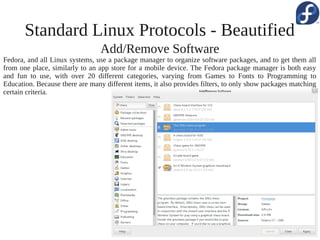
                                 Add/Remove Software
Fedora, and all Linux systems, use a package manager to organize software packages, and to get them all
from one place, similarly to an app store for a mobile device. The Fedora package manager is both easy
and fun to use, with over 20 different categories, varying from Games to Fonts to Programming to
Education. Because there are many different items, it also provides filters, to only show packages matching
certain criteria.
Standard Linux Protocols - Beautified
     Software Update
In conjunction with a uniformed
protocol to download programs, there is
also one to update them. The front-end
splits updates into categories such as
security, bug-fixes, and others. The list
shows lots of information about each
update, and a checkbox whether or not
to download this update. Unlike with
Ubuntu and similar flavors, no
authentication is needed to update!
Standard Linux Protocols - Beautified
                                               Terminal
The terminal is an essential part of any Linux distribution. It provides access to the command line side of the
computer, sometimes doing tasks that cannot yet be done by GUI programs, or are harder to do. The command
line is classically a white-on-black interface. The Konsole program shipped with Fedora can hardly help being
much nicer than that, with an aesthetically pleasing black-on-white color scheme, and even different sizes to
snap to. All this is customizable, of course, including text color, background color/image, default size, and
window title. It can also be a tabbed window, to run multiple commands at once.
Wonderful Window Management
                                         Workspaces
Linux has a feature called workspaces, where the user can organize their open windows to their heart's
delight. With Fedora, there's no need to set the amount – just open a window on the blank workspace, and
a new one will be created! Firefox's Tab Groups (Panorama) feature is likely based on workspaces.

 Window
 Preview
In the center of
the screen is a list
and preview of
the windows in
the        selected
workspace.        It
shows           the
window and the
title.   Hovering
over one produces
an X to close it.
Clicking       will
switch to it.
Wonderful Window Management
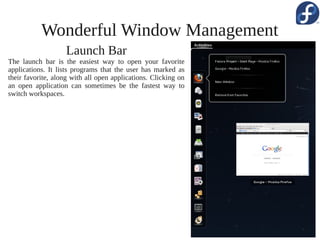
                    Launch Bar
The launch bar is the easiest way to open your favorite
applications. It lists programs that the user has marked as
their favorite, along with all open applications. Clicking on
an open application can sometimes be the fastest way to
switch workspaces.
Amazing Applications
                                         Default Set
Fedora comes with a host of useful applications by default. These include Firefox, GIMP, and
LibreOffice. There are photo viewers and audio players. There are tools to take screenshots, calculate,
customize your computer, and report bugs. Several games are also provided, including the AisleRiot
solitaire package, Mines, and Sudoku.
Amazing Applications
                                     Categories
 The default set of applications are sorted into 9 categories, along with “all”. The programs
 have the category coded in. When a new application is downloaded that has a non-existing
 category (such as WINE), it is created.


     Search
In case there are too
many applications to
easily find the needed
one, a search bar is
provided. It searches
both the shown name,
and the technical name.
Typing from anywhere
in the Activities view
activates the search.
Fedora Keeps you on Track
                                     Evolution
The Fedora desktop's calendar displays events set in the Evolution calendar client. Checking
your schedule is just a single click away. Evolution also serves as a mail client.
Fedora Keeps you on Track
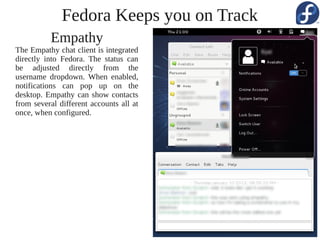
          Empathy
The Empathy chat client is integrated
directly into Fedora. The status can
be adjusted directly from the
username dropdown. When enabled,
notifications can pop up on the
desktop. Empathy can show contacts
from several different accounts all at
once, when configured.
Security-Enhanced Linux
                        Leading in Linux Security
Fedora is one of the leading distributions in SELinux (Security-Enhanced Linux). SELinux keeps
your computer secure from hackers. With Fedora's implementation, you hardly notice it!


      Upstream
      Changes
Fedora does even better
than implementing amazing
security for their own
operating system. They
send their advancements
upstream, to be included in
all Linux distributions!
Security-Enhanced Linux
                                 Authentication
Before running any scripts that could compromise your computer's security and integrity, an
administrator password must be given. This includes modifying files outside of your home
directory, and installing packages other than from the package manager.
Choose Your Desktop Environment
                                                                     Lots of Spins
                                                               Aside for the main desktop
                                                               environments, there are several
                                                               other “spins” of Fedora. Some of
                                                               these are Games, Designer-suite,
                                                               and Robotics. Each spin has a
                                                               unique design goal, but all of them
                                                               have the power of Fedora behind
                                                               them.


                                                                 KDE, LXDE, Xfce
                                                               There are several official desktop
                                                               environments that Fedora supports
                                                               as spins. The one shown at left is
                                                               KDE.


                                All Customizable
Being Fedora Linux at the core, almost all of the spins are customizable to the user's content.
Spins are a personal Fedora, just for you.
Easy to Install

                                                                                Try Before
                                                                                 Installing
                                                                              Not sure you want to
                                                                              install Fedora to your
                                                                              hard drive yet? You
                                                                              can run it from live
                                                                              media            without
                                                                              modifying           your
                                                                              computer. At any time
                                                                              you can install.


       10 Step Installation                                   Virtual Machine
Installing Fedora is only a 10 step process! After   Even on a virtual machine, installing Fedora is
clicking install from the live disk, you receive     quick and easy. It's a great way to try Fedora,
built-in expert guidance, including advice which     and it doesn't even cost a blank CD!
options to choose.
Enjoy


Made by Scimonster for the Google Code-in 2012.
All screenshots by Scimonster, with the exception of: the background of this slide, which is from Wikipedia; SELinux,
also from Wikipedia; and the install screenshot, from wikihow.com.
For more about Fedora, please visit https://fedoraproject.org/

Fedora

  • 1.
    Welcome to Fedora andthe Infinity design logo are trademarks of Red Hat, Inc.
  • 2.
    Standard Linux Protocols- Beautified Add/Remove Software Fedora, and all Linux systems, use a package manager to organize software packages, and to get them all from one place, similarly to an app store for a mobile device. The Fedora package manager is both easy and fun to use, with over 20 different categories, varying from Games to Fonts to Programming to Education. Because there are many different items, it also provides filters, to only show packages matching certain criteria.
  • 3.
    Standard Linux Protocols- Beautified Software Update In conjunction with a uniformed protocol to download programs, there is also one to update them. The front-end splits updates into categories such as security, bug-fixes, and others. The list shows lots of information about each update, and a checkbox whether or not to download this update. Unlike with Ubuntu and similar flavors, no authentication is needed to update!
  • 4.
    Standard Linux Protocols- Beautified Terminal The terminal is an essential part of any Linux distribution. It provides access to the command line side of the computer, sometimes doing tasks that cannot yet be done by GUI programs, or are harder to do. The command line is classically a white-on-black interface. The Konsole program shipped with Fedora can hardly help being much nicer than that, with an aesthetically pleasing black-on-white color scheme, and even different sizes to snap to. All this is customizable, of course, including text color, background color/image, default size, and window title. It can also be a tabbed window, to run multiple commands at once.
  • 5.
    Wonderful Window Management Workspaces Linux has a feature called workspaces, where the user can organize their open windows to their heart's delight. With Fedora, there's no need to set the amount – just open a window on the blank workspace, and a new one will be created! Firefox's Tab Groups (Panorama) feature is likely based on workspaces. Window Preview In the center of the screen is a list and preview of the windows in the selected workspace. It shows the window and the title. Hovering over one produces an X to close it. Clicking will switch to it.
  • 6.
    Wonderful Window Management Launch Bar The launch bar is the easiest way to open your favorite applications. It lists programs that the user has marked as their favorite, along with all open applications. Clicking on an open application can sometimes be the fastest way to switch workspaces.
  • 7.
    Amazing Applications Default Set Fedora comes with a host of useful applications by default. These include Firefox, GIMP, and LibreOffice. There are photo viewers and audio players. There are tools to take screenshots, calculate, customize your computer, and report bugs. Several games are also provided, including the AisleRiot solitaire package, Mines, and Sudoku.
  • 8.
    Amazing Applications Categories The default set of applications are sorted into 9 categories, along with “all”. The programs have the category coded in. When a new application is downloaded that has a non-existing category (such as WINE), it is created. Search In case there are too many applications to easily find the needed one, a search bar is provided. It searches both the shown name, and the technical name. Typing from anywhere in the Activities view activates the search.
  • 9.
    Fedora Keeps youon Track Evolution The Fedora desktop's calendar displays events set in the Evolution calendar client. Checking your schedule is just a single click away. Evolution also serves as a mail client.
  • 10.
    Fedora Keeps youon Track Empathy The Empathy chat client is integrated directly into Fedora. The status can be adjusted directly from the username dropdown. When enabled, notifications can pop up on the desktop. Empathy can show contacts from several different accounts all at once, when configured.
  • 11.
    Security-Enhanced Linux Leading in Linux Security Fedora is one of the leading distributions in SELinux (Security-Enhanced Linux). SELinux keeps your computer secure from hackers. With Fedora's implementation, you hardly notice it! Upstream Changes Fedora does even better than implementing amazing security for their own operating system. They send their advancements upstream, to be included in all Linux distributions!
  • 12.
    Security-Enhanced Linux Authentication Before running any scripts that could compromise your computer's security and integrity, an administrator password must be given. This includes modifying files outside of your home directory, and installing packages other than from the package manager.
  • 13.
    Choose Your DesktopEnvironment Lots of Spins Aside for the main desktop environments, there are several other “spins” of Fedora. Some of these are Games, Designer-suite, and Robotics. Each spin has a unique design goal, but all of them have the power of Fedora behind them. KDE, LXDE, Xfce There are several official desktop environments that Fedora supports as spins. The one shown at left is KDE. All Customizable Being Fedora Linux at the core, almost all of the spins are customizable to the user's content. Spins are a personal Fedora, just for you.
  • 14.
    Easy to Install Try Before Installing Not sure you want to install Fedora to your hard drive yet? You can run it from live media without modifying your computer. At any time you can install. 10 Step Installation Virtual Machine Installing Fedora is only a 10 step process! After Even on a virtual machine, installing Fedora is clicking install from the live disk, you receive quick and easy. It's a great way to try Fedora, built-in expert guidance, including advice which and it doesn't even cost a blank CD! options to choose.
  • 15.
    Enjoy Made by Scimonsterfor the Google Code-in 2012. All screenshots by Scimonster, with the exception of: the background of this slide, which is from Wikipedia; SELinux, also from Wikipedia; and the install screenshot, from wikihow.com. For more about Fedora, please visit https://fedoraproject.org/