Week Tasks
1 LM35– Complete by Nov. 13
• Interpret the output voltage as a temperature in the
program using an ADC and display it.
• Set up the LM35 to detect the exhaust temperature of the
laptop.
• Test the laptop temperature interpreted from the sensor
against the handheld thermometer’s reading.
2 External Fan– Complete by Nov. 20
• Use the PSoC to adjust the speed of the fan by changing
the supplied voltage.(Ben)
• Set up the fan to direct air into a laptop’s air inputs while
the laptop is running.(Brian)
• Test whether the temperature of the laptop exhaust
decreases significantly when the fan is running on high
speed.(Ben)
3 LEDs and Buzzer– Complete by Dec. 4
• Configure the program to turn on different LEDs depending
on the temperature sensed.(Ben)
• Turn the buzzer on and off and adjust its volume based on
the temperature reading.(Ben)
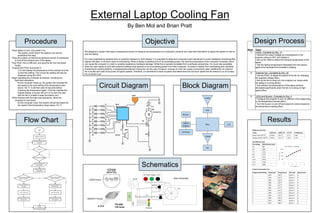
External Laptop Cooling Fan
By Ben Mol and Brian Pratt
Circuit Diagram Block Diagram
Objective
Schematics
Flow Chart
Procedure Design Process
Results
Temp LM35 (V) LM35 (
o
F) PT (
o
F) % Difference
Room Temp (70
o
F) 0.258 V 78.4
o
F 77
o
F 1.8%
Laptop Temp (~120
o
F) 0.497 V 121.5
o
F 130
o
F 6.7%
DC Voltage RPM (Strobe Tach)
5 V 885
6 V 1061
7 V 1224
8 V 1372
9 V 1511
10 V 1646
11 V 1768
12 V 1886
Programmed Setting Duty Cycle Temperature LED level Buzzer level
1 42% 120
o
F Green 1 0
2 50% 121
o
F Green 2 0
3 58% 122
o
F Green 3 0
3 58% 120
o
F Green 3 0
3 58% 119
o
F Green 3 0
3 58% 117
o
F Green 3 0
3 58% 114
o
F Green 3 0
3 58% 112
o
F Green 3 0
3 58% 110
o
F Green 3 0
2 50% 109
o
F Green 2 0
1 42% 108
o
F Green 1 0
1 42% 108
o
F Green 1 0
LM35 Accuracy Test
Fan Efficiency Test
Project Functionality Test
Place laptop on box, and power it on.
The system works best if the laptop is as cool as
possible at the start.
Place the system so that the temperature sensor is positioned
in front of the exhaust port of the laptop.
Plug PSoC into a USB port, and plug the fan into the power
supply.
Program the PSoC and power it.
LCD will display the temperature of the exhaust and the
current fan setting. The current fan setting will also be
displayed using the LEDs.
Begin operating the computer as desired, including any
high-load operations.
As the computer heats up, the system will increase the
fan speed to the next setting if the temperature rises
above 120 °F. It will then wait 30 seconds before
checking the temperature again. If the fan reaches the
highest setting, a buzzer will turn on to warn the user
that the fan is unable to keep the laptop cool.
When finished with the high-load operations, allow the
computer to cool down.
As the computer cools, the system should decrease the
fan speed if the temperature drops below 110 °F.
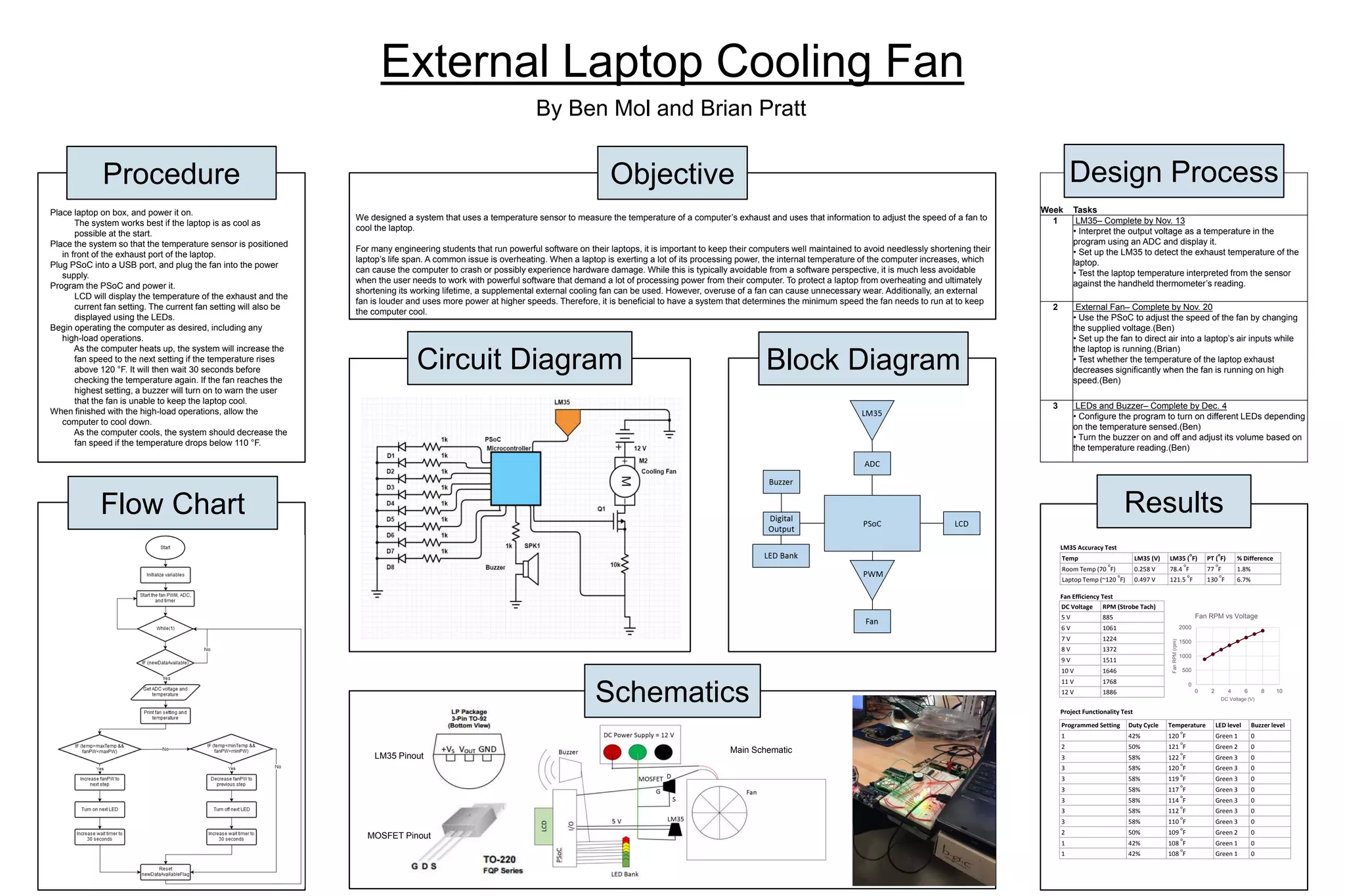
We designed a system that uses a temperature sensor to measure the temperature of a computer’s exhaust and uses that information to adjust the speed of a fan to
cool the laptop.
For many engineering students that run powerful software on their laptops, it is important to keep their computers well maintained to avoid needlessly shortening their
laptop’s life span. A common issue is overheating. When a laptop is exerting a lot of its processing power, the internal temperature of the computer increases, which
can cause the computer to crash or possibly experience hardware damage. While this is typically avoidable from a software perspective, it is much less avoidable
when the user needs to work with powerful software that demand a lot of processing power from their computer. To protect a laptop from overheating and ultimately
shortening its working lifetime, a supplemental external cooling fan can be used. However, overuse of a fan can cause unnecessary wear. Additionally, an external
fan is louder and uses more power at higher speeds. Therefore, it is beneficial to have a system that determines the minimum speed the fan needs to run at to keep
the computer cool.
LM35 Pinout
0
500
1000
1500
2000
0 2 4 6 8 10
FanRPM(rpm)
DC Voltage (V)
Fan RPM vs Voltage
MOSFET Pinout
Main Schematic

External Laptop Cooling Fan

  • 1.
    Week Tasks 1 LM35–Complete by Nov. 13 • Interpret the output voltage as a temperature in the program using an ADC and display it. • Set up the LM35 to detect the exhaust temperature of the laptop. • Test the laptop temperature interpreted from the sensor against the handheld thermometer’s reading. 2 External Fan– Complete by Nov. 20 • Use the PSoC to adjust the speed of the fan by changing the supplied voltage.(Ben) • Set up the fan to direct air into a laptop’s air inputs while the laptop is running.(Brian) • Test whether the temperature of the laptop exhaust decreases significantly when the fan is running on high speed.(Ben) 3 LEDs and Buzzer– Complete by Dec. 4 • Configure the program to turn on different LEDs depending on the temperature sensed.(Ben) • Turn the buzzer on and off and adjust its volume based on the temperature reading.(Ben) External Laptop Cooling Fan By Ben Mol and Brian Pratt Circuit Diagram Block Diagram Objective Schematics Flow Chart Procedure Design Process Results Temp LM35 (V) LM35 ( o F) PT ( o F) % Difference Room Temp (70 o F) 0.258 V 78.4 o F 77 o F 1.8% Laptop Temp (~120 o F) 0.497 V 121.5 o F 130 o F 6.7% DC Voltage RPM (Strobe Tach) 5 V 885 6 V 1061 7 V 1224 8 V 1372 9 V 1511 10 V 1646 11 V 1768 12 V 1886 Programmed Setting Duty Cycle Temperature LED level Buzzer level 1 42% 120 o F Green 1 0 2 50% 121 o F Green 2 0 3 58% 122 o F Green 3 0 3 58% 120 o F Green 3 0 3 58% 119 o F Green 3 0 3 58% 117 o F Green 3 0 3 58% 114 o F Green 3 0 3 58% 112 o F Green 3 0 3 58% 110 o F Green 3 0 2 50% 109 o F Green 2 0 1 42% 108 o F Green 1 0 1 42% 108 o F Green 1 0 LM35 Accuracy Test Fan Efficiency Test Project Functionality Test Place laptop on box, and power it on. The system works best if the laptop is as cool as possible at the start. Place the system so that the temperature sensor is positioned in front of the exhaust port of the laptop. Plug PSoC into a USB port, and plug the fan into the power supply. Program the PSoC and power it. LCD will display the temperature of the exhaust and the current fan setting. The current fan setting will also be displayed using the LEDs. Begin operating the computer as desired, including any high-load operations. As the computer heats up, the system will increase the fan speed to the next setting if the temperature rises above 120 °F. It will then wait 30 seconds before checking the temperature again. If the fan reaches the highest setting, a buzzer will turn on to warn the user that the fan is unable to keep the laptop cool. When finished with the high-load operations, allow the computer to cool down. As the computer cools, the system should decrease the fan speed if the temperature drops below 110 °F. We designed a system that uses a temperature sensor to measure the temperature of a computer’s exhaust and uses that information to adjust the speed of a fan to cool the laptop. For many engineering students that run powerful software on their laptops, it is important to keep their computers well maintained to avoid needlessly shortening their laptop’s life span. A common issue is overheating. When a laptop is exerting a lot of its processing power, the internal temperature of the computer increases, which can cause the computer to crash or possibly experience hardware damage. While this is typically avoidable from a software perspective, it is much less avoidable when the user needs to work with powerful software that demand a lot of processing power from their computer. To protect a laptop from overheating and ultimately shortening its working lifetime, a supplemental external cooling fan can be used. However, overuse of a fan can cause unnecessary wear. Additionally, an external fan is louder and uses more power at higher speeds. Therefore, it is beneficial to have a system that determines the minimum speed the fan needs to run at to keep the computer cool. LM35 Pinout 0 500 1000 1500 2000 0 2 4 6 8 10 FanRPM(rpm) DC Voltage (V) Fan RPM vs Voltage MOSFET Pinout Main Schematic