• Julho 24— Agentforce & Einstein & Data cloud
• Julho 28 — Commerce e Revenue Cloud
• Julho 31 — Segurança, Identidade e Privacidade
• Agosto 04 — Industries
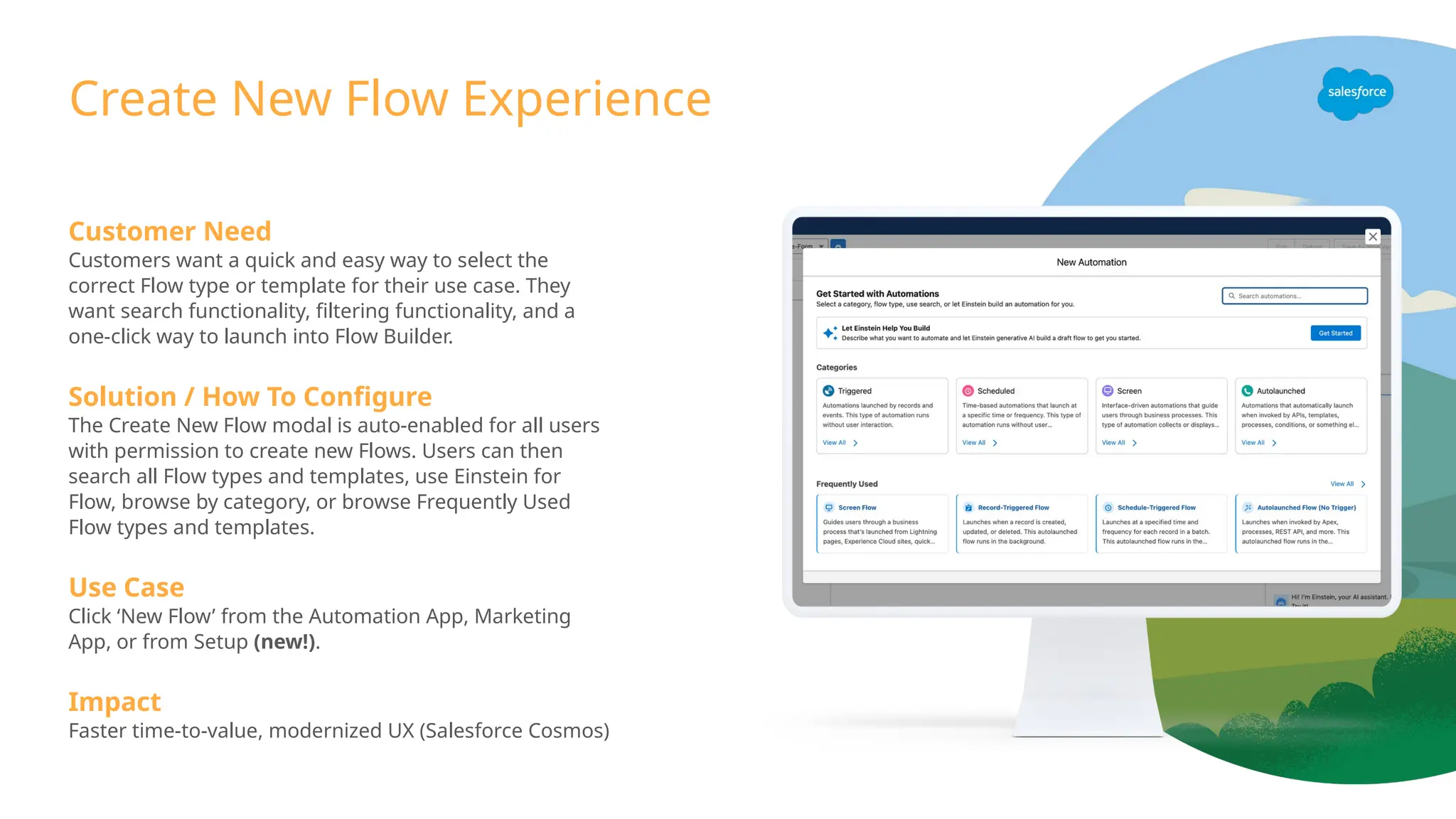
Customer Need
Customers wanta quick and easy way to select the
correct Flow type or template for their use case. They
want search functionality, filtering functionality, and a
one-click way to launch into Flow Builder.
Solution / How To Configure
The Create New Flow modal is auto-enabled for all users
with permission to create new Flows. Users can then
search all Flow types and templates, use Einstein for
Flow, browse by category, or browse Frequently Used
Flow types and templates.
Use Case
Click ‘New Flow’ from the Automation App, Marketing
App, or from Setup (new!).
Impact
Faster time-to-value, modernized UX (Salesforce Cosmos)
Create New Flow Experience
11.
Customer Need
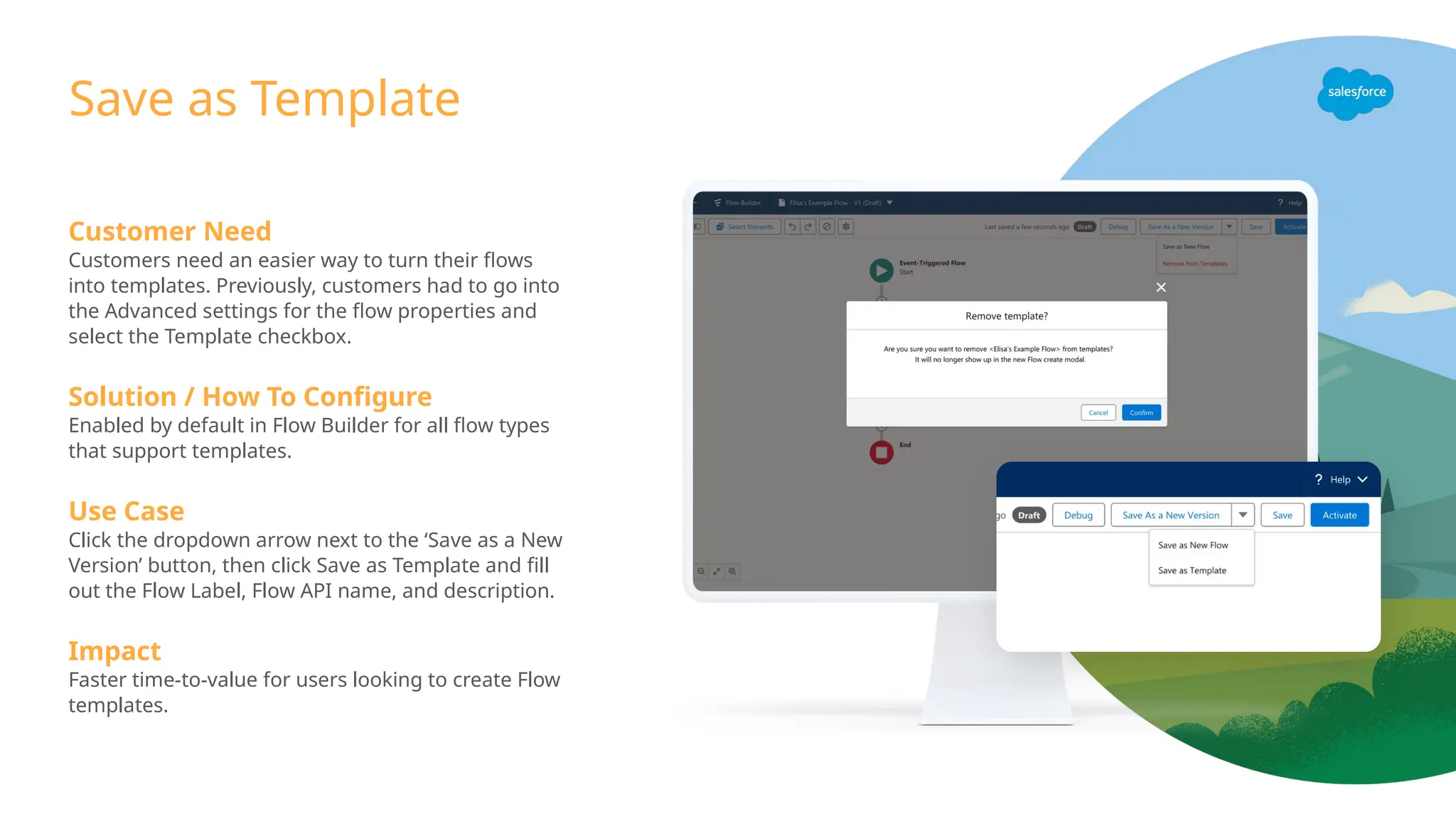
Customers needan easier way to turn their flows
into templates. Previously, customers had to go into
the Advanced settings for the flow properties and
select the Template checkbox.
Solution / How To Configure
Enabled by default in Flow Builder for all flow types
that support templates.
Use Case
Click the dropdown arrow next to the ‘Save as a New
Version’ button, then click Save as Template and fill
out the Flow Label, Flow API name, and description.
Impact
Faster time-to-value for users looking to create Flow
templates.
Save as Template
12.
Einstein-drafted Flows
Generate Flowswith Natural Language Prompts
Customer Need
Customers face challenges with the time and complexity
involved in building flows. For new admins, the learning curve
for flow can be steep, while experienced admins also invest
considerable time in building and troubleshooting flows.
Solution / How To Configure
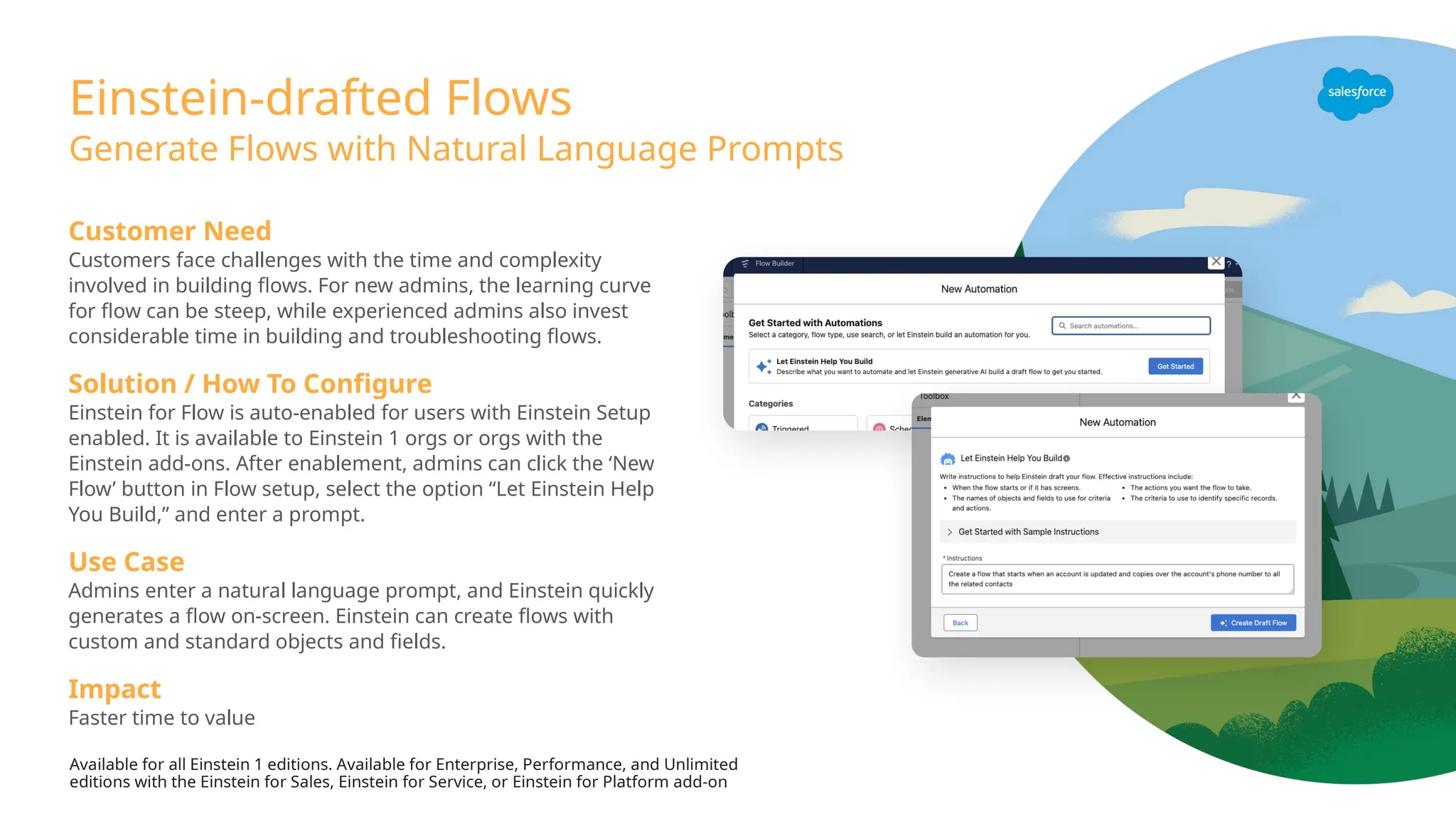
Einstein for Flow is auto-enabled for users with Einstein Setup
enabled. It is available to Einstein 1 orgs or orgs with the
Einstein add-ons. After enablement, admins can click the ‘New
Flow’ button in Flow setup, select the option “Let Einstein Help
You Build,” and enter a prompt.
Use Case
Admins enter a natural language prompt, and Einstein quickly
generates a flow on-screen. Einstein can create flows with
custom and standard objects and fields.
Impact
Faster time to value
Available for all Einstein 1 editions. Available for Enterprise, Performance, and Unlimited
editions with the Einstein for Sales, Einstein for Service, or Einstein for Platform add-on
13.
Einstein-drafted Summaries
Generate FlowSummaries with Einstein
Customer Need
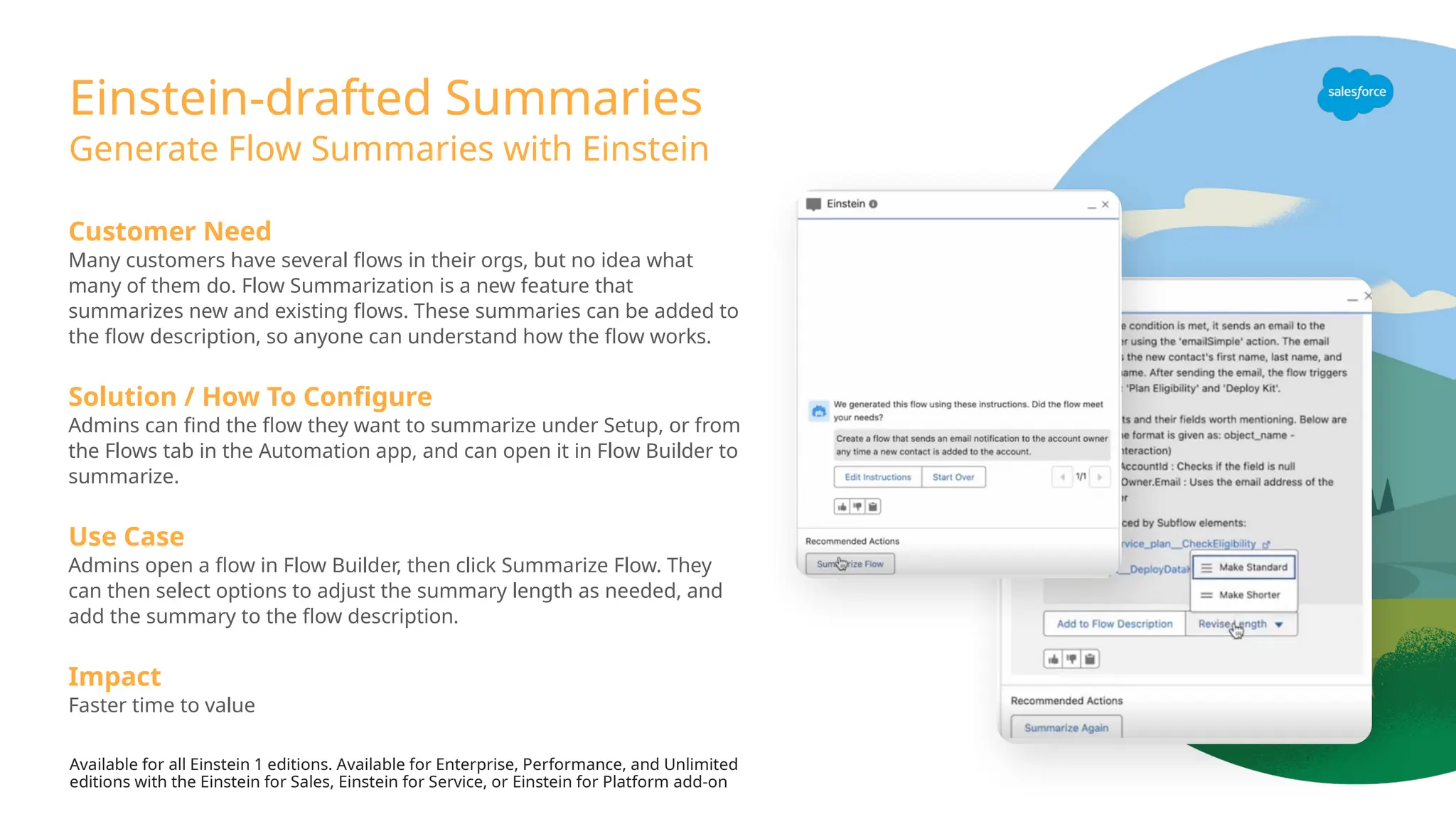
Many customers have several flows in their orgs, but no idea what
many of them do. Flow Summarization is a new feature that
summarizes new and existing flows. These summaries can be added to
the flow description, so anyone can understand how the flow works.
Solution / How To Configure
Admins can find the flow they want to summarize under Setup, or from
the Flows tab in the Automation app, and can open it in Flow Builder to
summarize.
Use Case
Admins open a flow in Flow Builder, then click Summarize Flow. They
can then select options to adjust the summary length as needed, and
add the summary to the flow description.
Impact
Faster time to value
Available for all Einstein 1 editions. Available for Enterprise, Performance, and Unlimited
editions with the Einstein for Sales, Einstein for Service, or Einstein for Platform add-on
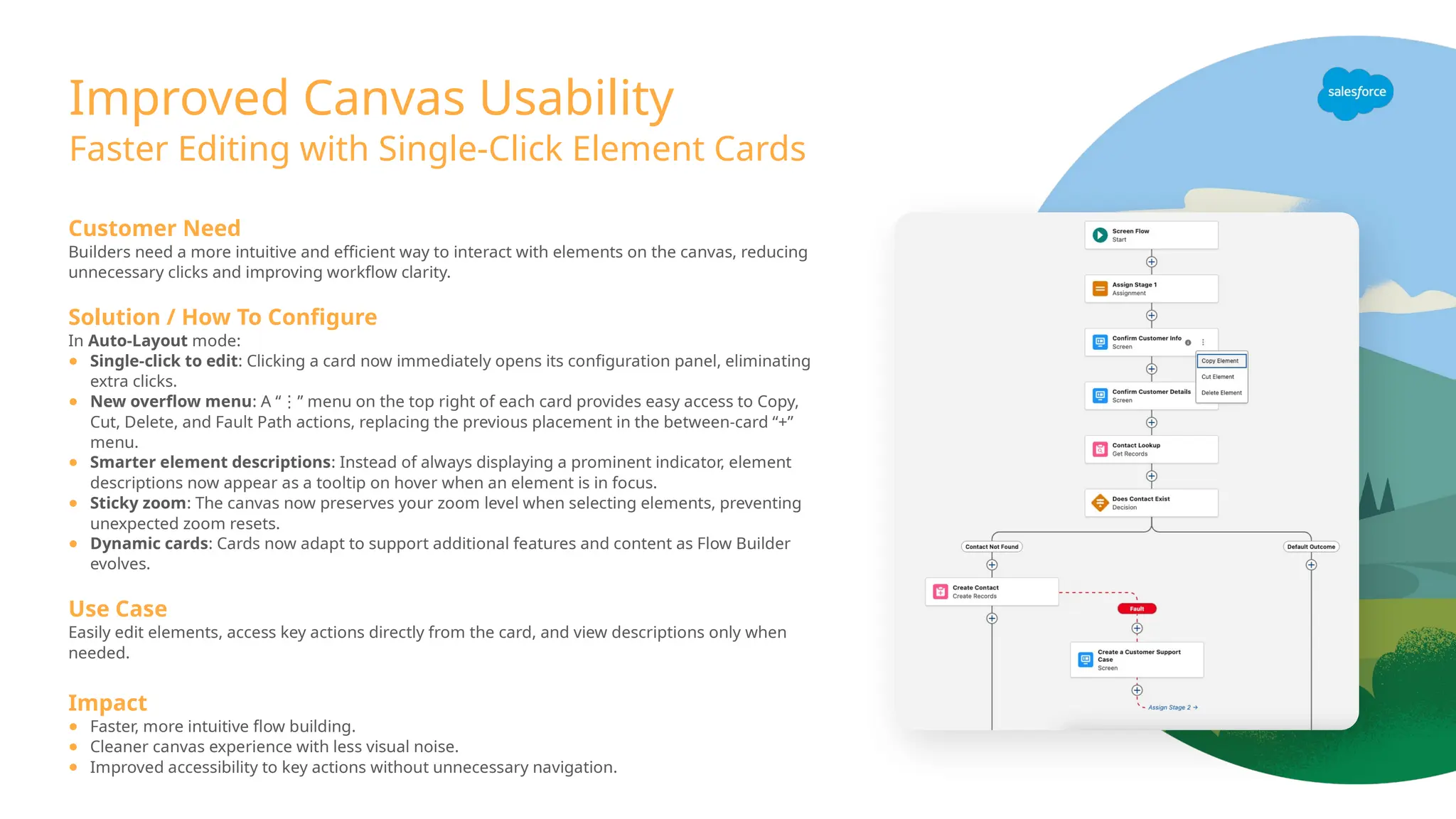
Improved Canvas Usability
FasterEditing with Single-Click Element Cards
Customer Need
Builders need a more intuitive and efficient way to interact with elements on the canvas, reducing
unnecessary clicks and improving workflow clarity.
Solution / How To Configure
In Auto-Layout mode:
● Single-click to edit: Clicking a card now immediately opens its configuration panel, eliminating
extra clicks.
● New overflow menu: A “ ” menu on the top right of each card provides easy access to Copy,
⋮
Cut, Delete, and Fault Path actions, replacing the previous placement in the between-card “+”
menu.
● Smarter element descriptions: Instead of always displaying a prominent indicator, element
descriptions now appear as a tooltip on hover when an element is in focus.
● Sticky zoom: The canvas now preserves your zoom level when selecting elements, preventing
unexpected zoom resets.
● Dynamic cards: Cards now adapt to support additional features and content as Flow Builder
evolves.
Use Case
Easily edit elements, access key actions directly from the card, and view descriptions only when
needed.
Impact
● Faster, more intuitive flow building.
● Cleaner canvas experience with less visual noise.
● Improved accessibility to key actions without unnecessary navigation.
16.
Improved Canvas Controls:Pinch to Zoom
Zoom in and out with your mousewheel and trackpad
Customer Need
Flow Builder has zoom shortcuts, but they don't follow the normal keyboard
conventions. By adhering to the regular muscle memory of users, we'll make
it more intuitive to wayfind around larger flows faster. At the same time,
many users have trackpads, so we can make life much easier for them by
allowing them to more freely navigate.
Solution / How To Configure
From your Flow Builder canvas:
● Trackpad users can now use expand and pinch gestures to zoom the
canvas
● Keyboard users can zoom in and out using standard keyboard shortcuts:
Cmd + Option + [plus or minus]
Impact
Users don’t have to learn new zooming controls on this UI
17.
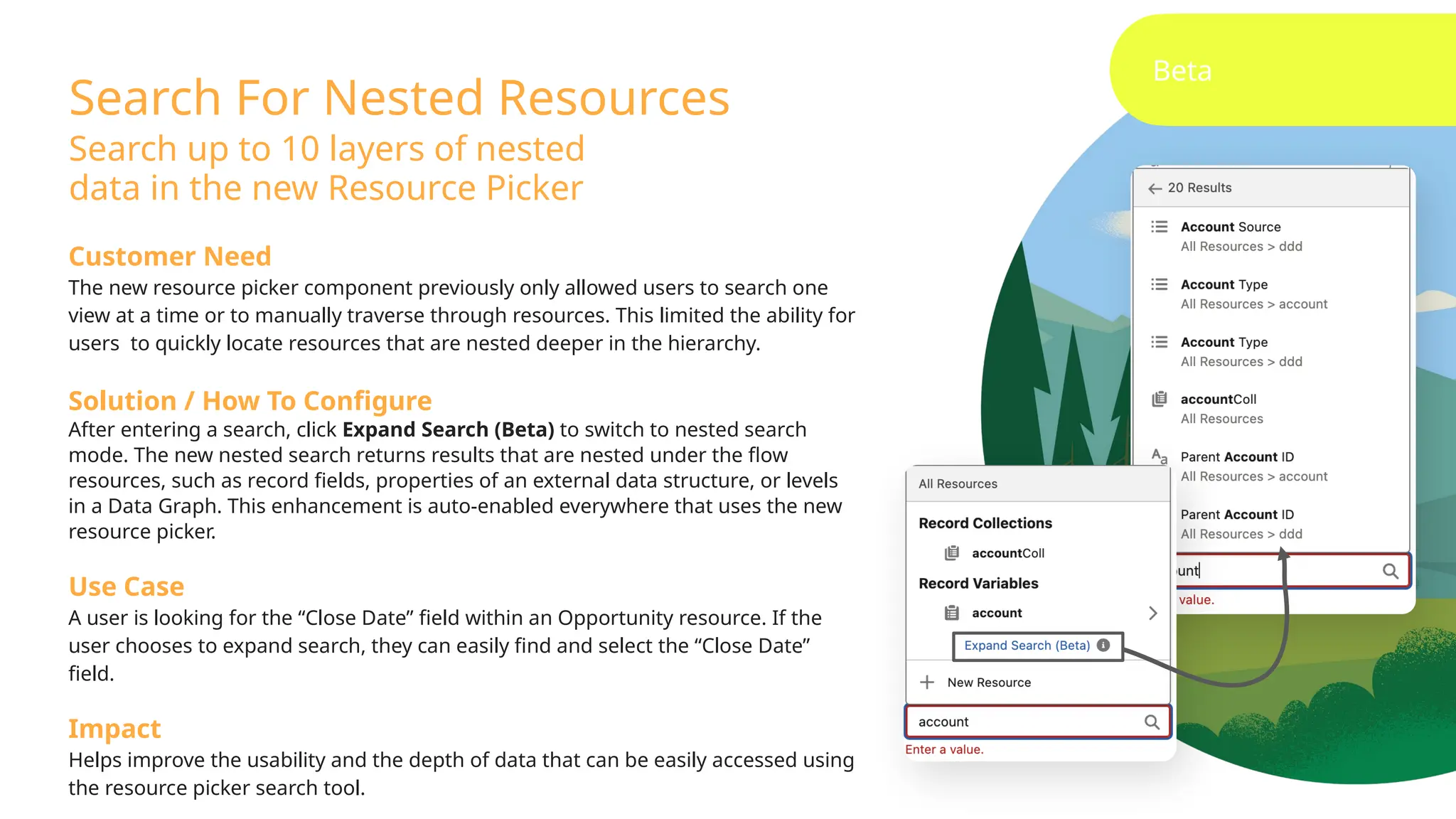
Search For NestedResources
Search up to 10 layers of nested
data in the new Resource Picker
Beta
Customer Need
The new resource picker component previously only allowed users to search one
view at a time or to manually traverse through resources. This limited the ability for
users to quickly locate resources that are nested deeper in the hierarchy.
Solution / How To Configure
After entering a search, click Expand Search (Beta) to switch to nested search
mode. The new nested search returns results that are nested under the flow
resources, such as record fields, properties of an external data structure, or levels
in a Data Graph. This enhancement is auto-enabled everywhere that uses the new
resource picker.
Use Case
A user is looking for the “Close Date” field within an Opportunity resource. If the
user chooses to expand search, they can easily find and select the “Close Date”
field.
Impact
Helps improve the usability and the depth of data that can be easily accessed using
the resource picker search tool.
18.
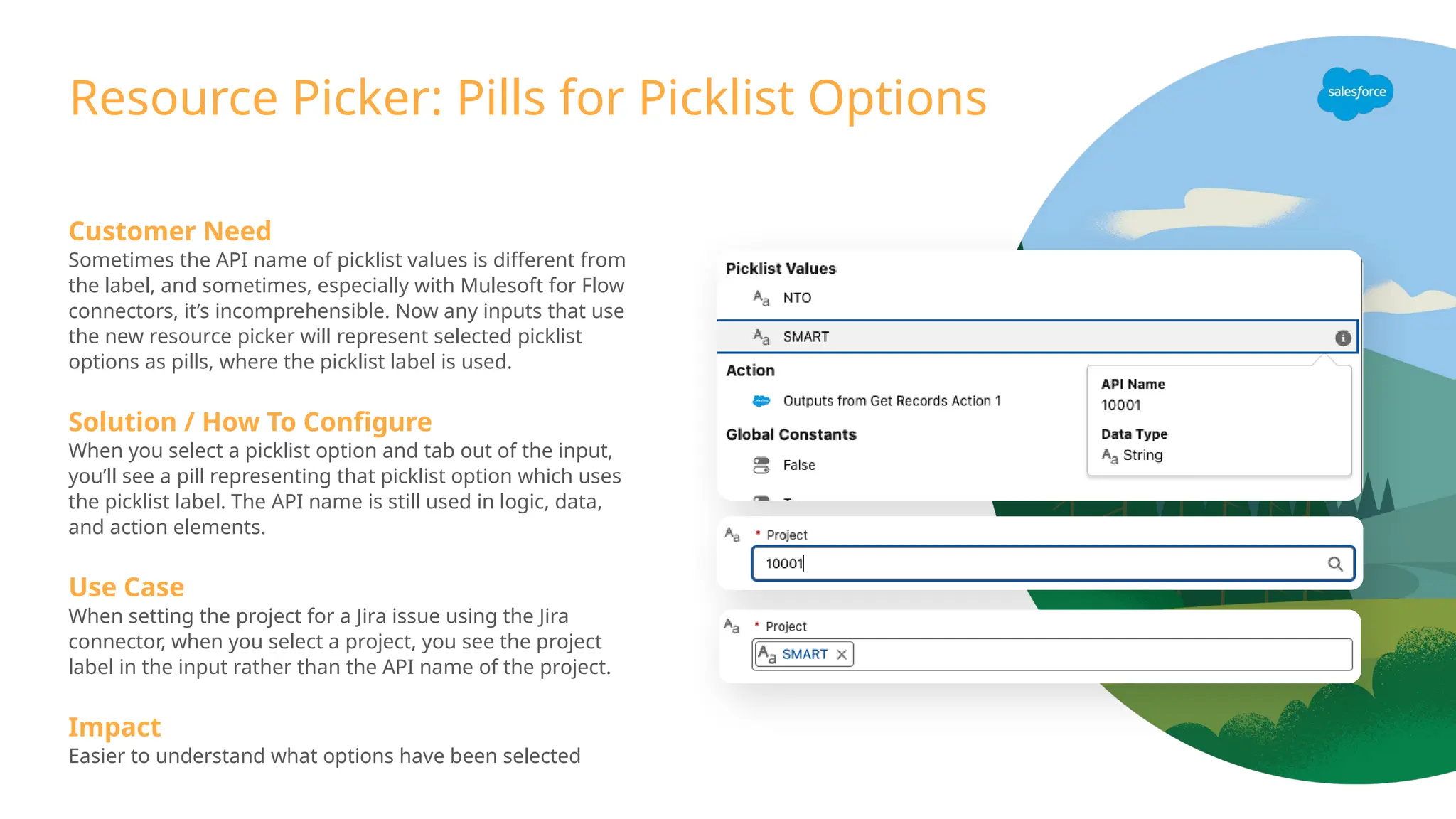
Resource Picker: Pillsfor Picklist Options
Customer Need
Sometimes the API name of picklist values is different from
the label, and sometimes, especially with Mulesoft for Flow
connectors, it’s incomprehensible. Now any inputs that use
the new resource picker will represent selected picklist
options as pills, where the picklist label is used.
Solution / How To Configure
When you select a picklist option and tab out of the input,
you’ll see a pill representing that picklist option which uses
the picklist label. The API name is still used in logic, data,
and action elements.
Use Case
When setting the project for a Jira issue using the Jira
connector, when you select a project, you see the project
label in the input rather than the API name of the project.
Impact
Easier to understand what options have been selected
19.
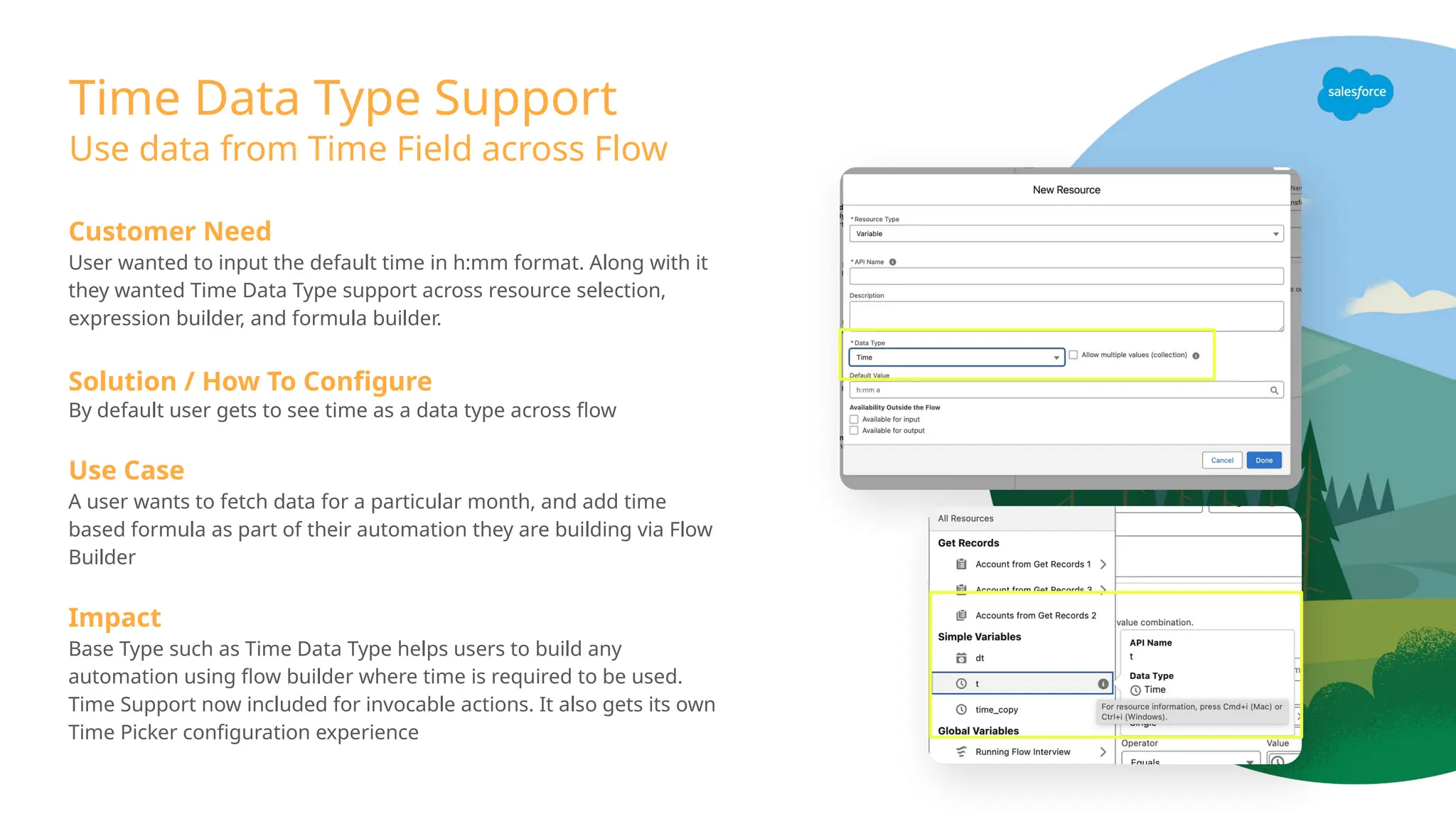
Time Data TypeSupport
Use data from Time Field across Flow
Customer Need
User wanted to input the default time in h:mm format. Along with it
they wanted Time Data Type support across resource selection,
expression builder, and formula builder.
Solution / How To Configure
By default user gets to see time as a data type across flow
Use Case
A user wants to fetch data for a particular month, and add time
based formula as part of their automation they are building via Flow
Builder
Impact
Base Type such as Time Data Type helps users to build any
automation using flow builder where time is required to be used.
Time Support now included for invocable actions. It also gets its own
Time Picker configuration experience
20.
Beta
Get Related Recordsin a Single Element
Generate, edit and share call summaries with a click
Customer Need
Flow builders often need related information from multiple objects, and
doing loops and several Get Records just to gather those is cumbersome
for building and taxing on limits.
Solution / How To Configure
Builders in Get Records will see a new checkbox which allows them to
enter a separate mode which allows them configure these related records.
This requires additional configuration, like field selection, in order to
ensure data storage optimization.
Use Case
A user creating a screen to display accounts and their related
opportunities and line items could build a flow using a single Get Records
element
Impact
Flow builder productivity
21.
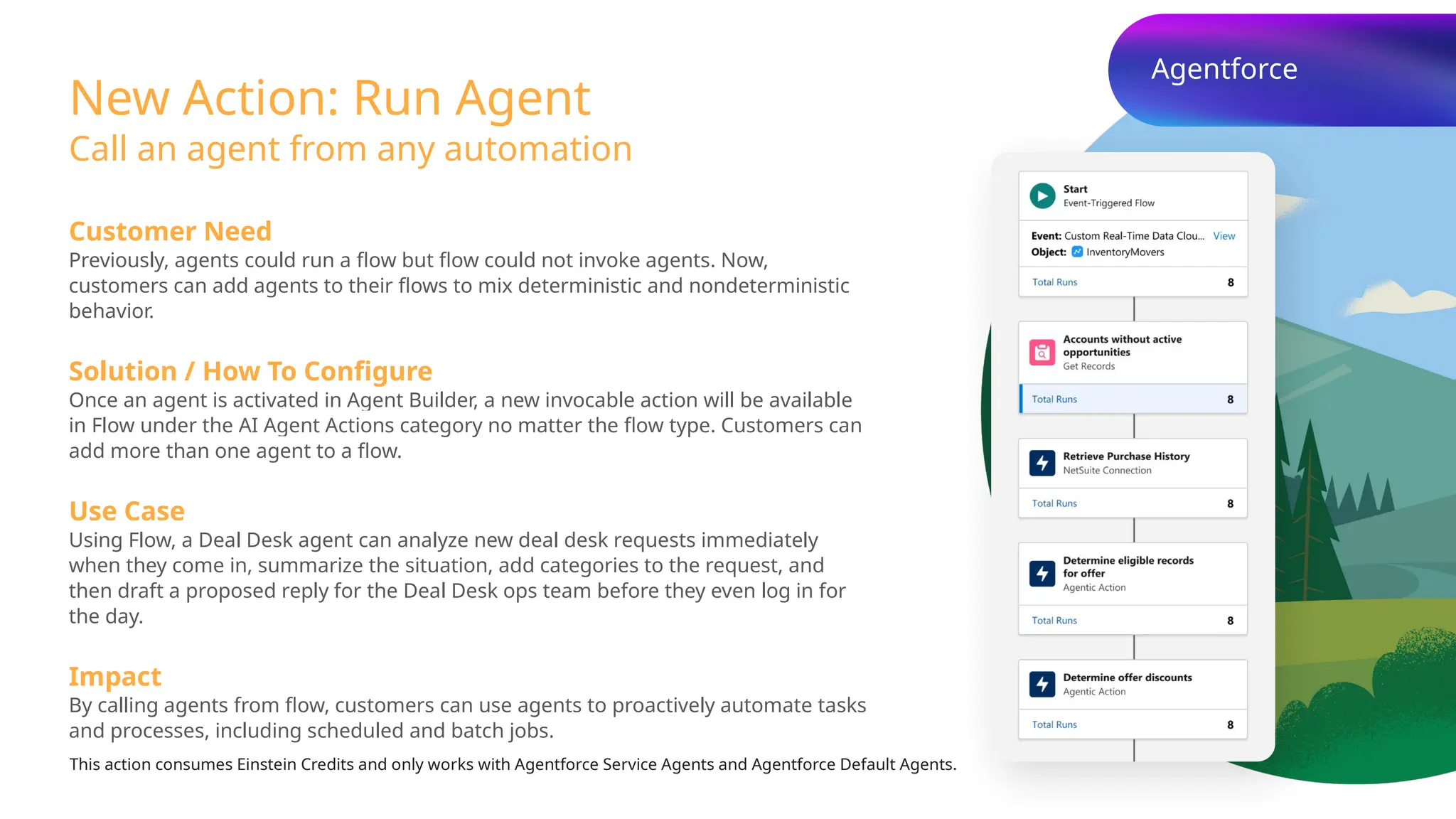
New Action: RunAgent
Call an agent from any automation
Customer Need
Previously, agents could run a flow but flow could not invoke agents. Now,
customers can add agents to their flows to mix deterministic and nondeterministic
behavior.
Solution / How To Configure
Once an agent is activated in Agent Builder, a new invocable action will be available
in Flow under the AI Agent Actions category no matter the flow type. Customers can
add more than one agent to a flow.
Use Case
Using Flow, a Deal Desk agent can analyze new deal desk requests immediately
when they come in, summarize the situation, add categories to the request, and
then draft a proposed reply for the Deal Desk ops team before they even log in for
the day.
Impact
By calling agents from flow, customers can use agents to proactively automate tasks
and processes, including scheduled and batch jobs.
This action consumes Einstein Credits and only works with Agentforce Service Agents and Agentforce Default Agents.
Agentforce
22.
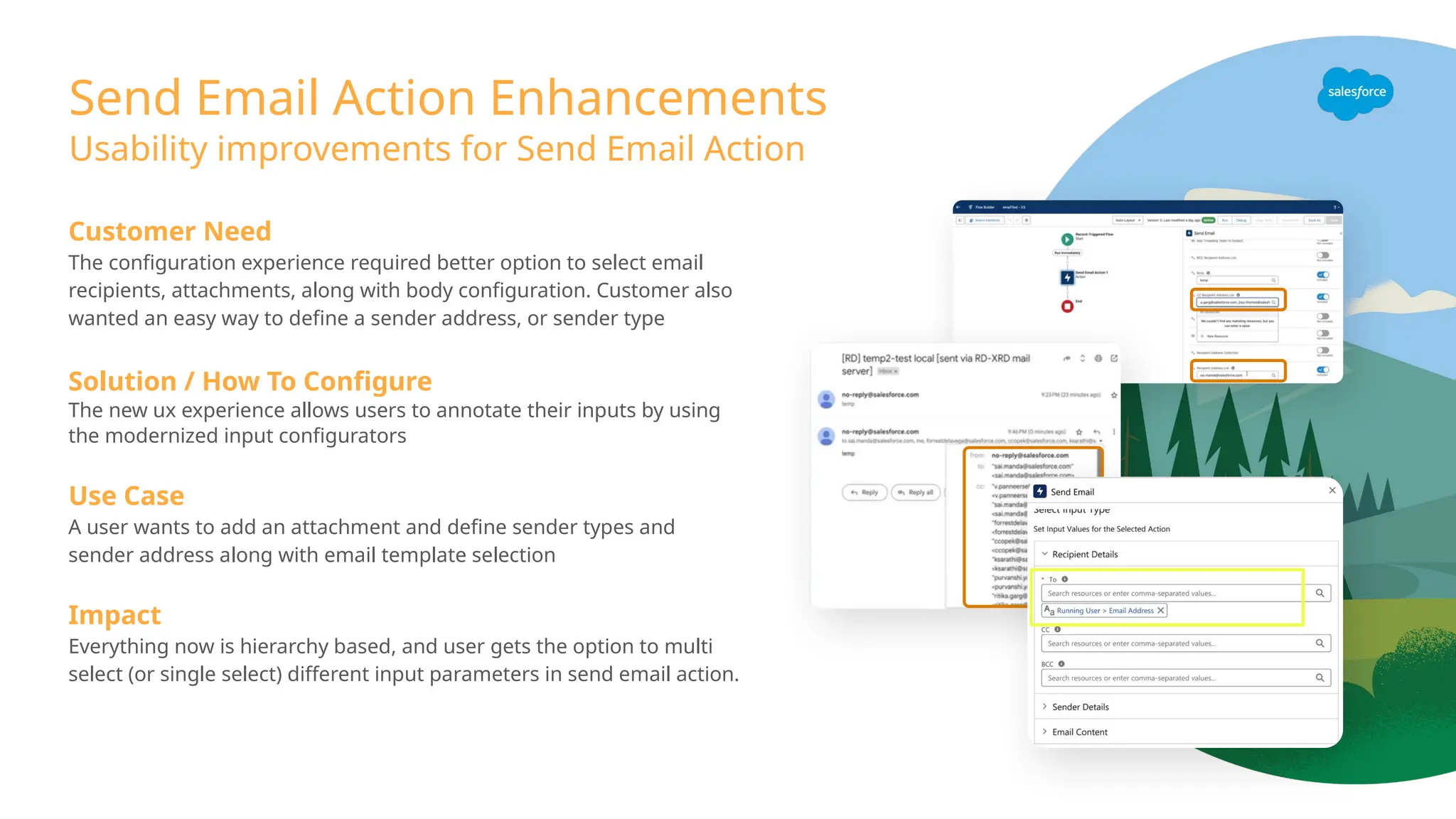
Send Email ActionEnhancements
Usability improvements for Send Email Action
Customer Need
The configuration experience required better option to select email
recipients, attachments, along with body configuration. Customer also
wanted an easy way to define a sender address, or sender type
Solution / How To Configure
The new ux experience allows users to annotate their inputs by using
the modernized input configurators
Use Case
A user wants to add an attachment and define sender types and
sender address along with email template selection
Impact
Everything now is hierarchy based, and user gets the option to multi
select (or single select) different input parameters in send email action.
23.
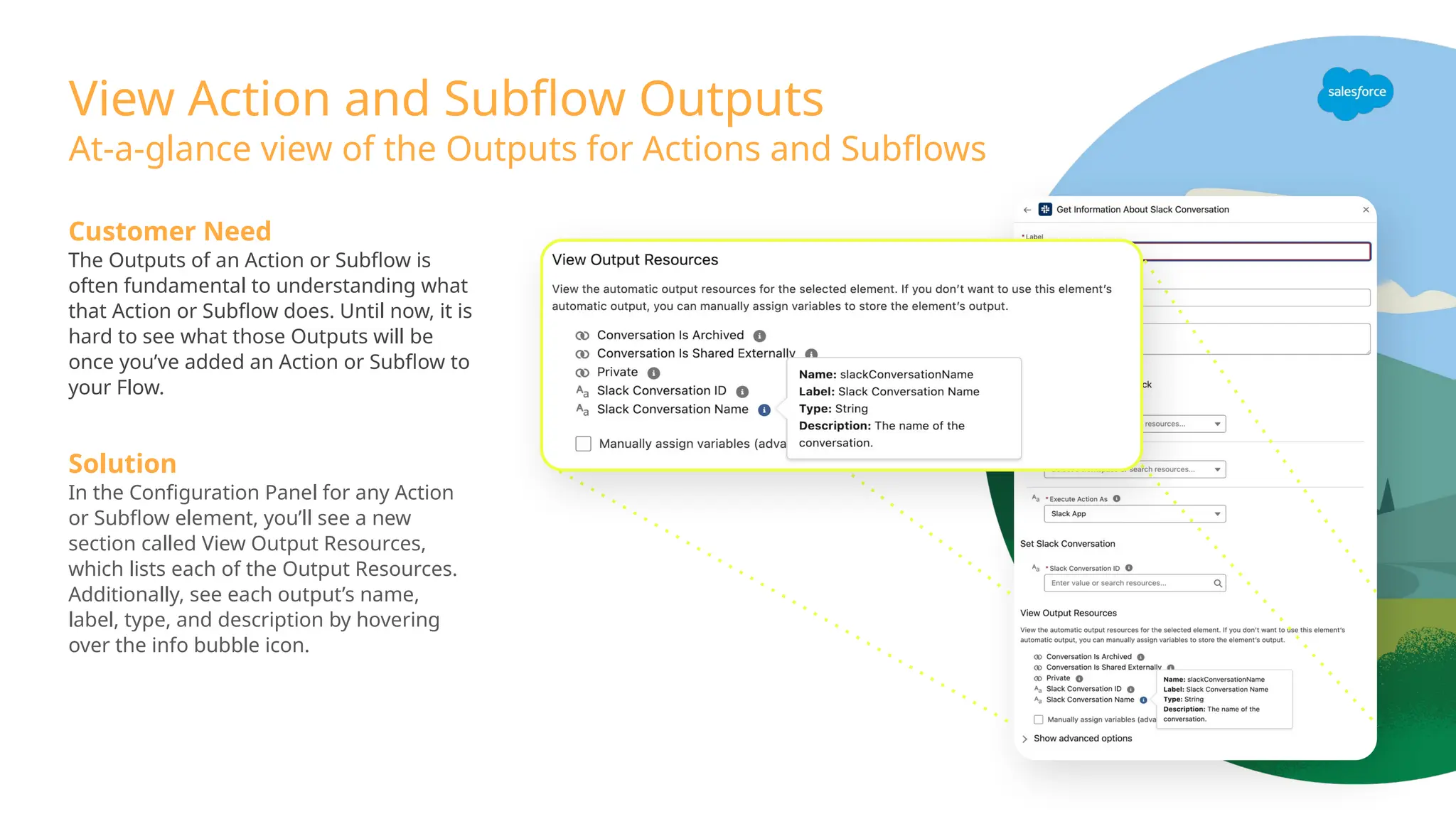
View Action andSubflow Outputs
Customer Need
The Outputs of an Action or Subflow is
often fundamental to understanding what
that Action or Subflow does. Until now, it is
hard to see what those Outputs will be
once you’ve added an Action or Subflow to
your Flow.
Solution
In the Configuration Panel for any Action
or Subflow element, you’ll see a new
section called View Output Resources,
which lists each of the Output Resources.
Additionally, see each output’s name,
label, type, and description by hovering
over the info bubble icon.
At-a-glance view of the Outputs for Actions and Subflows
24.
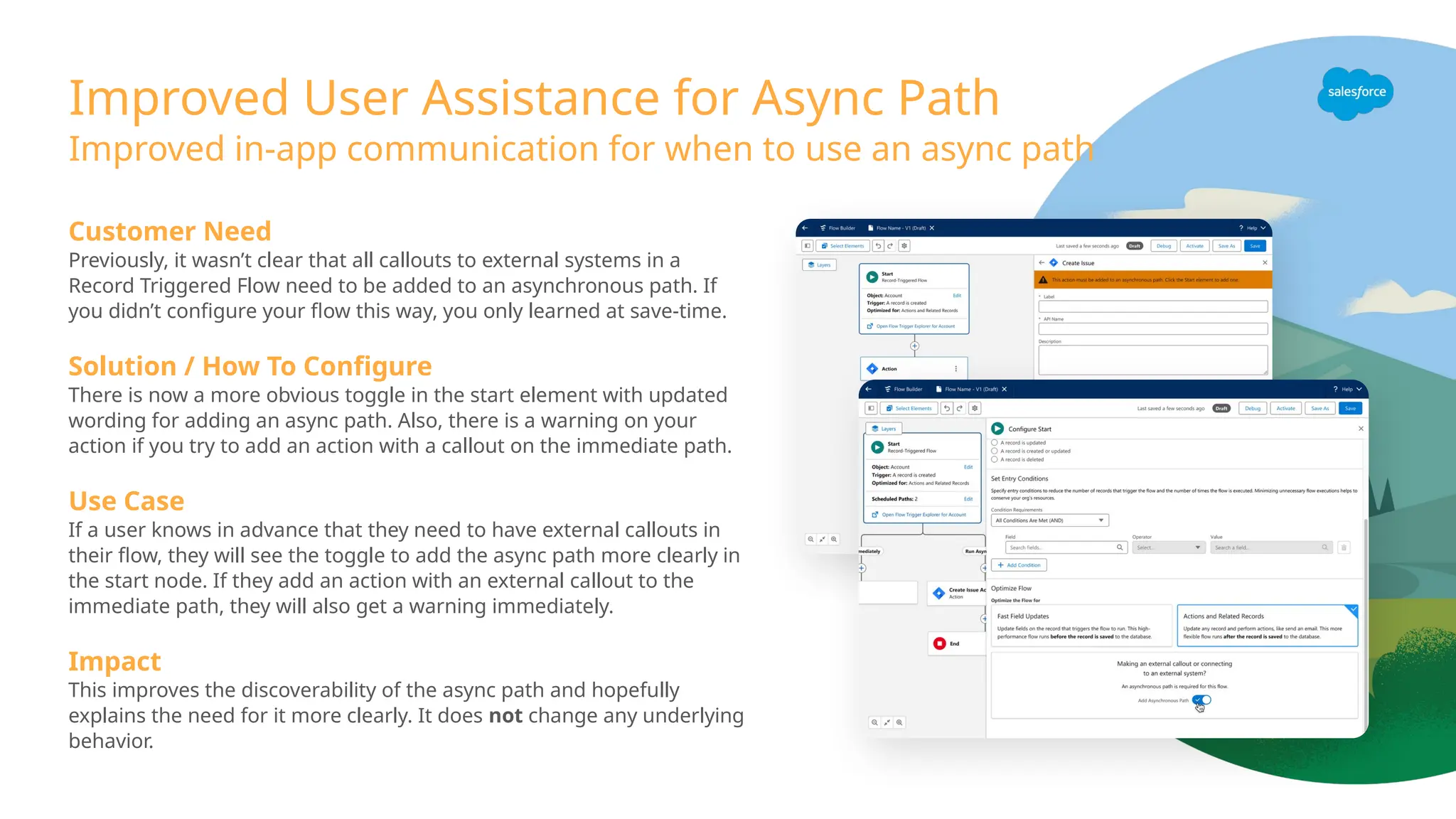
Improved User Assistancefor Async Path
Improved in-app communication for when to use an async path
Customer Need
Previously, it wasn’t clear that all callouts to external systems in a
Record Triggered Flow need to be added to an asynchronous path. If
you didn’t configure your flow this way, you only learned at save-time.
Solution / How To Configure
There is now a more obvious toggle in the start element with updated
wording for adding an async path. Also, there is a warning on your
action if you try to add an action with a callout on the immediate path.
Use Case
If a user knows in advance that they need to have external callouts in
their flow, they will see the toggle to add the async path more clearly in
the start node. If they add an action with an external callout to the
immediate path, they will also get a warning immediately.
Impact
This improves the discoverability of the async path and hopefully
explains the need for it more clearly. It does not change any underlying
behavior.
Onboarded for theSalesforce and NetSuite connectors in Summer ’25
Customer Need
Customers need to be able to fetch records from external systems.
Generally they want a subset of records based on specific criteria.
Previously, you could only fetch a single record by an ID or a list of
all records in the Flow Integration connectors.
Solution / How To Configure
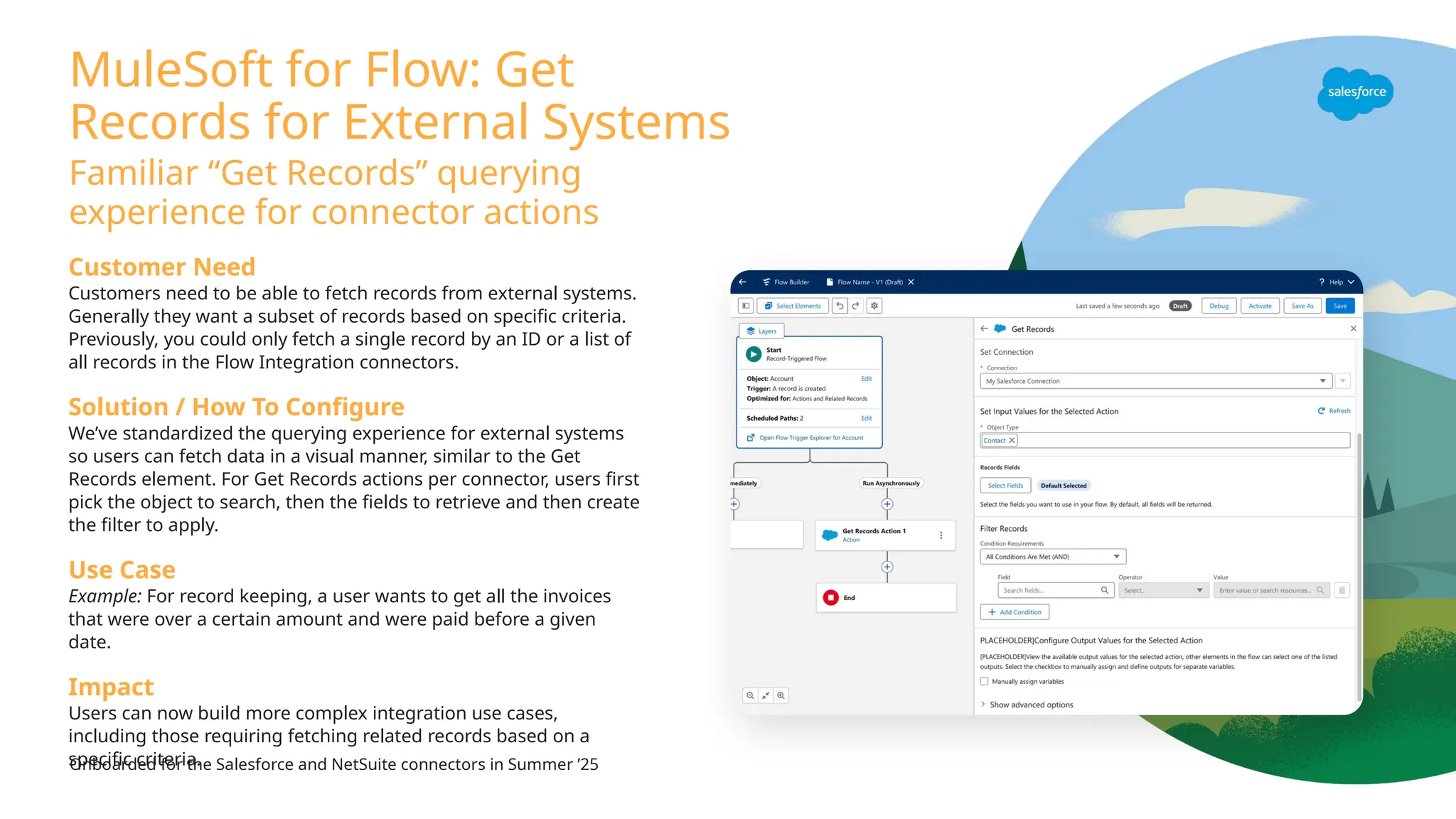
We’ve standardized the querying experience for external systems
so users can fetch data in a visual manner, similar to the Get
Records element. For Get Records actions per connector, users first
pick the object to search, then the fields to retrieve and then create
the filter to apply.
Use Case
Example: For record keeping, a user wants to get all the invoices
that were over a certain amount and were paid before a given
date.
Impact
Users can now build more complex integration use cases,
including those requiring fetching related records based on a
specific criteria.
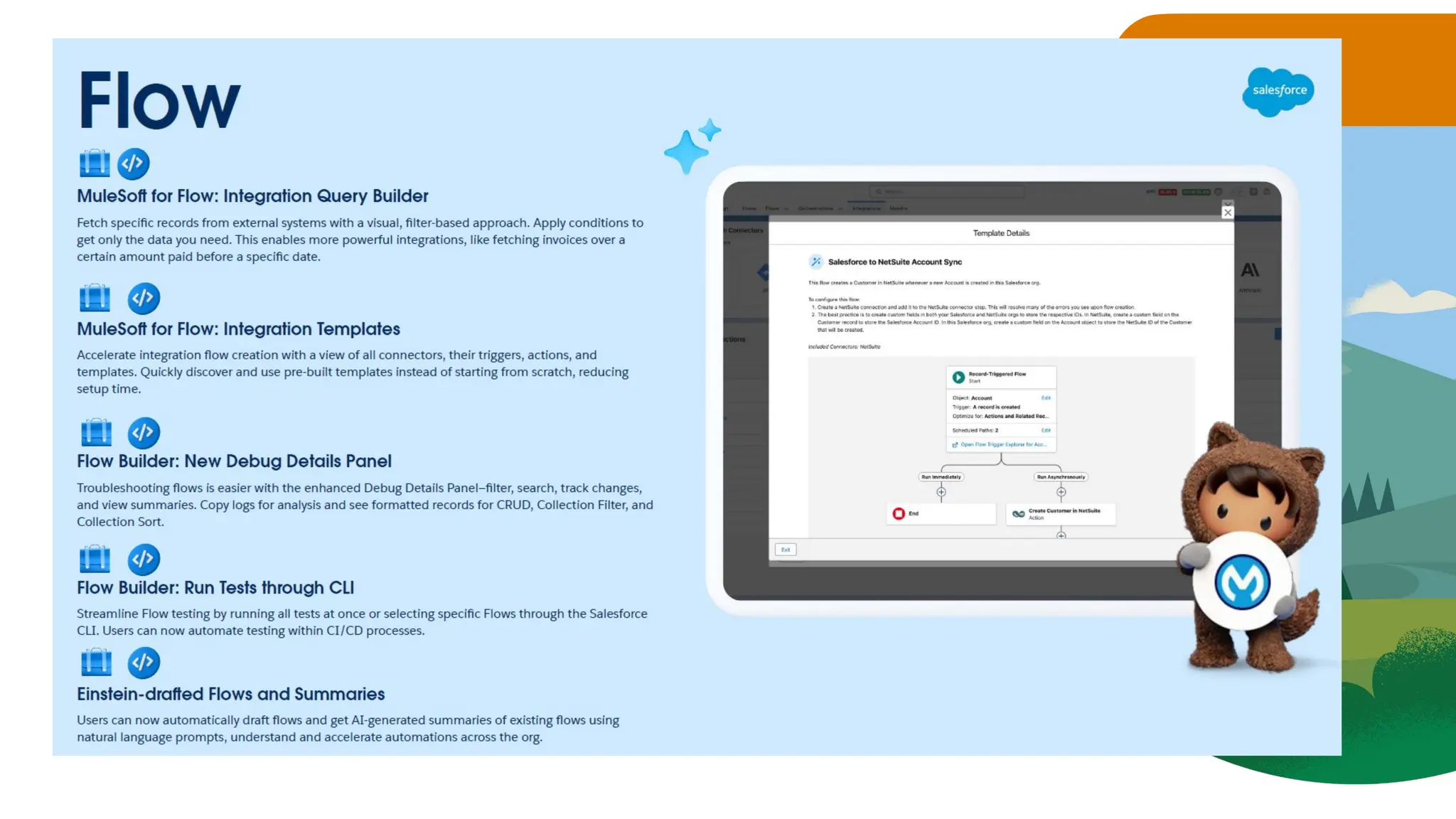
MuleSoft for Flow: Get
Records for External Systems
Familiar “Get Records” querying
experience for connector actions
27.
Starting with templatesfor Salesforce, NetSuite, Zendesk and QuickBooks integrations in Summer
’25
Customer Need
Creating flows from scratch is time-consuming and complex. Customers need an
easy way to discover and utilize external connectors, a clear overview of available
features, and an efficient way to create new flows.
Solution / How To Configure
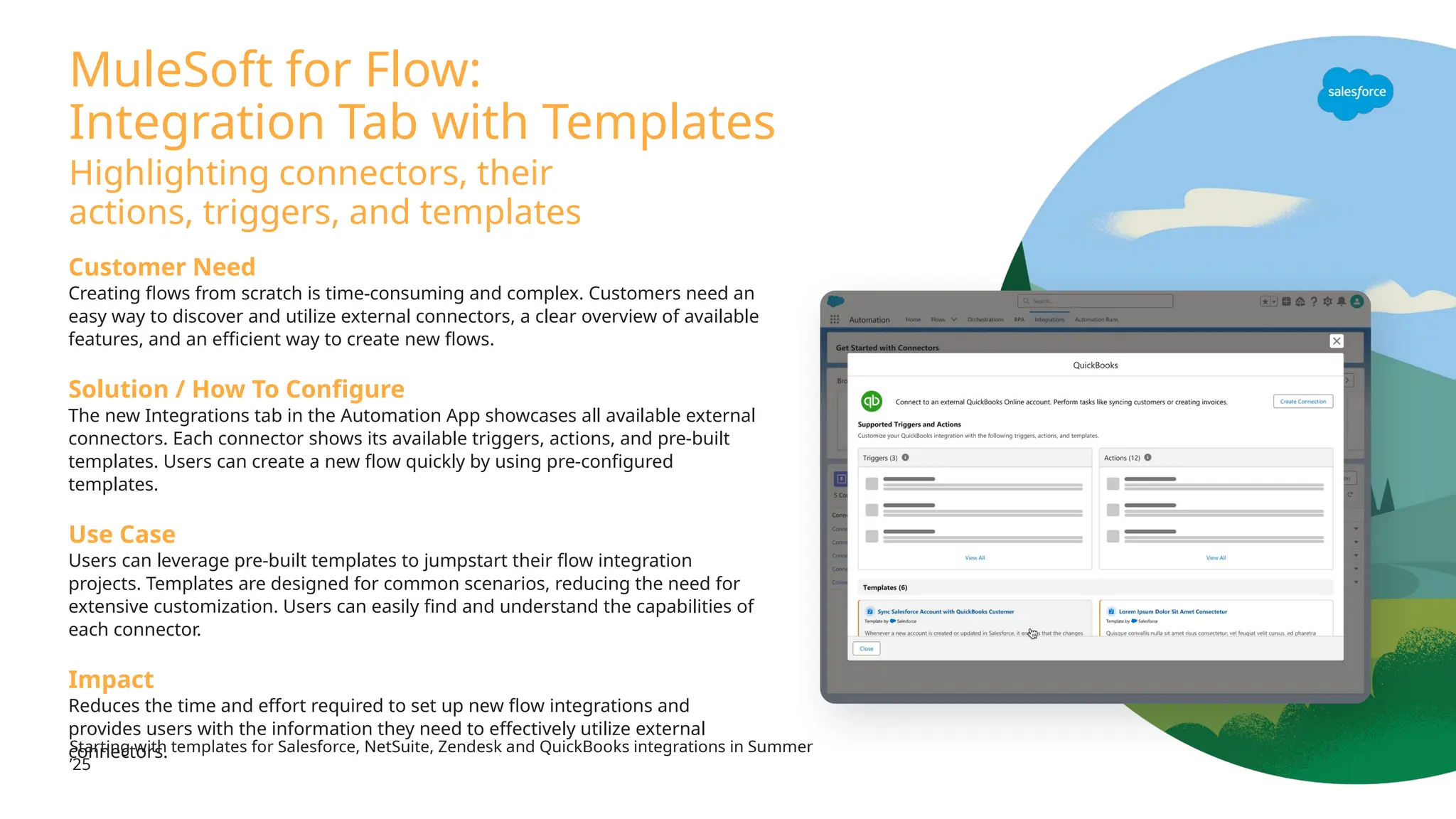
The new Integrations tab in the Automation App showcases all available external
connectors. Each connector shows its available triggers, actions, and pre-built
templates. Users can create a new flow quickly by using pre-configured
templates.
Use Case
Users can leverage pre-built templates to jumpstart their flow integration
projects. Templates are designed for common scenarios, reducing the need for
extensive customization. Users can easily find and understand the capabilities of
each connector.
Impact
Reduces the time and effort required to set up new flow integrations and
provides users with the information they need to effectively utilize external
connectors.
MuleSoft for Flow:
Integration Tab with Templates
Highlighting connectors, their
actions, triggers, and templates
Reactive Screen Actions
Launchscreen actions based on user input
changes to create truly reactive forms
Customer Need
Customers often need to query for data and put that data into the same screen.
This is currently solved by Action Buttons (GA in 252), but a button press may
not be desirable. Data Fetcher currently meets this need, but is an appexchange
install and requires SOQL knowledge.
Solution / How To Configure
See our help docs:
https://help.salesforce.com/s/articleView?id=platform.flow_ref_elements_screen
_flow_screen_actions.htm&language=en_US&type=5
Use Cases
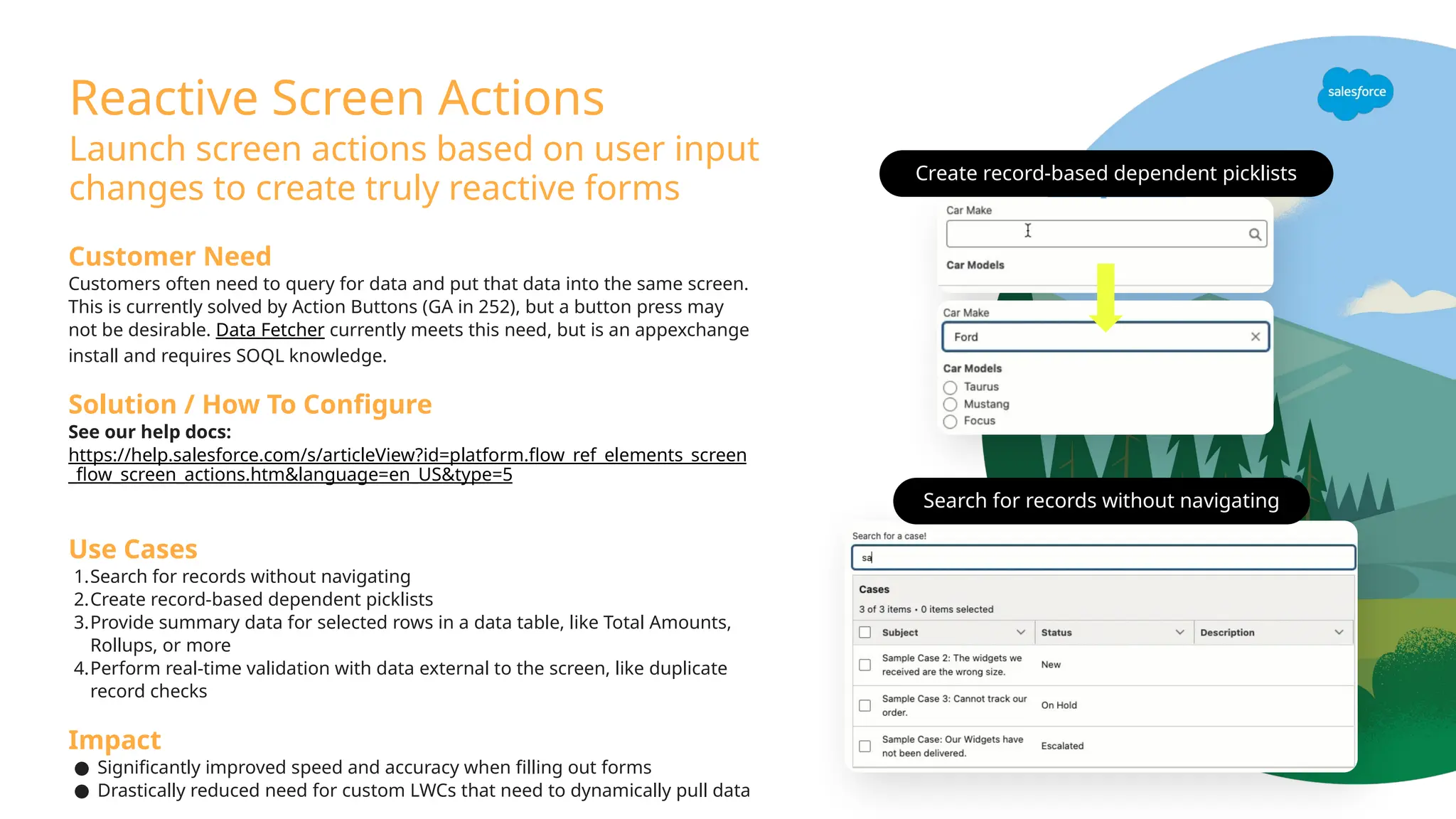
1.Search for records without navigating
2.Create record-based dependent picklists
3.Provide summary data for selected rows in a data table, like Total Amounts,
Rollups, or more
4.Perform real-time validation with data external to the screen, like duplicate
record checks
Impact
● Significantly improved speed and accuracy when filling out forms
● Drastically reduced need for custom LWCs that need to dynamically pull data
Create record-based dependent picklists
Search for records without navigating
30.
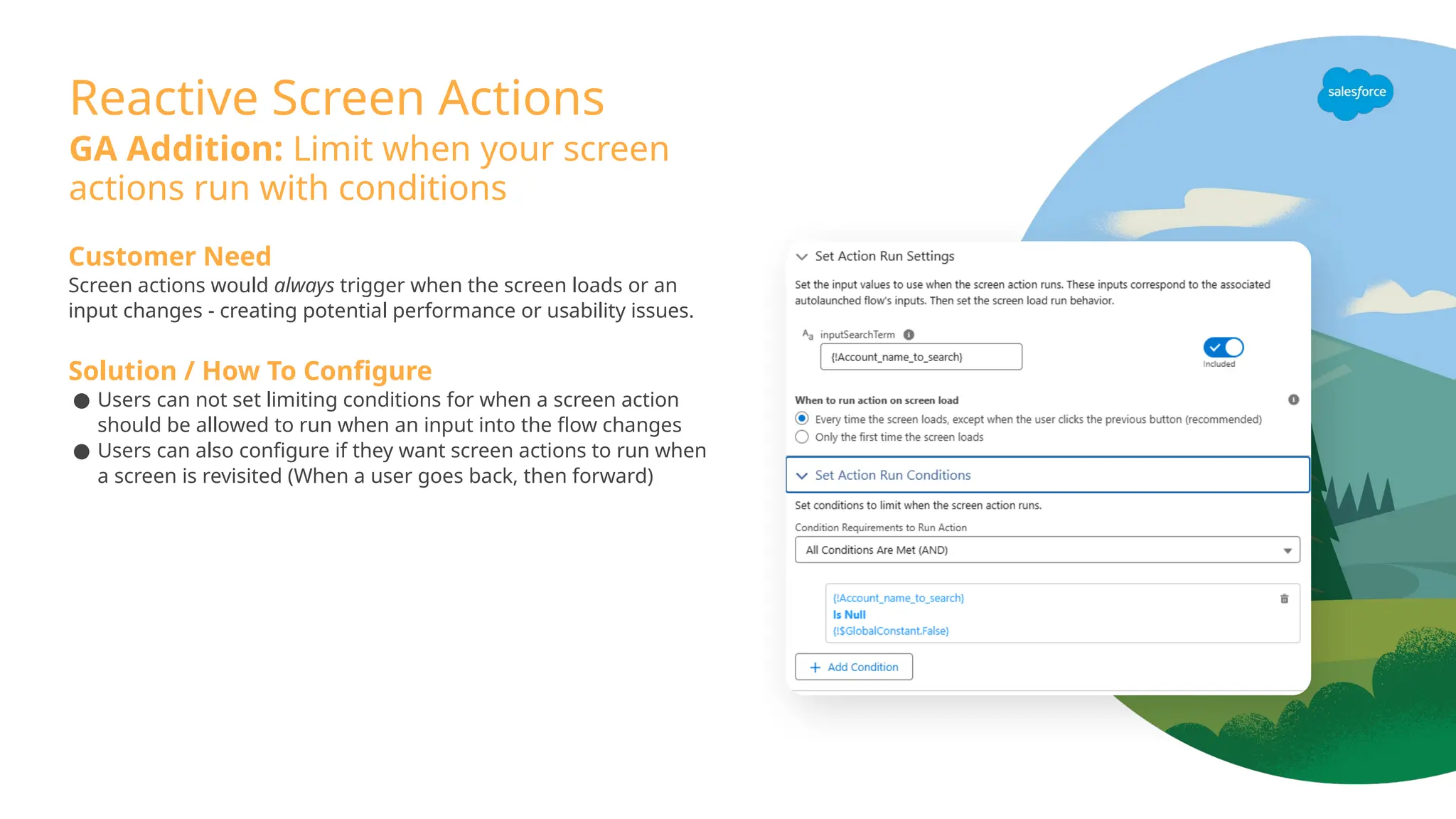
Reactive Screen Actions
GAAddition: Limit when your screen
actions run with conditions
Customer Need
Screen actions would always trigger when the screen loads or an
input changes - creating potential performance or usability issues.
Solution / How To Configure
● Users can not set limiting conditions for when a screen action
should be allowed to run when an input into the flow changes
● Users can also configure if they want screen actions to run when
a screen is revisited (When a user goes back, then forward)
31.
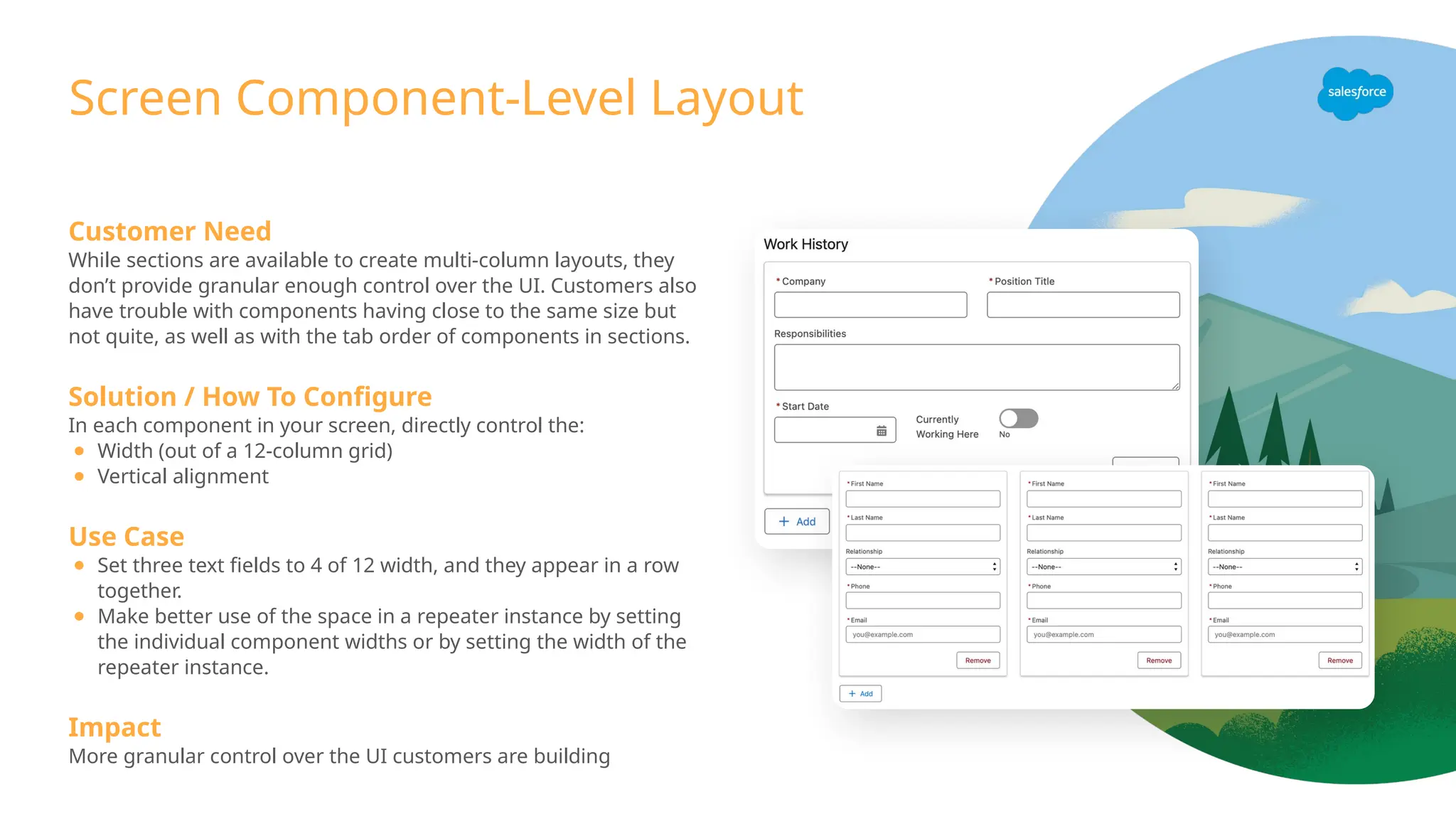
Screen Component-Level Layout
CustomerNeed
While sections are available to create multi-column layouts, they
don’t provide granular enough control over the UI. Customers also
have trouble with components having close to the same size but
not quite, as well as with the tab order of components in sections.
Solution / How To Configure
In each component in your screen, directly control the:
● Width (out of a 12-column grid)
● Vertical alignment
Use Case
● Set three text fields to 4 of 12 width, and they appear in a row
together.
● Make better use of the space in a repeater instance by setting
the individual component widths or by setting the width of the
repeater instance.
Impact
More granular control over the UI customers are building
32.
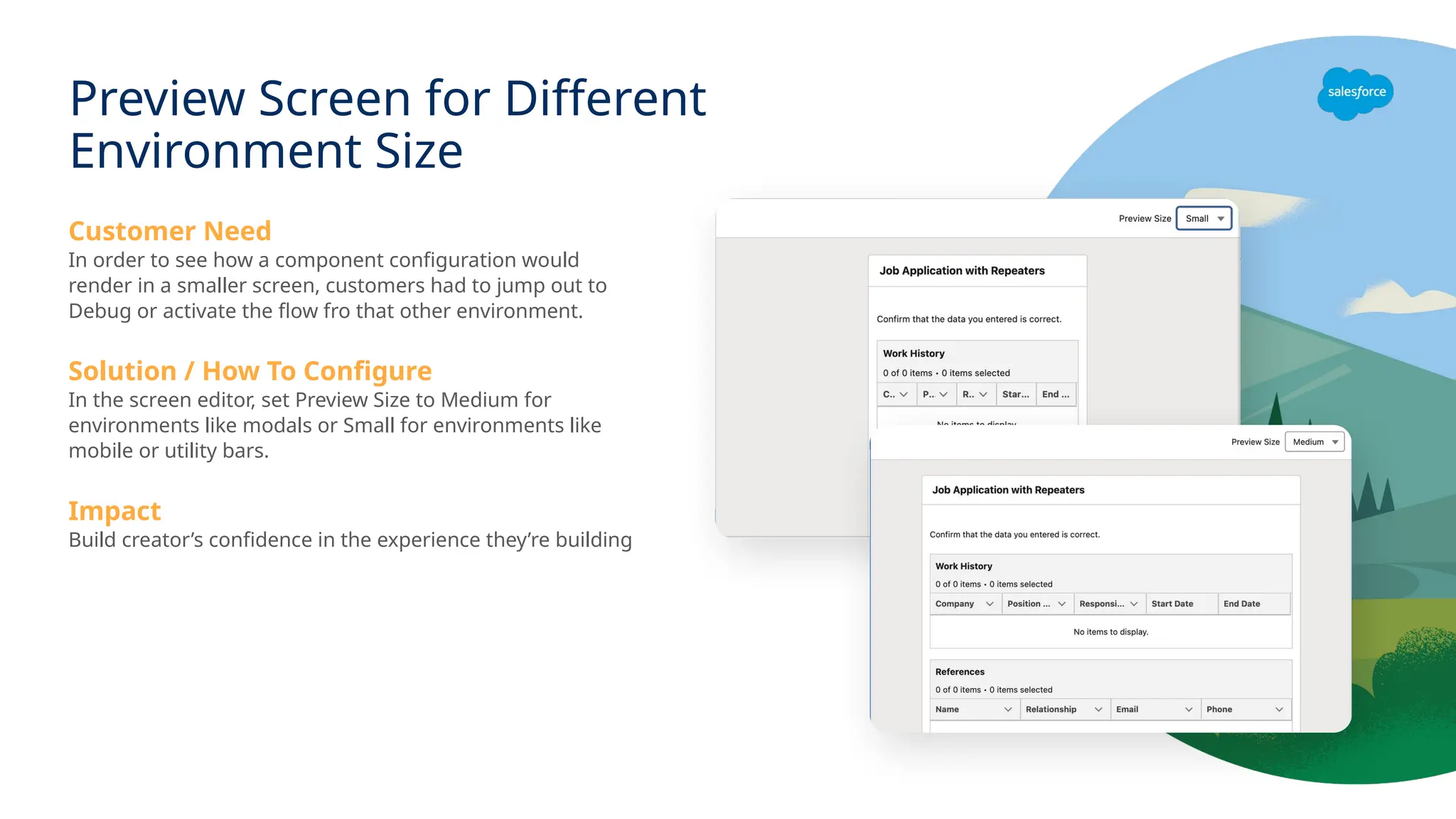
Customer Need
In orderto see how a component configuration would
render in a smaller screen, customers had to jump out to
Debug or activate the flow fro that other environment.
Solution / How To Configure
In the screen editor, set Preview Size to Medium for
environments like modals or Small for environments like
mobile or utility bars.
Impact
Build creator’s confidence in the experience they’re building
Preview Screen for Different
Environment Size
33.
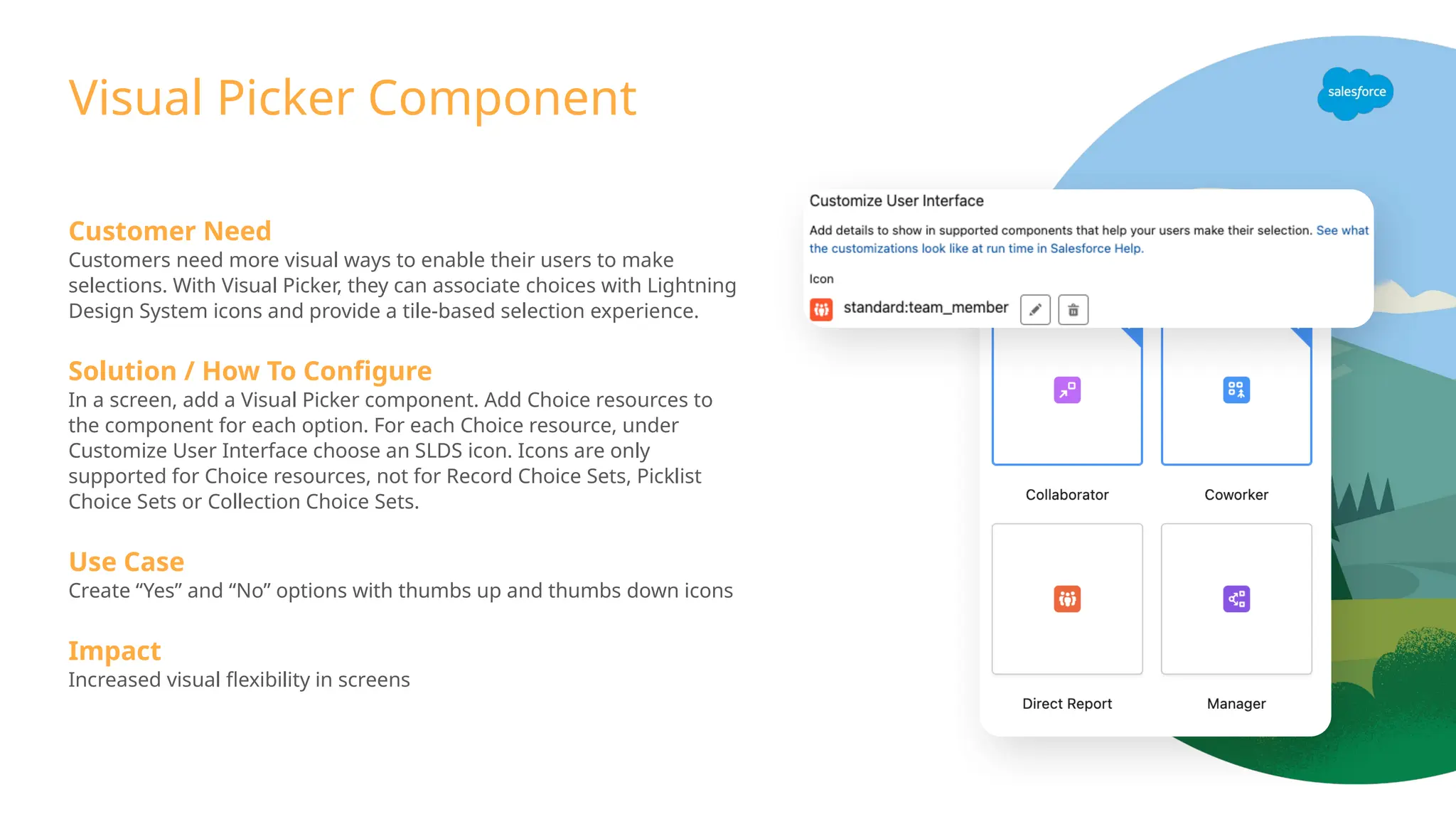
Visual Picker Component
CustomerNeed
Customers need more visual ways to enable their users to make
selections. With Visual Picker, they can associate choices with Lightning
Design System icons and provide a tile-based selection experience.
Solution / How To Configure
In a screen, add a Visual Picker component. Add Choice resources to
the component for each option. For each Choice resource, under
Customize User Interface choose an SLDS icon. Icons are only
supported for Choice resources, not for Record Choice Sets, Picklist
Choice Sets or Collection Choice Sets.
Use Case
Create “Yes” and “No” options with thumbs up and thumbs down icons
Impact
Increased visual flexibility in screens
34.
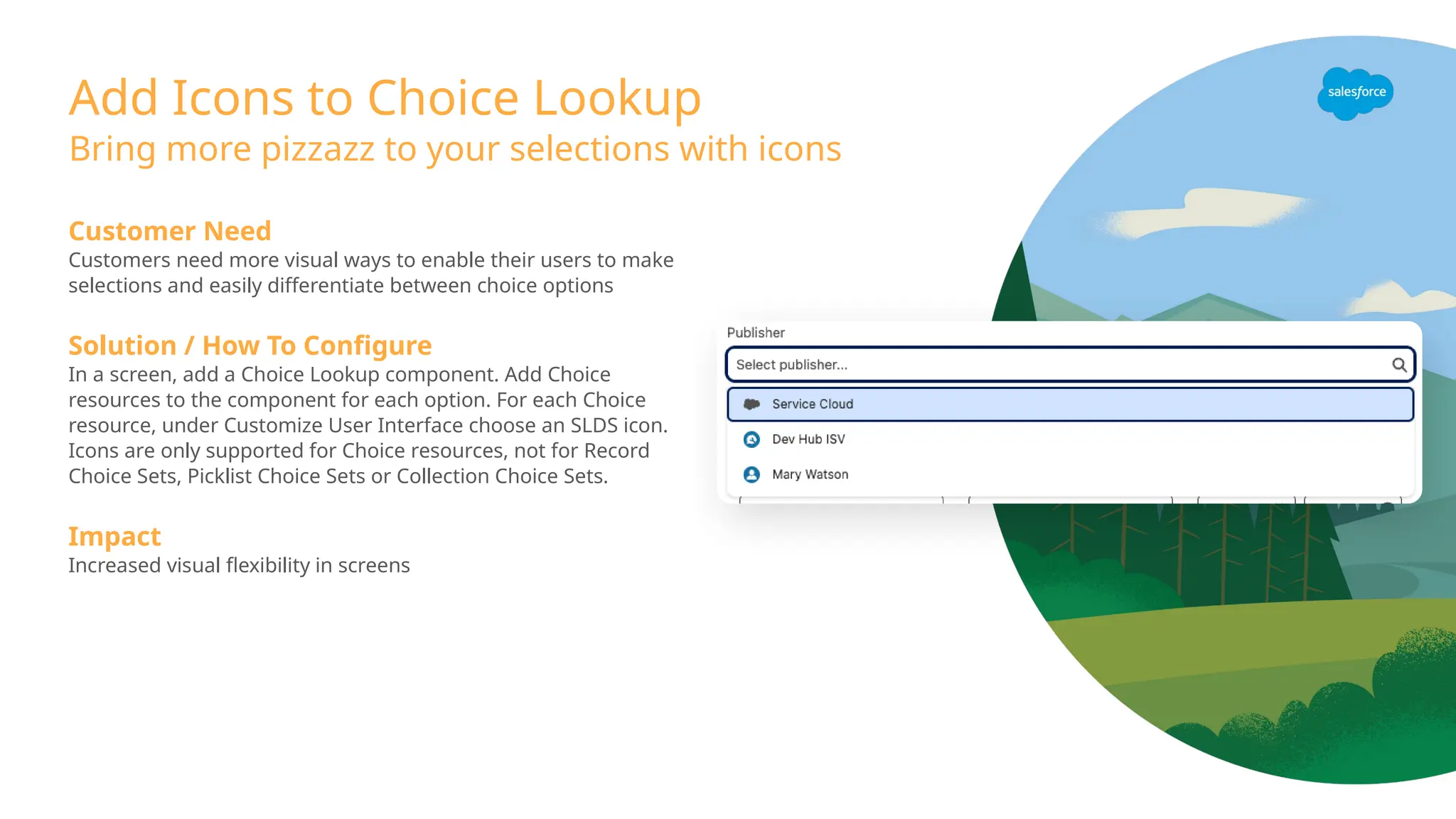
Add Icons toChoice Lookup
Customer Need
Customers need more visual ways to enable their users to make
selections and easily differentiate between choice options
Solution / How To Configure
In a screen, add a Choice Lookup component. Add Choice
resources to the component for each option. For each Choice
resource, under Customize User Interface choose an SLDS icon.
Icons are only supported for Choice resources, not for Record
Choice Sets, Picklist Choice Sets or Collection Choice Sets.
Impact
Increased visual flexibility in screens
Bring more pizzazz to your selections with icons
Activation-Triggered Flows
Personalized Interactionson Any System
Customer Need
Data Cloud Activations come pre-configured with many activation
targets, but if customers need to call another system or build out
complex logic before sending data on, they have not been able to
do so using our low-code tools.
Solution / How To Configure
Users should set up an activation with a Data Cloud target, then
open Flow, select Activation-Triggered Flows, and build their
automation. Users can access Flows’ rich library of invocable actions
to call an external system, or build new ones using HTTP Callouts.
Use Case
An analyst wants to activate a highly personalized interaction using
their in-house system. They can use activation-triggered flows to
connect their Data Cloud data to their in-house system.
Impact
Data Cloud Extensibility
Only available in Data Cloud.
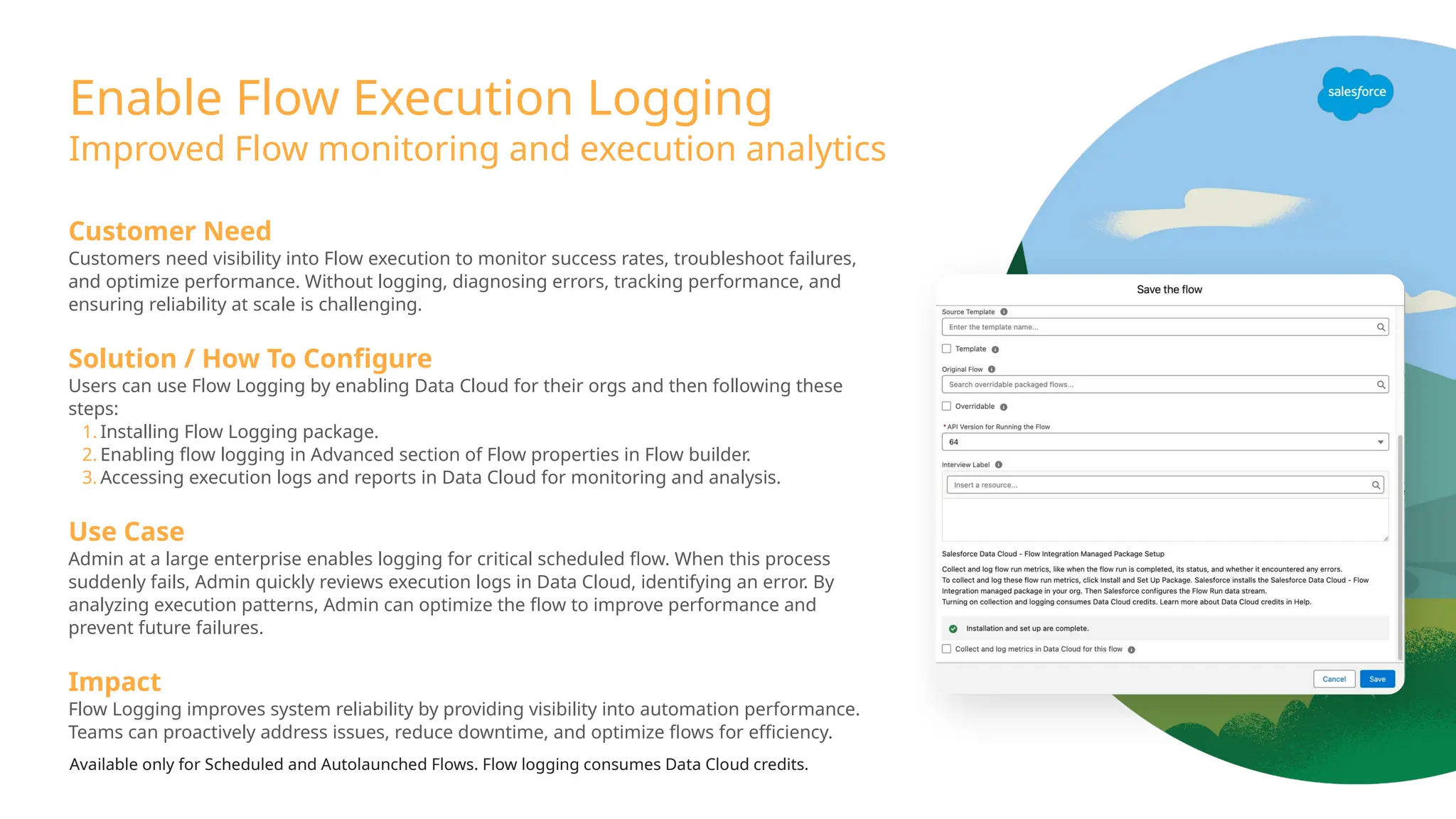
Enable Flow ExecutionLogging
Improved Flow monitoring and execution analytics
Customer Need
Customers need visibility into Flow execution to monitor success rates, troubleshoot failures,
and optimize performance. Without logging, diagnosing errors, tracking performance, and
ensuring reliability at scale is challenging.
Solution / How To Configure
Users can use Flow Logging by enabling Data Cloud for their orgs and then following these
steps:
1. Installing Flow Logging package.
2. Enabling flow logging in Advanced section of Flow properties in Flow builder.
3. Accessing execution logs and reports in Data Cloud for monitoring and analysis.
Use Case
Admin at a large enterprise enables logging for critical scheduled flow. When this process
suddenly fails, Admin quickly reviews execution logs in Data Cloud, identifying an error. By
analyzing execution patterns, Admin can optimize the flow to improve performance and
prevent future failures.
Impact
Flow Logging improves system reliability by providing visibility into automation performance.
Teams can proactively address issues, reduce downtime, and optimize flows for efficiency.
Available only for Scheduled and Autolaunched Flows. Flow logging consumes Data Cloud credits.
Marketing Cloud
Advanced
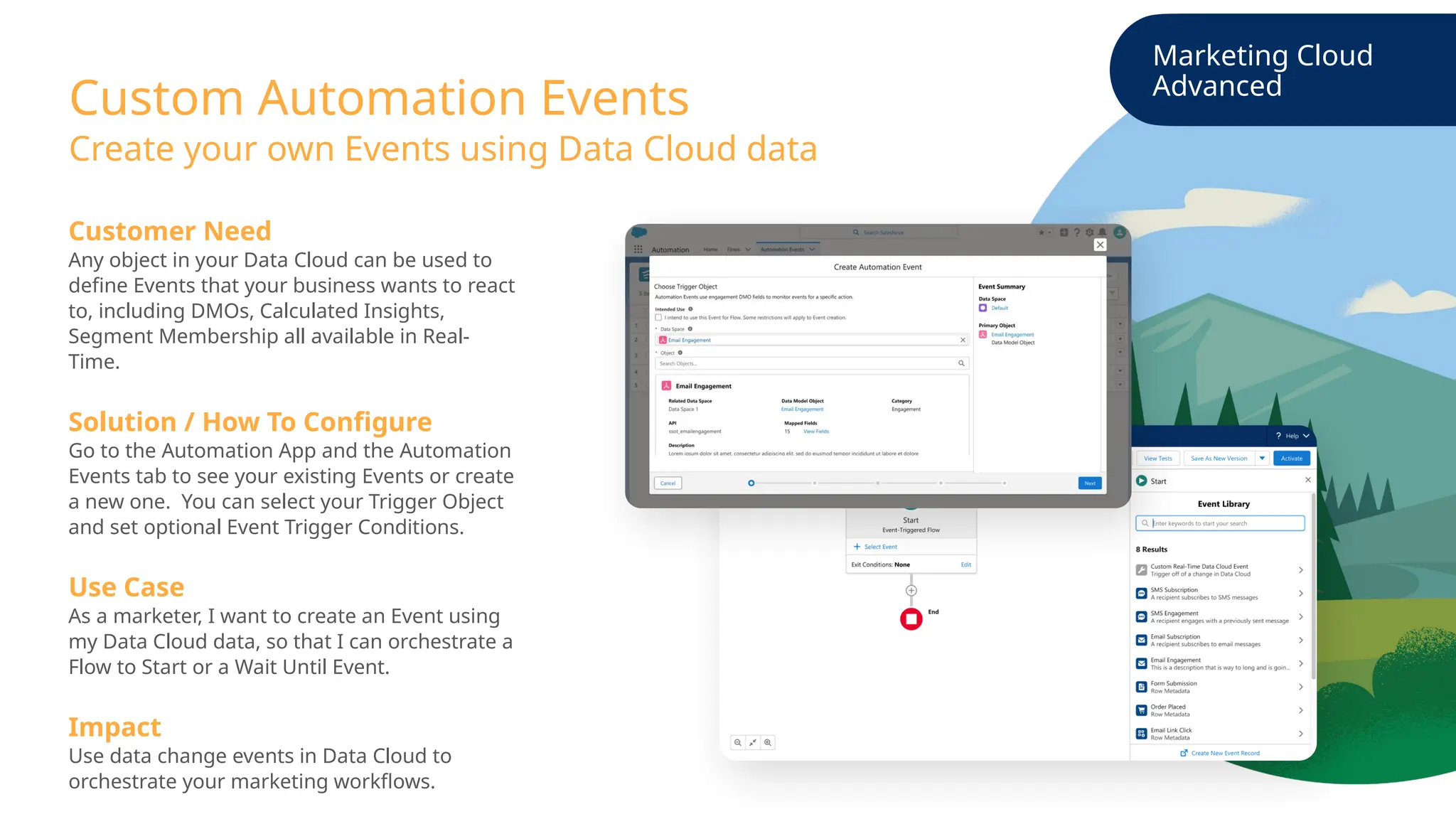
Custom AutomationEvents
Create your own Events using Data Cloud data
Customer Need
Any object in your Data Cloud can be used to
define Events that your business wants to react
to, including DMOs, Calculated Insights,
Segment Membership all available in Real-
Time.
Solution / How To Configure
Go to the Automation App and the Automation
Events tab to see your existing Events or create
a new one. You can select your Trigger Object
and set optional Event Trigger Conditions.
Use Case
As a marketer, I want to create an Event using
my Data Cloud data, so that I can orchestrate a
Flow to Start or a Wait Until Event.
Impact
Use data change events in Data Cloud to
orchestrate your marketing workflows.
41.
Marketing Cloud
Growth &Advanced
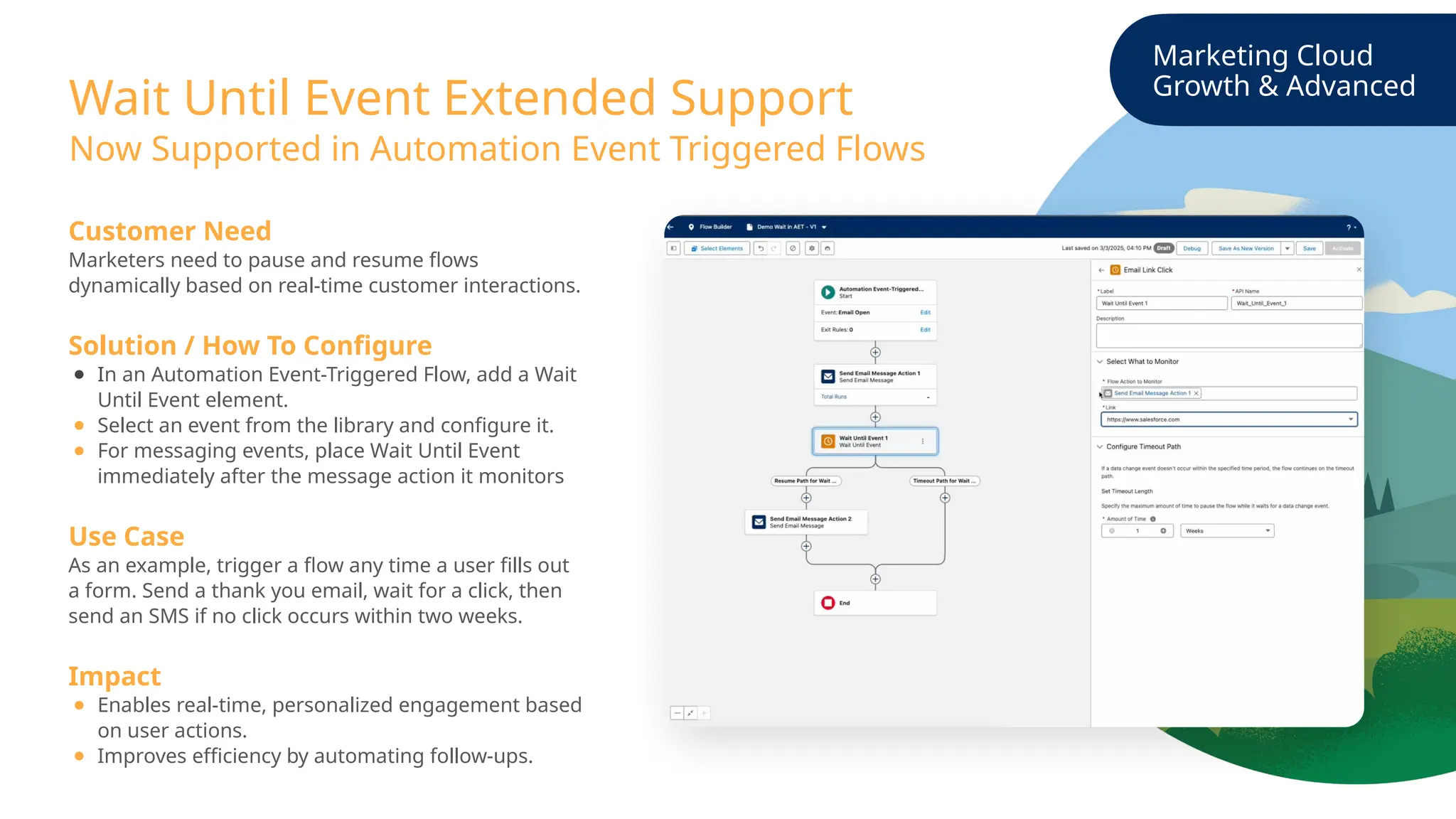
Wait Until Event Extended Support
Customer Need
Marketers need to pause and resume flows
dynamically based on real-time customer interactions.
Solution / How To Configure
● In an Automation Event-Triggered Flow, add a Wait
Until Event element.
● Select an event from the library and configure it.
● For messaging events, place Wait Until Event
immediately after the message action it monitors
Use Case
As an example, trigger a flow any time a user fills out
a form. Send a thank you email, wait for a click, then
send an SMS if no click occurs within two weeks.
Impact
● Enables real-time, personalized engagement based
on user actions.
● Improves efficiency by automating follow-ups.
Now Supported in Automation Event Triggered Flows
42.
Marketing Cloud
Growth &Advanced
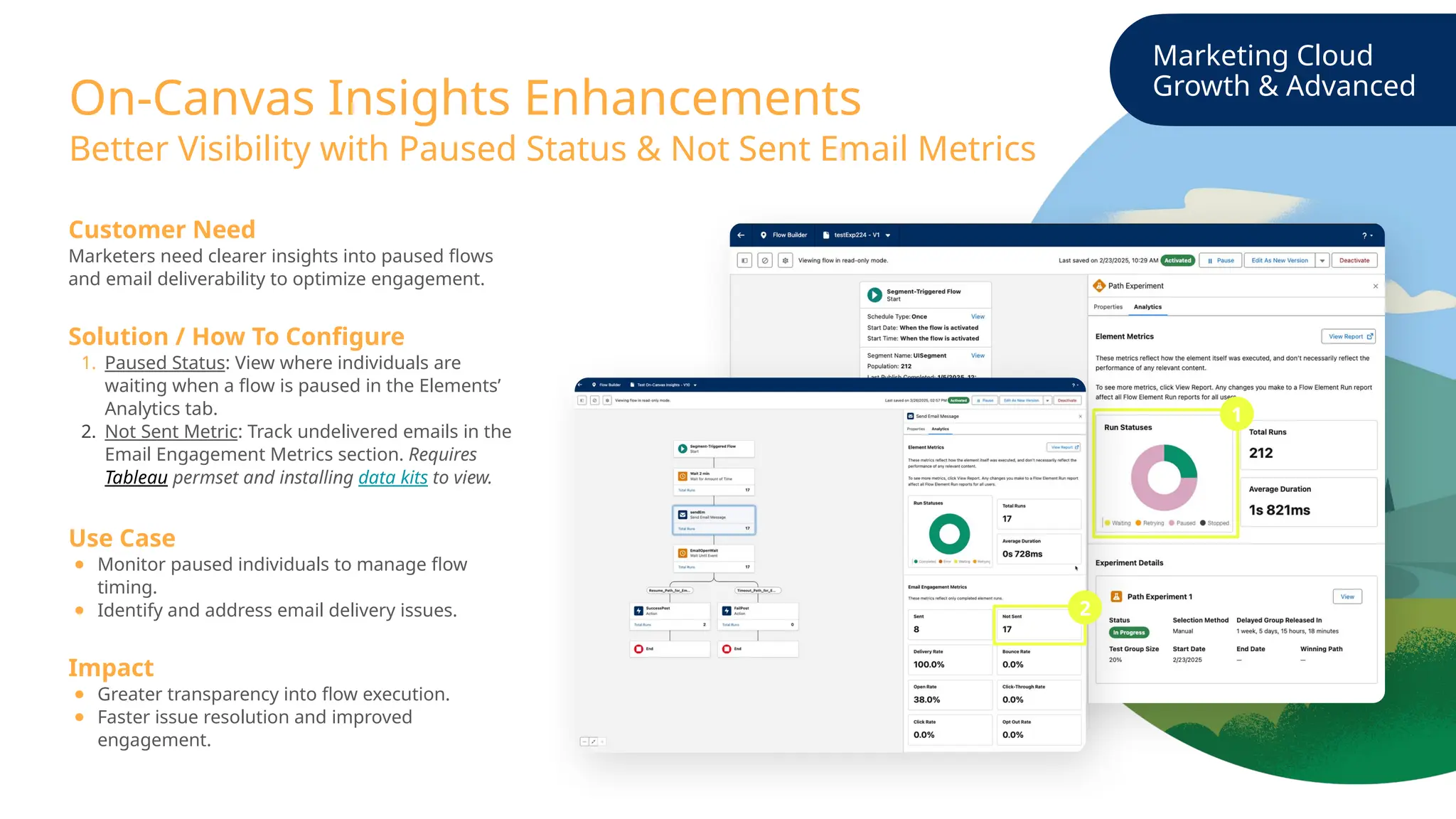
On-Canvas Insights Enhancements
Customer Need
Marketers need clearer insights into paused flows
and email deliverability to optimize engagement.
Solution / How To Configure
1. Paused Status: View where individuals are
waiting when a flow is paused in the Elements’
Analytics tab.
2. Not Sent Metric: Track undelivered emails in the
Email Engagement Metrics section. Requires
Tableau permset and installing data kits to view.
Use Case
● Monitor paused individuals to manage flow
timing.
● Identify and address email delivery issues.
Impact
● Greater transparency into flow execution.
● Faster issue resolution and improved
engagement.
Better Visibility with Paused Status & Not Sent Email Metrics
1
2
43.
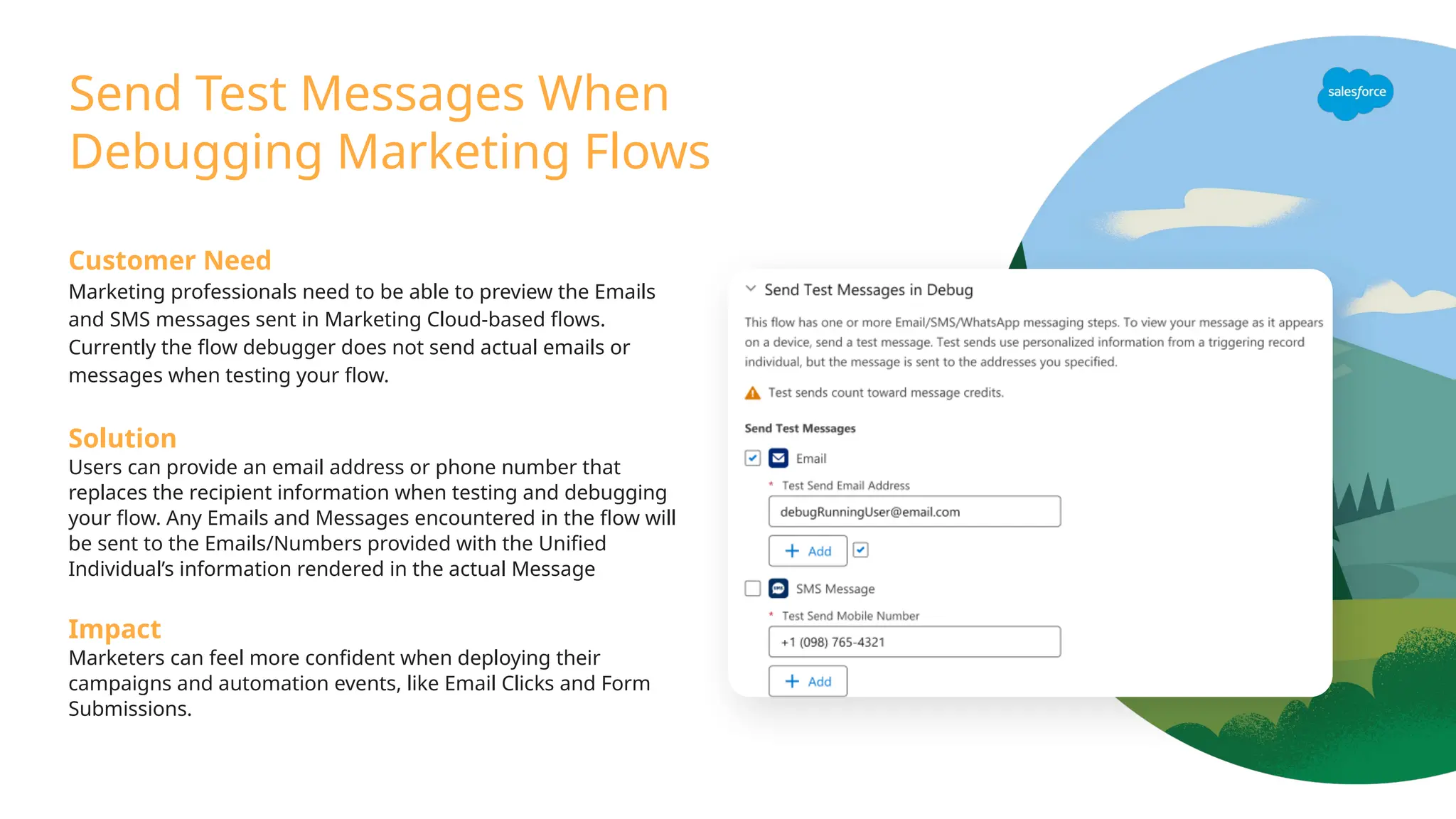
Send Test MessagesWhen
Debugging Marketing Flows
Customer Need
Marketing professionals need to be able to preview the Emails
and SMS messages sent in Marketing Cloud-based flows.
Currently the flow debugger does not send actual emails or
messages when testing your flow.
Solution
Users can provide an email address or phone number that
replaces the recipient information when testing and debugging
your flow. Any Emails and Messages encountered in the flow will
be sent to the Emails/Numbers provided with the Unified
Individual’s information rendered in the actual Message
Impact
Marketers can feel more confident when deploying their
campaigns and automation events, like Email Clicks and Form
Submissions.
44.
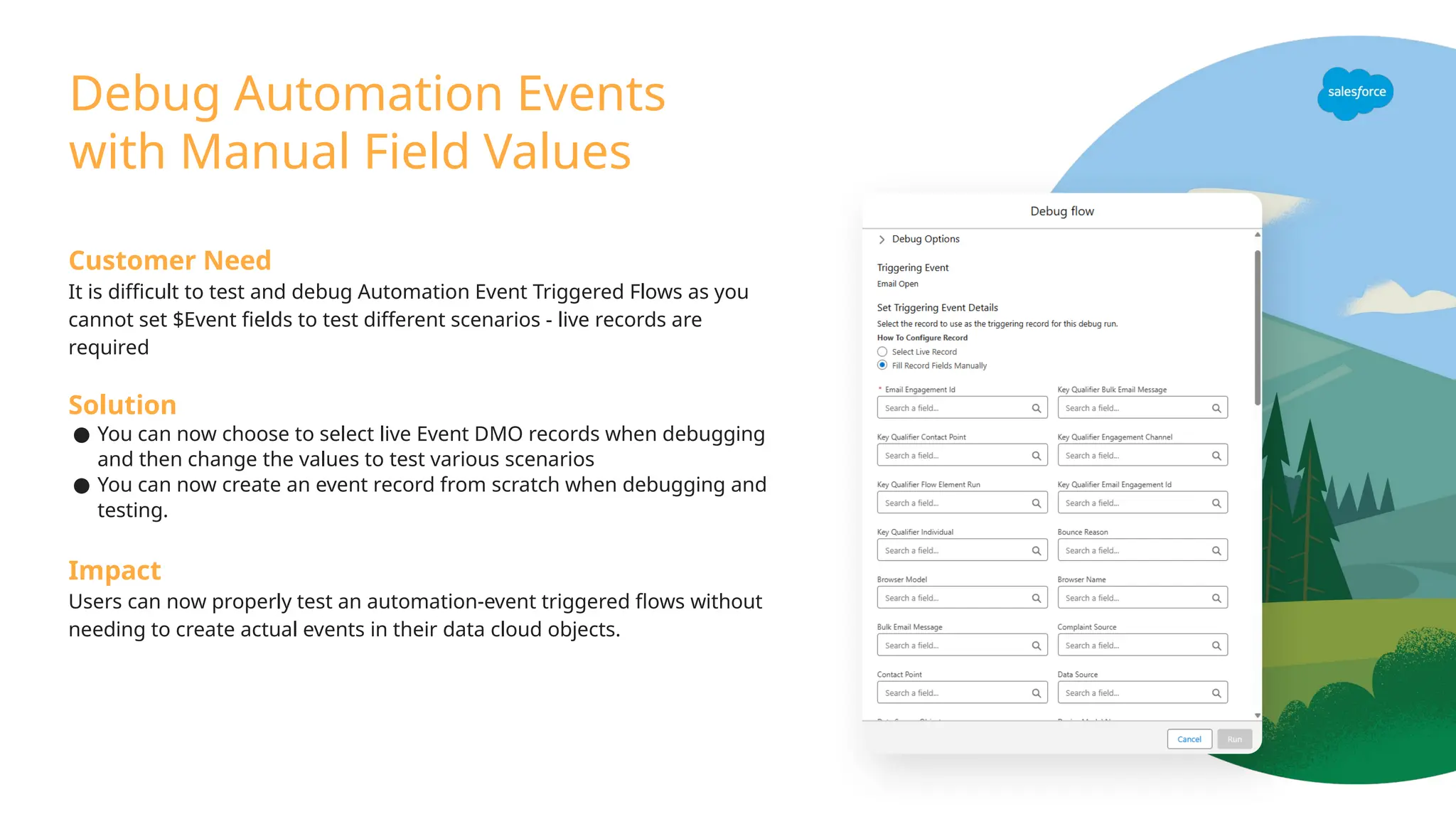
Debug Automation Events
withManual Field Values
Customer Need
It is difficult to test and debug Automation Event Triggered Flows as you
cannot set $Event fields to test different scenarios - live records are
required
Solution
● You can now choose to select live Event DMO records when debugging
and then change the values to test various scenarios
● You can now create an event record from scratch when debugging and
testing.
Impact
Users can now properly test an automation-event triggered flows without
needing to create actual events in their data cloud objects.
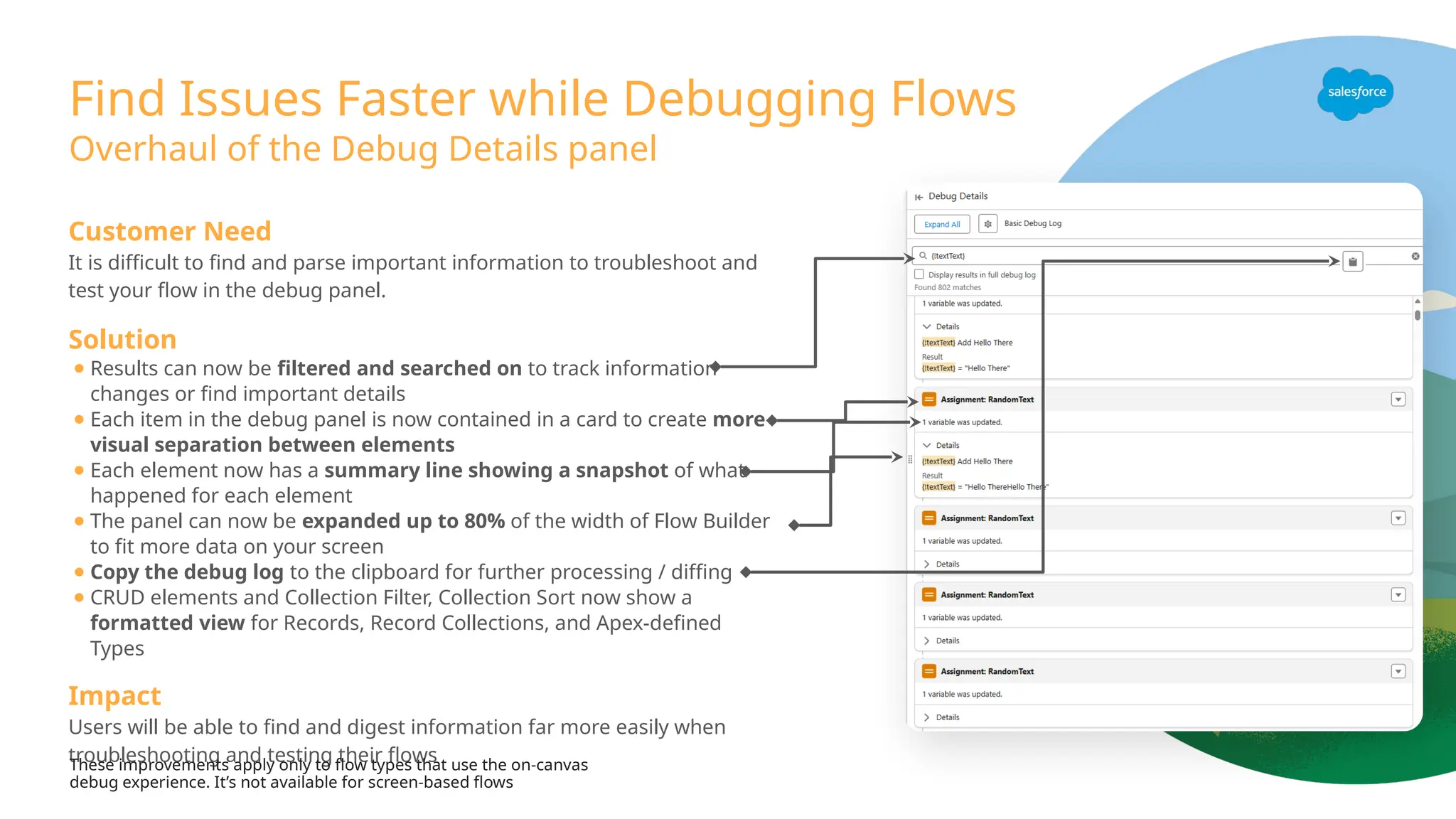
Find Issues Fasterwhile Debugging Flows
Customer Need
It is difficult to find and parse important information to troubleshoot and
test your flow in the debug panel.
Solution
● Results can now be filtered and searched on to track information
changes or find important details
● Each item in the debug panel is now contained in a card to create more
visual separation between elements
● Each element now has a summary line showing a snapshot of what
happened for each element
● The panel can now be expanded up to 80% of the width of Flow Builder
to fit more data on your screen
● Copy the debug log to the clipboard for further processing / diffing
● CRUD elements and Collection Filter, Collection Sort now show a
formatted view for Records, Record Collections, and Apex-defined
Types
Impact
Users will be able to find and digest information far more easily when
troubleshooting and testing their flows
Overhaul of the Debug Details panel
These improvements apply only to flow types that use the on-canvas
debug experience. It’s not available for screen-based flows
47.
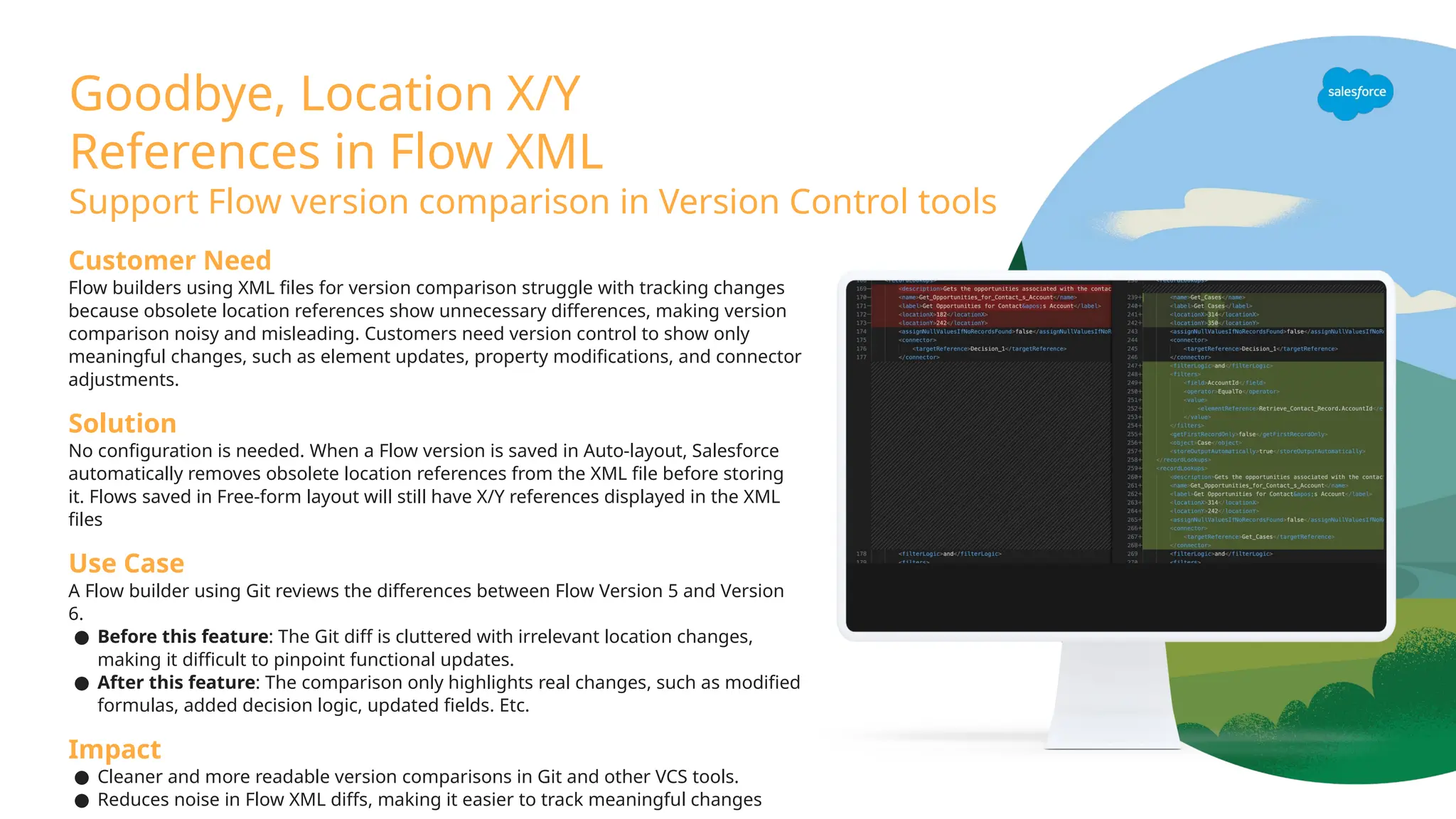
Customer Need
Flow buildersusing XML files for version comparison struggle with tracking changes
because obsolete location references show unnecessary differences, making version
comparison noisy and misleading. Customers need version control to show only
meaningful changes, such as element updates, property modifications, and connector
adjustments.
Solution
No configuration is needed. When a Flow version is saved in Auto-layout, Salesforce
automatically removes obsolete location references from the XML file before storing
it. Flows saved in Free-form layout will still have X/Y references displayed in the XML
files
Use Case
A Flow builder using Git reviews the differences between Flow Version 5 and Version
6.
● Before this feature: The Git diff is cluttered with irrelevant location changes,
making it difficult to pinpoint functional updates.
● After this feature: The comparison only highlights real changes, such as modified
formulas, added decision logic, updated fields. Etc.
Impact
● Cleaner and more readable version comparisons in Git and other VCS tools.
● Reduces noise in Flow XML diffs, making it easier to track meaningful changes
Goodbye, Location X/Y
References in Flow XML
Support Flow version comparison in Version Control tools
48.
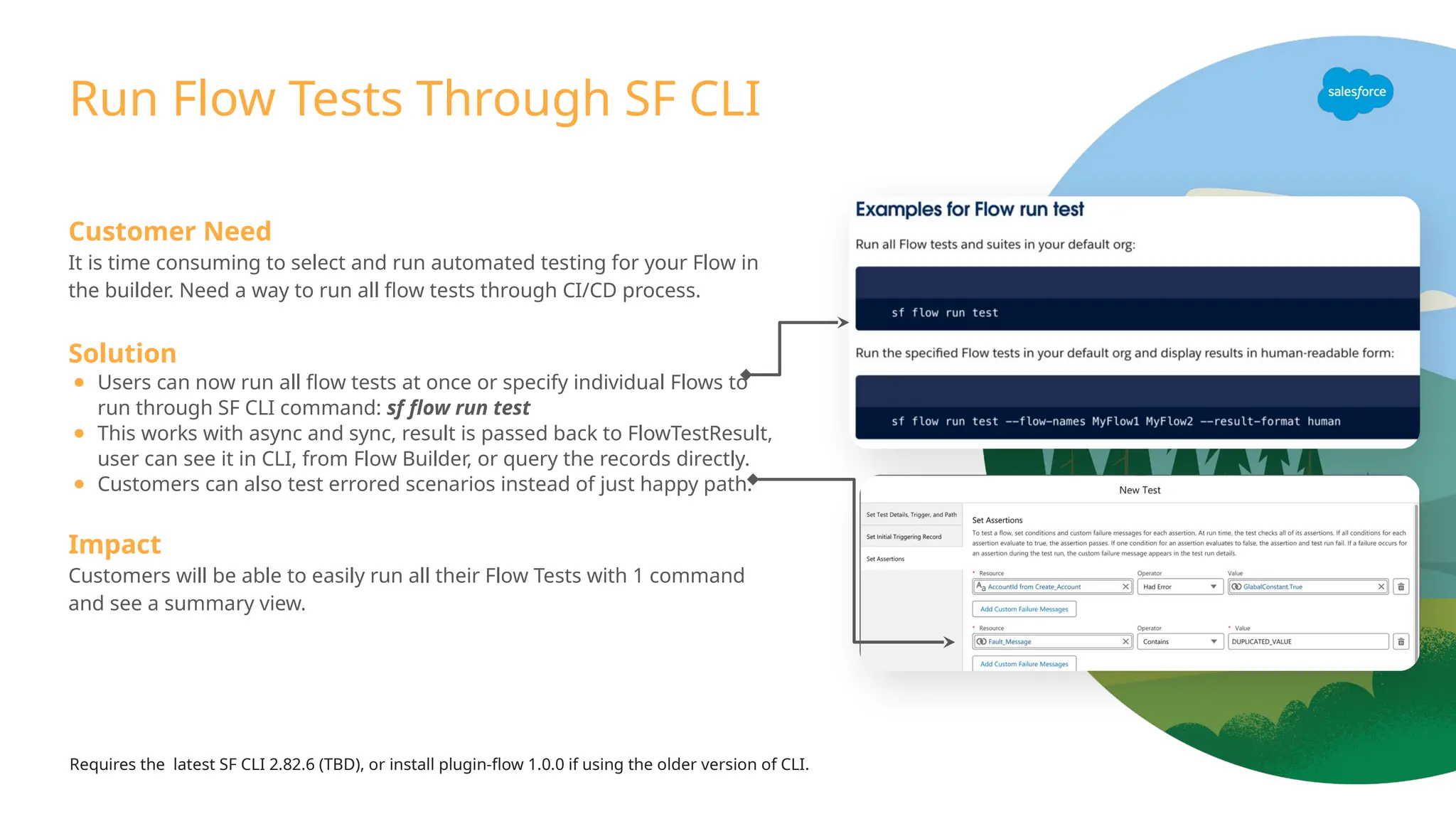
Run Flow TestsThrough SF CLI
Customer Need
It is time consuming to select and run automated testing for your Flow in
the builder. Need a way to run all flow tests through CI/CD process.
Solution
● Users can now run all flow tests at once or specify individual Flows to
run through SF CLI command: sf flow run test
● This works with async and sync, result is passed back to FlowTestResult,
user can see it in CLI, from Flow Builder, or query the records directly.
● Customers can also test errored scenarios instead of just happy path.
Impact
Customers will be able to easily run all their Flow Tests with 1 command
and see a summary view.
Requires the latest SF CLI 2.82.6 (TBD), or install plugin-flow 1.0.0 if using the older version of CLI.
Customer Need
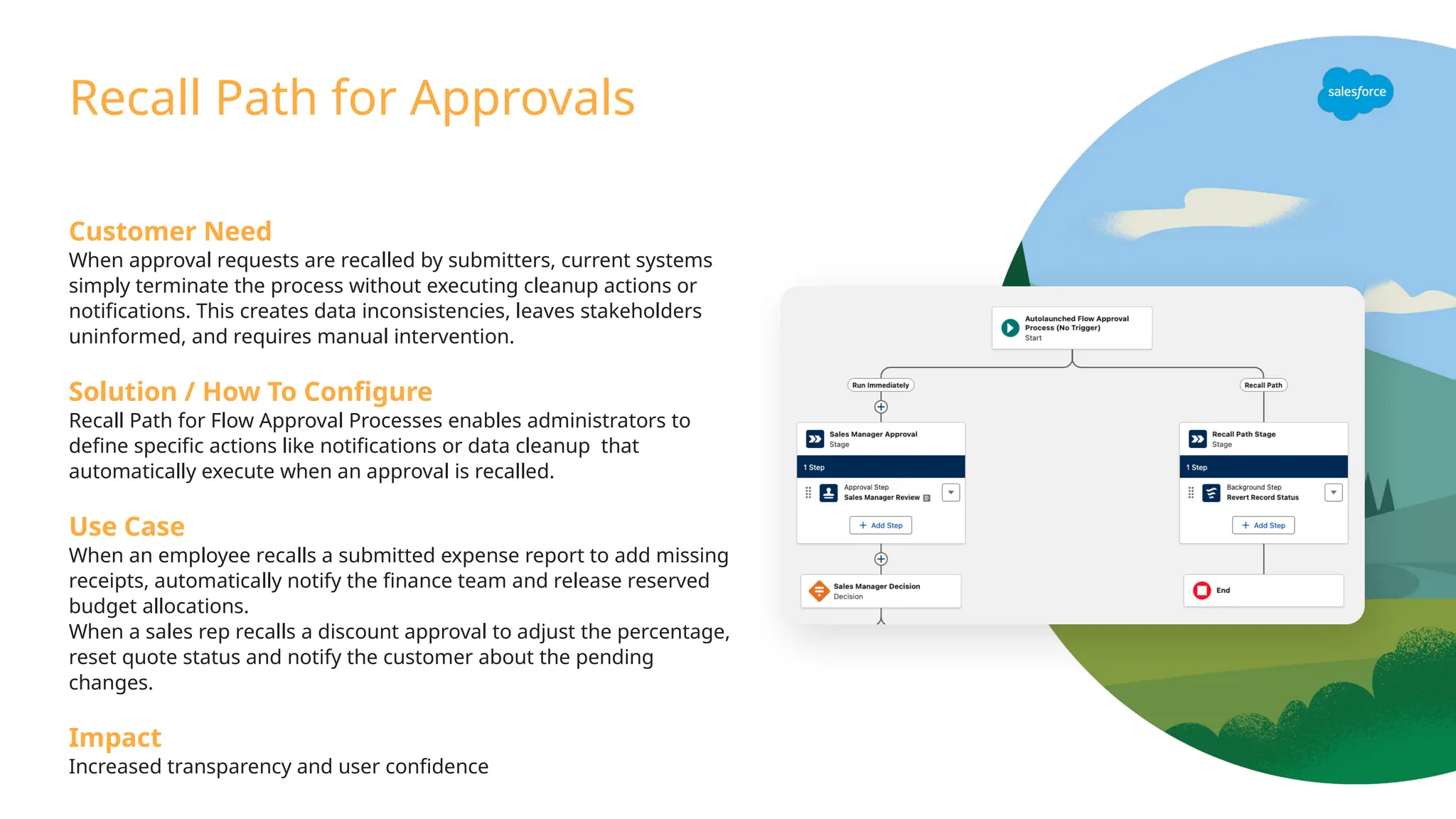
When approvalrequests are recalled by submitters, current systems
simply terminate the process without executing cleanup actions or
notifications. This creates data inconsistencies, leaves stakeholders
uninformed, and requires manual intervention.
Solution / How To Configure
Recall Path for Flow Approval Processes enables administrators to
define specific actions like notifications or data cleanup that
automatically execute when an approval is recalled.
Use Case
When an employee recalls a submitted expense report to add missing
receipts, automatically notify the finance team and release reserved
budget allocations.
When a sales rep recalls a discount approval to adjust the percentage,
reset quote status and notify the customer about the pending
changes.
Impact
Increased transparency and user confidence
Recall Path for Approvals
51.
Customer Need
Customers struggleto maintain business continuity in approval processes when key
approvers are unavailable due to vacation, illness, or other absences. Current
workarounds involve manual reassignment of approval tasks or complex custom
solutions, resulting in approval delays, administrative overhead, and process
bottlenecks.
Solution / How To Configure
Flow Approval Process Delegation automatically routes approval work items to
designated delegates when primary approvers are unavailable. This native Salesforce
capability respects existing delegation relationships configured in the org and creates
approval work items for delegates simultaneously.
Use Case
When a VP is on vacation, approval requests for high-value deals automatically route to
their designated delegate, preventing sales process delays.
When an operations manager is in all-day meetings, time-sensitive approval requests
are immediately visible to their delegate for timely processing.
Impact
Eliminates approval bottlenecks during approver absences
Flow Approval Process Delegation
52.
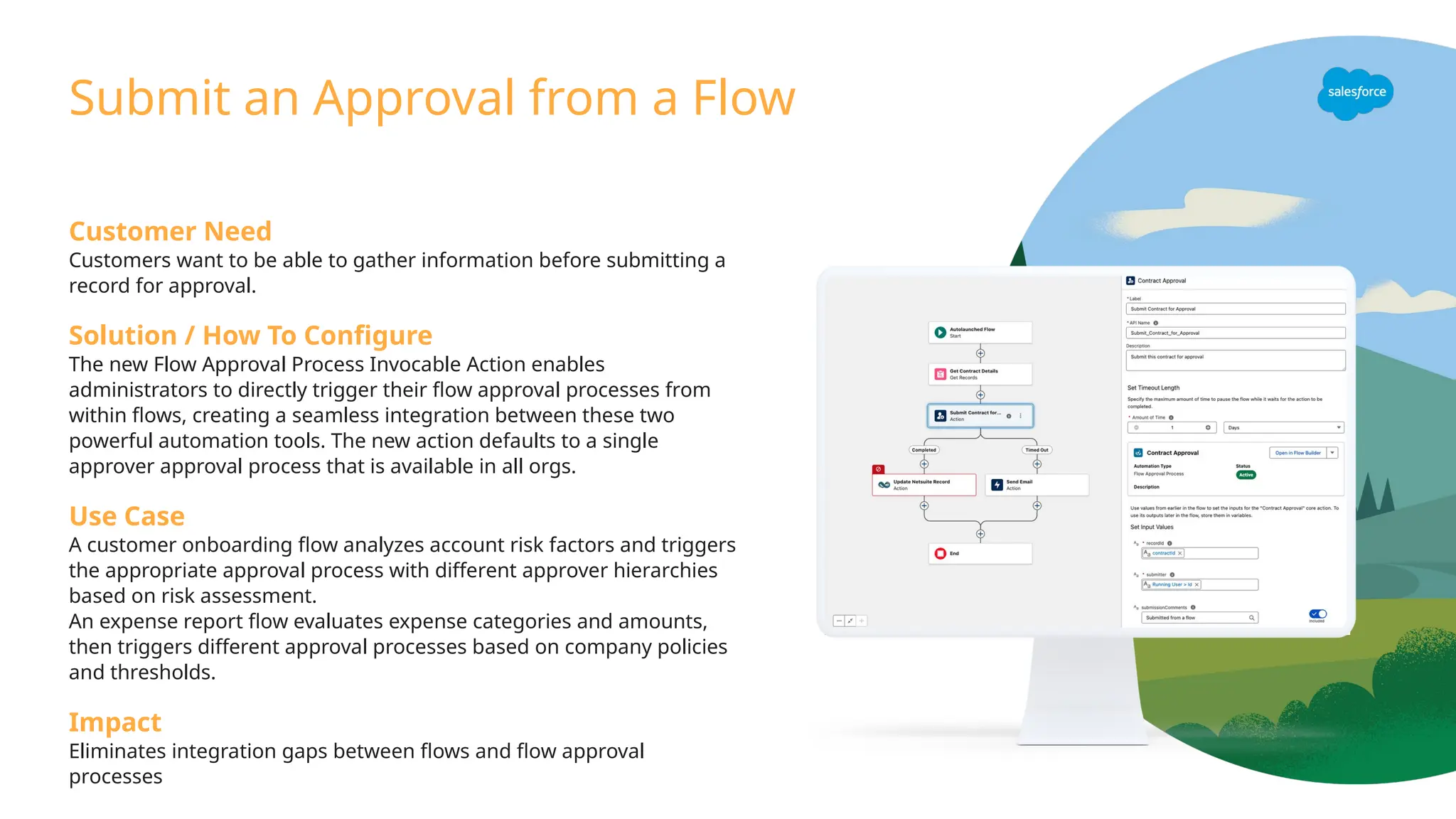
Customer Need
Customers wantto be able to gather information before submitting a
record for approval.
Solution / How To Configure
The new Flow Approval Process Invocable Action enables
administrators to directly trigger their flow approval processes from
within flows, creating a seamless integration between these two
powerful automation tools. The new action defaults to a single
approver approval process that is available in all orgs.
Use Case
A customer onboarding flow analyzes account risk factors and triggers
the appropriate approval process with different approver hierarchies
based on risk assessment.
An expense report flow evaluates expense categories and amounts,
then triggers different approval processes based on company policies
and thresholds.
Impact
Eliminates integration gaps between flows and flow approval
processes
Submit an Approval from a Flow
Customer Need
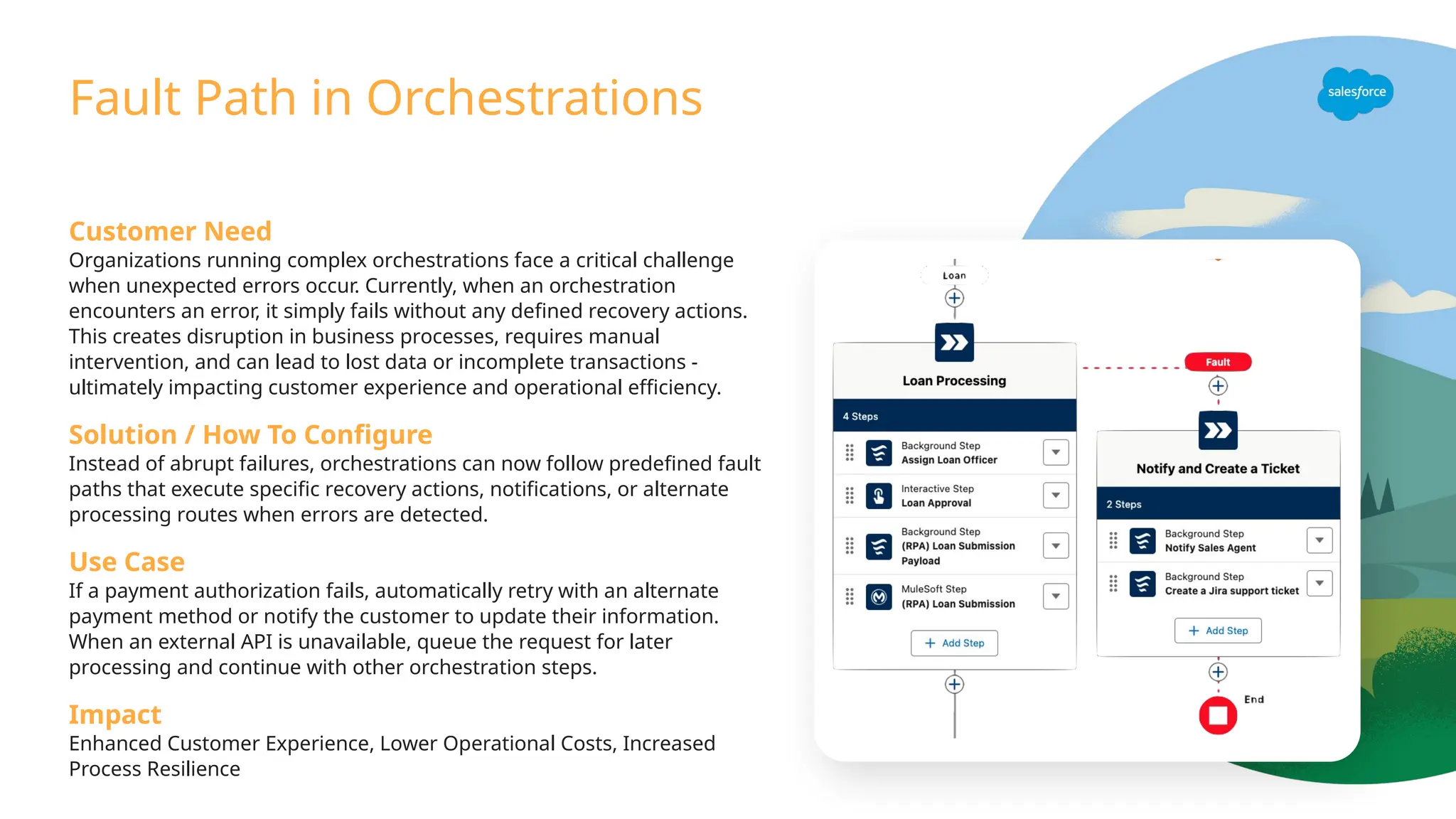
Organizations runningcomplex orchestrations face a critical challenge
when unexpected errors occur. Currently, when an orchestration
encounters an error, it simply fails without any defined recovery actions.
This creates disruption in business processes, requires manual
intervention, and can lead to lost data or incomplete transactions -
ultimately impacting customer experience and operational efficiency.
Solution / How To Configure
Instead of abrupt failures, orchestrations can now follow predefined fault
paths that execute specific recovery actions, notifications, or alternate
processing routes when errors are detected.
Use Case
If a payment authorization fails, automatically retry with an alternate
payment method or notify the customer to update their information.
When an external API is unavailable, queue the request for later
processing and continue with other orchestration steps.
Impact
Enhanced Customer Experience, Lower Operational Costs, Increased
Process Resilience
Fault Path in Orchestrations
55.
Translation support forstages
Provide translations for stage names based on user locale
Customer Need
Admins want to display stage names in the Work Guide in the
appropriate language for their users.
Solution / How To Configure
Navigate into Translation Workbench to find the orchestration stages
and provide a translation for each language supported in the
organization.
Use Case
As a loan officer, I’m being asked to review loan applications but I want
the stage name in the work guide to be displayed in my own language.
Impact
Improved end user experience






![Improved Canvas Controls: Pinch to Zoom
Zoom in and out with your mousewheel and trackpad
Customer Need
Flow Builder has zoom shortcuts, but they don't follow the normal keyboard
conventions. By adhering to the regular muscle memory of users, we'll make
it more intuitive to wayfind around larger flows faster. At the same time,
many users have trackpads, so we can make life much easier for them by
allowing them to more freely navigate.
Solution / How To Configure
From your Flow Builder canvas:
● Trackpad users can now use expand and pinch gestures to zoom the
canvas
● Keyboard users can zoom in and out using standard keyboard shortcuts:
Cmd + Option + [plus or minus]
Impact
Users don’t have to learn new zooming controls on this UI](https://image.slidesharecdn.com/salesforcesummer25releasedia05-250721105534-b8e228c2/75/Explorando-Recursos-do-Summer-25-Dicas-Essenciais-05-16-2048.jpg)











![[Luca/Van Campenhoudt] Microsoft Flow Beyone the Limits: Tips, Pitfalls, Patt...](https://cdn.slidesharecdn.com/ss_thumbnails/ducpqktdre2pafddotsx-signature-d4523b3bf020616e67040d2a940ba8bf9aeab187b20da49956548f98de22ea12-poli-180606121949-thumbnail.jpg?width=640&height=640&fit=bounds)


