HNDBA 1205
Information
Technology II
What is spreadsheet?
• A spreadsheet is simply a table or matrix of
rows and columns, very similar to an
accounting journal.
– Flexible
– Speed
– accuracy
2
Spreadsheet terms
3
• Spreadsheets are made up of
– Columns
– Rows
– And their intersections are called cells
• Each column is identified by the column letter
– A,b,c,………AA,BB,…..IV
• Each row is identified by the row number
– 1,2,3,…….,999.1000,…..63536
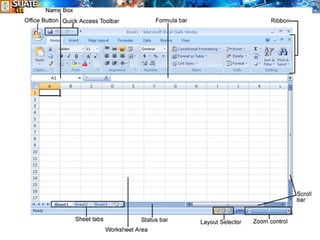
Cell Address
4
A1
B2
Current cell
A cell is identified by specifying its cell address which
is the co-ordinate of the intersection of a column and row.
(it is formed by combining the corresponding column
letter and the row number.)
5
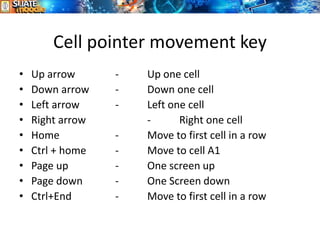
Cell pointer movement key
6
• Up arrow - Up one cell
• Down arrow - Down one cell
• Left arrow - Left one cell
• Right arrow - Right one cell
• Home - Move to first cell in a row
• Ctrl + home - Move to cell A1
• Page up - One screen up
• Page down - One Screen down
• Ctrl+End - Move to first cell in a row
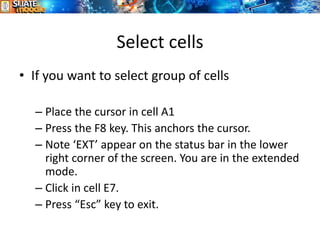
Select cells
7
• If you want to select group of cells
– Place the cursor in cell A1
– Press the F8 key. This anchors the cursor.
– Note ‘EXT’ appear on the status bar in the lower
right corner of the screen. You are in the extended
mode.
– Click in cell E7.
– Press “Esc” key to exit.
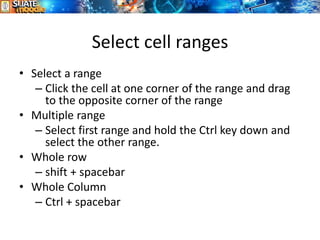
Select cell ranges
8
• Select a range
– Click the cell at one corner of the range and drag
to the opposite corner of the range
• Multiple range
– Select first range and hold the Ctrl key down and
select the other range.
• Whole row
– shift + spacebar
• Whole Column
– Ctrl + spacebar
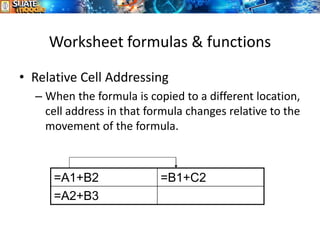
Worksheet formulas & functions
9
• Relative Cell Addressing
– When the formula is copied to a different location,
cell address in that formula changes relative to the
movement of the formula.
=A1+B2 =B1+C2
=A2+B3
, .
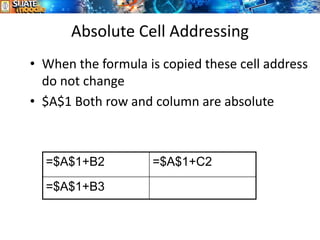
Absolute Cell Addressing
10
• When the formula is copied these cell address
do not change
• $A$1 Both row and column are absolute
=$A$1+B2 =$A$1+C2
=$A$1+B3
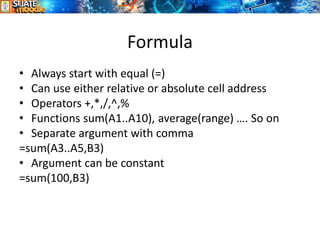
Formula
11
• Always start with equal (=)
• Can use either relative or absolute cell address
• Operators +,*,/,^,%
• Functions sum(A1..A10), average(range) …. So on
• Separate argument with comma
=sum(A3..A5,B3)
• Argument can be constant
=sum(100,B3)
Operators
12
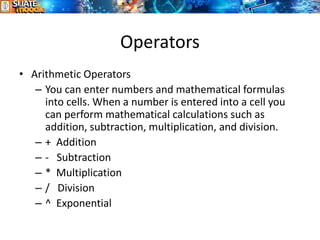
• Arithmetic Operators
– You can enter numbers and mathematical formulas
into cells. When a number is entered into a cell you
can perform mathematical calculations such as
addition, subtraction, multiplication, and division.
– + Addition
– - Subtraction
– * Multiplication
– / Division
– ^ Exponential
Comparison Operators
13
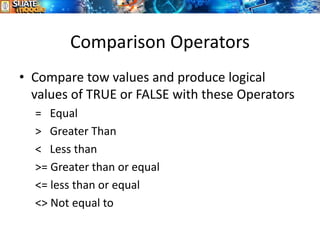
• Compare tow values and produce logical
values of TRUE or FALSE with these Operators
= Equal
> Greater Than
< Less than
>= Greater than or equal
<= less than or equal
<> Not equal to
Text Operator
14
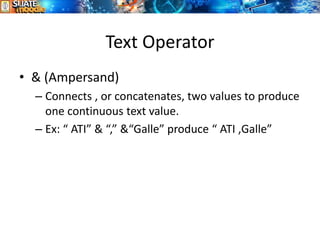
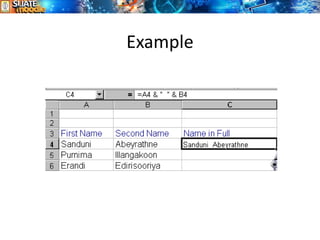
• & (Ampersand)
– Connects , or concatenates, two values to produce
one continuous text value.
– Ex: “ ATI” & “,” &“Galle” produce “ ATI ,Galle”
Reference operators
15
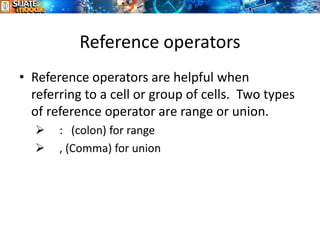
• Reference operators are helpful when
referring to a cell or group of cells. Two types
of reference operator are range or union.
➢ : (colon) for range
➢ , (Comma) for union
Example
16
What formula error value mean?
17
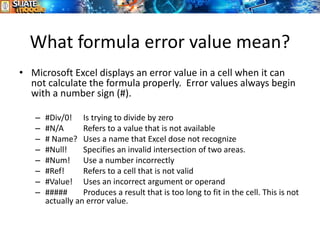
• Microsoft Excel displays an error value in a cell when it can
not calculate the formula properly. Error values always begin
with a number sign (#).
– #Div/0! Is trying to divide by zero
– #N/A Refers to a value that is not available
– # Name? Uses a name that Excel dose not recognize
– #Null! Specifies an invalid intersection of two areas.
– #Num! Use a number incorrectly
– #Ref! Refers to a cell that is not valid
– #Value! Uses an incorrect argument or operand
– ##### Produces a result that is too long to fit in the cell. This is not
actually an error value.
END
18

Excel note.pdf

  • 1.
  • 2.
    What is spreadsheet? •A spreadsheet is simply a table or matrix of rows and columns, very similar to an accounting journal. – Flexible – Speed – accuracy 2
  • 3.
    Spreadsheet terms 3 • Spreadsheetsare made up of – Columns – Rows – And their intersections are called cells • Each column is identified by the column letter – A,b,c,………AA,BB,…..IV • Each row is identified by the row number – 1,2,3,…….,999.1000,…..63536
  • 4.
    Cell Address 4 A1 B2 Current cell Acell is identified by specifying its cell address which is the co-ordinate of the intersection of a column and row. (it is formed by combining the corresponding column letter and the row number.)
  • 5.
  • 6.
    Cell pointer movementkey 6 • Up arrow - Up one cell • Down arrow - Down one cell • Left arrow - Left one cell • Right arrow - Right one cell • Home - Move to first cell in a row • Ctrl + home - Move to cell A1 • Page up - One screen up • Page down - One Screen down • Ctrl+End - Move to first cell in a row
  • 7.
    Select cells 7 • Ifyou want to select group of cells – Place the cursor in cell A1 – Press the F8 key. This anchors the cursor. – Note ‘EXT’ appear on the status bar in the lower right corner of the screen. You are in the extended mode. – Click in cell E7. – Press “Esc” key to exit.
  • 8.
    Select cell ranges 8 •Select a range – Click the cell at one corner of the range and drag to the opposite corner of the range • Multiple range – Select first range and hold the Ctrl key down and select the other range. • Whole row – shift + spacebar • Whole Column – Ctrl + spacebar
  • 9.
    Worksheet formulas &functions 9 • Relative Cell Addressing – When the formula is copied to a different location, cell address in that formula changes relative to the movement of the formula. =A1+B2 =B1+C2 =A2+B3 , .
  • 10.
    Absolute Cell Addressing 10 •When the formula is copied these cell address do not change • $A$1 Both row and column are absolute =$A$1+B2 =$A$1+C2 =$A$1+B3
  • 11.
    Formula 11 • Always startwith equal (=) • Can use either relative or absolute cell address • Operators +,*,/,^,% • Functions sum(A1..A10), average(range) …. So on • Separate argument with comma =sum(A3..A5,B3) • Argument can be constant =sum(100,B3)
  • 12.
    Operators 12 • Arithmetic Operators –You can enter numbers and mathematical formulas into cells. When a number is entered into a cell you can perform mathematical calculations such as addition, subtraction, multiplication, and division. – + Addition – - Subtraction – * Multiplication – / Division – ^ Exponential
  • 13.
    Comparison Operators 13 • Comparetow values and produce logical values of TRUE or FALSE with these Operators = Equal > Greater Than < Less than >= Greater than or equal <= less than or equal <> Not equal to
  • 14.
    Text Operator 14 • &(Ampersand) – Connects , or concatenates, two values to produce one continuous text value. – Ex: “ ATI” & “,” &“Galle” produce “ ATI ,Galle”
  • 15.
    Reference operators 15 • Referenceoperators are helpful when referring to a cell or group of cells. Two types of reference operator are range or union. ➢ : (colon) for range ➢ , (Comma) for union
  • 16.
  • 17.
    What formula errorvalue mean? 17 • Microsoft Excel displays an error value in a cell when it can not calculate the formula properly. Error values always begin with a number sign (#). – #Div/0! Is trying to divide by zero – #N/A Refers to a value that is not available – # Name? Uses a name that Excel dose not recognize – #Null! Specifies an invalid intersection of two areas. – #Num! Use a number incorrectly – #Ref! Refers to a cell that is not valid – #Value! Uses an incorrect argument or operand – ##### Produces a result that is too long to fit in the cell. This is not actually an error value.
  • 18.