Enchanting
NXT Lego mindstorm
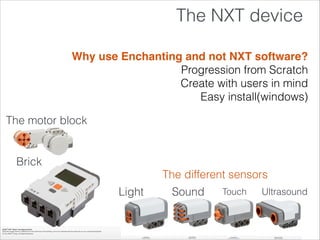
The NXT device
The different sensors
The motor block
Brick
Light Sound Touch Ultrasound
Why use Enchanting and not NXT software?
Progression from Scratch
Create with users in mind
Easy install(windows)
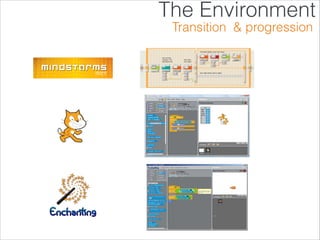
The Environment
Transition & progression
What is it?
Who created it?
Enchanting is a programming
environment for LEGO Mindstorms
NXT. It was built to provide an easier
way to do more with the NXT. Provide
more success and less frustration.
SABRE
South Alberta Robotics
Head of SABRE: Clinton Blackmore
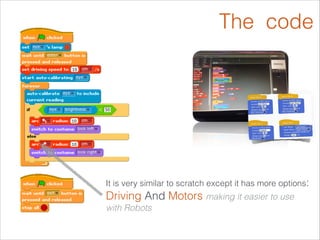
The code
It is very similar to scratch except it has more options:
Driving And Motors making it easier to use
with Robots
Online resources
http://enchanting.robotclub.ab.ca/tiki-index.php
Configuring a Sensor
http://enchanting.robotclub.ab.ca
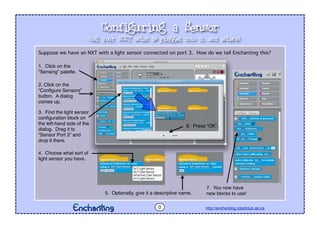
Suppose we have an NXT with a light sensor connected on port 3. How do we tell Enchanting this?
0
(tell your NXT what is plugged into it, and where)
1. Click on the
“Sensing” palette.
2. Click on the
“Configure Sensors”
button. A dialog
comes up.
3. Find the light sensor
configuration block on
the left-hand side of the
dialog. Drag it to
“Sensor Port 3” and
drop it there.
4. Choose what sort of
light sensor you have.
5. Optionally, give it a descriptive name.
6. Press “OK”.
7. You now have
new blocks to use!
Morse Key
Select the palette, and click on the
button [it is above all
the light blue blocks].
Configure a touch sensor, like this:
Make sure that your touch sensor is
on port 1 on the actual robot.
Click the and wait for the program to
run on the robot. Press and release the
touch sensor. What happens?
GET$READY
TRY$THIS$CODE
DO$IT!
What would happen if you changed the note or the
duration?
Where could you use or ?
GO$FARTHER
YOU$NEED
An NXT with a touch sensor
connected to port 1.
Press a button to make a sound.
Morse Key
http://enchanting.robotclub.ab.ca1
Name it.
Beep!
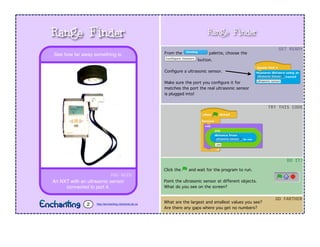
Range Finder
From the palette, choose the
button.
Configure a ultrasonic sensor.
Make sure the port you configure it for
matches the port the real ultrasonic sensor
is plugged into!
Click the and wait for the program to run.
Point the ultrasonic sensor at different objects.
What do you see on the screen?
GET$READY
TRY$THIS$CODE
DO$IT!
What are the largest and smallest values you see?
Are there any gaps where you get no numbers?
GO$FARTHER
YOU$NEED
An NXT with an ultrasonic sensor
connected to port 4.
See how far away something is.
Range Finder
http://enchanting.robotclub.ab.ca2
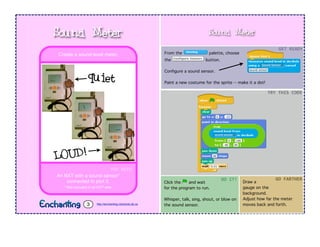
Sound Meter
From the palette, choose
the button.
Configure a sound sensor.
Paint a new costume for the sprite -- make it a dot!
Click the and wait
for the program to run.
Whisper, talk, sing, shout, or blow on
the sound sensor.
GET$READY
TRY$THIS$CODE
DO$IT!
YOU$NEED
An NXT with a sound sensor*
connected to port 2.
* Not included in all NXT sets.
Create a sound-level meter.
Sound Meter
http://enchanting.robotclub.ab.ca3
Draw a
gauge on the
background.
Adjust how far the meter
moves back and forth.
GO$FARTHER
quiet
LOUD!
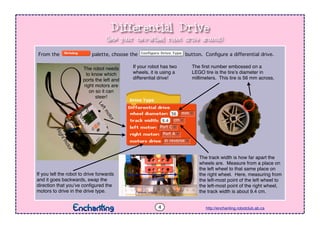
Differential Drive
http://enchanting.robotclub.ab.ca
From the palette, choose the button. Configure a differential drive.
The first number embossed on a
LEGO tire is the tire’s diameter in
millimeters. This tire is 56 mm across.
The track width is how far apart the
wheels are. Measure from a place on
the left wheel to that same place on
the right wheel. Here, measuring from
the left-most point of the left wheel to
the left-most point of the right wheel,
the track width is about 9.4 cm.
PortA
Rightmotor
PortC
Leftmotor
9.4 cm
4
If you tell the robot to drive forwards
and it goes backwards, swap the
direction that you’ve configured the
motors to drive in the drive type.
The robot needs
to know which
ports the left and
right motors are
on so it can
steer!
If your robot has two
wheels, it is using a
differential drive!
(lets your two-wheel robot drive around)
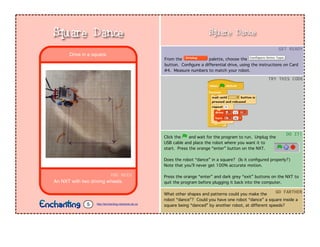
Square Dance
From the palette, choose the
button. Configure a differential drive, using the instructions on Card
#4. Measure numbers to match your robot.
Click the and wait for the program to run. Unplug the
USB cable and place the robot where you want it to
start. Press the orange “enter” button on the NXT.
Does the robot “dance” in a square? (Is it configured properly?)
Note that you’ll never get 100% accurate motion.
Press the orange “enter” and dark grey “exit” buttons on the NXT to
quit the program before plugging it back into the computer.
GET$READY
TRY$THIS$CODE
DO$IT!
What other shapes and patterns could you make the
robot “dance”? Could you have one robot “dance” a square inside a
square being “danced” by another robot, at different speeds?
GO$FARTHER
YOU$NEED
An NXT with two driving wheels.
Drive in a square.
Square Dance
http://enchanting.robotclub.ab.ca5
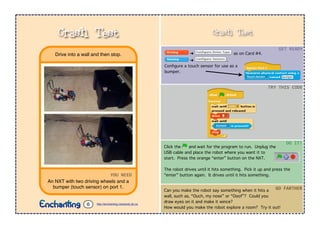
Crash Test
➔ as on Card #4.
➔ .
Configure a touch sensor for use as a
bumper.
Click the and wait for the program to run. Unplug the
USB cable and place the robot where you want it to
start. Press the orange “enter” button on the NXT.
The robot drives until it hits something. Pick it up and press the
“enter” button again. It drives until it hits something.
GET$READY
TRY$THIS$CODE
DO$IT!
Can you make the robot say something when it hits a
wall, such as, “Ouch, my nose” or “Ooof”? Could you
draw eyes on it and make it wince?
How would you make the robot explore a room? Try it out!
GO$FARTHER
YOU$NEED
An NXT with two driving wheels and a
bumper (touch sensor) on port 1.
Drive into a wall and then stop.
Crash Test
http://enchanting.robotclub.ab.ca6
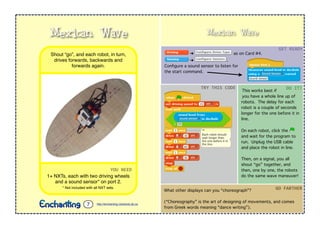
Mexican Wave
➔ as on Card #4.
➔ .
Configure a sound sensor to listen for
the start command.
This works best if
you have a whole line up of
robots. The delay for each
robot is a couple of seconds
longer for the one before it in
line.
On each robot, click the
and wait for the program to
run. Unplug the USB cable
and place the robot in line.
Then, on a signal, you all
shout “go” together, and
then, one by one, the robots
do the same wave maneuver!
GET$READY
TRY$THIS$CODE DO$IT!
What other displays can you “choreograph”?
(“Choreography” is the art of designing of movements, and comes
from Greek words meaning “dance writing”).
GO$FARTHER
YOU$NEED
1+ NXTs, each with two driving wheels
and a sound sensor* on port 2.
* Not included with all NXT sets.
Shout “go”, and each robot, in turn,
drives forwards, backwards and
forwards again.
Mexican Wave
http://enchanting.robotclub.ab.ca7
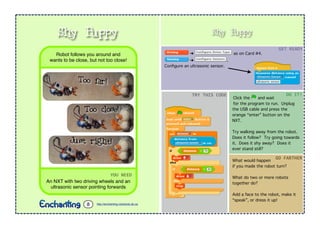
Shy Puppy
➔ as on Card #4.
➔ .
Configure an ultrasonic sensor.
Click the and wait
for the program to run. Unplug
the USB cable and press the
orange “enter” button on the
NXT.
Try walking away from the robot.
Does it follow? Try going towards
it. Does it shy away? Does it
ever stand still?
GET$READY
TRY$THIS$CODE DO$IT!
What would happen
if you made the robot turn?
What do two or more robots
together do?
Add a face to the robot, make it
“speak”, or dress it up!
GO$FARTHER
YOU$NEED
An NXT with two driving wheels and an
ultrasonic sensor pointing forwards
Robot follows you around and
wants to be close, but not too close!
Shy Puppy
http://enchanting.robotclub.ab.ca8
Too far!
Too close!
Just right!
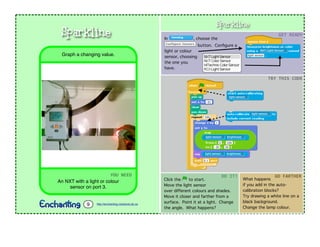
Sparkline In , choose the
button. Configure a
light or colour
sensor, choosing
the one you
have.
GET$READY
TRY$THIS$CODE
YOU$NEED
An NXT with a light or colour
sensor on port 3.
Graph a changing value.
Sparkline
http://enchanting.robotclub.ab.ca9
Click the to start.
Move the light sensor
over different colours and shades.
Move it closer and farther from a
surface. Point it at a light. Change
the angle. What happens?
DO$IT!
What happens
if you add in the auto-
calibration blocks?
Try drawing a white line on a
black background.
Change the lamp colour.
GO$FARTHER
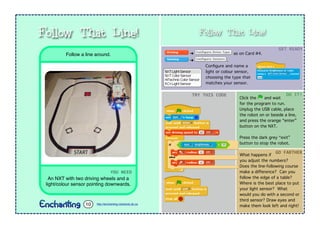
Follow That Line!
➔ as on Card #4.
➔ .
Configure and name a
light or colour sensor,
choosing the type that
matches your sensor.
Click the and wait
for the program to run.
Unplug the USB cable, place
the robot on or beside a line,
and press the orange “enter”
button on the NXT.
Press the dark grey “exit”
button to stop the robot.
GET$READY
TRY$THIS$CODE DO$IT!
What happens if
you adjust the numbers?
Does the line-following course
make a difference? Can you
follow the edge of a table?
Where is the best place to put
your light sensor? What
would you do with a second or
third sensor? Draw eyes and
make them look left and right!
GO$FARTHER
YOU$NEED
An NXT with two driving wheels and a
light/colour sensor pointing downwards.
Follow a line around.
Follow That Line!
http://enchanting.robotclub.ab.ca10
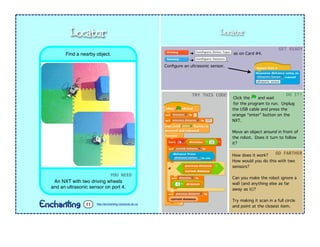
Locator
➔ as on Card #4.
➔ .
Configure an ultrasonic sensor.
Click the and wait
for the program to run. Unplug
the USB cable and press the
orange “enter” button on the
NXT.
Move an object around in front of
the robot. Does it turn to follow
it?
GET$READY
TRY$THIS$CODE DO$IT!
How does it work?
How would you do this with two
sensors?
Can you make the robot ignore a
wall (and anything else as far
away as it)?
Try making it scan in a full circle
and point at the closest item.
GO$FARTHER
YOU$NEED
An NXT with two driving wheels
and an ultrasonic sensor on port 4.
Find a nearby object.
Locator
http://enchanting.robotclub.ab.ca11
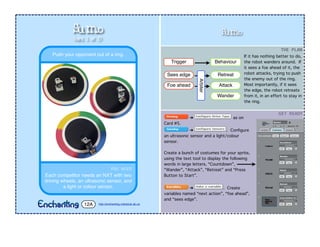
Sumo
➔ as on
Card #5.
➔ . Configure
an ultrasonic sensor and a light/colour
sensor.
Create a bunch of costumes for your sprite,
using the text tool to display the following
words in large letters, “Countdown”,
“Wander”, “Attack”, “Retreat” and “Press
Button to Start”.
➔ . Create
variables named “next action”, “foe ahead”,
and “sees edge”.
YOU$NEED
Each competitor needs an NXT with two
driving wheels, an ultrasonic sensor, and
a light or colour sensor.
Push your opponent out of a ring.
Sumo
http://enchanting.robotclub.ab.ca12A
Trigger Behaviour
Sees edge Retreat
Foe ahead Attack
Wander
Arbiter
GET$READY
THE$PLAN
If it has nothing better to do,
the robot wanders around. If
it sees a foe ahead of it, the
robot attacks, trying to push
the enemy out of the ring.
Most importantly, if it sees
the edge, the robot retreats
from it, in an effort to stay in
the ring.
(card 1 of 2)
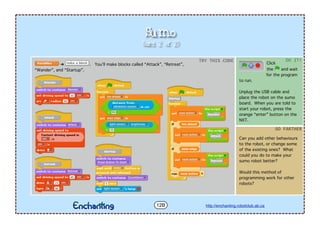
Sumo
Click
the and wait
for the program
to run.
Unplug the USB cable and
place the robot on the sumo
board. When you are told to
start your robot, press the
orange “enter” button on the
NXT.
DO$IT!
Can you add other behaviours
to the robot, or change some
of the existing ones? What
could you do to make your
sumo robot better?
Would this method of
programming work for other
robots?
GO$FARTHER
➔ . You’ll make blocks called “Attack”, “Retreat”,
“Wander”, and “Startup”.
TRY$THIS$CODE
http://enchanting.robotclub.ab.ca12B
DO$IT!
(card 2 of 2)

Enchanting y LEGO NXT

  • 1.
  • 2.
    The NXT device Thedifferent sensors The motor block Brick Light Sound Touch Ultrasound Why use Enchanting and not NXT software? Progression from Scratch Create with users in mind Easy install(windows)
  • 3.
  • 4.
    What is it? Whocreated it? Enchanting is a programming environment for LEGO Mindstorms NXT. It was built to provide an easier way to do more with the NXT. Provide more success and less frustration. SABRE South Alberta Robotics Head of SABRE: Clinton Blackmore
  • 5.
    The code It isvery similar to scratch except it has more options: Driving And Motors making it easier to use with Robots
  • 6.
  • 7.
    Configuring a Sensor http://enchanting.robotclub.ab.ca Supposewe have an NXT with a light sensor connected on port 3. How do we tell Enchanting this? 0 (tell your NXT what is plugged into it, and where) 1. Click on the “Sensing” palette. 2. Click on the “Configure Sensors” button. A dialog comes up. 3. Find the light sensor configuration block on the left-hand side of the dialog. Drag it to “Sensor Port 3” and drop it there. 4. Choose what sort of light sensor you have. 5. Optionally, give it a descriptive name. 6. Press “OK”. 7. You now have new blocks to use!
  • 8.
    Morse Key Select thepalette, and click on the button [it is above all the light blue blocks]. Configure a touch sensor, like this: Make sure that your touch sensor is on port 1 on the actual robot. Click the and wait for the program to run on the robot. Press and release the touch sensor. What happens? GET$READY TRY$THIS$CODE DO$IT! What would happen if you changed the note or the duration? Where could you use or ? GO$FARTHER YOU$NEED An NXT with a touch sensor connected to port 1. Press a button to make a sound. Morse Key http://enchanting.robotclub.ab.ca1 Name it. Beep!
  • 9.
    Range Finder From thepalette, choose the button. Configure a ultrasonic sensor. Make sure the port you configure it for matches the port the real ultrasonic sensor is plugged into! Click the and wait for the program to run. Point the ultrasonic sensor at different objects. What do you see on the screen? GET$READY TRY$THIS$CODE DO$IT! What are the largest and smallest values you see? Are there any gaps where you get no numbers? GO$FARTHER YOU$NEED An NXT with an ultrasonic sensor connected to port 4. See how far away something is. Range Finder http://enchanting.robotclub.ab.ca2
  • 10.
    Sound Meter From thepalette, choose the button. Configure a sound sensor. Paint a new costume for the sprite -- make it a dot! Click the and wait for the program to run. Whisper, talk, sing, shout, or blow on the sound sensor. GET$READY TRY$THIS$CODE DO$IT! YOU$NEED An NXT with a sound sensor* connected to port 2. * Not included in all NXT sets. Create a sound-level meter. Sound Meter http://enchanting.robotclub.ab.ca3 Draw a gauge on the background. Adjust how far the meter moves back and forth. GO$FARTHER quiet LOUD!
  • 11.
    Differential Drive http://enchanting.robotclub.ab.ca From thepalette, choose the button. Configure a differential drive. The first number embossed on a LEGO tire is the tire’s diameter in millimeters. This tire is 56 mm across. The track width is how far apart the wheels are. Measure from a place on the left wheel to that same place on the right wheel. Here, measuring from the left-most point of the left wheel to the left-most point of the right wheel, the track width is about 9.4 cm. PortA Rightmotor PortC Leftmotor 9.4 cm 4 If you tell the robot to drive forwards and it goes backwards, swap the direction that you’ve configured the motors to drive in the drive type. The robot needs to know which ports the left and right motors are on so it can steer! If your robot has two wheels, it is using a differential drive! (lets your two-wheel robot drive around)
  • 12.
    Square Dance From thepalette, choose the button. Configure a differential drive, using the instructions on Card #4. Measure numbers to match your robot. Click the and wait for the program to run. Unplug the USB cable and place the robot where you want it to start. Press the orange “enter” button on the NXT. Does the robot “dance” in a square? (Is it configured properly?) Note that you’ll never get 100% accurate motion. Press the orange “enter” and dark grey “exit” buttons on the NXT to quit the program before plugging it back into the computer. GET$READY TRY$THIS$CODE DO$IT! What other shapes and patterns could you make the robot “dance”? Could you have one robot “dance” a square inside a square being “danced” by another robot, at different speeds? GO$FARTHER YOU$NEED An NXT with two driving wheels. Drive in a square. Square Dance http://enchanting.robotclub.ab.ca5
  • 13.
    Crash Test ➔ ason Card #4. ➔ . Configure a touch sensor for use as a bumper. Click the and wait for the program to run. Unplug the USB cable and place the robot where you want it to start. Press the orange “enter” button on the NXT. The robot drives until it hits something. Pick it up and press the “enter” button again. It drives until it hits something. GET$READY TRY$THIS$CODE DO$IT! Can you make the robot say something when it hits a wall, such as, “Ouch, my nose” or “Ooof”? Could you draw eyes on it and make it wince? How would you make the robot explore a room? Try it out! GO$FARTHER YOU$NEED An NXT with two driving wheels and a bumper (touch sensor) on port 1. Drive into a wall and then stop. Crash Test http://enchanting.robotclub.ab.ca6
  • 14.
    Mexican Wave ➔ ason Card #4. ➔ . Configure a sound sensor to listen for the start command. This works best if you have a whole line up of robots. The delay for each robot is a couple of seconds longer for the one before it in line. On each robot, click the and wait for the program to run. Unplug the USB cable and place the robot in line. Then, on a signal, you all shout “go” together, and then, one by one, the robots do the same wave maneuver! GET$READY TRY$THIS$CODE DO$IT! What other displays can you “choreograph”? (“Choreography” is the art of designing of movements, and comes from Greek words meaning “dance writing”). GO$FARTHER YOU$NEED 1+ NXTs, each with two driving wheels and a sound sensor* on port 2. * Not included with all NXT sets. Shout “go”, and each robot, in turn, drives forwards, backwards and forwards again. Mexican Wave http://enchanting.robotclub.ab.ca7
  • 15.
    Shy Puppy ➔ ason Card #4. ➔ . Configure an ultrasonic sensor. Click the and wait for the program to run. Unplug the USB cable and press the orange “enter” button on the NXT. Try walking away from the robot. Does it follow? Try going towards it. Does it shy away? Does it ever stand still? GET$READY TRY$THIS$CODE DO$IT! What would happen if you made the robot turn? What do two or more robots together do? Add a face to the robot, make it “speak”, or dress it up! GO$FARTHER YOU$NEED An NXT with two driving wheels and an ultrasonic sensor pointing forwards Robot follows you around and wants to be close, but not too close! Shy Puppy http://enchanting.robotclub.ab.ca8 Too far! Too close! Just right!
  • 16.
    Sparkline In ,choose the button. Configure a light or colour sensor, choosing the one you have. GET$READY TRY$THIS$CODE YOU$NEED An NXT with a light or colour sensor on port 3. Graph a changing value. Sparkline http://enchanting.robotclub.ab.ca9 Click the to start. Move the light sensor over different colours and shades. Move it closer and farther from a surface. Point it at a light. Change the angle. What happens? DO$IT! What happens if you add in the auto- calibration blocks? Try drawing a white line on a black background. Change the lamp colour. GO$FARTHER
  • 17.
    Follow That Line! ➔as on Card #4. ➔ . Configure and name a light or colour sensor, choosing the type that matches your sensor. Click the and wait for the program to run. Unplug the USB cable, place the robot on or beside a line, and press the orange “enter” button on the NXT. Press the dark grey “exit” button to stop the robot. GET$READY TRY$THIS$CODE DO$IT! What happens if you adjust the numbers? Does the line-following course make a difference? Can you follow the edge of a table? Where is the best place to put your light sensor? What would you do with a second or third sensor? Draw eyes and make them look left and right! GO$FARTHER YOU$NEED An NXT with two driving wheels and a light/colour sensor pointing downwards. Follow a line around. Follow That Line! http://enchanting.robotclub.ab.ca10
  • 18.
    Locator ➔ as onCard #4. ➔ . Configure an ultrasonic sensor. Click the and wait for the program to run. Unplug the USB cable and press the orange “enter” button on the NXT. Move an object around in front of the robot. Does it turn to follow it? GET$READY TRY$THIS$CODE DO$IT! How does it work? How would you do this with two sensors? Can you make the robot ignore a wall (and anything else as far away as it)? Try making it scan in a full circle and point at the closest item. GO$FARTHER YOU$NEED An NXT with two driving wheels and an ultrasonic sensor on port 4. Find a nearby object. Locator http://enchanting.robotclub.ab.ca11
  • 19.
    Sumo ➔ as on Card#5. ➔ . Configure an ultrasonic sensor and a light/colour sensor. Create a bunch of costumes for your sprite, using the text tool to display the following words in large letters, “Countdown”, “Wander”, “Attack”, “Retreat” and “Press Button to Start”. ➔ . Create variables named “next action”, “foe ahead”, and “sees edge”. YOU$NEED Each competitor needs an NXT with two driving wheels, an ultrasonic sensor, and a light or colour sensor. Push your opponent out of a ring. Sumo http://enchanting.robotclub.ab.ca12A Trigger Behaviour Sees edge Retreat Foe ahead Attack Wander Arbiter GET$READY THE$PLAN If it has nothing better to do, the robot wanders around. If it sees a foe ahead of it, the robot attacks, trying to push the enemy out of the ring. Most importantly, if it sees the edge, the robot retreats from it, in an effort to stay in the ring. (card 1 of 2)
  • 20.
    Sumo Click the and wait forthe program to run. Unplug the USB cable and place the robot on the sumo board. When you are told to start your robot, press the orange “enter” button on the NXT. DO$IT! Can you add other behaviours to the robot, or change some of the existing ones? What could you do to make your sumo robot better? Would this method of programming work for other robots? GO$FARTHER ➔ . You’ll make blocks called “Attack”, “Retreat”, “Wander”, and “Startup”. TRY$THIS$CODE http://enchanting.robotclub.ab.ca12B DO$IT! (card 2 of 2)